Encrypted traffic analytics (ETA)
Encrypted Traffic Analytics (ETA) is a network monitoring technology that
-
leverages Flexible NetFlow (FNF) to export useful flow information to collectors,
-
enables the identification of threats and malware in encrypted traffic, and
-
operates without decryption, preserving privacy while maintaining network visibility.
ETA uses FNF technology to analyze network traffic flows, even when they are encrypted. ETA exports selected metadata about these flows to provide visibility into potential threats and anomalies, enhancing security monitoring.
ETA operation and deployment details
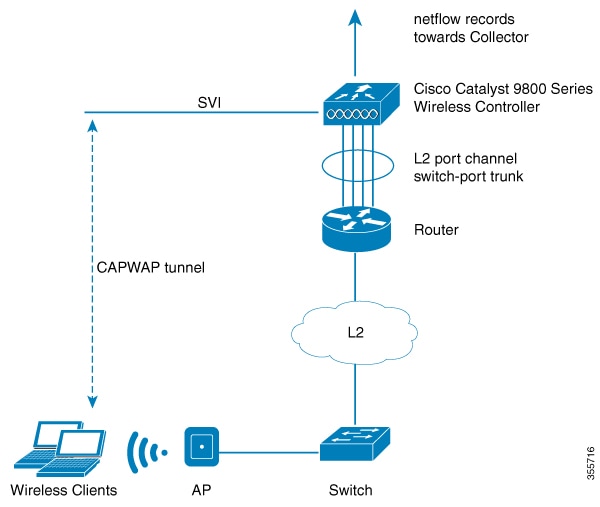
Wireless clients send data packets to the access point. The access point encapsulates the packets with Control and Provisioning of Wireless Access Points (CAPWAP) and sends them to the controller. The actual client data is in the CAPWAP payload. To apply ETA to client data, strip the CAPWAP header before handing the packet to the ETA module.
-
ETA leverages Flexible NetFlow (FNF) to export flow information.
-
You can use ETA analytics to identify malware.
-
ETA supports exporting records over IP Flow Information Export (IPFIX) (NetFlow version 10).
-
ETA allows you to configure a source interface for exports.
Supported features and release information
Starting from Cisco IOS XE 17.1.1s, ETA supports inspection for IPv6 traffic. ETA inspection for IPv6 traffic is enabled by default and requires no special configuration. Additional features that are available in this release include:
-
allowed list support for IPv6 traffic,
-
exporting ETA records to IPv4 or IPv6 export destinations,
-
exporting records over IP Flow Information Export (IPFIX) (NetFlow version 10), and
-
configuring a source interface for ETA exports.
You can export ETA records to IPv4 or IPv6 NetFlow collectors.
Advantages
Using ETA offers these important advantages:
-
You gain enhanced threat analytics by using telemetry data, and
-
you can use analytics with ETA to identify malware.
Export records to IPv4 flow export destination (CLI)
Enable Encrypted Traffic Analytics (ETA). Configure your device to export NetFlow records to a specific IPv4 flow export destination using CLI commands. This setup lets you monitor encrypted network traffic and forward flow data for analysis.
Procedure
|
Step 1 |
Enter global configuration mode. Example: |
|
Step 2 |
Enable Encrypted Traffic Analytics. Example: |
|
Step 3 |
Configure the NetFlow record export. Example:The value for port_number ranges from one to 65,535. |
|
Step 4 |
Return to privileged EXEC mode. Example: |
ETA is enabled. NetFlow records are exported to the specified IPv4 destination and port.
Export ETA records to an IPv6 flow export destination
Export ETA records so that traffic analytics data can be collected and analyzed by external flow collectors using IPv6 addresses.
Procedure
|
Step 1 |
Enter the global configuration mode. Example: |
||
|
Step 2 |
Enable encrypted traffic analytics. Example: |
||
|
Step 3 |
Enter the IPv6 address and port for the NetFlow record export destination. Example:
|
||
|
Step 4 |
Return to global configuration mode. Example: |
ETA records are sent from the device to the specified IPv6 flow export destination, enabling the external collector to receive and analyze encrypted traffic data.
Export records to IPv4 and IPv6 destinations using IPFIX (CLI)
Export network flow records to IPv4 and IPv6 destinations for traffic analysis and bandwidth optimization.
Exporting NetFlow records over IPFIX allows you to efficiently gather traffic flow data from network devices. IPFIX supports variable-length fields, reducing bandwidth requirements for transmission. You can configure up to four export destinations—both IPv4 and IPv6 combined.
Procedure
|
Step 1 |
Enter global configuration mode. Example: |
||
|
Step 2 |
Enable encrypted traffic analytics. Example: |
||
|
Step 3 |
Enter the NetFlow record export destination IP address, port, and format. Example: |
||
|
Step 4 |
Enter the NetFlow record export destination IPv6 address, port, and format. Example:IPFIX allows you to collect flow information from network devices that support the IPFIX protocol. You can analyze this traffic flow information by processing it through a NetFlow analyzer.
|
||
|
Step 5 |
Return to global configuration mode. Example: |
You have configured the device to export NetFlow records to the specified IPv4 and IPv6 destinations using IPFIX.
Add list of allowed traffic (CLI)
Exclude designated IPv4 or IPv6 traffic from ETA inspection by adding a list of allowed traffic. This approach improves performance and helps you target inspection as needed.
Before you begin
Configure an IPv4 or IPv6 access list.
-
IPv4 ACL: ip access-list standard acl_name
Device(config)# ip access-list standard eta-whitelist_ipv4 -
IPv6 ACL: ipv6 access-list acl_name
Device(config)# ipv6 access-list eta-whitelist_ipv6
ETA inspection skips traffic on the allowed list and does not generate records for matching traffic.
Procedure
|
Step 1 |
Enter global configuration mode. Example: |
||
|
Step 2 |
Enable encrypted traffic analytics. Example: |
||
|
Step 3 |
Configure an allowed list for IPv4 or IPv6 traffic. Example:
|
||
|
Step 4 |
Return to global configuration mode. Example: |
||
|
Step 5 |
(Optional) To add any IPv6 TFTP traffic to the allowed list, configure a sequence number and specify access conditions. Example: |
ETA inspection excludes traffic on the allowed list and does not generate records for it.
Configure the source interface for record export (CLI)
Ensure that exported NetFlow or ETA records use a consistent and intended source IP address, which can be crucial for downstream processing and network policy enforcement.
Procedure
|
Step 1 |
Enter the global configuration mode. Example: |
||
|
Step 2 |
Enable encrypted traffic analytics. Example: |
||
|
Step 3 |
Specify NetFlow record export destination IP address, source interface and format. Example:Example:This allows the ETA export to use the IP address of the specified interface, as against using the IP address of the egress interface as the source address. The source interface is applicable for both IPv4 and IPv6 export destinations.
|
||
|
Step 4 |
Specify NetFlow record export destination IPv6 address, source interface and format. Example:Example: |
||
|
Step 5 |
Return to global configuration mode. Example: |
The device is configured to export NetFlow or ETA records using the IP address of the specified source interface, ensuring consistent source address information for all exports.
Configure the source interface for record export without IPFIX (CLI)
Configure a source interface to correctly export flow records without leveraging the IPFIX format.
Procedure
|
Step 1 |
Enters the global configuration mode. Example: |
|
Step 2 |
Enables encrypted traffic analytics. Example: |
|
Step 3 |
Specifies NetFlow record export destination IP address, source interface and format. Example:Example: |
|
Step 4 |
Specify NetFlow record export destination IPv6 address, source interface and format. Example:Example: |
|
Step 5 |
Returns to global configuration mode. Example: |
The device is now configured to export NetFlow records using the specified source interface, without IPFIX.
Configure the ETA flow export destination (GUI)
Configure a flow export destination so that ETA can export NetFlow data from your network device to a specified collector.
Procedure
|
Step 1 |
Choose Configuration > Services > NetFlow. |
||
|
Step 2 |
Click Add. The Create NetFlow dialog box opens. |
||
|
Step 3 |
Choose one of the available templates from the NetFlow Template drop-down list. |
||
|
Step 4 |
Enter an IPv4 or IPv6 address in the Collector Address field. |
||
|
Step 5 |
From the Allowed List ACL drop-down list, choose the desired option.
|
||
|
Step 6 |
Enter a port number in the Exporter Port field. Specify a value in the range 1 to 65535. |
||
|
Step 7 |
Choose the desired option from the Export Interface IP drop-down list. |
||
|
Step 8 |
Choose one of the sampling methods from the Sampling Method drop-down list. The available options are Deterministic, Random, and Full NetFlow. |
||
|
Step 9 |
Enter a sampling range between 32 and 1032. |
||
|
Step 10 |
Select the required interfaces or profile from the Available pane and move it to the Selected pane. |
||
|
Step 11 |
Click Save and Apply to Device. |
The ETA flow export destination is configured, and NetFlow traffic is exported according to the specified settings.
Enable the inactive timer (CLI)
Specify the duration after which inactive traffic flows are removed.
Procedure
|
Step 1 |
Enter global configuration mode. Example: |
|
Step 2 |
Configure encrypted traffic analytics. Example: |
|
Step 3 |
Specify the inactive flow timeout value. Example:The value for timeout-in-seconds ranges from 1 second to 604,800 seconds (approximately 1 second to 7 days). |
|
Step 4 |
Return to privileged EXEC mode. Example: |
Inactive flows are removed after the specified timeout duration.
Enable ETA on WLAN policy profile
Enable Encrypted Traffic Analytics (ETA) on a WLAN policy profile to enhance visibility and detection of threats in encrypted traffic.
Procedure
|
Step 1 |
Enter the global configuration mode. Example: |
|
Step 2 |
Create policy profile for the WLAN. Example:The profile-name is the profile name of the policy profile. |
|
Step 3 |
Enable encrypted traffic analytics on the policy. Example: |
|
Step 4 |
Return to privileged EXEC mode. Example: |
ETA is enabled on the specified WLAN policy profile, allowing monitoring and analysis of encrypted traffic on the WLAN.
Attach policy profile to VLAN (GUI)
Apply policy enforcement and configuration to a VLAN.
Procedure
|
Step 1 |
Check the RADIUS Profiling checkbox. |
|
Step 2 |
From the Local Subscriber Policy Name, choose the required policy name. |
|
Step 3 |
In the WLAN Local Profiling section, enable or disable the Global State of Device Classification. |
|
Step 4 |
Check the checkbox for HTTP TLV Caching. Also, check the checkbox for DHCP TLV Caching. |
|
Step 5 |
In the VLAN section, choose the VLAN/VLAN Group from the drop-down list. Enter the Multicast VLAN. |
|
Step 6 |
In the WLAN ACL section, choose the IPv4 ACL and IPv6 ACL from the drop-down list. |
|
Step 7 |
In the URL Filters section, choose the Pre Auth and Post Auth from the drop-down list. |
|
Step 8 |
Click Save and Apply to Device. |
The policy profile is applied to the selected VLAN. The device enforces the specified settings.
Attach policy profile to VLAN
Associate a wireless policy profile with specific VLANs to enable intended network policies.
Procedure
|
Step 1 |
Enter the global configuration mode. Example: |
|
Step 2 |
Create policy profile for the WLAN. Example:The profile-name is the profile name of the policy profile. |
|
Step 3 |
Assign the policy profile to the VLANs. Example: |
|
Step 4 |
Enable the wireless policy profile. Example: |
The policy profile is now associated with the specified VLAN(s), and the wireless policy is active.
Verify ETA configuration
Verify ETA globally
To view the ETA global and interface details, use this command:
Device# show platform software utd chassis active F0 et-analytics global

ET Analytics Global Configuration
ID: 1
All Interfaces: Off
IP address and port and vrf: 192.168.5.2:2055:0
To view the ETA global configuration, use this command:
Device# show platform software et-analytics global

ET-Analytics Global state
=========================
 All Interfaces   : Off
 IP Flow-record Destination: 192.168.5.2 : 2055
 Inactive timer: 15
 Note |
The show platform software et-analytics global command does not display the ETA enabled wireless client interfaces. |
To view the ETA global state in datapath, use this command:
Device# show platform hardware chassis active qfp feature et-analytics datapath runtime

ET-Analytics run-time information:

   Feature state: initialized (0x00000004)
   Inactive timeout      : 15 secs (default 15 secs)
   WhiteList information :
       flag: False
       cgacl w0 :  n/a
       cgacl w1 :  n/a
   Flow CFG information  :
       instance ID       : 0x0
       feature ID        : 0x1
       feature object ID : 0x1
       chunk ID : 0xC
To view the ETA memory details, use this command:
Device# show platform hardware chassis active qfp feature et-analytics datapath memory

ET-Analytics memory information:

   Size of FO            : 3200 bytes
   No. of FO allocs      : 0
   No. of FO frees       : 0
To view the ETA flow export in datapath, use this command:
Device# show platform hardware chassis active qfp feature et-analytics datapath stats export

ET-Analytics 192.168.5.2:2055 vrf 0 Stats:
    Export statistics:
      Total records exported     : 5179231
      Total packets exported     : 3124873
      Total bytes exported       : 3783900196
      Total dropped records      : 0
      Total dropped packets      : 0
      Total dropped bytes        : 0
      Total IDP records exported :
            initiator->responder : 1285146
            responder->initiator : 979284
      Total SPLT records exported:
            initiator->responder : 1285146
            responder->initiator : 979284
      Total SALT records exported:
            initiator->responder : 0
            responder->initiator : 0
      Total BD records exported  :
            initiator->responder : 0
            responder->initiator : 0
      Total TLS records exported :
            initiator->responder : 309937
            responder->initiator : 329469
To view the ETA flow statistics, use this command:
Device# show platform hardware chassis active qfp feature et-analytics datapath stats flow

ET-Analytics Stats:
    Flow statistics:
      feature object allocs : 0
      feature object frees  : 0
      flow create requests  : 0
      flow create matching  : 0
      flow create successful: 0
      flow create failed, CFT handle: 0
      flow create failed, getting FO: 0
      flow create failed, malloc FO : 0
      flow create failed, attach FO : 0
      flow create failed, match flow: 0
      flow create, aging already set: 0
      flow ageout requests          : 0
      flow ageout failed, freeing FO: 0
      flow ipv4 ageout requests     : 0
      flow ipv6 ageout requests     : 0
      flow whitelist traffic match  : 0
Verifying ETA on Wireless Client Interface
To view if a policy is configured with ETA, use this command:
Device# show wireless profile policy detailed default-policy-profile

Policy Profile Name           : default-policy-profile
Description                   : default policy profile
Status                        : ENABLED
VLAN                          : 160
Multicast VLAN                : 0
Passive Client                : DISABLED
ET-Analytics                  : DISABLED
StaticIP Mobility             : DISABLED
WLAN Switching Policy
  Central Switching           : ENABLED
  Central Authentication      : ENABLED
  Central DHCP                : ENABLED
  Flex NAT PAT            : DISABLED
  Central Assoc               : ENABLED
To view the ETA status in the wireless client detail, use this command:
Device# show platform hardware chassis active qfp feature wireless wlclient datapath <client_mac>

Wlclient Details for Client mac: 0026.c635.ebf8
  ---------------------------------
    Input VlanId  :  160
    Point of Presence      :  0
    Wlclient Input flags   :  9
    Instance ID   :  3
    ETA enabled   :  True
    client_mac_addr        :  0026.c635.ebf8

    bssid_mac_addr:  58ac.7843.037f
    Point of Attachment    :  65497
    Output vlanId :  160
    wlan_output_uidb       :  -1
    Wlclient Output flags  :  9
    Radio ID :  1
    cgacl w0 :  0x0
    cgacl w1 :  0x0
    IPv6 addr number       :  0
    IPv6 addr learning     :  0
To view clients in the ETA pending wireless client tree, use this command:
Device# show platform hardware chassis active qfp feature wireless et-analytics eta-pending-client-tree

CPP IF_H     DPIDX      MAC Address    VLAN  AS  MS WLAN          POA
-----------------------------------------------------------------------------
   0X2A     0XA0000001  2c33.7a5b.827b  160   RN  LC xyz_ssid     0x90000003
   0X2B     0XA0000002  2c33.7a5b.80fb  160   RN  LC xyz_ssid     0x90000003
To view the QFP interface handle, use this command:
Device#
show platform hardware chassis active qfp interface if-handle <qfp_interface_handle>

show platform hardware chassis active qfp interface if-handle 0X29
FIA handle - CP:0x27f3ce8  DP:0xd7142000
  LAYER2_IPV4_INPUT_ARL_SANITY
  WLCLIENT_INGRESS_IPV4_FWD
  IPV4_TVI_INPUT_FIA         >>> ETA FIA Enabled
  SWPORT_VLAN_BRIDGING
  IPV4_INPUT_GOTO_OUTPUT_FEATURE (M)
Protocol 1 - ipv4_output
FIA handle - CP:0x27f3d30  DP:0xd7141780
  IPV4_VFR_REFRAG (M)
  IPV4_TVI_OUTPUT_FIA        >>> ETA FIA Enabled
  WLCLIENT_EGRESS_IPV4_FWD
  IPV4_OUTPUT_DROP_POLICY (M)
  DEF_IF_DROP_FIA (M)
Note |
The qfp_interface_handle ranges from 1 to 4294967295. |
To view the ETA pending wireless client tree statistics, use this command:
Device# show platform hardware chassis active qfp feature wireless et-analytics statistics

Wireless ETA cpp-client plumbing statistics
Number of ETA pending clients : 2
Counter                                        Value
-------------------------------------------------------------------
Enable ETA on wireless client called           0
Delete ETA on wireless client called           0
ETA global cfg init cb TVI FIA enable error    0
ETA global cfg init cb output SB read error    0
ETA global cfg init cb output SB write error   0
ETA global cfg init cb input SB read error     0
ETA global cfg init cb input SB write error    0
ETA global cfg init cb TVI FIA enable success  0
ETA global cfg uninit cb ingress feat disable  0
ETA global cfg uninit cb ingress cfg delete e  0
ETA global cfg uninit cb egress feat disable   0
ETA global cfg uninit cb egress cfg delete er  0
ETA pending list insert entry called           4
ETA pending list insert invalid arg error      0
ETA pending list insert entry exists error     0
ETA pending list insert no memory error        0
ETA pending list insert entry failed           0
ETA pending list insert entry success          4
ETA pending list delete entry called           2
ETA pending list delete invalid arg error      0
ETA pending list delete entry missing          0
ETA pending list delete entry remove error     0
ETA pending list delete entry success          2
To view the allowed list configuration, use this commands:
Device# show platform software et-analytics global

ET-Analytics Global state
=========================
 All Interfaces   : Off
 IP Flow-record Destination: 192.168.5.2 : 2055
 Inactive timer: 15
 whitelist acl eta-whitelist

Device# show platform hardware chassis active qfp feature et-analytics datapath runtime
ET-Analytics run-time information:
	Feature state: initialized (0x00000004)
	Inactive timeout      : 15 secs (default 15 secs)
   WhiteList information :
       flag: True
       cgacl w0 :  0xd9ae9c80
       cgacl w1 :  0x20000000
   Flow CFG information  :
       instance ID       : 0x0
       feature ID        : 0x0
       feature object ID : 0x0
       chunk ID : 0x4
To view the ETA export statistics, use this command:
Device# show platform hardware chassis active qfp feature et-analytics datapath stats export

ET-Analytics Stats:
    Export statistics:
      Total records exported     : 5179231
      Total packets exported     : 3124873
      Total bytes exported       : 3783900196
      Total dropped records      : 0
      Total dropped packets      : 0
      Total dropped bytes        : 0
      Total IDP records exported :
            initiator->responder : 1285146
            responder->initiator : 979284
      Total SPLT records exported:
            initiator->responder : 1285146
            responder->initiator : 979284
      Total SALT records exported:
            initiator->responder : 0
            responder->initiator : 0
      Total BD records exported  :
            initiator->responder : 0
            responder->initiator : 0
      Total TLS records exported :
            initiator->responder : 309937
            responder->initiator : 329469
To view the ETA flow statistics, use this command:
Device# show platform hardware chassis active qfp feature et-analytics datapath stats flow

ET-Analytics Stats:
    Flow statistics:
      feature object allocs : 0
      feature object frees  : 0
      flow create requests  : 0
      flow create matching  : 0
      flow create successful: 0
      flow create failed, CFT handle: 0
      flow create failed, getting FO: 0
      flow create failed, malloc FO : 0
      flow create failed, attach FO : 0
      flow create failed, match flow: 0
      flow create, aging already set: 0
      flow ageout requests          : 0
      flow ageout failed, freeing FO: 0
      flow ipv4 ageout requests     : 0
      flow ipv6 ageout requests     : 0
      flow whitelist traffic match  : 0
To view the ETA datapath runtime detail, use this command:
Device# show platform hardware chassis active qfp feature et-analytics datapath runtime

ET-Analytics run-time information:
   Feature state         : initialized (0x00000004)
   Inactive timeout      : 15 secs (default 15 secs)
   WhiteList information :
       flag              : True
       cgacl w0          :  0xd9ae1e10
       cgacl w1          :  0x20000000
   Flow CFG information  :
       instance ID       : 0x0
       feature ID        : 0x0
       feature object ID : 0x0
       chunk ID          : 0x4
 Feedback