License Agreement
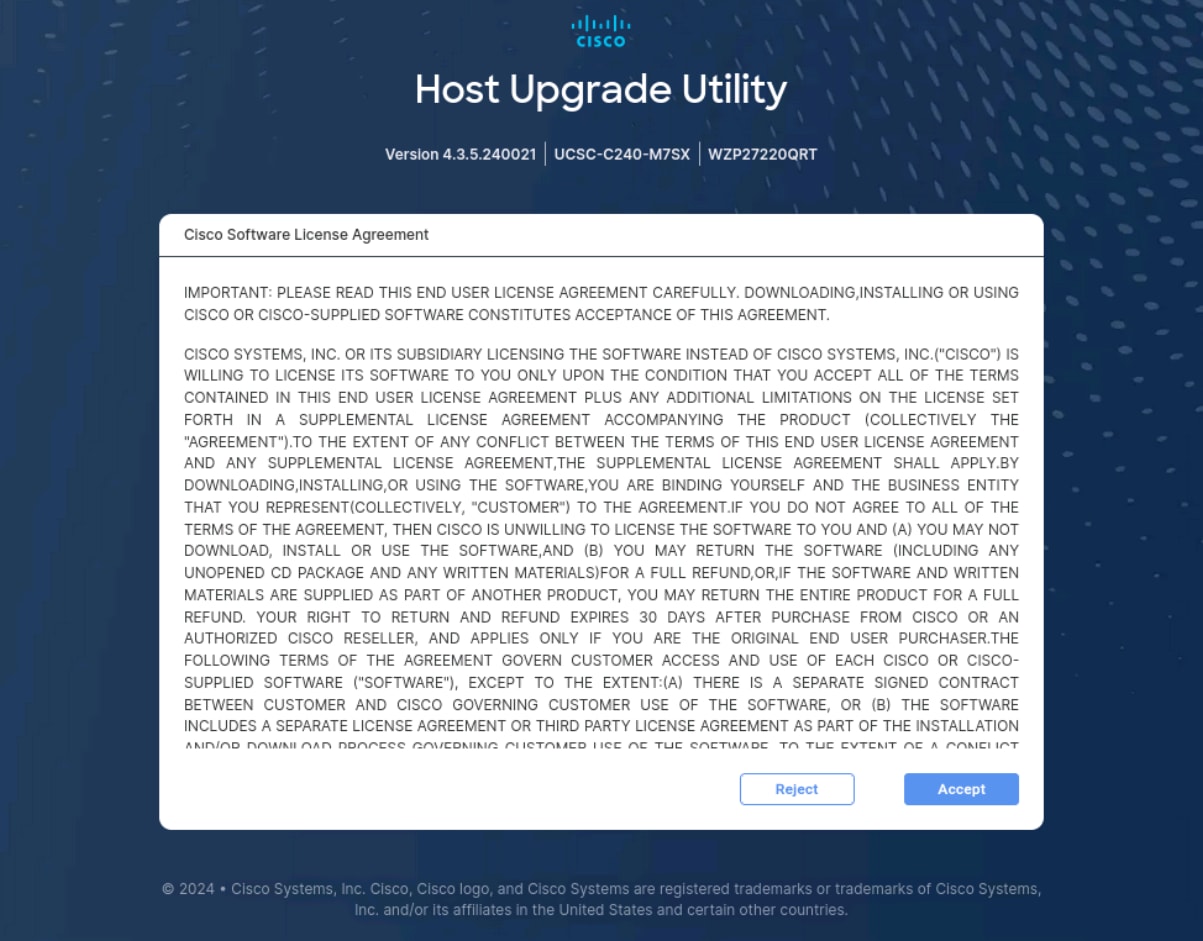
After the Cisco HUU boots up, the End User License Agreement screen is displayed. Click Accept to agree to the license.
The documentation set for this product strives to use bias-free language. For the purposes of this documentation set, bias-free is defined as language that does not imply discrimination based on age, disability, gender, racial identity, ethnic identity, sexual orientation, socioeconomic status, and intersectionality. Exceptions may be present in the documentation due to language that is hardcoded in the user interfaces of the product software, language used based on RFP documentation, or language that is used by a referenced third-party product. Learn more about how Cisco is using Inclusive Language.
After the Cisco HUU boots up, the End User License Agreement screen is displayed. Click Accept to agree to the license.
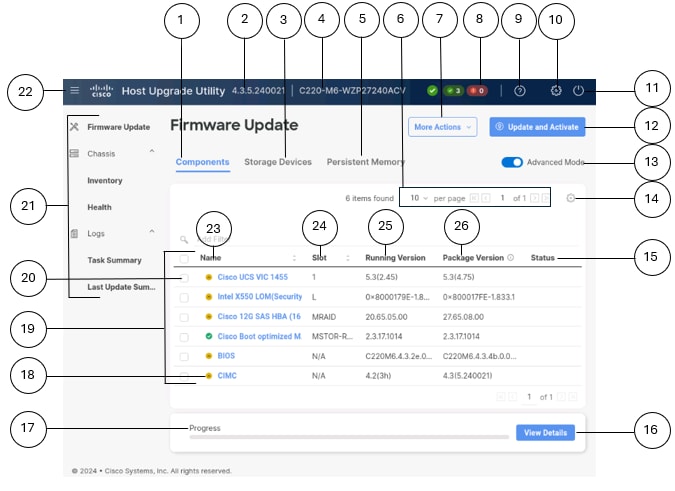
This section provides a brief introduction to the various elements of the Cisco HUU GUI.
 Note |
For information about the supported components and their firmware versions for various servers in a release, see Firmware Version Listing and Internal Dependencies for Cisco IMC Releases. |
|
Callout |
GUI Element |
Description |
||||
|---|---|---|---|---|---|---|
|
1 |
Components tab |
Lists all the server components for upgrade or downgrade. You can update the firmware for all components or specific components on this list.
|
||||
|
2 |
Cisco HUU Version |
Displays the current Cisco HUU version. |
||||
|
3 |
Storage Devices tab |
Lists all the external storage drives (HDDs) available on the server. You can choose to upgrade or downgrade the firmware for all or specific storage drives available on the server.
|
||||
|
4 |
Server Info |
Shows the name of the server. |
||||
|
5 |
Persistent Memory tab |
Lists all the external persistent memories available on the server. You can choose to upgrade or downgrade the firmware for all or specific persistent memories.
|
||||
|
6 |
Table Settings options |
Provides a drop-down list that you can use to set the number of components that must be listed per page. You can also use the forward and backward buttons to navigate through the table. |
||||
|
7 |
More Actions drop-down list |
The More Actions drop-down list appears when you select the Advanced Mode toggle button. The drop-down list shows the following options:
|
||||
|
8 |
Upgrade Status indicator |
Shows numbers in different color codes, which indicate how many update tasks are running, passed, failed, and cancelled.
When clicked, the task details can be viewed in the Task Summary page. |
||||
|
9 |
Cisco HUU Help icon |
Displays the following options:
|
||||
|
10 |
User Preferences icon |
Launches the User Preferences dialog box. You can select Light or Dark theme.
|
||||
|
11 |
Power Cycle icon |
Launches the Power Cycle dialog box. You can use this option to reboot the server. You can also reboot the server using the power cycle option in the KVM console.
|
||||
|
12 |
Update and Activate button |
When the Advanced Mode toggle button is OFF:
When the Advanced Mode toggle button is ON:
|
||||
|
13 |
Advanced Mode toggle button |
When this is selected, the More Actions drop-down list and a check box for each component/drive/persistent memory appear. Allows you to select a check box for the required component/drive/persistent memories that must be updated and activated.
|
||||
|
14 |
Table Settings icon |
Allows you to edit the table view to see only the required items. The selected items are displayed as columns. The following fields are available in the Components tab:
The following fields are available in the Storage Devices tab:
The following fields are available in the Persistent Memory tab:
|
||||
|
15 |
Status column |
Displays the firmware update status. |
||||
|
16 |
View Details button |
Shows the task details and task execution stages. When clicked, you will be redirected to the Task Summary page. |
||||
|
17 |
Progress bar |
Shows firmware update or activation status in percentage. |
||||
|
18 |
Firmware information icon |
Shows the firmware information in the following colors:
|
||||
|
19 |
List of components |
A list of components are displayed based on the selection of tab. |
||||
|
20 |
Component check box |
Allows you to select individual components.
|
||||
|
21 |
Cisco HUU Navigation Options |
You can navigate to the Cisco HUU menus to perform various tasks. |
||||
|
22 |
Hamburger icon |
Allows you to expand or collapse the navigation options. |
||||
|
23 |
Name column |
Displays the name of component. |
||||
|
24 |
Slot column |
Displays the slot where the component is installed. |
||||
|
25 |
Running Version column |
Current firmware version running on the component. |
||||
|
26 |
Package Version column |
Updated version available for upgrade. |
||||
|
(not shown in the image) |
Product ID column |
Displays the unique ID assigned to the component. |
||||
|
(not shown in the image) |
Vendor column |
Vendor of the component. |
The Cisco HUU GUI comprises the navigation pane on the left side and the work pane on the right side of the screen.
The navigation pane has the following menus:
Firmware Update menu
Chassis menu
Logs menu
When you click a menu in the navigation pane, the associated tabs are displayed on the right side of the screen.
Note |
Click the Hamburger menu icon to collapse or expand the navigation pane. |
 Feedback