Installing the Server

This chapter contains the following topics:

Preparing for Installation

This section contains the following topics:

  • Installation Warnings and Guidelines

  • Rack Requirements

Installation Warnings and Guidelines

Before you install, operate, or service a server, review the Regulatory Compliance and Safety Information for Cisco UCS C-Series Servers for important safety information.

Before installing a server, you will need to understand the following warnings and cautions:


Warning


To reduce the risk of electric shock or damage to the equipment:

  • Do not disable the power cord grounding plug. The grounding plug is an important safety feature.

  • Connect the power cord into a grounded (earthed) electrical outlet that can be easily accessed at all times.

  • Disconnect the power cord from the power supply to disconnect power to the equipment.

  • Do not route the power cord where it can be walked on or pinched by items placed against it. Pay particular attention to the plug, electrical outlet, and the point where the cord extends from the rack.


Caution


Do not operate the rack for long periods with the access panel open or removed. Operating the rack in this manner results in improper airflow and improper cooling that can lead to thermal damage.


Caution


Risk of fire or explosion if the battery is replaced by an incorrect type. Please follow local regulations for disposal of used batteries.


Compliance Information

CE Notice

European Conformity (Conformité Européenne)

This is a Class A product. In a domestic environment this product may cause radio frequency interference in which case the user may be required to take adequate measures. This device bears the CE mark in accordance with Directive 2014/53/EU.

This device complies with the following Directives:

  • EMC Directive A, I.T.E Equipment

  • Low Voltage Directive for electrical safety

  • RoHS Directive for hazardous substances

  • Energy-related Products Directive (ErP).
FCC Notice

Federal Communications Commission (FCC) FCC Marking (Class A)

This device complies with part 15 of the FCC Rules. Operation is subject to the following two conditions: (1) this device may not cause harmful interference, and (2) this device must accept any interference received, including any interference that may cause undesired operation of the device.

NOTE: This equipment has been tested and found to comply with the limits for a Class A digital device, pursuant to part 15 of the FCC Rules. These limits are designed to provide reasonable protection against harmful interference when the equipment is operated in a commercial environment. This equipment generates, uses, and can radiate radio frequency energy and, if not installed and used in accordance with the instruction manual, may cause harmful interference to radio communications. Operation of this equipment in a residential area is likely to cause harmful interference in which case the user will be required to correct the interference at his own expense. California Department of Toxic Substances Control: Perchlorate Material - special handling may apply. See www.dtsc.ca.gov/perchlorate.
Rack Requirements

Rack Specification

The rack must be of the following type:

  • Rack Type: A standard 19-inch (48.3 cm) wide, four-post EIA rack.

  • Mounting Posts: Must conform to universal hole spacing as per ANSI/EIA-310-D-1992.

  • Rack-Post Holes:

    • Square: 9.5 mm

    • Round: 7.1 mm

  • Vertical Rack Space: Minimum vertical rack space per server is 2 rack units (2U), equal to 3.5 inches (88.9 mm).

Slide Rail Specifications

  • Slide Type: L-shelf

  • Install Type: Toolless

  • Slide Length: 645 mm

  • Working Load: 150 kg

  • Supported Rack Range: 645~917 mm

  • Supported Chassis Width: 448 mm

  • Use Space: 2U*645 mm

  • UL Strength Test: Yes

Cisco Slide Rail Kit, which is shipped with the server or with a replacement chassis.

Tools Required for Rack Installation

Following tools are required:

  • T-20 Torx screwdriver

  • #2 Phillips Screwdriver

  • Lift table. If a lift table is not available, make sure to use at least two people to lift or maneuver the server.

Installing the Server in a Rack

Before you begin

  • Ensure the floor where the rack is placed can support the combined weight of the rack, server, and any other equipment.

  • Have a team of at least two to three people to assist with lifting and positioning the server.

  • Clear the area around the rack to ensure there is enough space to work.

  • Inspect the rack and server for any damage before starting the installation.

  • Consult Installation Warnings and Guidelines.

Tools Required for Rack Installation

Table 1. Tools Required for Rack Installation

Tools Required

No. #

Rail module for left and right side

1

Sink screws

4

Special washers

4

Square nuts

6

Clip nuts

6

Procedure

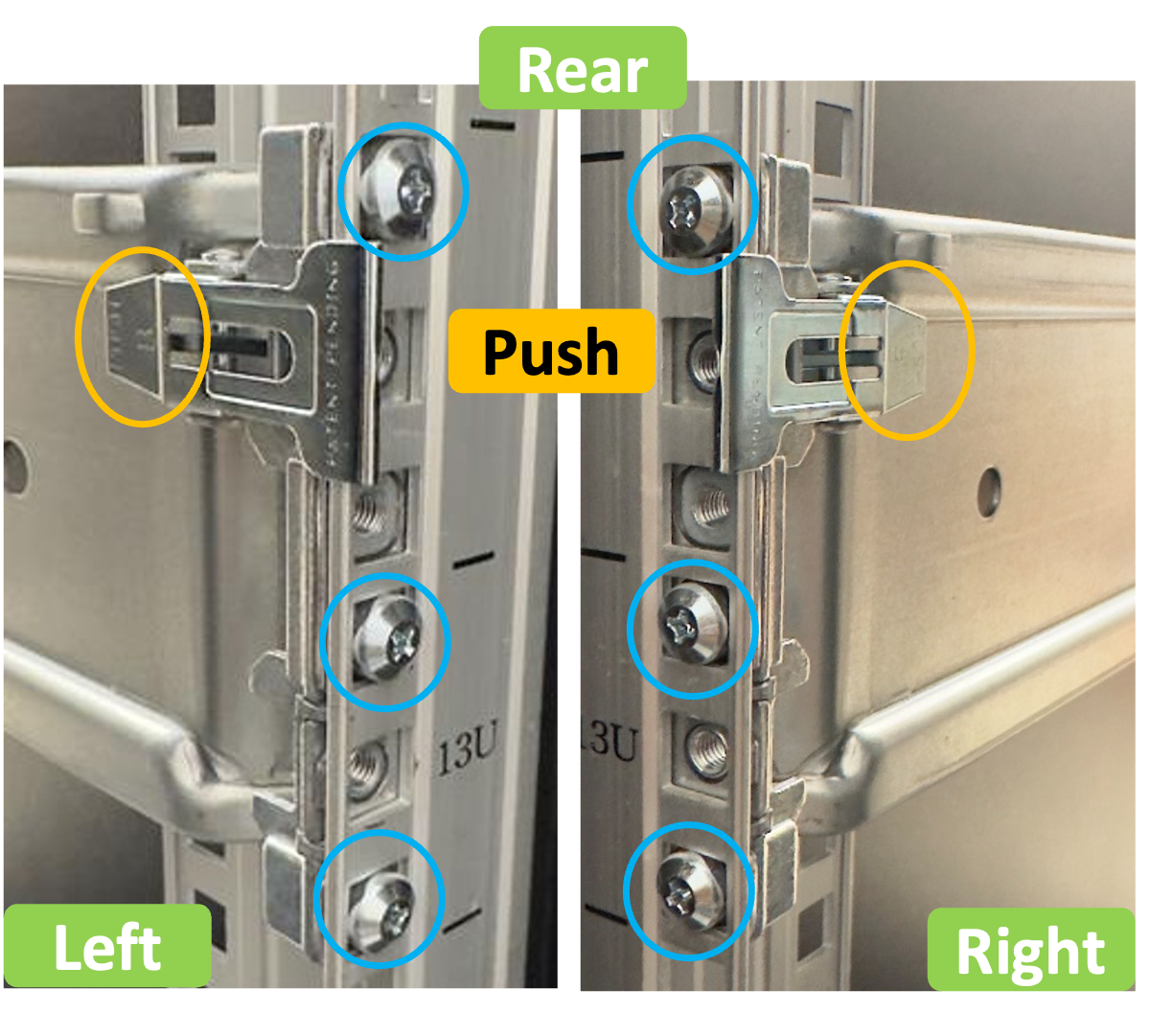
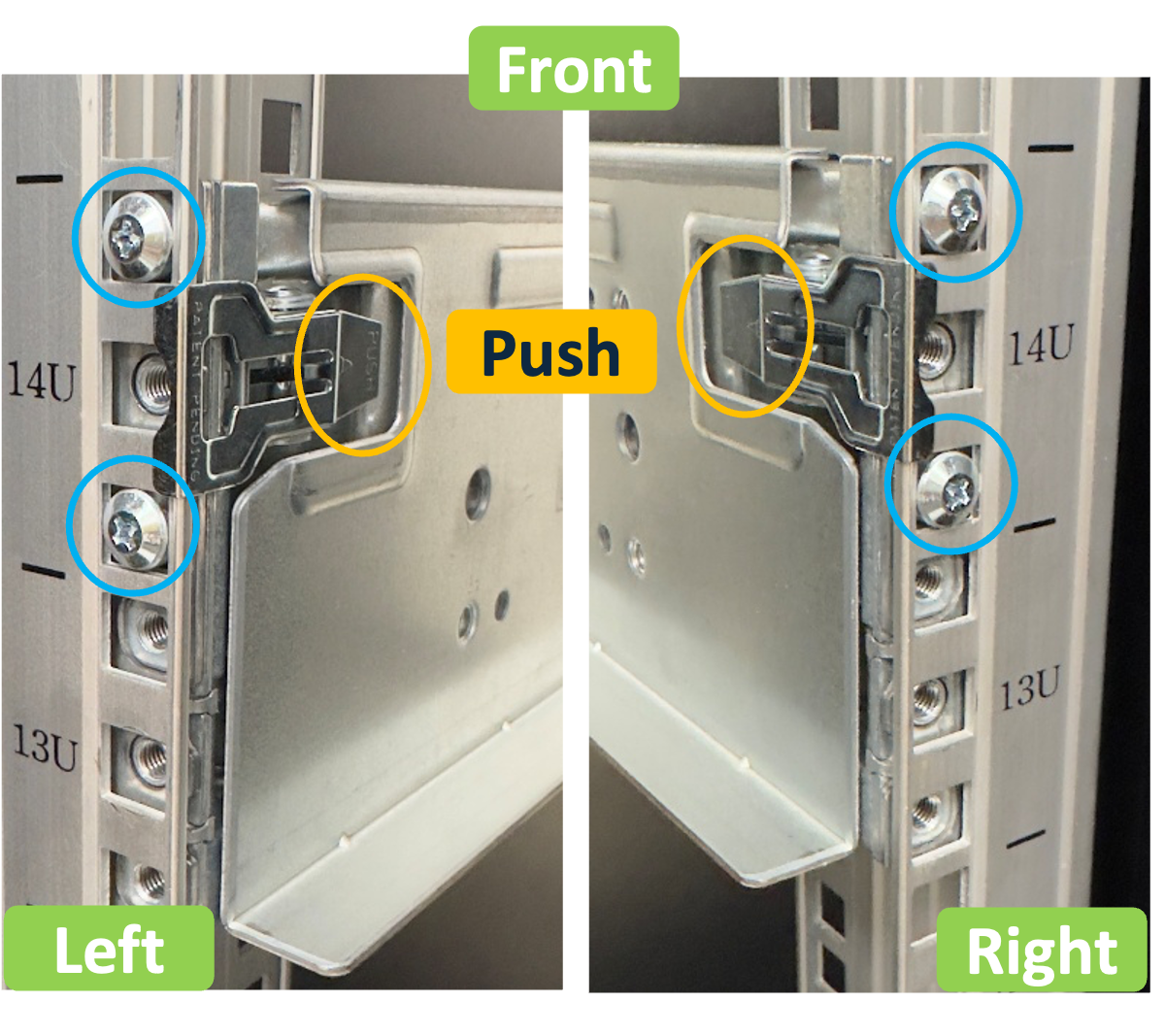
  1. Locate the Left Front and Right Front rails.

  2. Push the latch.

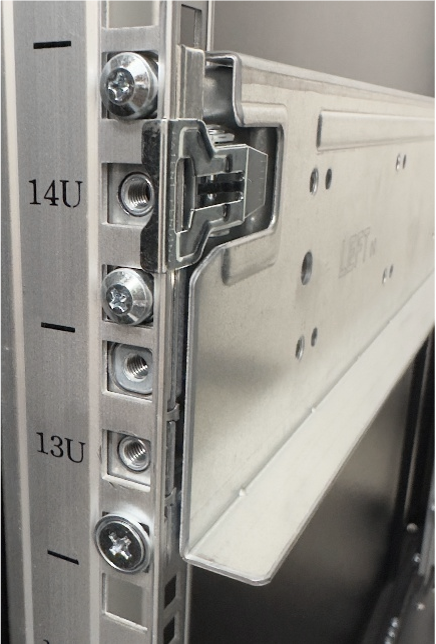
  3. Align the guide pins with the rack for the front and rear right side.

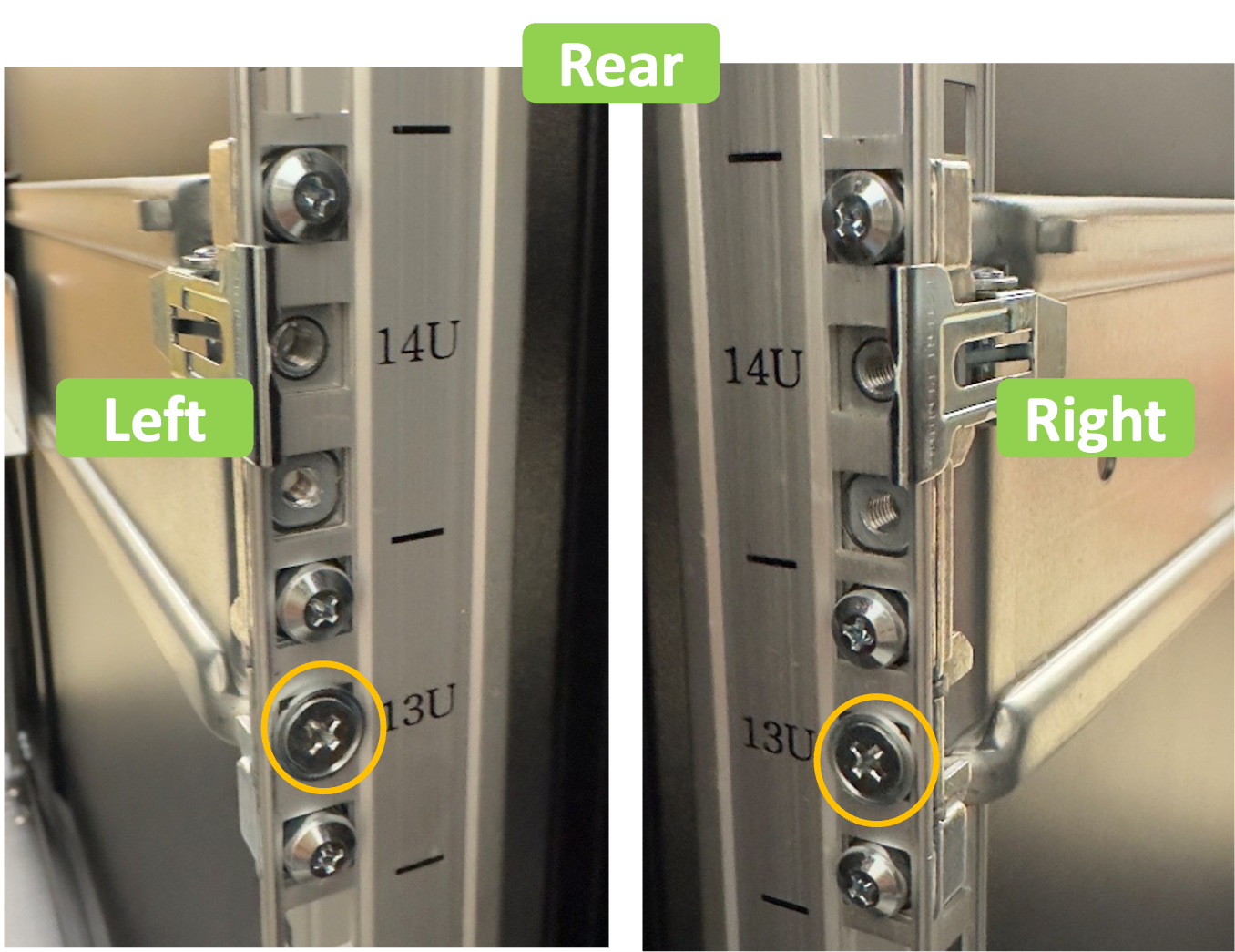
  4. Use the counter sink screws to fix the rail with the special washer at the bottom one.

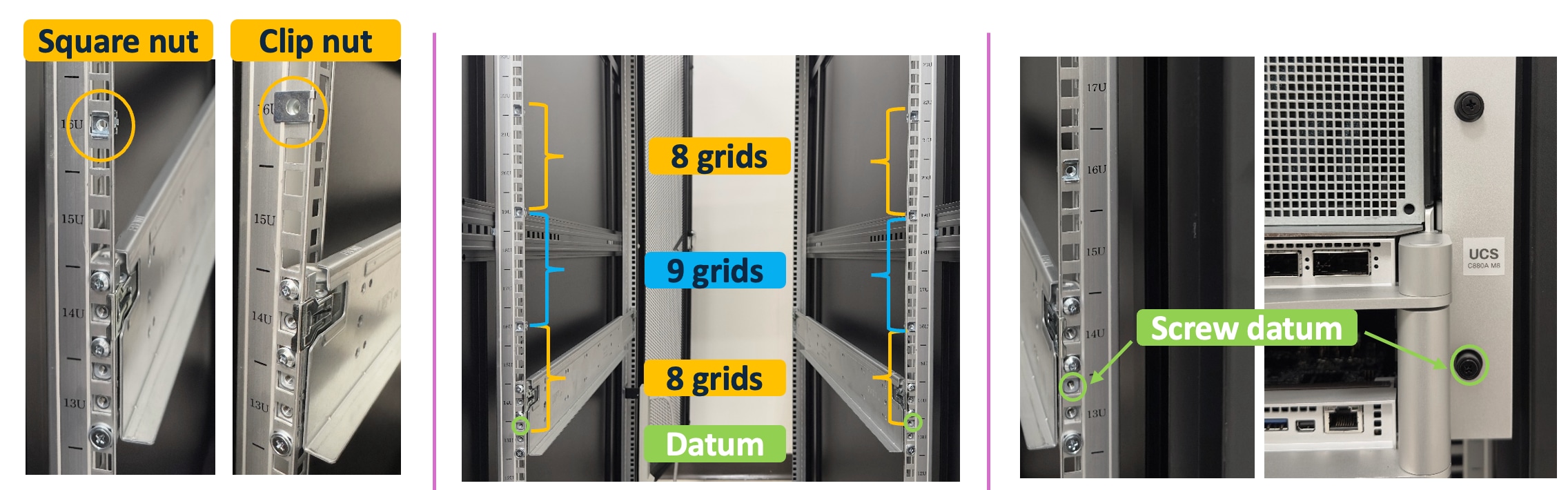
  5. Put the square nuts (6x) or clip nuts (6x) on the rack.

    For the base and distance between the nuts, see the figure.

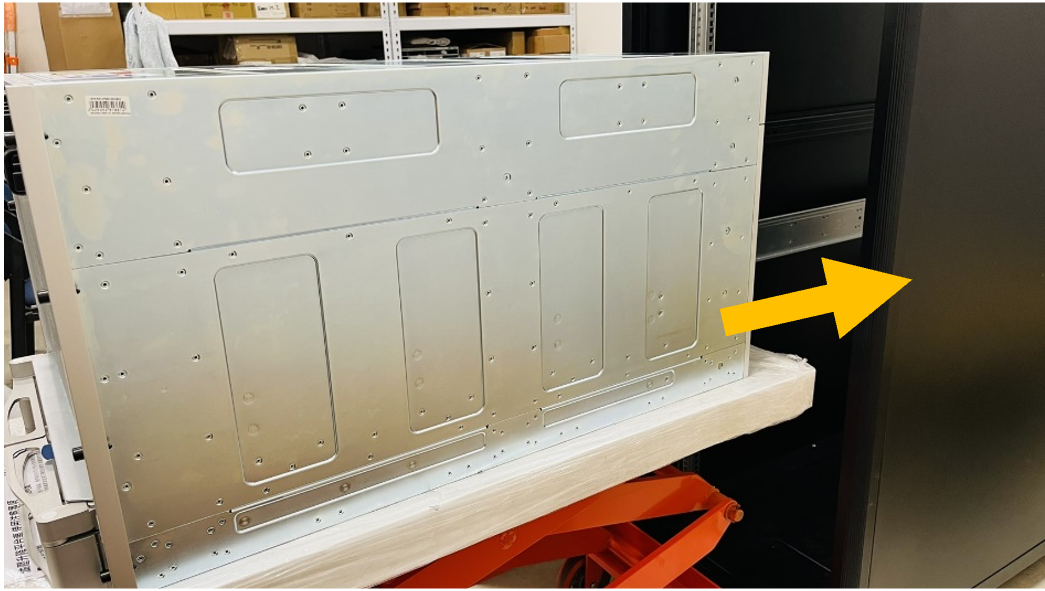
  6. Use the tower crane or trolley to carry the system and approach the rack.

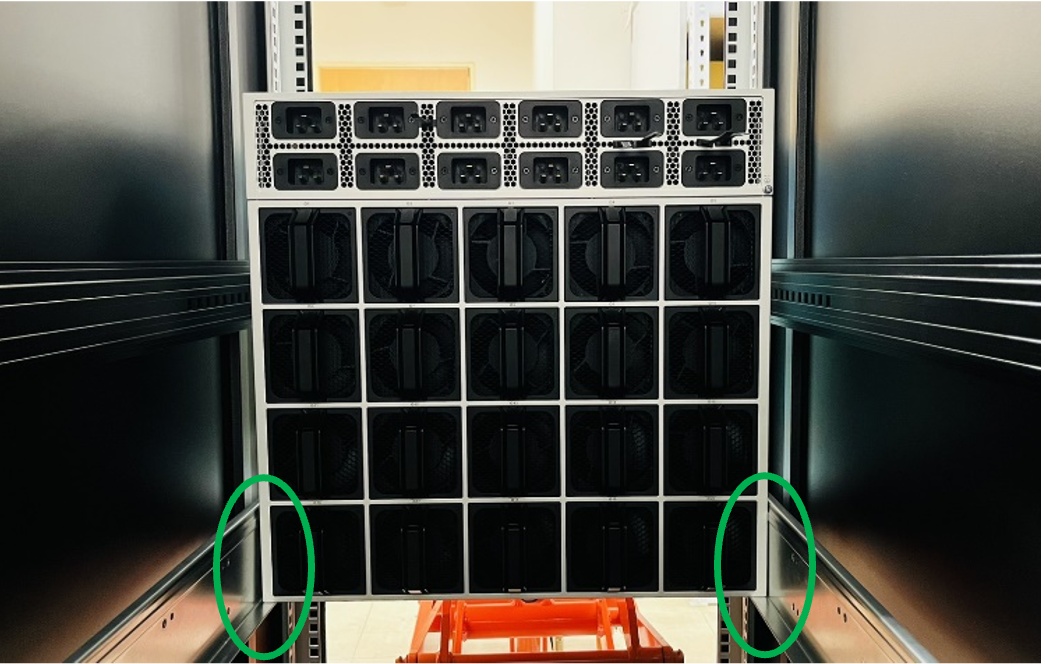
  7. Align the left and right side of the rail.

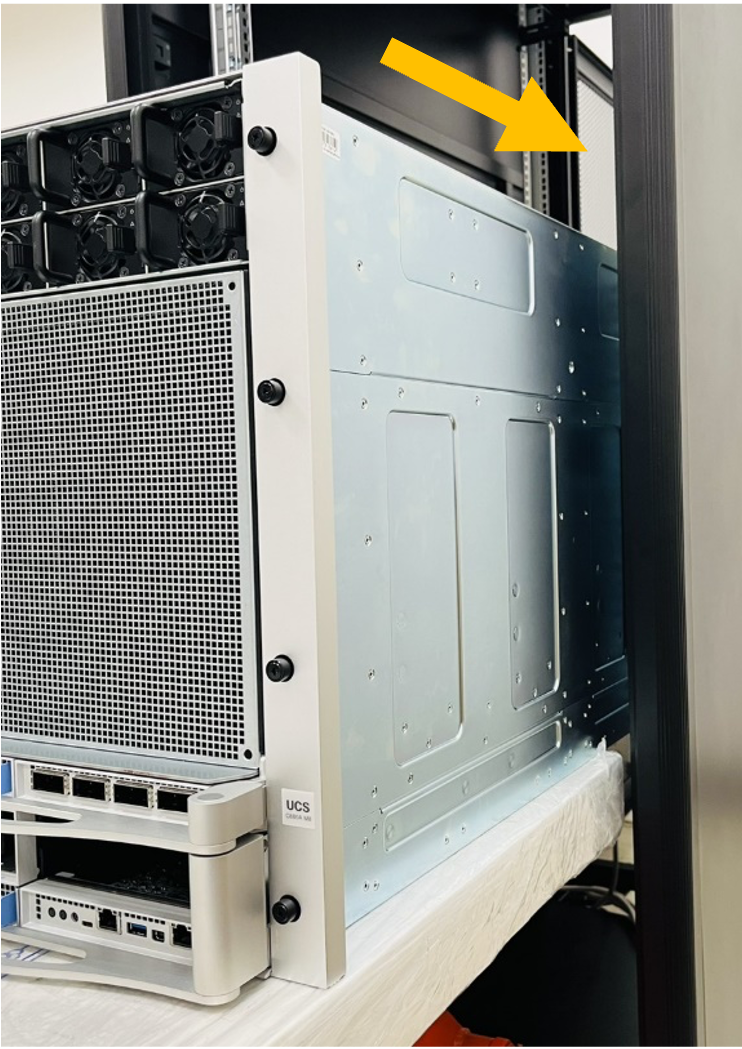
  8. Push the system into the rack.


    Note


    Be aware of the system weight.


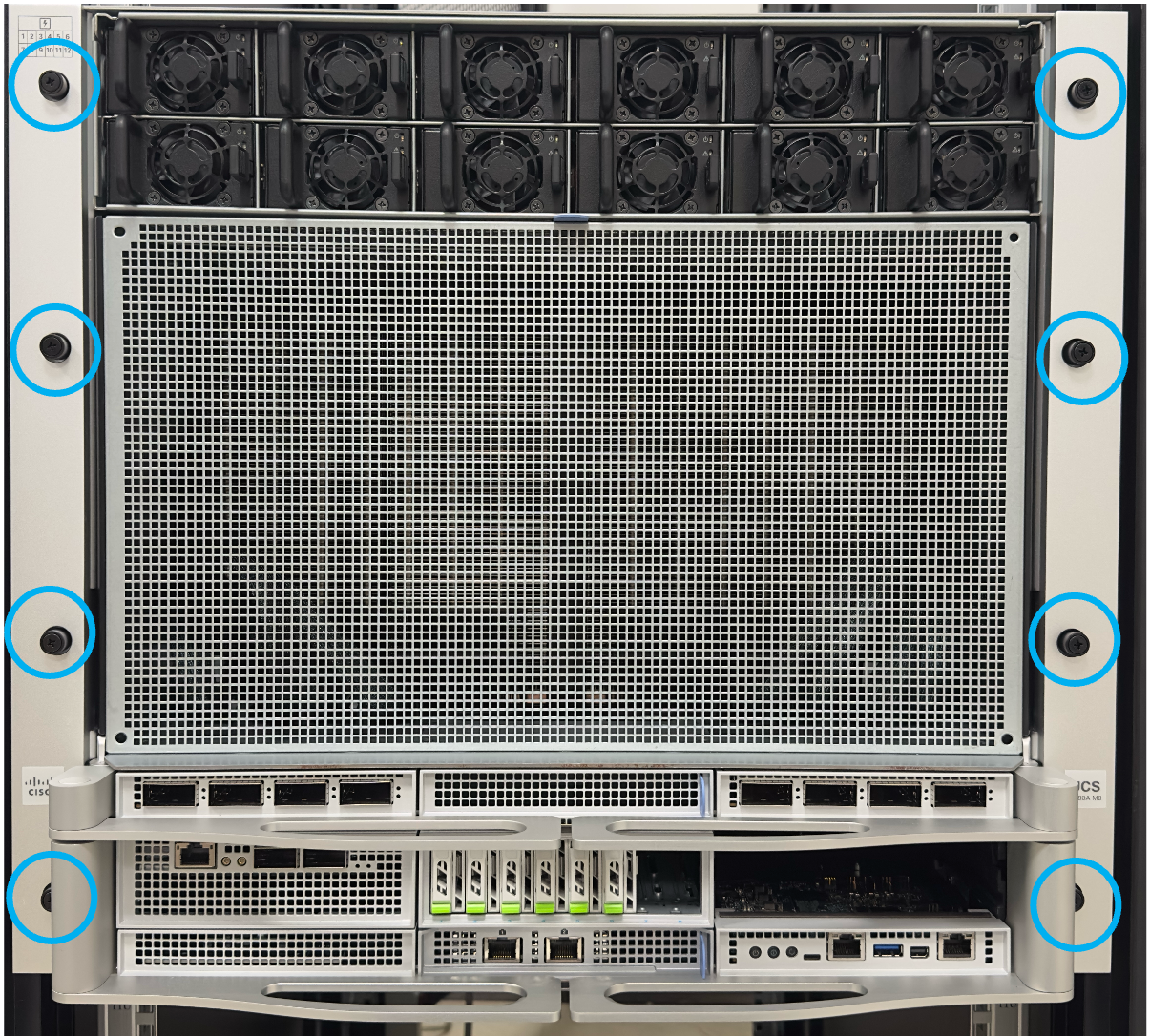
  9. Tighten the screws (8x) using a Philips #2 screwdriver.

Cabling

Cabling Overview

This section provides reference information only to help make informed decisions about cabling the server and hardware options to optimize performance.


Caution


When routing cables, always be sure that the cables are not in a position where they can be pinched or crimped.


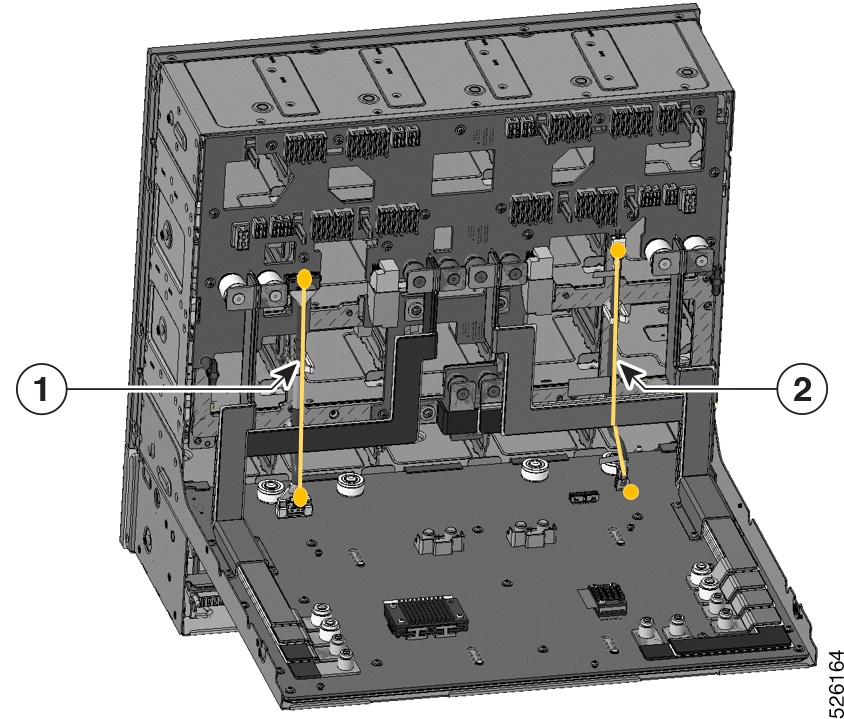
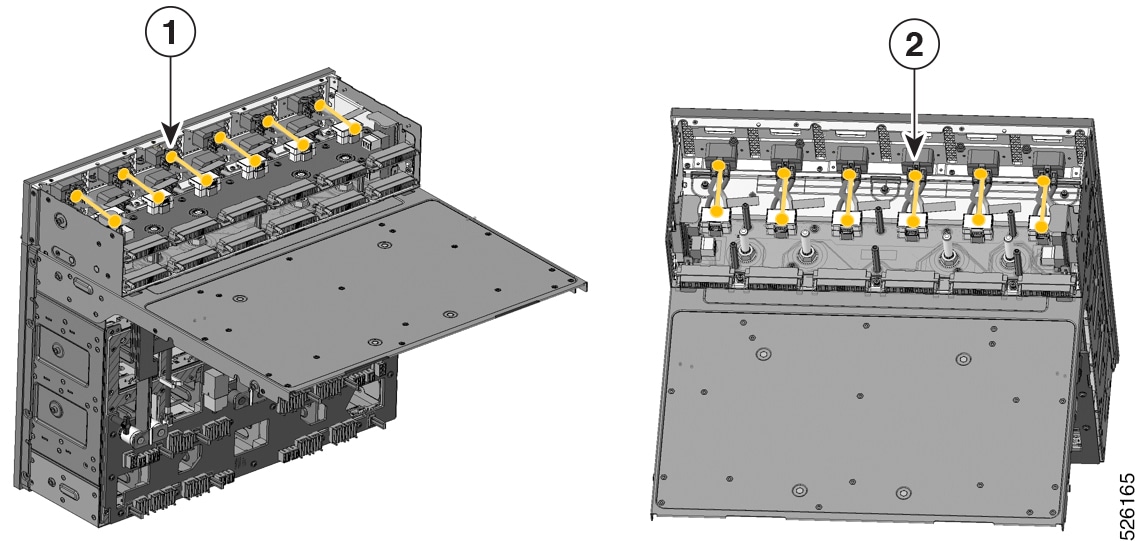
Rear Cage

Table 2. Rear Cage

Item

Description

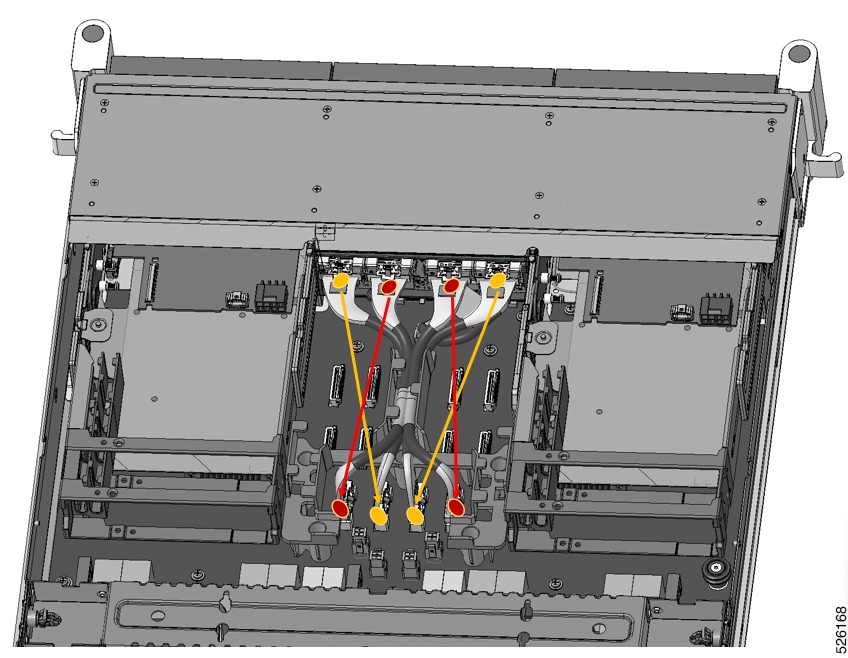
1

550.0CM08.0001

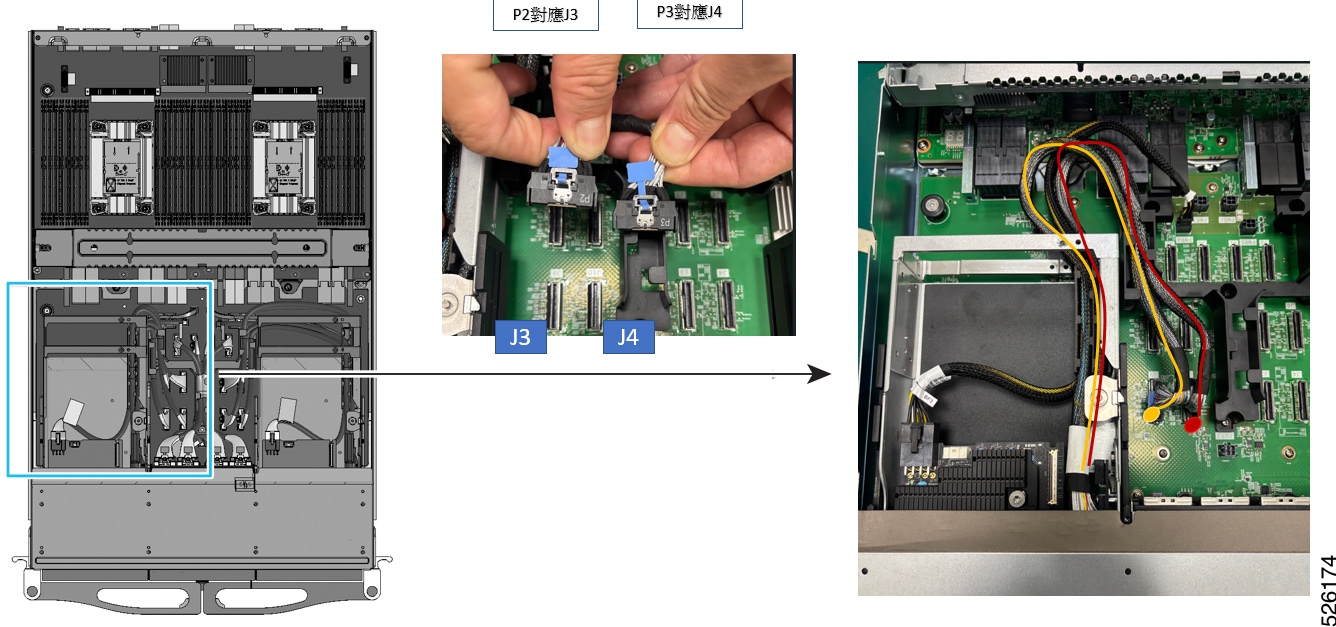
PDB SIDEBAND CABLE-1 (MCIO X8) WK10

2

550.0CM09.0001

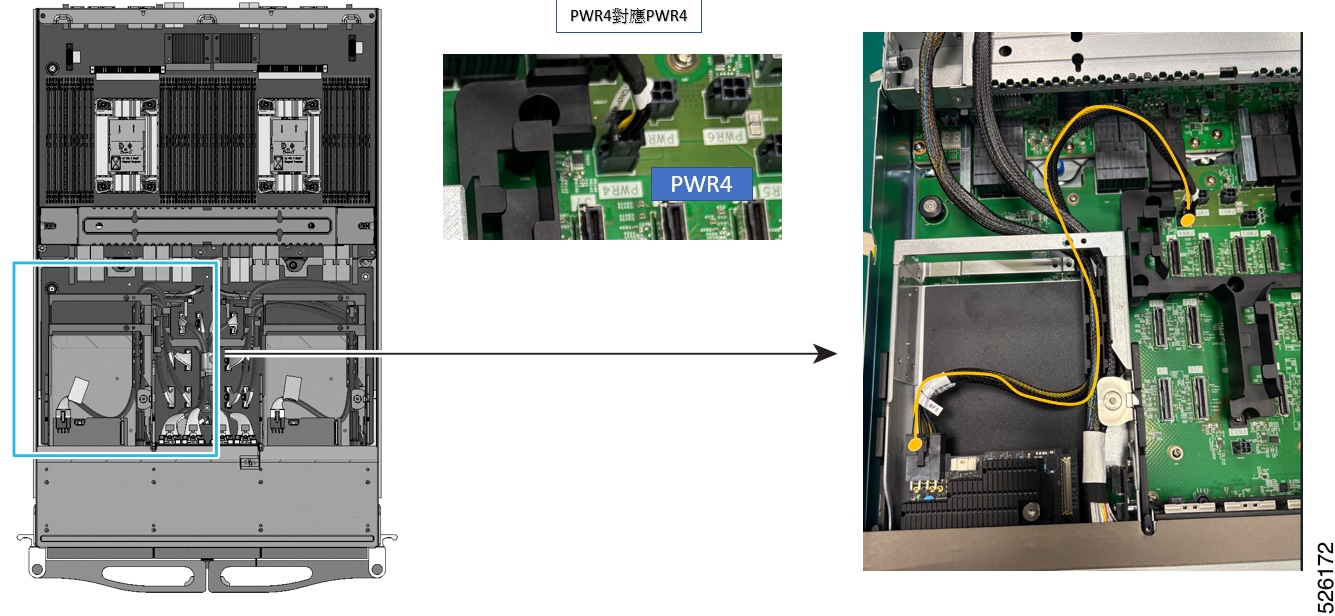
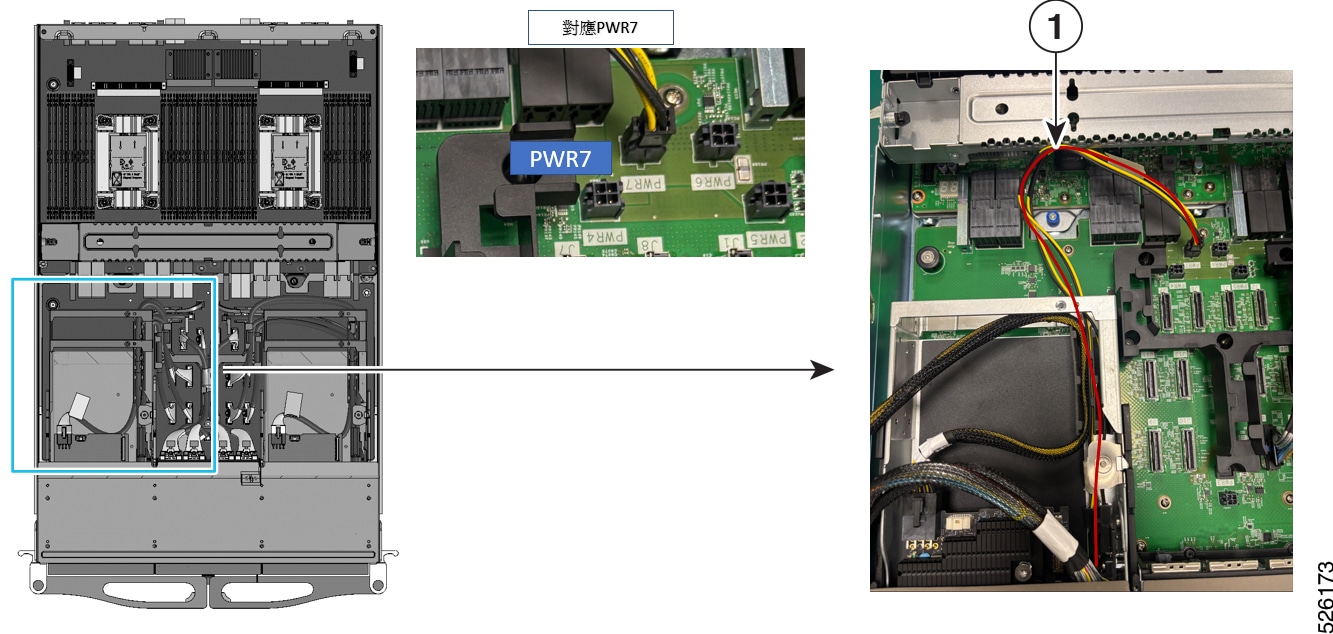
PDB PWR CBL (MICFIT 2X2) WK10

Item

Description

1

550.0CM0A.0001

AC(C20 INLET) TO RADSOK CON WK10

2

550.0CM0A.0001

AC(C20 INLET) TO RADSOK CON WK10

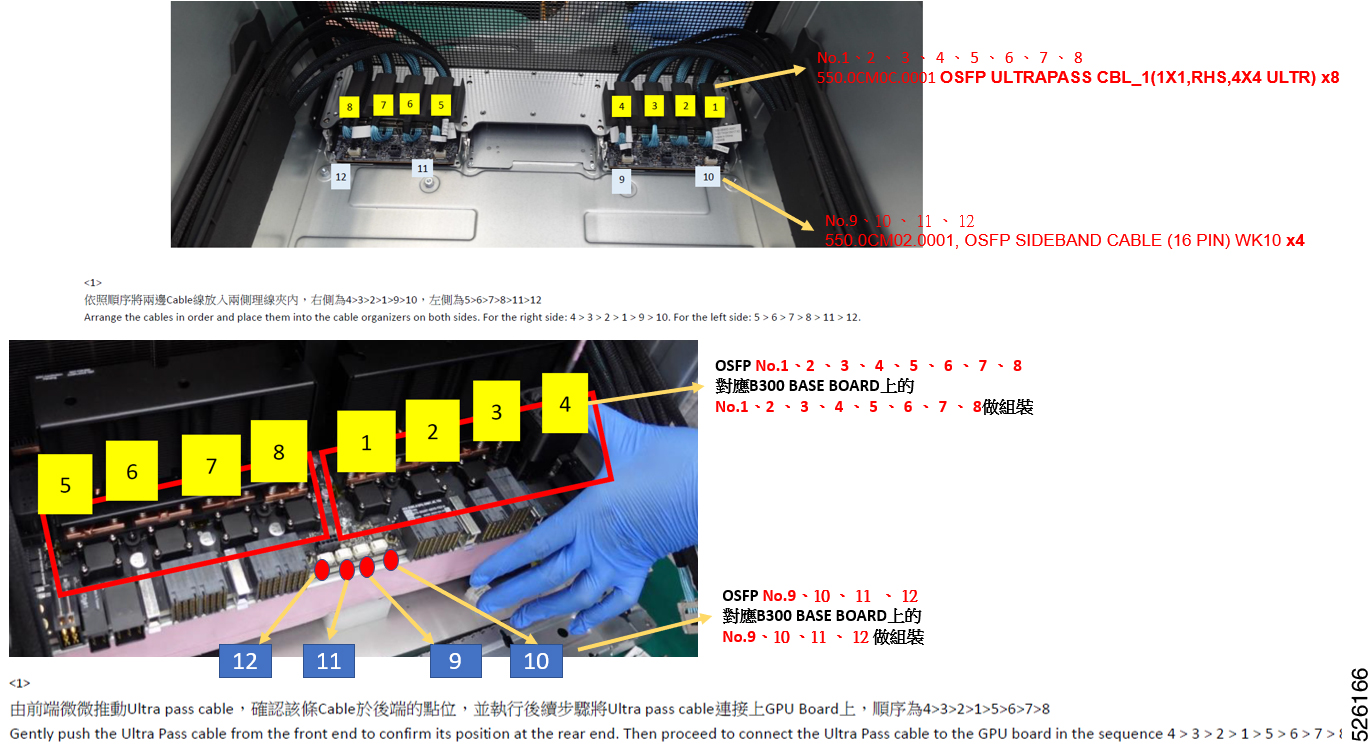
GPU Sled

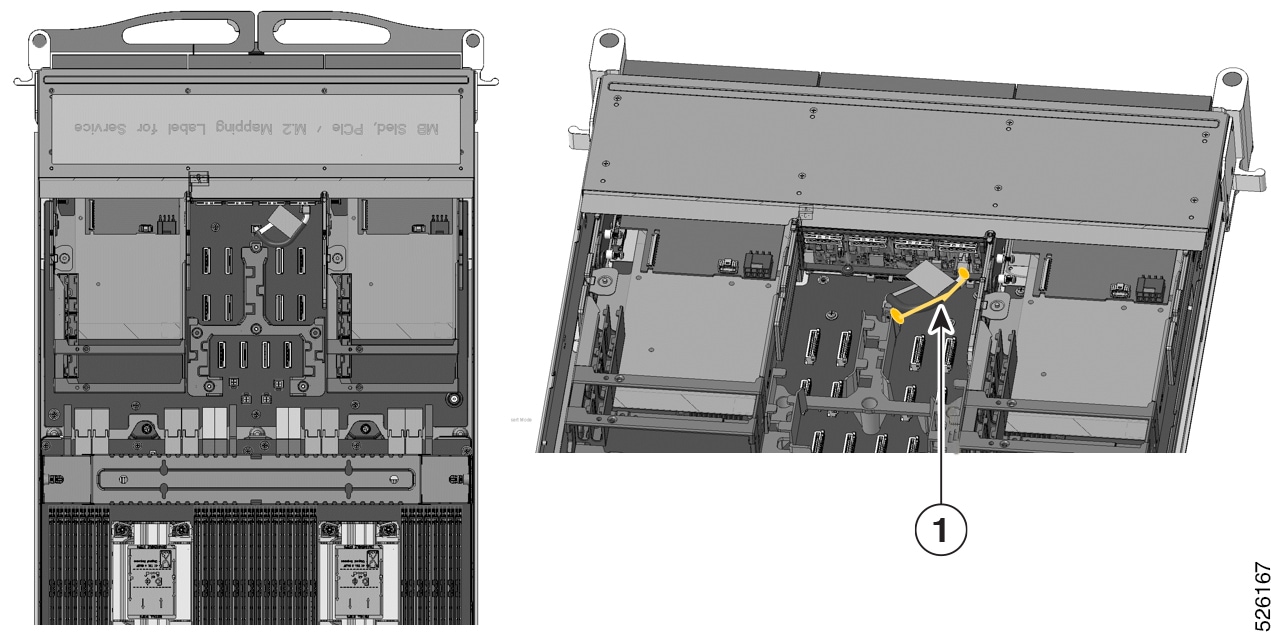
E1.S

Figure 1. E1.S
Table 3. E1.S

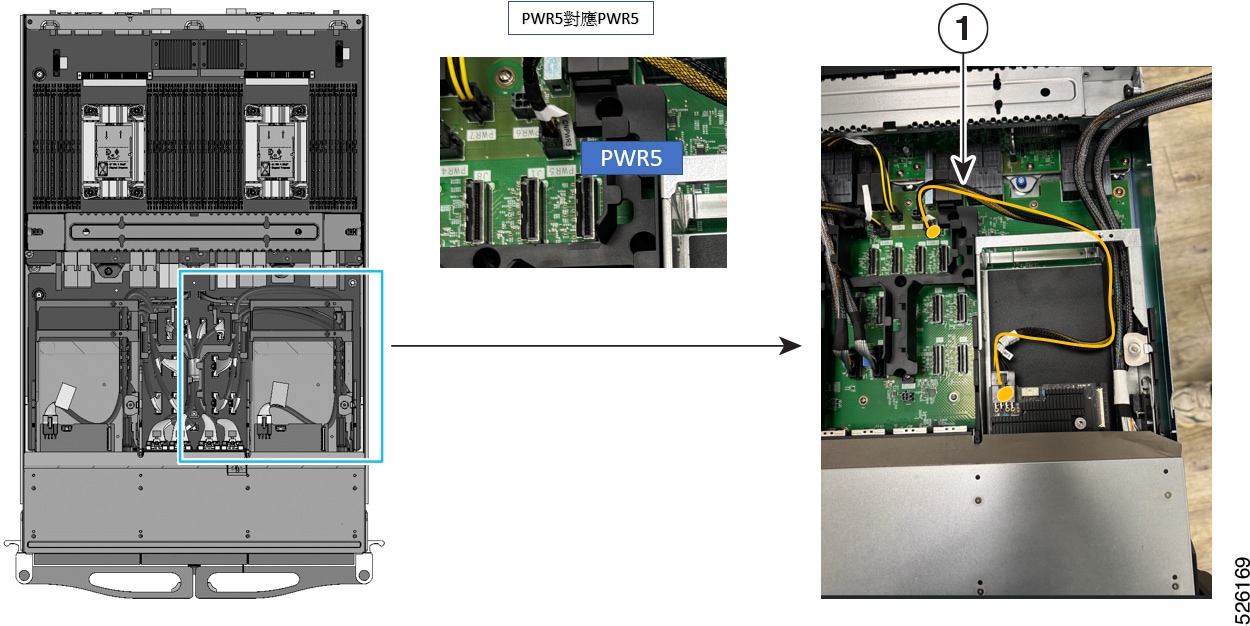
Item

Description

1

550.0CM04.0001

E1.S BP POWER CABLE WK10

BF3-R

Figure 2. BF3-R
Table 4. BF3-R

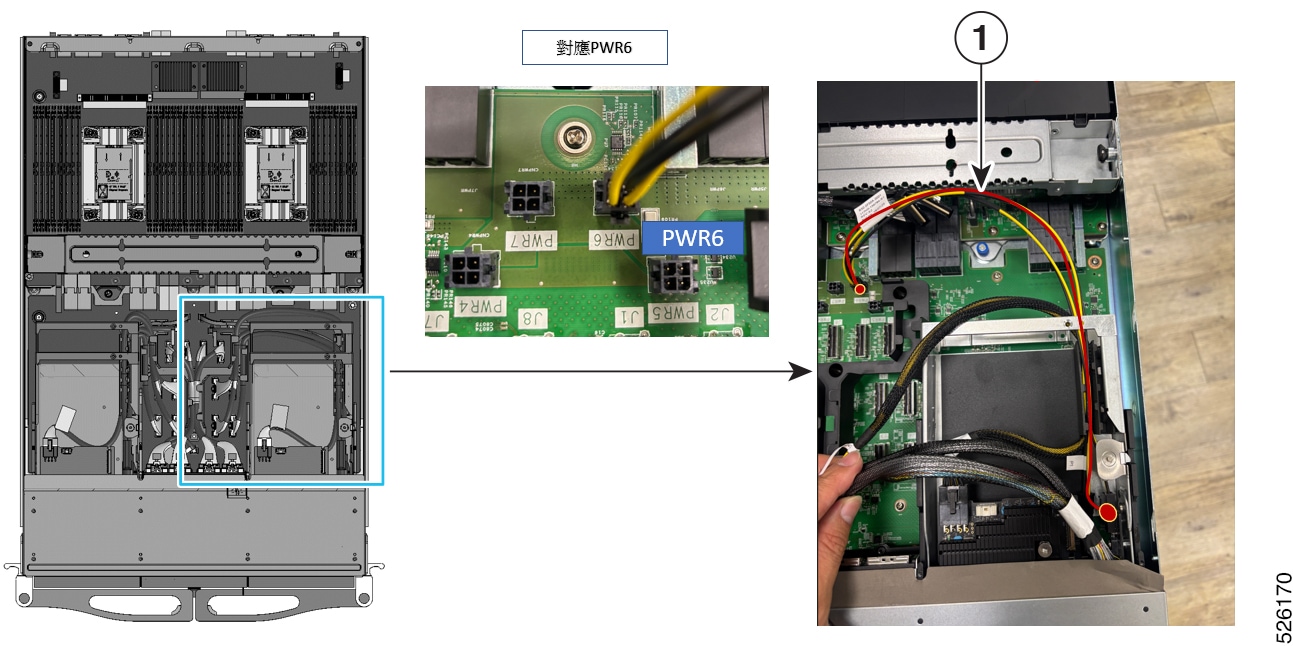
Item

Description

1

550.0CM07.0001

BF3 POWER CABLE WK10

Table 5. BF3-R

Item

Description

1

550.0CM06.0001

DA-CEM RISER X16 POWER CABLE WK10

Table 6. BF3-R

Item

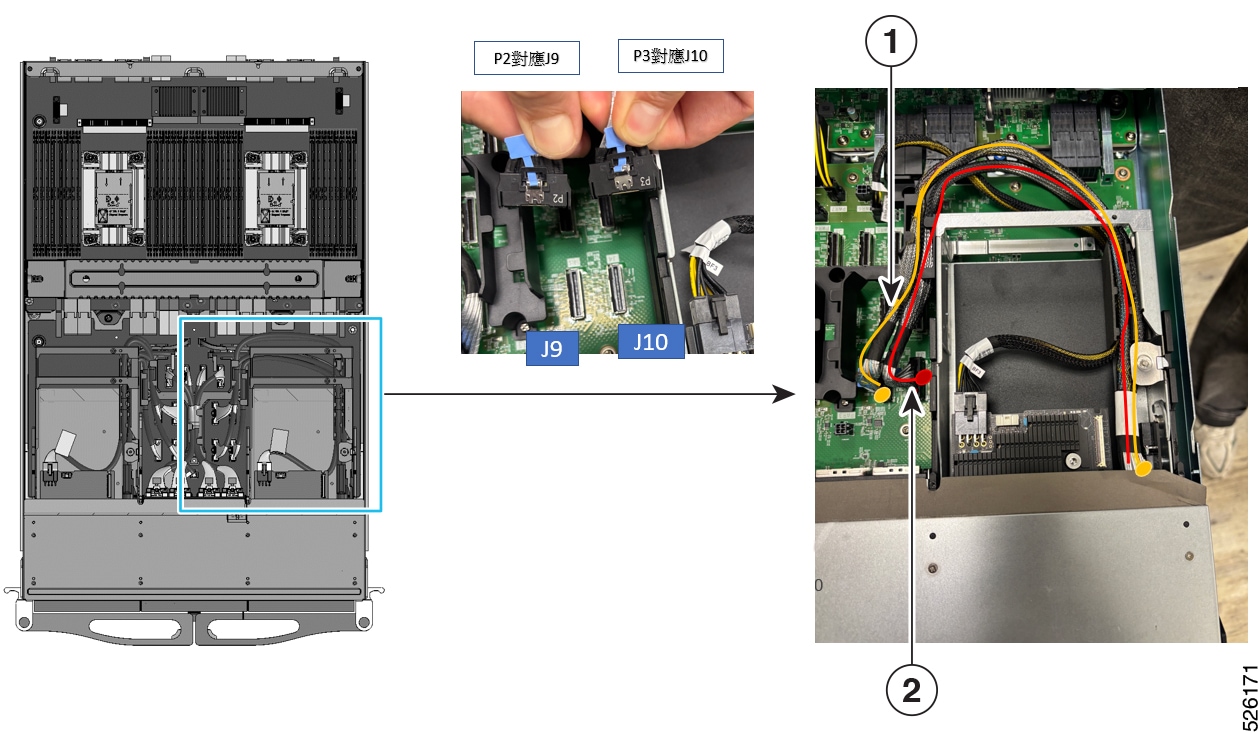
Description

1

550.0CM05.0001

DA-CEM RISER X16 CABLE WK10

2

550.0CM05.0001

DA-CEM RISER X16 CABLE WK10

BF3-L

Table 7. BF3-L

Item

Description

1

550.0CM06.0001

DA-CEM RISER X16 CABLE WK10

Installing the PSU Cable Clips

The server has a total of twelve PSU cable clips, one for each of the twelve PSUs.

  • Each cable clip installs in a specific location in the row of ventilation holes between the top and bottom rows of power supplies.

  • Each cable clip has:

    • A plastic ring that tightens around the circumference of its PSU cable, and

    • A tension strip, which is similar to a zip tie, that secures the PSU cable to its socket.

      When the cable clip is installed, and the PSU cable is connected, the clip holds the PSU's cable securely in place to prevent accidental disconnection from the chassis.

  • Cable ties are installed individually side-by-side, with the left cable clip supporting the top PSU and the right cable clip supporting the bottom PSU.

To install the cable clips, use the following procedure:

Installing PSU Cable Clips

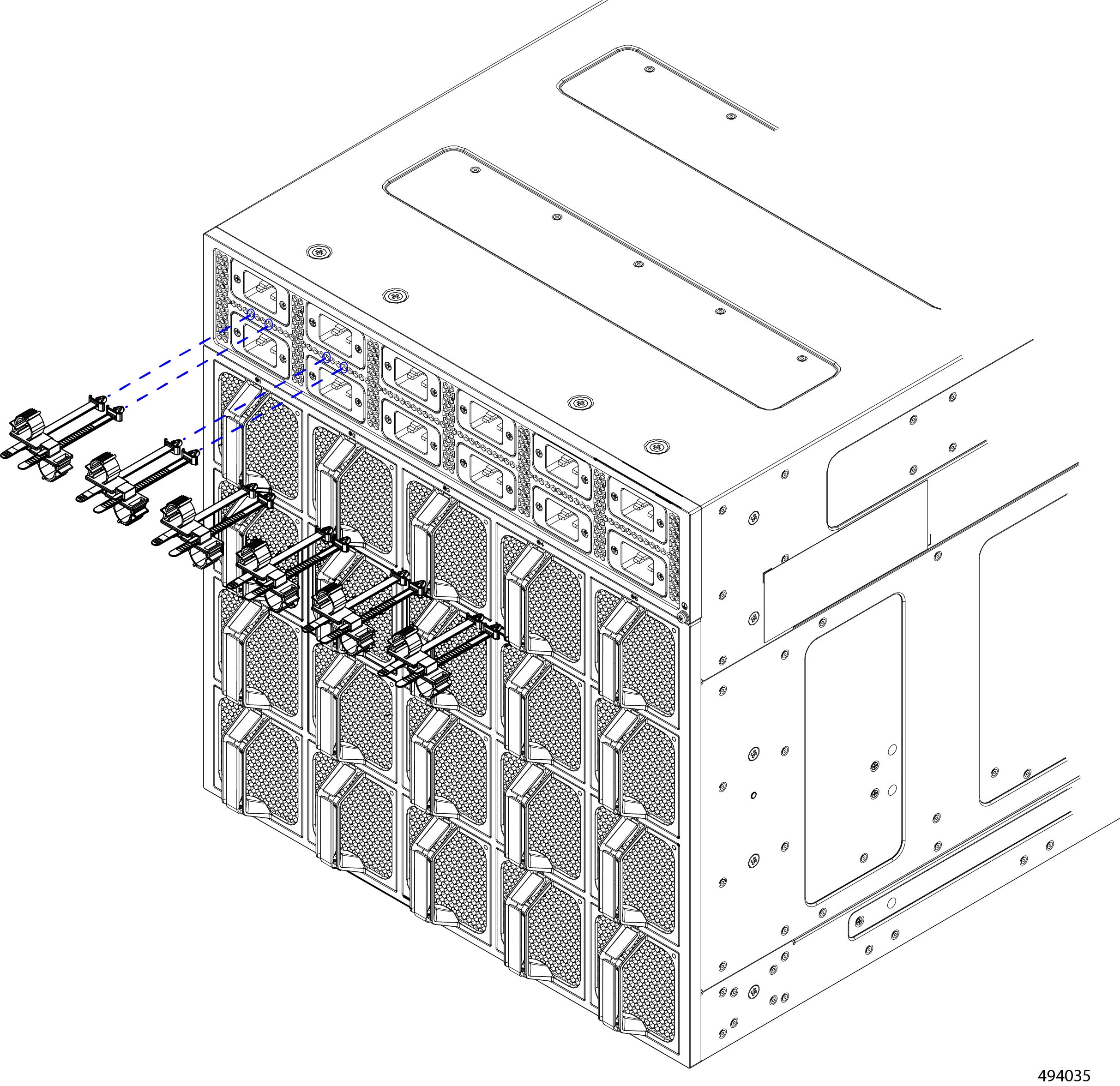
PSU cable clips have a central prong and two guide pins, one on either side of the central prong. When you install the clips, you will insert the prong into the correct ventilation hole and make sure that the guide pins are also correctly inserted into the ventilation hole on the left and right side of the central prong.

Installing the PSU cable clips is a manual process. No tools are required.

To install the PSU cable clips, use this procedure.

Before you begin

The central prong on the cable clip must be inserted into the ventilation hole that is vertically aligned with the bottom left or right terminal on the AC PSU socket, When installed this way, a gap of at least two ventilation holes will be between each clip. This gap is needed so that the guide pins for each clip can be seated correctly.

Install cable clips side-by-side. You can think of the cable clips as installing in pairs, with the left clip in the pair supporting the PSU on the top row, and the right clip in the pair supporting the PSU on the bottom row.

Procedure


Step 1

If you have not installed the PSUs already, do so now.

The PSUs must be installed for the cable clip to hold the PSU cable in place.

Step 2

Orient the clip so that the prongs are facing the chassis and the plastic ring is facing up.

Step 3

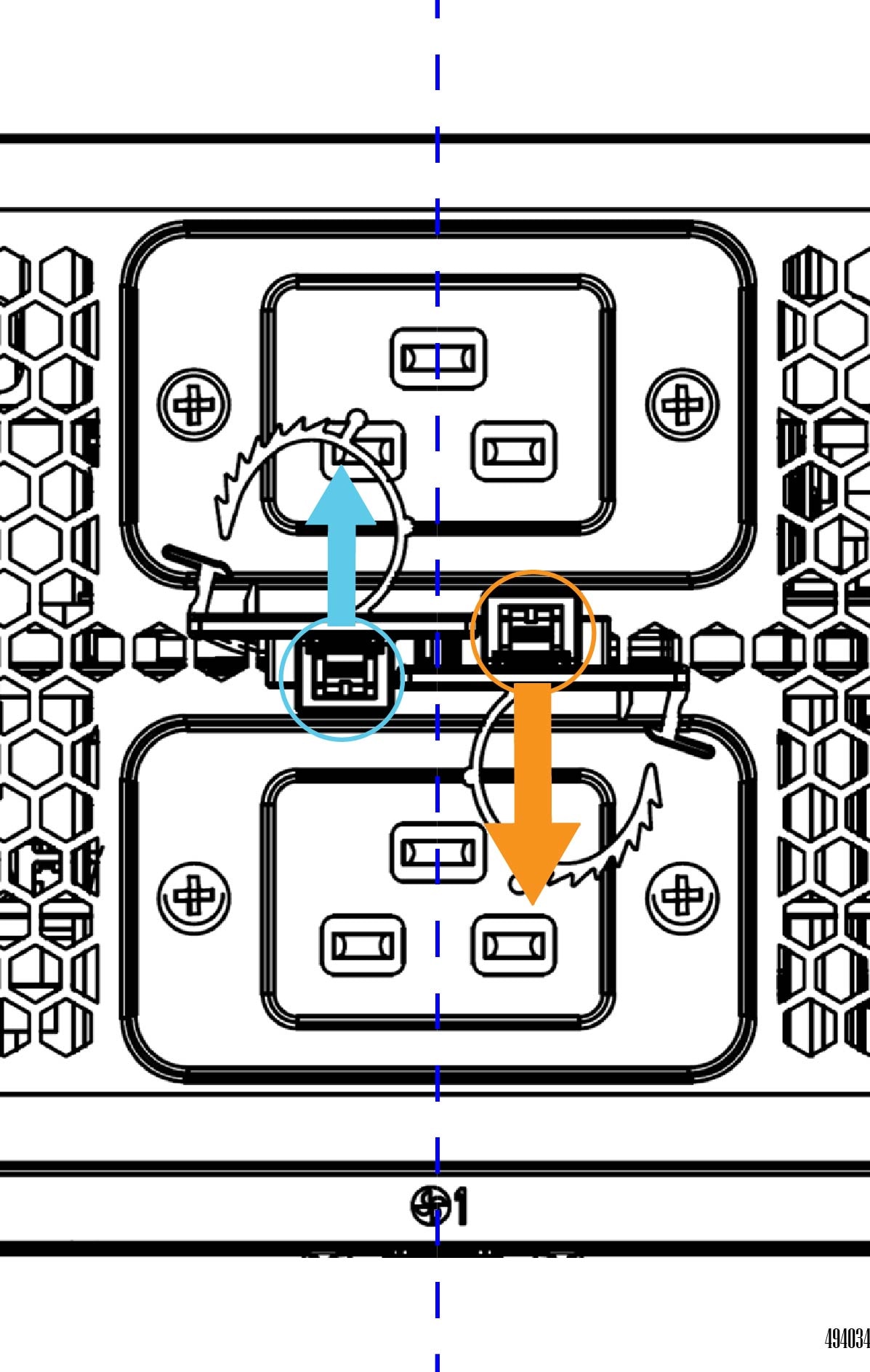
Locate the correct ventilation hole.

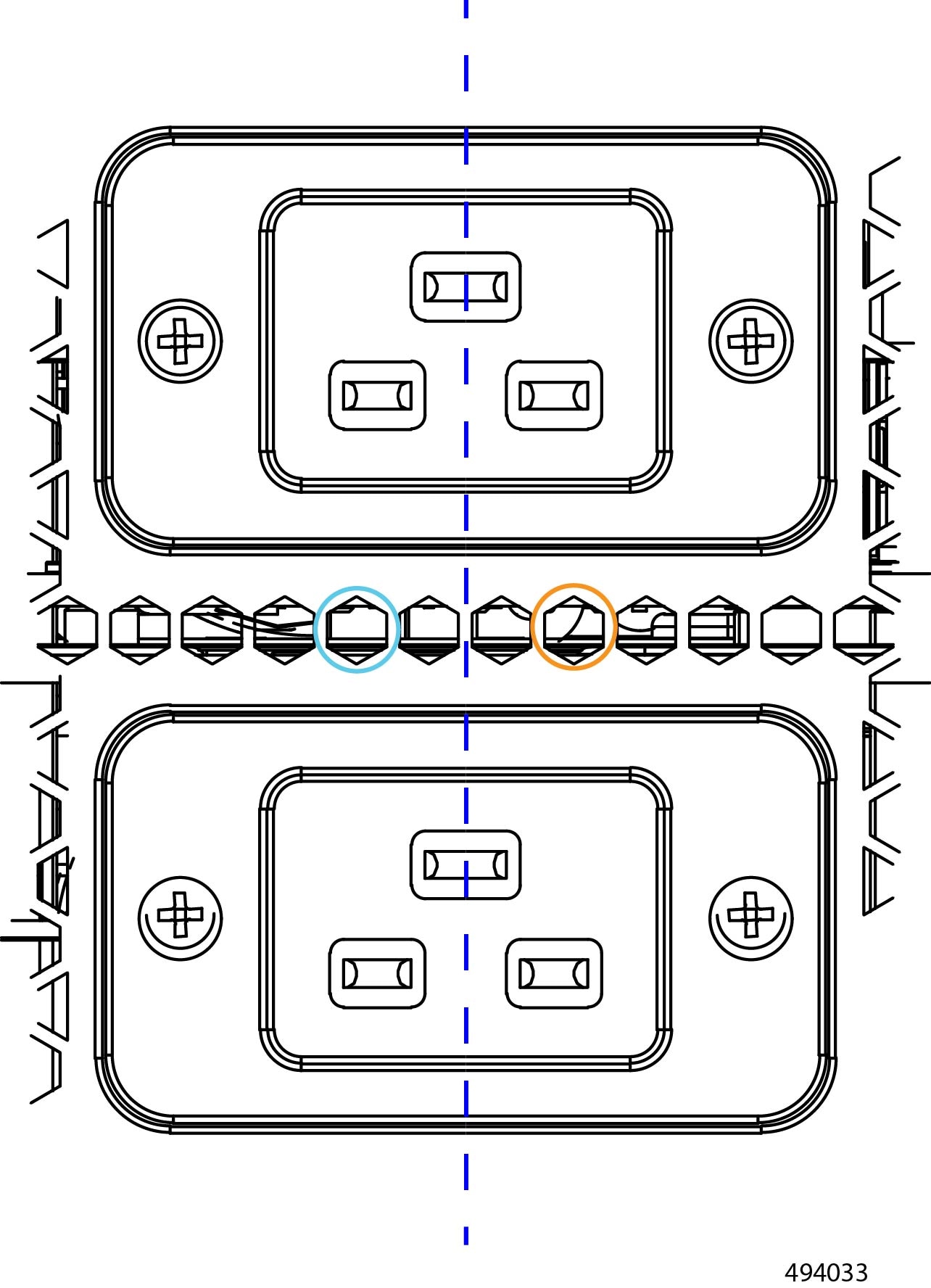
  • For the left clip, which supports the top PSU, the ventilation hole is directly below the left terminal of the top PSU's power socket as indicated by the cyan circle in the following illustration.

  • For the right clip, which supports the bottom PSU, the ventilation hole is directly above the right terminal of the bottom PSU's power socket as indicated by the orange circle in the following illustration.

Step 4

Insert the cable clips.

  1. Insert the central prong into the correct ventilation hole.

  2. Verify that the guide pins are also inserted into the ventilation holes.

  3. Repeat for the other cable clip.

    When properly installed, the left cable clip should be pointing up and the right cable clip should be pointing down.

  4. Repeat this step to install all cable clips.

Step 5

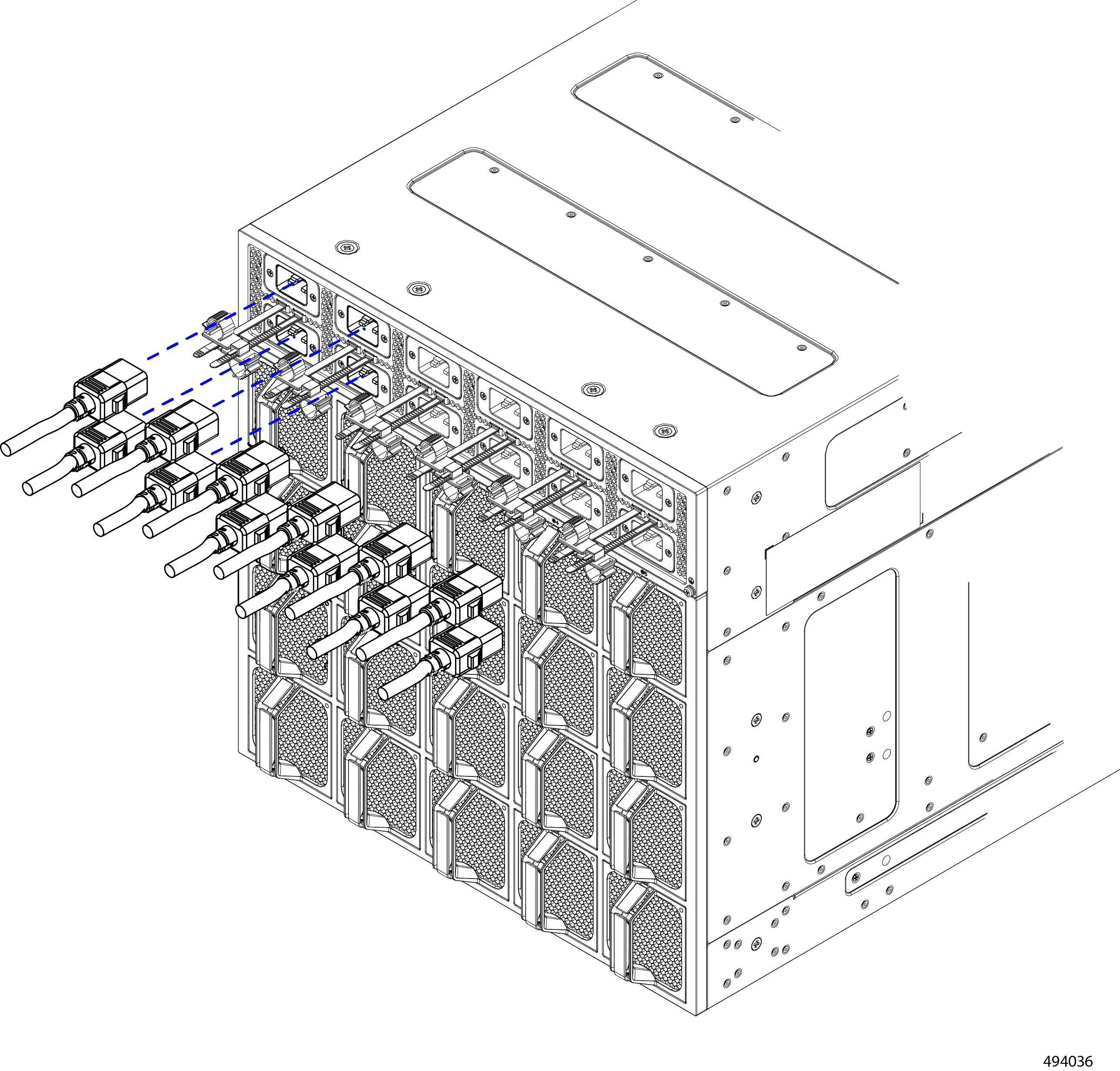
Connect the PSU power cables to the chassis.

Step 6

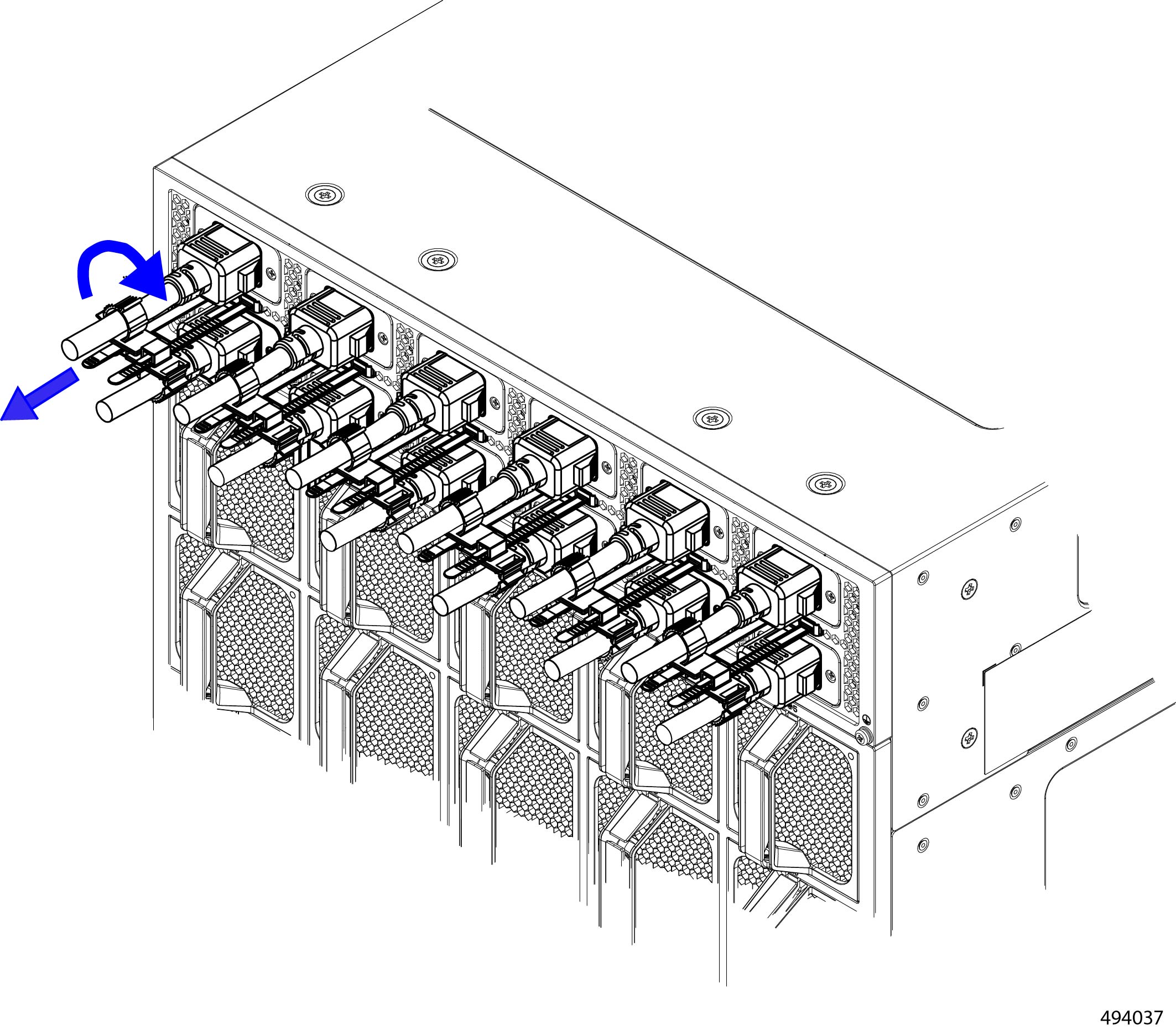
Secure the PSU cables to the cable clips.

  1. Gently push each PSU power cord into the plastic ring.

  2. Squeeze the plastic ring to snug so that the cable clip holds the cable.

    Each ring has teeth to ratchet closed and hold that position.

  3. While holding the cable in the ring, pull the tension strip towards you to secure the power cord in place.

    Note


    You might need attempt Steps 6b and 6c a few times to get the correct tightness on the cable.

    When the cable is correctly seated in the cable clip, it is held in place vertically by the plastic ring and horizontally by the tension strip.

Step 7

Verify that the cable is correctly seated in the cable clip by gently pulling on it.

The cable should not disconnect from the chassis. If it does, repeat this procedure until the cable does not disconnect from its PSU socket.


Initial Server Setup

After rack installation and power on, the server can be assigned an IP address and connected to server management through the Cisco Baseboard Management Controller (BMC) to enable the server to operate in standalone mode.

For more information, see the Cisco Baseboard Management Controller documentation.

Server Default Settings

The server is shipped with these default settings:

  • The NIC mode is dedicated.

If you want to use the 1-Gb/10-Gb Ethernet ports on the OCP NIC to access the Cisco Integrated Management Interface, and enable Shared NIC from the WebGUI after completing Cisco BMC Network Setting configuration.

  • Make sure that the following Network Settings for the Cisco BMC configuration are set.

    • Use Domain Name is enabled

    • Use DNS Servers is enabled

    • Use NTP Servers is enabled

    • Use Shared NIC (eth1) is disabled.

  • DCHP is enabled

  • IPv4 is enabled

Server Connection Method

To connect to the system for initial setup, use the following method:

  • Remote setup—Use this procedure if you want to perform setup through your dedicated management LAN.


Note


To configure the system remotely, you must have a DHCP server on the same network as the system. Your DHCP server must be preconfigured with the range of MAC addresses for this server node.


The server's MAC address is printed on a label that is on the top right corner of the server. The MAC address printed on the label is the beginning of the range of six contiguous MAC addresses.

Server Configuration and Management

The Cisco UCS C880A M8 rack server can be configured and managed using the following Cisco BMC management and configuration tool, which enables such tasks as:

  • Launching a KVM Launch and KVM Session management.

  • System Inventory

  • Power operations

  • User management and certificates

  • System firmware management

  • Boot order configuration

  • Monitoring

  • Event logs