Cisco UCS C-Series Integration with Cisco UCS Manager

This chapter includes the following sections:

Overview

This guide contains information and procedures for installing Cisco UCS Rack Mount Servers for integration with Cisco UCS Manager.

Cisco UCS C-Series Rack-Mount Servers are managed by the built-in standalone software, Cisco Integrated Management Controller (CIMC) . When a C-Series Rack-Mount Server is integrated with Cisco UCS Manager, the Cisco IMC does not manage the server anymore. Instead it is managed with the Cisco UCS Manager software. You will manage the server using the Cisco UCS Manager GUI or Cisco UCS Manager CLI.


Important


If your server is not new, make sure to reset the Cisco IMC to factory default settings before integrating the server with Cisco UCS Manager. See Server Utilities chapter in Cisco UCS C-Series Integrated Management Controller GUI Configuration Guide for your release to reset the server to factory default settings.


You can integrate Cisco UCS C-Series Rack-Mount Servers with Cisco UCS Manager in either one of the following setup:

  • Cluster setup: Using two Fabric Interconnects (FIs) or two FIs with two Fabric Extenders (FEXes) to connect the C-Series Rack-Mount Server.

  • Non-cluster setup: Using a single Fabric Interconnect or one FI with one FEX to connect the C-Series Rack-Mount Server. Cisco does not recommend operating UCS domains in Non-Cluster mode because of lack of resiliency. Complete domain outage is expected during routine maintenance upgrades.


Note


For Cisco UCS C-Series Rack-Mount Servers integration with Cisco UCS Manager, Cisco VIC adapters can only be connected to Cisco UCS Fabric Interconnects and not to third-party switches.


For Cisco UCS S-Series Rack-Mount Servers integration with Cisco UCS Manager, see the Cisco UCS S3260 Server Integration with Cisco UCS Manager guide in your specific release.
Integrating C-Series Rack Mount Server with Cisco UCS Manager

Cisco UCS Manager provides three connectivity modes for Cisco UCS C-Series Rack-Mount Server management. The following are the connectivity modes:

  • Direct Connect Mode: In this mode, a Cisco UCS VIC from a C-Series Rack-Mount Server connects directly to the Fabric Interconnect. Both management and data traffic pass through from the VIC to FI and vice versa.

  • SingleConnect (Sideband): In this mode, a Cisco UCS VIC from a C-Series Rack-Mount Server connects to FEX and then the Fabric Interconnect. Both management and data traffic pass from VIC to FEX and FI.

  • Dual-wire Management (Shared LOM): In this mode, shared LAN on the Motherboard (LOM) port from a C-Series Rack-Mount Server connects to FEX for the management traffic. Cisco UCS VIC connects to the FI for the data traffic.


    Note


    Cisco UCS 6536 Fabric Interconnect does not support Dual-wire Management.


Note


Cisco UCS C125 M5 Servers, Cisco UCS C225 M6 and C245 M6 Servers do not contain any LOM ports.


The general prerequisites for Dual-wire integration with Cisco UCS Manager are built into the C-Series Rack-Mount Server CIMC release 1.4(6) or later. If you want to use the SingleConnect or direct connect modes you must have the following:

  • Cisco UCS VIC 1225 Virtual Interface Card

  • Cisco UCS VIC 1227 (MLOM)

  • Cisco UCS VIC 1225T Virtual Interface Card

  • Cisco UCS VIC 1227T (MLOM)

  • Cisco UCS VIC 1387 (MLOM)

  • Cisco UCS VIC 1385

  • Cisco UCS VIC 1455 (supported in M5 and M6 Servers)

  • Cisco UCS VIC 1457 (MLOM) (supported only in C220 M5 and C240 M5 servers)

  • Cisco UCS VIC 1495 (supported in M5 and M6 Servers)

  • Cisco UCS VIC 1497 (MLOM) (supported only in C220 M5 and C240 M5 servers)

  • Cisco UCS VIC 1467 (MLOM) (supported only in C220 M6, C240 M6, C225 M6, and C245 M6 servers)

  • Cisco UCS VIC 1477 (MLOM) (supported only in C220 M6, C240 M6, C225 M6, and C245 M6 servers)

  • Cisco UCS VIC 15428 (MLOM) (supported only in C220 M6, C240 M6, C225 M6, and C245 M6 servers)

  • Cisco UCS VIC 15238 (MLOM) (supported only in C220 M6, C240 M6, C225 M6, and C245 M6 servers)


Note


For latest support matrix, refer Release Notes for Cisco UCS Manager, Release 4.2.

  • Cisco UCS VIC 15238 adapters are supported with Cisco UCS 6300, 6400 series, and 6536 Fabric interconnects.

  • Cisco UCS VIC 15428 adapters are supported with Cisco UCS 6300 series, 6400 series and 6536 Fabric interconnects.

  • Cisco UCS VIC 15000 MLOM is supported with 1400 Series PCIE adapters on M6 servers.

  • Cisco UCS VIC 1467 or 1477 Series adapters cannot be used with Cisco UCS 6200 Series Fabric Interconnects.

  • Cisco UCS C460 M4 Servers, Cisco UCS C125 M5 Servers, Cisco UCS C480 M5 Servers, and Cisco UCS C480 M5 ML Servers, Cisco UCS C225 M6 and C245 M6 Servers do not support MLOM adapters.


The following table lists the C-Series Rack-Mount Servers and supported management options:


Note


Dual-Wire Management is supported only with Cisco VIC adapters and not with third-party adapters.


Table 1. Supported Management Options

Servers

SingleConnect

Direct Connect Mode

Dual-wire Management

Cisco UCS C220 M4 Server

Yes

Yes

Yes

Cisco UCS C240 M4 Server

Yes

Yes

Yes

Cisco UCS C460 M4 Server

Yes

Yes

Yes

Cisco UCS C220 M5 Server

Yes

Yes

Yes

Cisco UCS C240 M5 Server

Yes

Yes

Yes

Cisco UCS C240 SD M5 Server

Yes

Yes

Yes

C480 M5 and C480 M5 ML servers

Yes

Yes

Yes

Cisco UCS C125 M5 Server

Yes

Yes

No

Cisco UCS C220 M6 Server

Yes

Yes

Yes

Cisco UCS C240 M6 Server

Yes

Yes

Yes

Cisco UCS C225 M6 Server

Yes

Yes

No

Cisco UCS C245 M6 Server

Yes

Yes

No

Based on your server model and CIMC version, you can use either one of these three integration options to connect the rack server with Cisco UCS Manager.

Cisco UCS Manager runs within the fabric interconnect (FI). With earlier Cisco UCS Manager releases, you need to use Fabric Extenders to connect the C-series server with the Fabric Interconnect to enable management with Cisco UCS Manager. You can directly connect the server adapter with the Fabric Interconnect without using the Fabric Extender.

You can use any of the interfaces available with this management service to access, configure, administer, and monitor the network and server resources for all chassis connected to the fabric interconnect. For information about the Cisco UCS 6400 Series Fabric Interconnect, Cisco UCS 6300 Series Fabric Interconnect, or Cisco UCS 6200 Series Fabric Interconnect, see the documentation at the following links:

For information about the Cisco Nexus 2232PP, Cisco Nexus 2232TM-E or Cisco Nexus 2348UPQ fabric extenders (FEXes) in the configuration, see the documentation at the following link:

Hardware Maintenance

Replacing servers and certain adapter cards requires that the server be decommissioned and recommissioned. See the decommissioning a Rack-Mount server and recommissioning a Rack-Mount Server sections in the appropriate Cisco UCS Manager Configuration Guide.

FEX Connection Mode and Discovery

You can connect the FEX to the FI in two ways. Cisco UCS Manager FI discovers the FEX based on the FEX/Chassis discovery mode. The FEX connection modes are:

  • Hard-Pinning mode: The server facing FEX ports are pinned to the connected uplink ports when the FEX is discovered. Cisco UCS Manager pins the server-facing ports to the uplink ports based on the number of acknowledged uplink ports. After the pinning, if you add a new uplink or delete an existing uplink, you must manually acknowledge the FEX to apply the changes.

  • Port-Channel mode: Port-Channel mode does not have pinning. A single port channel works as the uplink to all server-facing ports. And all uplink ports are members of this single port channel. If one of the uplink ports goes down, the traffic is automatically distributed to another available uplink port.

In port-channel mode, when you cable between FEX and the FI, the available virtual interface (VIF) namespace varies, depending on where the uplinks are connected to the FI ports:

  • When port-channel uplinks from the FEX are connected only within a set of eight ports managed by a single chip, Cisco UCS Manager maximizes the number of VIFs used in service profiles deployed on the servers.

  • If uplink connections are distributed across ports managed by separate chips, the VIF count is decreased. For example, if you connect seven members of the port channel to ports 1–7, but the eighth member to port 9, this port channel can only support VIFs as though it had one member.


Note


  • Beginning with Cisco UCS Manager release 4.2, Cisco Nexus N9K-C93180YC-FX3 Fabric Extender supports Cisco UCS VIC 15428, VIC 1455, VIC1457, and VIC 1467 adapters in 25G connection. Supported adapters can be used in mixed configurations.

  • The maximum number of connections supported from the N9K-C93180YC-FX3 FEX to the Fabric Interconnect is 16.


For more information on FEX discovery policies and port-channel allocation, see the appropriate Cisco UCS Manager Configuration Guide.

Maximum Configurable vNICs/vHBAs Based on Number of FEX Uplinks

The following table describes maximum configurable vNICs/vHBAs on a VIC adapter based on the number of FEX uplinks:

Table 2. Cisco UCS 6536 Fabric Interconnect

Acknowledged link between FEX and FI

Maximum configurable vNICs/vHBA on a VIC adapter for the VIC adapters 1455, 1457, 1467, 1495, 1497, 1477, 15238, and 15428

1

116

2

116

4

116

8

116

16

116

Table 3. Cisco UCS 6454 Fabric Interconnect and Cisco UCS 6400 Series Fabric Interconnect

Acknowledged link between FEX and FI

Maximum configurable vNICs/vHBA on a VIC adapter for the VIC adapters 1225, 1225T, 1227, 1227T, 1385, 1387, 1455, 1457, and 1467

1

116

2

116

4

116

8

116

16

116

Table 4. Cisco UCS 6300 Fabric Interconnect

Acknowledged link between FEX and FI

Maximum configurable vNICs/vHBA on a VIC adapter for the VIC adapters 1225, 1225T, 1227, 1227T, 1385, 1387, 1455, 1457, 1467, 1477, 1495, and 1497

1

116

2

116

4

116

8

116

Table 5. Cisco UCS 6200 Fabric Interconnect

Acknowledged link between FEX and FI

Maximum configurable vNICs/vHBA on a VIC adapter for the VIC adapters 1225, 1225T, 1227, 1227T, 1385, 1387, 1455, 1457, 1495, and 1497

1

12

2

27

4

57

8

116

Supported C-Series Servers and Adapter Cards

Adapter Cards

The following table shows the supported adapter cards for C-Series Rack-Mount Servers integration with Cisco UCS Manager:

Table 6. Adapter Cards for Rack Server Integration

Adapter Model

Dual-Wire Connection

SingleWire Connection

Direct Connection

Cisco UCS VIC 15238(UCSC-M-V5D200G)

No

No

Yes

CISCO UCS VIC 15428 (UCSC-M-V5Q50G)

Yes, but only on C220 M6 and C240 M6

Yes

Yes

Cisco UCS VIC 1495

(UCSC-PCIE-C100-04)

No

No

Yes

Cisco UCS VIC 1497

(UCSC-MLOM-C100-04)

No

No

Yes

Cisco UCS VIC 1467

(UCSC-M-V25-04)

Yes

Yes

Yes

Cisco UCS VIC 1477

(UCSC-M-V100-04)

No

No

Yes

Cisco UCS VIC 1455

(UCSC-PCIE-C25Q-04)

Yes

Yes

Yes

Cisco UCS VIC 1457

(UCSC-MLOM-C25Q-04)

Yes

Yes

Yes

Cisco UCS VIC 1387

(UCSC-MLOM-C40Q-03)

Yes

Yes

Yes

Cisco UCS VIC 1385

(UCSC-PCIE-C40Q-03)

Yes

Yes

Yes

Cisco UCS VIC 1227T

(UCSC-MLOM-C10T-02)

Yes

Yes

No

Cisco UCS VIC 1227

UCSC-MLOM-CSC-02

Yes

Yes

Yes

Cisco UCS VIC 1225

(UCSC-PCIE-CSC-02)

Yes

Yes

Yes

Cisco UCS VIC 1225T

(UCSC-PCIE-C10T-02)

Yes

Yes

No

QLogic QL45412H 40GbE1

(UCSC-PCIE-QD40GF)

Yes

No

No

1 Supported only for Azure-stack solution with FI 6332/6332-16UP and the Qlogic ports should be connected to FI directly and additionally LOM ports needs to be connected to FEX for management.

Note


Dual-wire management is not supported on the following:

  • Nexus 93180YC-FX3 in the FEX mode.

  • Cisco UCS C125 M5 Servers

  • Cisco UCS C225 M6 Servers

  • Cisco UCS C245 M6 Servers


Note


Different generation VIC adapters are not supported in a single server. For example, if a server has two VIC cards, both these VIC adapters should be either 1400 series or 1300 series or 1200 series. Cisco UCS 15000 Series VIC adapters can be mixed with 1400 series VIC adapters in M6 rack servers. For example, the VIC 15428 MLOM could be used along with 1455/1495 VIC adapter in an M6 rack-server.


Note


For rack server and adapter compatibility, see the respective rack server spec sheet. For connectivity options with Cisco UCS Manager, see Configuration Guides.


Cisco UCS Manager Upgrade Consideration

Beginning with Cisco UCS Manager 3.2(2b) release, UCS Manager does not allow provisioning any vNICs or vHBAs on adapters not listed in in Table 1.

Network Topology and Supported Cables

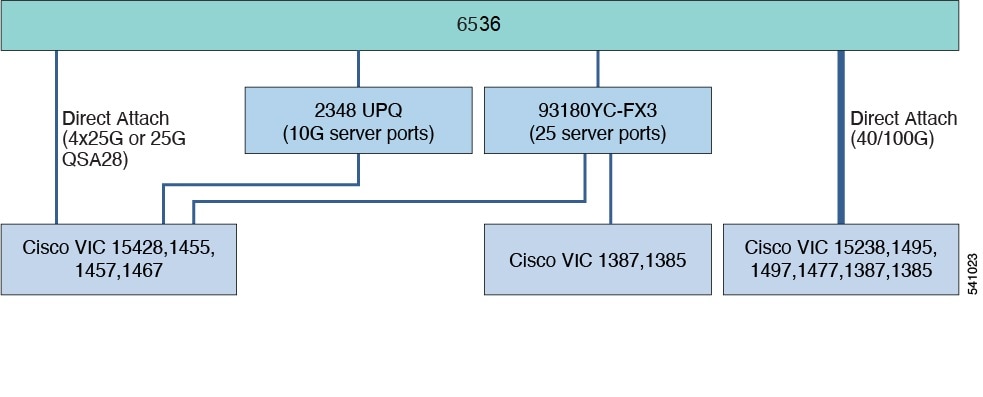
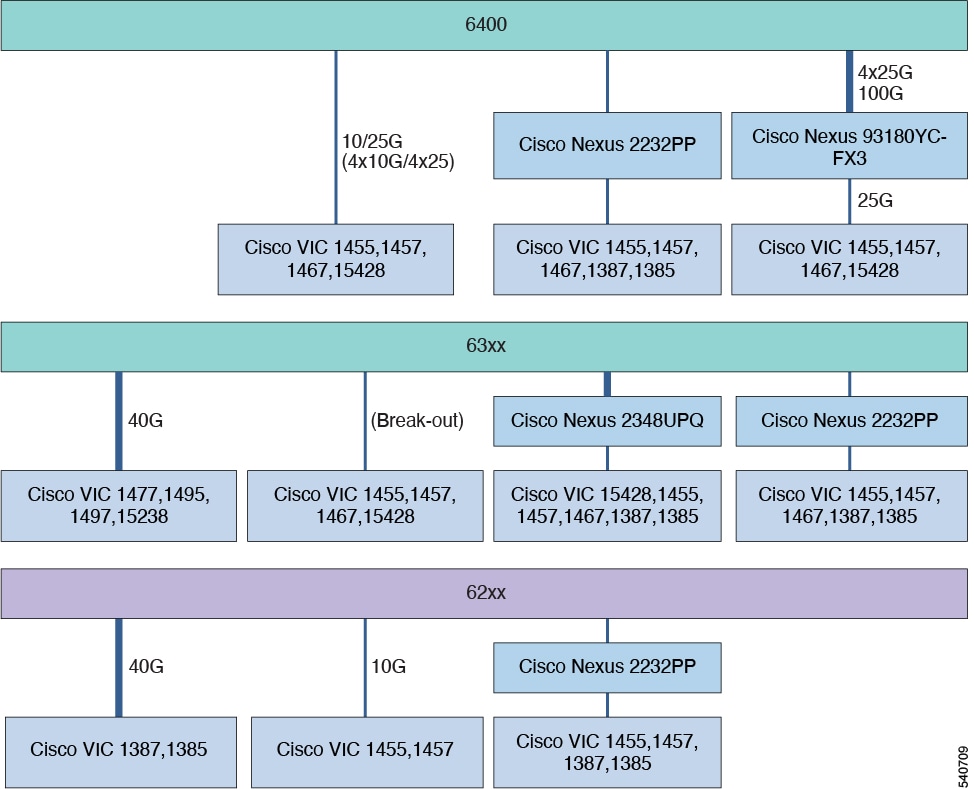
The following image is a graphical representation of the over-all network topology supported in the C-Series server integration with Cisco UCS Manager.

Figure 1. Network Topology for 6536 Fabric Interconnect with 1300/1400/15000 Series VIC Cards
Figure 2. Network Topology for 6200, 6300, and 6400 Series Fabric Interconnect with 1300/1400/15000 Series VIC Cards

For more information on server, Cisco VIC and FEX/IOM compatibility, refer Cisco UCS Fabric Interconnect Server Compatibility Matrix - Release 4.2(3) section in Release Notes for Cisco UCS Manager, Release 4.2.

Supported RAID/Storage Controller Configurations

Only servers without expanders can have more than one RAID controllers in the Cisco UCS Manager integrated mode. The following servers are allowed to have more than one RAID controllers in the Cisco UCS Manager integrated mode:

  • Cisco UCS C220 M4 (UCSC-C220-M4)

  • Cisco UCS C240 M4 (UCSC-C240-M4)

  • Cisco UCS C460 M4 (UCSC-C460-M4)

  • Cisco UCS C240 M5 (UCSC-C240-M5L)

  • Cisco UCS C240 M5 (UCSC-C240-M5S)

  • Cisco UCS C240 M5 (UCSC-C240-M5SX)

  • Cisco UCS C240 M5 (UCSC-C240-M5SN)

  • Cisco UCS C240 SD M5 (UCSC-C240-M5SD)

  • Cisco UCS C220 M5 (UCSC-C220-M5L)

  • Cisco UCS C220 M5 (UCSC-C220-M5SX)

  • Cisco UCS C220 M5 (UCSC-C220-M5SN)

  • Cisco UCS C480 M5 (UCSC-C480-M5)

  • Cisco UCS C480 M5 ML Server (USC-C480-M5ML)

  • Cisco UCS C220 M6 Server(USC-C220-M6S)

  • Cisco UCS C220 M6 Server(USC-C220-M6N)

  • Cisco UCS C240 M6 Server(USC-C240-M6S)

  • Cisco UCS C240 M6 Server(USC-C240-M6SX)

  • Cisco UCS C240 M6 Server(USC-C240-M6L)

  • Cisco UCS C240 M6 Server(USC-C240-M6N)

  • Cisco UCS C240 M6 Server(USC-C240-M6SN)

  • Cisco UCS C225 M6 Server(USC-C225-M6S)

  • Cisco UCS C245 M6 Server(USC-C245-M6SX)


Note


Cisco UCS C125 M5 Servers do not support multiple PICe RAID controllers. There are only 2 PCIe slots; one for a VIC card and the other for a RAID controller.


Any server not on this list that has more than one RAID controller installed, fails discovery.

The following RAID/Storage controllers are supported for C-Series rack-mount servers integration with Cisco UCS Manager.


Note


A fully loaded LSI controller supports RAID 0, 1, 5, 50, 6, 10 and 60. If you remove a memory card from an LSI controller, UCS Manager cannot create RAID 6 and 10.


Table 7. Supported RAID/Storage Controllers
Server Supported Storage Controller

Cisco UCS C240 M4 (UCSC-C240-M4)

  • Embedded SATA-only storage controller

  • Cisco 12G SAS Modular RAID controller

  • Cisco 12G Modular SAS Pass through Controller

  • Cisco 9300-8E 12G SAS HBA controller

  • Cisco UCSC-PSAS12GHBA storage controller

Cisco UCS C220 M4 (UCSC-C220-M4)

  • Embedded SATA-only storage controller

  • Cisco 12G SAS Modular RAID controller

  • Cisco 12G Modular HBA pass through controller

  • Cisco 9300-8E 12G SAS HBA controller

  • Cisco UCSC-PSAS12GHBA storage controller

Cisco UCS C460 M4 (UCSC-C460-M4)

  • Cisco 12G SAS Modular RAID controller

  • Cisco 12G SAS C460M4 RAID controller

  • Cisco 9300-8E 12G SAS HBA controller

  • LSI MegaRAID SAS 9361-8i RAID controller

Cisco UCS C220 M5 (UCSC-C220-M5SX)

  • Cisco 12G Modular Raid controller with 2GB cache(max 16 drives) (UCSC-RAID-M5)

  • Cisco 12G Modular SAS HBA (max 16 drives) (UCSC-SAS-M5)

Cisco UCS C220 M5 (UCSC-C220-M5L)

  • Cisco UCS 12G SAS Modular 8-Port RAID Controller (UCSC-MRAID12G)

Cisco UCS C220 M5 (UCSC-C220-M5SN)

  • Cisco UCS 12G SAS Modular 8-Port RAID Controller (UCSC-MRAID12G) or Cisco 12G Modular SAS HBA (max 16 drives) (UCSC-SAS-M5)

  • Up to 10 SFF NVMe PCIe SSDs.

    Note


    The drives in slots 1 and 2 are connected from Riser 2 and the drives in slots 3 through 10 are connected from the PCIe switch card plugged into the internal HBA slot.

UCSC-C220-M5SN does not support embedded RAID.

Cisco UCS C240 M5 (UCSC-C240-M5S)

  • Cisco 12G Modular Raid controller with 2GB cache(max 16 drives) (UCSC-RAID-M5)

  • Cisco 12G Modular SAS HBA (max 16 drives) (UCSC-SAS-M5)

Cisco UCS C240 M5 (UCSC-C240-M5L)

  • Cisco 12G Modular Raid controller with 2GB cache(max 16 drives) (UCSC-RAID-M5)

  • Cisco 12G Modular SAS HBA (max 16 drives) (UCSC-SAS-M5)

Cisco UCS C240 M5 (UCSC-C240-M5SX)

  • Cisco 12G Modular Raid controller with 4GB cache(max 26 drives) (UCSC-RAID-M5HD)

  • Cisco 12G Modular SAS HBA (max 26 drives)(UCSC-SAS-M5HD)

Cisco UCS C240 M5 (UCSC-C240-M5SN)

  • Up to eight front-facing SFF NVMe PCIe SSDs only (replacing SAS/SATA drives).

    Note


    These drives must be placed in front drive bays 1 through 8 only and are connected from Riser 2 slot 4 (from a PCIe switch).

  • 16 SFF front-facing SAS/SATA hard drives (HDDs) or SAS/SATA solid state drives (SSDs).

    Note


    Drives occupy slots 9-24.

  • Optionally, up to two SFF, rear-facing SFF NVMe PCIe SSDs (must be NVMe only). Rear facing NVMe drives are connected from Riser 2.

UCSC-C240-M5SN does not support embedded RAID.

Cisco UCS C240 SD M5 (UCSC-C240-M5SD)

  • Cisco 12G Modular SAS HBA (maximum of 16 drives) (UCSC-SAS-M5)

Cisco UCS C480 M5 (UCSC-C480-M5)

  • Cisco 12G 9460-8i RAID controller with 2GB cache (UCSC-SAS9460-8I)

  • Cisco 12G Modular RAID (UCSC-RAID-M5HD) controller with a 4GB cache with a supercap cache backup (UCSC-SCAP-M5)

  • Cisco UCS C480 M5 (UCSC-C480-8AUX) Auxiliary Drive Modules for the Cisco 12G 9460-8i RAID controller

Cisco UCS C125 M5 Server (UCSC-C125)

  • Cisco 12G 9460-8i RAID controller with 2GB cache (UCSC-SAS9460-8I)

  • Onboard SATA storage controller (FCH) in AHCI mode is supported

  • SWRAID is not supported

Cisco UCS C480 M5 ML Server (USC-C480-M5ML)

  • Cisco 12G Modular RAID Controller (UCSC-RAID-M5HD)

    Includes 4-GB cache; controls up to 26 drives

Cisco UCS C220 M6 Server

(UCS-C220-M6S)
  • Cisco 12G Modular SAS HBA (max 16 drives) (UCSC-SAS-M6T)

  • Cisco 12G Modular Raid controller with 2GB cache(max 16 drives) (UCSC-RAID-M6T)

  • 12 SFF front-facing SAS/SATA hard drives (HDDs) or SAS/SATA solid state drives (SSDs).

    Note


    Drives occupy slots 1-10

Cisco UCS C220 M6 Server

(UCS-C220-M6N)

Up to 10 SFF NVMe PCIe SSDs.

Cisco UCS C240 M6 Server

(UCS-C240-M6S)
  • Cisco 12G Modular SAS HBA (max 16 drives) (UCSC-SAS-M6T)

  • Cisco 12G Modular Raid controller with 2GB cache(max 16 drives) (UCSC-RAID-M6T)

  • 12 SFF front-facing SAS/SATA hard drives (HDDs) or SAS/SATA solid state drives (SSDs).

    Note


    Drives occupy slots 1-12

Cisco UCS C240 M6 Server(UCS-C240-M6L)

  • Cisco 12G Modular SAS HBA (max 16 drives) (UCSC-SAS-M6HD)

  • Cisco 12G Modular Raid controller with 2GB cache(max 16 drives) (UCSC-RAID-M6HD)

Cisco UCS C240 M6 Server(UCS-C240-M6SX)

  • Dual Cisco 12G Modular SAS HBA (max 32 drives) (UCSC-SAS-M6T)

  • Cisco 12G Modular Raid controller with 2GB cache(max 16 drives) (UCSC-RAID-M6SD)

Cisco UCS C240 M6 Server(UCS-C240-M6N)

Up to 12 SFF NVMe PCIe SSDs.

Cisco UCS C240 M6 Server(UCS-C240-M6SN)

Up to 24 SFF NVMe PCIe SSDs.

Cisco UCS C225 M6 Server(USC-C225-M6S)

Cisco M6 12G SAS RAID controller with 4GB FBWC (UCSC-RAID-M6T) or Cisco M6 12G SAS HBA controller (UCSC-SAS-M6T) in C225-SFF (10 front SAS/SATA drives)

Cisco UCS C225 M6 Server(USC-C225-M6N)

Direct attached NVMe drives (10 NVMe drives in the front)

Cisco UCS C245 M6 Server(USC-C245-M6SX)

  • Dual-Cisco M6 12G SAS HBA controller (UCSC-RAID-M6T) (up to 16 SAS/SATA HDD)

  • Cisco M6 12G SAS RAID controller with 4GB FBWC (28 Drives) (UCSC-RAID-M6SD) (up to 28 SAS/SATA HDD)

  • M.2 Boot RAID controller (UCS-M2-HWRAID) (Hardware RAID 0/1, up to two M.2 2280 Drives)

  • Directly attached NVMe on rear risers (up to four NVMe SSD)

Supported FlexFlash Configuration

Some Cisco UCS C-Series Rack-Mount Servers support an internal Cisco FlexFlash Secure Digital (SD) memory card for storage of server software tools and utilities. FlexFlash is disabled by default. You can enable FlexFlash in a local disk policy used in a service profile.


Note


Cisco UCS C-Series standalone servers with Cisco FlexFlash SD memory cards configured in Utility mode are not supported in the Cisco UCS Manager Integrated mode.


After upgrading CIMC if you are unable to install Cisco FlexFlash, apply the scrub policy before configuring the FlexFlash SD cards.

The FlexFlash SD cards can also be scrubbed using the format SD cards option, if the controller supports the same.

Converting Cisco Nexus Switch to 93180YC-FX3 FEX

This section describes how to convert the switch usage from switch mode to FEX mode.

Procedure


Step 1

Configure the switch in a way that it does not boot from Cisco NX-OS mode using the following command:

no boot nxos

Step 2

Copy the start-up configuration before booting the FEX image by running the following command:

copy running-config startup-config

Step 3

Set the FEX as the boot variable by running the following command:

boot fex

Note


Do not run the copy running-config startup-config command after running the boot fex command.

Step 4

Reload the switch.

Here is a sample switch to FEX conversion commands:

switch(config)# no boot nxos 
switch(config)# copy running-config startup-config
switch(config)# boot fex 
switch(config)# reload

Discovering 93180YC-FX3 FEX in Cisco UCS Manager


Note


In Cisco UCS Manager release 4.2, only the Cisco Nexus 93180YC-FX3 switch is supported in the FEX mode and Cisco Nexus 93180YC-FX3S switch in the FEX mode is not supported.


Procedure


Step 1

Log in to Cisco UCS Manager.

Step 2

Configure the server port for the 93180YC-FX3 FEX.

  1. In the Navigation pane, click Equipment.

  2. Expand Equipment > Fabric interconnects > Fabric Interconnect A/B > Fixed Module > Ethernet Ports.

  3. Click a port under the Ethernet Ports node.

  4. In the Work pane, click the General tab.

  5. In the Actions area, click Reconfigure.

  6. From the drop-down list, choose Configure as Server Port.

Step 3

In the Actions area, click Show Interface and choose CL74 in the FEC field to initiate discovery of 93180YC-FX3 FEX.

Note


For connecting Cisco UCS rack servers to the 93180YC-FX3 FEX, you do not require an explicit FEC configuration.

Table 8. Supported Cable and Transceiver Matrix for 93180YC-FX3

Type

Supported Cables

25GbE

  • SFP-25G-SR-S

  • SFP-10/25G-LR-S

  • SFP-10/25G-CSR-S

  • SFP-H25G-CU1M

  • SFP-H25G-CU2M

  • SFP-H25G-CU3M

  • SFP-H25G-CU4M

  • SFP-H25G-CU5M

  • SFP-25G-AOC1M

  • SFP-25G-AOC2M

  • SFP-25G-AOC3M

  • SFP-25G-AOC4M

  • SFP-25G-AOC5M

  • SFP-25G-AOC7M

  • SFP-25G-AOC10M

100GbE

  • QSFP-4SFP25G-CU1M

  • QSFP-4SFP25G-CU2M

  • QSFP-4SFP25G-CU3M

  • QSFP-4SFP25G-CU5M

  • QSFP-100G-SR4-S

  • QSFP-100G-PSM4-S