Enforce Policies with Agents

By default, agents that are installed on your workloads have the capability to enforce policy, but enforcement is disabled. When you are ready, you can enable these agents to enforce policy on selected hosts that are based on the configured intent.

When an agent enforces a policy, it applies an ordered set of rules that specify whether the firewall should ALLOW or DROP specific network traffic that is based on parameters such as the source, destination, port, protocol, and direction. For more information on policies, see Manage Policy Lifecycle in Secure Workload.

Enforcement using agents

  • Agents receive policies over a secured TCP or SSL channel.

  • Agents run in a privileged domain. On Linux machines, the agent runs as root; on Windows machines, the agent runs as SYSTEM.

  • Depending on the platform, when policy enforcement is enabled, agents can completely control the firewall or work with existing configured rules.

  • For details about enforcement options and to enable and configure agents to enforce policies, see Create an Agent Configuration Profile.

Advanced details

When you enable enforcement, golden rules are formulated to allow the agent to connect to the controller. Agents communicate with the Enforcement Front End (EFE) of the controller through a bidirectional and secure channel using the TLS or SSL protocol. Messages from the controller are signed by the policy generator and verified by the agent.

The agent receives policies in a platform-independent schema from the controller. The agent converts these platform-independent policies into platform-specific policies and programs the firewall on the endpoint.

The agent actively monitors the firewall state. If the agent detects any deviation in the enforced policies, it enforces the cached policies into the firewall again. The agent also monitors its own consumption of system resources such as CPU and memory.

The agent periodically sends a status and stats report to the controller using EFE. The status report includes the status of the latest programmed policies such as success, failure, or error, if any. The stats report includes the policy stats such as allowed and dropped packets, and byte count depending on the platform.

Agent Enforcement on the Linux Platform

On the Linux platform, enforcement of both IPv4 and IPv6 policies is supported. The agent uses the iptables or ip6tables, and ipset to enforce network policies. After the agent is enabled on the host, by default, it controls, and programs iptables. If the IPv6 network stack is enabled, then the agent controls the IPv6 firewall using ip6tables.

Linux iptables or ip6tables

The Linux kernel has iptables and ip6tables that are used to set up, maintain, and inspect the tables of IPv4 and IPv6 packet filter rules. The iptables and ip6tables consist of many predefined tables. Each table contains predefined chains and can also contain user-defined chains. These chains contain sets of rules and each of these rules specifies the match criteria for a packet. Predefined tables include raw, mangle, filter, and NAT. Predefined chains include INPUT, OUTPUT, FORWARD, PREROUTING, and POSTROUTING.

The Secure Workload agent programs a filter table that contains rules to allow or drop packets. The filter table consists of the predefined chains INPUT, OUTPUT, and FORWARD. Along with these, the agent adds custom TA chains to categorize and manage the policies from the controller. These TA chains contain Secure Workload rules that are derived from the policies along with rules that are generated by the agent. When the agent receives platform-independent rules, it parses and converts them into iptable, ip6table, or ipset rules and inserts these rules into TA defined chains in the filter table. After programming the firewall, the agent monitors the firewall for any rule or policy deviation and if so, reprograms the firewall. It keeps track of the policies that are programmed in the firewall and reports their stats periodically to the controller.

Here is an example to depict this behavior:

A typical policy in a platform-independent network policy message consists of:

source set id: “test-set-1”
destination set id: “test-set-2”
source ports: 20-30
destination ports: 40-50
ip protocol: TCP
action: ALLOW
. . .
set_id: “test-set-1”
     ip_addr: 1.2.0.0
     prefix_length: 16
     address_family: IPv4
set_id: “test-set-2”
     ip_addr: 3.4.0.0
     prefix_length: 16
     address_family: IPv4

Along with other information, the agent processes this policy and converts it into platform-specific ipset and iptables rule:

ipset rule:
Name: ta_f7b05c30ffa338fc063081060bf3
Type: hash:net
Header: family inet hashsize 1024 maxelem 65536
Size in memory: 16784
References: 1
Members:
1.2.0.0/16
Name: ta_1b97bc50b3374829e11a3e020859
Type: hash:net
Header: family inet hashsize 1024 maxelem 65536
Size in memory: 16784
References: 1
Members:
3.4.0.0/16
iptables rule:
TA_INPUT -p tcp -m set --match-set ta_f7b05c30ffa338fc063081060bf3 src -m set --match-
˓→set ta_1b97bc50b3374829e11a3e020859 dst -m multiport --sports 20:30 -m multiport --
˓→dports 40:50 -j ACCEPT

Caveats

ipset Kernel Module

When enforcement is enabled and preserve rules is disabled in the Agent Config profile, the agents running on Linux hosts ensures that the ipset kernel module has a sufficiently large max_sets configuration. In case a change is needed, the agent reloads the ipset kernel module with a new max_sets value. If Preserve Rules is enabled, the agents check the current ipset module max_sets value, but does not make any change. The current configured max_sets value can be found in cat /sys/module/ip_set/parameters/max_sets.

Host Firewall Backup

The first time that enforcement is enabled in the Agent Config profile, the agents running on Linux hosts, store the current content of ipset and ip[6]tables in /opt/cisco/tetration/backup before taking control of the host firewall.

Successive disable or enable transitions of enforcement configuration do not generate backups. The directory is not removed after agent uninstallation.

Agent Enforcement on the Windows Platform in WAF mode

In Web Application Firewall (WAF) mode on the Windows platform, the Secure Workload agent uses the Windows Firewall to enforce network policies. Enforcement of both IPv4 and IPv6 policies is supported.

Windows Firewall with Advanced Security

A native component on Windows, the Windows Firewall with Advanced Security, regulates network traffic that is based on the following types of settings:

  • Rules that regulate inbound network traffic.

  • Rules that regulate outbound network traffic.

  • Override rules that is based on the authentication status of the source and destination of the network traffic.

  • Rules that apply to IPsec traffic and to Windows services.

The Secure Workload Network Policy is programmed using inbound and outbound firewall rules.

Secure Workload Rules and the Windows Firewall

On the Windows platform, the Secure Workload Network Policy is enforced as follows:

  1. The platform-independent firewall rules from the Secure Workload Network policy are translated into Windows Firewall rules.

  2. The rules are programmed in Windows Firewall.

  3. The Windows Firewall enforces the rules.

  4. The Windows Firewall and its ruleset are monitored. If a change is detected, the deviation is reported and the Secure Workload Network policy is reset in the Windows Firewall.

Security Profiles

Windows Firewall groups the rules based on the network that the host is connected to. These rule groups are called Profiles and there are three such profiles:

  • Domain Profile

  • Private Profile

  • Public Profile

The Secure Workload rules are programmed into all the profiles, but only rules in active profiles are continuously monitored.

Effective Setting and Mixed-List Policies

The set of rules in the Windows Firewall is not ordered based on precedence. When multiple rules match a packet, the most restrictive of those rules take effect meaning that DENY rules take precedence over ALLOW rules. For more information, see the article on Microsoft TechNet.

Consider the mixed-list, both allow and deny, policy example from the Enforcement Agent section:
1. ALLOW 1.2.3.30 tcp port 80
2. ALLOW 1.2.3.40 udp port 53
3. BLOCK 1.2.3.0/24 ip
4. ALLOW 1.2.0.0/16 ip
5. Catch-all: DROP ingress, ALLOW egress

When a packet headed for the host 1.2.3.30 TCP port 80 reaches the firewall, it matches all the rules, but the most restrictive of them all, Rule number 3, is the one that will be enforced and the packet will be dropped. This behavior is contrary to the expectation that the rules will be evaluated in order, Rule 1 is the rule that is enforced, and that the packet will be allowed.

This difference in behavior is expected in the Windows platform owing to the design of the Windows Firewall described above. This behavior can be observed in mixed-list policies with overlapping rules that have different rule actions.

For example,

1. ALLOW 1.2.3.30 tcp
2. BLOCK 1.2.3.0/24 tcp

Interference from Other Firewalls or Policies

We recommend that you grant the agent full and exclusive control of the Windows Firewall to enforce the Secure Workload Network Policy as intended. Agents cannot reliably enforce the policy if:

  • A third-party firewall is present. (The Windows Firewall is required to be the active firewall product on the host.)

  • The Firewall is disabled for the current profiles.

  • Conflicting firewall settings are deployed using Group Policy. Some of the conflicting settings are:

    • Firewall rules.

    • Default inbound or outbound actions in the current profiles that differ from the catch-all rules of the policy.

    • Firewall disabled for the current profiles.

Stateful Enforcement

Windows Advanced Firewall is considered as a stateful firewall, that is for certain protocols such as TCP, the firewall maintains internal state tracking to detect if a new packet hitting the firewall belongs to a known connection. Packets belonging to a known connection are allowed without the firewall rules having to be examined. A stateful firewall enables bidirectional communication without rules having to be established in the INBOUND and OUTBOUND tables.

For example, consider the following rule for a web server: Accept all TCP connections to port 443

The intention is to accept all TCP connections on port 443 to the server, and allow the server to communicate back to the clients. In this case, only one rule is inserted in the INBOUND table, allowing TCP connections on port 443. No rule is required to be inserted in the OUTBOUND table. Inserting a rule in the OUTBOUND table is implicitly done by the Windows Advanced Firewall.


Note


Stateful tracking applies only to protocols that establish and maintain explicit connections. For other protocols, both INBOUND and OUTBOUND rules must be programmed to enable bidirectional communication.


When enforcement is enabled, a given concrete rule is programmed as stateful when the protocol is TCP (the agent decides, based on the context, whether the rule is to be inserted in the INBOUND table or the OUTBOUND table). For other protocols (including ANY), both INBOUND and OUTBOUND rules are programmed.

Caveats

Host firewall backup

When enforcement is enabled for the first time in the Agent Config profile, the agents running on Windows hosts, before taking control of the host firewall, export the current Windows Advanced Firewall content to ProgramData\Cisco\Tetration\backup. Successive disable or enable transitions of Enforcement configuration do not generate backups. The directory is not removed upon agent uninstallation.

Agent Enforcement on the Windows Platform in WFP Mode

In Windows Filtering Platform (WFP) mode on the Windows platform, the agent enforces the network policies by programming Windows Filtering Platform (WFP) filters. The agent does not use Windows Advanced Firewall to configure network policies. Enforcement of both IPv4 and IPv6 policies is supported.

Windows Filtering Platform

Windows Filtering Platform (WFP) is a set of APIs provided by Microsoft to configure filters for processing network traffic. Network traffic processing filters are configured using kernel-level APIs and user level APIs. WFP filters can be configured at various layers, Network Layer, Transport Layer, Application Layer Enforcement (ALE). Secure Workload WFP filters are configured at the ALE layer, similar to Windows firewall rules. Each layer has several sublayers, ordered by weight, from highest to lowest. Within each sublayer, filters are ordered by weight, from highest to lowest. A network packet traverses through all the sublayers. At each sublayer, the network packet traverses through the matching filters that are based on weight, from highest to lowest and returns the action: Permit or Block. After passing through all the sublayers, the packet is processed based on the rule that Block action overrides Permit.

Advantages of WFP over WAF

  • Avoids Windows Firewall configuration dependencies.

  • Overcomes GPO restrictions.

  • Ensures ease of migration and policy reversion.

  • Allows you to control policy ordering.

  • Avoids strict block-first policy order of Windows Firewall.

  • Reduces CPU overhead on policy update.

  • Creates an efficient 1:1 policy rule filter.

  • Ensures a faster single-step update.

Agent Support for WFP

When enforcement is configured to use WFP, Secure Workload filters override Windows Firewall rules.

In WFP mode, the agent configures the following WFP objects:

  • Provider has a GUID and name, is used for filter management, and does not affect packet filtering

  • Sublayer has a GUID, name, and weight. The Secure Workload sublayer is configured with higher weight than the Windows Advanced Firewall sublayer.

  • Filter has name, GUID, ID, weight, layer ID, sublayer key, action (PERMIT/ BLOCK), and conditions. WFP filters are configured for Golder rules, Self Rules, and Policy Rules. The agent also configures the port scanning prevention filters. Secure Workload filters are configured with the FWPM_FILTER_FLAG_CLEAR_ACTION_RIGHT flag. This flag ensures that Secure Workload filters are not overridden by Microsoft Firewall rules. For each Secure Workload Network policy rule, one or more WFP filters are configured based on the direction (inbound or outbound) and protocol.


    Note


    When port scan probes are sent to the host, the status of the corresponding flows is displayed as PERMITTED:REJECTED on the Policy Analysis page. Note that this is applicable to all agent versions up to 3.10.2.11.


For TCP inbound policy,

id: 14 , TCP Allow 10.195.210.184 Dir=In localport=3389

The WFP filters configured are:

Filter Name:                  Secure Workload Rule 14
------------------------------------------------------
EffectiveWeight:                       18446744073709551589
LayerKey:                              FWPM_LAYER_ALE_AUTH_LISTEN_V4
Action:                                Permit
Local Port:                            3389
Filter Name:                           Secure Workload Rule 14
------------------------------------------------------
EffectiveWeight:                       18446744073709551589
LayerKey:                              FWPM_LAYER_ALE_AUTH_RECV_ACCEPT_V4
Action:                                Permit
RemoteIP:                              10.195.210.184-10.195.210.184

Secure Workload agent configures Secure Workload Default Inbound and Secure Workload Default Outbound filters for inbound and outbound CATCH-ALL policy respectively.

Agent WFP support and Windows Firewall

  • The agent does not monitor WAF rules or WAF profiles.

  • The agent does not monitor firewall states.

  • The agent does not require firewall state to be enabled.

  • The agent does not conflict with GPO policies.

Effective Setting and Mixed-List Policies

Agent enforcement in WFP mode supports mixed-list or grey list policies.

Consider the mixed-list (both allow and deny) policy example from the Enforcement Agent section:


1. ALLOW 1.2.3.30 tcp port 80-            wt1000
2. BLOCK 1.2.3.0/24 ip-                   wt998
3. ALLOW 1.2.0.0/16 ip-                   wt997
4. Catch-all: DROP ingress, ALLOW egress - wt996

When a packet headed for the host 1.2.3.30 tcp port 80 reaches the firewall, it matches filter 1 and is allowed. However, a packet that is headed for the host 1.2.3.10 is blocked because of filter 2. A packet that is headed for host 1.2.2.10 is allowed by filter 3.

Stateful Enforcement

Secure Workload WFP filters are configured at the ALE layer. Network traffic is filtered for socket connect(), listen(), and accept() operations. Network packets related to a L4 connection are not filtered after the connection is established.

Visibility of Configured WFP Filters

You can view the configured Secure Workload WFP filters using c:\program files\tetration\tetenf.exe. Supported options:

  • With administrative privileges, run cmd.exe.

  • Run c:\program files\tetration\tetenf.exe -l -f <-verbose> <-output=outfile.txt>.

OR

  • With administrative privileges, run cmd.exe.

  • Run netsh wfp show filters.

  • View the filters.xml file for configured Secure Workload filters.

Disable Stealth Mode Filters in WFP Mode

Stealth mode is a default security feature in Windows. It blocks outgoing control packets that the operating system sends upon receiving connection attempts on ports which do not have active listeners. When the Secure Workload agent enforces policies in WFP mode on a Windows workload, it configures filters to implement the Stealth mode functionality.

Although not recommended, under special circumstances, an administrator may want to disable this feature. When the Secure Workload agent enforces policies on a workload, follow the steps given below to disable the Stealth mode filters.

To disable Stealth mode filters (port scanning filters):

Procedure


Step 1

Edit \conf\enforcer.cfg.

Step 2

Add disable_wfp_stealth_mode: 1

Step 3

Save the file.

Step 4

With administrative privileges, restart the CswAgent service by:

  1. Run the command: sc.exe cswagent to stop the CswAgent Service.

  2. Run the command: sc.exe cswagent to start the CswAgentService.

Step 5

To verify:

  1. With administrative privileges, run cmd.exe.

  2. Run the command: c:\program files\tetration\tetenf.exe -l -f -verbose -output=outfile.txt.


“Tetration Internal Rule block portscan” filters are not configured.

Note


The feature to disable stealth mode filters is automatically removed when the Secure Workload agent upgrades to a new version.


For more detailed instructions on how to disable Stealth mode in Windows, see How to disable stealth mode - Windows Server | Microsoft Learn.

Delete Configured WFP Filters

You can delete the configured Secure Workload WFP filters using c:\program files\tetration\tetenf.exe. To avoid accidental deletions of filters, when you run the delete command, specify the token in <yyyymm> format, where yyyy is the current year and mm is the current month in the numerical form. For example, if today’s date is 01/21/2021, then the token is -token=202101

Supported options are:

  • With administrative privileges, run cmd.exe.

  • To delete all configured Secure Workload filters, run c:\program files\tetration\tetenf.exe -d -f -all - token=<yyyymm>

  • To delete all configured Secure Workload WFP objects, run c:\program files\tetration\tetenf.exe -d -all -token=<yyyymm>

  • To delete a Secure Workload WFP filter by name, run c:\program files\tetration\tetenf.exe -d -name=<WFP filter name> -token=<yyyymm>

Known Limitations in WFP Mode

  • The Preserve Rules setting in Agent Config Profile has no effect when you set Enforcement Mode to WFP.

Configure Policies for Windows Attributes

For more granularity when enforcing a policy on Windows-based workloads, you can filter network traffic by:

  • Application Name

  • Service Name

  • User Names with or without User Groups

This option is supported in both WAF and WFP modes. Windows OS-based filters are categorized as consumer filters and provider filters in the generated network policy. The Consumer filters filter the network traffic that is initiated on the consumer workload and Provider filters filter the network traffic that is destined for the provider workload.

Before you begin

This procedure assumes you are modifying an existing policy. If you have not yet created the policy to which you want to add a Windows OS-based filter, create that policy first.


Important


See Caveats and Known limitations for policies involving Windows attributes.


Procedure


Step 1

In the navigation pane, click Defend > Segmentation.

Step 2

Click the scope that contains the policy for which you want to configure Windows OS-based filters.

Step 3

Click the workspace in which you want to edit the policy.

Step 4

Click Manage Policies.

Step 5

Choose the policy to edit.

Important


Consumer and Provider must include only Windows workloads.

Step 6

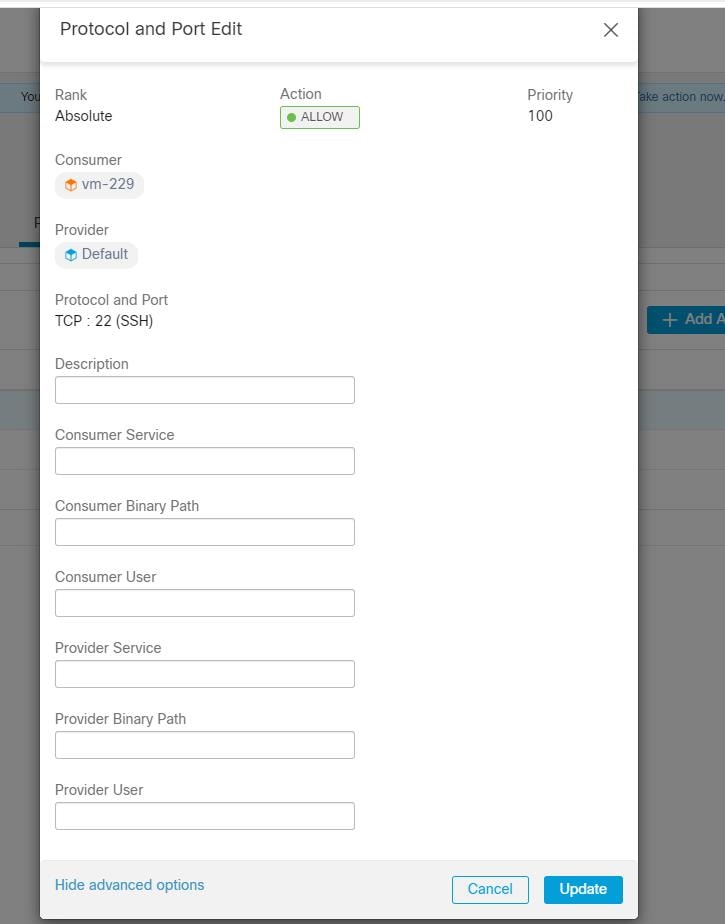
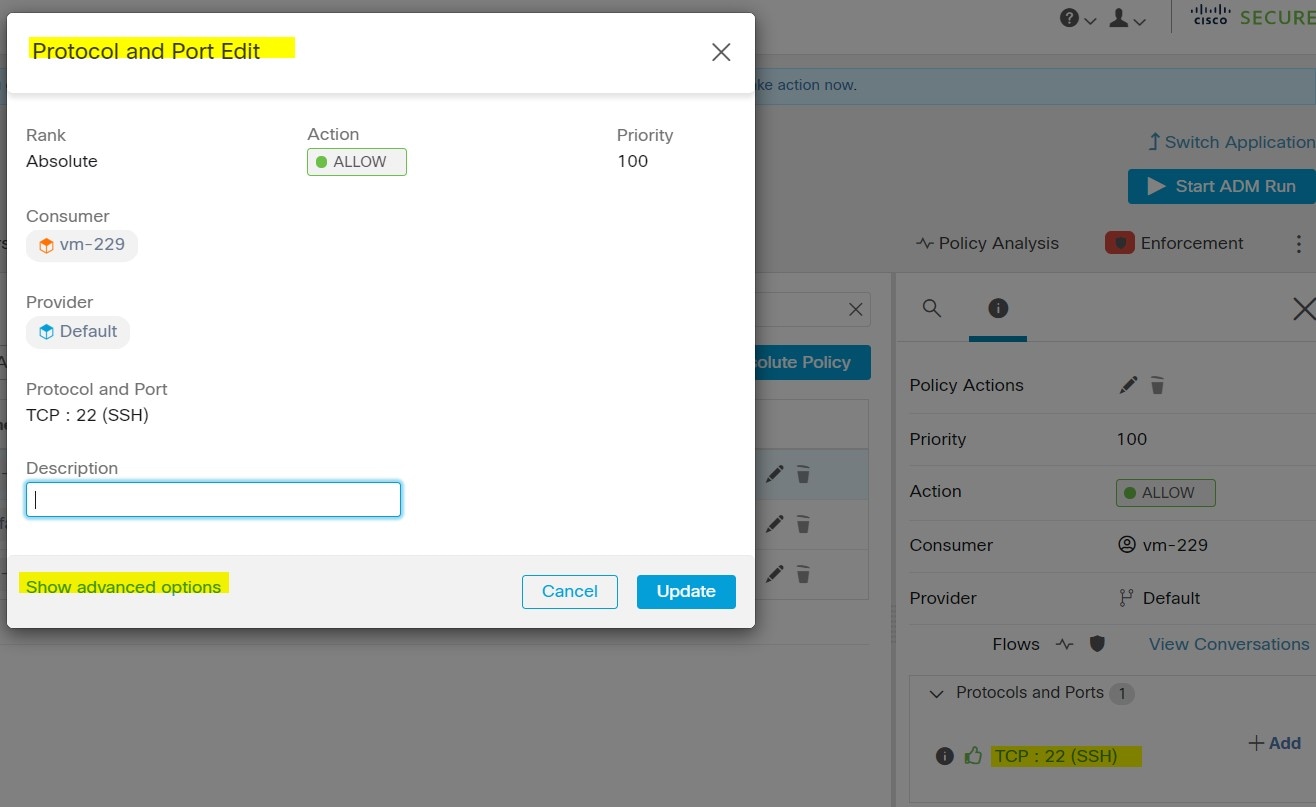
In the table row for the policy to edit, click the existing value in the Protocols and Ports column.

Step 7

In the pane on the right, click the existing value under Protocols and Ports.

In the example, click TCP : 22 (SSH).

Step 8

Click Show advanced options.

Step 9

Configure consumer filters based on Application name, Service name, or User name.

  • The application name must be a full pathname.

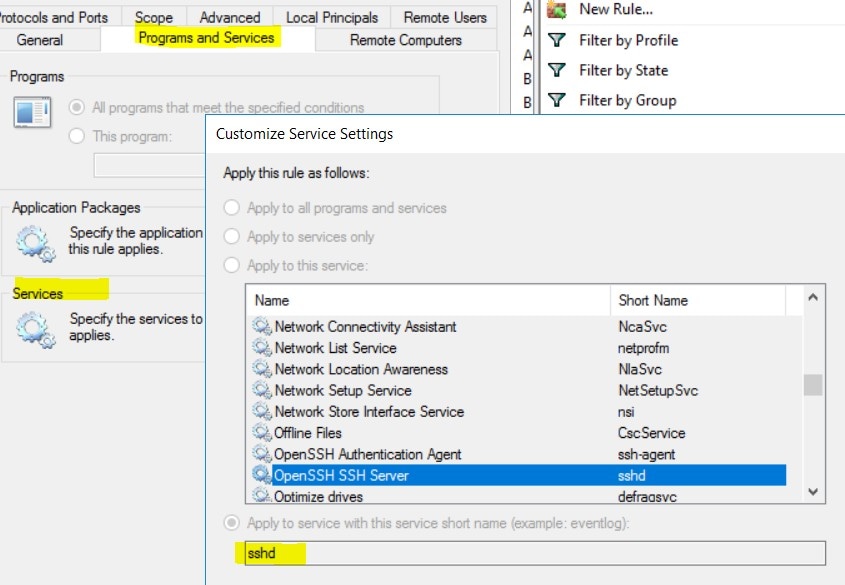
  • Service name must be a short service name.

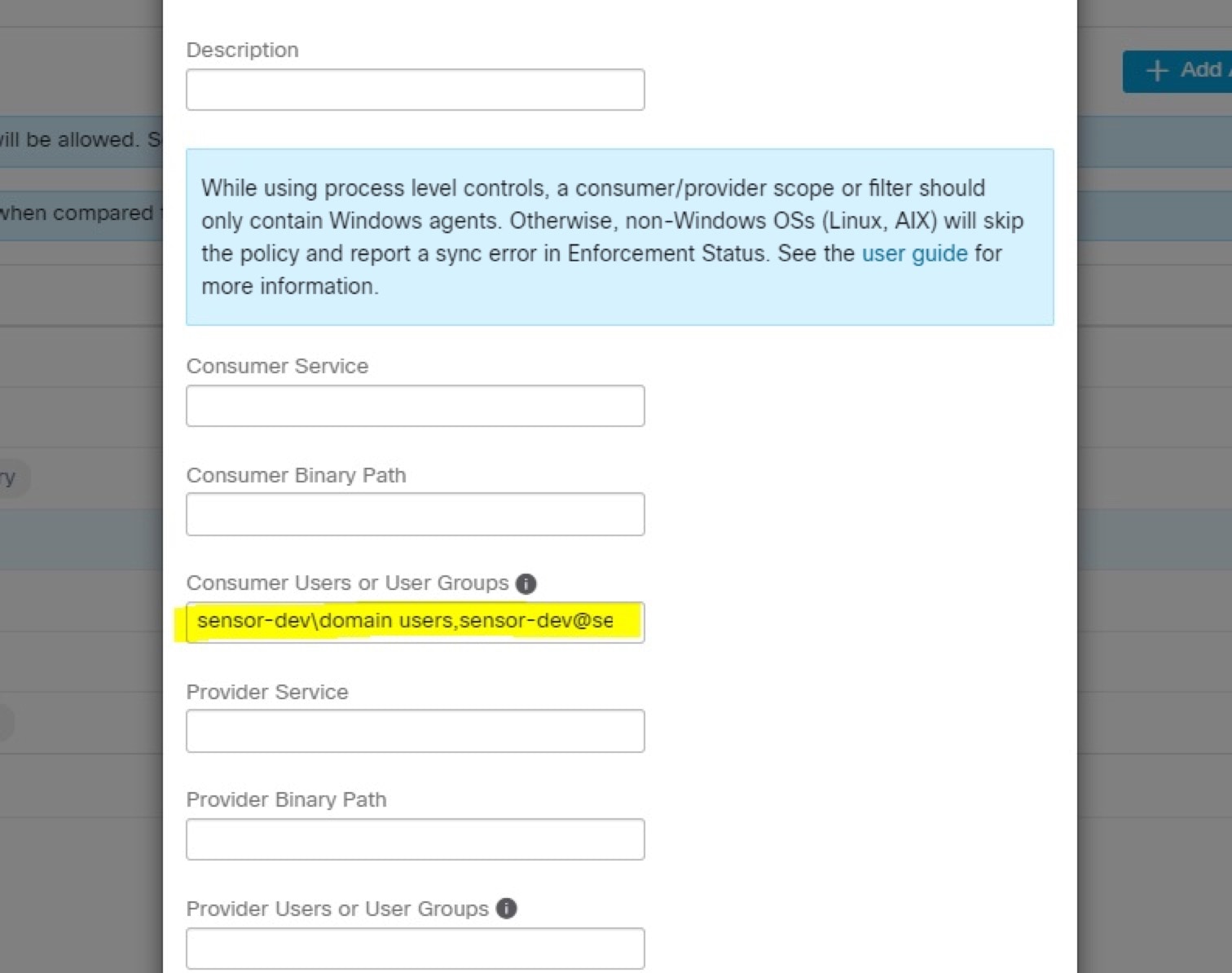
  • User name can be a local user name (For example, tetter) or domain user name (For example, sensor-dev@sensor-dev.com or sensor-dev\sensor-dev)

  • User group can be local user group (For example, Administrators) or domain user group (For example, domain users\\sensor-dev)

  • Multiple user names and/ or user group names can be specified, separated by ",".(For example, sensor-dev\@sensor-dev.com,domain users\\sensor-dev)

  • Service name and User name cannot be configured together.

Step 10

Configure provider filters based on Application name, Service name, or User name.

Follow the same guidelines as given for consumer filters in the previous step.

Step 11

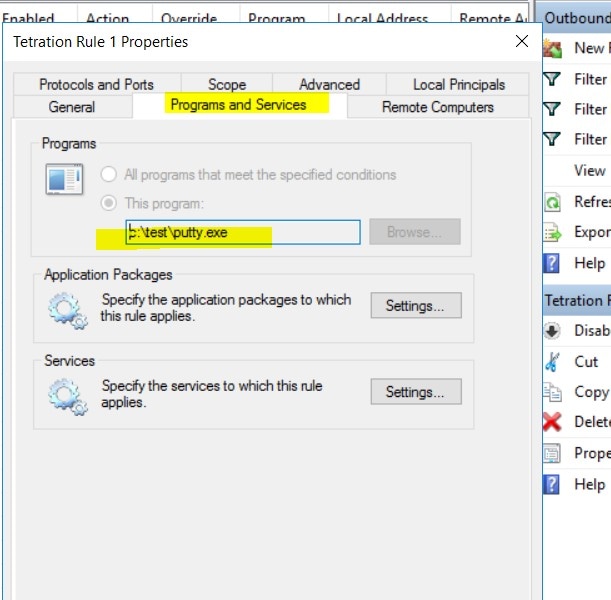
Enter the paths to the binary, as applicable.

For example, enter c:\test\putty.exe

Step 12

Click Update.


Recommended Windows OS-Based Policy Configuration

Always specify ports and protocols in policies when possible; we recommend not to allow ANY port, ANY protocol.

For example, a generated policy with port and protocol restrictions might look like this:


     dst_ports {
      start_port: 22
      end_port: 22
      consumer_filters {
        application_name: "c:\\test\\putty.exe"
      }
     }}
     ip_protocol: TCP

In contrast, if you allow network connections that are initiated by iperf.exe with ANY protocol and ANY port, the generated policy looks like this:


  match_set {
    dst_ports {
      end_port: 65535
      consumer_filters {
        application_name: "c:\\test\\iperf.exe"
      }
    }
    address_family: IPv4
    inspection_point: EGRESS
    match_comment: "PolicyId=61008290755f027a92291b9d:61005f90497d4f47cedacb86:"
  }

For the above filter, Secure Workload creates a policy rule to allow the network traffic on the provider as follows:


  match_set {
      dst_ports {
      end_port: 65535
    }
    address_family: IPv4
    inspection_point: INGRESS
    match_comment: "PolicyId=61008290755f027a92291b9d:61005f90497d4f47cedacb86:"
  }

This network rule opens all the ports on the Provider. We strongly recommend not to create OS-based filters with Any protocol.

Known limitations

  • Windows 2008 R2 does not support Windows OS based filtering policies.

  • Network policy can be configured with a single user name whereas MS Firewall UI supports multiple users.

Caveats

  • While using the Windows OS-based policies, a consumer/ provider scope or filter should only contain Windows agents. Otherwise, non-Windows OSs (Linux, AIX) skip the policy and report a sync error in Enforcement Status.

  • Avoid creating Windows OS filters with loose filtering criteria. Such criteria may open unwanted network ports.

  • If OS filters are configured for consumer, then the policies are applicable only to consumer, similarly if it is configured for provider then it is applicable only to provider.

  • Due to limited or no knowledge of the process context, user context or service context of the network flows, there will be discrepancy in the policy analysis if the policies have Windows OS-based filters.

Verify and Troubleshoot Policies with Windows OS-Based Filtering Attributes

If you use Windows OS-based filtering attributes, the following topics provide you with verification and troubleshooting information.

Cisco TAC can use this information as needed to troubleshoot such policies.

Policies Based on Application Name

Use the following information to verify and troubleshoot policies based on application name on Windows OS workloads.

The following sections describe the way policies should appear on the workload for an application binary entered as c:\test\putty.exe.

Sample Policy Based on Application Name
dst_ports {
start_port: 22
end_port: 22
consumer_filters {
application_name: “c:\test\putty.exe”
}
}}
ip_protocol: TCP
address_family: IPv4
inspection_point: EGRESS
Generated Firewall Rule
Generated Filter Using netsh

To verify, using native Windows tools, that a filter has been added to an advanced policy:

  • With administrative privileges, run cmd.exe.

  • Run netsh wfp show filters.

  • The output file, filters.xml, is generated in the current directory.

  • Check FWPM_CONDITION_ALE_APP_ID for the application name in the output file: filters.xml.

<fieldKey>FWPM_CONDITION_ALE_APP_ID</fieldKey>
                     <matchType>FWP_MATCH_EQUAL</matchType>
                     <conditionValue>
                            <type>FWP_BYTE_BLOB_TYPE</type>
                            <byteBlob>
                                   <data>
˓→5c006400650076006900630065005c0068006100720064006400690073006b0076006f006
˓→</data>
                                  <asString>\device\harddiskvolume2\temp\putty.exe</
˓→asString>
               </byteBlob>
       </conditionValue>
Generated WFP Filter Using tetenf.exe -l -f
Filter Name:                   Secure Workload Rule 1
------------------------------------------------------
EffectiveWeight:               18446744073709551592
LayerKey:                      FWPM_LAYER_ALE_AUTH_CONNECT_V4
Action:                        Permit
RemoteIP:                      10.195.210.15-10.195.210.15
Remote Port:                   22
Protocol:                      6
AppID:                         \device\harddiskvolume2\test\putty.exe
Invalid Application Name
  • In WAF mode, Firewall rule is created for an invalid application name.

  • In WFP mode, the WFP filter is not created for an invalid application name but the NPC is not rejected. The agent logs a warning message and configures the rest of the policy rules.

Policies Based on Service Name

Use the following information to verify and troubleshoot policies based on Service name on Windows OS workloads.

The following sections describe the way that the policies should appear on the workload.

Sample Policy Based on Service Name
    dst_ports {
             start_port: 22
             end_port: 22
             provider_filters {
                    service_name: “sshd”
             }
         }}
         ip_protocol: TCP
         address_family: IPv4
         inspection_point: INGRESS
Generated Firewall Rule
Generated Filter Using netsh

To verify using native Windows tools, that a filter has been added for an advanced policy:

  • With administrative privileges, run cmd.exe.

  • Run netsh wfp show filters.

  • The output file, filters.xml, is generated in the current directory.

  • Check FWPM_CONDITION_ALE_USER_ID for user name in the output file: filters.xml.

    <item>
                         <fieldKey>FWPM_CONDITION_ALE_USER_ID</fieldKey>
                         <matchType>FWP_MATCH_EQUAL</matchType>
                         <conditionValue>
                                    <type>FWP_SECURITY_DESCRIPTOR_TYPE</type>
                                    <sd>O:SYG:SYD:(A;;CCRC;;;S-1-5-80-3847866527-469524349-687026318-
    →516638107)</sd>
                         </conditionValue>
    </item>
Generated WFP Filter Using tetenf.exe -l -f
Filter Name:       Secure Workload Rule 3
------------------------------------------------------
EffectiveWeight:            18446744073709551590
LayerKey:                   FWPM_LAYER_ALE_AUTH_RECV_ACCEPT_V4
Action:                     Permit
Local Port:                 22
Protocol:                   6
User or Service:            NT SERVICE\sshd
Invalid Service Name
  • In WAF mode, the Firewall rule is created for a nonexistent service name.

  • In WFP mode, the WFP filter is not created for a nonexistent service name.

  • Service SID type must be Unrestricted or Restricted. If the service type is None, the Firewall Rule and WFP filter can be added but they have no effect.

    To verify the SID type, run the following command:

    sc qsidtype <service name>

Policies Based on User Group or User Name

Use the following information to verify and troubleshoot policies based on user name (with and without user group name) on Windows OS workloads.

Sections in this topic describe the way that the policies should appear on the workload.

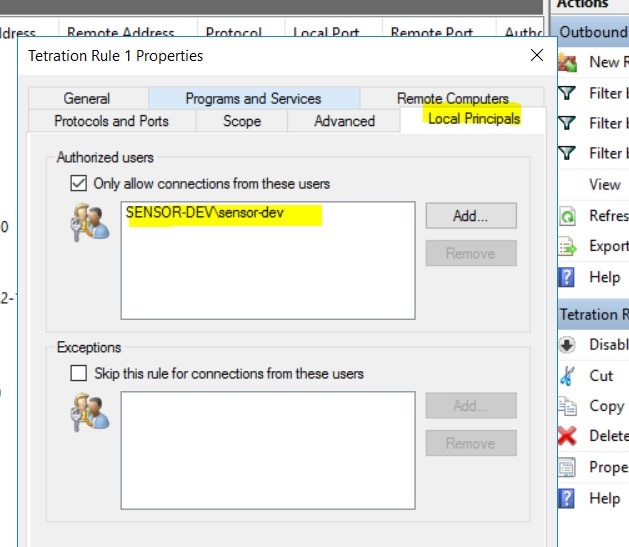
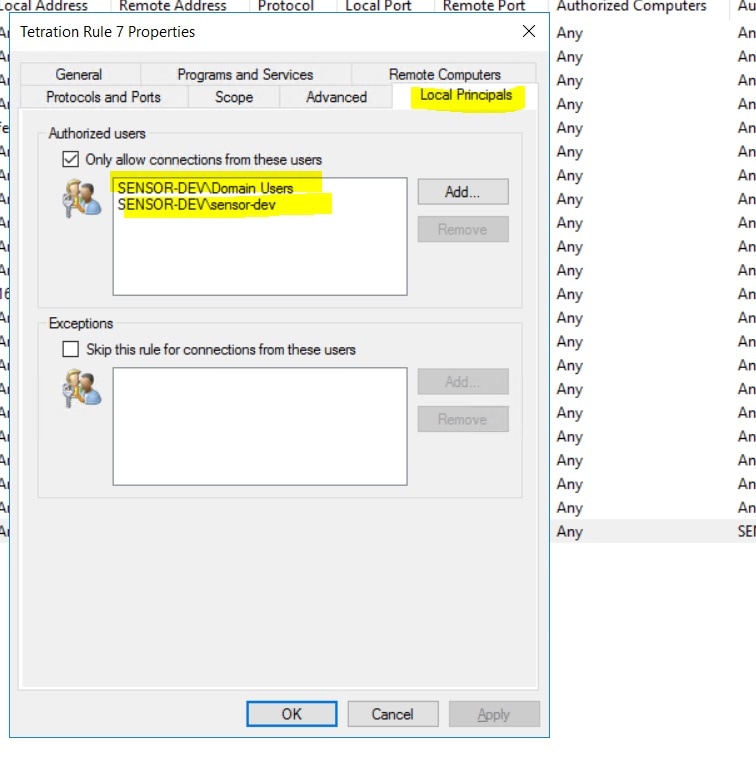
Examples in this topic are based on policies that are configured with the following information:

Figure 1. Policies Based on User Group or User Name
Sample Policy Based on User Name
dst_ports {
          start_port: 30000
          end_port: 30000
          provider_filters {
               user_name: “sensor-dev\sensor-dev”
           }
}}
ip_protocol: TCP
address_family: IPv4
inspection_point: EGRESS
Sample Policy Based on User Group and User Name
dst_ports {
start_port: 30000
end_port: 30000
provider_filters {
user_name: “sensor-dev\domain users,sensor-dev\sensor-dev”
}
}}
ip_protocol: TCP
address_family: IPv4
inspection_point: EGRESS
Generated Firewall Rule

Firewall Rule Based on User Name

Example: Firewall rule based on User Name, sensor-dev\\sensor-dev

Firewall Rule Based on User Group and User Name

Example: Firewall rule based on User Name, sensor-dev\\sensor-dev and user group, domain users\\sensor-dev

Generated Filter Using netsh

To verify using native Windows tools that a filter has been added for an advanced policy:

  • With administrative privileges, run cmd.exe.

  • Run netsh wfp show filters.

  • The output file, filters.xml, is generated in the current directory.

  • Check FWPM_CONDITION_ALE_USER_ID for user name in the output file: filters.xml.

    <item>
                <fieldKey>FWPM_CONDITION_ALE_USER_ID</fieldKey>
                <matchType>FWP_MATCH_EQUAL</matchType>
                <conditionValue>
                       <type>FWP_SECURITY_DESCRIPTOR_TYPE</type>
                       <sd>O:LSD:(A;;CC;;;S-1-5-21-4172447896-825920244-2358685150)</sd>
                </conditionValue>
    </item>
Generated WFP Filters Using tetenf.exe -l -f

Filter based on User Name

Example: WFP Rule based on User Name, SENSOR-DEV\sensor-dev

Filter Name:                   Secure Workload Rule 1
------------------------------------------------------
EffectiveWeight:               18446744073709551590
LayerKey:                      FWPM_LAYER_ALE_AUTH_CONNECT_V4
Action:                        Permit
RemoteIP:                      10.195.210.15-10.195.210.15
Remote Port:                   30000
Protocol:                      6
User or Service:               SENSOR-DEV\sensor-dev

Filter based on User Group and User Name

Example: WFP Rule based on User Name, SENSOR-DEV\\sensor-dev and User Group name, SENSOR-DEV\\Domain Users

Filter Name:         Secure Workload Rule 1
------------------------------------------------------
EffectiveWeight:             18446744073709551590
LayerKey:                    FWPM_LAYER_ALE_AUTH_CONNECT_V4
Action:                      Permit
RemoteIP:                    10.195.210.15-10.195.210.15
Remote Port:                 30000
Protocol:                    6
User or Service:             SENSOR-DEV\Domain Users, SENSOR-DEV\sensor-dev

Service name and user name cannot be configured for a Network policy rule.


Note


The network policy is rejected by the Windows agent if the user name or the user group is invalid.


Enforcement of Kubernetes Pods on Windows Nodes

After you install the Kubernetes DaemonSet agent on the Windows worker nodes, it captures the network flows from the Windows worker nodes and the Kubernetes pods in an AKS environment.

Requirements

  • Enforcement of Kubernetes pods is supported in an AKS environment with Windows nodes.

  • Enforcement mode MUST be WFP with Preserve Rules set to Off.

  • Supported on Microsoft Windows Server 2019 and Windows Server 2022.

The policies are enforced on vSwitch for ports that are connected to pods using VFP. The Virtual Filtering Platform (VFP) is a component of vSwitch used to configure filters for processing network traffic. While enforcing the policies, the Preserve Mode is Off.

Each filter has the following attributes:

  • Id: Filter Name

  • Direction: In or Out

  • RuleType: Switch or Host.

    • Configure the filter on vSwitch when the type is Switch.

    • Create a WFP filter when the type is Host.

  • Action: Allow or Block

  • LocalPorts: This can be a port or range. For example, 80 or 100-200.

  • RemotePorts: Same as LocalPorts.

  • LocalAddresses: It is an address or range. For example, 10.224.0.5, 10.224.1.0/24 (10.224.1.1-10.224.1.10 is not allowed).

  • RemoteAddress: Same as LocalAddresses

  • Protocol: ICMP/TCP/UDP/IGMP Protocol 255 is IPPROTO_RAW and 256 – PROTO_MAX

The ports can only be specified for UDP and TCP, and ports are not allowed in the policy unless a protocol is specified.

Configuring a policy on a virtual port is a transaction-based operation. If one of the filters is invalid, enforcing the entire policy is rendered unsuccessful.

This is the stateful enforcement. Application, user, or service-based policies are currently not supported.

Compatibility with Calico

Pods enforcement works in "preserve rules" off mode. When the Windows agent enforces the rules on pods, it deletes the already configured policies. If the Calico plug-in enforces the network policies after the agent, the agent identifies it as deviation and network policies that are configured by Calico are deleted and agent policies are re-enforced.


Note


The enforced policies are deleted when the Windows agent is uninstalled on the Windows nodes.


Visibility of Configured VFP Filters

An option to list the pod filters using Secure Workload is not available. In an AKS environment, you can use the built-in PowerShell script. Run the following PowerShell script: c:\k\debug\collectlogs.ps1. View the output files vfpoutput.txt and hnsdiag.txt for the configured filters.

Delete VFP Filters Configured by Windows Agent

  1. Run cmd.exe with administrative privileges.

  2. Run the command: <installation folder>\tetenf.exe -d -f -pods -token=<yyyymm>.


Note


The command deletes VFP filters for all the pods.


Troubleshoot Enforced Policies and Network Flows

  1. Run the command: netsh wfp start capture keywords=19.

  2. Run network traffic.

  3. Stop capturing the flows: netsh wfp stop capture.

  4. Extract wfpdiag.xml from the wfpdiag.cab file. View the dropped flows.

To map the allowed or dropped network flows to Pod policies:

  1. Start ETW session: logman start <session name> -p Microsoft-Windows-Hyper-V-VfpExt -o <output file.etl> -ets

  2. Run network traffic.

  3. Stop capturing flows: logman stop <session name>.

  4. In the command prompt, run: tracerpt <output file.etl>. The command creates the dumpfile.xml file. View the network flows.

Agent Enforcement on AIX Platform

On the AIX platform, the Secure Workload agent uses IPFilter utilities to enforce network policies. By default, after the enforcement is enabled, the agent controls and programs the IPv4 filter table. IPv6 enforcement is not supported.

IPFilter

Starting from Secure Workload 3.10 release, the Software Agent Installation includes the Cisco IPFilter application to provide firewall services for the AIX platform.

It loads as a kernel extension module, /usr/lib/drivers/ipf. It includes ipf, ippool, ipfstat, ipmon, ipfs, and ipnat utilities that are used to program ipfilter rules and each of these rules specifies the match criteria for a packet. For more information, see the IPFilter pages in the AIX manual.

When enforcement is enabled, the agent uses IPFilter to program the IPv4 filter table that contains rules for allowing or dropping of IPv4 packets. The agent groups these rules to categorize and manage the policies using the controller. These rules include Secure Workload rules that are derived from the policies and rules that are generated by the agent.

When an agent receives platform-independent rules, it parses and converts them into ipfilter or ippool rules and inserts these rules into the filter table. After programming the firewall, the enforcement agent monitors the firewall for any rule or policy deviation and if so, reprograms the firewall. The agent keeps track of the policies that are programmed in the firewall and reports their status periodically to the controller.

A typical policy in a platform-independent network policy message consists of:


      source set id: "test-set-1"
      destination set id: "test-set-2"
      source ports: 20-30
      destination ports: 40-50
      ip protocol: TCP
      action: ALLOW
      ...
      set_id: "test-set-1"
         ip_addr: 1.2.0.0
         prefix_length: 16
         address_family: IPv4
      set_id: "test-set-2"
         ip_addr: 5.6.0.0
         prefix_length: 16
         address_family: IPv4

Along with other information, the agent processes the policy and converts it into platform-specific ippool and ipfilter rule:


    table role = ipf type = tree number = 51400
    { 1.2.0.0/16; };

    table role = ipf type = tree number = 75966
    { 5.6.0.0/16; };

pass in quick proto tcp from pool/51400 port 20:30 to pool/75966 port 40:50 flags S/SA group TA_INPUT
pass out quick proto tcp from pool/75966 port 40:50 to pool/51400 port 20:30 flags A/A group TA_OUTPUT

Caveats

Host Firewall Backup

When enforcement is enabled for the first time in an Agent Config Profile, the agents running on AIX hosts, before taking control of the host firewall, store the current content of ippool and ipfilter into /opt/cisco/tetration/backup. Successive disable or enable transitions of enforcement configuration do not generate backups. The directory is not removed upon agent uninstallation.

Unload the existing IPFilter

When enforcement transitions from off to on, if the non-Cisco IPfilter package is already installed on the host, the agent will replace the IPfilter kernel extension with the Cisco IPfilter kernel extension and uninstall the non-Cisco IPfilter package.

Upgrade Cisco IPFilter

When a new version of the Cisco IPfilter is released, the Secure Workload agent will upgrade the system during the process of transitioning enforcement from off to on.


Note


Upgrades must be performed when agent enforcement is turned off, as it may disrupt traffic if enforcement is on.


Known Limitations

IPv6 enforcement is not supported.

Agent Enforcement on Solaris 11.4 Platform

On the Solaris 11.4 platform, the Secure Workload agent uses PF(Packet Filter) utilities to enforce network policies. Enforcement of both IPv4 and IPv6 policies is supported.

Caveats

Policy enforcement for the Shared-IP Solaris Zones is carried out by the agent installed in the Global Zone.

Host Firewall Backup

When enforcement is enabled for the first time in an Agent Config Profile, the agents running on Solaris 11.4 hosts, before taking control of the host firewall, store the current content of ippool and pffilter into /opt/cisco/tetration/backup. Successive disable or enable transitions of enforcement configuration do not generate backups. The directory is not removed upon agent uninstallation.

Agent Enforcement on the Solaris 10 Platform

On the Solaris 10 platform, the Secure Workload agent uses IPFilter utilities to enforce network policies. By default, after the enforcement is enabled, the agent controls and programs the IPv4 filter table. Enforcement of both IPv4 and IPv6 policies is supported.

IPFilter

The IPFilter package on Solaris 10 is used to provide firewall services and is available on Solaris 10 as a kernel expansion pack. It loads as a kernel extension module, /usr/lib/drivers/ipf. It includes ipf, ippool, ipfstat, ipmon, ipfs, and ipnat utilities that are used to program ipfilter rules and each of these rules specifies the match criteria for a packet.

When enforcement is enabled, the agent uses IPFilter to program the IPv4 filter table that contains rules for allowing or dropping of IPv4 packets. The agent groups these rules to categorize and manage the policies using the controller. These rules include Secure Workload rules that are derived from the policies and rules that are generated by the agent.

When an agent receives platform-independent rules, it parses and converts them into ipfilter or ippool rules and inserts these rules into the filter table. After programming the firewall, the enforcement agent monitors the firewall for any rule or policy deviation and if so, reprograms the firewall. The agent keeps track of the policies that are programmed in the firewall and reports their status periodically to the Enforcement FrontEnd (EFE).

A typical policy in a platform-independent network policy message consists of:


      source set id: "test-set-1"
      destination set id: "test-set-2"
      source ports: 20-30
      destination ports: 40-50
      ip protocol: TCP
      action: ALLOW
      ...
      set_id: "test-set-1"
         ip_addr: 1.2.0.0
         prefix_length: 16
         address_family: IPv4
      set_id: "test-set-2"
         ip_addr: 5.6.0.0
         prefix_length: 16
         address_family: IPv4

Along with other information, the agent processes the policy and converts it into platform-specific ippool and ipfilter rule:


    table role = ipf type = tree number = 51400
    { 1.2.0.0/16; };

    table role = ipf type = tree number = 75966
    { 5.6.0.0/16; };

pass in quick proto tcp from pool/51400 port 20:30 to pool/75966 port 40:50 flags S/SA group TA_INPUT
pass out quick proto tcp from pool/75966 port 40:50 to pool/51400 port 20:30 flags A/A group TA_OUTPUT

Caveats

Host Firewall Backup

When enforcement is enabled for the first time in an Agent Config Profile, the agents running on Solaris 10 hosts, before taking control of the host firewall, store the current content of ippool and ipfilter into /opt/cisco/tetration/backup. Successive disable or enable transitions of enforcement configuration do not generate backups. The directory is not removed upon agent uninstallation.

Check Agent Status and Statistics

Procedure


Step 1

From the navigation pane, choose Manage > Workloads > Agents.

Step 2

Click the Distribution tab.

Step 3

Click an agent type from the top of the page.

Step 4

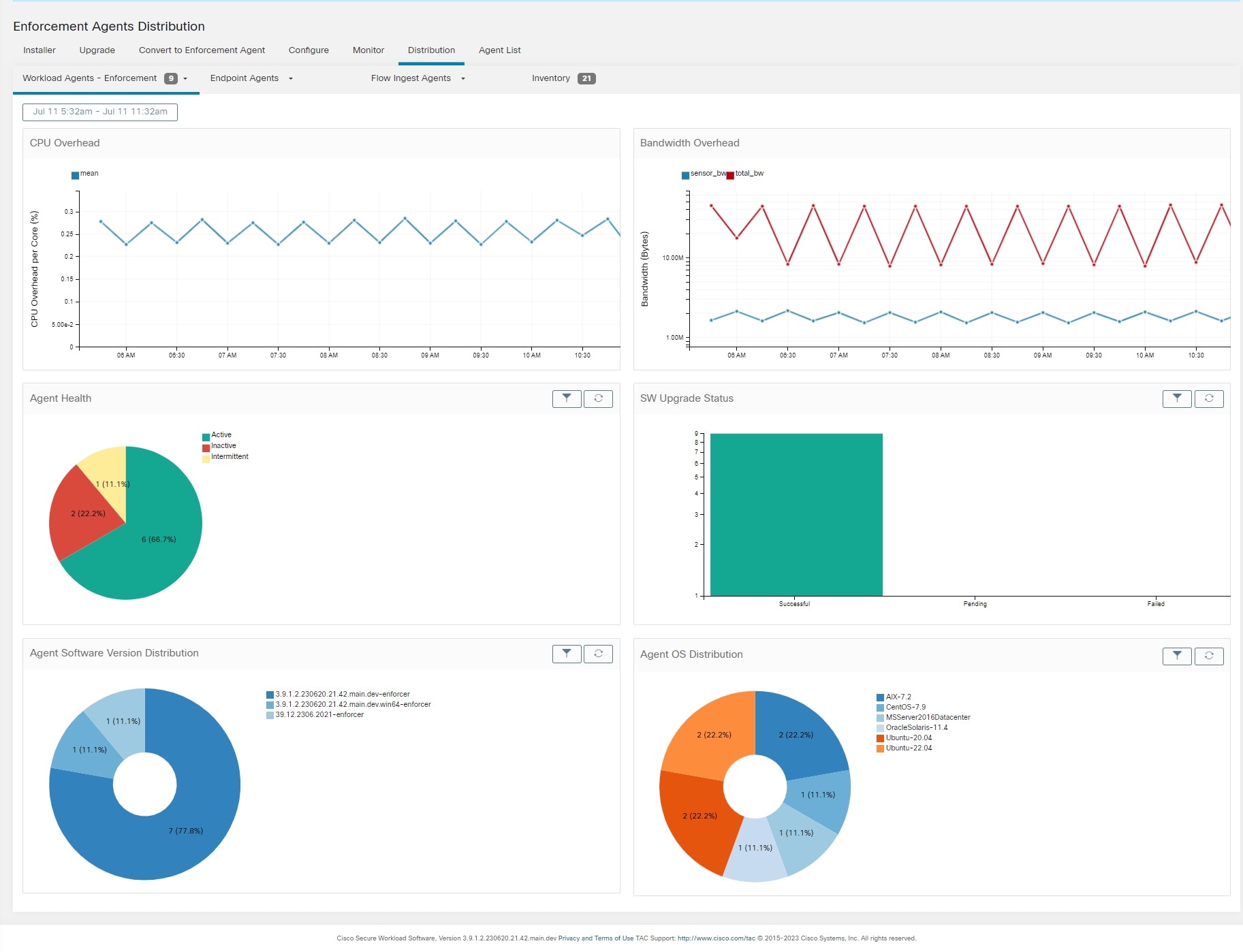
On this page, you can check CPU Overhead, Bandwidth Overhead, Agent Health, Software Update Status, Agent Software Version Distribution, and Agent OS Distribution.

Figure 2. Agent Distribution Page

Note


Agent Health: The agent periodically checks in every 10–30 minutes. If there is no check-in for more than 1 hour 30 minutes, then the agent is inactive. To reduce false alarms, the agent health status is set to intermittent instead of inactive if the check-in gap is between 1 hour and 1 hour 30 minutes.


For more information on the enforcement status, see the Enforcement Status section.

View Agent Details

The following steps provide one of the available options to navigate to the Workload Profile page, which displays details about the workload and its installed agent.

Procedure


Step 1

In the navigation pane, click Organize > > Scopes and Inventory.

Step 2

Search for a workload for which you want to view details.

Step 3

Click the IP address to view the details such as agent health, IP address, Scopes, Inventory Type, Enforcement Groups, Experimental Groups, User Labels, and Traffic Volume (Total Bytes/Total Packets).


For more information, see Workload Profile.