Create external authentication object to provide authorized access to the Firewall Threat Defense system via LDAP, with appropriate privilege levels.
Add an LDAP server to support external users for
Firewall Threat Defense
management.
In a multidomain deployment, external authentication objects are only available in the domain in which they are created.
Sharing External Authentication
External LDAP objects can be used by the
Firewall Management
Center
and
Firewall Threat Defense
devices. You can share the same object between the
Firewall Management
Center
and devices or create separate objects.
Be sure that both the
Firewall Threat Defense
and the
Firewall Management
Center
can reach the LDAP server, even if you are not sharing the object. The
Firewall Management
Center
is essential to retrieving the user list and downloading it to the device.

Note
|
For LDAP, the timeout range is different for the
Firewall Threat Defense
and the
Firewall Management
Center
, so if you share an object, be sure not to exceed the
Firewall Threat Defense
's smaller timeout range (1-30 seconds). If you set the timeout to a higher value, the deployment to the
Firewall Threat Defense
will fail.
|
Supported Fields
Only a subset of fields in the LDAP object are used for Firewall Threat Defense SSH access. If you fill in additional fields, they are ignored. If you also use this object for the Firewall Management
Center , those fields will be used. This procedure only covers the supported fields for the Firewall Threat Defense. For other fields, refer to "Add an LDAP External Authentication Object for Firewall Management
Center " in the
Cisco Secure Firewall Management Center Administration Guide
.
Usernames
Usernames must be Linux-valid usernames:
-
Maximum 32 alphanumeric characters, plus hyphen (-) and underscore (_)
-
All lowercase
-
Cannot start with hyphen (-); cannot be all numbers; cannot include a period
(.), at sign (@), or slash (/)
You cannot add the admin or
sshd users for external authentication.
You can only add external users (as part of the External Authentication object) in the Firewall Management
Center ; you cannot add them at the CLI. Note that internal users can only be added at the CLI, not in the Firewall Management
Center.
If you previously configured the same username for an internal user using the
configure user add
command, the
Firewall Threat Defense
first checks the password against the internal user, and if that fails, it checks
the LDAP server. Note that you cannot later add an internal user with the same name
as an external user; only pre-existing internal users are supported.
Privilege Level
LDAP users always have Config privileges.
Before you begin
You must specify DNS server(s) for domain name lookup on your device. Even if you specify an IP address and not a hostname
for the LDAP server on this procedure, the LDAP server may return a URI for authentication that can include a hostname. A
DNS lookup is required to resolve the hostname. Refer to Modify Firewall Threat Defense management interface settings at the CLI to add DNS servers.
|
Step 1
|
Choose System ( ). Click the External Authentication tab. ). Click the External Authentication tab.
|
|
Step 2
|
Click ( )
Add External Authentication Object. )
Add External Authentication Object.
|
|
Step 3
|
Set the Authentication Method to LDAP.
-
Enter a Name and optional
Description.
-
Choose a Server Type from the drop-down list.
|
|
Step 4
|
For the Primary Server , enter a Host Name/IP Address.
-
Change the Port from the default
If you are using a certificate to connect via TLS or SSL, the host name in the certificate must match the host name used in
this field. In addition, IPv6 addresses are not supported for encrypted connections.
|
|
Step 5
|
(Optional)
Enter the
Backup Server
parameters.
|
|
Step 6
|
Enter LDAP-Specific Parameters.
-
Enter the Base DN for the LDAP directory you
want to access. For example, to authenticate names in the Security
organization at the Example company, enter
ou=security,dc=example,dc=com. Alternatively click
Fetch DNs , and choose the appropriate base
distinguished name from the drop-down list.
-
(Optional) Enter the Base Filter.
For example, if the user objects in a directory tree have a physicalDeliveryOfficeName attribute and users in the New York office have an attribute value of NewYork for that attribute, to retrieve only users in the New York office, enter (physicalDeliveryOfficeName=NewYork).
To retrieve all cn names, except for disallowed users admin and sshd, enter (&(cn=*)(!( |(cn=sshd)(cn=admin))).
-
Enter a User Name for a user who has sufficient
credentials to browse the LDAP server. For example, if you are
connecting to an OpenLDAP server where user objects have a
uid attribute, and the object for the administrator
in the Security division at your example company has a
uid value of NetworkAdmin , you
might enter
uid=NetworkAdmin,ou=security,dc=example,dc=com.
-
Enter the user password in the Password and the
Confirm Password fields.
-
(Optional) Click Show Advanced Options to configure the following advanced options.
-
Encryption —Click None , TLS , or SSL.
If you change the encryption method after specifying a port, you reset the port to the default value for that method. For
None or TLS , the port resets to the default value of 389. If you choose SSL encryption, the port resets to 636.
-
SSL Certificate Upload Path —For SSL or TLS encryption, you must choose a certificate by clicking Choose File.
If you previously uploaded a certificate and want to replace it, upload the new certificate and redeploy the configuration
to your devices to copy over the new certificate.
Note
|
TLS encryption requires a certificate on all platforms.
For SSL, the Firewall Threat Defense also requires a certificate. For other platforms, SSL
does not require a certificate. However, we recommend
that you always upload a certificate for
SSL to prevent man-in-the-middle attacks.
|
-
(Not Used) User Name Template —Not used by the Firewall Threat Defense.
-
Timeout (Seconds) —Enter the number of seconds before rolling over to the backup connection, between 1 and 30. The default is 30.
Note
|
The timeout range is different for the Firewall Threat Defense and the Firewall Management
Center , so if you share an object, be sure not to exceed the Firewall Threat Defense 's smaller timeout range (1-30 seconds). If you set the timeout to a higher value, the Firewall Threat Defense LDAP configuration will not work.
|
|
|
Step 7
|
Configure
Attribute Mapping
to
retrieve users based on an attribute.
-
Enter a UI Access
Attribute.Note : This field
is not used for device CLI access; however, it is a required field,
so you need to enter a value. You can just enter the same value that
you enter for the CLI Access Attribute.
-
Set the CLI Access Attribute if you want to
use a CLI access attribute other than the user distinguished type.
For example, on a Microsoft Active Directory Server, use the
sAMAccountName CLI access attribute to retrieve
CLI access users by typing sAMAccountName.
Note
|
Users with CLI access can gain Linux shell access with the
expert command. Linux shell users can
obtain root privileges, which can present a security risk. Make
sure that you restrict the list of users with CLI or Linux shell
access.
|
Note
|
Deploying an external authentication object that allows a large
number of users with CLI access may cause deployments to time
out and fail while waiting for the users to be created.
|
|
|
Step 8
|
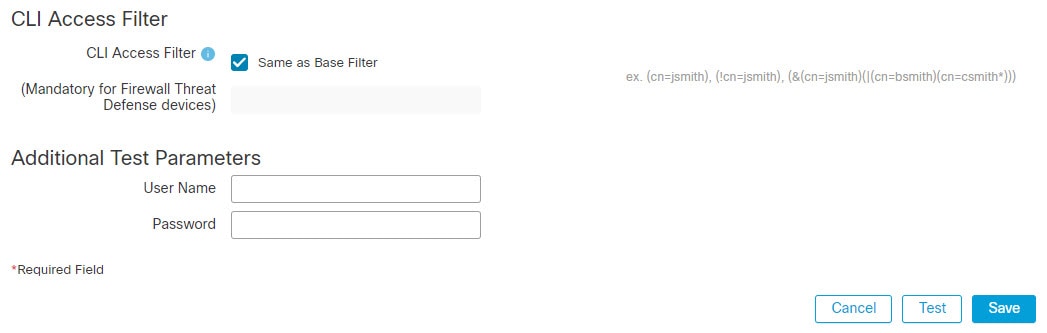
Set the CLI Access Filter.
Choose one of the following methods:
-
To use the same filter you specified when configuring authentication
settings, check the check box of Same as Base
Filter.
-
To retrieve administrative user entries based on attribute value,
enter the attribute name, a comparison operator, and the attribute
value you want to use as a filter, enclosed in parentheses. For
example, if all network administrators have a
manager attribute which has an attribute value
of shell , you can set a base filter of
(manager=shell).
For username guidelines, refer to Usernames at the start of this procedure.
|
|
Step 9
|
Click Save and enable use of this server. For more information refer to Configure external authentication.
Note
|
If you later add or delete users on the LDAP server, you must
redeploy the Platform Settings on managed devices. The Firewall Management
Center redownloads the user list and deploys it to the device. For more
information refer to Deploy configuration changes.
|
|
The following figures illustrate a basic configuration of an LDAP login authentication object for a Microsoft Active Directory
Server. The LDAP server in this example has an IP address of 10.11.3.4. The connection uses port 389 for access.
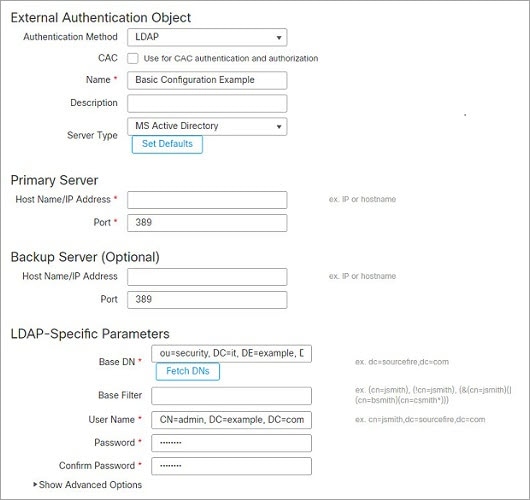
This example shows a connection using a base distinguished name of OU=security,DC=it,DC=example,DC=com for the security organization in the information technology domain of the Example company.
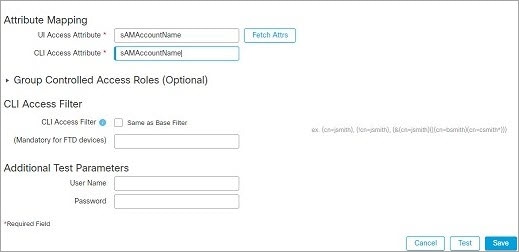
A CLI Access Attribute of sAMAccountName causes each sAMAccountName attribute to be checked for all objects in the directory for matches when a user logs into the Firewall Threat Defense.
Note that because no base filter is applied to this server, the Firewall Threat Defense checks attributes for all objects in the directory indicated by the base distinguished name. Connections to the server time
out after the default time period (or the timeout period set on the LDAP server).
Advanced Example
This example illustrates an advanced configuration of an LDAP login authentication object for a Microsoft Active Directory
Server. The LDAP server in this example has an IP address of 10.11.3.4. The connection uses port 636 for access.
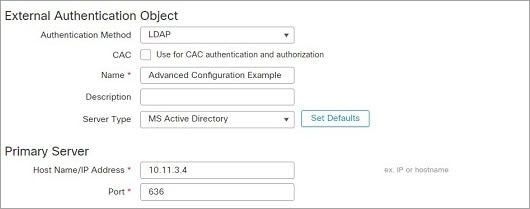
This example shows a connection using a base distinguished name of OU=security,DC=it,DC=example,DC=com for the security organization in the information technology domain of the Example company. However, note that this server
has a base filter of (cn=*smith). The filter restricts the users retrieved from the server to those with a common name ending in smith.
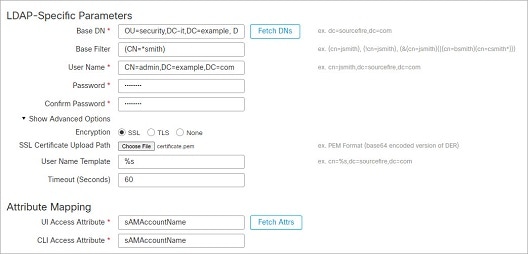
The connection to the server is encrypted using SSL and a certificate named certificate.pem is used for the connection. In addition, connections to the server time out after 60 seconds because of the Timeout (Seconds) setting.
Because this server is a Microsoft Active Directory server, it uses the sAMAccountName attribute to store user names rather than the uid attribute.
The CLI Access Attribute of sAMAccountName causes each sAMAccountName attribute to be checked for all objects in the directory for matches when a user logs into the Firewall Threat Defense.
In the following example, the CLI access filter is set to be the same as the base filter.


 Feedback