High availability

The following topics describe how to configure Active/Standby high availability of Cisco Secure Firewall Management Centers:

High availability in Firewall Management Center

A high availability pair in Firewall Management Center is a redundancy feature that

  • designates redundant Firewall Management Centers to manage devices

  • supports Active/Standby roles. One appliance is active and manages devices, while the standby unit does not actively manage devices, and

  • enables event data streaming from managed devices to both units, enabling uninterrupted monitoring if one fails.

High availability reference information

High availability in Firewall Management Center allows configuration of a secondary unit to take over the functionality of a primary unit if the primary fails. When the primary fails, you must promote the secondary to become the active unit.

Event data streams from managed devices to both units in the high availability pair. If one unit fails, you can monitor your network without interruption using the other unit.

Firewall Management Centers configured as a high availability pair do not need to be on the same trusted management network, nor do they have to be in the same geographic location.


Caution


Because the system restricts some functionality to the active Firewall Management Center, if that appliance fails, you must promote the standby Firewall Management Center to active.


Note


Triggering a switchover on Firewall Management Center immediately after a successful change deployment can lead to preview configuration not working on the new active Firewall Management Center. This does not impact policy deploy functionality. It is recommended to trigger a switchover on the Firewall Management Center after the necessary sync is completed.

Similarly, when Firewall Management Center HA synchronization is in degraded state, triggering a switchover or changing roles could cause Firewall Management Center HA to damage the database, which may result in catastrophic failure. We recommend that you immediately contact Cisco Technical Assistance Center (TAC) for further assistance to resolve this issue.

This HA synchronization can end up in degraded state due to various reasons. The Replace Firewall Management Centers in a high availability pair section in this chapter covers some of the failure scenarios and the subsequent procedure to fix the issue. If the reason or scenario of degraded state matches to the scenarios explained, follow the steps to fix the issue. For other reasons, we recommend that you contact TAC.


Remote access VPN high availability

If the primary device has Remote Access VPN configuration with an identity certificate enrolled using a CertEnrollment object, the secondary device must have an identity certificate enrolled using the same CertEnrollment object. The CertEnrollment object can have different values for the primary and secondary devices due to device-specific overrides. The limitation is only that the same CertEnrollment object is enrolled on the two devices before high availability formation.

SNMP behavior in Firewall Management Center high availability

In an SNMP-configured HA pair, when you deploy an alert policy, the active Firewall Management Center sends the SNMP traps. When the primary Firewall Management Center fails, the secondary Firewall Management Center which becomes the active unit starts sending the SNMP traps without the need for any additional configuration.

High availability example

For example, if the primary Firewall Management Center fails, you can promote the secondary unit to active and continue managing devices and monitoring events without interruption.

Roles and statuses in Firewall Management Center high availability

Primary and secondary roles

When setting up Secure Firewall Management Centers in a high availability pair, you configure one Secure Firewall Management Center to be primary and the other as secondary. During configuration, the primary unit's policies are synchronized to the secondary unit. After this synchronization, the primary Secure Firewall Management Center becomes the active peer, while the secondary Secure Firewall Management Center becomes the standby peer. The two units act as a single appliance for managed device and policy configuration.

The main difference between the two Secure Firewall Management Centers in a high availability pair is whether the peer is active or standby. The active Secure Firewall Management Center remains fully functional, where you can manage devices and policies. Configuration options are hidden on the standby Secure Firewall Management Center, and you cannot make any changes.

Event processing on Firewall Management Center high availability pairs

An event processing configuration is a high-availability feature that

  • allows both Firewall Management Centers in a high-availability pair to receive events from managed devices

  • ensures that the appliances do not share management IP addresses, and

  • provides continuous processing of events without intervention if one Firewall Management Center fails.

AMP cloud connections and malware information

AMP cloud connections and malware information are security features that

  • operate independently for Firewall Management Centers in a high availability pair

  • do not share malware dispositions between paired Firewall Management Centers, and

  • require both primary and secondary Firewall Management Centers to have access to the AMP cloud to ensure consistent malware dispositions.

AMP cloud connection requirements

Both primary and secondary Firewall Management Centers must have access to the AMP cloud to ensure continuity of operations and consistent malware dispositions.

URL filtering and security intelligence

Synchronization of URL filtering information

URL filtering and Security Intelligence configurations and information are synchronized between Secure Firewall Management Centers in a high availability deployment.

The primary Secure Firewall Management Center downloads URL category and reputation data required for Security Intelligence feed updates.

Updating Threat Intelligence after primary failure

After a primary failure, update threat intelligence data by confirming that the secondary Secure Firewall Management Center can access the internet and is promoted to active using the web interface.

Processing user data during Firewall Management Center failovers

Summary

The key components involved in processing user data during Firewall Management Center failovers are:

  • Primary Firewall Management Center: The main device responsible for managing user and SGT mappings.

  • Secondary Firewall Management Center: Takes over propagation of mappings when the primary fails.

  • TS Agent identity source: Provides user-to-IP mappings.

  • ISE/ISE-PIC identity source: Provides SGT mappings.

  • Unknown users: Users not yet seen by identity sources.

This process ensures continuity of user and SGT mapping propagation during failover events and proper handling of unknown users after downtime.

Workflow

The process of handling user data during failover involves these stages:

  1. Primary Firewall Management Center fails.
  2. The secondary Firewall Management Center propagates user-to-IP mappings from the TS Agent identity source. It also sends SGT mappings from the ISE or ISE-PIC identity source to managed devices. Users not yet seen by identity sources are identified as Unknown.
  3. After downtime, Unknown users are re-identified and processed according to the rules in the identity policy.

Configuration management on Firewall Management Center high availability pairs

Configuration management on Firewall Management Center high availability pairs is a deployment feature that

  • allows only the active Firewall Management Center to manage devices and apply policies

  • keeps both Firewall Management Centers continuously synchronized, and

  • requires you to manually promote the standby appliance to active when the current active appliance fails.

Firewall Management Center high availability disaster recovery

A Firewall Management Center high availability disaster recovery is a failover mechanism that requires manual switchover between primary and secondary Firewall Management Center units.

Manual switchover in disaster recovery

Manual switchover is required when a disaster recovery situation occurs in a high availability pair.

  • When the primary Firewall Management Center, FMC1, fails, use the web interface of the secondary Firewall Management Center, FMC2, to switch peers.

  • This process is applicable if either the primary or secondary unit fails.

For more information, see Switch peer roles in the Firewall Management Center high availability pair.

For restoring a failed unit, see Replace Firewall Management Centers in a high availability pair.

Configure single sign-on for high availability pairs

Firewall Management Centers in a high availability configuration can support Single Sign-On, but you must keep these considerations in mind:

  • SSO configuration is not synchronized between the members of the high availability pair. Configure SSO separately on each member.

  • Both Firewall Management Centers in a high availability pair must use the same identity provider (IdP) for SSO. Configure a service provider application at the IdP for each Firewall Management Center for SSO.

  • In a high availability pair of Firewall Management Centers where both support SSO, you must log in to the primary Firewall Management Center for the first time.

  • When configuring SSO for Firewall Management Centers in a high availability pair:

    • If you configure SSO on the primary Firewall Management Center, you are not required to configure SSO on the secondary Firewall Management Center.

    • If you configure SSO on the secondary Firewall Management Center, you are required to configure SSO on the primary Firewall Management Center as well. (This is because SSO users must log in to the primary Firewall Management Center at least once before logging into the secondary Firewall Management Center.)

Firewall Management Center high availability behaviors during a backup

A Firewall Management Center high availability backup behavior is a system operation that

  • pauses synchronization between peers during the backup process

  • allows continued use of the active Firewall Management Center, but not the standby peer, and

  • briefly disables processes on the active peer after backup completion, displaying a holding page until all processes resume.

Firewall Management Center high availability split-brain

A high availability split-brain is a failure state in high availability pairs that

  • occurs when both Firewall Management Center appliances assume the active role,

  • results from the original active appliance coming back online after a failure, and

  • requires manual intervention to select an active appliance and demote the other to standby.

Device registration and policy configuration impact

The split-brain state impacts device registrations and policy configurations for the intended standby appliance.


Note


The intended standby loses all of its device registrations and policy configurations when you resolve split-brain. For example, modifications to policies that exist on the intended standby but not on the intended active are lost. If the Firewall Management Center is in a high availability split-brain scenario where both appliances are active, and you register managed devices and deploy policies before you resolve split-brain, you must export any policies and unregister any managed devices from the intended standby Firewall Management Center before re-establishing high availability. After re-establishing high availability, register the managed devices and import policies to the intended active Firewall Management Center.


Split-brain scenario example

If the active Firewall Management Center in a high-availability pair fails due to power or network issues, promote the standby Firewall Management Center to active. When the original active peer becomes operational, both peers assume active status, which results in split-brain.

Degraded state scenario

If the active Firewall Management Center goes down or disconnects due to a network failure, you may break high availability or switch roles. The standby Firewall Management Center enters a degraded state, which is not split-brain.

Troubleshoot Firewall Management Center high availability

This reference provides troubleshooting information for common Firewall Management Center high availability operation errors, including error descriptions and recommended solutions.

Error

Description

Solution

You must reset your password on the active Firewall Management Center before you can log in to the standby.

You attempted to log into the standby Firewall Management Center when a force password reset is enabled for your account.

Because the database is read-only for a standby Firewall Management Center, reset the password on the login page of the active Firewall Management Center.

500 Internal

This error may occur when you try to access the web interface during critical high availability operations, such as switching peer roles or pausing and resuming synchronization.

Wait until the operation completes before using the web interface.

System processes are starting, please wait

Also, the web interface does not respond.

This error may occur when the system reboots manually or while recovering from a power down during high availability or data synchronization operations.

  1. Access the Firewall Management Center shell and use the manage_hadc.pl command to access the Firewall Management Center high availability configuration utility.

    Note


    Run the utility as a root user, using sudo.

  2. Pause mirroring operations by using option 5.

    Reload the Firewall Management Center web interface.

  3. Use the web interface to resume synchronization. Choose Integration > Other Integrations, then click the High Availability tab and choose Resume Synchronization.

Device Registration Status:Host <string> is not reachable

(occurs during initial configuration)

During the initial configuration of a Firewall Threat Defense, if the Firewall Management Center IP address and NAT ID are specified, the Host field can be left blank. However, in an HA environment with both the Firewall Management Centers behind a NAT, this error occurs when you add the Firewall Threat Defense on the secondary Firewall Management Center.

  1. Delete the Firewall Threat Defense from primary Firewall Management Center. See Delete a Device from the Firewall Management Center in Cisco Secure Firewall Management Center Device Configuration Guide.

  2. Remove managers from Firewall Threat Defense using the configure manager delete command. See Cisco Secure Firewall Threat Defense Command Reference.

  3. Add Firewall Threat Defense to the Firewall Management Center with the IP address OR name of the Firewall Threat Defense device in the Host field. See Add a Device to the Firewall Management Center in Cisco Secure Firewall Management Center Device Configuration Guide.

Device Registration Status:Host <string> is not reachable

(occurs when adding device to the secondary Firewall Management Center)

The error occurs when adding Firewall Threat Defense device to the secondary Firewall Management Center center in a high-availability deployment where both the secondary Firewall Management Center and the Firewall Threat Defense device are behind NAT.

On the standby Firewall Management Center web interface, click Integration > Other Integrations > High Availability. Under the pending device registration table, click the IP address of the pending device, then update it to the public IP address of the Firewall Threat Defense.

Alternatively, follow these steps:

  1. Access the Firewall Threat Defense shell and use the show managers command to get the standby Firewall Management Center entry identifier value.

  2. In the Firewall Threat Defense shell, edit the standby Firewall Management Center hostname to the public IP address. Execute the configure manager edit <standby_uuid> hostname <standby_ip> command using the entry identifier value and the host IP address.

    For more information, see Resolve device registration using CLI in Firewall Management Center high availability.

Device configuration synchronization has been stopped between high availability Firewall Management Centers.

The device configuration history files are now synced in parallel with other configuration data during a Firewall Management Center HA synchronization. The Firewall Management Center monitors the configuration history file sync task and notifies you if the sync has not happened for the last 6 hours. This health alert appears in both active and standby Firewall Management Centers.

Both the active and standby Firewall Management Centers move to the degraded state. Contact Cisco TAC to troubleshoot the issue.

Requirements for Firewall Management Center high availability

Model support

See Requirements for hardware high availability.

Virtual Model Support

See Understand virtual platform requirements.

Supported domains

Global

User roles

Admin

Requirements for hardware high availability

Restrictions for hardware high availability

  • All Firewall Management Center hardware supports high availability. Ensure that both peers are the same model.

  • The peers may be physically and geographically separated from each other in different data centers.

  • The bandwidth requirement for high availability configuration depends on various factors such as the size of the network, the number of managed devices, the volume of events and logs, and the size and frequency of configuration updates.

  • For a typical Firewall Management Center high availability deployment, in case of high latency networks of close to 100 ms, a minimum of 5 Mbps network bandwidth between the peers is recommended.

  • You can enhance the high availability synchronization speed by reducing the number of configuration versions saved on your Firewall Management Center. For more information, see Set the Number of Configuration Versions in Cisco Secure Firewall Management Center Device Configuration Guide. Note that this option is not supported on Secure Firewall Management Center versions 7.3.0 and 7.4.0.

  • Ensure that both Firewall Management Centers have unique UUIDs. To check the UUID, review this file:/etc/sf/ims.conf.

  • Do not restore a backup of the primary peer to the secondary.

These requirements apply to all Firewall Management Center hardware deployments configured for high availability.

Ensuring hardware compatibility, adequate bandwidth, and proper configuration versioning helps maintain reliable high availability and prevents synchronization issues.

See also License requirements for Firewall Management Center high availability configurations for additional licensing requirements.

Understand virtual platform requirements

High availability is supported for specific public and private cloud platforms. This reference lists the supported platforms and outlines licensing requirements for virtual deployments.

High availability is supported for these public cloud platforms:

  • Amazon Web Services (AWS)

  • Oracle Cloud Infrastructure (OCI)

  • Microsoft Azure

High availability is also supported for these on-premises or private cloud platforms:

  • Cisco HyperFlex

  • Kernel-based virtual machine (KVM)

  • Microsoft Hyper-V

  • VMware vSphere/VMware ESXi

The Firewall Management Centers must have the same device management capacity (not supported on FMCv2) and be identically licensed. You also need one Firewall Threat Defense entitlement for each managed device. For more information, see License requirements for Firewall Management Center high availability configurations.

Requirements for software version consistency in high availability

Requirements for high availability software and update versions

Confirm that both management centers in a high availability configuration have the same major, minor, and maintenance software version. Install identical versions of the intrusion rule update, vulnerability database update, and LSP (Lightweight Security Package) on each management center. Ensure port 8305 is accessible between the two management centers to enable communication.

  • The two Firewall Management Centers in a high availability configuration must have the same major (first number), minor (second number), and maintenance (third number) software version.

  • The two Firewall Management Centers in a high availability configuration must have the same version of the intrusion rule update installed.

  • The two Firewall Management Centers in a high availability configuration must have the same version of the vulnerability database update installed.

  • The two Firewall Management Centers in a high availability configuration must have the same version of the LSP (Lightweight Security Package) installed.

  • The two management centers in a high availability configuration must have port 8305 accessible between them for communication.

Access the Appliance Information widget to verify the software version, the intrusion rule update version and the vulnerability database update. By default, the widget appears on the Status tab of the Detailed Dashboard and the Summary Dashboard. For more information, see The appliance information widget.


Warning


You cannot establish high availability if the software versions, intrusion rule update versions, and vulnerability database update versions are not identical on both Firewall Management Center.

License requirements for Firewall Management Center high availability configurations

A high availability configuration is a deployment model that

  • requires each device to have the same licenses whether managed by a single or multiple Firewall Management Centers in a high availability pair (hardware or virtual),

  • registers only the active Firewall Management Center with the Smart Software Manager, and

  • communicates with Smart Software Manager to release and assign license entitlements during failover events.

License assignment examples for high availability configurations

Example: If you want to enable advanced malware protection for two devices managed by a Firewall Management Center pair, buy two Malware Defense licenses and two TM subscriptions, register the active Firewall Management Center with the Smart Software Manager, then assign the licenses to the two devices on the active Firewall Management Center.

Hardware management center license requirements

No special license is required for hardware Firewall Management Centers in a high availability pair.

Virtual management center license requirements

You need two identically licensed Firewall Management Center Virtuals. Firewall Management Center Virtual requires an individual license for each device it manages.

Each registered device in a Firewall Management Center Virtual high availability pair must have its own license. Although only the active FMC registers with Smart Software Manager at any time, entitlement usage accounts for both Firewall Management Center Virtuals in the high availability pair.

Entitlement calculation for Firewall Management Center Virtual high availability pairs is as follows:

Firewall Management Center Virtual entitlement = Number of Firewall Management Center Virtual peers in the high availability pair x Number of managed devices

In Specific License Reservation deployments, only the primary Firewall Management Center requires a Specific License Reservation.

Example: For the Firewall Management Center Virtual high availability pair managing 2 devices, you can use:

  • Two (2) Firewall Management Center Virtual entitlements

  • 2 device licenses


    Note


    Firepower MCv Device Licenses seen on Smart Software Manager is 4


Example: For two Firewall Management Center Virtual high availability pair managing 2 devices each, you can use:

  • Four (4) Firewall Management Center Virtual entitlements

  • 4 device licenses


    Note


    Firepower MCv Device Licenses seen on Smart Software Manager is 8


If you break the high availability pair, the Firewall Management Center Virtual entitlements associated with the secondary Firewall Management Center Virtual are released. (In the example, you would then have two standalone Firewall Management Center Virtual devices.)

Prerequisites for Firewall Management Center high availability

Recommendation: Complete prerequisites before establishing high availability

Before you establish the Firewall Management Center high availability pair, ensure that you complete these steps:

  • Export required policies from the intended secondary Firewall Management Center to the intended primary Firewall Management Center. For more information, see Export Configurations.

  • Make sure that the intended secondary Firewall Management Center does not have any devices added to it. Delete devices from the intended secondary Firewall Management Center and register these devices to the intended primary Firewall Management Center. For more information see Delete a Device from the Firewall Management Center and Add a Device to the Firewall Management Center in the Cisco Secure Firewall Management Center Device Configuration Guide.

  • Import the policies into the intended primary Firewall Management Center. For more information, see Import Configurations.

  • On the intended primary Firewall Management Center, verify the imported policies, edit them as needed and deploy them to the appropriate device. For more information, see Deploy Configuration Changes in the Cisco Secure Firewall Management Center Device Configuration Guide.

  • On the intended primary Firewall Management Center, associate the appropriate licenses to the newly added devices. For more information see Assign licenses to a single device.

You can now proceed to establish high availability. For more information, see Establish high availability for Firewall Management Center.

Establish high availability for Firewall Management Center

Establishing high availability for Firewall Management Center enables redundancy and ensures continuous management operations in case one management center fails.

High availability setup can take several hours, depending on bandwidth between peers, the number of policies, and the number of devices registered to the active Firewall Management Center that must be synchronized to the standby Firewall Management Center. You can view the High Availability page to check the status of the high availability peers.

Before you begin

Procedure


Step 1

Log into the Firewall Management Center that you want to designate as the secondary.

Step 2

Choose Integration > Other Integrations, and then choose High Availability.

Step 3

Under Role for this Firewall Management Center, choose Secondary, and complete these steps:

  1. Enter the hostname or IP address of the primary Firewall Management Center in the Primary Firewall Management Center Host text box.

    You can leave this empty if the primary Firewall Management Center does not have an IP address reachable from the peer Firewall Management Center (the address can be public or private). In this case, use both the Registration Key and the Unique NAT ID fields. You need to specify the IP address of at least one Firewall Management Center to enable HA connection.

  2. Enter a one-time-use registration key in the Registration Key text box.

    The registration key is a user-defined alphanumeric value up to 37 characters in length. Use this key to register both the secondary and the primary Firewall Management Centers.

  3. If you did not specify the primary IP address, or if you do not plan to specify the secondary IP address on the primary Firewall Management Center, then in the Unique NAT ID field, enter a unique alphanumeric ID. Refer to NAT Environments for more information.

Step 4

Click Register.

Step 5

Using an account with Admin access, log into the Firewall Management Center that you want to designate as the primary, and then choose Integration > Other Integrations, and then choose High Availability.

Step 6

Under Role for this Firewall Management Center, choose Primary, and complete these steps:

  1. Enter the hostname or IP address of the secondary Firewall Management Center in the Secondary Firewall Management Center Host text box.

    You can leave this empty if the secondary Firewall Management Center does not have an IP address reachable from the peer Firewall Management Center (which can be a public or private IP address). In this case, use both the Registration Key and the Unique NAT ID fields. You must specify the IP address of at least one Firewall Management Center to enable HA connection.

  2. Enter the same one-time-use registration key in the Registration Key text box you used in step 6.

  3. If required, enter the same NAT ID that you used in step 7 in the Unique NAT ID text box.

Step 7

Click Register.


After you complete these steps, the two Firewall Management Centers operate with high availability, providing redundancy and seamless failover for device management.

What to do next

After establishing the Firewall Management Center high availability pair, devices registered to the active Firewall Management Center are automatically registered to the standby Firewall Management Center.


Note


When a registered device has a NAT IP address, automatic device registration fails and the secondary Firewall Management Center High Availability page lists the device as local, pending. You can then assign a different NAT IP address to the device on the standby Firewall Management Center High Availability page. If automatic registration otherwise fails on the standby Firewall Management Center, but the device appears to be registered to the active Secure Firewall Management Center, see Resolve device registration using CLI in Firewall Management Center high availability.


Configure high availability for Firewall Management Centers hosted on public cloud

Configure high availability between your Firewall Management Centers hosted on public clouds so that your devices can register with both management centers for redundancy and failover.

Set up high availability to maintain continuous management and device registration in public cloud deployments. Use this procedure to establish resilient management for your firewalls with public IP addresses or hostnames for your management centers.

Before you begin

Ensure you have access to both the primary and secondary Firewall Management Centers hosted on public cloud. Make sure you have the registration key and NAT ID information.

Follow these steps to configure high availability for Firewall Management Centers hosted on public cloud:

Procedure


Step 1

Configure high availability using public IP addresses or hostnames for both the primary and secondary management centers.

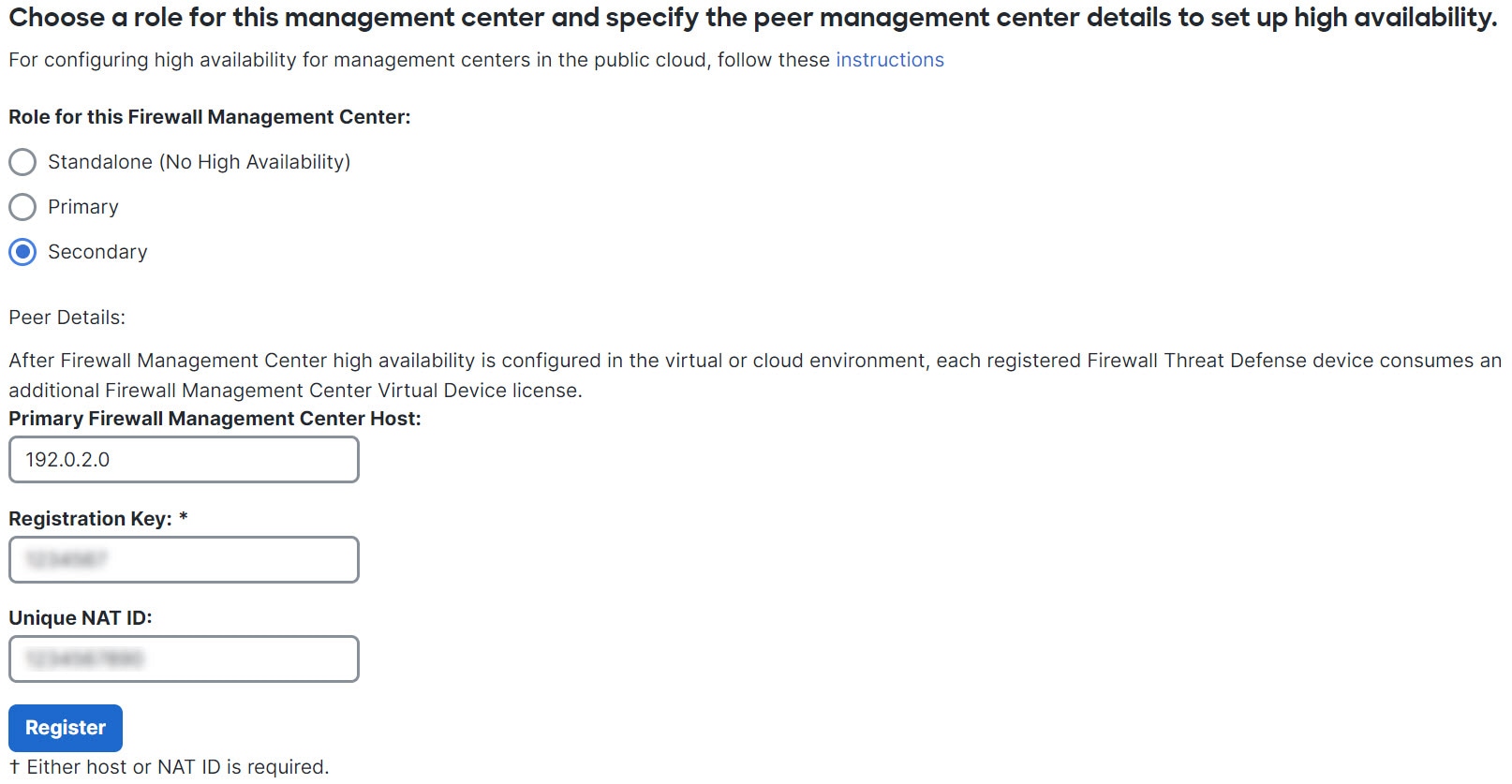
  1. On the secondary Firewall Management Center, complete these steps:

    1. Choose Secondary as the Role for this Firewall Management Center.

    2. Enter the public IP address or hostname for the secondary Firewall Management Center in the Primary Firewall Management Center Host field.

    3. Enter your registration key.

    4. Enter the same NAT ID that you used in the primary Firewall Management Center.

      The diagram illustrates the configuration steps for setting up high availability in a public cloud environment, highlighting the necessary fields such as the Primary Firewall Management Center Host, registration key, and NAT ID.
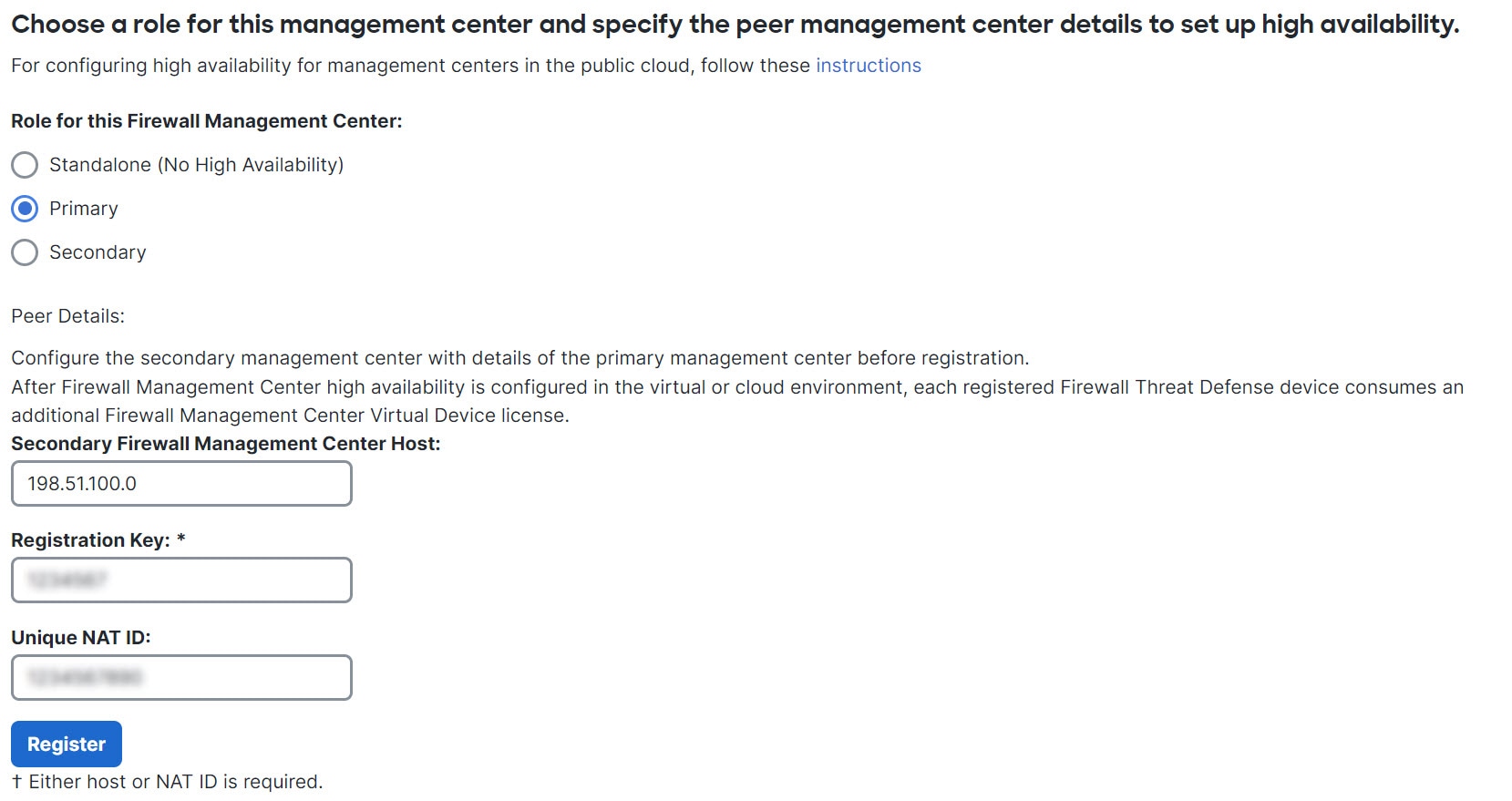
  2. On the primary Firewall Management Center, do the following:

    1. Choose Primary as the Role for this Firewall Management Center.

    2. Enter the public IP address or hostname for the secondary Firewall Management Center in the Secondary Firewall Management Center Host field.

    3. Enter the registration key.

    4. Enter the unique NAT ID.

    The diagram illustrates the configuration process for setting up high availability for a Firewall Management Center in a public cloud environment, highlighting the roles and required fields for input.

Step 2

Configure high availability using the public IP address or hostname for only the secondary management center.

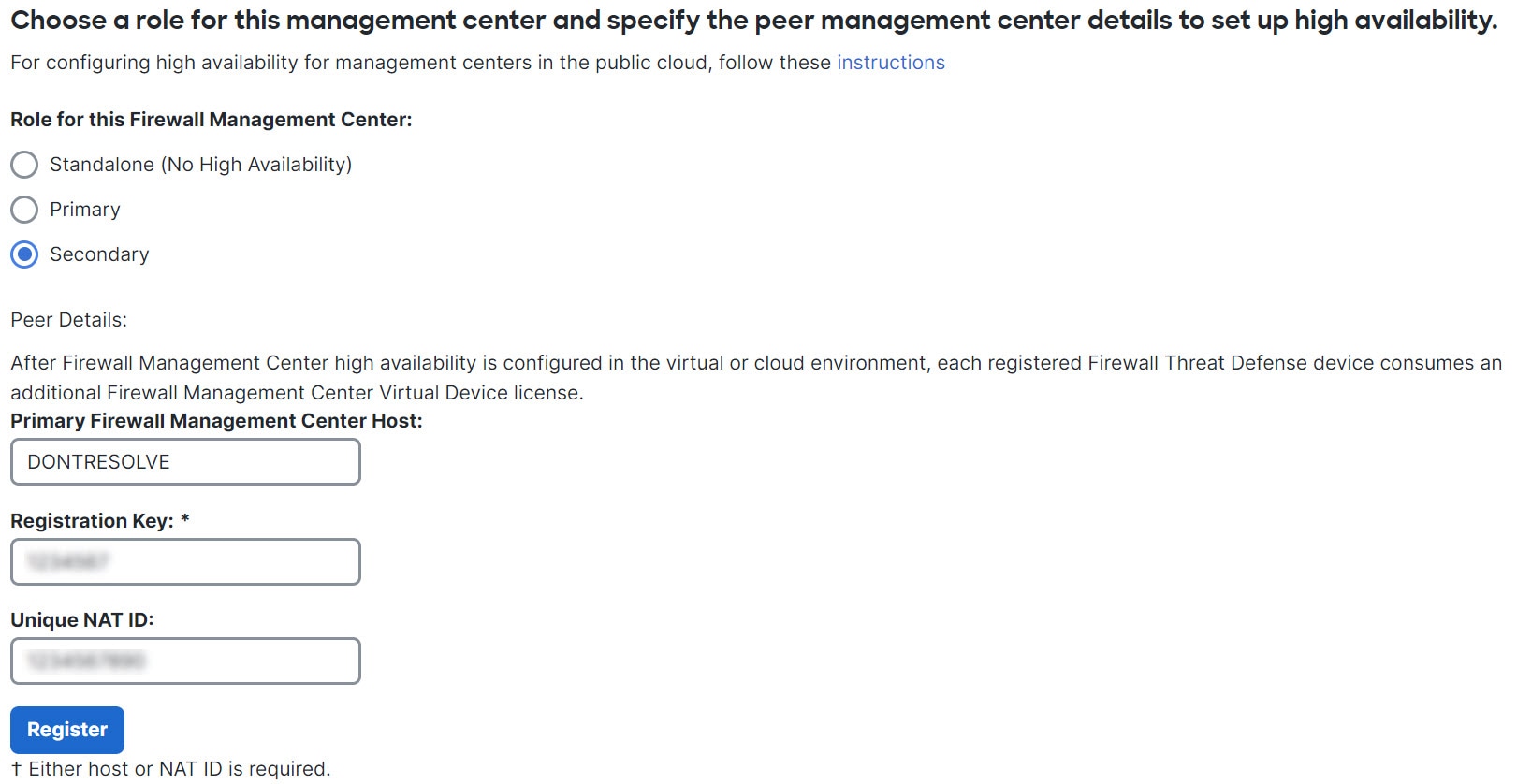
  1. On the secondary Firewall Management Center, do the following:

    1. Choose Secondary as the Role for this Firewall Management Center.

    2. Enter DONTRESOLVE in the Primary Firewall Management Center Host field.

    3. Enter the registration key.

    4. Enter the same NAT ID that you used in the primary Firewall Management Center.

    The diagram illustrates the configuration steps for setting up high availability for a Firewall Management Center in a public cloud environment, highlighting the roles and key fields to be filled.
  2. On the primary Firewall Management Center, do the following:

    1. Choose Primary as the Role for this Firewall Management Center.

    2. Enter the public IP address or hostname for the secondary Firewall Management Center in the Secondary Firewall Management Center Host field.

    3. Enter the registration key.

    4. Enter the unique NAT ID.

    The diagram illustrates the configuration process for establishing high availability between primary and secondary Firewall Management Centers in a public cloud environment. It highlights the necessary fields to be filled, including the public IP address, registration key, and unique NAT ID.

View Firewall Management Center high availability status

View the high availability status of paired Firewall Management Center appliances to monitor their health, synchronization, and registration details.

After you identify your active and standby Firewall Management Centers, you can view information about the local Firewall Management Center and its peer.


Note


In this context, Local Peer refers to the appliance where you are viewing the system status. Remote Peer refers to the other appliance, regardless of active or standby status.


Procedure


Step 1

Log into one of the Firewall Management Centers that you paired using high availability.

Step 2

Choose Integration > Other Integrations, and then choose High Availability.

Step 3

Under Remote and Local Device Registration, you can view the list of devices that are pending or failed registration on Firewall Management Center. You can do the following for the devices:

  • To remove the stale manager on the device, select the check box against the device and click Disable Manager. Enter the manager IP address and click Disable.

  • To add a manager for the device, select the check box against the device and click Add Manager. Enter the manager IP address and click Add.

Note


You can remove or add a manager only on one device at a time.


Configure synchronization of configurations on Firewall Management Center high availability pairs

When you establish high availability between two Firewall Management Centers, configuration data is synced between them.
  • License entitlements

  • Access control policies

  • Intrusion rules

  • Malware and file policies

  • DNS policies

  • Identity policies

  • SSL policies

  • Prefilter policies

  • Network discovery rules

  • Application detectors

  • Correlation policy rules

  • Alerts

  • Scanners

  • Response groups

  • Contextual cross-launch of external resources for investigating events

  • Remediation settings, although you must install custom modules on both Firewall Management Centers. For more information on remediation settings, see Manage remediation modules.

Recommendation: Configure external access to the Firewall Management Center database only on the active peer

In a high availability setup, configure external access to the Firewall Management Center database only on the active peer. Configuring the standby peer for external database access leads to frequent disconnections.

This principle applies when configuring external access to the database in a high availability pair.

If you configure external access on the standby peer, frequent disconnections can disrupt database connectivity.

This recommendation ensures stable connectivity to the database and prevents unnecessary interruptions.

To restore connectivity after configuring the standby peer, pause and resume synchronization of the standby peer. For details on enabling external database access to Firewall Management Centers, see Enabling External Access to the Database.

Resolve device registration using CLI in Firewall Management Center high availability

This task enables you to resolve device registration issues in high availability deployments of Firewall Management Center using CLI commands.

If automatic device registration fails on the standby Firewall Management Center, but appears to be registered to the active Firewall Management Center, use this procedure to manually resolve registration. This is relevant when managing devices in high availability environments.


Warning


If you do an RMA of secondary Firewall Management Center or add a secondary Firewall Management Center, the managed devices are unregistered, and their configuration can get deleted as a result.


Procedure


Step 1

Delete the device from the active Firewall Management Center. Refer to Delete (Unregister) a Device from the Firewall Management Center in Cisco Secure Firewall Management Center Device Configuration Guide.

Step 2

Trigger automatic registration of the device on the standby Firewall Management Center:

  1. Log in to the CLI for the affected device.

  2. Run the CLI command: configure manager delete .

    This command disables and removes the current Firewall Management Center.

  3. Run the CLI command: configure manager add .

    This command configures the device to initiate a connection to a Firewall Management Center.

    Tip


    Configure remote management on the device, only for the active Firewall Management Center. When you establish high availability, the devices are automatically registered to the standby Firewall Management Center.

  4. Log in to the active Firewall Management Center and register the device.

Step 3

If the standby Firewall Management Center is behind NAT, edit the hostname of the standby Firewall Management Center:

  1. Access the Firewall Threat Defense shell and use the show managers command to get the standby Firewall Management Center entry identifier value.

  2. In the Firewall Threat Defense shell, edit the standby Firewall Management Center hostname to the public IP address. Execute the configure manager edit <standby_uuid> hostname <standby_ip> command using the entry identifier value and the host IP address.


Switch peer roles in the Firewall Management Center high availability pair

Switching peer roles in a high availability pair allows you to promote the standby Firewall Management Center to active status if the current active appliance fails. This ensures that system functionality restricted to the active peer remains available.

Use this task when the active Firewall Management Center in a high availability deployment becomes unavailable or you need to manually switch roles between peers. The system restricts some functionality to the active appliance, so switching roles maintains operational continuity.

Procedure


Step 1

Log into one of the Firewall Management Centers that you paired using high availability.

Step 2

Choose Integration > Other Integrations, and then choose High Availability.

Step 3

Choose Switch Peer Roles to change the local role between Active and Standby. This switches the active and standby roles between the two peers, and the Primary and Secondary designations stay the same. In this context, role means the active or standby status of the management center, not the primary or secondary designation set during HA setup.


Pause communication between paired Firewall Management Centers

If you want to temporarily disable high availability, you can disable the communications channel between the Firewall Management Centers. You can pause synchronization from an active or standby peer.

Procedure


Step 1

Log into one of the Firewall Management Centers that you paired using high availability.

Step 2

Choose Integration > Other Integrations, and then choose High Availability.

Step 3

Choose Pause Synchronization.


Restart communication between paired Firewall Management Centers

Restarting communication between paired Firewall Management Centers allows you to resume high availability synchronization after it has been temporarily disabled.

If you temporarily disable high availability, you can restart high availability by enabling the communications channel between the Firewall Management Centers. You can resume synchronization from an active or standby peer.

Procedure


Step 1

Log into one of the Firewall Management Centers that you paired using high availability.

Step 2

Choose Integration > Other Integrations, and then choose High Availability.

Step 3

Choose Resume Synchronization.


Change the IP address of the Firewall Management Center in a high availability pair

Changing the IP address of one peer in a Firewall Management Center high availability pair does not automatically update the other peer’s information. To maintain proper synchronization and connectivity between peers, you must manually update the IP address on both appliances.

Procedure


Step 1

Log in to the peer Firewall Management Center where you want to manually modify the IP address of the other peer manager.

Step 2

Choose Integration > Other Integrations.

Step 3

Choose High Availability.

Step 4

Choose Peer Manager.

Step 5

Choose Edit (edit icon).

Step 6

Enter the display name of the appliance, which is used only within the context of the system. The name must either be the IP address of the current Firewall Management Center or an alphanumeric string with special characters (underscore (_) and hyphen(-)).

Entering a different display name does not change the host name for the appliance.

Step 7

Enter the fully qualified domain name, that is the name that resolves through the local DNS to a valid IP address (the host name), or the host IP address.

Step 8

Click Save.


Disable Firewall Management Center high availability

Disable high availability for Firewall Management Center to break the HA pair and manage devices independently.

Breaking HA allows you to control device management from either console or stop managing devices altogether.

High availability for Firepower Management Centers is not available in versions 6.0 or 6.0.1. This procedure is relevant when you need to break an existing HA pair and reassign device management.

Use this task when you want to manage devices from a single console or discontinue device management from both consoles.

After breaking HA, you may need to re-register device licenses. Access control policies remain on the standby Firewall Management Center.

Procedure


Step 1

Log into one of the Firewall Management Centers in the high availability pair.

Step 2

Choose Integration > Other Integrations, and then choose High Availability.

Step 3

Choose Break HA.

Step 4

Choose one of the options for handling managed devices:

  • To control all managed devices with this Firewall Management Center, choose Manage registered devices from this console. All devices will be unregistered from the peer.

  • To control all managed devices with the other Firewall Management Center, choose Manage registered devices from peer console. All devices will be unregistered from this Firewall Management Center.

  • To stop managing devices altogether, choose Stop managing registered devices from both consoles. All devices will be unregistered from both Firewall Management Centers.

Note

 
  • If you choose to manage the registered devices from the secondary Firewall Management Center, the devices will be unregistered from the primary Firewall Management Center. Devices will then be registered to the secondary Firewall Management Center. License applications on these devices are deregistered due to the high availability break operation. You must re-register (enable) licenses on the devices from the secondary Firewall Management Center. For more information see Assign licenses to devices.

  • The standby management center retains the access control policies after the HA break is complete.

Step 5

Click OK.


Replace Firewall Management Centers in a high availability pair

If you need to replace a failed unit in the Firewall Management Center high availability pair, you must follow one of these procedures. The table lists four possible failure scenarios and their corresponding replacement procedures.

Failure Status

Data Backup Status

Replacement Procedure

Primary Firewall Management Center failed

Data backup successful

Replace a failed primary Firewall Management Center (successful backup)

Data backup not successful

Replace a failed primary Firewall Management Center (unsuccessful backup)

Secondary Firewall Management Center failed

Data backup successful

Replace a failed secondary Firewall Management Center (successful backup)

Data backup not successful

Replace a failed secondary Firewall Management Center (unsuccessful backup)

Replace a failed primary Firewall Management Center (successful backup)

This task enables you to replace a failed primary Firewall Management Center in a high availability pair using a successful backup, ensuring minimal disruption and restoration of high availability operations.

Two Firewall Management Centers, FMC1 and FMC2, are part of a high availability pair. FMC1 is the primary and FMC2 is the secondary. Use this task to replace a failed primary Firewall Management Center, FMC1, when data backup from the primary is successful.

Procedure


Step 1

Contact Support to request a replacement for a failed Firewall Management Center - FMC1.

Step 2

When the primary Firewall Management Center - FMC1 fails, access the web interface of the secondary Firewall Management Center - FMC2 and switch peers. For more information, refer to Switch peer roles in the Firewall Management Center high availability pair.

This promotes the secondary Firewall Management Center - FMC2 to active.

You can use FMC2 as the active Firewall Management Center until the primary Firewall Management Center - FMC1 is replaced.

Caution


Do not break Firewall Management Center high availability from FMC2, since licenses that were synced to FMC2 from FMC1 (before failure), will be removed from FMC2 and you will be unable to perform any deploy actions from FMC2.

Step 3

Reimage the replacement Firewall Management Center with the same software version as FMC1.

Step 4

Restore the data backup retrieved from FMC1 to the new Firewall Management Center.

Step 5

Install required Firewall Management Center patches, geolocation database (GeoDB) updates, vulnerability database (VDB) updates, and system software updates to match FMC2.

The new Firewall Management Center and FMC2 will now both be active peers, resulting in a high availability split-brain.

Step 6

When the Firewall Management Center web interface prompts you to choose an active appliance, select FMC2 as active.

This syncs the latest configuration from FMC2 to the new Firewall Management Center - FMC1.

Step 7

When the configuration syncs successfully, access the web interface of the secondary Firewall Management Center - FMC2 and switch roles to make the primary Firewall Management Center - FMC1 active. For more information, refer to Switch peer roles in the Firewall Management Center high availability pair.


What to do next

High availability has now been re-established and the primary and the secondary Firewall Management Centers will now work as expected.

Replace a failed primary Firewall Management Center (unsuccessful backup)

This task enables you to replace a failed primary Firewall Management Center in a high availability pair when data backup from the primary is unsuccessful.

This task restores high availability and ensures proper license management after a primary failure.

Two Firewall Management Centers, FMC1 (primary) and FMC2 (secondary), are part of a high availability pair. If the primary fails and backup is unsuccessful, you must perform these steps to restore the system.

Procedure


Step 1

Contact Support to request a replacement for a failed Firewall Management Center - FMC1.

Step 2

When the primary Firewall Management Center - FMC1 fails, access the web interface of the secondary Firewall Management Center - FMC2 and switch peers. For more details, refer to Switch peer roles in the Firewall Management Center high availability pair.

This promotes the secondary Firewall Management Center - FMC2 to active.

You can use FMC2 as the active Firewall Management Center until the primary Firewall Management Center - FMC1 is replaced.

Caution


Do not break Firewall Management Center High Availability from FMC2, since licenses that were synced to FMC2 from FMC1 (before failure), will be removed from FMC2 and you will be unable to perform any deploy actions from FMC2.

Step 3

Reimage the replacement Firewall Management Center with the same software version as FMC1.

Step 4

Install required Firewall Management Center patches, geolocation database (GeoDB) updates, vulnerability database (VDB) updates and system software updates to match FMC2.

Step 5

Deregister one of the Firewall Management Centers - FMC2 from the Cisco Smart Software Manager. For more information, see Deregister the Firewall Management Center.

Deregistering Firewall Management Center from the Cisco Smart Software Manager removes the Management Center from your virtual account. All license entitlements associated with the Firewall Management Center release back to your virtual account. After deregistration, the Firewall Management Center enters Enforcement mode where no update or changes on licensed features are allowed.

Step 6

Access the web interface of the secondary Firewall Management Center - FMC2 and break Firewall Management Center high availability. For more information, see Disable Firewall Management Center high availability. When prompted to select an option for handling managed devices, choose Manage registered devices from this console.

As a result, licenses that were synced to the secondary Firewall Management Center- FMC2 will be removed, and you cannot perform deployment activities from FMC2.

Step 7

Re-establish Firewall Management Center high availability, by setting up the Firewall Management Center - FMC2 as the primary and Firewall Management Center - FMC1 as the secondary. For more information, see Establish high availability for Firewall Management Center.

Step 8

Register a Smart License to the primary Firewall Management Center - FMC2. For more information see Register the Firewall Management Center with the Smart Software Manager.


What to do next

High availability has now been re-established and the primary and the secondary Firewall Management Centers will now work as expected.

Replace a failed secondary Firewall Management Center (successful backup)

This task enables you to replace a failed secondary Firewall Management Center when a successful backup exists, ensuring continued high availability and minimal disruption.

Two Firewall Management Centers—FMC1 (primary) and FMC2 (secondary)—form a high availability pair. If the secondary fails but its backup is successful, you can restore high availability by replacing it and restoring the backup.

Before you begin

Verify that the data backup from the failed secondary Firewall Management Center is successful.

Procedure


Step 1

Contact Support to request a replacement for a failed Firewall Management Center - FMC2.

Step 2

Continue to use the primary Firewall Management Center - FMC1 as the active Firewall Management Center.

Step 3

Reimage the replacement Firewall Management Center with the same software version as FMC2.

Step 4

Restore the data backup from FMC2 to the new Firewall Management Center.

Step 5

Install the required Firewall Management Center patches, geolocation database (GeoDB) updates, vulnerability database (VDB) updates, and system software updates to match FMC1.

Step 6

Resume data synchronization (if paused) from the web interface of the new Firewall Management Center - FMC2, to synchronize the latest configuration from the primary Firewall Management Center - FMC1. For more information, refer to Restart communication between paired Firewall Management Centers.

Classic and Smart Licenses work seamlessly.

What to do next

High availability has now been re-established and the primary and the secondary Firewall Management Centers will now work as expected.

Replace a failed secondary Firewall Management Center (unsuccessful backup)

This task enables you to restore high availability by replacing a failed secondary Firewall Management Center when backup from the secondary is unsuccessful.

  • Ensures the primary management center remains active during the replacement process.

  • Synchronizes configuration and licensing between the primary and replacement secondary management centers.

Two Firewall Management Centers, FMC1 (primary) and FMC2 (secondary), form a high availability pair. If the secondary fails and backup is unsuccessful, you must replace it to restore high availability.

This procedure is relevant when the secondary management center cannot be recovered from backup and must be replaced to maintain system redundancy and continuity.

Applicable in high availability deployments of Secure Firewall Management Centers.

Before you begin

Ensure you have access to the primary Firewall Management Center and the replacement device for the secondary.

  • Verify the replacement device is available and ready for reimaging.

  • Obtain the required software version and updates for the replacement device.

Procedure


Step 1

Contact Support to request a replacement for a failed Firewall Management Center - FMC2.

Step 2

Continue to use the primary Firewall Management Center - FMC1 as the active Firewall Management Center.

Step 3

Reimage the replacement Firewall Management Center with the same software version as FMC2.

Step 4

Install the required Firewall Management Center patches, geolocation database (GeoDB) updates, vulnerability database (VDB) updates and system software updates to match FMC1.

Step 5

Access the web interface of the primary Firewall Management Center - FMC1 and break Firewall Management Center high availability. For more information, refer to Disable Firewall Management Center high availability. When prompted to select an option for handling managed devices, choose Manage registered devices from this console.

Step 6

Re-establish Firewall Management Center high availability, by setting up the Firewall Management Center - FMC1 as the primary and Firewall Management Center - FMC2 as the secondary. For more information, refer to Establish high availability for Firewall Management Center.

  • When high availability is successfully established, the latest configuration from the primary Firewall Management Center - FMC1 is synchronized to the secondary Firewall Management Center - FMC2.

  • Both Classic and Smart licenses function without issues.


What to do next

High availability has been re-established. The primary and secondary Firewall Management Centers now operate as expected.

Firewall Management Center high availability disaster recovery

A Firewall Management Center high availability disaster recovery is a failover mechanism that requires manual switchover between primary and secondary Firewall Management Center units.

Manual switchover in disaster recovery

Manual switchover is required when a disaster recovery situation occurs in a high availability pair.

  • When the primary Firewall Management Center, FMC1, fails, use the web interface of the secondary Firewall Management Center, FMC2, to switch peers.

  • This process is applicable if either the primary or secondary unit fails.

For more information, see Switch peer roles in the Firewall Management Center high availability pair.

For restoring a failed unit, see Replace Firewall Management Centers in a high availability pair.

Restore management center in a high-availability pair (no hardware failure)

To restore a Firewall Management Center high-availability pair when there is no hardware failure, use these procedures.

Restore a backup on the primary management center

Use this task when you need to recover the primary management center from a backup, such as after a configuration error or data corruption, and there is no hardware failure or replacement involved.

Before you begin

  • Confirm that there is no hardware failure or that the management center has not been replaced.

  • You are familiar with the backup and restore process. See Backup/Restore.

Procedure


Step 1

Check whether a backup of the primary Firewall Management Center exists on either local storage in /var/sf/backup/ or a remote network volume.

Step 2

Pause synchronization on the primary Firewall Management Center. Choose Integration > Other Integrations, and then choose High Availability tab to pause synchronization.

Step 3

Restore the backup on the primary Firewall Management Center. The Firewall Management Center reboots when the restoration is complete.

Step 4

Once the primary Firewall Management Center is active and its user interface is reachable, resume synchronization on the secondary Firewall Management Center. Choose Integration > Other Integrations, and then choose High Availability tab to resume synchronization.


Restore a backup on the secondary management center

This task is performed when you need to restore the secondary management center from a backup, such as after a configuration issue or to synchronize with the primary management center in a high availability setup.

Before you begin

  • There is no hardware failure and replacement of the management center.

  • You are familiar with the backup and restore process. See Backup/Restore.

Procedure


Step 1

Verify if backup of the secondary Firewall Management Center is available—either a local storage in /var/sf/backup/, or a remote network volume.

Step 2

Pause synchronization on the primary Firewall Management Center. Choose Integration > Other Integrations, and then chooseHigh Availability tab to pause synchronization.

Step 3

Restore the backup on the secondary Firewall Management Center. The Firewall Management Center reboots when the restoration is complete.

Step 4

Once the secondary Firewall Management Center is active and its user interface is reachable, resume synchronization on the primary Firewall Management Center. Choose Integration > Other Integrations, and then choose High Availability tab to resume synchronization.


Unified backups of management centers in high availability

A unified backup of management centers is a backup solution that

  • creates a single backup file for both active and standby Firewall Management Centers

  • removes redundant data and storage constraints, and

  • enables recovery of a new RMA device in high availability environments.

Benefits of unified backups

Unified backups offer several advantages compared to normal backups.

  • With unified backup, you do not need to take separate backups on active and standby Firewall Management Centers.

  • A unified backup removes redundant data in backups and storage constraints.

  • In a normal backup, if the primary unit fails and a backup of the secondary unit is not available, you must break the high availability pairing for the secondary RMA. Unified backup eliminates this requirement.

  • You can use the unified backup to recover a new RMA device if an unanticipated incident occurs.

  • Typically, you cannot schedule a backup of a standby unit. When you schedule a unified backup, the system backs up both active and standby units.

  • While executing unified backup, you do not have to pause the high availability synchronization to perform backup on the standby unit.

Unified backup can only be used for configuration-only backups. If you need an eventing or TID backup, you must take separate backups for the active and standby Firewall Management Centers.

When you select configuration-only backup, by default, unified backup is applied. In a unified backup, if the active Firewall Management Center cannot retrieve a backup tar file from the standby Firewall Management Center, the system generates a normal backup file for the active unit. You can use this file for restoration.

Unified backup file identification

You can identify the unified backup file by its name. A prefix "Unified" is added to the unified backup file name. You can select the Firewall Management Center to restore and also select its State (Active/Standby).

Split-brain conflict prevention

Ensure that you select the appropriate state of the restored Firewall Management Center to prevent Split-Brain conflict.

Restore Management Center from unified backup

Restore the management center configuration using a unified backup file to recover system settings and ensure business continuity after a failure or migration.

Use this task when you need to recover or migrate your Firewall Management Center from a configuration-only unified backup. This is typically required after a system failure, hardware replacement, or when moving to a new deployment.

This procedure restores only the configuration and does not include event or log data.

Procedure

Step 1

Log into the Firewall Management Center you want to restore.

Step 2

Select System (system gear icon) > Tools > Backup/Restore.

The Backup Management page lists all locally and remotely stored backup files including the unified backup file (configuration-only).

If the unified backup file is not in the list and you have it saved on your local computer, click Upload Backup; refer to Manage backups and remote storage.

Step 3

Select the unified backup file that you want to restore and click Restore.

Step 4

In the Restore Backup page, select which unit you want to restore. The unified backup stores the backup configuration of both primary and secondary units. You need to choose which unit to restore.

Step 5

To select the state of the restored Firewall Management Center, click the Active or Standby radio button. Check the role and state of your active management center. Prevent both peers from sharing the same role and state configuration. If you select the wrong role or state, high availability failure can occur.

Step 6

Click Restore, and then Confirm Restore to begin the restoration.


History for Firewall Management Center high availability

The History table summarizes the introduction and evolution of the high availability in Cisco Minimum Firewall Management Center across releases, enabling quick tracking of feature availability and changes

Feature

Minimum Firewall Management Center

Minimum Firewall Threat Defense

Details

Support for high availability on Azure.

7.4.2

Any

We now support high availability on Firewall Management Center Virtual for Azure.

Single backup file for high availability Firewall Management Centers.

7.4.1

7.2.6

Any

When performing a configuration-only backup of the active Firewall Management Center in a high availability pair, the system now creates a single backup file which you can use to restore either unit.

Firewall Management Center high availability synchronization enhancements.

7.4.1

Any

Firewall Management Center high availability (HA) includes the following synchronization enhancements:

  • Large configuration history files can cause synchronization to fail in high-latency networks. To prevent this from happening, the device configuration history files are now synchronized in parallel with other configuration data. This enhancement also reduces the synchronization time.

  • The Firewall Management Center now monitors the configuration history file synchronization process and displays a health alert if the synchronization times out.

New/modified screens: You can view these alerts on the following screens:

  • Notifications > Message Center > Health

  • Integration > Other Integrations > High Availability > Status (under Summary)

Support for high availability on Hyper-V.

7.4.0

Any

We now support high availability on Firewall Management Center Virtual for Hyper-V.

Support for high availability on KVM.

7.3.0

Any

We now support high availability on Firewall Management Center Virtual for KVM.

Support for high availability on AWS and OCI.

7.1.0

Any

We now support high availability on Firewall Management Center Virtual for AWS and OCI.

Support for high availability on HyperFlex.

7.0.0

Any

We now support high availability on Firewall Management Center Virtual for HyperFlex.

Support for high availability on VMware.

6.7.0

Any

We now support high availability on Firewall Management Center Virtual for VMware.

Single sign-on.

6.7.0

Any

When configuring one or both members of a high availability pair for single sign-on, you must take into account special considerations.