Overview

Features

The Cisco Secure Firewall 200 series is a cost-effective, highly efficient addition to our low-end firewall family. It is designed for enterprise branches, retail businesses, and small locations, and offers robust, affordable security with advanced threat intelligence, cloud security features, and optimized performance for comprehensive enterprise-grade protection.

The Secure Firewall 220 is a compact network security appliance in the Cisco Secure Firewall family. It is first supported in Cisco Secure Firewall Threat Defense Version 10.0.0 and Cisco Secure ASA Version 9.24.1.

See the Cisco Secure Firewall Threat Defense Compatibility Guide and Cisco Secure Firewall ASA Compatibility, which provide Cisco Firewall software and hardware compatibility, including operating system and hosting environment requirements, for each supported Firewall version.

The following figure shows the Secure Firewall 220.
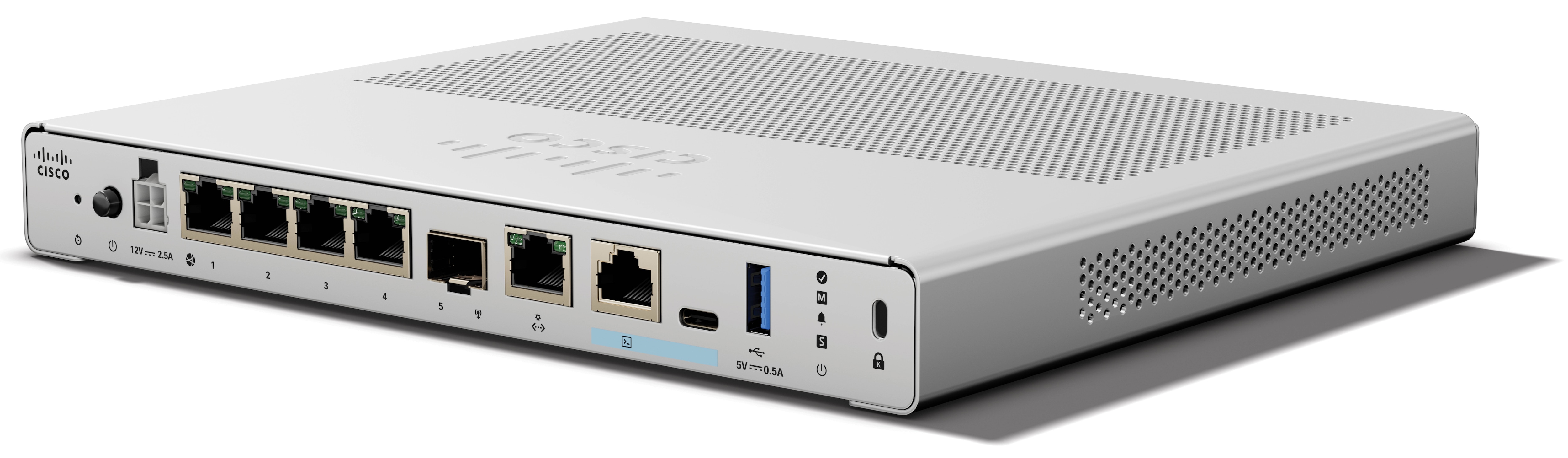
Figure 1. CSF-220

The following table lists the features for the Secure Firewall 220.

Table 1. CSF-220 features

Feature

CSF-220

Form factor

Compact or 1 RU for the rack-mount shelf

Mounting

  • Desktop mount (default)

  • Wall mount (orderable kit)

  • Rack-mount shelf (orderable kit)

Airflow

No fan

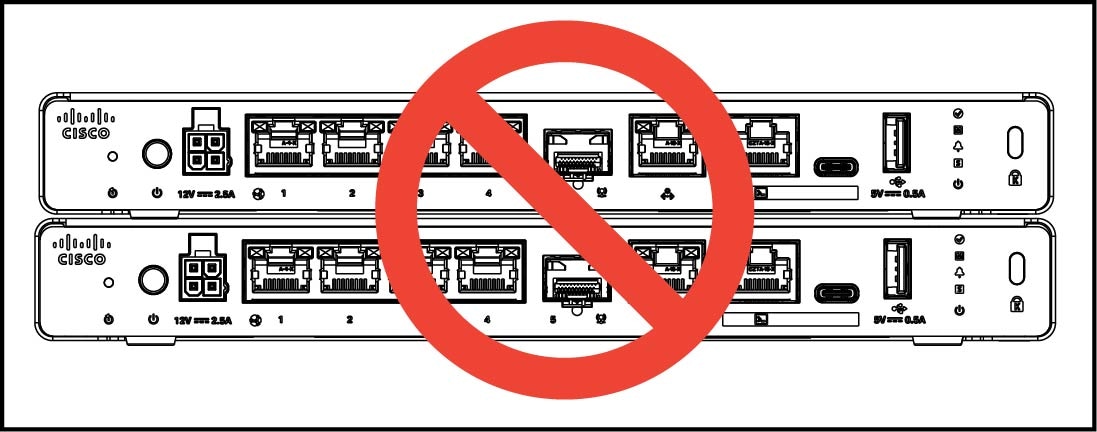
Note


Because there is no fan, you cannot stack the chassis. Internal system temperature recordings are expected to be higher than the ambient temperature cited in Hardware specifications.

Management port

One 1-Gbps Cisco RJ-45

Restricted to network management access; connect with an RJ-45 cable

Console ports

One Cisco Serial (RS-232 on RJ-45)

One USB Type C 2.0

Provides management access through an external system

USB port

One USB Type A 3.0

Use to attach an external device such as storage

Network ports

Four 1-Gbps RJ-45 Gigabit Ethernet ports

Small form-factor pluggable (SFP) port

One 1-Gbps port

Supported SFPs

See Supported transceivers for a list of supported 1-Gbps SFPs.

PoE+ ports

Not supported

Reset button

Small recessed button

Push and hold with a pin for 5 seconds; resets the chassis to its default state following the next reboot.

Note


Configuration variables are reset to factory default, but the flash is not erased and no files are removed.

Lock slot

Accepts a Kensington T-bar locking mechanism for securing the chassis

Power button

Located on the left side of the I/O (rear) panel

Power cord socket

IEC320-C14

See Power cord specifications for the list of supported power cords.

AC power supply

External +12 V at 30 W

Storage

Internal component only; not field-replaceable.

You must return the chassis to Cisco for storage replacement. See the Cisco Returns Portal for more information.

Rubber feet

Present for stability and cooling

Package contents

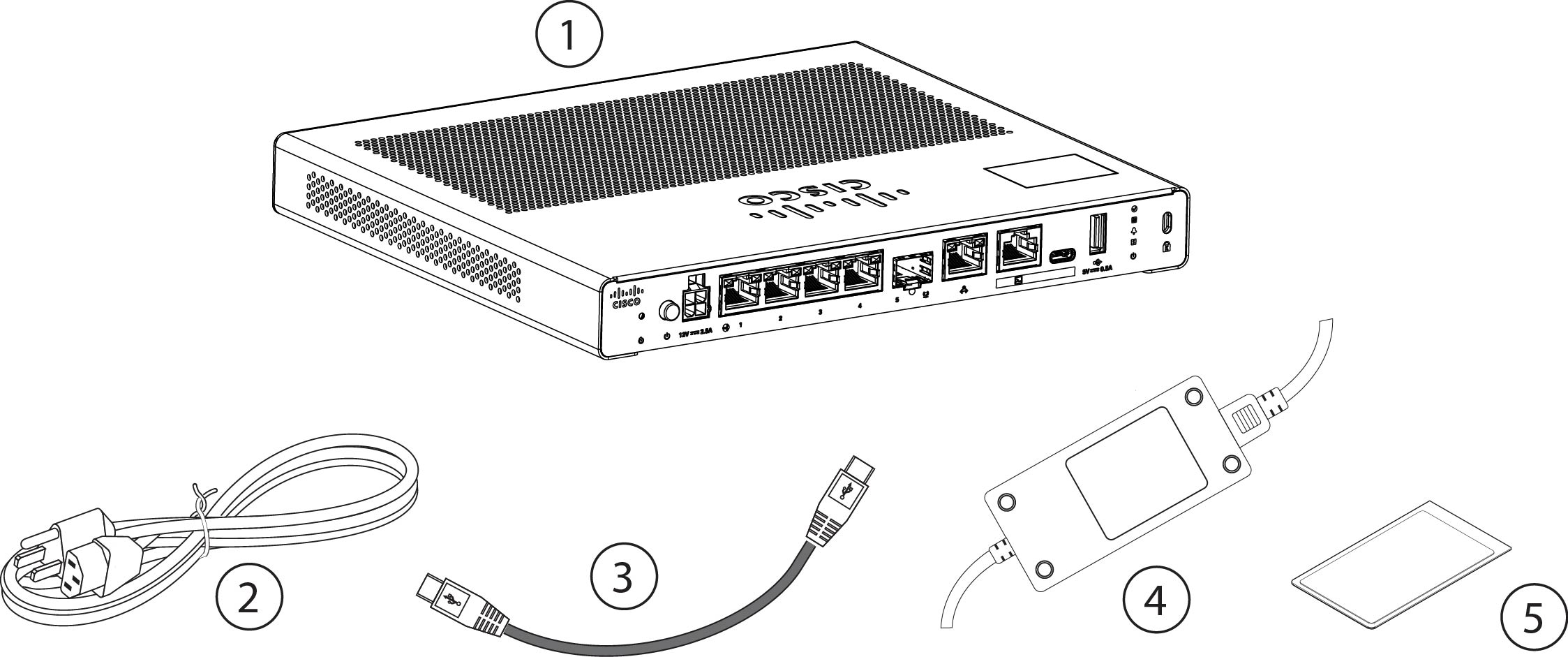
The following figure shows the package contents for the Secure Firewall 220. Note that the contents are subject to change and your exact contents might contain additional or fewer items.

Figure 2. CSF-220 package contents

1

Chassis

2

Power cord

See Power cord specifications for a list of the approved power cords.

3

USB-C to USB-C console cable (6 ft)

PID: CAB-CONS-USB-C

Optional: in package if ordered

4

Power supply

5

Cisco Secure Firewall 200

This document has links to the hardware installation guide, regulatory and safety information guide, and warranty and licensing information. It also contains a QR code and URL that point to the Digital Documentation Portal. The portal contains links to the product information page, the hardware installation guide, the regulatory and safety information guide, the getting started guide, and the zero-touch provisioning guide.

Kensington lock, compliance label, do not stack label, hot system warning label, and digital documentation portal QR code locations

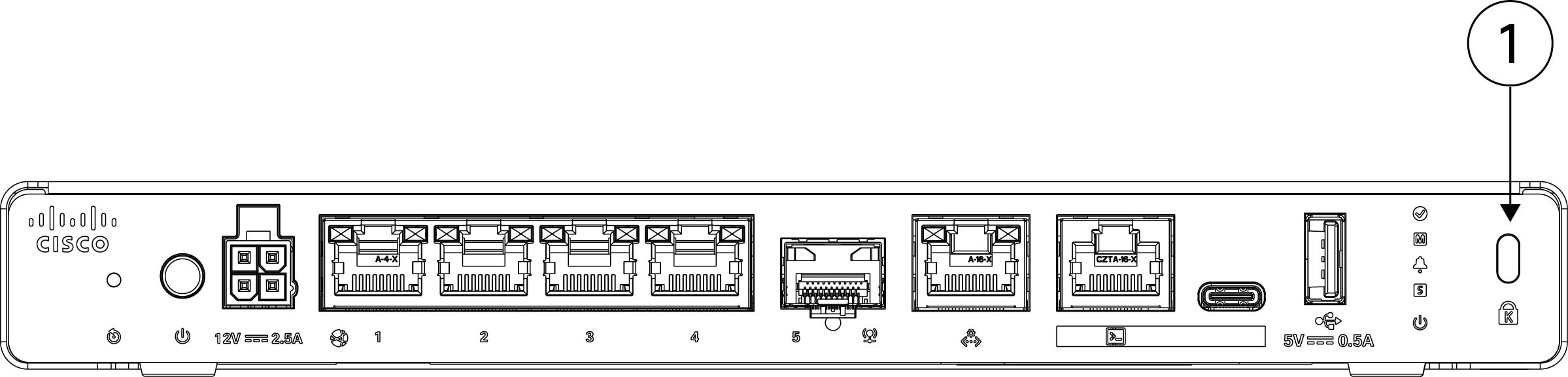
You can find the Kensington lock on the left side of the rear panel (I/O) side of the chassis. It accepts a standard Kensington T-bar locking mechanism for securing the chassis.

The following figure shows the location.

Figure 3. Kensington lock on the chassis

1

Kensington lock on left side of rear panel (I/O) side of the chassis

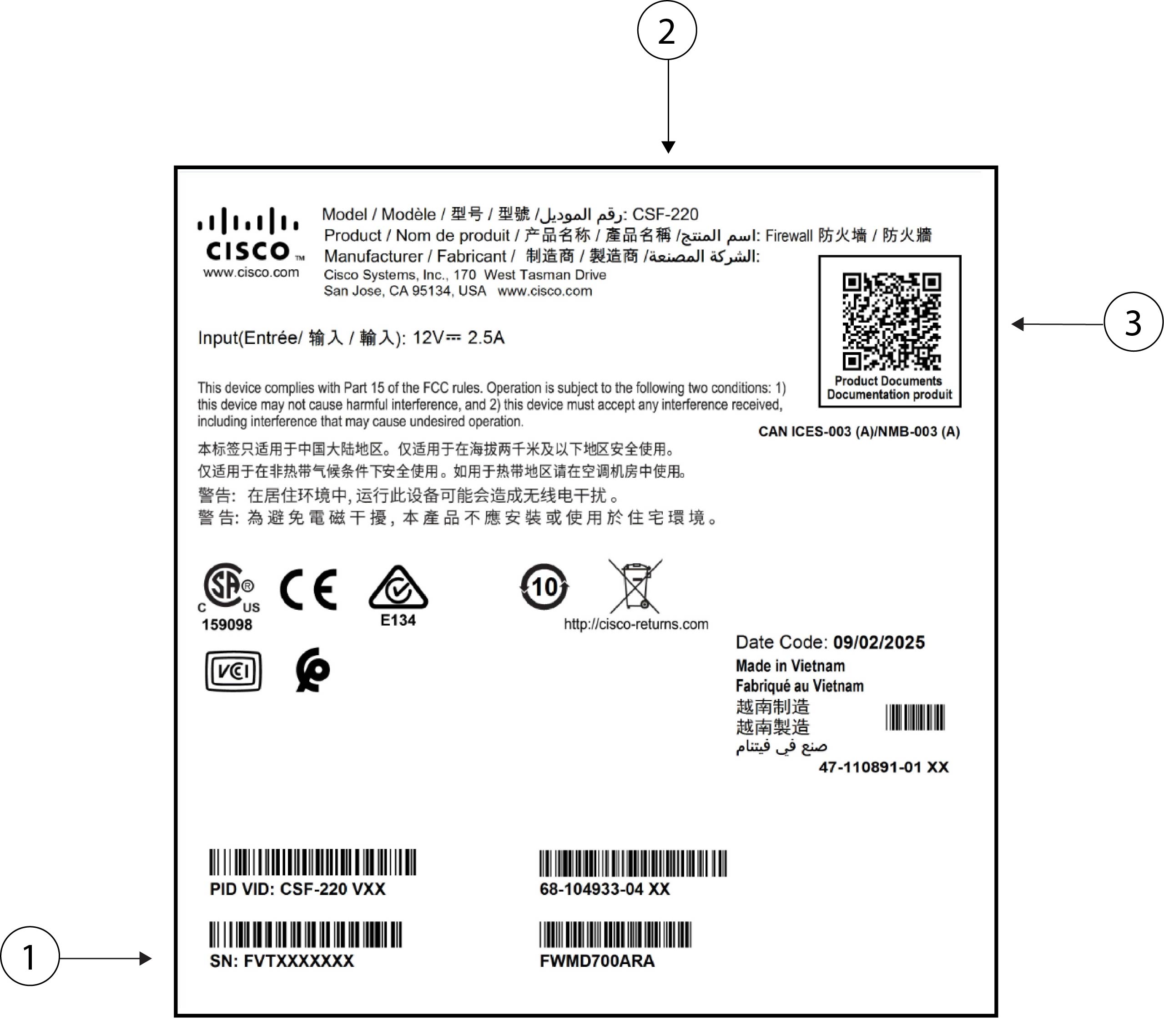
The compliance label on the bottom of the chassis contains the chassis serial number, regulatory compliance marks, and the Digital Documentation Portal QR code that points to the getting started guide, the regulatory and compliance guide, the zero-touch provisioning guide, and the hardware installation guide.

The following figure shows an example compliance label found on the bottom of the chassis.

Figure 4. Compliance label on the chassis

1

Chassis serial number

2

Chassis model number

3

Digital Documentation Portal QR code

The Do Not Stack label is on the top of the chassis cover. The following figure shows the Do Not Stack label.

Figure 5. Do Not Stack label on the chassis

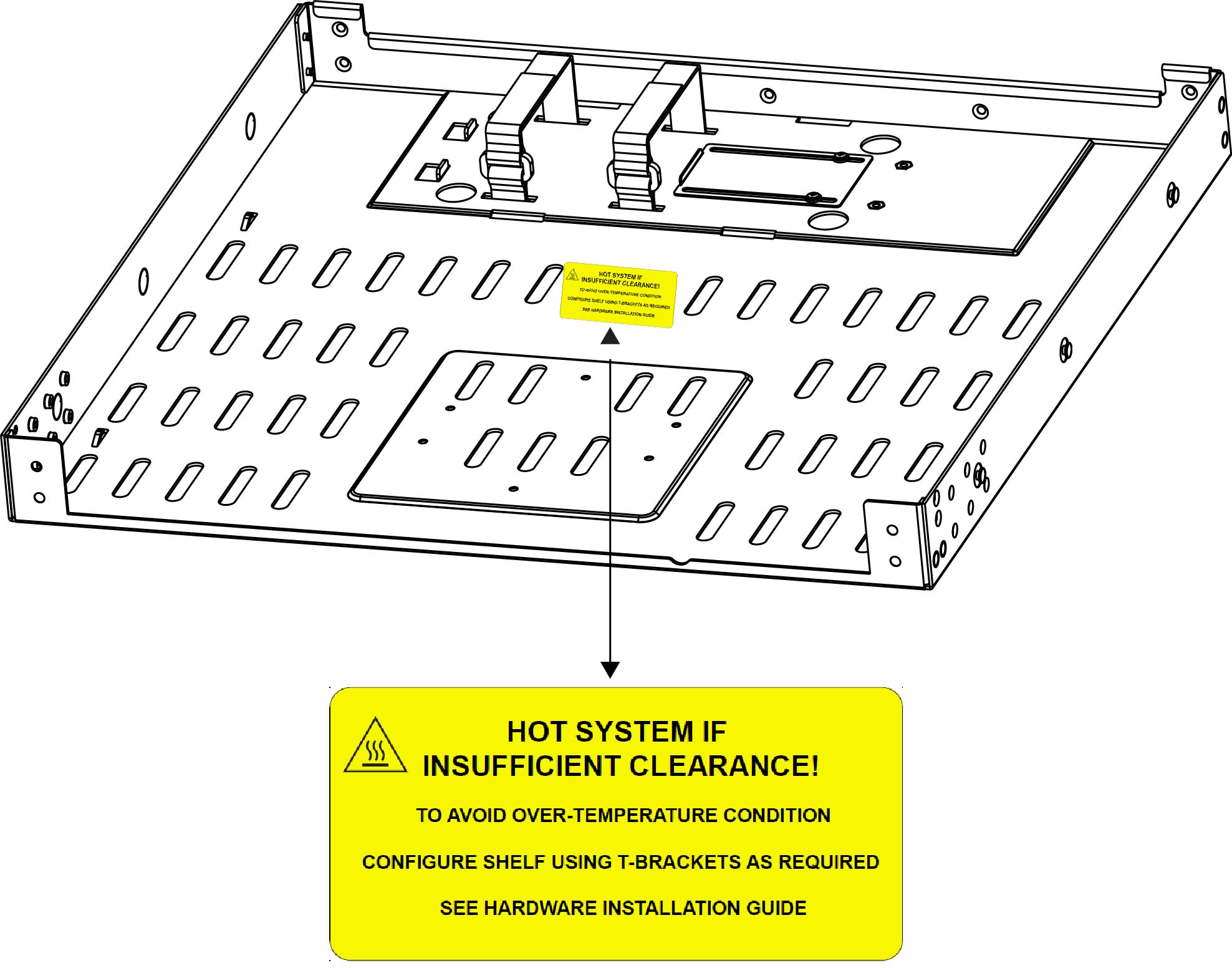
The Hot System warning label is on the rack-mount tray as seen in the following figure.

Figure 6. Hot system warning label on the rack-mount tray

Front panel

The following figure shows the front panel of the Secure Firewall 220 compact appliance. Note that there are no connectors or LEDs on the front panel.

Figure 7. CSF-220 front panel

Management port, console ports, and USB port

Management port

The Secure Firewall 220 series chassis has one 1-Gbps Cisco RJ-45 management port. It is restricted to network management access; connect with an RJ-45 cable.

RJ-45 console ports
The Secure Frirewall 200 series has two external console ports, a Cisco RJ-45 serial port and a Type C USB serial port. Only one console port can be active at a time. When a cable is plugged into the USB console port, the RJ-45 port becomes inactive. Conversely, when the USB cable is removed from the USB port, the RJ-45 port becomes active. The console ports do not have any hardware flow control. You can use the CLI to configure the chassis through either serial console port by using a terminal server or a terminal emulation program on a computer.
  • RJ-45 (8P8C) port—Supports RS-232 signaling to an internal UART controller. The RJ-45 console port does not support a remote dial-in modem. You can use an adapter to convert the RJ45-to-DB9 connection if necessary.

  • Type C USB port—Lets you connect to a USB port on an external computer. You can plug and unplug the USB cable from the console port without affecting Windows HyperTerminal operations. We recommend shielded USB cables with properly terminated shields. The default setting is 9600 baud. Use this for the initial connection. Baud rates for the USB console port are 1200, 2400, 4800, 9600, 19200, 38400, 57600, and 115200 bps.

Type A USB 3.0 port
The chassis provides a USB 3.0 Type A port that you can use to attach an external device. The USB port can provide output power of 5 V, and up to a maximum of 0.5 A, and 2.5 W of power.
  • External USB drive (optional)—You can use the external USB Type A port to attach a data-storage device. The external USB drive identifier is disk1. When the chassis is powered on, a connected USB drive is mounted as disk1 and is available for you to use. Additionally, the file-system commands that are available to disk0 are also available to disk1, including copy, format, delete, mkdir, pwd, cd, and so on.

  • FAT-32 File System—The Secure Firewall 200 series only supports FAT-32-formatted file systems for the external USB drive. If you insert an external USB drive that is not in FAT-32 format, the system mounting process fails, and you receive an error message. You can enter the command format disk1: to format the partition to FAT-32 and mount the partition to disk1 again; however, data might be lost.

Power button and reset button

Power button

The push power button is located on the the left side of the rear panel. It controls power to the system. When the AC power is first turned on, you do not have to press the power button because the system turns on by default. The system is OFF when the button is sticking out and ON when the button is pushed in. During the shutdown process the power LED flashes green indicating that the process has started. Once the shutdown is complete, the system is powered off. Wait for the system power LEDs to turn off before unplugging the AC power cables. See for a detailed description of the power status LED.

At the ROMMON or FX-OS prompt:

  • Press the power button for 5 seconds and release it to initiate a power cycle. The power LED flashes green at a rate of 2 Hz.

  • Press the power button for 15 seconds and release it to initiate a graceful shutdown. The power LED flashes green at a rate of 10 Hz.


Note


Threat Defense requires a graceful shutdown. See the Getting Started Guide for the procedure.


Caution


If you remove the system power cords before the graceful shutdown is complete, disk corruption can occur. You can move the power switch to OFF before the shutdown. The system ignores it.


Note


After removing power from the chassis by unplugging the power cord, wait at least 10 seconds before turning power back ON. You want to keep the system power off, including the standby power, for 10 seconds.


Factory reset button

The chassis has a recessed reset button that resets the system to the factory default. Push and hold the button down with a pin for five seconds resets the chassis to its default state following the next reboot.


Note


Use the reset button if the current credentials are lost and you want to initialize the box without having console access.


Note


Configuration variables are reset to factory default, but the flash is not erased and no files are removed.


Note


If power is lost between when you pushed the reset button and when the reset process is complete, the process stops and you have to push the button again after the system powers back on.


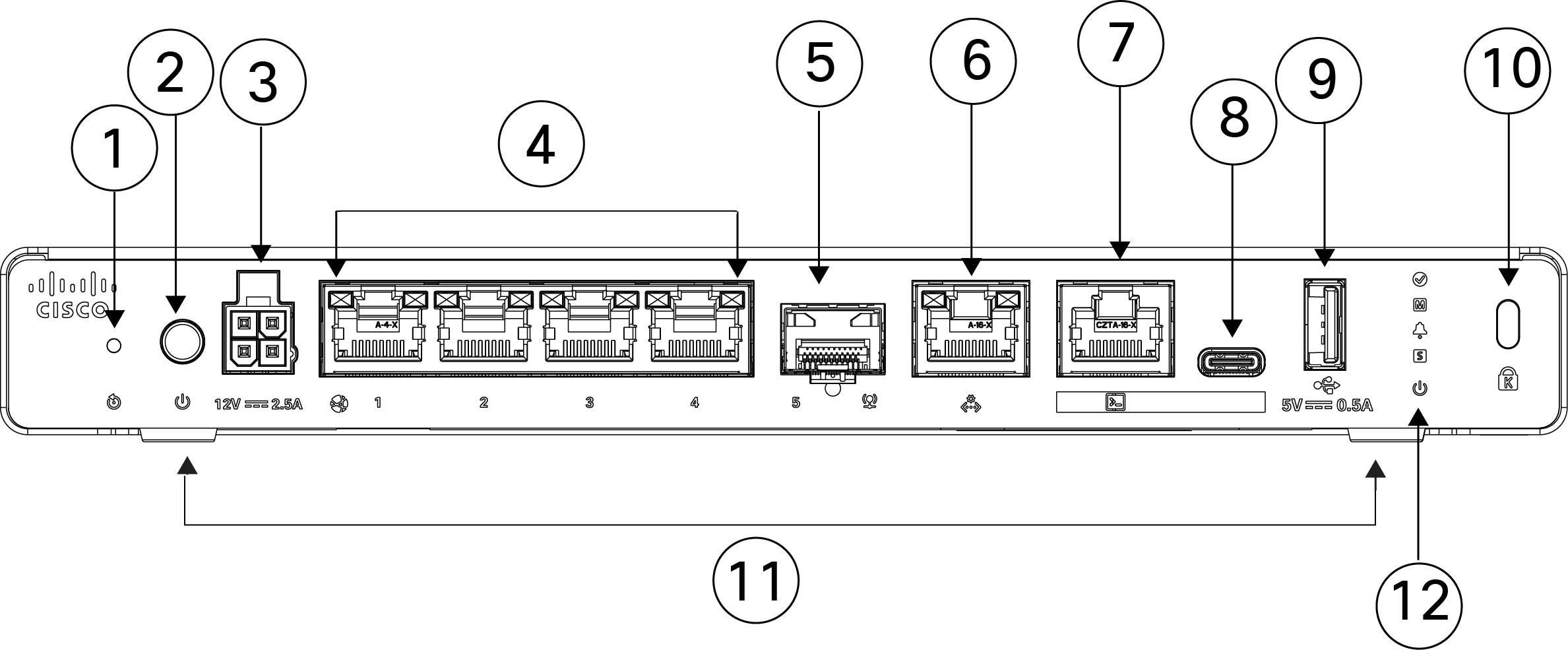
Rear panel

The following figure shows the rear panel of the Secure Firewall 220. See Rear panel LEDs for a description of the LEDs.

Figure 8. CSF-220 rear panel

1

Reset button

2

Power button

The power button is a two-position button. When it is sticking out, it's in OFF state and when it is pushed in, it's in the ON state.

3

Power cord socket

4

Ethernet ports 1-4

1G/100M/10M Auto Duplex Auto MDI-X Base-T interfaces

5

SFP port (1 Gbps)

6

Management port

7

Console port RJ-45

8

Serial console USB Type C port

9

USB Type A port

10

Kensington lock

11

Rubber feet

12

Status LEDs

Rear panel LEDs

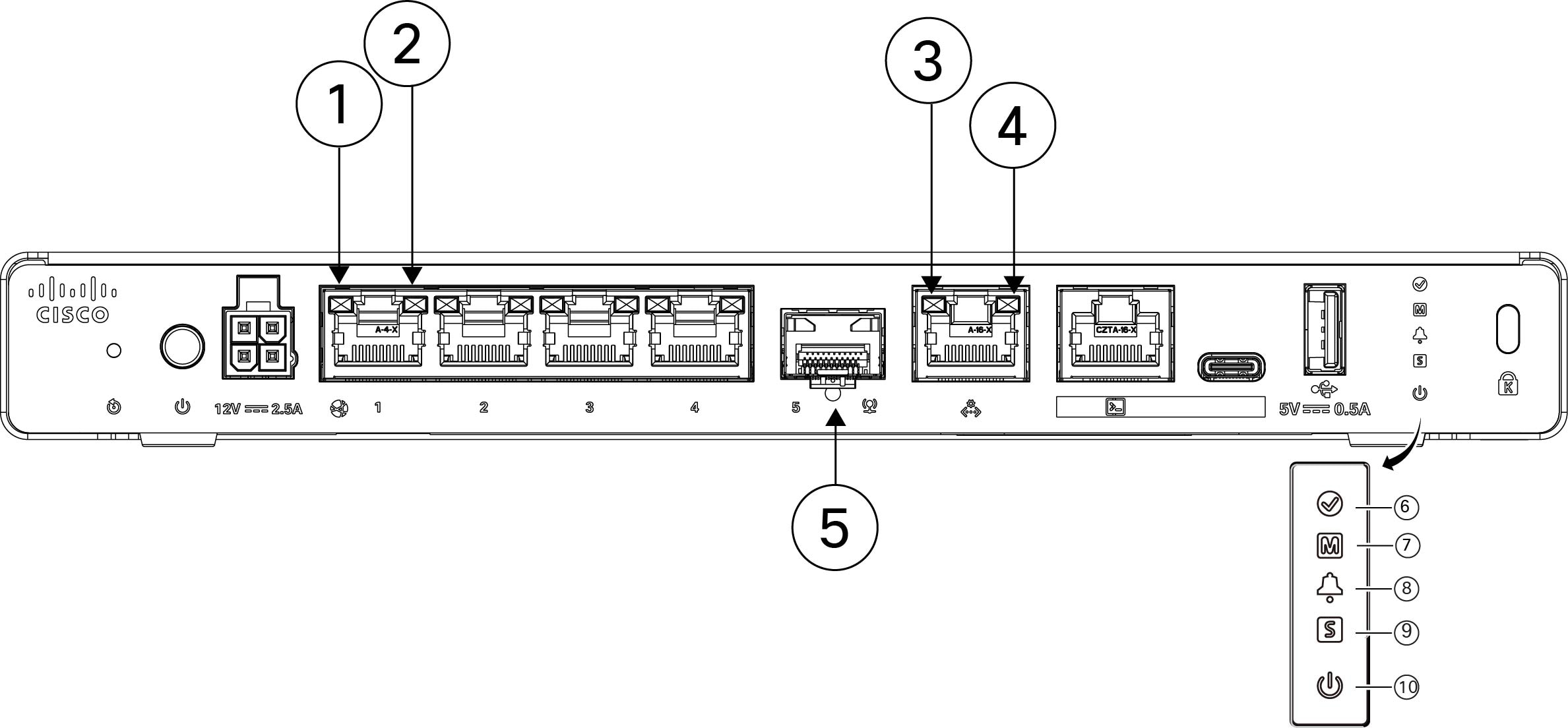
The LEDs are found on the rear panel of the Secure Firewall 220.

The following figure shows the LEDs on the rear panel of the Secure Firewall 220 and describes their states.

Figure 9. CSF-220 rear panel LEDs

1

Network

Status of the network ports:

Link status (L):

  • Off—No link, or port is not in use.

  • Green—Link established.

  • Green, flashing—Link activity.

2

Network

Status of the network ports:

Activity status (R):

  • Off—No network activity.

  • Green—Network activity.

3

Management

Status of the management ports:

Link status (L):

  • Off—No link, or port is not in use.

  • Green—Link is established.

  • Green, flashing—Link activity.

4

Management

Status of the management ports:

Activity status (R):

  • Green, flashing—One flash every three seconds = 10 Mbps.

  • Green, flashing—Two rapid flashes = 100 Mbps.

  • Green, flashing—Three rapid flashes = 1000 Mbps.

5

SFP

Status of SFP port:

  • Off—No SFP present.

  • Yellow—An SFP is present but no link is established.

  • Green, flashing—Link established and transmitting.

6

Active

Status of the failover pair:

  • Off— Unit in standby mode.

  • Green—Unit in active mode.

7

Managed

Cloud connection status for zero-touch provisioning:
  • Green, flashing slowly (twice in 5 seconds)—Cloud is connected.

  • Green and yellow, flashing—Cloud connection failure.

  • Green—Cloud is disconnected.

8

Alarm

  • Off—No alarms.

  • Yellow—Environmental error.

9

System

System operating status:

  • Off—System has not booted up yet.

  • Green, flashing quickly—System is booting up.

  • Green—Normal system function.

  • Yellow—Critical alarm indicating one or more of the following:

    • Major failure of a hardware or software component.

    • Over-temperature condition.

    • Power voltage outside the tolerance range.

10

Power

Power supply status:

  • Off —Power supply off.

  • Green—Power supply on.

  • Green, flashing—System is in the process of a graceful shutdown.

  • Yellow—System power is up, IO-MCU is updating (takes up to 3 minutes), or there is a power fault.

Hardware specifications

The following table contains hardware specifications for the Secure Firewall 220.

Table 2. CSF-220 hardware specifications

Specification

CSF-220

Chassis dimensions (H x W x D)

1.15 x 9.2 x 7.8 inches

(2.9 x 23.4 x 19.8 cm)

Chassis weight

2.6 lb (1.18 kg)

Rack shelf dimensions (H x W x D)

1.7 x 17.3 x 15.7 inches

(

4.3 x 43.9 x 39.9 cm

System power

19 W maximum power

Temperature

Operating: 32 to 104°F (0 to 40°C)

Derate the maximum operating temperature 2.7°F (1.5°C) per 1000 ft (304.8 m) above sea level to a max of 10,000 ft (3048 m)

Nonoperating: -13 to 158°F (-25 to 70°C)

Nonoperating: Maximum altitude is 15,000 ft (4570 m)

Humidity

Operating: 5 to 85% (noncondensing)

Nonoperating:5 to 95% (noncondensing)

Altitude

Operating: 0 to 10,000 ft (3048 m)

Nonoperating: 0 to 15,000 ft (4570 m)

Supported transceivers

The SFP transceiver is a bidirectional device with a transmitter and receiver in the same physical package. It is a hot-swappable optical or electrical (copper) interface that plugs into the SFP ports on the fixed ports, and provides Ethernet connectivity.

See Cisco SFP Modules for Gigabit Ethernet Applications Data Sheet for more information.

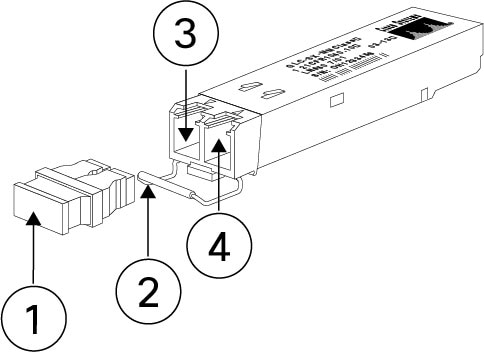
The following figure shows the components of a transceiver.

Figure 10. SFP transceiver

1

Dust plug

2

Bail clasp

3

Receive optical bore

4

Transmit optical bore

Safety warnings

Take note of the following warnings:


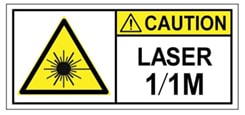
Warning


Statement 1055—Class 1/1M Laser

Invisible laser radiation is present. Do not expose to users of telescopic optics. This applies to Class 1/1M laser products.


Warning


Statement 1056—Unterminated Fiber Cable

Invisible laser radiation may be emitted from the end of the unterminated fiber cable or connector. Do not view directly with optical instruments. Viewing the laser output with certain optical instruments, for example, eye loupes, magnifiers, and microscopes, within a distance of 100 mm, may pose an eye hazard.


Warning


Statement 1057—Hazardous Radiation Exposure

Use of controls, adjustments, or performance of procedures other than those specified may result in hazardous radiation exposure.


Warning


Use appropriate ESD procedures when inserting the transceiver. Avoid touching the contacts at the rear, and keep the contacts and ports free of dust and dirt. Keep unused transceivers in the ESD packing that they were shipped in.


Caution


Although non-Cisco SFPs are allowed, we do not recommend using them because they have not been tested and validated by Cisco. Cisco TAC may refuse support for any interoperability problems that result from using an untested third-party SFP transceiver.


The following table lists the SFPs that are supported on the Secure Firewall 220 fixed ports.

Table 3. CSF220 fixed ports

Port type

Transceiver PID

First supported release

Fixed SFP ports

  • GLC-TE=

  • GLC-SX-MMD=

  • GLC-LH-SMD=

  • GLC-EX-SMD=

  • GLC-GE-100FX=

  • GLC-FE-100FX-RGD=

Threat Defense 10.0/ASA 9.24

Product ID numbers

The following table lists the field-replaceable PIDs associated with the Secure Firewall 220 compact appliance. The spare components are ones that you can order separately from the appliance. If any internal components fail, you must get a return material authorization (RMA) for the entire chassis. See the Cisco Returns Portal for more information.


Note


See the show inventory command in the Cisco Secure Firewall Threat Defense Command Reference or the Cisco Secure Firewall ASA Series Command Reference to display a list of the PIDs for your Secure Firewall 220.


Table 4. CSF-220 PIDs

PID

Description

CSF220-ASA-K9

Secure Firewall 220 compact desktop appliance, ASA

CSF220-TD-K9

Secure Firewall 220 compact desktop appliance, NGFW

CSF220-PWR-AC

Secure Firewall 220 30 W AC (12 V) power supply

CSF220-PWR-AC=

Secure Firewall 220 30 W AC (12 V) power supply (spare)

CSF200-WALL-MNT=

Secure Firewall 200 series wall-mount kit (spare)

CSF200-RCKMNT-FX=

Secure Firewall 200 series rack-mount kit with fixed brackets (spare)

CSF200-RCKMNT-SR=

Secure Firewall 200 series rack-mount kit with slide rails (spare)

CSF200-CBL-MGMT=

Secure Firewall 200 series cable management brackets kit (spare)

Power cord specifications

Standard power cords or jumper power cords are available for connection to the security appliance. The jumper power cords for use in racks are available as an optional alternative to the standard power cords.

If you do not order the optional power cord with the system, you are responsible for selecting the appropriate power cord for the product. Using a incompatible power cord with this product may result in electrical safety hazard. Orders delivered to Argentina, Brazil, and Japan must have the appropriate power cord ordered with the system.


Note


Only the approved power cords or jumper power cords provided with the chassis are supported.


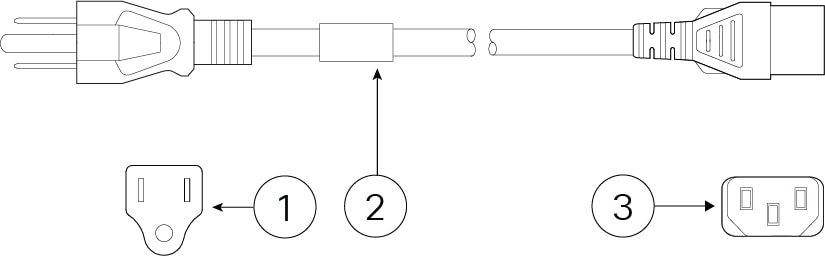
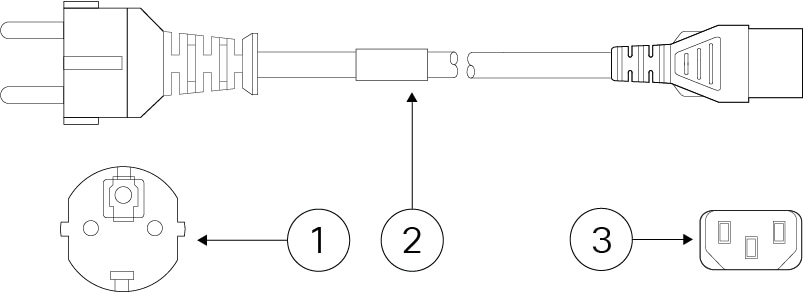
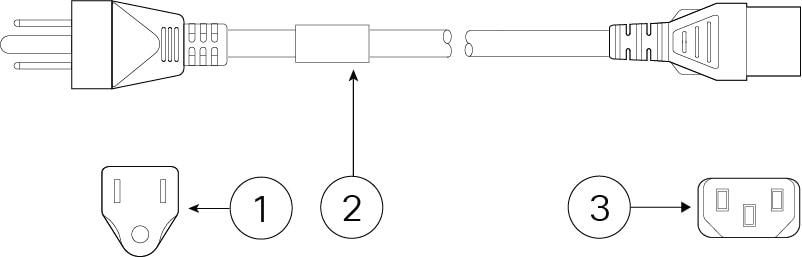
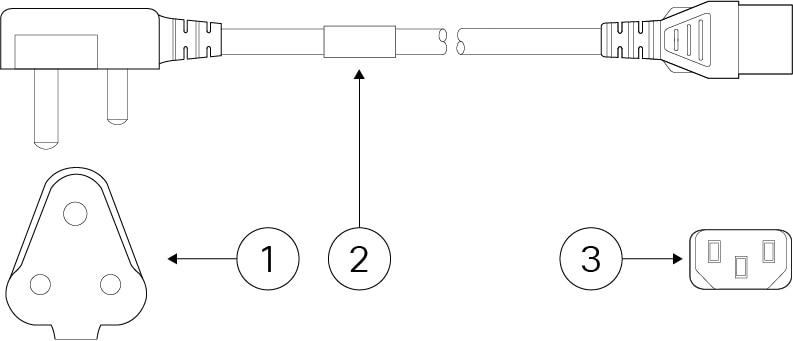
The following power cords are supported.

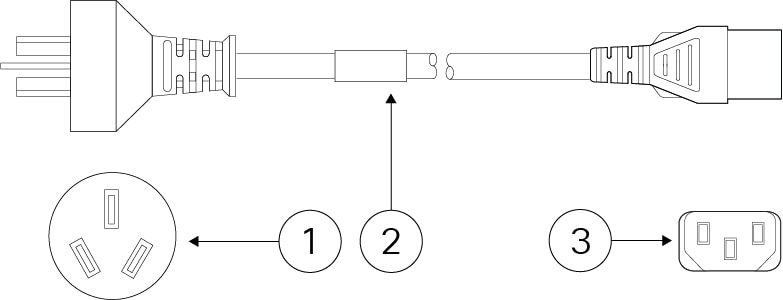
Figure 11. Argentina (CAB-250V-10A-AR)

1

Plug: VA2073

2

Cord set rating: 10 A, 250 V

3

Connector: V1625

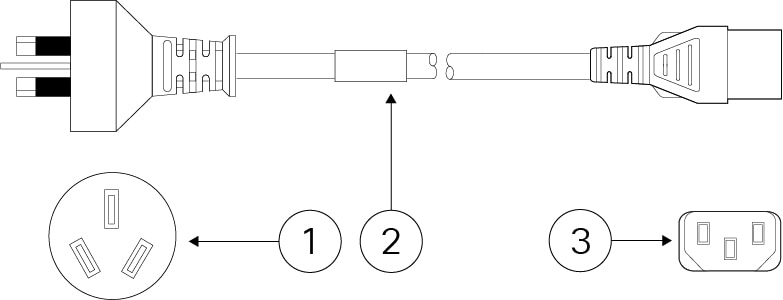
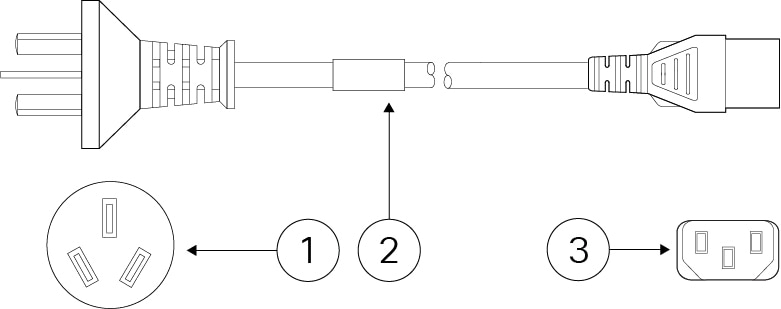
Figure 12. Australia/New Zealand (CAB-ACA)

1

Plug: AU10LS3

2

Cord set rating: 10 A, 250 V

3

Connector: V1625

Figure 13. Brazil (CAB-C13-ACB)

1

Plug: NBR 14136

2

Cord set rating: 10 A, 250 V

3

Connector: EL 701B (EN 60320/C13)

Figure 14. China (CAB-ACC)

1

Plug: V3203C

2

Cord set rating: 10 A, 250 V

3

Connector: V1625

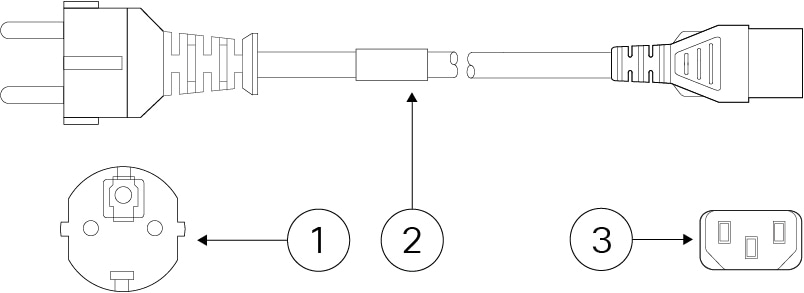
Figure 15. Europe (CAB-ACE)

1

Plug: M2511

2

Cord set rating: 16 A, 250 V

3

Connector: V1625

Figure 16. India (CAB-IND-10A)

1

Plug: IA16A3-C

2

Cord set rating: 16 A, 250 V

3

Connector: V1625BS-E

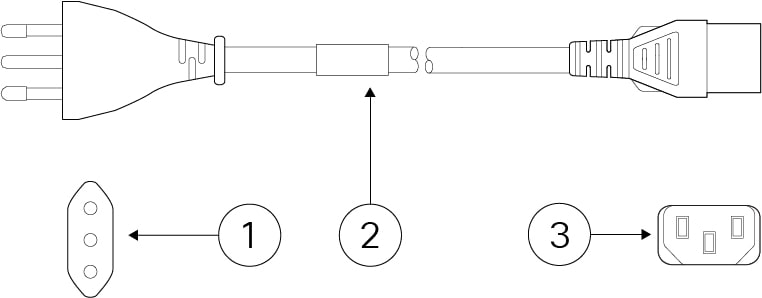
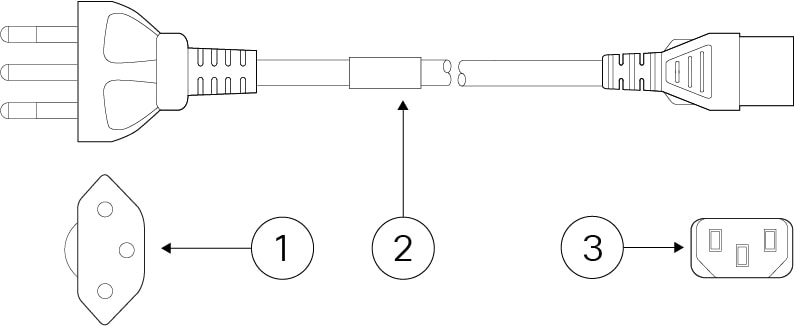
Figure 17. Italy (CAB-ACI)

1

Plug: IT10S3

2

Cord set rating: 10 A, 250 V

3

Connector: V1625

Figure 18. Japan (CAB-JPN-3PIN)

1

Plug: M744

2

Cord set rating: 12 A, 125 V

3

Connector: V1625

Figure 19. Korea (CAB-AC-C13-KOR)

1

Plug: M2511

2

Cord set rating: 10 A, 250 V

3

Connector: V1625

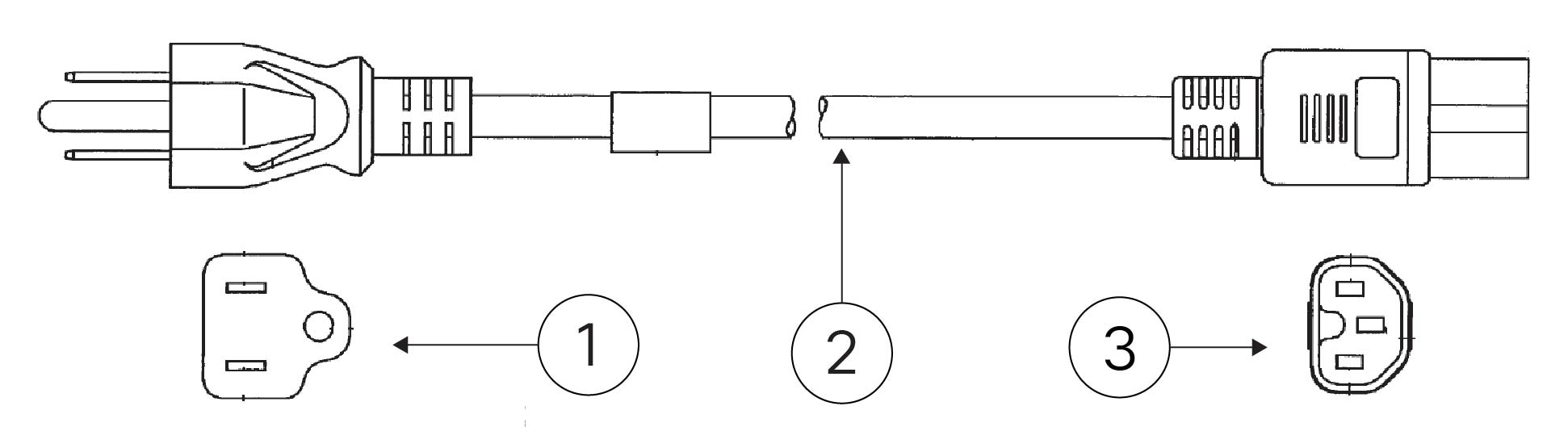
Figure 20. North America (CAB-AC)

1

Plug: PS204

2

Cord set rating: 10 A, 250 V

3

Connector: V1625

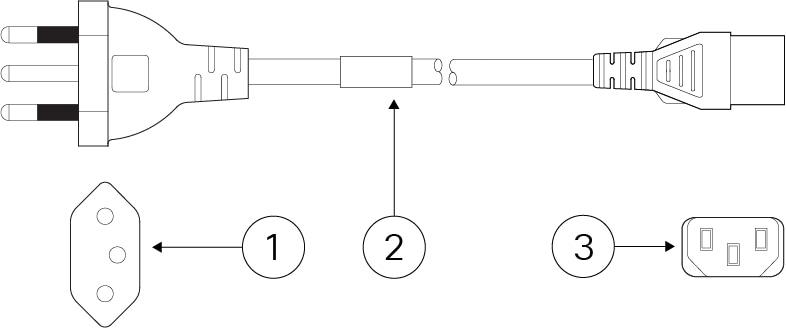
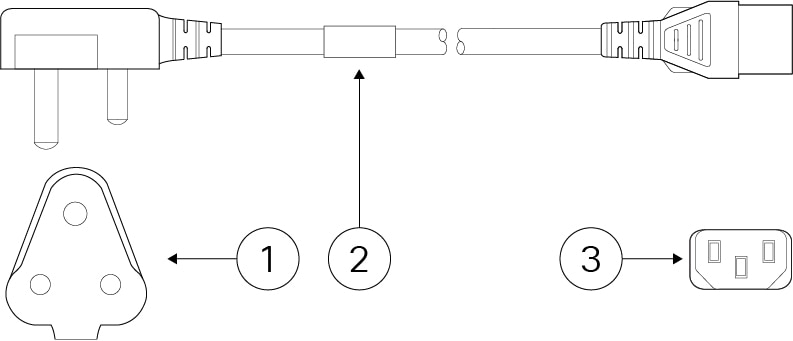
Figure 21. South Africa (AIR-PWR-CORD-SA)

1

Plug: SA16A

2

Cord set rating: 10 A, 250 V

3

Connector: V1625

Figure 22. Switzerland (CAB-ACS)

1

Plug: SW10ZS3

2

Cord set rating: 10 A, 250 V

3

Connector: V1625

Figure 23. Taiwan (CAB-ACTW)

1

Plug: EL 302 (CNS10917)

2

Cord set rating: 10 A, 125 V

3

Connector: EL 701 (EN 60320/C13)

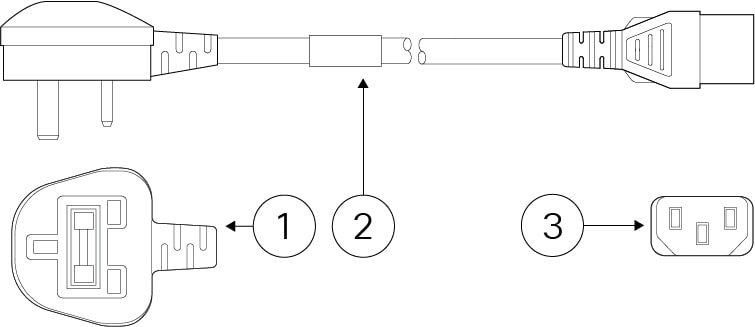
Figure 24. United Kingdom (CAB-ACU)

1

Plug: 3P BS 1363

2

Cord set rating: 10 A, 250 V

3

Connector: IEC 60320/C13