Mount the Chassis

Unpack and inspect the chassis


Note


The chassis is thoroughly inspected before shipment. If any damage occurred during transportation or any items are missing, contact your customer service representative immediately. Keep the shipping container in case you need to send the chassis back due to damage.


See Package contents for a list of what shipped with the chassis.

Procedure


Step 1

Remove the chassis from its cardboard container and save all packaging material.

Step 2

Compare the shipment to the equipment list provided by your customer service representative. Verify that you have all items.

Step 3

Check for damage and report any discrepancies or damage to your customer service representative. Have the following information ready:

  • Invoice number of shipper (see the packing slip)

  • Model and serial number of the damaged unit

  • Description of damage

  • Effect of damage on the installation


Desktop-mount the chassis

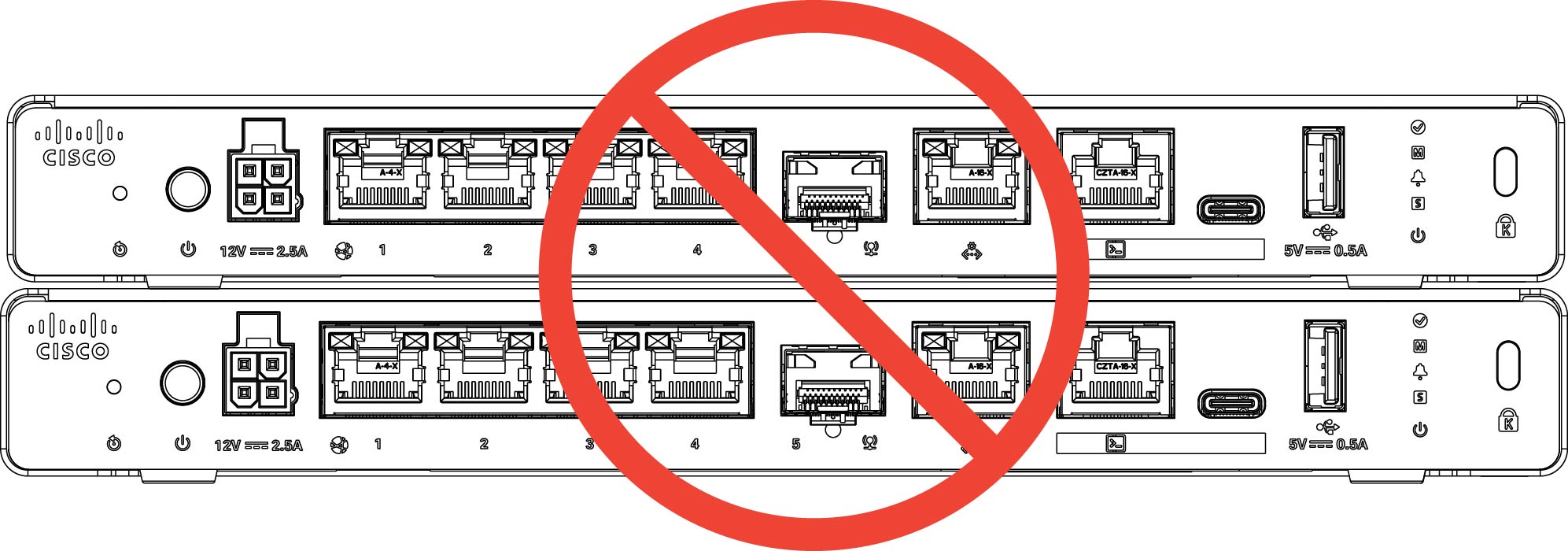
You can mount the chassis on a desktop by placing it on a desk in a horizontal position. Make sure there are no blockages or obstructions within 0.5 inch of the top of the chassis or within 2 inches of the sides and back, so that nothing interferes with cooling. Do not remove the rubber feet included with the chassis. They are also needed for proper cooling.

Figure 1. Desktop-mount the chassis (Do Not Stack)

Caution


Do not stack one chassis on top of another chassis. If you stack the units, they overheat, which causes the units to power cycle.


What to do next

Install the cables according to your default software configuration as described in the Getting Started Guide.

Wall-mount the chassis

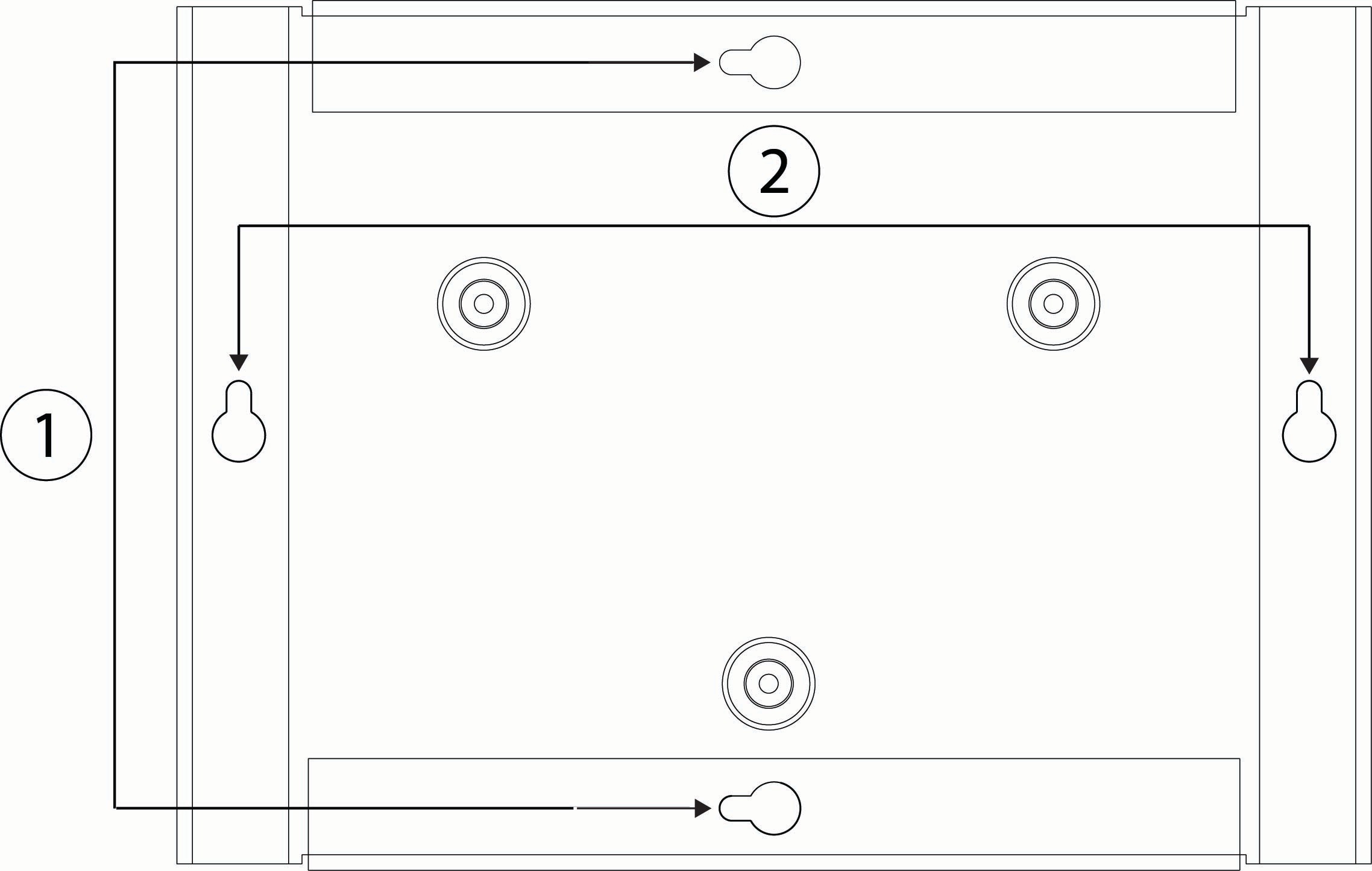
You can purchase an optional wall-mount kit. You can wall-mount the chassis left, or rear panel-side up. You can use the wall-mount bracket to mark the holes for mounting it on the wall. The wall-mount bracket is 8.9 x 6.5 x 0.378 inches (22.672 x 16.512 x .96 cm). You need to make two level marks on the wall where you want to hang the chassis. For vertical orientation (rear panel up), the holes should be 5.575 inches (14.160 cm) inches apart. For horizontal orientation, the holes should be 8 inches (20.32 cm) apart.

Wall-mount kit

The wall-mount kit contains the following items:

  • Wall-mount bracket

  • Three Phillips M3 x 0.5 x 5.2-mm screws

  • Two Phillips #6 x 1¼-inch screws

  • One #8 wall anchor kit with screws

Follow these steps to mount your chassis on a wall.

Procedure


Step 1

Choose an orientation (left-, right-, or rear panel-side up) and a location on the wall for the chassis.

Step 2

Use a pencil, ruler, and level to mark locations for the two mounting screws (#6 x 1¼ inch). You can use the wall-mount bracket itself to mark either the top holes or the side holes.

Figure 2. Wall-mount bracket

1

Horizontal mounting

8 inches (20.32 cm) apart

2

Vertical mounting

5.575 inches (14.160 cm) apart

Step 3

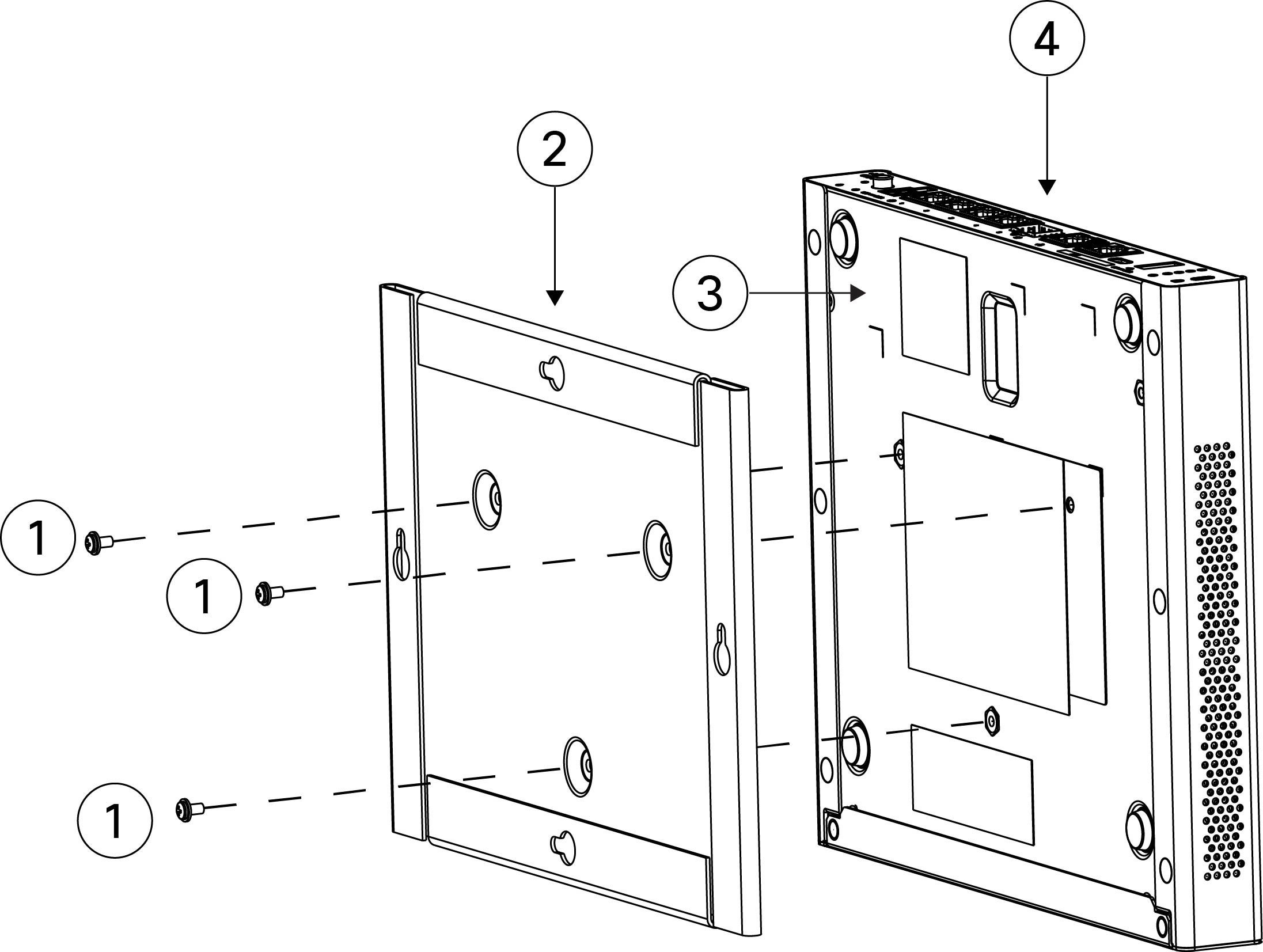
Attach the wall-mount bracket to the chassis using the three Phillips M3 x 0.5 x 5.2-mm screws.

Figure 3. Attach the wall-mount bracket to the chassis

1

Three Phillips M3 x 0.5 x 5.2-mm screws

2

Wall-mount bracket

3

Bottom of the chassis

4

Rear panel (I/O side)

Step 4

Use the two #6 x 1¼-inch screws to drill into a stud, or use the anchors (#8 wall screw) from the wall-anchor kit to hang it into dry wall.

If you are mounting the chassis onto something other than drywall, such as wood or sheet metal, anchors may not be required.

Step 5

Drill a hole into the wall at each mark that you made in Step 2.

These holes should be slightly smaller in diameter than anchors if you are using them. The recommended drill hole size is 3/16 inches.

Step 6

Insert the anchors into the holes if needed, and be sure they are properly seated.

Step 7

Fasten each screw into its anchor until it protrudes about ¼ inch.

Step 8

Pick up the chassis, align the screws in the anchors with the holes in the bottom of the wall-mount bracket, move the chassis toward the wall until the screw heads are in the wall-mount bracket, and then slide it down until it rests on the screws.

Caution


Do not mount the chassis with the rear panel facing downward. This orientation is not supported.

Step 9

To uninstall the chassis from the wall mount, slide the wall-mounted chassis from the wall, and remove the three screws from the bottom of the chassis.


What to do next

Install the cables according to your default software configuration as described in the Getting Started Guide.

Rack-mount the chassis

You can mount the chassis into a 1-RU space in a 19-inch EIA rack using the rack-mount shelf. The rack-mount shelf is 1.72 x 18.97 x 16.09 inches (H x W x D) (4.37 x 48.18 x 40.87 cm). You can also mount the chassis in a sliding rail rack. You order the rack-mount kit with fixed brackets or the rack-mount kit with slide rails. The cable management bracket kit is optional.
Rack-mount kit with fixed brackets

The rack-mount kit with fixed brackets (CSF200-RCKMNT-FX=) contains the following items. You need two rack-mount scews that you provide to install the rack-mount shelf into your rack.

  • Rack-mount shelf

  • Two two-post rack-mount brackets

  • Two T-brackets for 2RU mounting


    Note


    These T-brackets are a vertical spacing aid for the rack-mount shelf that prevents overheating if the rack mount does not have adequate vertical clearance. They are reserved for the 2RU rack and are not in use at this time.


  • 16 Phillips 6-32 x 0.31-inch screws; use these screws to secure the brackets to the rack-mount shelf.


    Note


    Use 12 of the screws for a 1RU rack. The other four are reserved for a 2RU rack and are not in use at this time.


  • Three Phillips M3 x 0.5 x 5-mm screws; use these screws to secure the rack-mount shelf to the chassis.

Rack-mount kit with slide rails

The rack-mount kit with slide rails (CSF200-RCKMNT-SR=) contains the following items. You need two rack-mount scews that you provide to install the rack-mount shelf into your rack.

  • Rack-mount shelf

  • Two T-brackets for 2RU mounting


    Note


    These T-brackets are a vertical spacing aid for the rack-mount shelf that prevents overheating if the rack mount does not have adequate vertical clearance. They are reserved for the 2RU rack and are not in use at this time.


  • Four Phillips 6-32 x 0.31-inch screws; use these screws to secure the rack-mount brackets to the rack-nount shelf.


    Note


    These screws are reserved for the 2RU brackets and are not in use at this time.


  • Three Phillips M3 x 0.5 x 5-mm screws; use these screws to secure the rack-mount shelf to the chassis.

Cable-management bracket kit

The cable-management bracket kit (CSF200-CBL-MGMT=) contains the following items.

  • Two cable-management brackets

  • Four Phillips 8-32 x 0.375-inch screws; use these screws to secure the brackets to the rack-mount shelf.


Note


See Rack configuration considerations for more information on rack configuration.


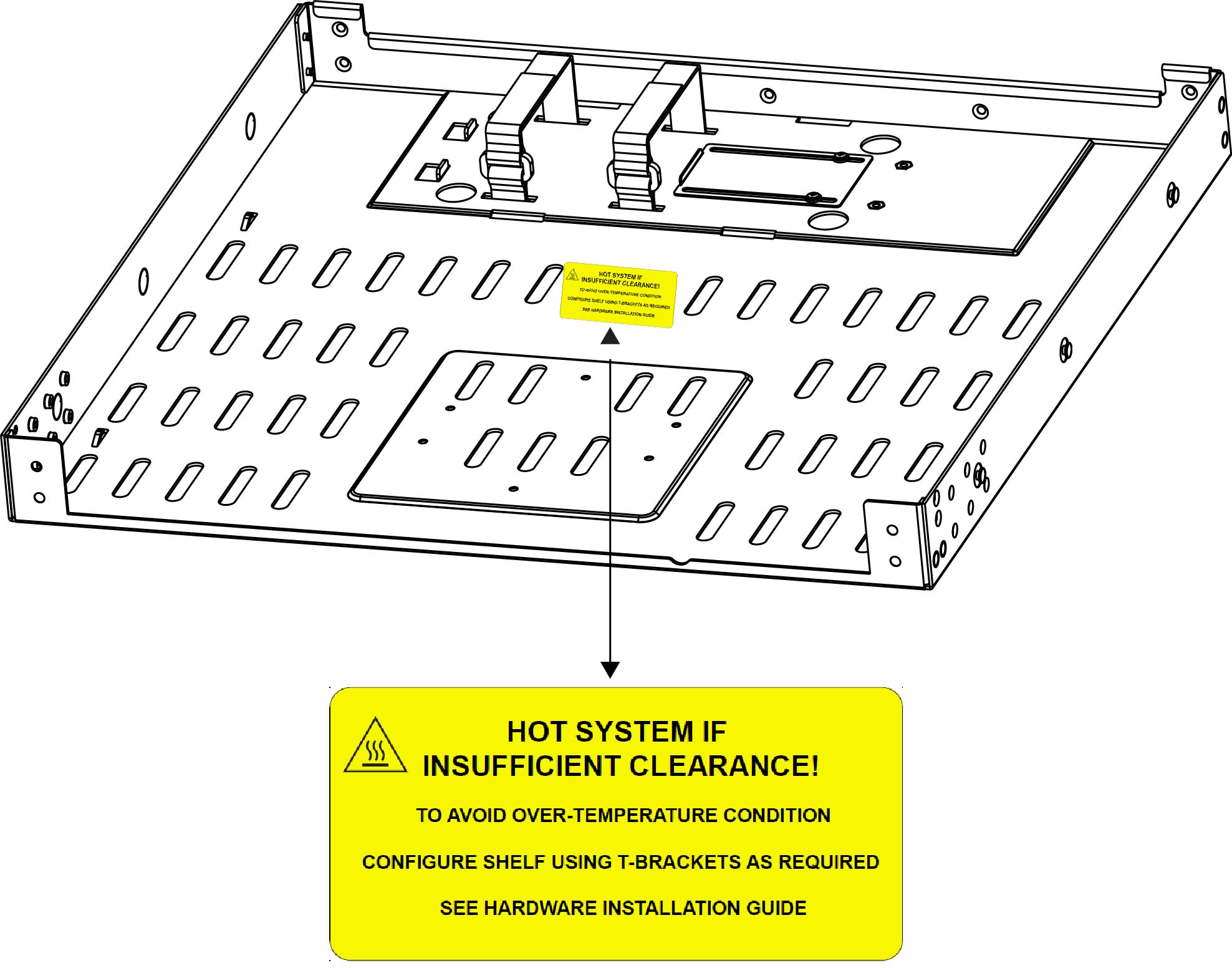
The rack-mount shelf contains an overheating warning label. This label does not apply to the CSF-220, but to future Secure Firewall 200 series models that use a 2RU rack-mount shelf. The T-brackets, included in the rack-mount shelf kit, are a vertical spacing aid for the rack-mount shelf to prevent thermal concerns from inadequate product vertical clearance. The CSF-220 does not require the installation of the T-brackets but future models may.

Figure 4. Rack-mount shelf overheating warning label for 2RU rack-mount shelves

Procedure


Step 1

To mount the chassis in the rack-mount shelf in a two-post rack:

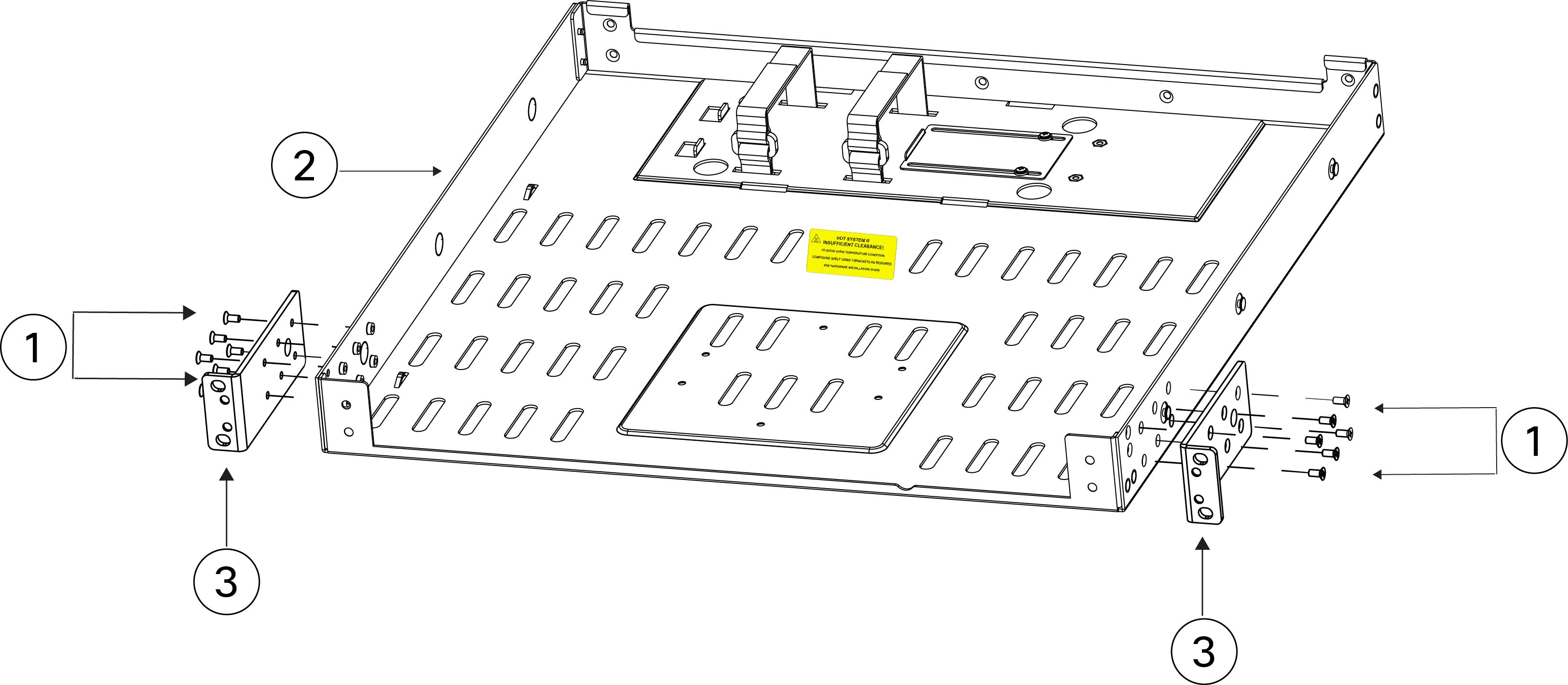
  1. Install the two-post rack-mount brackets on the rack-mount shelf.

    Figure 5. Install the two-post rack-mount brackets on the rack-mount shelf

    1

    Rack-mount bracket screws (six Phillips 6-32 x 0.31-inch screws for each rack-mount bracket)

    2

    Rack-mount shelf

    3

    Rack-mount brackets

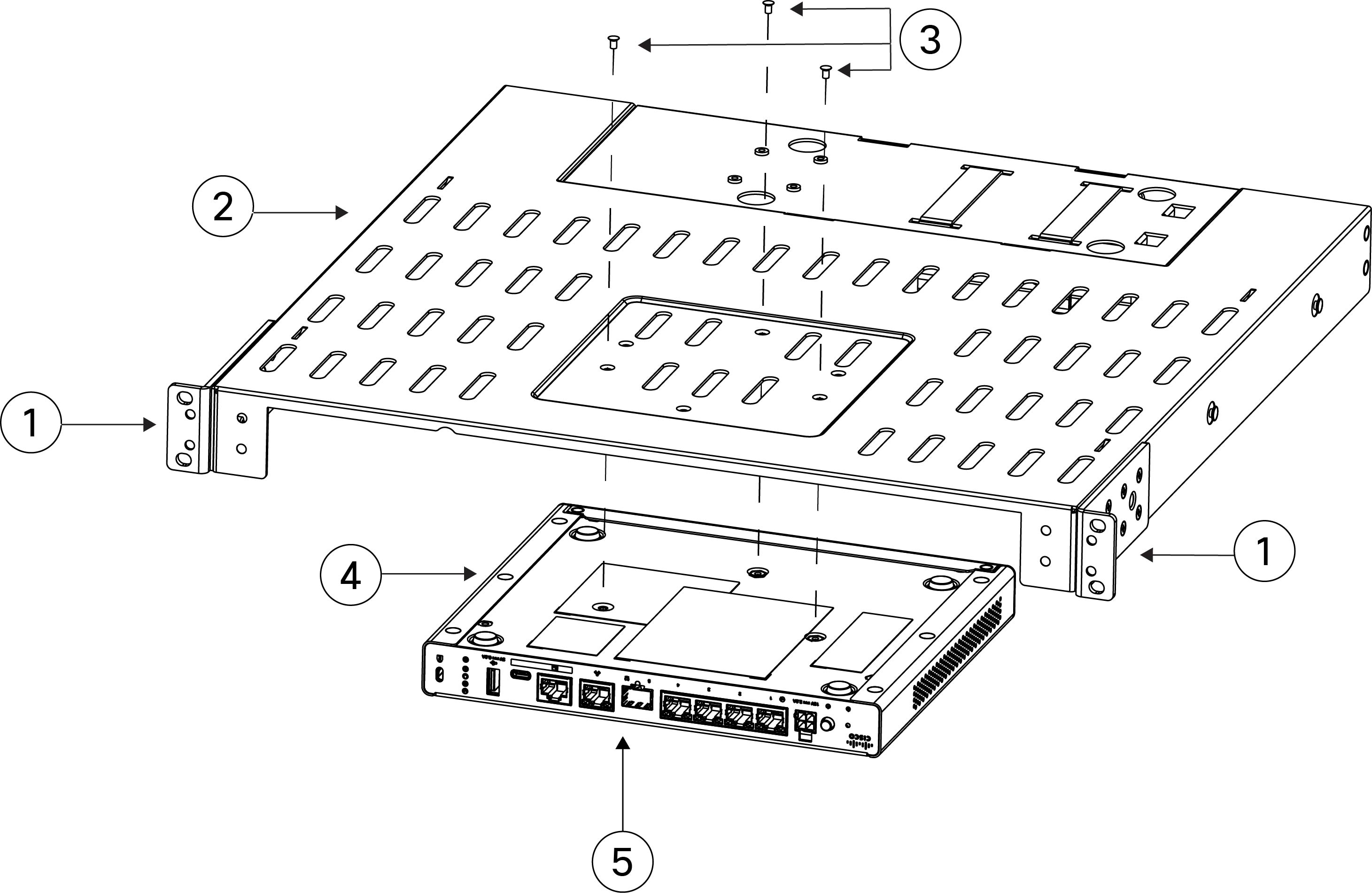
  2. Install the chassis on the rack-mount shelf.

    Figure 6. Install the chassis on the rack-mount shelf

    1

    Rack-mount brackets

    2

    Rack-mount shelf

    3

    Rack-mount shelf screws (three Phillips M3 x 0.5 x 5-mm screws)

    4

    Chassis (I/O side)

    5

    Rear panel (I/O side)

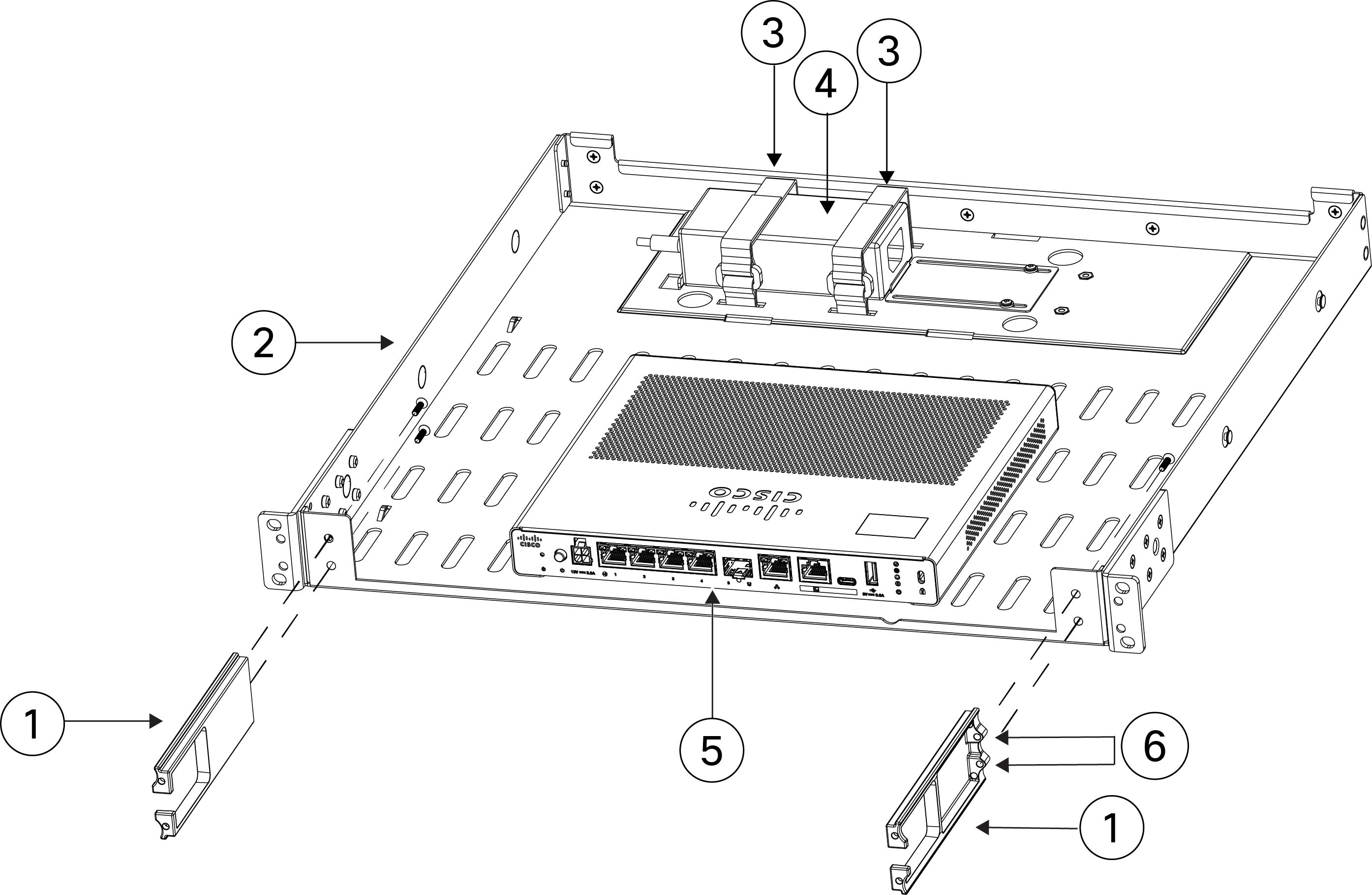
  3. (Optional) Install the cable management brackets on the rack-mount shelf and install the power supply at the back of the rack-mount shelf using the velcro straps to secure it.

    Figure 7. Install the cable management brackets on the rack-mount shelf

    1

    Cable management brackets

    2

    Rack-mount shelf

    3

    Velcro straps for securing the power supply

    4

    Power supply

    5

    Chassis rear panel (I/O side)

    6

    Cable management bracket screws (Two Phillips 8-32 x 0.375-inch screws)

    Note


    Shown only on the right cable management bracket due to the angle of the left cable bracket, which is obscuring the two screws there.

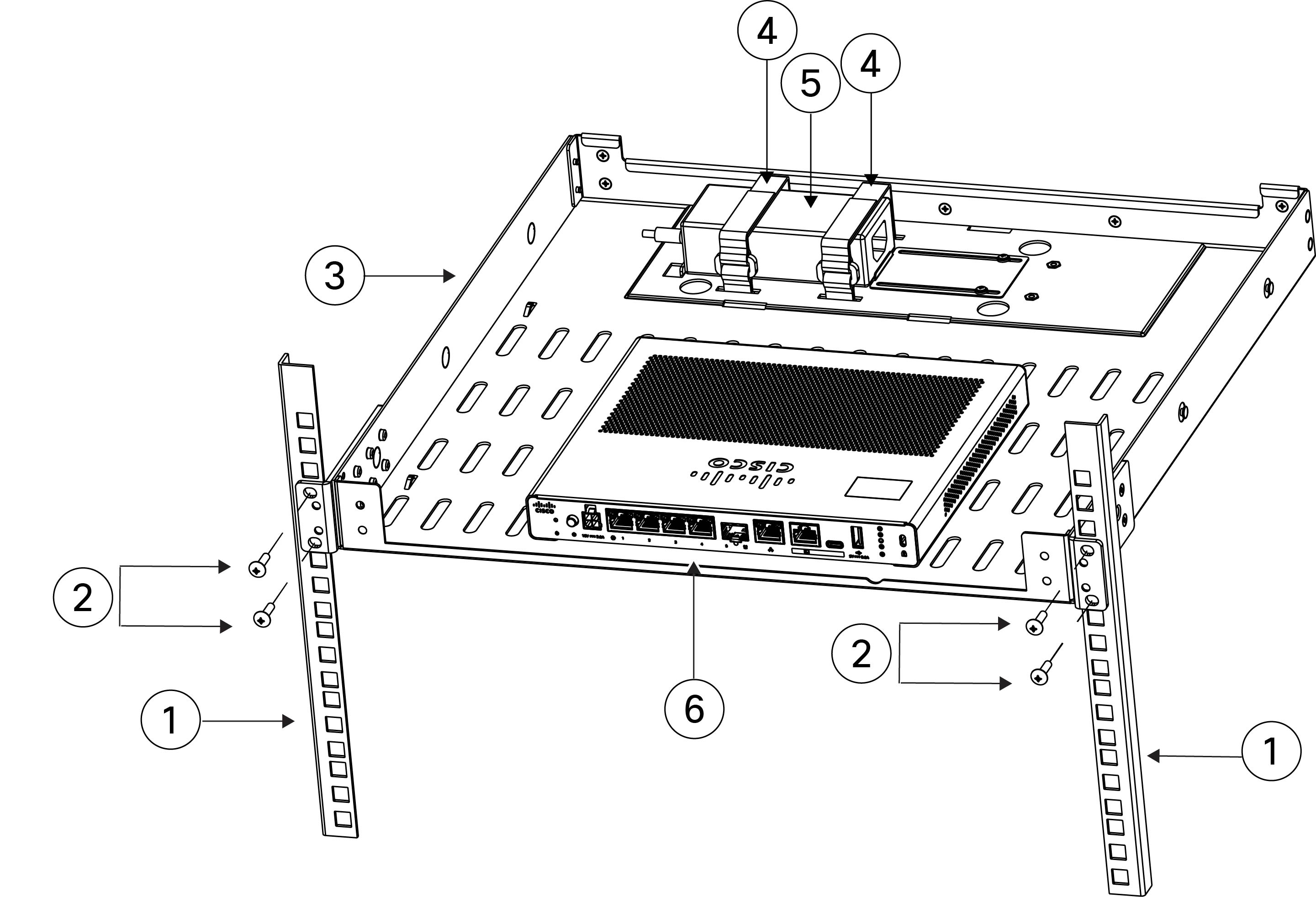
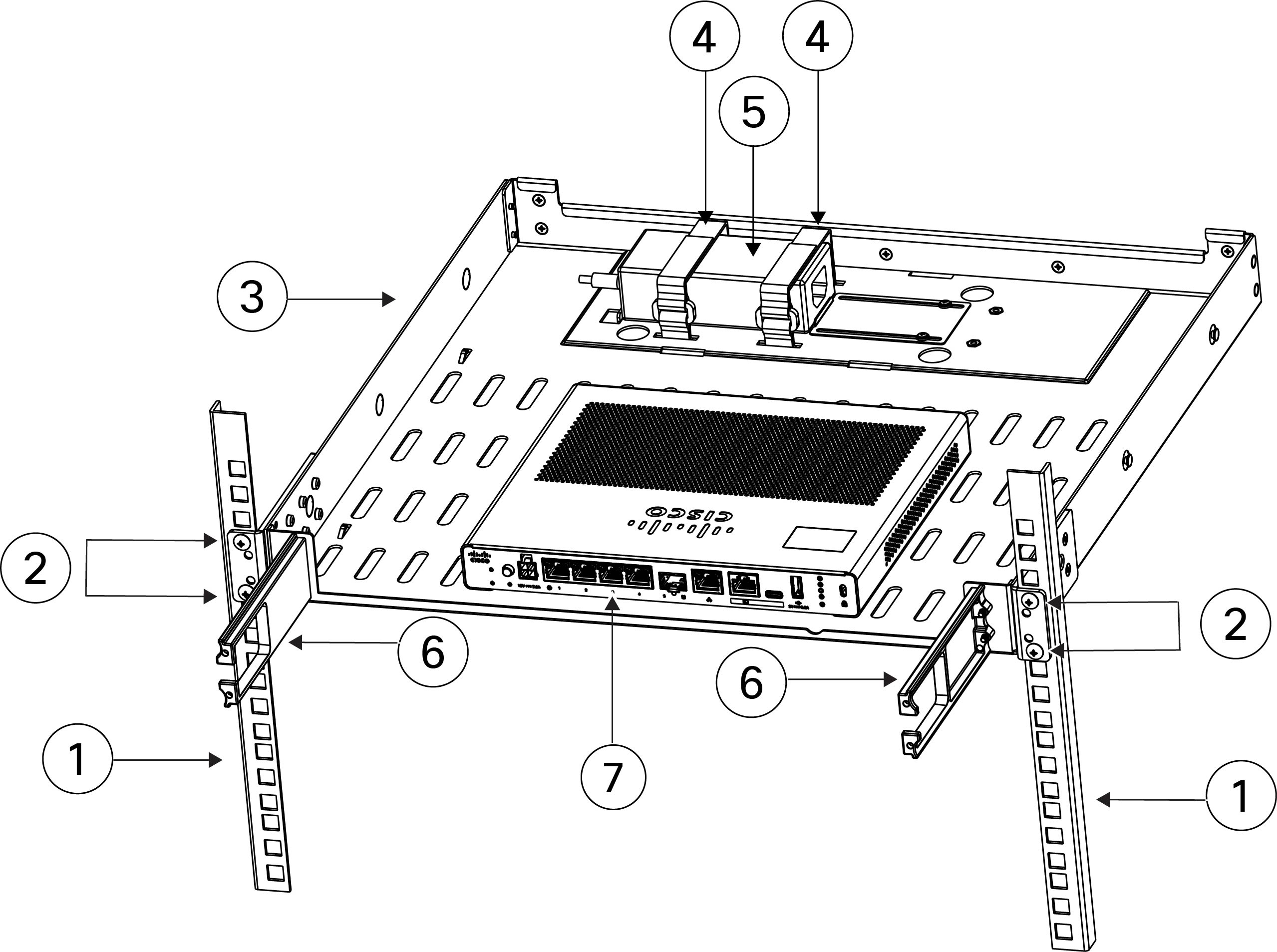
  4. Install the rack-mount shelf into the two-post rack. The first figure shows the rack-mount shelf installed in the two-post rack without the cable management brackets installed. The second figure shows the rack-mount shelf installed in the two-post rack with the cable management brackets installed.

    Figure 8. Install the rack-mount shelf in the two-post rack (without cable management brackets)

    1

    Two-post rack

    2

    Two rack screws (you supply the screws that fit your rack)

    3

    Rack-mount shelf

    4

    Velcro straps to secure the power supply

    5

    Power supply

    6

    Chassis rear panel (I/O side)

    Figure 9. Install the rack-mount shelf in the two-post rack (with cable management brackets)

    1

    Two-post rack

    2

    Two rack screws installed (you supply the screws that fit your rack)

    3

    Rack-mount shelf

    4

    Velcro straps to secure the power supply

    5

    Power supply

    6

    Cable management brackets

    7

    Chassis rear panel (I/O side)

Step 2

To install the chassis in the rack-mount shelf using slide rails:

  1. Remove the inner rail from the slide rail outer rail.

  2. Install the slide rail outer rail into the 4-post rack. Line up the pegs on the slide rail ends with the holes in the rack. Locate the mechanism at each end of the outer slide rail to secure the pegs with the rack.

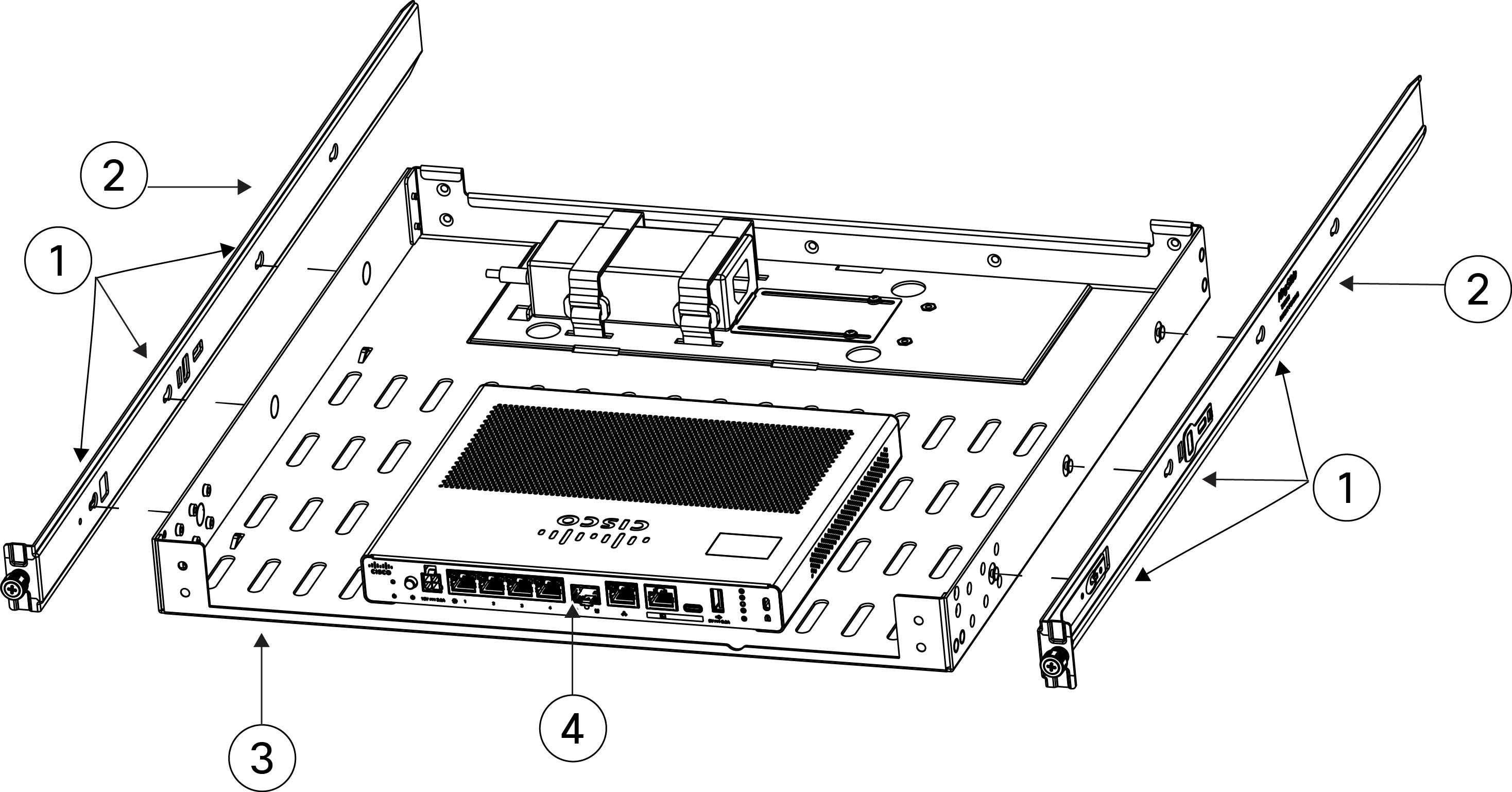
  3. Install the two inner slide rails onto the rack-mount shelf. Line each hole on the inner slide rail with the pegs on the chassis and snap the inner slide rail into place.

    Figure 10. Install the slide rails onto the rack-mount shelf

    1

    Three holes on the slide rail to line up with the pegs on the side of the chassis

    2

    Slide rails

    3

    Rack-mount shelf

    4

    Chassis rear panel (I/O side)

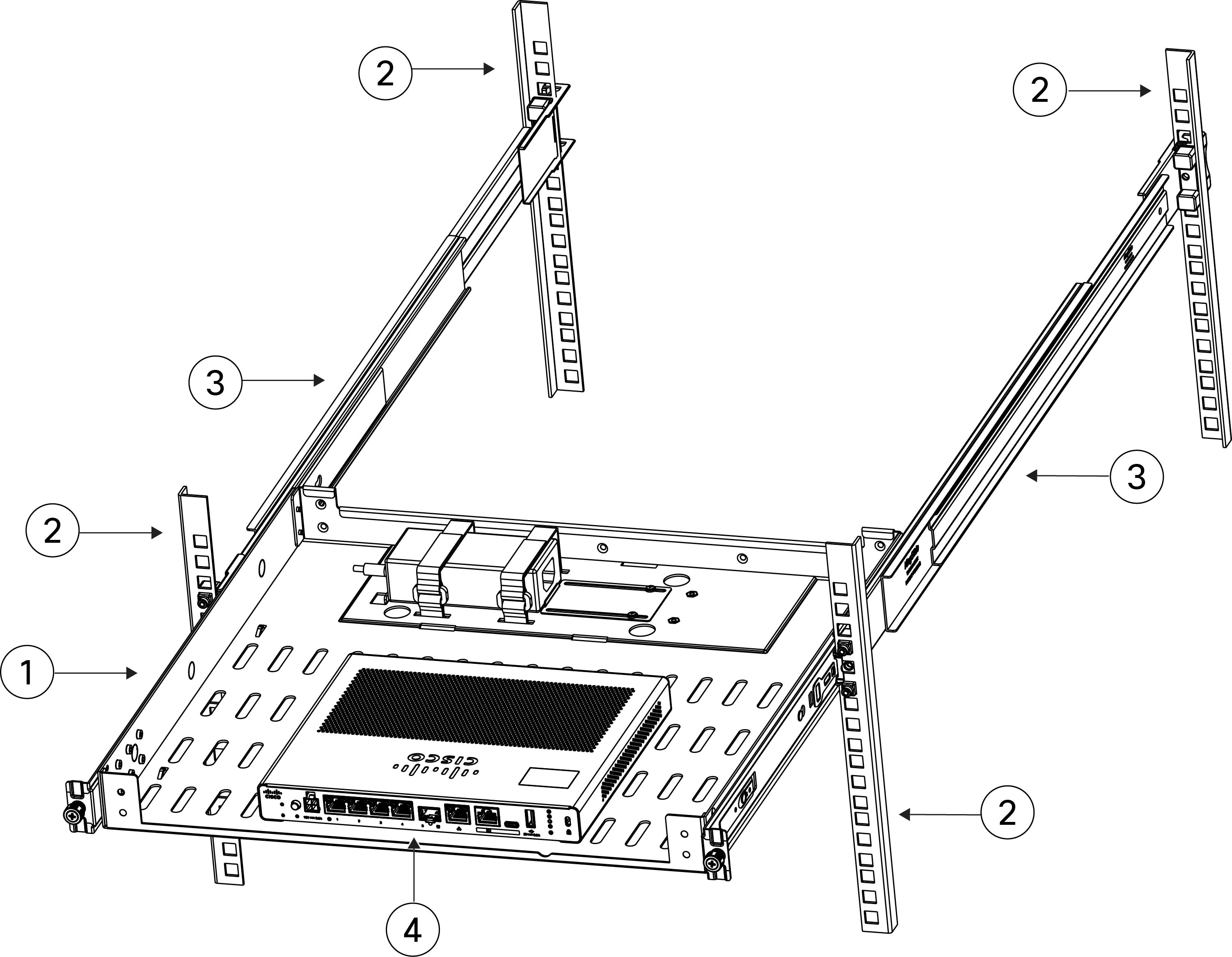
  4. Slide the rack-mount shelf containing the chassis into the sliding rack.

    Figure 11. Slide the rack-mount shelf into the sliding rack

    1

    Rack-mount shelf

    2

    Slide rail rack

    3

    Slide rails attached

    4

    Chassis rear panel (I/O side)

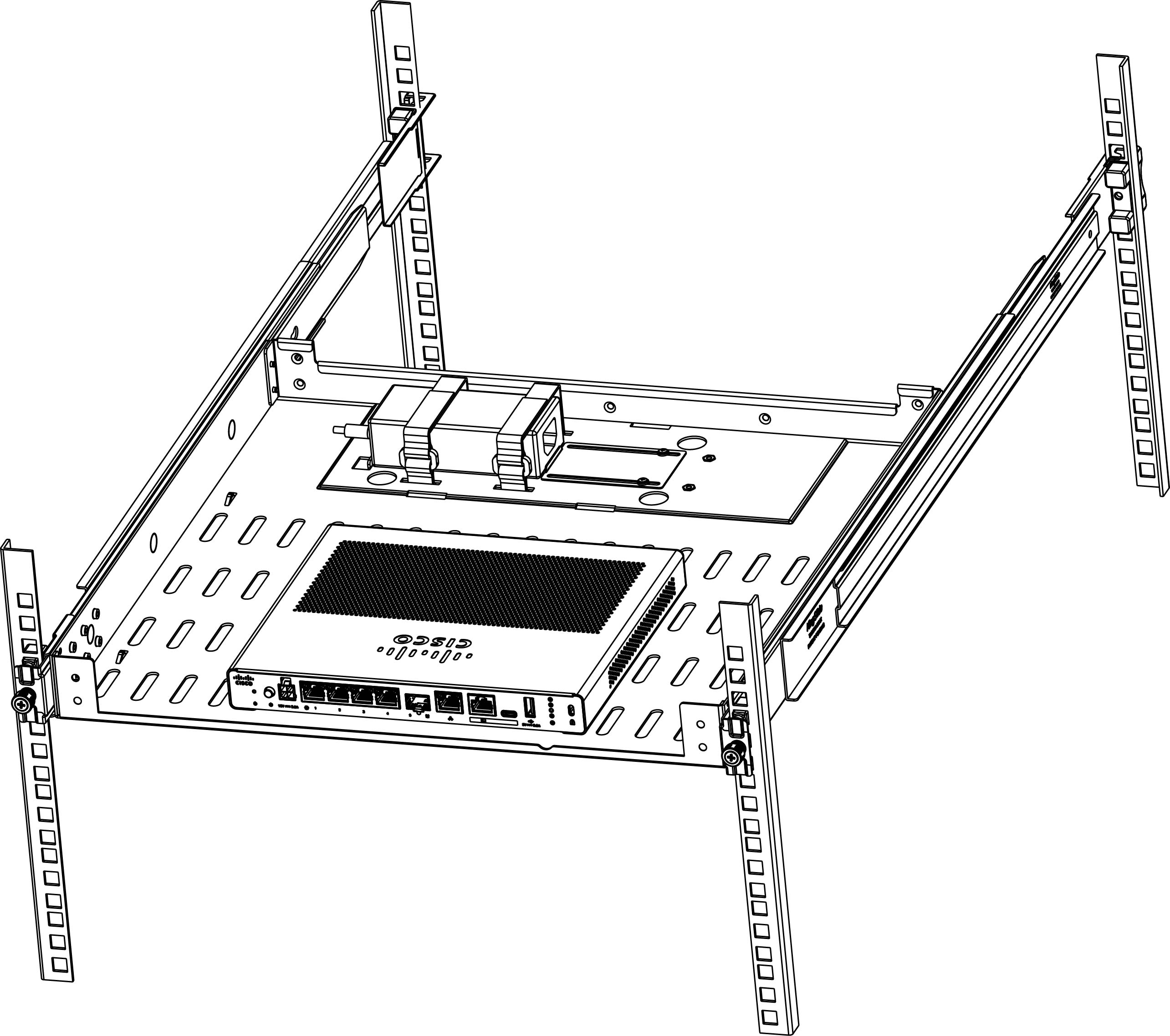
Step 3

The chassis is now installed in the rack-mount shelf, which is installed in the sliding rack.

Figure 12. Rack-mount shelf installed in the sliding rack

What to do next

Install the cables according to your default software configuration as described in the Getting Started Guide.