Secure Firewall 6100 Threat Defense Getting Started: Firewall Management Center on a Local Management Network

PDF

Add the default route

Want to summarize with AI?

Log in

Overview

Learn how to verify or add a default route in Firewall Management Center so the Secure Firewall 6100 can reach upstream networks through the outside interface.

The default route normally points to the upstream router reachable from the outside interface. If you obtained the outside address from DHCP, your device might have already received a default route. If you need to manually add the route, complete this procedure.

Procedure

1.

Choose Devices > Device Management, and click Edit (edit icon) for the device.

2.

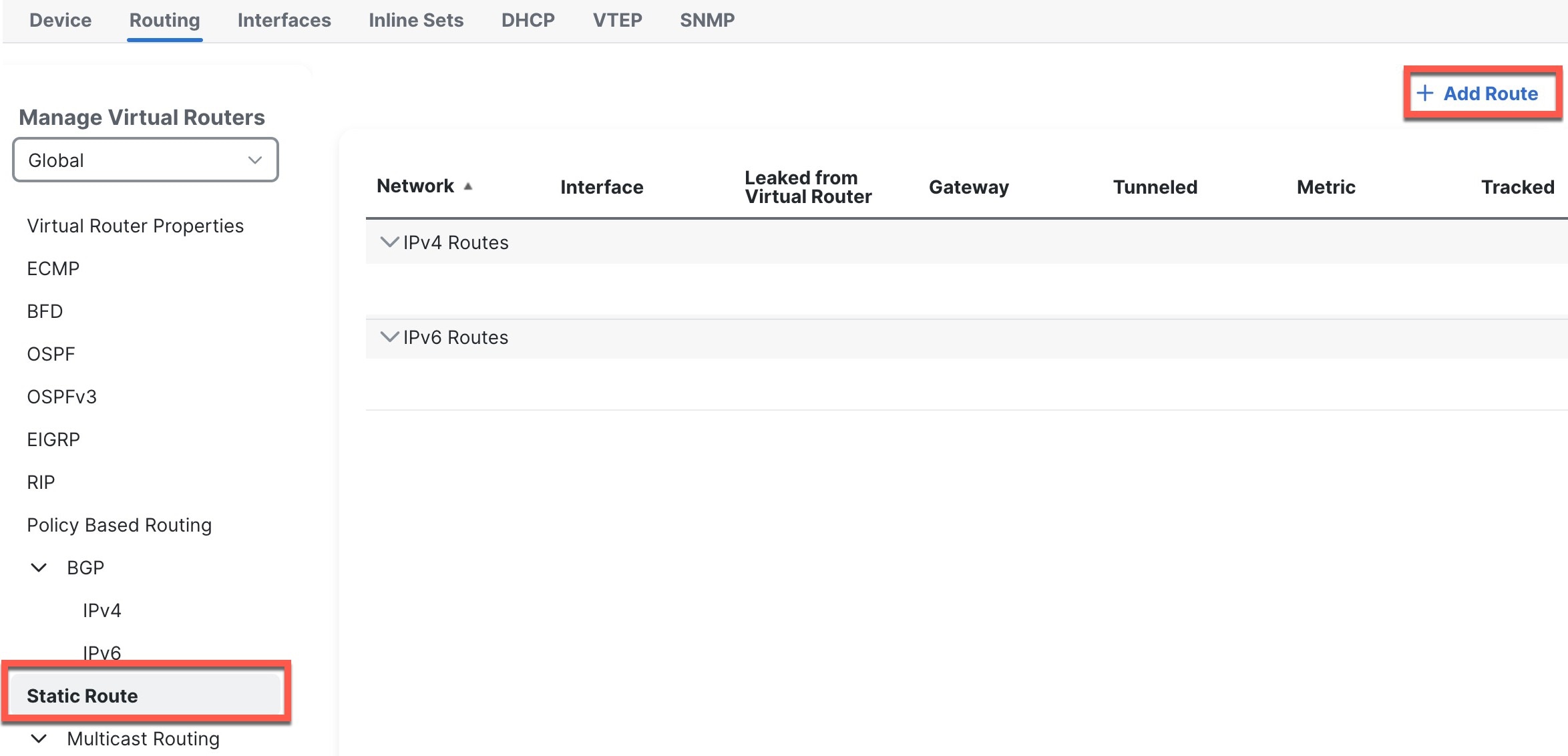
Choose Routing > Static Route.

Figure 1. Static Route
Static Route

If you received a default route from the DHCP server, it will show in this table.

3.

Click Add Route, and set the following options.
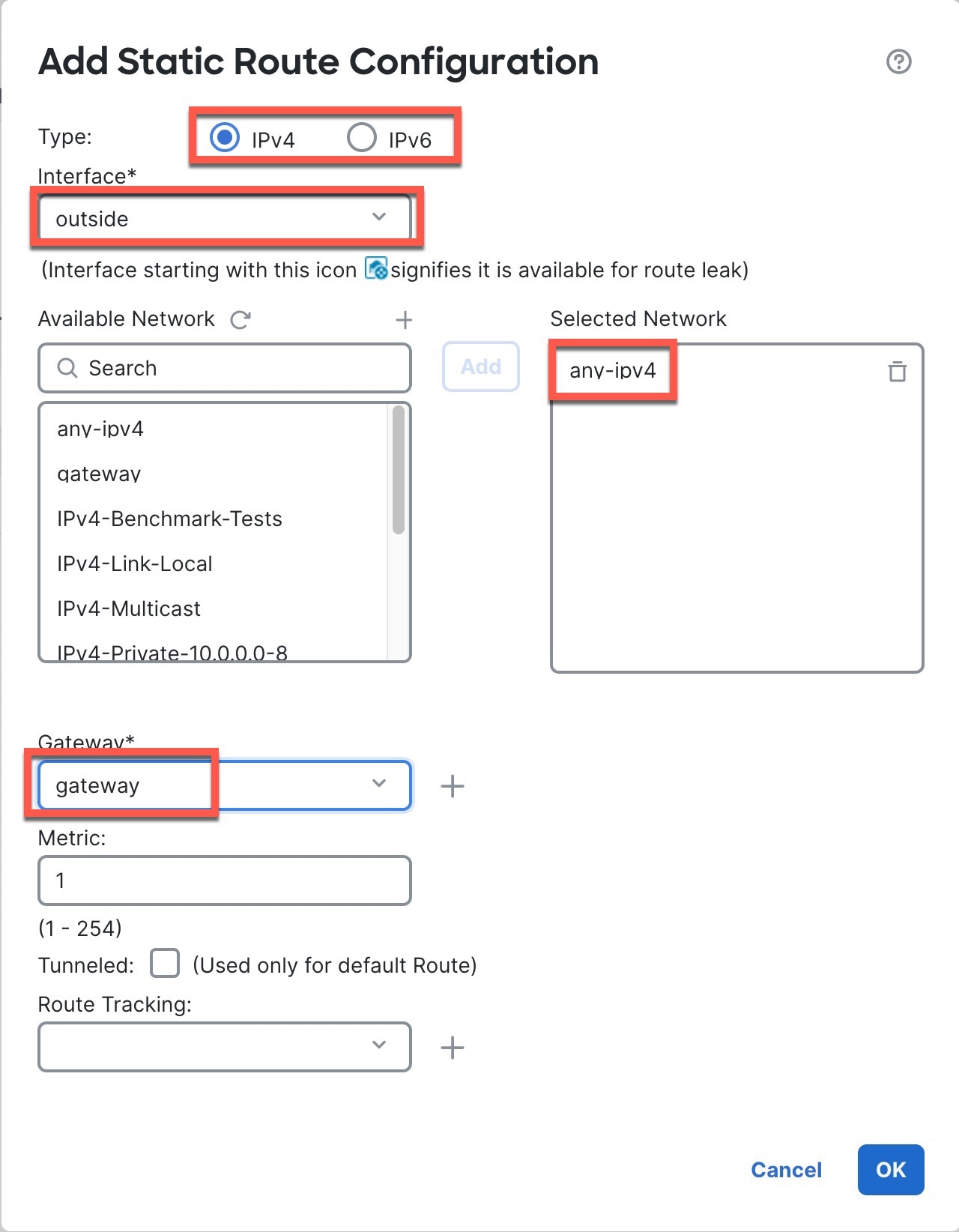
Figure 2. Add Static Route Configuration
Add Static Route Configuration
  • Type—Click the IPv4 or IPv6 radio button depending on the type of static route that you are adding.

  • Interface—Choose the egress interface; typically the outside interface.

  • Available Network—Choose any-ipv4 for an IPv4 default route, or any-ipv6 for an IPv6 default route, and click Add to move it to the Selected Network list.

  • Gateway or IPv6 Gateway—Enter or choose the gateway router that is the next hop for this route. You can provide an IP address or a Networks/Hosts object.

4.

Click OK.

The route is added to the static route table.

5.

Click Save.