Overview
How to access the ASA CLI on the Secure Firewall 1210/20 for basic configuration and troubleshooting, including entering privileged EXEC mode and global configuration mode.
You might need to access the CLI for configuration or troubleshooting.
Procedure
| 1. | Connect to the console port using either port type. 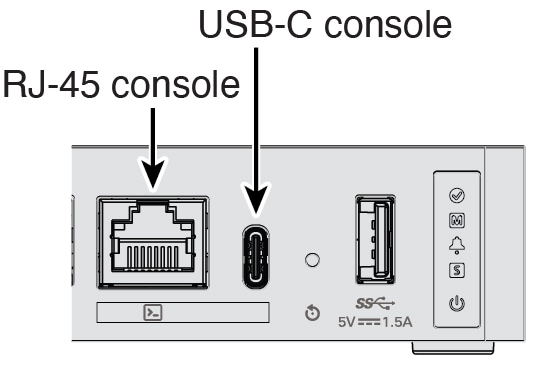
|
|
| 2. | You connect to the ASA CLI in user EXEC mode. This mode lets you use many show commands. |
|
| 3. | Access privileged EXEC mode. This password-protected mode lets you perform many actions, including accessing configuration modes. enable You are prompted to change the password the first time you enter the enable command. Example: |
|
| 4. | Access global configuration mode. configure terminal Example: |
|
| 5. | Access the FXOS CLI. Use this CLI for troubleshooting at the hardware level. connect fxos [admin]
You are not prompted for user credentials. The current ASA username is passed through to FXOS, and no additional login is required. To return to the ASA CLI, enter exit or type Ctrl-Shift-6, x. Example: |