Deploy Firewall Threat Defense Container in Kubernetes Environment

Prerequisites to Deploy Firewall Threat Defense Container in Kubernetes Environment

Following are the prerequisites to deploy Firewall Threat Defense container in a Kubernetes environment:

  • Operating System: Ubuntu, Version - 20.04 LTS (minimum), 22.04 LTS (maximum)

  • Kubernetes Environment:

    • Kubernetes cluster version - 1.29.15 (minimum), 1.31.14 (maximum)

    • Cluster must include master and worker nodes.

    • Multus CNI installed for multi-network support

    • MetalLB installed for LoadBalancer services

  • Kubernetes CNI

    • POD management CNI - Calico

    • FTDc data network CNI - Multus macvlan

    • FTDc data network CNI - Multus SR-IOV

  • Worker Node Requirements:

    • Hugepages configured (2Mi pages)

    • Use SSD/NVMe storage on worker nodes. HDD-based storage is not supported.

    • For Macvlan: Host interfaces available for data traffic

    • For SR-IOV: SR-IOV Network Operator installed and VFs configured

  • Helm: Helm version minimum 3.8 or later for deploying FTD using Helm charts (YAML-based Infrastructure-as-Code)

  • Firewall Threat Defense Container (FTDc) image available in an accessible registry

  • Management Center accessible from the cluster (if using ftd-manager)

For more information on general Kubernetes operations mentioned in these prerequisites, see Kubernetes documentation.
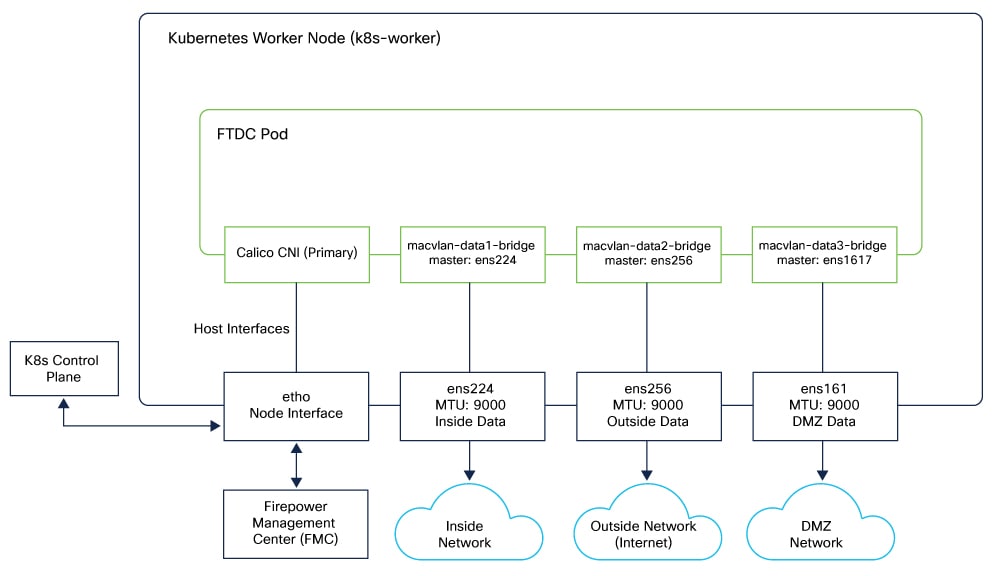
Sample Topology to Deploy Firewall Threat Defense Container in Kubernetes Environment

The diagram shows an FTD pod deployed on a Kubernetes worker node, connected to multiple network segments using Calico and macvlan CNI.

  • The primary interface (eth0) is managed by the Calico CNI and is used for pod communication with the K8s control plane and the Management Center.

  • The inside interface connects to the inside endpoint network.

  • The outside interface connects to the outside endpoint network.

Deploy Firewall Threat Defense Container in Kubernetes Environment

Follow the procedure to deploy Firewall Threat Defense container (FTDc) in Kubernetes environment.

Procedure


Step 1

Set up the requirements mentioned in the Prerequisites.

Step 2

Clone the FTDc repository to the local folder.

git clone <repository-URL>

Step 3

Navigate to the Helm chart directory.

cd Helm_charts/ftdc-helm

Step 4

Deploy FTDc.

You can deploy FTDc using either the default configuration or a custom values file.

  • Using Helm with default configuration:

    helm install ftdc . -n <namespace>

  • Using Helm with a custom values file:

    helm install ftdc . -f my-values.yaml -n <namespace>

Note


Namespace should be created before using it in the helm install command.

Step 5

Deploy FTDc using Helm with additional parameters.

helm install ftdc . \
  --set ftdc.repository=myregistry.example.com/ftdc:7.4 \
  --set ftdc.app_name=ftdc \
  --set ftdc.cpus=8 \
  --set ftdc.memory=16384 \
  --set ftdc.shmSize=4Gi \
  --set ftdc.hugepages=2Gi \
  --set ftdc_manager.enabled=true \
  --set ftdc_manager.repository=myregistry.example.com/ftd-manager:v1 \
  --set fmcv.ip=10.0.0.50 \
  --set fmcv.user=admin \
  --set fmcv.password=<your-password> \
  --set fmcv.access_policy=Production-Policy \
  --set fmcv.inside_zone=inside \
  --set fmcv.outside_zone=outside \
  --set fmcv.license_caps=BASE \
  --set fmcv.performance_tier=FTDv30 \
  --set worker_nodes.cni.type=macvlan \
  --set worker_nodes.persistence.lina.enabled=true \
  --set worker_nodes.persistence.lina.storageClass=lina-storage \
  --set worker_nodes.persistence.lina.size=1Gi \
  --set worker_nodes.persistence.lina.hostPath=/data/ftdc/lina \
  --set worker_nodes.persistence.lina.accessMode=ReadWriteMany \
  --set worker_node1.name=k8s-worker1 \
  --set worker_node1.ip=10.10.3.4 \
  -n default

Step 6

Update the configuration parameters in the Helm chart.

See the configuration parameters in the following tables:

Table 1. FTDc container settings

Parameter

Description

Default Value

Required

ftdc.repository

FTDc container image repository

localhost:5000/ftdc_10.0.0.143

Yes

ftdc.app_name

Application name for deployment

ftdc

Yes

ftdc.cpus

Number of CPUs allocated to FTDc

4

Yes

ftdc.memory

Memory in MB allocated to FTDc

8192

Yes

ftdc.shmSize

Shared memory (/dev/shm) size

2Gi

No

ftdc.hugepages

Hugepages allocation

auto

No

replicas

Number of pod replicas

1

No

namespace

FTD container name space for deployment

default

No

Supported CPU and memory configurations:

The following CPU and memory configurations are supported for FTDc deployment in Kubernetes environments. These configurations align with supported performance tiers.

  • FTDv5 – 4 vCPU, 8 GB RAM

  • FTDv10 – 4 vCPU, 8 GB RAM

  • FTDv20 – 4 vCPU, 8 GB RAM

  • FTDv30 – 8 vCPU, 16 GB RAM

  • FTDv50 – 12 vCPU, 24 GB RAM

  • FTDv100 – 16 vCPU, 32 GB RAM

Hugepages configuration:

The ftdc.hugepages parameter supports two modes:

  1. Auto-calculation ("auto"): Calculates hugepages based on CPUs and interfaces:

    Formula: (CPUs128) + (numInterfaces64) Mi, rounded upto nearest 256 Mi.

    Example: 4 CPUs + 3 interfaces = (4×128) + (3×64) = 704Mi → rounded to 768Mi

  2. Fixed value: Specify exact size like "512Mi", "1Gi", "2Gi"

FTD manager settings:

The FTD manager is an optional component that automates FTDc registration with Management Center.

Table 2. FTD manager settings

Parameter

Description

Default Value

Required

ftdc_manager.enabled

Enable/disable FTD Managerdeployment

false

No

ftdc_manager.repository

FTD Manager container image

localhost:5000/ftd-manager:v1

If enabled

When enabled, FTD manager creates the following resources:

  • Secret for Management Center credentials

  • ConfigMap for day0 configuration

  • Deployment with RBAC (ServiceAccount, ClusterRole, ClusterRoleBinding)

Management Center configuration:

Prerequisites in Management Center for the ftd-manager pod:

  • The required user account, access policy, and security zones must already be configured in Management Center.

  • Management Center must have a valid license or it should be operating within the evaluation license period.

Table 3. Configuration for Management Center integration

Parameter

Description

Default Value

Required

fmcv.ip Management Center IP address 10.10.3.9 Yes
fmcv.user Management Center admin username admin Yes
fmcv.password Management Center admin password "" (empty) Yes
fmcv.access_policy Management Center access policy name allowall Yes
fmcv.inside_zone Inside security zone name inside Yes
fmcv.outside_zone Outside security zone name outside Yes
fmcv.license_caps License capabilities BASE Yes
fmcv.performance_tier Performance tier FTDv5 Yes

License capabilities:

Valid values for fmcv.license_caps are BASE, THREAT, URL, MALWARE, or Multiple.

  • BASE: Base license

  • THREAT: Threat protection

  • URL: URL filtering

  • MALWARE: Malware protection

  • Multiple: BASE, THREAT, URL, MALWARE, CARRIER

Performance tiers:

Valid values for fmcv.performance_tier:

  • FTDv5: 100 Mbps

  • FTDv10: 1 Gbps

  • FTDv20: 3 Gbps

  • FTDv30: 5 Gbps

  • FTDv50: 10 Gbps

  • FTDv100: 16 Gbps

Passwords:

Use one of these methods to create passwords:

  • Command line override

    helm install ftdc . --set fmcv.password=<your-password>

  • Separate secrets file (add to .gitignore)

    helm install ftdc . -f secrets.yaml

Table 4. Worker Node Configuration

Parameter

Description

Default Value

Required

worker_node1.name Kubernetes hostname of primary worker k8s-worker1 Yes
worker_node1.ip IP address for MetalLB LoadBalancer 10.10.3.4 Yes

CNI Configuration:

The Helm chart supports two CNI types for data plane interfaces: Macvlan and SR-IOV.

Table 5. CNI Configuration

Parameter

Description

Default Value

worker_nodes.cni.type CNI type: macvlan or sriov macvlan

Macvlan Configuration:

Use this configuration when worker_nodes.cni.type is set to macvlan.

worker_nodes: 
  cni: 
    type: "macvlan" 
    macvlan: 
  networks: 
    - name: "macvlan-data1-bridge" # NetworkAttachmentDefinition name 
      interface: "ens224"          # Host interface 
    - name: "macvlan-data2-bridge" 
      interface: "ens256" 
    - name: "macvlan-data3-bridge" 
      interface: "ens161"

The Helm chart automatically creates NetworkAttachmentDefinition resources for each network.

  • Generated interface-config:

    [interface0] 
      iface_id = net1; 
      uio_driver = afpacket;
    [interface1] 
      iface_id = net2; 
      uio_driver = afpacket;
    [interface2] 
      iface_id = net3; 
      uio_driver = afpacket;
    

SR-IOV Configuration:

Use this configuration when worker_nodes.cni.type is set to sriov.

worker_nodes: 
  cni: 
    type: "sriov" 
    sriov: 
      networks: 
        - name: "sriov-net-data1" 
          resourceName: "intel.com/intel_sriov_ens7f0" 
        - name: "sriov-net-data2" 
          resourceName: "intel.com/intel_sriov_ens7f1"
Table 6. SR-IOV Configuration

Parameter

Description

name

SriovNetwork CRD name

resourceName

Must match SriovNetworkNodePolicy resourceName

Note

 
  • You can use the same network multiple times to bind to multiple VFs from the same PF.

  • SR-IOV requires additional volume mounts for /sys/bus/pci and /dev/vfio.

  • Generated interface-config:

    [interface0] 
      iface_id = net1; 
      uio_driver = vfio-pci;
    [interface1]
      iface_id = net2; 
      uio_driver = vfio-pci;
    

Persistent storage:

Persistent volumes retain FTDc data across restarts.

Lina storage (default):

Table 7. CNI configuration

Parameter

Description

Default Value

worker_nodes.persistence.lina.storageClass Storage class name lina-storage
worker_nodes.persistence.lina.size Volume size 1Gi
worker_nodes.persistence.lina.hostPath Host path on workernodes /home/ubuntu/lina-path

NGFW storage (Optional):

Table 8. CNI configuration

Parameter

Description

Default Value

worker_nodes.persistence.ngfw.storageClass Storage class name NGFW-storage
worker_nodes.persistence.ngfw.size Volume size 5Gi
worker_nodes.persistence.ngfw.hostPath Host path on workernodes /home/ubuntu/ngfw-path

Step 7

Configure Day-0 parameters in the day0.json file.

The day0.json file provides initial bootstrap configuration for FTDc.

Default Configuration (day0.json):

{ 
"EULA": "accept", 
"Hostname": "cisco-ftdc", 
"AdminPassword": "<PASSWORD>", 
"FirewallMode": "routed", 
"DNS1": "208.67.222.222", 
"Diagnostic": "OFF", 
"IPv4Mode": "DHCP", 
"IPv4Addr": "", 
"IPv4Mask": "", 
"IPv4Gw": "", 
"FmcIp": "DONTRESOLVE", 
"FmcRegKey": "docker",  
"FmcNatId": "docker"
}
Table 9. Day-0 parameters Configuration

Field

Description

EULA Accept EULA (accept)
Hostname FTDc hostname
AdminPassword Admin password for FTDc
FirewallMode routed or transparent
DNS1 Primary DNS server
Diagnostic Diagnostic interface (ON/OFF)
IPv4Mode DHCP or Manual
IPv4Addr Static IP (if Manual mode)
IPv4Mask Subnet mask (if Manual mode)
IPv4Gw Gateway (if Manual mode)
FmcIp Management Center IP or DONTRESOLVE
FmcRegKey Registration key for Management Center
FmcNatId NAT ID for Management Center registration

Deployment Examples:

Example 1: Basic Deployment with Macvlan

# values-basic.yaml
ftdc: 	
  repository: "myregistry.example.com/ftdc:7.4" 
  app_name: "ftdc" 
  cpus: 4 
  memory: 8192 
  shmSize: "2Gi" 
  hugepages: "auto"

ftdc_manager: 
  enabled: false

worker_nodes: 
  cni: 
    type: "macvlan" 
    macvlan: 
      	networks: 
         - name: "macvlan-inside" 
           interface: "eth1" 
         - name: "macvlan-outside" 
           interface: "eth2" 
  persistence:  
      lina: 
        enabled: true 
        storageClass: "lina-storage" 
        size: "1Gi" 
        hostPath: "/data/ftdc/lina" 
        accessMode: "ReadWriteMany"

 worker_node1: 
   name: "worker-01" 
   ip: "192.168.1.100"

helm install ftdc . -f values-basic.yaml

Example 2: Production Deployment with SR-IOV and FTD manager

# values-production.yaml
ftdc: 	
  repository: "myregistry.example.com/ftdc:7.4" 
  app_name: "ftdc-prod" 
  cpus: 8 
  memory: 16384 
  shmSize: "4Gi" 
  hugepages: "2Gi"

ftdc_manager: 
  enabled: true
  repository: "myregistry.example.com/ftd-manager:v1"

fmcv: 
  ip: "10.0.0.50" 
  user: "admin" 
  password: "" # Set via --set or secrets file 
  access_policy: "Production-Policy" 
  inside_zone: "inside" 
  outside_zone: "outside" 
  license_caps: "BASE,THREAT,URL" 
  performance_tier: "FTDv30"

worker_nodes: 
  cni: 
    type: "sriov" 
    sriov: 
      	networks: 
         - name: "sriov-inside" 
           resourceName: "intel.com/intel_sriov_ens3f0"  
         - name: "sriov-outside" 
           resourceName: "intel.com/intel_sriov_ens3f1"
         - name: "sriov-dmz" 
           resourceName: "intel.com/intel_sriov_ens3f0"

  persistence:  
      lina: 
        enabled: true 
        storageClass: "fast-storage" 
        size: "5Gi" 
        hostPath: "/data/ftdc/lina" 
        accessMode: "ReadWriteMany"

  worker_node1: 
    name: "prod-worker-01" 
    ip: "10.0.1.100"

 helm install ftdc-prod . -f values-production.yaml --set fmcv.password=<password>

Verify and Access Firewall Threat Defense Container in Kubernetes Environment

Verify deployment status:

  • Check all resources.

    kubectl get all -l app=FTDC

  • Check pods.

    kubectl get pods -o wide

  • Check service.

    kubectl get svc

  • Check persistent volumes.

    kubectl get pv,pvc

  • Check NetworkAttachmentDefinitions (for macvlan).

    kubectl get net-attach-def

Verify FTDc is running
  • Check pod logs.

    kubectl logs -f <ftdc-pod-name>

  • Check lina process (readiness probe).

    kubectl exec -it <ftdc-pod-name> -- pgrep -x lina

  • Check readiness file.

    kubectl exec -it <ftdc-pod-name> -- cat /tmp/lina_ready

  • Access FTDc CLI.

    kubectl exec -it <ftdc-pod-name> -- /bin/bash

Verify MetalLB service

  • Check LoadBalancer external IP address.

    kubectl get svc ftdc-k8s-worker1 -o jsonpath='{.status.loadBalancer.ingress[0].ip}'

  • Test SSH connectivity (port 3000 maps to 22).

    ssh -p 3000 admin@<external-ip>

Verify FTD manager (if enabled)

  • Check ftd-manager pod.

    kubectl get pods -l app=ftd-manager

  • Check logs.

    kubectl logs -f -l app=ftd-manager