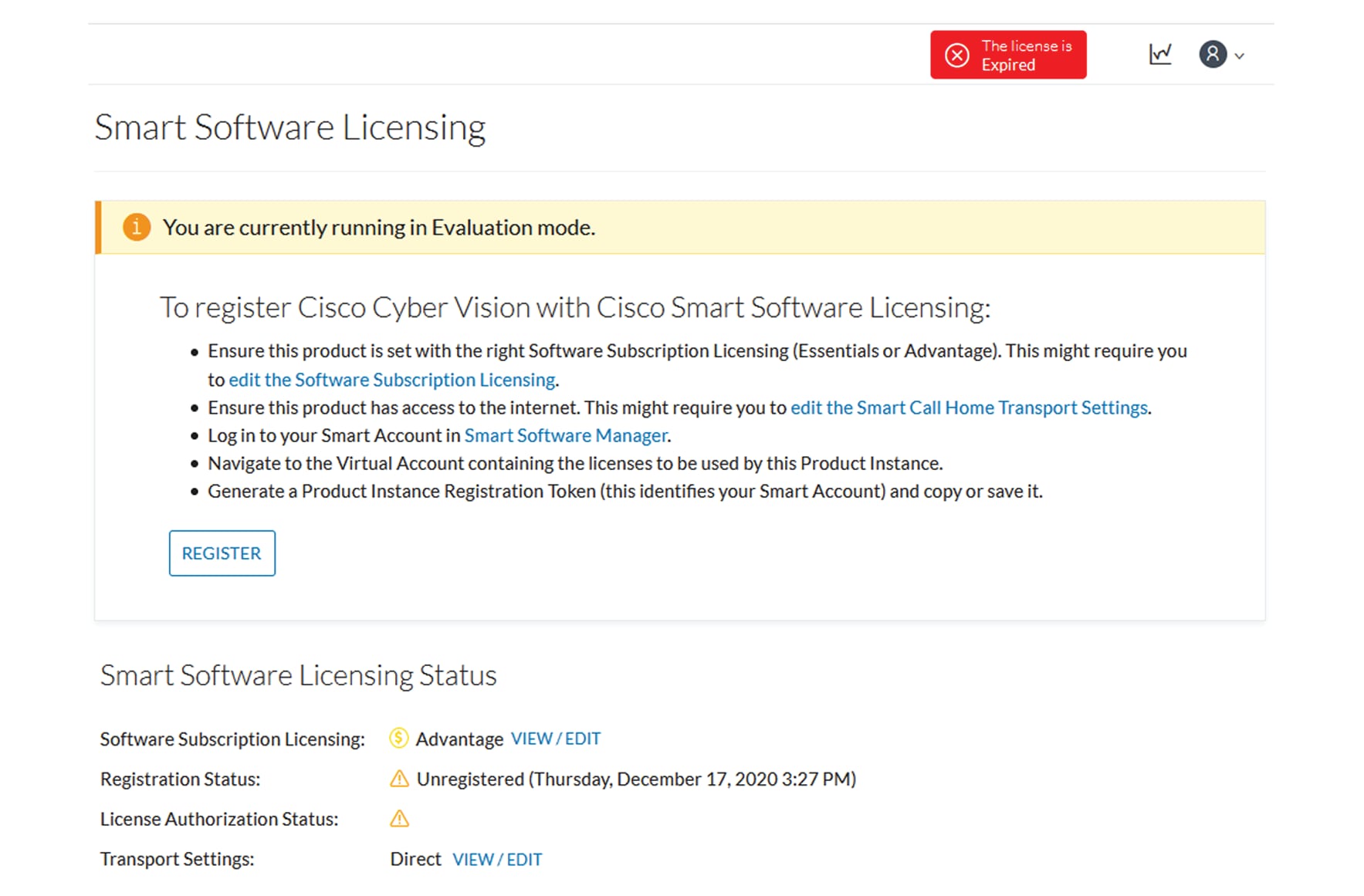
Offline licensing

This section describes how to:

  • get a license in an offline environment.

  • update a license registration in case the Center has run out of tokens.

  • return to evaluation mode.

Get a license in an offline environment

This section describes how to get a license in an offline environment.

You will:

  1. Set Cisco Cyber Vision Center license (ESSENTIALS or ADVANTAGE).

  2. Perform pre-registration checks.

  3. Register the Center.

  4. Reserve a license.

  5. Authorize the license.

Set Cisco Cyber Vision Center license

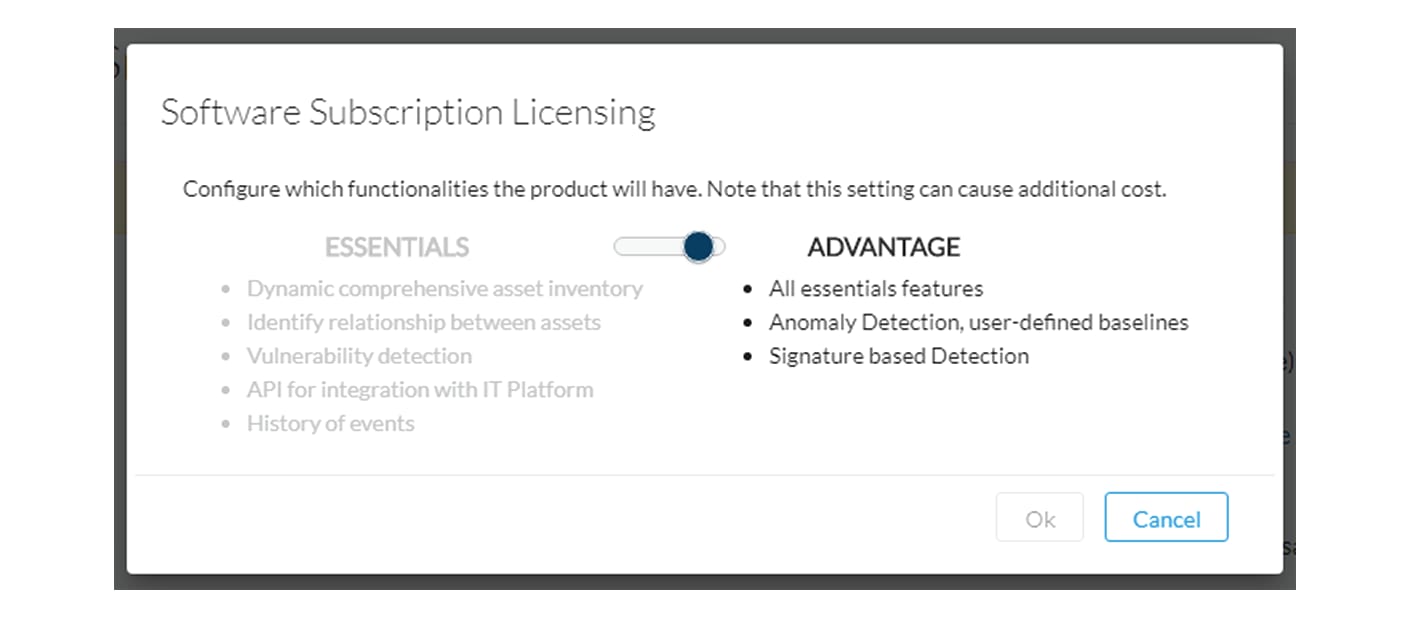
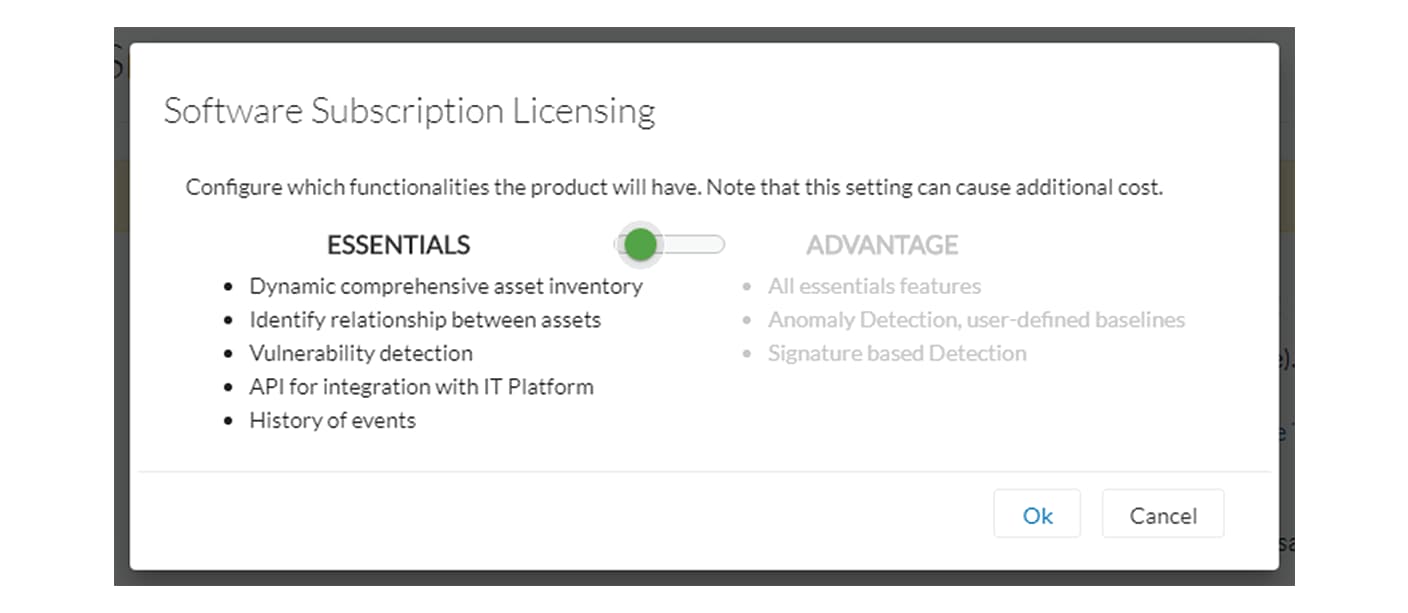
Before starting with license registration, make sure that the license type set is relevant to the Center usage. You can choose between Essentials and Advantage. Note that changing this setting can cause additional costs.

To set the Cisco Cyber Vision Center's license:

Procedure


Step 1

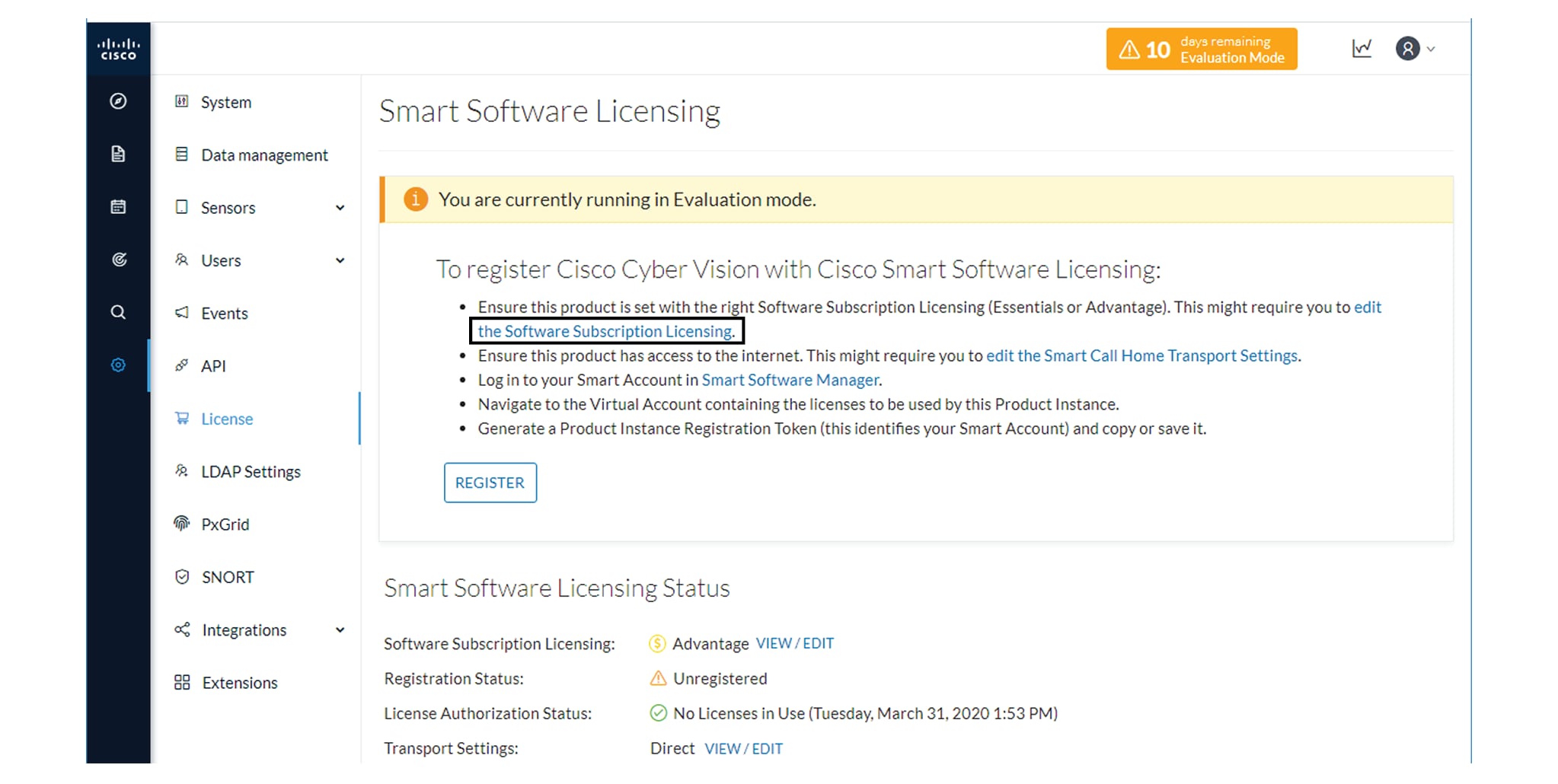
Navigate to System Administration > License.

Step 2

Click "edit the Software Subscription Licensing".

Step 3

Toggle the button to select the license type (Essentials or Advantage).

Note 
By default, the license type is set to Advantage.


Perform pre-registration checks

Procedure


Step 1

Check the License Reservation:

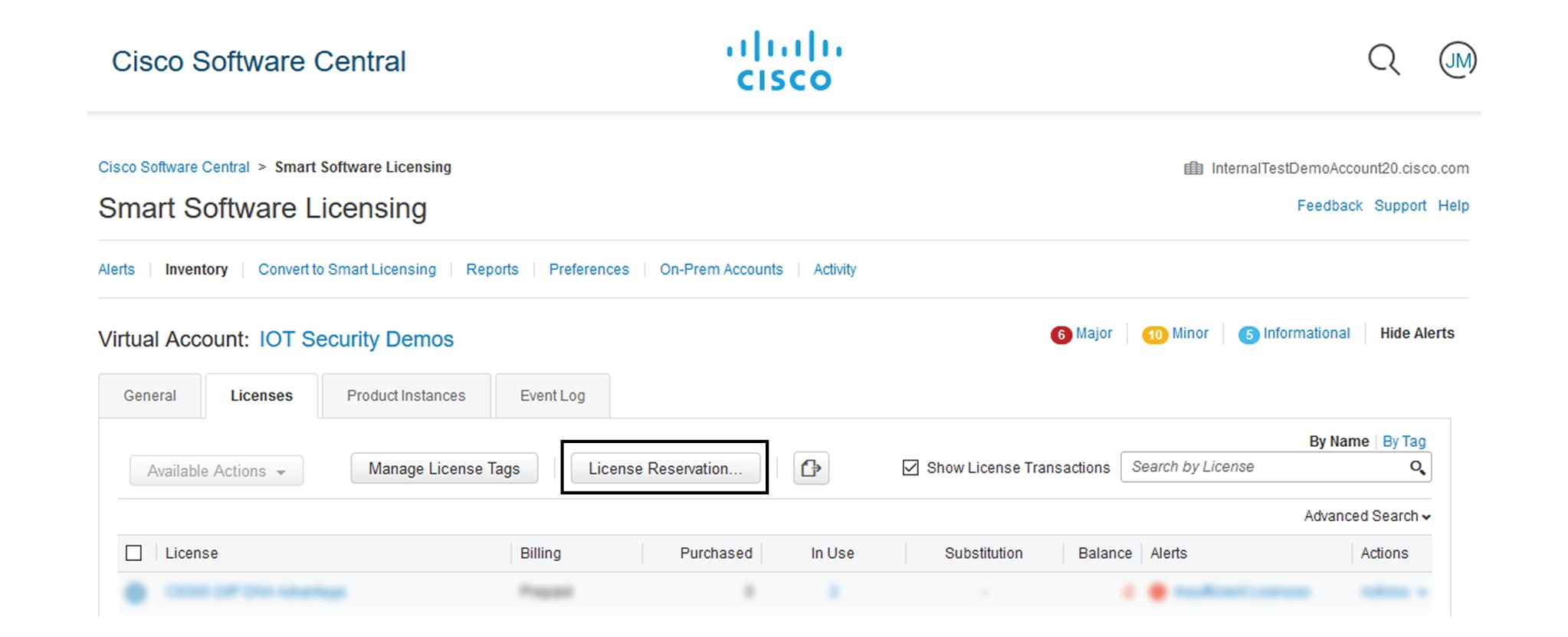
The License Reservation feature is required to perform an offline licensing registration. Before proceeding with the following steps, check from the License menu in CSSM or CSSM On-Prem that the License reservation button is enabled. If it's not the case, open a case in cisco.com and provide a business justification.
Step 2

Check the number of tokens available:

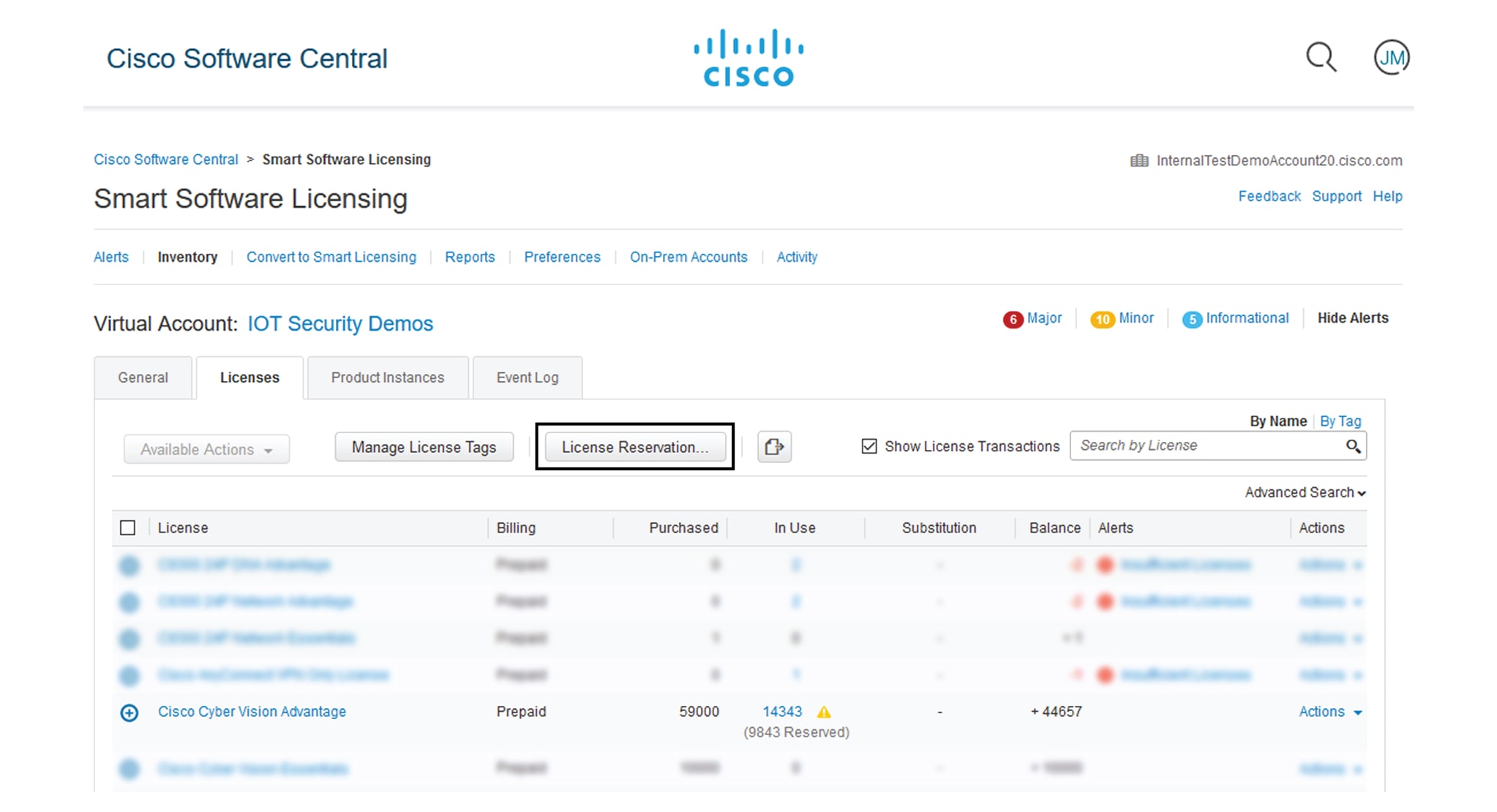
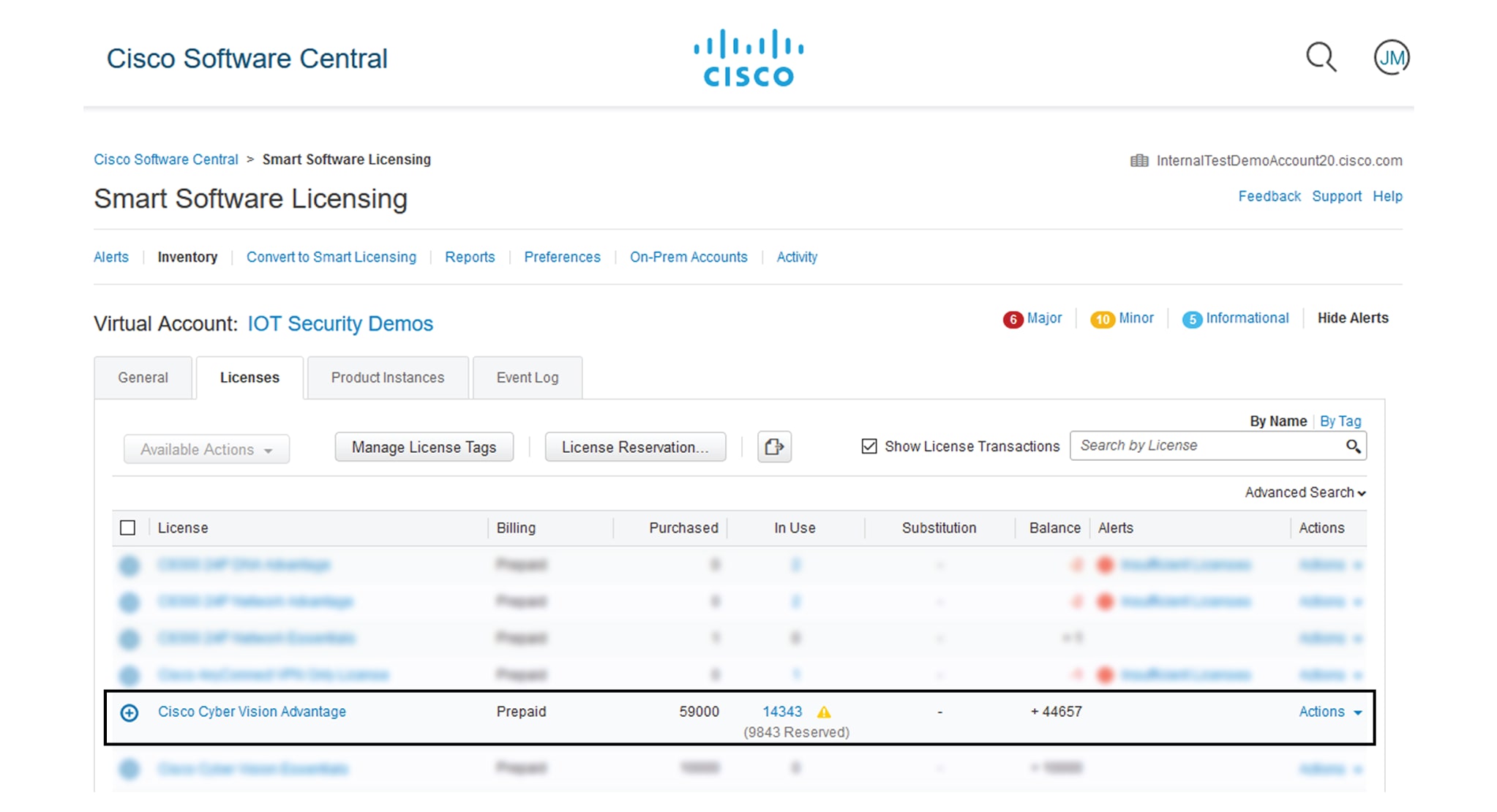
A token equals a component in Cisco Cyber Vision. Before starting, take a moment to consider the number of tokens available in CSSM or CSSM On-Prem. This information will be useful in a later procedure to assign a number of token to the Center instance.

Example:

Herebelow, 14343/59000 tokens are in use. 44657 tokens are still available.

Register the Center

This section describes how to register a Center for an offline reservation in Cisco Cyber Vision. During this procedure, you will generate a Reservation Request code which will later be used in CSSM or CSSM On-Prem.

Procedure


Step 1

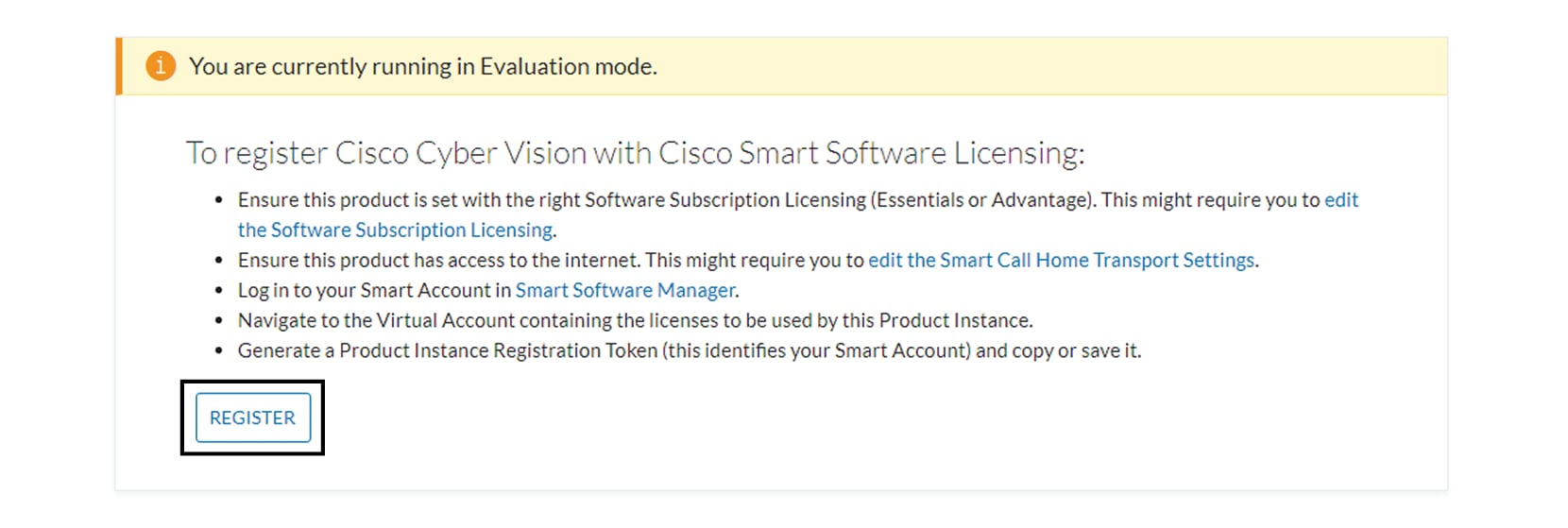
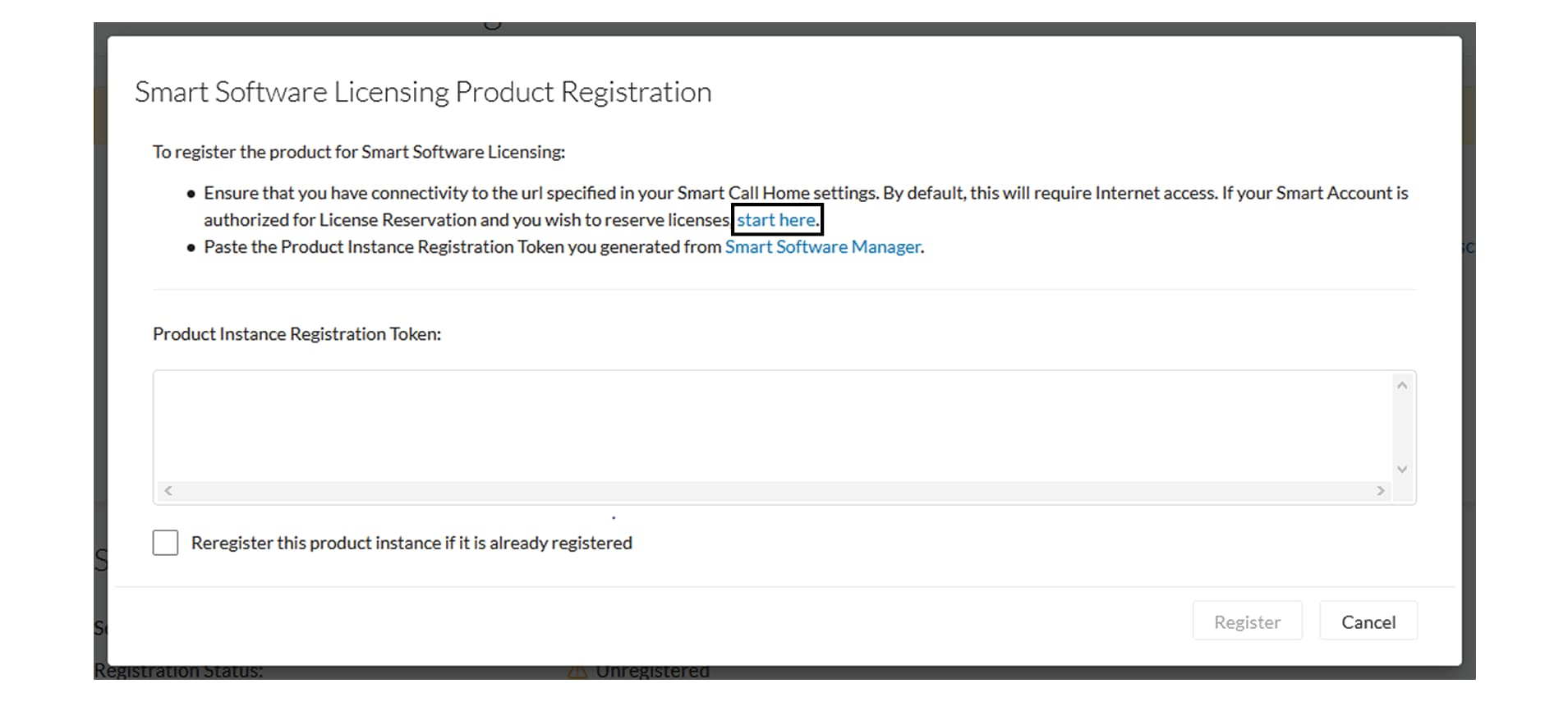
In Cisco Cyber Vision, click the button Register.

The Smart Software Licensing Product Registration window opens.

Step 2

Click the "Start here" link.

Step 3

If your Smart Account is authorized to generate tokens (i.e. the License Reservation button is active in CSSM or CSSM On-Prem), click Yes.

Step 4

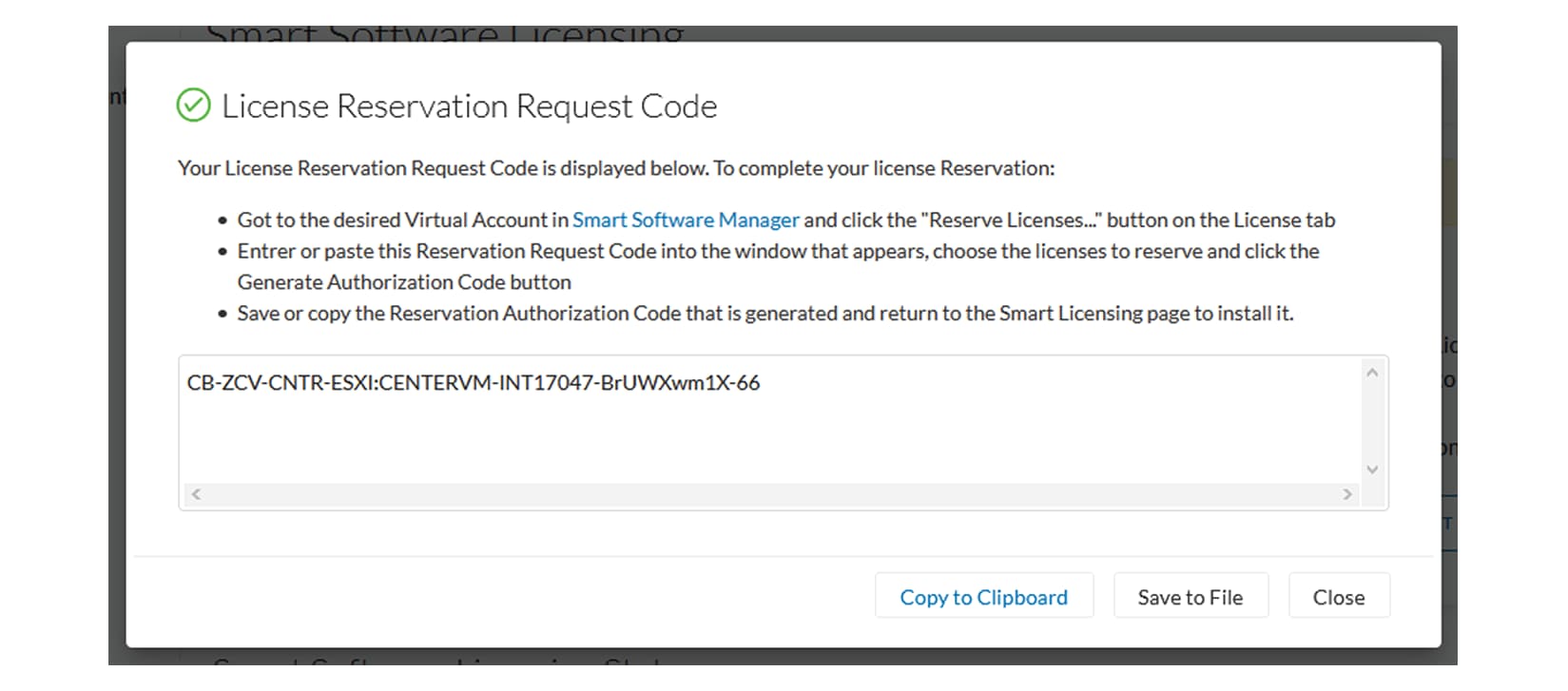
Click Generate Reservation Request code.

Your Reservation Request code is shown.

Step 5

Copy it and save it somewhere or click Save to file.

Step 6

Close the window.

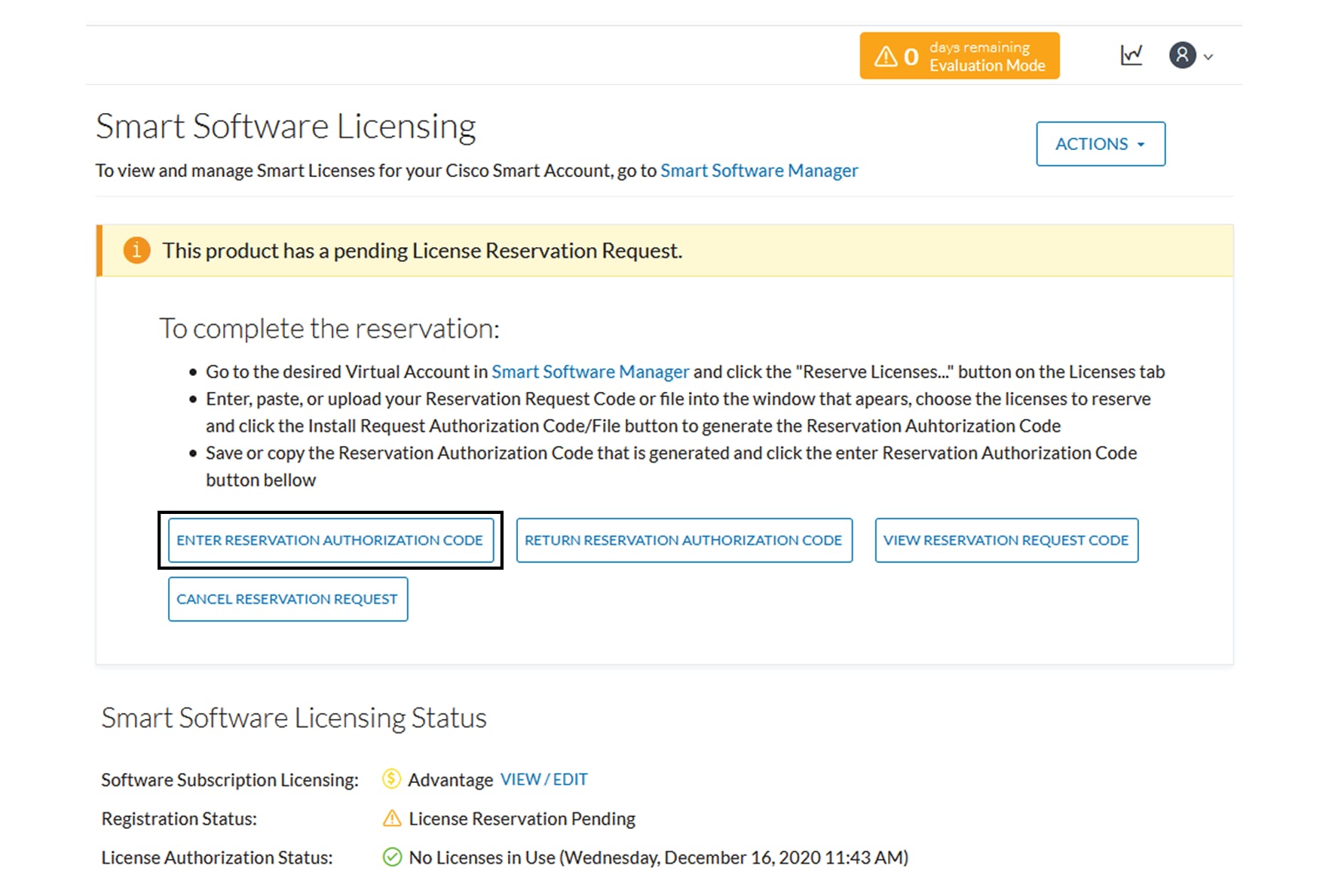
The Cisco Cyber Vision License Reservation Request is in pending status and several new buttons are displayed that will allow you to perform the actions described in the following sections.

These buttons will allow you to perform the following actions:

  • Enter reservation authorization code: Finalize the reservation request with a code provided in the Smart Accounting software.

  • Return reservation authorized code: Deregister a Center and restore tokens to the licensing balance.

  • View reservation request code: View the request code in case you didn't copy/save it.

  • Cancel reservation request: Cancel the license request.


Reserve a license

This section describes how to reserve a license in CSSM or CSSM On-Prem. To do so, you will use the Reservation Request code generated in Cisco Cyber Vision in order to reserve a license and assign it a number of tokens. As a result, you will get an authorization code to be entered in Cisco Cyber Vision in the following procedure.

Procedure


Step 1

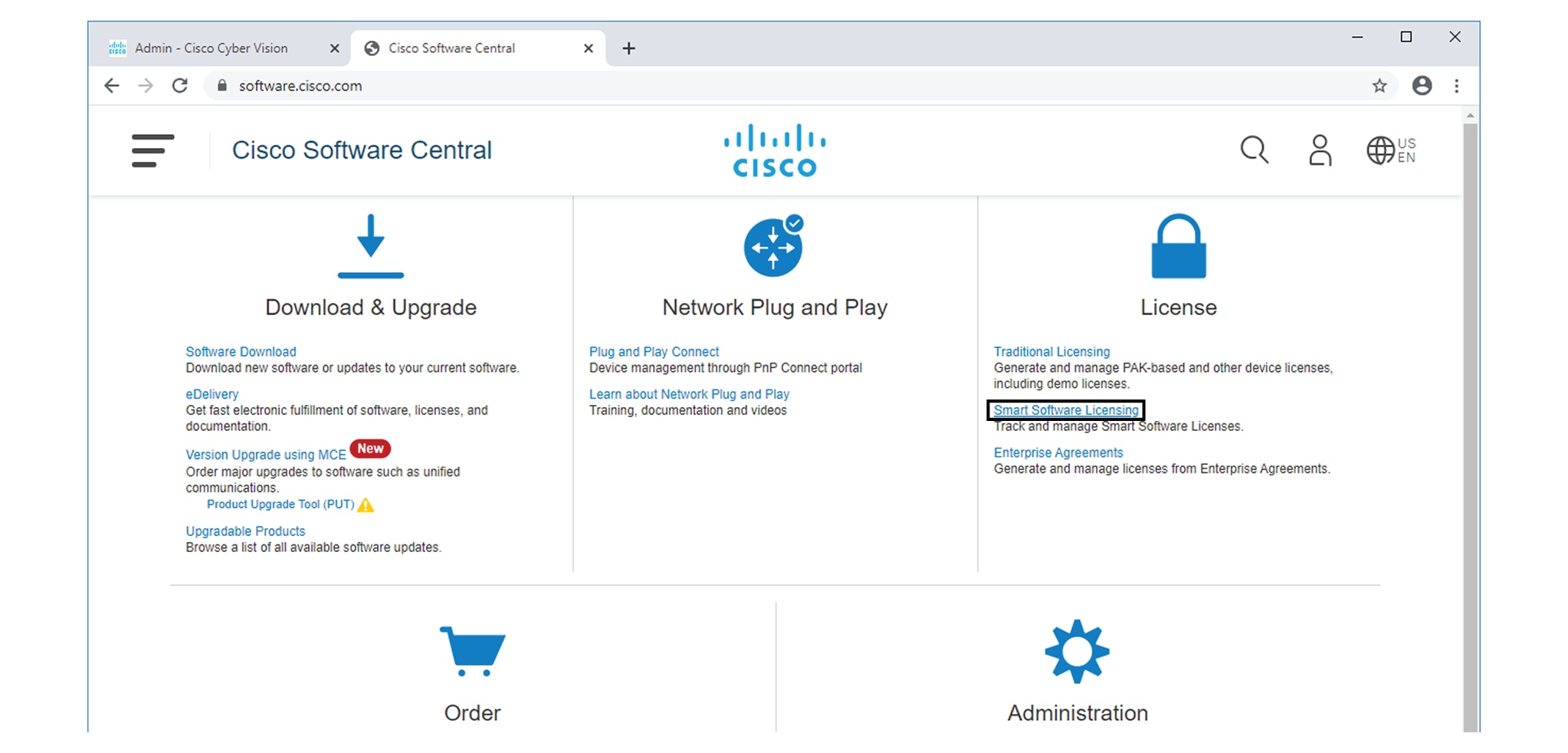
Access and log in to CSSM or CSSM On-Prem.

Step 2

Under License, click Smart Software Licensing.

Step 3

Click Inventory > Licenses.

Step 4

Click the License Reservation button.

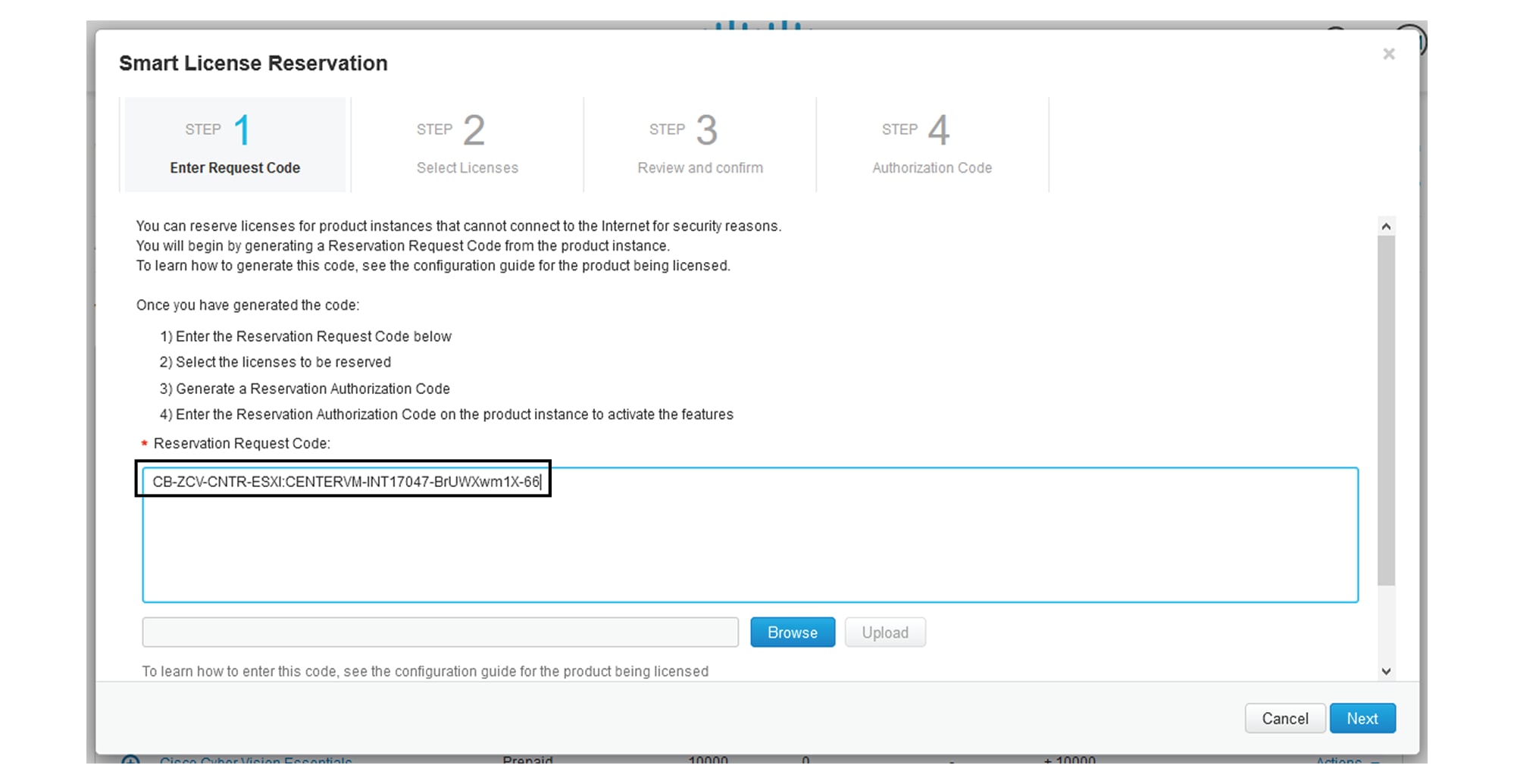
The Smart License Reservation wizard opens.

Step 5

Paste or upload the Request Code previously retrieved from Cisco Cyber Vision and click Next.

Step 6

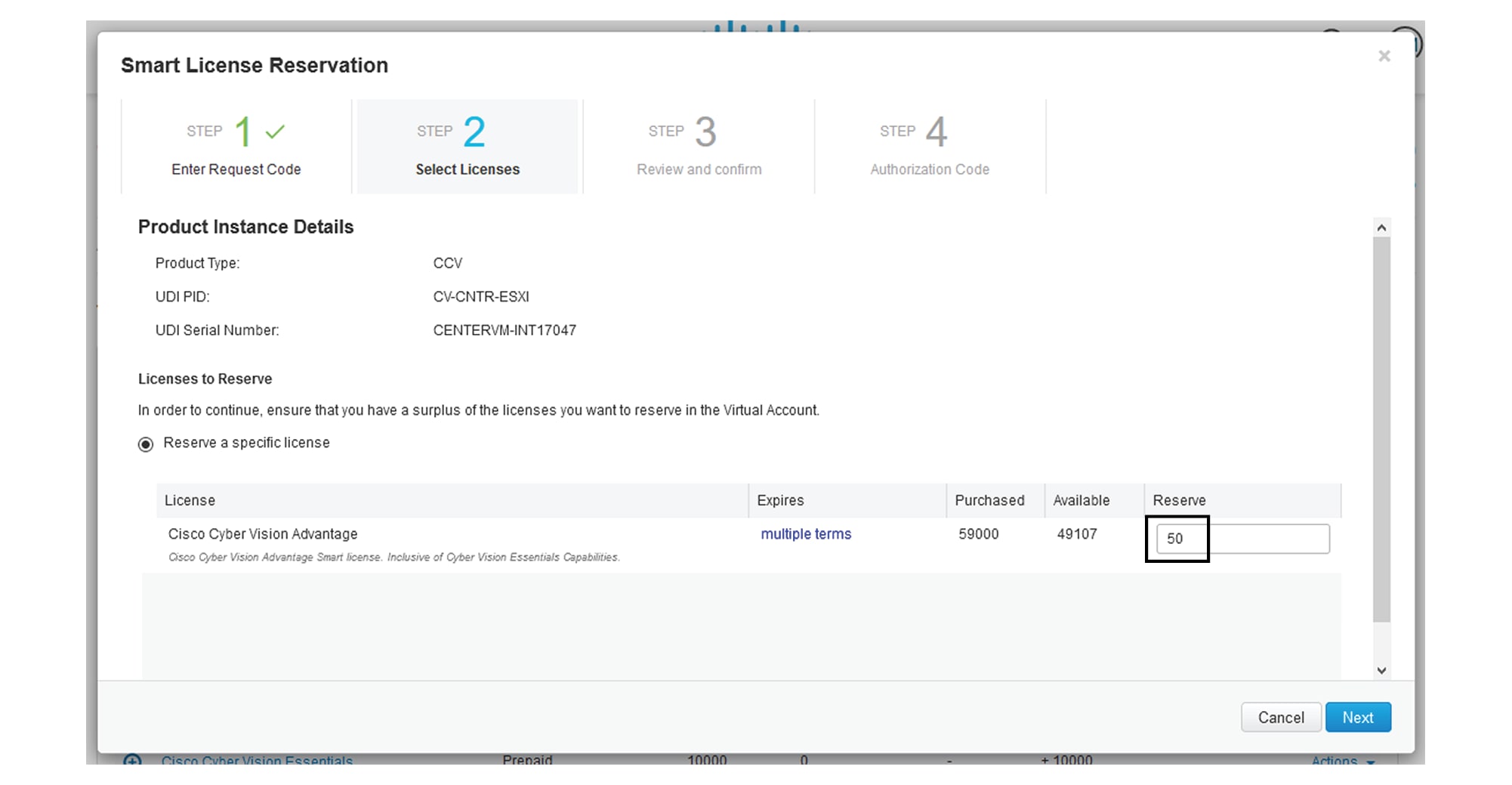
Reserve the number of tokens (i.e. components) for the Center instance and click Next.

Step 7

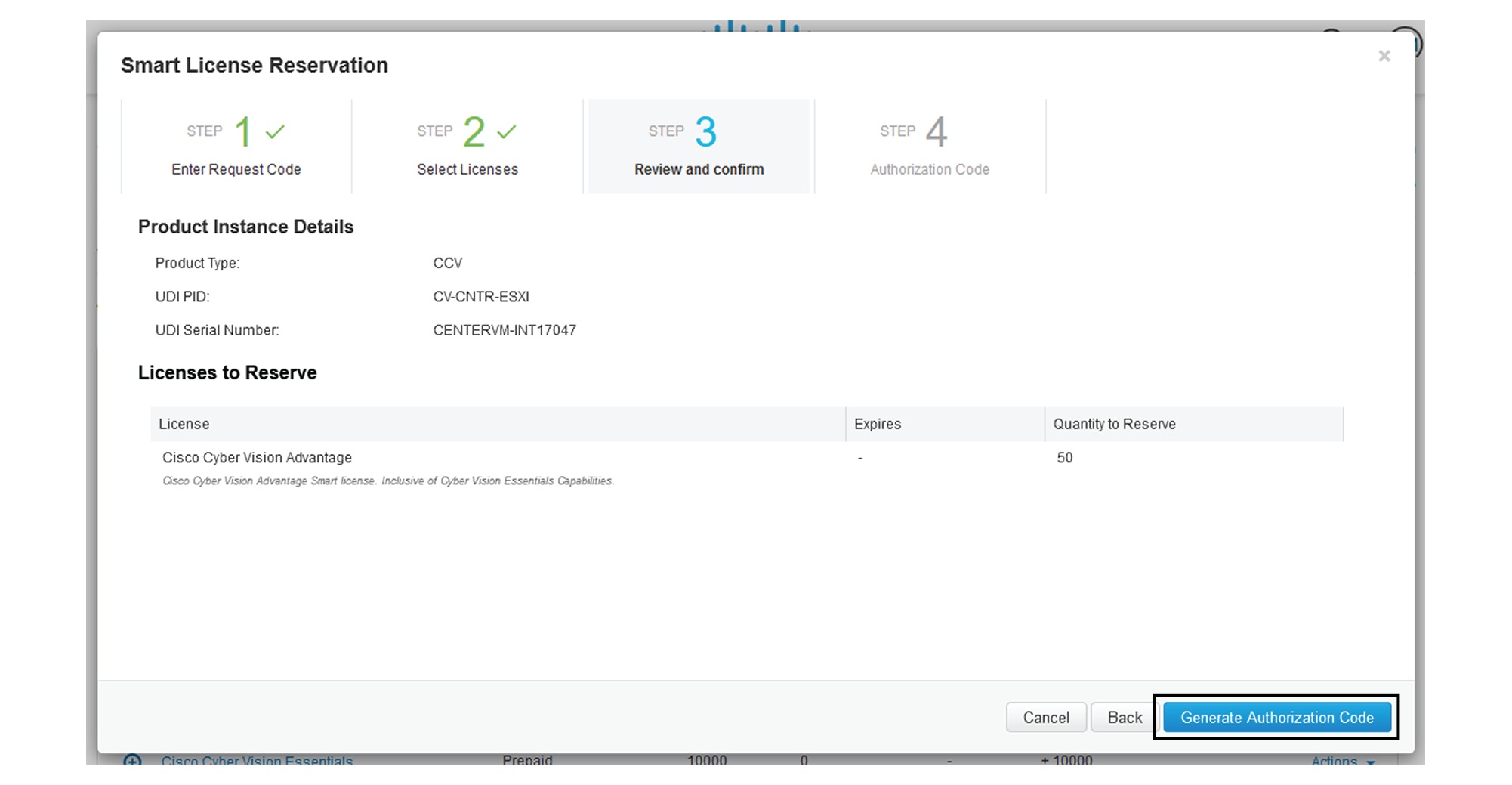
Review and confirm the reservation by clicking Generate Authorization Code.

Step 8

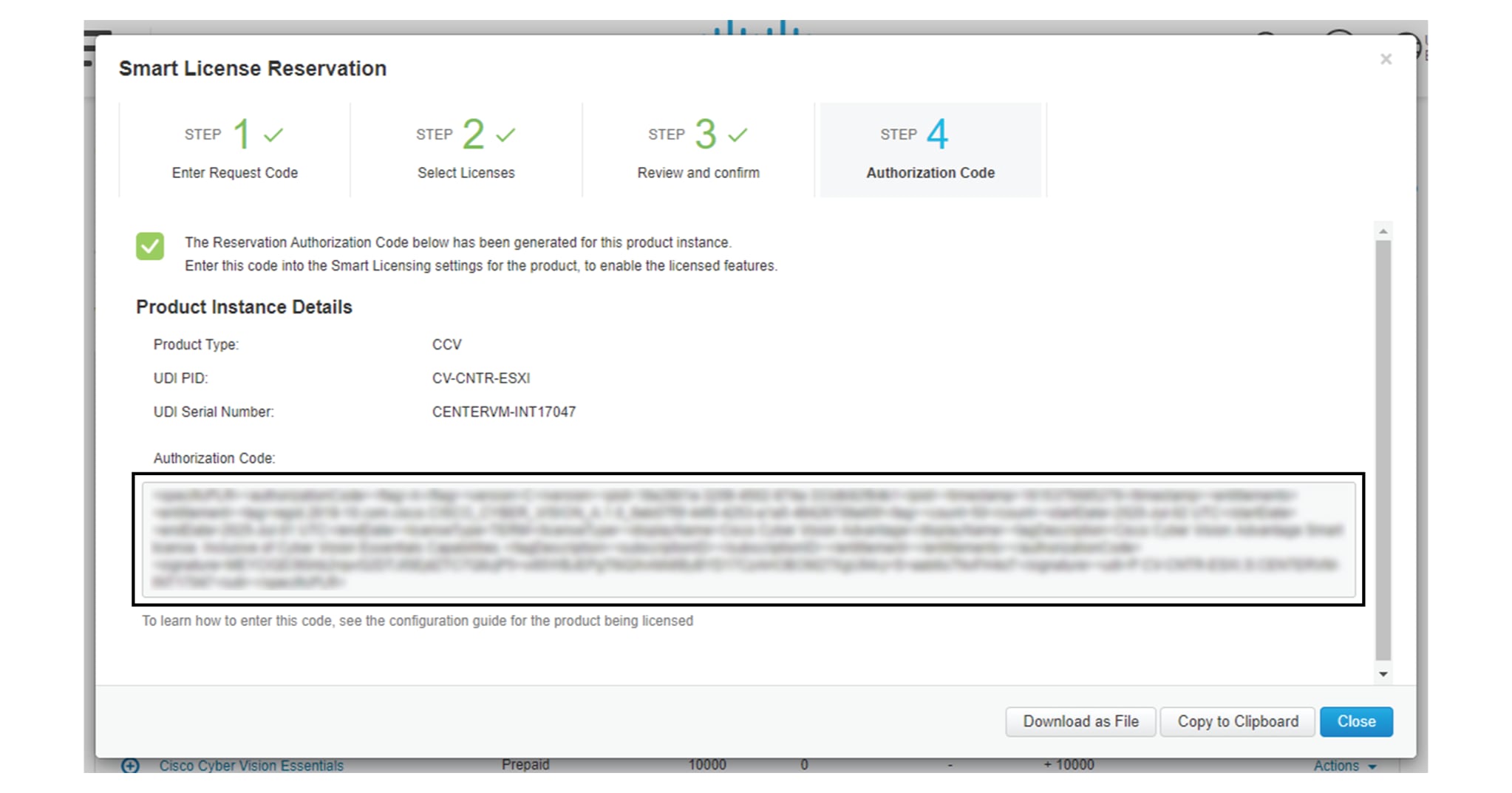
Get your authorization code.

The authorization code should be copied to clipboard or save into a file.

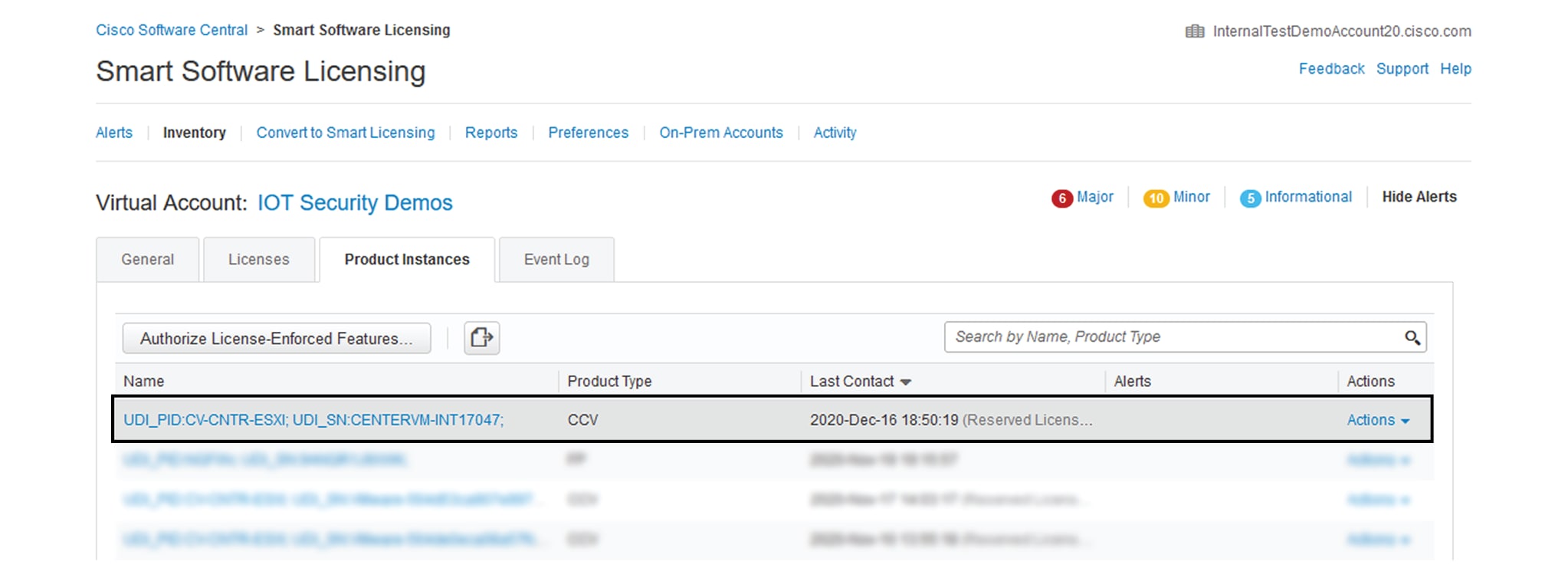
In Inventory > Product Instances, you should see the instance you just created.


Authorize the license

This section describes how to enter the authorization code retrieved from CSSM or CSSM On-Prem in Cisco Cyber Vision. At the end of this procedure the installation of the license will be complete.

To authorize the license:

Procedure


Step 1

In Cisco Cyber Vision, click the button Enter Reservation Authorized Code.

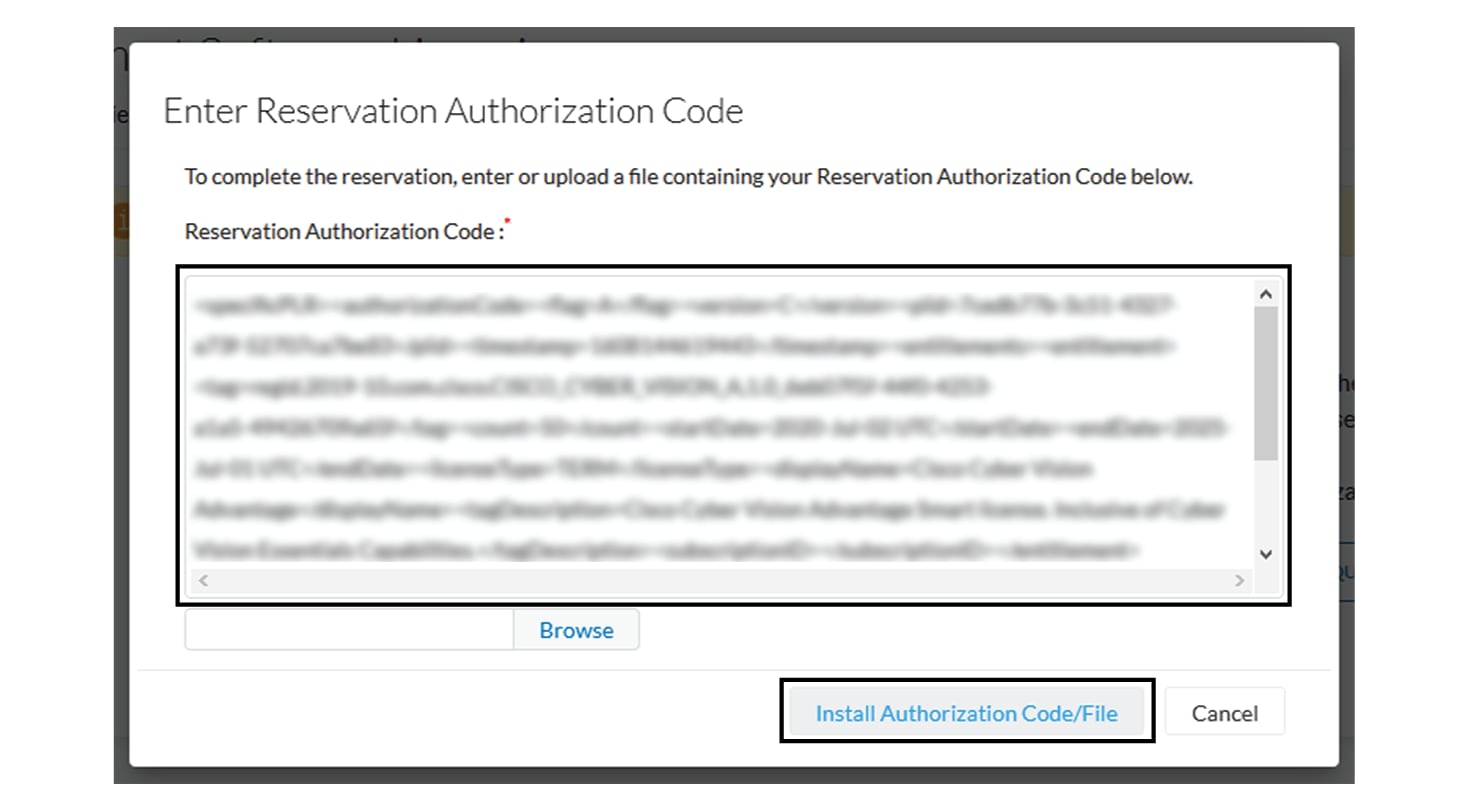
The Enter Reservation Authorized Code window opens.

Step 2

Paste the code or upload the file previously retrieved in CSSM or CSSM On-Prem.

Step 3

Click Install Authorization Code/File.

The Cisco Cyber Vision registration status switches to registered and the license authorization status to authorized.

The installation of the license is complete and you can continue using Cisco Cyber Vision.


Update license registration

Cisco Cyber Vision Smart Licensing includes a limited number of tokens which are distributed among the different product instances of your industrial platform. A token being the equivalent of a component in Cisco Cyber Vision, it can happen that one of your product instance run out of available tokens. In this case, the message "out of compliance" appears in Cisco Cyber Vision. In an offline licensing environment, you need to manually update the license reservation by extending the number of tokens in CSSM or CSSM On-Prem. You may have to perform this action because you want to change the number of tokens attributed to a Center or because you need to add a license for an IDS sensor to use Snort Subscriber rules. If you don't perform this action within 90 days, Cisco Cyber Vision will fall back into evaluation mode. Updating an offline license may lead to additional costs.

In the following example, we will update a license for an IDS sensor.

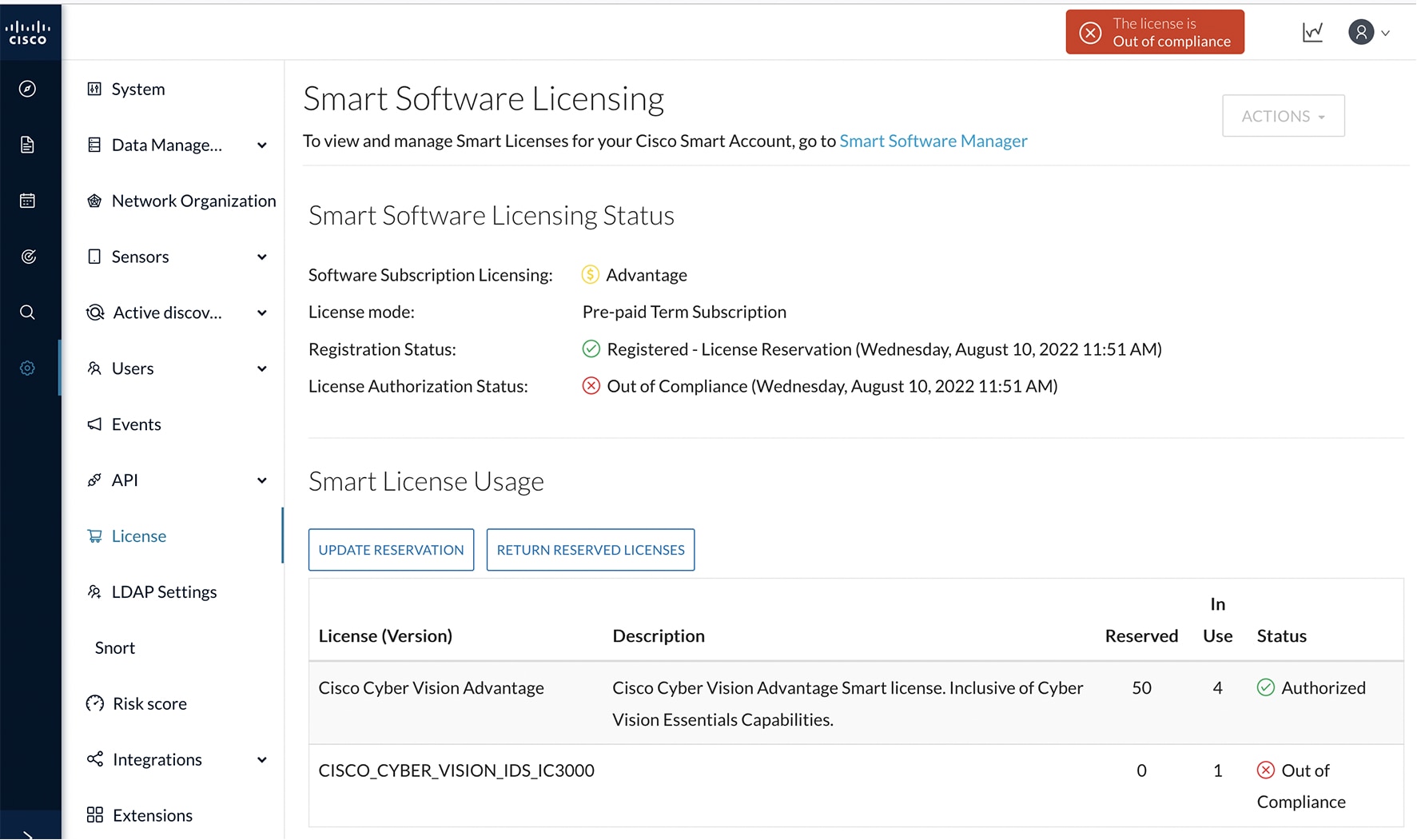
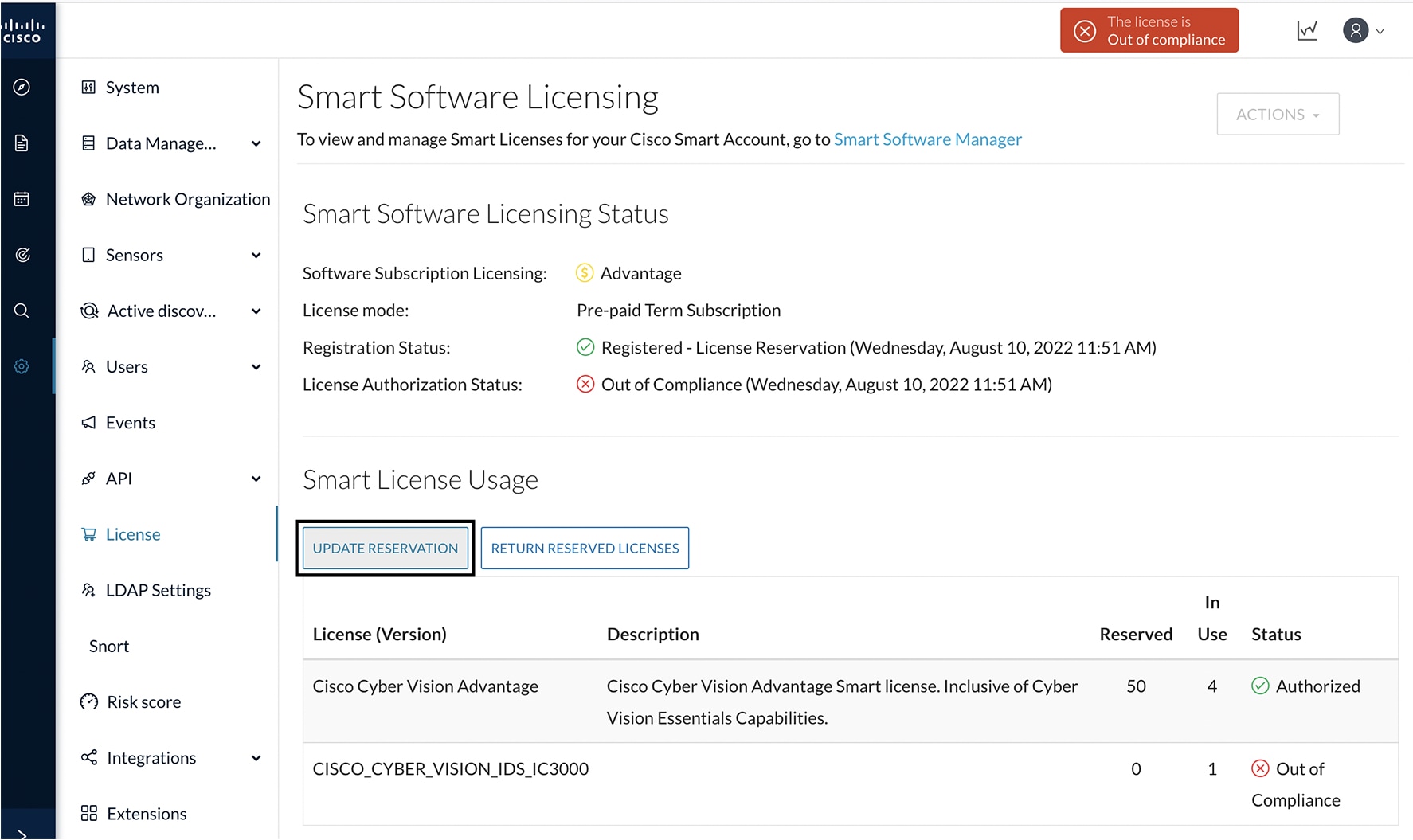
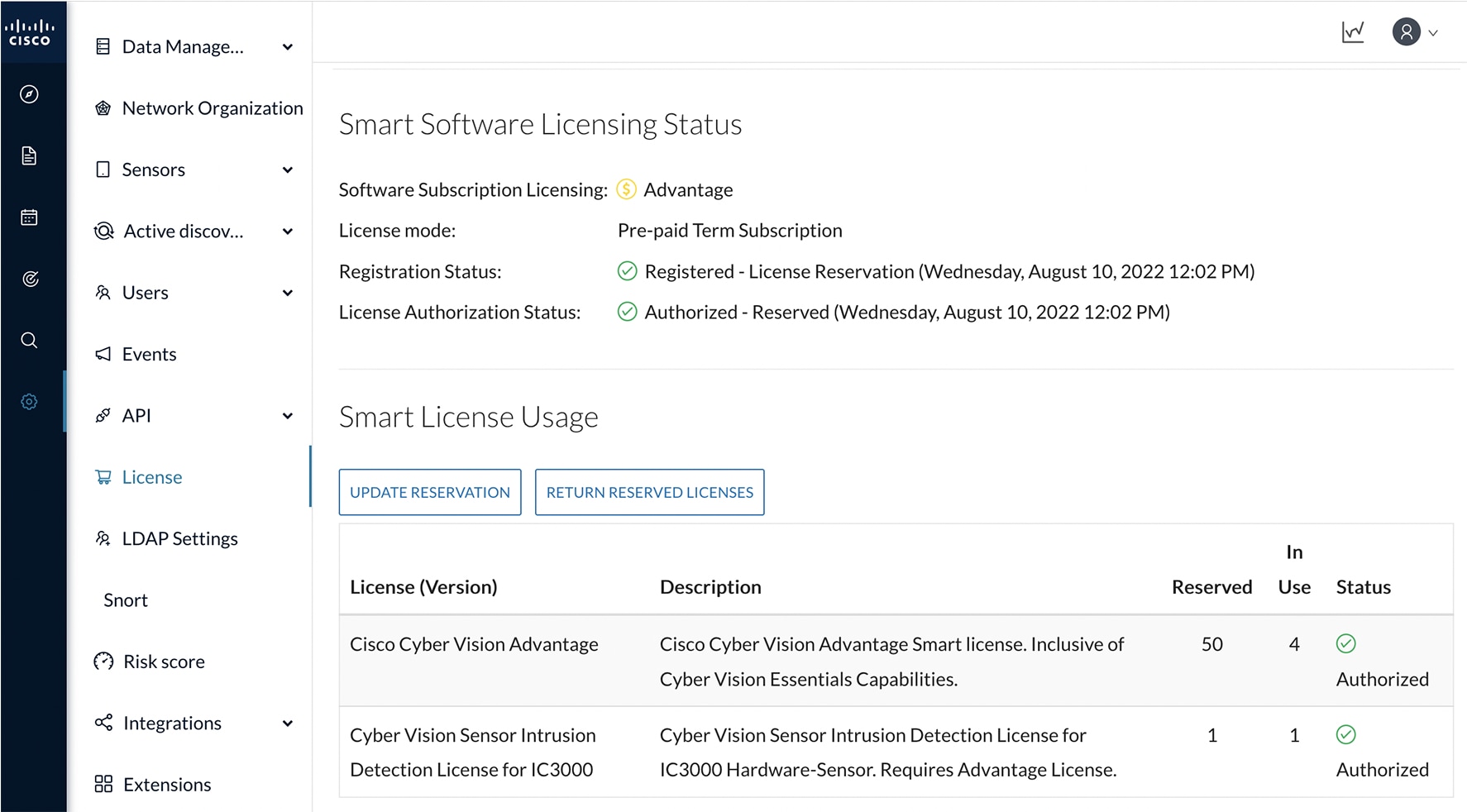
The license that is out of compliance and needs to be updated appears in Cisco Cyber Vision's License administration page under Smart License Usage.

Update the license reservation in CSSM or CSSM On-Prem

This procedure describes how to manually update the license in an offline environment. You may have to perform this action because you want to change the number of tokens attributed to a Center or because you need to add a license for an IDS sensor (whenever you want to use Snort Subscriber rules). In this case, the message "the license is out of compliance" is displayed on the top right corner of Cisco Cyber Vision. If you don't perform this action within 90 days, Cisco Cyber Vision will fall back into evaluation mode. Updating an offline license may lead to additional costs.

In the following example, we will update a license for an IDS sensor.

Procedure


Step 1

In Cisco Cyber Vision, navigate to Admin > License.

The license that is out of compliance and needs to be updated appears under Smart License Usage.

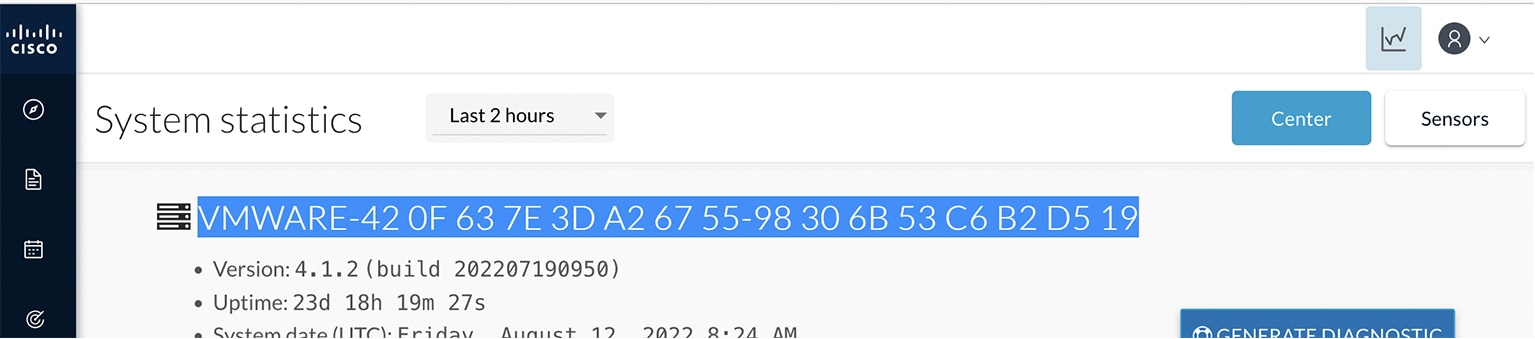
To update the license, you must retrieve the Center's serial number. You will find it accessing the System statistics page.

Step 2

Access the System statistics page using the button on the top right corner and copy the Center's serial number.

Step 3

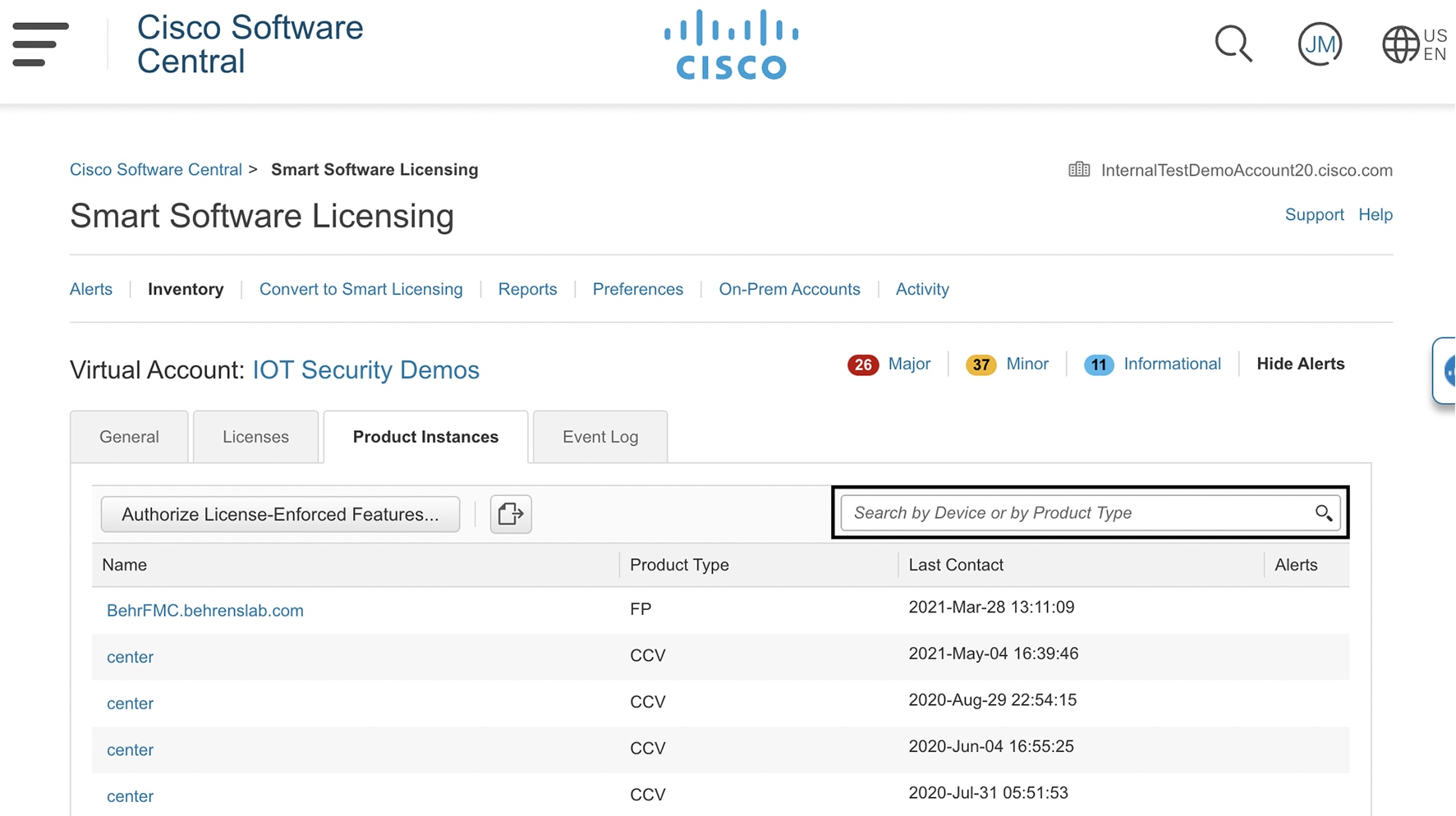
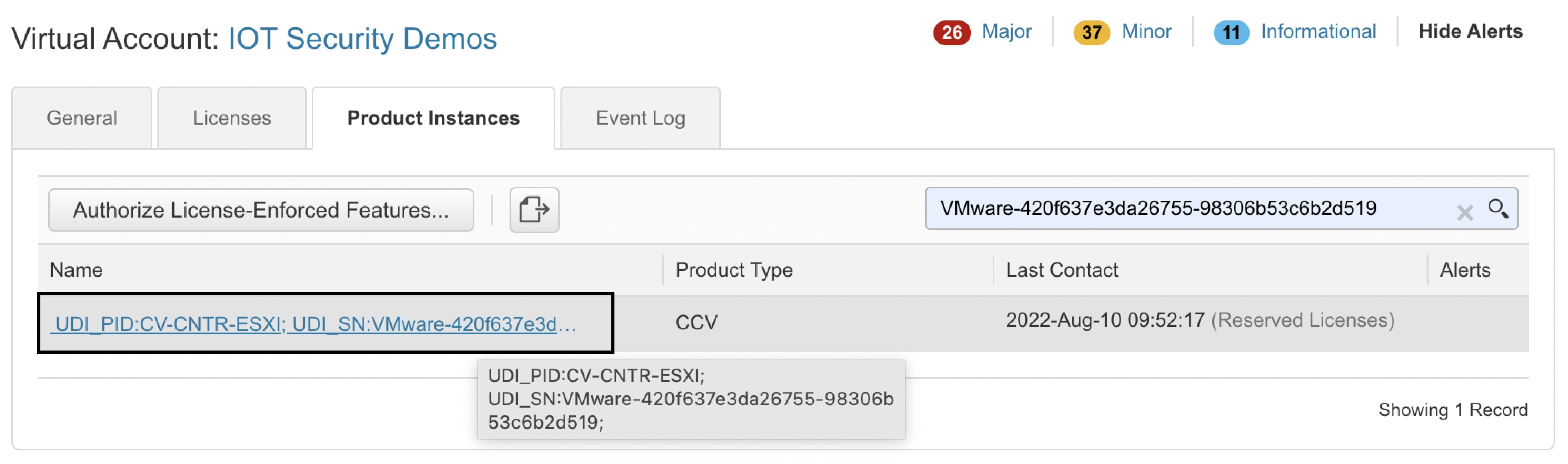
In CSSM or CSSM On-Prem, navigate to Inventory > Product Instances.

Step 4

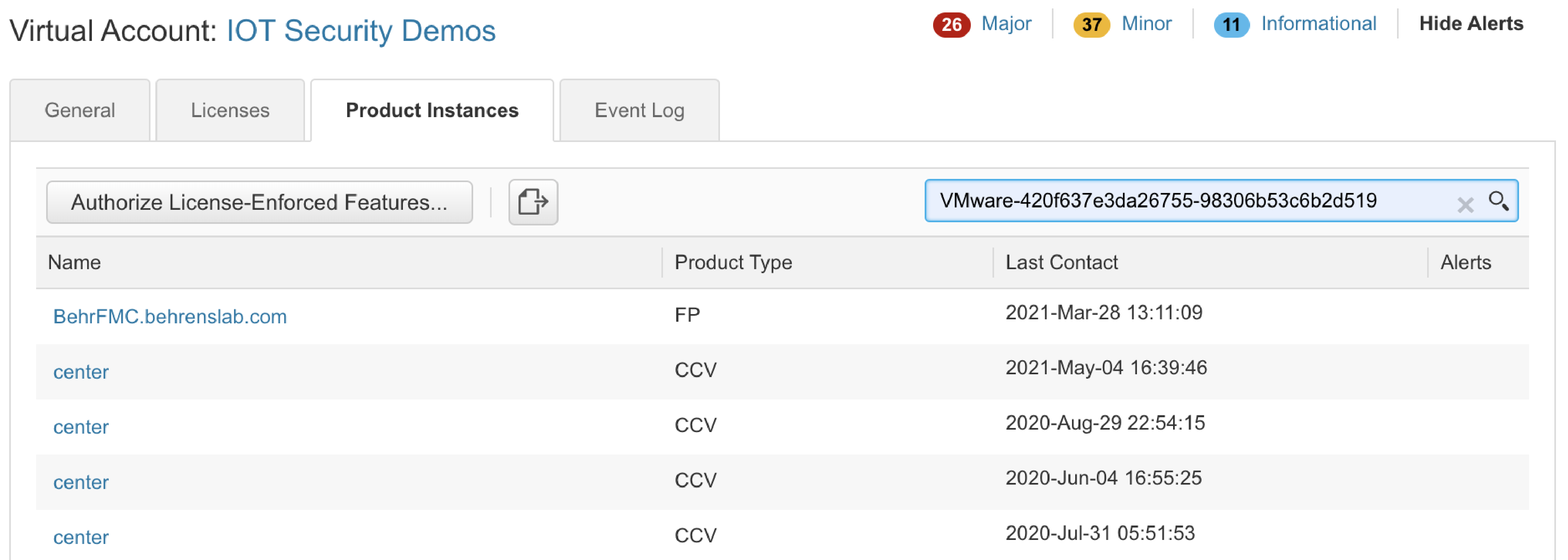
In the search field, paste the Center serial number.

Step 5

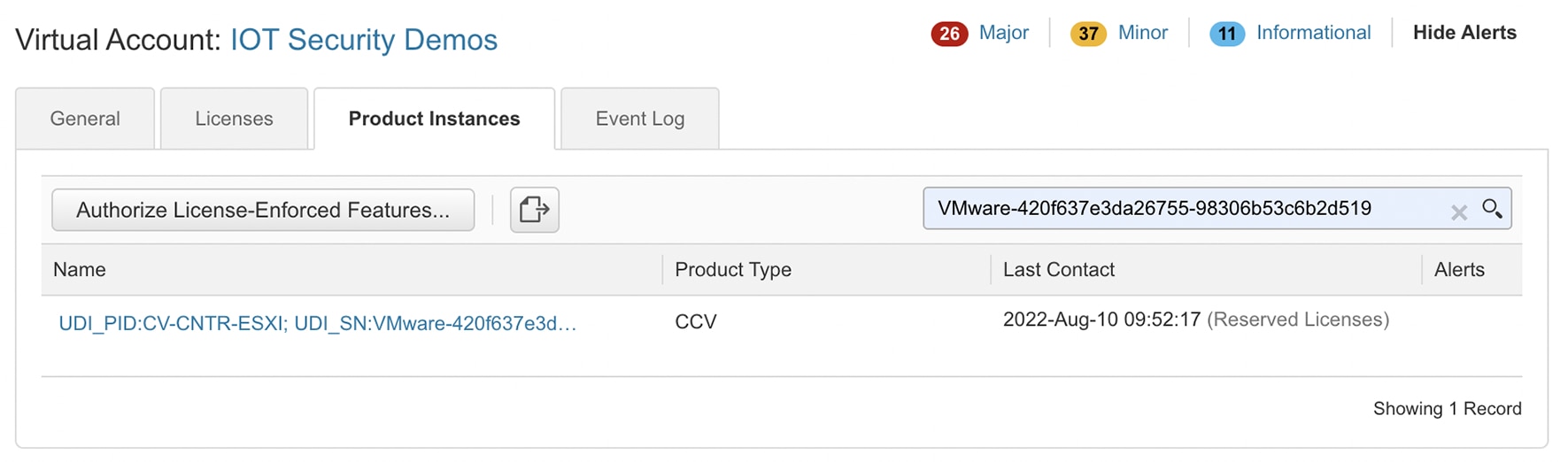
Remove all whitespaces from the serial number and search.

Your Center instance appears.

Step 6

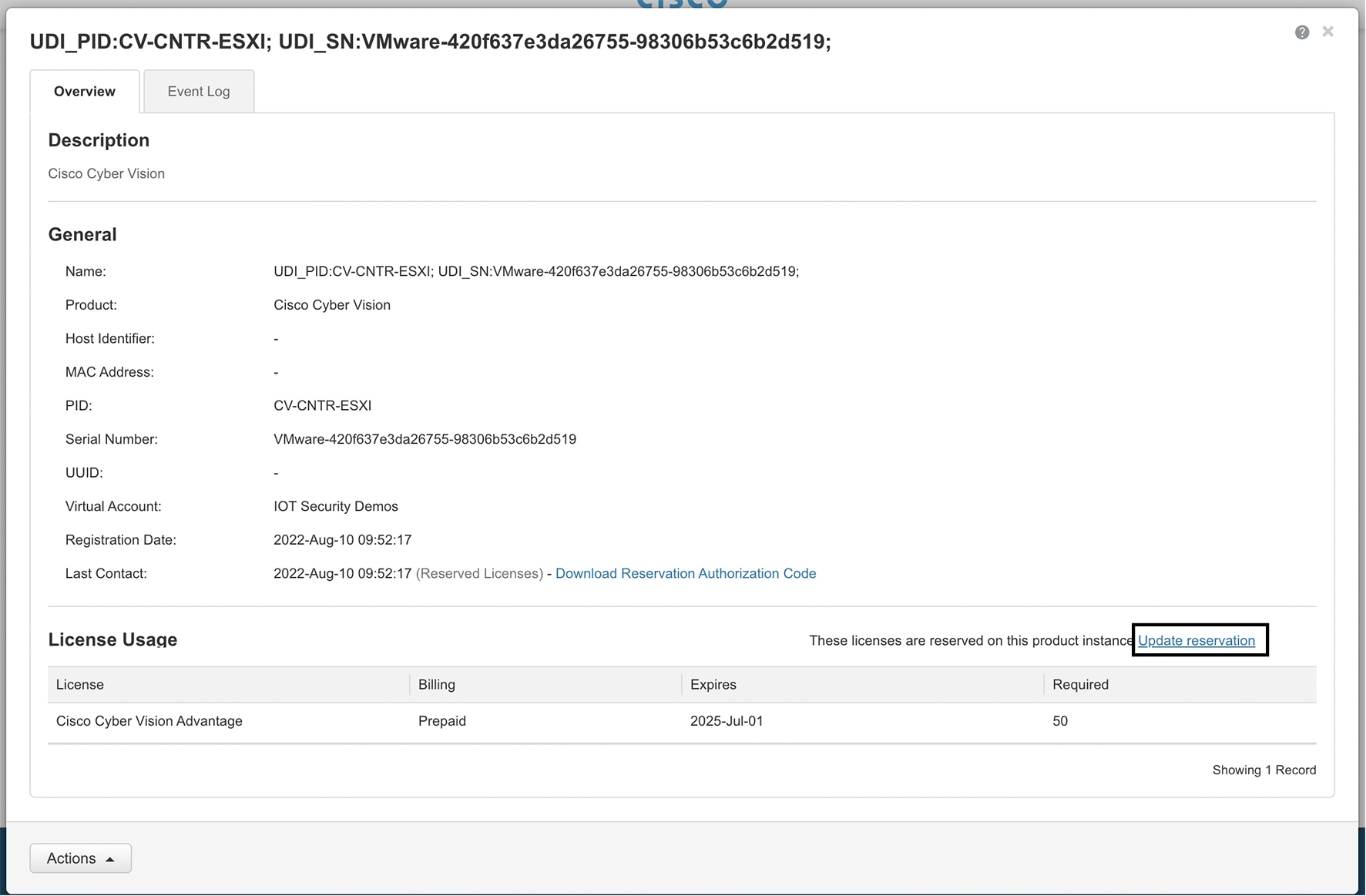
Click the Center instance's link.

The Center instance details window pops up.

Step 7

Click Update reservation.

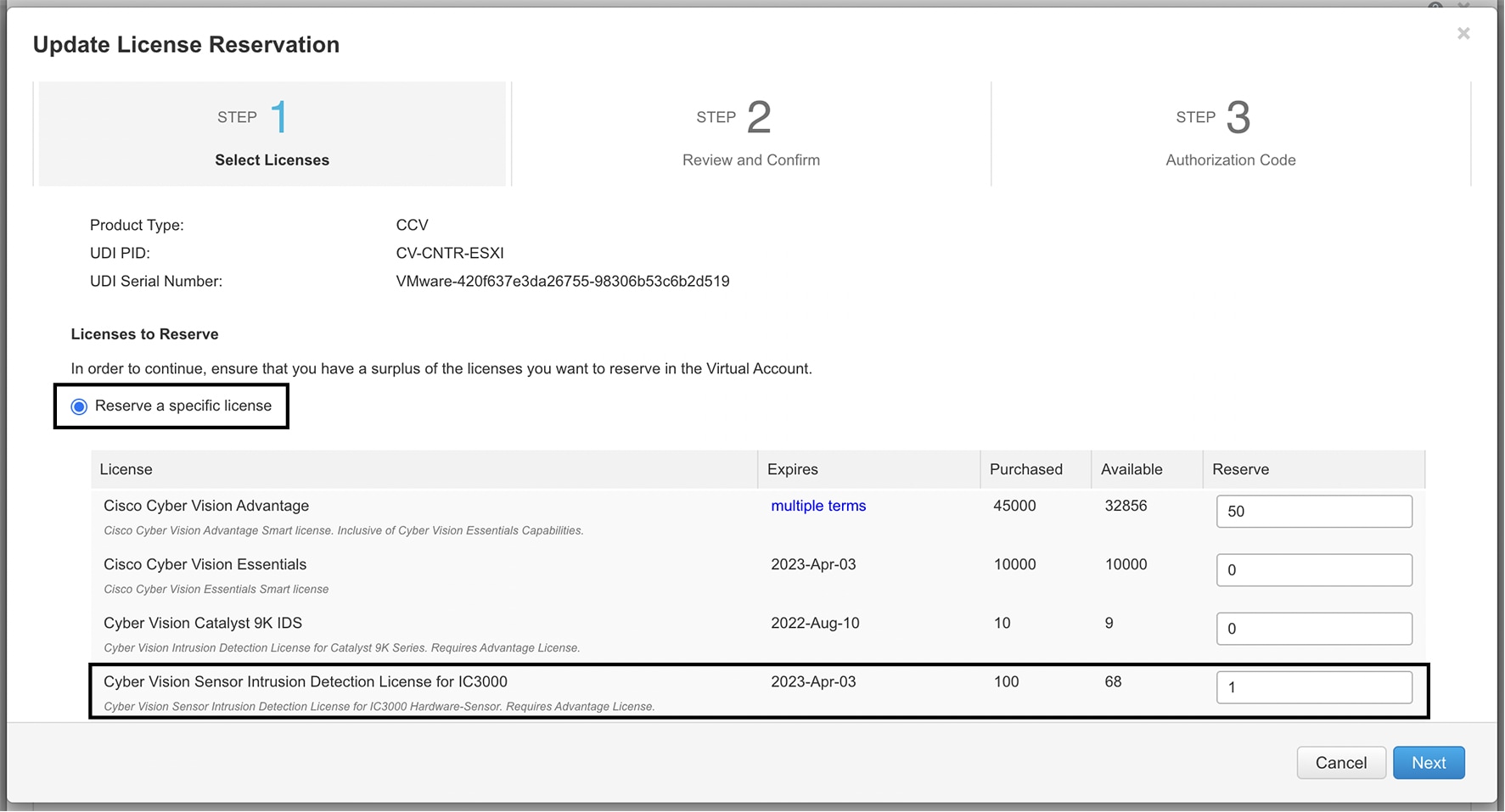
The Update License Reservation wizard pops up.

Step 8

In step 1, select Reserve a specific license.

Step 9

Reserve the number of tokens required for the corresponding license.

In our example, we reserve one token for the Cisco IC3000 license.

Step 10

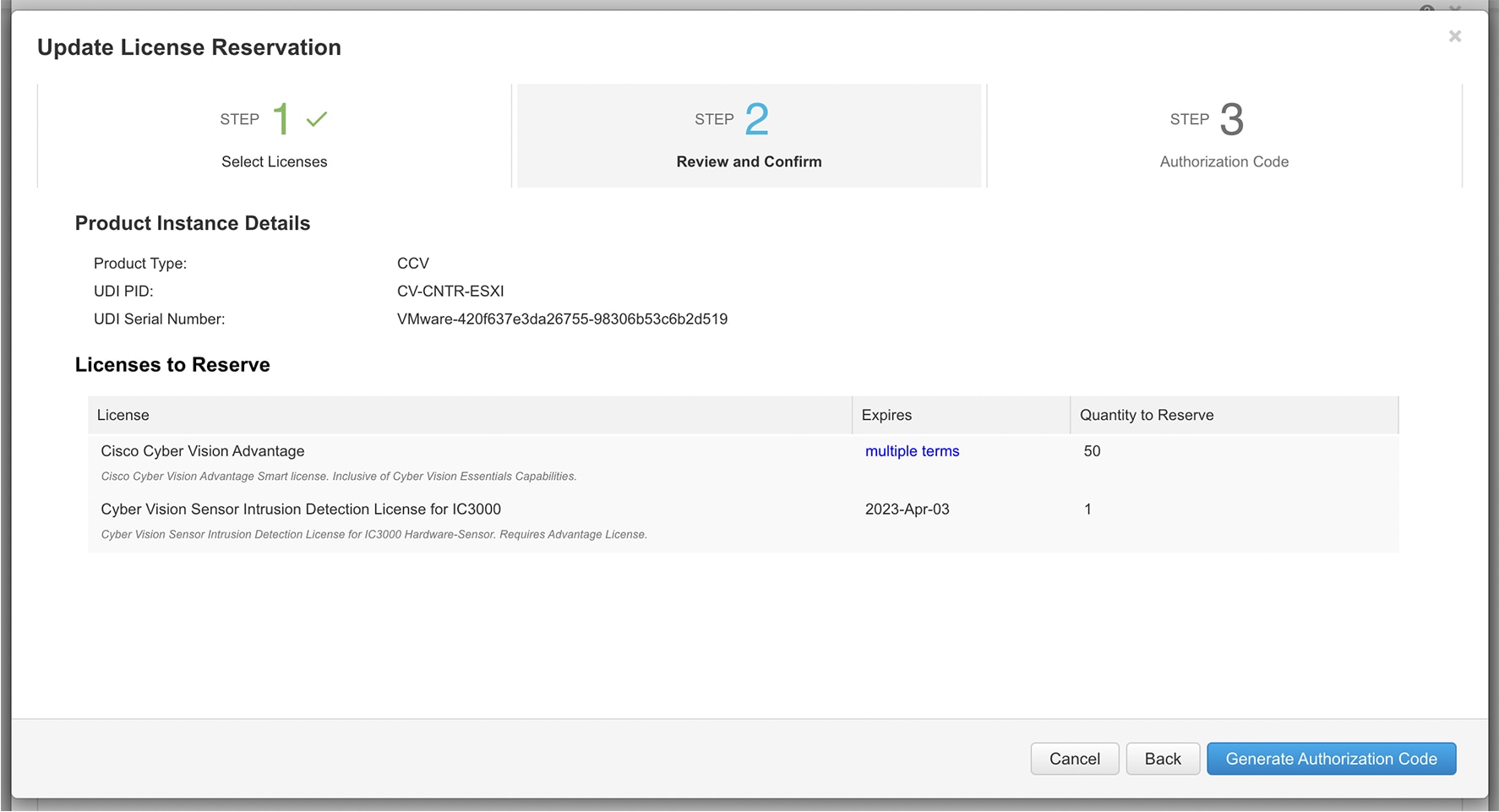
In step 2, check license reservations and click Generate Authorization Code.

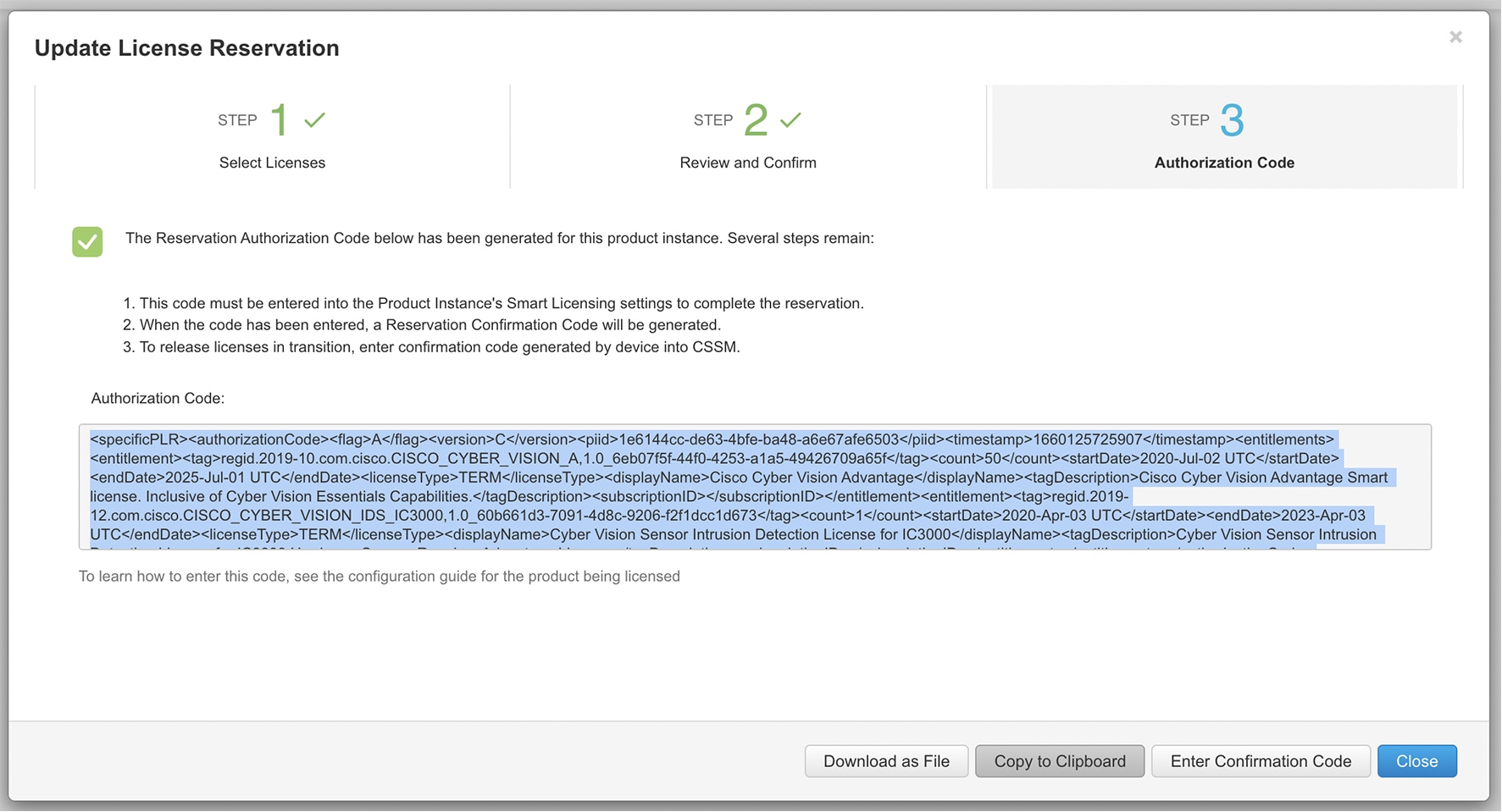
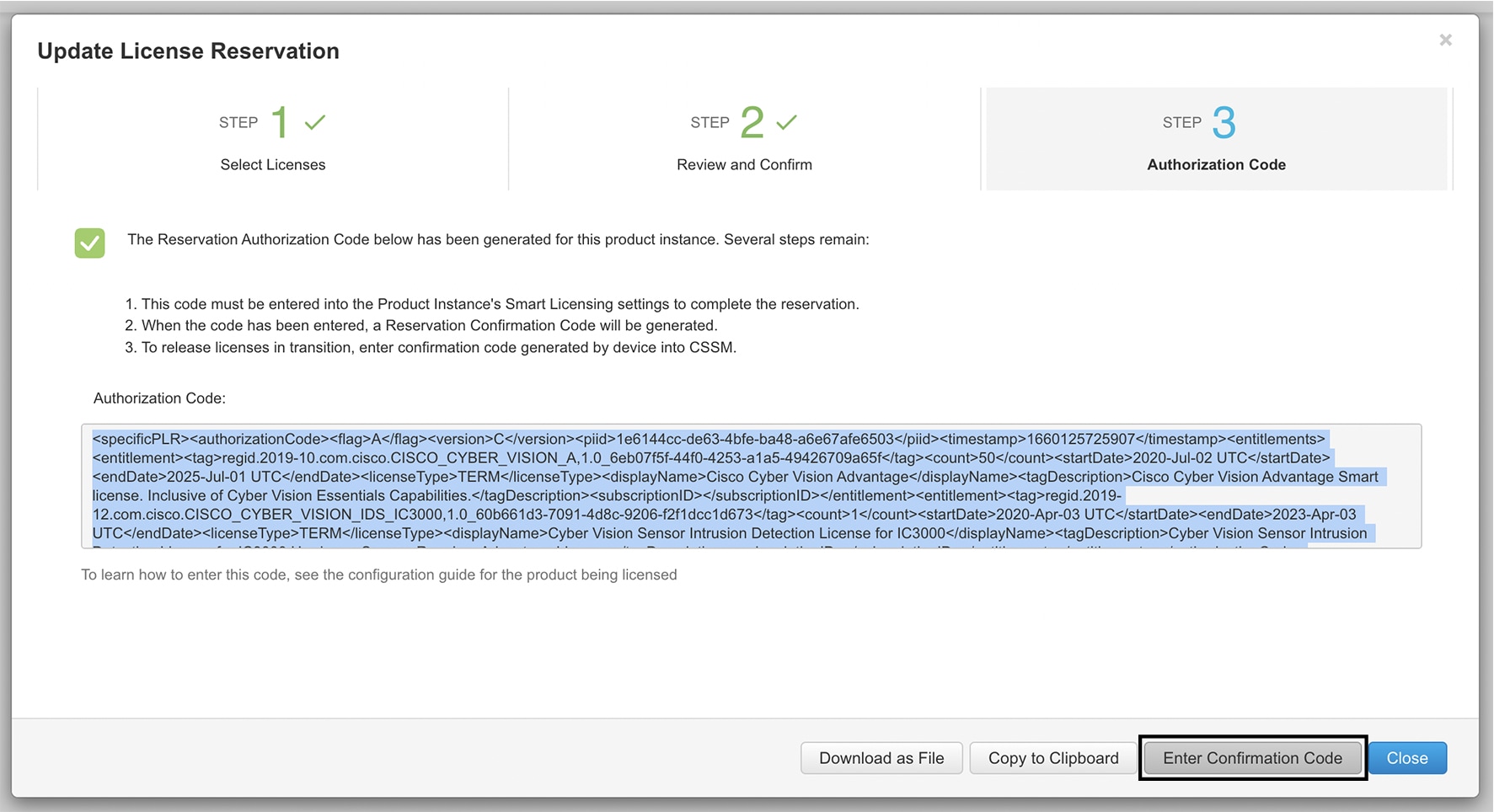
Step 11

In step 3, copy or save as a file the authorization code.

Do NOT close this window as this will be needed later to enter the Confirmation Code.


What to do next

Authorize the license reservation update in Cisco Cyber Vision.

Authorize the license reservation update in Cisco Cyber Vision

Procedure


Step 1

In Cisco Cyber Vision's Admin License page, click Update Reservation.

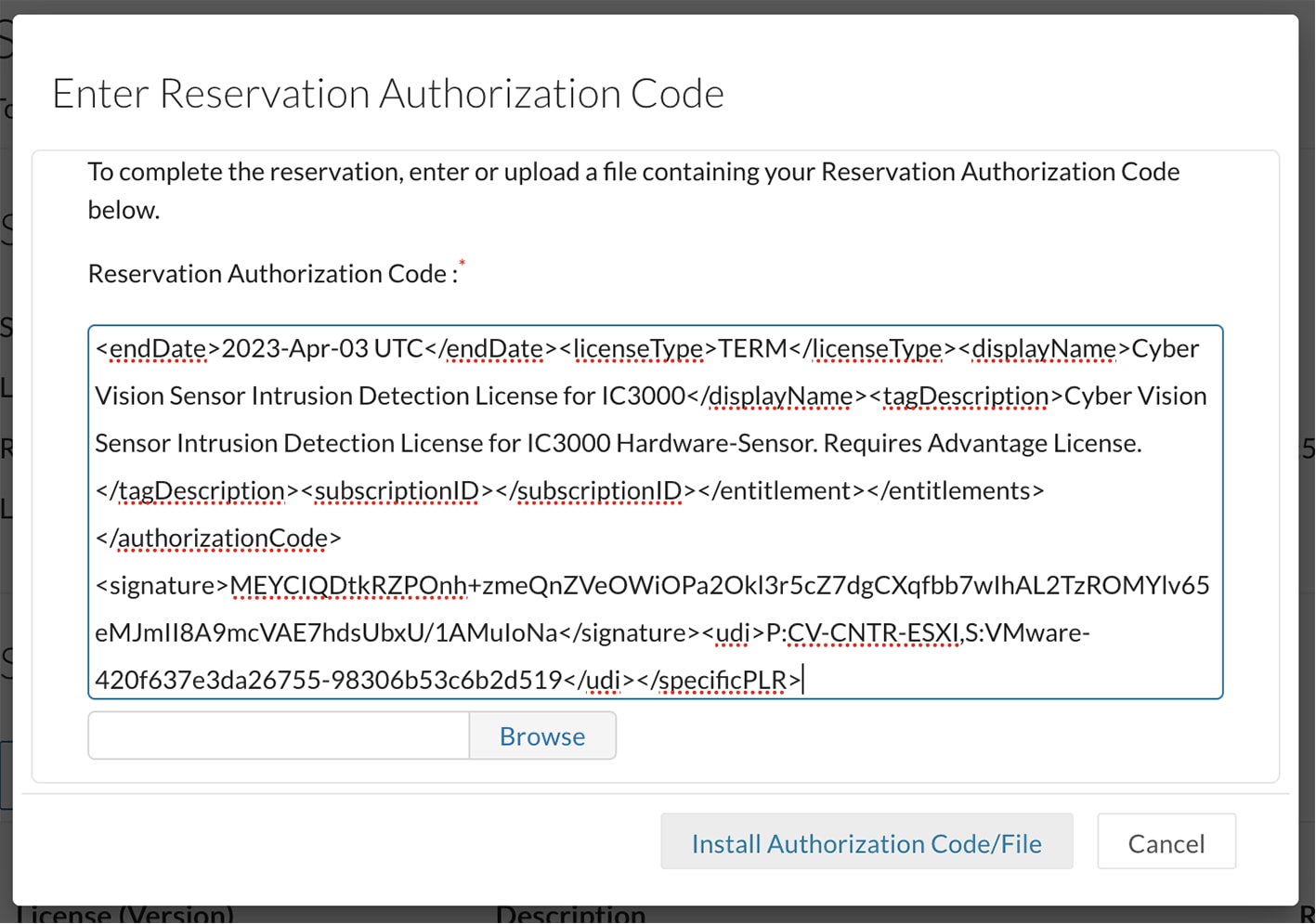
The Enter Reservation Authorization Code window pops up.

Step 2

Paste the code or upload the file previously retrieved in CSSM or CSSM On-Prem.

Step 3

Click Install Authorization Code/File.

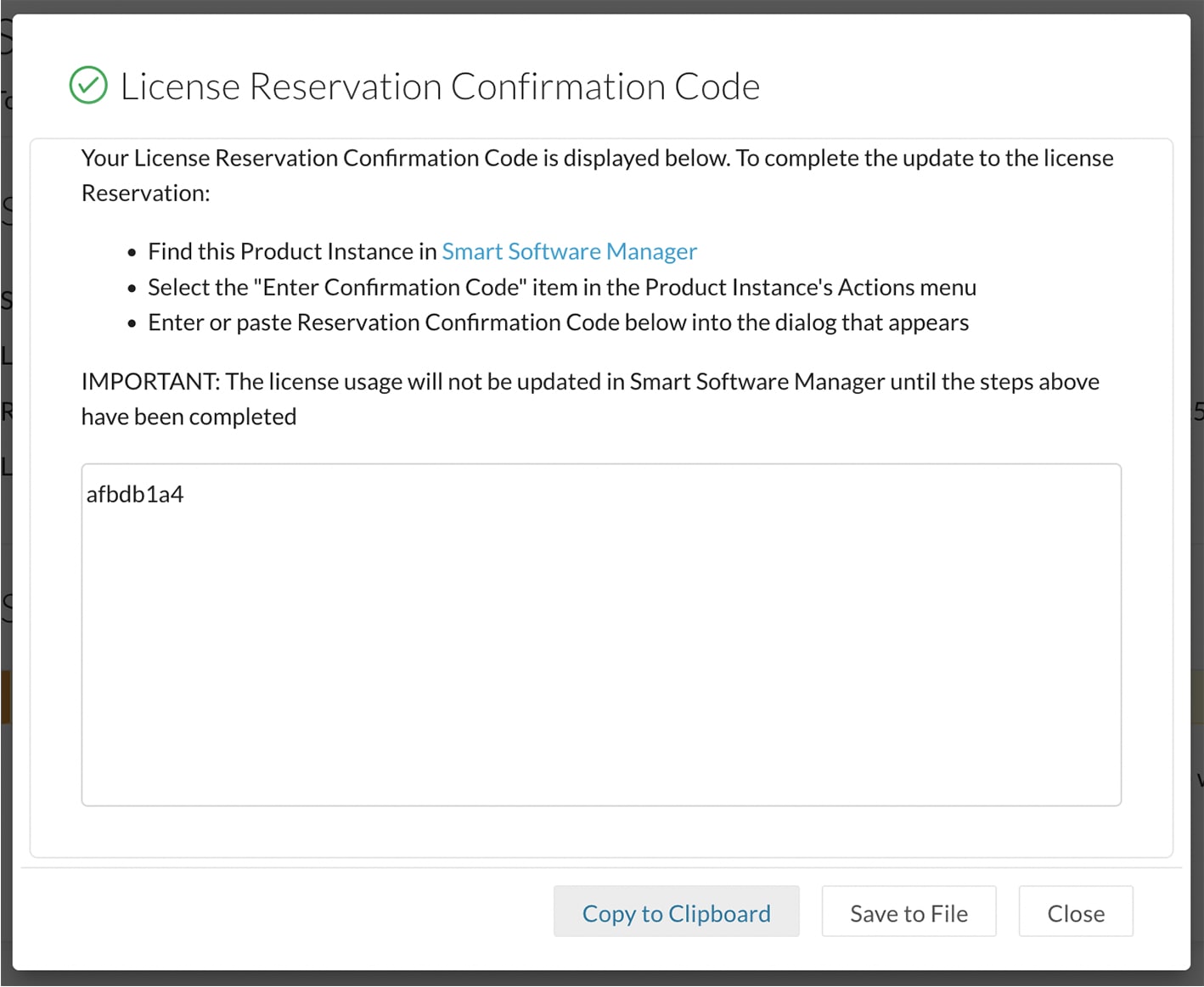
The License Reservation Confirmation Code window appears.


What to do next

Confirm the license reservation update.

Confirm the license reservation update

Procedure


Step 1

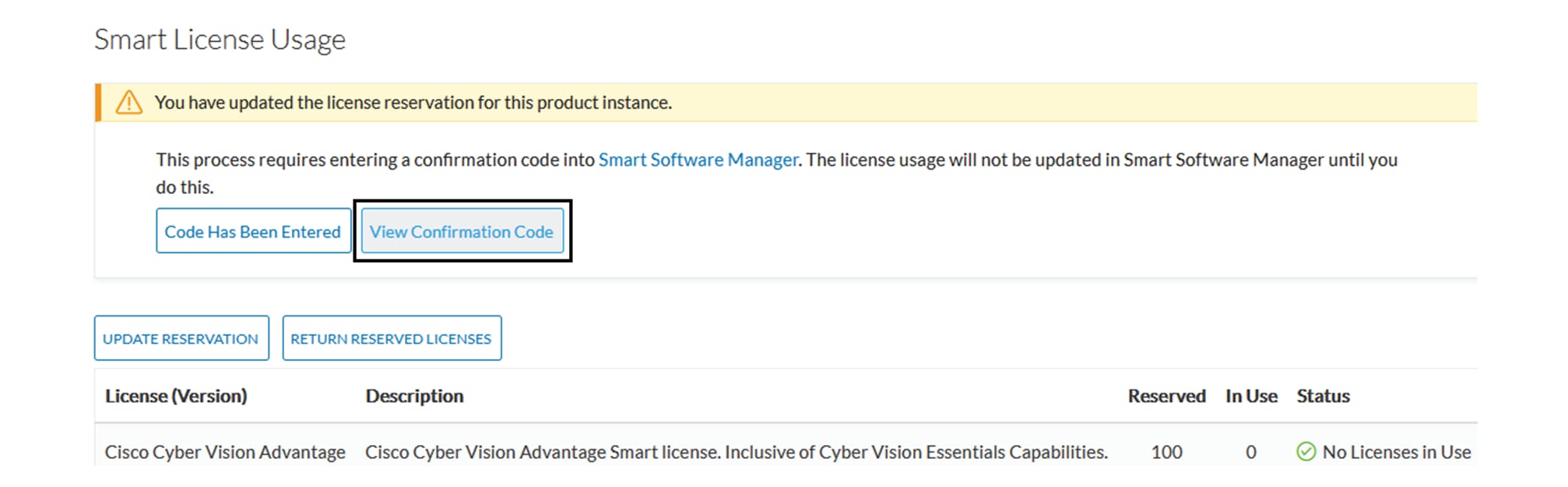
Copy the License Reservation Confirmation Code or save it to a file, then close the window.

A message indicating that the license reservation has been updated appears in the Cisco Cyber Vision License page.

Note 

You can use the View Confirmation Code button if needed.

Step 2

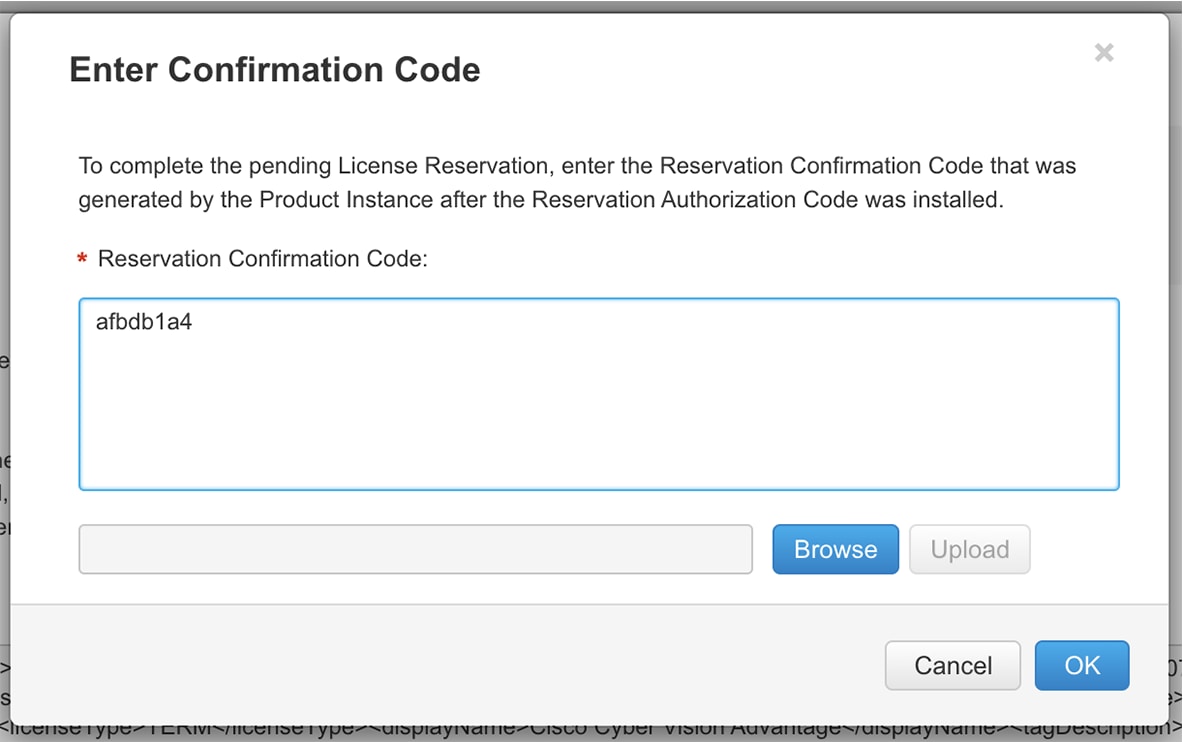
In CSSM or CSSM On-Prem, click Enter Confirmation Code.

Step 3

Paste the code or upload the file retrieved in Cisco Cyber Vision and click OK.

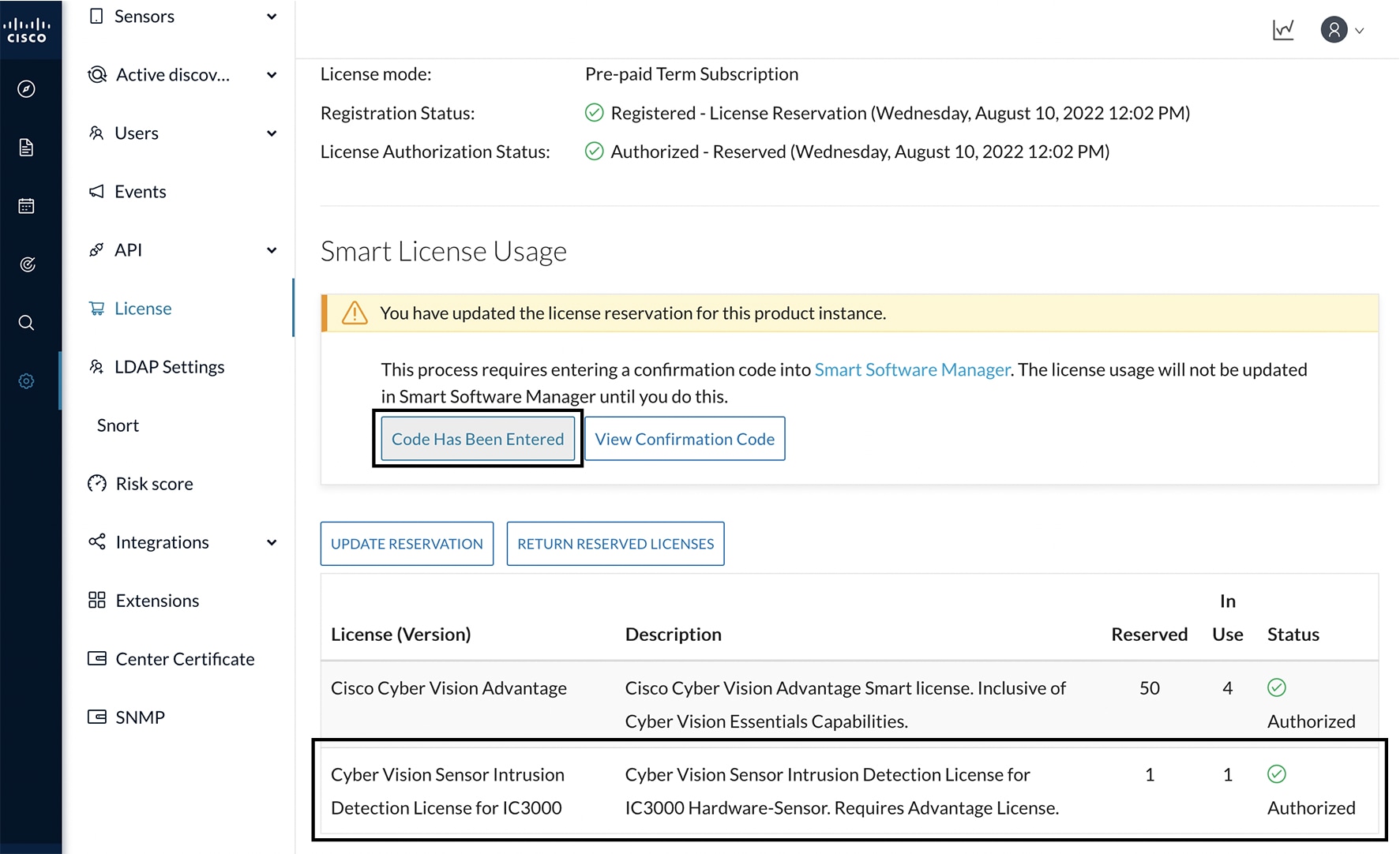
In Cisco Cyber Vision, the license status switched to authorized.

Step 4

Click Code Has Been Entered to clear the warning message.

The license token has been successfully updated and you can continue using Cisco Cyber Vision.


Return to evaluation mode

This section describes how to return to evaluation mode. To do so, you need first to deregister the Center from the offline reservation in Cisco Cyber Vision and then, to restore tokens in CSSM or CSSM On-Prem. Once back to evaluation mode, the 90-day countdown resumes where it has stopped. If the countdown has reached zero, access to Cisco Cyber Vision user interface will be prevented.

To deregister the Center:

Deregister the Center

Procedure


Step 1

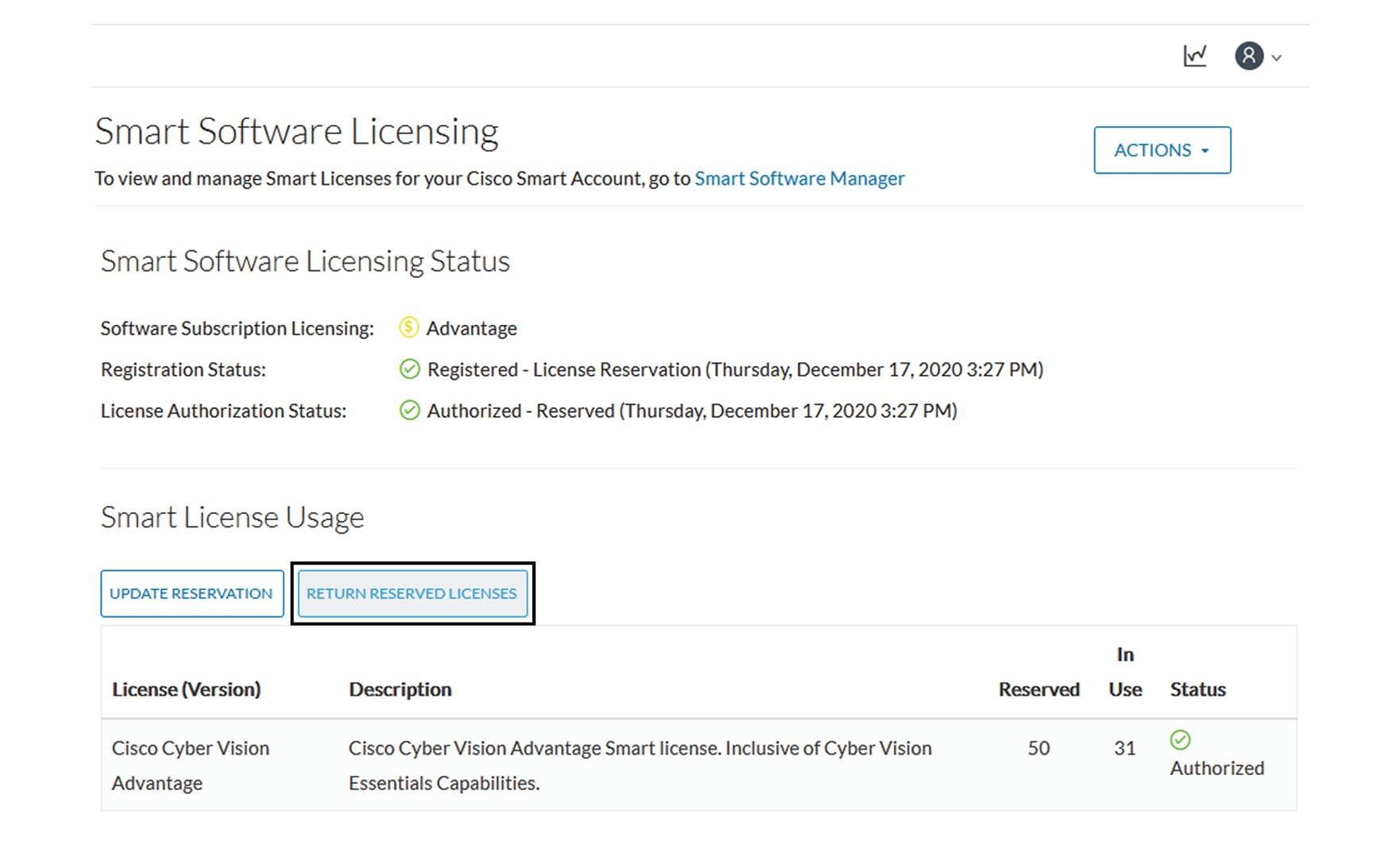
In Cisco Cyber Vision, click the button Return Reserved Licenses.

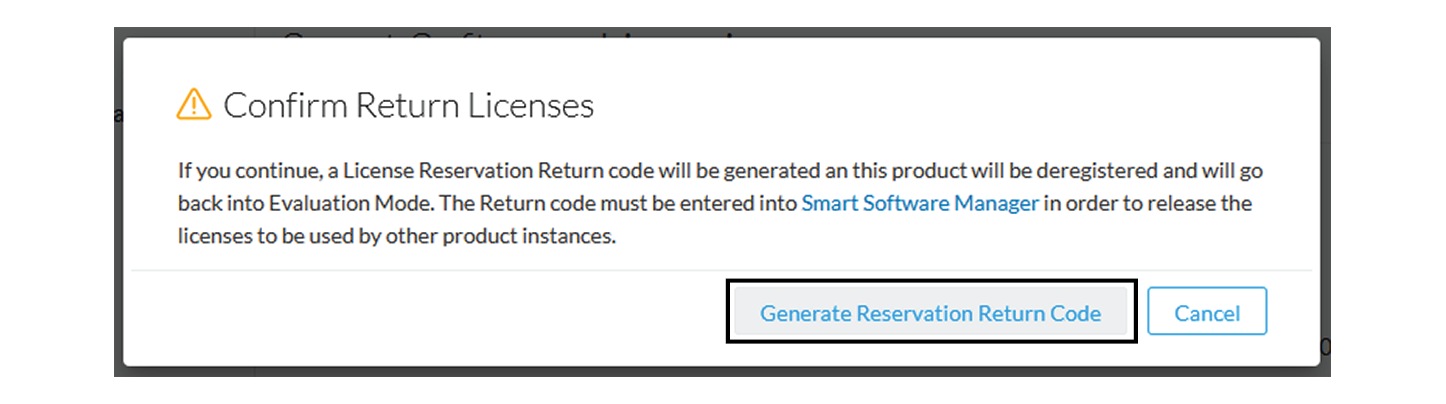
The Confirm Return Licenses window opens.

Step 2

Confirm the deregistration clicking the button Generate Reservation Return Code.

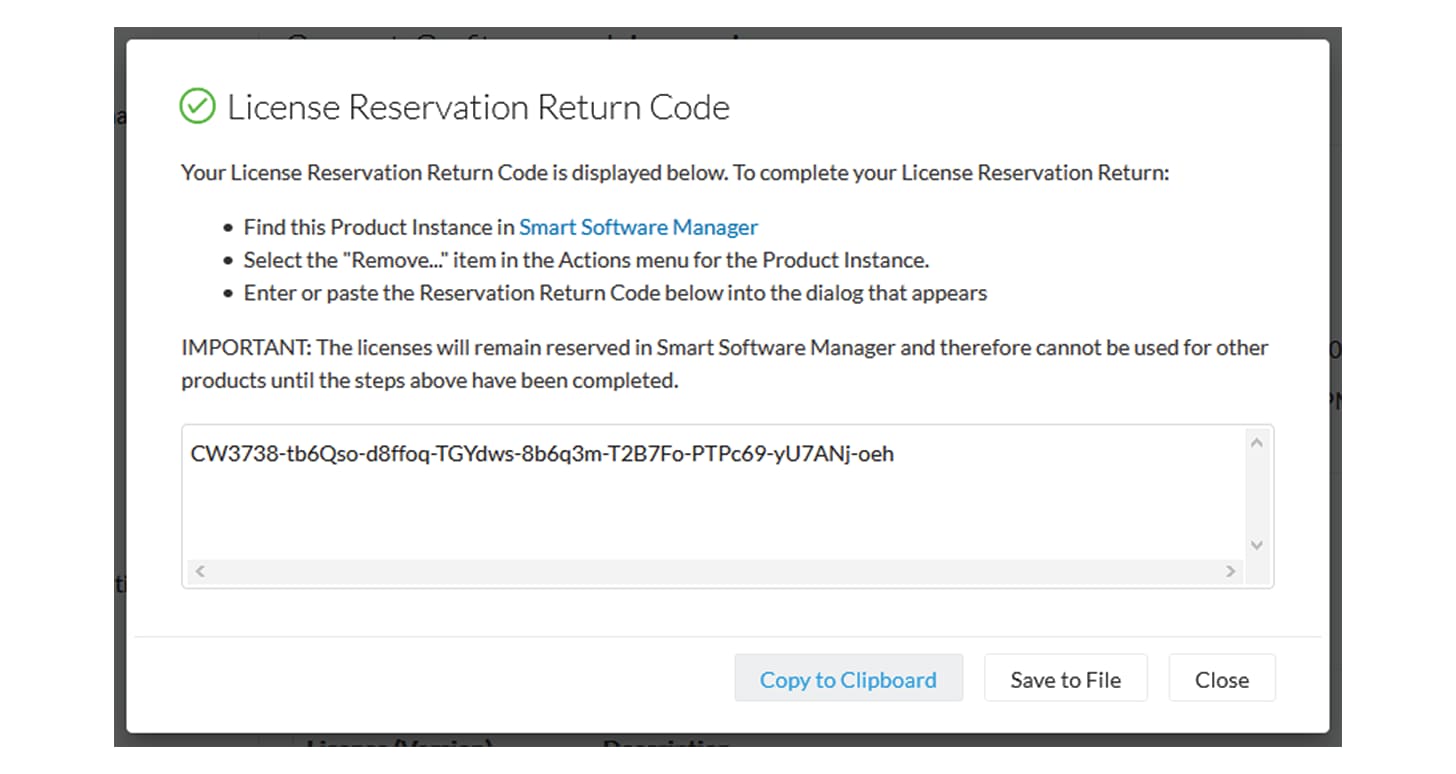
The Reservation Return Code is displayed.

Step 3

As you will need this code later in the procedure, copy it somewhere or click Save to file.

Cisco Cyber Vision switches to Evaluation mode.

However, since tokens are still in use in the Cisco Smart Accounting balance, you must proceed with the following steps to restore tokens.


Restore tokens in CSSM or CSSM On-Prem

Procedure


Step 1

In Cisco Software Central, navigate to Inventory > Product Instances.

Step 2

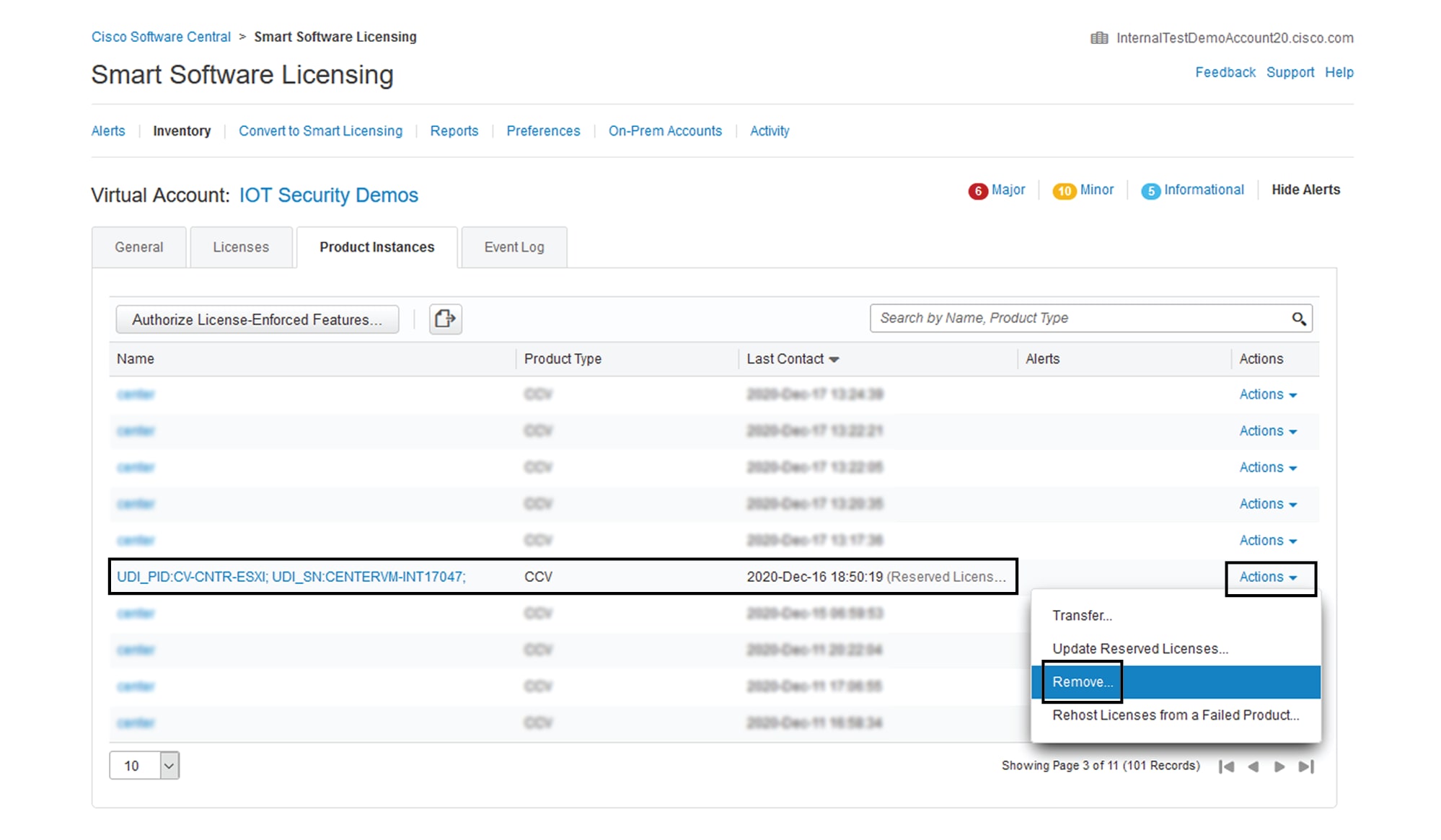
Search for your Center instance in the list and click Actions > Remove.

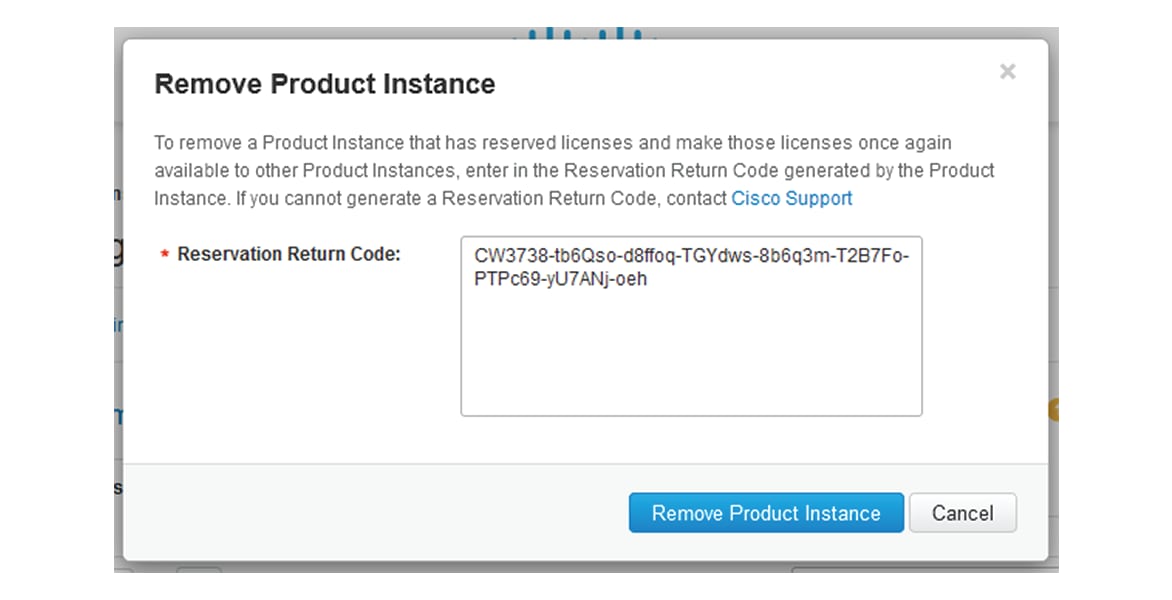
The Remove Product Instance pop up opens with the Reservation Return Code.

Step 3

Paste the Reservation Return Code previously retrieved and click Remove Product Instance.

The Center instance is no longer in the list and tokens are restored.