Get a license
Set Cisco Cyber Vision Center license
Before starting with license registration, make sure that the license type set is relevant to the Center usage. You can choose between Essentials and Advantage. Note that changing this setting can cause additional costs.
To set the Cisco Cyber Vision Center's license:
Procedure
| Step 1 |
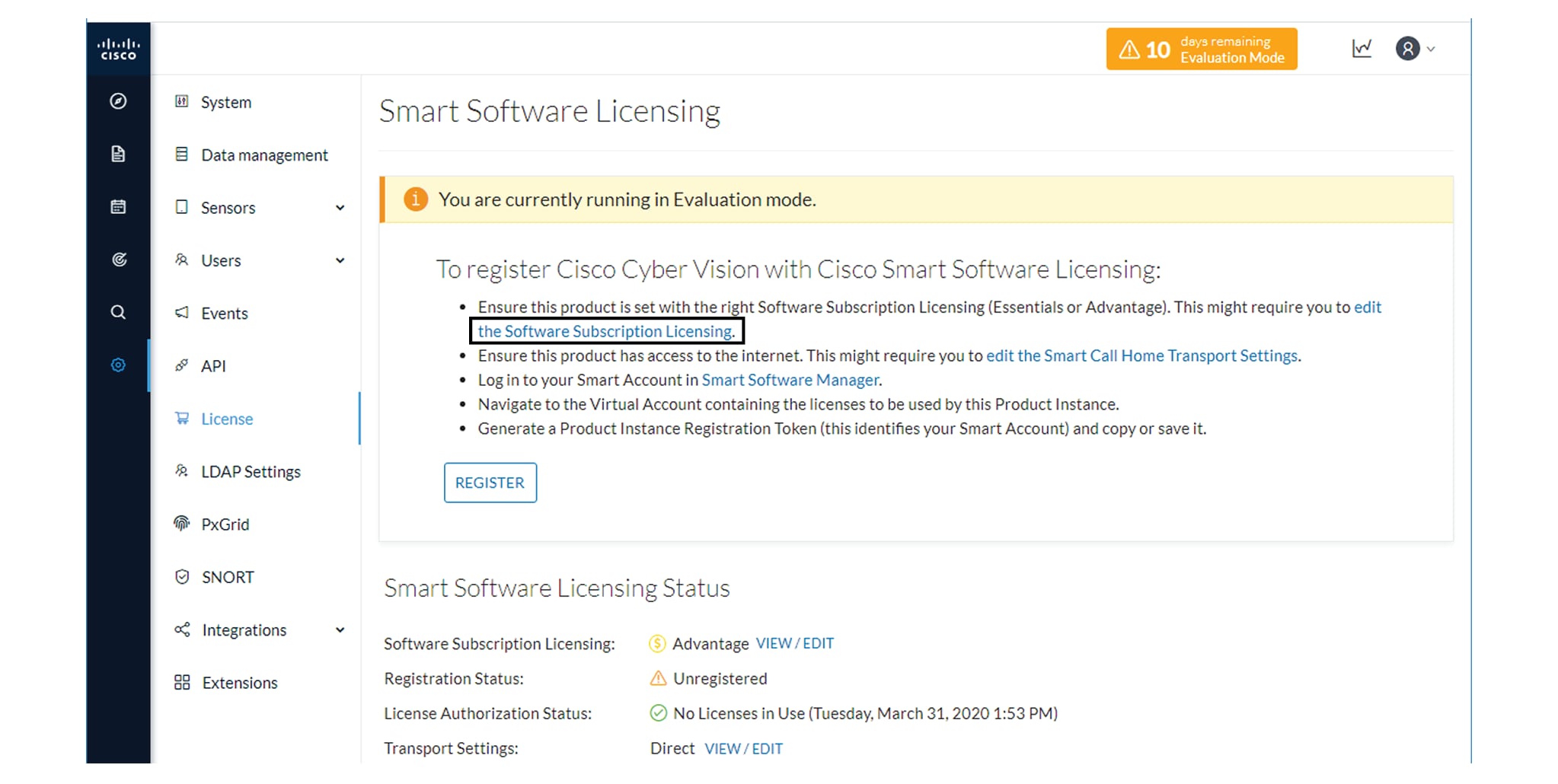
Navigate to System Administration > License. |
||
| Step 2 |
Click "edit the Software Subscription Licensing".
|
||
| Step 3 |
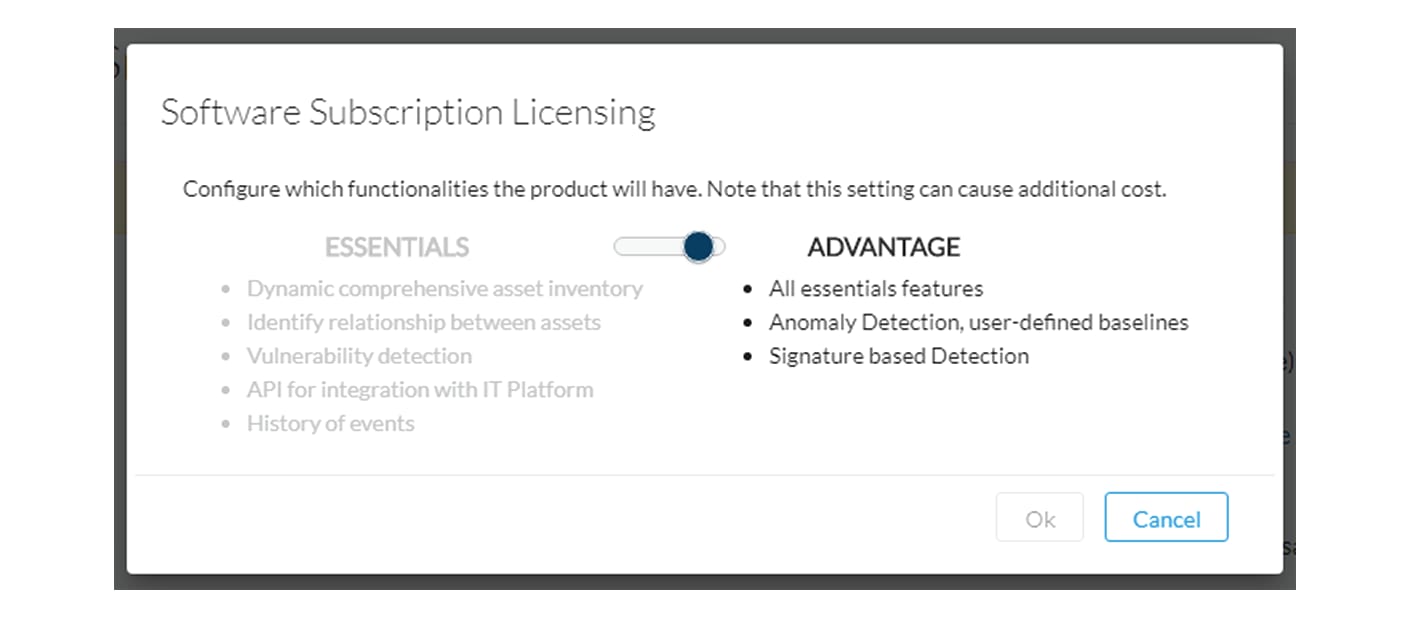
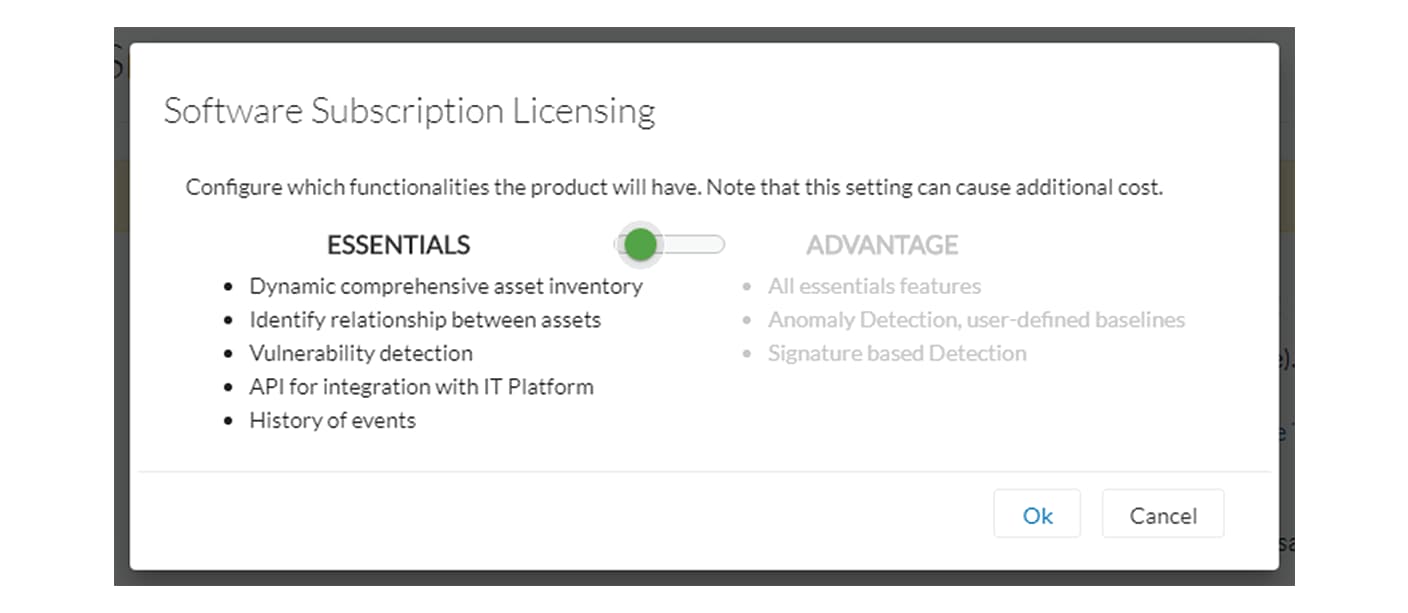
Toggle the button to select the license type (Essentials or Advantage).
|
Set transport mode
A network path to Cisco license server must be set so the Center can communicate directly or through a proxy with the cloud, or with an on-site satellite. This section explains how to set the transport mode accordingly.
-
In case of direct connection to the cloud or through a proxy, or if CSSM On-Prem is used (independently of the MSLA), refer to the Direct and proxy connection procedure.
-
If needed or if CSSM On-Prem is used as part of the Managed Service License Agreement (MSLA), refer to the Transport Gateway procedure.
Direct and proxy connection
Procedure
| Step 1 |
In Cisco Cyber Vision, click edit the Smart Call Home Transport Settings. 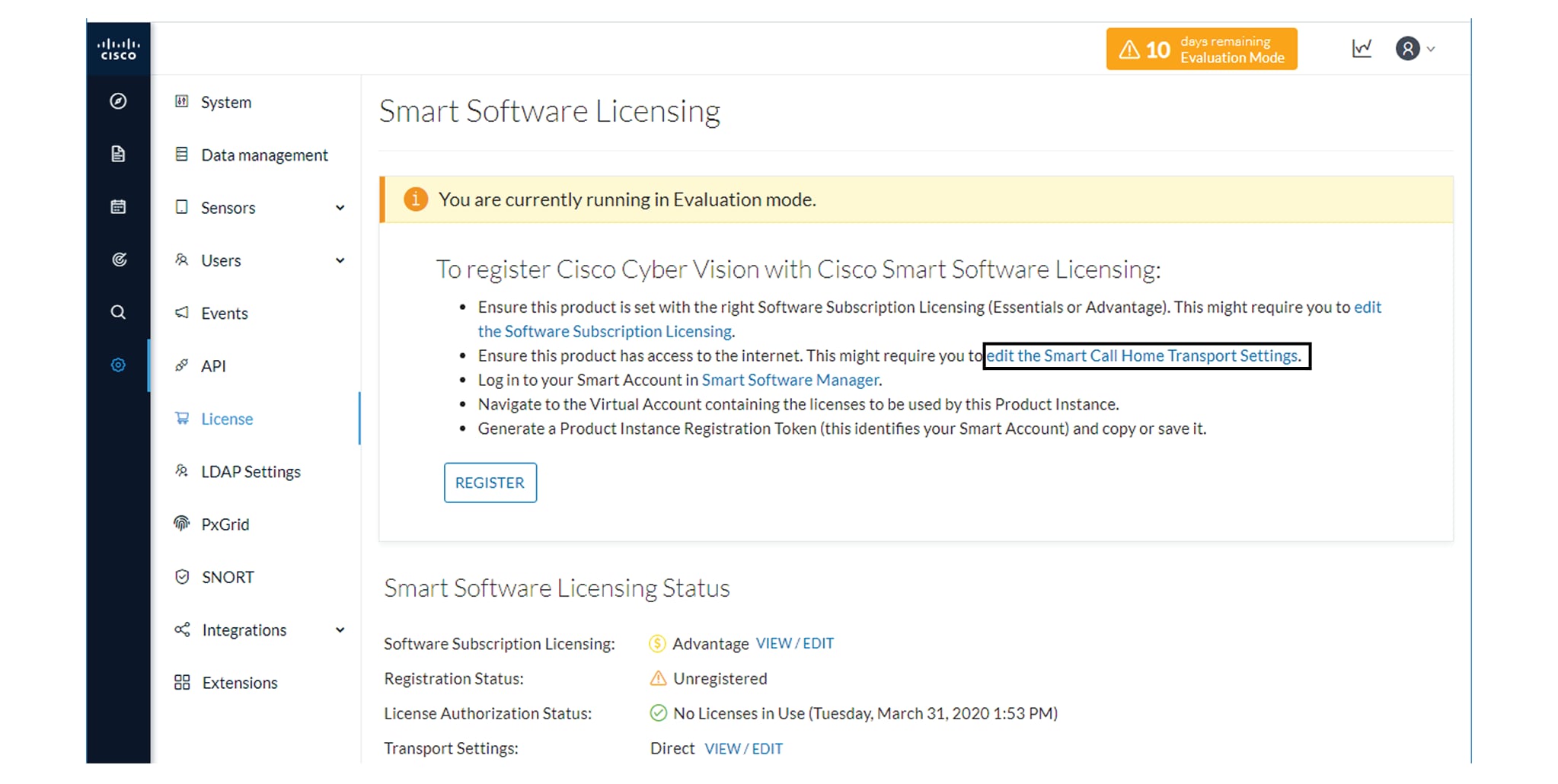 The transport settings window pops up. |
| Step 2 |
Select how the Cisco Cyber Vision Center will reach the CSSM (cloud).
|

Transport gateway
If required, or if the license is being deployed as part of the Managed Service License Agreement, set the transport mode as transport gateway.
To set the transport mode as transport gateway:
Procedure
| Step 1 |
In CSSM On-Prem, navigate to Smart Licensing > Inventory > General. |
| Step 2 |
Click the link Smart Transport Registration URL. 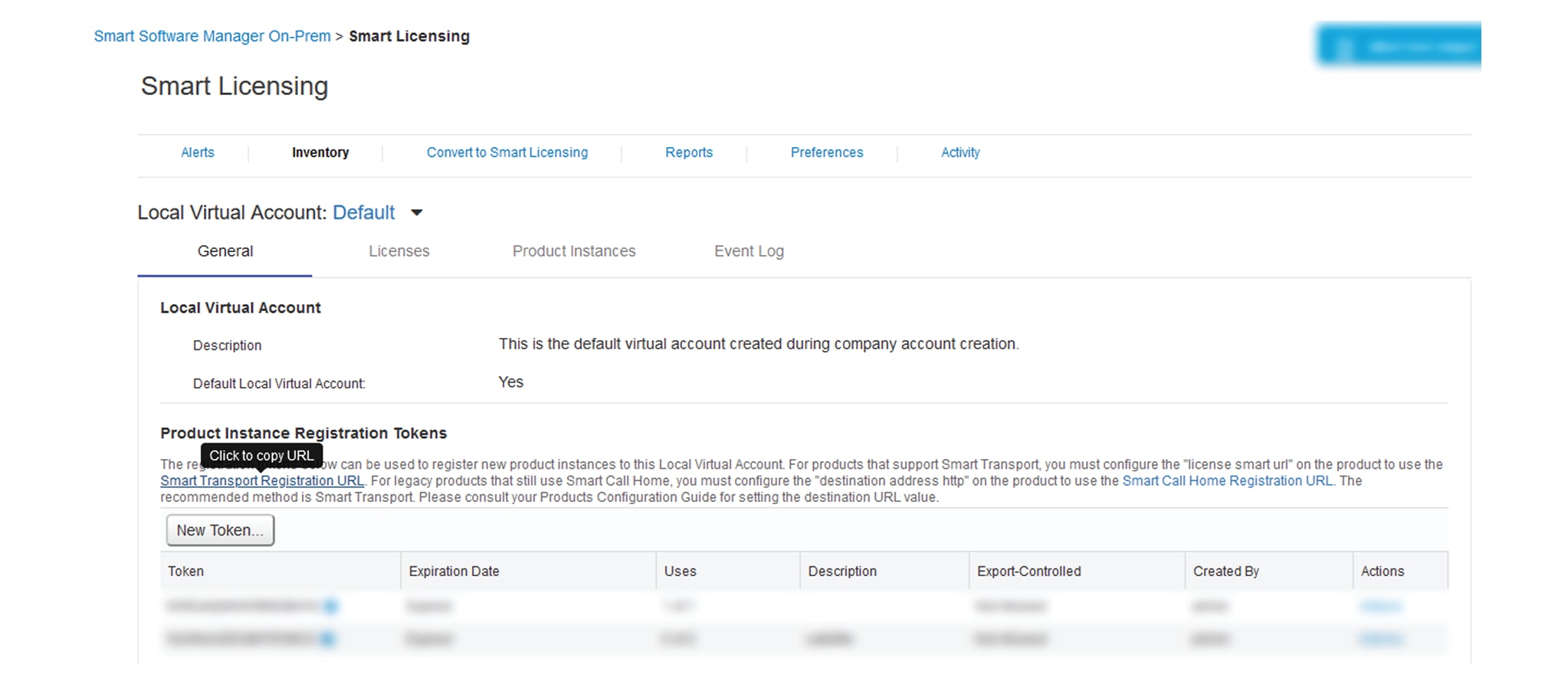 |
| Step 3 |
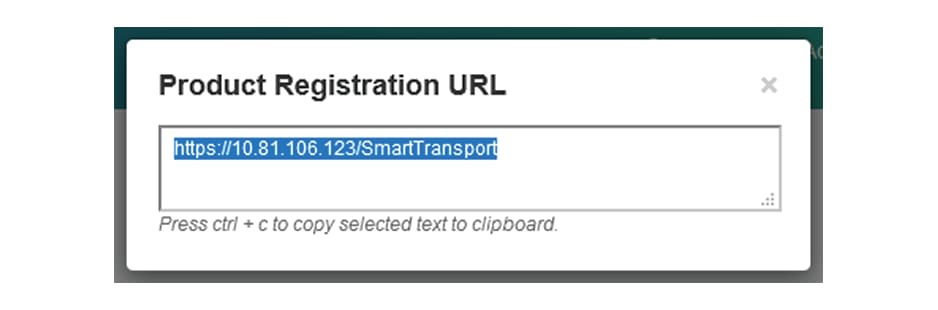
Copy the Product Registration URL that is displayed in the pop-up.
|
| Step 4 |
In Cisco Cyber Vision > Admin > License, click the link edit the Smart Call Home Transport Settings. 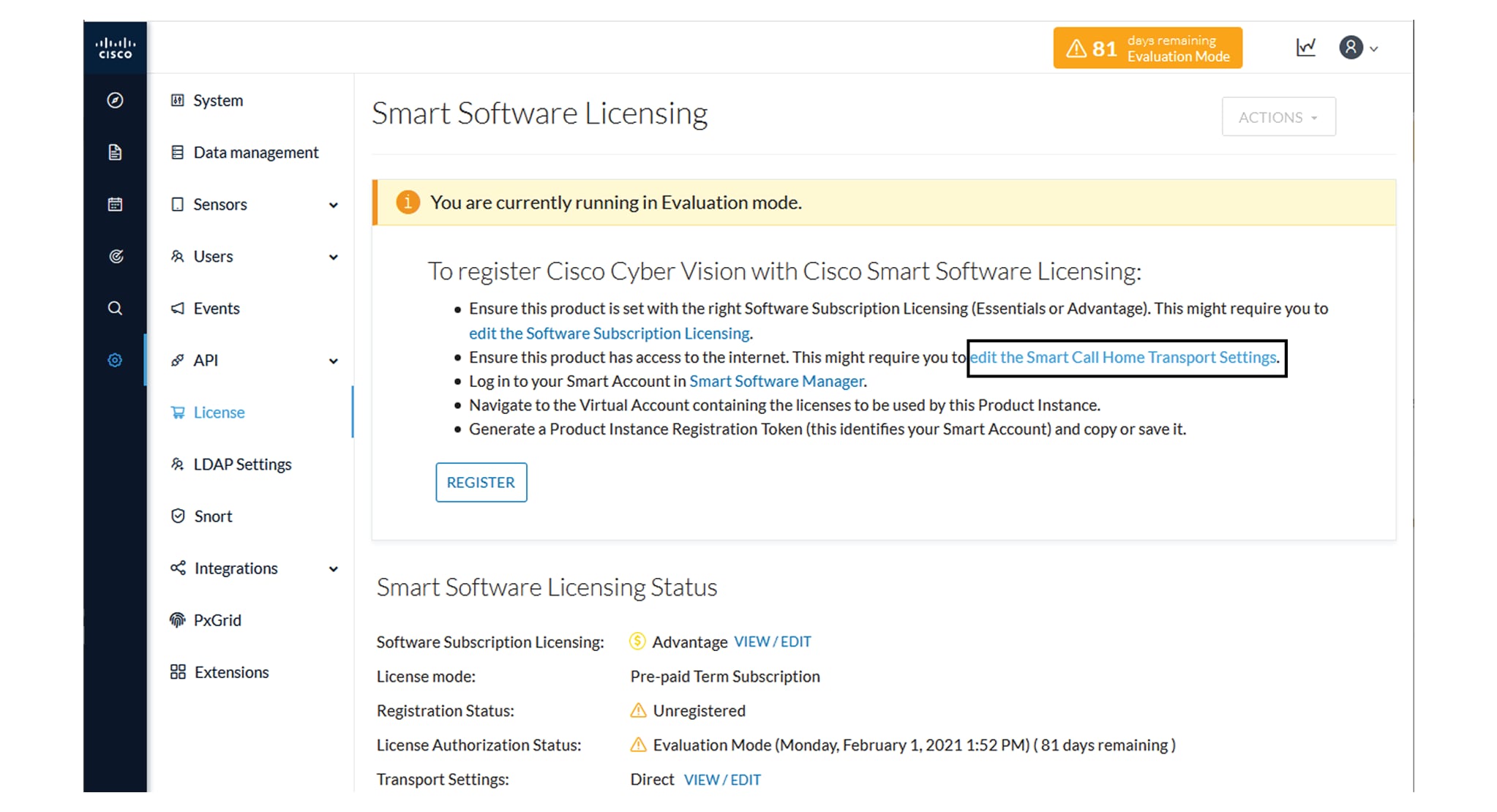 The Transport settings window pops up. |
| Step 5 |
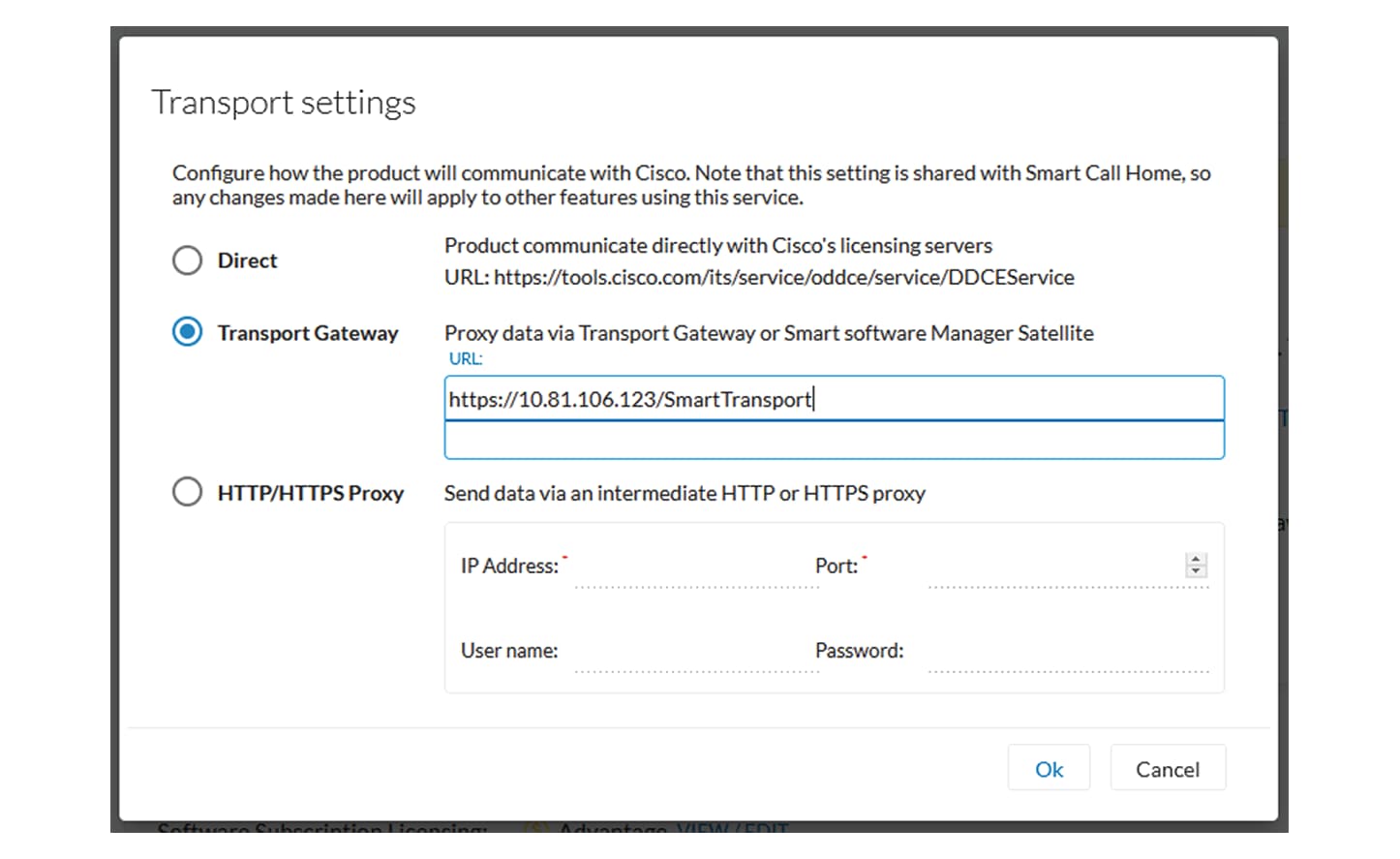
Select Transport Gateway and paste the Product Registration URL.
|
| Step 6 |
Click Ok. |
| Step 7 |
In the license administration page of Cisco Cyber Vision, check that the transport mode is set to Transport Gateway.
|

Set license payment mode (MSLA only)
This section is only applicable in the case of a Managed Service License Agreement.
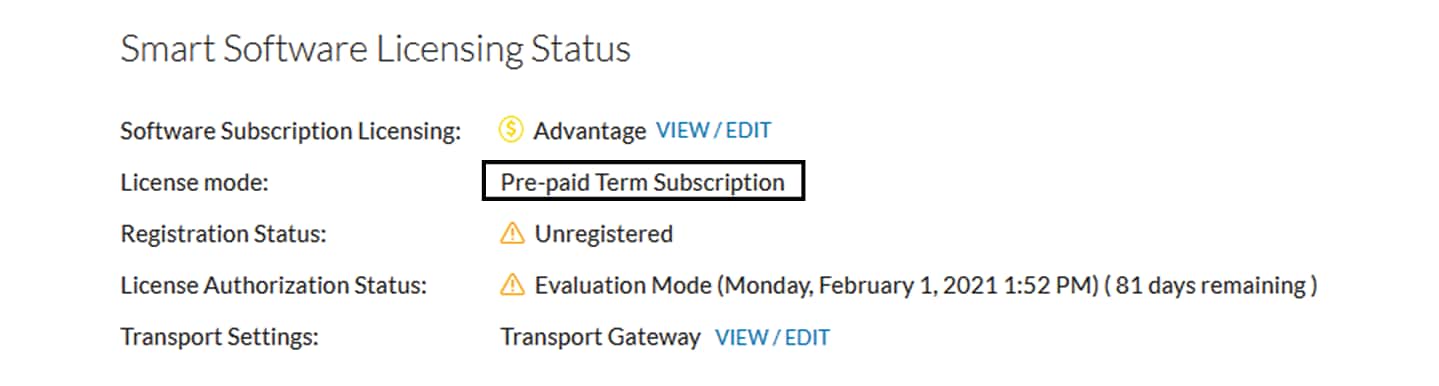
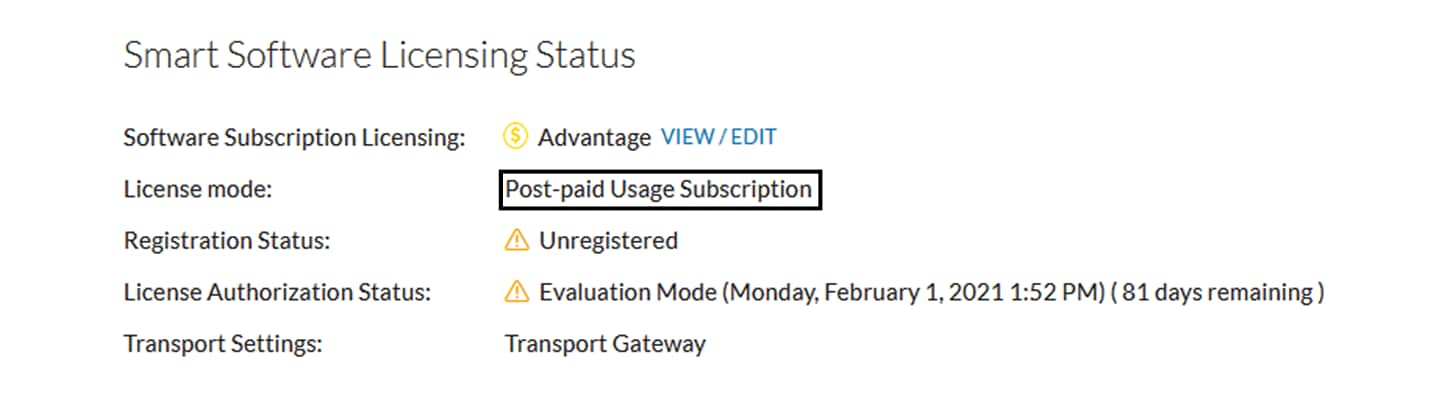
To set the license mode to Post-paid Usage Subscription (MSLA only):
Procedure
| Step 1 |
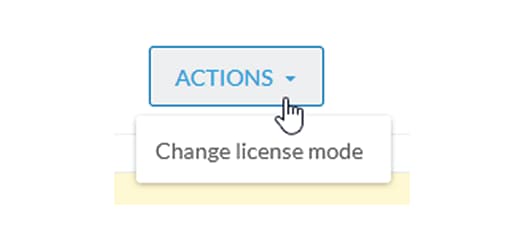
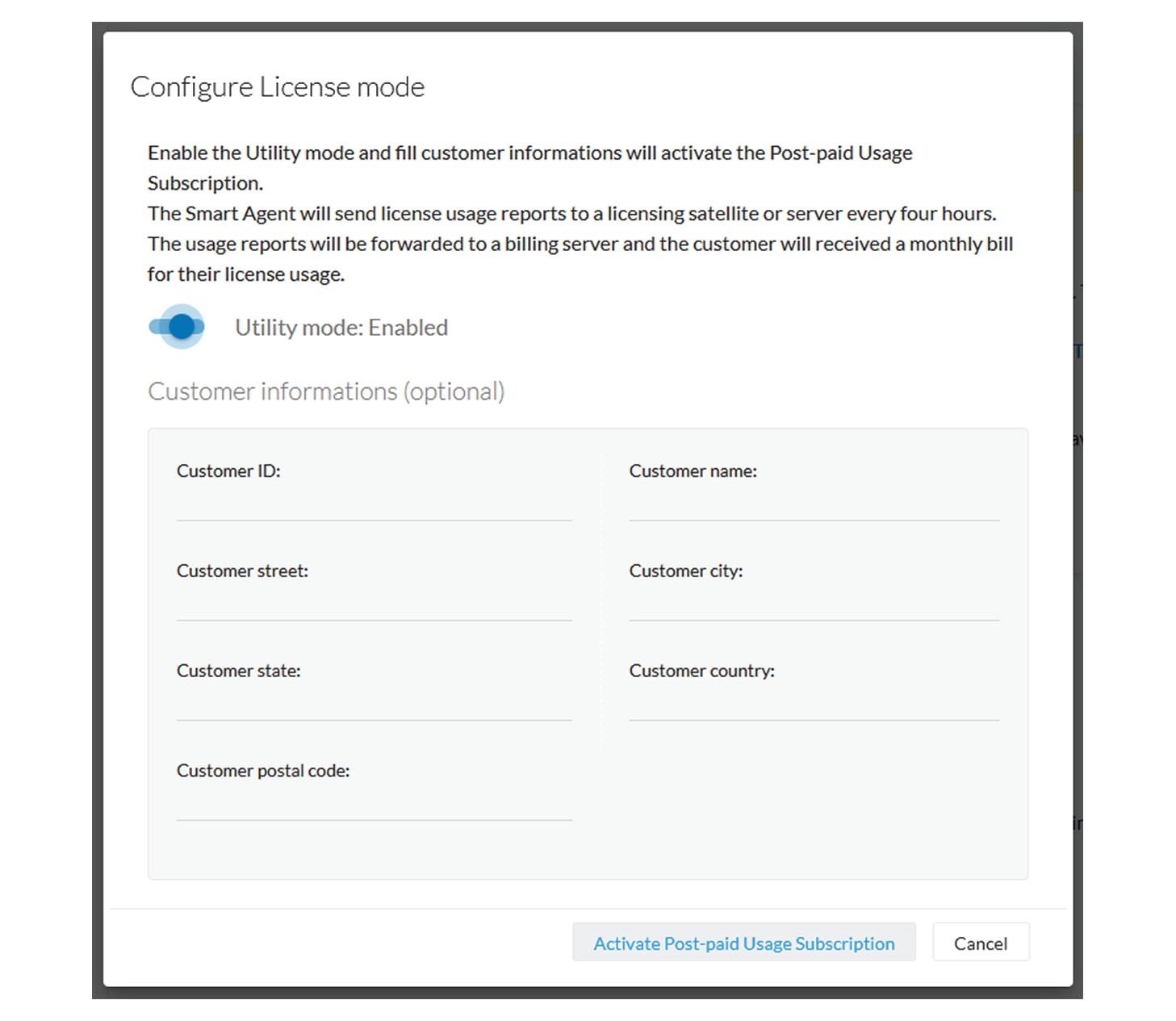
In Cisco Cyber Vision, click the Actions button located at the top right corner of the license administration page, and click Change License mode.
The Configure License mode window pops up. |
| Step 2 |
Use the toggle button to enable the utility mode.
|
| Step 3 |
Click Activate Post-paid Usage Subscription. In the license administration page, check that the license mode is set to Post-paid Usage Subscription.
|
Create a token
This section describes how to create a license token, set its expiration date and maximum number of use.
 Note |
As CSSM and CSSM On-Prem are equivalent products and have similar aspects, only screenshots of CSSM are shown in the procedure described below. |
To create a token:
Procedure
| Step 1 |
Access and log in to the CSSM (or CSSM On-Prem). |
| Step 2 |
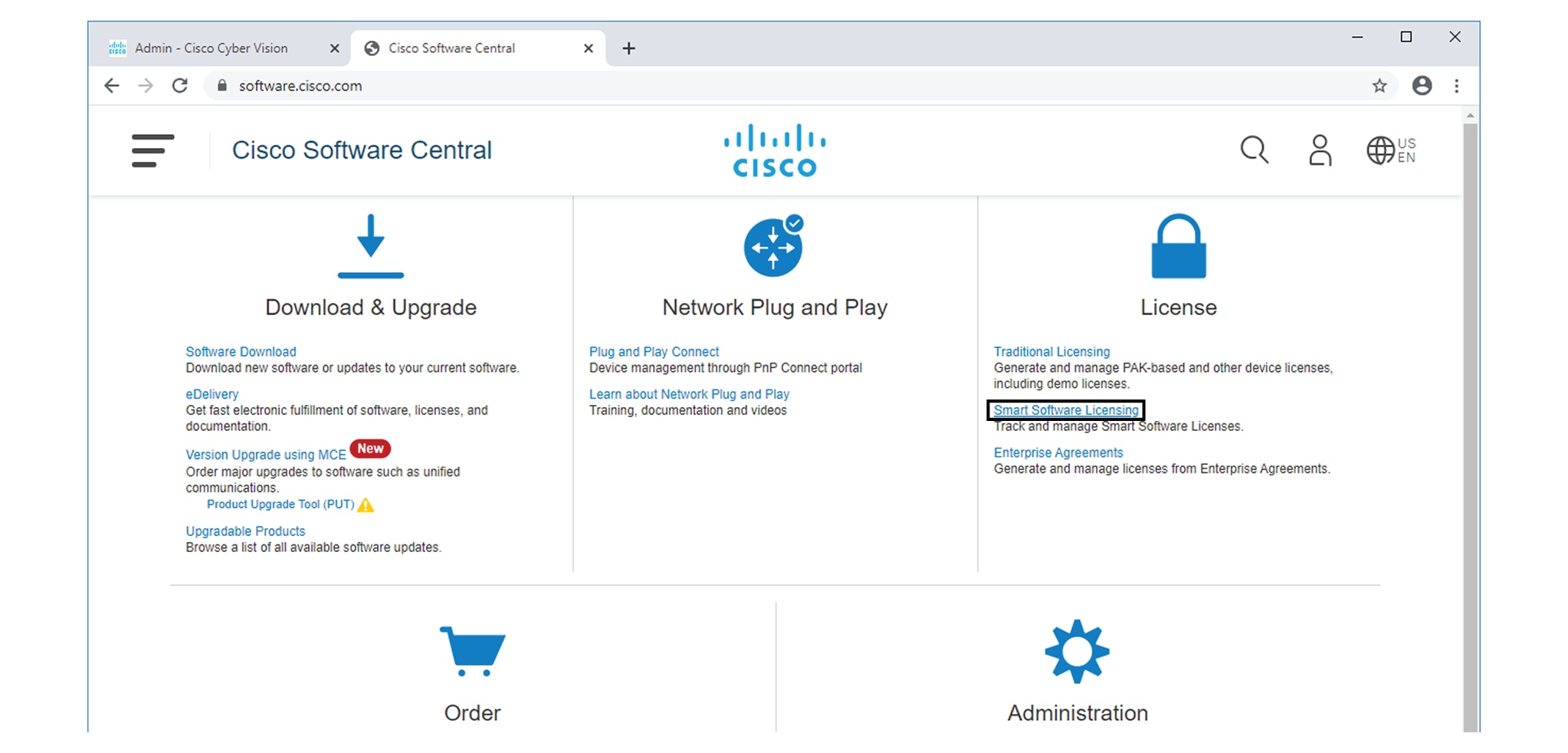
In Cisco Software Central, under License, click Smart Software Licensing. In Smart Software Manager On-Prem, click Smart Licensing.
|
| Step 3 |
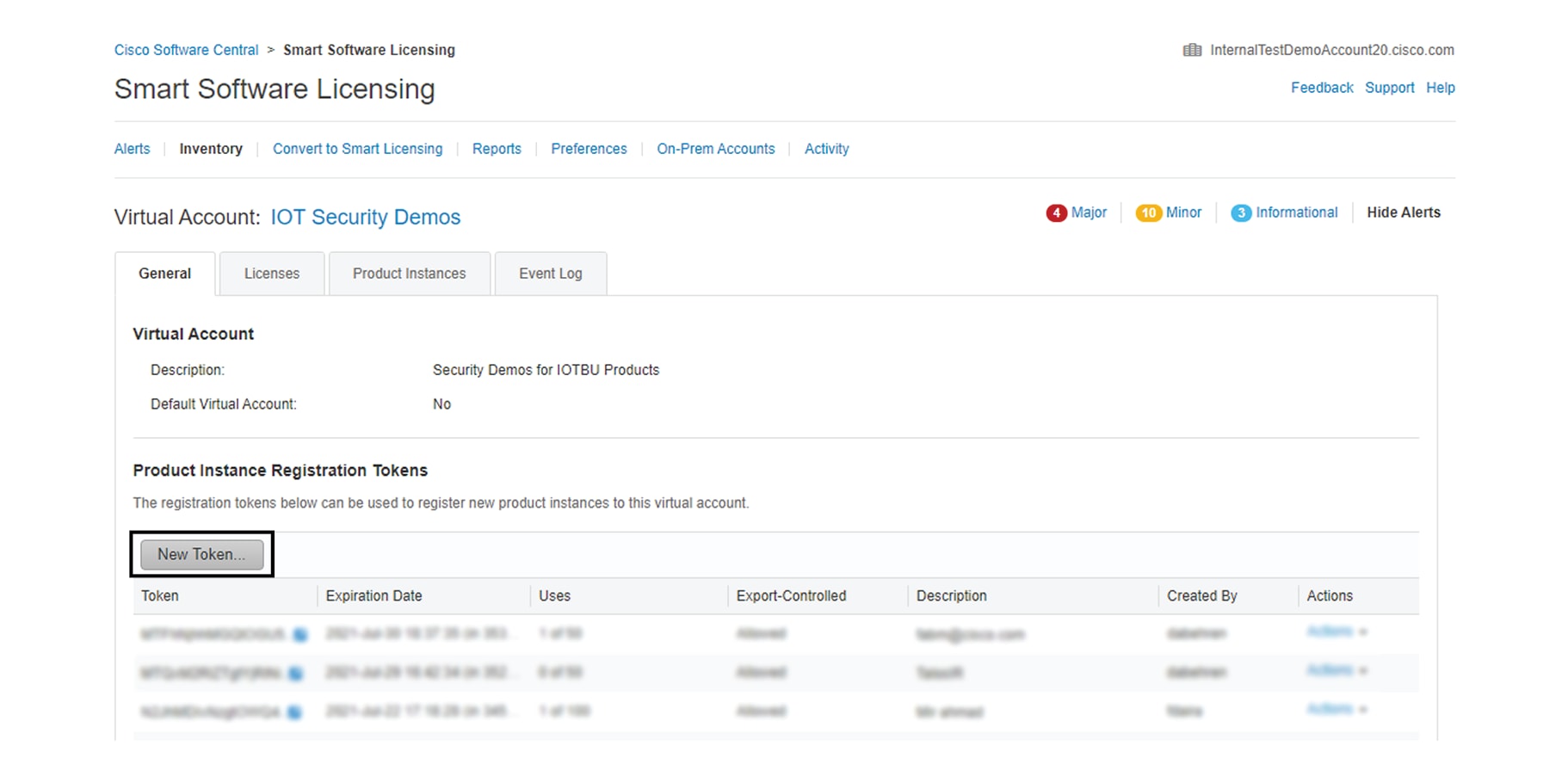
Click the Inventory menu. |
| Step 4 |
Click the New Token button.
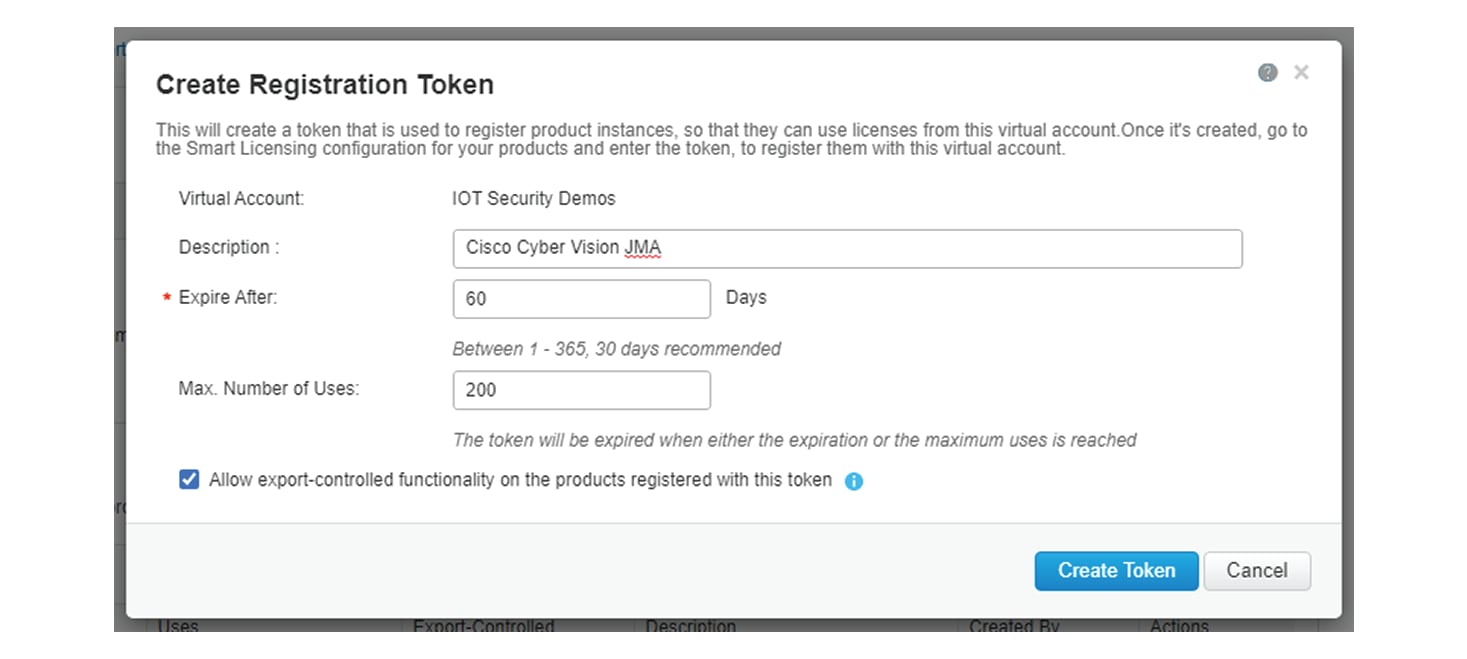
A Create Registration Token pop up opens.
|
| Step 5 |
Fill in the following fields: |
-
Description: add a description to identify the Center's owner or purpose.
-
Expire after: the token will expire after the amount of days indicated in this field.
-
Max. Number of Uses: the token will expire as login accesses reach the number indicated in this field.
| Step 6 |
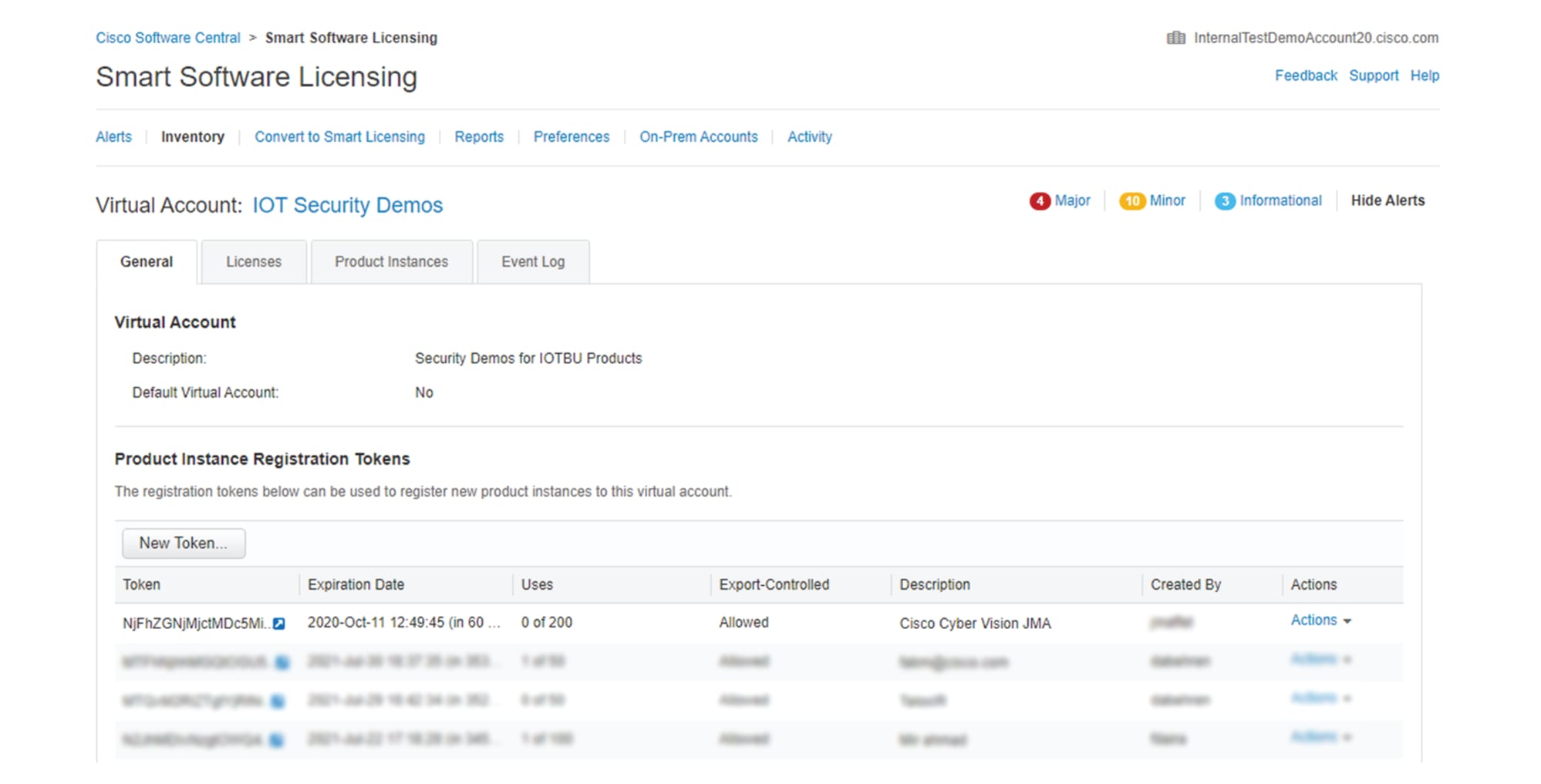
Click the Create Token button. The new token appears in the list.
|
| Step 7 |
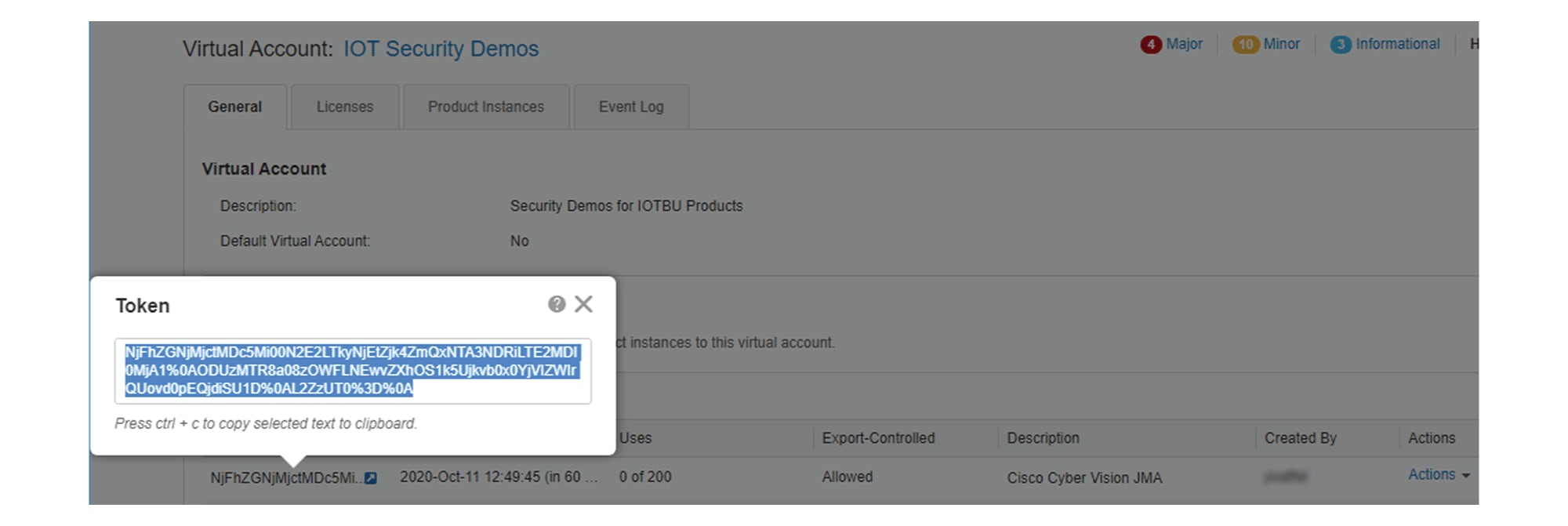
Click the blue arrow next to the token name and copy it.
|
Register the Center
To register the Cisco Cyber Vision Center:
Procedure
| Step 1 |
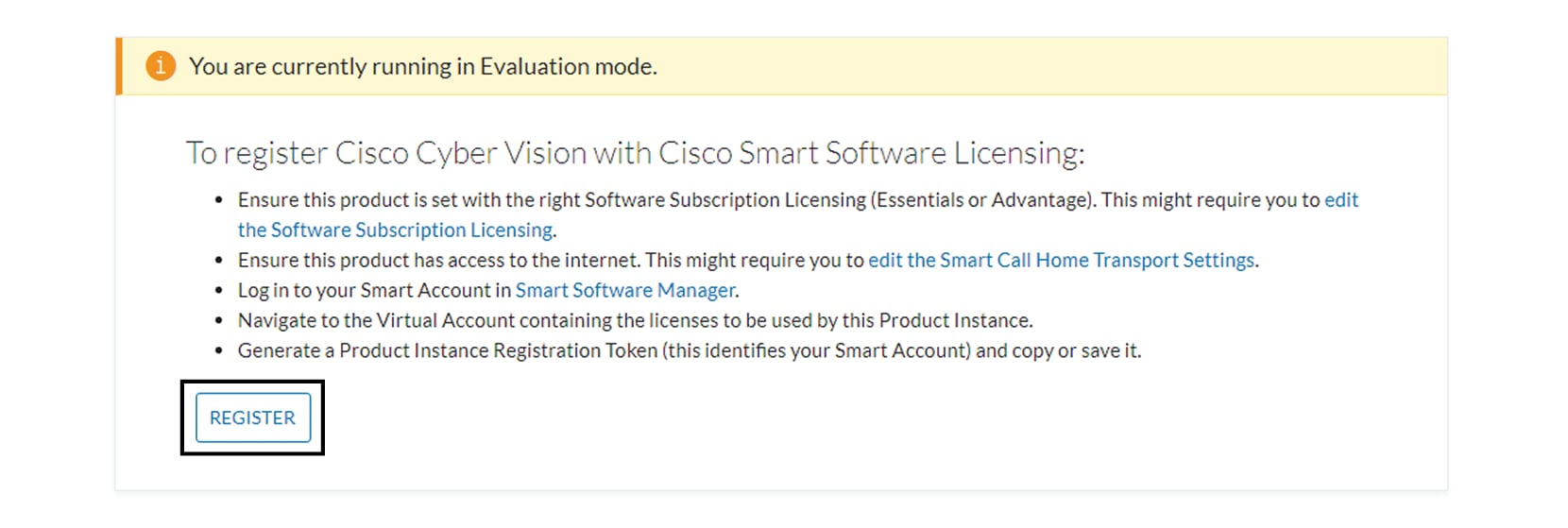
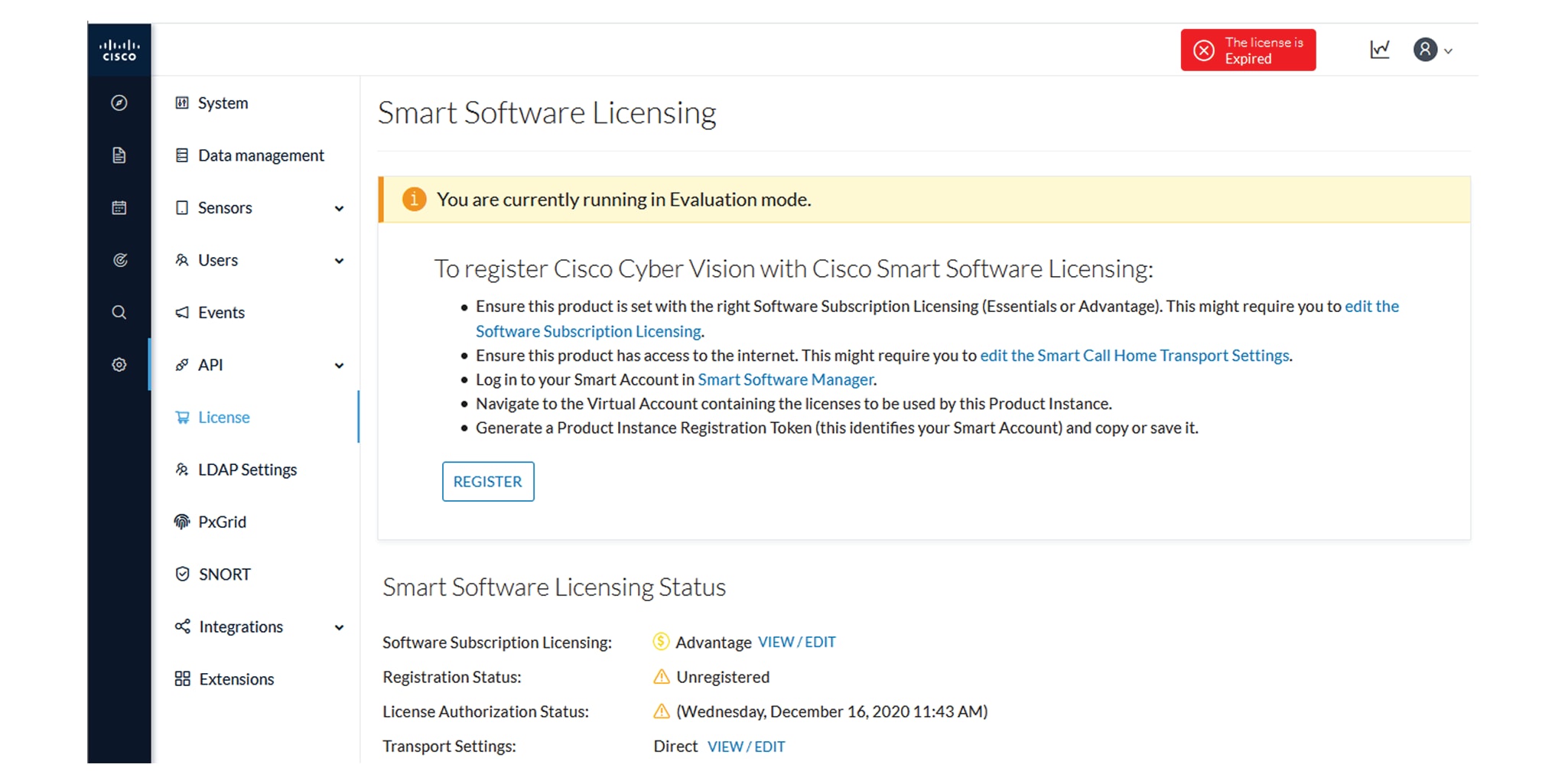
In Cisco Cyber Vision, click the button Register.
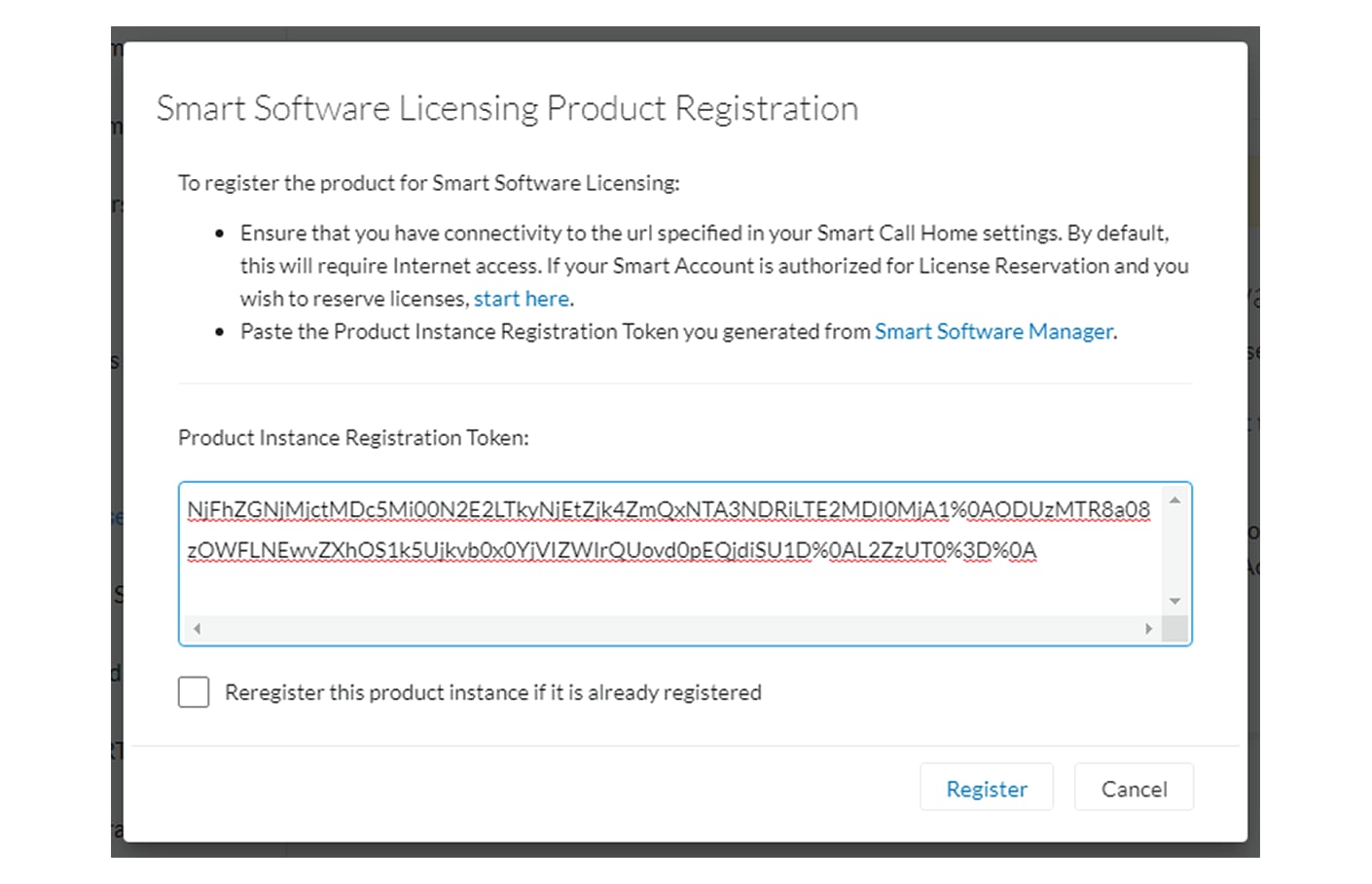
The Smart Software Licensing Product Registration window opens. |
| Step 2 |
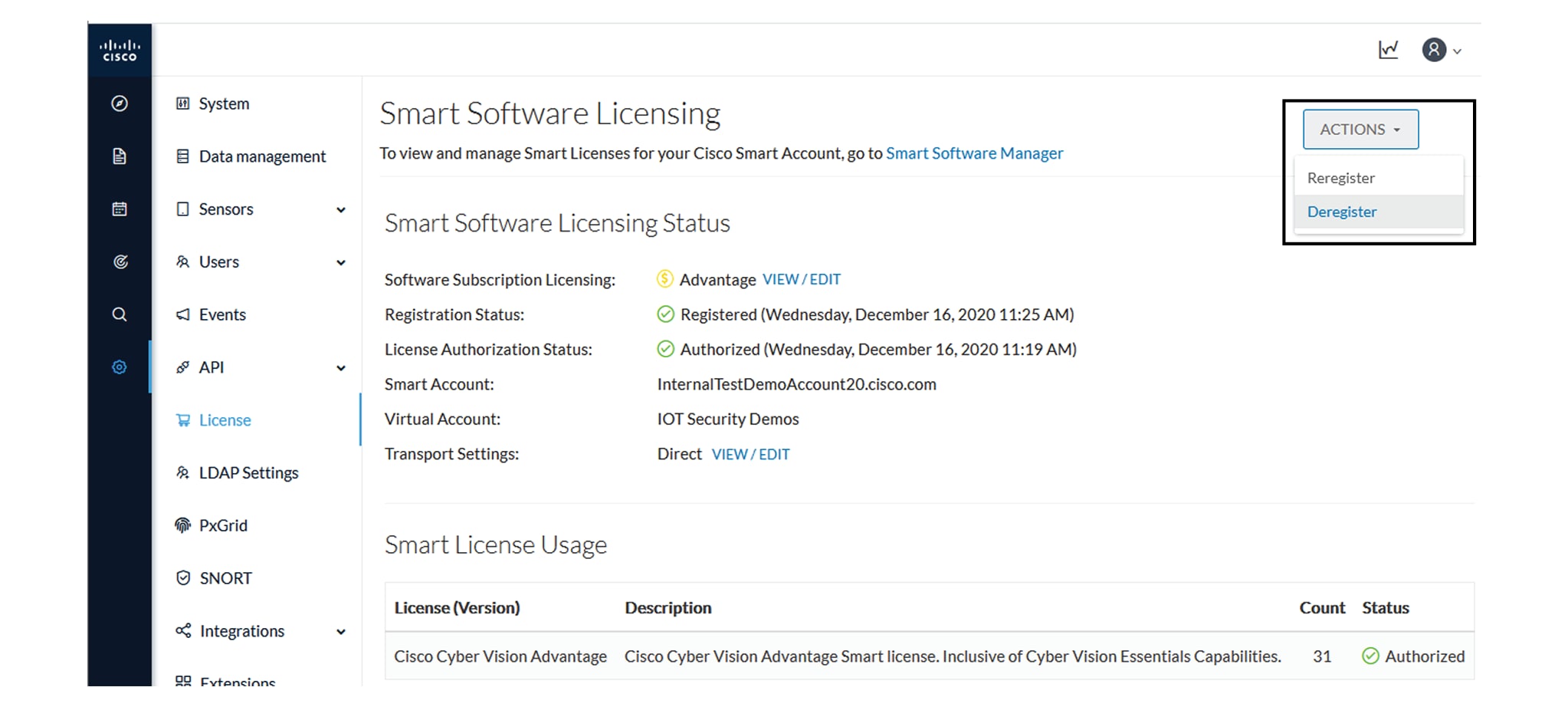
Paste the token into the text field and click Register.
The registration status should turn to Registered.
|
| Step 3 |
If Transport Gateway was selected when selecting the network path as it is the case when doing MSLA, the license mode will switch from Pre-paid to Post-paid usage subscription. The installation of the license is complete and you can continue using Cisco Cyber Vision. |

 Feedback