Learn how to onboard a Cisco IOS device. You can onboard a live Cisco device running Cisco IOS (Internetwork Operating System).
You can onboard a live Cisco device running Cisco IOS (Internetwork Operating System).
Cisco Security Cloud Control: Cisco IOS Management
Learn how to onboard a Cisco IOS device. You can onboard a live Cisco device running Cisco IOS (Internetwork Operating System).
You can onboard a live Cisco device running Cisco IOS (Internetwork Operating System).
Before you begin, ensure that all prerequisites are met.
Your Cisco IOS server must support ciphers that are compatible with Security Cloud Control. Currently, Security Cloud Control supports a limited set of ciphers for onboarding Cisco IOS devices. Supported ciphers are aes128-ctr, aes192-ctr, aes256-ctr, aes128-gcm, aes128-gcm@openssh.com, aes256-gcm, aes256-gcm@openssh.com.
Log in to your Secure Device Connector (SDC) and run the command ssh -vv <ip_address> to view the ciphers your server supports.
You must have an active on-premises Secure Device Connector (SDC) in your network to add a Cisco IOS device.
For more information about SDCs and deployment scenarios, refer to About Secure Device Connector.
| 1. | Click |
|
| 2. | Click the blue add button |
|
| 3. | Click the Integrations tile. If the tile is grayed out, there is no active Secure Device Connector deployed in your network for your Security Cloud Control tenant. |
|
| 4. | Enter these details in the Locate Device page.
|
|
| 5. | Enter these details in the SSH Fingerprint page. |
|
| 6. | (Optional) Enter a label for the device in the Done page. For more information about labels and label groups, refer to Labels and Label Groups. |
|
| 7. | Click Go to Security Devices to return to the Security Devices page. After successful onboarding, the Configuration Status changes to 'Synced,' and Connectivity changes to 'Online.'
To write a note about the device, enter it in the
Device Notes page for the device. For more information about the notes page, refer to
Device Notes.
|
When you onboard a Cisco Integrated Services Router (ISR) or Aggregation Services Router (ASR) device to Security Cloud Control, the device’s running configuration is represented as a Cisco IOS model. This model is a copy of the device configuration and is used to centrally manage supported security settings, such as firewall and VPN policies. You can download the Cisco IOS model as a text file and import it into another tenant that you manage to replicate or reuse the configuration.
You can download the configuration for an onboarded Integrated Services Router (ISR) or Aggregation Services Router (ASR) device from Security Cloud Control and use it to bootstrap the device or save its current managed configuration locally.
| 1. | Click . |
|
| 2. | Click the Devices tab. |
|
| 3. | Click the IOS tab and select a device. |
|
| 4. | Click Configuration under the Management section. |
|
| 5. | Click Download to download the device configuration to your local computer. 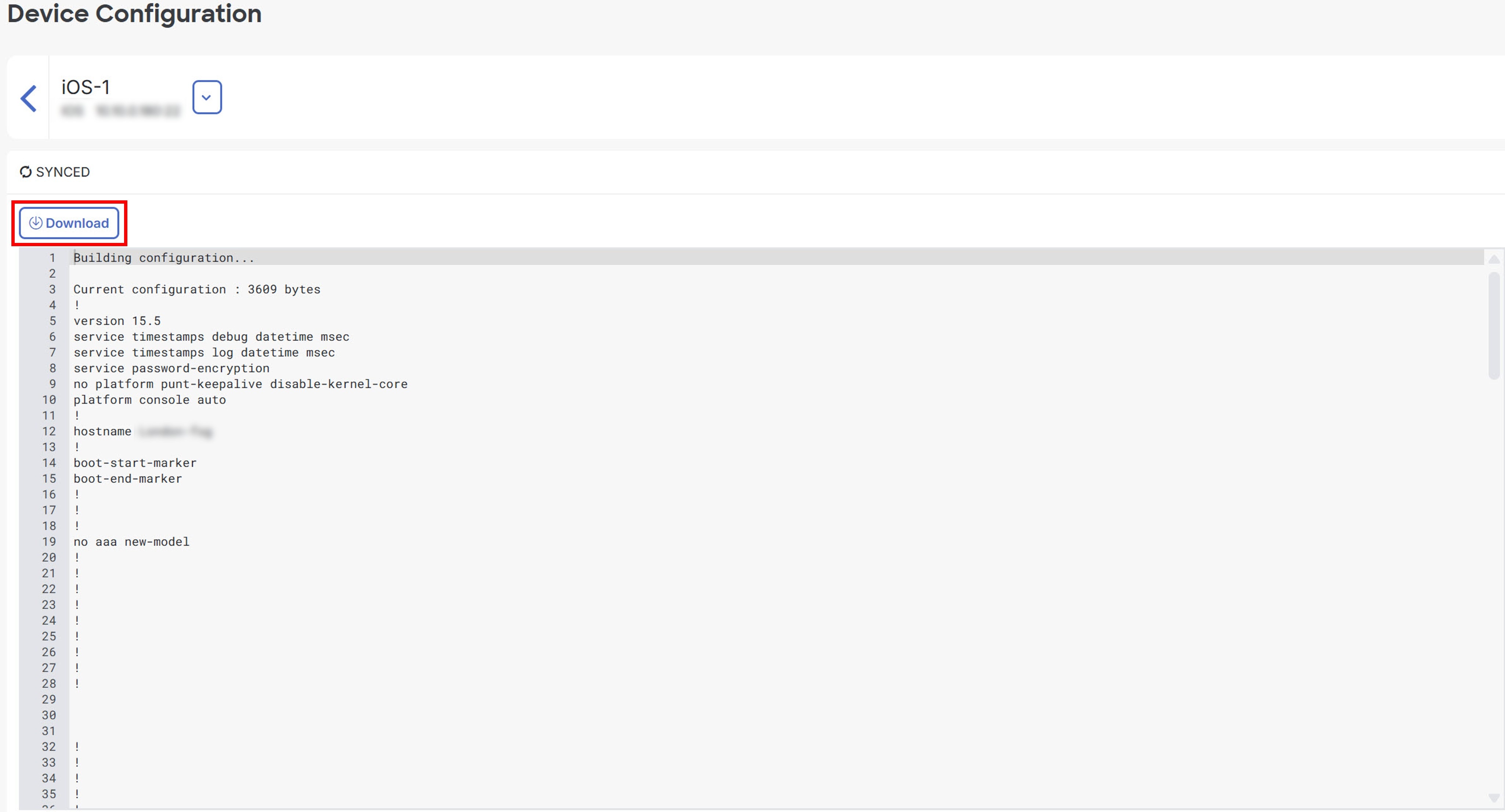
|
You can import an Integrated Services Router (ISR) or Aggregation Services Router (ASR) configuration file into Security Cloud Control without onboarding a physical device. Uploading a text-based configuration file creates a model device in Security Cloud Control. You can use this model for analysis, labeling, and policy management. After you import and process the configuration, the model appears in the Security Devices list for further use.
| 1. | Click . |
|
| 2. | Click the blue add ( |
|
| 3. | Click the Import tile. |
|
| 4. | Enter these details in the Configuration for Model Device page.
|
|
| 5. | Once the configuration is verified, you are prompted to label the device or service. For more information about labels and label groups, refer to Labels and Label Groups. |
|
| 6. | After labeling your model device, you can view it in the Security Devices list.
|
Configuration import for offline device management is a feature that
allows you to review, analyze, and optimize device settings without requiring access to a live device in your network
creates models that represent copies of device configurations for policy review, planning, and reuse, and
processes uploaded configuration files so they appear in the Security Devices list for labeling, reviewing, and managing like other supported devices.
You can import the configurations for these device types into Security Cloud Control Firewall Management:
Cisco IOS devices such as Aggregation Services Routers (ASRs) and Integrated Services Routers (ISRs): You can upload a text-based running configuration file to create an IOS model for offline analysis and reuse. For more information, refer to Create and Import an ASR or ISR Model.
Follow these steps to delete a device from Security Cloud Control Firewall Management:
| 1. | Choose . |
|
| 2. | Select the device you want to delete. |
|
| 3. | Click Remove in the Device Actions pane. |
|
| 4. | To confirm device removal, click OK.
To keep the device onboarded, click
Cancel.
|
 to begin onboarding the device.