Installing the Cisco Wireless Gateway for LoRaWAN

This chapter describes how to install the Cisco Wireless Gateway for LoRaWAN and contains the following sections:

Unpacking the Device

Follow these steps to unpack the box:

Procedure


Step 1

Open the shipping container and carefully remove the contents.

Step 2

Return all packing materials to the shipping container and save it.

Step 3

Ensure that all items that are listed in the Package Contents are included in the shipment. Check each item for damage. If any item is damaged or missing, notify your authorized Cisco sales representative.


Package Contents

Each Cisco Wireless Gateway for LoRaWAN package contains the following items:

  • One Cisco Wireless Gateway for LoRaWAN (IXM-LPWA-800-16-K9 or IXM-LPWA-900-16-K9)

  • Getting Started and Product Document of Compliance for the Cisco Wireless Gateway for LoRaWAN (Part Number 78-100921-01)

Tools and Hardware

The tools and hardware that is used to install the Cisco Wireless Gateway for LoRaWAN are described in these sections.

Optional Tools and Hardware

Depending on what you ordered, the following optional equipment may be part of your shipment:

  • Wall/pole mount kit (AIR-ACC1530-PMK1=)

  • DC-IN power adapter jack plug (PLG-PWRJCK=)

  • Grounding lug

  • LoRa Antenna

    • Omnidirectional antenna (ANT-LPWA-DB-O-N=)

    • Antennas lightning arrestor (ACC-LA-H-NM-NF=)

    • 10-ft low-loss cable assembly with N type connector (AIR-CAB010LL-N=)

  • GPS Antenna

    • Outdoor GPS antenna with an integrated 15-ft cable (ANT-GPS-OUT-TNC=)

    • Outdoor GPS antenna lightning arrestor (ACC-LA-G-TM-TF=)

Optional Tools and Hardware That You Supply

Tools and materials that are user-supplied are:

  • Ground lug crimping tool (Panduit CT-720 with CD-720-1 die)

  • 6-AWG copper ground wire

  • 10-mm open end or box wrench

  • 13-mm box-end wrench or socket set, or US standard socket (for example, 1/2")

  • Adjustable wrench with opening up to 33-mm and 28-mm socket

  • Large flat or Phillips screw driver (for port plugs)

  • Small flat screwdriver for DC power connector

  • Optional shielded outdoor-rated Ethernet (CAT5 or better) cable with 4.3 to 6.5 mm (0.17 to 0.25 inch) diameter to fit the cable gland, for the IP67 and also to allow strength relief on the cable connector inside

  • Optional Ethernet RJ-45 connector and installation tool

  • Optional shielded outdoor-rated DC power cable with 16 to 22 AWG (1.29 to 0.65 mm diameter), to match the DC power adapter jack plug (PLG-PWRJCK=)

  • Optional ground rod, as required by local regulations

  • Optional ladder, power lift, rope, or other tools as required

Warnings


DANGER

IMPORTANT SAFETY INSTRUCTIONSMeans danger. You are in a situation that could cause bodily injury. Before you work on any equipment, be aware of the hazards involved with electrical circuitry and be familiar with standard practices for preventing accidents. Use the statement number provided at the end of each warning to locate its translation in the translated safety warnings that accompanied this device. Statement 1071


DANGER

Before performing any of the following procedures, ensure that power is removed from the DC circuit. Statement 1003


DANGER

Read the installation instructions before you connect the system to its power source. Statement 1004


DANGER

This product relies on the building’s installation for short-circuit (overcurrent) protection. Ensure that the protective device is rated not greater than: 2 A. Statement 1005


DANGER

This unit is intended for installation in restricted access areas. A restricted access area can be accessed only through the use of a special tool, lock and key, or other means of security. Statement 1017


DANGER

A readily accessible two-poled disconnect device must be incorporated in the fixed wiring. Statement 1022


DANGER

This equipment must be grounded. Never defeat the ground conductor or operate the equipment in the absence of a suitably installed ground conductor. Contact the appropriate electrical inspection authority or an electrician if you are uncertain that suitable grounding is available. Statement 1024


DANGER

Only trained and qualified personnel should be allowed to install, replace, or service this equipment. Statement 1030


DANGER

Ultimate disposal of this product should be handled according to all national laws and regulations. Statement 1040


DANGER

For connections outside the building where the equipment is installed, the following ports must be connected through an approved network termination unit with integral circuit protection: 10/100 Ethernet Statement 1044


DANGER

To prevent the system from overheating, do not operate it in an area that exceeds the maximum recommended ambient temperature of: 131°F (55°C) Statement 1047


DANGER

This equipment is intended to be grounded to comply with emission and immunity requirements. Ensure that the switch functional ground lug is connected to earth ground during normal use. Statement 1064


DANGER

Installation of the equipment must comply with local and national electrical codes. Statement 1074


DANGER

Avoid using or servicing any equipment that has outdoor connections during an electrical storm. There may be a risk of electric shock from lightning. Statement 1088


Caution

For the device, connect only to an NEC Class 2 power source or limited power source as defined by IEC 60950-1.


DANGER

This product is designed for specific application and needs to be installed by a qualified personal who has RF and related rule knowledge. The general user shall not attempt to install or change the setting.


DANGER

The product shall be installed at a location where the radiating antenna can be kept 34 cm from nearby person in normal operation condition to meet regulatory RF exposure requirement.


DANGER

Use only the antennas which have been approved by the applicant. The non-approved antenna(s) may produce unwanted spurious or excessive RF transmitting power which may lead to the violation of FCC/ISED limit and is prohibited.


Note

The device is suitable for use in environmental air space in accordance with section 300.22.C of the National Electrical Code and sections 2-128, 12-010(3), and 12-100 of the Canadian Electrical Code, Part 1, C22.1. Do not install the power supply or power injector in air handling spaces.

Note

Use only with listed ITE equipment.

Note

The maximum ambient operating temperature range is –40 to 131°F (–40 to 55°C), plus solar load.

Note

The PoE source which the unit is intended to connect is IEEE 802.3 at.

FCC Caution

Any changes or modifications not expressly approved by the party responsible for compliance could void the user's authority to operate this equipment.

This transmitter must not be co-located or operating in conjunction with any other antenna or transmitter, except the collocation in accordance with FCC multi-transmitter product guidelines.

Industry Canada Statement

This device complies with ISED’s licence-exempt RSSs. Operation is subject to the following two conditions: (1) This device may not cause harmful interference, and (2) this device must accept any interference received, including interference that may cause undesired operation.

Le présent appareil est conforme aux CNR d’ ISED applicables aux appareils radio exempts de licence. L’exploitation est autorisée aux deux conditions suivantes : (1) le dispositif ne doit pas produire de brouillage préjudiciable, et (2) ce dispositif doit accepter tout brouillage reçu, y compris un brouillage susceptible de provoquer un fonctionnement indésirable.

Radiation Exposure Statement

This equipment complies with FCC and ISED radiation exposure limits set forth for an uncontrolled environment. This equipment should be installed and operated with minimum distance 34 cm between the radiator and your body.

Déclaration d'exposition aux radiations

Cet équipement est conforme aux limites d'exposition aux rayonnements ISED établies pour un environnement non contrôlé. Cet équipement doit être installé et utilisé avec un minimum de 34 cm de distance entre la source de rayonnement et votre corps.

Safety Information

Follow the guidelines in this section to ensure proper operation and safe use of the Cisco Wireless Gateway for LoRaWAN.

FCC Safety Compliance Statement

The FCC, with its action in ET Docket 96-8, has adopted a safety standard for human exposure to RF electromagnetic energy emitted by FCC-certified equipment. When used with approved Cisco Aironet antennas, Cisco Aironet products meet the uncontrolled environmental limits found in OET-65 and ANSI C95.1, 1991. Proper operation of this radio device according to the instructions in this publication results in user exposure substantially below the FCC recommended limits.

Safety Precautions


Warning

In order to comply with radio frequency (RF) exposure limits, the antennas should be placed no less than 34 cm (13.4”) from your body or nearby persons. Statement 339


Warning

Do not work on the system or connect or disconnect cables during periods of lightning activity. Statement 1001


Warning

A readily accessible two-poled disconnect device must be incorporated in the fixed wiring. Statement 1022


Warning

Only trained and qualified personnel should be allowed to install, replace, or service this equipment. Statement 1030


Warning

Connect the unit only to DC power source that complies with the safety extra-low voltage (SELV) requirements in IEC 60950 based safety standards. Statement 1033


Warning

When installing or replacing the unit, the ground connection must always be made first and disconnected last. Statement 1046.


Warning

Do not locate the antenna near overhead power lines or other electric light or power circuits, or where it can come into contact with such circuits. When installing the antenna, take extreme care not to come into contact with such circuits, because they may cause serious injury or death. For proper installation and grounding of the antenna, please refer to national and local codes (for example, U.S.:NFPA 70, National Electrical Code, Article 810, Canada: Canadian Electrical Code, Section 54). Statement 1052


Caution

Before connecting or disconnecting a power cord, you must remove power from the power cord using a suitable service disconnect.


For safety and to achieve a good installation, please read and follow these safety precautions:

  • Select your installation site with safety, as well as performance in mind. Remember: electric power lines and phone lines look alike. For safety, assume that any overhead line can kill.

  • Call your electric power company. Tell them your plans, and ask them to come look at your proposed installation.

  • Plan your installation carefully and completely before you begin. Successful raising of a mast or tower is largely a matter of coordination. Each person should be assigned to a specific task and should know what to do and when to do it. One person should be in charge of the operation to issue instructions and watch for signs of trouble.

  • When installing the access point and antennas, remember:

    • Do not use a metal ladder.

    • Do not work on a wet or windy day.

    • Do dress properly—shoes with rubber soles and heels, rubber gloves, long sleeved shirt or jacket.

  • Use a rope to lift the access point. If the assembly starts to drop, get away from it and let it fall.

  • If any part of the antenna system should come in contact with a power line, do not touch it or try to remove it yourself. Call your local power company. They will remove it safely.

If an accident should occur, call for qualified emergency help immediately.

Installation Guidelines

Because the Cisco Wireless Gateway for LoRaWAN is a radio device, it is susceptible to common causes of interference that can reduce throughput and range. Follow these basic guidelines to ensure the best possible performance:

  • Perform a site survey before beginning the installation.

  • Install the device in an area where structures, trees, or hills do not obstruct radio signals to and from the device.

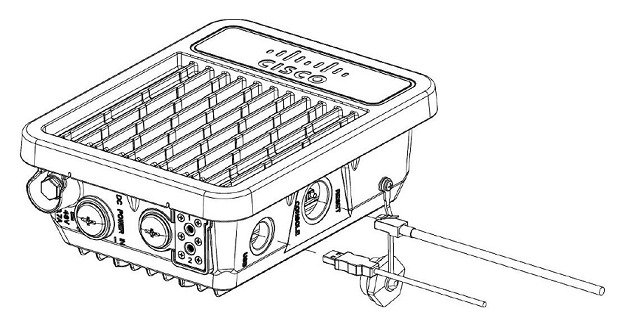
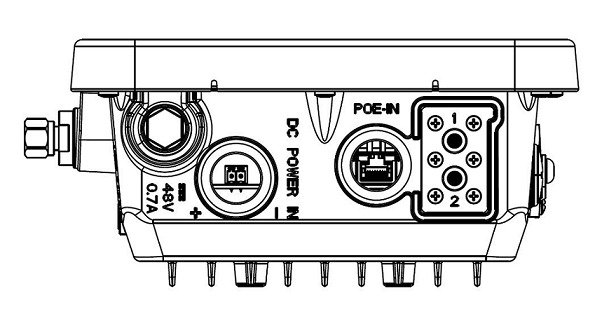
  • The Console-Reset port and the Reset button are under a hex-shaped sealed plug. Inspect the seal of the plug and properly tighten it at the time of installation, and also every time the plug is removed and replaced. Tighten the plug to 15 lbf-in. If you do not tighten the plug properly, it will not meet IP67 criteria, and may lead to water leaking into the unit.

Figure 1. Connecting Console Port and USB Port
  • If the DC power port, LAN port, or the PoE-In port is not in use, the port’s covering plug must be tightened to 12.5 in-lbs (1.41 N-m) torque. Otherwise, it may lead to water leaking into the Cisco Wireless Gateway for LoRaWAN.


Note

To calculate the path loss and to determine how far apart to install Cisco Wireless Gateway for LoRaWANs, consult an RF planning expert.

Mounting the Device

This section provides instructions for installing your access points. Personnel installing the access point must understand wireless Cisco Wireless Gateway for LoRaWANs and bridging techniques and grounding methods.


Caution

All installation methods for mounting a Cisco Wireless Gateway for LoRaWAN on any wall surface is subject to the acceptance of local jurisdiction.


Installation Options

The Cisco Wireless Gateway for LoRaWAN can be pole-mounted or wall-mounted by using the mounting kit (AIR-ACC1530-PMK1=).


DANGER

Only trained and qualified personnel should be allowed to install, replace, or service this equipment. Statement 1030


DANGER

Installation of the equipment must comply with local and national electrical codes. Statement 1074


Mounting Orientation

When mounting a Cisco Wireless Gateway for LoRaWAN on a vertical surface, you must ensure that the Cisco Wireless Gateway for LoRaWAN is oriented with the LED indicators pointing down. This positioning allows LEDs to be visible to someone on the ground below the Cisco Wireless Gateway for LoRaWAN.

Ensure the Cisco Wireless Gateway for LoRaWAN is mounted in such a way as to ensure that all antenna ports are accessible for future use.

Wall Mounting with the Mounting Kit

The mounting kit contains a mounting bracket for wall-mounting or pole-mounting. You can use the mounting bracket as a template to mark the positions of the mounting holes for your installation. You then install the mounting plate, and attach the Cisco Wireless Gateway for LoRaWAN when you are ready. The following table lists the materials that you will need to provide in addition to the fixed mounting kit.

Table 1. Material Needed for Vertical Wall Mounting

Materials Required

In Kit

Ground lug and screws (provided with Cisco Wireless Gateway for LoRaWAN)

Yes

One mount bracket

Yes

Four M6 x 12-mm Hex-head bolts

Yes

Crimping tool for ground lug

No

Four wall mounting screws

No

Drill bit for wall anchors

No

Electric drill and standard screwdriver

No

#6 AWG ground wire

No

Shielded outdoor-rated Ethernet (CAT5 or better) cable with 4.3 to 6.5 mm (0.17 to 0.25 inch) diameter (for IP67 and strength relief)

No

Grounding block

No

Grounding rod

No

10-mm box-end wrench or socket set

No


Note

The mounting surface, attaching screws and optional wall anchors must be able to support a 50-lb (22.7 kg) static weight.

To mount the Cisco Wireless Gateway for LoRaWAN on a vertical wall, follow these instructions:

Procedure


Step 1

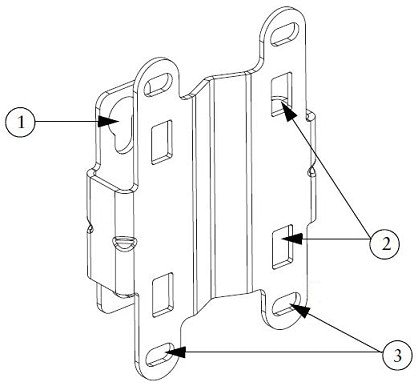
Use the mounting bracket as a template to mark four screw hole locations on the mounting surface. See the following figure for the mounting bracket screw hole locations. Use the bracket mount holes to attach the unit to the wall.

1

Quick Mount Keyhole Slots (for the Cisco LoRa Interface use)

2

Mounting Slots (used with the band clamps)

3

Bracket Mount Holes (use bolts up to 1/4" or 6 mm in diameter)

Step 2

Use four customer-supplied screws and optional screw-anchors to attach the mounting plate to the mounting surface.

Step 3

If necessary, use a suitable screw anchors and an exterior-grade plywood backboard to mount the Cisco Wireless Gateway for LoRaWAN to stucco, cement, or drywall.

Step 4

Screw an M6 x12 mm bolt into each of the four support bolt holes on the back of the Cisco Wireless Gateway for LoRaWAN. Do not screw the bolt all the way in; leave approximately a 1/8” (3.3 mm) space.

Step 5

Position the four bolts on the Cisco Wireless Gateway for LoRaWAN into the keyhole slots on the mounting bracket.

Step 6

Slide the Cisco Wireless Gateway for LoRaWAN down to sit securely in the quick mount slots.

Step 7

Using a 10-mm wrench, secure the Cisco Wireless Gateway for LoRaWAN to the bracket by tightening the bolts to the bracket; torque to 40 in-lbs (4.52 N-m).

Step 8

Continue with Grounding the Device.


Pole Mounting with the Mounting Kit

The mounting kit contains a mounting bracket for wall-mounting or pole-mounting. This kit can be used to install the Cisco Wireless Gateway for LoRaWAN on a pole. It supports metal, wood, or fiberglass poles from 2 to 8 inches in diameter.

Table 2. Material Needed for Vertical Pole Mounting

Materials Required

In Kit

One mount bracket

Yes

Four M6 x12mm hex head bolts

Yes

Two stainless steel band clamps (adjustable 2"–5", 51–127 mm)

Yes

Two stainless steel band clamps (adjustable 5"–8", 127–203 mm)

Yes

10-mm box-end wrench

No

Shielded outdoor-rated Ethernet (CAT5 or better) cable with 4.3 to 6.5 mm (0.17 to 0.25 inch) diameter (for IP67 and strength relief)

No

Ground lug (provided with the Cisco Wireless Gateway for LoRaWAN)

Yes

Ground block and rod

No

Crimping tool for ground lug

No

#6 AWG ground wire

No

To mount the Cisco Wireless Gateway for LoRaWAN onto a vertical pole, follow these steps:

Procedure


Step 1

Select a mounting location on the pole to mount the Cisco Wireless Gateway for LoRaWAN. You can attach the Cisco Wireless Gateway for LoRaWAN to any pole with a diameter from 2 to 8 inches (5.1 to 20.1 cm).

Step 2

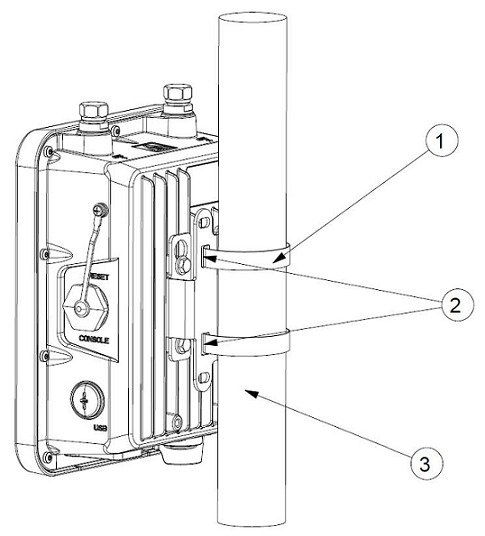
Determine which size of the band clamp is needed based on the pole diameter. Slide the two clamps through the top and bottom set of mounting slots and mount the bracket to the pole.

Figure 2. Cisco Wireless Gateway for LoRaWAN and Fixed Mount Kit Installed on a Pole

1

Metal Band Strap

2

Mounting Slots

3

Pole

Step 3

Wrap the band clamps around the pole and slide them into the second set of top and bottom mounting slots on the bracket. Lightly tighten the clamps. Only tighten them enough to keep the bracket from sliding down the pole.

Step 4

Screw an M6 bolt into each of the four bolt holes on the back side of the Cisco Wireless Gateway for LoRaWAN. Do not screw the bolt in all the way. Leave a gap of about 1/8" (3.3mm).

Step 5

Position the four bolts on the Cisco Wireless Gateway for LoRaWAN into the bracket keyhole slots. Check to be sure that the Cisco Wireless Gateway for LoRaWAN is properly seated in the slots.

Step 6

The Cisco Wireless Gateway for LoRaWAN must be positioned with the LEDs on the bottom to allow viewing from the ground.

Step 7

Using a 10-mm wrench, tighten the four bolts that connect the Cisco Wireless Gateway for LoRaWAN to the bracket to a torque of 40 in-lbs (4.52 N-m).

Step 8

Locate the Cisco Wireless Gateway for LoRaWAN to its final position. Tighten the band clamps with the wrench so that the Cisco Wireless Gateway for LoRaWAN does not slide on the pole. Be sure that the clamps are tight enough that the Cisco Wireless Gateway for LoRaWAN does not move.

Step 9

Continue with Grounding the Device.


Installing Antennas

The Cisco Wireless Gateway for LoRaWAN is equipped with two N-type radio frequency (RF) connectors (antenna ports 1 and 2) on the top of the unit for LoRa antennas, and one TNC connector on the left of the unit for the GPS antenna, as shown in Antenna Connector Locations.

Supported Antennas

The Cisco Wireless Gateway for LoRaWAN supports the following antenna:

LoRa Antennas

  • Antenna (ANT-LPWA-DB-O-N=)

  • Lightning arrestor (ACC-LA-H-NM-NF=)

  • Cable (AIR-CAB010LL-N=)

GPS Antenna

  • Antenna and cable (ANT-GPS-OUT-TNC=)

  • Lightning arrestor (ACC-LA-G-TM-TF=)

Safety Precautions When Installing Antennas


DANGER

Do not locate the antenna near overhead power lines or other electric light or power circuits, or where it can come into contact with such circuits. When installing the antenna, take extreme care not to come into contact with such circuits, as they may cause serious injury or death. For proper installation and grounding of the antenna, please refer to national and local codes (e.g. U.S.: NFPA 70, National Electrical Code, Article 810, Canada: Canadian Electrical Code, Section 54). Statement 280


  1. Before you install an antenna, contact your Cisco account representative to explain which mounting method to use for the size and type of antenna that you are about to install.

  2. Select your installation site with safety, and performance, in mind. Remember that electric power lines and phone lines look alike. For your safety, assume that any overhead line can kill you.

  3. Contact your electric power company. Tell them your plans and ask them to come look at your proposed installation.

  4. Plan your installation carefully and completely before you begin. Each person who is involved in an installation must be assigned to a specific task and know what to do and when to do it. One person must be in charge of the operation to issue instructions and watch for signs of trouble.

  5. When installing your antenna, follow these guidelines:

    • Do not use a metal ladder.

    • Do not work on a wet or windy day.

    • Do dress properly—wear shoes with rubber soles and heels, rubber gloves, and a long-sleeved shirt or jacket.

  6. If the assembly starts to drop, move away from it and let it fall. Because the antenna, mast, cable, and metal guy wires are all excellent conductors of electrical current, even the slightest touch of any of these parts to a power line completes an electrical path through the antenna and the installer.

  7. If any part of the antenna system should come in contact with a power line, do not touch it or try to remove it yourself. Call your local power company to have it removed safely.

  8. If an accident should occur with the power lines, call for qualified emergency helps immediately.


Note

The antenna port caps must be removed before using, but the unused ports should remain capped to provide an IP67 seal. All port or antenna connection must be terminated by an IP67 rated cap or cable.

Detachable Antenna Usage

This radio transmitter (IC: 2461L-IXMLPWA900 / Model: IXM-LPWA-900-16-K9) has been approved by ISED to operate with the antenna type listed below with maximum permissible gain indicated. Antenna types not included in this list, having a gain greater than the maximum gain indicated for that type, are strictly prohibited for use with this device.

Le présent émetteur radio (IC: 2461L-IXMLPWA900 / Model: IXM-LPWA-900-16-K9) a été approuvé par ISED pour fonctionner avec les types d'antenne énumérés ci-dessous et ayant un gain admissible maximal. Les types d'antenne non inclus dans cette liste, et dont le gain est supérieur au gain maximal indiqué, sont strictement interdits pour l'exploitation de l'émetteur.

LoRa Antenna List

Type

Gain

Dipole

6.22dBi

Antenna Connector Locations

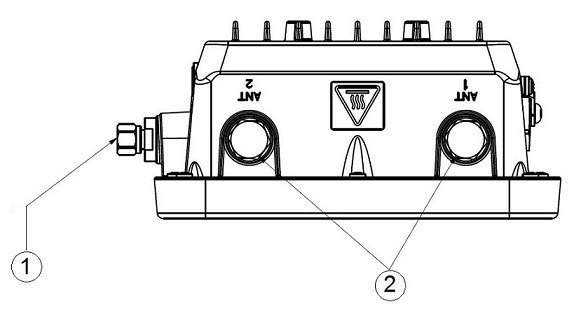
The Cisco Wireless Gateway for LoRaWAN is equipped with two N-type radio frequency (RF) connectors (antenna ports 1 and 2) on the top of the unit for LoRa antennas, and one TNC connector on the left of the unit for the GPS antenna, as shown in the following figure. The LoRa antennas must be connected to the chassis with an appropriate low-loss RF coax cable, for the Cisco Wireless Gateway for LoRaWAN to work properly. The LoRa antennas must be installed closely to the Cisco Wireless Gateway for LoRaWAN to reduce the signal strength loss on the feed cable as much as possible.


Note

Refer to the data sheet for the antenna specifications.

Note

The antenna port caps must be removed before using. But the unused ports should remain capped and hand tightened (not too much) to provide an IP67 seal. All port or antenna connection must be terminated by an IP67 rated cap or cable.
Figure 3. Antenna Connectors

1

TNC connector for GPS antenna

2

N-Type connectors for LoRa antennas

Connecting the LoRa Antennas

The LoRa antennas must be connected to the chassis with an appropriate low-loss RF coax cable, for the Cisco Wireless Gateway for LoRaWAN to work properly. The LoRa antennas must be installed closely to the Cisco Wireless Gateway for LoRaWAN to reduce the signal strength loss on the feed cable as much as possible.

The antennas must be installed at least half a wavelength apart from each other.

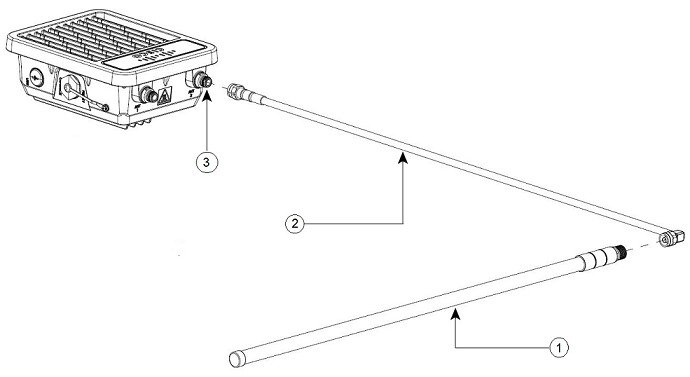
The following figure shows the installation of a LoRa antenna.

Figure 4. Connecting the LoRa Antenna

1

LoRa antenna

2

LoRa antenna cable

3

N-Type connectors for LoRa antennas

Technical Specifications

The following table contains the technical specifications of the dual-band omnidirectional RF antenna ANT-LPWA-DB-O-N=:

Specification

Description

Frequency range

863–928 MHz

Gain (dBi)

6 dBi

Max input power

10 w

3-dB beamwidth, Vertical plane

25°

3-dB beamwidth, Horizontal plane

360°

Normal impedance

50 ohms

Polarization

Vertical

VSWR

1.5 max

Protection

DC grounded

Operating Temperature

-40° to +70°

Storage Temperature

-40° to +80°

RF connector

N Female

Weight (without mounting kit)

298g/PCS

Environmental protection

IP67

Safety Warnings


DANGER

Avoid using or servicing any equipment that has outdoor connections during an electrical storm. There may be a risk of electric shock from lightning. Statement 1088


DANGER

Do not work on the system, or connect or disconnect cables, during periods of lightning activity. Statement 1001


DANGER

Do not locate the outdoor antenna near overhead power lines or other electric light or power circuits, or where it can come into contact with such circuits. When installing the antenna, take extreme care not to come into contact with such circuits, as they may cause serious injury or death. For proper installation and grounding of the antenna, please refer to national and local codes (for example, U.S.:NFPA 70, National Electrical Code, Article 810, Canada:Canadian Electrical Code, Section 54). Statement 1052


DANGER

This equipment must be grounded. Never defeat the ground conductor or operate the equipment in the absence of a suitably installed ground conductor. Contact the appropriate electrical inspection authority or an electrician if you are uncertain that suitable grounding is available. Statement 1024


DANGER

Only trained and qualified personnel should be allowed to install, replace, or service this equipment. Statement 1030


DANGER

To report a gas leak, do not use a telephone in the vicinity of the leak. Statement 1039


DANGER

This warning symbol means danger. You are in a situation that could cause bodily injury. Before you work on any equipment, be aware of the hazards involved with electrical circuitry and be familiar with standard practices for preventing accidents. Use the statement number provided at the end of each warning to locate its translation in the translated safety warnings that accompanied this device. Statement 1071. SAVE THESE INSTRUCTIONS.


DANGER

This product is not intended to be directly connected to the Cable Distribution System. Additional regulatory compliance and legal requirements may apply for direct connection to the Cable Distribution System. This product may connect to the Cable Distribution System ONLY through a device that is approved for direct connection. Statement 1078


Safety Precautions


DANGER

Installation of this antenna near power lines is dangerous. For your safety, follow the installation directions.


Each year hundreds of people are killed or injured when attempting to install an antenna. In many of these cases, the victim was aware of the danger of electrocution, but did not take adequate steps to avoid the hazard.

For your safety, and to help you achieve a good installation, please read and follow these safety precautions. They may save your life!

For your safety, read and follow these safety precautions.

  • If you are installing an antenna for the first time, for your own safety as well as others, seek professional assistance. Your Cisco sales representative can explain which mounting method to use for the size and type antenna you are about to install.

  • Before you install an antenna, contact your Cisco account representative to explain which mounting method to use for the size and type of antenna that you are about to install.

  • Find someone to help you—installing an antenna is often a two-person job.

  • Select your installation site with safety, as well as performance, in mind. Remember that electric power lines and phone lines look alike. For your safety, assume that any overhead line can kill you.

  • Contact your electric power company. Tell them your plans and ask them to come look at your proposed installation.

  • Plan your installation carefully and completely before you begin. Each person involved in an installation should be assigned to a specific task, and should know what to do and when to do it. One person should be in charge of the operation to issue instructions and watch for signs of trouble.

  • When installing your antenna, follow these guidelines:

    • Do not use a metal ladder.

    • Do not work on a wet or windy day.

    • Do dress properly—wear shoes with rubber soles and heels, rubber gloves, and a long-sleeved

      shirt or jacket.

  • If the assembly starts to drop, move away from it and let it fall. Because the antenna, mast, cable, and metal guy wires are all excellent conductors of electrical current, even the slightest touch of any of these parts to a power line completes an electrical path through the antenna and the installer.

  • If any part of the antenna system should come in contact with a power line, do not touch it or try to remove it yourself. Call your local power company to have it removed safely.

  • If an accident should occur with the power lines, call for qualified emergency help immediately.

Tools and Equipment Required During the Antenna Installation

In addition to the parts included in the antenna kit, you must provide the following tool to install the antenna on the router:

  • #2 Phillips screwdriver

  • 3/4 in. open-end wrench


Note

This list does not include the tools and equipment required to assemble and erect the tower, mast, or other structure you intend to mount your antenna on.


Attaching the Antenna Mounting Bracket

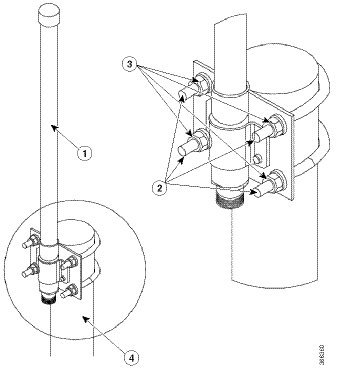
The antenna mounting kit consists of a mounting bracket and two U-type screws. This kit allows you to mount the antenna to poles from 1.18 inches (30 mm) to 1.96 inches (50 mm).

The antenna is vertically polarized. Since the antenna has vertical gain, it is important to mount the antenna in a vertical (not leaning) position for optimal performance.

Follow these steps to mount the antenna onto a pole:

Procedure

Step 1

Place the connector end of the antenna through the hole in the antenna bracket.

1

Antenna

2

M6 U-type Screw

3

Screw Nut, Spring Washer, Flat Washer

4

30-50 mm Pole

Step 2

Place the pipe clamps into the grooves on the bracket.

Step 3

Attach the bracket to the top of the pole. The top surface of the mounting pole must not exceed the top surface of the mounting bracket. Securely tighten the screws.

Step 4

Attach the cable to the antenna connector.


What to do next

Connect the Lightning Arrestor. For detailed information, see:

Connecting the GPS Antenna

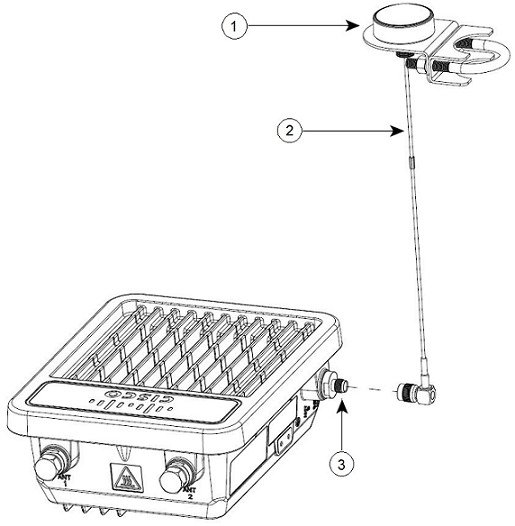
The following figure shows the installation of the GPS antenna.

Figure 5. Connecting the GPS Antenna

1

GPS antenna and mount bracket

2

GPS antenna cable

3

TNC connector for GPS antenna


Note

For more information about the GPS antenna and the mounting instructions, see the Cisco GPS Antenna chapter of the Connected Grid Antennas Installation Guide.

Installing a Lightning Arrestor

Overvoltage transients can be created through lightning static discharges, switch processes, direct contact with power lines, or through earth currents. The Cisco lightning arrestor limits the amplitude and duration of disturbing interference voltages and improves the over voltage resistance of in-line equipment, systems, and components. A lightning arrestor that is installed according to these mounting instructions balances the voltage potential, thus preventing inductive interference to parallel signal lines within the protected system.

Installation Considerations

Cisco recommends that you bulkhead mount the lightning arrestor so it can be installed as a wall-feed through on the wall of the protected space.

The importance of obtaining a good ground and bonding connection cannot be overstressed. Consider these points when grounding the lightning arrestor:

  • Connect the lightning arrestor components directly to the grounding point.

  • The contact points of the ground connection must be clean and free of dust and moisture.

  • Tighten threaded contacts to the torque specified by the manufacturer.

Installation Notes

This lightning arrestor is installed between the antenna cable that is attached to an outdoor antenna and the Cisco Aironet wireless device. You can install the lightning arrestor either indoors or outdoors. It can be connected directly to a wireless device having an external N connector. It can also be mounted inline or as a feed-through. Feed-through installations require 5/8 in. (16 mm) hole to accommodate the lightning arrestor.


Note

This lightning arrestor is part of a lightning arrestor kit. The kit contains a lightning arrestor and a grounding lug.

Note

When you install the lightning arrestor, follow the regulations or best practices applicable to lightning protection installation in your local area.

Installing the Lightning Arrestor Outdoors

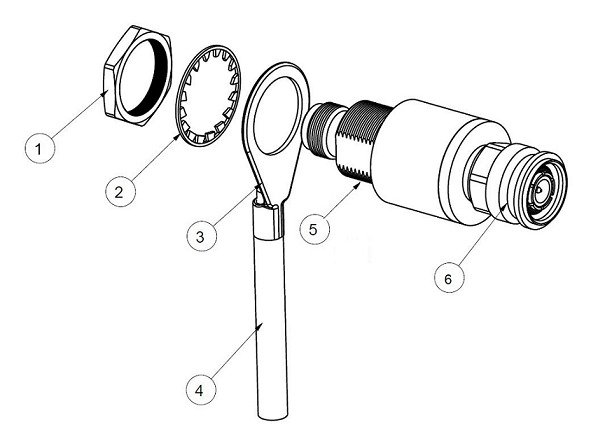
If you install the lightning arrestor outdoors, use the supplied ground lug and a #6 stranded copper wire to connect it to a good earth ground, such as a ground rod. The connection must be as short as possible.

Figure 6. Lightning Arrestor Details

1

Nut

4

#6 stranded copper wire

2

Lockwasher

5

Unprotected side (to antenna)

3

Ground lug

6

Protected side (to the wireless device)

Cable for the Lightning Arrestor

Coaxial cable loses efficiency as the frequency increases, resulting in signal loss. The cable must be kept as short as possible because the cable length also determines the amount of signal loss. The longer the run, the greater the loss.

Cisco recommends a high-quality, low-loss cable for use with the lightning arrestor.

Grounding the Device

The Cisco Wireless Gateway for LoRaWAN must be grounded before connecting power.


DANGER

This equipment must be externally grounded using a customer-supplied ground wire before power is applied. Contact the appropriate electrical inspection authority or an electrician if you are uncertain that suitable grounding is available. Statement 366


DANGER

Installation of the equipment must comply with local and national electrical codes. Statement 1074


In all outdoor installations and when powering the access point with AC power, you must follow these instructions to properly ground the case:

Procedure


Step 1

If using insulated 6-AWG copper ground wire, strip the insulation as required for the grounding lug.

Step 2

Use the appropriate crimping tool to crimp the bare 6-AWG copper ground wire to the supplied grounding lug.

Note 
The grounding lug and hardware that is used must comply with local and national electrical codes.
Step 3

Connect the grounding lug to the device grounding screw holes using the supplied two Phillips head screws (M4 x10 mm) with lock washers. Tighten the grounding screw to 22 to 24 in-lbs (2.49 to 2.71 N-m).

Step 4

If necessary, strip the other end of the ground wire and connect it to a reliable earth ground, such as a grounding rod or an appropriate grounding point on a metal pole that is grounded.


Powering the Cisco Wireless Gateway for LoRaWAN


DANGER

Installation of the equipment must comply with local and national electrical codes. Statement 1074


DANGER

This equipment must be externally grounded using a customer-supplied ground wire before power is applied. Contact the appropriate electrical inspection authority or an electrician if you are uncertain that suitable grounding is available. Statement 366


DANGER

Do not work on the system or connect or disconnect cables during periods of lightning activity. Statement 1001


The Cisco Wireless Gateway for LoRaWAN supports these power sources:

  • DC power –48 VDC

  • Power-over-Ethernet (PoE+, 30W)

The Cisco Wireless Gateway for LoRaWAN can be powered by the PoE+ input from an in-line power injector or a suitably powered switch port.


Caution

Do not place the power injector in an unprotected outdoor environment. Because water could get into the power injector and cause a short circuit and possible fire.


Note

Connect the unit only to DC power source that complies with the Safety Extra-Low Voltage (SELV) requirements in IEC 60950 based safety standards Statement 1033

Connecting a Power Source Equipment

The Cisco Wireless Gateway for LoRaWAN supports the Power Source Equipment (PSE) which is IEEE 802.3at compatible.


DANGER

To reduce the risk of fire, use only No. 26 AWG or larger telecommunication line cord. Statement 1023


The power injector provides 54 VDC to the Cisco Wireless Gateway for LoRaWAN over the Ethernet cable and supports a total end-to-end Ethernet cable length of 100 m (328 ft) from the switch to the LoRaWAN gateway.

When your Cisco Wireless Gateway for LoRaWAN is powered by an optional power injector, follow these steps to complete the installation:

Procedure


Step 1

Before applying PoE to the Cisco Wireless Gateway for LoRaWAN, ensure that the Cisco Wireless Gateway for LoRaWAN is grounded. See Grounding the Device.

Step 2

Review Wall Mounting with the Mounting Kit and Pole Mounting with the Mounting Kit to identify the components that are needed for the installation.

Step 3

Connect a CAT5 or better Ethernet cable from your wired LAN network to the power injector.

Note 
The installer is responsible for ensuring that powering the Cisco Wireless Gateway for LoRaWAN from this type of power injector is allowed by local and national safety and telecommunications equipment standards.
Step 4

Ensure that the antennas are connected and that a ground is attached to the LoRaWAN gateway before you apply power to LoRaWAN gateway.

Step 5

Connect a shielded outdoor-rated Ethernet (CAT5 or better) cable between the power injector and the PoE-in connector of the Cisco Wireless Gateway for LoRaWAN.

Step 6

Connect the Ethernet cable to PoE-In port of the Cisco Wireless Gateway for LoRaWAN. See Connecting an Ethernet Cable to the Cisco Wireless Gateway for LoRaWAN.


Connecting an Ethernet Cable to the Cisco Wireless Gateway for LoRaWAN

You need to supply these tools and materials:

  • Shielded outdoor-rated Ethernet (CAT5 or better) cable with 4.3 to 6.5 mm (0.17 to 0.25 inch) diameter (for IP67 and strength relief)

  • RJ-45 connector and installation tool

  • Adjustable Wrench or 28-mm box wrench

  • Large Phillips or Flat Blade screwdriver

To connect the shielded Ethernet cable to the Cisco Wireless Gateway for LoRaWAN, follow these steps:

Procedure


Step 1

Disconnect power to the power injector, and ensure all power sources to the Cisco Wireless Gateway for LoRaWAN are turned off.

DANGER 

This unit might have more than one power supply connection. All connections must be removed to de-energize the unit. Statement 1028

Step 2

Ensure a 6-AWG ground wire is connected to the Cisco Wireless Gateway for LoRaWAN. See Grounding the Device.

Step 3

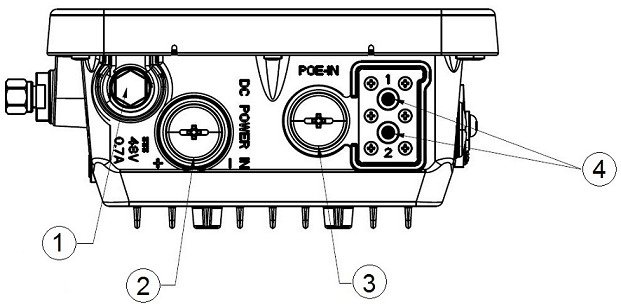
Use a large Phillips or Flat Blade screw driver to remove the Ethernet connector plug from the Cisco Wireless Gateway for LoRaWAN. Do not discard plug and rubber seal unless you are certain that the port will not have to be replugged. See the following figure for the location.

1

Pressure vent

3

PoE-in port

2

DC power port

4

LED indicators

Step 4

Loosen the Thread-Lock sealing nut of the cable gland by turning it counterclockwise, but do not remove it.

Note 
Verify that the cable gland has a rubber seal and ensure that it is not damaged.
DANGER 

Failure to install the cable gland and rubber gasket properly causes the cable grip to leak.

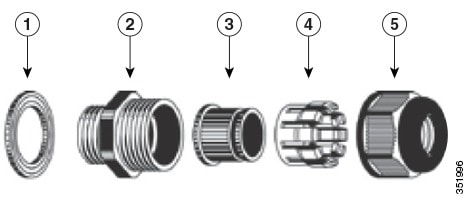
Figure 7. Cable Gland

1

Washer (Rubber Gasket)

2

Body

3

Sealing insert

4

Clamping claw

5

Thread-lock sealing nut

Step 5

Insert the unterminated end of the Ethernet cable through the sealing nut end of the cable gland, and pull several inches of cable through the adapter.

Step 6

Install an RJ-45 connector on the unterminated end of the Ethernet cable using your Ethernet cable installation tool.

DANGER 

To reduce the risk of fire, use only No. 26 AWG or larger telecommunication line cord. Statement 1023

DANGER 

When installing the RJ-45 connector, ensure that cable gland and the rubber gasket are present and installed properly, to avoid water leakage into the enclosure.

Step 7

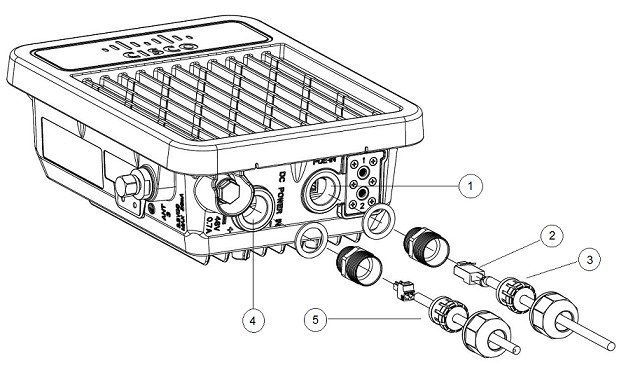
Carefully insert the RJ-45 cable connector into the Ethernet port opening on the LoRaWAN gateway. And connect to the internal Ethernet connector, as the following figure shows.

1

Ethernet port opening in Cisco Wireless Gateway for LoRaWAN case.

2

RJ-45 connector, on shielded outdoor-rated Ethernet (CAT5 or better) cable

3

Exploded view of the cable gland, on the Ethernet cable.

4

DC power opening in Cisco Wireless Gateway for LoRaWAN case.

5

Exploded view of the cable gland on the DC power cable.

Step 8

Slide the cable gland with the rubber seal toward the LoRaWAN gateway. Screw the threaded end of the body into the LoRaWAN gateway, and hand-tighten.

Step 9

Use an adjustable wrench or a 28-mm wrench to tighten the threaded end of the body into the enclosure. Tighten to 15 in-lbs (1.69 N-m).

Step 10

Use an adjustable wrench and tighten the thread-lock seal nut to 15 in-lbs (1.69 N-m).

Step 11

Ensure that the antennas are connected to the Cisco Wireless Gateway for LoRaWAN before you apply power to the Cisco Wireless Gateway for LoRaWAN.

Step 12

Route your Ethernet cable, and cut off any excess cable.

Step 13

Install an RJ-45 connector on the unterminated cable end, and insert it into the power injector.

Step 14

Turn on power to the power injector.


Connecting a DC Power Cable to the Cisco Wireless Gateway for LoRaWAN

When powering the Cisco Wireless Gateway for LoRaWAN with DC power, you must ensure that DC power can be conveniently removed at the source.


DANGER

A readily accessible two-poled disconnect device must be incorporated in the fixed wiring. Statement 1022


DANGER

Connect the unit only to DC power source that complies with the safety extra-low voltage (SELV) requirements in IEC 60950 based safety standards. Statement 1033


To connect a DC power cable, you need to supply these tools and material:

  • Shielded outdoor-rated and twisted pair (min 5 tpf) DC power cable (16-22 AWG to fit in the DC plug, large enough to compensate the loss for length or heat) with outside cable diameter of 4.3 to 6.5 mm

  • Adjustable or open-end wrench

  • Small flat screw driver

  • Two-pin DC power connector (PLG-PWRJCK=, Cisco supplied)

To connect the DC power cable to the Cisco Wireless Gateway for LoRaWAN, follow these steps:

Procedure


Step 1

Before connecting DC power to the Cisco Wireless Gateway for LoRaWAN, ensure that the ground is connected to the Cisco Wireless Gateway for LoRaWAN. See Grounding the Device.

Step 2

Turn off all power sources to the Cisco Wireless Gateway for LoRaWAN, including the DC power source.

DANGER 

This unit might have more than one power supply connection. All connections must be removed to de-energize the unit. Statement 1028

Caution 

When installing DC power to the Cisco Wireless Gateway for LoRaWAN, always connect the device end of the cable FIRST. When removing the DC power connector, always disconnect the device end of the cable LAST.

Step 3

Use a large Phillips or Flat Blade screw driver to remove the DC power connector plug from the Cisco Wireless Gateway for LoRaWAN. Do not discard plug and rubber seal unless you are certain that the port will not have to be replugged. See the following figure for the location of the DC power connector.

1

Pressure vent

3

PoE-in port

2

DC power port

4

LED indicators

Step 4

Loosen the thread-Lock sealing nut of the cable gland by turning it counterclockwise, but do not remove.

Note 
Verify that the cable gland has a rubber seal and ensure that it is not damaged.
DANGER 

Failure to install the Cable Gland properly causes the cable grip to leak.

Figure 8. Cable Gland

1

Washer (Rubber Gasket)

2

Body

3

Sealing insert

4

Clamping claw

5

Thread-lock sealing nut

Note 
The cable gland accepts a cable diameter of 0.43 to 0.65 cm.
Step 5

Insert a bare end of the DC power cord into the rounded end of the cable gland. Pull approximately 6 inches of cable through the adapter.

DANGER 

When installing the DC power cable, ensure that cable gland and the rubber gasket are present and installed properly, to avoid water leakage into the enclosure.

Step 6

Strip the DC cable jacket back about 1 inch to expose the wires and strip the insulation about 3/8 inch (9.5 mm) from each wire.

Step 7

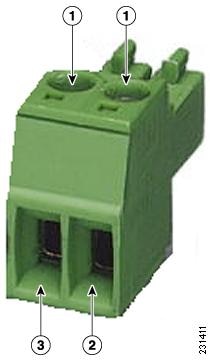
Insert each wire into the two-position terminal strip (supplied), and tighten each wire using a 0.1 inch(0.25 cm) flat screw driver.

Figure 9. Two-Position Terminal Strip

1

Securing screws

2

Wire opening for ground (DC return)

3

Wire opening for DC +

Step 8

Insert the two-position terminal strip into the DC power opening in the LoRaWAN gateway case. Carefully push the terminal strip into the internal connector.

1

Ethernet port opening in Cisco Wireless Gateway for LoRaWAN case.

2

RJ-45 connector, on shielded outdoor-rated Ethernet (CAT5 or better) cable

3

Exploded view of the cable gland, on the Ethernet cable.

4

DC power opening in Cisco Wireless Gateway for LoRaWAN case.

5

Exploded view of the cable gland on the DC power cable.

Note 
Ensure that the polarity of the terminal strip properly matches the polarity markings on the enclosure.
Figure 10. DC Power Port and Ethernet Port Opening in the Cisco Wireless Gateway for LoRaWAN Case
Step 9

Slide the cable gland with the rubber seal toward the LoRaWAN gateway. Screw the threaded end of the body into the LoRaWAN gateway, and hand-tighten.

Step 10

Use an adjustable wrench, a 28-mm wrench to tighten the threaded end of the body to 15 in-lbs (1.69 N-m).

Step 11

Use an adjustable wrench and tighten the thread-lock seal nut to 15 in-lbs (1.69 N-m).

Step 12

Ensure that the antennas are connected to the Cisco Wireless Gateway for LoRaWAN before you apply power to the Cisco Wireless Gateway for LoRaWAN.

Step 13

Turn on the DC power at the designated circuits.