Overview of Cisco IOS XR Software Packages
Cisco IOS XR software is divided into software packages so that you can select which features run on your router. Each package contains the components to perform a specific set of router functions, such as routing, security, or modular services card (MSC) support. Bundles are groups of packages that can be downloaded as a set. For example, Cisco IOS XR Unicast Routing Core Bundle (known as mini) provides the main packages for use on every router.
Adding a package to the router does not affect the operation of the router—it only copies the package files to a local storage device on the router, known as the boot device (such as the compact flash drive). To make the package functional on the router, you must activate it for one or more cards.
To upgrade a package, you activate a newer version of the package. When the automatic compatibility checks have been passed, the new version is activated, and the old version is deactivated.
 Note |
Activating a software maintenance upgrade (SMU) does not cause any earlier SMUs or the package to which the SMU applies to be automatically deactivated. |
Note |
If an interface on a router does not have a configuration and is brought up by performing no-shut operation, then upon router reload, the interface state changes to admin-shutdown automatically. |
To downgrade a package, you activate an older version of the package. When the automatic compatibility checks have been passed, the older version is activated, and the newer version is deactivated.
 Caution |
Do not perform any install operations when the router is reloading. |
Note |
For more information on the features and components included in each package, refer to the release notes. |
Package Installation Envelopes
Package Installation Envelopes (PIEs) are nonbootable files that contain a single package or a set of packages (called a composite package or bundle). Because the files are nonbootable, they are used to add software package files to a running router.
PIE files have a pie extension. When a PIE file contains software for a specific bug fix, it is called a software maintenance upgrade (SMU).
Note |
Files with the vm extension are bootable installation files used only to replace all current Cisco IOS XR software. These files are installed from ROM Monitor mode, which causes significant router downtime. Cisco Systems recommends installing or upgrading software packages only using PIE files as described in this document. For more information on vm files, see ROM Monitor Configuration Guide for Cisco ASR 9000 Routers. |
Packages in the Cisco IOS XR Unicast Routing Core Bundle
Every router includes a basic set of required packages contained in the Cisco IOS XR Unicast Routing Core Bundle. Additional optional packages can be added and activated on the router to provide specific features.
The packages contained in the Cisco IOS XR Unicast Routing Core Bundle are as follows:
-
Operating system (OS) and minimum boot image (MBI)—Kernel, file system, memory management, and other slow changing core components.
-
Base—Interface manager, system database, checkpoint services, configuration management, other slow-changing components.
-
Infra—Resource management: rack, fabric.
-
Routing—RIB, BGP, ISIS, OSPF, EIGRP, RIP, RPL, and other routing protocols.
-
Forwarding—FIB, ARP, QoS, ACL, and other components.
-
LC— Line card drivers.
The filename for this bundle is: asr9k-mini.pie-version.
Refer to the release notes for additional information on the specific features provided by each package.
PIE Filenames and Version Numbers
PIE filenames have two formats: one for composite-package PIEs (bundles) and one for single-package PIEs. A composite-package file is a PIE file that contains multiple packages.
Note |
Hyphens in the filename are part of the filename. |
Table 1 shows the filenames for available PIE types.
|
Software Delivery Type |
Filename |
Example |
||
|---|---|---|---|---|
|
Composite (Bundle) PIE |
platform-composite_name.pie- major.minor.maintenance |
asr9k-mini.pie-3.7.2 | ||
|
Single package PIE |
platform-package_type.-p.pie- major.minor.maintenance |
asr9k-mpls.pie-3.7.2 | ||
|
Composite SMU |
comp-platform-composite_name.ddts.pie |
comp-asr9k-001.CSCec98xxx.pie | ||
|
Single package SMU |
platform-package_type- major.minor.maintenance.ddts.pie |
asr9k-base-3.7.2.CSCei45xxx.pie | ||
|
||||
Summary of Package Management
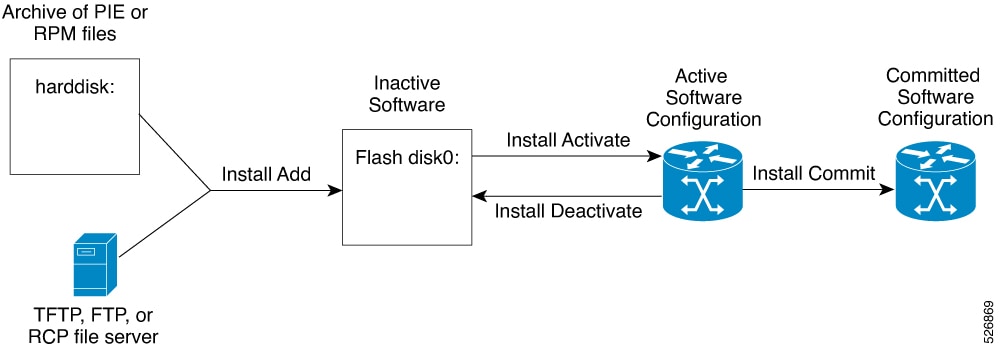
The general procedure for adding optional packages, upgrading a package or package set, or downgrading packages on the router is as follows:
-
Copy the package file or files to a local storage device or file server.
-
Add the package or packages on the router using the command install add .
-
Activate the package or packages on the router using the install activate command.
-
Commit the current set of packages using the install commit command.
Process to Add, Activate, and Commit Cisco IOS XR Software Packages illustrates key steps in the package management process.
Adding Packages
Use the install add command to unpack the package software files from a PIE file and copy them to the boot device (usually disk0:).
- The package software files are added to the boot device of the DSC of the router from either administration EXEC or EXEC mode.
Note |
The disk that holds the unpacked software files is also known as the boot device. By default, flash disk0: is used as the boot device. To use an alternate storage device, such as flash disk1:, see the Router Recovery with ROM Monitor module of ROM Monitor Configuration Guide for Cisco ASR 9000 Routers. Remember that all RSPs in a system must use the same boot device. If the boot device on the primary RSP is flash disk0:, then the standby RSP must also have a flash disk0:. |
Activating Packages
Software packages remain inactive until activated with the install activate command.
After a package has been added to the router , use the install activate command to activate the package or SMUs for all valid cards. Information within the package is used to verify compatibility with the target cards and with the other active software. Actual activation is performed only after the package compatibility and application programming interface (API) compatibility checks have been passed.
Note |
SDR-specific activation is supported for specific packages and upgrades, such as optional packages and SMUs. Packages that do not support SDR-specific EXEC mode activation can only be activated from administration EXEC mode. |
Activating a Package on the Router
To activate a package on your router, use the install activate command in either administration EXEC mode or EXEC mode. If used in administration EXEC mode, the install activate command also activates the package on all administration plane nodes and resources, including service processors (SPs), fabric SCs, fan controllers, alarm modules, and power modules.
Note |
To enter administration EXEC mode, you must be logged in to the owner secure domain router (SDR) and have root-system access privileges. |
You can also activate a package using the install activate command from EXEC mode.
Activating Multiple Packages or SMUs
To install multiple packages or software maintenance upgrades (SMUs) with a single command, use the install activate command and either specify up to 16 packages by repeating device: package arguments or use wildcard syntax to specify multiple packages. Some SMUs may require a reload. If the operation requires a node reload, the user is prompted before the installation operation occurs.
Note |
After activating SMU CSCwc03813, ensure that you either reload the Line Card or remove and reapply the existing Access Control Lists, for the updates to take effect. |
Activating All Packages Added in a Specific Operation
To install all packages that were added in a specific install add operation, use the install activate command with the id add-id keyword and argument, specifying the operation ID of the install add operation. You can specify up to 16 operations in a single command.
Adding and Activating a Package with a Single Command
To add and activate a package with a single command, use the install add command with the activate keyword.
-
To add and activate a package, enter the install add command with the activate keyword from administration EXEC mode.
-
To add and activate a package in EXEC mode (where supported), enter the install add command with the activate keyword.
Multiple Disks Support during Installations
In installations on platforms where Cisco IOS XR Software is supported, only a single disk is used as an install device; that is, either disk0 or disk1. When multiple packages are installed on a single disk, it results in space constraints. To resolve this space limitation, the disk supported for the install operations has been extended to another disk called the disk1. When installing multiple packages, this feature enables you to choose between disk0 and disk1.
To add packages to a specific disk name, use the install media command in the admin configuration mode.
RP/0/RSP0/CPU0: router (admin) # install media disk1Restrictions
-
Before enabling the addition of disk1 through the install media command, the disk mirroring feature should be explicitly disabled. For details regarding disk mirroring, see the Disk Mirroring chapter.
-
All single version packages should be installed into one disk; that is, either disk0 or disk1.
-
When downgrading to an image that does not support extended disk, the rollback points of the extended disk will not be available on the downgraded image. For example, assume a case where the version1 (V1) image does not support the extended disk functionality and version2 (V2) image supports the functionality. Upgrading from V1(disk0) to V2(disk1), in such a case, makes the rollback points of V1 available on V2. However, when downgrading from V2(disk1) to V1(disk0), the rollback points of V2 will not be available on V1. For more information about the rollback feature and rollback points, see the Upgrading and Managing Software chapter.
Support for the Ignore Package Presence Check Option
During any software package upgrade in Cisco IOS XR Software, two versions of the packages get stored, both the previous version and the upgraded version. In Route Switch Processor 2 (RSP2), the disk space is insufficient to hold all packages of these two versions. To address this, a new optional keyword, ignore-pkg-presence-check , is added to the install activate command, which allows upgrading with lesser number of packages. For example, assume a case where version1 (V1) of the software consists of packages A, B, C, and D, and you want to upgrade to the version2 (V2) with only 3 packages (A, B, and C). The ignore-pkg-presence-check option allows only packages A, B, and C to be upgraded to V2 and deactivates package D of V1. Thus, an explicit deactivation of package D is not required and the user can add package D of V1 after upgrading to V2.
To upgrade software with lesser number of packages, use the install activate [ignore-pkg-presence-check] command in the admin mode.
RP/0/RSP0/CPU0: router(admin) # install activate [ignore-pkg-presence-check] V2 packagesRestrictions
The restrictions for this option are:
-
The ignore-pkg-presence-check keyword is supported only with the install activate command and is not supported with the install add activate command.
-
When you upgrade using the ignore-pkg-presence-check option, the deactivation of packages always happens synchronously, using the synchronous keyword in the install deactivate command.
Upgrading and Downgrading Packages
To upgrade a package, activate the latest version of the package; the previous version is automatically deactivated. To downgrade a package, activate the previous version of the package; the latest version is automatically deactivated.
Actual activation is performed only after compatibility checks have been passed.
Note |
|
Committing the Active Software Set
When a package is activated on the router, it becomes part of the current running configuration. To make the package activation persistent across reloads, enter the install commit command. On startup, the designated shelf controller (DSC) of the secure domain router (SDR) loads the committed software set.
- To commit the active software set from administration EXEC mode, use the install commit command with the sdr Owner keywords. Alternatively, use the install commit command without keywords or arguments.
Note |
If the system is restarted before the active software set is saved with the install commit command, the previously committed software set is used. |
Rolling Back to a Previous Installation Operation
Although the term commit sounds final, the Cisco IOS XR software provides the flexibility to roll back the selected package set to previously saved package sets. Each time a package is activated or deactivated, a rollback point is created that defines the package set that is active after the package activation or deactivation. The software also creates a rollback point for the last committed package set. If you find that you prefer a previous package set over the currently active package set, you can use the install rollback command to make a previously active package set active again.
Preparing for Software Installation Operations
This section includes instructions to prepare for software installation operations.
Note |
Activation is performed only after the automatic package compatibility and API version compatibility checks have been passed. If a conflict is found, an on-screen error message is displayed. |
Before you begin
Before adding or activating Cisco IOS XR software:
- Update the ROM Monitor software, if necessary.
- Determine if a software change is required.
- Verify that the new package is supported on your system. Some software packages require that other packages or package versions be activated, and some packages only support specific cards.
- Review the release notes for important information related to that release and to help determine the package compatibility with your router configuration.
- Verify that the system is stable and prepared for the software changes.
SUMMARY STEPS
- admin
- show diag
- Update the ROMMON software if necessary.
- show install active
- show install pie-info device:package [ brief | detail | verbose ]
- verify packages
- exit
- (Optional) show system verify start
- (Optional) show system verify [ detail | report ]
- show clock
DETAILED STEPS
| Command or Action | Purpose | |||
|---|---|---|---|---|
|
Step 1 |
admin Example: |
Enters administration EXEC mode. |
||
|
Step 2 |
show diag Example: |
Displays the ROMMON software version for all cards in the system. Verify that the correct ROMMON software version is installed before upgrading a Cisco IOS XR software package.
|
||
|
Step 3 |
Update the ROMMON software if necessary. |
Updates the ROMMON software. For instructions, see ROM Monitor Configuration Guide for Cisco ASR 9000 Routers. |
||
|
Step 4 |
show install active Example: |
Displays the active software for the owner SDR. Use this command to determine what software should be added, upgraded or downgraded on the router, and to compare to the active software report after installation operations are complete.
|
||
|
Step 5 |
show install pie-info device:package [ brief | detail | verbose ] Example: |
Displays information imbedded in the package. The following keywords provide three levels of information:
|
||
|
Step 6 |
verify packages Example: |
Verifies that there are no corrupted software files. The consistency of a previously installed software set is verified against the package file from which it originated. This command can be used as a debugging tool to verify the validity of the files that constitute the packages, to determine if there are any corrupted files. This command also checks for corruptions of installation state files and MBI image files. This command is particularly useful when issued after the activation of a package or upgrading the Cisco IOS XR software to a major release.
|
||
|
Step 7 |
exit Example: |
Exits administration EXEC mode and returns to EXEC mode. |
||
|
Step 8 |
(Optional) show system verify start Example: |
(Optional)
Starts the system status check. |
||
|
Step 9 |
(Optional) show system verify [ detail | report ] Example: |
(Optional)
Displays system status information. A variety of information is displayed including the memory and CPU usage, process status, protocol status, and other status information. Use this information to verify that the system is stable. Enter this command in EXEC mode.
|
||
|
Step 10 |
show clock Example: |
Verifies that the system clock is correct. Software operations use certificates based on router clock times. |
Examples
Verifying That the ROM Monitor Version Is Correct: Example
In the following example, the ROM Monitor software version is displayed in the “ROMMON:” field for each card.
Note |
For instructions to upgrade the ROM Monitor software, see ROM Monitor Configuration Guide for Cisco ASR 9000 Routers. |
RP/0/RSP0/CPU0:router# admin
RP/0/RSP0/CPU0:router(admin)# show diag

Mon Jun 22 12:55:10.554 PST

NODE module 0/RSP0/CPU0 :

  MAIN:  board type 0x100302
  S/N:   FOC1230803H
  Top Assy. Number:   68-3160-04
  PID:   A2K-RSP-4G-HDD=
  UDI_VID:   VP4
  HwRev: V4.8
  New Deviation Number: 0
  CLEI:  IPUCARJBAA
  Board State : IOS XR RUN
  PLD:    Motherboard: N/A, Processor: 0x8004 (rev: 2.2), Power: N/A
  MONLIB: QNXFFS Monlib Version 3.2
  ROMMON: Version 1.0(20081208:173612) [ASR9K ROMMON]
  Board FPGA/CPLD/ASIC Hardware Revision:
    Compact Flash : V1.0
     XbarSwitch0  : V1.3
     XbarSwitch1  : V1.3
     XbarArbiter  : V1.0
     XbarInterface  : V0.0
     IntCtrl  : V1.14
     ClkCtrl  : V1.13
     PuntFPGA  : V1.5
     HD  : V3.0
     USB0  : V77.20
     USB1  : V77.20
     CPUCtrl  : V1.17
     UTI  : V1.6
     LIU  : V1.0
     MLANSwitch  : V0.0
     EOBCSwitch  : V2.0
     CBC (active partition)  : v1.2
     CBC (inactive partition)  : v1.1

NODE fantray 0/FT0/SP :

  MAIN:  board type 0x900211
  S/N:
  Top Assy. Number:   32-0000-00
  PID:
  UDI_VID:
  HwRev: V32.0
  New Deviation Number: 0
  CLEI:
  PLD:    Motherboard: N/A, Processor: N/A, Power: N/A
  ROMMON:
  Board FPGA/CPLD/ASIC Hardware Revision:
     CBC (active partition)  : v4.0
     CBC (inactive partition)  : v0.13

NODE fantray 0/FT1/SP :

  MAIN:  board type 0x900211
  S/N:
  Top Assy. Number:   32-0000-00
  PID:
  UDI_VID:
  HwRev: V32.0
  New Deviation Number: 0
  CLEI:
  PLD:    Motherboard: N/A, Processor: N/A, Power: N/A
  ROMMON:
  Board FPGA/CPLD/ASIC Hardware Revision:
     CBC (active partition)  : v4.0
     CBC (inactive partition)  : v0.13

NODE module 0/1/CPU0 :

   MAIN:  board type 0x20207
  S/N:   FOC123081J6
  Top Assy. Number:   68-3182-03
  PID:   A9K-40GE-B
  UDI_VID:   V1D
  HwRev: V0.0
  New Deviation Number: 0
  CLEI:
  Board State : IOS XR RUN
  PLD:    Motherboard: N/A, Processor: 0x8004 (rev: 2.2), Power: N/A
  ROMMON: Version 1.0(20081208:174521) [ASR9K ROMMON]
  Board FPGA/CPLD/ASIC Hardware Revision:
     NP0  : V3.194
     NP1  : V3.194
     NP2  : V3.194
     NP3  : V3.194
     XbarInterface  : V18.4
     Bridge0  : V0.38
     Bridge1  : V0.38
     CPUCtrl  : V0.15
     USB  : V77.20
     PortCtrl  : V0.8
     PHYCtrl  : V0.6
     40 Port Gigabit Ethernet Daughter board  : V0.0
     CBC (active partition)  : v2.2
     CBC (inactive partition)  : v2.1

NODE module 0/4/CPU0 :

  MAIN:  board type 0x2020a
  S/N:   FOC123081JA
  Top Assy. Number:   68-3183-02
  PID:   A9K-8T/4-B
  UDI_VID:   V1D
  HwRev: V0.0
  New Deviation Number: 0
  CLEI:  IPU3AE0CAA
  Board State : IOS XR RUN
  PLD:    Motherboard: N/A, Processor: 0x8004 (rev: 2.2), Power: N/A
  ROMMON: Version 1.0(20081208:174521) [ASR9K ROMMON]
  Board FPGA/CPLD/ASIC Hardware Revision:
     NP0  : V3.194
     NP1  : V3.194
     NP2  : V3.194
     NP3  : V3.194
     XbarInterface  : V18.4
     Bridge0  : V0.38
     Bridge1  : V0.38
     CPUCtrl  : V0.15
     USB  : V77.20
     PortCtrl  : V0.10
     PHYCtrl  : V0.7
     PHY0  : V0.16
     PHY1  : V0.16
     PHY2  : V0.16
     PHY3  : V0.16
     PHY4  : V0.16
     PHY5  : V0.16
     PHY6  : V0.16
     PHY7  : V0.16
     8 Port Ten Gigabit Ethernet Daughter board  : V0.0
     CBC (active partition)  : v2.2
     CBC (inactive partition)  : v2.1

NODE module 0/6/CPU0 :

  MAIN:  board type 0x20208
  S/N:   FHH12250033
  Top Assy. Number:   68-3184-02
  PID:   A9K-4T-B
  UDI_VID:   V1D
  HwRev: V0.0
  New Deviation Number: 0
  CLEI:
  Board State : IOS XR RUN
  PLD:    Motherboard: N/A, Processor: 0x8004 (rev: 2.2), Power: N/A
  ROMMON: Version 1.0(20081208:174521) [ASR9K ROMMON]
  Board FPGA/CPLD/ASIC Hardware Revision:
     NP0  : V3.194
     NP1  : V3.194
     NP2  : V3.194
     NP3  : V3.194
     XbarInterface  : V18.4
     Bridge0  : V0.38
     Bridge1  : V0.38
     CPUCtrl  : V0.15
     USB  : V77.20
     PHY0  : V0.16
     PHY1  : V0.16
     PHY2  : V0.16
     PHY3  : V0.16
     PortCtrl  : V0.10
      PHYCtrl  : V0.7
     4 Port Ten Gigabit Ethernet Daughter board  : V0.0
     CBC (active partition)  : v2.2
     CBC (inactive partition)  : v2.1

NODE power-module 0/PM0/SP :

  MAIN:  board type 0xf00188
  S/N:
  Top Assy. Number:   341-00032-01
  PID:   A9K-3KW-AC
  UDI_VID:   V00
  HwRev: V0.0
  New Deviation Number: 0
  CLEI:  ACACACACAC
  PLD:    Motherboard: N/A, Processor: N/A, Power: N/A
  ROMMON:
  Board FPGA/CPLD/ASIC Hardware Revision:

NODE power-module 0/PM1/SP :

  MAIN:  board type 0xf00188
  S/N:
  Top Assy. Number:   341-00032-01
  PID:   A9K-3KW-AC
  UDI_VID:   V00
  HwRev: V0.0
  New Deviation Number: 0
  CLEI:  ACACACACAC
  PLD:    Motherboard: N/A, Processor: N/A, Power: N/A
  ROMMON:
  Board FPGA/CPLD/ASIC Hardware Revision:

NODE power-module 0/PM2/SP :

  MAIN:  board type 0xf00188
  S/N:
  Top Assy. Number:   341-00032-01
  PID:   A9K-3KW-AC
  UDI_VID:   V00
  HwRev: V0.0
  New Deviation Number: 0
  CLEI:  ACACACACAC
  PLD:    Motherboard: N/A, Processor: N/A, Power: N/A
  ROMMON:
  Board FPGA/CPLD/ASIC Hardware Revision:

Rack 0 - ASR-9010 Chassis, Includes Accessories
  RACK NUM: 0
  S/N:
  PID:   ASR-9010 Backplane
  VID:   0.1
  Desc:  ASR-9010 Chassis, Includes Accessories
  CLEI:  NOCLEI
  Top Assy. Number:   68-1234-56
Displaying the Active Software for the Entire System: Example
The following example displays the active packages for the entire system. Use this information to determine if a software change is required:
RP/0/RSP0/CPU0:router(admin)# show install active summary

Mon Jun 22 13:01:46.438 PST
Default Profile:
  SDRs:
    Owner
  Active Packages:
    disk0:comp-asr9k-mini-3.9.0.12I
    disk0:asr9k-fpd-3.9.0.12I
    disk0:asr9k-k9sec-3.9.0.12I
    disk0:asr9k-mcast-3.9.0.12I
    disk0:asr9k-mgbl-3.9.0.12I
    disk0:asr9k-mpls-3.9.0.12I
Displaying Information About the Contents of a PIE File: Example
In the following example, information is displayed about the manageability PIE. This command displays the expiry date of the package, the cards supported by the package, and other details. Use this information to verify the compatibility of the package with your system and other software packages.
Note |
A software activation is performed only after the automatic package compatibility and API version compatibility checks have been passed. If a conflict is found, an on-screen error message is displayed. |
RP/0/RSP0/CPU0:router(admin)# show install pie-info disk1:/
asr9k-mgbl-p.pie-3.8.0 detail

Contents of pie file '/disk1:/asr9k-mgbl-p.pie-3.8.0':
    Expiry date       : Jan 19, 2007 02:55:56 UTC
    Uncompressed size : 17892613

    asr9k-mgbl-3.8.0
        asr9k-mgbl V3.8.0[00]  Manageability Package
        Vendor : Cisco Systems
        Desc   : Manageability Package
        Build  : Built on Wed May 10 08:04:58 UTC 2006
        Source : By edde-bld1 in /vws/aga/production/3.8.0/asr9k/workspace for c28
        Card(s): RP, DRP, DRPSC
        Restart information:
          Default:
            parallel impacted processes restart
        Components in package asr9k-mgbl-3.8.0, package  asr9k-mgbl:
            manageability-cwi V[r33x/2]  Craft Web Interface related binaries ae
            asr9k-feature-ipsla V[r33x/1]  IPSLA time stamping feature
            doc-asr9k-mgbl V[r33x/2]  Contains the man page documentation for asr9ks
 --More--
Verifying That There Are No Corrupted Software Files: Example
The following sample output verifies the consistency of the currently active software against the file from which it originated:
RP/0/RSP0/CPU0:router(admin)# install verify packages

Mon Jun 22 13:19:08.590 PST
Install operation 3 '(admin) install verify packages' started by user 'user'
via CLI at 13:19:08 DST Mon Jun 22 2009.
The install operation will continue asynchronously.
RP/0/RSP0/CPU0:router(admin)#Info:
This operation can take up to 2 minutes per package being verified.
Info:     Please be patient.

Info:     0/6/CPU0 [LC] [SDR: Owner]
Info:         meta-data: [SUCCESS] Verification Successful.
Info:         /install/asr9k-scfclient-3.9.0.12I: [SUCCESS] Verification
Info:     Successful.
Info:         /install/asr9k-os-mbi-3.9.0.12I: [SUCCESS] Verification
Info:     Successful.
Info:         /install/asr9k-mpls-3.9.0.12I: [SUCCESS] Verification Successful.
Info:         /install/asr9k-mcast-3.9.0.12I: [SUCCESS] Verification
Info:     Successful.
Info:         /install/asr9k-lc-3.9.0.12I: [SUCCESS] Verification Successful.
Info:         /install/asr9k-fwdg-3.9.0.12I: [SUCCESS] Verification Successful.
Info:         /install/asr9k-fpd-3.9.0.12I: [ERROR] Detected anomalies.
Info:         /install/asr9k-diags-3.9.0.12I: [SUCCESS] Verification
Info:     Successful.
Info:         /install/asr9k-base-3.9.0.12I: [SUCCESS] Verification Successful.
Info:         /install/asr9k-admin-3.9.0.12I: [SUCCESS] Verification
Info:     Successful.
Info:     0/1/CPU0 [LC] [SDR: Owner]
Info:         meta-data: [SUCCESS] Verification Successful.
Info:         /install/asr9k-scfclient-3.9.0.12I: [SUCCESS] Verification
Info:     Successful.
Info:         /install/asr9k-os-mbi-3.9.0.12I: [SUCCESS] Verification
Info:     Successful.
Info:         /install/asr9k-mpls-3.9.0.12I: [SUCCESS] Verification Successful.
Info:         /install/asr9k-mcast-3.9.0.12I: [SUCCESS] Verification
Info:     Successful.
Info:         /install/asr9k-lc-3.9.0.12I: [SUCCESS] Verification Successful.
Info:         /install/asr9k-fwdg-3.9.0.12I: [SUCCESS] Verification Successful.
Info:         /install/asr9k-fpd-3.9.0.12I: [ERROR] Detected anomalies.
Info:         /install/asr9k-diags-3.9.0.12I: [SUCCESS] Verification
Info:     Successful.
Info:         /install/asr9k-base-3.9.0.12I: [SUCCESS] Verification Successful.
Info:         /install/asr9k-admin-3.9.0.12I: [SUCCESS] Verification
Info:     Successful.
Info:     0/4/CPU0 [LC] [SDR: Owner]
Info:         meta-data: [SUCCESS] Verification Successful.
Info:         /install/asr9k-scfclient-3.9.0.12I: [SUCCESS] Verification
Info:     Successful.
Info:         /install/asr9k-os-mbi-3.9.0.12I: [SUCCESS] Verification
Info:     Successful.
Info:         /install/asr9k-mpls-3.9.0.12I: [SUCCESS] Verification Successful.
Info:         /install/asr9k-mcast-3.9.0.12I: [SUCCESS] Verification
Info:     Successful.
Info:         /install/asr9k-lc-3.9.0.12I: [SUCCESS] Verification Successful.
Info:         /install/asr9k-fwdg-3.9.0.12I: [SUCCESS] Verification Successful.
Info:         /install/asr9k-fpd-3.9.0.12I: [ERROR] Detected anomalies.
Info:         /install/asr9k-diags-3.9.0.12I: [SUCCESS] Verification
Info:     Successful.
Info:         /install/asr9k-base-3.9.0.12I: [SUCCESS] Verification Successful.
Info:         /install/asr9k-admin-3.9.0.12I: [SUCCESS] Verification
Info:     Successful.
Info:     0/RSP0/CPU0 [RP] [SDR: Owner]
Info:         meta-data: [SUCCESS] Verification Successful.
Info:         /install/asr9k-fpd-3.9.0.12I: [ERROR] Detected anomalies.
Info:         /install/asr9k-mpls-3.9.0.12I: [SUCCESS] Verification Successful.
Info:         /install/asr9k-mgbl-3.9.0.12I: [SUCCESS] Verification Successful.
Info:         /install/asr9k-mcast-3.9.0.12I: [SUCCESS] Verification
Info:     Successful.
Info:         /install/asr9k-k9sec-3.9.0.12I: [SUCCESS] Verification
Info:     Successful.
Info:         /install/asr9k-os-mbi-3.9.0.12I: [SUCCESS] Verification
Info:     Successful.
Info:         /install/asr9k-base-3.9.0.12I: [SUCCESS] Verification Successful.
Info:         /install/asr9k-admin-3.9.0.12I: [SUCCESS] Verification
Info:     Successful.
Info:         /install/asr9k-fwdg-3.9.0.12I: [SUCCESS] Verification Successful.
Info:         /install/asr9k-lc-3.9.0.12I: [SUCCESS] Verification Successful.
Info:         /install/asr9k-rout-3.9.0.12I: [SUCCESS] Verification Successful.
Info:         /install/asr9k-diags-3.9.0.12I: [SUCCESS] Verification
Info:     Successful.
Info:         /install/asr9k-scfclient-3.9.0.12I: [SUCCESS] Verification
Info:     Successful.
Info:     Verification Summary:
Info:         0/6/CPU0: ERROR. Anomalies found.
Info:         0/1/CPU0: ERROR. Anomalies found.
Info:         0/4/CPU0: ERROR. Anomalies found.
Info:         0/RSP0/CPU0: ERROR. Anomalies found.
Info:         Anomalies found on the primary RP.
Info:         No standby RP is present.
Info:         Please contact your technical services representative to repair
Info:     the system.
Install operation 3 completed successfully at 13:21:29 DST Mon Jun 22 2009.
Verifying the Current System Status: Example
The following example shows how to prepare for system verification:
RP/0/RSP0/CPU0:router# show system verify start

  Storing initial router status ...
  done.
The following example shows output from running the show system verify command.
Note |
Although most of the output should display the status “OK,” some processes may show other output, such as “Warning.” This does not specifically indicate a problem. Contact your Cisco technical support representative for more information on the output of this command. |
RP/0/RSP0/CPU0:router# show system verify

  Getting current router status ...
  System Verification Report
  ==========================
  - Verifying Memory Usage
  - Verified Memory Usage                                 : [OK]
  - Verifying CPU Usage
  - Verified CPU Usage                                    : [OK]

  - Verifying Blocked Processes
  - Verified Blocked Processes                            : [OK]
  - Verifying Aborted Processes
  - Verified Aborted Processes                            : [OK]
  - Verifying Crashed Processes
  - Verified Crashed Processes                            : [OK]

  - Verifying LC Status
  - Verified LC Status                                    : [OK]
  - Verifying QNET Status
  Unable to get current LC status info
  - Verified QNET Status                                  : [FAIL]

  - Verifying GSP Fabric Status
  - Verified GSP Fabric Status                            : [OK]
  - Verifying GSP Ethernet Status
    gsp WARNING messages for router
    Current set of gsp ping nodes does not match initial set of nodes
  - Verified GSP Ethernet Status                          : [WARNING]

  - Verifying POS interface Status
  - Verified POS interface Status                         : [OK]
  - Verifying TenGigE interface Status
  - Verified TenGigE interface Status                     : [OK]

  - Verifying TCP statistics
  - Verified TCP statistics                               : [OK]
  - Verifying UDP statistics
    tcp_udp_raw WARNING messages for router
    UDP Packets sent has not increased during this period.
  - Verified UDP statistics                               : [WARNING]
  - Verifying RAW statistics
  - Verified RAW statistics                               : [OK]

  - Verifying RIB Status
  - Verified RIB Status                                   : [OK]
  - Verifying CEF Status
  - Verified CEF Status                                   : [OK]
  - Verifying CEF Consistency Status
  - Verified CEF Consistency Status                       : [OK]
  - Verifying BGP Status
  - Verified BGP Status                                   : [OK]
  - Verifying ISIS Status
  - Verified ISIS Status                                  : [OK]
  - Verifying OSPF Status
  - Verified OSPF Status                                  : [OK]

  - Verifying Syslog Messages
  - Verified Syslog Messages                              : [OK]

  System may not be stable. Please look into WARNING messages.
Verifying That the System Clock Is Correct: Example
The following example displays the current system clock setting:
RP/0/RSP0/CPU0:router# show clock

02:14:51.474 PST Wed Jan 28 2009
Upgrading to Cisco IOS XR Software Release 4.0
In Cisco IOS XR Software Release 4.0, the software packages were reorganized into functionally well-defined and independently-releasable packages. For this reason, when you upgrade from a software release prior to Release 4.0, you must perform the following procedure in order to synchronize all of the software packages according to the reorganized structure. General information regarding the the addition and activation of software packages is not covered in this procedure.
The main difference between the standard upgrade procedure and the procedure required to upgrade from Release 3.x to 4.x is that the later requires the addition of one additional software package, known as the upgrade package (asr9k-upgrade-p.pie).
Before you begin
Before performing this procedure, see the adding and activating software package procedures described in this module.
SUMMARY STEPS
- admin
- install add tftp:// hostname_or_ipaddress / directory-path / mandatory-bundle-pie
- install add tftp:// hostname_or_ipaddress / directory-path / asr9k -upgrade-p.pie
- install activate device:mandatory-bundle-pie device:upgrade-package
- install deactivate device:upgrade-package
- (Optional) install commit
- install remove device:upgrade-package
DETAILED STEPS
| Command or Action | Purpose | |||
|---|---|---|---|---|
|
Step 1 |
admin Example: |
Enters administration EXEC mode.
|
||
|
Step 2 |
install add tftp:// hostname_or_ipaddress / directory-path / mandatory-bundle-pie Example: |
Unpacks the mandatory bundle PIE file from a network server and adds the package file to the boot device of the router.
|
||
|
Step 3 |
install add tftp:// hostname_or_ipaddress / directory-path / asr9k -upgrade-p.pie Example: |
Unpacks the upgrade PIE file from a network server and adds the package file to the boot device of the router. |
||
|
Step 4 |
install activate device:mandatory-bundle-pie device:upgrade-package Example: |
Activates the package that was added to the router together with the upgrade package.
|
||
|
Step 5 |
install deactivate device:upgrade-package Example: |
Deactivates the upgrade package on the router . For specific information regarding the deactivation and removal of software packages, refer to the general procedure. |
||
|
Step 6 |
(Optional) install commit Example: |
(Optional)
Commits the current set of packages so that these packages are used if the router is restarted. Packages can be removed only if the deactivation operation is committed. |
||
|
Step 7 |
install remove device:upgrade-package Example: |
Removes the inactive upgrade package. |
Example
The following example illustrates the upgrade operation:
RP/0/RSP0/CPU0:router(admin)# install add /tftp://223.255.254.254/auto/tftpboot/users/user/
asr9k-mini-p.pie
Fri Jul 9 03:53:11.052 UTCRP/0/RP1/CPU0:Jul 9 03:53:12.053 :
instdir[235]: %INSTALL-INSTMGR-6-INSTALL_OPERATION_STARTED :
Install operation 4 '(admin) install add
/tftp://223.255.254.254/auto/tftpboot/users/user/asr9k-mini-p.pie'
started by user 'lab'
Install operation 4 '(admin) install add
/tftp://223.255.254.254/auto/tftpboot/users/user/asr9k-mini-p.pie'
started by user 'lab' via CLI at 03:53:12 UTC Fri Jul 09 2010.
The install operation will continue asynchronously.
RP/0/RSP0/CPU0:router(admin)#
Info: The following package is now available to be activated:
Info: disk0:asr9k-mini-p-4.0.0
Info: The package can be activated across the entire router.
Info: RP/0/RP1/CPU0:Jul 9 04:32:26.152 : instdir[235]: %INSTALL-INSTMGR-6-INSTALL_OPERATION_COMPLETED_SUCCESSFULLY :
Info: Install operation 4 completed successfully
Info: Install operation 4 completed successfully at 04:32:26 UTC Fri Jul 09 2010.
RP/0/RSP0/CPU0:router(admin)# install add /tftp://223.255.254.254/auto/tftpboot/users/user/
asr9k-mpls-p.pie
Fri Jul 9 05:07:52.237 UTCRP/0/RP1/CPU0:Jul 9 05:07:53.710 : instdir[235]: %INSTALL-INSTMGR-6-INSTALL_OPERATION_STARTED :
Info: Install operation 5 '(admin) install add
Info: /tftp://223.255.254.254/auto/tftpboot/users/user/asr9k-mpls-p.pie'
Info: started by user 'lab'
Info: Install operation 5 '(admin) install add
Info: /tftp://223.255.254.254/auto/tftpboot/users/user/asr9k-mpls-p.pie'
Info: started by user 'lab' via CLI at 05:07:53 UTC Fri Jul 09 2010.
Info: The install operation will continue asynchronously.
RP/0/RSP0/CPU0:router(admin)#
Info: RP/0/RP1/CPU0:Jul 9 05:09:08.854 : instdir[235]: %INSTALL-INSTMGR-6-INSTALL_OPERATION_COMPLETED_SUCCESSFULLY :
Install operation 5 completed successfully
Info: The following package is now available to be activated:
Info: disk0:asr9k-mpls-p-4.0.0
Info: The package can be activated across the entire router.
Info: Install operation 5 completed successfully at 05:09:08 UTC Fri Jul 09 2010.
RP/0/RSP0/CPU0:router# install add /tftp://223.255.254.254/auto/tftpboot/users/user/
asr9k-upgrade-p.pie
Fri Jul 9 05:10:31.133 UTCRP/0/RP1/CPU0:Jul 9 05:10:32.156 : instdir[235]: %INSTALL-INSTMGR-6-INSTALL_OPERATION_STARTED :
Info: Install operation 6 '(admin) install add
Info: /tftp://223.255.254.254/auto/tftpboot/users/user/asr9k-upgrade-p.pie'
Info: started by user 'lab'
Info: Install operation 6 '(admin) install add
Info: /tftp://223.255.254.254/auto/tftpboot/users/user/asr9k-upgrade-p.pie'
Info: started by user 'lab' via CLI at 05:10:32 UTC Fri Jul 09 2010.
Info: The install operation will continue asynchronously.
RP/0/RSP0/CPU0:router(admin)#RP/0/RP1/CPU0:
Jul 9 05:11:55.634 : instdir[235]: %INSTALL-INSTMGR-6-INSTALL_OPERATION_COMPLETED_SUCCESSFULLY :
Info: Install operation 6 completed successfully
Info: The following package is now available to be activated:
Info: disk0:asr9k-upgrade-p-4.0.0
Info: The package can be activated across the entire router.
Info: Install operation 6 completed successfully at 05:11:55 UTC Fri Jul 09 2010.
RP/0/RSP0/CPU0:router(admin)# install activate disk0:asr9k-mini-p-4.0.0 disk0:asr9k-upgrade-p-4.0.0 disk0:asr9k-mpls-p-4.0.0
Fri Jul 9 05:23:23.150 UTC
Install operation 7 '(admin) install activate disk0:asr9k-mini-p-4.0.0
Info: disk0:asr9k-upgrade-p-4.0.0 disk0:asr9k-mpls-p-4.0.0'
Info: started by user 'lab'RP/0/RP1/CPU0:Jul 9 05:23:24.161 : instdir[235]: %INSTALL-INSTMGR-6-INSTALL_OPERATION_STARTED :
Info: Install operation 7 '(admin) install activate disk0:asr9k-mini-p-4.0.0
Info: disk0:asr9k-upgrade-p-4.0.0 disk0:asr9k-mpls-p-4.0.0'
Info: started by user 'lab' via CLI at 05:23:24 UTC Fri Jul 09 2010.\ 1% complete:
Info: The operation can still be aborted (ctrl-c for options)
Info: This operation will reload the following nodes in parallel:
Info: 0/RP1/CPU0 (HRP) (SDR: Owner)
Info: 0/SM0/SP (Fabric-SP) (Admin Resource)Proceed with this install operation (y/n)? [y]|
Info: 1% complete: The operation can still be aborted (ctrl-c for options)
Info: Install Method: Parallel Reload/ 1% complete: The operation can still be aborted (ctrl-c for options)
Info: The install operation will continue asynchronously.
RP/0/RSP0/CPU0:router(admin)#SP/0/SM0/SP:
Jul 9 05:36:41.152 : insthelper[62]: %INSTALL-INSTHELPER-6-RELOAD_NODE_INFO :
Info: As part of install operation 7 this node (0/SM0/SP) will now reload.
Info: The changes made to software configurations will not be persistent
Info: across system reloads. Use the command '(admin) install commit' to
Info: make changes persistent.
Info: Please verify that the system is consistent following the software
RP/0/RP1/CPU0:Jul 9 05:36:43.962 : instdir[235]: %INSTALL-INSTMGR-6-INSTALL_OPERATION_COMPLETED_SUCCESSFULLY :
Info: Install operation 7 completed successfully
Info: change using the following commands:
Info: show system verify
Info: install verify packages
Info: Install operation 7 completed successfully at 05:36:43 UTC Fri Jul 09 2010.
rebooting .........................Initializing DDR SDRAM...found 4096 MB
Initializing ECC on bank 0Initializing ECC on bank 1
Initializing ECC on bank 2
Initializing ECC on bank 3
Turning off data cache, using DDR for first time
Initializing NVRAM...Testing a portion of DDR SDRAM ...done
Reading ID EEPROMs ............................
Initializing SQUID ...
Initializing PCI ...PCI0 device[1]: Vendor ID 0x10eePCI0 device[1]: Device ID 0x300ePCI1 device[1]:
Device ID 0x1100PCI1 device[1]: Vendor ID 0x1013PCI1 device[2]: Device ID 0x680PCI1 device[2]:
Vendor ID 0x1095PCI1 device[3]: Device ID 0x5618PCI1 device[3]: Vendor ID 0x14e4Configuring MPPs ...
Configuring PCMCIA slots ...System Bootstrap, Version 1.53(20090311:225342) [CRS-1 ROMMON],
Copyright (c) 1994-2009 by Cisco Systems, Inc.
Acquiring backplane mastership ... successful
Preparing for fan initialization............. ready
Setting fan speed to 4000 RPMs successfulReading backplane EEPROM ...
Released backplane mastership ...Board type is 0x100002 (1048578)
Switch 0 initialized
Switch 0 Port fe1: link up (100Mb Full Duplex Copper)
Enabling watchdogG4(7457-NonSMP-MV64360 Rev 3) platform with 4096 MB of main memory....
CARD_RACK_NUMBER: 0 CARD_SLOT_NUMBER: 1 CPU_INSTANCE: 1
RACK_SERIAL_NUMBER: TBC08052402
MBI Validation starts ... using Control Plane Ethernet.
DEBUG : Driving up signal strength for Intel LXT971
Our MAC address is 0005.9a3e.89da
Interface link changed state to UP.
Interface link state up.
MBI validation sending request.
HIT CTRL-C to abort
MBI validation sending request.
HIT CTRL-C to abort
MBI validation sending request.
HIT CTRL-C to abort
MBI validation sending request.
HIT CTRL-C to abort
MBI validation sending request.
HIT CTRL-C to abort
No MBI confirmation received from dSCboot: booting from
bootflash:disk0/asr9k-os-mbi-4.0.0/mbiasr9k-rp.vm
....................................................................................
##################################################################################
Restricted Rights LegendUse, duplication, or disclosure by the Government is
subject to restrictions as set forth in subparagraph(c) of the Commercial Computer Software - Restricted
Rights clause at FAR sec. 52.227-19 and subparagraph(c) (1) (ii) of the Rights in Technical Data and Computer
Software clause at DFARS sec. 252.227-7013.
cisco Systems, Inc.
170 West Tasman Drive
San Jose, California 95134-1706
Cisco IOS XR Software for the Cisco XR Router, Version 4.0.0 Copyright (c) 2010 by Cisco Systems, Inc.
Jul 09 05:39:21.334 : Install (Node Preparation): Booting with software activated by previous install
operation,errno=2
RP/0/RP1/CPU0Jul 9 05:44:45.941: syslogd_helper: [89]: dsc_event_handler: Got SysMgr dSC event : 1
RP/0/RP1/CPU0:Jul 9 05:45:11.354 : shelfmgr[306]: %PLATFORM-SHELFMGR-3-POWERDOWN_RESET :
Node 0/2/SP is powered off due to admin power off request ios con0/RP1/CPU0 is now available
Press RETURN to get started.
RP/0/RP1/CPU0:Jul 9 05:45:27.453 : instdir[216]: %INSTALL-INSTMGR-4-ACTIVE_SOFTWARE_COMMITTED_INFO :
The currently active software is not committed. If the system reboots then the committed software will be used.
Use 'install commit' to commit the active software. SYSTEM CONFIGURATION IN PROCESS
The startup configuration for this device is presently loading.
This may take a few minutes. You will be notified upon completion.
Please do not attempt to reconfigure the device until this process is complete.
User Access VerificationUsername: labPassword:
RP/0/RSP0/CPU0:router# admin
Fri Jul 9 05:45:55.941 UTC
RP/0/RSP0/CPU0:router(admin)# show platform
Fri Jul 9 05:45:59.805 UTCNode Type PLIM State Config State
---------------------------------------------------------------------------------------
0/2/SP MSC(SP) N/A UNPOWERED NPWR,NSHUT,MON
0/RP1/CPU0 RP(Active) N/A IOS XR RUN PWR,NSHUT,MON
0/SM0/SP FC-40G/S(SP) N/A MBI-RUNNING PWR,NSHUT,MON
0/SM1/* UNKNOWN N/A PRESENT PWR,NSHUT,MON
RP/0/RP1/CPU0:ios(admin)#
RP/0/RP1/CPU0:Jul 9 05:46:08.411 : instdir_lr[217]: %INSTALL-INSTMGR-4-ACTIVE_SOFTWARE_COMMITTED_INFO :
The currently active software is not committed. If the system reboots then the committed software will be used.
Use 'install commit' to commit the active software.
RP/0/RP1/CPU0:Jul 9 05:50:40.918 : placed[283]: LR-PLANE-READY DECLARATIONSYSTEM CONFIGURATION COMPLETED
RP/0/RP1/CPU0:Jul 9 05:50:57.293 : ifmgr[213]: %PKT_INFRA-LINK-3-UPDOWN :
Interface MgmtEth0/RP1/CPU0/0, changed state to Down
RP/0/RP1/CPU0:Jul 9 05:50:57.313 : ifmgr[213]: %PKT_INFRA-LINK-3-UPDOWN :
Interface MgmtEth0/RP1/CPU0/0, changed state to Up
RP/0/RSP0/CPU0:router(admin)# show platform
Fri Jul 9 05:59:36.266 UTC
Node Type PLIM State Config State
---------------------------------------------------------------------------------------
0/2/SP MSC(SP) N/A UNPOWERED NPWR,NSHUT,MON
0/RP1/CPU0 RP(Active) N/A IOS XR RUN PWR,NSHUT,MON
0/SM0/SP FC-40G/S(SP) N/A IOS XR RUN PWR,NSHUT,MON
0/SM1/* UNKNOWN N/A PRESENT PWR,NSHUT,MON
RP/0/RSP0/CPU0:router(admin)# install commit
Fri Jul 9 05:59:41.851 UTC
Install operation 8 '(admin) install commit' started by user 'lab' via CLI at
05:59:43 UTC Fri Jul 09 2010./
20% complete: The operation can no longer be aborted (ctrl-c for options)-
20% complete: The operation can no longer be aborted (ctrl-c for options)\
100% complete:
The operation can no longer be aborted (ctrl-c for options)
RP/0/RP1/CPU0:Jul 9 05:59:46.402 : instdir[216]: %INSTALL-INSTMGR-4-ACTIVE_SOFTWARE_COMMITTED_INFO :
The currently active software is now the same as the committed software.
Install operation 8 completed successfully at 05:59:46 UTC Fri Jul 09 2010.
RP/0/RSP0/CPU0:router(admin)# install deactivate disk0:
asr9k-upgrade-p-4.0.0
Fri Jul 9 05:59:58.082 UTC
Install operation 9 '(admin) install deactivate disk0:asr9k-upgrade-p-4.0.0'started
by user 'lab' via CLI at 05:59:59 UTC
Fri Jul 09 2010.
1% complete: The operation can still be aborted (ctrl-c for options)-
1% complete: The operation can still be aborted (ctrl-c for options)
Info: Install Method: Parallel Process Restart\
1% complete: The operation can still be aborted (ctrl-c for options)
The install operation will continue asynchronously.
RP/0/RSP0/CPU0:router(admin)#
Info: The changes made to software configurations will not be persistent
Info: across system reloads. Use the command '(admin) install commit' to
Info: make changes persistent.
Info: Please verify that the system is consistent following the software
Info: change using the following commands:
Info: show system verify
Info: install verify packages
RP/0/RP1/CPU0:Jul 9 06:01:45.662 : instdir[216]: %INSTALL-INSTMGR-4-ACTIVE_SOFTWARE_COMMITTED_INFO :
The currently active software is not committed. If the system reboots then the committed software will be used.
Use 'install commit' to commit the active software.
Install operation 9 completed successfully at 06:01:45 UTC Fri Jul 09 2010.
RP/0/RSP0/CPU0:router(admin)# install commit
Fri Jul 9 06:01:53.583 UTC
Install operation 10 '(admin) install commit' started by user 'lab' via CLI at06:01:54 UTC Fri Jul 09 2010./
20% complete: The operation can no longer be aborted (ctrl-c for options)-
20% complete: The operation can no longer be aborted (ctrl-c for options)\
100% complete: The operation can no longer be aborted (ctrl-c for options)
RP/0/RP1/CPU0:Jul 9 06:01:57.807 : instdir[216]: %INSTALL-INSTMGR-4-ACTIVE_SOFTWARE_COMMITTED_INFO :
The currently active software is now the same as the committed software.
Install operation 10 completed successfully at 06:01:57 UTC Fri Jul 09 2010.
RP/0/RSP0/CPU0:router(admin)#
RP/0/RSP0/CPU0:router(admin)#
RP/0/RSP0/CPU0:router(admin)# install remove disk0:
asr9k-upgrade-p-4.0.0
Fri Jul 9 06:04:57.676 UTC
Install operation 11 '(admin) install remove disk0:asr9k-upgrade-p-4.0.0'started
by user 'lab' via CLI at 06:04:58 UTC
Fri Jul 09 2010./
1% complete: The operation can no longer be aborted (ctrl-c for options)
Info: This operation will remove the following packages:
Info: disk0:asr9k-fpd-4.0.0
Info: disk0:asr9k-doc-4.0.0
Info: disk0:asr9k-k9sec-4.0.0
Info: disk0:asr9k-sbc-4.0.0
Info: disk0:asr9k-diags-4.0.0
Info: disk0:asr9k-mgbl-4.0.0
Info: disk0:asr9k-mcast-4.0.0
Info: disk0:asr9k-mpls-4.0.0
Info: disk0:asr9k-rout-4.0.0
Info: disk0:asr9k-fwdg-4.0.0
Info: disk0:asr9k-lc-4.0.0
Info: disk0:asr9k-admin-4.0.0
Info: disk0:asr9k-upgrade-p-4.0.0-
1% complete: The operation can no longer be aborted (ctrl-c for options)
Info: After this install remove the following install rollback point will
Info: no longer be reachable, as the required packages will not be present:
Info: 7\
1% complete: The operation can no longer be aborted (ctrl-c for options)
Proceed with removing these packages? [confirm]|
1% complete: The operation can no longer be aborted (ctrl-c for options)
The install operation will continue asynchronously.
RP/0/RSP0/CPU0:router(admin)#SP/0/SM0/SP:Jul
9 06:05:03.902 : envmon[117]: %PLATFORM-ENVMON-4-ALARM : MINOR_HI alarm
cleared by host__temp__Inlet0
Install operation 11 completed successfully at 06:05:33 UTC
Fri Jul 09 2010.
RP/0/RSP0/CPU0:router(admin)#
RP/0/RSP0/CPU0:router(admin)# show install act
Fri Jul 9 06:08:11.372 UTC
Secure Domain Router: Owner Node 0/RP1/CPU0 [HRP] [SDR: Owner]
Boot Device: disk0: Boot Image: /disk0/asr9k-os-mbi-4.0.0/mbiasr9k-rp.vm
Active Packages: disk0:asr9k-mpls-p-4.0.0 disk0:asr9k-mini-p-4.0.0
Admin Resources: Node 0/SM0/SP [Fabric-SP] [Admin Resource]
Boot Device: bootflash: Boot Image: /disk0/asr9k-os-mbi-4.0.0/sp/mbiasr9k-sp.vm
Active Packages: disk0:asr9k-mini-p-4.0.0
RP/0/RSP0/CPU0:router(admin)#
Rolling Back to a Previous Software Set
Cisco IOS XR software allows you to roll back one or more SDRs to a previous committed or uncommitted software set. Use the show install rollback ? command to view the available rollback points and use the install rollback to command to roll back the SDR to a previous software set. You can also use the install rollback to committed command to roll back to the most recent committed software set.
Note |
Rollback operations can be performed by running the command in administration EXEC or EXEC mode. |
Note |
If type 8,9, or 10 is the secret key configured, then before downgrading to 6.6.3 and earlier versions, perform either of the following methods:
|
Displaying Rollback Points
A rollback point is created every time a software package is activated, deactivated, or committed. Use the show install rollback ? command to display the eligible rollback points.
RP/0/RSP0/CPU0:router# admin
RP/0/RSP0/CPU0:router(admin)# show install rollback ?

    0  ID of the rollback point to show package information for
    2  ID of the rollback point to show package information for
In this example, the rollback points are 0 and 2. The rollback point with the highest number is the current software point. For example, if the last installation operation was operation 3 (activating the MPLS package) then the highest rollback point is 3, which is the same as the current software (MPLS package activated).
To easily identify specific rollback points, you can assign a label or description to a rollback point using the install label command.
You can enter the command in either administration EXEC mode or EXEC mode.
Displaying the Active Packages Associated with a Rollback Point
To display the active packages associated with a rollback point, use the show install rollback command with the point-id argument. This command displays the packages that are active if you roll back one or more SDRs to that installation point. For example, the show install rollback 2 command displays the packages that are active if you roll back to rollback point 2.
RP/0/RSP0/CPU0:router(admin)# show install rollback 0

Tue Jun 23 06:25:06.493 PST
ID: 0, Label:
Timestamp: 23:11:20 UTC Sat Oct 28 2000

Secure Domain Router: Owner

  Node 0/RSP0/CPU0 [RP] [SDR: Owner]
    Boot Device: disk0:
    Boot Image: /disk0/asr9k-os-mbi-3.9.0.12I/mbiasr9k-rp.vm
    Rollback Packages:
      disk0:comp-asr9k-mini-3.9.0.12I

  Node 0/1/CPU0 [LC] [SDR: Owner]
    Boot Device: mem:
    Boot Image: /disk0/asr9k-os-mbi-3.9.0.12I/lc/mbiasr9k-lc.vm
    Rollback Packages:
      disk0:comp-asr9k-mini-3.9.0.12I

  Node 0/4/CPU0 [LC] [SDR: Owner]
    Boot Device: mem:
    Boot Image: /disk0/asr9k-os-mbi-3.9.0.12I/lc/mbiasr9k-lc.vm
    Rollback Packages:
      disk0:comp-asr9k-mini-3.9.0.12I

  Node 0/6/CPU0 [LC] [SDR: Owner]
    Boot Device: mem:
    Boot Image: /disk0/asr9k-os-mbi-3.9.0.12I/lc/mbiasr9k-lc.vm
    Rollback Packages:
      disk0:comp-asr9k-mini-3.9.0.12I
You can enter the command in either administration EXEC mode or EXEC mode.
Note |
For more information on the command options, see the Software Package Management Commands on Cisco IOS XR Software module of System Management Command Reference for Cisco ASR 9000 Series Routers. |
Rolling Back to a Specific Rollback Point
You can roll back to a specific rollback point, including a noncommitted software set:
- If you roll back to the most recent noncommitted rollback point (with the highest number), you do not need to reload the router.
- You can repeat the rollback process one rollback point at a time without reloading if you always choose the most recent rollback point.
- If you choose a rollback point that is older than the most recent point, the impacted nodes reload, interrupting data traffic on those nodes. Before the reload occurs, you are prompted to confirm the install rollback operation.
In the following example, the system is rolled back to noncommitted rollback point 8:
RP/0/RSP0/CPU0:router(admin)# install rollback to 8

  Install operation 10 'install rollback to 8' started by user 'cisco' at 07:49:26
  UTC Mon Nov 14 2009.
  The install operation will continue asynchronously.
  Info:     The changes made to software configurations will not be persistent
  Info:     across system reloads. Use the command 'admin install commit' to make
  Info:     changes persistent.
  Info:     Please verify that the system is consistent following the software
  Info:     change using the following commands:
  Info:         show system verify
  Info:         install verify packages

  The currently active software is the same as the committed software.

  Install operation 10 completed successfully at 07:51:24 UTC Mon Nov 14 2009.
Rolling Back to the Last Committed Package Set
Use the install rollback to committed command to roll back to the last committed package set.
In the following example, the owner SDR is rolled back to the last committed package set:
RP/0/RSP0/CPU0:router(admin)# install rollback to committed

  Install operation 27 'install rollback to committed' started by user 'lab' at
  16:41:38 UTC Sat Nov 19 2009.
  Info:     The rollback to committed software will require a reload of impacted
  Info:     nodes because it is over multiple activation & deactivation
  Info:     operations.
  Info:     This operation will reload the following node:
  Info:         0/RP1/CPU0 (RP) (SDR: Owner)
  Info:     This operation will reload all RPs in the Owner SDR, and thereby
  Info:     indirectly cause every node in the router to reload.

  Proceed with this install operation? [confirm]

  Updating Commit Database.  Please wait...[OK]
  Info:     The changes made to software configurations will not be persistent
  Info:     across system reloads. Use the command 'admin install commit' to make
  Info:     changes persistent.
  Info:     Please verify that the system is consistent following the software
  Info:     change using the following commands:
  Info:         show system verify
  Info:         install verify packages
  Install operation 27 completed successfully at 16:42:23 UTC Sat Nov 19 2009.
You can enter the command in either administration EXEC mode or EXEC mode.
Resetting Router to Factory Settings
The logical volumes and ROMMON variables of CPU boards on a router can be reset to factory settings using zapdisk feature. After enabling the zapdisk feature on the router, the CPU boards are reset to factory settings in the next reimage of the boards. During the reimage process, all logical volumes of the CPU boards including the files saved in harddisk: are cleaned up, and ROMMON variables of the CPU boards are reset to factory settings.
Procedure
|
Step 1 |
admin Example:Enters the System Admin EXEC mode. |
||
|
Step 2 |
zapdisk set Example:Enables zapdisk feature.
|
||
|
Step 3 |
run Example:Verifies status of zapdisk feature on the CPU board. |
Red Hat Package Manager
RPM (Red Hat Package Manager) is a widely used open-source package management system for installing, updating, uninstalling, verifying, and querying software packages on Linux distributions such as Red Hat Enterprise Linux (RHEL), CentOS, and so on.
Cisco uses the RPM package management system to package required and optional files for installing and upgrading the Cisco IOS XR software.
Cisco IOS-XR 64-bit package file names and versions
Cisco IOS XR 64-bit software packages can be an ISO file, RPM file, a composite RPM SMU package or a single RPM SMU package. A composite package is a file that contains multiple packages.
Note |
Hyphens in the filename are part of the filename. |
This table shows the filenames for ISO and RPM file types.
|
Software Delivery Type |
Filename |
Example |
|---|---|---|
|
ISO package |
platform-composite_name- major.minor.maintenance.iso |
asr9k-mini-x64-7.3.2.iso |
|
RPM package |
platform-package_type- major.minor.maintenance.opt_files-release.px.rpm |
asr9k-mpls-x64-2.0.0.0-r732.x86_64.rpm |
|
Composite SMU |
platform-package_type- major.minor.maintenance.opt_files-release.ddts.px.rpm |
asr9k-fwding-64-1.0.0.1-r2412.CSCwj98521.x86_64.rpm |
|
Single package SMU (RPM) |
platform-package_type- major.minor.maintenance.opt_files-release.ddts.px.rpm |
asr9k-fwding-64-1.0.0.1-r2412.CSCwj98521.x86_64.rpm |
Rolling back to a previous installation operation
Cisco IOS XR 64-bit software
The install rollback command is not supported on Cisco IOS XR 64-bit software.
Instead, you can perform a roll back in one of the following ways:-
If you have not committed the changes, the software rolls back to the previous version upon router reload.
-
After committing the changes, execute the install add and install activate commands using the package version to which you want to roll back the software.
Filename components description
This table describes the filename components for all packages.
|
Component |
Description |
|---|---|
|
platform |
Identifies the platform for which the software package is designed. The platform designation is “asr9k.” |
|
composite_name |
Identifies a specific composite package. The only composite PIE file at this time is named “mini” and includes all packages described in the Cisco IOS XR Unicast Routing Core Bundle. |
|
package_type |
Identifies the type of package the file supports (package_type applies only to single-package PIEsfiles). Package types include:
|
|
major |
Identifies the major release of this package.
|
|
minor |
Identifies the minor release of this package.
|
|
maintenance |
Identifies the maintenance release of this package.
|
|
ddts |
SMUs only. Identifies a DDTS1 number that describes the problem this SMU addresses. DDTS is the method used to track known bugs and the resolutions or workarounds for those issues. |
Copying the file to a local storage device or network server
To add an optional package or upgrade or downgrade a package, you must copy the appropriate file to a local storage device or to a network file server to which the router has access.
If you need to store files on the router, we recommended storing files on the hard disk. Flash disk0: serves as the boot device for packages that have been added or activated on the system. Flash disk1: is used as a backup for disk0:.
 Tip |
Before copying files to a local storage device, use the dir command to check to see if the required files are already on the device. |
Software Maintenance Upgrades
A software maintenance upgrade (SMU) is a PIE or RPM file that contains fixes for a specific defect. A composite SMU is a PIE or RPM file that contains SMUs for more than one package. SMUs are added and activated using the same procedures as other PIE or RPM files. SMUs are created to respond to immediate issues and do not include new features. Typically, SMUs do not have a large impact on router operations. SMU versions are synchronized to the package major, minor, and maintenance versions they upgrade.
The affect of an SMU depends on its type:
-
Process Restart SMU—Causes a process or group of processes to restart on activation.
-
Reload SMU—Causes a parallel reload (of RPs and line cards).
SMUs are not an alternative to maintenance releases. They provide quick resolution of immediate issues. All bugs fixed by SMUs are integrated into the maintenance releases. For information on available SMUs, contact Cisco Technical Support, as described in Obtaining Technical Assistance in the monthly What’s New in Cisco Product Documentation.
Note |
Activating a software maintenance upgrade (SMU) does not cause any earlier SMUs, or the package to which the SMU applies, to be automatically deactivated. |
Third-party SMUs
Consider these points while activating and deactivating third-party SMUs:
-
To activate a third-party SMU you should have a corresponding base package.
-
When you activate a third-party SMU, the corresponding third-party base package state is inactive, this is an expected behavior.
-
To deactivate a third-party SMU, you should activate corresponding third-party base package.
Deactivation of fully superseded SMUs
Cisco IOS XR Software will accumulate a set of Software Maintenance Upgrades (SMUs) over time, where an older SMU gets superceded by the latest SMU. For example, if SMU A was initially delivered to you, and subsequently, as a result of a bug resolution, SMU B was delivered, then SMU A becomes the subset of SMU B and SMU A is superceded by SMU B. In this case, SMU A is redundant and can be deactivated to clean up the software package.
To deactivate all the fully superseded SMUs, use the install deactivate superseded command in the admin mode.
RP/0/RSP0/CPU0: router(admin) # install deactivate supersededTo display the details of the SMUs that are superseded, use the show install superseded command in the EXEC mode.
RP/0/RSP0/CPU0: router # show install superseded
Thu Feb 3 17:37:20.379 UTC
disk0:asr9k-px-4.3.0.CSCud93518-1.0.0 is fully superseded by disk0:asr9k-px-4.3.0.CSCue23747-1.0.0
Upgrading Packages
To upgrade a package that is currently active on your router, add and activate a newer version of the same package (see Example of a Maintenance Release Package Upgrade). The older version of the software package is deactivated automatically. These actions are permitted only after the package compatibility checks and API version compatibility checks have been passed.
Deactivated packages are not removed from the router. To remove inactive package files, use the install remove command.
Caution |
Upgrading or downgrading a software package can cause a process to restart or a new process to start. Use the test option to preview the impact of the package activation. |

Downgrading Packages
To downgrade a software package, activate an older version on one or more cards for which that package is already active. The newer version of the same software package is deactivated automatically. These actions are performed only after the package compatibility checks and API version compatibility checks have been passed.
Deactivated packages are not removed from the router. To remove inactive package files, use the install remove command. See the Related Topics section for links to more information.
Note |
If type 8,9, or 10 is the secret key configured, then before downgrading to 6.6.3 and earlier versions, perform either of the following methods:
|
Impact of Package Version Changes
Each package version change has a different impact on the operation of the router, depending on the type of package and whether the upgrade is for a major, minor, or maintenance release. The following resources can provide more information on the impact of a package version change:
- See Related Topics for more information on the typical impact for major, minor, and maintenance releases.
- For specific information about the impact of an upgrade, consult the release notes for the package release, and test the impact of the package activation by adding the test option to the install activate command.
- The Cisco IOS XR Software Selector tool also contains information on package version compatibility.
Impact of Package Activation and Deactivation
Activation or deactivation of a package can have an immediate impact on the system. The system can be affected in the following ways:
- When a new package is activated, any new CLI commands for the package are added to the router. The router need not be restarted or reloaded.
- When a package is deactivated, the commands associated with the features being deactivated are removed from the router. The commands are no longer available to the user.
- During a software package deactivation, upgrade, or downgrade, any incompatible configurations are removed from the running configuration of the router, and saved to a file. Messages for incompatible configurations are displayed. Incompatible configurations are those configurations that are not supported by the new version of the software package.
Note |
You must address any issues that result from the revised configuration and reapply the configuration, if necessary. |
- New processes may be started.
- Running processes may be stopped or restarted.
- All processes in the cards may be restarted. Restarting processes in the cards is equivalent to a soft reset.
- The cards may reload.
- No impact: no processes in the card may be affected.
Tip |
When activating and deactivating packages, use the test option to test the effects of a command without impacting the running system. After the activation or deactivation process completes, enter the show install log command to display the process results. |
Delaying the return of the CLI prompt
By default, the CLI prompt is returned to the screen before the installation operation is complete, which allows you to enter other commands that are not installation commands. If additional installation requests are attempted before the first operation is complete, they are not run.
To delay the return of the CLI prompt until an installation operation is complete, enter the install command with the synchronous keyword. For example:
install add disk1:package synchronous
install activate disk0:package synchronous
To determine if an install command is currently running, enter the show install request command.
Displaying Installation Log Information
The install log provides information on the history of the installation operations. Each time an installation operation is run, a number is assigned to that operation.
- Use the show install log command to display information about both successful and failed installation operations.
- The show install log command with no arguments displays a summary of all installation operations. Specify the request-id argument to display information specific to an operation. Use the detail or verbose keywords to display details for specific operation.
- Use the detail or verbose keywords to display detailed information, including file changes, nodes that could be reloaded, impact to processes, and impact to Dynamic Link Libraries (DLLs).
Tip |
By default, the install log stores up to 50 entries. Use the clear install log-history command to reset the number of entries to any value from 0 to 255. |
Examples
Displaying install log Entries: Example
The following example displays information for the install requests. Use the verbose keyword to display detailed information, including files changes, impact to processes, and impact to DLLs.
RP/0/RSP0/CPU0:router(admin)# show install log verbose

Install operation 1 started by user 'labuser' at 17:48:51 UTC Sat Jun 03 2009.
install add /disk1:asr9k-diags-p.pie-PD34-06.06.07
/disk1:asr9k-k9sec-p.pie-PD34-06.06.07 /disk1:asr9k-mcast-p.pie-PD34-06.06.07
/disk1:asr9k-mgbl-p.pie-PD34-06.06.07 /disk1:asr9k-mpls-p.pie-PD34-06.06.07
Install operation 1 completed successfully at 17:51:32 UTC Sat Jun 03 2009.

Install logs:
 Install operation 1 'install add /disk1:asr9k-diags-p.pie-PD34-06.06.07
 /disk1:asr9k-k9sec-p.pie-PD34-06.06.07 /disk1:asr9k-mcast-p.pie-PD34-06.06.07
 /disk1:asr9k-mgbl-p.pie-PD34-06.06.07 /disk1:asr9k-mpls-p.pie-PD34-06.06.07'
 started by user 'labuser' at 17:48:51 UTC Sat Jun 03 2009.
 Info:     The following packages are now available to be activated:
    Info:
    Info:         disk0:asr9k-diags-3.7.2.1I
    Info:         disk0:asr9k-k9sec-3.7.2.1I
    Info:         disk0:asr9k-mcast-3.7.2.1I
    Info:         disk0:asr9k-mgbl-3.7.2.1I
    Info:         disk0:asr9k-mpls-3.7.2.1I
    Info:
  Install operation 1 completed successfully at 17:51:32 UTC Sat Jun 03 2009.
  Install operation 2 started by user 'labuser' at 18:06:32 UTC Sat Jun 03 2009.
  install activate disk0:asr9k-diags-3.7.2.1I disk0:asr94k-k9sec-3.7.2.1I
  disk0:asr9k-mcast-3.7.2.1I disk0:asr9k-mgbl-3.7.2.1I disk0:asr9k-mpls-3.7.2.1I
  Install operation 2 completed successfully at 18:07:48 UTC Sat Jun 03 2009.
    Summary:
      Install method: parallel
      Summary of changes on nodes 0/1/SP, 0/6/SP, 0/SM0/SP, 0/SM1/SP,
      0/SM2/SP,0/SM3/SP:
          Activated:    asr9k-diags-3.7.2.1I
          No processes affected

      Summary of changes on nodes 0/1/CPU0, 0/6/CPU0:
          Activated:    asr9k-diags-3.7.2.1I
                        asr9k-mcast-3.7.2.1I
                        asr9k-mpls-3.7.2.1I
         1 asr9k-mpls processes affected (0 updated, 1 added, 0 removed, 0 impacted)
         2 asr9k-mcast processes affected (0 updated, 2 added, 0 removed, 0 impacted)

      Summary of changes on nodes 0/RP0/CPU0, 0/RP1/CPU0:
          Activated:    asr9k-diags-3.7.2.1I
                        asr9k-k9sec-3.7.2.1I
                        asr9k-mcast-3.7.2.1I
                        asr9k-mgbl-3.7.2.1I
                        asr9k-mpls-3.7.2.1I
         6 asr9k-mgbl processes affected (0 updated, 6 added, 0 removed, 0 impacted)
         8 asr9k-mpls processes affected (0 updated, 8 added, 0 removed, 0 impacted)
         7 asr9k-k9sec processes affected (0 updated, 7 added, 0 removed, 0 impacted)
        14 asr9k-mcast processes affected (0 updated, 14 added, 0 removed, 0 impacted)

  Install logs:
    Install operation 2 'install activate disk0:asr9k-diags-3.7.2.1I
      disk0:asr9k-k9sec-3.7.2.1I disk0:asr9k-mcast-3.7.2.1I disk0:asr9k-mgbl-3.7.2.1I
      disk0:asr9k-mpls-3.7.2.1I' started by user 'labuser' at
      18:06:32 UTC Sat Jun 03 2009.
      Info:     The changes made to software configurations will not be
      Info:     persistent across system reloads. Use the command 'admin install
      Info:     commit' to make changes persistent.
      Info:     Please verify that the system is consistent following the
      Info:     software change using the following commands:
      Info:         show system verify
   --More--
The following example displays information for a specific install request. Use the detail keyword to display additional information, including impact to processes and nodes impacted.
RP/0/RSP0/CPU0:router(admin)# show install log 2 detail

  Install operation 2 started by user 'labuser' at 18:06:32 UTC Sat Jun 03 2009.
  install activate disk0:asr9k-diags-3.7.2.1I disk0:asr9k-k9sec-3.7.2.1I
  disk0:asr9k-mcast-3.7.2.1I disk0:asr9k-mgbl-3.7.2.1I disk0:asr9k-mpls-3.7.2.1I
  Install operation 2 completed successfully at 18:07:48 UTC Sat Jun 03 2006.

  Summary:
      Install method: parallel
      Summary of changes on nodes 0/1/SP, 0/6/SP, 0/SM0/SP, 0/SM1/SP,
      0/SM2/SP, 0/SM3/SP:
          Activated:    asr9k-diags-3.7.2.1I
          No processes affected

      Summary of changes on nodes 0/1/CPU0, 0/6/CPU0:
          Activated:    asr9k-diags-3.7.2.1I
                        asr9k-mcast-3.7.2.1I
                        asr9k-mpls-3.7.2.1I
           1 asr9k-mpls processes affected (0 updated, 1 added, 0 removed, 0 impacted)
           2 asr9k-mcast processes affected (0 updated, 2 added, 0 removed, 0 impacted)

      Summary of changes on nodes 0/RP0/CPU0, 0/RP1/CPU0:
          Activated:    asr9k-diags-3.7.2.1I
                        asr9k-k9sec-3.7.2.1I
                        asr9k-mcast-3.7.2.1I
                        asr9k-mgbl-3.7.2.1I
                        asr9k-mpls-3.7.2.1I
           6 asr9k-mgbl processes affected (0 updated, 6 added, 0 removed, 0 impacted)
           8 asr9k-mpls processes affected (0 updated, 8 added, 0 removed, 0 impacted)
           7 asr9k-k9sec processes affected (0 updated, 7 added, 0 removed, 0 impacted)
          14 asr9k-mcast processes affected (0 updated, 14 added, 0 removed, 0 impacted)

  Install logs:
      Install operation 2 'install activate disk0:asr9k-diags-3.7.2.1I
      disk0:asr9k-k9sec-3.7.2.1I disk0:asr9k-mcast-3.7.2.1I disk0:asr9k-mgbl-3.7.2.1I
      disk0:asr9k-mpls-3.7.2.1I' started by user 'labuser' at 18:06:32 UTC
      Sat Jun 03 2006.
      Info:     The changes made to software configurations will not be
      Info:     persistent across system reloads. Use the command 'admin install
      Info:     commit' to make changes persistent.
      Info:     Please verify that the system is consistent following the
      Info:     software change using the following commands:
      Info:         show system verify
      Info:         install verify packages
      Install operation 2 completed successfully at 18:07:48 UTC Sat Jun 03 2006.
 Feedback