Installing the Cisco NCS 4206

This chapter describes how to install the Cisco NCS 4206 and includes the following sections:

Prerequisites

Before installing the Cisco NCS 4206, it is important to prepare for the installation by:

  • Preparing the site (site planning) and reviewing the installation plans or method of procedures (MOP)
  • Unpacking and inspecting the Cisco NCS 4206
  • Gathering the tools and test equipment required to properly install the Cisco NCS 4206

For more instructions on how to prepare for the installation of the Cisco NCS 4206, see Preparing for Installation.

Installing the Chassis in a Rack

The following sections describe how to install the Cisco NCS 4206 in a rack.

Installing the Chassis Brackets

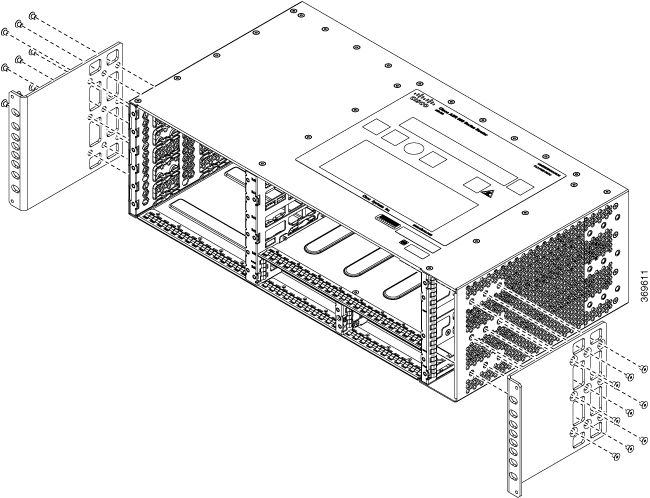
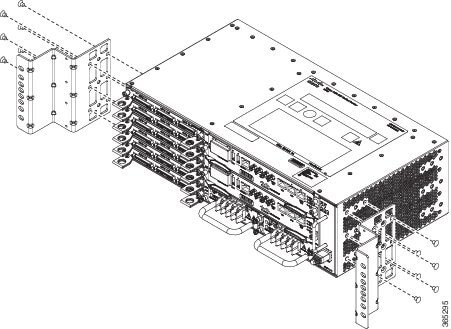
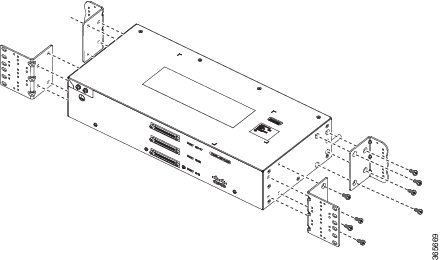
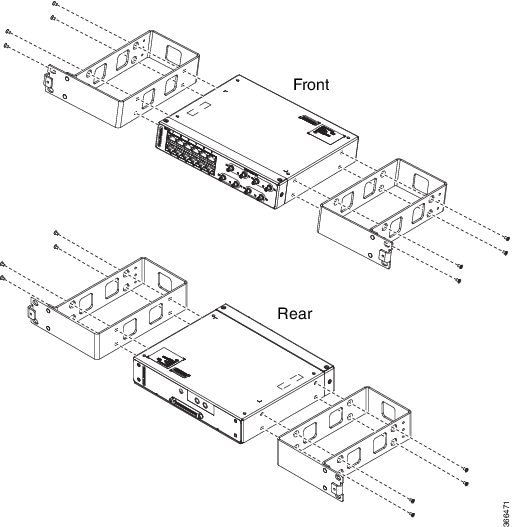
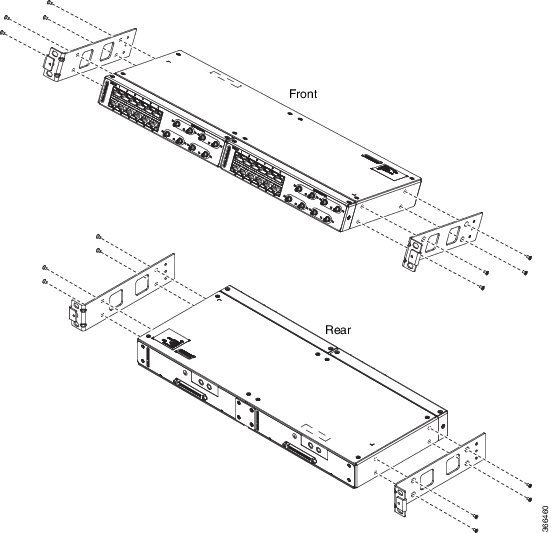
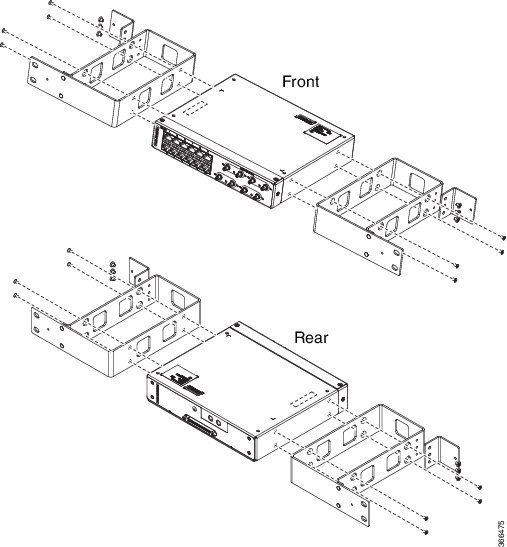
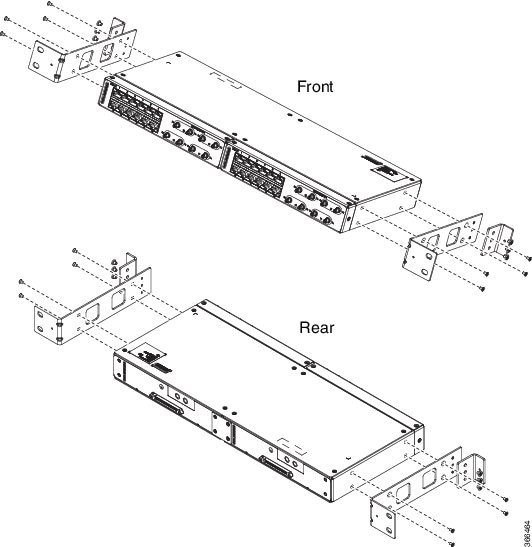
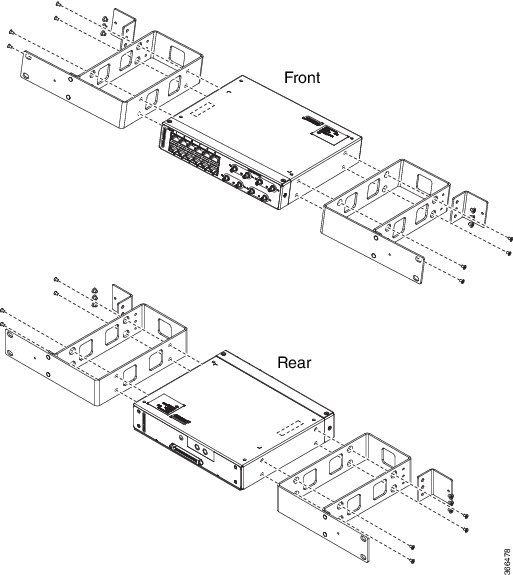
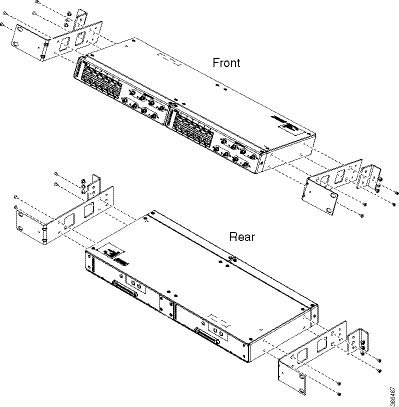
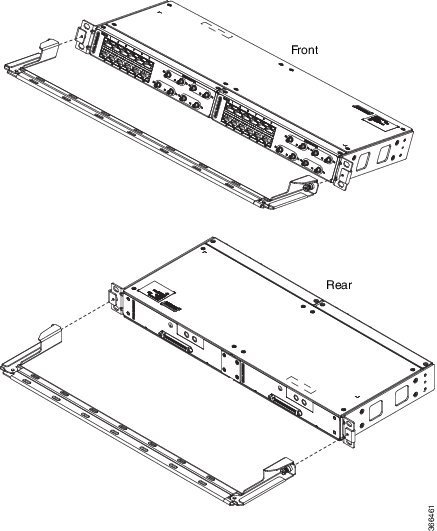
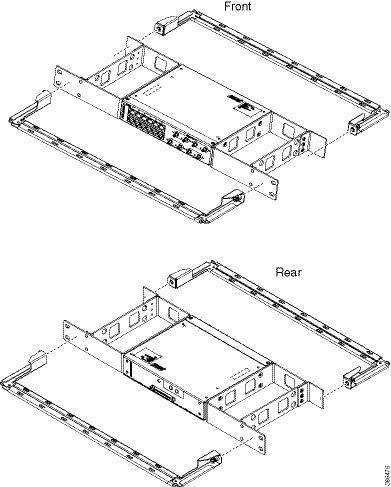
The chassis is shipped with mounting brackets that can be installed on the front or rear of the chassis. To install the brackets on the front of the chassis, perform these steps:

Procedure


Step 1

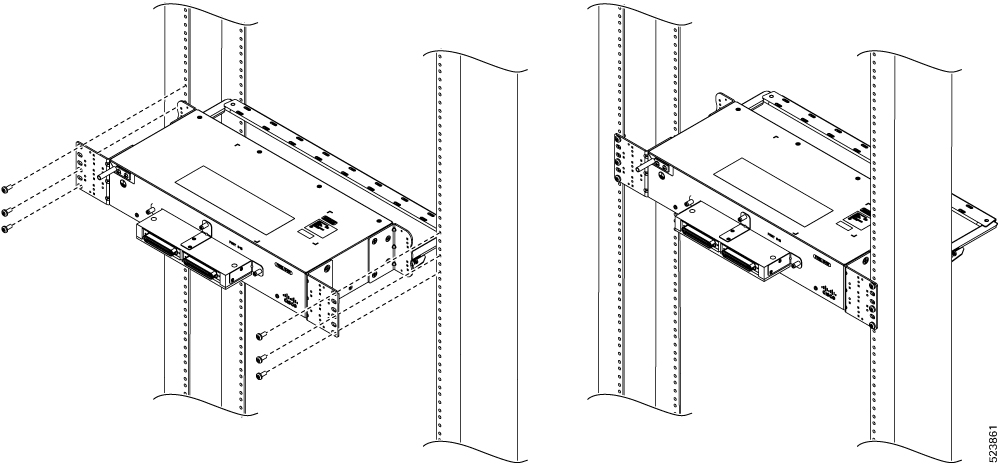
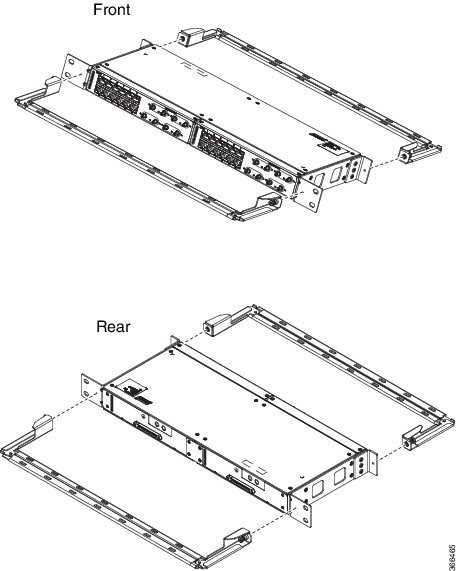
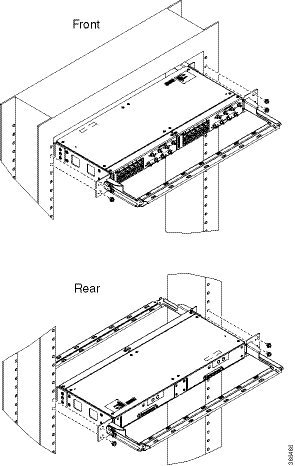
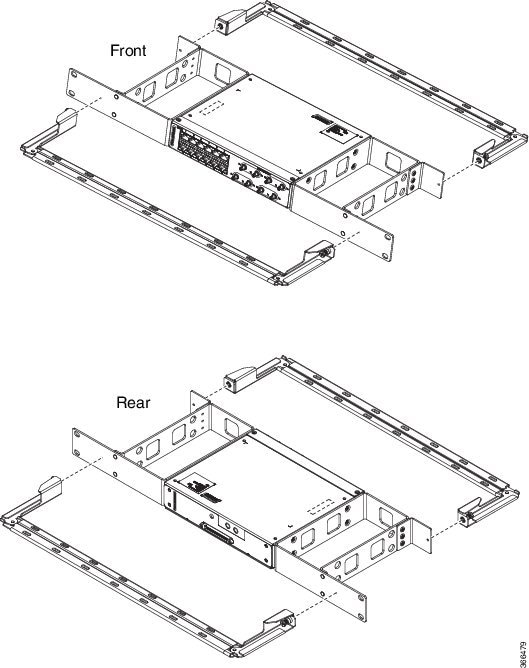
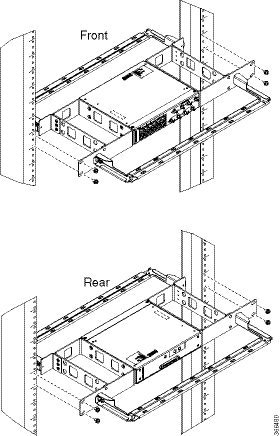
Remove the rack-mount brackets from the accessory kit and position them beside the chassis.

Figure 1. Attaching Mounting Brackets for a 19-inch Rack (A903-RCKMNT-19IN3)
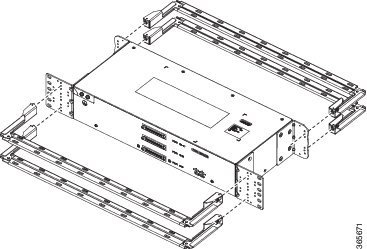
Figure 2. Attaching Mounting Brackets for a 23-inch EIA Rack


Step 2

Position one of the brackets against the chassis side, and align the screw holes.

Step 3

Secure the bracket to the chassis with the screws removed when performing Step 1. The recommended maximum torque is 28 in.-lb (3.16 N-m).

Step 4

Repeat Step 2 and Step 3 for the other bracket.


Installing the Chassis in the Rack

The procedures in this section apply to both horizontal and vertical mounting of the in a rack.

To install the chassis in the equipment rack, perform these steps:

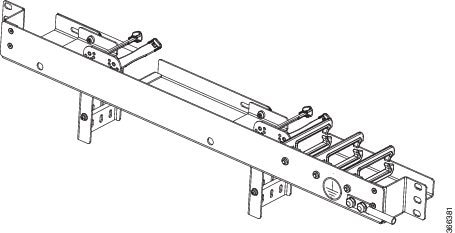
Procedure


Step 1

Position the chassis in the rack as follows:

  • If the front of the chassis (front panel) is at the front of the rack, insert the rear of the chassis between the mounting posts.

  • If the rear of the chassis is at the front of the rack, insert the front of the chassis between the mounting posts.

Step 2

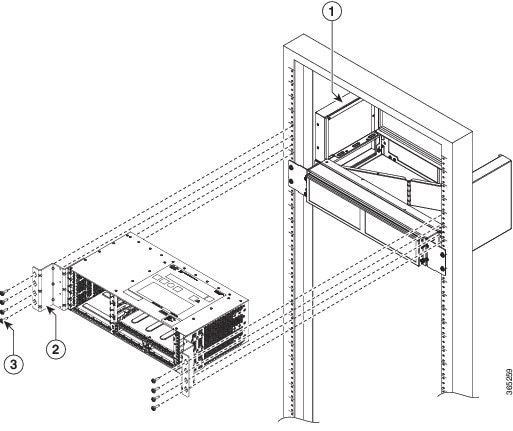
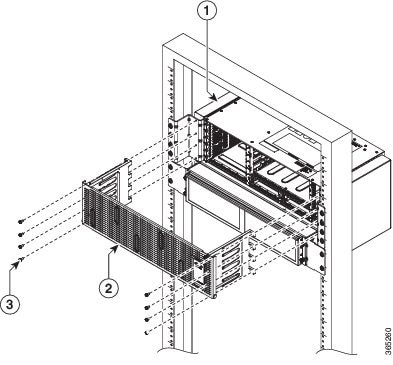
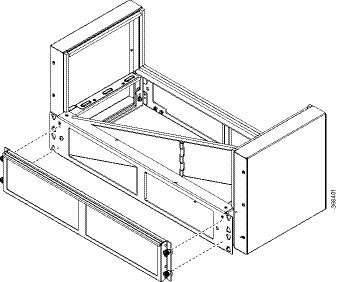
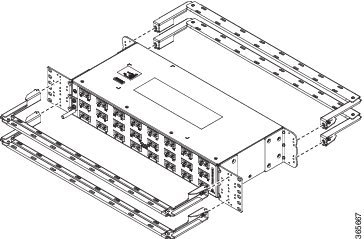
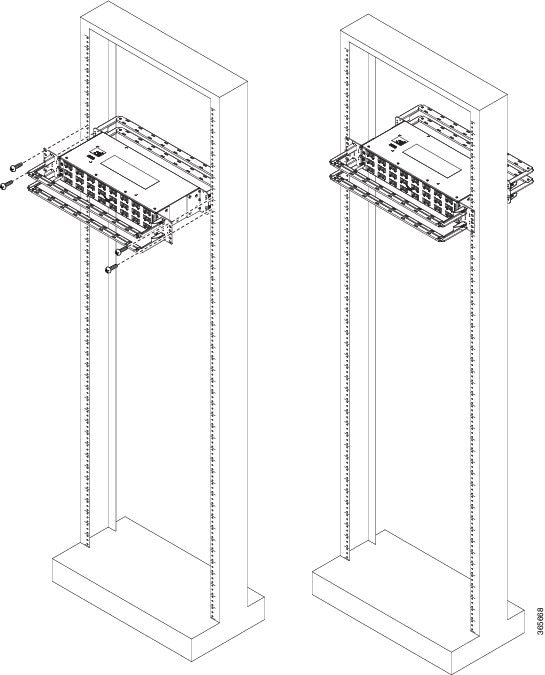
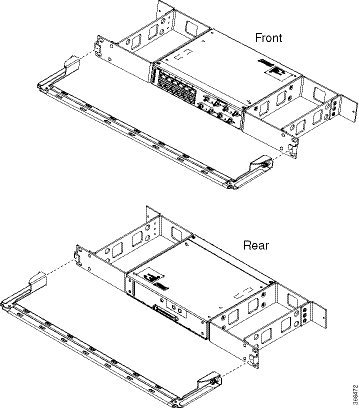
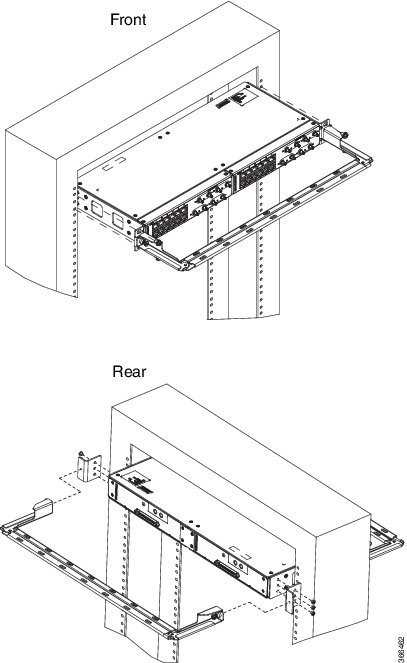
Guide the chassis carefully into the plenum assembly. See the figure below.

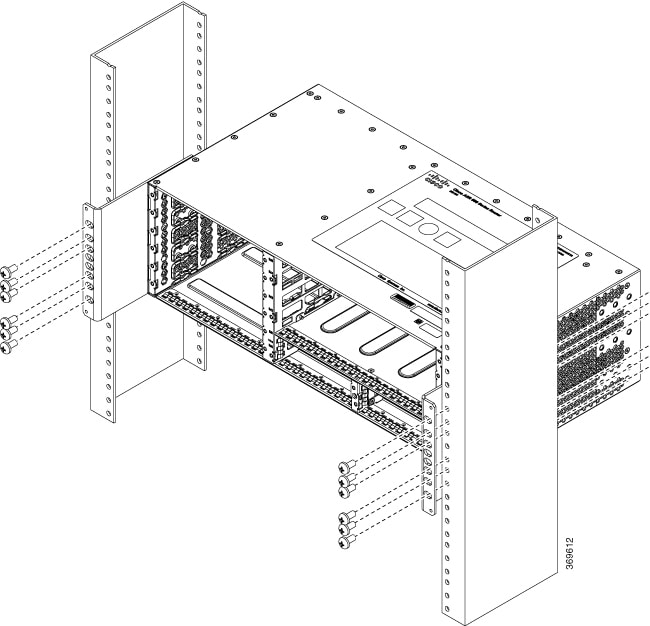
Figure 3. Installing the Chassis on a 19-inch Rack (A903-RCKMNT-19IN3)
Figure 4. Installing the Chassis on the Plenum in Rack


1

Plenum

3

Securing screws to chassis onto rack

2

Cable guides on chassis

Step 3

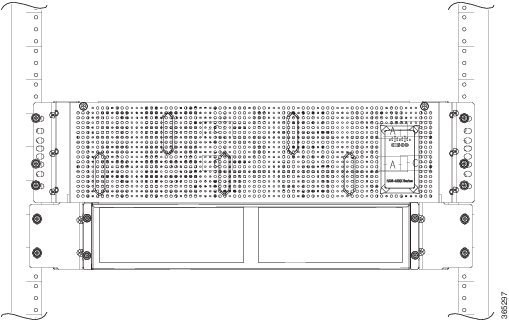
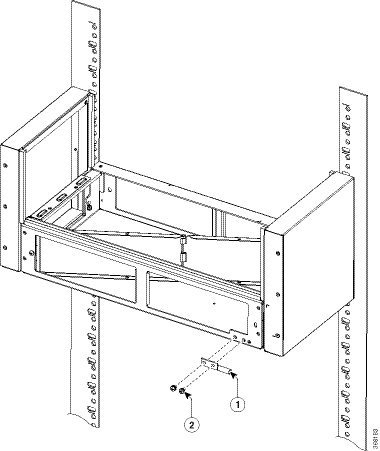
Position the door onto the chassis and slide it into the rack. Secure the screws with a torque of n.-lb (N-m). See the figure below.

Figure 5. Installing Door onto Chassis in Rack


1

Chassis in plenum

3

Securing door to the chassis onto rack

2

Door

Step 4

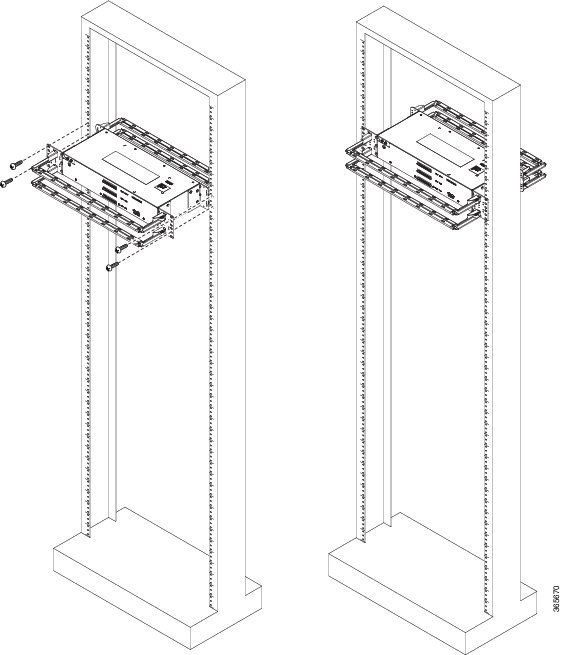
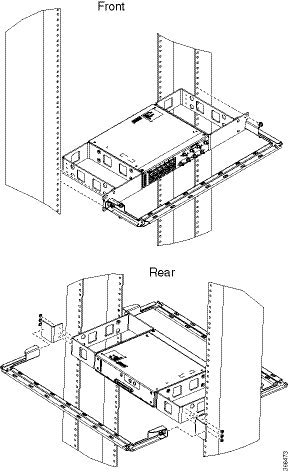
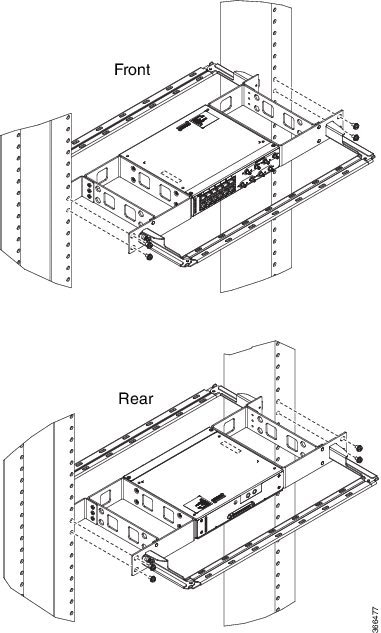
Align the mounting holes in the bracket (and optional cable guide) with the mounting holes in the equipment rack.

Caution


Do not use interface module and power supply ejector handles to lift the chassis; using the handles to lift the chassis can deform or damage the handles.

Figure 6. Installing the Chassis in a 23-inch EIA Rack


Step 5

Install the 8 or 12 (4 or 6 per side) 12-24 x 3/4-inch or 10-32 x 3/4-inch screws through the holes in the bracket and into the threaded holes in the equipment rack posts.

Step 6

Use a tape measure and level to verify that the chassis is installed straight and level.


Installing the Chassis with Plenum in Rack

Procedure

Step 1

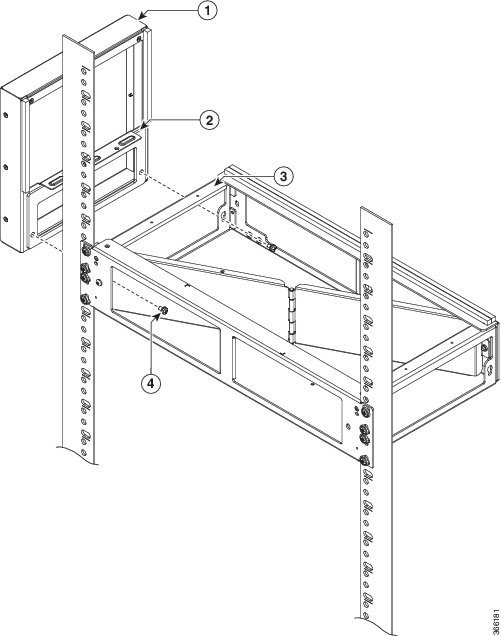
Position the air baffle and the side plate to the plenum. See figure below.

Figure 7. Securing the Air Baffle Tray

1

Air baffle

3

Plenum base

2

Side plate

4

Secure screw to Plenum base

Step 2

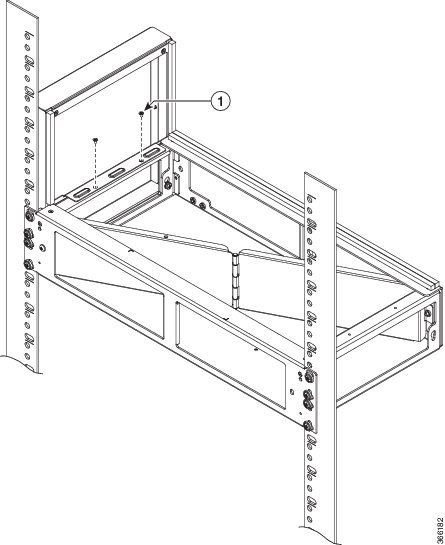
Secure the air baffle and the side plate using a maximum torque of 11.5 in.-lb (1.3 N-m). See figure below.

Figure 8. Securing the Side Plate

1

Securing side plate to plenum base

Step 3

Repeat Step-1 and Step-2 to complete the plenum assembly on the other side of the plenum base.

Step 4

Position the air filter (A903-F2B-AIR-F) assembly on the plenum deflector. Secure the front cover using a recommended torque of 11.5 in.-lb (1.3 N-m). See figure below.

Figure 9. Air Filter

Note

 
The filter is applicable when fan A903-FAN-H is used.

Step 5

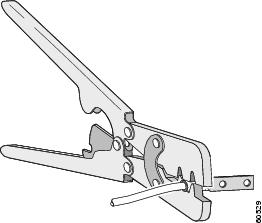
Using a crimping tool (as specified by the ground lug manufacturer), crimp the ground lug to the ground wire and connect the other end of the ground wire to a suitable grounding point at your site. See figure below.

Figure 10. Attaching the Ground Lug and Wire Assembly

1

Dual-hole ground adapter and dual-hole lug

2

Dual ground screws

Step 6

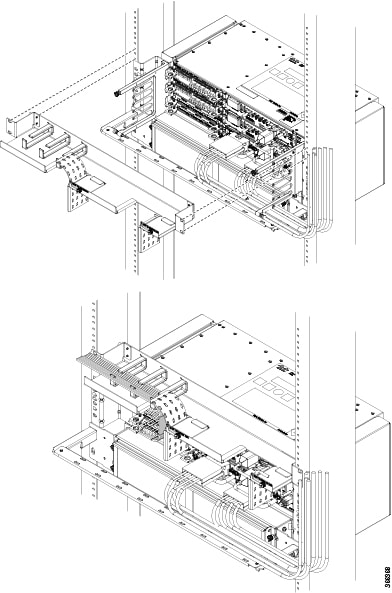
Position the plenum assembly to the rack and secure the cable brackets to the rack using a torque of 11.5 in.-lb (1.3 N-m). See figure below.


Installing the Chassis in the Air Plenum


Note


Ensure that the chassis is not installed in the air plenum while mounting it on the rack.

For instructions on mounting the plenum on the rack:

Procedure

Step 1

Position the chassis so that the rear of the chassis is at the front of the plenum.

Step 2

Slide the chassis into the plenum so that the front of the chassis is in flush with the mounting rails and brackets. See the figure below.

Figure 11. Cisco NCS 4206 Chassis with Plenum


Installing the Chassis Ground Connection

Before you connect the power or turn on the power to the Cisco NCS 4206, you must provide an adequate chassis ground (earth) connection to your chassis.

This section describes how to ground the Cisco NCS 4206 chassis on a rack. The chassis provides two locations for attaching a 2-hole grounding lug according to the rack-mounting brackets you use to install the chassis. The Cisco NCS 4206 supports the following rack-mounting types:

  • EIA 23-inch rack—Attach the grounding lug to the rack, as shown in the figure below
Figure 12. Attaching a Grounding Lug


1

Grounding lug

To ensure that the chassis ground connection that you provide is adequate, you need the following parts and tools:

  • Ratcheting torque screwdriver with Phillips head that exerts up to 15 in.-lb (1.69 N-m) of pressure for attaching the ground wire to the router
  • Crimping tool as specified by the ground lug manufacturer
  • 18 AWG copper wire for the power cord
  • 6 AWG or larger copper wire for the ground wire
  • Wire-stripping tools appropriate to the wire you are using

Caution


Before making connections to the Cisco NCS 4206, ensure that you disconnect the power at the circuit breaker. Otherwise, severe injury to you or damage to the chassis may occur.


Warning


This equipment must be grounded. Never defeat the ground conductor or operate the equipment in the absence of a suitably installed ground conductor. Contact the appropriate electrical inspection authority or an electrician if you are uncertain that suitable grounding is available. Statement 1024


Warning


Use copper conductors only. Statement 1025


Warning


When installing the unit, the ground connection must always be made first and disconnected last. Statement 42


This unit is to be installed in a restrictive access location and must be permanently grounded to minimum 6 AWG copper ground wire.

Perform the following procedure to ground the Cisco NCS 4206 using a 2-hole lug and the corresponding mounting point. Most carriers require a minimum 6 AWG ground connection. Verify your carrier’s requirements for the ground connection.

Procedure


Step 1

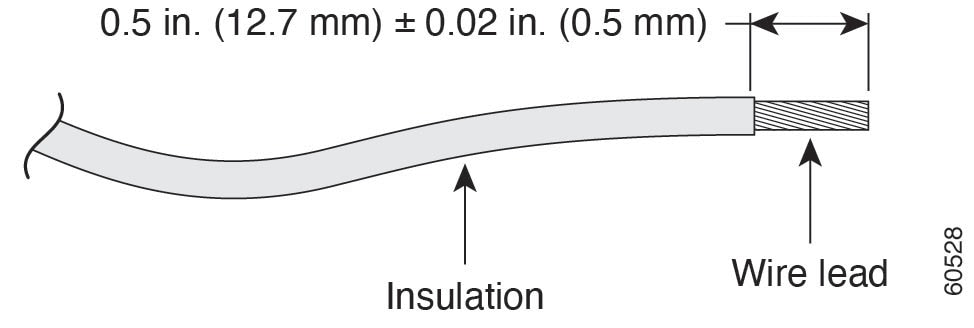
If your ground wire is insulated, use a wire-stripping tool to strip the ground wire to 0.5 inch ± 0.02 inch (12.7 mm ±0.5 mm) ( as shown in the figure below ).

Figure 13. Stripping a Ground Wire


Step 2

Slide the open end of your 2-hole ground lug over the exposed area of the ground wire.

Step 3

Using a crimping tool (as specified by the ground lug manufacturer), crimp the ground lug to the ground wire as shown in the figure below.

Figure 14. Crimping a Ground Lug onto the Ground Wire


Step 4

Use a Phillips head screwdriver to attach the 2-hole ground lug and wire assembly to the chassis with the 2 pan-head Phillips head screws. For a 19-inch EIA rack, attach the 2-hole ground lug to the rear of the router.

Step 5

Connect the other end of the ground wire to a suitable grounding point at your site.


Installing the Fan Tray

The fan tray is a modular unit that provides cooling to the Cisco NCS 4206. Follow these steps to install the fan tray in the chassis:

Procedure


Step 1

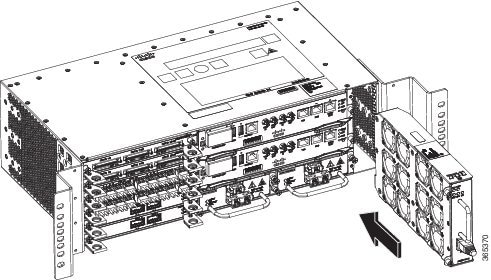
Orient the fan tray so that the captive screws are on the left side of the fan tray’s front panel. The figure below shows how to orient the fan tray.

Figure 15. Installing the Fan Tray


Step 2

Guide the fan tray into the chassis until it is fully seated.

Caution


The fans are exposed on the left side of the fan tray. Keep your fingers, clothing, and jewelry away from the fans. Always handle the fan tray by the handle.

Note

 
When installing the cabling to the RSPs, we recommend that you leave a service loop of extra cabling sufficient to allow for fan tray removal.

Step 3

Secure the fan tray to the chassis using the attached captive installation screws. The recommended maximum torque is 5.5 in.-lb (.62 N-m).

This completes the procedure for installing or replacing the fan tray in a Cisco NCS 4206.

For information about connecting cables to the fan tray alarm port, see Connecting the Fan Tray Alarm Port.

For a summary of the LEDs on the fan tray, see LED Summary.

For more information about air flow guidelines, see Air Flow Guidelines.


Installing the Dust Filter

Procedure


Step 1

Follow the steps for removing the fan tray (if installed) from the chassis.

Step 2

Remove the dummy cover from the fan tray.

Step 3

Slide the dust filter onto the fan tray.

Step 4

Insert the dummy cover on the fan tray to secure the filter within the chassis.

Step 5

Follow the steps to install the fan tray in the chassis.


Removing the Dust Filter

Remove the dust filter for a replacement.


Note


  • The dust filter is a single-use component.

  • Use the dust filter (A903-FAN-F) within 6 months of buying as the shelf or storage life is less than 6 months. The ideal storage condition for a filter is a cool, dry, and dark environment. Surroundings that adversely affect the dust filter are high heat, humidity at high temperatures, and ultraviolet light.


Dust Filter Maintenance

A periodic health check of the filter, every three months based on the level of dust in the environment, helps in avoiding over clogging of the filters and provide a better life. This product's filter is used as a single-use component. If the product is installed in a controlled environment, check and replace the filter every three months, otherwise replace the filter every month.

Procedure

Step 1

Remove the dummy cover from the fan tray.

Step 2

Remove the dust filter from the fan.

Note

 
The filter can be accessed by pulling the pull tab by using fingers or pliers.

Step 3

Slide the replacement dust filter onto the fan tray

Step 4

Insert the dummy cover onto the fan tray to secure the filter within the chassis.


Removing and Replacing the Fan Tray

The fan tray supports online insertion and removal (OIR). There is no need to power down the Cisco NCS 4206 to remove or replace the fan tray. However, there is a finite time to replace the fan tray. This time depends upon the specific RSP and fan tray combination and also the ambient temperature. The following table provides the time interval for replacing the fan tray. At higher ambient temperatures, the replacement time is lower.


Note


If a fan tray is removed and not replaced within the stipulated time the system will automatically power-off. If the system is powered with PSUs other than 900W DC or 1200W AC and if the system is powered off, then the system should be completely powered off for 30 seconds with all the PSU in the system simultaneously, and then turned on for the system to power on.
Table 1. Fan Tray OIR

Temperature °C at 1800 m

OIR Interval

–40 to 15

2 minutes 10 seconds

16 to 20

100 seconds

21 to 30

90 seconds

31 to 40

40 seconds

>41

Not Applicable


Note


If the fan tray is removed and not replaced within the stipulated time, then the system will automatically power off. If the system is powered off, the AC or the DC input should be turned off for at least 30 seconds for all the PSU in the system simultaneously, and then turned on for the router to power on.

Caution


To avoid erroneous failure messages, allow at least 2 minutes for the system to reinitialize after the fan tray has been replaced.


Follow these steps to remove and replace the fan tray on the Cisco NCS 4206:

Procedure


Step 1

Using a No. 2 Phillips screwdriver or your fingers, loosen the captive installation screw that secures the fan tray to the chassis. The figure below shows the front of the fan tray, including the captive installation screws.

Figure 16. Detaching the Fan Tray


1

Captive installation screw

2

Handle

Step 2

Grasp the fan tray handle with one hand and the outside of the chassis with the other hand. The figure below shows the front of the fan tray, including the handle.

Caution


The fans are exposed on the left side of the fan tray. Keep your fingers, clothing, and jewelry away from the fans. Always handle the fan tray by the handle.

Step 3

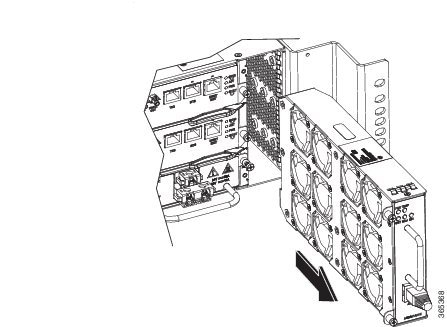
Pull the fan tray backward toward you no more than 1 inch to disengage it from the power receptacle on the midplane, as shown in the figure below.

When removing the fan tray, keep your hands and fingers away from the spinning fan blades. Let the fan blades completely stop before you remove the fan tray. Statement 258
Figure 17. Fan Tray Removal


Step 4

Wait at least 5 seconds to allow the fans to stop spinning. Then, pull the fan tray backward toward you and out of the chassis.

Note

 
As the fan tray slides out of the chassis, support the bottom of the fan tray with one hand and keep your other hand on the fan tray handle.

This completes the steps for removing the fan tray from the chassis.

To install the new fan tray, follow the steps in Installing the Fan Tray.


RSP Installation

Follow these steps on handling an RSP module in the Cisco NCS 4206:

Installing an RSP Module

To install an RSP module in the chassis, perform the following steps:

Procedure


Step 1

Choose a slot for the module. Ensure that there is enough clearance to accommodate any equipment that will be connected to the ports on the module. If a blank module filler plate is installed in the slot in which you plan to install the module, remove the plate by removing its 2 Phillips pan-head screws.

Step 2

Fully open both the ejector levers on the new module, as shown in the figure below.

Caution


To prevent ESD damage, handle modules by carrier edges only.

Step 3

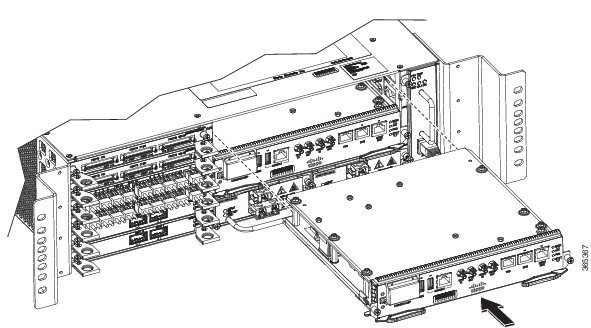
Position the module in the slot. Make sure that you align the sides of the module with the guides on each side of the slot, as shown in the figure below.

Figure 18. Cisco NCS 4206 RSP Installation


Step 4

Carefully slide the module into the slot until the EMI gasket on the module makes contact with the module in the adjacent slot and both the ejector levers have closed to approximately 45 degrees with respect to the module faceplate.

Caution


If the top slot already has an RSP module installed, and you install a second RSP module in the slot below it, be careful not to damage the EMI gasket of the bottom RSP module against the ejector levers of the top RSP during insertion.

Step 5

While pressing down, simultaneously close both the ejector levers to fully seat the module in the backplane connector. The ejector levers are fully closed when they are flush with the module faceplate.

Step 6

Tighten the two captive installation screws on the module. The recommended maximum torque is 5.5 in.-lb (.62 N-m).

Note

 
Make sure that the ejector levers are fully closed before tightening the captive installation screws.

Step 7

Verify that the captive installation screws are tightened on all of the modules installed in the chassis. This step ensures that the EMI gaskets on all the modules are fully compressed in order to maximize the opening space for the new or replacement module.

Note

 
If the captive installation screws are loose, the EMI gaskets on the installed modules will push adjacent modules toward the open slot, which reduces the size of the opening and makes it difficult to install the new module.

Note

 
Blank module filler plates (Cisco part number A900-RSPA-BLANK) should be installed in any empty chassis slots to keep dust out of the chassis and to maintain consistent airflow through the chassis.

Note

 
When installing the cabling to an RSP, we recommend that you leave a service loop of extra cabling sufficient to allow for fan tray removal.

Removing an RSP Module

Before you remove an RSP from the chassis, you should save the current configuration using the write {host file | network | terminal} command. This saves you time when bringing the module back online.
If the module is running Cisco IOS software, save the current running configuration by entering the copy running-config startup-config command.


Warning


Hazardous voltage or energy is present on the backplane when the system is operating. Use caution when servicing. Statement 1034


Warning


Invisible laser radiation may be emitted from disconnected fibers or connectors. Do not stare into beams or view directly with optical instruments. Statement 1051


To remove an RSP module, perform the following steps:

Procedure


Step 1

Disconnect any cables attached to the ports on the module.

Step 2

Verify that the captive installation screws on all the modules in the chassis are tight. This step ensures that the space created by the removed module is maintained.

Note

 
If the captive installation screws are loose, the EMI gaskets on the installed modules will push the modules toward the open slot, which in turn reduces the size of the opening and makes it difficult to remove the module.

Step 3

Loosen the two captive installation screws on the module you plan to remove from the chassis.

Step 4

Place your thumbs on the ejector levers and simultaneously rotate the ejector levers outward to unseat the module from the backplane connector.

Step 5

Grasp the front edge of the module and slide the module straight out of the slot. If the chassis has horizontal slots, place your hand under the module to support its weight as you slide it out from the slot. Do not touch the module circuitry.

Caution


To prevent ESD damage, handle modules by the carrier edges only.

Step 6

Place the module on an antistatic mat or antistatic foam, or immediately reinstall the module in another slot.

Step 7

Install blank module filler plates (Cisco part number A900-RSPA-BLANK) in empty slots, if any.

Warning


Blank faceplates and cover panels serve three important functions: they prevent exposure to hazardous voltages and currents inside the chassis; they contain electromagnetic interference (EMI) that might disrupt other equipment; and they direct the flow of cooling air through the chassis. Do not operate the system unless all cards, faceplates, front covers, and rear covers are in place. Statement 1029


Installing the Wire Wrap Adapter

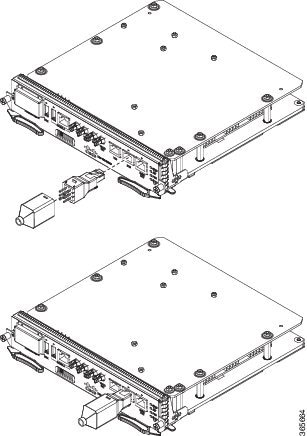
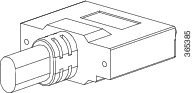
The wire wrap adapter is used to support the wire wrap interface for the BITS port on the RSP3 module. This adapter is plugged into the existing RJ-45 connector on the RSP3 module.

Figure 19. Wire Wrap Adapter


For information on pinouts, see Wire Wrap Adapter Pinouts.

Hot-Swapping an RSP Module

The Cisco NCS 4206 provides a feature that allows you to remove and replace a redundant RSP module without powering down the chassis. This feature, called hot-swapping or OIR, allows you to remove and replace a redundant module without disrupting chassis operation.

When two redundant modules are installed in the chassis, only one of the modules is active. The other one runs in standby mode, ready to take over processing if the active module fails.

When you remove or insert a redundant module while the chassis is powered on and running, the chassis does the following:

  1. Determines if there is sufficient power for the module.
  2. Scans the backplane for configuration changes.
  3. Initializes the newly inserted module. In addition, the system notes any removed modules and places those modules in the administratively shutdown state.
  4. Places any previously configured interfaces on the module back to the state they were in when they were removed. Any newly inserted interfaces are put in the administratively shutdown state as if they were present (but unconfigured) at boot time. If you insert the same type of module into a slot, its ports are configured and brought online up to the port count of the original module.

The chassis runs diagnostic tests on any new interfaces and the test results indicate the following:

  • If the tests pass, the chassis is operating normally.
  • If the new module is faulty, the chassis resumes normal operation but leaves the new interfaces disabled.
  • If the diagnostic tests fail, the chassis stops operating, which usually indicates that the new module has a problem in the bus and should be removed.

Interface Module Installation

The following sections describe the various tasks of associated with interface module installation on the Cisco NCS 4206.

Installing an Interface Module

Procedure


Step 1

Before inserting an interface module, make sure that the chassis is grounded.

Step 2

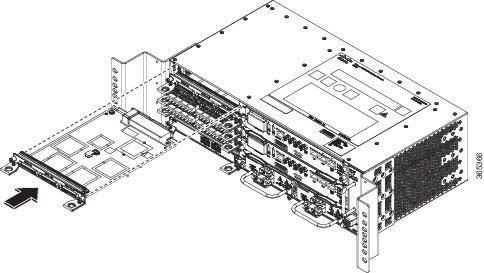
To insert the interface module, carefully align the edges of the interface module between the upper and lower edges of the chassis slot.

Step 3

Carefully slide the interface module into the chassis slot until the interface module makes contact with the backplane. The figure below shows how to install the interface module.

Figure 20. Inserting an Interface Module


Caution


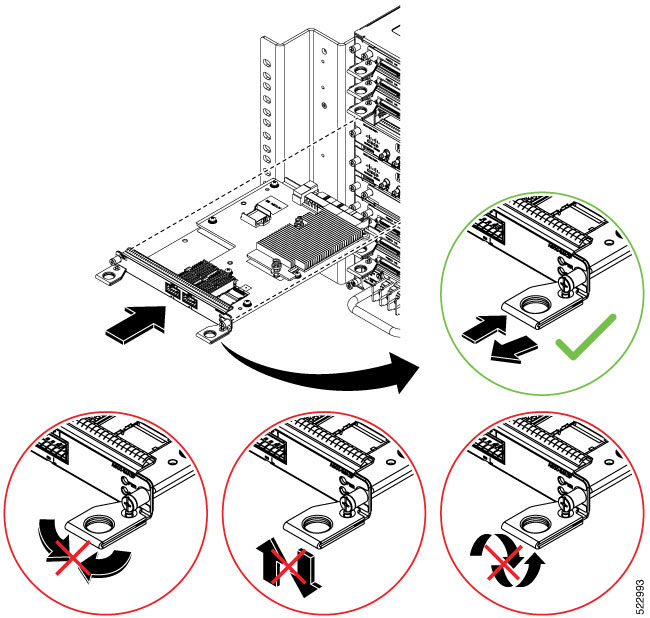
Use the pull tab on the interface module only to insert and pull the card out straightly. Don’t use the pull tab to turn on its axis or bend it up or down, which can deform or damage the pull tab.

Figure 21. Using the Pull Tab
Use the pull tab on the interface module only to insert and pull the card out straightly.

Step 4

Tighten the locking thumbscrews on both sides of the interface module. The recommended maximum torque is 5.5 in.-lb (.62 N-m).

Step 5

Connect all the cables to each interface module.


What to do next


Caution


Do not use interface module and power supply ejector handles to lift the chassis; using the handles to lift the chassis can deform or damage the handles.


Removing an Interface Module

Procedure


Step 1

To remove an interface module, disconnect all the cables from each interface module.

Step 2

Loosen the locking thumbscrews on both sides of the interface module.

Step 3

Slide the interface module out of the slot by pulling on the handles. If you are removing a blank filler plate, pull the blank filler plate completely out of the slot using the captive screws.


Hot-Swapping an Interface Module

The Cisco NCS 4206 router provides a feature that allows you to remove and replace an interface module without powering down the router. This feature, called hot-swapping or OIR, allows you to remove and replace a redundant module without disrupting chassis operation.

Use the following guidelines when performing an OIR on an IM:

  • Avoid inserting a new IM during bootup until the active and standby RSPs have reached an OK state.
  • When inserting multiple IMs into the chassis, wait until each IM reaches an OK state before inserting the next IM.

When you remove or insert a redundant module while the chassis is powered on and running, the chassis does the following:

  1. Determines if there is sufficient power for the module.
  2. Scans the backplane for configuration changes.
  3. Initializes the newly inserted module. In addition, the system notes any removed modules and places those modules in the administratively shutdown state.
  4. Places any previously configured interfaces on the module back to the state they were in when they were removed.

The runs diagnostic tests on any new interfaces and the test results indicate the following:

  • If the tests pass, the is operating normally.
  • If the new module is faulty, the resumes normal operation but leaves the new interfaces disabled.
  • If the diagnostic tests fail, the stops operating, which usually indicates that the new module has a problem in the bus and should be removed.

Caution


To avoid erroneous failure messages, note the current configuration of all interfaces before you remove or replace an interface module, and allow at least 2 minutes for the system to reinitialize after a module has been removed or replaced. This time is recommended in order to allow for synchronization between components within the interface module and for synchronization with the standby RSP.


Note


Always refer to Interface Module compatibility matrix tables in the Data Sheet before you swap any IM.
Table 2. Supported Hot Swapping Combinations

Interface Modules

NCS420X-RSP

Cisco IOS Release 3.18

SFP Combo IM—8-port Gigabit Ethernet (8X1GE) +

1-port 10 Gigabit Ethernet (1X10GE)

Swapping allowed on all Ethernet interface modules

8-port 10 Gigabit Ethernet Interface Module (8X10GE)

1-port 100 Gigabit Ethernet Interface Module (1X100GE)

2-port 100 Gigabit Ethernet Interface Moduele (2X100 GE)

2-port 40 Gigabit Ethernet Interface Module (2X40GE)

1-port OC481/ STM-16 or 4-port OC-12/OC-3 / STM-1/STM-4 + 12-port T1/E1 + 4-Port T3/E3 CEM Interface Module

8/16-port 1 Gigabit Ethernet (SFP/SFP) + 1-port 10 Gigabit Ethernet (SFP+) / 2-port 1 Gigabit Ethernet (CSFP) Interface Module

48-port T1/E1 Interface Module

No support

48-port T3/E3 Interface Module

No support

1-port OC-192 Interface Module + 8-port Low Rate Interface Module

No support

1 Any of the 4 ports can be used as an OC48, but if a port is configured as OC48, then the remaining 3 ports are disabled.

Installing the Power Supply

The Cisco NCS 4206 provides the choice of two different power supplies:

  • DC power
    • 900 W DC power: –40VDC to –72VDC

The DC power supply provides option to connect with two different sources (dual feed); positive (+) and negative (-) are marked on the PSU terminals.

Each power supply provides a dual primary input power connection.


Caution


The power supply must be wired before plugging the power supply in the chassis. Ensure the branch circuit breaker is turned off. Only after installing the power supply in the chassis, should the branch circuit breaker be turned on. The branch circuit breaker must be turned off before unplugging the power supply.Read the installation instructions before connecting the system to the power source. Statement 10


Caution


Do not use interface module and power supply ejector handles to lift the chassis; using the handles to lift the chassis can deform or damage the handles.


Preventing Power Loss

Use the following guidelines to prevent power loss to the chassis.

  • To prevent loss of input power, ensure that the total maximum load on each circuit supplying the power supplies is within the current ratings of the wiring and breakers.
  • In some systems, you can use an UPS to protect against power failures at your site. Avoid UPS types that use ferroresonant technology. These UPS types can become unstable with systems like the Cisco NCS 4206, which can have substantial current draw fluctuations due to bursty data traffic patterns.

Use the information in the DC Power Specifications section to estimate the power requirements and heat dissipation of a Cisco NCS 4206 based on a given configuration. Determining power requirements is useful for planning the power distribution system.

Power Connection Guidelines

This section provides guidelines for connecting the Cisco NCS 4206 power supplies to the site power source.


Warning


Never defeat the ground conductor or operate the equipment in the absence of a suitably installed ground conductor. Contact the appropriate electrical inspection authority or an electrician if you are uncertain that suitable grounding is available. Statement 213


Warning


The plug-socket combination must be accessible at all times because it serves as the main disconnecting device. Statement 1019


Warning


This product requires short-circuit (overcurrent) protection, to be provided as part of the building installation. Install only in accordance with national and local wiring regulations. Statement 1045


Guidelines for DC-Powered Systems

Basic guidelines for DC-powered systems include the following:

  • Each chassis power supply should have its own dedicated input power source. The source must comply with the safety extra-low voltage (SELV) requirements in the UL 60950, CSA 60950, EN 60950, and IEC 60950 standards.
  • The circuit must be protected by a dedicated two-pole circuit breaker. The circuit breaker should be sized according to the power supply input rating and local or national code requirements.
  • The circuit breaker is considered the disconnect device and should be easily accessible.
  • The system ground is the power supply and chassis ground.
  • Do not connect the DC return wire to the system frame or to the system grounding equipment.
  • Use the grounding lug to attach a wrist strap for ESD protection during servicing.

Installing the DC Power Supply


Note


This equipment is suitable for installation in Network Telecommunications Facilities and locations where the NEC applies.

Note


This equipment is suitable for installations utilizing the Common Bonding Network (CBN).

Note


The grounding architecture of this product is DC-Isolated (DC-I) for DC-powered products. DC-powered products have a nominal operating DC voltage of 48 VDC.

Installing the DC Power Supply Module

Perform the following procedure to install the power supply module:

Procedure

Step 1

Ensure that the system (earth) ground connection has been made. For ground connection installation instructions, see the nstalling the Chassis Ground Connection.

Step 2

If necessary, remove the blank power supply filler plate from the chassis power supply bay opening by loosening the captive installation screws.

Step 3

Verify that power to the DC circuit connected to the power supply you are installing is off. To ensure that power has been removed from the DC circuits, locate the circuit breakers for the DC circuits, switch the circuit breakers to the OFF position, and tape the circuit-breaker switches in the OFF position.

Step 4

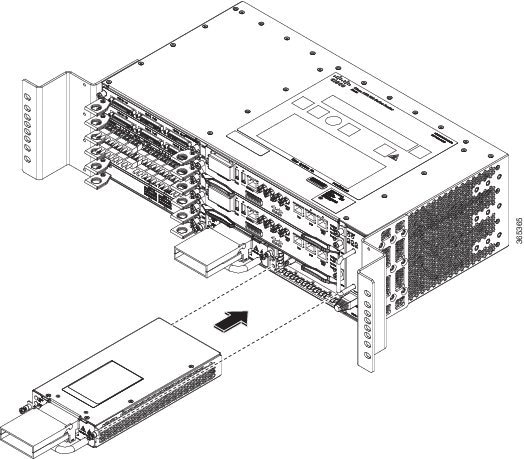
Grasp the power supply handle with one hand. Place your other hand underneath the power supply, as shown in the figure below. Slide the power supply into the power supply bay. Make sure that the power supply is fully seated in the bay.

Figure 22. Installing the DC Power Supply


Step 5

Tighten the captive installation screws of the power supply. The recommended maximum torque is 25 in.-lb (2.82 N-m).

If you are installing a redundant DC power supply, repeat these steps for the second power source.


Connecting DC Power Supply Unit (A900-PWR900-D2)

A900-PWR900-D2 is a dual feed 900W DC PSU. The DC power supply accepts a dual-hole type lug. The lug must be a UL listed, CSA certified and rated to accept the 8 AWG cable. The lug is assembled on the unit with two nuts.


Warning


Before performing any of the following procedures, ensure that power is removed from the DC circuit.


Tools and Equipment
  • Dual-hole lugs

  • Double barrel with inspection hole

  • Hole spacing is 5/8 in.

  • Lug tab width max 0.46 in.

  • Nuts

  • PSU can accommodate 10 – 6 AWG

  • Number 2 Phillips Screwdriver

  • 7 mm nut driver or 7 mm socket on a torque wrench

Procedure

Step 1

Locate the terminal block on the power supply unit.

Step 2

Flap open the front protective cover on the power supply unit.

Step 3

Use a wire-stripping tool to strip the ends of each of the two wires coming from the DC-input power source as recommended by the lug manufacturer.

Note

 
Stripping more than the recommended amount of wire can leave behind exposed wire from the terminal block after installation.

Step 4

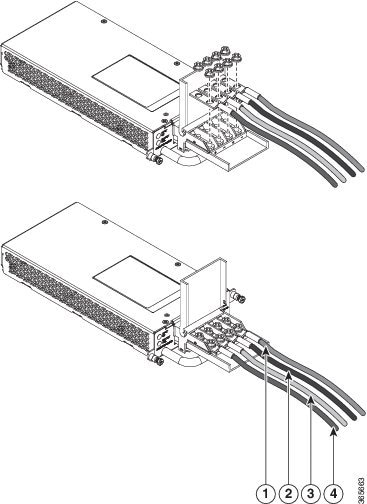
Identify the positive and negative feed positions for the terminal block. The recommended wiring sequence is as in the figure below.

Step 5

Attach the lugs on the terminal block, see the figure below.

Figure 23. Power Supply with Lead Wires


1, 3

Negative (-) lead wire

2, 4

Positive (+) lead wire

Caution


Do not overtorque the fasteners of the terminal block. The recommended maximum torque is from 25 in.-lb (2.82 N-m).

Step 6

Use a tie wrap to secure the wires to the rack, so that the wires are not pulled from the terminal block by casual contact. Make sure the tie wrap allows for some slack in the wire.


Activating the DC Power Supply

Perform the following procedure to activate the DC power supply:

Procedure

Step 1

Remove the tape from the circuit-breaker switch handle, and restore power by moving the circuit-breaker switch handle to the On (|) position.

Step 2

Verify power supply operation by checking if the power supply front panel LEDs are in the following states:

  • INPUT OK LED is green
  • OUTPUT FAIL LED is green

If the LEDs indicate a power problem, see Troubleshooting.

If you are installing a redundant DC power supply, ensure that each power supply is connected to a separate power source in order to prevent power loss in the event of a power failure.

If you are installing a redundant DC power supply, repeat these steps for the second power source.


Removing and Replacing the DC Power Supply

This section provides information about removing and replacing the DC power supply in the Cisco NCS 4206.


Note


The Cisco NCS 4206 power supplies are hot-swappable. If you have installed redundant power supply modules, you can replace a single power supply without interrupting power to the router.

Caution


To avoid erroneous failure messages, allow at least 2 minutes for the system to reinitialize after a power supply has been removed or replaced.


Procedure


Step 1

Verify the circuit breaker connected to the power supply that has to be replaced.

Step 2

Before servicing the power supply, switch off the circuit breaker in your equipment area. As an additional precaution, tape the circuit-breaker switch in the Off position.

Step 3

Slip on the ESD-preventive wrist strap that was included in the accessory kit.

Note

 
The power supplies are not fed by both power units. Shutting off the incorrect power supply may cause a traffic outage.

Step 4

Measure the DC voltage on the failed power supply input, thus ensuring that the correct unit has been powered off.

Step 5

Loosen the captive screws on the DC power supply.

Step 6

Grasping the power supply handle with one hand, pull the power supply out from the chassis while supporting it with the other hand.

Step 7

Remove the lugs from the PSU.

Step 8

Replace the new DC PSU and connect the DC leads to the power supply as before

Step 9

Turn on the circuit breaker or the reinstall the fuse.

Step 10

Verify the power supply by checking if the front panel LEDs are as below:

  • Input OK LED is green
  • Output FAIL LED is green

Note

 
Replace the DC power supply within 5 minutes. If the power supply bay is to remain empty, install a blank filler plate (Cisco part number A900-PWR-BLANK) over the opening, and secure it with the captive installation screws.

Installing the AC power Supply


Warning


This product requires short-circuit (over current) protection, to be provided as part of the building installation. Install only in accordance with national and local wiring regulations.


Installing the AC Power Supply Module for A900-PWR550-A (550 W) and A900-PWR1200-A (1200 W)

Follow these steps to install the power supply module:

Procedure


Step 1

Ensure that the system (earth) ground connection has been made. For ground connection installation instructions, see the Installing the Chassis Ground Connection.

Step 2

If necessary, remove the blank power supply filler plate from the chassis power supply bay opening by loosening the captive installation screws.

Step 3

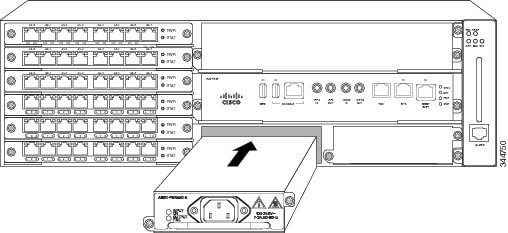
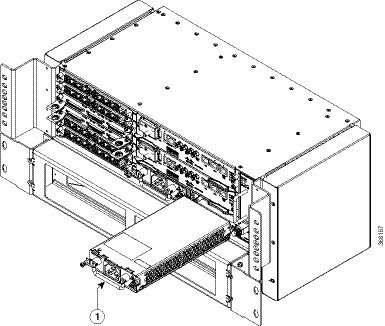
Grasp the power supply handle with one hand. Place your other hand underneath the power supply, as shown in the figure below. Slide the power supply into the power supply bay. Make sure that the power supply is fully seated in the bay.

Figure 24. Installing the A900-PWR550-A AC Power Supply
Figure 25. Installing the A900-PWR1200-A AC Power Supply

1

AC Power Supply

Step 4

Tighten the captive installation screws of the power supply. The recommended maximum torque is 25 in.-lb (2.82 N-m).

Warning

 
Power supply captive installation screws must be tight to ensure protective grounding continuity.

Recommended Power Cables

We recommend the following power cables for Cisco NCS 4206 routers:

Table 3. Power Cable PIDs for A900-PWR550-A (550 W)

PID

Description

CAB-AC

AC POWER CORD, UNITED STATES, 125V, 10A, 2.5m, C13,NEMA, 5-15P

CAB-AC-RA

AC POWER CORD, UNITED STATES, 125V, 10A, 2.5m, RA-C13, NEMA, 5-15P

CAB-ACA

AC Power Cord (Australia), C13, AS 3112, 2.5m

CAB-ACA-RA

AC Power Cord, Australian, 10A, Right Angle

CAB-ACC

AC Power Cord (China), C13, GB15934, CCC, 2.5m

CAB-ACC-RA

AC Power Cord China, Right Angle

CAB-ACE

AC Power Cord (Europe), C13, CEE 7, 1.5M

CAB-ACE-RA

AC Power Cord Europe, Right Angle

CAB-ACI

AC Power Cord (Italy), C13, CEI 23-16, 2.5m

CAB-ACI-RA

AC Power Cord, Italian, Right Angle

CAB-ACR

AC Power Cord (Argentina), C13, EL 219 (IRAM 2073), 2.5m

CAB-ACR-RA

AC POWER CORD ARGENTINA, Right Angle

CAB-ACS

AC Power Cord (Switzerland), C13, IEC 60884-1, 2.5m

CAB-ACS-RA

AC Power Cord, Switzerland, Right Angle

CAB-ACU

AC Power Cord (UK), C13, BS 1363, 2.5m

CAB-ACU-RA

AC Power Cord UK, Right Angle

CAB-IND

AC Power Cord (India), C13

CAB-IND-RA

AC Power Cord (India), RA-C13

CAB-JPN

AC Power Cord (Japan), C13, JIS C 8303, 2.5m

CAB-JPN-RA

AC Power Cord (Japan), RA-C13, JIS C 8303, 2.5m

Table 4. Power Cable PIDs for A900-PWR1200-A (1200 W)

PID

Description

PWR-CAB-AC-USA520

US AC Power Cord for Cisco ASR 900, NEMA 5-20

PWR-CAB-AC-USA

Power Cord for AC V2 Power Module (USA), NEMA L6-20P

PWR-CAB-AC-AUS

Power Cord for AC V2 Power Module (Australia), AS 3112

PWR-CAB-AC-EU

Power Cord for AC V2 Power Module (Europe), CEE 7/7

PWR-CAB-AC-ITA

Power Cord for AC V2 Power Module (Italy), CEI-23-50

PWR-CAB-AC-SA

Power Cord for AC V2 Power Module (South Africa), SABS 164

PWR-CAB-AC-UK

Power Cord for AC V2 Power Module (UK), EN 60309-2

PWR-CAB-AC-ISRL

Power Cord for AC V2 Power Module (Israel), SI 32

PWR-CAB-AC-CHN

Power Cord for AC V2 Power Module (China), GB2099.1/GB1002

PWR-CAB-AC-BRA

Power Cord for AC V2 Power Module (Brazil), NBR 14136

PWR-CAB-AC-SUI

Power Cord for AC V2 Power Module (Swiss), SEV 1011

PWR-CAB-AC-JPN

Power Cord for AC V2 Power Module (Japan), JIS C8303

PWR-CAB-AC-IND

India AC Power Cord for Cisco ASR 900, IS:1293

PWR-CAB-AC-ARG

AC POWER CORD, WIRE HARNESS, Argentina, IRAM 2073, IEC60320 C21, ST, 4M, 30 AWG, STRANDED, 250.0 V, 16.0 A

Activating the AC Power Supply

Follow these steps to activate the AC power supply:

Procedure


Step 1

Plug the power cord into the power supply.

Step 2

Connect the other end of the power cord to an AC-input power source.

Step 3

Verify power supply operation by checking that the power supply LEDs are in the following states:

  • INPUT OK LED is green
  • OUTPUT FAIL LED is green

Step 4

If the LEDs indicate a power problem, see the Troubleshooting section for more information.

Step 5

If you are installing a redundant power supply, repeat these steps for the second power source.

Note

 
If you are installing a redundant AC power supply, ensure that each power supply is connected to a separate power source in order to prevent power loss in the event of a power failure.

Power Cable Bracket (A9XX-PWR-CBL-MGMT)

To install the optional cable management bracket, perform these steps:

Procedure


Step 1

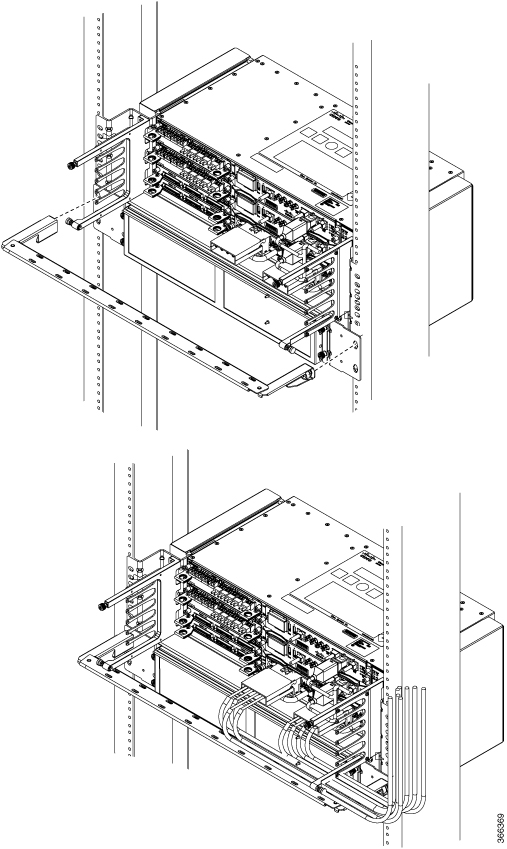
Attach the power cable bracket (A9XX-PWR-CBL-MGMT) to the rack with its preassembled captive screws. The recommended maximum torque is 10 in.-lb (1.12 N-m).

Figure 26. Cable Management Bracket (A9XX-PWR-CBL-MGMT)

Step 2

Route the cables as show in the figure.


Top Cable Management Bracket (A9XX-TOP-CBL-MGMT)

To install the optional top cable management bracket, perform these steps:

Procedure


Step 1

Connect the grounding lugs using a crimping tool (as specified by the ground lug manufacturer), crimp the ground lug to the ground wire.

Figure 27. Cable Management Bracket - Rear

Step 2

Connect the other end of the ground wire to a suitable grounding point at your site.

Step 3

Position the cable management brackets against the front of the rack and align the four screw holes, as shown in the figure below.

Figure 28. Cable Management Bracket - Front

Step 4

Secure the cable management brackets with four rack mount screws with a minimum of 5 mm gap with the top of the chassis. The recommended maximum torque is 10 in.-lb (1.12 N-m).

Step 5

Route the cables as show in the figure. Ensure that proper slack is provided for the sliders in the brackets to move easily.


Connecting the Cisco NCS 4206 to the Network


Note


When installing the cabling to the RSPs, we recommend that you leave a service loop of extra cabling sufficient to allow for fan tray removal.

Connecting Console Cables


Note


You cannot use the USB and RS232 console ports at the same time; if you insert the USB cable into the chassis, the RS232 port is disabled.

Connecting to the Serial Port using Microsoft Windows

This procedure shows how to connect to the serial port using Microsoft Windows.


Note


Install the USB device driver before establishing a physical connection between the chassis and the PC, by using the USB Console cable plugged into the USB serial port. Otherwise, the connection will fail. For more information, see Installing the Cisco Microsoft Windows USB Device Driver.
Procedure

Step 1

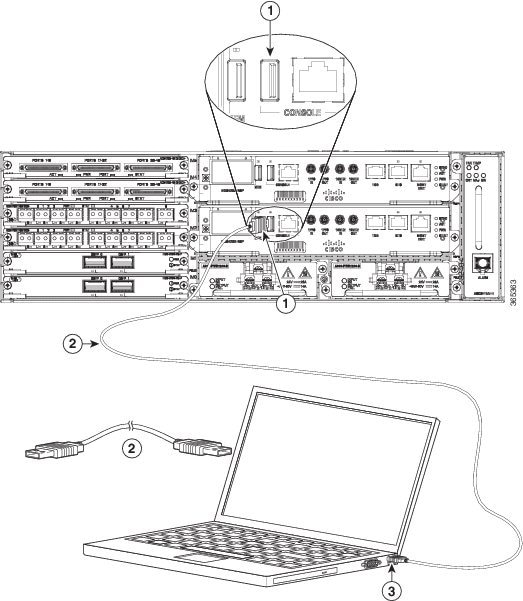
Connect the end of the console cable with the RJ45 connector to the light blue console port on the chassis. or Connect a USB Type A-to-Type A cable to the USB console port as shown in the figure below . If you are using the USB serial port for the first time on a Windows-based PC, install the USB driver now according to the instructions in the following sections:

Note

 
You cannot use the USB port and the EIA port concurrently. See Connecting to the Auxiliary Port . When the USB port is used it takes priority over the RJ45 EIA port.

Note

 
The USB Type A-to-Type A cable is not included with the Cisco NCS 4206; it is ordered separately.

Step 2

Connect the end of the cable with the DB-9 connector (or USB Type-A) to the terminal or PC. If your terminal or PC has a console port that does not accommodate a DB-9 connector, you must provide an appropriate adapter for that port.

Step 3

To communicate with the chassis, start a terminal emulator application, such as Microsoft Windows HyperTerminal. This software should be configured with the following parameters:

  • 9600 baud
  • 8 data bits
  • no parity
  • 1 stop-bit
  • no flow control
Figure 29. Connecting the USB Console Cable to the Cisco NCS 4206


1

USB Type-A console port

2

USB 5-pin mini USB Type-B to USB Type-A console cable

3

USB Type-A


Connecting to the Console Port using Mac OS X

This procedure describes how to connect a Mac OS X system USB port to the console using the built in OS X Terminal utility.

Procedure

Step 1

Use the Finder to go to Applications > Utilities > Terminal.

Step 2

Connect the OS X USB port to the .

Step 3

Enter the following commands to find the OS X USB port number:

Example:

macbook:user$ cd /dev
macbook:user$ ls -ltr /dev/*usb*
crw-rw-rw-  1 root    wheel       9,  66 Apr  1 16:46 tty.usbmodem1a21 DT-macbook:dev user$

Step 4

Connect to the USB port with the following command followed by the chassis USB port speed

Example:

macbook:user$ screen /dev/tty.usbmodem1a21 9600

To disconnect the OS X USB console from the Terminal window

Enter Ctrl-a followed by Ctrl-\


Connecting to the Console Port using Linux

This procedure shows how to connect a Linux system USB port to the console using the built in Linux Terminal utility.

Procedure

Step 1

Open the Linux Terminal window.

Step 2

Connect the Linux USB port to the chassis.

Step 3

Enter the following commands to find the Linux USB port number:

Example:

root@usb-suse# cd /dev
root@usb-suse /dev# ls -ltr *ACM*
crw-r--r--    1 root     root     188,   0 Jan 14 18:02 ttyACM0
root@usb-suse /dev#

Step 4

Connect to the USB port with the following command followed by the chassis USB port speed:

Example:

root@usb-suse /dev# screen /dev/ttyACM0 9600

To disconnect the Linux USB console from the Terminal window

Enter Ctrl-a followed by : then quit.


Installing the Cisco Microsoft Windows USB Device Driver

A USB device driver must be installed the first time a Microsoft Windows-based PC is connected to the USB serial port on the chassis.

Installing the Cisco Microsoft Windows XP USB Driver

This procedure shows how to install the Microsoft Windows XP USB driver. Download the driver for your chassis model from the Tools and Resources Download Software site, USB Console Software category, at the following URL:

https://www.cisco.com/c/en/us/support/index.html

Procedure

Step 1

Unzip the file Cisco_usbconsole_driver_X_X.zip (where X is a revision number).

Step 2

If using 32-bit Windows XP double-click the file setup.exe from the Windows_32 folder, or if using 64-bit Windows XP double-click the file setup(x64).exe from the Windows_64 folder.

Step 3

The Cisco Virtual Com InstallShield Wizard begins. Click Next.

Step 4

The Ready to Install the Program window appears, Click Install.

Step 5

The InstallShield Wizard Completed window appears. Click Finish.

Step 6

Connect the USB cable to the PC and chassis USB console ports. The EN LED for the USB console port turns green, and within a few moments the Found New Hardware Wizard appears. Following the instructions to complete the installation of the driver.

Step 7

The USB console is ready for use.


Installing the Cisco Microsoft Windows 2000 USB Driver

This procedure shows how to install the Microsoft Windows 2000 USB driver.

Procedure

Step 1

Obtain the file Cisco_usbconsole_driver.zip from the Cisco.com web site and unzip it.

Step 2

Double-click the file setup.exe.

Step 3

The Cisco Virtual Com InstallShield Wizard begins. Click Next.

Step 4

The Ready to Install the Program window appears, Click Install.

Step 5

The InstallShield Wizard Completed window appears. Click Finish.

Step 6

Connect the USB cable to the PC and chassis USB console ports. The EN LED for the USB console port turns green, and within a few moments a series of Found New Hardware Wizard windows appear. Following the instructions to complete the installation of the driver.

The USB console is ready for use.


Installing the Cisco Microsoft Windows Vista USB Driver

This procedure shows how to install the Microsoft Windows Vista USB driver.

Procedure

Step 1

Obtain the file Cisco_usbconsole_driver.zip from the Cisco.com web site and unzip it.

Step 2

If using 32-bit Windows Vista double-click the file setup.exe from the Windows_32 folder, or if using 64-bit Windows Vista double-click the file setup(x64).exe from the Windows_64 folder.

Step 3

The Cisco Virtual Com InstallShield Wizard begins. Click Next.

Step 4

The Ready to Install the Program window appears, Click Install.

Note

 
If a User Account Control warning appears, click “Allow - I trust this program...” to proceed.

Step 5

The InstallShield Wizard Completed window appears. Click Finish.

Step 6

Connect the USB cable to the PC and chassis USB console ports. The EN LED for the USB console port turns green, and within a few moments a pop up window stating “Installing device driver software” appears. Following the instructions to complete the installation of the driver.

The USB console is ready for use.


Uninstalling the Cisco Microsoft Windows USB Driver

This section provides instructions for how to uninstall the Cisco Microsoft Windows USB device driver.

Uninstalling the Cisco Microsoft Windows XP and 2000 USB Driver Using the Add Remove Programs Utility

Note


Disconnect the chassis console terminal before uninstalling the driver.


Procedure

Step 1

Click Start > Control Panel > Add or Remove Programs.

Step 2

Scroll to Cisco Virtual Com and click Remove.

Step 3

When the Program Maintenance window appears, select the Remove radio button. Click Next.


Uninstalling the Cisco Microsoft Windows XP and 2000 USB Driver Using the Setup.exe Program

Note


Disconnect the chassis console terminal before uninstalling the driver.


Procedure

Step 1

Run the setup.exe for Windows 32-bit or setup(x64).exe for Windows-64bit. Click Next.

Step 2

The InstallShield Wizard for Cisco Virtual Com appears. Click Next.

Step 3

When the Program Maintenance window appears, select the Remove radio button. Click Next.

Step 4

When the Remove the Program window appears, click Remove.

Step 5

When the InstallShield Wizard Completed window appears click Finish.


Uninstalling the Cisco Microsoft Windows Vista USB Driver

This procedure shows you how to uninstall the Microsoft Windows Vista USB driver.


Note


Disconnect the chassis console terminal before uninstalling the driver.
Procedure

Step 1

Run the setup.exe for Windows 32-bit or setup(x64).exe for Windows-64bit. Click Next.

Step 2

The InstallShield Wizard for Cisco Virtual Com appears. Click Next.

Step 3

When the Program Maintenance window appears, select the Remove radio button. Click Next.

Step 4

When the Remove the Program window appears, click Remove.

Note

 
If a User Account Control warning appears, click “Allow - I trust this program...” to proceed.

Step 5

When the InstallShield Wizard Completed window appears click Finish.


Connecting to the Auxiliary Port

When a modem is connected to the auxiliary port, a remote user can dial in to the chassis and configure it. Use a light blue console cable and the DB-9-to-DB-25 connector adapter.


Note


The console cable and DB-9-to-DB-25 connector are not included with the Cisco NCS 4206; they are ordered separately.

To connect a modem to the chassis, follow these steps:

Procedure


Step 1

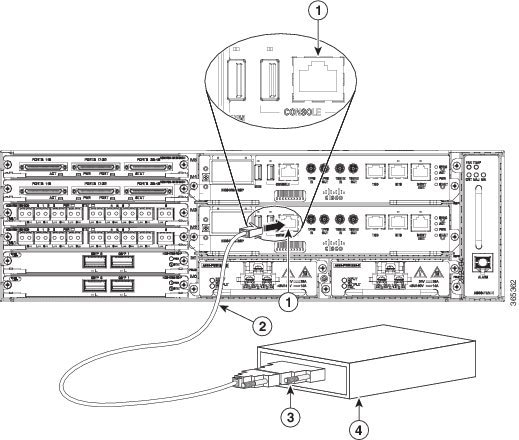
Connect the RJ45 end of the adapter cable to the black AUX port on the chassis, as shown in the figure below.

Figure 30. Connecting a Modem to the Cisco NCS 4206


1

RJ45 AUX port

3

RJ45 to DB-9

2

DB-9 to DB-25 adapter

4

Modem

Step 2

Connect the DB-9 end of the console cable to the DB-9 end of the modem adapter.

Step 3

Connect the DB-25 end of the modem adapter to the modem.

Step 4

Make sure that your modem and the chassis auxiliary port are configured for the same transmission speed (up to 115200 bps is supported) and for mode control with data carrier detect (DCD) and data terminal ready (DTR) operations.


Connecting a Management Ethernet Cable

When using the Ethernet Management port in the default mode (speed-auto and duplex-auto) the port operates in auto-MDI/MDI-X mode. The port automatically provides the correct signal connectivity through the Auto-MDI/MDI-X feature. The port automatically senses a crossover or straight-through cable and adapts to it.

However, when the Ethernet Management port is configured to a fixed speed (10 or 100 Mbps) through command-line interface (CLI) commands, the port is forced to MDI mode.

When in a fixed-speed configuration and MDI mode:

  • Use a crossover cable to connect to an MDI port
  • Use a straight-through cable to connect to an MDI-X port

Warning


To comply with the Telcordia GR-1089 NEBS standard for electromagnetic compatibility and safety, connect the Management Ethernet ports only to intra-building or unexposed wiring or cable. The intrabuilding cable must be shielded and the shield must be grounded at both ends. The intra-building port(s) of the equipment or subassembly must not be metallically connected to interfaces that connect to the OSP or its wiring. These interfaces are designed for use as intra-building interfaces only (Type 2 or Type 4 ports as described in GR-1089-CORE) and require isolation from the exposed OSP cabling. The addition of Primary Protectors is not sufficient protection in order to connect these interfaces metallically to OSP wiring.


Installing and Removing SFP Modules

The Cisco NCS 4206 supports a variety of SFP modules, including optical and Ethernet modules. For information on how to install and remove SFP modules, see the documentation for the SFP module at https://www.cisco.com/c/en/us/td/docs/interfaces_modules/transceiver_modules/installation/note/78_15160.html.

For information about inspecting and cleaning fiber-optic connections, see https://www.cisco.com/c/en/us/support/docs/optical/synchronous-digital-hierarchy-sdh/51834-cleanfiber2.html.


Caution


We recommend that you wait 30 seconds between removal and insertion of an SFP on an interface module. This time is recommended to allow the transceiver software to initialize and synchronize with the standby RSP. Changing an SFP more quickly could result in transceiver initialization issues that disable the SFP.


Connecting a USB Flash Device

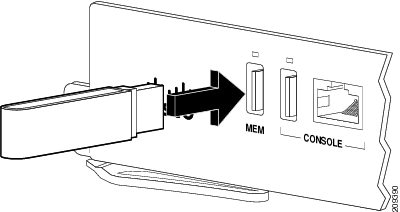
To connect a USB flash device to the Cisco NCS 4206, insert the memory stick in the USB port labeled MEM. The Flash memory module can be inserted in only one way, and can be inserted or removed regardless of whether the is powered up or not.

The figure below shows the USB port connector on the Cisco NCS 4206.

Figure 31. Cisco NCS 4206 Flash Token Memory Stick

Removing a USB Flash Device

To remove and then replace a USB flash token memory stick from a Cisco NCS 4206, follow these steps:

Procedure

Step 1

Pull the memory stick from the USB port.

Step 2

To replace a Cisco USB Flash memory stick, simply insert the module into the USB port labeled MEM. The Flash memory module can be inserted in only one way, and can be inserted or removed regardless of whether the is powered up or not.

Note

 
You can insert or remove the memory stick whether the is powered on or not.

Connecting Timing Cables


Note


When installing the cabling to the RSPs, we recommend that you leave a service loop of extra cabling sufficient to allow for fan tray removal.

Connecting Cables to the BITS Port using the Wire Wrap Interface

The following steps describe how to connect cables to the BITS port using Wire wrap interface:

Procedure
  Command or Action Purpose

Step 1

Connect the BITS port using a wire wrap adapter.

Step 2

Connect the wire wrap adapter to the RJ-45 port.

For information about the Wire wrap pinouts, see Troubleshooting.

Warning


To comply with the Telcordia GR-1089 NEBS standard for electromagnetic compatibility and safety, connect the BITS ports only to intra-building or unexposed wiring or cable. The intrabuilding cable must be shielded and the shield must be grounded at both ends. The intra-building port(s) of the equipment or subassembly must not be metallically connected to interfaces that connect to the OSP or its wiring. These interfaces are designed for use as intra-building interfaces only (Type 2 or Type 4 ports as described in GR-1089-CORE) and require isolation from the exposed OSP cabling. The addition of Primary Protectors is not sufficient protection in order to connect these interfaces metallically to OSP wiring.

Connecting Cables to a GNSS Interface


Note


A Y-cable is required to connect to a primary and backup RSP in order to ensure that the chassis continues to transmit timing signals in the event of a network failure. For a mini-coax connection, this Y-cable can be part number CAB-BNC-7INY (7 inch BNC Y-cable). For an Ethernet connection, this Y-cable can be a RJ45 Cat5 1-to-2 splitter (3 female port RJ45 connector).

Note


When installing the cabling to the RSPs, we recommend that you leave a service loop of extra cabling sufficient to allow for fan tray removal.
Connecting Cables to the Input 10Mhz or 1PPS Interface
Procedure

Step 1

Connect one end of a mini-coax Y-cable to the GPS unit.

Step 2

Connect one end of the split-side Y-cable mini-coax to the 10Mhz or 1PPS port on the primary RSP of the Cisco NCS 4206.

Step 3

Connect the other end of the split-side Y-cable mini-coax to the 10Mhz or 1PPS port on the backup RSP of the Cisco NCS 4206.


Connecting Cables to the Output 10Mhz or 1PPS Interface
Procedure

Step 1

Connect one end of a mini-coax Y-cable to the Slave unit.

Step 2

Connect one end of the split-side Y-cable mini-coax to the 10Mhz or 1PPS port on the primary RSP of the Cisco NCS 4206.

Step 3

Connect the other end of the split-side Y-cable mini-coax to the 10Mhz or 1PPS port on the backup RSP of the Cisco NCS 4206.


Connecting Cables to the ToD Interface
Procedure

Step 1

Connect one end of a straight-through Ethernet cable to the GPS unit.

Step 2

Connect one end of the split-side Y-cable Ethernet to the ToD port on the primary RSP of the Cisco NCS 4206.

Step 3

Connect the other end of the split-side Y-cable Ethernet to the ToD port on the backup RSP of the Cisco NCS 4206.

Note

 
For instructions on how to configure clocking, see the Cisco NCS 4206 Software Configuration Guide .

Warning


To comply with the Telcordia GR-1089 NEBS standard for electromagnetic compatibility and safety, connect the ToD ports only to intra-building or unexposed wiring or cable. The intrabuilding cable must be shielded and the shield must be grounded at both ends. The intra-building port(s) of the equipment or subassembly must not be metallically connected to interfaces that connect to the OSP or its wiring. These interfaces are designed for use as intra-building interfaces only (Type 2 or Type 4 ports as described in GR-1089-CORE) and require isolation from the exposed OSP cabling. The addition of Primary Protectors is not sufficient protection in order to connect these interfaces metallically to OSP wiring.

Note

 
For more information about GPS port pinouts, see Troubleshooting.

Connecting Ethernet Cables

The Cisco NCS 4206 interface modules support RJ45 or SFP Ethernet ports. For instructions on how to connect cables to Ethernet SFP ports, see Connecting Cables to SFP Modules.

The RJ45 port supports standard straight-through and crossover Category 5 unshielded twisted-pair (UTP) cables. Cisco Systems does not supply Category 5 UTP cables; these cables are available commercially.


Warning


To comply with the Telcordia GR-1089 NEBS standard for electromagnetic compatibility and safety, connect the Gigabit Ethernet ports only to intra-building or unexposed wiring or cable. The intrabuilding cable must be shielded and the shield must be grounded at both ends. The intra-building port(s) of the equipment or subassembly must not be metallically connected to interfaces that connect to the OSP or its wiring. These interfaces are designed for use as intra-building interfaces only (Type 2 or Type 4 ports as described in GR-1089-CORE) and require isolation from the exposed OSP cabling. The addition of Primary Protectors is not sufficient protection in order to connect these interfaces metallically to OSP wiring.


Note


When installing the cabling to the RSPs, we recommend that you leave a service loop of extra cabling sufficient to allow for fan tray removal.

Follow these steps to connect the cable to a copper Gigabit Ethernet port:

Procedure


Step 1

Confirm that the is powered off.

Step 2

Connect one end of the cable to the Gigabit Ethernet port on the.

Step 3

Connect the other end to the BTS patch or demarcation panel at your site.


Connecting Cables to SFP Modules

For information on connecting cables to Cisco optical and Ethernet SFP interfaces, see http://www.cisco.com/en/US/partner/products/hw/modules/ps5455/prod_installation_guides_list.html.

Connecting T1/E1 Cables

The physical layer interface for the Cisco NCS 4206 T1/E1 port is a high-density connector. The high-density connector has thumbscrews which should be screwed into the interface when the cable is installed.


Note


Patch panels are required in order to connect the high-density interface connectors to individual T1/E1 lines.

Installing the Cable Connectors

T1/E1 Cable Connectors
Figure 32. T1/E1 Cable Connector


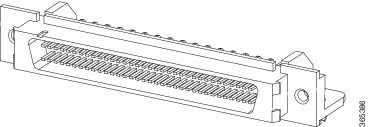
One end of the cable (see the figure above) has a 68-pin connector that plugs into the T1/E1 interface module and the other end of the cable with a 68-pin connector is connected to a RJ48, AMP64 or a DIN patch panel. Use the thumbscrews on either side of the connector to secure the cable to the interface.

For information about the pinout of the cable connecting the T1/E1 interface to the rear of the patch panel, see T1/E1 ports, see the T1/E1 Port Pinout.

Patch Panel Cables

The patch panel cable connects the interface modules with the patch panel.

Each cable connects one VHDCI connector on the interface module to the connector on the patch panel. A set of three cables is required to connect one interface module to one 48-port patch panel.

The following table shows details of the patch panel cables:

Table 5. Patch Panel Cables

Patch Panel Cable

Description

CABLE-16TDM-C

16-port cable for TDM CEM Interface Module, no redundancy, 72 inches in length

CABLE-16TDM-C-L1

16-port cable for TDM CEM Interface Module, no redundancy, 56 inches in length

CABLE-16TDM-C-L2

16-port cable for TDM CEM Interface Module, no redundancy, 63 inches in length

CABLE-16TDM-C-L3

16-port cable for TDM CEM Interface Module, no redundancy, 85 inches in length

CABLE-16TDM-C-L4

16-port cable for TDM CEM Interface Module, no redundancy, 96 inches in length

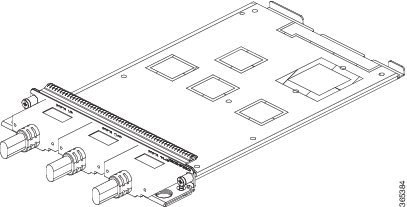
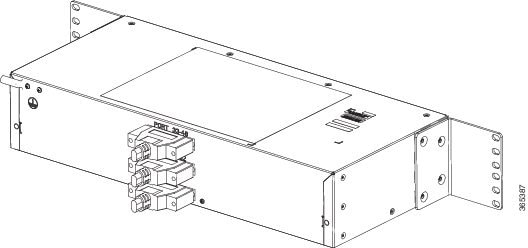
Connecting Cables to the Patch Panel

Figure 33. Interface Module with the Connector


Figure 34. Patch Panel with the Connector


If you are connecting two T1/E1 interfaces to each other, you must cable both interfaces’ patch panels together using a T1 straight-through shielded cables. If both T1/E1 interfaces are connected to their patch panels in a different configuration, use a T1 straight-through cable (standard RJ48C patch cable) to connect the patch panels.


Warning


To comply with the Telcordia GR-1089 NEBS standard for electromagnetic compatibility and safety, connect the T1/E1 ports only to intra-building or unexposed wiring or cable. The intrabuilding cable must be shielded and the shield must be grounded at both ends. The intra-building port(s) of the equipment or subassembly must not be metallically connected to interfaces that connect to the OSP or its wiring. These interfaces are designed for use as intra-building interfaces only (Type 1 and Type 3 ports as described in GR-1089-CORE) and require isolation from the exposed OSP cabling. The addition of Primary Protectors is not sufficient protection in order to connect these interfaces metallically to OSP wiring.


Patch Panel Connectors

The PANEL-48-1-DIN and PANEL-48-3-DIN provide 48 DIN 1.0/2.3 connectors on the front side of the patch panel. These connectors terminate to 75 ohm coaxial cable through the DIN plug.

The PANEL-48-1-RJ48 provide 48 RJ45 connector on the front side of the patch panel. These connectors terminate to 110 ohm T1/E1 cable through a RJ45 connector.

Figure 35. Patch Panel Connector on the Patch Panel


Figure 36. Patch panel Connector on the Interface Module


Patch Panel Cabling for Redundancy

You can connect the patch panels with the interface modules for redundancy, using the Y-cables. The Y-cable stub lengths are reduced, so that the cable does not exceed from the rack spacer. The Y-cables are numbered based on the different stub length. Cable lengths differ for even numbered and odd numbered slots in the chassis.

Table 6. Y-Cable for Redundancy

Bundle PID

Cable Marking

Description

CABLE-16TDM-R1EL1

T1/E1-Cable S-3

16-port cable for TDM CEM Interface Module, 42 inches cable length and 10 inches stub length, even slot

T1/E1 Cable S-2

16-port cable for TDM CEM Interface Module, 42 inches cable length and 7.5 inches stub length, even slot

T1/E1 Cable S-1

16-port cable for TDM CEM Interface Module, 42 inches cable length and 6.5 inches stub length, even slot

CABLE-16TDM-R1EL2

T3/E3-Cable M-3

16-port cable for TDM CEM Interface Module, 62 inches cable length and 10 inches stub length, even slot

T3/E3-Cable M-2

16-port cable for TDM CEM Interface Module, 62 inches cable length and 7.5 inches stub length, even slot

T3/E3-Cable M-1

16-port cable for TDM CEM Interface Module, 62 inches cable length and 6.5 inches stub length, even slot

CABLE-16TDM-R1EL3

T1/E1-Cable L-3

16-port cable for TDM CEM Interface Module, 78 inches cable length and 10 inches stub length, even slot

T1/E1 Cable L-2

16-port cable for TDM CEM Interface Module, 78 inches cable length and 7.5 inches stub length, even slot

T1/E1 Cable L-1

16-port cable for TDM CEM Interface Module, 78 inches cable length and 6.5 inches stub length, even slot

CABLE-16TDM-R3EL1

T3/E3-Cable S-3

16-port cable for TDM CEM Interface Module, 42 inches cable length and 10 inches stub length, even slot

T3/E3-Cable S-2

16-port cable for TDM CEM Interface Module, 42 inches cable length and 7.5 inches stub length, even slot

T3/E3-Cable S-1

16-port cable for TDM CEM Interface Module, 42 inches cable length and 6.5 inches stub length, even slot

CABLE-16TDM-R3EL2

T3/E3-Cable M-3

16-port cable for TDM CEM Interface Module, 62 inches cable length and 10 inches stub length, even slot

T3/E3-Cable M-2

16-port cable for TDM CEM Interface Module, 62 inches cable length and 7.5 inches stub length, even slot

T3/E3-Cable M-1

16-port cable for TDM CEM Interface Module, 62 inches cable length and 6.5 inches stub length, even slot

CABLE-16TDM-R3EL3

T3/E3-Cable L-3

16-port cable for TDM CEM Interface Module, 78 inches cable length and 10 inches stub length, even slot

T3/E3-Cable L-2

16-port cable for TDM CEM Interface Module, 78 inches cable length and 7.5 inches stub length, even slot

T3/E3-Cable L-1

16-port cable for TDM CEM Interface Module, 78 inches cable length and 6.5 inches stub length, even slot

RJ45 Cable Pinouts

T1 lines from individual subscribers are attached to RJ45 connectors on the front of the 24-port patch panel. Each RJ45 port accommodates an individual T1 subscriber line.

For the T1/E1 ports, see the T1/E1 Port Pinout.

Installing Patch Panel

To install the brackets on the rear of the patch panel, perform these steps:

Procedure


Step 1

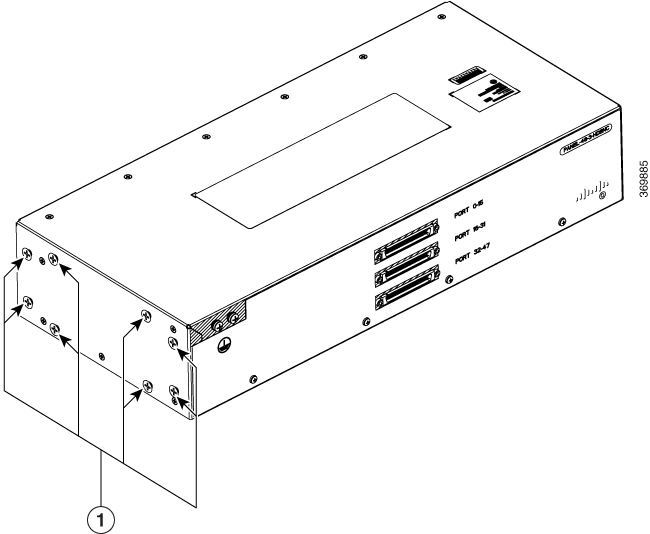
Remove the larger (M4) rack mount screws (as indicated in the Rack Mount Screws figure below) from both sides. To secure the brackets, follow the instructions in Step-3.

Step 2

Remove the patch panel rack-mount brackets from the accessory kit and position them beside the patch panel.

Step 3

Position the brackets against the patch panel sides, and align with the screw holes. Secure the rack mount bracket to patch panel using a torque of 13.2 in.-lb (1.5 N-m) see the figure below.

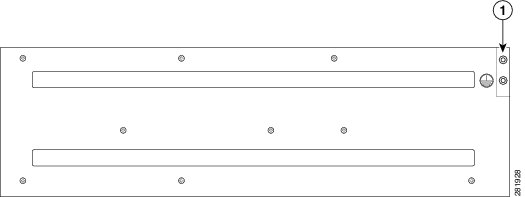
Figure 37. Rack Mount Screws

(1) Rack mount screws to secure rack mount brackets on both the sides.

Figure 38. Patch Panel Front View with Brackets


Step 4

Position the cable management guides against the mounting brackets on the patch panel, see the figure below.

Figure 39. Patch Panel Front View with Brackets and Guides


Figure 40. Patch Panel Rear View with Brackets and Guides


Step 5

Secure the guides to the brackets with the screws. The recommended maximum torque is 28 in.-lb (3.16 N-m).

Step 6

Position the patch panel with brackets and guide onto the rack and secure with screws provided. The recommended maximum torque is 28 in.-lb (3.16 N-m), see the figure below.

Note


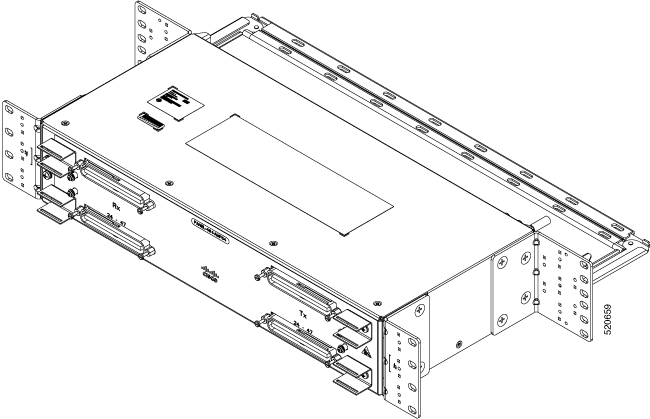
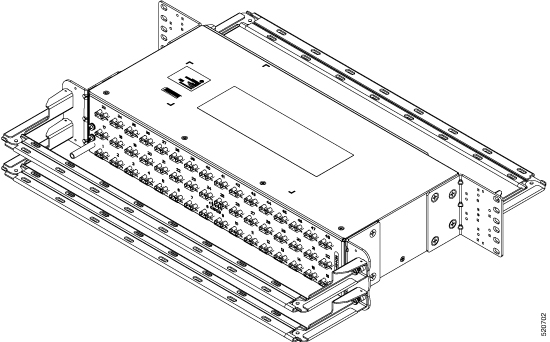
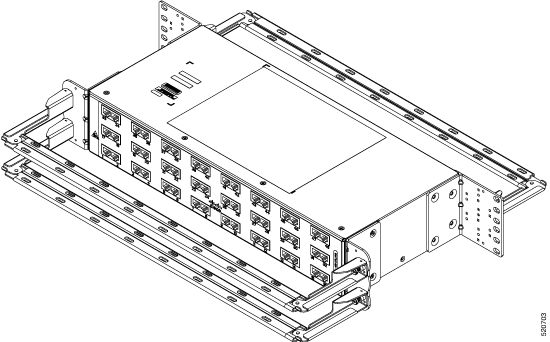
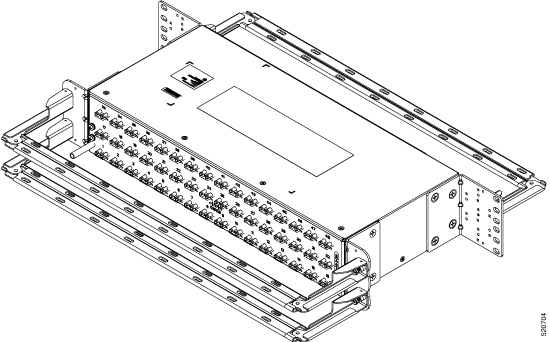
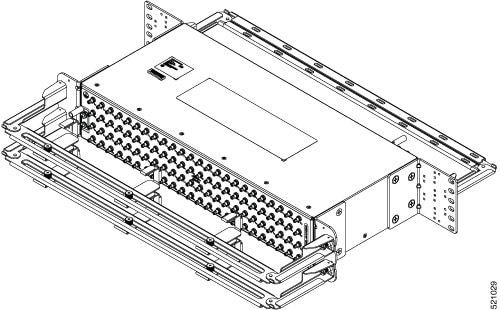
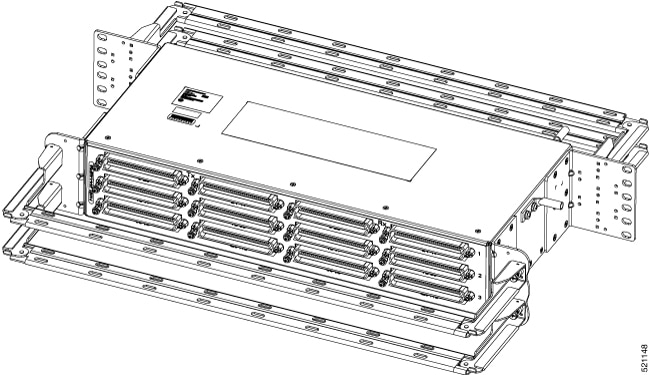
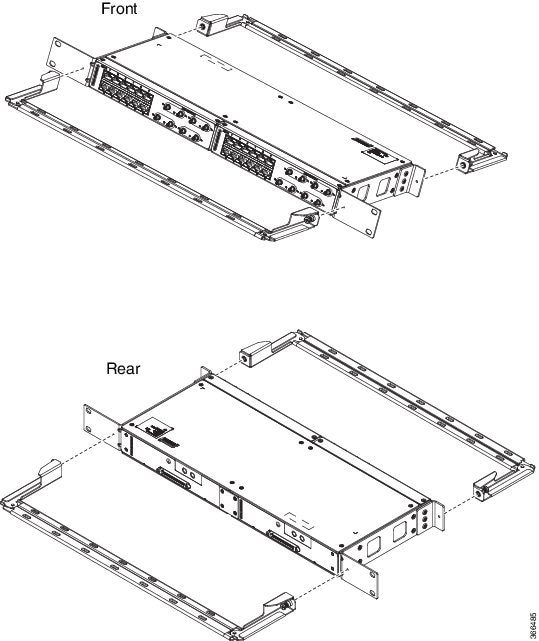
Cable brackets should be assembled according to the PID used as different PIDs have different set and quantity of brackets. Refer figures 110 to 115 for PID and cable bracket details.

Figure 41. Patch Panel Front View with Brackets and Guides Installed on Rack


Figure 42. Patch Panel Rear View with Brackets and Guides Installed on Rack


Figure 43. PANEL-16-DIN Patch Panel Mounting Installed on Rack
Figure 44. PANEL-48-1-AMP64
Figure 45. PANEL-48-1-DIN
Figure 46. PANEL-48-1-RJ48
Figure 47. PANEL-48-3-DIN

Note

 
The installation of PANEL-48-1-AMP64, PANEL-48-1-DIN, PANEL-48-1-RJ48, and PANEL-48-3-DIN is similar to the installation steps mentioned above.
Figure 48. PANEL-48-3-HDBNC
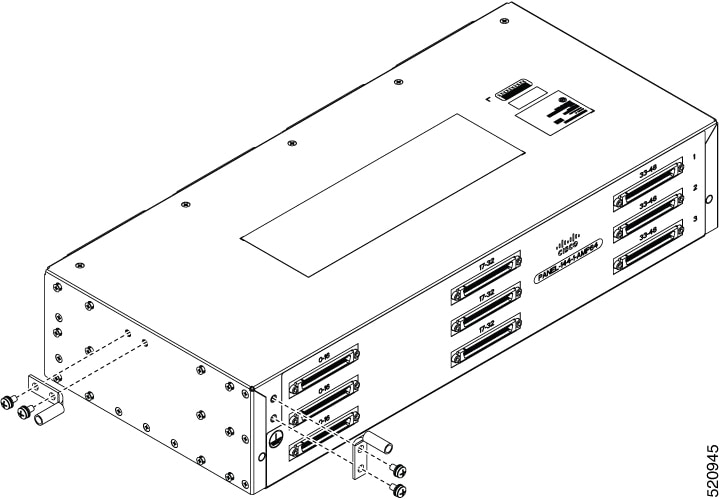
Figure 49. PANEL-144-1-AMP64
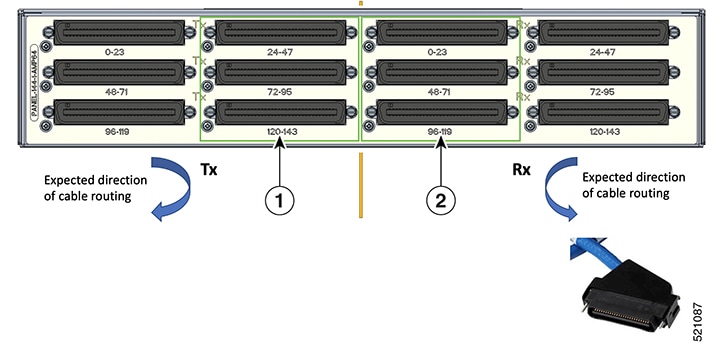
Figure 50. Example of 120⁰ Exit Cable Hood

The following table shows details of the 120⁰ exit cable hood:

Table 7. Cable Routing Recommendation for Panel-144-1-AMP64

1

120⁰ exit cable hood with left routing should be used for centre ports on the Tx side.

2

120⁰ exit cable hood with right routing should be used for centre ports on the Rx side.


Ground Connection for Patch Panel

To ensure that the chassis ground connection that you provide is adequate, you need the following parts and tools:

  • Ratcheting torque screwdriver with Phillips head that exerts up to 15 in.-lb (1.69 N-m) of pressure for attaching the ground wire to the router
  • Crimping tool as specified by the ground lug manufacturer
  • 6 AWG or larger copper wire for the ground wire
  • Wire-stripping tools appropriate to the wire you are using

Caution


Before making connections to the Cisco NCS 4206, ensure that you disconnect the power at the circuit breaker. Otherwise, severe injury to you or damage to the chassis may occur.


Warning


This equipment must be grounded. Never defeat the ground conductor or operate the equipment in the absence of a suitably installed ground conductor. Contact the appropriate electrical inspection authority or an electrician if you are uncertain that suitable grounding is available. Statement 1024


Warning


Use copper conductors only. Statement 1025


Warning


When installing the unit, the ground connection must always be made first and disconnected last. Statement 42


Grounding points on patch panel may vary between different PIDs.

Install 3G Patch Panel

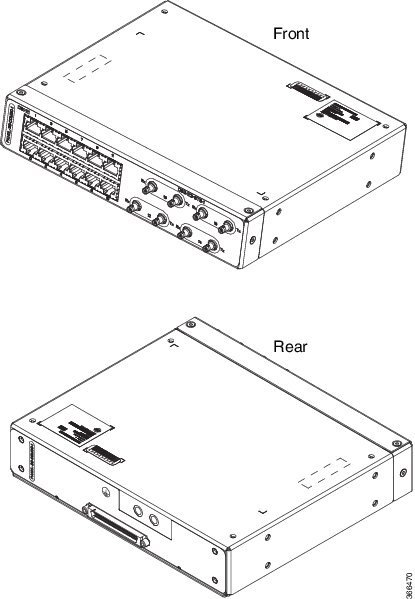
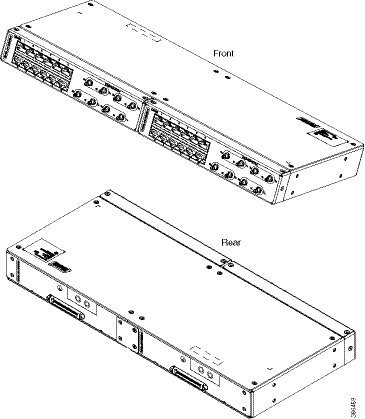
You can choose to either set up the Cisco ASR 903 3G patch panel on a rack or wall mount it.

Install Rack Brackets

Procedure

Step 1

Connect the grounding lugs using a crimping tool (as specified by the ground lug manufacturer), crimp the ground lug to the ground wire.

Step 2

Use a 6 AWG ground wire to connect the other end to a suitable grounding point at your site.

Figure 51. Patch Panel Grounding - Single
Figure 52. Patch Panel Grounding - Dual

Step 3

Position the patch panel in the rack as follows:

  • If the front of the patch panel is at the front of the rack, insert the rear of the chassis between the mounting posts.
  • If the rear of the patch panel is at the front of the rack, insert the front of the chassis between the mounting posts.

Step 4

Align the mounting holes in the bracket with the mounting holes in the equipment rack.

Figure 53. Installing the Patch Panel - Single in a 19-inch Rack
Figure 54. Installing the Patch Panel - Dual in a 19-inch Rack
Figure 55. Installing the Patch Panel - Single in a 21-inch Rack
Figure 56. Installing the Patch Panel - Dual in a 21-inch Rack
Figure 57. Installing the Patch Panel - Single in a 23-inch Rack
Figure 58. Installing the Patch Panel - Dual in a 23-inch Rack

Step 5

Secure the brackets to the chassis with the screws. The recommended maximum torque is 28 in.-lb (3.16 N-m).

  • EIA 19 and 23 inches mounting brackets for both single and double 3G interface module patch panels.

  • ETSI 21 inches mounting brackets for both single and double 3G interface module patch panels.


Set up 3G Patch Panel on Rack

To install the optional cable management brackets, perform these steps:

Procedure

Step 1

Position the cable management brackets against the front of the chassis and align the screw holes, as shown in the figure.

Step 2

Secure the cable management brackets with the screws. The recommended maximum torque is 10 in.-lb (1.12 N-m).

Figure 59. Attaching 19-inch Brackets to Patch Panel - Single
Figure 60. Installing 19-inch Brackets on to Rack - Single
Figure 61. Attaching 19-inch Brackets to Patch Panel - Dual
Figure 62. Installing 19-inch Brackets on to Rack - Dual
Figure 63. Attaching 21-inch Brackets to Patch Panel - Single
Figure 64. Installing 21-inch Brackets on to Rack - Single
Figure 65. Attaching 21-inch Brackets to Patch Panel - Dual
Figure 66. Installing 21-inch Brackets on to Rack - Dual
Figure 67. Attaching 23-inch Brackets to Patch Panel - Single
Figure 68. Installing 23-inch Brackets on to Rack - Single
Figure 69. Attaching 23-inch Brackets to Patch Panel - Dual
Figure 70. Installing 23-inch Brackets on to Rack - Dual

Wall Mount 3G Patch Panel

Before you begin

You must first install the mounting brackets and cable guides on to the patch panel before you mount it on the wall. You can use the same rack mount brackets (700-113653-01) for wall mount.

Procedure

Step 1

Remove the mounting brackets from the accessory kit and position them beside the device.

Note

 
You can install the brackets as shown in the figure.
Figure 71. Wall Mount - Single
Figure 72. Wall Mount - Dual

Step 2

Secure the bracket to the device with the recommended maximum torque of 10 inch-pounds (1.1 newton meters).

Step 3

Position the device vertically on the wall.

Caution

 
Before mounting the device, ensure that all unused holes at the sides of the device are protected with screws.

Step 4

Use a tape measure and level to verify that the device is installed straight and on level.


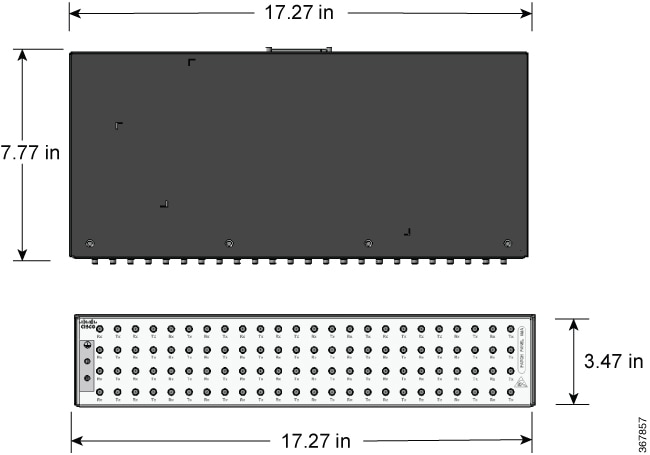
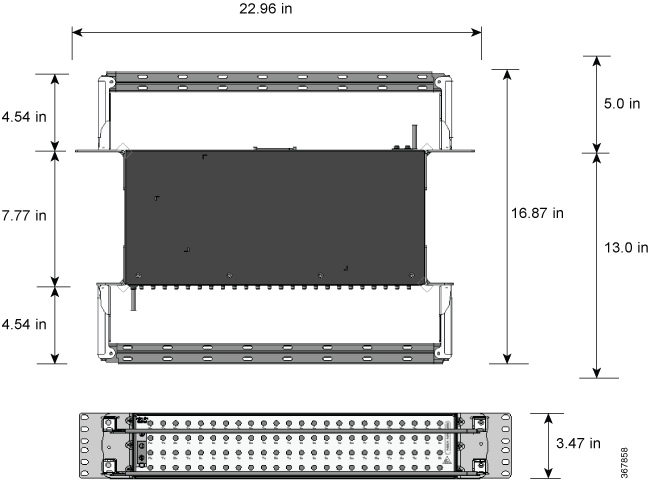
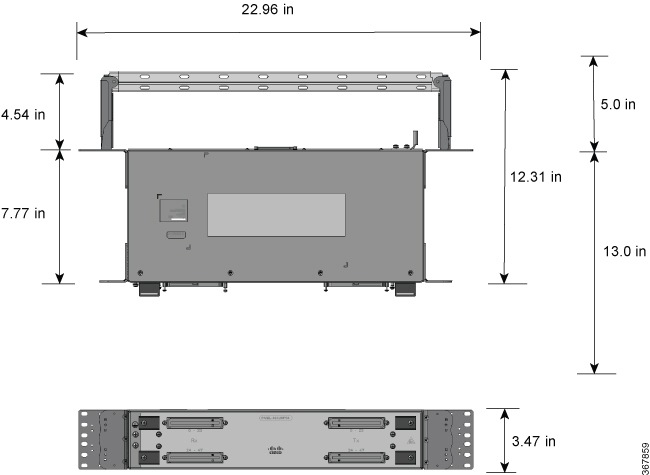
Patch Panel Dimensions

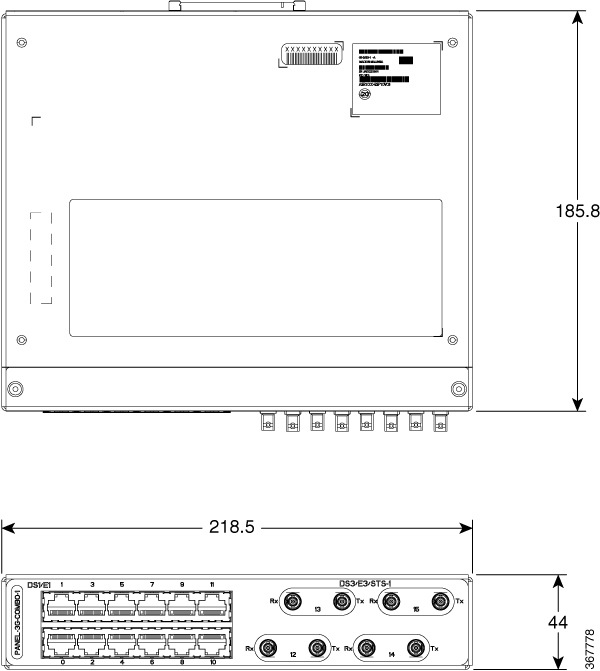
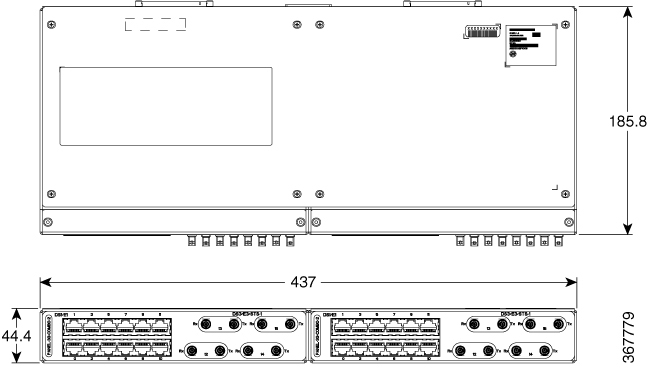
Following are the various patch panel dimensions.

Figure 73. Patch Panel Without Brackets

Figure 74. Patch Panel With Brackets

Figure 75. AMP64 Patch Panel With Brackets

Figure 76. 3G Patch Panel Without Brackets - Single

Figure 77. 3G Patch Panel Without Brackets - Dual

Patch Panel Pinout

Given below are the pinout information for the regular crossover and the straight-through cable patch panel.

Table 8. Pinout Details

Pin #

Crossover

Straight-through

1

Receive Tip

Transmit Tip

2

Receive Ring

Transmit Ring

3

4

Transmit Tip

Receive Tip

5

Transmit Ring

Receive Ring

6

7

8

Panel and Bracket

Table 9. Panel and Bracket Details

Panel

Bracket Description

PANEL-3G-COMBO-1

Single 12E1 + 4xDS3 patch panel for 3G CEM/IMSG IM (requires crossover cable)

PANEL-3G-COMBO-2

Double 12E1 + 4xDS3 patch panel for 3G CEM/IMSG IM (requires crossover cable)

PANEL-3G-COMBO-1S

Single 12E1 + 4xDS3 patch panel for 3G CEM/IMSG (requires a straight-through cable)

PANEL-3G-COMBO-2S

Double 12E1 + 4xDS3 patch panel for 3G CEM/IMSG IM (requires a straight-through cable)

P3G1-RCKMNT-19IN

EIA 19 inches mounting brackets for single 3G CEM/IMSG IM patch panel

P3G1-RCKMNT-ETSI

ETSI 21 inches mounting brackets for single 3G CEM/IMSG IM patch panel

P3G1-RCKMNT-23IN

EIA 23 inches mounting brackets for single 3G CEM/IMSG IM patch panel

P3G2-RCKMNT-19IN

EIA 19 inches mounting brackets for double 3G CEM/IMSG IM patch panel

P3G2-RCKMNT-ETSI

ETSI 21 inches mounting brackets for double 3G CEM/IMSG IM patch panel

P3G2-RCKMNT-23IN

EIA 23 inches mounting brackets for double 3G CEM/IMSG IM patch panel

Connecting the Fan Tray Alarm Port

The fan tray includes an alarm port that maps to 4 dry contact alarm inputs.

The pins on the alarm port are passive signals and can be configured as Normally Open (an alarm generated when current is interrupted) or Normally Closed (an alarm is generated when a circuit is established) alarms. You can configure each alarm input as critical, major, or minor. An alarm triggers alarm LEDs and alarm messages. The relay contacts can be controlled through any appropriate third-party relay controller. The open/close configuration is an option controlled in IOS.


Warning


To comply with the Telcordia GR-1089 NEBS standard for electromagnetic compatibility and safety, connect the alarm ports only to intra-building or unexposed wiring or cable. The intrabuilding cable must be shielded and the shield must be grounded at both ends. The intra-building port(s) of the equipment or subassembly must not be metallically connected to interfaces that connect to the OSP or its wiring. These interfaces are designed for use as intra-building interfaces only (Type 2 or Type 4 ports as described in GR-1089-CORE) and require isolation from the exposed OSP cabling. The addition of Primary Protectors is not sufficient protection in order to connect these interfaces metallically to OSP wiring.


Only Pins 1, 2, 4, 6, and 8 are available for customer use. The remaining pins are for Cisco manufacturing test, and should not be connected. Use a shielded cable for connection to this port for EMC protection. See Troubleshooting for a summary of the pinouts on the alarm port .

Procedure


Step 1

Attach an RJ45 cable to the alarm port.

Step 2

Attach the other end of the RJ45 cable to the relay controller.


Connector and Cable Specifications

For more information on cable specifications and pinouts, see Troubleshooting.