Configuration Guide for Cisco NCS 1001, IOS XR Release 25.x.x

PDF

Configuration Guide for Cisco NCS 1001, IOS XR Release 25.x.x

Application hosting

Want to summarize with AI?

Log in

This section explains application hosting on IOS XR and how Docker support lets third-party applications run on NCS 1001 devices to extend router capabilities.


Application Hosting is the infra IOS-XR that allows you to

  • run third-party applications on the NCS 1001 devices, and

  • use third-party applications to extend device capabilities to complement IOS-XR features.

The Docker daemon is packaged with IOS-XR software on the base Linux OS. This provides native support for running applications inside docker containers on IOS-XR. Docker is the preferred way to run TPAs on IOS-XR.

App Manager

The App Manager is the infra on IOS-XR tasked with the responsibility of managing the life cycle of all container apps (third part and Cisco internal) and process scripts. App Manager runs natively on the host as an IOS-XR process. App Manager leverages the functionalities of docker, systemd and RPM for managing the lifecycle of third-party applications.

Restriction in docker container application hosting

MPLS packets are not supported on Linux interfaces.


Docker container application hosting architecture

This section describes the docker container application hosting architecture.

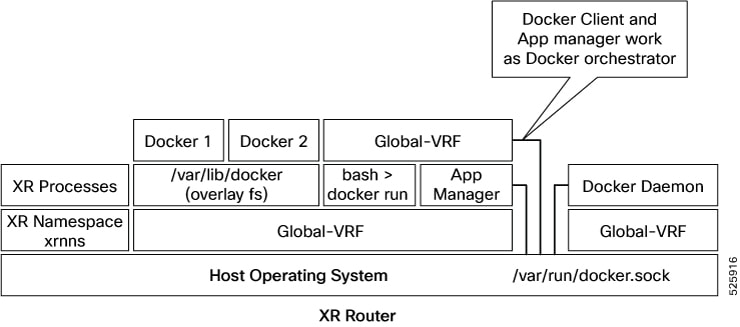
Figure 1. Docker on IOS XR

The App manager internally uses docker client, which interacts with TPAs (docker 1 and docker 2) by using the docker commands. The docker client sends the docker commands to docker daemon, which, then, executes the commands. The docker daemon uses the docker.sock Unix socket to communicate with the dockers.

When the docker run command is executed, a docker container is created and started from the docker image. Docker containers can be either in global-vrf namespace.

The docker utilizes overlayfs under the /var/lib/docker folder for managing the directories.

To host an application in docker containers, see Hosting an Application in Docker Containers.


Guidelines and limitations

  • For docker run options --mount and --volume, use the host paths.

    • "/var/run/netns"

    • "/var/lib/docker"

    • "/misc/disk1"

    • "/disk0"

    • "/misc/config/grpc"

    • "/etc"

    • "/dev/net/tun"

    • "/var/xr/config/grpc"

    • "/opt/owner"

  • The maximum allowed size for shm-size option is 64 Mb.


TP application resource configuration

IOS XR is equipped with inherent safeguards to prevent third party applications from interfering with its role as a Network OS.

  • Although IOS XR does not impose a limit on the number of TPAs that can run concurrently, it does impose constraints on the resources allocated to the Docker daemon, based on these parameters:

    • CPU: By default, ¼ of the CPU per core available in the platform.

      You can hard limit the default CPU usage in the range between 25-75% of the total system CPU using the appmgr resources containers limit cpu value command. This configuration restricts the TPAs from using more CPU than the set hard limit value irrespective of the CPU usage by other XR processes.

      This example provides the CPU hard limit configuration.

      RP/0/RSP0/CPU0:ios(config)#appmgr resources containers limit cpu ?
        <25-75>  In Percentage
      RP/0/RSP0/CPU0:ios(config)#appmgr resources containers limit cpu 25
      
    • RAM: By default, 1 GB of memory is available.

      You can hard limit the default memory usage in the range between 1-25% of the overall system memory using the appmgr resources containers limit memory value command. This configuration restricts the TPAs from using more memory than the set hard limit value.

      This example provides the memory hard limit configuration.

      RP/0/RSP0/CPU0:ios(config)#appmgr resources containers limit memory ?
        <1-25>  In Percentage
      RP/0/RSP0/CPU0:ios(config)#appmgr resources containers limit memory 20
      
    • Disk space is restricted by the partition size, which varies by platform and can be checked by executing "run df -h" and examining the size of the /misc/app_host or /var/lib/docker mounts.

  • All traffic to and from the application is monitored by the XR control protection, LPTS.

  • Signed Applications are supported on IOS XR. Users have the option to sign their own applications by onboarding an Owner Certificate (OC) through Ownership Voucher-based workflows as described in RFC 8366. Once an Owner Certificate is onboarded, users can sign applications with GPG keys based on the Owner Certificate, which can then be authenticated during the application installation process on the router.

This table shows the various functions performed by appmgr.

Package manager

Lifecyle manager

Monitoring and debugging

  • Handles installation of docker images packaged as RPMs.

  • Syncs the required state to standby to restart apps in cases of switchover, etc

  • Handles application start, stop, and kill operations.

  • Handles automatic application reload on:

    • Router reboot

    • Container crash

    • Switchover

  • Logging, stats, application health check.

  • Forwards docker deamon logs to XR syslog.

  • Allows to execute into docker shell of running application.


TP App Bring-up

This section provides the information, how to bring-up the TP container app. This can be done by these four ways.

  • App Config

  • UM Model

  • Native Yang Model

  • gNOI Containerz


Bring up TPAs using application configuration

Follow these steps to configure the docker run time options.

Procedure

1.

Configure the docker run time option.

Use --pids-limit to limit the number of process IDs using appmgr.

Example:

This example shows the configuration of the docker run time option --pids-limit to limit the number of process IDs using appmgr.

RP/0/RP0/CPU0:ios#appmgr application alpine_app activate type docker source alpine docker-run-opts "-it –pids-limit 90" docker-run-cmd "sh"

The number of process IDs is limited to 90.

2.

Verify the docker run time option configuration.

Use the show running-config appmgr command to verify the run time option.

Example:

This example shows how to verify the docker run time option configuration.

RP/0/RP0/CPU0:ios#show running-config appmgr
Thu Mar 23 08:22:47.014 UTC
appmgr
 application alpine_app
  activate type docker source alpine docker-run-opts "-it –pids-limit 90" docker-run-cmd "sh"
 !
!

Bring up TPAs using UM model

Follow these steps to configure the docker run time options.

Procedure

Configure the docker run time option.

Use --pids-limit to limit the number of process IDs using Netconf.

Example:

This example shows the configuration of the docker run time option --pids-limit to limit the number of process IDs using Netconf.

<rpc xmlns="urn:ietf:params:xml:ns:netconf:base:1.0" message-id="101">
  <edit-config>
    <target>
      <candidate/>
    </target>
    <config>
      <appmgr xmlns=http://cisco.com/ns/yang/Cisco-IOS-XR-um-appmgr-cfg>                     
        <applications>
          <application>
            <application-name>alpine_app</application-name>
            <activate>
              <type>docker</type>
                  <source-name>alpine</source-name>
                  <docker-run-cmd>/bin/sh</docker-run-cmd>
                  <docker-run-opts>-it --pids-limit=90</docker-run-opts>
            </activate>
          </application>
        </applications>
      </appmgr>
    </config>
  </edit-config>

The number of process IDs is limited to 90.


Bring up TPAs using native model

This example shows the configuration of the docker run time option --pids-limit to limit the number of process IDs using Native YANG model.

<rpc xmlns="urn:ietf:params:xml:ns:netconf:base:1.0" message-id="101">
  <edit-config>
    <target>
      <candidate/>
    </target>
    <config>
      <appmgr xmlns=http://cisco.com/ns/yang/Cisco-IOS-XR-appmgr-cfg>                     
        <applications>
          <application>
            <application-name>alpine_app</application-name>
            <activate>
              <type>docker</type>
               <source-name>alpine</source-name>
               <docker-run-cmd>/bin/sh</docker-run-cmd>
               <docker-run-opts>-it --pids-limit=90</docker-run-opts>
            </activate>
          </application>
        </applications>
      </appmgr>
    </config>
  </edit-config>

Bringup TPAs using gNOI Containerz

The Containerz - gNOI Container Service on NCS 1001 device is a workflow to onboard and manage third-party applications using gNOI RPCs.

For more information, see gNOI Containerz.

Docker run options using application manager

With this feature, runtime options for docker containerized applications on IOS-XR can be configured during launch using the appmgr activate " command. AppMgr, which oversees docker containerized applications, ensures that these runtime options can effectively override default configurations, covering aspects like CPU, security, and health checks during the container launch.

This feature introduces multiple runtime options that allow users to customize different parameters of docker containers. The configuration of these runtime options is flexible, as users can use either command or Netconf for the configuration process. Regardless of the chosen method, runtime options must be added to docker-run-opts as needed.

Table 1.

Docker run option

Description

--cpus

Number of CPUs

--cpuset-cpus

CPUs in which to allow execution (0-3, 0,1)

--cap-drop

Drop Linux capabilities

--user, -u

Sets the username or UID

--group-add

Add additional groups to run

--health-cmd

Run to check health

--health-interval

Time between running the check

--health-retries

Consecutive failures needed to report unhealthy

--health-start-period

Start period for the container to initialize before starting health-retries countdown

--health-timeout

Maximum time to allow one check to run

--no-healthcheck

Disable any container-specified HEALTHCHECK

--add-host

Add a custom host-to-IP mapping (host:ip)

--dns

Set custom DNS servers

--dns-opt

Set DNS options

--dns-search

Set custom DNS search domains

--domainname

Container NIS domain name

--oom-score-adj

Tune host's OOM preferences (-1000 to 1000)

--shm-size

Option to set the size of /dev/shm

--init

Run an init inside the container that forwards signals and reaps processes

--label, -l

Set meta data on a container

--label-file

Read in a line delimited file of labels

--pids-limit

Tune container pids limit (set -1 for unlimited)

--work-dir

Working directory inside the container

--ulimit

Ulimit options

--read-only

Mount the container's root filesystem as read only

--volumes-from

Mount volumes from the specified container(s)

--stop-signal

Signal to stop the container

--stop-timeout

Timeout (in seconds) to stop a container

--cap-addNET_RAW

Enable NET_RAW capabilities

--publish

Publish a container's port(s) to the host

--entrypoint

Overwrite the default ENTRYPOINT of the image

--expose

Expose a port or a range of ports

--link

Add link to another container

--env

Set environment variables

--env-file

Read in a file of environment variables

--network

Connect a container to a network

--hostname

Container host name

--interactive

Keep STDIN open even if not attached

--tty

Allocate a pseudo-TTY

--publish-all

Publish all exposed ports to random ports

--volume

Bind mount a volume

--mount

Attach a filesystem mount to the container

--restart

Restart policy to apply when a container exits

--cap-add

Add Linux capabilities

--log-driver

Logging driver for the container

--log-opt

Log driver options

--detach

Run container in background and print container ID

--memory

Memory limit

--memory-reservation

Memory soft limit

--cpu-shares

CPU shares (relative weight)

--sysctl

Sysctl options