Configure the Node

This chapter describes the tasks related to node configuration in Cisco Optical Site Manager.

If Cisco Optical Site Manager is used to manage an XR device, any configuration changes made to the device using XR (CLI or NETCONF) will trigger a resynchronization of the device in Cisco Optical Site Manager. This means that Cisco Optical Site Manager will temporarily be out of sync with the device while it updates itself with the changes. Any alarms during this period will be reported on Cisco Optical Site Manager after the synchronization process is complete.


Note


Removing any line card from the XR device will cause the configuration of the card to revert to the preconfigure state. This will result in the same behavior described above.


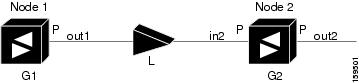
Figure 1. Configure the Node

Import a Cisco Optical Network Planner configuration file

Use this task to import a Cisco Optical Network Planner NETCONF file (.xml) into Cisco Optical Site Manager to configure device parameters automatically.

If you have a NETCONF file (.xml) exported from Cisco Optical Network Planner, you can import it to Cisco Optical Site Manager. This file includes node, shelf, card type, port (including wavelength), Pluggable Port Module (PPM), OTN, and FEC parameters.

Only values present in XML format appear as the configuration file parameters. If the values are not in XML format, the corresponding column appears blank. Imported values are reported independently and do not affect future configuration changes.

Before you begin

Ensure that:
  1. The NETCONF file (.xml) contains these parameters available on Cisco Optical Site Manager:

    • device name

    • uid

    • rack id

    • chassis/passive unit id

  2. You are logged in to Cisco Optical Site Manager. For details, see Log into Cisco Optical Site Manager.

.

Procedure


Step 1

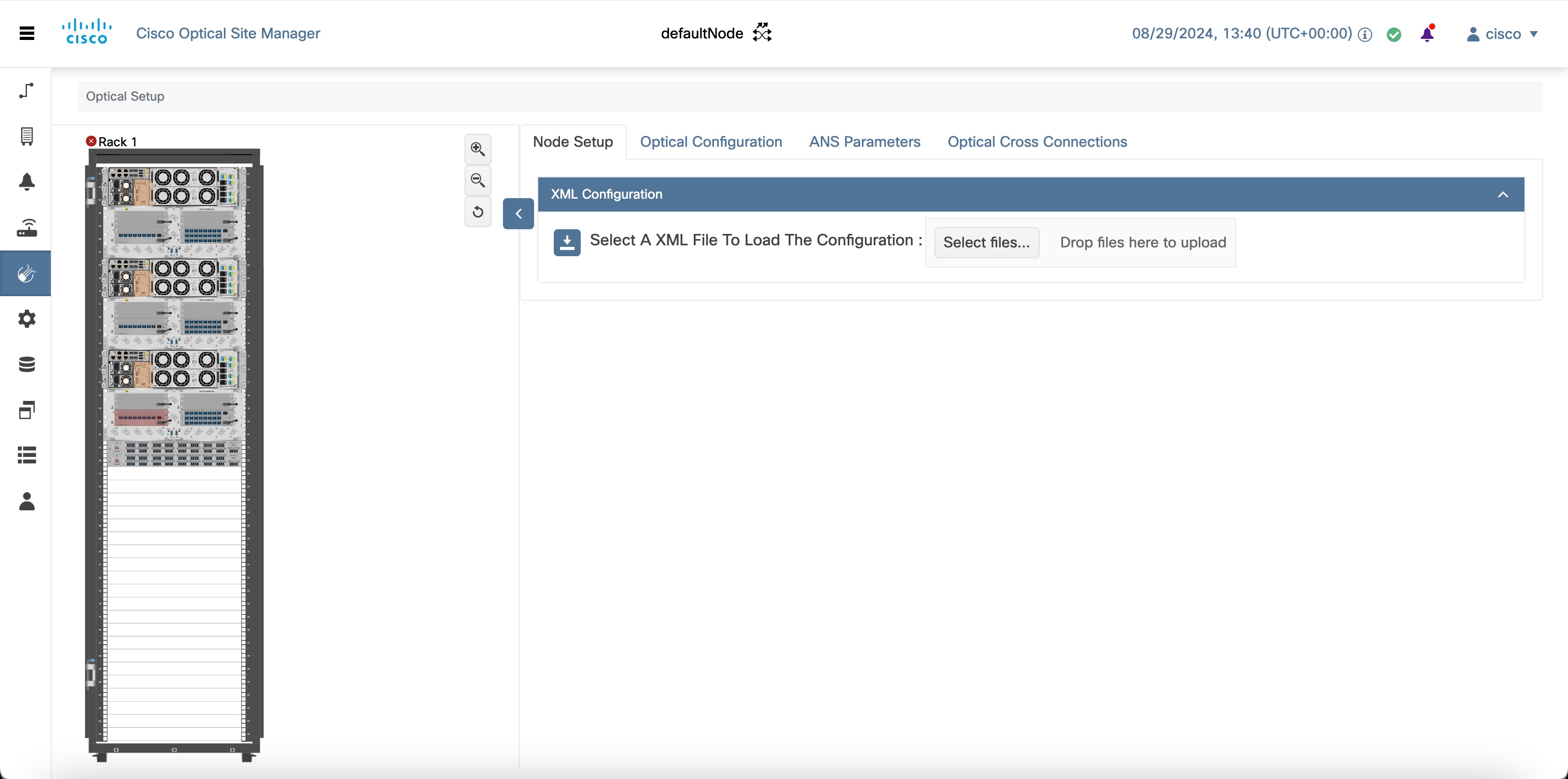
Click Optical Setup in the left panel.

Step 2

Click the Node Setup tab.

Step 3

Click Select A XML configuration file.

  1. Navigate to the location where the NETCONF file (.xml) is present and select it.

  2. Click Yes.

  3. Click Upload.

    A confirmation message appears after the upload is complete.

Step 4

(Optional) Click the Download Node Configuration as XML button, to export the XML file.

Step 5

Create an authorization group for the device added through the imported XML. For details, see Manage authorization groups

Step 6

Edit the device details:

  1. Click Devices in the left panel.

  2. In the Devices tab, click the Devices section to expand it.

  3. Select the device and update its IP Address and Auth Group.

  4. Click Apply.

  5. Wait until Sync Status shows sync-completed, and alarm-synchronized.


Optical Degrees

From a topological point of view, all the units that are equipped in a node belong to a side. A side can be identified by a letter, or by the ports that are physically connected to the spans. A node can be connected to a maximum of 20 different spans. Each side identifies one of the spans to which the node is connected.

Manage Optical Degrees

Use this task to create, view, modify, or delete optical degrees in the node.

Before you begin

Procedure


Step 1

Click Optical Setup in the left panel.

Step 2

Click the Optical Configuration tab and then click Optical Degrees to expand it.

Step 3

Perform these steps, as needed.

  1. To create an optical degree, perform these steps:

    1. Click the + button.

      The Create Optical Degree dialog box appears.

    2. Select the Degree, Line In, and Line Out, values from their respective drop-down lists.

    3. (Optional) Enter a description in the Description field.

    4. Click Apply.

  2. To modify any one of the optical degree parameters described below degree, perform the following step as needed:

    • To modify the span validation of an optical degree, select a value from the drop-down list in the Span Validation column and click Apply.

    • Go to the related cell in the Channel Spacing column, select 50 or 100 from the drop-down list, and click Apply

    • Go to the related cell in the Spectrum Occupancy column, enter a valid value, and click Apply.

  3. To delete an optical degree, perform these steps:

    1. Check the check box corresponding to the optical degree you want to delete.

    2. Click the - button to delete the selected optical degree.

      A confirmation message appears.

    3. Click Yes.

      The optical degree is deleted from the table.

Step 4

(Optional) Click the Export to Excel button to export the information to an Excel sheet.


Note


You can only create a maximum of 20 optical degrees. The optical degree is created and added to the table that displays the following information.
  • Degree—Specifies the optical span of the side.

  • Description—Specifies the description as entered while creating the optical degree.

  • Line In—Specifies line in settings.

  • Line Out—Specifies line out settings.

  • Connected-to (IP/Degree)—Specifies the IP address and the optical degree of the remote Cisco Optical Site Manager instance that is connected on the other side of the span.

  • Span Validation—Specifies whether the span can be used by the GMPLS algorithm for channel routing and validation. Values are True or False.

  • Channel Grid—Specifies the type of grid. Values are Flexible-Grid or Fixed-Grid.

  • Channel Spacing—Specifies the minimum frequency spacing between two adjacent channels in the optical grid. Values are 100 or 50 GHz.

  • Spectrum Occupancy—Specifies a percentage of the spectral density (the ratio of the C-band used by the carrier versus the total bandwidth). The valid range is 50% to 91%.

  • Domain Type—Specifies the algorithm that is active on the span. By default, LOGO is displayed.

Internal Patch Cords

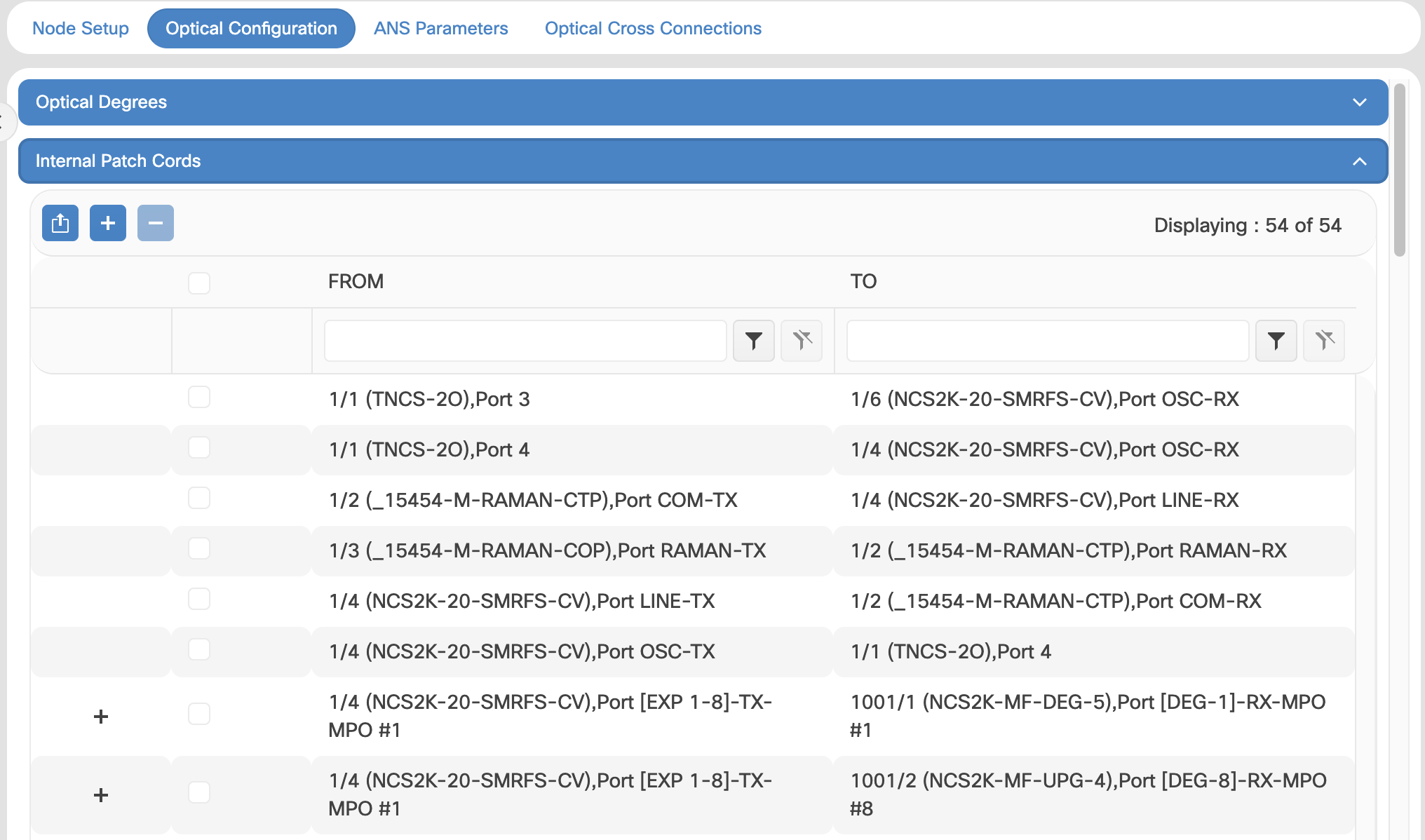
Virtual links can be created between network termination points using Internal Patch Cords (IPC). These termination points include OSC ports, transponder or muxponder trunk ports, line ports, and passive device ports.

Create Internal Patch Cords

Use this task to create, modify, view, or delete internal patch cords in the node.

Figure 2. Internal Patch Cords

Before you begin

Log into Cisco Optical Site Manager

Procedure


Step 1

Click Optical Setup in the left panel.

Step 2

Click the Optical Configuration tab and then click Internal Patch Cords to expand it.

Step 3

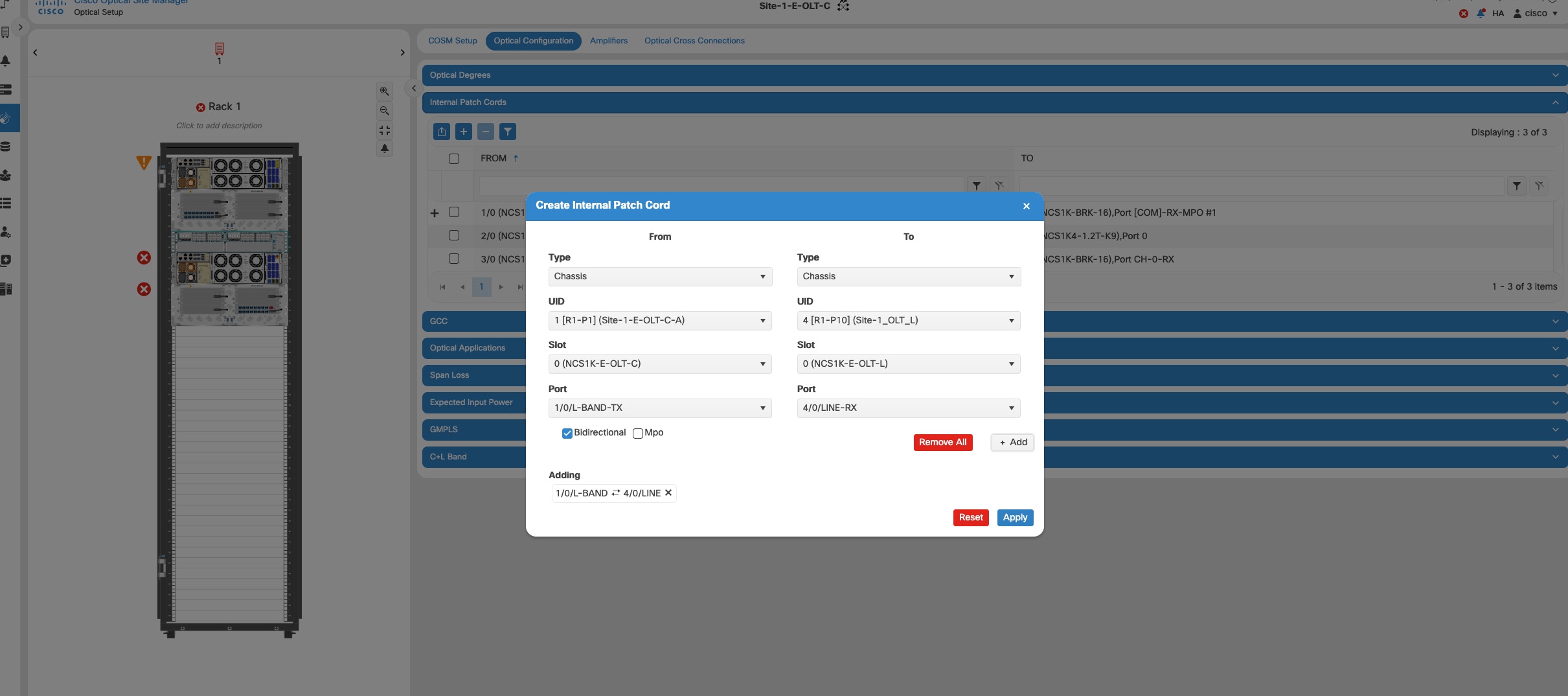
Click the + button.

The Create Internal Patch Cord dialog box appears. It displays the From and To columns indicating the two termination points.

Step 4

Perform the following steps for the From and To columns:

  1. Select the patch cord type from the Type drop-down lists. of the patch cord from the From and To drop-down lists.

    Available options are Chassis, Passive Chassis, and Passive Unit.

    The UID drop-down is displayed.
  2. Select the unique ID of the device from the UID drop-down list

    The Port drop-down is displayed.
  3. Select Bidirectional or Mpo check box for the From column.

    If you want to make the patch cord bidirectional, select the Bi-directional check box.
  4. Select the slot from the Slot type drop-down list for the To column.

    If the selected UID in the previous step is a Passive Unit, the Slot field is not displayed.

  5. Click the Add button to add the selected Internal Patch Cord options to the Adding list.

  6. (Optional) the Reset button to remove all the added Internal Patch Cords from the Adding list.

Step 5

Click Apply.

The internal patch cord is created and added to the table that displays the following information:
  • From—Specifies the location from where the connection originates.

  • To—Specifies the location where the connection terminates.

  • Type—Specifies the type of internal patch cord. Possible values are Transport and Add-Drop.

Step 6

(Optional) Select the check boxes corresponding to the internal patch cords you want to delete and click the - button.

Step 7

(Optional) Click the Export to Excel button to export the information to an Excel sheet.


Tip


You can view the internal patch cords and detailed information about cards and ports from the Map and Detailed views.


Span Loss Measurement

Span loss measurements (in dB) check the span loss and are useful whenever changes to the network occur.

The span loss operational parameters are:

  • Measured By—Displays whether the span loss is measured by the channel or Optical Service Channel (OSC). If a channel is not configured, the span loss is measured by the OSC. An EDFA measures the span loss based on circuits.

  • Measured Span Loss—Displays the measured span loss.

  • Measured Span Loss Accuracy—Displays the accuracy of the span loss measurement. For example, if the measured span loss is 20 dB and the displayed accuracy value is 2.5, the actual span loss could either be 19 or 21 dB.

  • Measured Time—Displays the time and date when the last span loss measured value is changed.

If there is a new network with Cisco Optical Site Manager, the operational parameters list of span loss has two rows. The first row displays the OSC-measured span loss details. After the channel is configured, the second row is added, which displays the channel-measured span loss details. After the channel is configured, only the channel-measured span loss details are updated.

View or modify span loss parameters

Use this task to measure span loss and update the minimum and maximum expected span loss values for an optical span.

Span loss parameters help monitor optical span performance and detect conditions where measured loss exceeds expected thresholds.

If a channel or OSC is not configured, span loss measurement is not reported and the operational parameters list is empty.

Before you begin

Log into Cisco Optical Site Manager

Follow these steps to view or modify span loss parameters.

Procedure


Step 1

Click Optical Setup in the left panel.

Step 2

Click the Optical Configuration tab, and then click Span Loss to expand it.

Step 3

Click the + icon next to a degree to expand it.

Step 4

Select a row and click Measure Span Loss.

A message appears.

Click OK.

Step 5

Click Retrieve to view updated values.

The measured span loss, accuracy, and measurement time are updated.

Step 6

Enter values for Min. Exp. Span Loss or Max. Exp. Span Loss in dB.

The valid range is from 0 to 99 dB.

Step 7

Click Apply.

A confirmation message appears.

Step 8

Click Yes.

The span loss range is extended to include the accuracy value.

A Span Loss Out of Range condition is raised when the measured span loss exceeds the extended range.

Step 9

(Optional) Click Export to Excel to export the data.


The Span Loss Measured Data section displays the following information:

Field

Description

Degree

Displays the side for which span loss information is shown.

Measured By

Indicates whether the measurement was executed using OSC or channels.

Min. Exp. Span Loss (dB)

Displays the minimum expected span loss value.

Max. Exp. Span Loss (dB)

Displays the maximum expected span loss value.

Measured Span Loss (dB)

Displays the measured span loss value.

Measured Accuracy (dB)

Displays the accuracy of the span loss measurement.

For example, if the measured span loss is 20 dB and the accuracy value shown is 2.5, the actual span loss may range approximately from 19 dB to 21 dB.

Measured Time

Displays the date and time of the last span loss measurement.

Configure amplifier parameters

Set the optical amplifier settings for cards. This includes selecting the amplifier working mode (such as Channel Power or Fixed Gain), setting gain values, tilt, power setpoints, and other parameters to optimize the amplifier’s performance and maintain signal quality across the optical network.

Before you begin

Follow these steps to configure the optical amplifier parameters.

Procedure


Step 1

Click Optical Setup in the left panel.

Step 2

Click the Provisioning tab and then click Amplifier to expand it.

Step 3

Click the Edit button to enable editing of the parameters.

Step 4

Modify any of these settings.

For more details about the parameters, see the Parameters for amplifier cards table.

Step 5

Click Apply to save the changes.


The Amplifier section displays the following details:

Table 1. Parameters for amplifier cards

Parameter

Description

Displayed Values

Port

(Display only) Displays the port number, port type, and direction (TX or RX).

Total Output Power (dBm)

(Display only) Shows the current power level for each port.

Output Power Setpoint (dBm)

Shows the output power setpoint.

Working Mode

Select the working mode.

  • Total Power

  • Optimized

  • Start and Hold

Role

Role of the amplifier.

  • Preamplifier

  • Booster

Actual Gain (dB)

Actual gain setpoint.

Target Gain (dB)

Target gain setpoint.

Tilt Setpoint (dB)

Target output tilt requested by the user.

PSD Optimized (dBm/GHz)

Optimized PSD

Gain Setpoint (dB)

Target amplifier gain requested by the user.

Gain Range

Sets the gain range of the amplifier.

  • Gain Range 1

  • Gain Range 2

  • No Gain Range

Power Degrade Threshold (High) (dBm/GHz)

Shows the current value of the optical power degrade high threshold.

Power Degrade Threshold (Low) (dBm/GHz)

Shows the current value of the optical power degrade low threshold.

Status

Shows the current status of the amplifier.

Gain Degrade High (dB)

(Display only) Shows the current value of the gain degrade high threshold configured in the card. This threshold applies only when the amplifier is active and in constant gain mode.

Gain Degrade High refers to the Gain value of the port and is automatically calculated by the control card when the amplifier is turned up.

Gain Degrade Low (dB)

(Display only) Shows the current value of the gain degrade low threshold configured in the card. This threshold applies only when the amplifier is active and in constant gain mode.

Gain Degrade Low refers to the Gain value of the port and is automatically calculated by the control card when the amplifier is turned up.

Max OSC Power Delta

The maximum allowable deviation or change in the optical power level of the OSC before an alarm or warning is triggered.

Provision interface parameters

Use this task to provision or modify interface parameters. This supports operational requirements for enabling, disabling, or tuning optical interfaces as needed.

  • Change administrative state, set optical thresholds, and adjust interface-related parameters for RX or TX ports.

Before you begin

Follow these steps to provision interface parameters:

Procedure


Step 1

Click Optical Setup in the left panel.

Step 2

Click the ANS Parameters tab and then click Interface to expand it.

Step 3

Modify the required settings in the interface table. This table describes each parameter and its options.

Table 2. Interface Options

Parameter

Description

Options

Port

Displays the port number, port type, and direction (RX or TX).

All RX and TX ports (Display only)

Admin State

Sets the administrative state of the port.

  • Unlocked / IS

  • Locked, disabled / OOS, DSBLD

  • Locked, maintenance / OOS, MT

  • Unlocked, automaticInService / IS, AINS

Service State

Displays the autonomously generated state that gives the port's overall condition (display only). States appear as: Primary State-Primary State Qualifier, Secondary State.

  • IS-NR / Unlocked-enabled

  • OOS-AU, AINS / Unlocked-disabled, automaticInService

  • OOS-MA, DSBLD / Locked-enabled, disabled

  • OOS-MA, MT / Locked-enabled, maintenance

Optical Power (dBm)

Displays the optical power for each port (display only).

OSC Power (dBm)

Displays the service-channel power level for each port (display only).

Optical PSD Setpoint (dBm/GHz)

Target output Power Spectral Density requested by the user.

-50 to 10

Attenuator Value (dB)

Sets the attenuator value.

Optical Power Threshold Low (dBm)

Fail low threshold used to detect the LOS alarm on the port.

OSC Power Threshold Low (dBm)

Displays the OSC power level for each port (display only).

Current Power Degrade High (dBm)

Shows the current value of the optical power degrade high threshold configured in the card (display only). Power Degrade High refers to the Signal Output Power value and is automatically calculated.

Current Power Degrade Low (dBm)

Shows the current value of the optical power degrade low threshold configured in the card (display only). Power Degrade Low refers to the Signal Output Power value and is automatically calculated.

Current Power Failure Low (dBm)

Shows the optical power failure low threshold for the port (display only).

Step 4

Click Apply to save the changes.

Note

 
For passive modules, the Service State is displayed as IS-NR by default.

The specified ANS interface parameters are provisioned as required.

What to do next

Verify the state and alarms of the affected ports after making changes. Adjust further as required to ensure stable operation.

Provision Raman Amplifier Parameters

Use this task to provision the optical Raman amplifier parameters.

Before you begin

Procedure


Step 1

Click Optical Setup in the left panel.

Step 2

Click the ANS Parameters tab and then click Raman Amplifier to expand it.

Step 3

Modify any of the settings described in the following table.

Table 3. Raman Amplifier Parameters for Amplifier Cards

Parameter

Description

Options

Port

(Display only) Displays the port number, port type, and direction (TX or RX).

Status

Displays the Status of the port.

Gain Setpoint (dB)

Target amplifier gain requested by the user.

Actual Gain (dB)

(Display only) Displays the actual amplifier gain.

Pumping Scheme

(Display only) Displays the pumping scheme that the card uses.

  • Counter-Propagating for the RAMAN-CTP, RMN-CTP-CL, EDRA-1-xx, and EDRA-2-xx cards.

  • Co-Propagating for the RAMAN-COP card.

Calibration Type

Calibration type that the card uses.

The RAMAN-COP card supports only manual calibration. The RAMAN-CTP card supports both automatic and manual calibration. The RMN-CTP-CL card supports only automatic calibration. If a node has both RAMAN-CTP and RAMAN-COP cards, the RAMAN-CTP card supports only manual calibration.

  • Automatic

  • Manual

  • No-Calibration

Unsaturated Gain Setpoint (dBm)

Unsaturated target amplifier gain. This field is editable only for the RAMAN-COP card.

0–50

Step 4

Click Apply to save the changes.

The RAMAN port section is displayed.

Step 5

Expand the RAMAN port to view the pump power details.

Table 4. RAMAN Pump Power Parameters

Parameter

Description

Pump ID

(Display only) Identifier of the Raman Pump (2 pumps with RAMAN-CTP and 4 pumps with EDRA).

Pump Power Setpoint (mW)

(Only for RAMAN-CTP and RAMAN-COP cards) Provisioned value of pump power setpoint. This value is effective only for manual calibration of RAMAN-CTP and RAMAN-COP cards and if the calibration is not performed. The value of this parameter must also be provided for automatic calibration of the RAMAN-CTP card even if the value is not effective.

Pump Power Target (mW)

(Display only) Target power set by the internal control algorithm. The result of calibration can be both automatic and manual.

Pump Power (mW)

(Display only) Actual power value of the individual pump.

Step 6

Click Apply to save the changes.


Manage Raman Interface Parameters

Use this task to manage the Raman interface parameters.

Before you begin

Procedure


Step 1

Click Optical Setup in the left panel.

Step 2

Click the ANS Parameters tab and then click Raman Interface to expand it.

Step 3

View the settings described in the following table. Only the Admin State parameter can be modified.

Table 5. Interface Options

Parameter

Description

Options

Port

(Display only) Displays the port number, port type, and direction (RX or TX)

All the RX and TX ports

Admin State

Sets the administrative state of the port.

From the drop-down list, choose one of the following:

  • Unlocked (ETSI)/ IS (ANSI)

  • Locked, disabled (ETSI)/OOS, DSBLD (ANSI)

  • Locked, maintenance (ETSI)/OOS, MT (ANSI)

  • Unlocked, automaticInService (ETSI)/ IS, AINS (ANSI)

Service State

(Display only) Identifies the autonomously generated state that gives the overall condition of the port. Service states appear in the format: Primary State-Primary State Qualifier, Secondary State.

  • IS-NR/

    Unlocked-enabled

  • OOS-AU,AINS/

    Unlocked-disabled,
automaticInService

  • OOS-MA,DSBLD/

    Locked-enabled,disabled

  • OOS-MA,MT/

    Locked-enabled,maintenance

Optical Power (mW)

(Display only) Displays the optical power for each port.

Current Optical Power Setpoint (mW)

(Display only) Shows the current value of the optical power setpoint that must be reached.

Current Power Degrade High (mW)

(Display only) Shows that the current value of the optical power degrade high threshold.

Power Degrade High refers to the Signal Output Power value of the port and is automatically calculated by the control card.

Current Power Degrade Low (mW)

(Display only) Shows that the current value of the optical power degrade high threshold configured in the card.

Power Degrade Low refers to the Signal Output Power value of the port and is automatically calculated by the control card.

Current Power Failure Low (mW)

(Display only) Shows the optical power failure low threshold for the port.

Step 4

Click Apply to save the changes.


Optical cross-connect management

An Optical Cross-Connect (OXC) circuit is a bidirectional optical connection that links two optical nodes over a specified C-band wavelength within a DWDM system.

  • Defined and instantiated using data models.

  • Operates on C-band wavelengths.

  • Provides bidirectional connectivity between optical nodes through DWDM elements.

How Optical Cross-Connect Circuits Work

An OXC circuit establishes an optical path through DWDM network elements and provides a wavelength-based bidirectional connection between two interface ports.

The connection is formed through the following optical components:

  • Wavelength selective switches (WSS)

  • Multiplexers and demultiplexers

  • Add/drop cards

Typical signal flow for an OXC circuit:

  1. Enters the DWDM system from the source interface port.

  2. Traverses DWDM network elements (WSS, mux/demux, add/drop).

  3. Exits the DWDM system toward the destination interface port.

The following table describes the administrative states of an OXC circuit.

Table 6. OXC Administrative States

State

Operational Status

Description

IS/Unlocked

In Service

The circuit is active and unlocked.

IS, AINS/Unlocked

Automatic In Service

The circuit automatically transitions to an in-service state.

OOS, DSBLD/Locked

Out of Service

The circuit is disabled and locked.


Important


Cisco Optical Site Manager operates with native IOS XR NETCONF (CLI) data models. Configurations performed using OpenConfig (OC) models are incompatible with IOS XR native models. Do not use OpenConfig models to configure devices that are intended to be managed by Cisco Optical Site Manager.


Note


Administrative state changes affect circuit availability but do not change the physical optical path.


Example of an Optical Cross-Connect Circuit

An OXC circuit connects two optical nodes across a DWDM network by routing a specific C-band wavelength from a source interface, through wavelength selective switches and multiplexing components, to a destination interface.

Non-OXC Optical Connectivity

A unidirectional optical path or a simple fiber patch that does not traverse DWDM components and that is not modeled as a bidirectional, wavelength-based circuit does not qualify as an Optical Cross-Connect circuit.

Analogy for Optical Cross-Connect Circuits

An OXC circuit is similar to a railway switchyard: it dynamically connects tracks (wavelength paths) to guide trains (optical signals) along specific routes without altering the physical rails themselves.

View Optical Cross-Connect Circuits

Use this task to view the configuration and operational details of Optical Cross-Connect (OXC) circuits that are modeled on a node. The task explains how to access OXC information, export OXC data, and synchronize OXC information with the managed device.

  • Inspect OXC parameters such as central frequency, allocation width, and path endpoints.

  • Export OXC details for reporting or offline review.

  • Synchronize OXC data with the associated NCS device to refresh the displayed information.

OXC circuits are created using data models and provide bidirectional wavelength-based connectivity between two optical nodes in a DWDM network. This task describes how to view those OXC records in the Web UI.

The information shown on the Optical Cross Connections tab is primarily read-only. Some actions (for example, deletion or device synchronization) depend on your deployment and device capabilities.

  • OXC entries represent modeled, bidirectional circuits mapped to C-band wavelengths.

  • To refresh OXC data from the device, use the Sync from device action (if available for your device model).

Before you begin

Follow these steps to view the configuration and operational details of Optical Cross-Connect circuits that are modeled on a node.

Procedure


Step 1

Click Optical Setup in the left panel.

Step 2

Click the Optical Cross Connections tab.

Step 3

Expand the cross-connect entry to view Path 1 and Path 2 details by clicking the + icon.

Click the down arrow on the right of a path to show internal path parameters.

Step 4

Review the cross-connect summary fields displayed in the table.

The table includes the following fields for each cross-connect:

  • Connection Label—Name of the cross-connect.

  • Type—Type of cross-connect (bidirectional).

  • Admin Status—Administrative state of the circuit.

  • Service Status—Operational status of the service.

  • Central Frequency (THz)—Spectral position of the circuit.

  • Allocation Width (GHz)—Bandwidth occupied by the service (range: 25–300 GHz).

  • Signal Width (GHz)—Carrier bandwidth.

  • Path 1 End-points—Source and destination interfaces for Path 1.

  • Path 2 End-points—Source and destination interfaces for Path 2.

To view per-path internal details, expand Path 1 or Path 2 and review these items:

  • Interface Name—Interface identifier.

  • Optical Power—Measured optical power.

  • Power Failure Low—Threshold for power-failure detection.

  • Optical PSD Setpoint (dBm/GHz)—Configured optical power spectral density setpoint (independent of circuit width).

  • Current PSD Setpoint—Current PSD setpoint.

  • Optical Power Setpoint—Power setpoint scaled to the circuit width.

Step 5

(Optional) Click the Export to Excel button to export the displayed OXC information to an Excel file.

Step 6

(Optional) Click the Download OXC as XML button to download the cross-connect details as an XML file.

Step 7

(Optional) Click the Sync from device button to synchronize the OXC information with the associated device.

Step 8

(Conditional) To remove a cross-connect, select the check box for the cross-connect and click the - button.

Note: The Optical Cross Connections entries are typically read-only in many deployments. Deletion is only possible when your COSM deployment and device model allow direct modification of modeled OXC records. If deletion is not available, use device-side management or a supported provisioning workflow.


The Optical Cross Connections tab displays a list of OXC circuits with the fields described above. Expanding an entry reveals per-path details and measured values.

What to do next

After viewing or exporting OXC information, confirm any required follow-up actions such as device-side configuration or synchronization.

  • If you synchronized from the device, verify that the displayed Service Status reflects the expected operational state.

  • If you exported data, store the export in your documentation system as required.