Configure Devices

This chapter describes the tasks related to device configuration in Cisco Optical Site Manager.

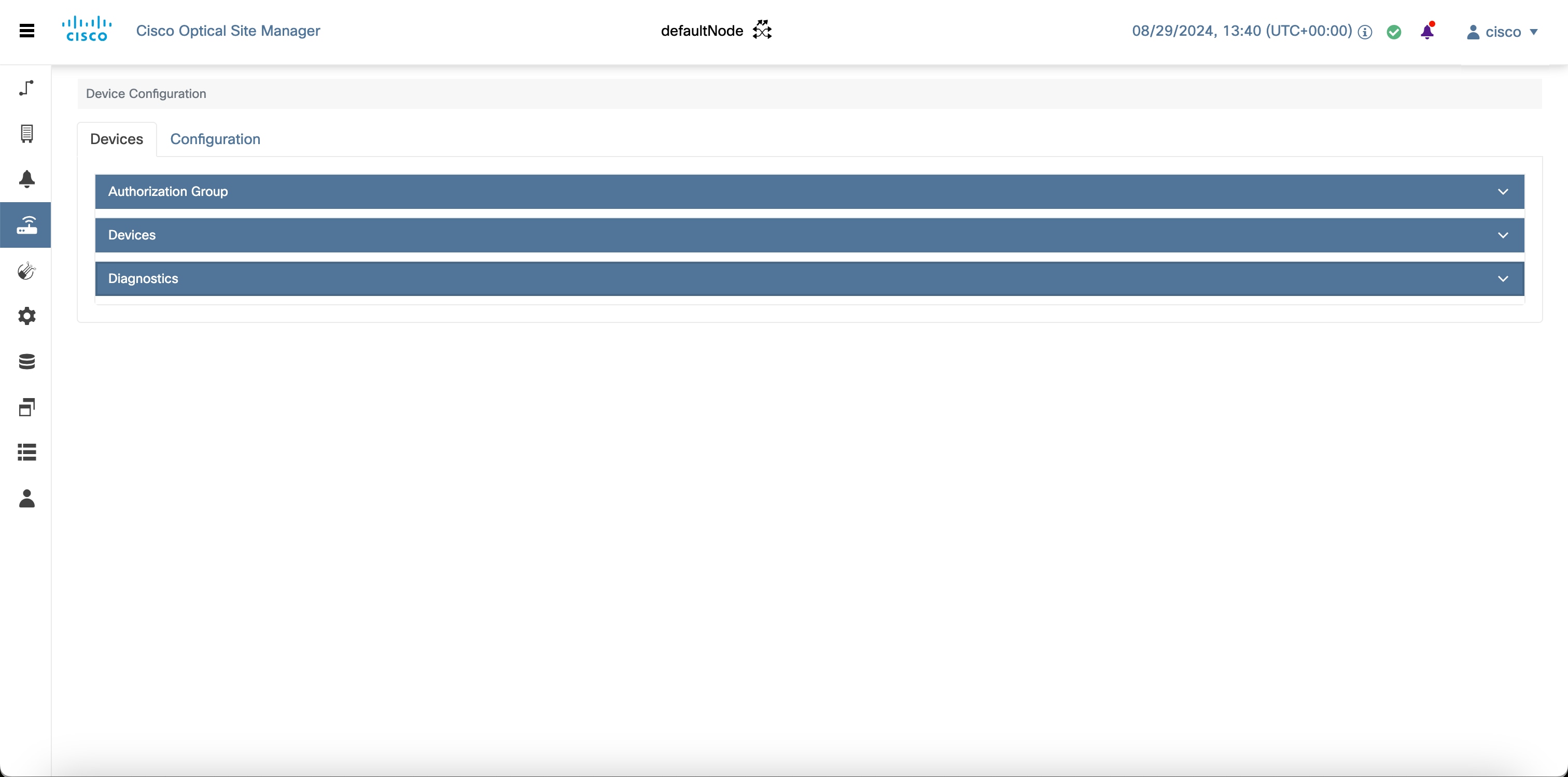
Figure 1. Configure Devices

Manage authorization groups

Use this task to manage authorization groups that store remote user credentials used for device authentication and authorization.

  • Create an authorization group.

  • Edit an authorization group.

  • Delete an authorization group.

Authorization groups help you manage user and group attributes used by authentication and authorization processes.

You manage authorization groups from the Devices area.

Before you begin

Log in to Cisco Optical Site Manager.

Follow these steps to manage authorization groups.

Procedure


Step 1

Click Devices in the left panel.

The Device Configuration page appears.

Step 2

In the Devices area, click Authorization Group to expand it.

The table lists all available authorization groups.

Step 3

Perform these steps, as needed.

To perform these steps
Create a new authorization group
  1. Click Add Auth Group.

    The Add Authorization Group dialog box appears.

  2. Enter values in the Auth Group Name, Remote User Name, and Remote Password fields.

  3. Click Add.

    The new authorization group is added to the table.

Edit an authorization group
  1. Click Edit.

    The fields in the table are now editable.

  2. Update the Remote User Name and Remote Password fields, as needed.

  3. Click Apply.

    The authorization group is updated in the table.

Delete an authorization group
  1. Select the check box next to the authorization group you want to delete.

  2. Click Delete Auth Group.

    A confirmation message appears.

  3. Click OK.

    The authorization group is deleted from the table.


The authorization group table reflects your changes.

Add a device

Onboard a NCS 1000 or NCS 2000 device so it can be tracked, monitored, and managed within Cisco Optical Site Manager.


Note


Wait for the current device to complete synchronization before you add the next device to Cisco Optical Site Manager.


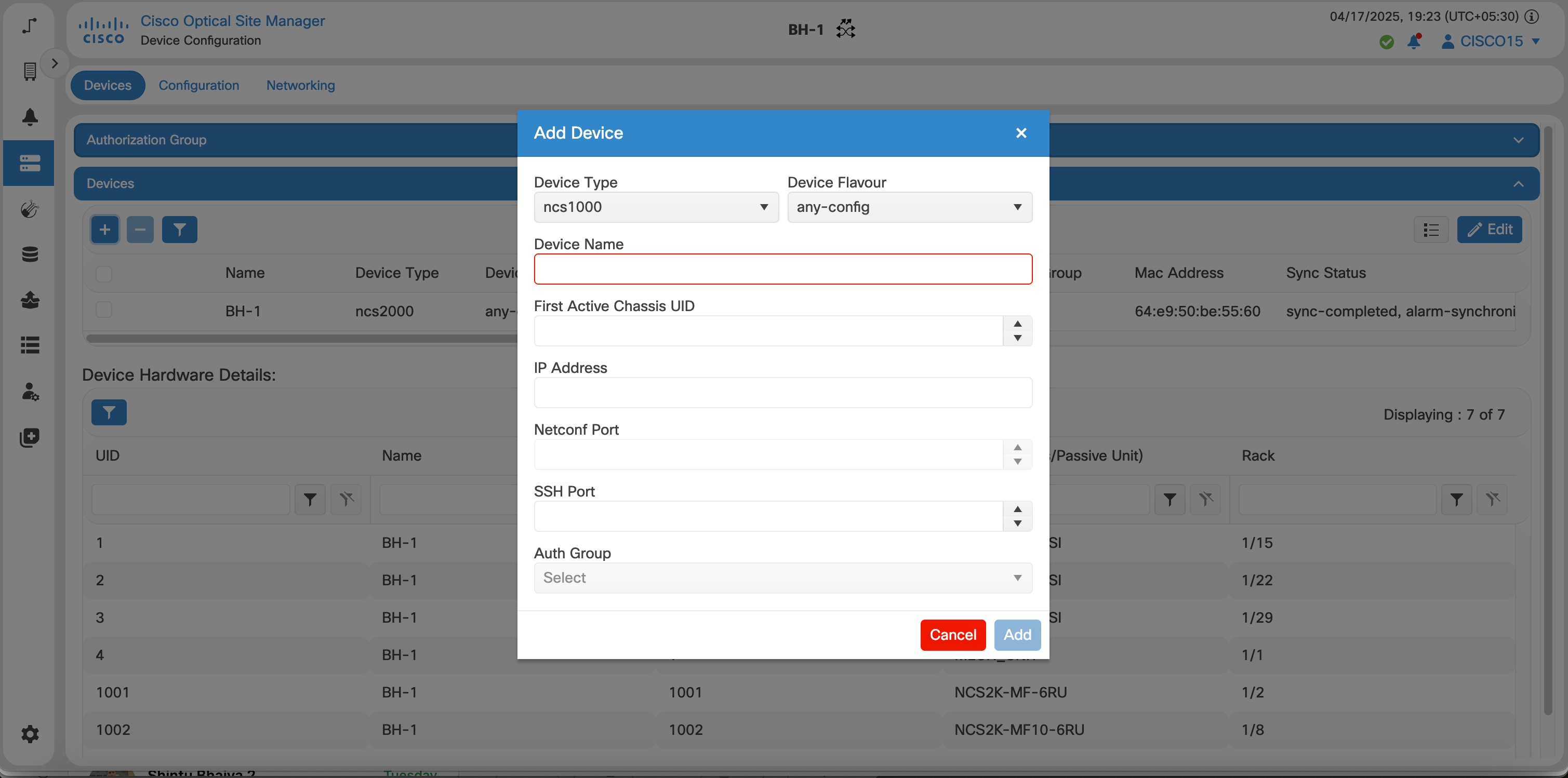
Figure 2. Add a Device

Follow these steps to add an NCS 1000 or NCS 2000 device to Cisco Optical Site Manager.

Before you begin

Log into Cisco Optical Site Manager

Procedure


Step 1

Click Devices in the left panel.

The Device Configuration page appears.

Step 2

In the Devices tab, click the Devices section to expand it.

A table appears that lists all the devices that are configured.

Step 3

Click the Add Device icon.

The Add Device dialog box appears.

Step 4

Select the Device Type from the drop-down list.

Select

to

ncs1000

add a NCS 1000 device.

ncs2000

add a NCS 2000 device.

unmanaged-network-element

add a device that is not actively managed by NCS 1000 or NCS 2000.

Step 5

Enter the Netconf Port.

Note

 
This field is displayed only if ncs1000 is selected in the Device Type drop-down list.

Step 6

Enter the Device Name and IP Address.

Step 7

Enter the UID.

Note

 
This field is displayed only if ncs1000 or ncs2000 is selected in the Device Type drop-down list.

Step 8

Select an authorization group from the Auth Group drop-down list.

Step 9

Click Add.


The device is added to Cisco Optical Site Manager and displayed in the Devices section.

Add Unmanaged Devices

Use this task to add an unmanaged device in Cisco Optical Site Manager.

  • Allows you to add and configure passive devices on the network.

  • Supports devices that are not actively managed by NCS 1000 or NCS 2000.

Unmanaged devices are devices that are not actively managed by NCS 1000 or NCS 2000. Examples include switches, LAN controllers, and passive optical devices.

The Add Device dialog box includes the unmanaged-network-element option, which enables adding unmanaged devices.

Table 1. Feature History

Feature Name

Release Information

Description

Add Unmanaged Devices

Cisco IOS XR Release 24.3.1

The Add Device dialog box includes the unmanaged-network-element option, allowing the addition of unmanaged devices.

This enhancement allows you to add and configure passive devices on the network.

  • After adding the unmanaged device, add it to a rack unit as a passive unit.

Before you begin

Log into Cisco Optical Site Manager

Follow these steps to add an unmanaged device.

Procedure


Step 1

Click Devices in the left panel.

The Device Configuration page appears.

Step 2

In the Devices tab, click the Devices section to expand it.

The table lists all configured devices.

Step 3

Click the Add Device icon.

The Add Device dialog box appears.

Step 4

In the Add Device dialog box, perform these steps:

  1. Select unmanaged-network-element from the Device Type drop-down list.

  2. Click Add.

    The device is added to Cisco Optical Site Manager and displayed in the Devices section.

Step 5

In the rack view, perform these steps to add a passive unit:

  1. Right-click an empty rack unit and select Add a Passive Unit.

    The Add Passive Unit in Ru Position dialog box appears.

  2. Select the unmanaged device from the Select Device drop-down list.

  3. Select the passive type, slot, and passive UID from the respective drop-down lists.

  4. Click Provision.

A confirmation message appears.

Step 6

Click OK.

Step 7

After adding the unmanaged or passive device to the rack, perform these device management actions, as needed.

To Perform these steps
Delete a device
  1. Right-click the unmanaged or passive device in the rack.

  2. Select Delete.

Move a device to a different rack unit
  1. Right-click the unmanaged or passive device in the rack and select Cut.

  2. Right-click an empty rack unit and select Paste.

View device properties
  1. Right-click the unmanaged or passive device in the rack and select Properties.


The unmanaged device is added to Cisco Optical Site Manager and displayed in the Devices section.

What to do next

After adding or modifying the passive unit, verify that it is displayed correctly in the rack view and in the device list.

Delete devices

Delete devices that are no longer used in the network.

Follow these steps to delete an NCS 1000, NCS 2000, passive device, or an external controller.

Before you begin

Log into Cisco Optical Site Manager

Procedure


Step 1

Click Devices in the left panel.

The Device Configuration page appears.

Step 2

Click the Devices section to expand it.

The table lists all the configured devices.

Step 3

Select the check box next to the devices you want to delete.

Step 4

Click the Delete Device(s) button to delete the selected devices.

A confirmation message appears.

Step 5

Click Yes.


Retrieve device diagnostics

Retrieve, download, and review diagnostics on the Diagnostics page.

Follow these steps to retrieve and download the device diagnostics:

Before you begin

Log into Cisco Optical Site Manager

Procedure


Step 1

Click Devices in the left panel.

Step 2

In the Devices tab, click the Diagnostics section to expand it.

The configured devices are listed in a table.

Step 3

Select the Node Diagnostics check box next to the device for which you want to retrieve the diagnostics.

Step 4

Click Retrieve.

A confirmation message appears.

Step 5

Click Yes to proceed.

A Request Accepted message appears.

Step 6

Click OK.

A message appears when the diagnostic action is completed.

Step 7

Select the check box next to the device for which you want to download the diagnostics and click Download.

The system downloads a zip file containing the logs.


The downloaded ZIP file contains diagnostic logs, which can be reviewed for troubleshooting, performance monitoring, or compliance purposes.