- Preface
- Installation Roadmap Overview
- Cisco CRS 16-Slot Line Card Chassis Enhanced Router
- Installing Power Components
- Installing and Removing Air Circulation Components
- Installing Exterior Cosmetic Components
- Installing Line Cards, PLIMs, and Associated Components
- Removing Chassis Components
- Upgrading Chassis Components
- Cisco CRS 16-Slot EC Line Card Chassis Specifications
- Product IDs
- Power Systems Overview
- How to Install Power Components
- Installing the Exhaust Air Deflector
- Installing an Alarm Module
- Installing a Power Module
- Installing a Power Module Slot Cover
Installing Power
Components
This chapter provides instructions on how to install Cisco CRS Enhanced 16-Slot Line Card Chassis power components.
This chapter presents the following topics:
Power Systems Overview
The chassis power system provides power to chassis components and is made up of two AC or DC power shelves that contain AC or DC power modules (PMs) and alarm modules.
The AC power system requires single-phase AC input power to the power shelves. If you have 3-phase AC Delta or AC Wye at your equipment, a Cisco CRS power distribution unit (PDU) will be required to convert 3-phase AC input power to single-phase AC input power for the power shelf. The power system also includes SNMP MIBS and XML support.
 Note | In the AC power system, PDU refers to the Cisco CRS PDU which is required to convert 3-phase AC-Wye or AC-Delta input power to single-phase AC input power for the AC power shelf. For further information and installation instructions, refer to the Cisco CRS 3-Phase AC Power Distribution Unit Installation Guide . |
This section contains the following topics:
Basic Chassis Power Details
The Cisco CRS Series Enhanced 16-slot Line Card Chassis can be configured with either an AC-input power system or a DC-input power system. Site power requirements differ, depending on the source voltage used. Follow these precautions and recommendations when planning power connections to the router:
- Check the power at your site before installation to ensure that you are receiving clean power. Install a power conditioner, if necessary.
- Install proper grounding to avoid damage from lightning and power surges.
The Cisco CRS Series Enhanced 16-slot Line Card Chassis requires that at least one power shelf and its components be installed to operate properly; however, if you install only one power shelf and its components, your system will not be 2N redundant.
Two types of power shelves exist: an AC shelf and a DC shelf. An AC power shelf houses the AC PMs, while a DC power shelf houses the DC PMs. It is required that you use only one type of power shelf, either AC or DC, in a chassis at a time.
The chassis might have more than one power connection. All connections must be removed to de-energize the chassis. Statement 1028
Bonding and Grounding Guidelines
The router chassis has two safety earth ground connections. The chassis allows you to connect the central office ground system or interior equipment grounding system to the bonding and grounding receptacles on the router chassis. Threaded ground inserts are located on top of the chassis rear (MSC) side panel to the right of the lower power shelf. There are also two sets of grounding studs located at the bottom of the rear (MSC) side of the chassis.
Figure 1 shows the grounding points at the top on the rear (MSC) side of the chassis. This grounding point is also referred to as the network equipment building system (NEBS) bonding and grounding point.
Note | These bonding and grounding receptacles are provided to satisfy the Telcordia NEBS requirements for bonding and grounding connections. |
 Caution | Do not remove the chassis ground cable unless the chassis is being replaced. |
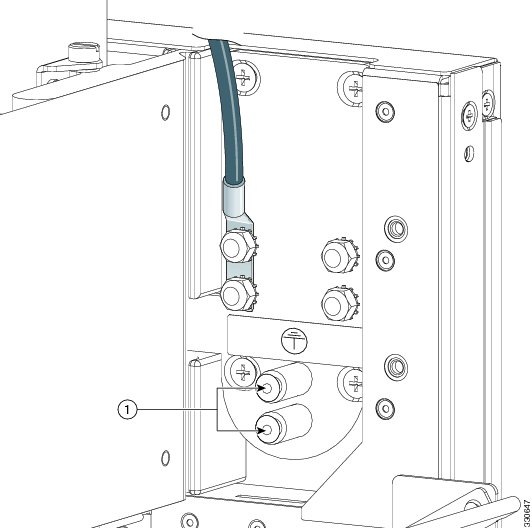
|
1 |
Two Torx security screws |
Note | The two bolts below the NEBS bonding and grounding points at the top of the chassis are required for proper bonding and grounding of the chassis and should not be removed. |
Figure 2 shows the NEBS and grounding points at the bottom on the rear (MSC) side of the chassis.
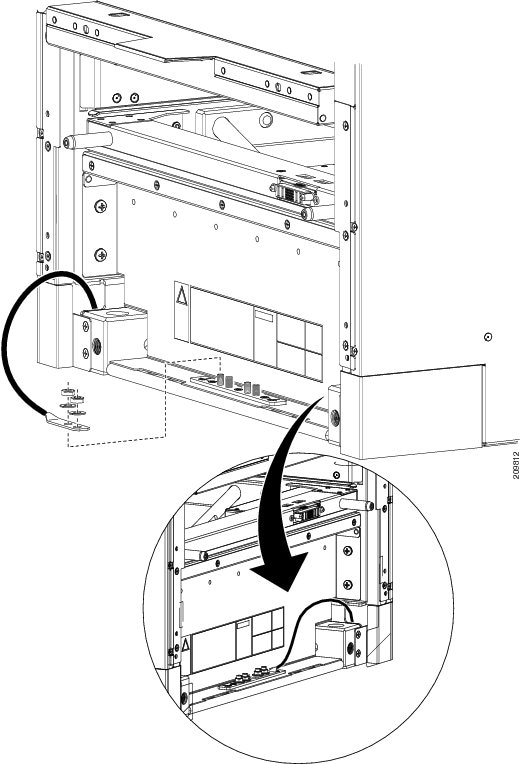
DC Power Systems
The Cisco CRS Series Enhanced 16-slot Line Card Chassis DC power system can provide up to 16,800 watts to power the chassis. However, by default, the power capability of a system when shipped, with six DC PMs per power shelf, is 12,600 watts.
Note | Depending on the hardware deployed at your site, your system may not consume the maximum power supplied by the power system. |
Each DC powered chassis contains two DC power shelves for 2N redundancy. The shelves contain the input power connectors. Each shelf can accept up to eight DC PMs. The power shelves and DC PMs are field replaceable.
Figure 1 shows the cable wiring for the power shelf.
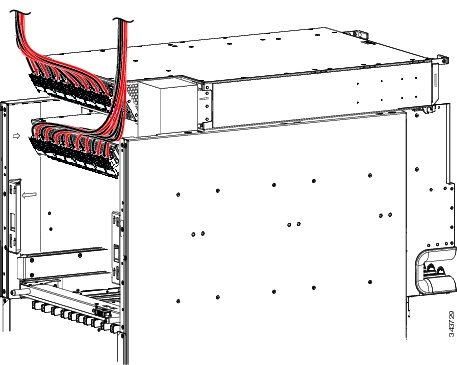
Each power shelf operates with up to eight DC inputs of –48/–60 VDC (nominal), 60A. The power shelf accepts input DC power in the range –40 to –72 VDC.
Table 1 lists the DC input current and voltage specifications.
|
Nominal input voltage |
–48 VDC North America–60 VDC European Community(range: –40 VDC to –72 VDC) |
|
Input line current |
50 A maximum at –48 VDC40 A maximum at –60 VDC60 A maximum at –40 VDC |
Each wiring block on the DC power shelf contains two sets of terminals, one positive and one negative, and is covered by a plastic terminal block cover that is secured by a screw to a torque of 5 to 7 in.-lb (0.56 to 0.79 N-m). Each DC power cable is connected to the power shelf with a torque of 20 in.-lb (2.26 N-m). Maximum wire size at the DC input terminal block is 2 AWG.
The power supply terminal posts are centered 0.63 inches (5/8 inch) (1.60 cm) apart and are M6-threaded. We recommend that you use an appropriately sized 180-degree angle (straight) industry standard 2-hole, standard barrel compression lug, as shown in Figure 2.
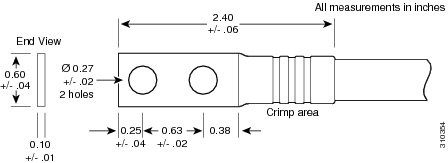
For additional power details, see Appendix A, “Cisco CRS Series Carrier Routing System 16-Slot EC Line Card Chassis Specifications” or the Cisco CRS Series Carrier Routing System 16-Slot Line Card Chassis System Description .
Input-Power-Present LEDs
The DC input-power-present LEDs provide a visual indication to service personnel that there is voltage present across the input terminal connection.
Figure 1 shows the input-power-present LEDs on the rear of the DC power shelf.
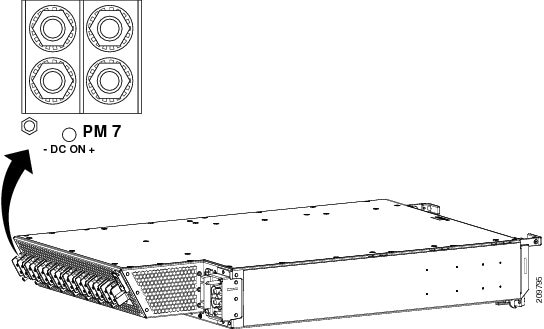
Note | Power should be disconnected before servicing the input power connection. |
The input-power-present LED starts to light up when the input voltage reaches –20 VDC and the LED gets brighter as voltage increases; the input-power-present LED is fully lit when the input voltage reaches –38 VDC.
Caution | If the input voltage polarity is reversed, or if the LED circuit fails, the LED will not light. When this is the case, service personnel should check for hazardous voltages before working on the unit. |
AC Power Systems
The Cisco CRS Series Enhanced 16-slot Line Card Chassis AC power system can provide up to 18,000 watts to power the chassis. However, by default, the power capability of a system when shipped, with five AC PMs per power shelf, is 15,000 watts.
Note | Depending on the hardware deployed at your site, your system may not consume the maximum power supplied by the power system. |
Each AC powered chassis contains two AC power shelves for 2N redundancy. The shelves contain the input power connectors. Each shelf can contain up to six AC PMs. The power shelves and the AC PMs are field replaceable.
The AC power system requires single-phase AC input power. If you have 3-phase AC Delta or AC Wye at your equipment, a Cisco CRS PDU will be required to convert 3-phase AC input power to single-phase AC input power for the power shelf. For further information and installation instructions, refer to the Cisco CRS 3-Phase AC Power Distribution Unit Installation Guide .
The AC power shelf has the following input VAC power requirements:
- Single-phase, 200 to 240 VAC nominal, 50 to 60 Hz, 16 A.
- Each power shelf contains six IEC-320-C22 receptacles which can accept up to six IEC-320-C21 connector plugs.
Note | If you have a Cisco CRS 3-Phase AC PDU installed, six AC PMs are required to be installed in each Cisco CRS Series Enhanced 16-slot Line Card Chassis AC power shelf to maintain a balanced 3-phase power load. |
Note | We recommend that you use appropriate short-circuit protection in compliance with national and local electrical codes. |
For additional power details, see Appendix A, “Cisco CRS Series Carrier Routing System 16-Slot EC Line Card Chassis Specifications” or the Cisco CRS Series Carrier Routing System 16-Slot Line Card Chassis System Description .
How to Install Power Components
This section describes how to install power components in the Cisco CRS Series Enhanced 16-slot Line Card Chassis.
Note | Although there are differences between the different types of power shelves and PMs (AC and DC), they are installed using the same procedures. |
We recommend that you install the power components in the order outlined in this section. This section contains the following procedures:
- Installing the Power A Bus Bar
- Installing the Upper Grille Support
- Installing the Unistruts
- Installing the Chassis Ground Cable
- Installing an AC or DC Power Shelf
- Installing AC or DC Power Shelf Wiring
- Installing the Exhaust Air Deflector
- Installing an Alarm Module
- Installing a Power Module
- Installing a Power Module Slot Cover
Installing the Power A Bus Bar
This section describes how to install the Power A bus bar on the rear (MSC) side of the Cisco CRS Series Enhanced 16-slot Line Card Chassis. For complete information on regulatory compliance and safety, see Regulatory Compliance and Safety Information for the Cisco CRS Carrier Routing System .
Prerequisites
There are no prerequisites for this task.
Required Tools and Equipment
You need the following tool to perform this task:
- 6-in. long number 1 Phillips screwdriver
Steps
To install the Power A bus bar on the chassis, perform the following steps:
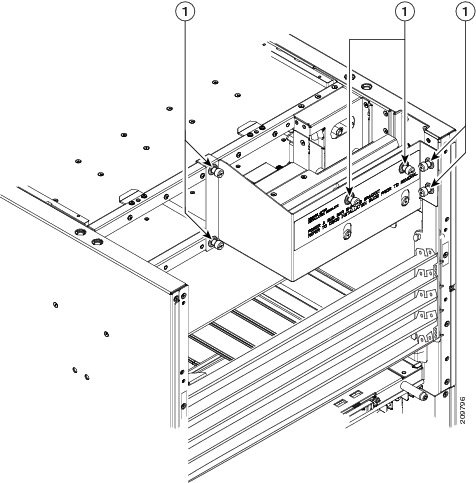
1. To release the Power A bus bar from the shipping position, loosen the six captive screws that attach the bus bar shipping bracket to the rear of the chassis. There are two screws on the right side, two screws on the front, and two screws on the left side of the Power A bus bar shipping bracket. See Figure 1.
2. Remove the Power A bus bar shipping bracket form the chassis and set it aside.
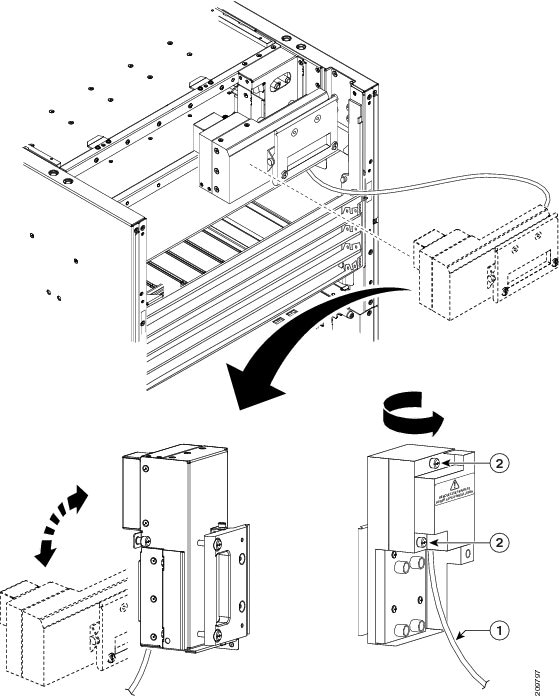
3. Remove the Power A bus bar from the rear of the chassis. See Figure 2.
4. Remove the cover from the Power A bus bar by loosening the two captive screws that attach the cover to the bus bar. See Figure 2.
5. Position the power block vertically. Mate the power block pivot and chassis pivot point together. See item 2 in Figure 3.
6. Unscrew the two handle screws on the power bus bar and open the handle. See item 3 on Figure 3.
7. Hold the power block cable to the side to keep clear of the power block connectors while seating the power block.
8. Seat the power block and tighten the two screws on the handle. See item 3 in Figure 3.
9. Tighten the Phillips captive screw that secures the tab on the left side of the power block to the chassis. See item 1 in Figure 3.
DETAILED STEPS
| Step 1 |
To release the Power A bus bar from the shipping position, loosen the six captive screws that attach the bus bar shipping bracket to the rear of the chassis. There are two screws on the right side, two screws on the front, and two screws on the left side of the Power A bus bar shipping bracket. See Figure 1.
| ||||||
| Step 2 | Remove the Power A bus bar shipping bracket form the chassis and set it aside. | ||||||
| Step 3 |
Remove the Power A bus bar from the rear of the chassis. See Figure 2.
| ||||||
| Step 4 |
Remove the cover from the Power A bus bar by loosening the two captive screws that attach the cover to the bus bar. See Figure 2.
| ||||||
| Step 5 | Position the power block vertically. Mate the power block pivot and chassis pivot point together. See item 2 in Figure 3. | ||||||
| Step 6 | Unscrew the two handle screws on the power bus bar and open the handle. See item 3 on Figure 3. | ||||||
| Step 7 | Hold the power block cable to the side to keep clear of the power block connectors while seating the power block. | ||||||
| Step 8 |
Seat the power block and tighten the two screws on the handle. See item 3 in Figure 3. 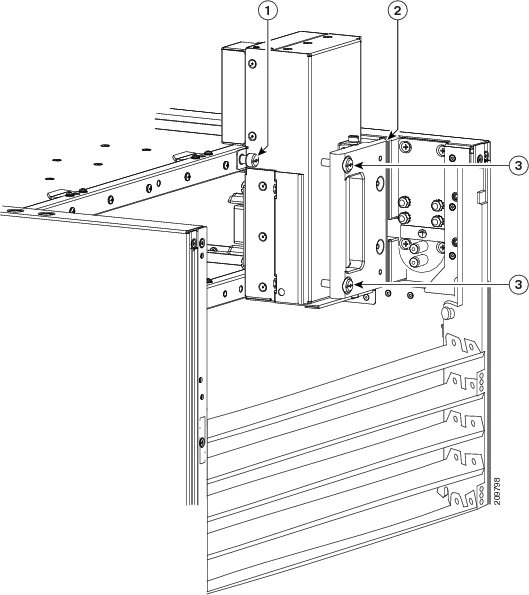
| ||||||
| Step 9 | Tighten the Phillips captive screw that secures the tab on the left side of the power block to the chassis. See item 1 in Figure 3. |
What to Do Next
After the Power A bus bar has been installed, install the upper grille support. Continue to the Installing the Upper Grille Support for more information.
Installing the Upper Grille Support
This section describes how to install the upper grille support on the Cisco CRS Series Enhanced 16-slot Line Card Chassis. For complete information on regulatory compliance and safety, see Regulatory Compliance and Safety Information for the Cisco CRS Carrier Routing System .
Although the upper grille support is an exterior cosmetic component, it must be installed prior to installing the upper chassis ground cable and the power shelves.
Prerequisites
Before performing this task, perform the following procedure:
Required Tools and Equipment
You need the following tools and equipment to perform this task:
- 6-in. long number 1 Phillips screwdriver
- Upper grille support
Steps
To attach the upper grille support to the chassis, perform the following steps:
1. Attach the upper grille support to the front of the chassis. Use the screwdriver to install the six M4 flat head screws, three on each side, to the chassis. See Figure 1.
DETAILED STEPS
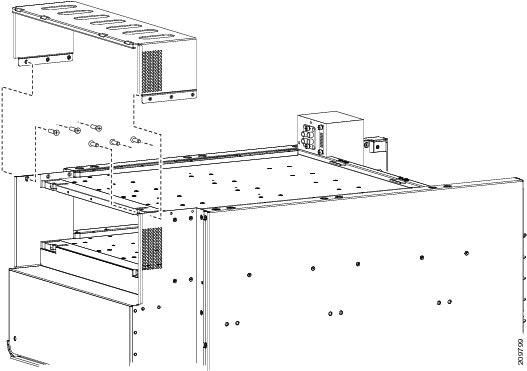 |
What to Do Next
After the upper grille support has been installed, attach the unistruts. Continue to the Installing the Unistruts for more information.
Installing the Unistruts
This section describes how to install the unistruts on the Cisco CRS Series Enhanced 16-slot Line Card Chassis. For complete information on regulatory compliance and safety, see Regulatory Compliance and Safety Information for the Cisco CRS Carrier Routing System .
Although the unistruts are exterior cosmetic components, they should be installed prior to installing the upper chassis ground cable and the power shelves.
Prerequisites
Before performing this task, perform the following procedures:
Required Tools and Equipment
You need the following tools and equipment to perform this task:
- 8mm hex bit socket
- 3/8-in. drive ratchet wrench
- Torque wrench with 13-mm hex key and rated accuracy at 40 to 50 in.-lb (4.52 to 5.65 N-m)
- Unistruts
Steps
To attach the unistruts to the chassis, perform the following steps:
1. Attach each unistrut to the top of the chassis by inserting four M12 hex head bolts and washers, two for each strut, into the bolt holes on the inside of the strut, and tightening with the 8mm hex bit socket and ratchet wrench. The closed end of a unistrut faces the front (PLIM) side of the chassis. See Figure 1.
DETAILED STEPS
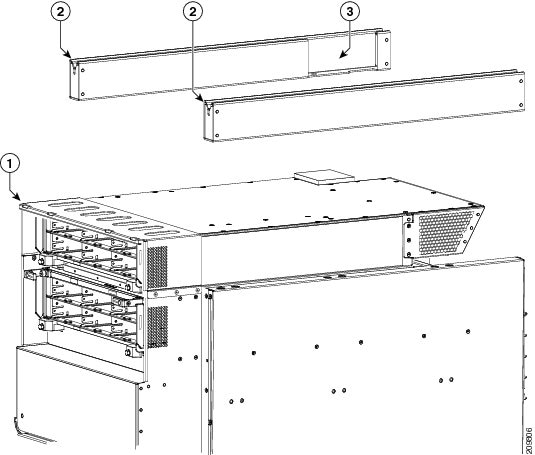
|
What to Do Next
After the upper grille support has been installed, install the chassis ground cable. Continue to the Installing the Chassis Ground Cable for more information.
Installing the Chassis Ground Cable
This section describes how to install the chassis ground cable on the Cisco CRS Series Enhanced 16-slot Line Card Chassis. For complete information on regulatory compliance and safety, see Regulatory Compliance and Safety Information for the Cisco CRS Carrier Routing System .
Prerequisites
Before performing this task, perform the following procedures:
Required Tools and Equipment
You need the following tools and equipment to perform this task:
- Ground lug
- Ground cable
- Crimping tool and lug specific die
- 3/8 in. drive socket wrench
- 10-mm 6 pt. socket
- Torque wrench with 10-mm 6 pt. socket and rated accuracy at 30 in.-lb (3.39 N-m)
To ensure a satisfactory ground connection, you also need the following parts:
- One 180-degree angle (straight) grounding lug that has two M6 bolt holes with 0.63 inches (5/8 inch) (1.60 cm) of spacing center to center between them and a 6 AWG or larger multistrand copper wire.See Figure 1.
- Two M6 hex head bolts and integrated locking washers are pre-installed on the chassis.
- Cisco recommend at least 6 AWG multistrand copper ground cable. This cable is not available from Cisco Systems; it is available from any commercial cable vendor. The cable should be sized according to local and national installation requirements.
Note | The DC return of this system should remain isolated from the system frame and chassis (DC-I: Isolated DC Return). |
Steps
To attach the ground cable to the chassis, perform the following steps:
1. Use the crimping tool mandated by the lug manufacturer to crimp the lug to the ground cable.
2. Using the 10-mm wrench, attach the ground cable to the upper grounding point as shown in Figure 1 for overhead grounding. Use the optional lower grounding point, as shown in Figure 2 if the ground cable is run from under a raised floor.
3. Use the torque wrench to tighten to a torque of 30 in.-lb (3.39 N-m).
4. Connect the other end of the ground cable to a grounding point at your site, according to site requirements.
DETAILED STEPS
| Step 1 | Use the crimping tool mandated by the lug manufacturer to crimp the lug to the ground cable. | ||||
| Step 2 |
Using the 10-mm wrench, attach the ground cable to the upper grounding point as shown in Figure 1 for overhead grounding. Use the optional lower grounding point, as shown in Figure 2 if the ground cable is run from under a raised floor.
| ||||
| Step 3 | Use the torque wrench to tighten to a torque of 30 in.-lb (3.39 N-m). | ||||
| Step 4 | Connect the other end of the ground cable to a grounding point at your site, according to site requirements. |
What to Do Next
After the chassis ground cable has been attached, remove the exhaust air deflector from the rear of the chassis. Continue to the “Removing the Exhaust Air Deflector” section on page 7-45 for instructions.
Installing an AC or DC Power Shelf
This section describes how to install the AC or DC power shelves in the Cisco CRS Series Enhanced 16-slot Line Card Chassis. For complete information on regulatory compliance and safety, see Regulatory Compliance and Safety Information for the Cisco CRS Carrier Routing System .
Although there are differences between the AC and DC power shelves, they are installed using the same procedures.
The front and rear views of the DC power shelves are shown in Figure 1 and Figure 2.
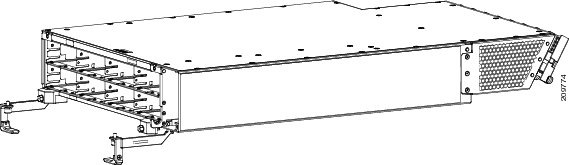
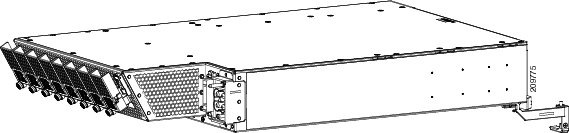
The front and rear views of the AC power shelf are shown in Figure 3 and Figure 4.
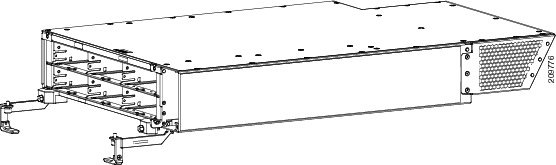
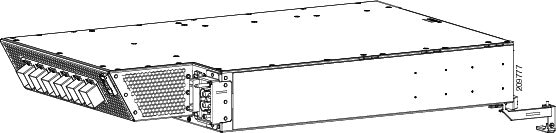
Prerequisites
Before performing this task, perform the following procedures:
- Installing the Power A Bus Bar
- Installing the Upper Grille Support
- Installing the Unistruts
- Installing the Chassis Ground Cable
- Removing the Exhaust Air Deflector, page 7-45 (if the lower power shelf is being installed)
- Removing the Upper Rear Air Grille, page 7-21 (if installed)
- Removing the Front Upper Grille, page 7-28 (if installed)
- Removing the Upper Grille Support, page 7-52 (if installed)
- Verify that the power shelf that you are about to install is the correct power shelf, either AC or DC.
Note | Do not install the power shelf in the chassis with AC or DC PMs, or alarm module installed in the power shelf. |
Required Tools and Equipment
You need the following tools to perform this task:
- 6-in. long number 2 Phillips screwdriver
- Torque screwdriver with number 2 Phillips head and rated accuracy at 15 in.-lb (1.69 N m) to 20 in.-lb (2.26 N m)
-
AC or DC power shelf
- AC power shelf (Cisco product number CRS-16-PWRSH-AC=), or
- DC power shelf (Cisco product number CRS-16-PWRSH-DC=)
Steps
To install the AC or DC power shelf, perform the following steps
1. Unpack the shelves to be installed.
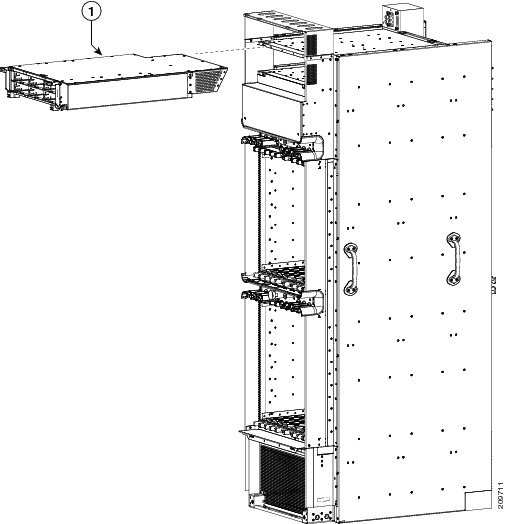
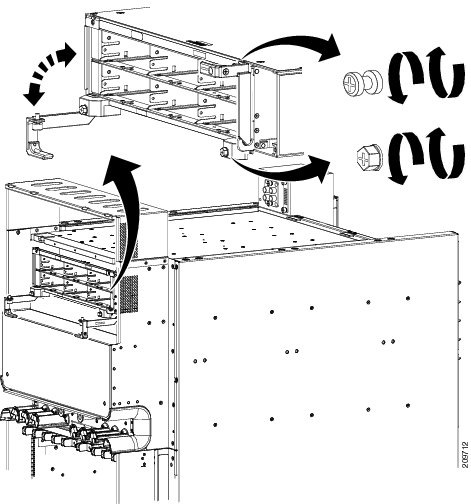
2. Using two people, one to support the power shelf underneath and the other to keep it steady, lift the power shelf up and slide it partway into the power shelf slot on the front (PLIM) side of the chassis. See Figure 2.
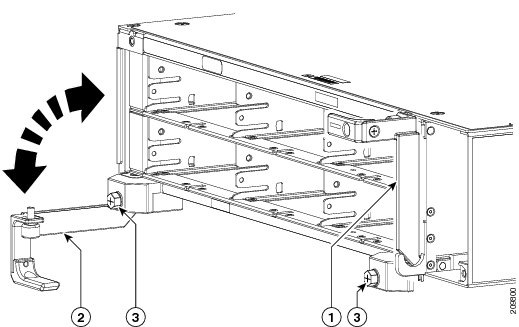
3. Unscrew the ejector handles from the front face of the shelf, one on each side. See Figure 1.
4. Grasping both handles simultaneously, push both the left and right handles up and in at the same time to push the shelf into the chassis. Slide the shelf all the way into the chassis, until both power shelf handles hook around the pins.
5. Using the screwdriver, tighten the captive screw on both power shFigure 3 Figure 3-20 .
6. Using the torque screwdriver, tighten the two screws that attach the bottom of the power shelf, one on each side, to the chassis to a torque value of 15 in.-lb (1.69 N m) to 20 in.-lb (2.26 N m). See Figure 3.
7. Install the second power shelf, following through Step 3 through Step 6.
DETAILED STEPS
| Step 1 | Unpack the shelves to be installed. | ||||||||||||
| Step 2 | Using two people, one to support the power shelf underneath and the other to keep it steady, lift the power shelf up and slide it partway into the power shelf slot on the front (PLIM) side of the chassis. See Figure 2. | ||||||||||||
| Step 3 |
Unscrew the ejector handles from the front face of the shelf, one on each side. See Figure 1.
| ||||||||||||
| Step 4 |
Grasping both handles simultaneously, push both the left and right handles up and in at the same time to push the shelf into the chassis. Slide the shelf all the way into the chassis, until both power shelf handles hook around the pins.
 | ||||||||||||
| Step 5 | Using the screwdriver, tighten the captive screw on both power shFigure 3 Figure 3-20 . | ||||||||||||
| Step 6 |
Using the torque screwdriver, tighten the two screws that attach the bottom of the power shelf, one on each side, to the chassis to a torque value of 15 in.-lb (1.69 N m) to 20 in.-lb (2.26 N m). See Figure 3.
| ||||||||||||
| Step 7 | Install the second power shelf, following through Step 3 through Step 6. |
What to Do Next
After the power shelves have been installed in the chassis, install the AC or DC power shelf wiring. Continue to the Installing AC or DC Power Shelf Wiring for instructions.
Installing AC or DC Power Shelf Wiring
This section describes how to connect the DC input wiring and install the DC terminal block covers, or install the AC cords on the Cisco CRS Series Enhanced 16-slot Line Card Chassis. For complete information on regulatory compliance and safety, see Regulatory Compliance and Safety Information for the Cisco CRS Carrier Routing System .
Installing DC Power Shelf Wiring
This section describes how to connect the DC input wiring to the rear of the power shelf and install the DC terminal block covers on the Cisco CRS Series Enhanced 16-slot Line Card Chassis.
Figure 1 shows the cable wiring for the DC power shelf.
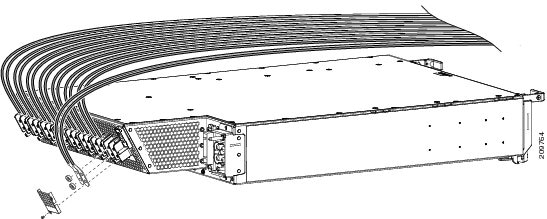
For additional power shelf details, see the Cisco CSR-1 Series Carrier Routing System Description or Appendix A, “Cisco CRS Series Carrier Routing System 16-Slot EC Line Card Chassis Specifications.”
Note | When wiring the power shelf, be sure to connect the chassis ground cable first. For more information, see the Bonding and Grounding Guidelines and the Installing the Chassis Ground Cable. |
Prerequisites
Before performing this task, perform the following procedures:
Note | Before installing wiring on the power shelf, make sure that the input power cables are not energized. |
Required Tools and Equipment
You need the following tools to perform this task:
- DC power cables
- DC power cable lugs
- Crimping tool and lug specific die
- 3/8 in. ratchet wrench with 10-mm socket
- Multimeter
- Torque wrench with 10-mm 6 pt. socket and rated accuracy at 20 in.-lb (2.26 N-m)
Steps
To wire the DC power shelf, perform the following steps:
1. Remove the terminal block covers, if installed.
2. Verify the following resistance values on both power shelves:
3. Use the crimping tool mandated by the lug manufacturer to crimp the lugs to the DC-input cables. For details on lugs, see the DC Power Systems.
4. Using the wrench, attach the positive and negative cable pairs to each terminal block on the upper power shelf (Power A). Start with PM0 (located on the right side) and move left, finishing with PM7(located on the left side). Use the torque wrench to tighten to a torque of 20 in.-lb (2.26 N-m). Route the power cables for the upper power shelf to the left.
5. Using the wrench, attach the positive and negative cable pairs to each terminal block on the lower power shelf (Power B). Start with PM0 (located on the right side) and move left, finishing with PM7(located on the left side). Use the torque wrench to tighten to a torque of 20 in.-lb (2.26 N-m). Route the power cables to the right.
DETAILED STEPS
| Step 1 | Remove the terminal block covers, if installed. | ||
| Step 2 |
Verify the following resistance values on both power shelves:
| ||
| Step 3 |
Use the crimping tool mandated by the lug manufacturer to crimp the lugs to the DC-input cables. For details on lugs, see the DC Power Systems.
The cable should be sized according to local and national installation requirements. Use only copper cable.
| ||
| Step 4 | Using the wrench, attach the positive and negative cable pairs to each terminal block on the upper power shelf (Power A). Start with PM0 (located on the right side) and move left, finishing with PM7(located on the left side). Use the torque wrench to tighten to a torque of 20 in.-lb (2.26 N-m). Route the power cables for the upper power shelf to the left. | ||
| Step 5 |
Using the wrench, attach the positive and negative cable pairs to each terminal block on the lower power shelf (Power B). Start with PM0 (located on the right side) and move left, finishing with PM7(located on the left side). Use the torque wrench to tighten to a torque of 20 in.-lb (2.26 N-m). Route the power cables to the right.
|
What to Do Next
After the DC power shelf wiring has been installed, attach the terminal block covers. Continue to the Installing DC Terminal Block Covers for instructions.
Installing DC Terminal Block Covers
Figure 1 shows the DC terminal block cover.
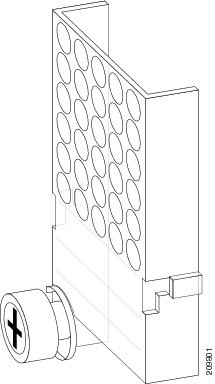
Caution | Install the terminal block cover after the input wiring is installed, but before power has been energized. |
Required Tools and Equipment
You need the following tools to perform this task:
- 6-in. long Number 1 Phillips screwdriver
- Terminal block covers
- Torque screwdriver with Number 1 Phillips head and a torque rating of 5 to 7 in.-lb
Steps
To install the DC terminal block covers, go to the rear (MSC) side of the chassis and perform the following steps:
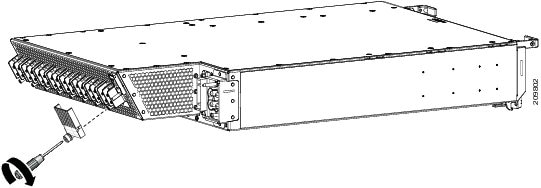
1. Align the DC terminal block cover with the cover latch tab.
2. Slide the terminal block cover upwards to align the screw with the mounting standoff.
3. Use the screwdriver to secure the screw into the mounting standoff, see Figure 1. Tighten to a torque of 5 to 7 in.-lb.
DETAILED STEPS
| Step 1 | Align the DC terminal block cover with the cover latch tab. |
| Step 2 | Slide the terminal block cover upwards to align the screw with the mounting standoff. |
| Step 3 |
Use the screwdriver to secure the screw into the mounting standoff, see Figure 1. Tighten to a torque of 5 to 7 in.-lb.
 |
What To Do Next
After you install the DC input cables and DC terminal block cover, re-install the rear exhaust air deflector. Continue to the Installing the Exhaust Air Deflector for instructions.
Installing AC Power Cords
This section describes how to install input AC cords on the rear of the power shelf.
Note | When installing AC power cords on the power shelf, be sure to connect the chassis ground cable first. For more information, see the Bonding and Grounding Guidelines and the Installing the Chassis Ground Cable. |
Prerequisites
Before performing this task, perform the following procedures:
If you have AC Delta or AC Wye at your equipment, ensure that two Cisco CRS PDUs are installed to convert 3-phase AC input power to single-phase AC input power for the power shelves. For further information, refer to Cisco CRS 3-Phase AC Power Distribution Unit Installation Guide .
Note | If you have a Cisco CRS PDU installed, the AC power cords must be installed as labeled. For further information, refer to the Cisco CRS 3-Phase AC Power Distribution Unit Installation Guide . |
Note | Before installing input AC power cords on the power shelf, make sure that the input power cords are not energized. |
Required Tools and Equipment
You need the following tools to perform this task:
- 6-in. long number 1 Phillips screwdriver
- Input AC power cords, depending on locale (Refer to Appendix B, “Product IDs.” )
Steps
To install the input AC cord, go to the rear (MSC) side of the chassis and perform the following steps:
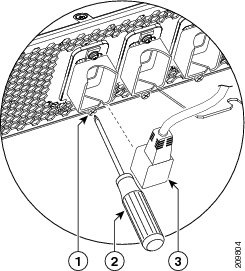
1. Insert the cord plug into the cord clamp (see Figure 1) following the labeling on the phase assignments from the PDU or the labeling on the single phase power cords. As viewed from the front, the PDU on the right side is power shelf B and the PDU on the left side is power shelf A.
2. Use the screwdriver to secure the screw that clamps the cord plug in place, see Figure 1.
DETAILED STEPS
| Step 1 |
Insert the cord plug into the cord clamp (see Figure 1) following the labeling on the phase assignments from the PDU or the labeling on the single phase power cords. As viewed from the front, the PDU on the right side is power shelf B and the PDU on the left side is power shelf A.
| ||||||||
| Step 2 | Use the screwdriver to secure the screw that clamps the cord plug in place, see Figure 1. |
What To Do Next
After you install the AC input cords, re-install the rear exhaust air deflector. Continue to the Installing the Exhaust Air Deflector for instructions.
Installing the Exhaust Air Deflector
This section describes how to install the exhaust air deflector on the rear of the Cisco CRS Series Enhanced 16-slot Line Card Chassis. For complete information on regulatory compliance and safety, see Regulatory Compliance and Safety Information for the Cisco CRS Carrier Routing System .
Prerequisites
Before performing this task, perform the following procedures:
Required Tools and Equipment
You need the following tools and equipment to perform this task:
- 6-in. long number 2 Phillips screwdriver
- Rear exhaust air deflector (set aside earlier)
Steps
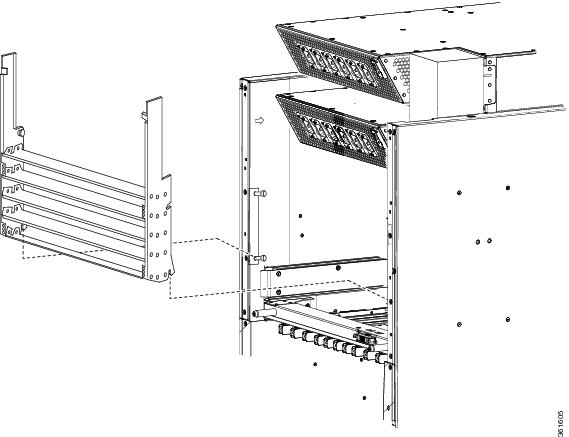
To install the exhaust air deflector on the chassis, perform the following steps:
1. Locate the mounting position standoffs on each side of the exhaust opening.
2. Position the lower cutouts on the bottom of the air deflector with the lower standoffs.
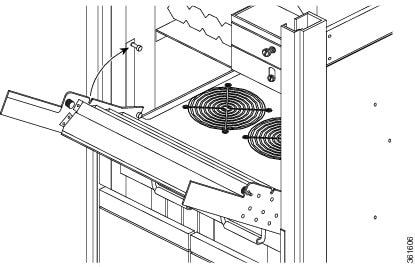
3. Rotate the air deflector forward until it is seated on the upper standoff.
4. Tighten the captive screw on both sides.
DETAILED STEPS
| Step 1 | Locate the mounting position standoffs on each side of the exhaust opening. |
| Step 2 |
Position the lower cutouts on the bottom of the air deflector with the lower standoffs.
 |
| Step 3 |
Rotate the air deflector forward until it is seated on the upper standoff.
 |
| Step 4 |
Tighten the captive screw on both sides.
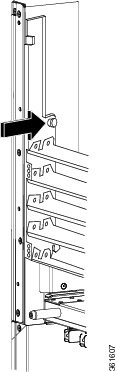 Figure 4 shows the exhaust air deflector installed on the chassis. 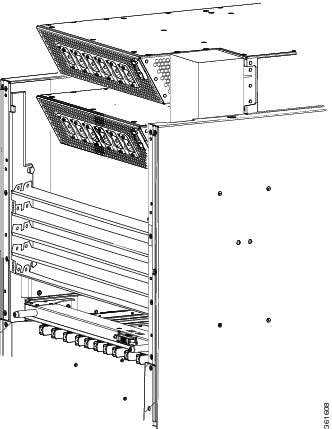 |
What to Do Next
After the exhaust air deflector has been re-installed on the rear (MSC) side of the chassis, install the alarm module and power modules in both power shelves. Continue to the Installing an Alarm Module and the Installing a Power Module for instructions.
Installing an Alarm Module
This section describes how to install the alarm modules in the power shelves in the Cisco CRS Series Enhanced 16-slot Line Card Chassis. For complete information on regulatory compliance and safety, see Regulatory Compliance and Safety Information for the Cisco CRS Carrier Routing System .
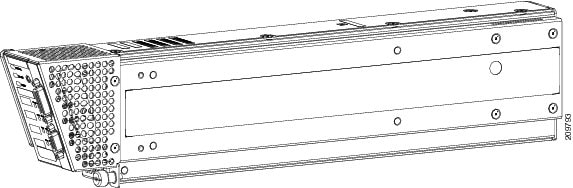
Figure 1 shows an alarm module.
Prerequisites
Before performing this task, perform the following procedures:
Caution | Do not attempt to install the alarm module until the power shelf is in place and screwed into the chassis. |
Required Tools and Equipment
You need the following tools to perform this task:
- ESD-preventive wrist strap
- 6-in. long number 1 Phillips screwdriver
- Alarm module (Cisco product number CRS-16-ALARM-B=)
Steps
To install the alarm module, perform the following steps:
1. Attach the ESD-preventive wrist strap to your wrist and connect its leash to one of the ESD connection sockets: on the front (PLIM) side of the chassis there is one ESD connection socket right above the fan controllers. On the rear (MSC) side of the chassis there are two ESD connection sockets right above the cable management tray in the center of the chassis (left and right). You can also connect the ESD-preventive wrist strap leash to any bare metal surface on the chassis.
2. Hold the alarm module such that the ejector handle is on the lower left front side. See Figure 1.
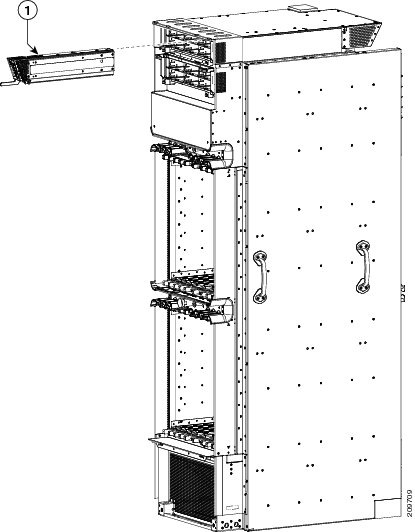
3. Slide the alarm module into the bay on the right side of the power shelf. As you slide the module in, hold the ejector and gently push until it engages the chassis. See Figure 1.
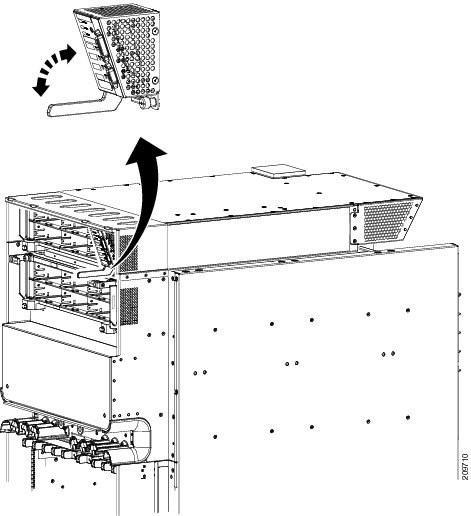
4. Continue to push the alarm module gently and rotate alarm module ejector upwards to seat the alarm module. Be careful not to pinch fingers between the ejector handle and the alarm module. See Figure 2.
5. Hand tighten the captive screw on the lower right corner of the alarm module.
6. Use the number 1 Phillips screwdriver to securely fasten captive screw that secures the alarm module to the power shelf.
DETAILED STEPS
| Step 1 | Attach the ESD-preventive wrist strap to your wrist and connect its leash to one of the ESD connection sockets: on the front (PLIM) side of the chassis there is one ESD connection socket right above the fan controllers. On the rear (MSC) side of the chassis there are two ESD connection sockets right above the cable management tray in the center of the chassis (left and right). You can also connect the ESD-preventive wrist strap leash to any bare metal surface on the chassis. | ||
| Step 2 | Hold the alarm module such that the ejector handle is on the lower left front side. See Figure 1. | ||
| Step 3 |
Slide the alarm module into the bay on the right side of the power shelf. As you slide the module in, hold the ejector and gently push until it engages the chassis. See Figure 1.
| ||
| Step 4 |
Continue to push the alarm module gently and rotate alarm module ejector upwards to seat the alarm module. Be careful not to pinch fingers between the ejector handle and the alarm module. See Figure 2.
 | ||
| Step 5 | Hand tighten the captive screw on the lower right corner of the alarm module. | ||
| Step 6 | Use the number 1 Phillips screwdriver to securely fasten captive screw that secures the alarm module to the power shelf. |
What to Do Next
After the alarm modules are installed in the power shelves, install the AC or DC power modules. Continue to the Installing a Power Module for instructions.
Installing a Power Module
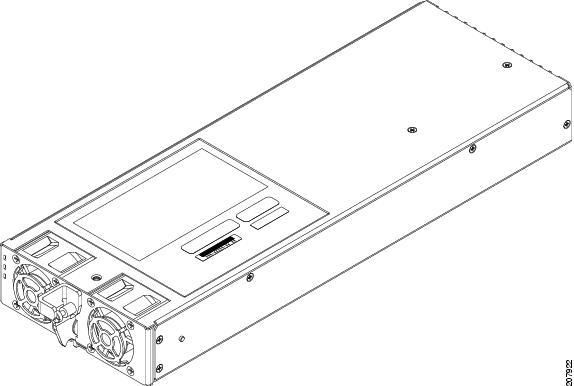
This section describes how to install the AC or DC PMs, shown in Figure 1 , in the Cisco CRS Series Enhanced 16-slot Line Card Chassis. For complete information on regulatory compliance and safety, see Regulatory Compliance and Safety Information for the Cisco CRS Carrier Routing System .
Although there are differences between the AC and DC power modules, they are installed using the same procedures.
Prerequisites
Before performing this task, perform the following procedures:
Caution | Do not attempt to install the PM until the power shelf is in place and screwed into the chassis. |
Required Tools and Equipment
You need the following tools to perform this task:
- ESD-preventive wrist strap
- 6-in. long number 1 Phillips screwdriver
- Torque screwdriver with number 1 Phillips bit and rated accuracy at 5.5 in.-lb (0.62 N-m)
-
AC or DC PM
- AC PM (Cisco product number CRS-PM-AC=), or
- DC PM (Cisco product number CRS-PM-DC=)
Steps
To install the PM in a power shelf, perform the following steps:
1. Attach the ESD-preventive wrist strap to your wrist and connect its leash to one of the ESD connection sockets: on the front (PLIM) side of the chassis there is one ESD connection socket right above the fan controllers. On the rear (MSC) side of the chassis there are two ESD connection sockets right above the cable management tray in the center of the chassis (left and right). You can also connect the ESD-preventive wrist strap leash to any bare metal surface on the chassis.
2. Using two hands to support and guide the PM, slide it into the power shelf. Install PM0 first.
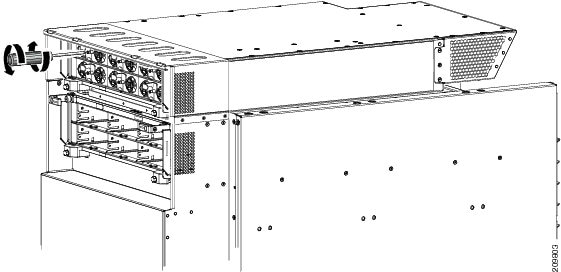
3. Rotate the ejector lever upwards to seat the PM into the power shelf. Tighten the ejector lever to nominal install torque of 5.5 in.-lb (0.62 N m), screw the PM into the shelf (see Figure 1). Do not exceed a maximum install torque of 10 in.-lb (1.13 N-m).
4. Fill the power shelf, in PM ascending order, to the required configuration.
DETAILED STEPS
| Step 1 | Attach the ESD-preventive wrist strap to your wrist and connect its leash to one of the ESD connection sockets: on the front (PLIM) side of the chassis there is one ESD connection socket right above the fan controllers. On the rear (MSC) side of the chassis there are two ESD connection sockets right above the cable management tray in the center of the chassis (left and right). You can also connect the ESD-preventive wrist strap leash to any bare metal surface on the chassis. |
| Step 2 | Using two hands to support and guide the PM, slide it into the power shelf. Install PM0 first. |
| Step 3 |
Rotate the ejector lever upwards to seat the PM into the power shelf. Tighten the ejector lever to nominal install torque of 5.5 in.-lb (0.62 N m), screw the PM into the shelf (see Figure 1). Do not exceed a maximum install torque of 10 in.-lb (1.13 N-m).
 |
| Step 4 | Fill the power shelf, in PM ascending order, to the required configuration. |
What to Do Next
After performing this task, install power module slot covers into empty power module slots in the power shelf, if any. For more information, see the Installing a Power Module Slot Cover. Other wise, re-install the upper grille on the front (PLIM) side of the chassis, if applicable.
Installing a Power Module Slot Cover
This section describes how to install power module slot covers, in empty power module slots in the power shelves installed in the Cisco CRS Series Enhanced 16-slot Line Card Chassis. For complete information on regulatory compliance and safety, see Regulatory Compliance and Safety Information for the Cisco CRS Carrier Routing System .
Although the AC and DC power module slot covers differ slightly in size, they are installed using the same procedures.
Prerequisites
Before performing this task, you must first remove the upper grille on the front (PLIM) side of the chassis, if installed, and install the alarm module and power modules to the required configuration in each power shelf. See Installing an Alarm Module and Installing a Power Module.
Required Tools and Equipment
You need the following tools to perform this task:
- ESD-preventive wrist strap
-
AC or DC PM Slot Cover
- AC PM slot cover (Cisco product number 700–29097–xx), or
- DC PM slot cover (Cisco product number 700–29098–xx)
Steps
To install a PM slot cover in a power shelf, perform the following steps:
1. Attach the ESD-preventive wrist strap to your wrist and connect its leash to one of the ESD connection sockets: on the front (PLIM) side of the chassis there is one ESD connection socket right above the fan controllers. On the rear (MSC) side of the chassis there are two ESD connection sockets right above the cable management tray in the center of the chassis (left and right). You can also connect the ESD-preventive wrist strap leash to any bare metal surface on the chassis.
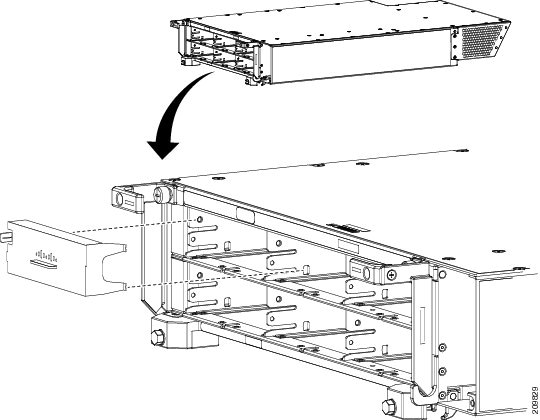
2. Align the PM slot cover with the empty PM slot in the power shelf.
3. Insert the two tabs on the right side of the PM slot cover into the two holes on the right side of the PM slot. See Figure 1.
4. Push the left side of the PM slot cover gently until it clicks into place. See Figure 1.
DETAILED STEPS
| Step 1 | Attach the ESD-preventive wrist strap to your wrist and connect its leash to one of the ESD connection sockets: on the front (PLIM) side of the chassis there is one ESD connection socket right above the fan controllers. On the rear (MSC) side of the chassis there are two ESD connection sockets right above the cable management tray in the center of the chassis (left and right). You can also connect the ESD-preventive wrist strap leash to any bare metal surface on the chassis. |
| Step 2 | Align the PM slot cover with the empty PM slot in the power shelf. |
| Step 3 | Insert the two tabs on the right side of the PM slot cover into the two holes on the right side of the PM slot. See Figure 1. |
| Step 4 |
Push the left side of the PM slot cover gently until it clicks into place. See Figure 1.
 |
What to Do Next
After performing this task, re-install the upper grille on the front (PLIM) side of the chassis, if applicable.
Power Up and Power Down a Chassis
This section describes how to power up and power down a chassis with an AC or DC power shelf. For details on the chassis power systems, see the Basic Chassis Power Details, the AC Power Systems, and the DC Power Systems . For complete information on regulatory compliance and safety, see Regulatory Compliance and Safety Information for the Cisco CRS Carrier Routing System .
Most components on the chassis, such as the PMs, alarm modules, and fan trays, can be removed or installed in the chassis while it is running. Although it is possible to install or remove a power shelf while the chassis is running, it is recommended to remove power from the chassis completely, if possible, for service protection and safety.
Figure 1 shows the chassis slot number on the front (PLIM) side of the Cisco CRS Series Enhanced 16-slot Line Card Chassis with an AC and DC power system installed.
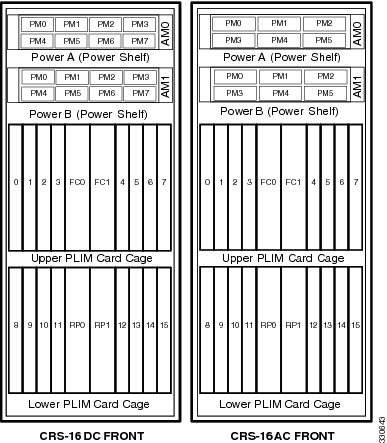
Table 1 shows the LED status indicator lights for the AC and DC PMs in a power supply.
|
LED Name |
Color |
Function or Meaning |
|---|---|---|
|
Input_OK |
Green |
On: The input voltage is present and within regulation range. Blinking: The input voltage is present but out of regulation range. Off: The input voltage is not present. |
|
Output_OK |
Green |
On: The output voltage is on. Blinking: The PM is in a power limit or an OC condition. Off: The output voltage is off. |
|
Internal Fault |
Red |
On: An internal fault is detected within the PM. Off: The PM has no internal fault. |
Power Up a Chassis
This section describes how to power up a chassis with AC or DC power shelves installed.
Prerequisites
Before performing this task, perform the following procedures:
If you have a DC power system installed, wiring at the BDFB or at the power plant should be complete.
Steps
To power on the chassis, perform the following steps:
1. Make sure all boards (RPs, PLIMs, SFCs, and FPs) are pulled-out and disconnected from the backplane. Verify that the three status LEDs on the front of each power module are off.
2. Make sure that I/O switches on the rear of the upper (Power A) and lower (Power B) power shelves are in the OFF position.
3. If you have a DC power system installed, perform the following steps:
4. If you have an AC power system installed, perform the following steps:
5. Verify that the fan tray and fan controller LEDs are on and that the fans are running.
6. Turn the I/O switch at the rear of both upper power shelves (Power A and Power B) to the OFF position. Verify that none of the Output_OK LEDs on the PMs installed in the shelf are green.
7. Install all boards (RPs, PLIMs, SFCs, and FPs) in the chassis. For more information, see Chapter 6, “Installing Line Cards, PLIMs, and Associated Components.”
8. Turn the I/O switch at the rear of both power shelves (Power A and Power B) to the ON position.
DETAILED STEPS
| Step 1 | Make sure all boards (RPs, PLIMs, SFCs, and FPs) are pulled-out and disconnected from the backplane. Verify that the three status LEDs on the front of each power module are off. |
| Step 2 | Make sure that I/O switches on the rear of the upper (Power A) and lower (Power B) power shelves are in the OFF position. |
| Step 3 |
If you have a DC power system installed, perform the following steps: |
| Step 4 |
If you have an AC power system installed, perform the following steps:
|
| Step 5 | Verify that the fan tray and fan controller LEDs are on and that the fans are running. |
| Step 6 | Turn the I/O switch at the rear of both upper power shelves (Power A and Power B) to the OFF position. Verify that none of the Output_OK LEDs on the PMs installed in the shelf are green. |
| Step 7 | Install all boards (RPs, PLIMs, SFCs, and FPs) in the chassis. For more information, see Chapter 6, “Installing Line Cards, PLIMs, and Associated Components.” |
| Step 8 | Turn the I/O switch at the rear of both power shelves (Power A and Power B) to the ON position. |
What to Do Next
Note | For appropriate SFC LED information, see the appropriate section in Chapter 6, “Installing Line Cards, PLIMs, and Associated Components.” or the specific documentation for the card. |
Power Down a Chassis
This section describes how to power down a chassis with a AC or DC power shelf.
Steps
To power down the chassis, perform the following steps:
1. Turn the I/O switches at the rear of both power shelves, Power A and Power B, to the OFF position.
2. If you have a DC power system installed, remove the power fuse at the BDFB or power plant for each power module on both power shelves.
3. If you have an AC power system installed, turn off the source circuit breakers to de-energize the power modules in the upper and lower power shelves.
DETAILED STEPS
| Step 1 |
Turn the I/O switches at the rear of both power shelves, Power A and Power B, to the OFF position.
| ||
| Step 2 | If you have a DC power system installed, remove the power fuse at the BDFB or power plant for each power module on both power shelves. | ||
| Step 3 |
If you have an AC power system installed, turn off the source circuit breakers to de-energize the power modules in the upper and lower power shelves.
|
 Feedback