Configuring Interswitch Link Diagnostics

This chapter describes how to configure the ISL Diagnostics on the Cisco MDS switches.

Information About ISL Diagnostics

ISL Diagnostics feature helps in validating the health of interswitch links between the Cisco MDS switches in a network.

The following tests can be performed using ISL diagnostics:
  • Latency test

  • Single Hop Traffic Test

  • Multihop End-to-End Traffic Test

Supported Platforms

ISL diagnostics is supported on the following platforms:

  • Cisco MDS 9700 Series Switches

  • Cisco MDS 9396S Switch

  • Cisco MDS 9396T Switch

  • Cisco MDS 9148T Switch

  • Cisco MDS 9132T Switch

  • Cisco MDS 9124V Switch

  • Cisco MDS 9148V Switch

  • Cisco MDS 9396V Switch

ISL diagnostics is supported on the following FC modules of the Cisco MDS 9700 Switches:

  • 16-Gbps modules on Cisco MDS 9700 Series Switches

    • DS-X9448-768K9

    • DS-X9334-K9

  • 32-Gbps modules on Cisco MDS 9700 Series Switches

    • DS-X9648-1536K9

  • 64-Gbps modules on Cisco MDS 9700 Series Switches

    • DS-X9748-3072K9

Guidelines and Limitations

  • Cisco MDS 9124V 64-Gbps 24-Port Switching Module (DS-9124V) and Cisco MDS 9148V 64-Gbps 48-Port Switching Module (DS-9148V) does not support latency test.

  • Cisco MDS 9700 48-port 64-Gbps Switching Module (DS-X9748-3072K9) does not support latency test.

  • The diagnostic tests can be performed between two supported modules of different switch families on either side.

  • The ISL diagnostic support on the modules is limited to the generator and reflector ports only.

  • ISL diagnostics are not supported on other non-MDS switches such as Nexus 2000, Nexus 5000, and so on.

  • ISL diagnostics are not supported on any of the FCoE and IPS ports of the Cisco MDS Switches.

  • ISL diagnostics are not supported on 16 Gbps FEC-enabled links, but it is supported on 16 Gbps links without FEC.

  • ISL diagnostics is not supported on Dense Wavelength-Division Multiplexing (DWDM) links.

Latency Test

Latency test measures the latency of an ISL between two Cisco MDS switches. You can run the latency test on ports that are on different switches as well as two ports on the same switch. You can use the diagnostic isl reflector and diagnostic isl latency-test commands for running the test. For more information, see Configuring Interswitch Link Diagnostics.
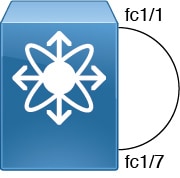
Figure 1. Latency Test Running on Ports on the Same Switch

The frame is looped back by the reflector switch port to the generator switch where the timestamps are captured.

Timestamps allow the latency of the link to be measured in both directions as well as the latency of the reflector port. The cable length is calculated using only the link latencies. The accuracy of the reported cable length is +/- 2 meters. On Cisco MDS switches, the cable length (for latency test) is validated up to 50 meters of the cable length.


Note


When a latency test is executed, both the generator and reflector ports must be in a admin down ('shutdown') state and not part of any port-channel.


Latency Test shows the details for the latency test.

Figure 2. Latency Test

Single Hop Traffic Test

The single hop traffic test validates the health of an ISL by checking the efficiency of the ISL to handle traffic at various frame rates. You can run the single hop traffic test on ports that are on the same switch. You can use the diagnostic isl reflector and diagnostic isl generator commands for running the test. For more information, see Configuring Interswitch Link Diagnostics.

Figure 3. Single Hop Traffic Test Running on Ports on the Same Switch

Fibre Channel (FC) frames are generated in the generator switch using the internal traffic generator facility available in the MAC hardware. These frames are transmitted from the generator switch port over the ISL under test. The reflector switch receives the frames, switches them via the normal fabric switching path and transmits the frames back through the received port onto the ISL under test.

The efficiency of the ISL traffic is calculated based on the number of packets received back on the generator switch port.


Note


When a single hop test is executed, both the generator and reflector ports must be in a admin down ('shutdown') state and not part of any port-channel.

The traffic test returns with an error in the following scenarios:

  • If the ISL is not up.

  • If the generator port does not have an internal traffic generator facility.

  • When the reflector is not put in a loopback mode.

Single Hop Traffic Test shows the details for Single Hop Traffic Test:
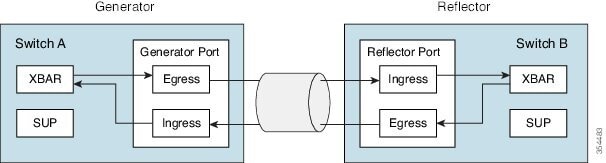
Figure 4. Single Hop Traffic Test

The traffic traverses through all the crossbar links.

Multihop End-to-End Traffic Test

The Multihop test evaluates the health of the ISL between a host switch and a target switch in a fabric.

Before connecting a host to a target in a fabric, test the fabric path between the host port and the target port, using a Multihop test.

Multiple hops can exist between the host switch and the target switch. No specific configuration is required on the intermediate switches.


Note


The intermediate switches in the fabric can have any interface or link, for example, FC, FCoE, IPS, and so on, between them, as long as a route exists between the generator and the reflector port.

Fibre channel (FC) frames are generated at the generator switch port and transmitted to the first hop link. These frames traverse intermediate switches until they reach the reflector switch. The reflector switch then switches the frames and returns them to the generator switch. Based on the number of packets received on the generator switch, the efficiency of the ISL is displayed.

The Multihop traffic test is based on the domain IDs of the generator and reflector switches.


Note


When a Multihop traffic test is executed , both the generator and reflector ports must be in a admin down ('shutdown') state and not part of any port-channel however, there can be traffic running over the ISLs that is used by the Multihop traffic test.

Multihop End-to-End Traffic Test shows the details for Multihop End-to-End Traffic Test:

Figure 5. Multihop End-to-End Traffic Test

The traffic traverses through all the crossbar links.

Configuring ISL Diagnostics

Configuring Latency Test on Cisco MDS 9700 Series Switches

To configure the latency test between the generator and reflector switches perform the following tasks:


Note


This task is supported on the following modules of the Cisco MDS 9700 series switch:

  • DS-X9448-768K9

  • DS-X9334-K9

  • DS-X9648-1536K9


Procedure


Step 1

Enable the test interface on the reflector switch for testing latency by setting it to loopback mode using the following command:

switch B# diagnostic isl reflector latency_test loop-back interface interface id enable

Step 2

Configure the generator switch to run the test and display the results:

switch A# diagnostic isl latency-test interface interface id

Step 3

To disable the reflector port for latency testing configure the following command on the reflector switch:

switch B# diagnostic isl reflector latency_test loop-back interface interface id disable


Latency Test

Before starting the latency test, shutdown the testing interface ports on both the switches:

switch A# shutdown interface fc4/1
switch B# shutdown interface fc1/13

This example shows how to enable a port on a reflector switch for latency testing:


switch B# diagnostic isl reflector latency_test loop-back interface fc1/13 enable
Reflector Configuration Successful.

This example shows how to run the latency test:


switch A# diagnostic isl latency-test interface fc4/1
Waiting for sync to be achieved on the link ....
Sync is achieved, Link has been initialized.
Starting the test ....
---------------------------------------------------------
Latency test Result for port:                    fc4/1
Latency in the switch (in ns):                   399
Latency in the cable (in ns):                    39
Length of the cable (accuracy +/- 2m):           4 m
---------------------------------------------------------

This example shows how to disable a port on a reflector switch for latency testing:


switch B# diagnostic isl reflector latency_test loop-back interface fc1/13 disable
Reflector Configuration Successful. 

Restart the disabled interface ports:

switch A# no shutdown interface fc4/1
switch B# no shutdown interface fc1/13

Configuring Latency Test on Other Supported Platforms

To configure the latency test between the generator and reflector switches perform the following tasks:


Note


This task is supported on the following Cisco MDS switches:

  • Cisco MDS 9396S Switch

  • Cisco MDS 9396T Switch

  • Cisco MDS 9148T Switch

  • Cisco MDS 9132T Switch


Procedure


Step 1

Enable the test interface on the reflector switch for testing latency by setting it to loopback mode using the following command:

switch B# system health isl reflector latency_test loop-back interface interface id enable

Step 2

Configure the generator switch to run the test and display the results:

switch A# system health isl latency-test interface interface id

Step 3

To disable the reflector port for latency testing configure the following command on the reflector switch:

switch B# system health isl reflector latency_test loop-back interface interface id disable


Latency Test

Before starting the latency test, shutdown the testing interface ports on both the switches:

switch A# shutdown interface fc1/13
switch B# shutdown interface fc4/25

This example shows how to enable a port on a reflector switch for latency testing:


switch B# system health isl reflector latency_test loop-back interface fc4/25 enable
Reflector Configuration Successful.

This example shows how to run the latency test:


switch A# system health isl latency-test interface fc1/13
Waiting for sync to be achieved on the link ....
Sync is achieved, Link has been initialized.
Starting the test ....


---------------------------------------------------------
Latency test Result for port: fc1/13
Latency in the switch (in ns): 5504
Latency in the cable (in ns): 664
Length of the cable (accuracy +/- 2m): 4.816514 m
---------------------------------------------------------

This example shows how to disable a port on a reflector switch for latency testing:


switch B# system health isl reflector latency_test loop-back interface fc4/25 disable
Reflector Configuration Successful.

Restart the disabled interface ports:

switch A# no shutdown interface fc1/13
switch B# no shutdown interface fc4/25

Configuring a Single Hop Traffic Test on Cisco MDS 9700 Series Switches

To configure single hop traffic test between a generator switch and a reflector switch, perform the following tasks:

Procedure


Step 1

Enable the test interface on the reflector switch for single hop traffic test by setting it to loopback mode using the following command:

switch B# diagnostic isl reflector traffic_test loop-back interface interface id enable

Step 2

Configure the interface using one of the following options:

  • Configure the interface on the generator switch to run the traffic test for a given frame count, frame size, and rate (link speed) parameters:

    switch A# diagnostic isl generator interface interface id start frame-count number rate value frame_size min minimum size max maximum size step num

  • Configure the interface on the generator switch to run the traffic test for a given duration, frame size, and rate (link speed) parameters:

    switch A# diagnostic isl generator interface interface id start duration seconds rate value frame_size min minimum size max maximum size step num

Step 3

Disable the reflector port for single hop traffic test:

switch B# diagnostic isl reflector traffic_test loop-back interface interface id disable

Step 4

View the results of the single hop traffic test:

switch B# show diagnostic isl result interface interface id

Step 5

To stop the single hop traffic test, use the following command:

switch A# diagnostic isl generator interface interface id stop


Single Hop Traffic Test

Before starting the single hop traffic test, shutdown the testing interface ports on both the switches:

switch A# shutdown interface fc4/5
switch B# shutdown interface fc9/37

This example shows how to enable the test interface on the reflector switch for the single hop traffic test by setting it to loopback mode:


switch B# diagnostic isl reflector traffic_test loop-back interface fc9/37 enable
Reflector Configuration Successful.

This example shows how to run a traffic test on the generator switch for a particular duration, speed, and frame size parameters:


switch A# diagnostic isl generator interface fc4/5 start duration 100 rate 25% frame_size min 16 max 517 step 1

This example shows the results of the single hop traffic test:

switch A# show  diagnostic isl result interface fc4/5
---------------------------------------------------------
Single hop  Traffic test Result for port: fc4/5
Packets Transmitted:                             30621868
Packets Recieved:                                30621868
ISL traffic Efficiency (percent):                100.0000
---------------------------------------------------------

Restart the disabled interface ports:

switch A# no shutdown interface fc4/5
switch B# no shutdown interface fc9/37

Configuring a Single Hop Traffic Test on Other Supported Platforms

To configure a single hop traffic test between a generator switch and a reflector switch, perform the following tasks:

Procedure


Step 1

Enable the test interface on the reflector switch for a single hop traffic test by setting it to loopback mode:

switch B# system health isl reflector traffic_test loop-back interface interface id enable

Step 2

Configure the interface using one of the following options:

  • Configure the interface on the generator switch to run the traffic test for a given frame count, frame size, and rate (link speed) parameters:

    switch A# system health isl generator interface interface id start frame-count number rate value frame_size min minimum size max maximum size step num

  • Configure the interface on the generator switch to run the traffic test for a given duration, frame size, and rate (link speed) parameters:

    switch A# system health isl generator interface interface id start duration seconds rate value frame_size min minimum size max maximum size step num

Step 3

To disable the reflector port for single hop traffic test, configure the following command on the reflector switch:

switch B# system health isl reflector traffic_test loop-back interface interface id disable

Step 4

View the results of the single hop traffic test:

switch B# show system health isl result interface interface id

Step 5

To stop the single hop traffic test:

switch A# system health isl generator interface interface id stop


Single Hop Traffic Test

Before starting the single hop traffic test, shutdown the testing interface ports on both the switches:

switch A# shutdown interface fc12/16
switch B# shutdown interface fc9/37

This example shows how to enable the test interface on the reflector switch for the single hop traffic test by setting it to loopback mode:


switch B# system health isl reflector traffic_test loop-back interface fc9/37 enable
Reflector Configuration Successful. 

This example shows how to run a traffic test for duration parameter on a generator switch:


switch A# system health isl generator interface fc12/16 start duration 100
Waiting for sync to be achieved on the link .....
Link initialized successfully. Starting the test.

switch A# system health isl generator interface fc12/16 stop
---------------------------------------------------------
Traffic test Result for port:                    fc12/16
Packets Transmitted:                             5293153
Packets Recieved:                                5293153
ISL traffic Efficiency (percent):                100.0000
---------------------------------------------------------

switch B# system health isl reflector traffic_test loop-back interface fc9/37 disable
Reflector Configuration Successful.

This example shows the results of the single hop traffic test:

switch A# show system health isl result interface fc12/16
---------------------------------------------------------
Single hop  Traffic test Result for port:      fc12/16
Packets Transmitted:                           1019885186
Packets Recieved:                              1019885186
ISL traffic Efficiency (percent):              100.0000     
---------------------------------------------------------

Restart the disabled interface ports:

switch A# no shutdown interface fc12/16
switch B# no shutdown interface fc9/37

Configuring a Multihop Traffic Test on Cisco MDS 9700 Series Switches

To configure a multihop traffic test between a generator switch and a reflector switch, perform the following tasks:


Note


For a given VSAN, source domain, and destination domain, there can be only one test running.


Procedure


Step 1

Enable the test interface on the reflector switch by setting it to loopback mode for a given VSAN and domain ID of the generator switch for the multihop traffic test:

From Cisco MDS NX-OS Release 8.4(1) and later, use the following command:

switch B# diagnostic isl multi_hop reflector loop-back interface interface id enable vsan vsan id source-domain source id

Note


To obtain the source domain, use the following command on the reflector switch:

switch B# show fcdomain domain-list vsan vsan id

For Cisco MDS NX-OS Release 8.3(2) and earlier, use the following command:

switch B# diagnostic isl multi_hop reflector loop-back interface interface id vsan vsan id source-domain source id enable

Step 2

Configure the interface on the generator switch, to run the multihop traffic test for a given VSAN, destination domain (domain ID of the reflector switch), frame count, link speed, and frame size parameters:

From Cisco MDS NX-OS Release 8.4(1) and later, use the following command:

switch A# diagnostic isl multi_hop generator interface interface id start vsan vsan id dest-domain dest id frame-count number rate value frame_size min minimum size max maximum size step num

For Cisco MDS NX-OS Release 8.3(2) and earlier, use the following command:

switch A# diagnostic isl multi_hop generator interface interface id vsan vsan id dest-domain dest id startframe-count number rate value frame_size min minimum size max maximum size step num

Step 3

Configure the interface on the generator switch to run the multihop traffic test for a given VSAN, destination domain (domain ID of the reflector switch), duration, rate (link speed), and frame size parameters.

From Cisco MDS NX-OS Release 8.4(1) and later, use the following command:

switch A# diagnostic isl multi_hop generator interface interface id start vsan vsan id dest-domain dest id duration seconds rate value frame_size min minimum size max maximum size step num

Note


To obtain the destination domain use the following command on the generator switch:

switch A# show fcdomain domain-list vsan vsan id

For Cisco MDS NX-OS Release 8.3(2) and earlier, use the following command:

switch A# diagnostic isl multi_hop generator interface interface id vsan vsan id dest-domain dest idstart duration seconds rate value frame_size min minimum size max maximum size step num

Step 4

To disable the reflector port for the multihop traffic test configure the following command on the reflector switch:

From Cisco MDS NX-OS Release 8.4(1) and later, use the following command:

switch B# diagnostic isl multi_hop reflector loop-back interface interface id disable

For Cisco MDS NX-OS Release 8.3(2) and earlier, use the following command:

switch B# diagnostic isl multi_hop reflector loop-back interface interface id vsan vsan idsource-domain source id disable

Step 5

View the results of the multihop traffic test:

switch A# show diagnostic isl result interface interface id

Step 6

To stop the multihop traffic test:

From Cisco MDS NX-OS Release 8.4(1) and later, use the following command:

switch A# diagnostic isl multi_hop generator interface interface id stop

For Cisco MDS NX-OS Release 8.3(2) and earlier, use the following command:

switch A# diagnostic isl multi_hop generator interface interface id vsan vsan id dest-domain dest id stop


MultiHop Traffic test

Before starting the multihop traffic test, shutdown the testing interface ports on both the switches:

switch A# shutdown interface fc4/10
switch B# shutdown interface fc9/36

This example shows how to display the domain list on both the generator and reflector switches:


switch# show fcdomain domain-list vsan 1
Number of domains: 3
Domain ID              WWN
---------    -----------------------
0x85(133)    20:01:00:0d:ec:b7:20:01 [Principal]
0xef(239)    20:01:40:55:39:0c:70:81 [Local]
0x02(2)      20:01:00:0d:ec:b7:28:c1

This example shows how to enable the test interface on the reflector switch by setting it to loopback mode for a given VSAN and domain ID of the generator switch for Multihop Traffic Test:


switch B# diagnostic isl multi_hop reflector loop-back interface fc9/36 enable vsan 1 source_domain 239 

This example shows how to run a traffic test on the generator switch for a particular duration, speed, and frame size parameters:


switch A# diagnostic isl multi_hop generator interface fc4/10 start vsan 1 dest_domain 133 duration 100 rate 16G frame_size min 16 max 517 step 1

This example shows the results of the multihop traffic test:

switchA #show diagnostic isl result interface fc 4/10

---------------------------------------------------------
Multi hop Traffic test Result for port: 	  fc4/10
Packets Transmitted:                             6131424
Packets Recieved:                                6131424
ISL traffic Efficiency (percent):                100.0000
---------------------------------------------------------

Restart the disabled interface ports:

switch A# no shutdown interface fc4/10
switch B# no shutdown interface fc9/36

Configuring a Multihop Traffic Test on Other Supported Platforms

To configure a multihop traffic test between a generator switch and a reflector switch, perform the following tasks:

Procedure


Step 1

Enable the test interface on the reflector switch by setting it to loopback mode for a given VSAN and domain ID of the generator switch:

From Cisco MDS NX-OS Release 8.4(1) and later, use the following command:

switch B# system health isl multi_hop reflector loop-back interface interface idenable vsan vsan id source-domain source id

For Cisco MDS NX-OS Release 8.3(2) and earlier, use the following command:

switch B# system health isl multi_hop reflector loop-back interface interface id vsan vsan id source-domain source id enable

To obtain the source domain, use the following command on the reflector switch:

switch B# show fcdomain domain-list vsan vsan id

Step 2

Configure the interface on the generator switch to run the multihop traffic test for a given VSAN, destination domain (domain ID of the reflector switch), frame count, link speed, and frame size parameters:

From Cisco MDS NX-OS Release 8.4(1) and later, use the following command:

switch A# system health isl multi_hop generator interface interface id start vsan vsan id dest-domain dest id frame-count number rate value frame_size min minimum size max maximum size step num

For Cisco MDS NX-OS Release 8.3(2) and earlier, use the following command:

switch A# system health isl multi_hop generator interface interface id vsan vsan id dest-domain dest id start frame-count number rate value frame_size min minimum size max maximum size step num

Step 3

Configure the interface on the generator switch to run the multihop traffic test for a given VSAN, destination domain (domain ID of the reflector switch), duration, rate (link speed), and frame size parameters:

From Cisco MDS NX-OS Release 8.4(1) and later, use the following command:

switch A# system health isl multi_hop generator interface interface id start vsan vsan id dest-domain dest id duration seconds rate value frame_size min minimum size max maximum size step num

For Cisco MDS NX-OS Release 8.3(2) and earlier, use the following command:

switch A# system health isl multi_hop generator interface interface id vsan vsan id dest-domain dest id start duration seconds rate value frame_size min minimum size max maximum size step num

To obtain the destination domain use the following command on the generator switch:

switch A# show fcdomain domain-list vsan vsan id

Step 4

Disable the reflector port for the multihop traffic test, configure the following command on the reflector switch:

From Cisco MDS NX-OS Release 8.4(1) and later, use the following command:

switch B# system health isl multi_hop reflector loop-back interface interface id disable

For Cisco MDS NX-OS Release 8.3(2) and earlier, use the following command:

switch B# system health isl multi_hop reflector loop-back interface interface id vsan vsan id source-domain source id disable

Step 5

View the results of the multihop traffic test:

switch A# show system health isl result interface interface id

Step 6

To stop the multihop traffic test on the generator switch, use the following command:

From Cisco MDS NX-OS Release 8.4(1) and later, use the following command:

switch A# system health isl multi_hop generator interface interface id stop

For Cisco MDS NX-OS Release 8.3(2) and earlier, use the following command:

switch A# system health isl multi_hop generator interface interface id vsan vsan id dest-domain dest id stop


Multihop Traffic test

Before starting the multihop traffic test, shutdown the testing interface ports on both the switches:

switch A# shutdown interface fc3/18
switch B# shutdown interface fc9/36

This example shows how to display the domain list on both the generator and reflector switches:


switch# show fcdomain domain-list vsan 1
Number of domains: 3
Domain ID              WWN
---------    -----------------------
0x85(133)    20:01:00:0d:ec:b7:20:01 [Principal]
0xef(239)    20:01:40:55:39:0c:70:81 [Local]
0x02(2)      20:01:00:0d:ec:b7:28:c1

This example shows how to enable loop back to the generator switch interface present in a VSAN from the reflector switch for a multihop traffic test:


switch B# system health isl multi_hop reflector loop-back interface fc9/36 enable vsan 1 source_domain 239

This example shows how to run a traffic test on the generator switch for a particular duration, speed, and frame size parameters:


switch A# system health isl multi_hop generator interface fc3/18 start vsan 1 dest_domain 133 duration 100 rate 16G frame_size min 16 max 517 step 1

This example shows the results of the multihop traffic test:

switch A# show system health isl result interface fc3/18
---------------------------------------------------------
Multi hop Traffic test Result for port: 	  fc3/18
Packets Transmitted:                             3065550
Packets Recieved:                                3065550
ISL traffic Efficiency (percent):                100.0000
---------------------------------------------------------

Restart the disabled interface ports:

switch A# no shutdown interface fc3/18
switch B# no shutdown interface fc9/36

Debugging ISL Diagnostics

The following table lists the debug commands for this feature. To display the ISL diagnostic test status use one of the following commands:

Table 1. Debug commands

Command

Reference

Cisco MDS 9700 Switches [Cisco MDS NX-OS Release 8.2(1) and earlier]

show diagnostic isl status index start index num number

show diagnostic isl status index start 0 num 10
Status of isl_diag tests in progress:
----------------------------------------------------------
Index  Interface        Mode <Gen/Ref>          Test
----------------------------------------------------------

 0      fc1/1           Reflector        Latency Test
 1      fc2/7           Reflector        SH Traffic Test
 2      fc2/48          Generator        MH Traffic Test
----------------------------------------------------------

Displays the status of configured ISL diagnostic tests per port.

Cisco MDS 9700 Switches [Cisco MDS NX-OS Release 8.3(1) and later]

show diagnostic isl status

switch# show diagnostic isl status
Status of isl_diag tests in progress:
----------------------------------------------------------
Index  Interface        Mode <Gen/Ref>          Test
----------------------------------------------------------

 0      fc2/41          Reflector        SH Traffic Test
----------------------------------------------------------

Displays the status of configured ISL diagnostic tests per port.

show diagnostic isl result interface interface id

switch# show diagnostic isl result interface fc 5/3
---------------------------------------------------------
Single hop Traffic test Result for port: fc5/3
Packets Transmitted: 30621868
Packets Recieved: 30621868
ISL traffic Efficiency (percent): 100.0000
---------------------------------------------------------

Displays the results of the Single Hop or Multihop Traffic Tests

Cisco MDS 9396S, Cisco MDS 9396T, Cisco MDS 9148T, Cisco MDS 9132T [Cisco MDS NX-OS Release 8.3(1) and later]

show system health isl result interface interface id

switch# show system health isl result interface fc 1/18
---------------------------------------------------------
 Single hop  Traffic test Result for port:     fc1/18
Packets Transmitted:                           1019885186
Packets Recieved:                              1019885186
ISL traffic Efficiency (percent):              100.0000     
---------------------------------------------------------

Displays the results of the Single Hop or Multihop Traffic Tests.

show system health isl status

switch# show system health isl status
Status of isl_diag tests in progress:
----------------------------------------------------------
Index  Interface        Mode <Gen/Ref>          Test
----------------------------------------------------------

 0      fc1/51          Reflector        SH Traffic Test
----------------------------------------------------------

Displays the status of ISL Diagnostics tests that are in progress.

Additional References

For additional information related to implementing online diagnostics, see the following sections:

Related Documents

Related Topic

Document Title

InterSwitch Link Diagnostics CLI commands

Cisco MDS 9000 Family Command Reference

Feature History for Online Diagnostics

Table 1 lists the release history for this feature.

Table 2. Feature History for Online Diagnostics

Feature Name

Releases

Feature Information

ISL Diagnostics

7.3(0)D1(1)

This feature was introduced.