APIC GUI Overview

This chapter contains these sections:

The APIC GUI

The APIC GUI is a browser-based graphical interface for configuring and monitoring the ACI fabric. The GUI is organized to provide hierarchical navigation to all components, logical and physical, of the overall system. The primary control regions of the GUI are shown in the following figure.

The functions of these regions are described in the following links:

  1. Menu bar tools—See Menu bar and submenu bar

  2. Menu bar—See Menu bar and submenu bar

  3. Submenu bar—See Menu bar and submenu bar

  4. Work pane—See Work pane

  5. Navigation pane—See Navigation pane

Below the Navigation pane, the Last Login is displayed, showing the date and time of the last instance of the current user's login.

As you operate the GUI to make configuration changes and retrieve information, the GUI communicates with the underlying operating system by exchanging REST API messages. You can observe these API messages using the API Inspector tool described in View an API interchange.

Menu bar and submenu bar

The menu bar provides access to the main configuration tabs, along with access to tools such as search, notifications, and preferences. Immediately below the menu bar is the submenu bar, which presents specific configuration areas for each selected menu bar tab. The submenu bar tabs are different for each menu bar tab and might also differ depending upon your specific configuration or privilege level.

Tip


In the APIC GUI configuration instructions, you will see notation such as Fabric > Fabric Policies. In this example, you are asked to click the Fabric tab in the menu bar followed by the Fabric Policies tab in the submenu bar.


The menu bar is displayed across the top of the APIC GUI. At the far right side of the menu bar are the menu bar tools (these are described in detail in the subsequent sections).

  • username: the name of the currently logged in local user.

  • : the Search icon.

  • : the Multi-site manager icon to launch the multi-site manager.

  • : the Feedback icon to send comments to Cisco.

  • : the Alerts icon to view the list of active alerts.

  • : the Tools icon to access the system tools.

  • : the Help icon.

  • : the Manage my profile icon. The logged-in use can configure settings and preferences.

Menu bar tabs

The menu bar is displayed at the top of the APIC GUI. The menu bar serves as the vital navigation area, allowing you to access key configuration tabs. It also includes convenient tools such as search, notifications, and preferences, enabling you to manage settings. The menu bar tabs are discussed in detail in this section.

System tab

Use the System tab to collect and display a summary of the overall system health, its history, and a table of system-level faults.

In addition, the System tab provides the following functions:

  • You can configure global system policies in the System Settings submenu.

  • You can view your licensing status in the Smart Licensing submenu.

  • You can view user sessions in the Active Sessions submenu.

Tenants tab

Use the Tenants tab in the menu bar to perform tenant management. The submenu bar provides a list of all tenants, an Add Tenant link, and links to three built-in tenants plus up to two of the most recently used tenants.

The built-in tenants are:

  • The common tenant is preconfigured for defining policies that provide common behavior for all the tenants in the fabric. A policy defined in the common tenant is usable by any tenant.

  • The infra tenant is preconfigured for configuration related to the fabric infrastructure

  • The mgmt tenant is preconfigured for inband and out-of-band connectivity configurations of hosts and fabric nodes (leafs, spines, and controllers).

Fabric tab

The Fabric tab contains the following tabs in the submenu bar:

  • Inventory tab: Displays the individual components of the fabric.

  • Fabric Policies tab: Displays the monitoring and troubleshooting policies and fabric protocol settings or fabric maximum transmission unit (MTU) settings.

  • Access Policies tab: Displays the access policies that apply to the edge ports of the system. These ports are on the leaf switches that communicate externally.

Virtual networking tab

Use the Virtual Networking tab to view and configure the inventory of the various virtual machine (VM) managers. You can configure and create various management domains under which connections to individual management systems (such as VMware vCenters or Nutanix hypervisors) can be configured.

Use the Inventory tab in the submenu bar to view the hypervisors and VMs that are managed by these VM management systems (also referred to as controllers in API).

Admin tab

Use the Admin tab to perform administrative functions such as authentication, authorization, and accounting functions, scheduling policies, retaining and purging records, upgrading firmware, and controlling features such as syslog, Call Home, and SNMP.

Operations tab

The Operations tab provides the following built-in tools for planning and monitoring fabric resources.

  • Visibility & Troubleshooting: Shows the location of specified end points in the fabric and displays the traffic path, including any L4-L7 devices.

  • Capacity Dashboard: Displays the available capacity of configurable resources such as end points, bridge domains, tenants, and contexts. For more details, see Capacity Dashboard.

  • EP Tracker: Enables you to view virtual and bare metal endpoint connections and disconnections to leaf switches and FEXes.

  • Visualization: Provides visualization of traffic maps.

Apps tab

The Apps tab displays all the applications installed or uploaded to APIC. The tab allows an APIC administrator to upload, enable, upgrade, install, or uninstall a packaged application in APIC.

Integrations tab

Use the Integrations tab to view all third-party integrations.

Menu bar tools

At the far right side of the menu bar are the menu bar tools. These are displayed as icons and the detailed descriptions for each of them are discussed in this section.

Search

The Search icon displays the search field to locate objects in the interface by name or other distinctive attributes.

The search function allows the use of wildcards (*).

Launch multi-site manager

The Multi-Site Manager icon launches the multi-site manager. The multi-site manager can launch multiple site APICs.

Feedback

The Feedback icon enables you to send comments directly to Cisco.

Alerts

The Alert icon indicates the alerts on the system. To view the alerts, click the icon. When system alerts are available, a numeric badge appears on the alert icon indicating the number of active alerts. When critical system notifications are available, the alert icon will blink red.

To disable blinking of the alert icon, remove all critical alerts from the alert list. A disabled Close button on a critical alert indicates that you must first resolve the underlying issue before the alert can be cleared.

Tools

To access the system tools, click the Tools icon and select an item from the drop-down list.

The following selections are available:

  • ACI Fabric Setup: Guides initial APIC infrastructure setup.

  • Show API Inspector: Provides visibility into internal API messages between the GUI and APIC operating system to execute tasks. For more information, see Viewing an API interchange section in this chapter.

  • Start Remote Logging: Forwards logging information to a remote URL.

  • Object Store Browser: Opens the Managed Object Browser, or Visore, which is a utility built into APIC that provides a graphical view of the managed objects (MOs) using a browser.

  • Show Debug Info: Open a status bar at the bottom of the GUI to display information such as current managed object (MO) and system time. When the status bar is open, this selection changes to Hide Debug Info.

  • Config Sync Issues: Opens the Configuration Objects Pending Resolution panel. This panel shows if there are any transactions involving user-configurable objects that have yet to take effect in APIC. You can use information in the panel to help with debugging.


    Note


    Global system settings are configured in System > System Settings.


Help

To access the help tools, click the Help icon and select an item from the drop-down list.

The following selections are available:

  • Help: Displays links to API documentation and to the APIC

  • What's new: Displays splash screen showing recent features.

  • About: Displays the APIC version.

Manage my profile

Allows personalization and account management for the logged-in user.

The following selections are available:

  • Bookmarks: Displays links to menus bookmarked by the user.

    Menus that display the Favorites icon () can be bookmarked by clicking the icon.
  • Change My Password: Change the password of the currently logged in local user.

  • Change My SSH Keys: Change the user's public SSH key used for certificate-based login.

  • Change My X509 Certificate: Change the user's X.509-format certificate for login.

  • View My Permissions: Display the user's role-based read and write privileges for domains and accessible objects.

  • Settings:Change general GUI settings.

    • Remember Tree Selection: Enables the GUI to keep the navigation tree expanded when returning to a window. For example, if you enable this property and expand the navigation tree in the Tenants tab, click on the Fabric tab, then return to the Tenants tab, the tree will remain expanded.

    • Preserve Tree Divider Position: Enables the GUI to keep the position of the tree divider after dragging the tree divider to the desired location.

    • Disable Notification on Success: Suppresses the success dialog box notification.

    • Disable Deployment Warning at Login: Disables the Deployment Warning dialog box when logging in. See the Deployment warning and policy usage information section later in this chapter.

    • Default Page Size for Tables: Sets the GUI table size.

    • Show All UI Sections: Displays hidden UI configuration options.

    • Show What's New at Login: Displays splash screen at login, showing recent features.

    • Enable Single-Browser Session (SBS): Allows logging in to the APIC GUI and then opening additional browser tabs or windows to the same APIC without being required to log in from each new tab or window. See Single-browser session management section later in this chapter.

  • Change Deployment Settings: Enable and set the scope of the deployment notification. See the Deployment warning and policy usage information section later in this chapter.

  • Logout: Exit the APIC configuration GUI.

Capacity dashboard

The capacity dashboard displays the available capacity of configurable resources such as endpoints, bridge domains, tenants, and contexts.

The dashboard contains the following tabs:

  • Fabric Capacity: Displays the capacity of the managed objects within the fabric. Each tile provides the current and maximum capacity of each object, as well as the percentage of the maximum capacity that is used. You can hover your cursor over some of the tiles to see more information.

  • Leaf Capacity: Displays the capacity of the managed objects for each leaf switch that the APIC manages. Beginning with APIC release 6.1(4), the name of the tab has been changed to Leaf Switch Capacity.

    • For all of the objects, the GUI displays the current resource usage and maximum resource capacity, as well as the percentage of the maximum resource capacity that is used.

    • The data for some of the objects is split into subcategories, such as local and remote for ESG MAC addresses.

    • The data for MAC, IPv4, and IPv6 addresses shows the total number of local and remote addresses.

    • (not applicable for APIC release 6.1(4) and after) The data for /32 routes and /128 routes provides the following information:

      • UC: The total IPv4 /32 or /128 unicast routes. This value persists through each interval without resetting to zero.

      • EP: The total IPv4 /32 or /128 endpoints. This value persists through each interval without resetting to zero.

      • MCast: The total IPv4 /32 or /128 multicast routes. This value persists through each interval without resetting to zero.

    • You can click the Configure Profile button in the Switch column to configure the forward scale profile for that switch. Beginning with APIC release 6.1(4), this button has been renamed to Change Forward Scale Profile.

      You can change the forward scale profile by clicking the three dots at the end of the row for each entry.

    • (not applicable for APIC release 6.1(4) and after) You can click any other part of a row to see detailed capacity usage information for that switch. For resources with the Absolute entry, this is the current resource usage. In the case of /32 and /128 routes, Absolute is the total of unicast routes, endpoints, and multicast routes being used. Percentage is the percentage of the maximum resource capacity that being used.

Beginning with APIC release 6.1(4), there is a considerable performance improvement to the Capacity Dashboard tab with faster display time of the various elements displayed here. The other significant enhancements include:

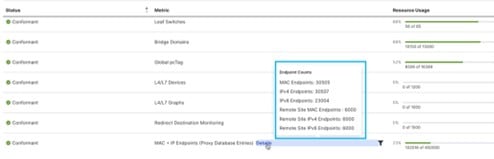
  • Moving away from the tile layout. Prior to release 6.1(4), all the entries were available as tiles, now a table has been introduced for the Fabric Capacity and Leaf Switch Capacity sub-tabs. The metrics which were earlier displayed as tiles are available in the table. Some of the earlier tile entries, for the Fabric Capacity sub-tab, such as endpoint details, are now available only when you click Details in the MAC + IP Endpoints row.

  • Status indication for each of the resources is dependent on the Resource Usage. Hover over the Resource Usage column to check the status of the usage of resources. The available status indicators are:

    • Conformant (0 to 75% of resource usage)

    • Approaching limits (76 to 90% of resource usage)

    • Approaching high limits (91 to 100% of resource usage)

    • Violated limits (above 100% of resource usage)

    In the Leaf Switch Capacity tab, click the Resource Usage number to get more details about the switch parameters. You can also use the filtering option to filter using Metric, Status or Resource Usage.

  • New entries added to the Fabric Capacity and Leaf Switch Capacity tabs are:

    • Leaf Switch Capacity tab: Opflex agents, Opflex layer 2 endpoints, IPSec (for OSPFv3), Redirect Destination Monitoring.

    • Fabric Capacity tab: Redirect Destination Monitoring (as part of the switch details).

Navigation pane

The Navigation pane in the APIC GUI enables you to access and manage hierarchical objects associated with submenu categories. It appears as a pane on the left side of the APIC GUI below the submenu bar and organizes both logical and physical objects relevant to each category.

Key attributes and functions

  • The Navigation pane displays submenu categories as hierarchical trees of related objects.

  • Objects may represent ports, policies, or groupings.

  • Selecting an object in the Navigation pane displays its details in the Work pane.

  • Right-clicking an object in the Navigation pane provides access to a context menu with the following actions:

    • Delete: Deletes the object.

    • Create <type of object>: Creates a new object.

    • Save as...: Downloads the object and its properties in JSON or XML format to a local file.

    • Post...: Exports the object and its properties to an existing local file.

    • Share: Displays the URL of the object. You can copy the URL and send it to others.

    • Open In Object Store Browser: Opens the object in Visore, a built-in utility that displays an object and its properties. This information may be useful in troubleshooting or for developing API tools.

    • Clone: Creates a copy of the object. This action is useful for deriving a new contract or policy based on an existing contract or policy.


Note


When a container in the Navigation pane (such as Application Profiles under a Tenant) contains more than 40 profiles, direct expansion of profiles in the Navigation pane becomes unavailable. To expand a profile in this context, select the desired profile within the Work pane.

Work pane

The Work pane, which is on the right side of the APIC GUI, displays details about the component that you selected in the Navigation pane.

Key attributes and functions

  • The Work pane includes a content area that displays tabs. These tabs provide information related to the component selected in the Navigation pane. The tabs displayed in the content area depend on the selected component.

  • For some components in the Work pane, a link to conceptual information related to the component is indicated by a list icon in the upper right corner.

  • You can bookmark almost any page, which enables you to go back to that page easily by choosing the bookmark from your list of bookmarks.

    Bookmarked links are accessible from the User Profile and Preferences icon in the Menu bar.

  • You can mark a tab as the "favorite" on a page. When you navigate to that page, that tab is displayed by default. This feature is available only for tabs in the Work pane. You cannot mark a menu bar tab as a favorite.

Common pages in the work pane

In addition to displaying specific task menus, the Work pane also displays several types of special-purpose menus described in this section.

Quick Start Pages

Many APIC menu and submenu tabs open an initial Quick Start page, which summarizes the purpose of the tab, provides links to step-by-step instructions and videos for commonly-used procedures, and provides shortcut links to commonly-used subsections within the tab. An overall Quick Start page at System > QuickStart assists you in performing common and basic procedures, providing step-by-step instructions, available concept information, and links to main functional areas in the GUI.

Dashboard Pages

Dashboard pages provide at-a-glance summaries of the status of the ACI system and major system components, including health score trends, components with below-threshold health scores, and fault counts. You can configure health score thresholds to determine when components will appear in the dashboard. The system dashboard page at System > Dashboard summarizes the health of the overall ACI system, while switch dashboard pages at Fabric > Inventory > Pod n > component > Dashboard summarize the health and faults of each spine and leaf switch.

Summary Pages

Many top-level folders in the Navigation pane display tile-based Summary pages in the Work pane that link to subfolders. Some Summary pages, such as those in Fabric > Inventory > Pod n, contain tiles summarizing major components along with brief health and fault information for each component. Other Summary pages, such as those in Fabric > Fabric Policies > Policies, contain tiles that describe the configuration areas served by the contained folders.

Personalize the APIC GUI

The process includes pointers to personalize the Cisco APIC GUI.

Summary

Personalizing APIC GUIs enhances the usability and identification of APICs. The key components involved in the process are:

  • Administrator: configures custom names and login banners.

  • APIC GUI: displays the customized information (the name and banner).

Workflow

You can personalize the APIC GUI by

  1. setting a name to each of the APICs in a cluster.
  2. adding a customized banner at login (applicable for both CLI and GUI).

Result

Benefits of personalization:

  • Improved identification and usability: adding a custom name to the APIC GUI helps you identify which APIC you are managing in a cluster. This enhances operational clarity and reduces confusion when multiple APICs are in use.

  • Custom login experience: you can add login banners to both the CLI and GUI interfaces. The CLI banner displays a text message before the password prompt, while the GUI banner can display a custom HTML page before user authentication.

Assign a name to the APIC

Set a custom name for the APIC interface to clearly indicate the controller you are viewing.

In an ACI cluster with three (the recommeneded number of controllers) APICs, naming each controller helps you to quickly identify the APIC you are logged in to.

Procedure


Step 1

On the APIC menu bar, choose System > System Settings.

Step 2

In the Navigation pane, click APIC Identification Preferences.

Step 3

In the work pane, type the desired APIC name in the GUI Alias box.

Step 4

Click Submit.

The custom APIC name appears at the top left of the interface in parentheses, allowing you to easily identify the controller.

Add a login banner

Display a custom login banner for users accessing the APIC system via the CLI or GUI interfaces.

Define banners that will be displayed when you log in to the CLI or GUI.

  • The CLI banner is a simple text string displayed at the terminal before the password prompt. You can define a banner for the APIC CLI and a separate banner for the switch CLI.

  • The GUI banner displays at the APIC URL before user login authentication. The GUI banner is defined as a URL of a site hosting the desired HTML.

Before you begin

  • Ensure you have access privileges to modify APIC system identification preferences.

  • (for GUI banner only) Confirm that the banner URL site allows embedding in an iFrame.


    Note


    The URL site owner must allow the site to be placed in an iFrame to display the informational banner. If the owner of the site sets the x-frame-option to deny or sameorigin, the site the URL points to will not appear.


Procedure


Step 1

On the APIC menu bar, choose System > System Settings.

Step 2

In the Navigation pane, click APIC Identification Preferences.

Step 3

In the work pane, complete the following fields:

  1. To configure an APIC CLI banner, type the banner text into the Controller CLI Banner textbox.

  2. To configure a switch CLI banner, type the banner text into the Switch CLI Banner textbox.

  3. To configure an APIC GUI banner, type the URL of a site hosting the desired HTML into the GUI Banner (URL) textbox.

Step 4

Click Submit.


Single browser session

You can log in to the APIC GUI and then open additional browser tabs or windows to the same APIC. You need not login (again) from each new tab or window. This behavior is disabled by default and can be enabled by checking the Enable Single-Browser Session (SBS) checkbox in the User Profile and Preferences > Settings menu from the main menu bar tools.

If you want to log in to APIC from different tabs or windows of a browser using different credentials, make sure the single-browser session management feature is disabled.

Deployment warning and policy usage information

Deployment Warning Settings enables you to automatically display policy usage information whenever you modify or delete policies that might affect other resources or policies. The policy usage information allows you to identify the resources and policies that are being used by the policy that you are currently modifying or deleting. Tables display the nodes where the given policy is used and other policies that use this policy. By default, usage information is displayed within a dialog box whenever you attempt to modify a policy. You can click the Show Usage button at the bottom of the screen to view the same information.

The Deployment Warning Settings dialog box allows you to enable and alter the scope of deployment notification that displays policy usage information. You can access this dialog box by selecting Change Deployment Settings in the menu bar tool User Settings and Preferences drop-down list or through a button on the Policy Usage Information dialog box.

When the Policy tab is selected in the upper right corner of the Deployment Warning Settings dialog box, you can configure the following policy options:

  • (Global) Show Deployment Warning on Delete/Modify—Enable the Deployment Warning notification for every policy deletion or modification across the APIC.

  • (Local) Show Deployment Warning on Delete/Modify: Set the rule for the Deployment Warning notification for specific policy configuration.

    • Use Global Settings: Use the setting selected for (Global) Show Deployment Warning on Delete/Modify.

    • Yes: Display the Deployment Warning notification before submitting configuration modifications on any policy change. Valid for this browser session only.

    • No: Do not display the Deployment Warning notification before submitting configuration modifications on any policy change. Valid for this browser session only.

When the History tab is selected in the upper right corner of the Deployment Warning Settings dialog box, you can view tables of Events and Audit Log entries for previous deployment warnings.

Graphical configuration of ports

The APIC GUI provides a graphical method for configuring ports, port channels, and virtual port channels on the leaf switches in the fabric, configure ports for dynamic breakout, and link interfaces to FEX switches.

This configuration capability is present at these GUI locations:

  • Fabric > Inventory > Topology

  • Fabric > Inventory > Pod

  • Fabric > Inventory > Pod > Leaf

  • Fabric > Inventory > Pod > Spine

In the Work pane's Interface tab, click on the + button (at the top left), select one or more switches to configure, and click Add Selected. To select multiple switches, use Ctrl+Click or Shift+Click.

The switches are graphically displayed with their ports and links. If you have configured a breakout port, a block containing the sub ports is displayed below the leaf diagram.


Note


If you accessed the Interface tab from a leaf switch, the leaf switch is automatically added.

Select the interfaces to configure. When interfaces are selected, the available configuration buttons appear. Depending on the number of selected interfaces and where they are located, you can then click one of the these buttons:

  • L2—Layer 2. Visible when you click one or more leaf interfaces on the switch diagrams.

  • PC—Port Channel. Visible when you click one or more leaf interfaces on the switch diagrams.

  • VPC—Virtual Port Channel. Visible when you click at least one interface on two switch diagrams.

  • FEX—Fabric Extender. Visible when you click one or more leaf interfaces on the switch diagrams.

  • Breakout—Breakout mode. Visible when you click one or more leaf interfaces on the switch diagrams.

  • Fabric—Add policies to a fabric interface. Visible when you click a port that is eligible to be a fabric port.

  • Uplink and Downlink—Convert eligible uplinks to downlinks and vice versa.

  • Spine—Visible when you click one or more leaf interfaces on the switch diagrams.

View an API interchange

When you perform a task in the APIC graphical user interface (GUI), the GUI creates and sends internal API messages to the operating system to execute the task. By using the API Inspector, which is a built-in tool of the APIC, you can view and copy these API messages. A network administrator can replicate these messages in order to automate key operations, or you can use the messages as examples to develop external applications that will use the API.

Procedure


Step 1

Log in to the APIC GUI.

Step 2

In the upper right corner of the APIC window, click the System Tools icon to view the drop-down list.

Step 3

In the drop-down list, choose the Show API Inspector.

The API Inspector opens in a new browser window.

Step 4

In the Filters toolbar of the API Inspector window, choose the types of API log messages to display.

The displayed messages are color-coded according to the selected message types. This table shows the available message types:

Name

Description

trace

Displays trace messages.

debug

Displays debug messages. This type includes most API commands and responses.

info

Displays informational messages.

warn

Displays warning messages.

error

Displays error messages.

fatal

Displays fatal messages.

all

Checking this checkbox causes all other checkboxes to become checked. Unchecking any other checkbox causes this checkbox to be unchecked.

Step 5

In the Search toolbar, you can search the displayed messages for an exact string or by a regular expression.

This table shows the search controls:

Name

Description

Search

In this text box, enter a string for a direct search or enter a regular expression for a regex search. As you type, the first matched field in the log list is highlighted.

Reset

Click this button to clear the contents of the Search text box.

Regex

Check this checkbox to use the contents of the Search text box as a regular expression for a search.

Match case

Check this checkbox to make the search case sensitive.

Disable

Check this checkbox to disable the search and clear the highlighting of search matches in the log list.

Next

Click this button to cause the log list to scroll to the next matched entry. This button appears only when a search is active.

Previous

Click this button to cause the log list to scroll to the previous matched entry. This button appears only when a search is active.

Filter

Check this checkbox to hide nonmatched lines. This checkbox appears only when a search is active.

Highlight all

Check this checkbox to highlight all matched fields. This checkbox appears only when a search is active.

Step 6

In the Options toolbar, you can arrange the displayed messages.

This table shows the available options:

Name

Description

Log

Check this checkbox to enable logging.

Wrap

Check this checkbox to enable wrapping of lines to avoid horizontal scrolling of the log list.

Newest at the top

Check this checkbox to display log entries in reverse chronological order.

Scroll to latest

Check this checkbox to scroll immediately to the latest log entry.

Clear

Click this button to clear the log list.

Close

Click this button to close the API Inspector.


Example

This example shows two debug messages in the API Inspector window:


13:13:36 DEBUG - method: GET url: http://192.0.20.123/api/class/infraInfra.json 
response: {"imdata":[{"infraInfra":{"attributes":{"instanceId":"0:0","childAction":"",
"dn":"uni/infra","lcOwn":"local","name":"","replTs":"never","status":""}}}]}

13:13:40 DEBUG - method: GET url: http://192.0.20.123/api/class/l3extDomP.json?
query-target=subtree&subscription=yes 
response: {"subscriptionId":"72057598349672459","imdata":[]} 

APIC GUI icons

This section will help you get a better understanding of the APIC GUI icons.

Standard APIC GUI icons

Table 1. Frequently displayed icons
Icons Description

Bookmark this page

Displays concept information for the current menu page

Quick Start

Plays a Quick Start video

Displays a Quick Start procedure

Link to related section

Topology

Pod

Collapse Tree View

Expand Tree View

Collapse All Nodes

Displays a drop-down list of actions

Refresh the displayed information

Download to a file

Upload a file

Faults, statistics and health level icons

Table 2. Severity levels of faults
Icons Description

Critical—This icon displays a fault level with critical severity.

Major—This icon displays a fault level with major severity.

Minor—This icon displays a fault level with minor severity.

Warning—This icon displays a fault level that requires a warning.

Next generation APIC GUI

This section outlines the changes to the Cisco APIC GUI beginning with Cisco APIC release 6.1(2).

The new layout is displayed here.

Figure 1. The new GUI

The areas of the new layout:

  • 1 indicates the Tools area.

  • 2 indicates the Navigation area.

  • 3 indicates the Tabs area.

  • 4 indicates the Work area.

Tools area

This area contains basic tools that appear regardless of the GUI page.

  • Help: Opens a menu with these choices:

    • About: Shows the Cisco APIC release, copyright year, and current system time.

    • APIC Fabric Setup: Helps you determine what you have not yet configured for your fabric.

    • Help Center: Provides links to some of the more commonly-used documentation.

    • Open Object Store Browser: Opens the Managed Object Browser, or Visore, which is a utility built into Cisco APIC that provides a graphical view of the managed objects (MOs) using a browser.

    • Show API Inspector: Opens the API Inspector, which is a built-in tool of the Cisco APIC that allows you to view the internal API messages between the GUI and the Cisco APIC operating system to execute tasks.

  • Notifications: Shows notifications about key issues with the Cisco APIC. Using the drop-down menu, you can choose to show all notifications or only notifications of a specific severity. The menu includes only fault severities that are currently raised. You can also click View All to see all faults in a table.

  • Profile: Opens a menu with these choices:

    • Switch to existing UI: Switches back to the existing (old) GUI.

    • User Preferences: Configures your user settings.

    • Change Password: Changes your password.

    • Change User Certificate: Changes your login certificate.

    • Change SSH Key: Changes the public SSH key that you use for certificate-based login.

    • Logout: Logs you out from the Cisco APIC.

Navigation area

This is the core navigation for the Cisco APIC, which is present on all GUI pages.

  • Home: Enables you to view information about the fabric. This area has these tabs:

    • Fabric View: Shows various information about your the fabric. You can click blue text as well as Controllers, Switches, and Pods to see more information about those things.

    • Topology: Shows a graphical representation of your fabric's topology.

    • Journey: Shows the main functionalities of Cisco APIC, displays the execution plan for the new GUI, and provides a preview of upcoming features and their functionality.

      Most of the stages have a Tell Me More button, which opens a dialog that gives you more information about the part of the GUI that is associated with that stage, including a screenshot. For a stage that is labeled as "Coming Soon," the dialog outlines the upcoming development for that part of the GUI and the screenshot shows how the GUI might look.

    Figure 2. User journey
  • Manage: Enables you to view information about and configure these things:

    • Inventory: Shows information about the controllers, switches, and pods.

    • Tenants: Shows information about the tenants.

    • Policy Groups: Shows information about the policy groups.

    • Policies: Shows information about the configured policies.

    • Domains and Pools: Shows information about the domains and pools.

    • Software Management: Enables you to upgrade the firmware of the Cisco APICs and switches.

    • Monitoring Destinations: Shows information about the monitoring destinations, such as for callhome, SNMP, or TACACS.

    • Switches and Interfaces: Shows information about the switches and interfaces.

  • Analyze: Enables you to view these things:

    • Faults: Shows the faults that Cisco APIC raised due to issues with your fabric.

    • History and Logs: Shows the various records and logs, such as fault records, event records, and audit logs.

    • Tech Support: Enables you to export the tech support logs, which you provide when you contact the Cisco Technical Assistance Center (TAC).

  • Admin: Enables you to use or configure these things:

    • Backup and Restore: Enables you to backup and restore the Cisco APIC configurations.

    • Authentication: Enables you to configure how users must authenticate to log into the Cisco APIC.

    • Active Sessions: Shows the users who are logged into the Cisco APIC.

    • Integrations: Shows information about third-party products that you have integrated with Cisco APIC.

    • Licensing: Shows information about your active licenses for using Cisco APIC and its features.

    • System Settings: Enables you to configure the Cisco APIC.

Tabs area

This area contains tabs that change depending on the core navigation that you chose. The tabs enable you to navigate to subsections of that core navigation.

Work area

This area changes depending on which page you are viewing. The work area shows status, contains links to view configured objects, and much more. Any text in blue is a link that you can click to see more information about or change the configuration of something.

Preview the new APIC GUI

The APIC GUI has been enhanced for a better look-and-feel, and customer experience. However, not all screen have moved to the new GUI. You can take a preliminary look at the new APIC GUI which is presently being developed. However, this is view-only; if you need to make any configuration changes, you will need to revert to the existing GUI and then update the required configurations.

Procedure


Step 1

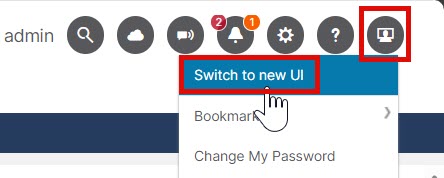
Click the profile icon in the upper right of any page and choose Switch to new UI.

You cannot view anything in the new GUI that is grayed out. These pages will be added in a future release.

Step 2

To change back to the original GUI so that you can make configuration changes, click the profile icon in the upper right of any page and choose Switch to existing UI.


Enhancements and improvements to the APIC GUI

The Cisco APIC release 6.1(2) includes numerous UI revisions for enhanced ease of use, more detailed information, and quicker navigation with fewer clicks.

Table 3. Updated GUI fields

Home

> Fabric View

Color coding, more cards, pill-shaped icons, and links to detailed information:

  • Health Level > General information with Overview, Faults, and History tabs

  • Recent Activity information with Audit Logs, Event Records, and Session Logs

  • Inventory information with details on Controllers, Switches and Pods

  • Connectivity information with Endpoints, L3 Neighbors, and Multicast Groups

  • Interfaces information with Total and Physical detailed lists, dashlets, and cards

  • Capacity hyperlinks to Fabric Capacity or Leaf Switch Capacity information

Manage

> Inventory

> Controllers. Controller screen displays the type of controller in the table (Physical or Virtual)

> Controller > select a controller

  • > History > Historical Timeline. All health scores are displayed graphically for the past hour or day.

  • Interfaces > Physical Interfaces, select an Interface ID. Physical Interfaces details appear, including the Interface ID and CDP/LLDP neighbor information.

> Switches > select a switch

  • Switch view graphic appears. A pop-up window appears when hovering over a component.

  • Click Rack at the bottom. Rack details appear that show the room, floor and building, a Summary card with Role, Fabric State, Version, and Health of the switch

  • > History > Historical Timeline. All health scores are displayed graphically for the past hour or day.

> Pods > select a pod

  • Health Summary information such as Health Level, General information, Recent Activity, and Inventory details appear.

  • > History > Historical Timeline. All health scores are displayed graphically for the past hour or day.

Table Settings

Gear icon

  • Click gear and table Configuration window slides from right.

  • Select categories from list for each interface.

Settings persist only in the browser where the user made the changes, even after logging out.

Help

? icon

Help Center

You can access the Help menu in another way besides the "?" icon on the top right. From the Home menu, click Journey > What's New tab. The What's new window appears. Click Go to Help Center at the bottom.

Figure 3. GUI modifications