PDF

Management Access in Cisco ACI

Want to summarize with AI?

Log in

Describes in-band and out-of-band management connectivity for the APIC and the ACI fabric, including interface-selection and external-profile behavior.


Management access provides connectivity between the APIC, fabric nodes, servers, and external management networks.

  • In-band management access uses configured VLANs to carry management traffic between the controller, leaf switches, and VMM servers.

  • Out-of-band management access uses an out-of-band contract associated with an EPG and an external network profile.

Management Interface Selection

The APIC selects a management interface according to the configured interfaces and the destination subnet.

  • If the in-band management interface is configured, the controller selects it in preference to the out-of-band management interface.

  • The controller uses the out-of-band management interface when the in-band interface is not configured or when the destination is on the out-of-band management subnet.

The out-of-band management connection to the APIC must use a 1-Gbps link.

External Management Instance Profile Behavior

Configuring an external management instance profile under the management tenant for in-band or out-of-band access does not affect protocols configured in fabric-wide communication policies. The subnets and contracts in the external management instance profile do not affect HTTP, HTTPS, SSH, or Telnet traffic.

Beginning with Release 5.3(1), Telnet is not supported.

Management Access in the GUI

A Cisco Application Policy Infrastructure Controller can connect to the management network through either the in-band management interface or the out-of-band management interface.

The in-band management network enables the Cisco APIC to communicate with leaf switches and external networks through the Cisco Application Centric Infrastructure fabric. It also enables external management devices to communicate with the Cisco APIC, leaf switches, and spine switches through the fabric.

The out-of-band management network configuration defines the management-port configuration on the controllers, leaf switches, and spine switches.

If the in-band management interface is configured, the Cisco APIC uses it instead of the out-of-band management interface. The out-of-band management interface is used only when the in-band management interface is not configured or when the destination address is on the same subnet as the Cisco APIC out-of-band management subnet.

The Cisco ACI fabric can program in-band management routes based on the subnet configuration of the bridge domains in the management tenant and the in-band VRF instance. These routes are deleted when the corresponding subnet configuration is deleted from the bridge domains.

The Cisco APIC out-of-band management connection must operate at 1 Gbps.

Strict Security for the APIC Out-of-Band Subnet

You can restrict access to the Cisco APIC through the out-of-band management IP address by configuring contracts and allowed subnets. By default, IP addresses on the out-of-band subnet can access the Cisco APIC through ICMP, SSH, HTTP, HTTPS, and TCP port 4200, regardless of the contract and subnet configuration. This safeguard prevents accidental loss of access caused by a configuration error.

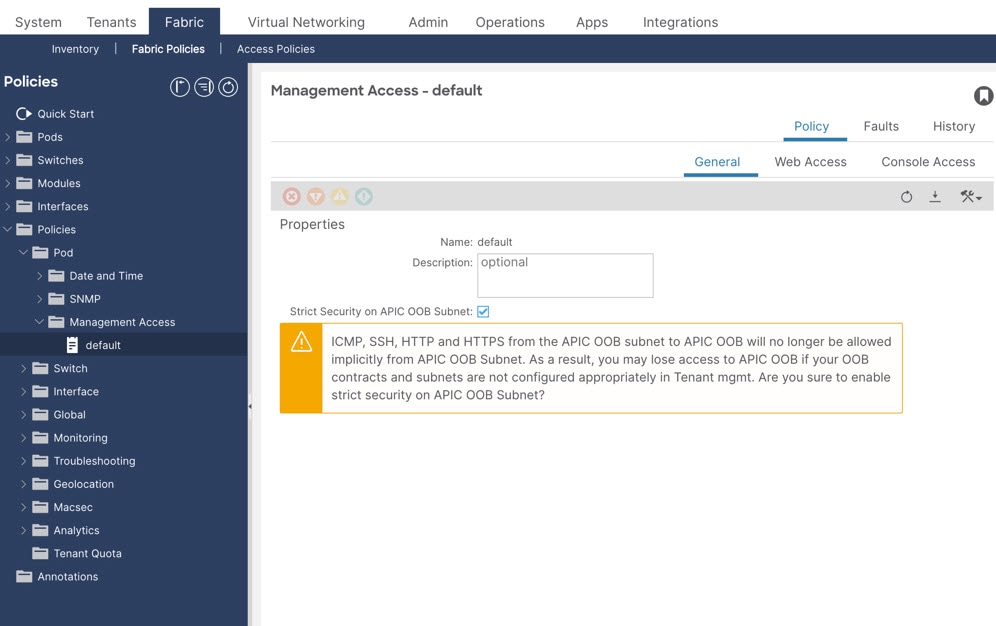
Beginning with Cisco APIC Release 6.1(1), you can remove this safeguard by enabling Strict Security on APIC OOB Subnet when you configure the default management access policy. In the Cisco APIC GUI, go to Fabric > Fabric Policies > Policies > Pod > Management Access.

When you enable strict security, a warning appears on the Management Access screen. A similar warning appears on the External Management Network Profile screen at Tenants > mgmt > External Management Network Instance Profiles.

Figure 1. Strict Security Warning
Warning that appears after strict security is enabled for the APIC out-of-band subnet
Caution
If you enable Strict Security on APIC OOB Subnet and the contract and subnet in the External Management Network Instance Profile do not allow access from your IP address, you will lose access to the Cisco APIC through its out-of-band IP address. You will also be unable to access the Cisco APIC from the same network as its out-of-band subnet.

To restore access, log in through the console and enter the acidiag enableoobrecovery command. The command disables Strict Security on APIC OOB Subnet.

Note
Duplicate IP addresses and firewalls that cache ARP information are not supported on the management network. These conditions can cause a complete loss of Cisco APIC management access after an upgrade.

IPv4 and IPv6 Addresses in In-Band Policies

An in-band management address enables a node to exchange management traffic over the data network.

  • You must provision the address through an in-band management policy.

  • You must assign a static address to each node individually.

In-Band Management Address Provisioning Interfaces

You can configure an in-band management policy by using any of the following interfaces:

  • REST API through Postman

  • NX-OS-style CLI

  • Cisco APIC GUI


IPv4 and IPv6 Addresses in Out-of-Band Policies

An out-of-band management address provides a cluster node with connectivity to a management network that is separate from the data network.

  • You can provision an address during bootstrap or through a policy.

  • You can assign a static address to an individual node or specify a range of addresses for multiple nodes.

  • When you specify an address range, Cisco APIC assigns an address from that range to each selected cluster node.

Out-of-Band Management Address Provisioning Methods

You can provision out-of-band management addresses by using any of the following interfaces:

  • REST API through Postman

  • NX-OS-style CLI

  • Cisco APIC GUI


IPv6 Table Modifications for IP Table Functional Parity

The IPv6 table implementation mirrors the existing IP table behavior, except for NAT, and batches rule updates through intermediate files to reduce system calls.

  • IPv6 policy processing mirrors existing IP table functionality.

  • The IPv6 implementation does not support NAT.

  • Rule additions and deletions use fewer system calls.

Previous IP Table Behavior

The previous implementation processed each rule separately and appended new policy rules to the existing file.

  • Each IPv6 rule was executed separately, and each rule addition or deletion generated a system call.

  • When a policy was added, its rules were appended to the existing IP table file without other file modifications.

  • When a source port was configured in an out-of-band policy, the implementation added source and destination rules that used the same port number.

Updated IP Table Behavior

The updated implementation uses hash maps and an intermediate file to improve rule-processing efficiency and protect the active configuration from failed restores.

  • Rules are first written to hash maps and then to the /etc/sysconfig/iptables-new intermediate file. The system restores the intermediate file and saves the successful configuration to the active IP table file in the /etc/sysconfig/ directory. System calls occur only when the files are restored and saved.

  • When a policy is added, the implementation rebuilds the IP table file instead of appending rules. It loads the default policies into the hash maps, adds the new policies, writes the results to /etc/sysconfig/iptables-new, restores the intermediate file, and saves the active configuration.

  • An out-of-band policy rule cannot specify only source ports. The rule must specify a destination port or both a source port and a destination port.

  • When a policy is added, the following rule changes how traffic reaches the default IP table rules:

    -A INPUT -s <OOB-IPv4-or-IPv6-address> -j apic-default
  • If a new rule appears in /etc/sysconfig/iptables-new but not in the active IP table file, the restore operation failed. New rules appear in the active file only after a successful restore and save operation.

Note

The enabled address families determine how policies are applied:

  • If only IPv4 is enabled, do not configure an IPv6 policy.

  • If only IPv6 is enabled, do not configure an IPv4 policy.

  • If IPv4 and IPv6 are enabled, a policy is applied to both address families. IPv4 subnets are added to the IP tables, and IPv6 subnets are added to the IPv6 tables.


Management Access Guidelines and Limitations

Use these guidelines and limitations when you configure management connectivity, external management profiles, and out-of-band contracts.

Shared Services and Addressing

  • vzAny can consume a shared service but cannot provide a shared service. A configuration in which vzAny is both a shared-service consumer and a provider is not supported.

  • To deploy the in-band management VRF to a leaf switch, configure an in-band management address for that switch.

  • You can assign a bridge domain subnet IP address in the in-band management VRF as a secondary IP address unless you select Make this IP address primary for a gateway subnet.

  • A spine switch does not resolve ARP for its in-band management IP address. A device on the in-band management network therefore cannot communicate directly with the spine switch. Access the spine switch through a Layer 3 network.

Out-of-Band Contract Behavior

  • Out-of-band contracts do not support ACL contract logging or permit-and-deny logging.

  • ICMP traffic is permitted by default for all subnets.

  • In an External Management Network Instance Profile, make out-of-band management access the default to permit SNMP and other management traffic.

The following traffic cannot be denied by an out-of-band contract:

Table 1. Traffic That an Out-of-Band Contract Cannot Deny

Protocol

Destination Port

Behavior

icmp

Not applicable

Rate-limited and not configurable.

tcp

22

Rate-limited and not configurable.

tcp

80

No process listens on this port by default.

tcp

443

Provides UI and API access.

tcp

4200

Provides SSH access through the web interface. No process listens on this port by default.

  • When you define a subnet under an external network instance profile, access to the traffic in the preceding table is restricted to sources in the configured out-of-band subnet.

  • An out-of-band contract does not apply to an address family unless you define a subnet for that address family under the external network instance profile.

  • To apply an out-of-band contract to IPv4 and IPv6 traffic, configure at least one IPv4 subnet and one IPv6 subnet under the external network instance profile.

  • For SNMP traffic to leaf and spine switches, the Client Entries subnets configured under Fabric Policies > Pod > SNMP are evaluated before the out-of-band contract. If no Client Entries subnets are configured, SNMP permits traffic from any source. This behavior applies, for example, to UDP destination port 161.

  • By default, the management interfaces of leaf and spine switches do not have IP addresses. After you assign an IP address, an out-of-band contract cannot deny the traffic required by built-in ACI features, including NTP, DHCP, and ICMP.

  • Subnets defined under external network instance profiles apply only to the Cisco APIC. Leaf and spine switches permit traffic from any source (0.0.0.0/0).

Filter Behavior in Release 6.1(2g) and Later

Beginning with Release 6.1(2g), the Cisco Application Centric Infrastructure (APIC) does not honor the Reverse Filter Ports option when a filter specifies only source ports. It does not deploy iptables chains that permit traffic on those ports. For example, if a filter specifies only source ports 22 and 443, the corresponding chains are not deployed. If every filter in the contract specifies only source ports, the Cisco APIC permits all traffic through the apic-default chain.

If the contract also contains a valid filter that does not require ports, such as an ICMP filter, the chain for that filter is deployed. In this case, the apic-default chain permits traffic only from the oobmgmt subnet. Other traffic without a correctly configured filter, including SSH and HTTPS traffic, is blocked and can cause loss of access to the Cisco APIC controllers.


Configure In-Band or Out-of-Band Management Access Using a Wizard

Beginning with Cisco APIC Release 3.1(x), you can use a wizard to configure in-band or out-of-band management access.

Procedure

  1. On the menu bar, choose Tenants > mgmt.

  2. In the navigation pane, expand Quick Start.

  3. Choose the management-access wizard to use:

    • For in-band management access, under In-Band Management Access, click Configure In-Band Management Access, and then click Start. Follow the wizard instructions to add nodes to the management network, assign IP addresses to the nodes, and configure communication filters for connected and remote attached devices.
    • For out-of-band management access, under Out-of-Band Management Access, click Configure Out-of-Band Management Access, and then click Start. Follow the wizard instructions to add nodes to the out-of-band management network, assign IP addresses to the nodes, specify the subnets that external hosts can use, and configure communication filters for access.

The selected management-access configuration is applied to the specified nodes.


Configure In-Band Management Access Using the Cisco APIC GUI

Note

In-band management access supports IPv4 and IPv6 addresses. IPv6 and dual-stack IPv4 and IPv6 management access require static configuration. For more information, see Configuring Static Management Access in Cisco APIC.

Procedure

  1. On the menu bar, choose Fabric > Access Policies.

  2. In the navigation pane, right-click Interfaces, and choose Configure Interface, PC and VPC.

    The Configure Interface, PC, and VPC dialog box opens.

  3. Configure the switch ports that connect to the Cisco APIC controllers:

    1. Click the large + icon next to the switch diagram.
    2. From the Switches drop-down list, select the switches that connect to the controllers, for example, leaf1 and leaf2.
    3. In the Switch Profile Name field, enter a profile name, for example, apicConnectedLeaves.
    4. Click the + icon to configure the ports.
    5. In the Interface Type area, verify that Individual is selected.
    6. In the Interfaces field, enter the ports that connect to the controllers.
    7. In the Interface Selector Name field, enter a port profile name, for example, apicConnectedPorts.
    8. In the Interface Policy Group field, select Create One.
    9. From the Attached Device Type drop-down list, choose the appropriate device type, for example, Bare Metal.
    10. In the Domain field, select Create One.
    11. In the Domain Name field, enter a domain name, for example, inband.
    12. In the VLAN field, select Create One.
    13. In the VLAN Range field, enter the VLAN range.
    14. Click Save twice, and then click Submit.
  4. In the navigation pane, right-click Switch Policies, and choose Configure Interface, PC and VPC.

    The Configure Interface, PC, and VPC dialog box opens.

  5. Configure the switch ports that connect to the servers:

    1. Click the large + icon next to the switch diagram.
    2. From the Switches drop-down list, select the switches that connect to the servers, for example, leaf1.
    3. In the Switch Profile Name field, enter a profile name, for example, vmmConnectedLeaves.
    4. Click the + icon to configure the ports.
    5. In the Interface Type area, verify that Individual is selected.
    6. In the Interfaces field, enter the server-facing ports, for example, 1/40.
    7. In the Interface Selector Name field, enter a port profile name.
    8. In the Interface Policy Group field, select Create One.
    9. From the Attached Device Type drop-down list, choose the appropriate device type, for example, Bare Metal.
    10. In the Domain field, select Choose One.
    11. From the Physical Domain drop-down list, choose the domain that you created previously.
    12. In the Domain Name field, enter the domain name.
    13. Click Save twice.
  6. In the Configure Interface, PC, and VPC dialog box, click Submit.

  7. On the menu bar, choose Tenants > mgmt.

  8. In the navigation pane, expand Tenant mgmt > Networking > Bridge Domains.

  9. Expand the inb bridge domain, right-click Subnets, and choose Create Subnet.

    The Create Subnet dialog box opens.

  10. Configure the in-band gateway:

    1. In the Gateway IP field, enter the in-band management gateway IP address and mask.
    2. Click Submit.
  11. In the navigation pane, expand Tenant mgmt > Node Management EPGs.

  12. Right-click Node Management EPGs, and choose Create In-Band Management EPG.

  13. Configure the in-band management EPG:

    1. In the Name field, enter an EPG name.
    2. In the Encap field, enter the VLAN, for example, vlan-10.
    3. From the Bridge Domain drop-down list, choose the bridge domain.
    4. Click Submit.
  14. In the navigation pane, click the in-band management EPG that you created.

  15. Expand Provided Contracts, and choose the default contract from the Name drop-down list.

    The in-band management EPG provides the contract that the EPGs containing the VMM servers consume.

  16. Click Update, and then click Submit.

  17. In the navigation pane, right-click Node Management Addresses, and choose Create Node Management Addresses.

  18. Configure the in-band IP addresses for the Cisco APIC controllers:

    1. In the Policy Name field, enter a policy name, for example, apicInb.
    2. In the Select column of the Nodes field, select the controllers, for example, apic1, apic2, and apic3.
    3. In the Config field, select In-Band Addresses.
    4. In the Node Range fields, enter the node range.
    5. From the In-Band Management EPG drop-down list in the In-Band IP Addresses area, choose default.
    6. In the In-Band IP Addresses and Gateway fields, enter the IPv4 or IPv6 addresses.
    7. Click Submit.
  19. In the navigation pane, right-click Node Management Addresses, and choose Create Node Management Addresses.

  20. Configure the in-band IP addresses for the leaf and spine switches:

    1. In the Policy Name field, enter a policy name, for example, switchInb.
    2. In the Select column of the Nodes field, select the switches, for example, leaf1, leaf2, spine1, and spine2.
    3. In the Config field, select In-Band Addresses.
    4. In the Node Range fields, enter the node range.
    5. From the In-Band Management EPG drop-down list in the In-Band IP Addresses area, choose default.
    6. In the In-Band IP Addresses and Gateway fields, enter the IPv4 or IPv6 addresses.
    7. Click Submit, and then click Yes in the Confirm dialog box.
  21. Under Node Management Addresses in the navigation pane, click the controller policy, for example, apicInb.

    The work pane displays the IP addresses assigned to the controllers.

  22. Under Node Management Addresses in the navigation pane, click the switch policy, for example, switchInb.

    The work pane displays the IP address and gateway assigned to each switch.

  23. To make in-band management access the default management connectivity mode for the Cisco APIC server, choose System > System Settings > APIC Connectivity Preferences, and then click inband on the Connectivity Preferences page.

In-band management connectivity is configured for the selected controllers, leaf switches, and spine switches.


Configure Out-of-Band Management Access Using the Cisco APIC GUI

Before you begin

The out-of-band management connection to the Cisco Application Policy Infrastructure Controller (Cisco APIC) must use a 1-Gbps link.

Configure out-of-band management addresses for the leaf and spine switches and the Cisco Application Policy Infrastructure Controller.

Note

Out-of-band management access supports IPv4 and IPv6 addresses.

Procedure

  1. On the menu bar, choose Tenants > mgmt.

  2. In the navigation pane, expand Tenant mgmt.

  3. Right-click Node Management Addresses, and choose Create Node Management Addresses.

    The Create Node Management Addresses dialog box opens.

  4. Configure the node management addresses:

    1. In the Policy Name field, enter a policy name, for example, switchOob.
    2. In the Nodes field, select the leaf and spine switches to configure, for example, leaf1, leaf2, and spine1.
    3. In the Config field, select Out-of-Band Addresses.

      The Out-of-Band IP Addresses area appears.

    4. From the Out-of-Band Management EPG drop-down list, choose the EPG, for example, default.
    5. In the Out-of-Band Gateway field, enter the IP address and network mask of the gateway for the external out-of-band management network.
    6. In the Out-of-Band IP Addresses field, enter the range of IPv4 or IPv6 addresses to assign to the switches.
    7. Click Submit.

    The node management IP addresses are configured.

  5. In the navigation pane, expand Node Management Addresses, and click the policy that you created.

    The work pane displays the out-of-band management address for each switch.

  6. In the navigation pane, expand Contracts > Out-of-Band Contracts.

  7. Right-click Out-of-Band Contracts, and choose Create Out-of-Band Contract.

    The Create Out-of-Band Contract dialog box opens.

  8. Configure the out-of-band contract:

    1. In the Name field, enter a contract name, for example, oob-default.
    2. Expand Subjects.

      The Create Contract Subject dialog box opens.

    3. In the Name field, enter a subject name, for example, oob-default.
    4. Expand Filter Chain.
    5. From the Name drop-down list, choose the filter, for example, default.
    6. Click Update, and then click OK.
    7. In the Create Out-of-Band Contract dialog box, click Submit.

    The out-of-band contract is created and can be applied to the out-of-band EPG.

  9. In the navigation pane, expand Node Management EPGs > Out-of-Band EPG - default.

  10. In the work pane, expand Provided Out-of-Band Contracts.

  11. From the OOB Contract drop-down list, choose the out-of-band contract that you created, for example, oob-default.

  12. Click Update, and then click Submit.

    The contract is associated with the node management EPG.

  13. In the navigation pane, right-click External EPG, and choose Create External Management Entity Instance.

    The Create External Management Entity Instance dialog box opens.

  14. Configure the external management entity instance:

    1. In the Name field, enter a name, for example, oob-mgmt-ext.
    2. Expand Consumed Out-of-Band Contracts.
    3. From the Out-of-Band Contract drop-down list, choose the same contract that the out-of-band management EPG provides, for example, oob-default.
    4. Click Update.
    5. In the Subnets field, enter the subnet from which external hosts can manage the switches.

      Only hosts in the specified subnet can use the out-of-band network to manage the switches.

    6. Click Submit.
  15. To make out-of-band management access the default management connectivity mode for the Cisco APIC server, choose System > System Settings > APIC Connectivity Preferences, and then click ooband on the Connectivity Preferences page.

The node management EPG is associated with the external EPG, and out-of-band management connectivity is configured.