| Step 1 |
Point your browser to the Cisco IMC IP address you set during the Cisco IMC GUI configuration you performed, then log in to
the Cisco IMC GUI as the Cisco IMC user (see Enable Browser Access to Cisco Integrated Management Controller).
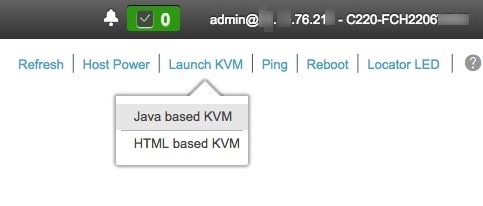
After successful login, the appliance displays the Cisco Integrated Management Controller Chassis Summary window, with a blue link menu at the upper right, as shown below.
|
| Step 2 |
From the blue link menu, choose and then select either Java based KVM or HTML based KVM. If you select the Java-based KVM, you will need to launch the Java startup file from your browser or file manager in order
to view the KVM console in its own window. If you select the HMTL-based KVM, it will launch the KVM console in a separate
browser window or tab automatically.
Irrespective of the KVM type you choose, use the KVM console to monitor the progress of the configuration and respond to Maglev
Configuration Wizard prompts.
|
| Step 3 |
With the KVM displayed, reboot the appliance by making one of the following selections:
-
In the main Cisco IMC GUI browser window: Choose . Then switch to the KVM console to continue.
-
In the KVM console: Choose .
If asked to confirm your choice to reboot the appliance, click OK.
After displaying reboot messages, the KVM console displays the Maglev
Configuration wizard welcome screen.
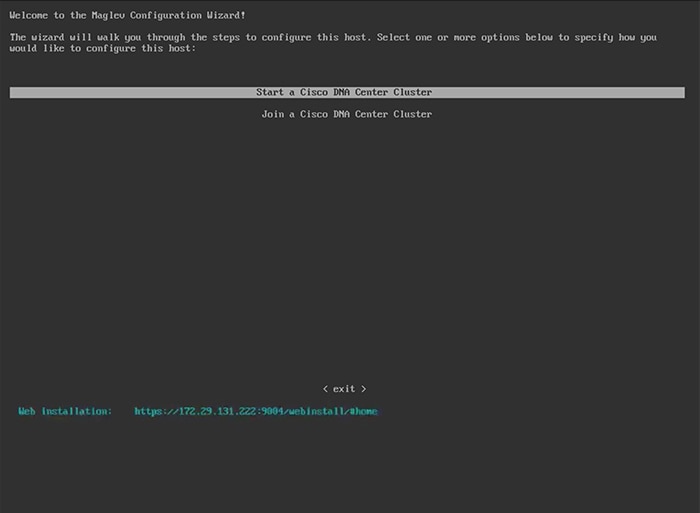 Note the URL listed in the Web
Installation field.
|
| Step 4 |
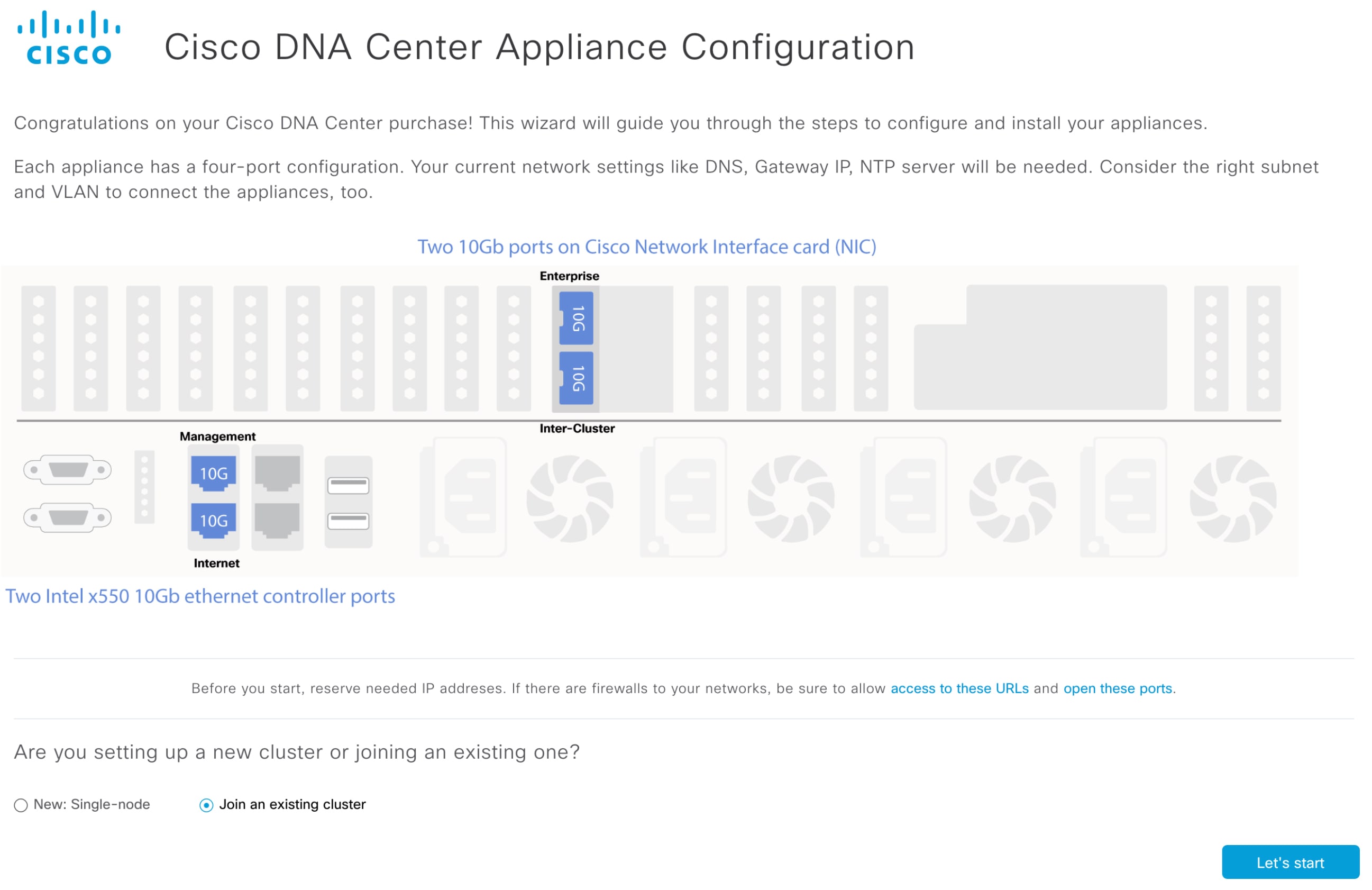
Open this URL to bring up the browser-based configuration wizard.
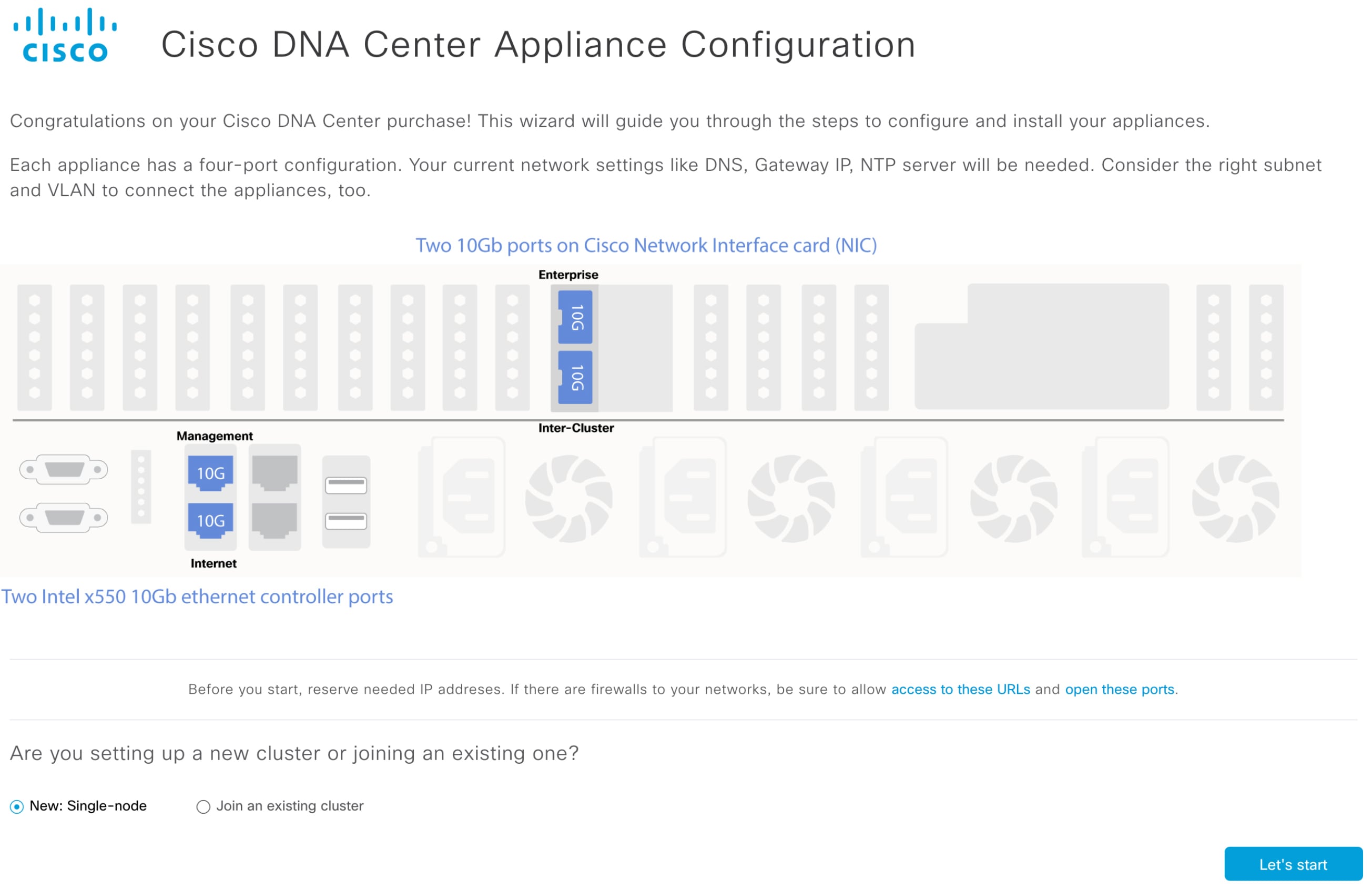 There are four ports that you can configure on your
appliance, and the wizard presents them (one at a time) in the following
order:
-
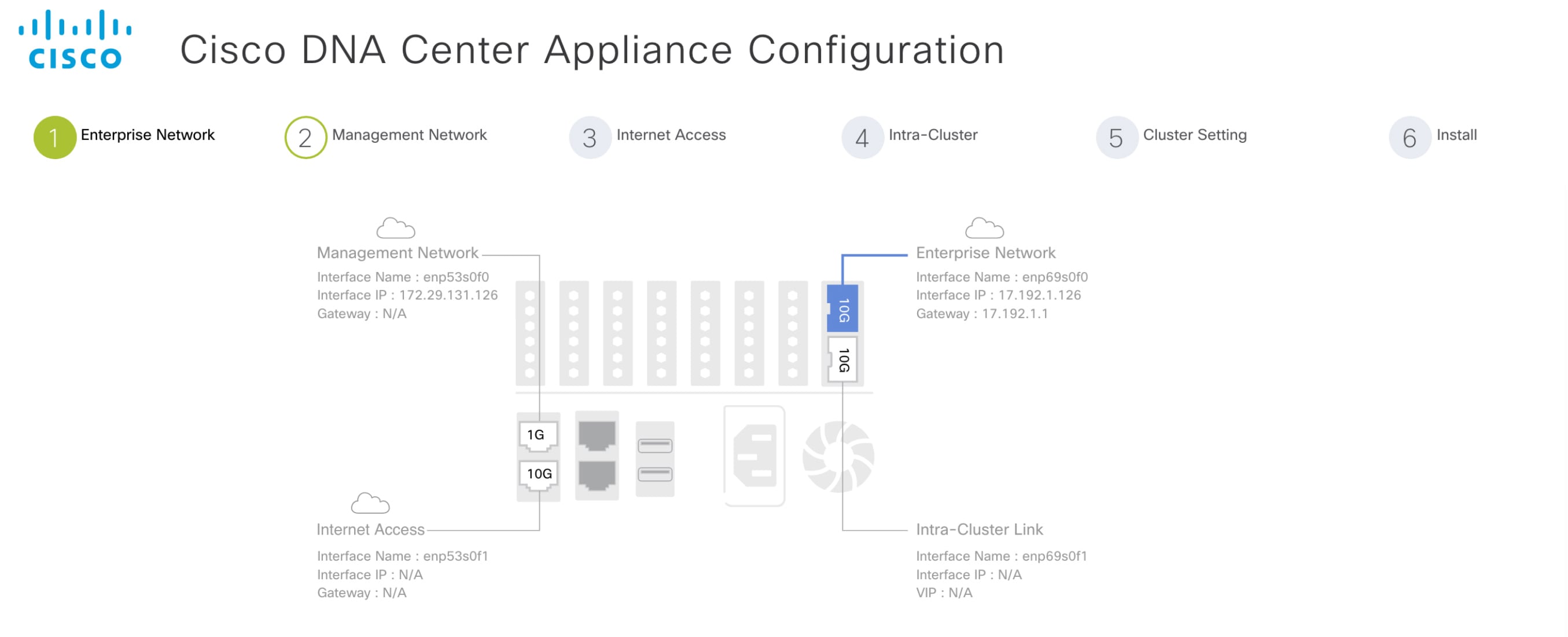
10Gbps Enterprise Port (enp69s0f0)
-
1Gbps/10Gbps Management Port (enp53s0f0)
-
1Gbps/10Gbps Cloud Port (enp53s0f1)
-
10Gbps Cluster Port (enp69s0f1)
At a minimum, you must configure the Enterprise and Cluster ports, as
they are required for Cisco DNA Center functionality. If the wizard fails to display either or both of these
ports during the course of configuration, they may be non-functional or
disabled. If you discover that they are non-functional, choose Cancel
to exit the wizard immediately. Be sure you have completed all of the steps
provided in Execute Preconfiguration Checks before
resuming configuration or contacting the Cisco Technical Assistance Center
(TAC).
|
| Step 5 |
To start the wizard, click the New: Single-node radio button, then click Let's start.
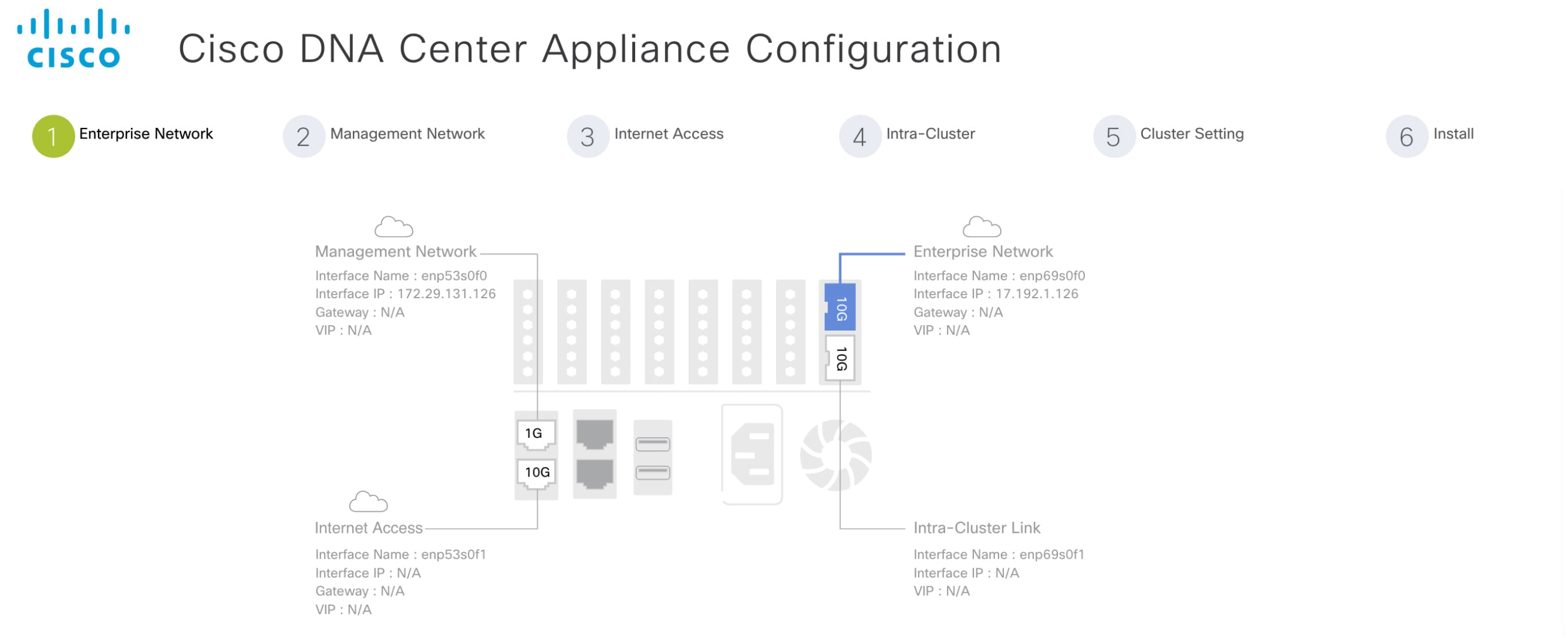
The wizard's Enterprise Network screen opens.
|
| Step 6 |
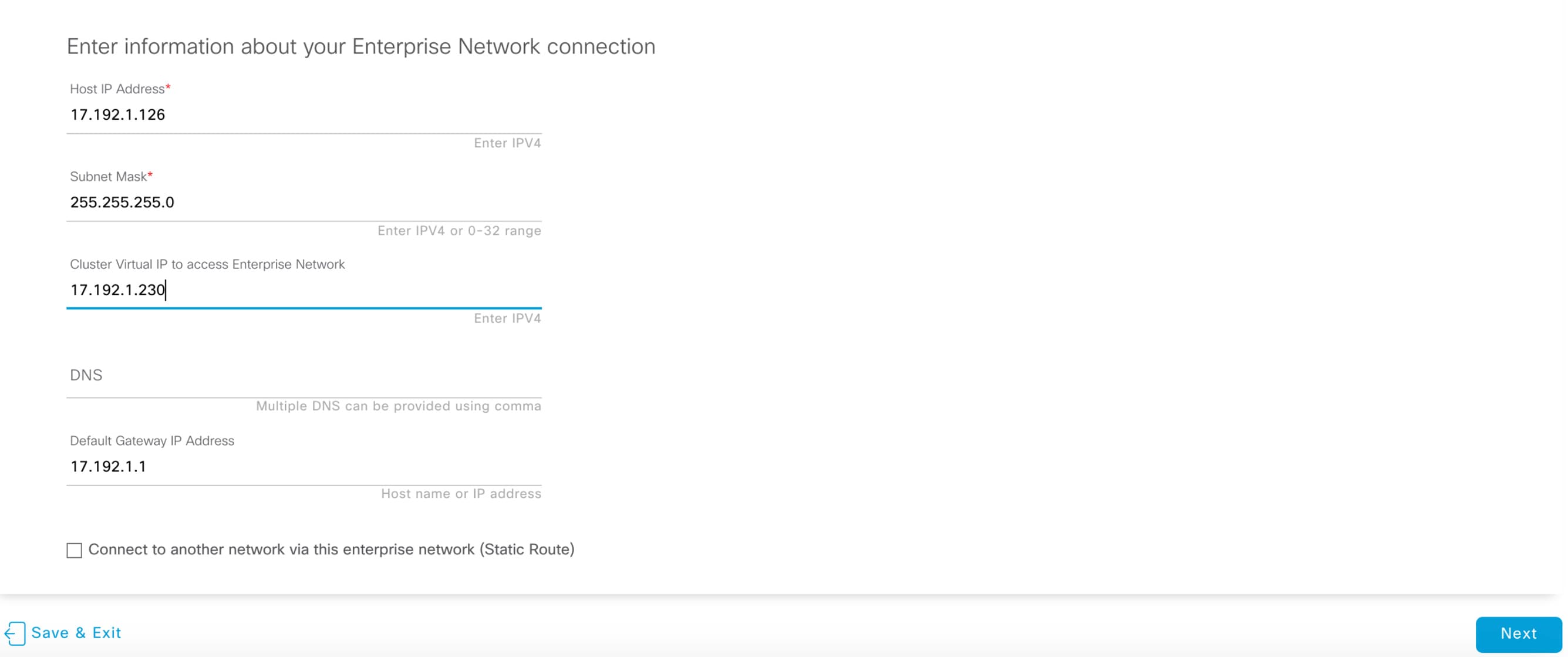
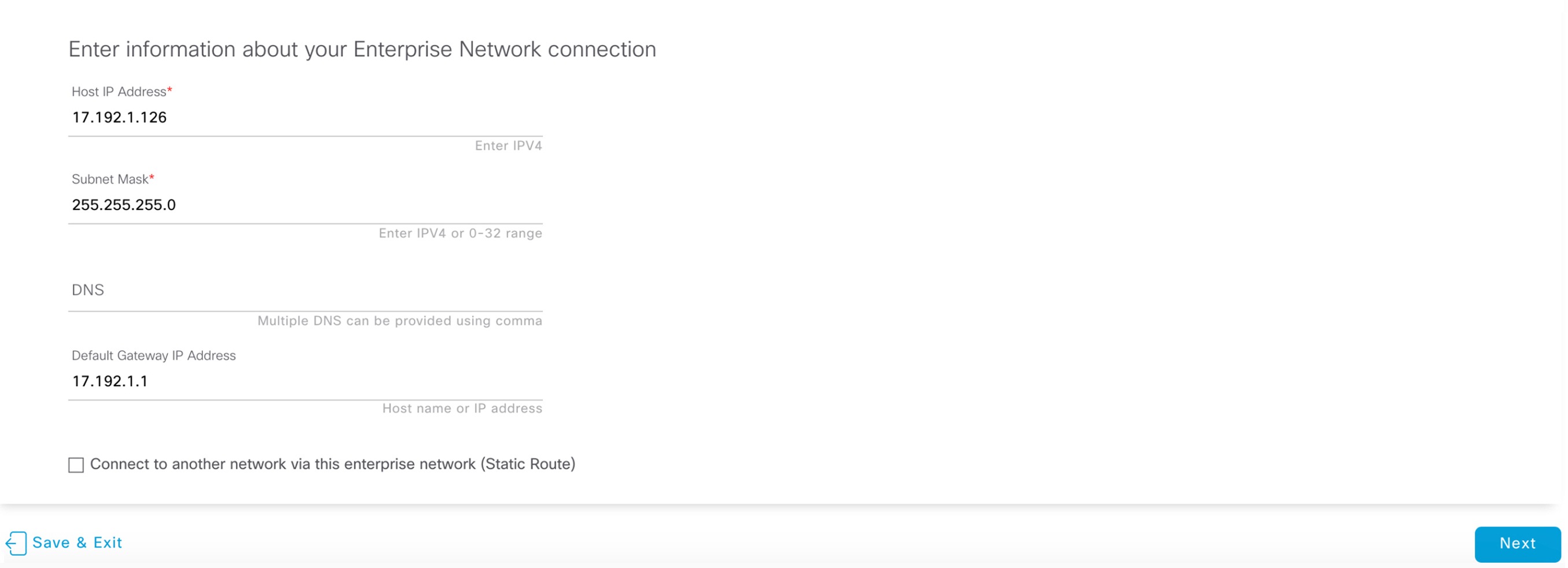
Enter configuration values for the Enterprise port.
As explained in Interface Cable Connections, this is
a required port used to link the appliance to the enterprise network. See
Required IP Addresses and Subnets and Required Configuration Information
for a more detailed description of the values you need to enter.
Table 1. Primary Node Entries for the Enterprise Port (enp69s0f0)
|
Host IP Address field
|
Enter the IP address for the Enterprise Port. This is
required.
|
|
Subnet Mask field
|
Enter the netmask for the port's IP address. This is
required.
|
|
Cluster Virtual IP to access Enterprise Network field
|
Enter the virtual IP address that will be used for
traffic between the cluster and your Enterprise network.
This is required for both three-node clusters and
single-node clusters that will be converted into a
three-node cluster in the future. If you have a
single-node cluster setup and plan to stick with it, you
can leave this field blank.
| Important
|
You must enter one virtual IP address for each
configured network interface. You will not be able
to complete the wizard unless you do so. This
address is tied to the cluster link's status, which
must be in the UP state.
|
|
|
DNS field
|
Enter the IP address of the preferred DNS server. If
entering multiple DNS servers, separate the IP addresses
in the list with commas.
| Important
|
For each appliance in your cluster, configure a
maximum of three DNS servers. Problems can occur if
you configure more than three DNS servers for an
appliance.
|
|
|
Default Gateway IP Address field
|
Enter a default gateway IP address to use for the
port.
| Important
|
Ensure that you enter a default gateway IP address for at least one of your appliance's interfaces. Otherwise, you will not
be able to complete the configuration wizard.
|
| Note
|
If you designated this interface to use the default
gateway assigned to it by a DHCP server, complete
the following steps to specify a different
gateway:
-
Delete the IP address that is currently listed
in this field and then click Save &
Exit.
This will bring you back to the first wizard
screen.
-
Return to the Enterprise port's wizard screen
and enter the gateway IP address you want to
use.
|
|
|
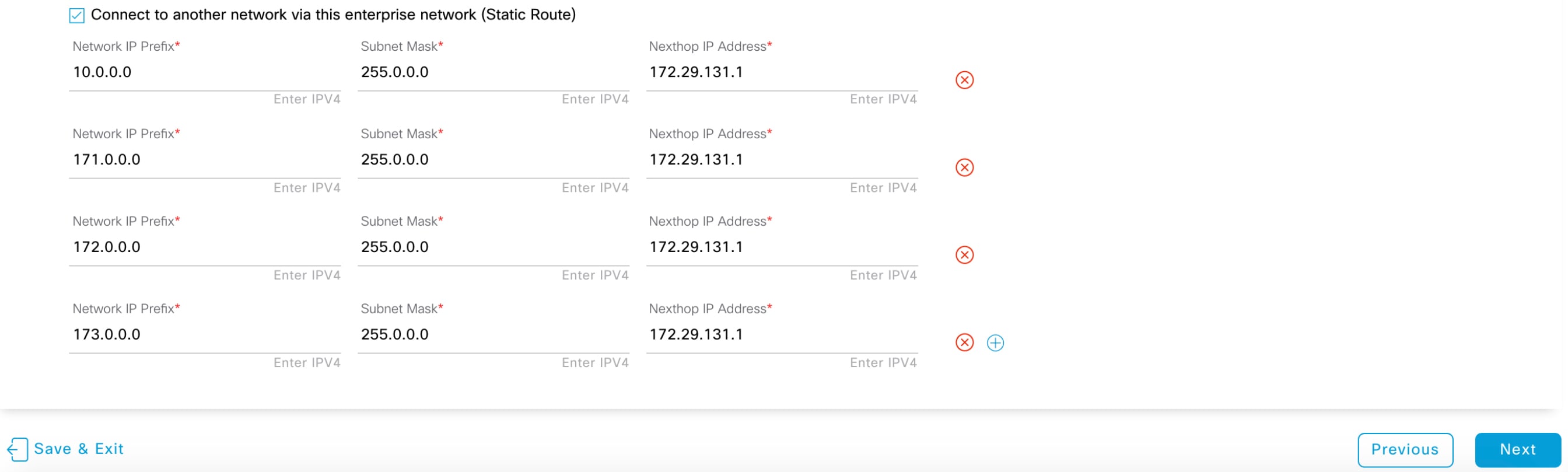
Connect to another network via this enterprise network
(Static Route) check box
|
To configure a static route, check this check box and
then enter the following information:
-
Its network IP prefix
-
Its subnet mask
-
Its nexthop IP address
To configure additional static routes, click the
Add icon.
|
From here, do one of the following:
-
To save the settings you have entered in this screen and exit the
wizard, click Save & Exit.
-
To open the next wizard screen, click Next. A
message appears, prompting you to confirm the settings you have
entered. Click YES to proceed.
The wizard validates the information you have entered, confirms that
the port is up, and notifies you of any settings that need to be
changed before you can proceed with the wizard. If the settings you
have entered are valid and the port is up, the wizard's
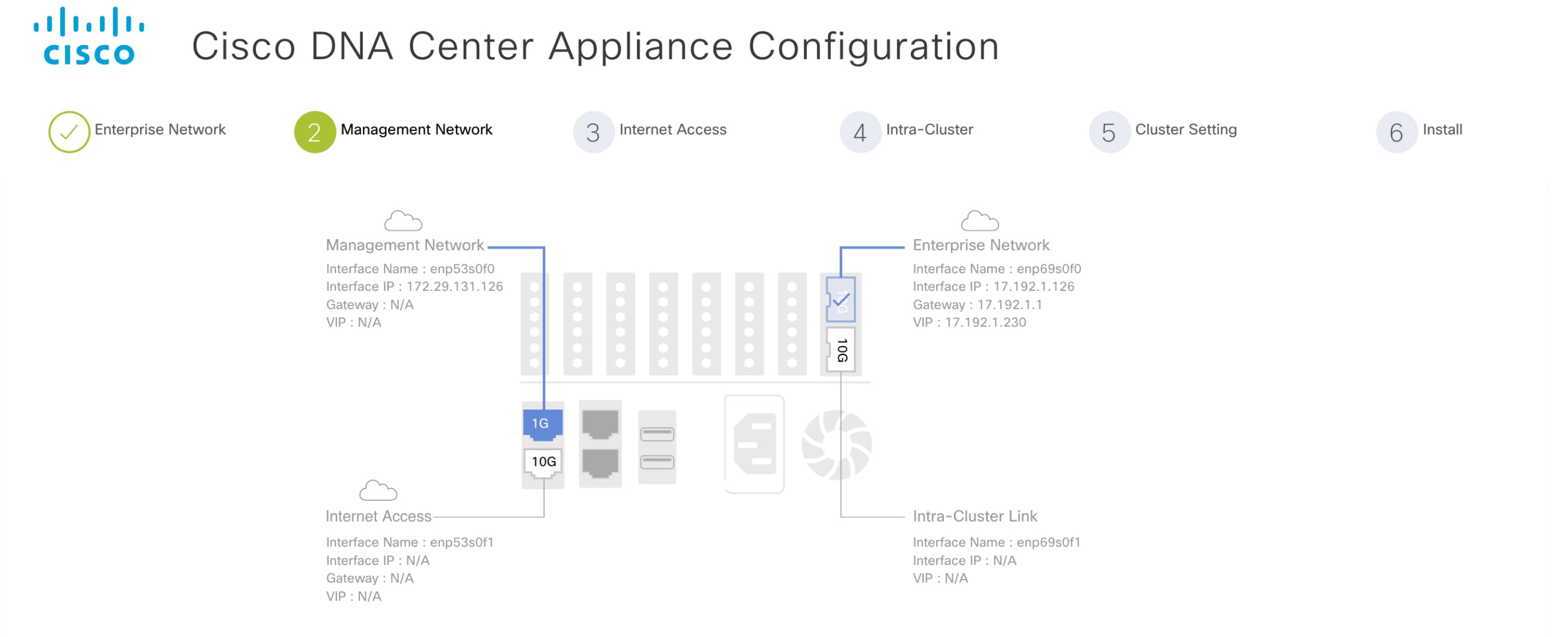
Management Network screen opens.
|
| Step 7 |
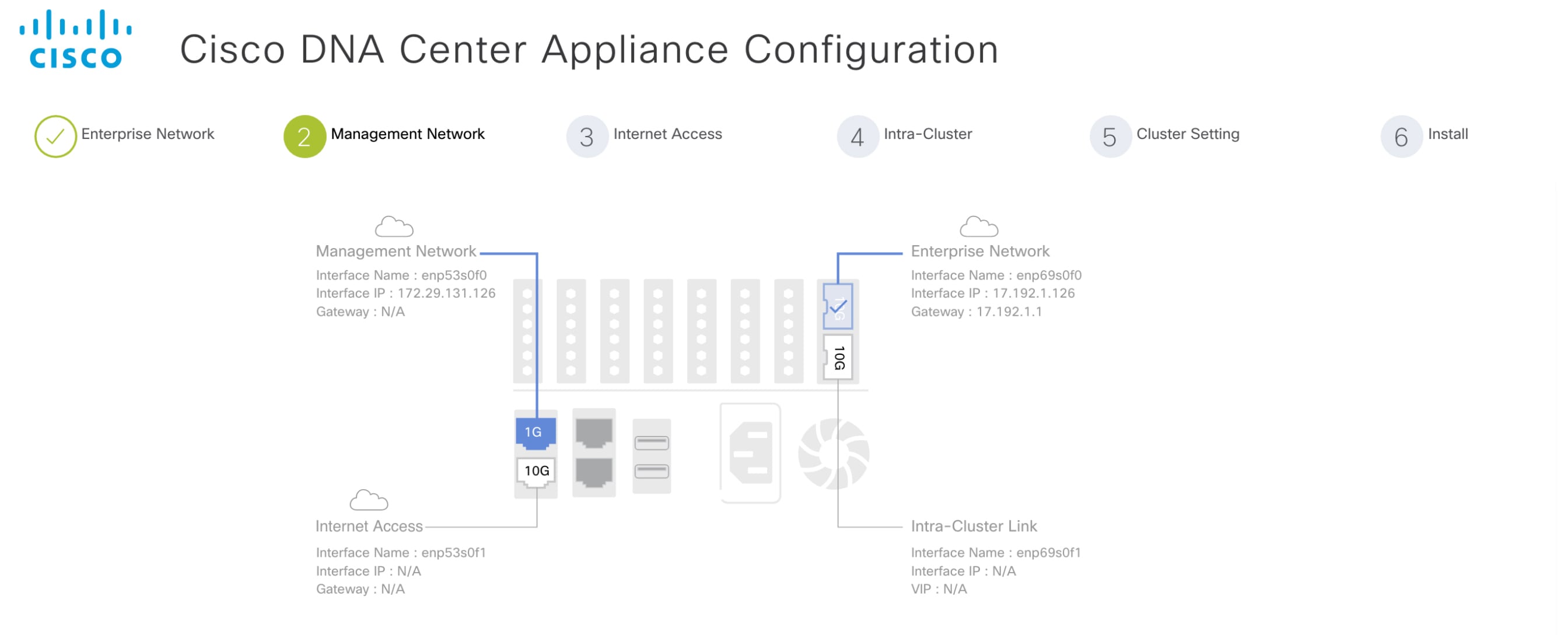
(Optional) Enter configuration values for the Management port.
As explained in Interface Cable Connections, this
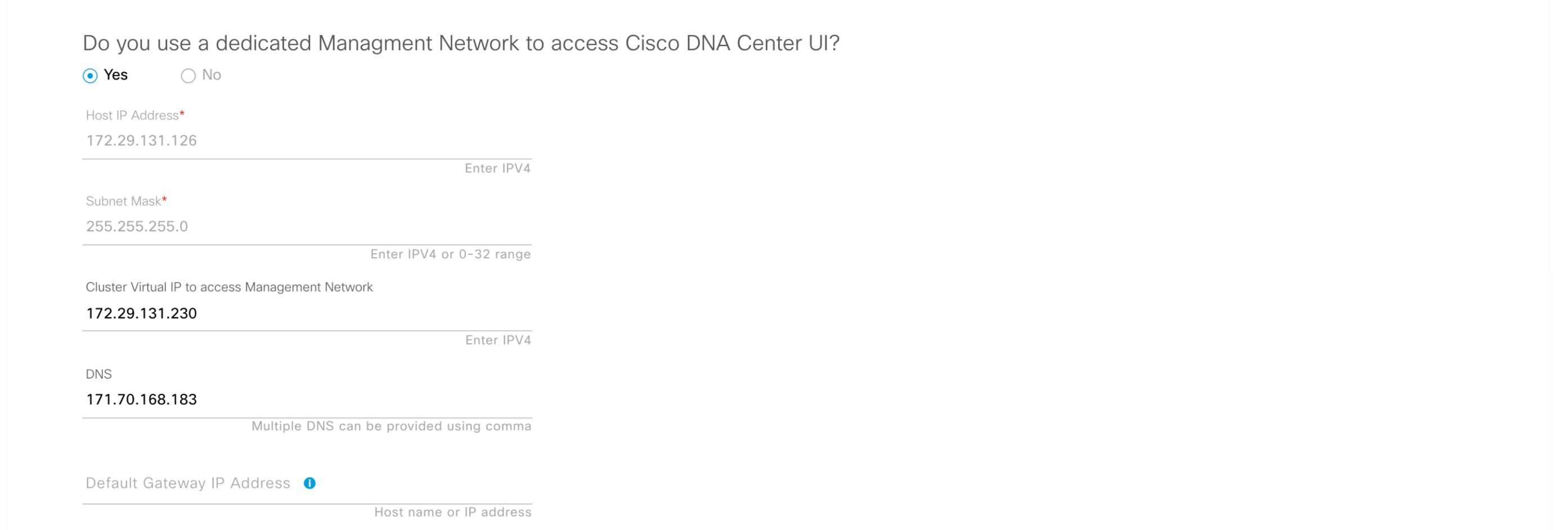
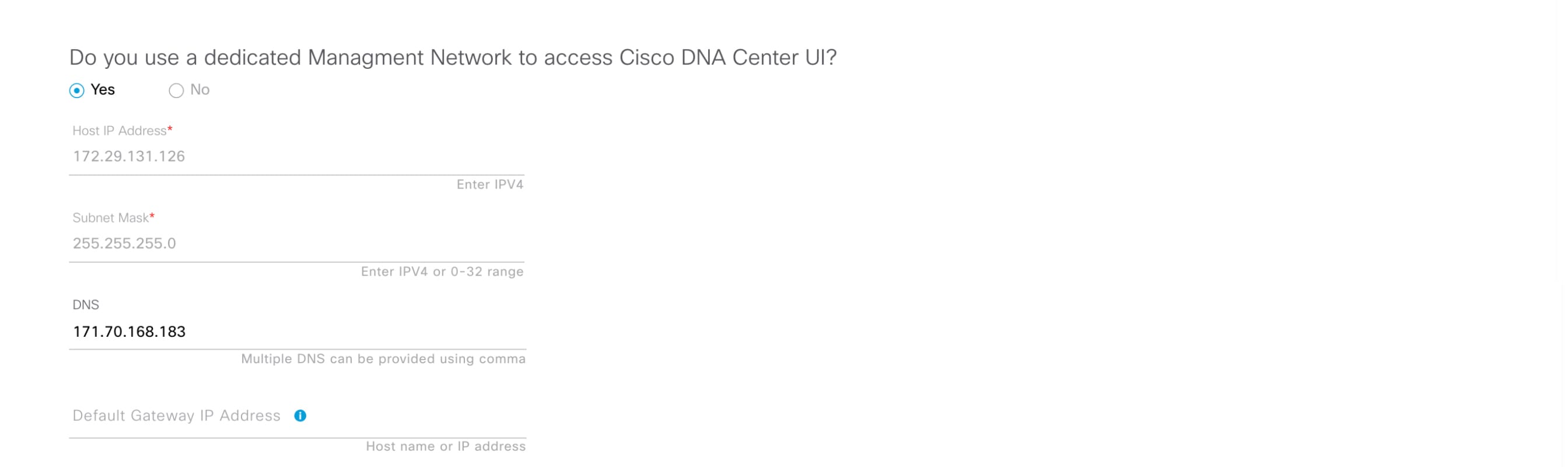
port is used to access the Cisco DNA Center GUI from your management network. In the Do you use a
dedicated Management Network to access Cisco DNA Center UI?
field, do one of the following:
-
If you want to use this port to access the GUI, click the
Yes radio button and enter the
information described in the following table. (See Required IP Addresses and Subnets and Required Configuration
Information for a more detailed description of the values
you need to enter.)
-
If you want to access the GUI from the Enterprise port that you
configured in the previous step instead, click the
No radio button, then click
Next.
Table 2. Primary Node Entries for the Management Port (enp69s0f0)
|
Host IP Address field
|
Enter the IP address for the Management Port. This is
required.
|
|
Subnet Mask field
|
Enter the netmask for the port's IP address. This is
required.
|
|
Cluster Virtual IP to access Management Network field
|
Enter the virtual IP address that will be used for
traffic between the cluster and your Management network.
This is required for both three-node clusters and
single-node clusters that will be converted into a
three-node cluster in the future. If you have a
single-node cluster setup and plan to stick with it, you
can leave this field blank.
| Important
|
You must enter one virtual IP address for each
configured network interface. You will not be able
to complete the wizard unless you do so. This
address is tied to the cluster link's status, which
must be in the UP state.
|
|
|
DNS field
|
Enter the IP address of the preferred DNS server. If
entering multiple DNS servers, separate the IP addresses
in the list with spaces.
| Important
|
-
For NTP, ensure port 123 (UDP) is open between Cisco DNA Center and your NTP server.
-
For each appliance in your cluster, configure a
maximum of three DNS servers. Problems can occur
if you configure more than three DNS servers for
an appliance.
|
|
|
Default Gateway IP Address field
|
Enter a default gateway IP address to use for the
port.
| Important
|
Ensure that you enter a default gateway IP address for at least one of your appliance's interfaces. Otherwise, you will not
be able to complete the configuration wizard.
|
| Note
|
If you designated this interface to use the default
gateway assigned to it by a DHCP server, complete
the following steps to specify a different
gateway:
-
Delete the IP address that is currently listed
in this field and then click Save &
Exit.
This will bring you back to the first wizard
screen.
-
Return to the Management port's wizard screen
and enter the gateway IP address you want to
use.
|
|
|
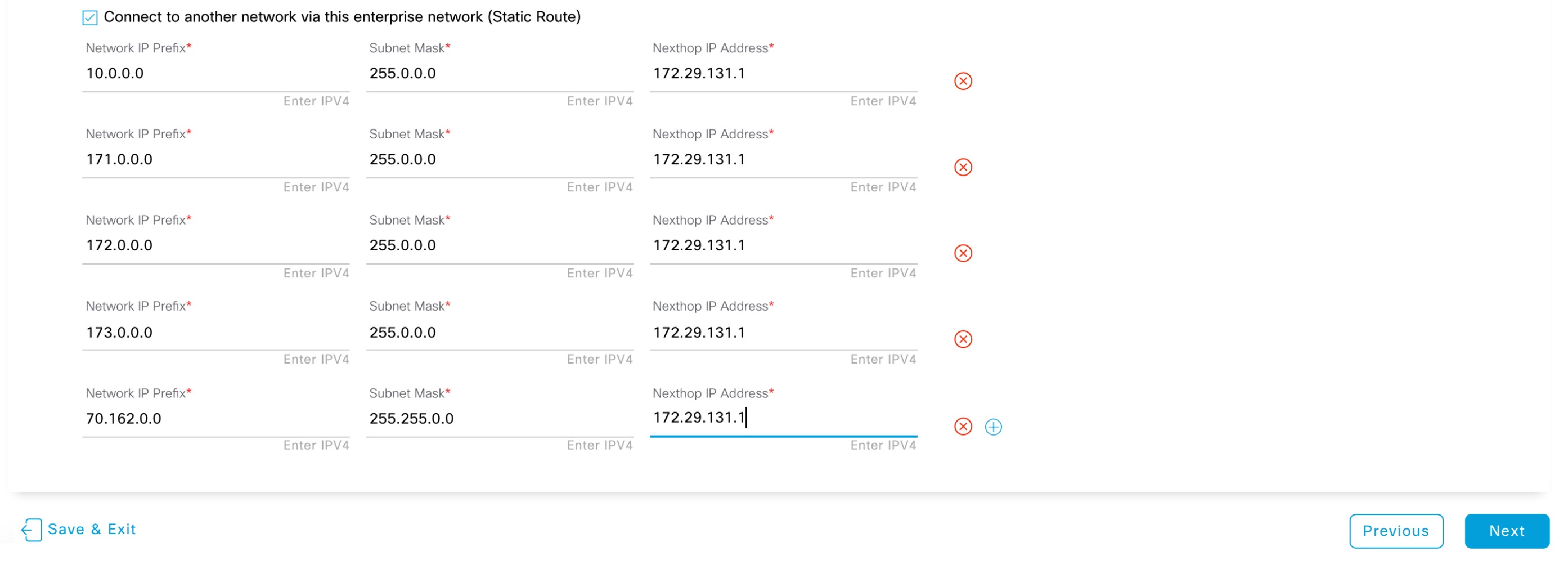
Connect to another network via this enterprise network
(Static Route) check box
|
To configure a static route, check this check box and
then enter the following information:
-
Its network IP prefix
-
Its subnet mask
-
Its nexthop IP address
To configure additional static routes, click the
Add icon.
|
From here, do one of the following:
-
To save the settings you have entered in this screen and exit the
wizard, click Save & Exit.
-
To return to the previous wizard screen in order to make setting
changes, click Previous.
-
To open the next wizard screen, click Next. A
message appears, prompting you to confirm the settings you have
entered. Click YES to proceed.
The wizard validates the information you have entered, confirms that
the port is up, and notifies you of any settings that need to be
changed before you can proceed with the wizard. If the settings you
have entered are valid and the port is up, the wizard's
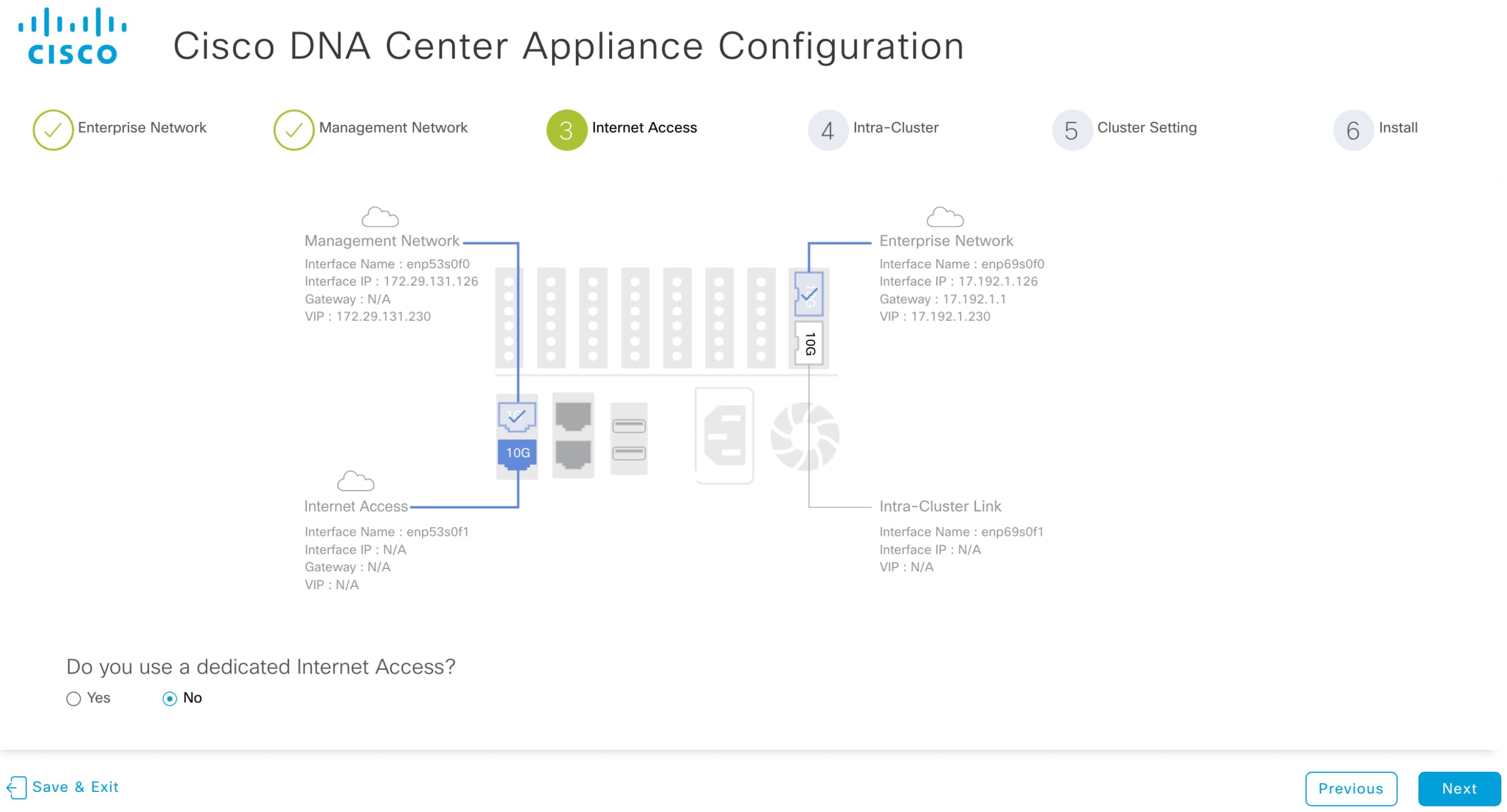
Internet Access screen opens.
|
| Step 8 |
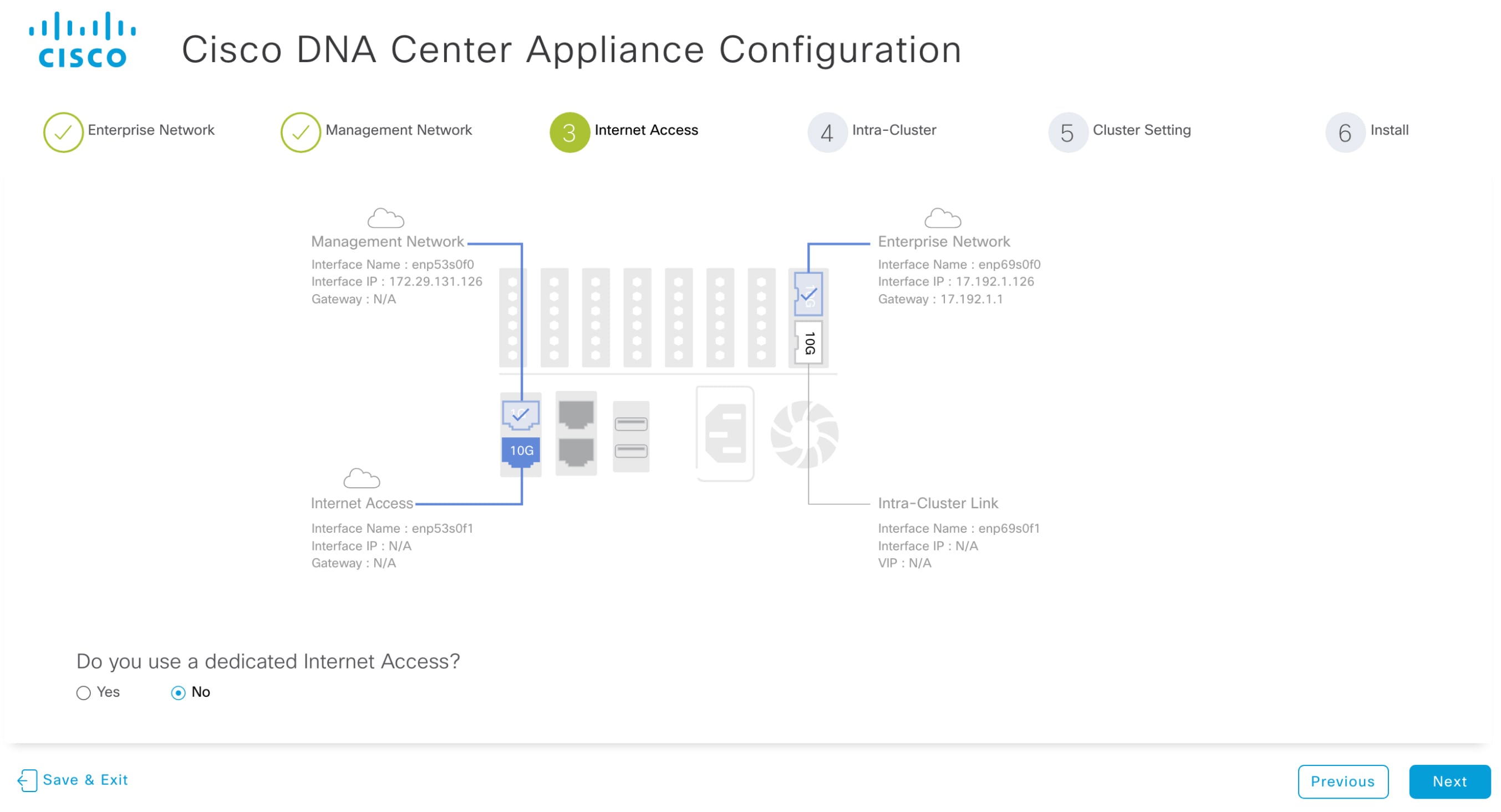
(Optional) Enter configuration values for the Internet Access port.
As explained in Interface Cable Connections, this is
an optional port used to link the appliance to the Internet when you cannot
do so through the Enterprise port. In the Do you use a dedicated
Internet Access? field, do one of the following:
-
If you want to use this port to access the Internet, click the
Yes radio button and enter the
information described in the following table. (See Required IP Addresses and Subnets and Required Configuration
Information for a more detailed description of the values
you need to enter.)
-
If you want to access the Internet from the Enterprise port that you
configured previously instead, click the No
radio button, then click Next.
Table 3. Primary Node Entries for the Internet Access Port (enp53s0f1)
|
Host IP Address field
|
Enter the IP address for the Cloud Port.
|
|
Subnet Mask field
|
Enter the netmask for the port's IP address. This is
required if you enter an IP address.
|
|
Cluster Virtual IP for Internet Access field
|
Enter the virtual IP address that will be used for
traffic between the cluster and the Internet. This is
required for both three-node clusters and single-node
clusters that will be converted into a three-node
cluster in the future. If you have a single-node cluster
setup and plan to stick with it, you can leave this
field blank.
| Important
|
You must enter one virtual IP address for each
configured network interface. You will not be able
to complete the wizard unless you do so. This
address is tied to the cluster link's status, which
must be in the UP state.
|
|
|
DNS field
|
Enter the IP address of the preferred DNS server. If
entering multiple DNS servers, separate the IP addresses
in the list with spaces.
| Important
|
For each appliance in your cluster, configure a
maximum of three DNS servers. Problems can occur if
you configure more than three DNS servers for an
appliance.
|
|
|
Default Gateway IP Address field
|
Enter a default gateway IP address to use for the
port.
| Important
|
Ensure that you enter a default gateway IP address for at least one of your appliance's interfaces. Otherwise, you will not
be able to complete the configuration wizard.
|
|
|
Connect to another network via this enterprise network
(Static Route) check box
|
To configure a static route, check this check box and
then enter the following information:
-
Its network IP prefix
-
Its subnet mask
-
Its nexthop IP address
To configure additional static routes, click the
Add icon.
|
From here, do one of the following:
-
To save the settings you have entered in this screen and exit the
wizard, click Save & Exit.
-
To return to a previous wizard screen in order to make setting
changes, click Previous.
-
To open the next wizard screen, click Next. A
message appears, prompting you to confirm the settings you have
entered. Click YES to proceed.
The wizard validates the information you have entered, confirms that
the port is up, and notifies you of any settings that need to be
changed before you can proceed with the wizard. If the settings you
have entered are valid and the port is up, the wizard's
Intra-Cluster screen opens.
|
| Step 9 |
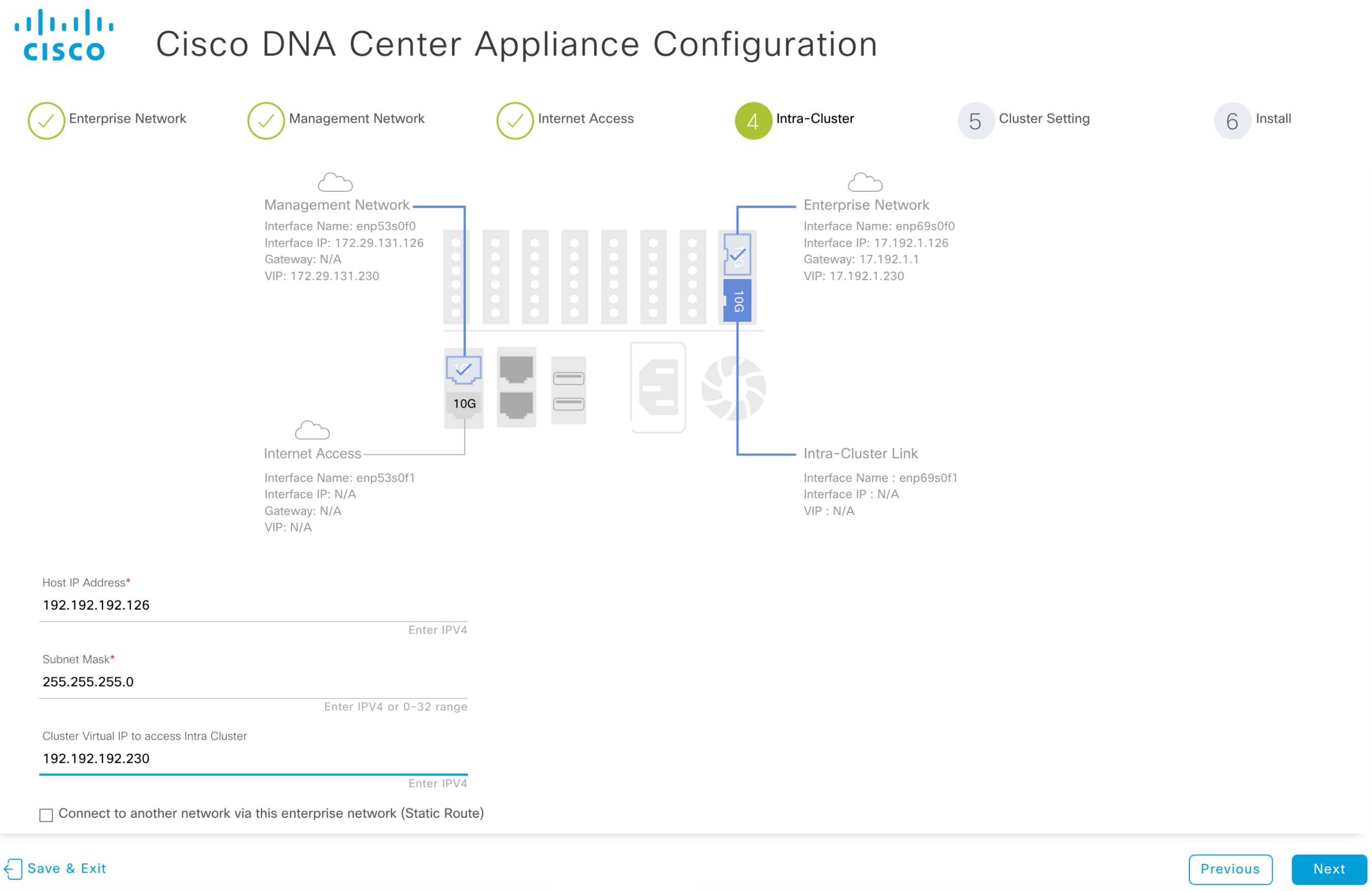
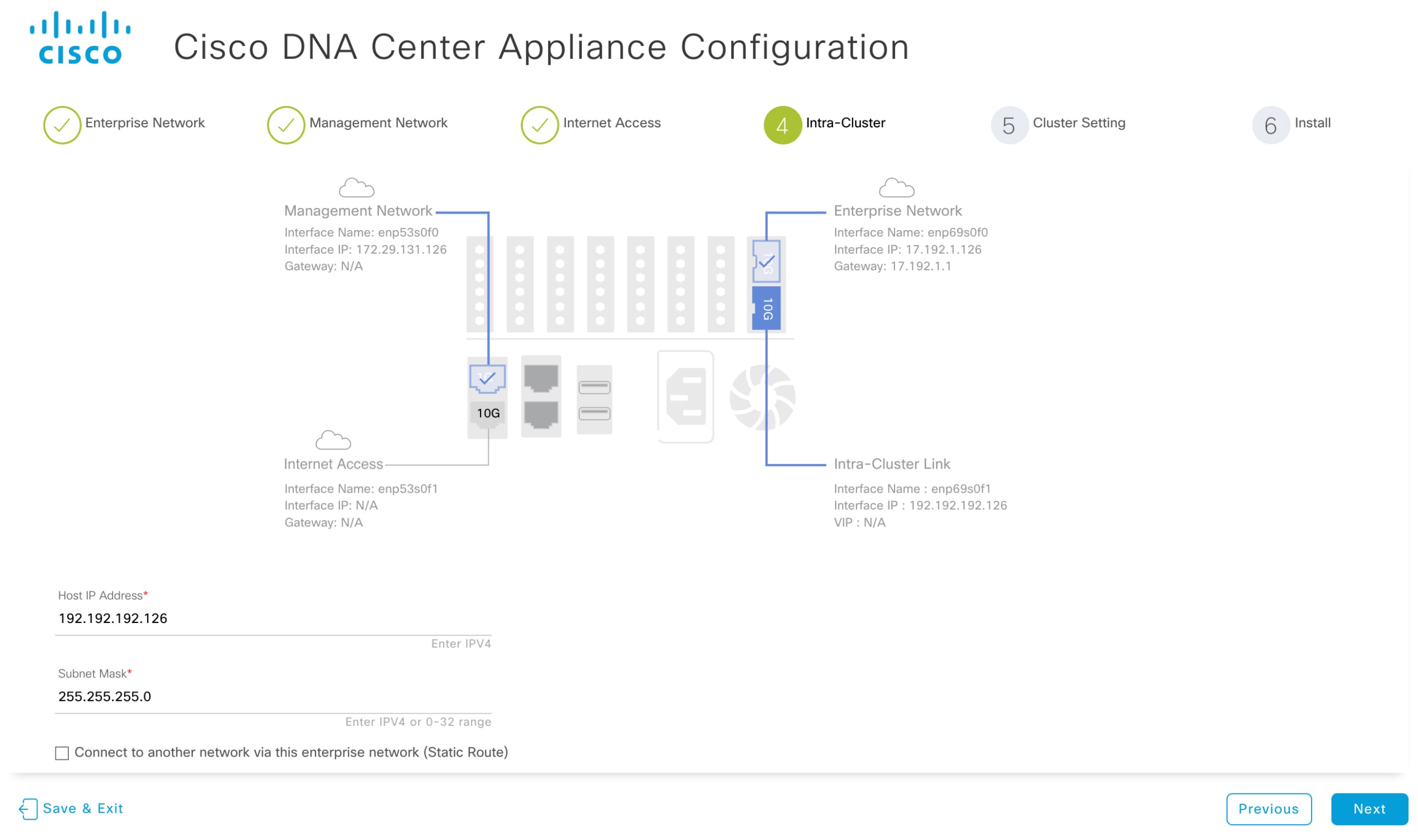
Enter configuration values for your intracluster link.
As explained in Interface Cable Connections, this
required port is used to link the appliance to your cluster. See Required IP Addresses and Subnets and Required Configuration Information
for a more detailed description of the values you need to enter.
Table 4. Primary Node Entries for the Intracluster Link (enp69s0f1)
|
Host IP Address field
|
Enter the IP address for the Cluster Port. This is
required. Note that you cannot change the address of the
Cluster Port later.
|
|
Subnet Mask field
|
Enter the netmask for the port's IP address. This is
required.
|
|
Cluster Virtual IP to access Intra Cluster field
|
Enter the virtual IP address that will be used for
traffic between the nodes in your cluster. This is
required for both three-node clusters and single-node
clusters that will be converted into a three-node
cluster in the future. If you have a single-node cluster
setup and plan to stick with it, you can leave this
field blank.
| Important
|
You must enter one virtual IP address for each
configured network interface. You will not be able
to complete the wizard unless you do so. This
address is tied to the cluster link's status, which
must be in the UP state.
|
|
|
Connect to another network via this enterprise network
(Static Route) check box
|
To configure a static route, check this check box and
then enter the following information:
-
Its network IP prefix
-
Its subnet mask
-
Its nexthop IP address
To configure additional static routes, click the
Add icon.
|
From here, do one of the following:
-
To save the settings you have entered in this screen and exit the
wizard, click Save & Exit.
-
To return to a previous wizard screen in order to make setting
changes, click Previous.
-
To open the next wizard screen, click Next. A
message appears, prompting you to confirm the settings you have
entered. Click YES to proceed.
The wizard validates the information you have entered, confirms that
the port is up, and notifies you of any settings that need to be
changed before you can proceed with the wizard. If the settings you
have entered are valid and the port is up, the wizard's
Cluster Settings screen opens.
|
| Step 10 |
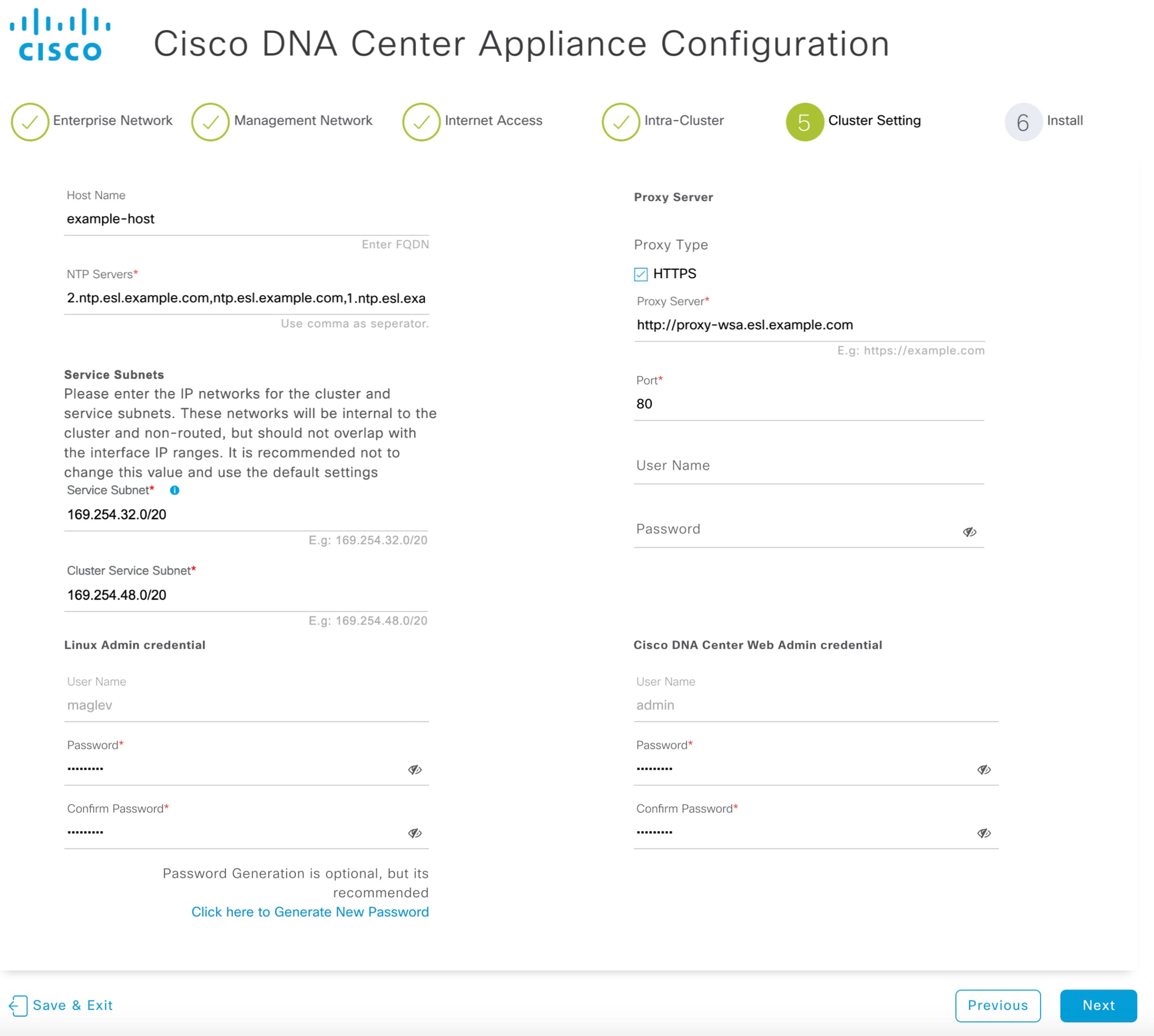
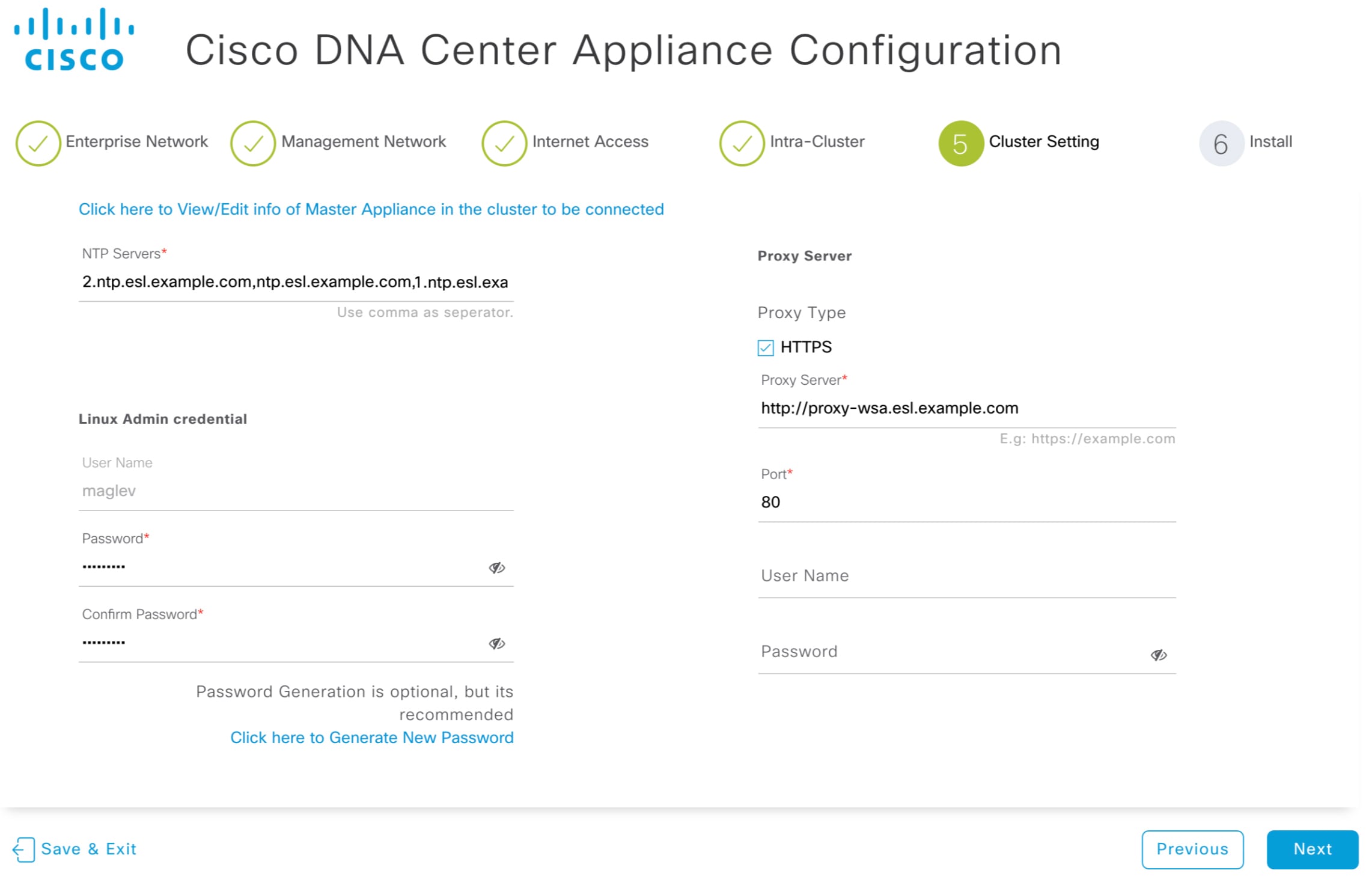
Enter configuration values for your cluster.
Table 5. Primary Node Entries for Cluster Settings
|
Host Name field
|
Enter the fully qualified domain name (FQDN) for your
cluster. Cisco DNA Center does the following with this hostname:
-
It uses this hostname to access your cluster’s
web interface and the Representational State
Transfer (REST) APIs used by devices in the
enterprise network that Cisco DNA Center manages.
-
In the Subject Alternative Name (SAN) field of
Cisco DNA Center certificates, it uses the FQDN to the define
the Plug and Play server that should be used for
device provisioning.
|
|
NTP Servers field
|
Enter one or more NTP server addresses or hostnames,
separated by commas. At least one NTP address or
hostname is required.
For a production deployment, Cisco recommends that you
configure a minimum of three NTP servers.
|
|
Services Subnets
|
|
Services Subnet field
|
A dedicated, non-routed IP subnet that Cisco DNA Center uses to manage internal services. By default, this is already set to 169.254.32.0/20, and we recommend that you use this subnet. If you choose to enter another subnet, ensure that it does not conflict with
or overlap any other subnet used by the Cisco DNA Center internal network or an external network. For more information, see the Services Subnet description in Required IP Addresses and Subnets.
|
|
Cluster Services Subnet field
|
A dedicated, non-routed IP subnet that Cisco DNA Center uses to manage internal cluster services. By default, this is already set to 169.254.48.0/20, and we recommend that you use this subnet. If you choose to enter another subnet, ensure that it does not conflict with
or overlap any other subnet used by the Cisco DNA Center internal network or an external network. For more information, see the Cluster Services Subnet description in Required IP Addresses and Subnets.
|
|
Linux Admin Credential
|
|
Admin Password and Confirm Password fields
|
Enter and then confirm the password for the
maglev user.
|
|
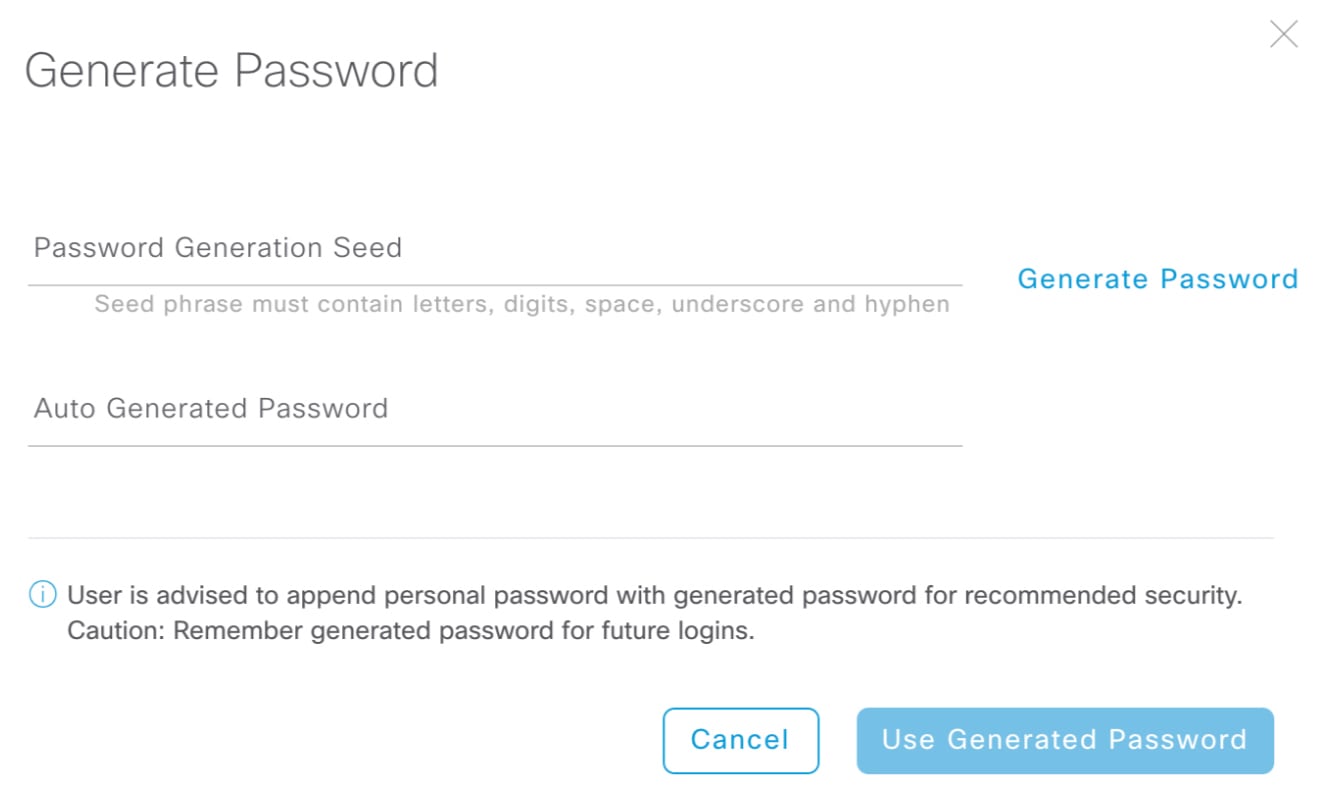
Click here to Generate New Password link
|
Click if you want to use a Linux password that is
generated by Cisco DNA Center. See Generate a Linux
Password.
|
|
Proxy Server
|
|
Proxy Type field
|
Check the HTTPS check box.
|
|
Proxy Server field
|
Enter the URL or host name of an HTTPS network proxy used
to access the Internet.
| Note
|
Connection from Cisco DNA Center to the HTTPS proxy is supported only via HTTP in this
release.
|
|
|
Port field
|
Enter the port your appliance used to access the network
proxy.
|
|
User Name field
|
Enter the user name used to access the network proxy. If
no proxy login is required, leave this field blank.
|
|
Password field
|
Enter the password used to access the network proxy. If
no proxy login is required, leave this field blank.
|
|
Cisco DNA Center Web Admin Credential
|
|
Admin Password and Confirm Password fields
|
Enter and then confirm the password for the default admin
superuser, used to log in to Cisco DNA Center for the first time.
|
From here, do one of the following:
-
To save the settings you have entered in this screen and exit the
wizard, click Save & Exit.
-
To return to a previous wizard screen in order to make setting
changes, click Previous.
-
To open the next wizard screen, click Next. A
message appears, prompting you to confirm the settings you have
entered. Click YES to proceed.
The wizard validates the information you have entered and notifies
you of any settings that need to be changed before you can proceed
with the wizard. If the settings you have entered are valid, the
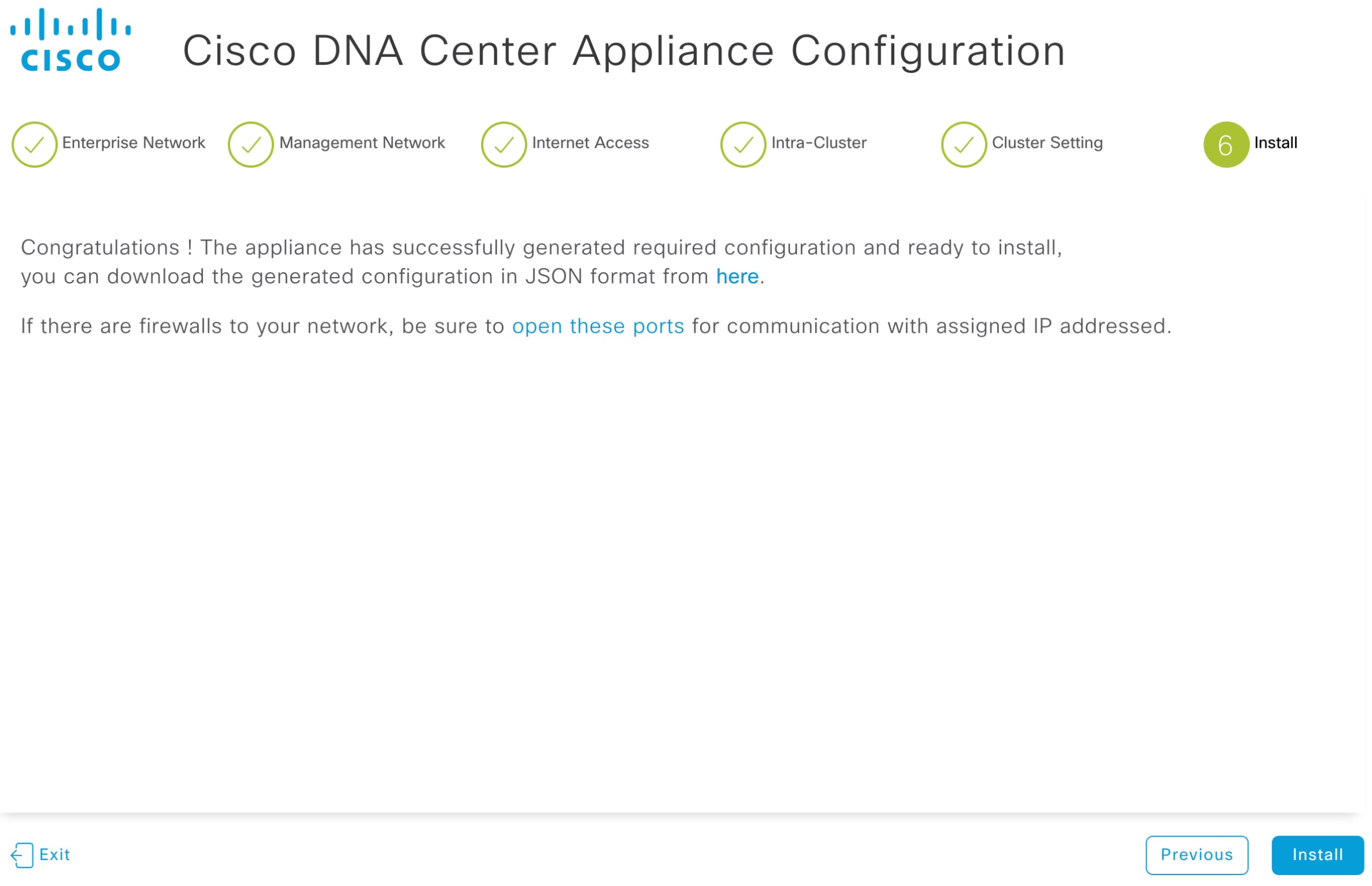
wizard's Install screen opens.
|
| Step 11 |
To complete the configuration of your Cisco DNA Center appliance, click Install.
The configuration process takes roughly 90 minutes. The wizard screen continuously updates
during the process, indicating the tasks that are currently being completed
and their progress, as well as any errors that have occurred.
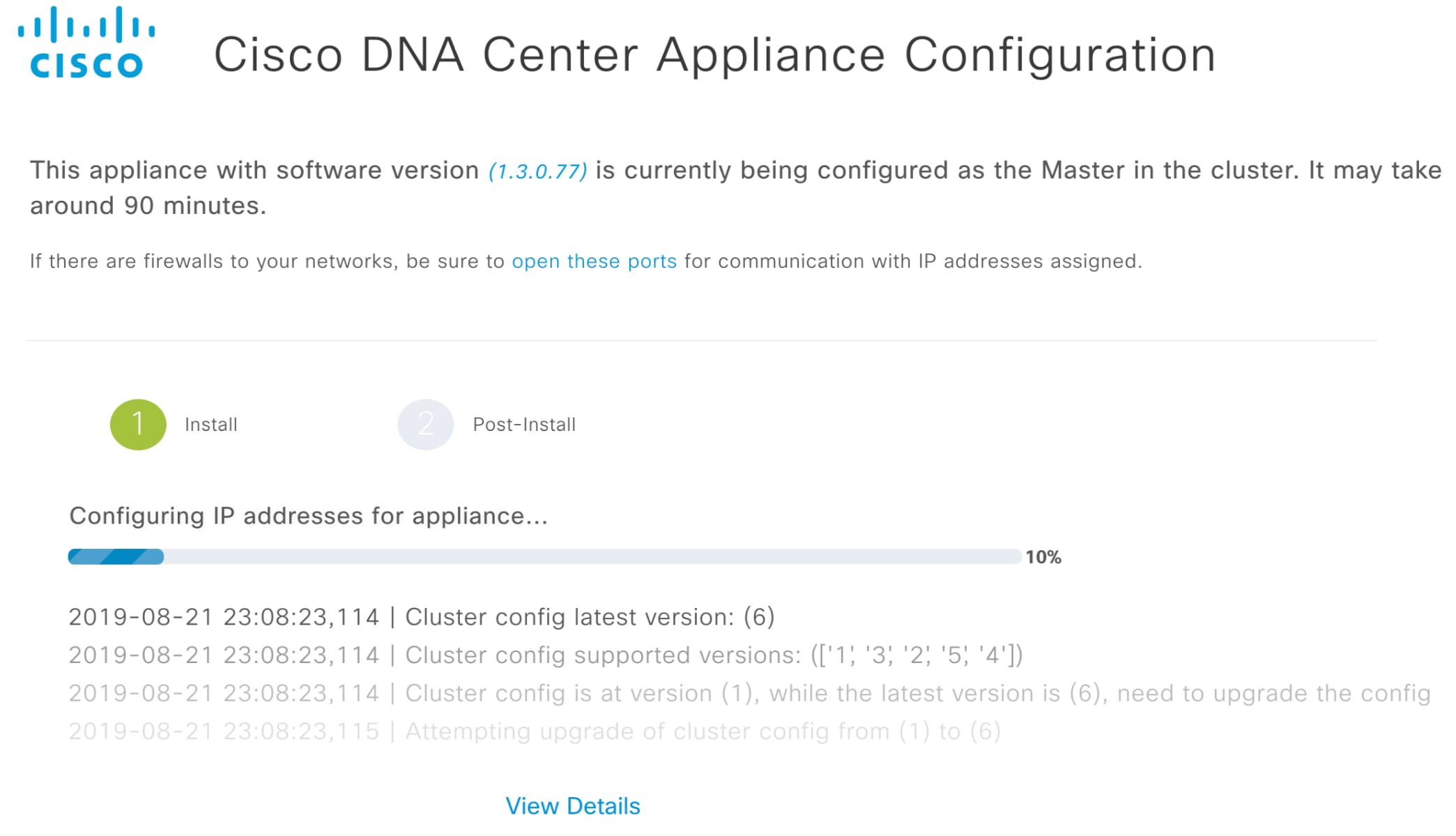 To view this information in a separate pane, click the
View Details link at the bottom of the
screen.
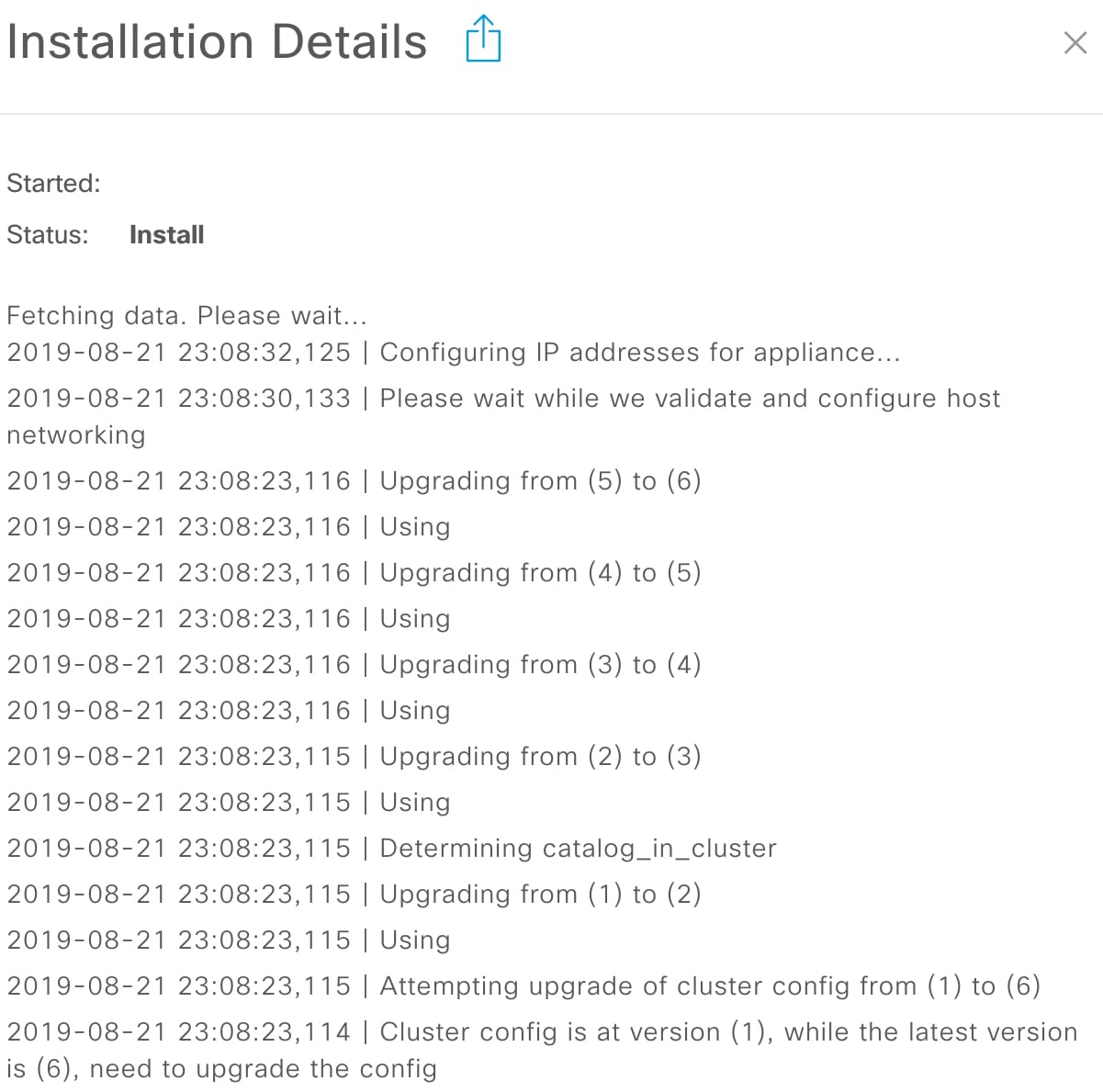 To save a local copy of this information as a text file,
click  . .
|

 ) and choosing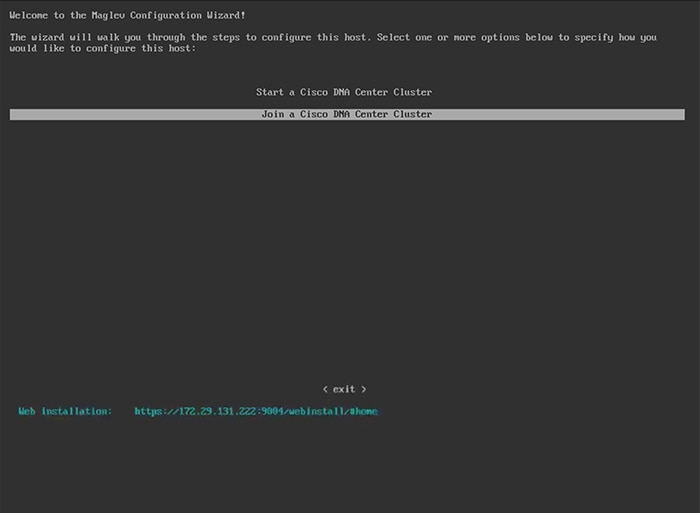
 Feedback