Configure the Appliance Using the Maglev Wizard

Appliance Configuration Overview

You can deploy the appliance in your network in one of the following two modes:

  • Standalone: As a single node offering all the functions. This option is usually preferred for initial or test deployments and in smaller network environments.

  • Cluster: As a node that belongs to a three-node cluster. In this mode, all the services and data are shared among the hosts. This is the preferred option for large deployments.

If you choose the Standalone mode for your initial deployment, you can add more appliances later to form a cluster. When configuring the standalone host, ensure that it is set it up as the first, or primary, node in the cluster.

If you choose the Cluster mode for your initial deployment, be sure to finish configuring the primary node before configuring the add-on nodes.

To proceed, complete the following tasks:

  1. Configure the primary node in your cluster. See Configure the Primary Node Using the Maglev Wizard.

  2. If you have installed three appliances and want to add the second and third nodes to your cluster, see Configure Add-on Nodes Using the Maglev Wizard.

Configure the Primary Node Using the Maglev Wizard

Perform the steps in this procedure to configure the first installed appliance as the primary node. You must always configure the first appliance as the primary node, whether it will operate standalone or as part of a cluster.

If you are configuring the installed appliance as an add-on node for an existing cluster that already has a primary node, follow the steps described in Configure Add-On Nodes Using the Maglev Wizard instead.

Before you begin

Ensure that you:

  • Collected all of the information specified in Required IP Addresses and Subnets and Required Configuration Information.

  • Installed the first appliance, as described in Appliance Installation Workflow.

  • Configured Cisco IMC browser access on the primary node, as described in Enable Browser Access to Cisco Integrated Management Controller.

  • Checked that the primary node appliance's ports, and the switches they use, are properly configured, as described in Execute Preconfiguration Checks.

  • Confirmed that you are using a compatible browser. For a list of compatible browsers, see the Release Notes document for the version of Cisco DNA Center you are installing.

  • Enabled ICMP on the firewall between Cisco DNA Center and the DNS server you specify in Step 7 of the following procedure. The Maglev Configuration wizard uses ping to verify the DNS server you specify. This ping might get blocked if there is a firewall between Cisco DNA Center and the DNS server, and ICMP is not enabled on that firewall. When this happens, you will not be able to complete the wizard.

Procedure


Step 1

Point your browser to the Cisco IMC IP address you set during the Cisco IMC GUI configuration you performed, and log in to the Cisco IMC GUI as the Cisco IMC user (see Enable Browser Access to Cisco Integrated Management Controller).

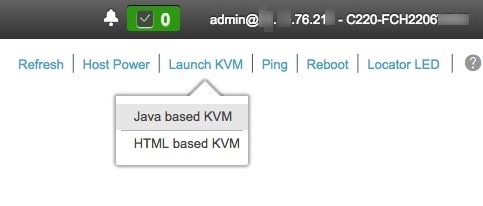
After successful login, the appliance displays the Cisco Integrated Management Controller Chassis Summary window, with a hyperlinked menu at the top of the window, as shown below.
Step 2

From the hyperlinked menu, choose Launch KVM and then select either Java based KVM or HTML based KVM. If you select Java-based KVM, you will need to launch the Java startup file from your browser or file manager in order to view the KVM console in its own window. If you select HMTL-based KVM, it launches the KVM console in a separate window or tab automatically.

Irrespective of the KVM type you choose, use the KVM console to monitor the progress of the configuration and respond to the Maglev Configuration wizard prompts.

Step 3

With the KVM displayed, reboot the appliance by making one of the following selections:

  • In the main Cisco IMC GUI browser window: Choose Host Power > Power Cycle, and switch to the KVM console to continue.

  • In the KVM console: Choose Power > Power Cycle System (cold boot).

If you are asked to confirm your choice to reboot the appliance, click OK.

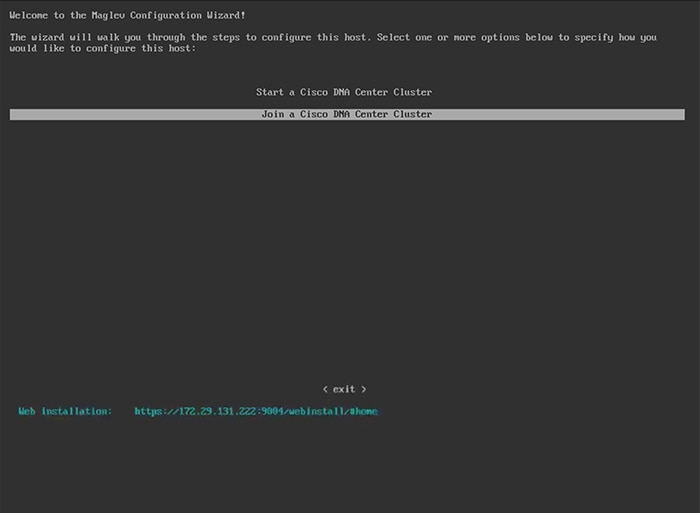
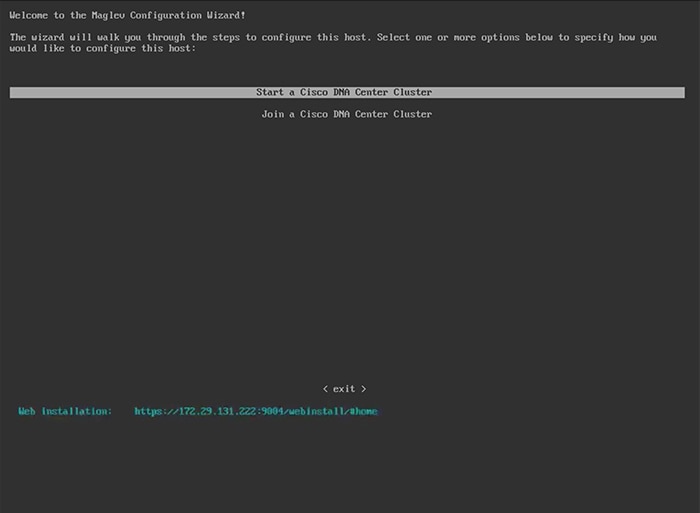
After displaying reboot messages, the KVM console displays the Maglev Configuration wizard welcome screen.
Step 4

Click Start a Cisco DNA Center Cluster to begin configuring the primary node.

The wizard discovers all of the ports on the appliance and presents them to you one by one, in separate screens, in the following order:

  1. 1-Gbps/10-Gbps Management Port (1, eno1/enp53s0f0, Network Adapter #1)

  2. 1-Gbps/10-Gbps Cloud Port (eno2/enp53s0f1, Network Adapter #2)

  3. 10-Gbps Enterprise Port (enp94s0f0/enp69s0f0, Network Adapter #3)

  4. 10-Gbps Cluster Port (enp94s0f1/enp69s0f1, Network Adapter #4)

Note 

The interface names assigned to ports on 44, 56, and 112 core appliances differ. Whenever two interface names are provided in this procedure, the first applies to both 44 and 56 core appliances and the second applies to 112 core appliances.

If the wizard fails to display either or both of the Enterprise and Cluster ports during the course of configuration, these ports may be non-functional or disabled. These two ports are required for Cisco DNA Center functionality. If you discover that they are non-functional, choose cancel to exit the configuration immediately. Be sure you have completed all of the steps provided in Execute Preconfiguration Checks before resuming configuration or contacting the Cisco Technical Assistance Center (TAC).

Step 5

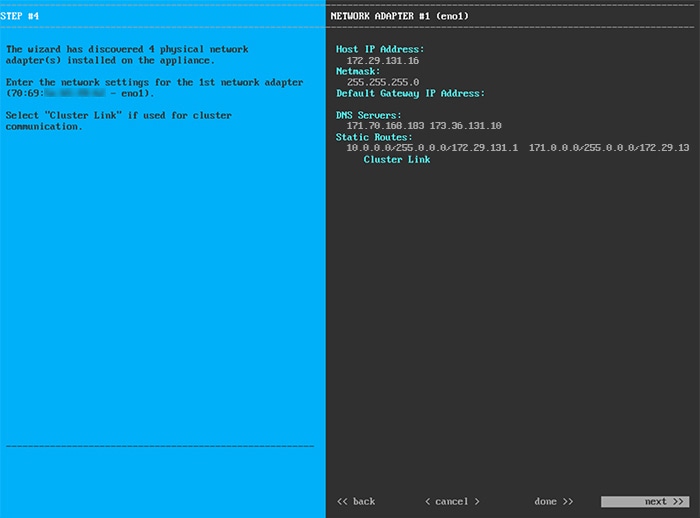
The wizard discovers the 1-Gbps/10-Gbps Management port (1, eno1/enp53s0f0) first and presents it as NETWORK ADAPTER #1. As explained in Interface Cable Connections, this port is used to access the Cisco DNA Center GUI from your management network. Apply the host IP address, netmask, and other values that are appropriate for this purpose (see Required IP Addresses and Subnets and Required Configuration Information for the values to enter).
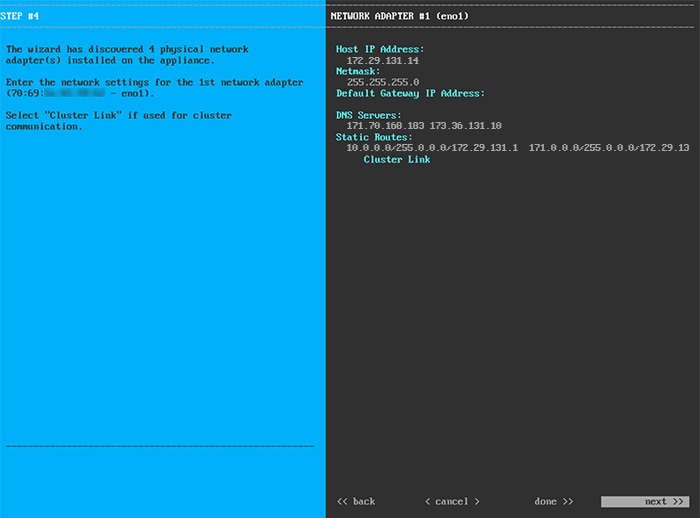
Enter the configuration values for NETWORK ADAPTER #1, as shown in the table below.

Table 1. Primary Node Entries for Network Adapter #1: 1-Gbps/10-Gbps Management Port (eno1/enp53s0f0)

Host IP address field

Enter the IP address for the Management port. This is required.

Netmask field

Enter the netmask for the port's IP address. This is required.

Default Gateway IP address field

Enter a default gateway IP address to use for the port.

Important 

Ensure that you enter a default gateway IP address for at least one of your appliance's interfaces. Otherwise, you will not be able to complete the configuration wizard.

DNS Servers field

Enter the IP address of the preferred DNS server. If you are entering multiple DNS servers, separate the IP addresses in the list with spaces.

Important 
  • For NTP, ensure port 123 (UDP) is open between Cisco DNA Center and your NTP server.

  • For each appliance in your cluster, configure a maximum of three DNS servers. Problems can occur if you configure more than three DNS servers for an appliance.

Static Routes field

Enter one or more static routes in the following format, separated by spaces: <network>/<netmask>/<gateway>.

Cluster Link field

Leave this field blank. It is required on the Cluster port only.

After you finish entering the configuration values, click next>> to proceed. The wizard validates the values you entered and issues an error message if any are incorrect. If you receive an error message, check that the value you entered is correct, then reenter it. If needed, click <<back to reenter it.

Step 6

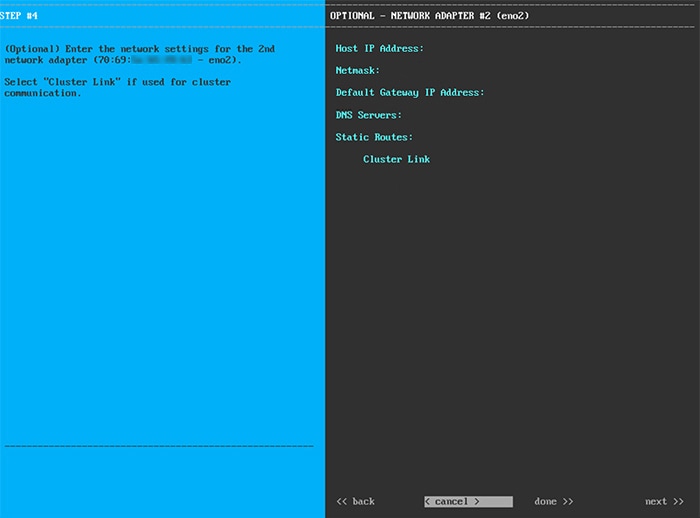
After successful validation of the Management port values you entered, the wizard presents the 1-Gbps/10-Gbps Cloud port (2, eno2/enp53s0f1) as NETWORK ADAPTER #2. As explained in Interface Cable Connections, this is an optional port used to link the appliance to the Internet when you cannot do so through the 10-Gbps Enterprise port (enp94s0f0/enp69s0f0). Apply the host IP address, netmask, and other values that are appropriate for this purpose (see Required IP Addresses and Subnets and Required Configuration Information for the values to enter).
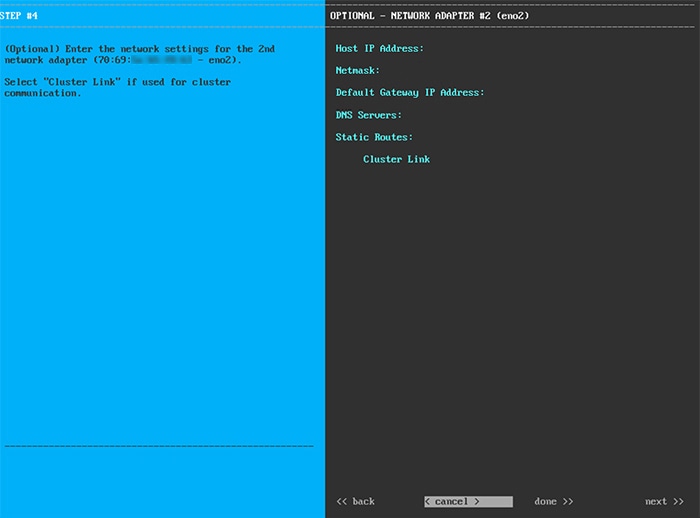
Enter the configuration values for NETWORK ADAPTER #2, as shown in the table below.

Table 2. Primary Node Entries for Network Adapter #2: 1-Gbps/10-Gbps Cloud Port (eno2/enp53s0f1)

Host IP address field

Enter the IP address for the Cloud port. This is required only if you are using the Cloud port for internet connection; otherwise, you can leave it blank.

Netmask field

Enter the netmask for the port's IP address. This is required if you enter an IP address.

Default Gateway IP address field

Enter a default gateway IP address to use for the Cloud port.

Important 

Ensure that you enter a default gateway IP address for at least one of your appliance's interfaces. Otherwise, you will not be able to complete the configuration wizard.

DNS Servers field

Enter the IP address of the preferred DNS server. If you are entering multiple DNS servers, separate the IP addresses in the list with spaces.

Important 

For each appliance in your cluster, configure a maximum of three DNS servers. Problems can occur if you configure more than three DNS servers for an appliance.

Static Routes field

Enter one or more static routes in the following format, separated by spaces: <network>/<netmask>/<gateway>. This is usually required on the Management port only.

Cluster Link field

Leave this field blank. It is required on the Cluster port only.

After you provide the necessary information, click next>> to proceed. Correct any validation errors as you did in previous screens.

Step 7

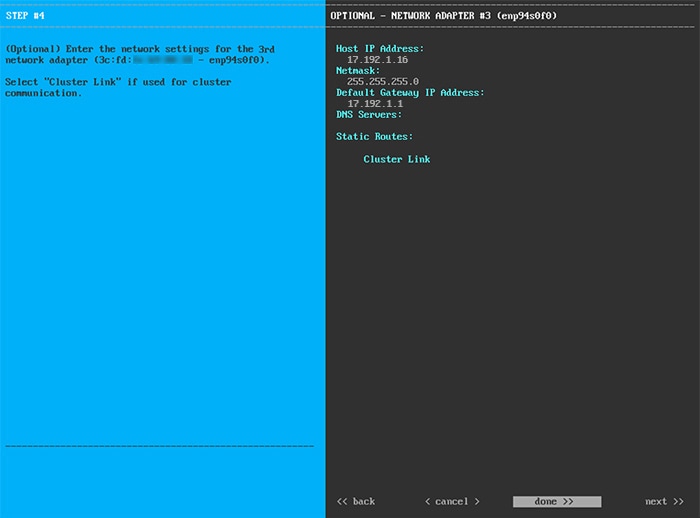
After successful validation of the Cloud port values you entered, the wizard presents the 10-Gbps Enterprise port (enp94s0f0/enp69s0f0) as NETWORK ADAPTER #3. As explained in Interface Cable Connections, this is a required port used to link the appliance to the enterprise network. Apply the host IP address, netmask, and other values that are appropriate for this purpose, (see Required IP Addresses and Subnets and Required Configuration Information for the values to enter).
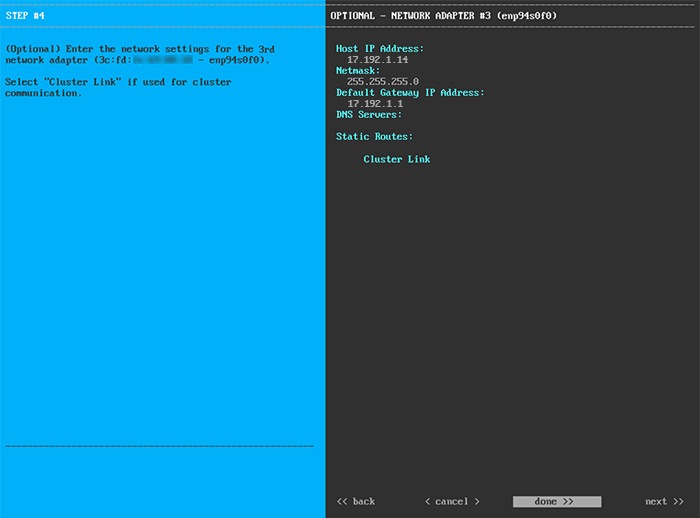
Enter the configuration values for NETWORK ADAPTER #3, as shown in the table below.

Table 3. Primary Node Entries for Network Adapter #3: 10-Gbps Enterprise Port (enp94s0f0/enp69s0f0)

Host IP address field

Enter the IP address for the Enterprise port. This is required.

Netmask field

Enter the netmask for the port's IP address. This is required.

Default Gateway IP address field

Enter a default gateway IP address to use for the port.

Important 

Ensure that you enter a default gateway IP address for at least one of your appliance's interfaces. Otherwise, you will not be able to complete the configuration wizard.

DNS Servers field

Enter the IP address of the preferred DNS server. If you are entering multiple DNS servers, separate the IP addresses in the list with spaces.

Important 

For each appliance in your cluster, configure a maximum of three DNS servers. Problems can occur if you configure more than three DNS servers for an appliance.

Static Routes field

Enter one or more static routes in the following format, separated by spaces: <network>/<netmask>/<gateway>. This is usually required on the Cisco DNA Center Management port only.

Cluster Link field

Leave this field blank. It is required on the Cluster port only.

After you provide the necessary information, click next>> to proceed. Correct any validation errors as you did in previous screens.

Step 8

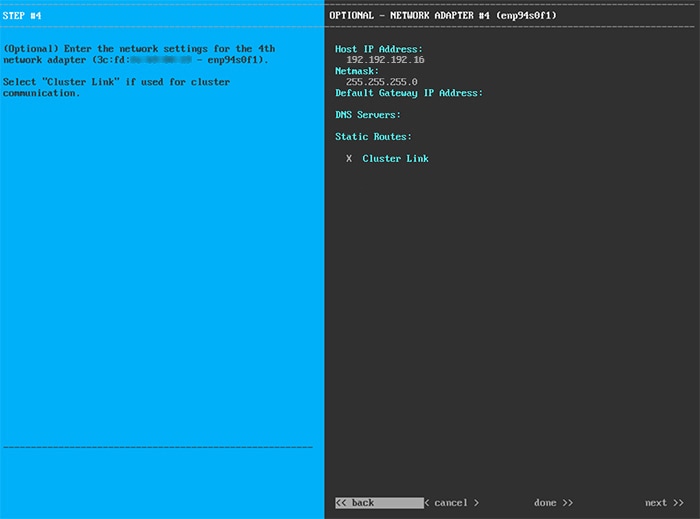
After successful validation of the Enterprise port values you entered, the wizard presents the 10-Gbps Cluster port (enp94s0f1/enp69s0f1) and presents it as NETWORK ADAPTER #4. As explained in Interface Cable Connections, this port is used to link the appliance to the cluster, so apply the host IP address, netmask, and other values that are appropriate for this purpose (see Required IP Addresses and Subnets and Required Configuration Information for the values to enter).

Enter the configuration values for NETWORK ADAPTER #4, as shown in the table below.

Table 4. Primary Node Entries for Network Adapter #4: 10-Gbps Cluster Port (enp94s0f1/enp69s0f1)

Host IP address field

Enter the IP address for the Cluster port. This is required. Note that you cannot change the address of the Cluster port later.

Netmask field

Enter the netmask for the port's IP address. This is required.

Default Gateway IP address field

Enter a default gateway IP address to use for the port.

Important 

Ensure that you enter a default gateway IP address for at least one of your appliance's interfaces. Otherwise, you will not be able to complete the configuration wizard.

DNS Servers field

Enter the IP address of the preferred DNS server. If you are entering multiple DNS servers, separate the IP addresses in the list with spaces.

Important 

For each appliance in your cluster, configure a maximum of three DNS servers. Problems can occur if you configure more than three DNS servers for an appliance.

Static Routes field

Enter one or more static routes in the following format, separated by spaces: <network>/<netmask>/<gateway>. This is usually required on the Management port only.

Cluster Link field

Check the check box to indicate that this port will be the link to a Cisco DNA Center cluster. This is required on the Cluster port only.

After you provide the necessary information, click next>> to proceed. Correct validation errors, if any, as you did in previous screens. The wizard validates and applies your network adapter configurations.

Step 9

After the network adapter configuration is complete, the wizard prompts you to enter configuration values for the NETWORK PROXY you are using, as shown below.
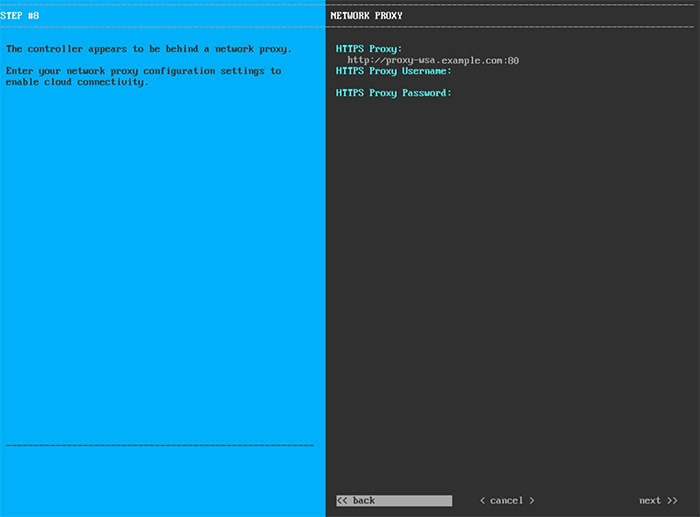
Enter the configuration values for the NETWORK PROXY, as shown in the table below.

Table 5. Primary Node Entries for Network Proxy

HTTPS Proxy field

Enter the URL or host name of an HTTPS network proxy used to access the Internet.

Note 
Connection from Cisco DNA Center to the HTTPS proxy is supported only via HTTP in this release.

HTTPS Proxy Username field

Enter the user name used to access the network proxy. If no proxy login is required, leave this field blank.

HTTPS Proxy Password field

Enter the password used to access the network proxy. If no proxy login is required, leave this field blank.

After you provide the necessary information, click next>> to proceed. Correct validation errors, if any, as you did in previous screens.

Step 10

After network proxy configuration completes, the wizard prompts you to enter virtual IP addresses for the primary node, in MAGLEV CLUSTER DETAILS, as shown below.
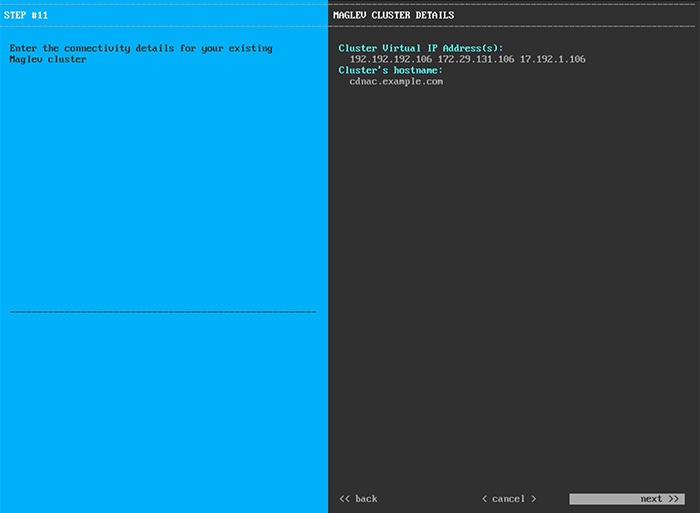
Enter a space-separated list of the virtual IP addresses used for traffic between the cluster and your network. This is required for both three-node clusters and single-node clusters that will be converted into a three-node cluster in the future. If you have a single-node cluster setup and plan to stick with it, skip this step and proceed to Step 11.

Important 

You must enter one virtual IP address for each configured network interface. You will not be able to complete the wizard unless you do so. These addresses are tied to the cluster link's status, which must be in the UP state.

You also have the option to specify the fully qualified domain name (FQDN) for your cluster. Cisco DNA Center uses this domain name to do the following:

  • It uses this hostname to access your cluster’s web interface and the Representational State Transfer (REST) APIs used by devices in the enterprise network that Cisco DNA Center manages.

  • In the Subject Alternative Name (SAN) field of Cisco DNA Center certificates, it uses the FQDN to the define the Plug and Play server that should be used for device provisioning.

After you provide the necessary information, click next>> to proceed. Correct validation errors, if any, as you did in previous screens.

Step 11

After you have entered the virtual IP addresses, the wizard prompts you to enter USER ACCOUNT SETTINGS values, as shown below.
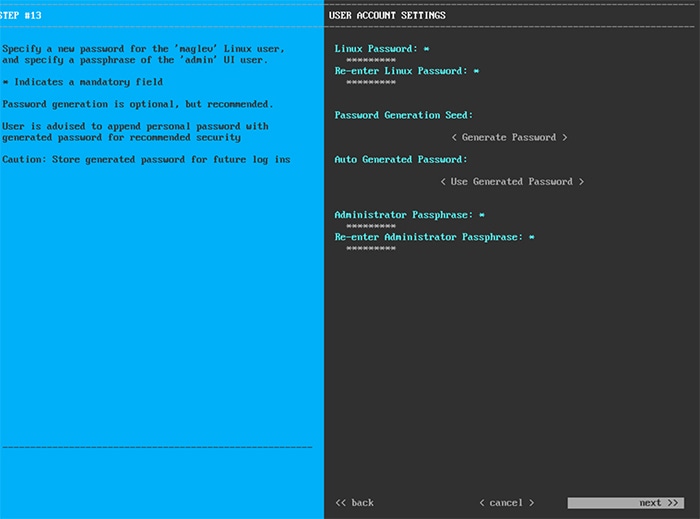
Enter the values for USER ACCOUNT SETTINGS, as shown in the table below.

Table 6. Primary Node Entries for User Account Settings

Linux Password field

Enter a Linux password for the maglev user.

Re-enter Linux Password field

Confirm the Linux password by entering it a second time.

Password Generation Seed field

If you do not want to create the Linux password yourself, enter a seed phrase in this field and then press <Generate Password> to generate the password.

Auto Generated Password field

(Optional) The seed phrase appears as part of a random and secure password. If desired, you can either use this password "as is", or you can further edit this auto-generated password.

Press <Use Generated Password> to save the password.

Administrator Passphrase field

Enter a password for the default admin superuser, used to log in to Cisco DNA Center for the first time.

Re-enter Administrator Passphrase field

Confirm the administrator passphrase by entering it a second time.

After you provide the necessary information, click next>> to proceed. Correct validation errors, if any, as you did in previous screens.

Step 12

After you have entered the user account details, the wizard prompts you to enter NTP SERVER SETTINGS values, as shown below.
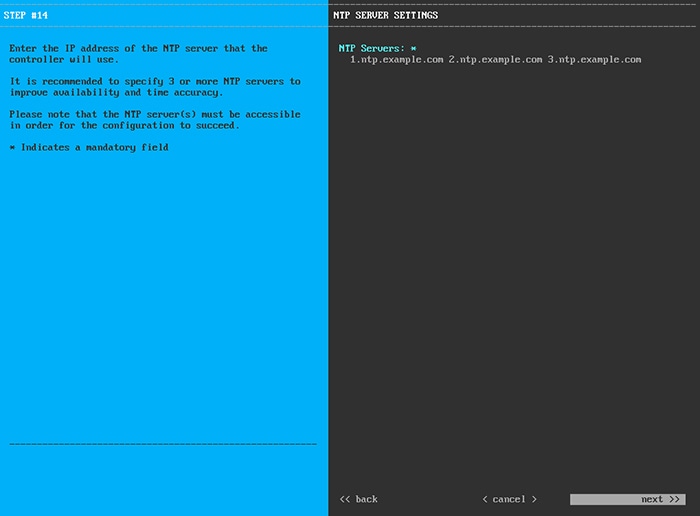
Enter one or more NTP server addresses or hostnames, separated by spaces. At least one NTP address or hostname is required. For a production deployment, we recommend that you configure a minimum of three NTP servers.

After you provide the necessary information, click next>> to proceed. Correct validation errors, if any, as you did in previous screens. The wizard validates and applies your NTP server configuration.

Step 13

After you have specified the appropriate NTP servers, the wizard prompts you to enter MAGLEV ADVANCED SETTINGS values, as shown below.
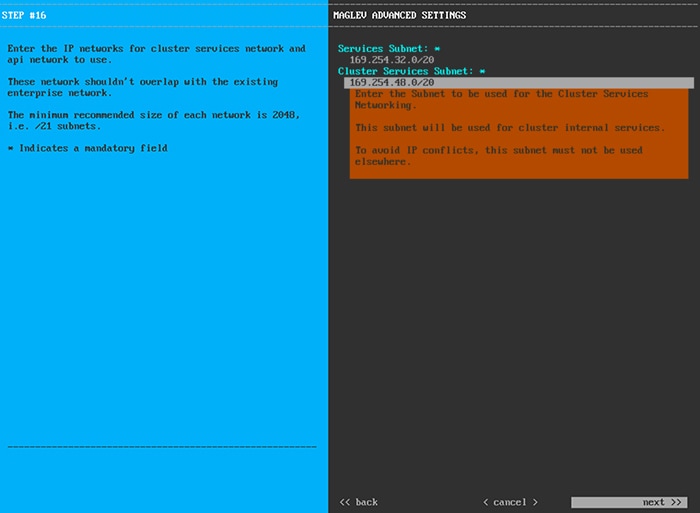
Enter the configuration values for MAGLEV ADVANCED SETTINGS, as shown in the table below.

Table 7. Primary Node Entries for Maglev Advanced Settings

Services Subnet field

A dedicated, non-routed IP subnet that Cisco DNA Center uses to manage internal services. By default, this is already set to 169.254.32.0/20, and we recommend that you use this subnet. If you choose to enter another subnet, ensure that it does not conflict with or overlap any other subnet used by the Cisco DNA Center internal network or an external network. For more information, see the Services Subnet description in Required IP Addresses and Subnets.

Cluster Services Subnet field

A dedicated, non-routed IP subnet that Cisco DNA Center uses to manage internal cluster services. By default, this is already set to 169.254.48.0/20, and we recommend that you use this subnet. If you choose to enter another subnet, ensure that it does not conflict with or overlap any other subnet used by the Cisco DNA Center internal network or an external network. For more information, see the Cluster Services Subnet description in Required IP Addresses and Subnets.

When you are finished, cllick next>> to proceed. Correct validation errors, if any, as you did in previous screens.

Step 14

After you have entered the Maglev advanced settings, a final message appears, stating that the wizard is ready to apply the configuration (as shown below).
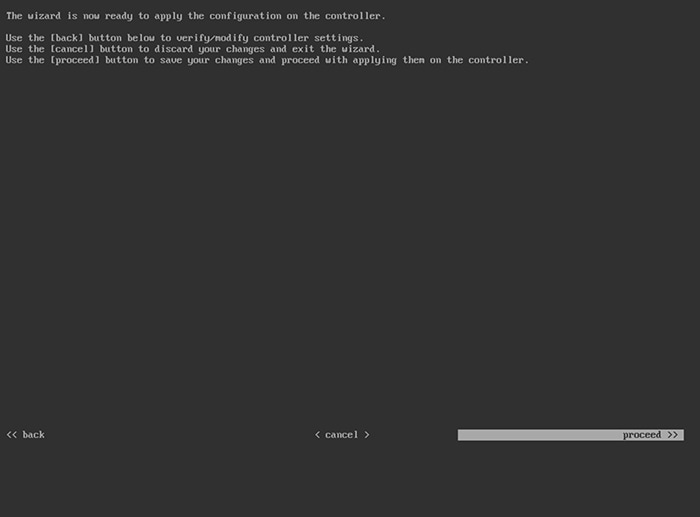
Click proceed>> to complete the configuration wizard.

The host will reboot automatically and display messages on the KVM console as it applies your settings and brings up services. This process can take several hours. You can monitor its progress via the KVM console.

At the end of the configuration process, the appliance power-cycles again, then displays a CONFIGURATION SUCCEEDED! message.


What to do next

Configure Add-On Nodes Using the Maglev Wizard

Perform the steps in this procedure to configure the second and third appliances in the cluster.


Important

In order to build a three-node cluster, the same version of the System package must be installed on your three Cisco DNA Center appliances. Otherwise, unexpected behavior and possible downtime can occur.


When joining each new add-on node to the cluster, you must specify the first host in the cluster as the primary node. Note the following when joining add-on nodes to a cluster:

  • Be sure to join only a single node to the cluster at a time. Do not attempt to add multiple nodes at the same time, because this results in unpredictable behavior.

  • Before adding a new node to the cluster, be sure that all the installed packages are deployed on the primary node. You can check this by using SSH to log in to the primary node's Cisco DNA Center Management port as the Linux User (maglev) and then running the maglev package status command. All the installed packages should appear in the command output as DEPLOYED. In the following example, the application-policy, sd-access, sensor-assurance, and sensor-automation packages were not installed; therefore, they are the only packages whose status is NOT_DEPLOYED. Your package status should look similar to this before you configure an add-on node:

    $ ssh maglev@172.29.131.14 -p 2222
    The authenticity of host '[172.29.131.14]:2222 ([172.29.131.14]:2222)' can't be established.
    ECDSA key fingerprint is SHA256:scye+2ll6NFHAkOZDs0cNLHBR75j1KV3ZXIKuUaiadk.
    Are you sure you want to continue connecting (yes/no)? yes
    Warning: Permanently added '[172.29.131.14]:2222' (ECDSA) to the list of known hosts.
    Welcome to the Maglev Appliance
    maglev@172.29.131.14's password:
    
    Welcome to the Maglev Appliance
    
    System information as of Thu Dec 20 03:07:13 UTC 2018
    
    System load: 4.08                   IP address for enp94s0f0: 17.192.1.14
    Usage of /: 59.8% of 28.03GB        IP address for enp94s0f1: 192.192.192.14
    Memory usage: 21%                   IP address for eno1: 172.29.131.14
    Swap usage: 0%                      IP address for docker0: 169.254.0.1
    Processes: 831                      IP address for tun10: 10.60.3.0
    Users logged in: 0                  
    
    To run a command as administrator (user "root"), use "sudo <command>".
    See "man sudo_root" for details.
    
    [Thu Dec 20 03:07:13 UTC] maglev@192.192.192.14 (maglev-master-1) ~
    $ maglev package status
    [administration] password for 'admin': 
    
    maglev-1 [main - https://kong-frontend.maglev-system.svc.cluster.local:443]
    
    NAME                           DEPLOYED        AVAILABLE       STATUS              
    -----------------------------------------------------------------------------------
    application-policy             -               2.1.10.170000   NOT_DEPLOYED        
    assurance                      1.0.5.686       1.1.8.1440      DEPLOYED            
    automation-core                2.1.8.60044     2.1.12.60011    DEPLOYED            
    base-provision-core            2.1.8.60044     2.1.12.60016    DEPLOYED            
    command-runner                 2.1.8.60044     2.1.9.60029     DEPLOYED            
    device-onboarding              2.1.8.60044     2.1.12.60016    DEPLOYED            
    image-management               2.1.8.60044     2.1.12.60011    DEPLOYED            
    ncp-system                     2.1.8.60044     2.1.9.60029     DEPLOYED            
    ndp-base-analytics             1.0.7.878       1.0.7.908       DEPLOYED            
    ndp-platform                   1.0.7.829       1.0.7.866       DEPLOYED            
    ndp-ui                         1.0.7.956       1.0.7.975       DEPLOYED            
    network-visibility             2.1.8.60044     2.1.12.60016    DEPLOYED            
    path-trace                     2.1.8.60044     2.1.12.60016    DEPLOYED            
    sd-access                      -               2.1.12.60016    NOT_DEPLOYED        
    sensor-assurance               -               1.1.5.40        NOT_DEPLOYED        
    sensor-automation              -               2.1.9.60029     NOT_DEPLOYED        
    system                         1.0.4.807       1.0.4.855       DEPLOYED            
  • Expect some service downtime during the cluster attachment process for each add-on node. Services will need to be redistributed across the nodes and the cluster will be down for periods of time during that process.

Before you begin

Ensure that you:

  • Configured the first appliance in the cluster, following the steps in Configure the Primary Node Using the Maglev Wizard.

  • Collected all of the information specified in Required IP Addresses and Subnets and Required Configuration Information.

  • Installed the second and third appliances, as described in Appliance Installation Workflow.

  • Have done the following:

    1. Ran the maglev package status command on the first appliance.

      You can also access this information from the Cisco DNA Center GUI by clicking the Help icon () and choosing About > Packages.

    2. Contacted the Cisco TAC, gave them the output of this command, and asked them to point you to the ISO that you should install on your second and third appliances.

  • Configured Cisco IMC browser access on both add-on appliances, as described in Enable Browser Access to Cisco Integrated Management Controller.

  • Checked that both the add-on node appliances' ports, and the switches they use, are properly configured, as described in Execute Preconfiguration Checks.

  • Confirmed that you are using a compatible browser. For a list of compatible browsers, see the Release Notes document for the version of Cisco DNA Center you are installing.

  • Enabled ICMP on the firewall between Cisco DNA Center and the DNS server you specify in Step 7 of the following procedure. The Maglev Configuration wizard uses ping to verify the DNS server you specify. This ping might get blocked if there is a firewall between Cisco DNA Center and the DNS server, and ICMP is not enabled on that firewall. When this happens, you will not be able to complete the wizard.

Procedure


Step 1

Point your browser to the Cisco IMC IP address you set during the Cisco IMC GUI configuration you performed, and log in to the Cisco IMC GUI as the Cisco IMC user (see Enable Browser Access to Cisco Integrated Management Controller).

After successful login, the appliance displays the Cisco Integrated Management Controller Chassis Summary window, with a hyperlinked menu at the top of the window, as shown below.
Step 2

From the hyperlinked menu, choose Launch KVM and then select either Java based KVM or HTML based KVM. If you select Java-based KVM, you will need to launch the Java startup file from your browser or file manager in order to view the KVM console in its own window. If you select HMTL-based KVM, it launches the KVM console in a separate window or tab automatically.

Irrespective of the KVM type you choose, use the KVM console to monitor the progress of the configuration and respond to the Maglev Configuration wizard prompts.

Step 3

With the KVM displayed, reboot the appliance by choosing one of the following options:

  • In the main Cisco IMC GUI browser window: Choose Host Power > Power Cycle, and switch to the KVM console to continue.

  • In the KVM console: Choose Power > Power Cycle System (cold boot).

If you are asked to confirm your choice to reboot the appliance, click OK.

After displaying reboot messages, the KVM console displays the Maglev Configuration wizard welcome screen.

Step 4

Click Join a Cisco DNA Center Cluster to begin configuring the add-on node.

The wizard discovers all of the ports on the appliance and presents them to you one by one, in separate screens, in the following order:

  1. 1-Gbps/10-Gbps Management port (1, eno1/enp53s0f0, Network Adapter #1)

  2. 1-Gbps/10-Gbps Cloud port (eno2/enp53s0f1, Network Adapter #2)

  3. 10-Gbps Enterprise port (enp94s0f0/enp69s0f0, Network Adapter #3)

  4. 10-Gbps Cluster port (enp94s0f1/enp69s0f1, Network Adapter #4)

Note 

The interface names assigned to ports on 44, 56, and 112 core appliances differ. Whenever two interface names are provided in this procedure, the first applies to both 44 and 56 core appliances and the second applies to 112 core appliances.

If the wizard fails to display either or both of the Enterprise and Cluster ports during the course of configuration, it might indicate that these ports are nonfunctional or disabled. These 10-Gbps ports are required for Cisco DNA Center functionality. If you discover that they are nonfunctional, choose cancel to exit the configuration wizard immediately. Be sure that you have completed all of the steps provided in Execute Preconfiguration Checks before resuming the configuration or by contacting the Cisco Technical Assistance Center (for more information, see the "Get Assistance from the Cisco TAC" topic in the Release Notes document).

Step 5

The wizard discovers the 1-Gbps/10-Gbps Management port (1, eno1/enp53s0f0) first and presents it as NETWORK ADAPTER #1. As explained in Interface Cable Connections, this port is used to access the Cisco DNA Center GUI from your management network. Apply the host IP address, netmask, and other values that are appropriate for this purpose (see Required IP Addresses and Subnets and Required Configuration Information for the values to enter).

Enter configuration values for NETWORK ADAPTER #1 as shown in the table below.

Table 8. Add-On Node Entries for Network Adapter #1: 1-Gbps/10-Gbps Management Port (eno1/enp53s0f0)

Host IP address field

Enter the IP address for the Management port. This is required.

Netmask field

Enter the netmask for the port's IP address. This is required.

Default Gateway IP address field

Enter a default gateway IP address to use for the port.

Important 

Ensure that you enter a default gateway IP address for at least one of your appliance's interfaces. Otherwise, you will not be able to complete the configuration wizard.

DNS Servers field

Enter the IP address of the preferred DNS server. If you are entering multiple DNS servers, separate the IP addresses in the list with spaces.

Important 
  • For NTP, ensure port 123 (UDP) is open between Cisco DNA Center and your NTP server.

  • For each appliance in your cluster, configure a maximum of three DNS servers. Problems can occur if you configure more than three DNS servers for an appliance.

Static Routes field

Enter one or more static routes in the following format, separated by spaces: <network>/<netmask>/<gateway>.

Cluster Link field

Leave this field blank. It is required on the Cluster port only.

After you finish entering the configuration values, click next>> to proceed. The wizard validates the values you entered and issues an error message if any are incorrect. If you receive an error message, check that the value you entered is correct, then reenter it. If needed, click <<back to reenter it.

Step 6

After successful validation of the Management port values you entered, the wizard presents the 1-Gbps/10-Gbps Cloud port (2, eno2/enp53s0f1) as NETWORK ADAPTER #2. As explained in Interface Cable Connections, this is an optional port used to link the appliance to the Internet when you cannot do so through the 10-Gbps Enterprise port (enp94s0f0/enp69s0f0). Apply the host IP address, netmask, and other values that are appropriate for this purpose (see Required IP Addresses and Subnets and Required Configuration Information for the values to enter).

Enter the configuration values for NETWORK ADAPTER #2, as shown in the table below.

Table 9. Add-On Node Entries for Network Adapter #2: 1-Gbps/10-Gbps Cloud Port (eno2/enp53s0f1)

Host IP address field

Enter the IP address for the Cloud port. This is required only if you are using the Cloud port for internet connection; otherwise, you can leave it blank.

Netmask field

Enter the netmask for the port's IP address. This is required if you enter an IP address.

Default Gateway IP address field

Enter a default gateway IP address to use for the Cloud port.

Important 

Ensure that you enter a default gateway IP address for at least one of your appliance's interfaces. Otherwise, you will not be able to complete the configuration wizard.

DNS Servers field

Enter the IP address of the preferred DNS server. If you are entering multiple DNS servers, separate the IP addresses in the list with spaces.

Important 

For each appliance in your cluster, configure a maximum of three DNS servers. Problems can occur if you configure more than three DNS servers for an appliance.

Static Routes field

Enter one or more static routes in the following format, separated by spaces: <network>/<netmask>/<gateway>. This is usually required on the Management port only.

Cluster Link field

Leave this field blank. It is required on the Cluster port only.

After you provide the necessary information, click next>> to proceed. Correct validation errors, if any, as you did in previous screens.

Step 7

After successful validation of the Cloud port values you entered, the wizard presents the 10-Gbps Enterprise port (enp94s0f0/enp69s0f0) as NETWORK ADAPTER #3. As explained in Interface Cable Connections, this port is required to link the appliance to the enterprise network. Apply the host IP address, netmask, and other values that are appropriate for this purpose (see Required IP Addresses and Subnets and Required Configuration Information for the values to enter).

Enter the configuration values for NETWORK ADAPTER #3, as shown in the table below.

Table 10. Add-On Node Entries for Network Adapter #3: 10-Gbps Enterprise Port (enp94s0f0/enp69s0f0)

Host IP address field

Enter the IP address for the Enterprise port. This is required.

Netmask field

Enter the netmask for the port's IP address. This is required.

Default Gateway IP address field

Enter a default gateway IP address to use for the port.

Important 

Ensure that you enter a default gateway IP address for at least one of your appliance's interfaces. Otherwise, you will not be able to complete the configuration wizard.

DNS Servers field

Enter the IP address of the preferred DNS server. If you are entering multiple DNS servers, separate the IP addresses in the list with spaces.

Important 

For each appliance in your cluster, configure a maximum of three DNS servers. Problems can occur if you configure more than three DNS servers for an appliance.

Static Routes field

Enter one or more static routes in the following format, separated by spaces: <network>/<netmask>/<gateway>. This is usually required on the Cisco DNA Center Management port only.

Cluster Link field

Leave this field blank. It is required on the Cluster port only.

After you provide the necessary information, click next>> to proceed. Correct validation errors, if any, as you did in previous screens.

Step 8

After successful validation of the Enterprise port values you entered, the wizard presents the 10-Gbps Cluster port (enp94s0f1/enp69s0f1) and presents it as NETWORK ADAPTER #4. As explained in Interface Cable Connections, this port is used to link the appliance to the cluster, so apply the host IP address, netmask, and other values that are appropriate for this purpose (see Required IP Addresses and Subnets and Required Configuration Information for the values to enter).

Enter the configuration values for NETWORK ADAPTER #4, as shown in the table below.

Table 11. Add-On Node Entries for Network Adapter #4: 10-Gbps Cluster Port (enp94s0f1/enp69s0f1)

Host IP address field

Enter the IP address for the Cluster port. This is required. Note that you cannot change the address of the Cluster port later.

Netmask field

Enter the netmask for the port's IP address. This is required.

Default Gateway IP address field

Enter a default gateway IP address to use for the port.

Important 

Ensure that you enter a default gateway IP address for at least one of your appliance's interfaces. Otherwise, you will not be able to complete the configuration wizard.

DNS Servers field

Enter the IP address of the preferred DNS server. If you are entering multiple DNS servers, separate the IP addresses in the list with spaces.

Important 

For each appliance in your cluster, configure a maximum of three DNS servers. Problems can occur if you configure more than three DNS servers for an appliance.

Static Routes field

Enter one or more static routes in the following format, separated by spaces: <network>/<netmask>/<gateway>. This is usually required on the Management port only.

Cluster Link field

Check the check box to indicate that this port will be the link to a cluster. This is required on the Cluster port only.

After you provide the necessary information, click next>> to proceed. Correct validation errors, if any, as you did in previous screens.

Step 9

After the network adapter configuration is complete, the wizard prompts you to enter configuration values for the NETWORK PROXY that you are using, as shown below.

Enter the configuration values for the NETWORK PROXY, as shown in the table below.

Table 12. Add-On Node Entries for Network Proxy

HTTPS Proxy field

Enter the URL or host name of an HTTPS network proxy used to access the Internet.

Note 
Connection from Cisco DNA Center to the HTTPS proxy is supported only through HTTP in this release.

HTTPS Proxy Username field

Enter the user name used to access the network proxy. If no proxy login is required, leave this field blank.

HTTPS Proxy Password field

Enter the password used to access the network proxy. If no proxy login is required, leave this field blank.

After you provide the necessary information, click next>> to proceed. Correct validation errors, if any, as you did in previous screens.

Step 10

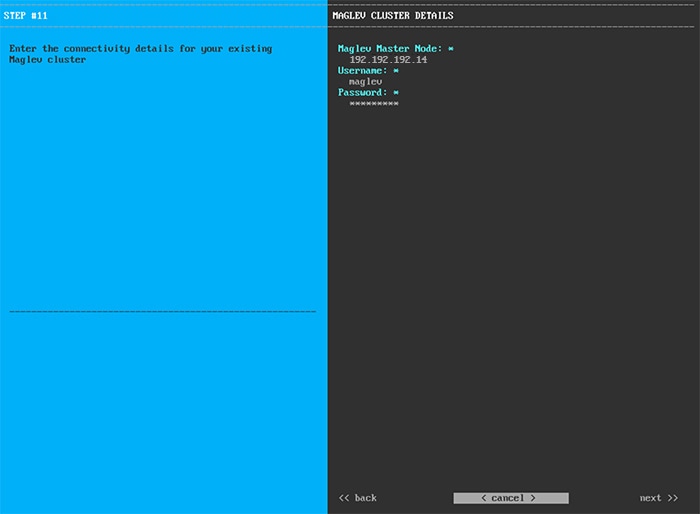
After network proxy configuration completes, the wizard prompts you to identify the Cluster port on the primary node, and primary node login details, in MAGLEV CLUSTER DETAILS, as shown below.

Enter the values for MAGLEV CLUSTER DETAILS , as shown in the table below.

Table 13. Add-On Node Entries for Maglev Cluster Details

Maglev Master Node field

Enter the IP address of the Cluster port on the primary node in the cluster. If you have followed the recommendations for port assignment, this will be the IP address of enp94s0f1, Network Adapter #4 on the primary node.

User name field

Enter maglev.

Password field

Enter the Linux password you configured on the primary node.

After you provide the necessary information, click next>> to proceed. Correct validation errors, if any, as you did in previous screens.

Step 11

After you have entered the Maglev cluster details, the wizard prompts you to enter USER ACCOUNT SETTINGS values for this add-on node, as shown below.

Enter the values for USER ACCOUNT SETTINGS, as shown in the table below.

Table 14. Add-On Node Entries for User Account Settings

Linux Password field

Enter a Linux password for the maglev user.

Re-enter Linux Password field

Confirm the Linux password by entering it a second time.

Password Generation Seed field

If you do not want to create the Linux password yourself, enter a seed phrase in this field and then press <Generate Password> to generate the password.

Auto Generated Password field

(Optional) The seed phrase appears as part of a random and secure password. If required, you can either use this password as is, or you can further edit this auto-generated password.

Click <Use Generated Password> to save the password.

Administrator Passphrase field

Enter a password for the default admin superuser, used to log in to Cisco DNA Center for the first time.

Re-enter Administrator Passphrase field

Confirm the administrator passphrase by entering it a second time.

After you provide the necessary information, click next>> to proceed. Correct validation errors, if any, as you did in previous screens.

Step 12

After you have entered the user account details, the wizard prompts you to enter NTP SERVER SETTINGS values, as shown below.

Enter one or more NTP server addresses or hostnames, separated by spaces. At least one NTP address or hostname is required. They should be the same NTP servers you specified for the primary node.

After you provide the necessary information, click next>> to proceed. Correct validation errors, if any, as you did in previous screens.

Step 13

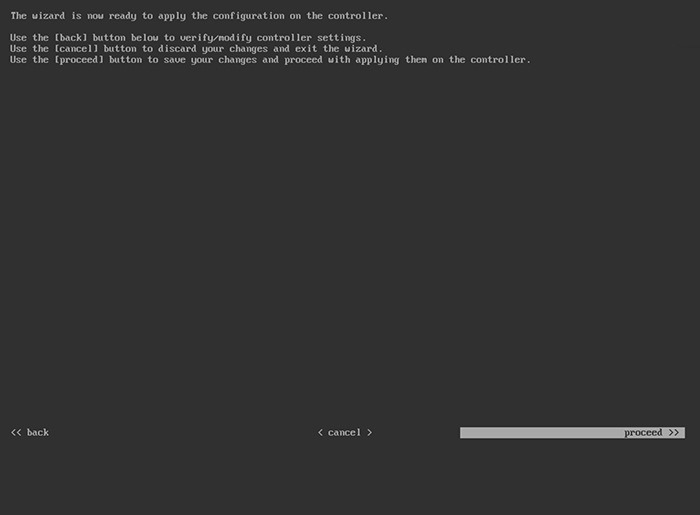
When you are finished entering the NTP server settings, a final message appears, stating that the wizard is ready to apply the configuration (as shown below).

Click proceed>> to complete the configuration wizard.

The host will reboot automatically and display messages on the KVM console as it applies your settings and brings up services. This process can take several hours. You can monitor its progress via the KVM console.

At the end of the configuration process, the appliance power-cycles again, then displays a CONFIGURATION SUCCEEDED! message.


What to do next

  • If you have an additional appliance to deploy as the third and final node in the cluster, repeat this procedure.

  • If you have finished adding hosts to the cluster, perform the first-time setup: First-Time Setup Workflow.

Upgrade to the Latest Cisco DNA Center Release

For information about upgrading your current release of Cisco DNA Center, see the Cisco DNA Center Upgrade Guide.