Prepare the Appliance for Configuration

Preparation for appliance configuration overview

Before you can successfully configure your Catalyst Center appliance, first complete the following tasks:

  1. Enable browser access to the appliance's Cisco IMC (see Enable browser access to Cisco Integrated Management Controller).

  2. Use Cisco IMC to check and adjust important hardware and switch settings (see Execute preconfiguration checks).

  3. Catalyst Center software is preinstalled on your appliance, but you may need to reinstall the software in certain situations (such as before you change the current cluster link configuration). If this is the case, you must also complete the tasks described in Reimage the appliance.


    Note


    If you do not need to reimage your appliance, proceed to the "Appliance Configuration Overview" topic specific to the configuration wizard you want to use:


Enable browser access to the Cisco Integrated Management Controller

After installing the appliance, as described in Appliance installation workflow, use the Cisco IMC configuration utility to assign an IP address and gateway to the appliance's CIMC port. This gives you access to the Cisco IMC GUI, which you should use to configure the appliance.

After you complete the Cisco IMC setup, log in to Cisco IMC and run the tasks listed in Execute preconfiguration checks to ensure correct configuration.


Tip


To help ensure the security of your deployment, Cisco IMC prompts you to change the Cisco IMC user's default password when you boot the appliance for the first time. To change the Cisco IMC user password later, use the Cisco IMC GUI, as follows:

  1. From the top-left corner of the GUI, click the Toggle Navigation icon () and then choose Admin > User Management.

    The Local User Management tab should already be selected.

  2. Check the check box for user 1, and then click Modify User.

    The Modify User Details dialog box opens.

  3. Check the Change Password check box.

  4. Enter and confirm the new password, and then click Save.


Procedure


Step 1

Access the appliance console by attaching either of the following:

  • A KVM cable to the KVM connector on the appliance's front panel (component 11 on the front panel illustrated in Front and rear panels).
  • A keyboard and monitor to the USB and VGA ports on the appliance's rear panel (components 2 and 5, respectively, on the rear panel illustrated in Front and rear panels).

Step 2

Make sure that the appliance's power cord is plugged in and the power is on.

Step 3

Press the Power button on the front panel to boot the appliance.

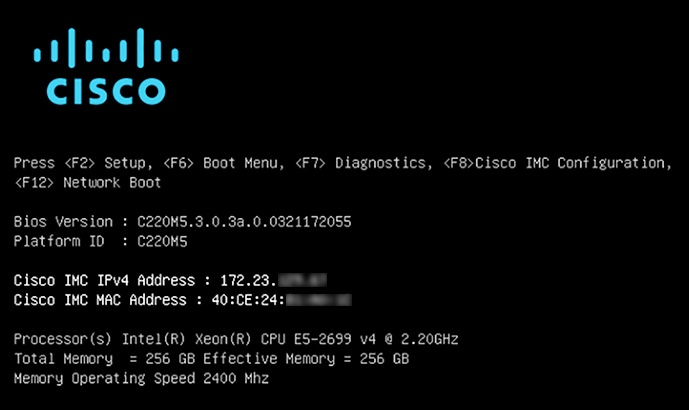
Cisco IMC configuration utility boot screen.

The Cisco IMC configuration utility boot screen should be displayed, as shown below.

Step 4

As soon as the boot screen is displayed, press F8 to perform Cisco IMC configuration.

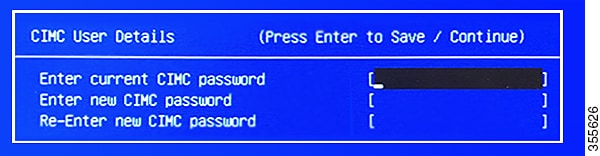
The CIMC configuration utility displays the CIMC User Details screen, as shown below.


CIMC User Details screen.

Step 5

Enter the default CIMC user password (the default on a new appliance is password) in the Enter current CIMC Password field.

Step 6

Enter and confirm the new CIMC user password in the Enter new CIMC password and Re-Enter new CIMC password fields.

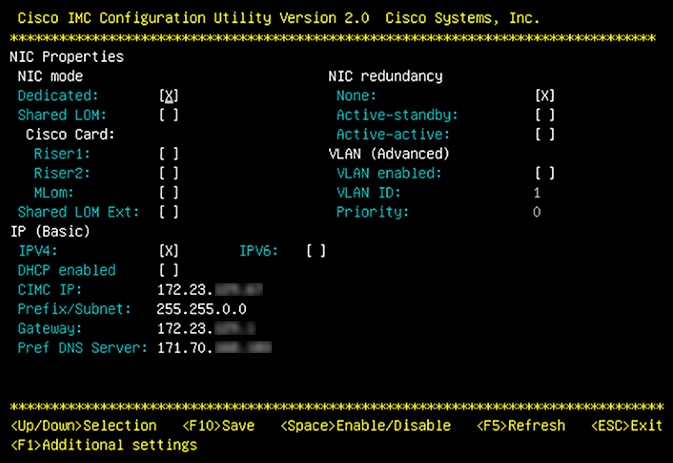
When you press Enter after entering the new password in the Re-Enter new CIMC password field, the Cisco IMC configuration utility displays the NIC Properties screen, as shown below.

NIC Properties screen.

Step 7

Perform the following actions:

  • NIC mode: Select Dedicated.

  • IP (Basic): Select IPV4.

  • CIMC IP: Enter the IP address of the CIMC port.

  • Prefix/Subnet: Enter the subnet mask for the CIMC port IP address.

  • Gateway: Enter the IP address of your preferred default gateway.

  • Pref DNS Server: Enter the IP address of your preferred DNS server.

  • NIC Redundancy: Select None.

Step 8

Press F1 to specify Additional settings.

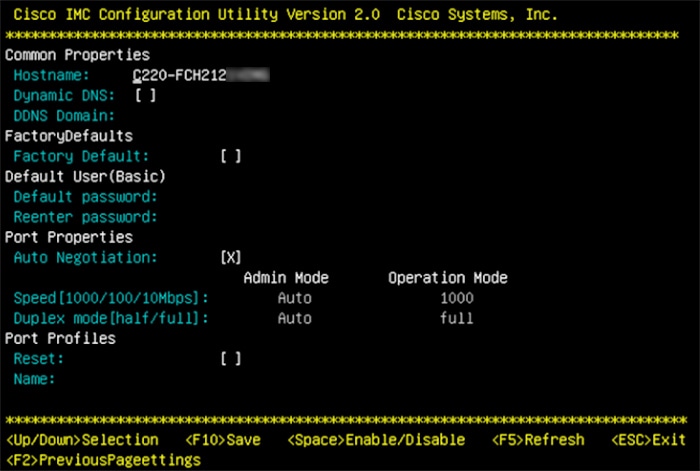
The Cisco IMC configuration utility displays the Common Properties screen, as shown below.

Common Properties screen.

Step 9

Perform the following actions:

  • Hostname: Enter a hostname for CIMC on this appliance.

  • Dynamic DNS: Uncheck the check box to disable this feature.

  • Factory Defaults: Uncheck the check box to disable this feature.

  • Default User (Basic): Leave these fields blank.

  • Port Properties: Enter new settings or accept the defaults shown in these fields.

  • Port Profiles: Uncheck the check box to disable this feature.

Step 10

Press F10 to save the settings.

Step 11

Press Escape to exit and reboot the appliance.

Step 12

After the settings are saved and the appliance finishes rebooting, open a compatible browser on a client machine with access to the subnet on which the appliance is installed, and enter the following URL:

https://CIMC_ip_address, where CIMC_ip_address is the Cisco IMC port IP address that you entered in Step 7.

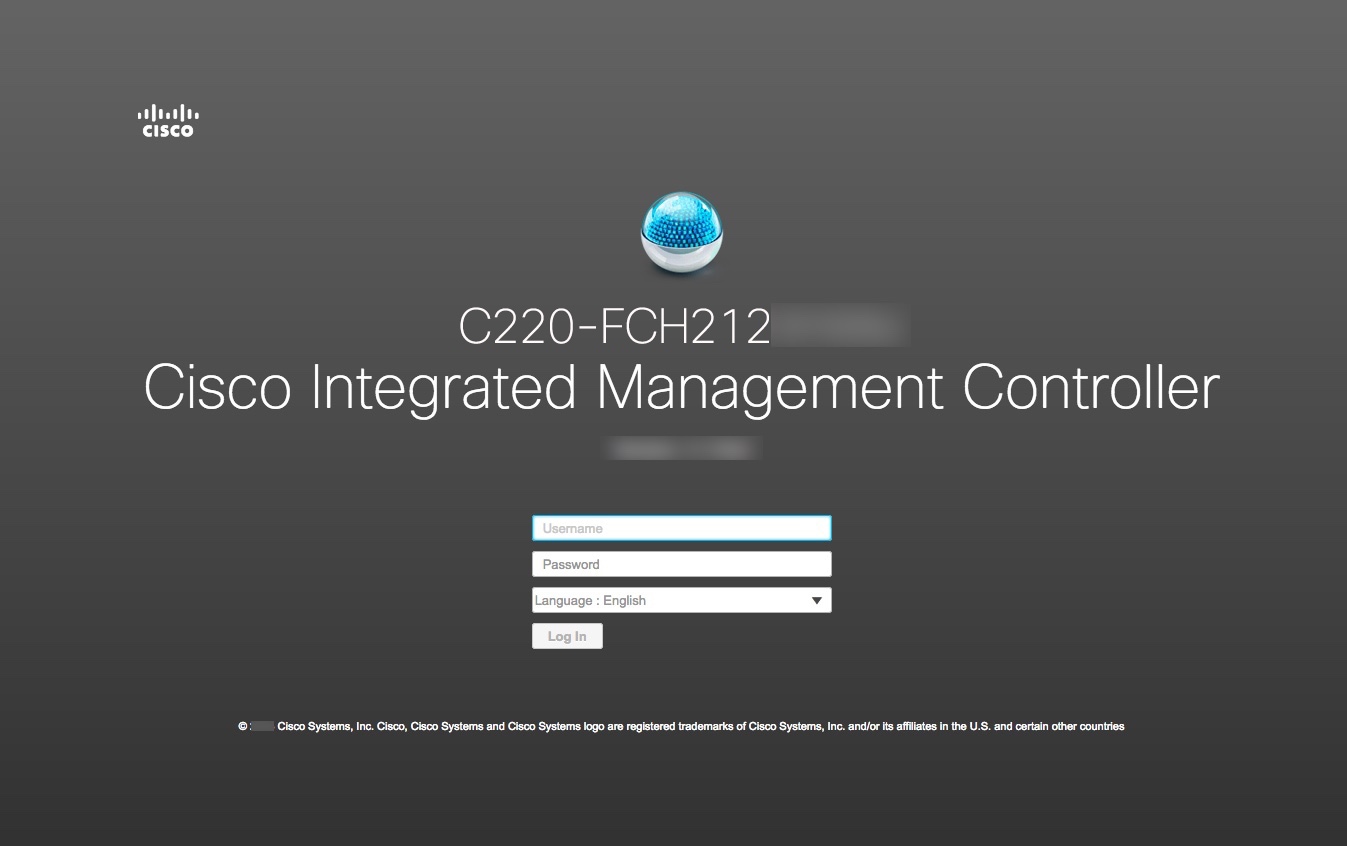
Your browser displays a main Cisco IMC GUI login window similar to the one shown below.

Cisco IMC login window.

Step 13

Log in using the Cisco IMC user ID and password you set in Step 5.

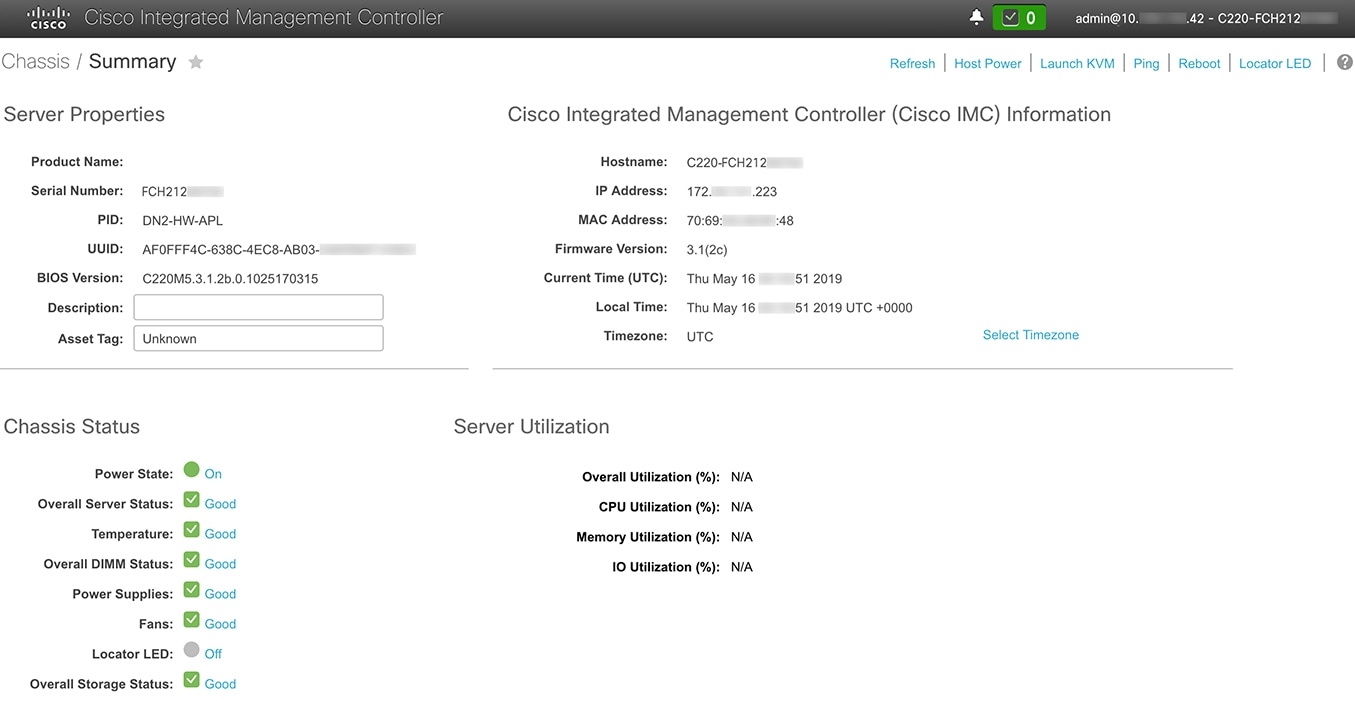
If the login is successful, your browser displays a Cisco Integrated Management Controller Chassis Summary window similar to the one shown below.

Cisco Integrated Management Controller Chassis Summary window.

Step 14

Confirm that this version of Cisco IMC is supported by the Catalyst Center release you're going to install:

  1. Note the version listed in the Firmware Version field.

  2. See the release notes for the Catalyst Center release you are installing. The “Supported Firmware” section indicates the Cisco IMC version that your Catalyst Center release supports.

  3. Do one of the following:


Execute preconfiguration tasks

After installing the appliance (as described in Appliance installation workflow) and setting up access to the Cisco IMC GUI (as described in Enable browser access to Cisco Integrated Management Controller), use Cisco IMC to perform the following preconfiguration tasks, which help ensure correct configuration and deployment:

  1. Synchronize the appliance hardware with the Network Time Protocol (NTP) servers you use to manage your network. These must be the same NTP servers whose hostnames or IPs you gathered for use when planning your implementation, as explained in Required IP addresses and subnets. This is a critical task that ensures that your Catalyst Center data is synchronized properly across the network.

  2. Reconfigure the switches connected to the 10-Gbps appliance ports to support higher throughput settings.

Procedure


Step 1

Log in to the appliance's Cisco IMC using the Cisco IMC IP address, user ID, and password you set in Enable browser access to Cisco Integrated Management Controller.

If the login is successful, your browser displays the Cisco Integrated Management Controller Chassis Summary window, as shown below.

Cisco IMC - Chassis > Summary Window

Step 2

Synchronize the appliance's hardware with the Network Time Protocol (NTP) servers you use to manage your network, as follows:

  1. From the top-left corner of the Cisco IMC GUI, click the Toggle Navigation icon ().

  2. From the Cisco IMC menu, select Admin > Networking, and then choose the NTP Setting tab.

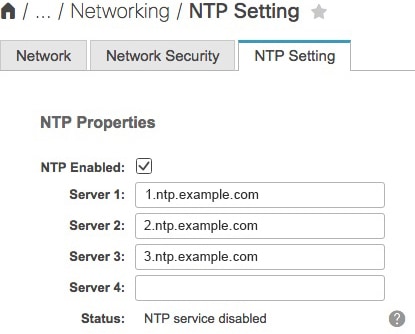
  3. Make sure that the NTP Enabled check box is checked and enter up to four NTP server host names or addresses in the numbered Server fields, as shown in the example below.

    Cisco IMC - Networking > NTP Setting Tab
  4. Click Save Changes. Cisco IMC validates your entries and then begins to synchronize the time on the appliance's hardware with the time on the NTP servers.

    Note

     
    • Second-generation Catalyst Center appliances do not use a virtual interface card (VIC). You do not need to configure the network interface card (NIC) that comes installed on your second-generation appliance to support high throughput in Cisco IMC, as this is already enabled by default.

    • Cisco IMC does not support NTP authentication.

Step 3

Reconfigure your switches to match the high-throughput settings on the appliance, as follows:

  1. Using a Secure Shell (SSH) client, log in to the switch to be configured and enter EXEC mode at the switch prompt.

  2. Configure the switch port.

    On a Cisco Catalyst switch, enter the following commands. For example:

    MySwitch#Config terminal
    MySwitch(config)#interface tengigabitethernet 1/1/3 
    MySwitch(config-if)#switchport mode access 
    MySwitch(config-if)#switchport access vlan 99 
    MySwitch(config-if)#speed auto 
    MySwitch(config-if)#duplex full 
    MySwitch(config-if)#mtu 1500 
    MySwitch(config-if)#no shut 
    MySwitch(config-if)#end 
    MySwitch(config)#copy running-config startup-config 

    On a Cisco Nexus switch, enter the following commands to disable Link Layer Discovery Protocol (LLDP) and priority flow control (PFC). For example:

    N7K2# configure terminal
    N7K2(config)# interface eth 3/4
    N7K2(config-if)# no priority-flow-control mode auto
    N7K2(config-if)# no lldp transmit
    N7K2(config-if)# no lldp receive

    Note the following:

    • These commands are examples only.

    • The switch port on Catalyst Center second-generation appliances must be set to access mode in order to function properly. Trunk mode is not supported, except in VLAN mode.

  3. Run the show interface tengigabitethernet portID command and verify that the port is connected, running, and has the correct MTU, duplex, and link-type settings in the command output. For example:

    MySwitch#show interface tengigabitethernet 1/1/3 
    TenGigabitEthernet1/1/3 is up, line protocol is up (connected) 
      Hardware is Ten Gigabit Ethernet, address is XXXe.310.8000 (bia XXX.310.8000)
      MTU 1500 bytes, BW 10000000 Kbit/sec, DLY 10 usec, 
         reliability 255/255, txload 1/255, rxload 1/255 
      Encapsulation ARPA, loopback not set 
      Keepalive not set 
      Full-duplex, 10GB/s, link type is auto, media type is SFP-10Gbase-SR
  4. Run the show run interface tengigabitethernet portID command to configure the switch ports where the cables from the Intel X710-DA2 NIC ports are connected. For example:

    MySwitch#show run interface tengigabitethernet 1/1/3 
    Building configuration... 
    Current configuration : 129 bytes 
    ! interface TenGigabitEthernet1/1/3 
     switchport access vlan 99 
     ip device tracking maximum 10 
    end 
    
    MySwitch#
  5. Run the show mac address-table interface tengigabitethernet portID command and verify the MAC address from the command output. For example:

    MySwitch#show mac address-table interface tengigabitethernet 1/1/3 
               Mac Address Table 
    ––––––––––––––––––––––––––––––––––––––––––-- 
    Vlan     Mac Address       Type      Ports 
    ––--     ––––––––––-       –––-      –––-- 
    99       XXXe.3161.1000    DYNAMIC   Te1/1/3 
    Total Mac Addresses for this criterion: 1 
    
    MySwitch#

Step 4

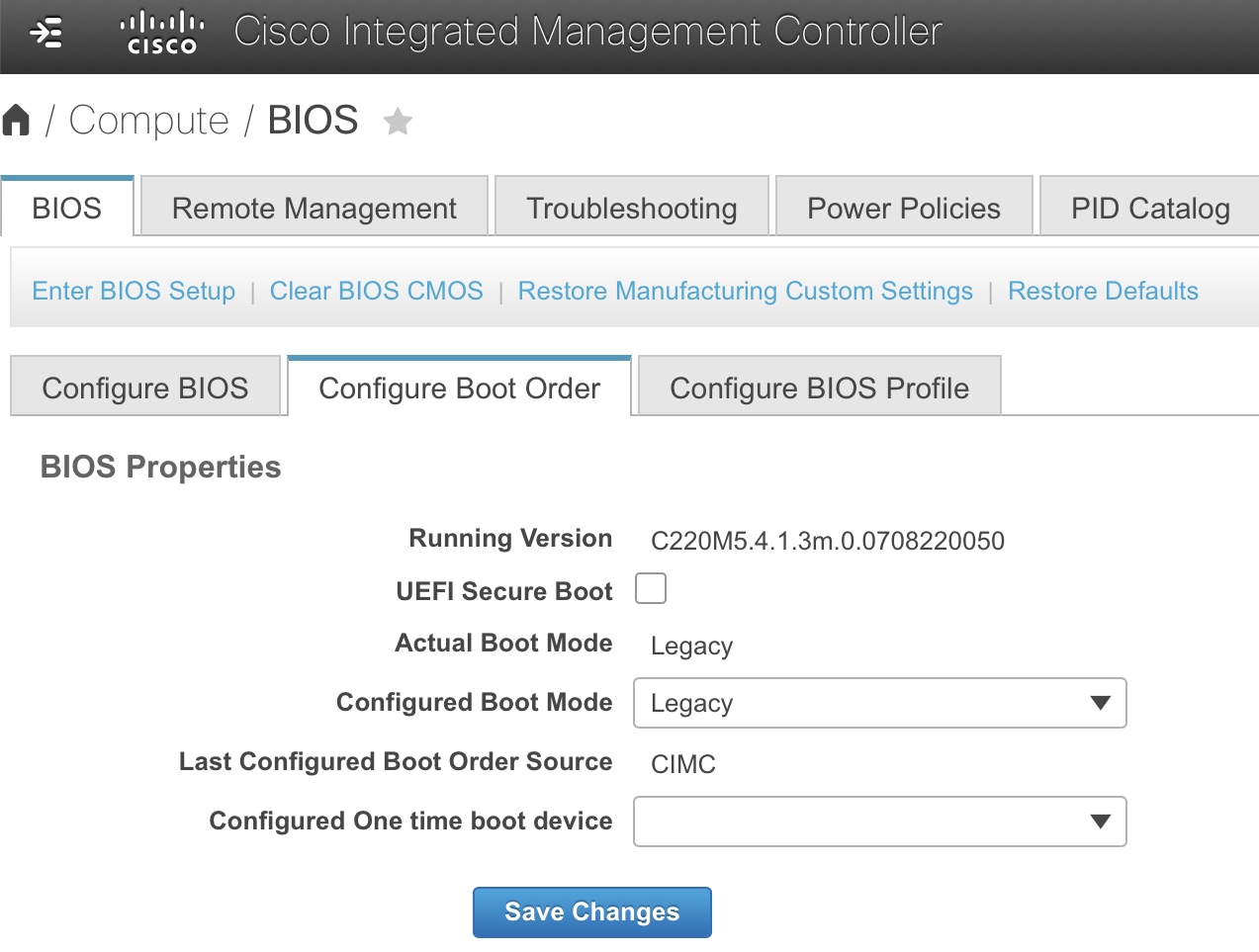
In the Configured Boot Mode drop-down list, confirm that Legacy (the default mode) is set.

To access the Configure Boot Order tab, do the following:

  1. From the top-left corner of the Cisco IMC GUI, click the Toggle Navigation icon ().

  2. From the Cisco IMC menu, choose Compute > BIOS > Configure Boot Order.

Do not change the boot mode to UEFI. When this mode is set, your Catalyst Center appliance's interfaces may not be pingable.


What to do next

When this task is complete, do one of the following:

NIC bonding overview

On any given Catalyst Center appliance, you can configure the Enterprise, Intracluster, Management, and Internet interface. If you enable network interface controller (NIC) bonding on an appliance, each of these interfaces has two instances: The primary instance (located on either your appliance's motherboard or Intel X710-DA2 NIC) is connected to one switch, and the secondary instance (located on your appliance's Intel X710-DA4 NIC) is connected to a different switch. NIC bonding consolidates the two instances of each interface into a single logical interface, appearing as a single device with one MAC address. Depending on the bonding mode that you choose when configuring the interfaces on your appliance, this feature provides the following benefits when enabled:


Note


Both single-node and three-node Catalyst Center clusters support NIC bonding.


  • Active-Backup mode: By default, this is the bonding mode that's configured for your appliance's interfaces when this feature is enabled on your appliance. It enables high availability (HA) for the two interfaces that Catalyst Center has grouped together. When the interface that's currently active goes down, the other interface takes its place and becomes active.


    Note


    When this mode is enabled on an interface that supports both 1-Gbps and 10-Gbps throughput, Catalyst Center automatically sets the throughput to 1-Gbps.


  • LACP mode: When selected, the two interfaces that Catalyst Center has grouped together share the same speed and duplex settings. This provides load balancing and higher bandwidth for the interfaces. In order to enable this mode, the following items must first be in place:

    • The Linux utility ethtool must support the base drivers that are used to retrieve the speed and duplex mode of each interface.

    • The switch that is connected to the Enterprise port must support dynamic interface aggregation.

    • After you enable LACP on the switch, ensure that you have set the LACP mode to active (which places the switch port connected to your appliance into an active negotiating state, in which the port initiates negotiations with remote ports by sending LACP packets) and the LACP rate to fast (which changes the rate at which the LACP control packets are sent to an LACP-supported interface from the default every 30 seconds to once every second).


    Note


    • You can only enable LACP mode on your appliance's Enterprise and Intracluster interfaces. The Management and Internet Access interfaces only support Active-Backup mode.

    • You can only enable LACP mode on your appliance's Intracluster interface during the initial configuration of your appliance.


Before you use NIC bonding in your production environment, you should do the following:

Appliance support

All second-generation Catalyst Center appliances support NIC bonding:

  • 44-core appliance: Cisco part number DN2-HW-APL

  • 44-core promotional appliance: Cisco part number DN2-HW-APL-U

  • 56-core appliance: Cisco part number DN2-HW-APL-L

  • 56-core promotional appliance: Cisco part number DN2-HW-APL-L-U

  • 112-core appliance: Cisco part number DN2-HW-APL-XL

  • 112-core promotional appliance: Cisco part number DN2-HW-APL-XL-U

Reimage the appliance

Situations that require you to reimage your Catalyst Center appliance, such as recovering from a backup or changing your cluster link configuration, might arise. To do so, complete the following procedure.

Procedure


Step 1

Download the Catalyst Center ISO image and verify that it is a genuine Cisco image.

See Verify the Catalyst Center ISO image.

Step 2

Create a bootable USB drive that contains the Catalyst Center ISO image.

See Create a bootable USB drive.

Step 3

Reinitialize the virtual drives that are managed by your appliance’s RAID controller: Reinitialize the virtual drives on a Catalyst Center appliance.

Step 4

Reinstall Catalyst Center onto your appliance.

See Install the Catalyst Center ISO image.


Verify the Catalyst Center image

Before deploying Catalyst Center, we strongly recommend that you verify that the image you downloaded is a genuine Cisco image.

Before you begin

Obtain the location of the Catalyst Center image (through email or by contacting the Cisco support team).

Procedure


Step 1

Download the Catalyst Center image (.iso, .bin, .zip) from the location specified by Cisco.

Step 2

Download the Cisco public key (cisco_image_verification_key.pub) for signature verification from the location specified by Cisco.

Step 3

Download the secure hash algorithm (SHA512) checksum file for the image from the location specified by Cisco.

Step 4

Obtain the image's signature file (.sig) from Cisco support through email or by download from the secure Cisco website (if available).

Step 5

(Optional) Perform an SHA verification to determine whether the image is corrupted due to a partial download.

Depending on your operating system, enter one of these commands:

  • On a Linux system: sha512sum image-filename

  • On a Mac system: shasum -a 512 image-filename

On Microsoft Windows, use the certutil tool because it does not include a built-in checksum utility:

certutil -hashfile <filename> sha256 | md5

For example:

certutil -hashfile D:\Customers\FINALIZE.BIN sha256

On Windows, you can also use the Windows PowerShell to generate the digest. For example:

PS C:\Users\Administrator> Get-FileHash -Path D:\Customers\FINALIZE.BIN
Algorithm Hash Path
SHA256 B84B6FFD898A370A605476AC7EC94429B445312A5EEDB96166370E99F2838CB5 D:\Customers\FINALIZE.BIN

Compare the command output to the SHA512 checksum file that you downloaded. If the command output does not match, download the image again and run the appropriate command again. If the output still does not match, contact Cisco support.

Step 6

Verify that the image is genuine and from Cisco by verifying its signature:

openssl dgst -sha512 -verify cisco_image_verification_key.pub -signature signature-filename image-filename

Note


This command works in both Mac and Linux environments. For Windows, you must download and install OpenSSL (available here) if you have not already it.

If the image is genuine, running this command displays a Verified OK message. If this message fails to appear, do not install the image and contact Cisco support.

Step 7

After confirming that you have downloaded a Cisco image, create a bootable USB drive that contains the Catalyst Center image. See Create a bootable USB drive.


Create a bootable USB flash drive

Complete one of these procedures to create a bootable USB flash drive from which you can install the Catalyst Center ISO image.

Before you begin:

  • Download and verify your copy of the Catalyst Center ISO image. See Verify the Catalyst Center ISO image.

  • Confirm that the USB flash drive you are using meets these requirements:

    • USB 3.0 or later

    • 64 GB

    • Unencrypted


Note


Use only Etcher, the Linux CLI, or the Mac CLI. to burn the Catalyst Center ISO image.


Using Etcher

Procedure

Step 1

Download and install Etcher (version 1.3.1 or later). You can use this free and open-source utility to create a bootable USB drive on your laptop or desktop.

You can download Etcher for Linux, macOS, or Windows at https://www.balena.io/etcher/.

Note


Use Etcher only on Windows 10 or later to avoid compatibility issues.

Step 2

From the machine on which you installed Etcher, connect a USB drive and then start Etcher.

Step 3

In the top-right corner of the window, click Etcher Settings Icon and verify that these Etcher settings are set:

  • Auto-unmount on success

  • Validate write on success

Step 4

Click Back to return to the main Etcher window.

Step 5

Click Select Image.

Step 6

Navigate to the Catalyst Center ISO image you downloaded previously. Select it, and then click Open.

You should see the name of the USB drive you connected under the drive icon (Drive Icon). If it is not:

  1. Click Select drive.

  2. Click the radio button for the correct USB drive, and then click Continue.

Step 7

Click Flash! to copy the ISO image to the USB drive.

Etcher configures the USB drive as a bootable drive with the Catalyst Center ISO image installed.


Using the Linux CLI

Procedure

Step 1

Verify that your USB flash drive is recognized by your machine:

  1. Insert a flash drive into the USB port of your machine.

  2. Open a Linux shell and run this command: lsblk

    The command lists the disk partitions that are configured on your machine, as shown in this example:

    $ lsblk
    NAME MAJ:MIN RM SIZE RO TYPE MOUNTPOINT
    sda 8:0 0 446.1G 0 disk
    ├─sda1 8:1 0 1M 0 part
    ├─sda2 8:2 0 28.6G 0 part /
    ├─sda3 8:3 0 28.6G 0 part /install2
    ├─sda4 8:4 0 9.5G 0 part /var
    ├─sda5 8:5 0 30.5G 0 part [SWAP]
    └─sda6 8:6 0 348.8G 0 part /data
    sdb 8:16 0 1.8T 0 disk
    ├─sdb1 8:17 0 426.1G 0 part /data/maglev/srv/fusion
    └─sdb2 8:18 0 1.3T 0 part /data/maglev/srv/maglev-system
    sdc 8:32 0 3.5T 0 disk
    └─sdc1 8:33 0 3.5T 0 part /data/maglev/srv/ndp
    sdd 8:48 1 28.7G 0 disk
    └─sdd1 8:49 1 12G 0 part
  3. Confirm that an sdd partition is listed. This partition indicates the presence of a USB flash drive.

Step 2

Burn the Catalyst Center ISO image you downloaded previously onto your USB flash drive: time sudo dd if=/data/tmp/ISO-image-filename of=/dev/flash-drive-partition bs=4M status=progress && sync

For example, to create a bootable USB drive using an ISO image named CC-SW-1.330.iso, you would run this command: time sudo dd if=/data/tmp/CC-SW-1.330.iso of=/dev/sdd bs=4M status=progress && sync


Using the Mac CLI

Procedure

Step 1

Determine the disk partition associated with your USB flash drive:

  1. Open a Terminal window and run this command: diskutil list

    This command lists the disk partitions that are configured on your machine.

  2. Insert a flash drive into the USB port on your machine and run the diskutil list command a second time.

    The partition that is not listed the first time you run this command corresponds to your flash drive. For example, assume that your flash drive partition is /dev/disk2.

Step 2

Unmount the flash drive partition: diskutil unmountDisk flash-drive-partition

Continuing our example, you would enter diskutil unmountDisk /dev/disk2

Step 3

Using the Catalyst Center ISO image you downloaded previously, create a disk image: hdiutil convert -format UDRW -o Catalyst-Center-version ISO-image-filename

Continuing our example, assume that you are working with a Catalyst Center ISO image named CC-SW-1.330.iso. You would run this command, which creates a macOS disk image named CC-1.330.dmg: hdiutil convert -format UDRW -o CC-1.330 CC-SW-1.330.iso

Important


Do not put the ISO image in a Box partition.

Step 4

Create a bootable USB drive: sudo dd if=macOS-disk-image-filename of=flash-drive-partitionbs=1m status=progress

Continuing our example, you would run this command: sudo dd if=CC-1.330.dmg of=/dev/disk2 bs=1m status=progress

The ISO image is about 18 GB in size, which can take around an hour to complete.


Reinitialize the virtual drives on a Catalyst Center appliance

Complete the following procedure to reinitialize the virtual drives on your Catalyst Center appliance.

Procedure


Step 1

Log in to the appliance's Cisco IMC using the Cisco IMC IP address, user ID, and password you set in Enable browser access to the Cisco Integrated Management Controller.

Step 2

From the top-left corner of the Cisco IMC GUI, click the Toggle Navigation icon (Toggle Navigation Icon).

Step 3

From the Cisco IMC menu, choose Storage > Cisco 12G Modular Raid Controller.

Step 4

Click the Virtual Drive Info tab.

Step 5

Check the check box for the first virtual drive that's listed (drive number 0), then click Initialize.

Step 6

From the Initialize Type drop-down list, choose Full Initialize.

Step 7

Click Initialize VD.

Step 8

Repeat Step 5 through Step 7 for the appliance’s other virtual drives, but choose Fast Initialize. (Only the first virtual drive requires full initialization. The second and third virtual drives don’t require full initialization.)

Step 9

To view the status of the task running on a drive, in the Operations area, click Refresh.

These details are displayed:

Field Description

Operation

Name of the operation that is in progress on the drive.

Progress in %

Progress of the operation, in percentage complete.

Elapsed Time in secs

The number of seconds that have elapsed since the operation began.


Install the Catalyst Center ISO image

Complete the following procedure to install the Catalyst Center ISO image onto your appliance.

Before you begin

Create the bootable USB drive from which you will install the Catalyst Center ISO image. See Create a bootable USB drive.

Procedure


Step 1

Connect the bootable USB drive with the Catalyst Center ISO image to the appliance.

Step 2

Log in to Cisco IMC and start a KVM session.

Step 3

Power on or power cycle the appliance:

  • Choose Power > Power On System if the appliance is not currently running.

  • Choose Power > Power Cycle System (cold boot) if the appliance is already running.

Step 4

In the resulting pop-up window, click Yes to acknowledge that you are about to execute a server control action.

Step 5

When the Cisco logo appears, either press the F6 key or choose Macros > User Defined Macros > F6 from the KVM menu.

The boot device selection menu appears.

Step 6

Select your USB drive and then press Enter.

Important


Make sure you mount the drive as a removable disk, not as a hard drive.

Step 7

In the GNU GRUB bootloader window, choose Catalyst Center Installer and then press Enter.

Note


The bootloader automatically boots the Catalyst Center Installer instead if you do not make a selection within 30 seconds.

The installer reboots and opens the wizard's welcome screen. Depending on whether you are going to configure a primary or secondary cluster node, proceed to Step 4 in either Configure the primary node using the Maglev wizard or Configure a secondary node using the Maglev wizard.


Catalyst Center appliance configuration

When installation of the Catalyst Center ISO image completes, the installer reboots and opens the Maglev Configuration wizard's welcome screen. To complete the reimaging of your appliance, complete the steps described in Configure the Appliance Using the Maglev Wizard.