
Configuration Drift Detection
This document explains how to use Crosswork AI Configuration Drift Detection with Cisco Crosswork Network Controller. It is intended for network engineers and administrators who want to monitor and audit configuration drift in their network environments.
Configuration Drift Detection can analyze configuration files retrieved from Cisco Crosswork Network Controller or configuration files that are uploaded manually. You can use these configurations to create logical groups, train models, run inference, review detected anomalies, and submit feedback.
What is Configuration Drift Detection?
Crosswork AI Configuration Drift Detection uses machine learning to identify unintended changes or anomalies in network device configurations. The Configuration Drift Detection agent helps maintain network consistency and compliance by comparing device configurations against learned configuration patterns, rather than relying only on predefined templates or manual checks.
Traditional configuration management often depends on manual CLI operations or static templates. These approaches can be error-prone, difficult to scale, and challenging in multi-vendor environments because device syntax and behavior can vary across vendors, platforms, and roles.
Configuration Drift Detection addresses these challenges by learning typical configuration patterns from related configuration files in a logical group. It then detects anomalies by comparing new or changed configurations against these learned patterns. This helps users identify configuration differences that may require review.
After anomalies are detected, users can review the results and provide feedback for anomalies that are expected or do not require further action. This feedback helps reduce repeated noise in future inference results for the same logical group.
Configuration Drift Detection capabilities
Crosswork AI Configuration Drift Detection Agent enhances network reliability and operational efficiency by providing:
-
Machine learning-based verification: Complements existing template and change management approaches by automatically learning configuration patterns without requiring manual template creation.
-
Advanced anomaly detection: Evaluates configurations against learned patterns to identify deviations. The agent flags configuration lines that differ from what is expected, helping users identify potential configuration issues.
-
Manual file upload and source-based analysis: Supports analysis of configuration files uploaded manually or retrieved from supported sources, such as Cisco Crosswork Network Controller.
-
Logical group-based training: Allows users to group related configuration files and train a model for that logical group. Logical groups should contain configurations with similar roles, vendors, platforms, or configuration patterns.
-
Anomaly feedback: Allows users to mark detected anomalies as false positives or user-aware anomalies. Imported feedback helps suppress matching anomalies from future inference results, reducing repeated noise and helping users focus on new or actionable findings.
-
Vendor and device agnostic analysis: Supports multi-vendor environments by applying the same detection process across different devices and operating systems.
-
Periodic scheduling and on-demand analysis: Supports both scheduled and on-demand anomaly detection, enabling continuous compliance checks and faster investigation. AI Assistant sends a notification when a scheduled run is complete. Open the completed run to determine whether configuration anomalies were detected and whether further investigation or corrective action is required.
-
Reduction in manual effort and human error: Automates routine configuration audits and anomaly detection, minimizing the risk of oversight or misconfiguration due to manual processes.
Prerequisites
Before you use Configuration Drift Detection, make sure the required configuration data is available.
Configuration Drift Detection can use configuration files from one of the following sources:
-
Manually uploaded configuration files.
-
Configuration files retrieved from supported external sources, such as NSO.

NSO is not required to use Configuration Drift Detection. If NSO is not configured, you can upload configuration files manually and use them to create logical groups, train models, and run inference.
Review the following requirements before you begin:
-
You must have the required permissions to upload configuration files, create logical groups, train models, run inference, and submit feedback.
-
The configuration files used for training should represent devices or services with similar configuration patterns.
-
The configuration files used for inference should be comparable to the configurations used during training.
-
If you use NSO as a source, make sure that NSO connectivity, authentication, and certificates are configured correctly.
For instructions on creating users and roles, see:
Configuration Drift Detection workflow
The Configuration Drift Detection workflow consists of these steps:
-
Set up configuration files and logical groups: Add the configuration files that you want to use for training and inference. You can use configuration files retrieved from Cisco Crosswork Network Controller or upload configuration files manually. Group related configuration files by similar characteristics, such as network role, vendor, platform, or configuration pattern, to form logical groups. When creating logical groups, include enough representative configurations to help the model learn expected configuration patterns.
-
Train the model: Train the model using configurations from the selected logical group. The model learns configuration patterns from the configurations in the logical group and uses those patterns to detect anomalies during inference.
-
Run inference to detect anomalies: Analyze configurations by running inference either on demand or on a schedule. You can run inference by:
-
Selecting a logical group for analysis.
-
Uploading a CSV file that identifies the devices or configurations for analysis, if supported.
-
Uploading new configuration files for analysis.
-
Setting up automatic, recurring analysis at defined intervals.
-
-
Manage anomaly feedback: Review detected anomalies and provide feedback for anomalies that do not require further action. You can export anomalies to a CSV file, mark anomalies as false positives or user-aware anomalies, import the updated CSV file, and submit feedback. Imported feedback helps suppress matching anomalies in future inference results for the same logical group.
Set up device and logical groups
To use Configuration Drift Detection, you need to organize your device configurations into logical groups. Logical groups are collections of device configurations that share similar characteristics, such as network roles or vendor types. Grouping devices ensures that the dataset contains uniform configuration patterns, enabling effective and accurate CLM model training. Mixing devices from different vendors or roles can result in inaccurate anomaly detection and outcomes.
If you have configurations from different vendors and network roles, you must create separate device groups. Each device must belong to only one group.
Anomaly feedback is associated with the logical group used during inference. After you import feedback for detected anomalies, matching anomalies are suppressed in future inference results for that logical group.
Additionally, this training works best when the CLM model has enough data to learn from. If there is too little device data, the results may be inaccurate.
Create logical groups using NSO device groups
-
Define device groups in NSO
Create device groups in NSO by grouping multiple devices that share similar characteristics. Groups can include up to 50 devices in NSO. Use as many device configurations as possible to improve the model’s accuracy.
For instructions on creating device groups in NSO, see Create a device group.
-
Identify device group
Once you have defined the required device groups in NSO, they are automatically mapped as logical groups in the CDD agent. A logical group has two status attributes:
-
Training ready: Enabled when a new group is created.
-
Inference ready: Enabled once the group has its first trained version.
To identify logical group:
-
List all logical groups mapped to the CDD agent:
cwaictl run config-drift logical-groups get --all
Parameters:
-
--all: Retrieves all existing logical groups.
Example:
cwaictl run config-drift logical-groups get --all
Getting all logical groups ...
Using CA certificate from: /tmp/foresight-ca.crt
Duration: 0s
Group name: cisco-core
Attributes:
Training ready: true
Inference ready: false
Config start char: !
The output displays each group’s name, attributes, and status flags indicating whether it is ready for training and inference.
In the example, the group is marked as "Training ready: true" but "Inference ready: false," which means it is ready for training but cannot yet be used for analysis since it has not been trained. There are no attributes because the group was created in NSO.
-
-
Identify the device group you want to use for training the CLM model.
-
Manually create a logical group
Manually create a logical device groups by grouping multiple devices that share similar configuration patterns.
Before creating a logical group manually, list the existing logical groups:
cwaictl run config-drift logical-groups get --allThe name of a manually created logical group is generated from the values specified with --attrs. Choose attribute values that generate a name that is different from the names of existing manually created and NSO-mapped logical groups.
Run this command to create a logical device group:
cwaictl run config-drift logical-groups create \
  --attrs <key=value> \
  --dir <config-directory> \
  [--config-start-char <char>]
Parameters:
-
--attrs <key=value>: Defines the group’s identifying attributes (metadata). These attributes are used to create the group name. -
--dir: Path to the directory containing configuration files that will be used for training. -
(optional)
--config-start-char <char>: ASCII character indicating the start of a configuration file. In many Cisco device configs, the exclamation mark ! is used as a delimiter or comment line.
Example:
cwaictl run config-drift logical-groups create --attrs device=cisco,network=core --dir ~/configs --wait

Using CA certificate from: /tmp/foresight-ca.crt
Upload successful, ID: d3c625bc-1252-4b25-8125-ec705c46c381
Files uploaded successfully uploadID d3c625bc-1252-4b25-8125-ec705c46c381
Using CA certificate from: /tmp/foresight-ca.crt
Task ID: 2
Waiting for task 2 result...
Using CA certificate from: /tmp/foresight-ca.crt
Duration: 0s
Message: Group cisco_core created.
Group: cisco_core
Attributes:
 device: cisco
 network: core
Training ready: true
Inference ready: false
Config start char: !
Configuration files:
 File name: config_PE-1.cfg, Created at: 2025-10-24 07:24:12
 File name: config_PE-10.cfg, Created at: 2025-10-24 07:24:12
 File name: config_PE-100.cfg, Created at: 2025-10-24 07:24:12
...
Result:
Once the group is created, the output displays the group’s name, attributes, and status flags indicating whether it is ready for training and inference.
In the example, the group is marked as "Training ready: true" but "Inference ready: false," which means it is ready for training but cannot yet be used for analysis since it has not been trained.
Train the model
The CLM model creates a configuration file for each device in the logical group, learning the existing patterns and relationships within those configurations.
-
To train the CLM model, run the command:
cwaictl run config-drift logical-groups train --group <logical group name> --wait
Parameters:
-
--group <logical group name>: Specifies the logical group for model training. -
--wait: Waits for 600 seconds for the training task to complete before returning control. If the training task is still running after this period, the command returns with no result. In that case, users can retrieve the training result by running the commandcwaictl task get-result --task-id <ID>.
Example:
cwaictl run config-drift logical-groups train --group cisco-core-grp --wait

Using CA certificate from: /tmp/foresight-ca.crt
Task ID: 26
Waiting for task 26 result...
Using CA certificate from: /tmp/foresight-ca.crt
Message: Model training completed for group cisco-core-grp
Group name: cisco-core-grp
Inference ready: true
 Training ready: true
Duration: 126s
New model information:
 Version: 1
 Accuracy: 0.8980099558830261
 Loss: 1.6444802284240723
 Configuration files:
  File name: config_PE-1.cfg
  Device name:
  Created at: 2025-10-24 07:24:12
  File name: config_PE-10.cfg
  Device name:
  Created at: 2025-10-24 07:24:12
  File name: config_PE-100.cfg
  Device name:
  Created at: 2025-10-24 07:24:12
...
Result:
-
The output displays the training status, model version, accuracy, loss, and details of configuration files used in training.
-
Configuration files: Represent the repository of files used to train the model.
-
-
To check the training status, run the command:
cwaictl run config-drift logical-groups get --group <logical group name>
Example:
cwaictl run config-drift logical-groups get --group cisco-core-grp

Getting information for logical group cisco-core-grp
Using CA certificate from: /tmp/foresight-ca.crt
Duration: 0s
Group name: cisco-core-grp
Attributes:
 device: cisco
 network: core
Training ready: true
Inference ready: true
Config Start Char: !
Default model:
 Version: 1
 Status: completed
 Accuracy: 0.8980099558830261
 Loss: 1.6444802284240723
 Train date: 2025-10-24 07:24:12
 Repository:
  File name: config_PE-1.cfg
  Device name:
  Created at: 2025-10-24 07:24:12
  File name: cconfig_PE-10.cfg
  Device name:
  Created at: 2025-10-24 07:24:12
  File name: config_PE-100.cfg
  Device name:
  Created at: 2025-10-24 07:24:12
...
Result:
-
The output shows a "Default model" section that provides details about the model version, training status, accuracy, loss, and training date.
-
Version: Indicates the version number of the trained model for this logical group. Each time you retrain the model (for example, after adding or updating configuration files), a new version is created.
NSO device groups are not required for training. You can upload configuration files manually, create a logical group, and train the model directly on those files.
-
Run inference to detect configuration anomalies
This section explains how to use the Configuration Drift Detection to analyze device configurations and detect anomalies.
Access Configuration Drift Detection agent
To launch Crosswork AI in Crosswork Network Controller, click the Launch AI Assistant icon  .
.
The Crosswork AI user interface opens.
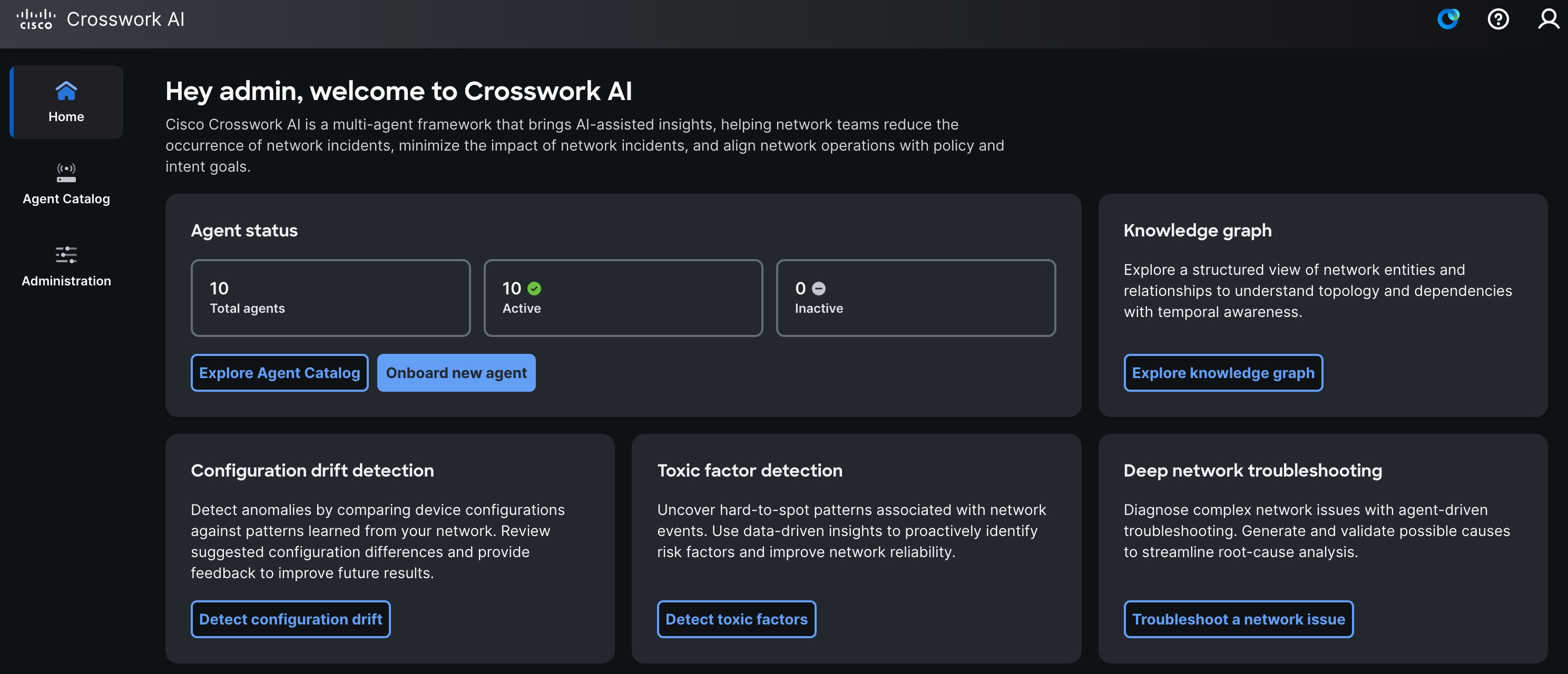
Crosswork AI provides pre-defined suggestion tiles for interacting with the agent. All actions performed through the AI assistant are specific to your user account.
You can access the Configuration Drift Detection agent in one of the following ways:
-
From the Crosswork AI home page, select Detect configuration dr ift.
-
Click
to open AI Assistant. Select I want to run configuration drift detection, and then click  to send the request.
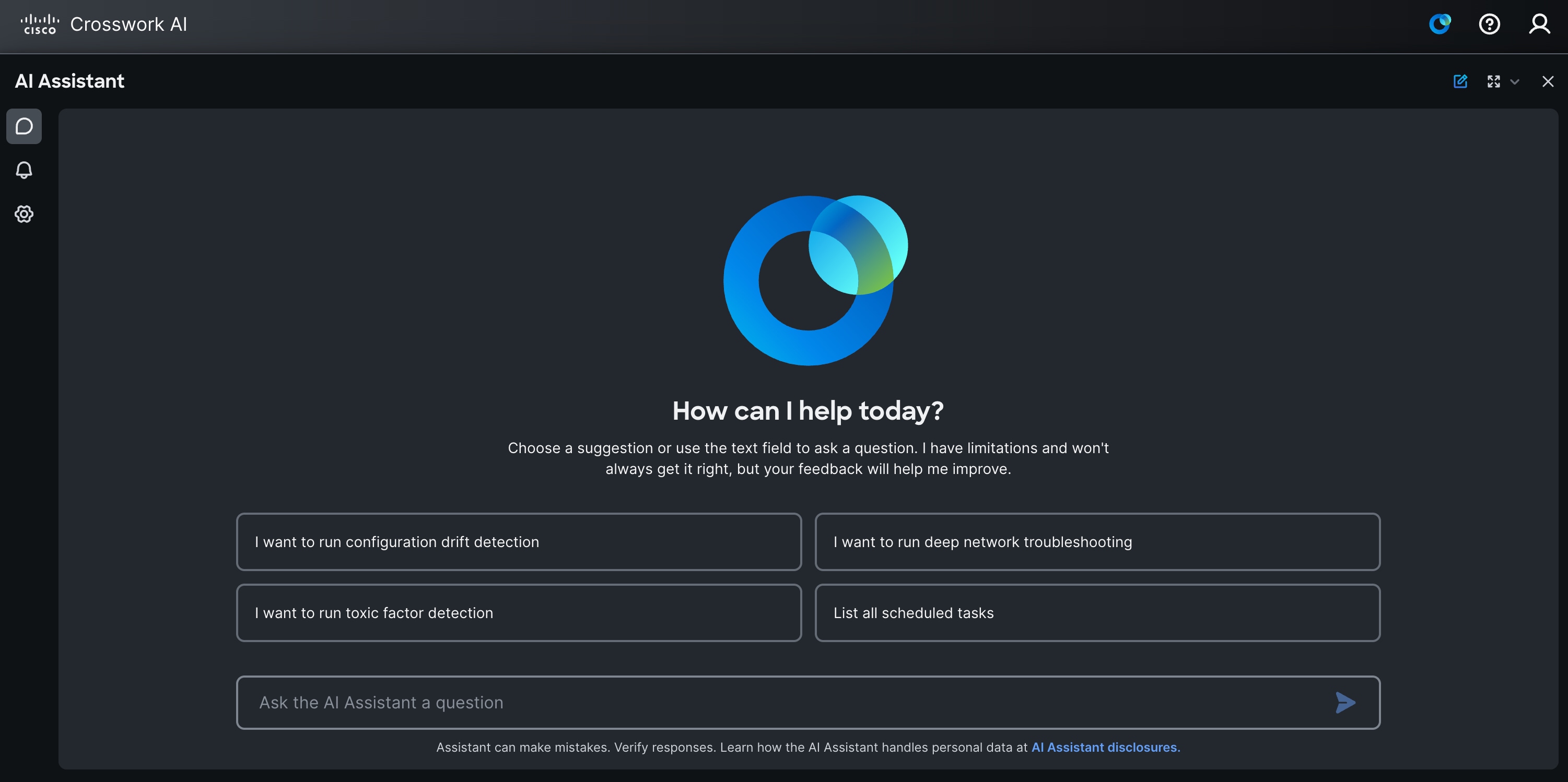 Figure 2. Crosswork AI Assistant page
The Configuration Drift Detection provides different methods to run inference tasks on-demand or schedule them to run automatically. When running inference on-demand, you can either select a logical group for analysis or upload a list of specific device names. Alternatively, you can upload new device configurations for analysis or schedule inference tasks to run at set intervals.
After inference is complete, you can review detected anomalies and provide feedback for anomalies that do not require further action. You can mark anomalies as false positives or user-aware anomalies by exporting the anomaly feedback CSV, updating the feedback fields, and importing the CSV back into the Configuration Drift Detection.
Choose the method that best fits your operational workflow.
Analyze configurations on-demand for specific device names
To analyze configurations on a list of specific device names:
-
In the Configuration Drift Detection, select On-demand.
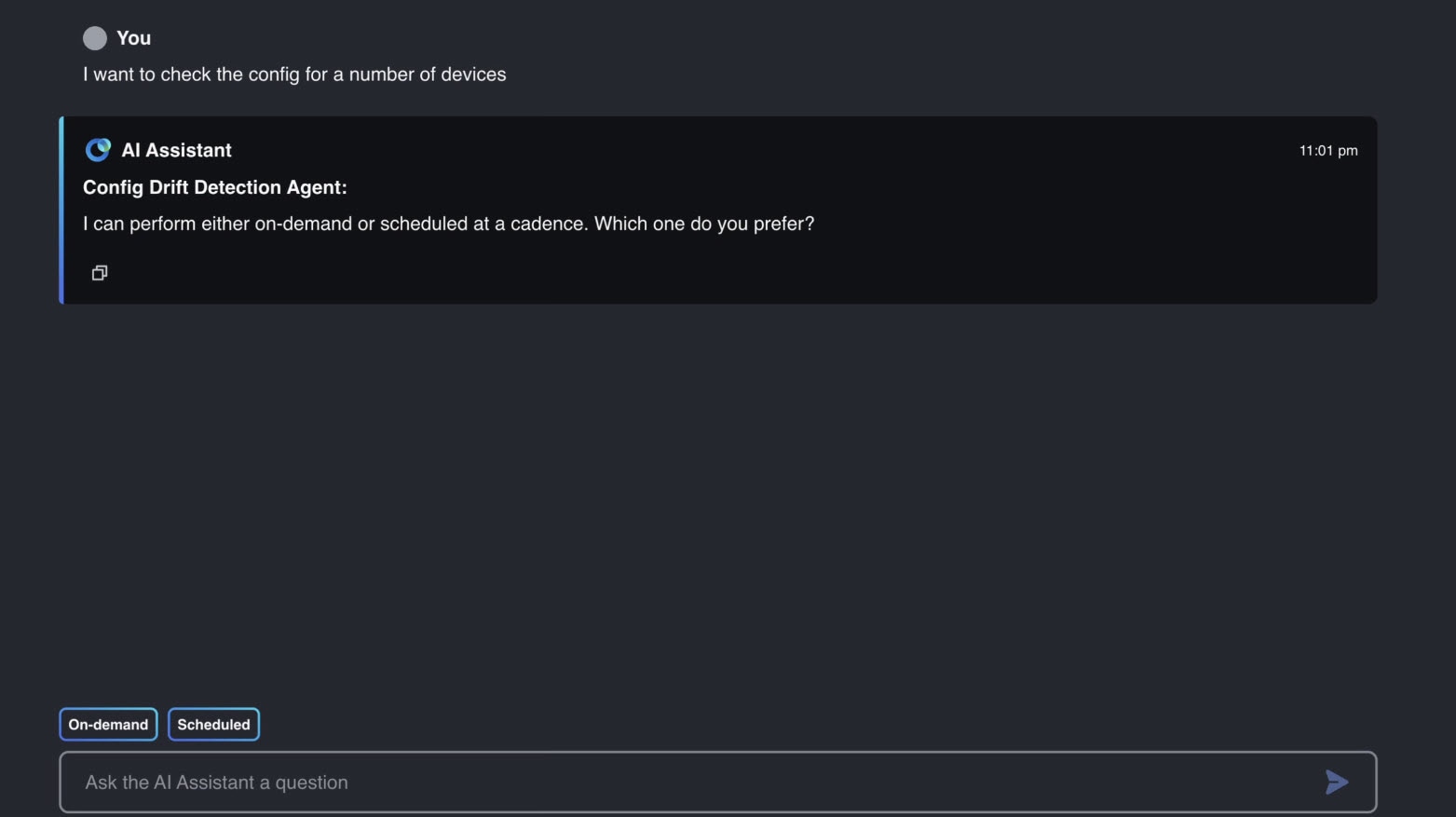 Figure 3. CDD options
 -
Select Fetch automatically and then choose I want to upload device names.
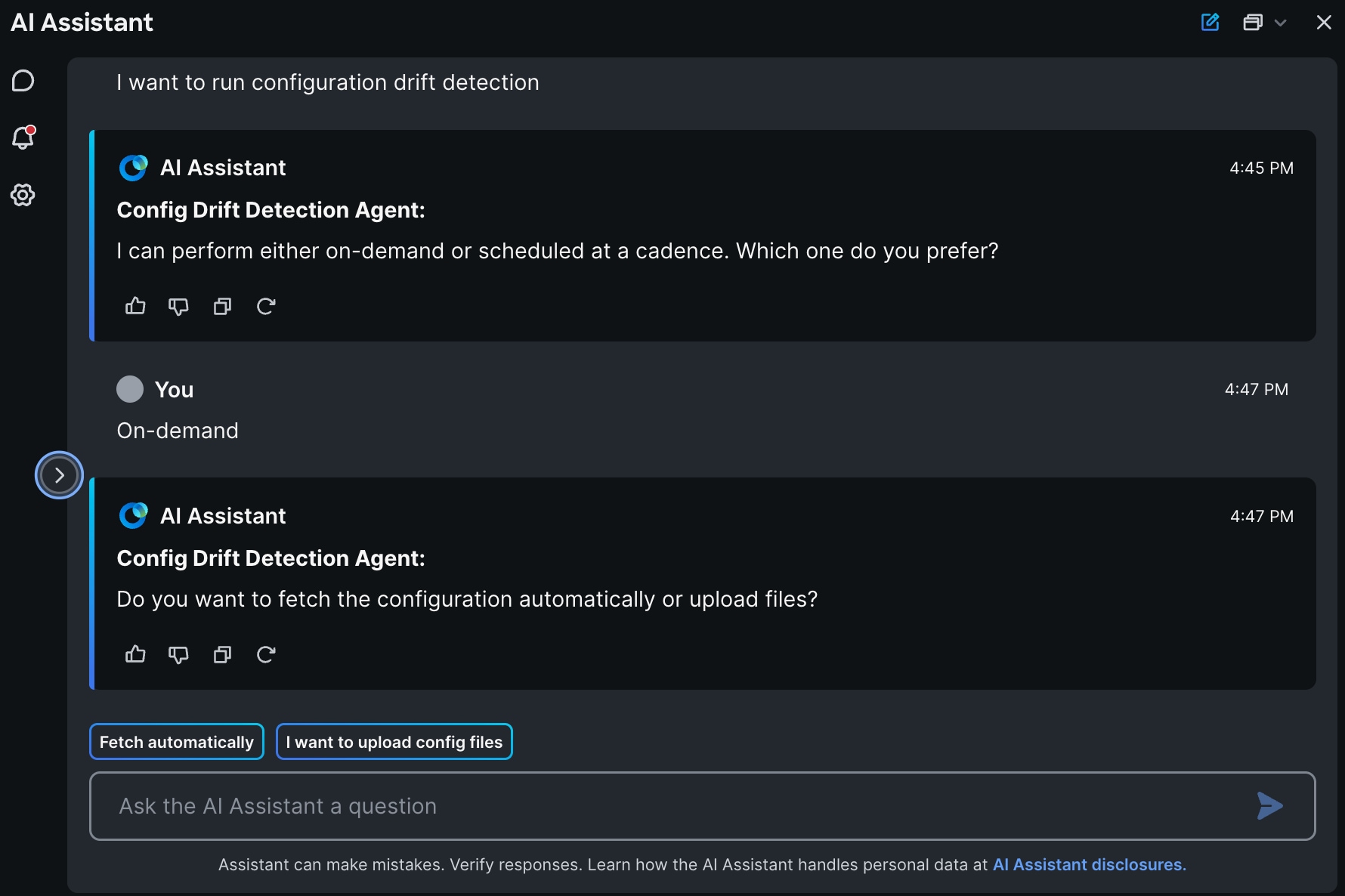 Figure 4. CDD - fetch automatically
 -
Click Upload files to select a CSV file containing the list of device names you want to analyze. The file must follow RFC 4180 format, contain a single column, and list device names on separate rows.
Devices must belong to a trained device group. The Configuration Drift Detection only performs analysis if the corresponding device group has already been trained.
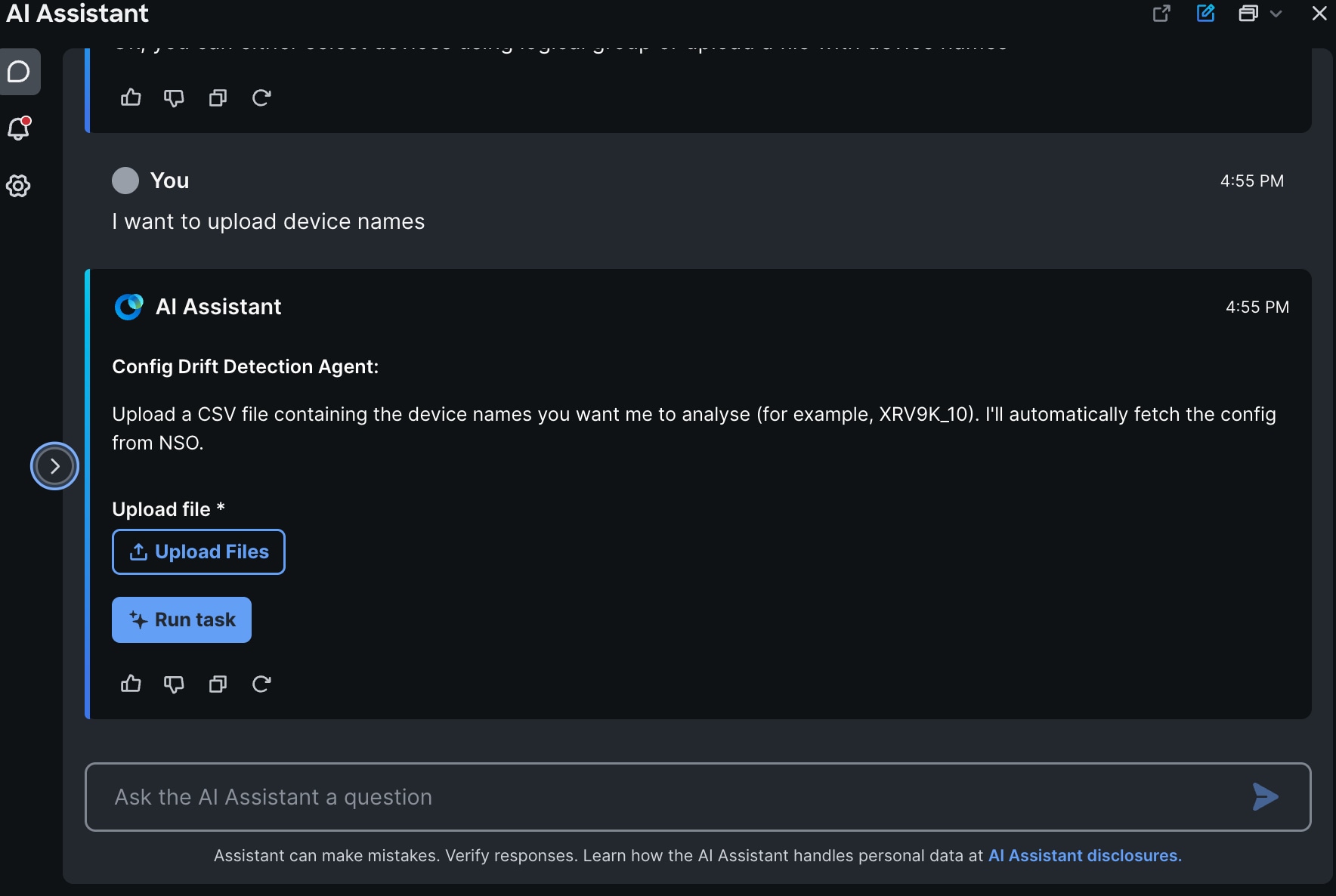 Figure 5. CDD - upload device names
 -
Select Run task.
The agent determines the device group for each device, retrieves the configurations from NSO, and runs analysis. Each device is processed sequentially. Once analysis is complete for one device, the next device is processed. After completion, the agent displays the results of its findings.
In the example, the agent analyzed three devices and found 20 anomalies. One device could not be matched with a trained device group and was excluded from the analysis.
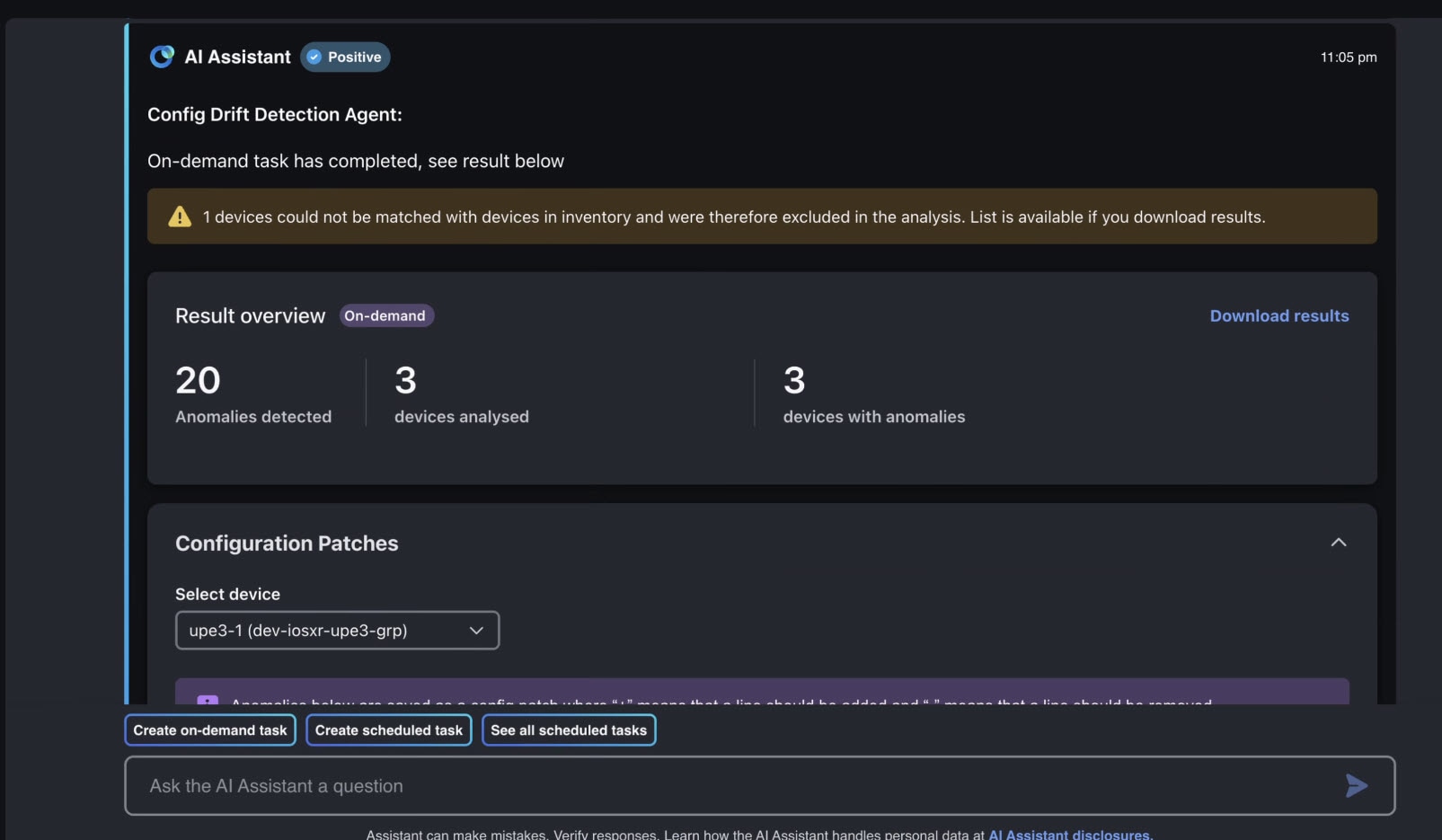 Figure 6. CDD inference result
 -
To view anomalies for a specific device, choose the device from the Select device list. The agent displays all detected anomalies, using a "+" sign to indicate lines that should be added and a "-" sign to indicate lines that should be removed.
-
Click the Download results link to download the complete inference results in JSON format.
-
To provide feedback on detected anomalies, export the anomaly feedback CSV. For more information, see Manage anomaly feedback.
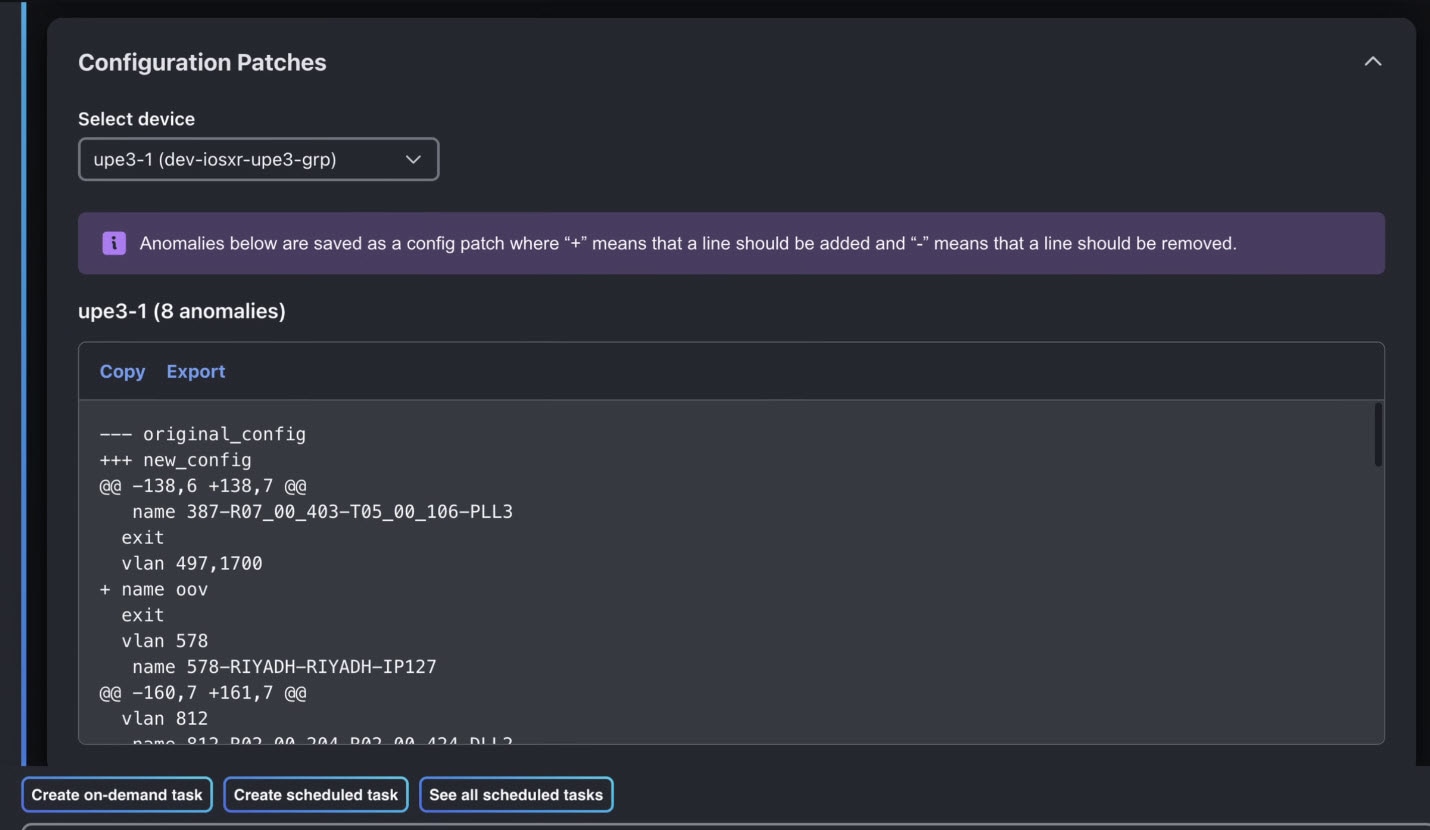 Figure 7. CDD inference anomalies
 -
Use the Copy link to copy the configuration patch to your clipboard for easy sharing or reporting.
-
Use the Export link to download the configuration patch in JSON format.
Additional options
-
Create on-demand task: To run another on-demand inference task.
-
Create scheduled task: To set up automated inference tasks that run at regular intervals.
-
See all scheduled tasks: Displays all existing scheduled tasks.
Analyze configurations on-demand for a logical group
To analyze configurations for a specific logical group:
-
In the Configuration Drift Detection, select On-demand, then choose Fetch from NSO.
-
Select Use logical groups.
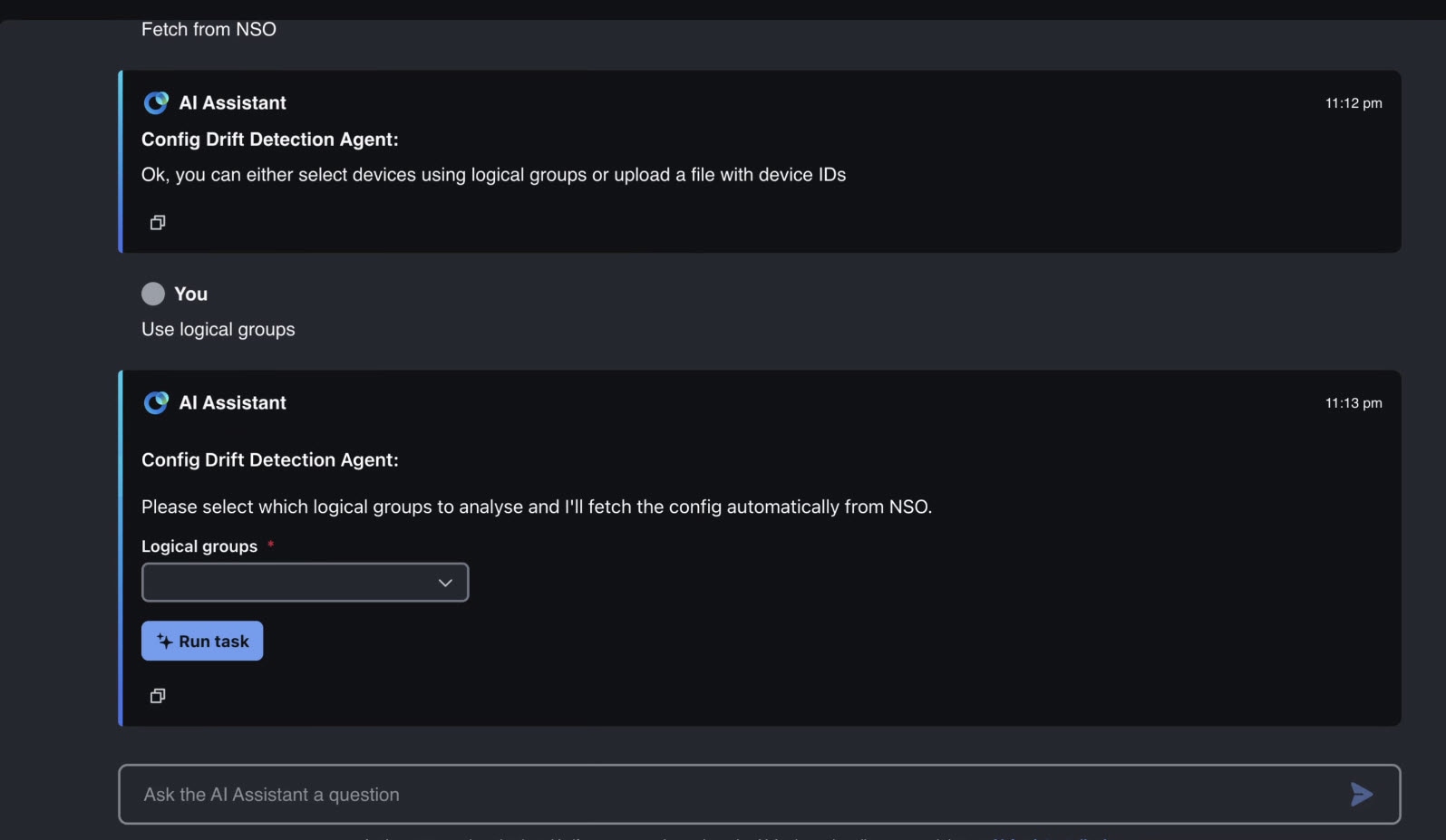 Figure 8. CDD - use logical groups
 -
From the Logical groups list, select a device group for analysis.
-
Select Run task.
The agent sequentially performs inference on every device in the group and summarizes the results for all configurations.
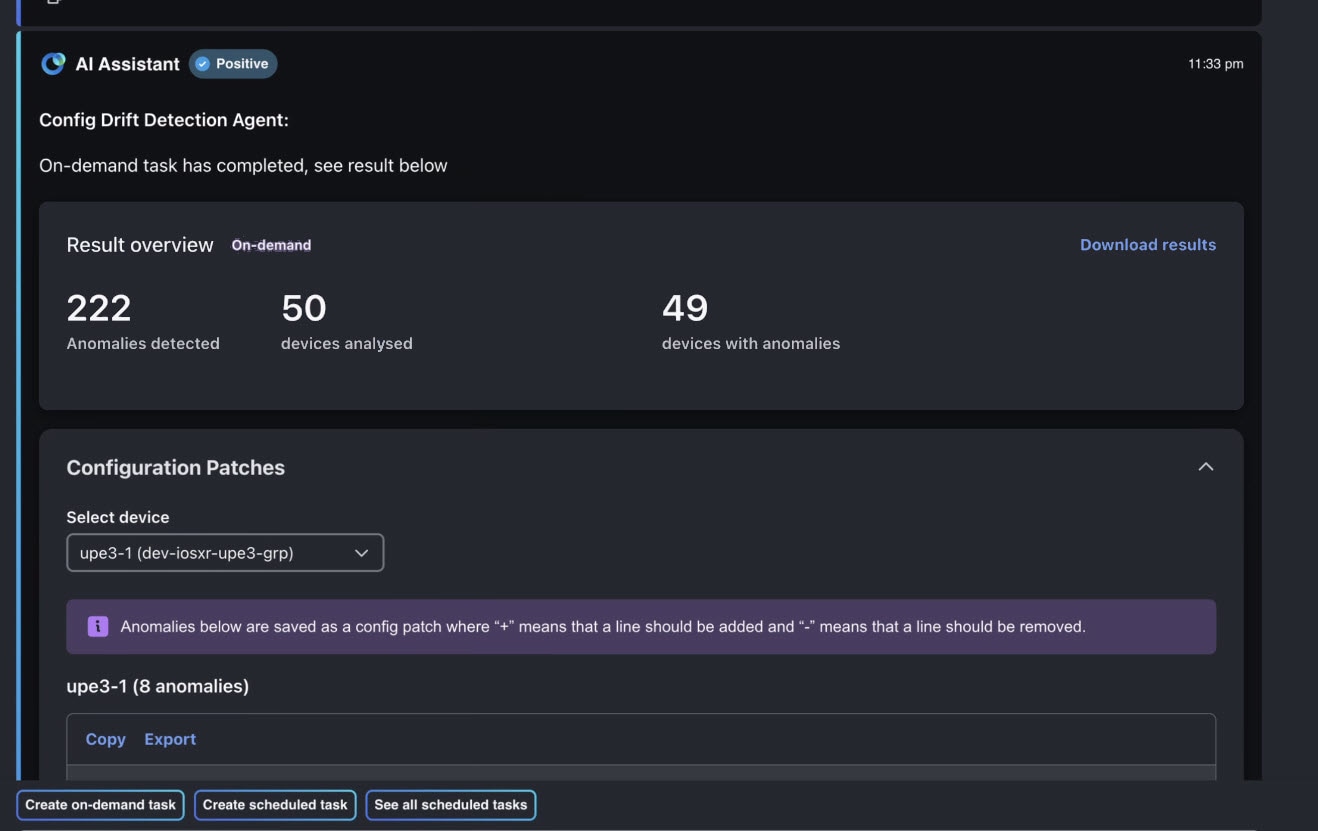 Figure 9. CDD inference result
The results view displays the devices with the most anomalies. To view the complete result set for all analyzed devices, click the Download results link to download the results in JSON format.
To provide feedback on detected anomalies, export the anomaly feedback CSV, update the feedback fields, and import the CSV back into the Configuration Drift Detection. For more information, see Manage anomaly feedback.
-
Use the Copy link to copy the configuration patch to your clipboard for easy sharing or reporting.
-
Use the Export link to download the configuration patch in JSON format.
Additional options
-
Create on-demand task: To run another on-demand inference task.
-
Create scheduled task: To schedule automated inference tasks to run at regular intervals.
-
See all scheduled tasks: Displays all existing scheduled tasks.
Analyze new configurations on-demand
To analyze new configuration files:
-
In the Configuration Drift Detection, select On-demand, then choose I want to upload config files.
-
From the Logical groups list, select a trained group you want to test the files against.
-
Click Upload files to select one or more configuration files for analysis.
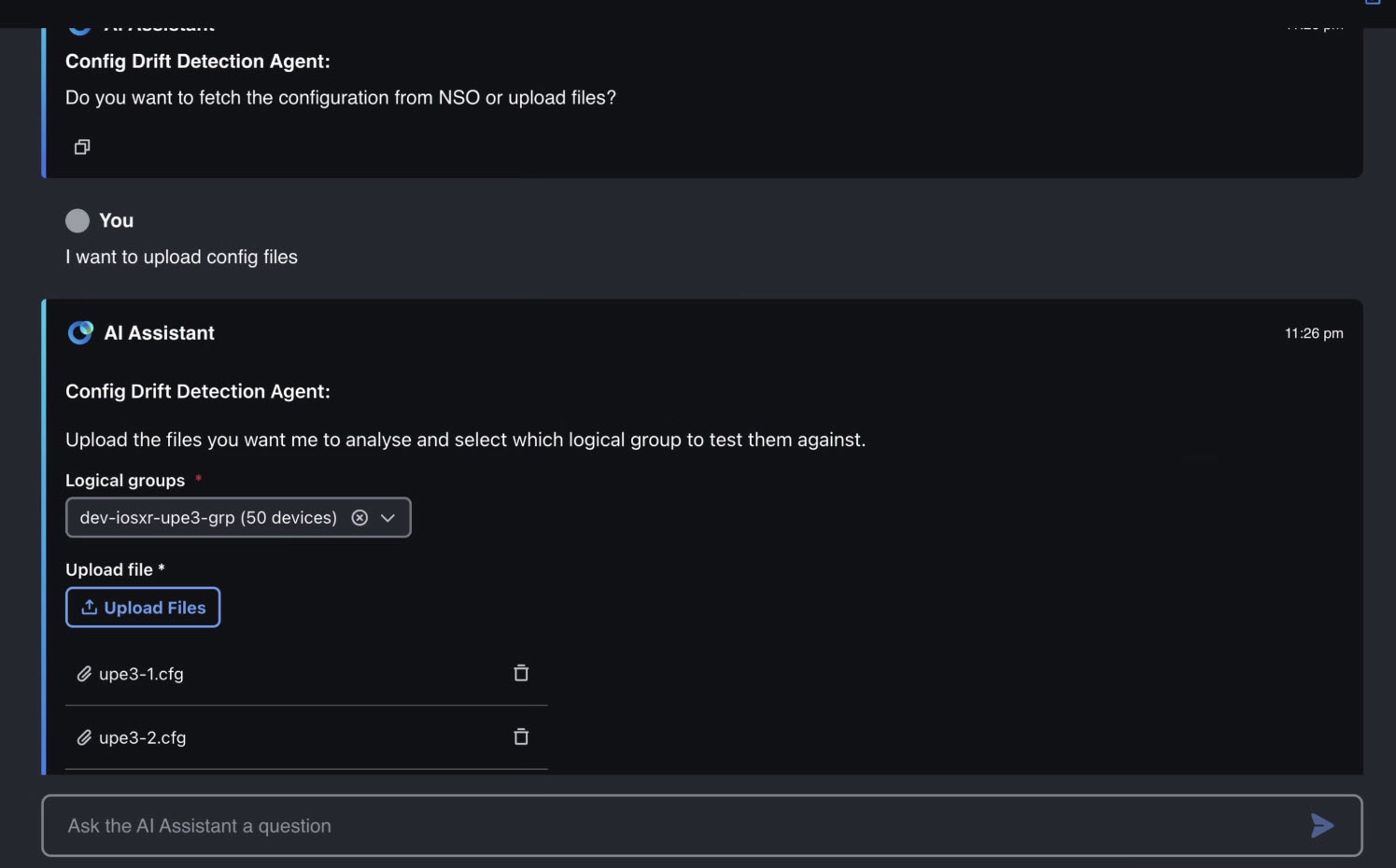 Figure 10. CDD - upload config files
 -
Select Run task.
The agent analyzes each configuration file against the selected trained logical group and displays the results.
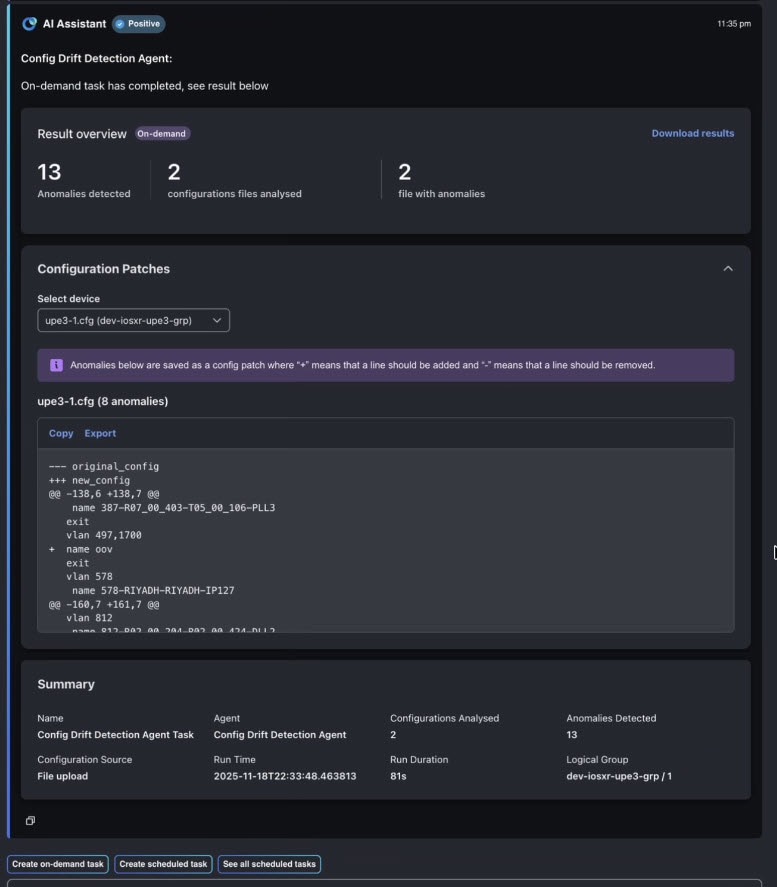 Figure 11. CDD inference result
The results view displays the configurations with the most anomalies. To view the complete result set for all analyzed configurations, click the Download results link to download the results in JSON format.
To provide feedback on detected anomalies, export the anomaly feedback CSV, update the feedback fields, and import the CSV back into the Configuration Drift Detection. For more information, see Manage anomaly feedback.
-
Use the Copy link to copy the configuration patch to your clipboard for easy sharing or reporting.
-
Use the Export link to download the configuration patch in JSON format.
Additional options
-
Create on-demand task: To run another on-demand inference task.
-
Create scheduled task: To schedule automated inference tasks to run at regular intervals.
-
See all scheduled tasks: Displays all existing scheduled tasks.
Schedule inference to run later
Scheduled inference provides continuous monitoring, helping maintain network stability by proactively identifying configuration drift.
To automate the inference process by setting a schedule:
-
In the Configuration Drift Detection, select Scheduled.
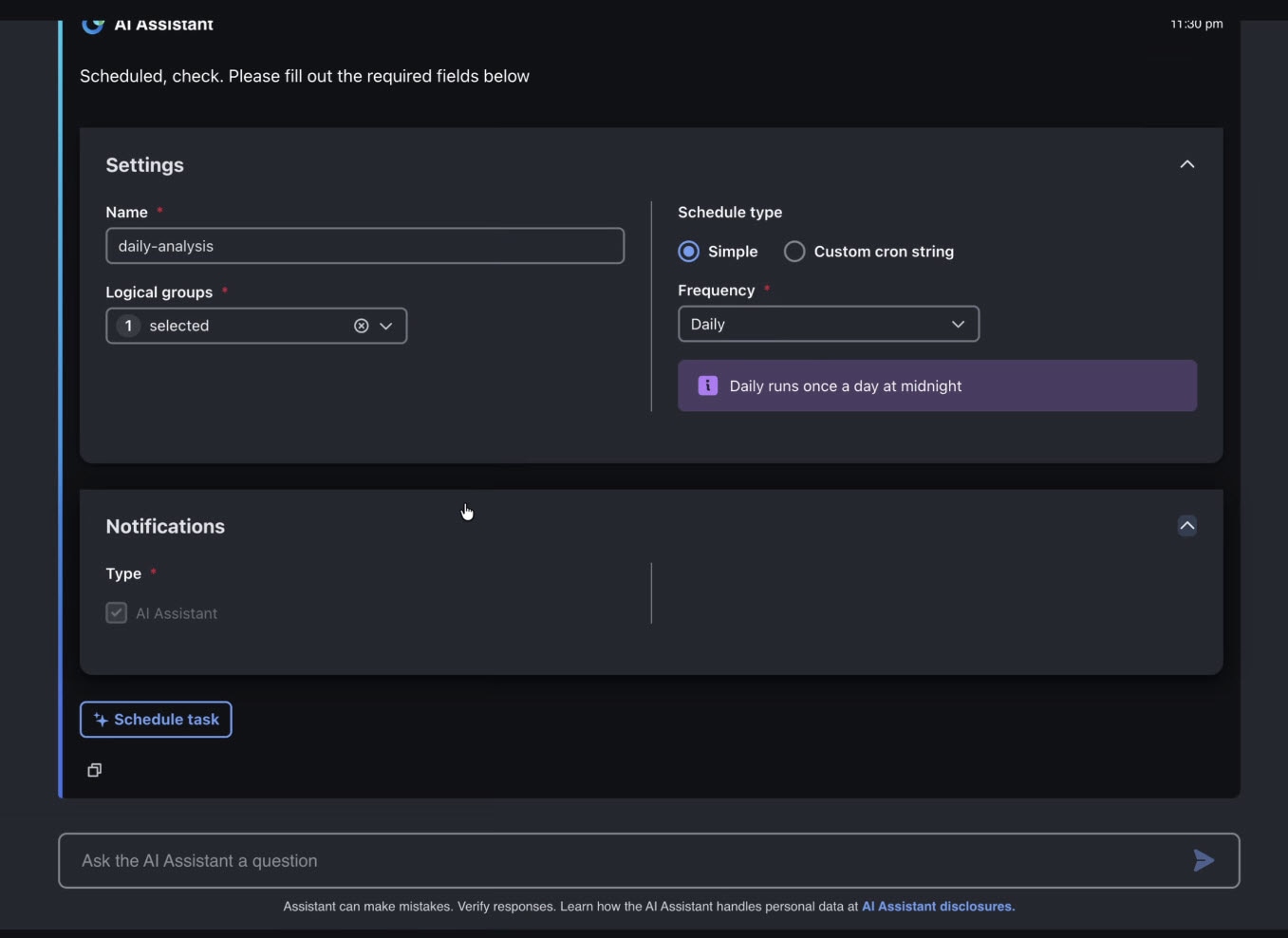 Figure 12. CDD schedule task settings
 -
Enter a name for the schedule.
-
From the Logical groups list, select the group you want to analyze.
-
For the Schedule type, choose how you want to set when the task runs.
-
Simple: Select this option to pick a standard schedule from the Frequency list, such as daily, weekly, or monthly.
-
Custom cron string: Select this option to enter a more advanced schedule using a cron expression. This allows you to specify exactly when the task should run. For example, entering 0 2 * * 1 would schedule the task to run every Monday at 2:00 AM. For help with generating cron expressions, you can use online tools such as Cronhub.
-
-
Select Schedule task. By default, AI Assistant notifications are enabled.
Based on the configured schedule and settings, the agent processes each device in the logical group sequentially, fetching its configuration and running inference at the specified intervals.
Once a scheduled task run is complete, you will receive a notification. To review the results, click the
 icon in the left menu, then select the specific scheduled task.
Additional options
-
See all scheduled tasks: Displays all existing scheduled tasks. For each scheduled task, you can also:
-
Suspend a task to temporarily stop it from running.
-
Delete a task to permanently remove it from the schedule.
-
Activate a suspended task to resume its execution according to the defined schedule.
-
-
List recent runs for this task: Shows up to 10 of the most recent runs for the task. Click a run to view its results.
Manage anomaly feedback
Anomaly feedback allows you to mark detected anomalies that do not require further action. You can use anomaly feedback to reduce repeated noise in future inference results for the same logical group.
You can mark an anomaly as one of the following:
-
False positive: The anomaly is not a valid issue and does not need to be shown again.
-
User-aware anomaly: The anomaly is known, expected, or already being handled and does not require further action.
After you import anomaly feedback, matching anomalies are suppressed in future inference results for the logical group.
Anomaly feedback does not replace model training. The model still detects anomalies during inference. Feedback is applied to suppress matching anomalies from the displayed results.
Update false positives
After you run inference, review the detected anomalies. If an anomaly is expected or does not require further action, you can mark it as a false positive.
Use false positive feedback to indicate that a detected configuration difference should not be treated as actionable drift.
To update false positives:
-
Open the inference result.
-
Review the detected anomalies.
-
Identify the anomaly that should be marked as a false positive.
-
Update the feedback value for the anomaly.
-
Repeat these steps for each anomaly that should be marked as a false positive.
-
Submit the feedback.
After feedback is submitted, Configuration Drift Detection uses the feedback to suppress matching anomalies in future inference results for the same logical group.
False positive feedback applies to matching anomalies in the same logical group. The feedback does not change the original configuration file.
Download anomaly feedback CSV
After an inference task is complete, download the anomaly feedback CSV from the inference results.
The CSV contains the detected anomalies for the task. If the task includes multiple devices, the anomalies are included in a single CSV file.
Use this CSV file to mark anomalies as false positives or user-aware anomalies.
Update the anomaly feedback CSV
Open the downloaded CSV file and update the feedback fields for the anomalies you want to mark.
The CSV includes information such as the task ID, device name, logical group, anomaly details, feedback comment, false positive flag, and user-aware anomaly flag.
To mark an anomaly as a false positive, update the false positive field for that row.
To mark an anomaly as user-aware, update the user-aware anomaly field for that row.
The feedback comment field is optional.
Do not mark the same anomaly as both a false positive and a user-aware anomaly.
Import anomaly feedback
Import anomaly feedback when you want to provide feedback for detected anomalies in bulk.
You can use imported feedback to identify anomalies that are expected, accepted, or false positives.
To import anomaly feedback:
-
Open Configuration Drift Detection.
-
Navigate to the anomaly feedback or inference results area.
-
Select the option to import feedback.
-
Choose the feedback file that you want to import.
-
Review the imported feedback details.
-
Resolve any validation errors, if they are displayed.
-
Submit the imported feedback.
After the feedback is submitted, Configuration Drift Detection stores the feedback and applies it to future analysis according to the feedback lifecycle configured for the system.
Verify anomaly feedback
To verify that anomaly feedback was applied:
-
Run inference again on the same logical group.
-
Review the anomaly results.
-
Confirm that the marked anomaly is no longer displayed.
If a matching anomaly appears on another device in the same logical group, the Configuration Drift Detection suppresses the matching anomaly based on the imported feedback.
Reverse anomaly feedback
You can reverse previously imported anomaly feedback if an anomaly was marked incorrectly.
To reverse anomaly feedback:
-
Download the anomaly feedback CSV again.
-
Locate the anomaly that was previously marked.
-
Remove or update the feedback flag.
-
Import the updated CSV back into the Configuration Drift Detection.
-
Run inference again.
After the feedback is reversed, the anomaly can appear again in future inference results if the Configuration Drift Detection detects it.
Anomaly feedback behavior and limitations
Consider the following when using anomaly feedback:
-
Anomaly feedback applies to future inference results for the logical group.
-
Feedback suppresses matching anomalies from displayed results.
-
Feedback does not retrain the model or replace the training workflow.
-
You can reverse feedback if an anomaly was marked incorrectly.
-
Feedback entries may be retained only for a configured period before they are purged.
Interpret anomaly detection
Types of anomalies
The Configuration Drift Detection is designed to identify a range of configuration anomalies that may indicate deviations from the expected configuration. These include:
Parameter changes: Detection of values or settings that have been altered from the expected configuration.
Missing configuration lines or blocks: Identification of lines or sections that are absent from the configuration but are expected based on the learned configuration patterns.
Unexpected configuration lines or blocks: Detection of additional lines or sections that should not be present according to what is expected.
Multiple or consecutive anomalies: Recognition of scenarios where anomalies appear close together.
Interpreting results
The Configuration Drift Detection presents anomalies in a diff-style format, making it easy to spot differences between the current configuration and the expected configuration:
-
Lines beginning with +
Indicate configuration items that are missing from your device’s configuration and are recommended to be added.
Example:
+ load-interval 300 -
Lines beginning with -
Indicate configuration items that are unexpected or should be removed because they do not match what is expected.
Example:
- spanning-tree bpdufilter enable
This format helps you quickly identify and address configuration differences. You can review each flagged line to determine if the change is intentional or requires remediation, and use the suggested additions and deletions to review whether device configurations should be brought back in line with your network’s standards.
After reviewing detected anomalies, you can provide feedback for anomalies that do not require further action. Mark an anomaly as a false positive if it is not a valid issue, or as a user-aware anomaly if it is known, expected, or already being handled. For more information, see Manage anomaly feedback.
Agent management with CWAICTL
Logical groups
-
List all groups
cwaictl run config-drift logical-groups get --all
-
Get a specific group information
cwaictl run config-drift logical-groups get --group <group-name>
-
Get a specific model version
cwaictl run config-drift logical-groups get --group <group-name> --version <version>
-
Create a logical group
cwaictl run config-drift logical-groups create \
  --attrs <key=value> \
  --dir <config-directory> \
  [--config-start-char <char>]
Example:
cwaictl run config-drift logical-groups create \
  --attrs vendor=cisco,device_type=switch \
  --dir ./cisco-configs \
  --config-start-char "!"
Parameters:
-
--attrs <key=value>: Defines the group’s identifying attributes (metadata). -
--dir: Path to the directory containing configuration files. -
(optional)
--config-start-char <char>: ASCII character indicating the start of a configuration file. In many Cisco device configs, the exclamation mark ! is used as a delimiter or comment line.
-
Add configuration files
cwaictl run config-drift logical-groups add \
  --group <group-name> \
  --dir <config-directory> \
  [--policy <merge|replace-all|merge-with-overwrite>]
-
Merge new configs
Example:
cwaictl run config-drift logical-groups add \
  --group cisco_edge \
  --dir ./new-configs \
  --policy merge
-
Replace all configs
Example:
cwaictl run config-drift logical-groups add \
  --group cisco_edge \
  --dir ./updated-configs \
  --policy replace-all
Parameters:
-
--group <group-name>: The name of the existing logical group to which you want to add new configuration files. -
--dir <config-directory>: Path to the directory containing the configuration files you want to add to the group. -
--policy <merge|replace-all|merge-with-overwrite>: Defines how the new configs should be handled when adding them to the group.
Train the model
cwaictl run config-drift logical-groups train \
  --group <group-name> \
  [--wait]
Example:
cwaictl run config-drift logical-groups train \
  --group cisco_edge \
  --wait
Parameters:
-
--group <group-name>: The name of the logical group whose configs will be used to train the model. -
(optional)
--wait: Waits until the task is complete before returning results.
Analyze configurations by running inference tasks
cwaictl run config-drift inference \
  [--file <config-file>] \
  --group <group-name> \
  [--devices-list <csv-file>] \
  [--wait]
-
Analyze single configuration file
Example:
cwaictl run config-drift inference \
  --file ./device-config.txt \
  --group cisco_edge \
  --wait
-
Analyze against multiple groups
Example:
cwaictl run config-drift inference \
  --file ./unknown-config.txt \
  --group cisco_edge \
  --group juniper_core \
  --group arista_access \
  --wait
-
Analyze a list of device names
Example:
cwaictl run config-drift inference \
  --devices-list ./devices.csv \
  --group cisco_edge \
  --wait
Parameters:
-
--file <config-file>: Path of the config file to analyze against trained groups. -
--group <group-name>: Trained logical group name. -
--devices-list <csv-file>: Path to a CSV file listing multiple devices to analyze. The file must follow RFC 4180 format, contain a single column, and list device names on separate rows. -
(optional)
--wait: Waits until the task is complete before returning results.
Delete group
-
Delete entire group
cwaictl run config-drift logical-groups delete --group <group-name>
-
Delete specific version
cwaictl run config-drift logical-groups delete --group <group-name> --version <ver>
Parameters:
-
--group <group-name>: The name of the logical group you want to delete. -
--version <ver>: Deletes a specific model version within the logical group instead of removing the entire group.
By default, Crosswork Network Controller deletes events after 30 days and deletes active and cleared device alarms after 60 days. If your deployment requires this data for a longer period, review and update the CNC cleanup settings before the applicable retention period expires.
Reset group repository
cwaictl run config-drift logical-groups reset --group <group-name>
Parameters:
-
--group <group-name>: The name of the logical group whose repository you want to reset. It clears all configuration files and associated data from the group while keeping the group intact.
Troubleshooting Configuration Drift Detection agent
Error: "No groups found"
If you receive an error like "No groups found.", check direct connectivity to NSO:
curl -u <nso-user>:<nso-pass> \
  -H "Accept: application/yang-data+json" \
  http://<nso-host>:8080/restconf/data/tailf-ncs:devices/device-group
If using NSO via Crosswork Network Controller proxy, ensure NSO has the correct certificate and that the provider credentials are correct.
Training job times out
If model training times out, it may be due to a large number of configurations or insufficient resources. Inference can also take a long time for various reasons, such as analyzing the entire device group that contains many devices.
The options below are intended for advanced users. Changing these settings can affect system performance and stability. If you are unsure about making these changes, contact Cisco Support for assistance.
-
Increase global task timeout
If you are running a training job with the Configuration Drift Detection and it times out (the default global task timeout is 1 hour), it will be report as
pod <POD_NAME> failed. You can extend the timeout by setting the FORESIGHT_AGENT_TIMEOUT variable.$ ./bin/cwaictl config set env foresight FORESIGHT_AGENT_TIMEOUT 7200 Set 1 environment variables for deployment 'foresight'. Message: Environment variables updated successfully Rollout status: completed
Verify that the variable is set:
$ ./bin/cwaictl config get env foresight | grep FORESIGHT_AGENT_TIMEOUT
  FORESIGHT_AGENT_TIMEOUT=7200
-
Inference timeouts
Inference timeouts apply only to inference tasks. In the agent’s settings, there are two timeout parameters that prevents the config-drift inference from running indefinitely in cases such as:
-
The overall dataset is very large and takes too long to process.
-
A single device configuration is too complex or large.
-
The agent hangs during processing.
Default value for both parameters is 0 (disabled), meaning timeouts are not enforced unless explicitly enabled in the task settings.
"settings": { "per_task_timeout_seconds": 0, "per_device_timeout_seconds": 0 }-
per_task_timeout_seconds: Maximum allowed time for the entire inference task (processing all devices). -
per_device_timeout_seconds: Maximum allowed time for processing a single device configuration.
You can modify these timeout settings using the cwaictl command-line tool.
cwaictl agent settings set --name config-drift '{"per_device_timeout_seconds": 3600, "per_task_timeout_seconds": 600}' -
-
Training is slow or stuck: adjusting resource limits
If the agent is slower than expected, it may reach a timeout. Its performance is driven by CPU limit setting. By default, the agent can use up to 1 core (1000m). You can increase the CPU allocation by updating the
cpu_limitin the agent’s metadata.-
Check current resource settings.
$ ./bin/cwaictl agent get --name config-drift { "name": "config-drift", "full_name": "Config Drift Detection Agent", "description": "Detects configuration drift in network devices", "image": "apps/cisco-crosswork-ai/foresight-config-drift", "version": "main-266", "type": "BUILTIN", "capabilities": [], "metadata": { "cpu_limit": "1000m", "cpu_request": "500m", "description": "Detects configuration drift in network devices", "memory_limit": "2Gi", "storage_size": "100Mi", "memory_request": "1Gi", "tags": [ "config-drift" ], "timeout": "600" }, "settings": { "per_task_timeout_seconds": 0, "per_device_timeout_seconds": 0, "token_variability_threshold": 1000000000 } } -
Look for cpu_limit and cpu_request under metadata. In the example,
cpu_limitandcpu_requestis set to 1000m and 500m respectively. -
Export the agent’s configuration to a template file.
./bin/cwaictl agent template --from-server config-drift --output /tmp/config_drift.json
Template written to: /tmp/config_drift.json
  Source: server (config-drift)
  Note: Exported from server, ready to customize
-
Edit /tmp/config_drift.json and update the values for higher CPU allocation. In the example,
cpu_limitandcpu_requestis increased to 4000m and 2000m respectively.... "metadata": { "cpu_limit": "4000m", "cpu_request": "2000m", "description": "Detects configuration drift in network devices", "memory_limit": "2Gi", "memory_request": "1Gi", "storage_size": "100Mi", "tags": [ "config-drift" ], "timeout": "600" }, ... -
Update the agent with the new configuration:
./bin/cwaictl agent update --name config-drift --from-file /tmp/config_drift.json
Agent 'config-drift' updated successfully
-