Delete a specific comment from the Incident Review Dashboard in Splunk Enterprise Security 7.x
Available Languages
Applicability
Splunk Enterprise Security 7.x and belowDescription
In Splunk Enterprise Security 7.x, the Incident Review Dashboard allows SOC analysts to review alerts and add comments for documentation or collaboration. By default, these comments cannot be edited or deleted, and there is no built in method to remove them in Enterprise Security. This article provides step-by-step instructions for deleting a specific comment from the Incident Review Dashboard.
Resolution
Important Note: Before deleting any comments, always back up the relevant KV store data to prevent data loss.
Backup Instructions: Incident review comments in Splunk Enterprise Security are stored in the KV store lookup under the SA-ThreatIntelligence app. Back up the KV store for the SA-ThreatIntelligence app before making any deletions. Please read the Splunk KV store backup documentation for detailed backup steps.
Steps to delete a specific comment:
1. Verify the comment exists: Before deleting a comment make sure the comment that needs to be deleted is presented in the incident_review_lookup. Use the below SPL queries to filter a specifc comment.
| inputlookup incident_review_lookup | search comment="*<comment>*"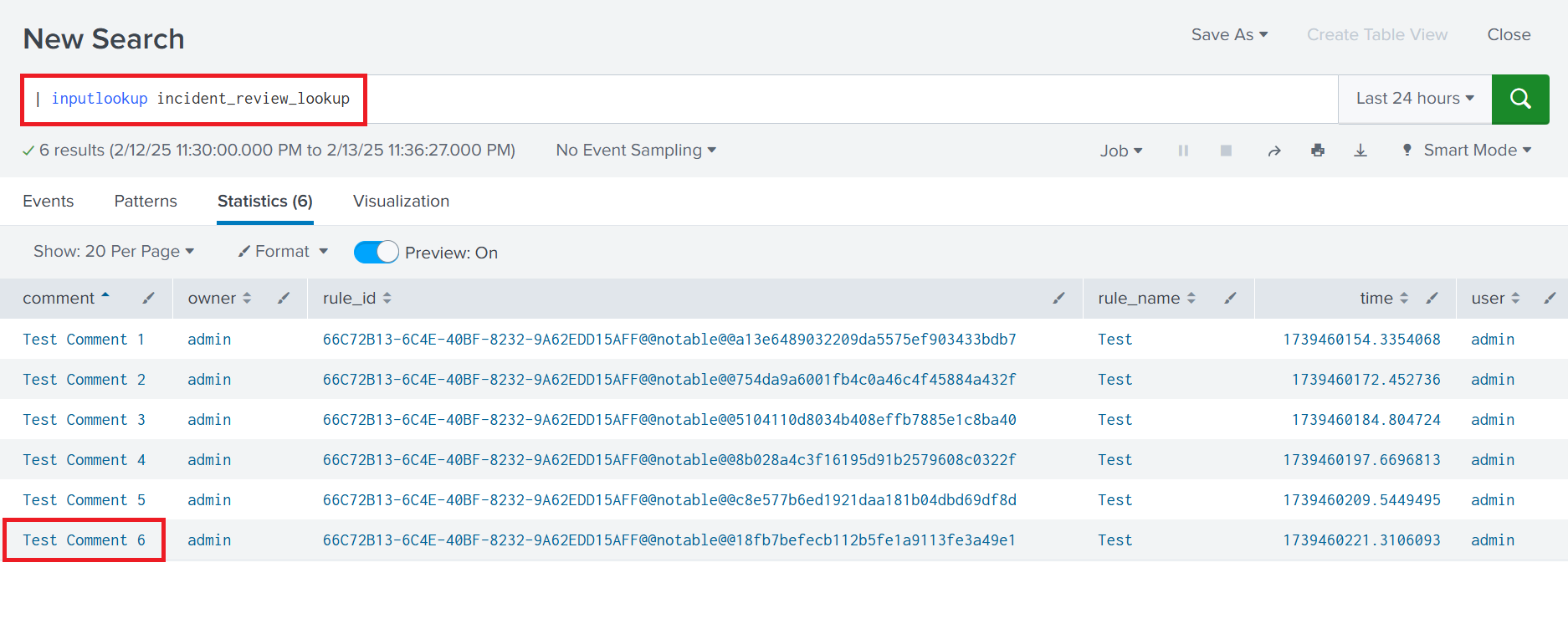
2. Delete the Comment: If the comment is found, use the below SPL query to remove it. This example deletes "Test Comment 6":
| inputlookup incident_review_lookup | search comment!="Test Comment 6" | outputlookup incident_review_lookup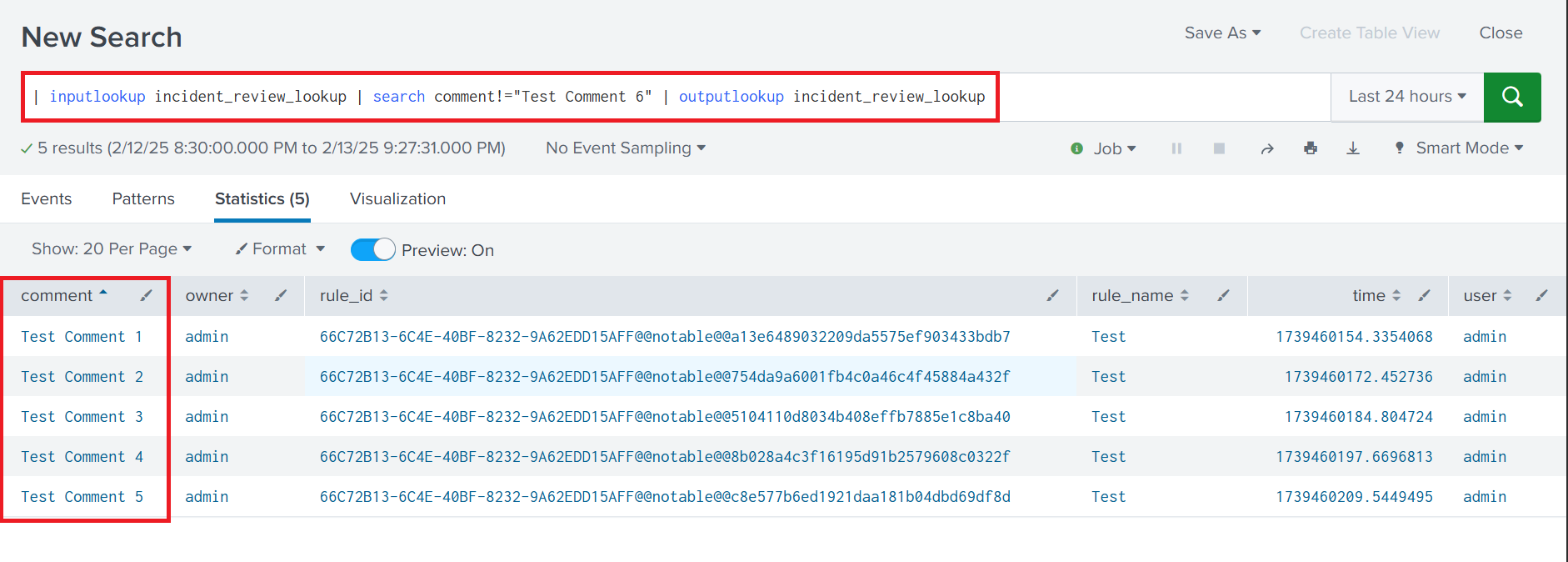
This search filters out the unwanted comment and overwrites the lookup with the results, effectively deleting the specific comment.
3. Verify the Deletion: Confirm that the comment has been deleted by checking both relevant lookups using the below SPL query.
| inputlookup incident_review_lookup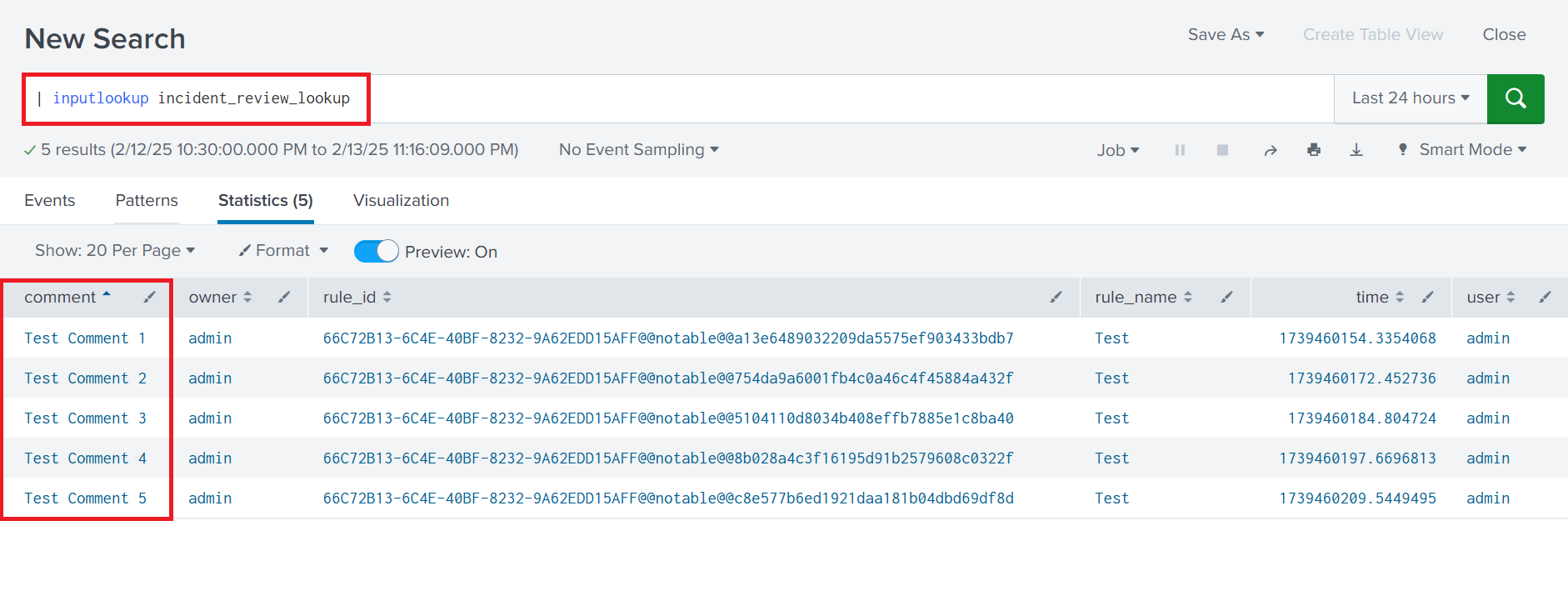
| inputlookup incident_review_comment_lookup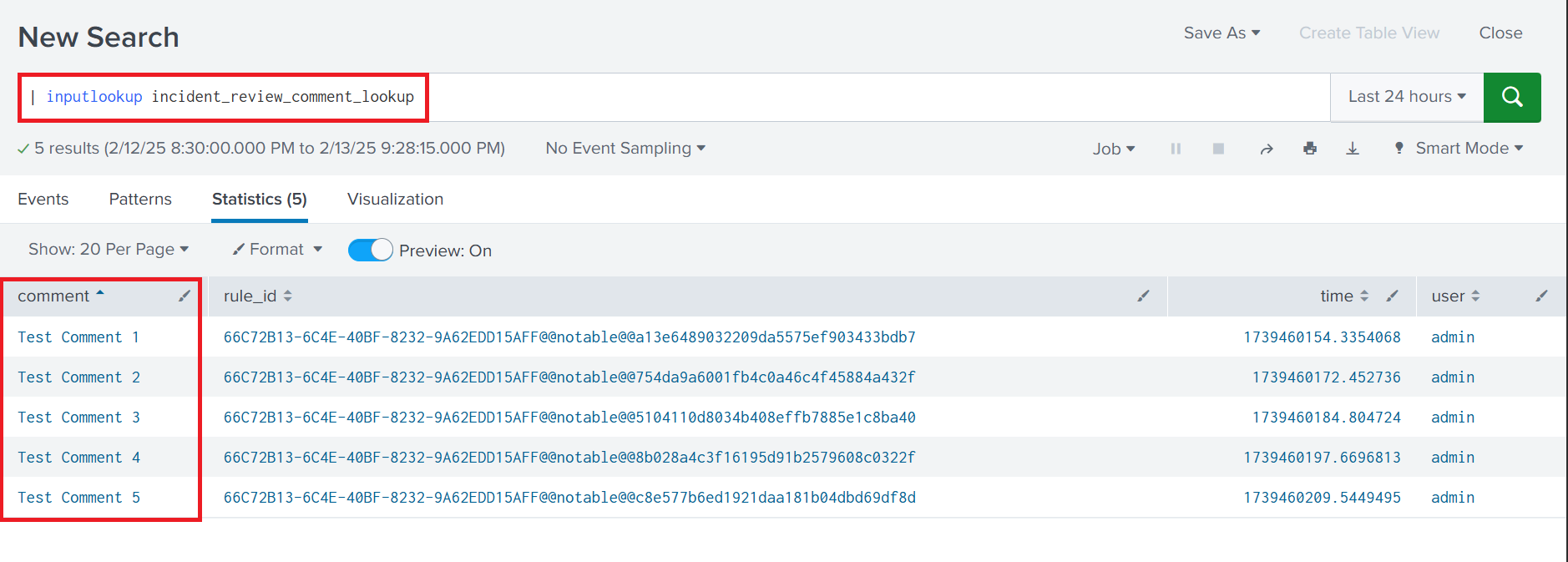
Now the "Test Comment 6" has been deleted.
Related Links
Revision History
| Revision | Publish Date | Comments |
|---|---|---|
1.0 |
29-Sep-2026
|
Initial Release |
 Feedback
Contact Cisco
- Open a Support Case

- (Requires a Cisco Service Contract)
Related Articles
- Investigation Overview dashboard is not loading in Splunk Enterprise Security 7.x
- Unable to update notables in the Enterprise Security Incident Review Dashboard
- Splunk Enterprise Security : dest_ip field not showing in Splunk Incident Review
- Cannot edit notable status in the Incident Review dashboard.