Investigation Overview dashboard is not loading in Splunk Enterprise Security 7.x
Available Languages
Applicability
Splunk Enterprise Security 7.xDescription
The Investigation Overview dashboard, located in Splunk Enterprise Security 7.x under Audit > Investigation Overview, is designed to provide Security Operations Center (SOC) teams with a summary of investigation metrics, such as the number of investigations created, closed, and the oldest unclosed investigations.
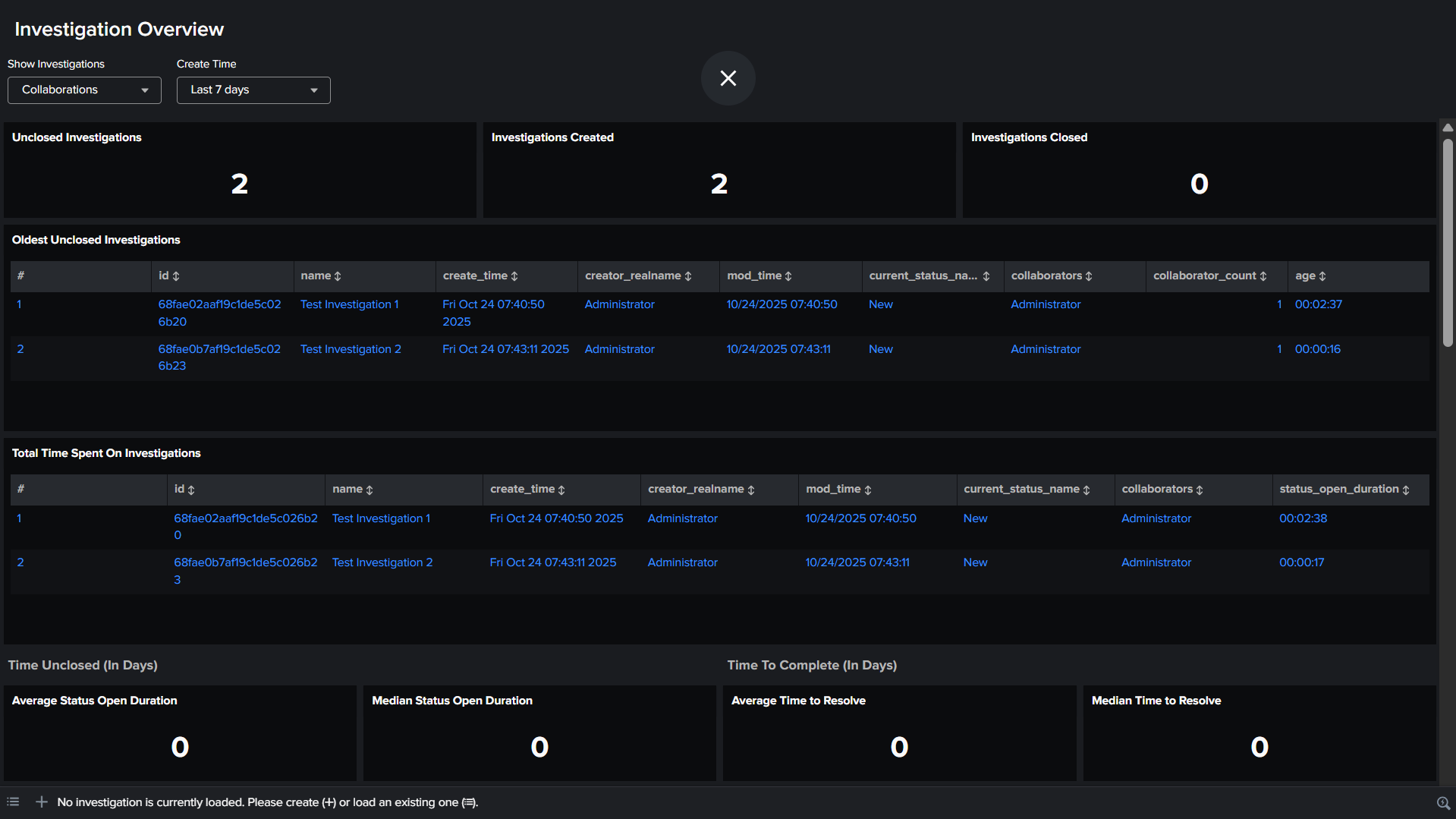
Sometime, this dashboard fails to load or appear empty as shown in the below screenshot, even though it has active investigation data to present.
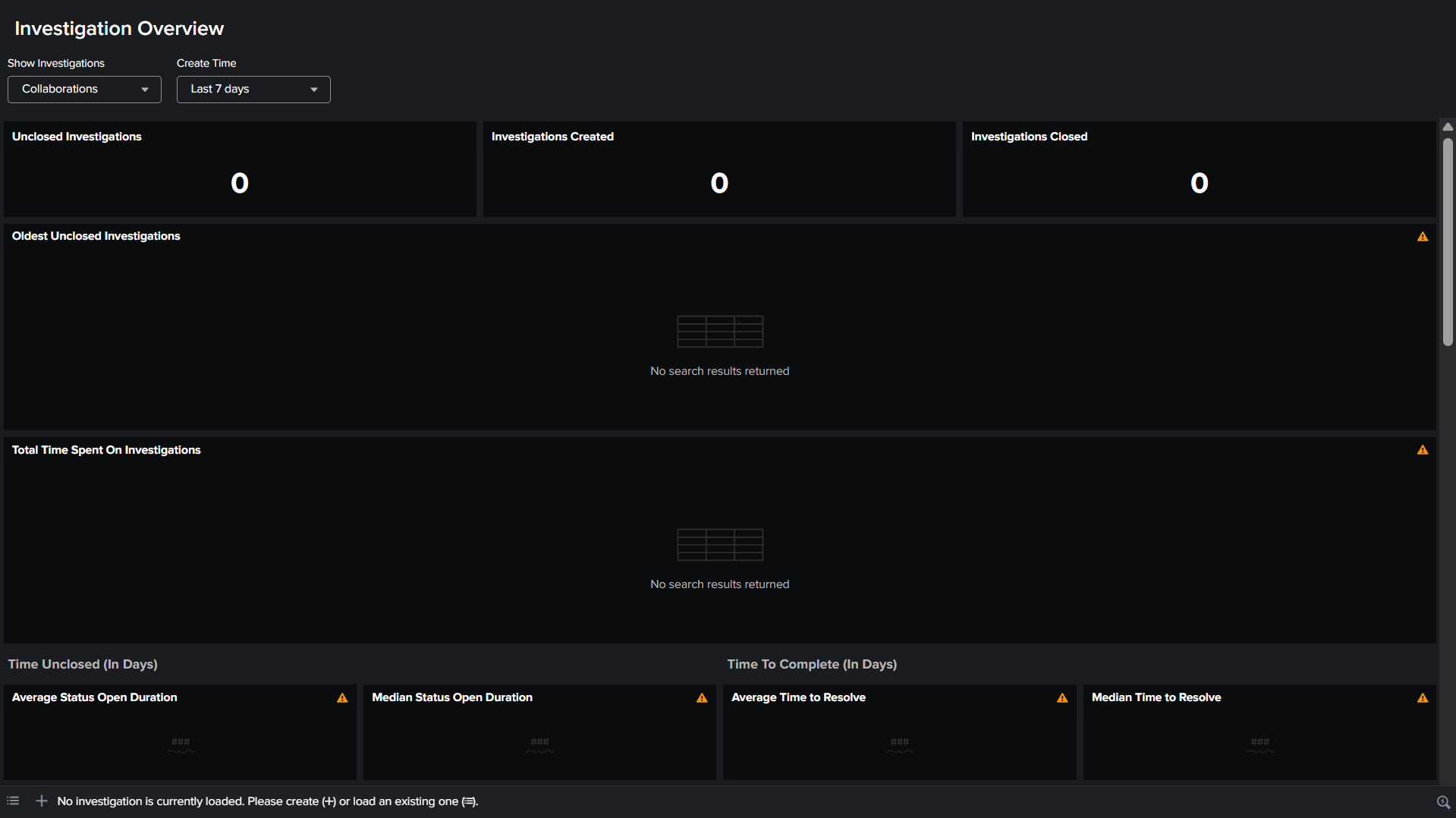
Investigation
Step 1: Inline Search
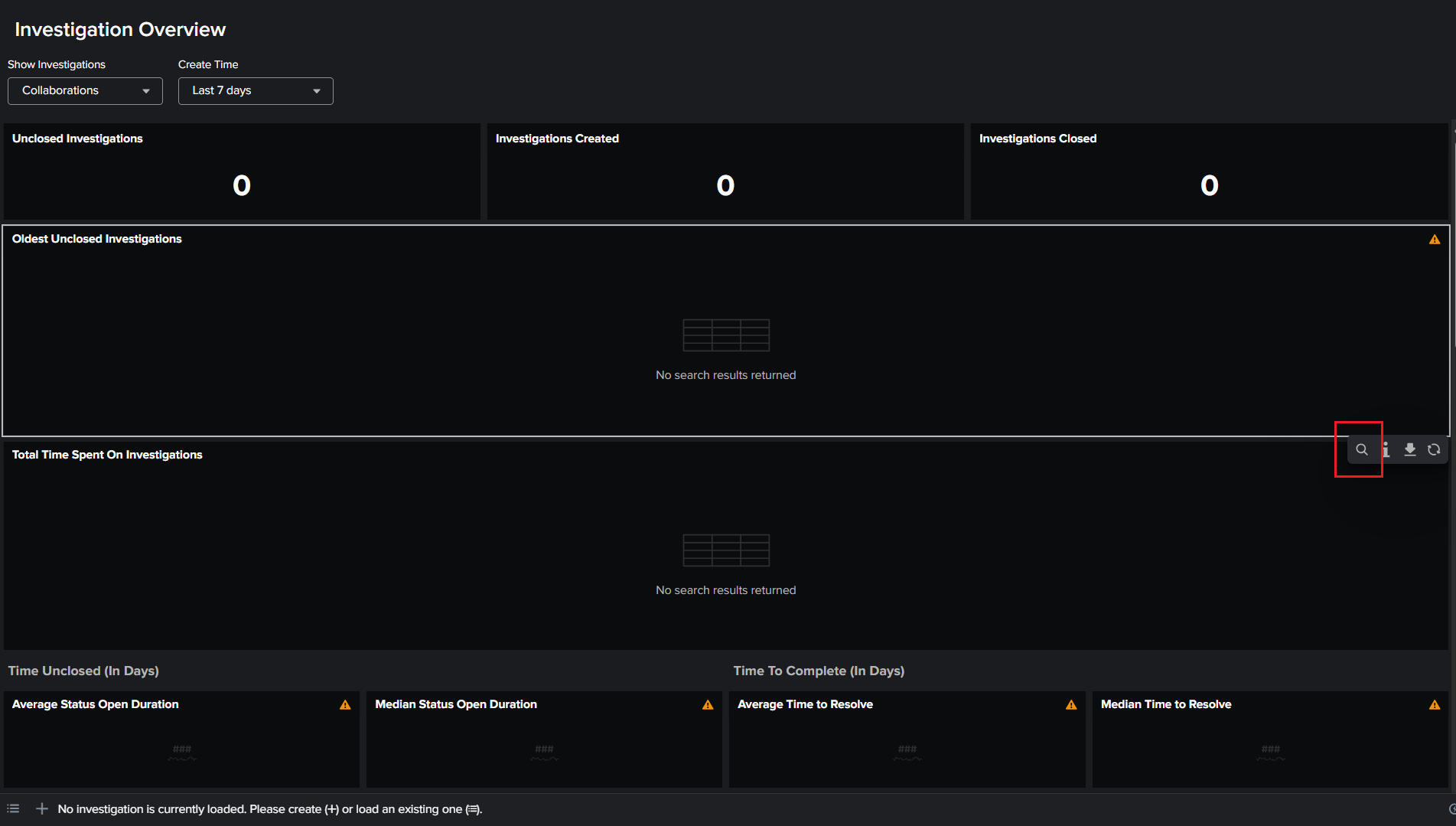
Hover the mouse cursor to any one of the panels on the Investigation Overview dashboard to use the inline search to identify the error as shown in the screenshot.
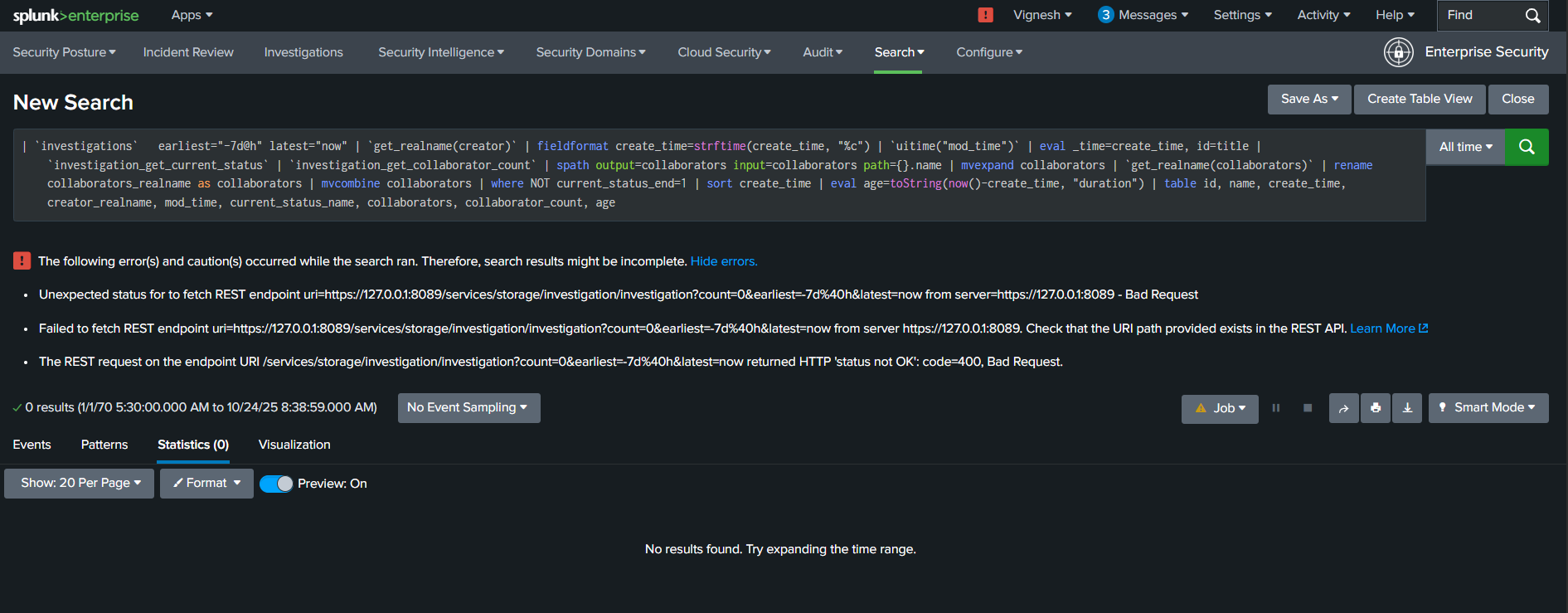
Step 2: Investigation log
Review the investigation handler log using the below SPL query.
index=_internal source="/opt/splunk/var/log/splunk/investigation_handler.log" "ERROR"The SPL query should return the ERROR log as expected.
All strings must be XML compatible: Unicode or ASCII, no NULL bytes or control charactersThis specific log indicates that the investigation data contains some invalid characters in it.
Step 3: Identify presence of invalid characters
To pinpoint investigation entries containing non-ASCII or Unicode or any invalid characters, the following SPL query can be used. This query retrieves investigation data and flags entries where the description field contains characters outside the standard ASCII range.
| rest splunk_server=local count=0 /services/storage/investigation/investigation
| eval contains_invalid=if(match(description, "[^\x00-\x7F]"), "Yes", "No")
| table description, contains_invalid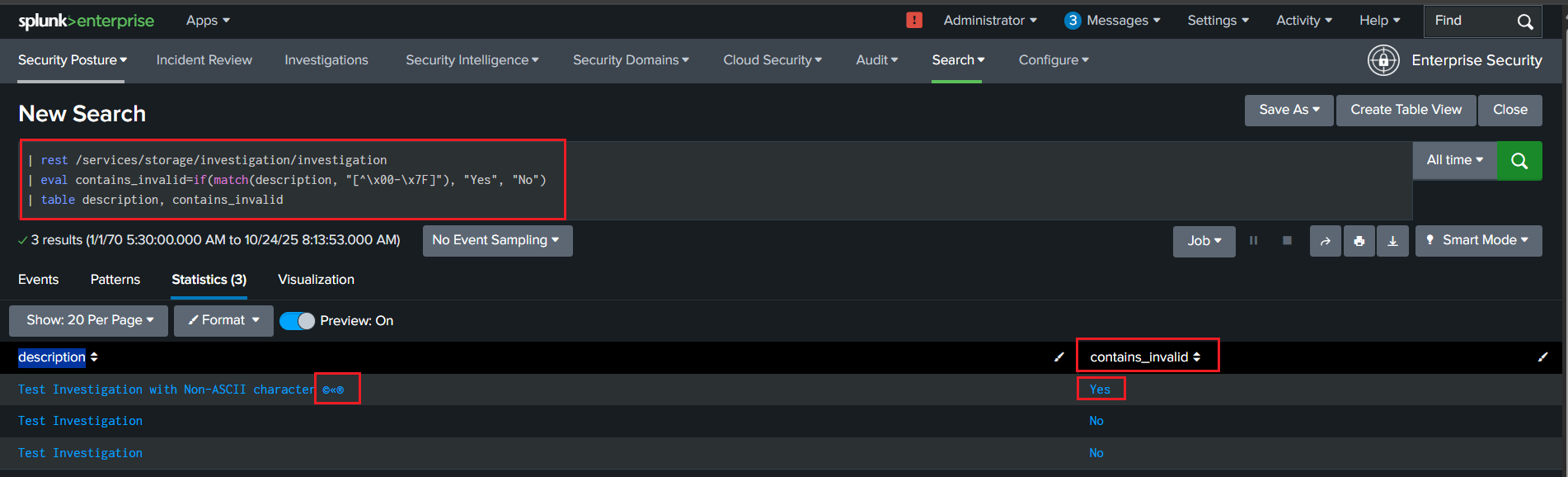
SPL Query Breakdown:
- The
| rest splunk_server=local count=0 /services/storage/investigation/investigationcommand retrieves the investigation data. - The
evalstatement creates a new field calledcontains_invalid, which checks if any characters in the description field are outside the ASCII range(\x00-\x7F). If an invalid character is found, the field is marked as "Yes"; otherwise, it is marked as "No." - The table description, contains_invalid command displays the investigation descriptions along with the flag indicating the presence of invalid characters.
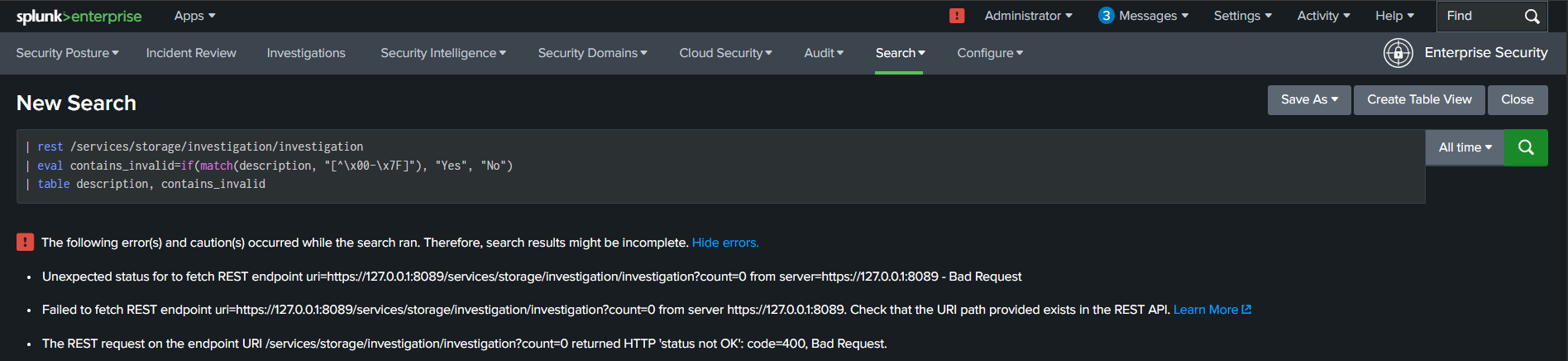
In some cases, the SPL query itself might fail with an "HTTP 400 Bad Request" error. This indicates that the invalid characters are non-printable ASCII control characters, specifically excluding the newline (\x0A) and carriage return (\x0D) characters, which are often handled separately in text processing.
Step 4: Identification using Splunk App for Lookup File Editing
If the SPL query fails, the KV store collection can be directly viewed using the Splunk App for Lookup File Editing:
- Open Splunk Enterprise > Apps > Splunk App for Lookup File Editing.
- From the list of KV store collections, search "investigation"

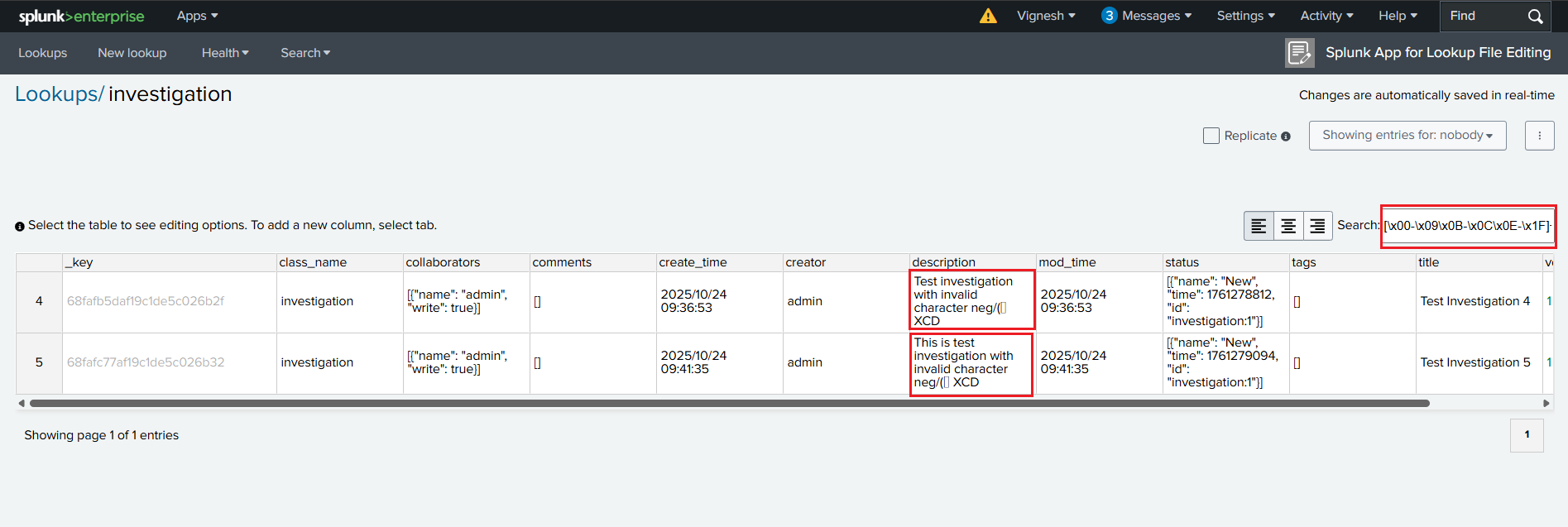
- In the search bar provided by the app, type the regular expression [\x00-\x09\x0B-\x0C\x0E-\x1F]+ as shown in the below screenshot to filter for entries containing non-printable ASCII or invalid characters. This will help identify the problematic rows.
Resolution
Resolution involves identifying and deleting the entire row containing the problematic characters from the KV store. Simply removing the non-ASCII or Unicode or invalid character from the description field will not resolve the issue; the entire row must be deleted.
Step 1: Access the Investigation KV Store Collection
- Open Splunk Enterprise > Apps > Splunk App for Lookup File Editing.
- From the list of KV store collections, search "investigation"
Step 2: Locate and Delete the Problematic Row
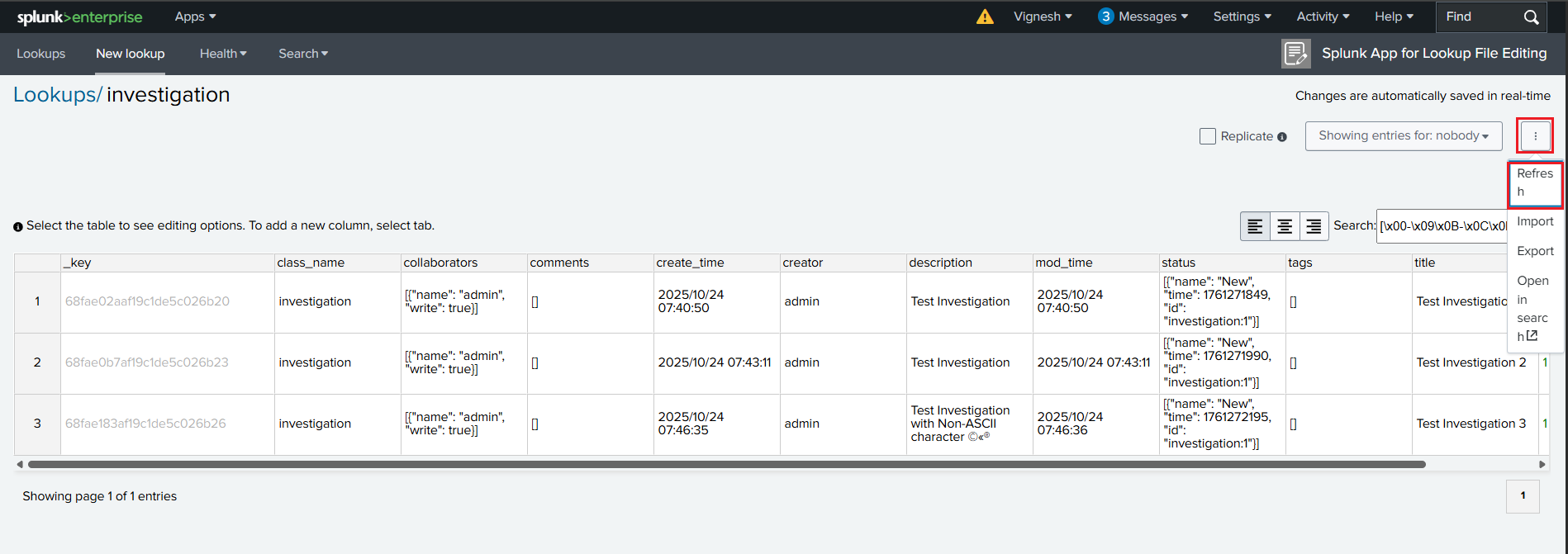
- Use the search filter within the Lookup Editor App and type the regular expression [^\x00-\x7F] to filter non ASCII characters or type [\x00-\x09\x0B-\x0C\x0E-\x1F]+ to filter non-printable ASCII or invalid characters.
- Once identified, right-click on the row and select "Delete selected rows"
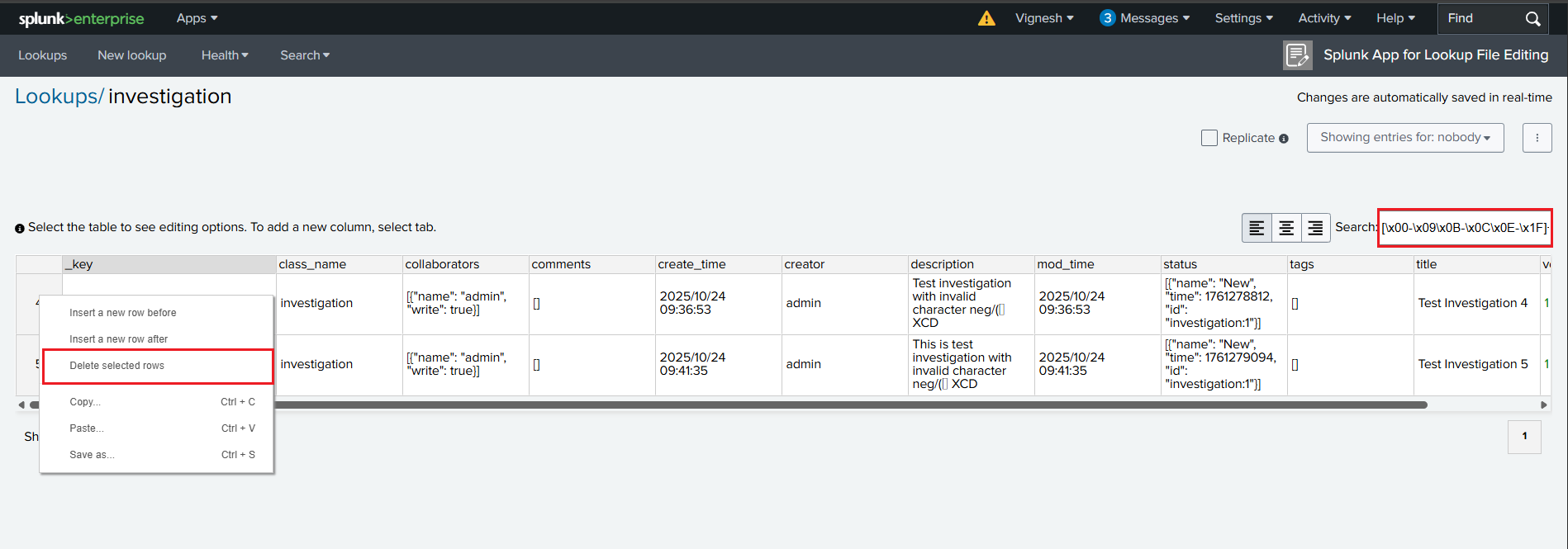
- Then, click on the three dots on the top right side corner to refresh to see the changes.
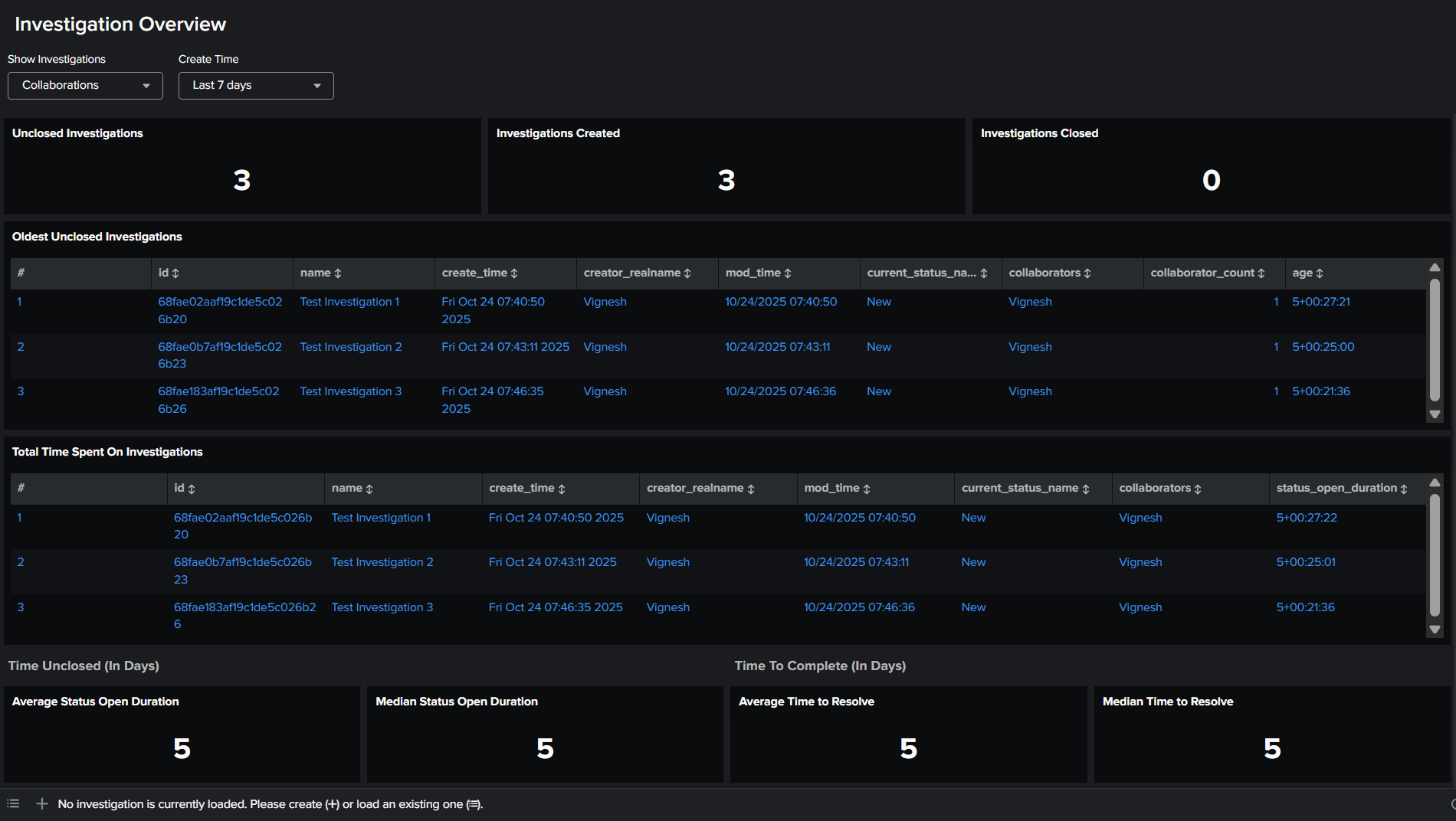
After deleting the problematic row(s), navigate back to the Splunk Enterprise Security Investigation Overview dashboard. It should now load correctly and display the available investigation data.
Best Practices to prevent.
- Educate SOC Analysts: Inform users about the potential issues caused by pasting special characters into description fields and encourage the use of plain text or allowed characters.
- Regular Checks: Periodically run the SPL query provided in this article to proactively identify and clean up any new instances of invalid characters in investigation data.
Related Links
Make Changes To An Investigation In Splunk Enterprise Security
Revision History
| Revision | Publish Date | Comments |
|---|---|---|
1.0 |
29-Sep-2026
|
Initial Release |
 Feedback