Configure Active Directory Authentication in SWA
Available Languages
Contents
Introduction
This document describes the steps to Configure Active Directory Authentication in Secure Web Appliance (SWA).
Prerequisites
Requirements
Cisco recommends that you have knowledge of these topics:
- SWA administration.
- Basic Networking and Proxy protocols.
- Basic Active Directory administration.
Cisco recommends that you have these tools installed:
- Physical or Virtual SWA.
- Administrative Access to the SWA Graphical User Interface (GUI).
- Administrative Access to the Active Directory.
Components Used
This document is not restricted to specific software and hardware versions.
The information in this document was created from the devices in a specific lab environment. All of the devices used in this document started with a cleared (default) configuration. If your network is live, ensure that you understand the potential impact of any command.
Checklist
Before connecting SWA to Active Directory, please ensure that all required checks have been completed:
- SWA has proper network access to the Active Directory. for more information kindly visit: Configure Firewall for Secure Web Appliance.
- DNS record for SWA host name is created in the Active Directory. (CLI > sethostname)
- DNS records for SWA interfaces are created in the Active Directory.
-
Compare the current time on the Secure Web Appliance with the time on the Active Directory server, and ensure that the difference does not exceed the value defined in the “Maximum tolerance for computer clock synchronization” setting on the Active Directory server.
- Confirm that you have the necessary permissions and domain information required to join the Secure Web Appliance to the Active Directory domain you intend to use for authentication.
-
Create a user on the Active Directory server that is a member of the Domain Admins or Account Operators group.
-
Alternatively, create a user with the minimum required permissions: Reset Password, Validated write to servicePrincipalName, Write account restrictions, Write dNSHostName, and Write servicePrincipalName. These permissions are sufficient to join the appliance to the domain and ensure full functionality.
-
- Make sure SWA can resolve the Active Directory FQDN.
Configuring the Active Directory
Use these steps to configure an Upstream Proxy in SWA.
| Steps |
Details |
Step 1. Collect the Information from SWA |
Step 1.1.From SWA CLI, runsethostname to view the current SWA hostname.
|
Step 2. Configure the DNS Records in Active Directory |
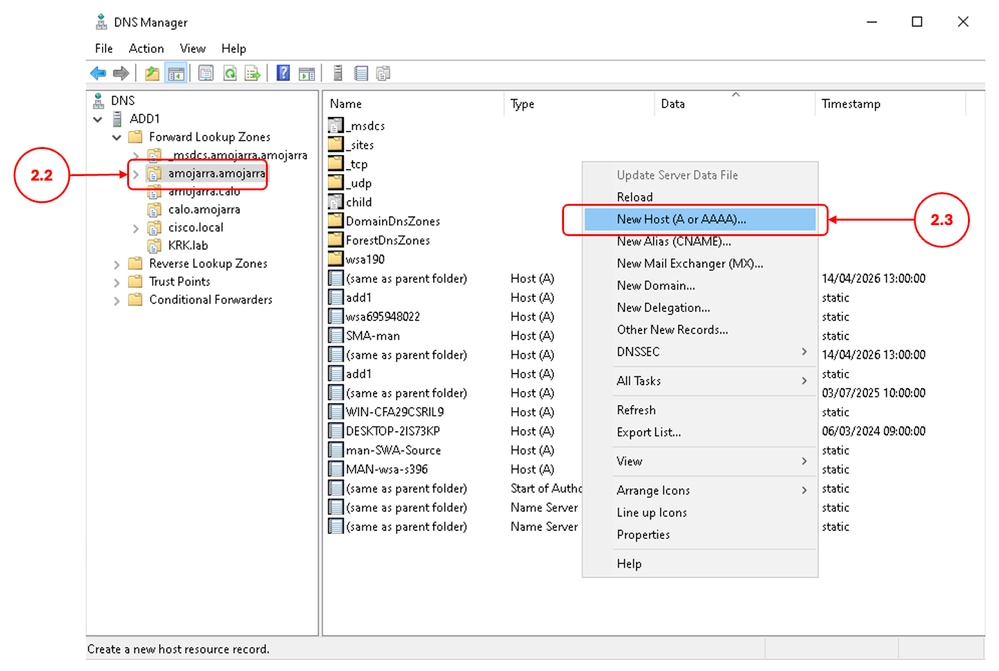
Step 2.1. Connect to your Active Directory server and navigate to DNS Manager console. Step 2.2. Select the desired Domain name from the Left panel. Step 2.3. In the right panel, right click and choose New Host (A or AAAA)
Step 2.4. Define the DNS Record for the SWA hostname (Collected on Step 1.1) Step 2.5. Define the DNS Record for each SWA interfaces. Step 2.6. (Optional) If you are using High Availability, define a DNS record for the High Availability FQDN with the defined Virtual IP address. |
Step 3. Configure Active Directory Realm |
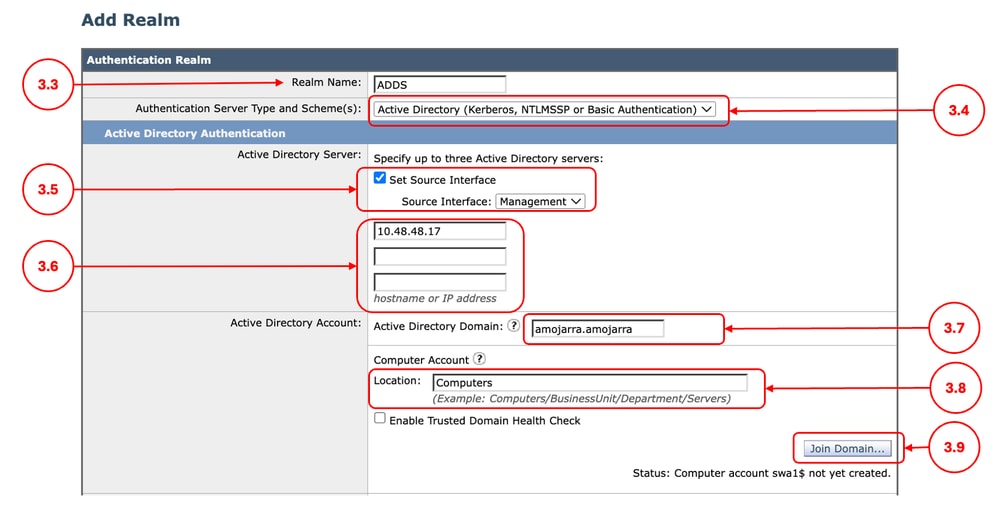
Step 3.1. From SWA GUI, navigate to Network, select Authentication. Step 3.2. Click Add Realm. Step 3.3. Define a Realm Name. Step 3.4. From the Authentication Server Type and Scheme(s) Choose Active Directory. Step 3.5. By default SWA uses the Management interface to connect to the Active Directory, if you would like to change this settings, click Set Source Interface and choose the desired Interface. Step 3.6. Define the hostname or IP address of the Active Directory Domain Controller(s). Step 3.7. Enter the Active Directory Domain name. Step 3.8. (Optional) If you would like to store the Computer Account in a different Organization Unit (OU) in the Active Directory, define the desired location Step 3.9. Click Join Domain.
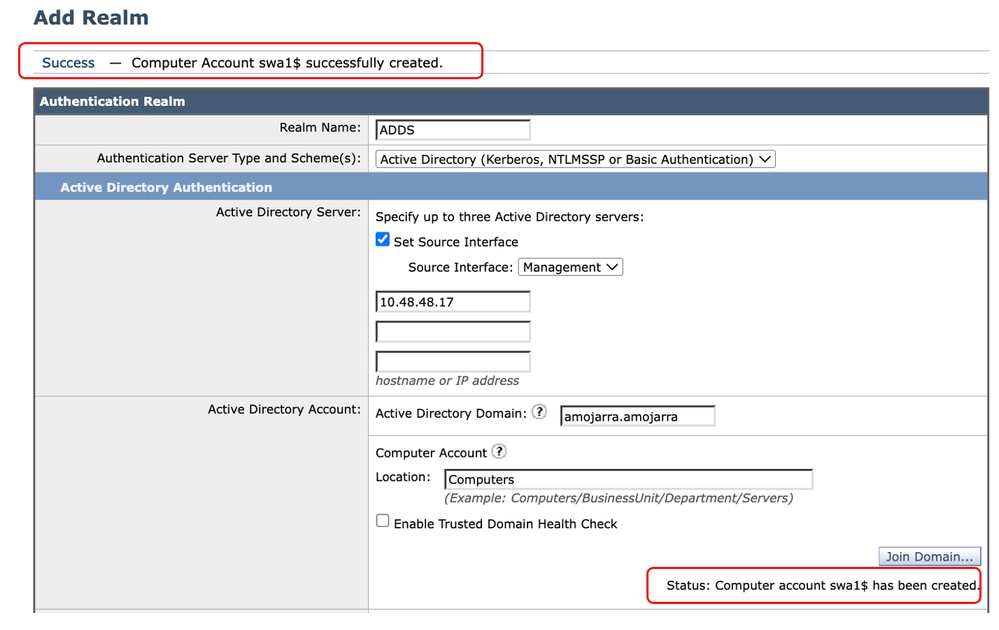
Step 3.10. Enter the Username and Password and click Join.
Step 3.11. Submit Step 3.12. Commit the changes. |
Troubleshooting

Warning: Clock skew between WSA and AD server is too great
This Error indicates that the time between the Active Directory and the SWA is not sync. use Step 1.3. to correct the time on the SWA
Warning: Clock skew between WSA 'Thu Apr 16 08:25:17 2026' and AD server 'Wed Apr 15 08:30:30 2026' is too great
Warning: Clock skew between WSA 'Thu Apr 16 08:25:17 2026' and AD server 'Wed Apr 15 08:30:30 2026' is too great
Unable to Resolve swa1.*.* "Unknown hostname" Failure
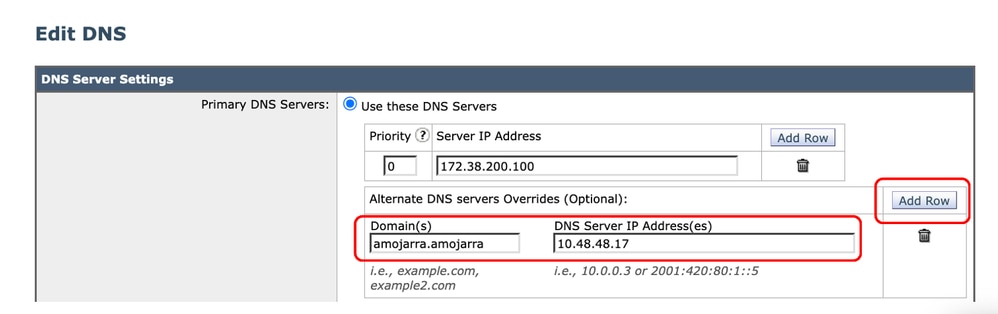
This error indicates that the SWA cannot resolve its own Interface and the hostname via the DNS server. Confirm that the SWA is configured with the correct DNS server (Step 1.4) and sse Step 2 to crete the missing DNS records.
Failure: Unable to resolve 'swa1.amojarra.amojarra' : Unknown hostnameUnable to Resolve ADD1.*.* : "Unknown hostname" Failure
This Error indicates that the SWA cannot resolve the DNS records related to the Active Directory. Use Step 1.4 to configure the correct DNS server for your Active Directory domain.
Failure: Unable to resolve 'ADD1.amojarra.amojarra' : Unknown hostnameError while Fetching Kerberos Tickets from Server: "kinit: Password incorrect" Failure
This Error indicates that the username or password used to connect to the Active directory is incorrect.
Failure: Error while fetching Kerberos Tickets from server '10.48.48.17' : kinit: Password incorrectCannot Join Domain: Failed to Precreate Account: "Insufficient access"
This Error indicates that the user lacks the minimum required privileges to create the computer account. kindly check the user privileges according to the Check List section in this article.
Failure: Error while joining WSA onto server '10.48.48.17' : ads_print_error: AD LDAP ERROR: 50 (Insufficient access): 00000005: SecErr: DSID-031A11E3, problem 4003 (INSUFF_ACCESS_RIGHTS), data 0 Failed to join domain: failed to precreate account in ou cn=Computers,dc=AMOJARRA,dc=AMOJARRA: Insufficient accessRelated Information
- User Guide for AsyncOS 15.0 for Cisco Secure Web Appliance
- Configure Firewall for Secure Web Appliance
- Configure Custom URL Categories in Secure Web Appliance - Cisco
- How To Exempt Office 365 Traffic From Authentication and Decryption on Cisco Web Security Appliance (WSA) - Cisco
- Use Secure Web Appliance Best Practices - Cisco
- Block Traffic in Secure Web Appliance
- Block Upload Traffic in Secure Web Appliance
- Block Executable File Download in SWA
- Bypass Microsoft Updates Traffic in Secure Web Appliance
- Bypass Authentication in Secure Web Appliance - Cisco
Revision History
| Revision | Publish Date | Comments |
|---|---|---|
1.0 |
29-Apr-2026
|
Initial Release |

 Feedback
Contact Cisco
- Open a Support Case

- (Requires a Cisco Service Contract)