Configure Control Plane Access Control for Secure FTD and ASA
Available Languages
Contents
Introduction
This document describes the process to configure control plane access rules for Secure Firewall Threat Defense and Adaptive Security Appliance (ASA).
Prerequisites
Requirements
Cisco recommends that you have knowledge of these topics:
- Secure Firewall Threat Defense (FTD)
- Secure Firewall Device Manager (FDM)
- Secure Firewall Management Center (FMC)
- Secure Firewall ASA
- Access Control List (ACL)
- FlexConfig
Components Used
The information in this document is based on these software and hardware versions:
- Secure Firewall Threat Defense Version 7.2.5
- Secure Firewall Manager Center Version 7.2.5
- Secure Firewall Device Manager Version 7.2.5
- Secure Firewall ASA Version 9.18.3
The information in this document was created from the devices in a specific lab environment. All of the devices used in this document started with a cleared (default) configuration. If your network is live, ensure that you understand the potential impact of any command.
Background Information
The traffic usually traverses a firewall and is routed between data interfaces; in some circumstances, it is beneficial to deny traffic destined 'to' the secure firewall. The Cisco secure firewall can use a control plane access control list (ACL) to restrict 'to-the-box' traffic. An example of when a control plane ACL can be useful to control which peers can establish a VPN (Site-to-Site or Remote Access VPN) tunnel to the secure firewall.
Secure Firewall Through-the-Box Traffic
Traffic normally traverses firewalls from one interface (inbound) to another interface (outbound), this is known as through-the-box traffic and is managed by both the Access Control Policies (ACP) and prefilter rules.
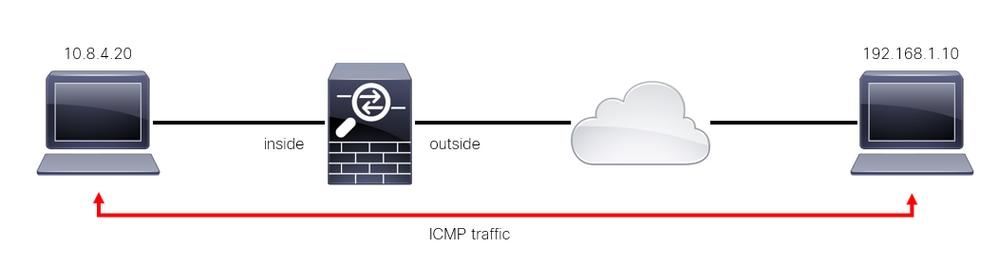 Image 1. Through-the-box traffic example
Secure Firewall to-the-Box Traffic
There are other cases where traffic is directly destined to an FTD interface (Site-to-Site or Remote Access VPN), this is known as to-the-box traffic and is managed by the control plane of that specific interface.
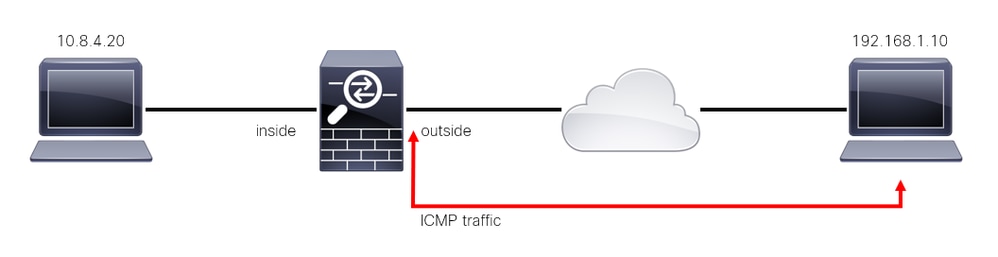 Image 2. To-the-box traffic example
Important Considerations Regarding Control Plane ACLs
- As of FMC/FTD Version 7.0, a control plane ACL must be configured using FlexConfig, using the same command syntax used on the ASA.
- The keyword control plane is appended to the access-group configuration, which enforces traffic to the secure firewall interface. Without the control plane word appended to the command, the ACL would restrict traffic through the secure firewall.
- A control plane ACL does not restrict SSH, ICMP or TELNET inbound to a secure firewall interface. These are processed (permitted/denied) according to the Platform Settings Policies and have a higher precedence.
- A control plane ACL restricts traffic to the secure firewall itself, whereas the Access Control Policy for the FTD or the normal ACLs for the ASA, controls traffic through the secure firewall.
- Unlike a normal ACL, there is not an implicit 'deny' at the end of the ACL.
- The object-group search (OGS) feature does not work over control plane ACLs, see Cisco bug ID CSCwi58818.
- At the time of this document being created, the FTD Geolocation feature cannot be used to restrict access to the FTD.
Configure
In the next example, a set of IP addresses from a certain country tries to brute force via VPN into the network by attempting to log in to the FTD RAVPN. The best option to protect the FTD against these VPN brute force attacks is to configure a control plane ACL to block these connections to the outside FTD interface.
Configurations
Configure a Control Plane ACL for FMC-Managed FTD
This is the procedure you must adhere to in an FMC to configure a control plane ACL to block incoming VPN brute force attacks to an outside FTD interface:
Step 1. Open the FMC Graphic User Interface (GUI) via HTTPS and log in with your credentials:
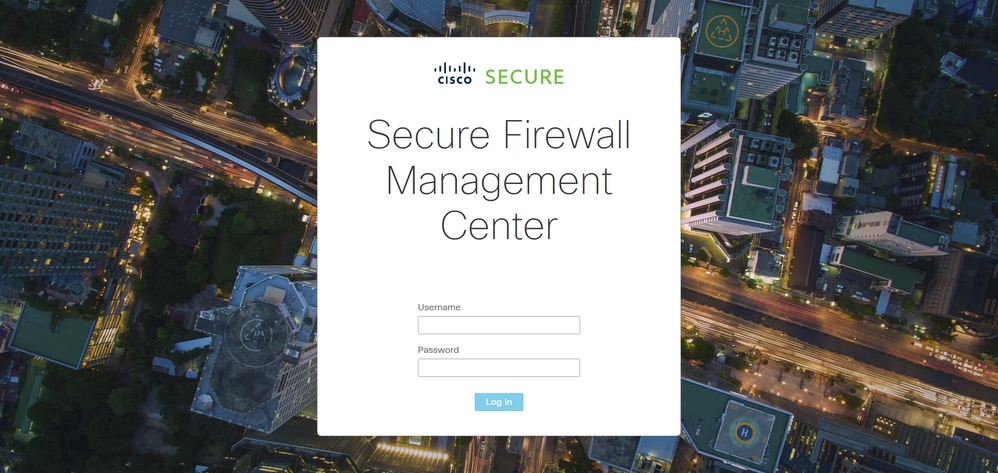 Image 3. FMC Log In page
Step 2. You must create an extended ACL. For this, navigate to Objects > Object Management:
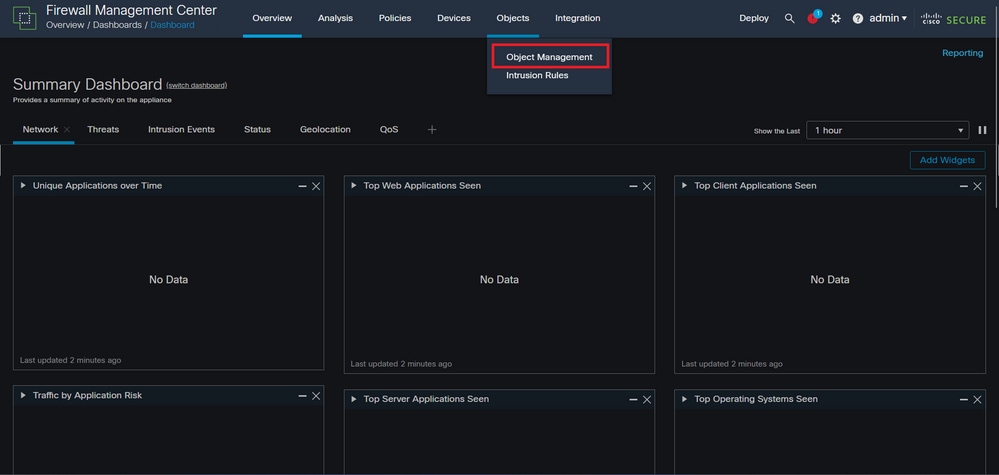 Image 4. Object Management
Step 2.1. From the left panel, navigate to Access List > Extended to create an extended ACL:
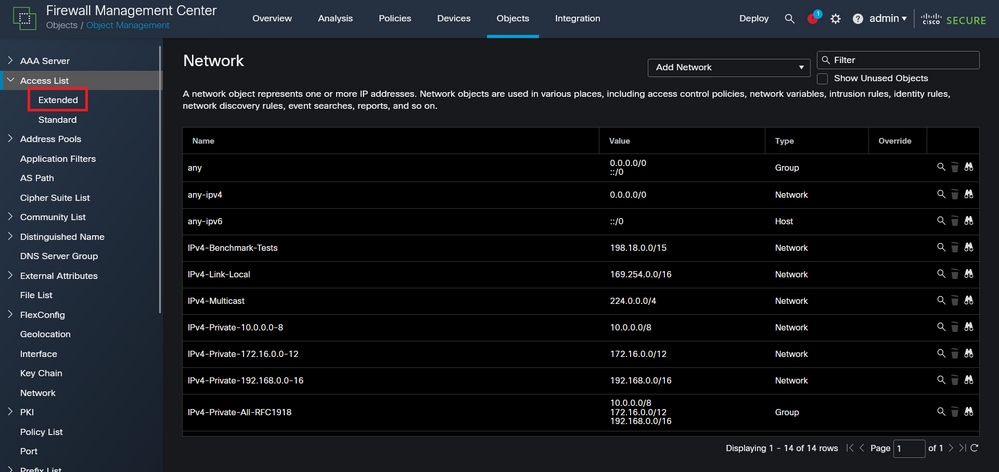 Image 5. Extended ACL menu
Step 2.2. Select Add Extended Access List:
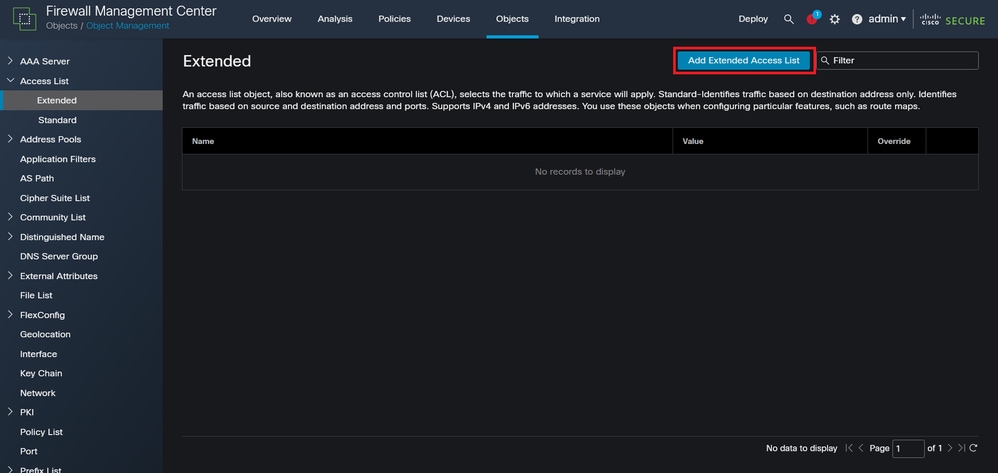 Image 6. Add Extended ACL
Step 2.3. Type a name for the extended ACL, and then, click the Add button to create an access control entry (ACE):
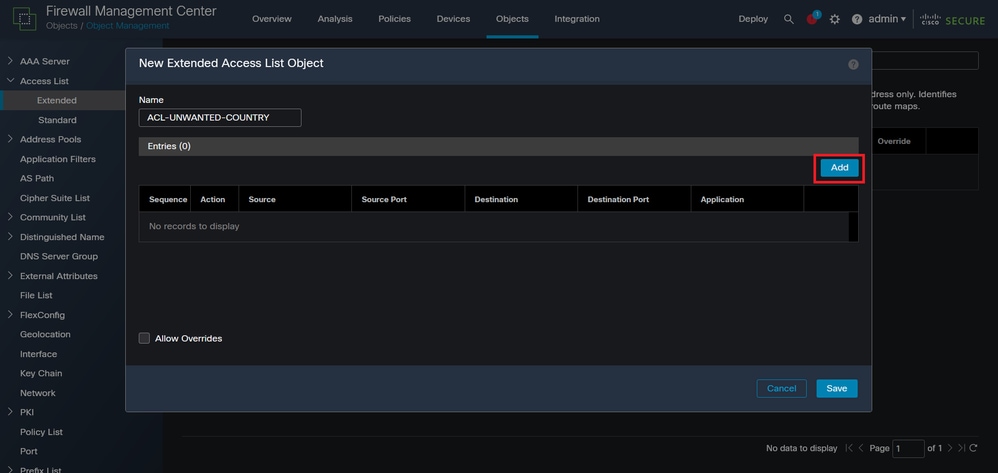 Image 7. Extended ACL entries
Step 2.4. Change the ACE action to Block, and add the source network to match the traffic that must be denied to the FTD, keep the destination network as Any, and click the Add button to complete the ACE entry.
In this example, the ACE entry configured blocks VPN brute force attacks coming from the 192.168.1.0/24 subnet:
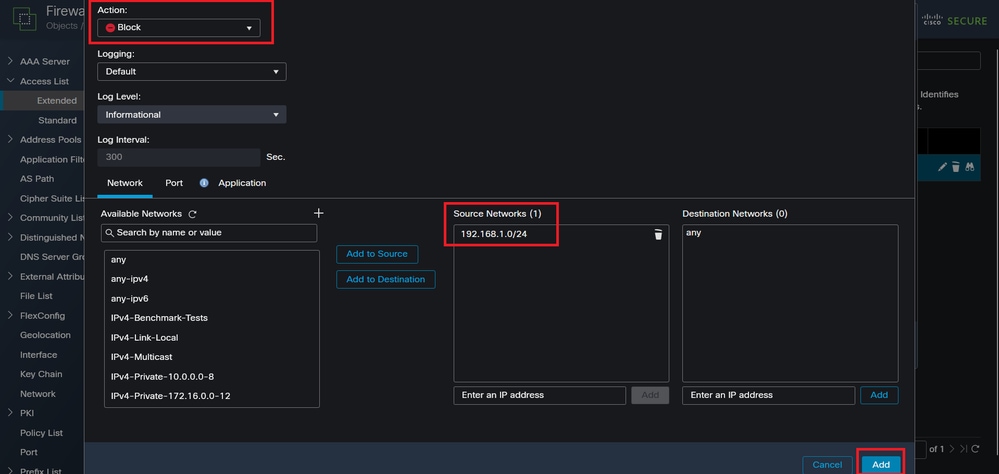 Image 8. Denied Networks
Step 2.5. If you need to add more ACE entries, click the Add button again and repeat step 2.4. After this, click the Save button to complete the ACL configuration:
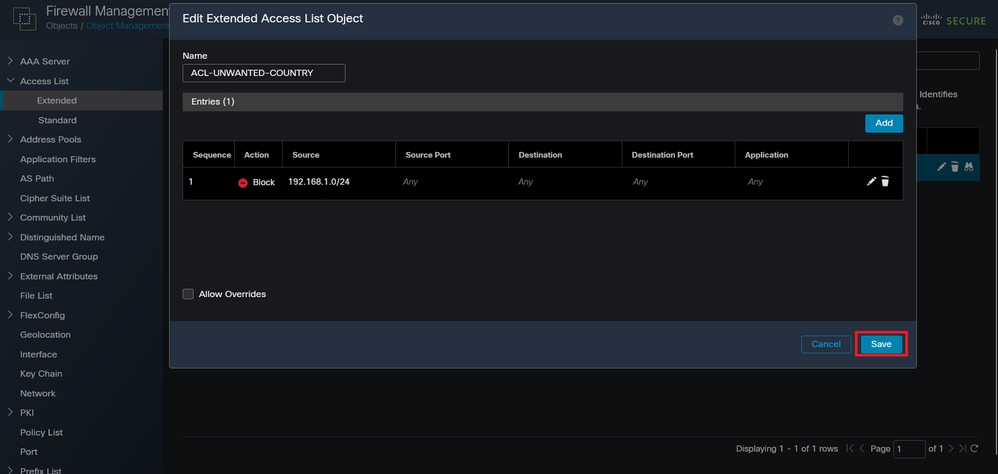 Image 9. Completed Extended ACL entries
Step 3. Next, you must configure a Flex-Config Object to apply the control plane ACL to the outside FTD interface. Navigate to the left panel, and select the option FlexConfig > FlexConfig Object.
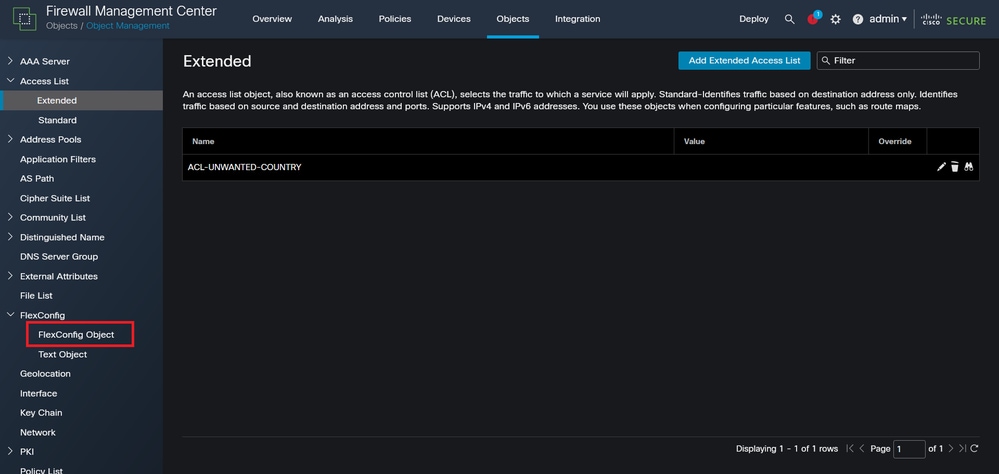 Image 10. FlexConfig Object menu
Step 3.1. Click Add FlexConfig Object:
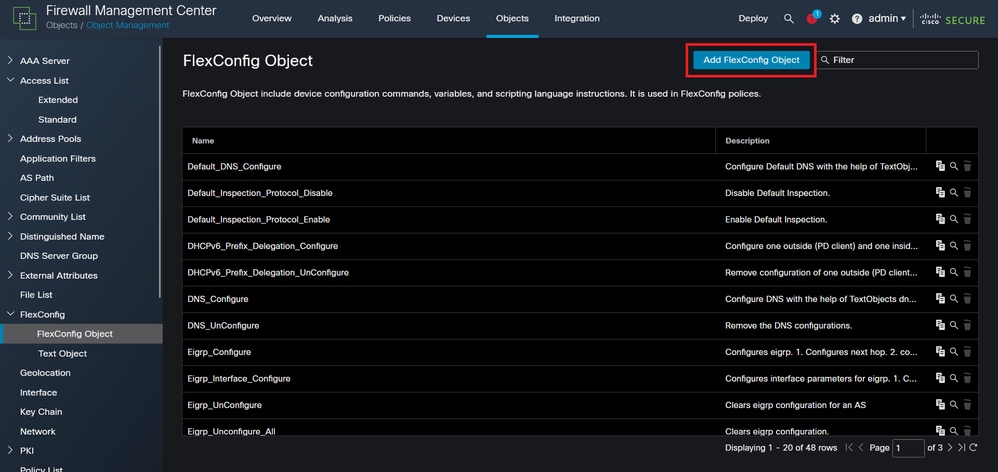 Image 11. Add Flexconfig Object
Step 3.2. Add a name for the FlexConfig object and insert an ACL policy object. Select Insert > Insert Policy Object > Extended ACL Object:
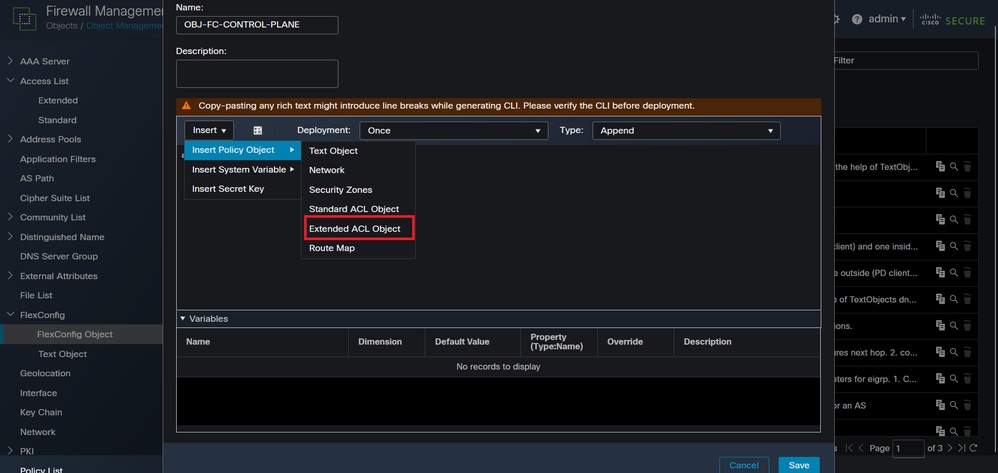 Image 12. FlexConfig Object variable
Step 3.3. Add a name for the ACL object variable and select the extended ACL that was created in Step 2.3, Click the Save button:
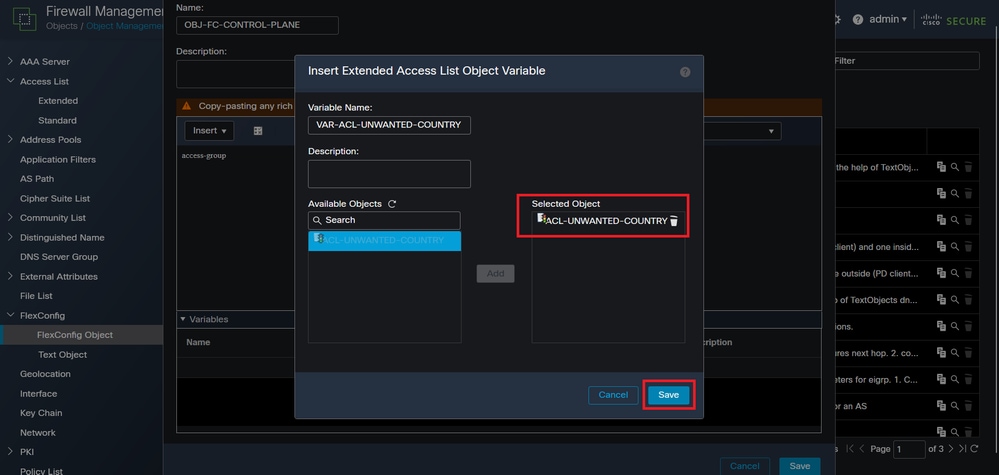 Image 13. FlexConfig Object variable ACL assigment
Step 3.4. Configure the control plane ACL as inbound for the outside interface.
Command line syntax:
access-group "variable name starting with $ symbol" in interface "interface-name" control-plane
This translates into the next command example, which uses the ACL variable created in Step 2.3 VAR-ACL-UNWANTED-COUNTRY:
access-group $VAR-ACL-UNWANTED-COUNTRY in interface outside control-plane
This is how you must configure the FlexConfig object window, after this, select the Save button to complete the FlexConfig Object:
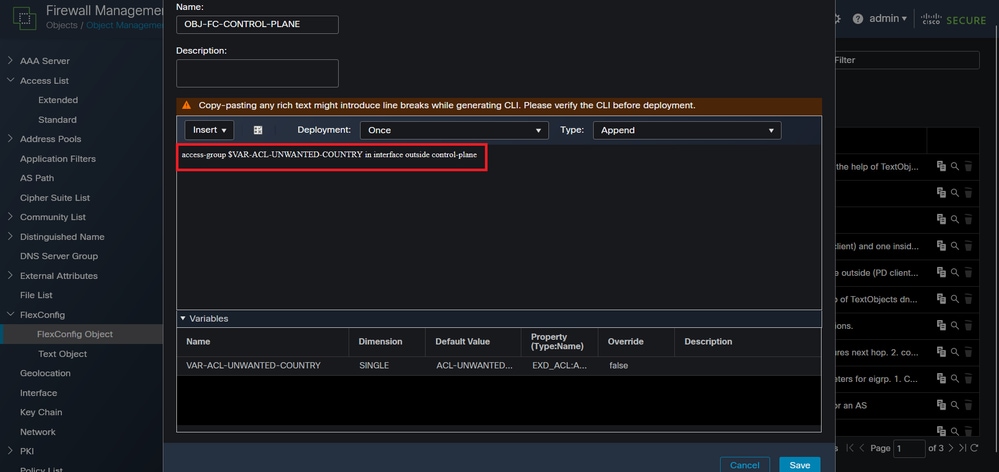 Image 14. Flexconfig Object complete command line
Step 4. You must apply the FlexConfig Object configuration to the FTD, navigate to Devices > FlexConfig:
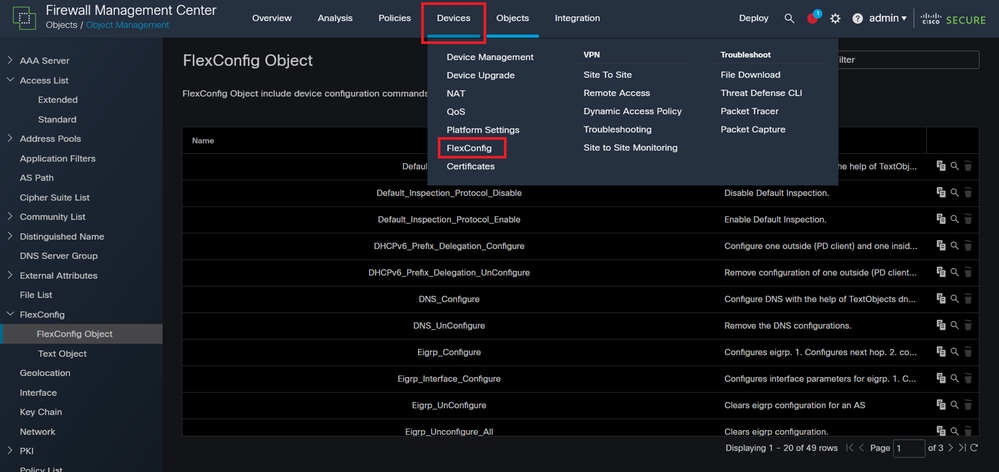 Image 15. FlexConfig Policy menu
Step 4.1. Click New Policy, if there is not an already FlexConfig created for your FTD, edit the existing FlexConfig policy:
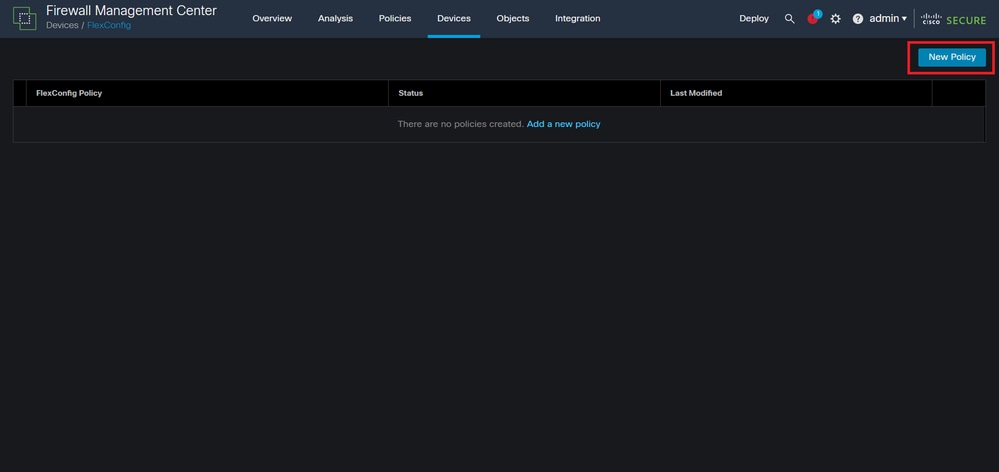 Image 16. FlexConfig Policy creation
Step 4.2. Add a name for the new FlexConfig policy and select the FTD you want to apply the control plane ACL created:
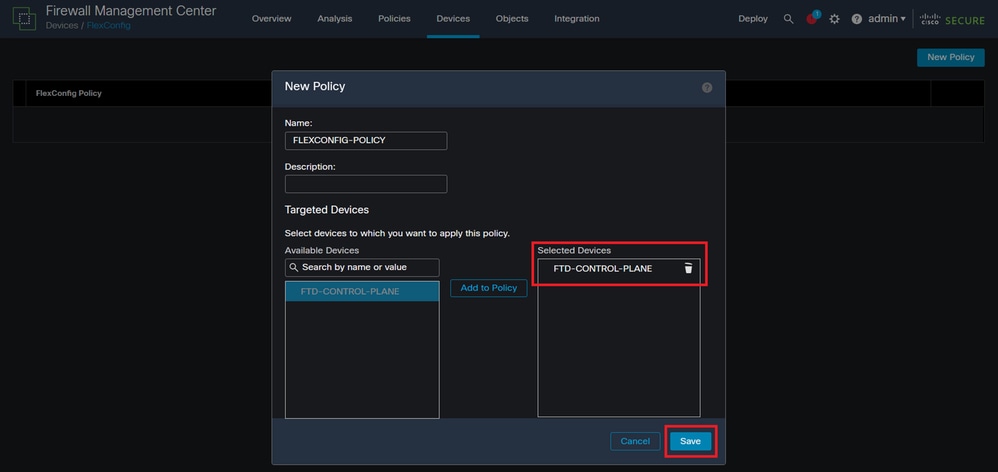 Image 17. FlexConfig Policy device assigment
Step 4.3. From the left panel, search for the FlexConfig object created in Step 3.2, then, add it to the FlexConfig policy by clicking the right arrow located in the middle of the window. Then, click the Save button:
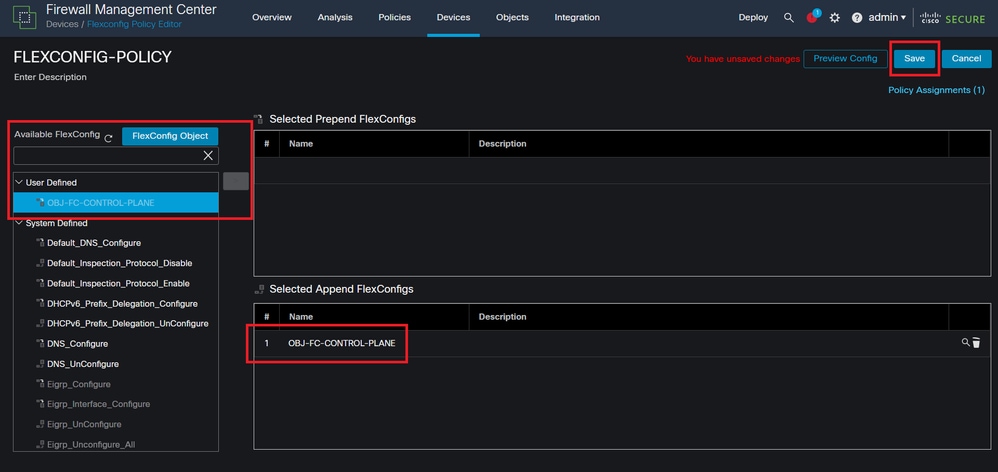 Image 18. FlexConfig Policy object assigment
Step 5. Proceed to deploy the configuration change to the FTD by navigating to Deploy > Advanced Deploy:
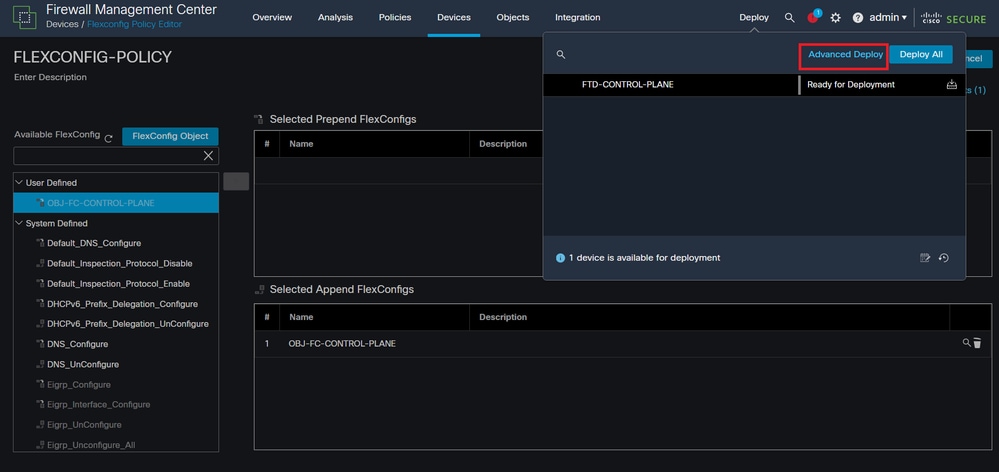 Image 19. FTD Advanced Deploy
Step 5.1. Select the FTD you want the FlexConfig policy applied. If everything is correct, click Deploy:
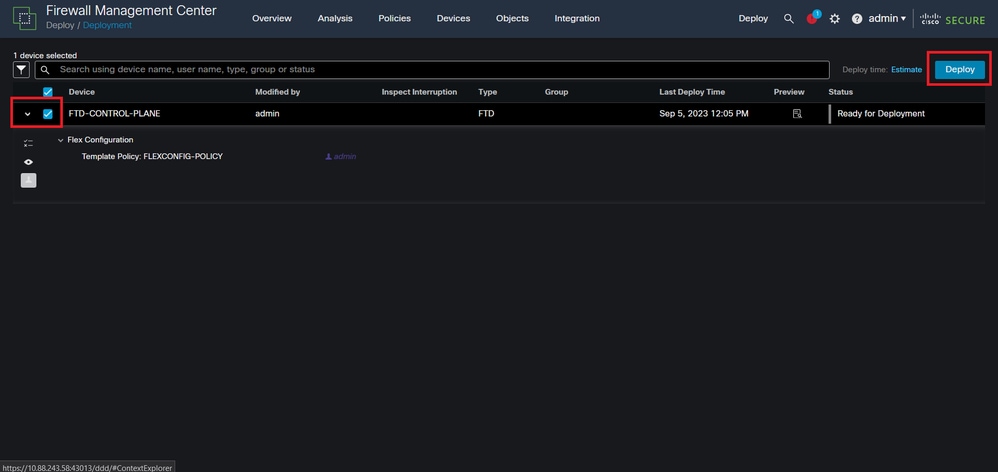 Image 20. FTD Deployment validation
Step 5.2. Next, a Deployment Confirmation window is displayed, add a comment to track the deployment and proceed to Deploy:
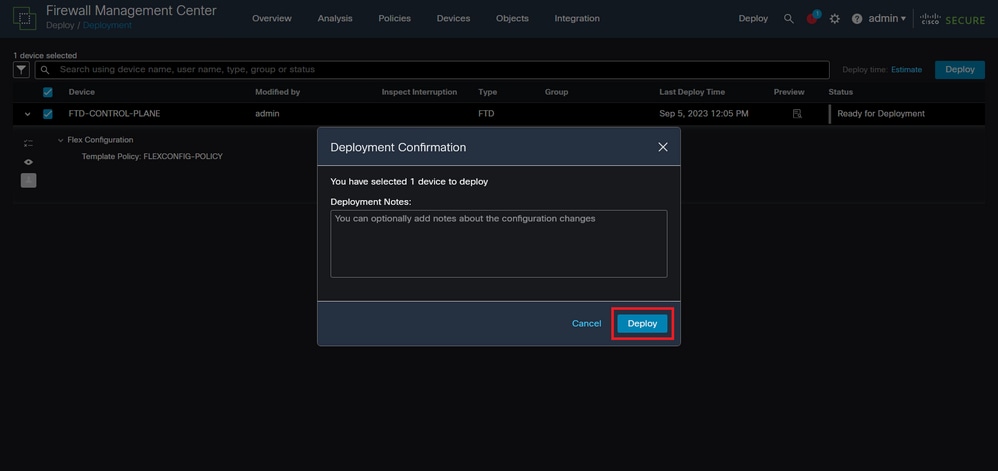 Image 21. FTD Deployment comments
Step 5.3. A warning message can appear when deploying FlexConfig changes. Click Deploy only if you are completely certain the policy configuration is correct:
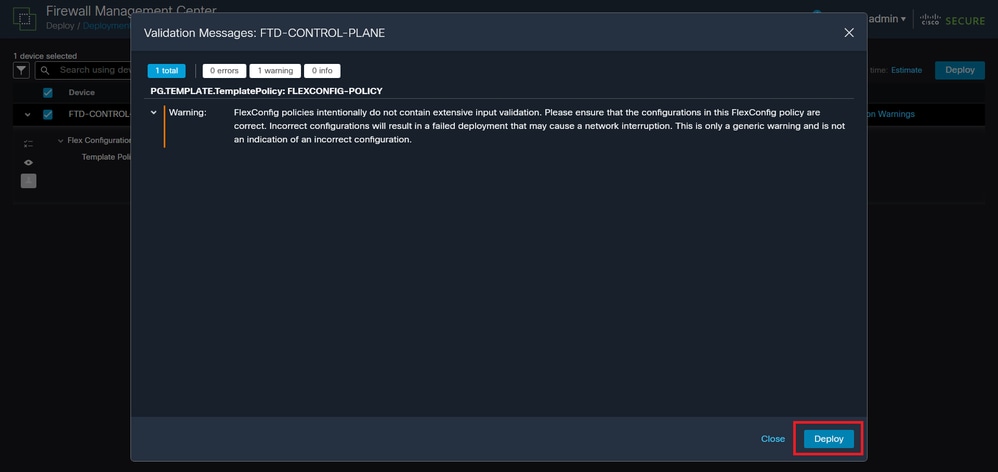 Image 22. FTD Deployment Flexconfig warning
Step 5.4. Confirm the policy deployment is successful for the FTD:
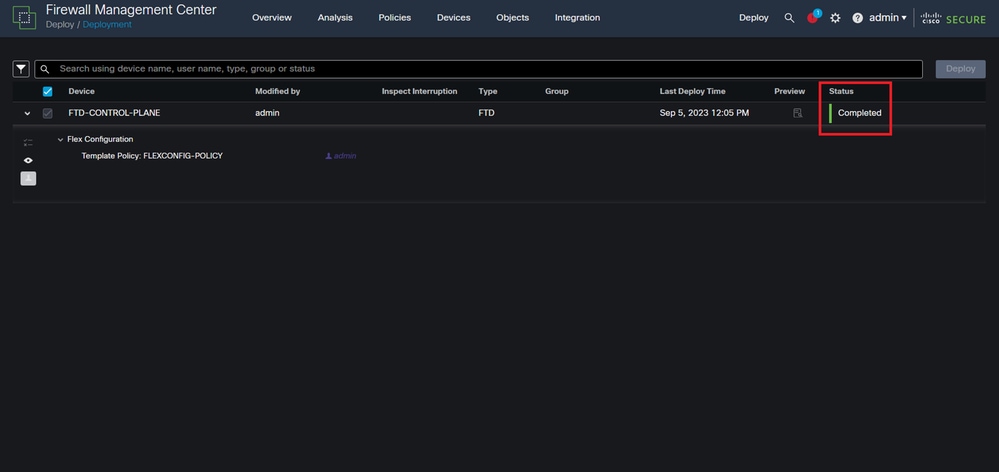 Image 23. FTD Deployment successful
Step 6. If you create a new control plane ACL for your FTD or if you edited an existing one that is actively in use, it is important to highlight the configuration changes made. These do not apply to already established connections to the FTD. You must manually clear the active connection attempts to the FTD, connect to the CLI of the FTD, and clear the active connections.
To clear active connection for a specific host IP address:
> clear conn address 192.168.1.10 all
To clear the active connections for a whole subnet network:
> clear conn address 192.168.1.0 netmask 255.255.255.0 all
To clear the active connections for a range of IP addresses:
> clear conn address 192.168.1.1-192.168.1.10 all
[VIDEO] Configure a Control Plane ACL for FMC-Managed FTD
Configure a Control Plane ACL for FDM-Managed FTD
This is the procedure you must adhere to with an FDM to configure a control plane ACL to block incoming VPN brute force attacks to the outside FTD interface:
Step 1. Open the FDM GUI via HTTPS and log in with your credentials:
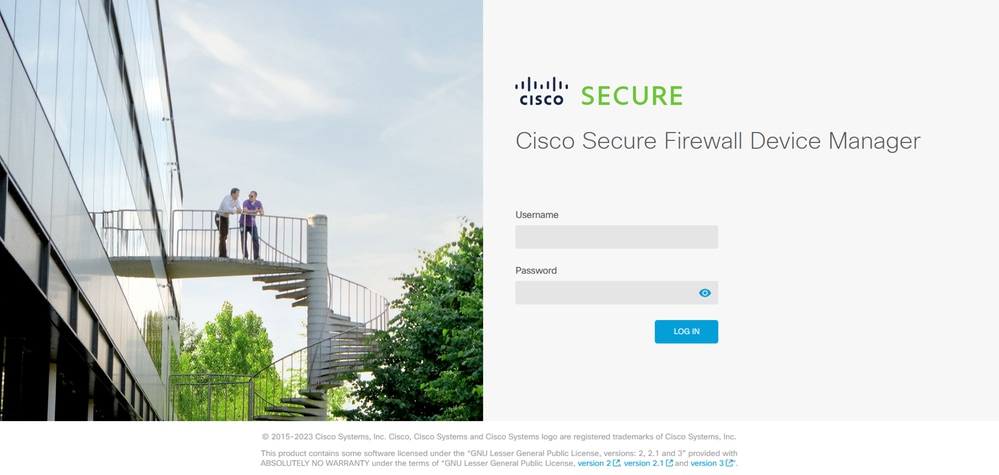 Image 24. FDM Log In page
Step 2. You must create an object network. Navigate to Objects:
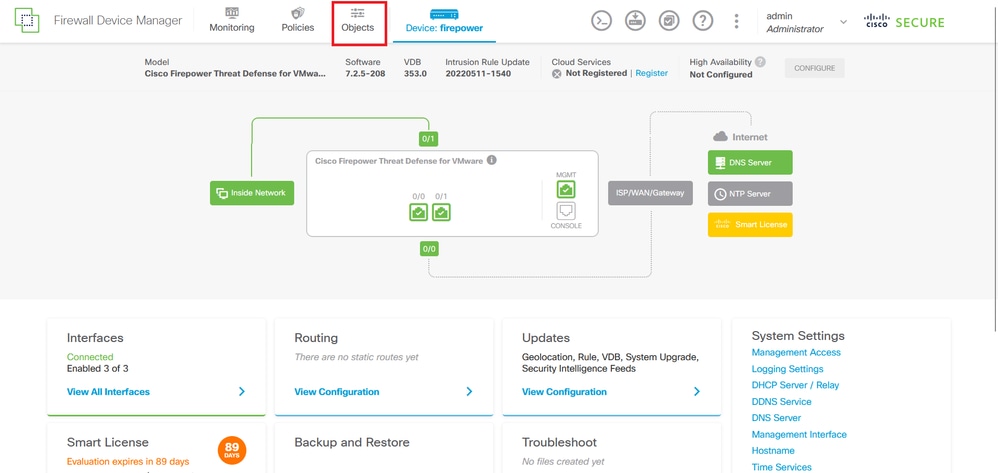 Image 25. FDM main dashboard
Step 2.1. From the left panel, select Networks, then click the '+' button to create a new network object:
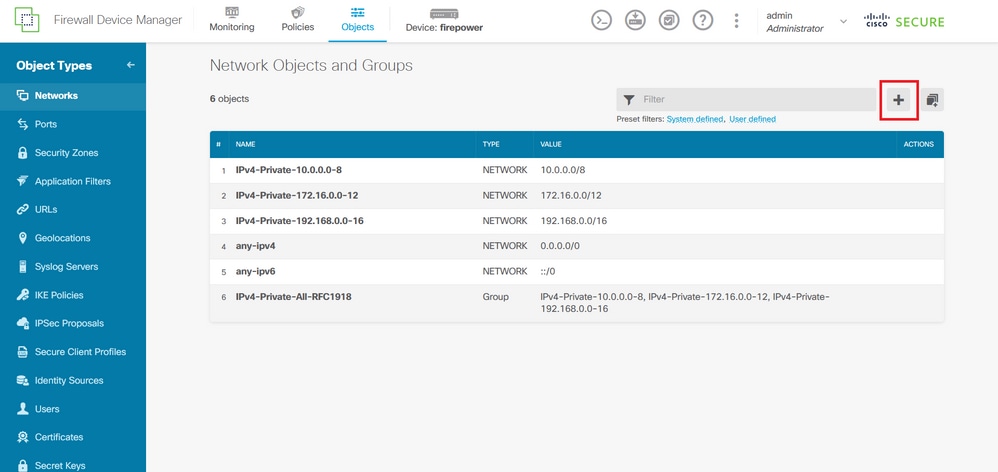 Image 26. Object creation
Step 2.2. Add a name for the network object, select the Network type for the object, add the IP address, network address, or the range of IPs to match the traffic that must be denied to the FTD. Then, click the Ok button to complete the object network.
In this example, the object network configured is intended to block VPN brute force attacks coming from the 192.168.1.0/24 subnet:
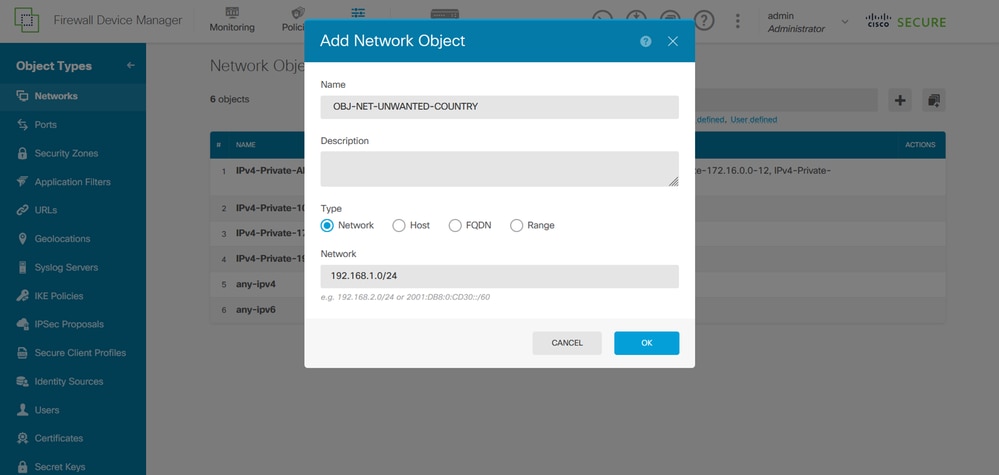 Image 27. Add Network Object
Step 3. Then, you must create an extended ACL, then navigate to the Device tab at the top menu:
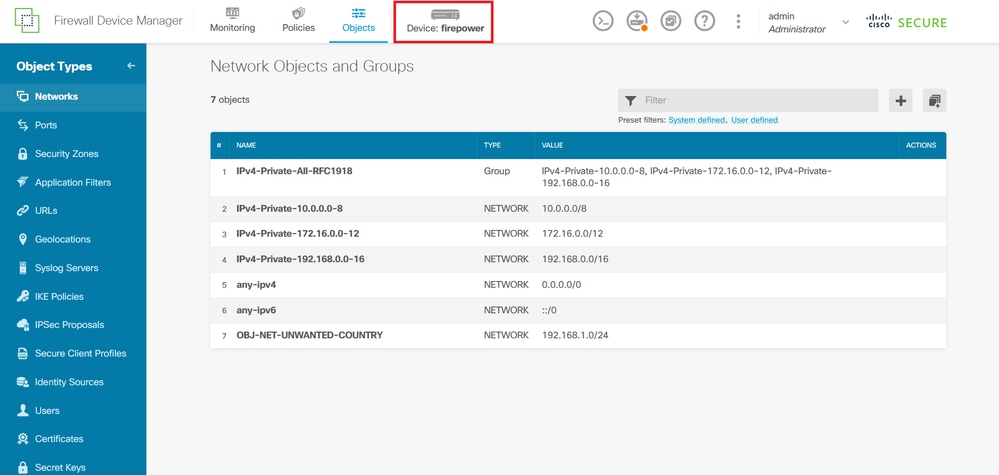 Image 28. Device settings page
Step 3.1. Scroll down and select View Configuration from the Advanced Configuration square as shown in the image:
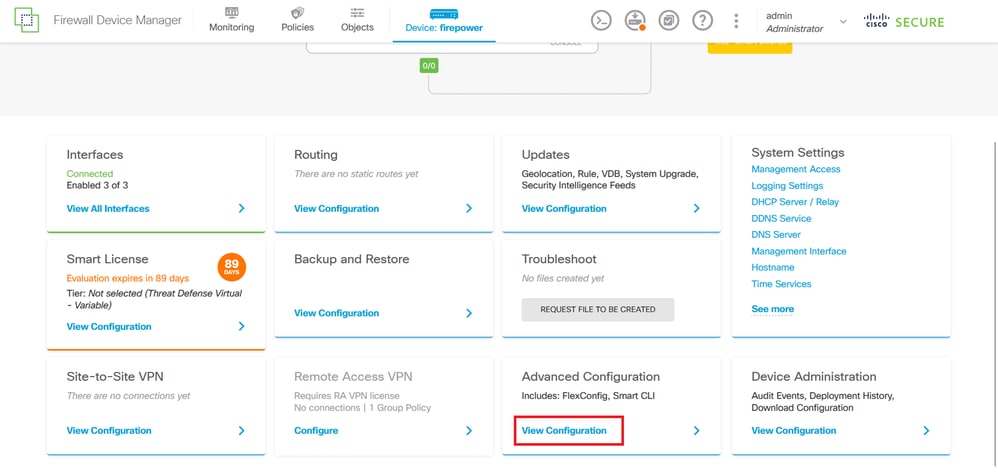 Image 29. FDM Advanced Configuration
Step 3.2. Then, from the left panel, navigate to Smart CLI > Objects and click CREATE SMART CLI OBJECT.
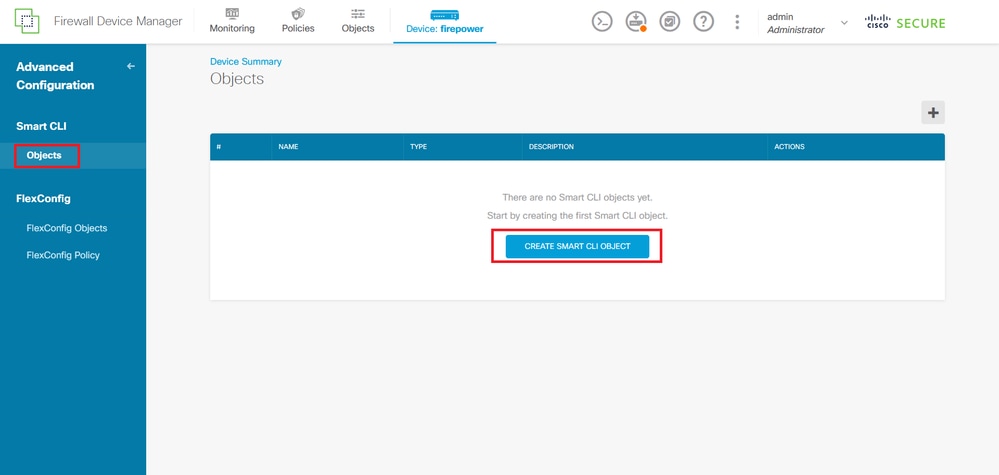 Image 30. Smart CLI Objects
Step 3.3. Add a name for the extended ACL. To create, select Extended Access List from the CLI template drop-down menu, and configure the ACEs required by using the network object created in Step 2.2. Then, click the OK button to complete the ACL:
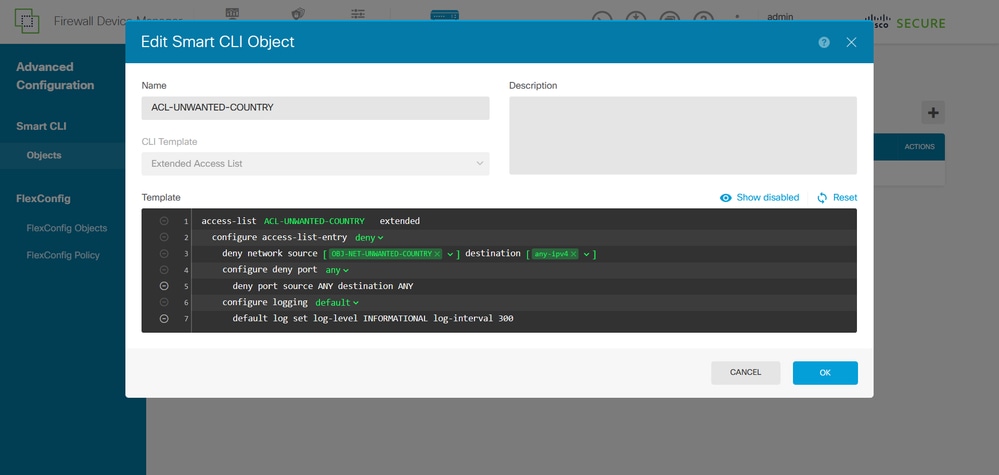 Image 31. Extended ACL creation
Step 4. Next, you must create a FlexConfig object, navigate to the left panel and select FlexConfig > FlexConfig Objects, then, click CREATE FLEXCONFIG OBJECT:
,
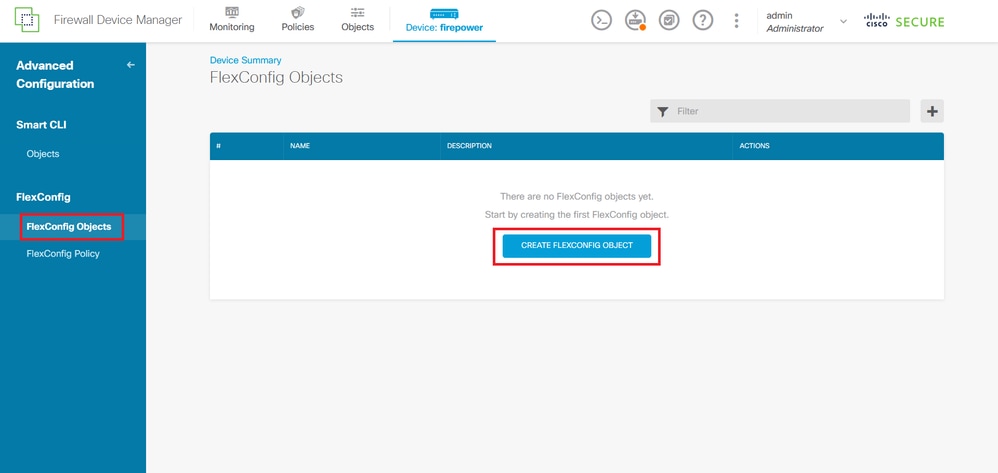 Image 32. FlexConfig Objects
Step 4.1. Add a name for the FlexConfig object to create and configure the control plane ACL as inbound for the outside interface.
Command line syntax:
access-group "ACL-name" in interface "interface-name" control-plane
This translates into the next command example, that uses the extended ACL created in Step 3.3 ACL-UNWANTED-COUNTRY:
access-group ACL-UNWANTED-COUNTRY in interface outside control-plane
This is how it can be configured into the FlexConfig object window. Select the OK button to complete the FlexConfig Object:
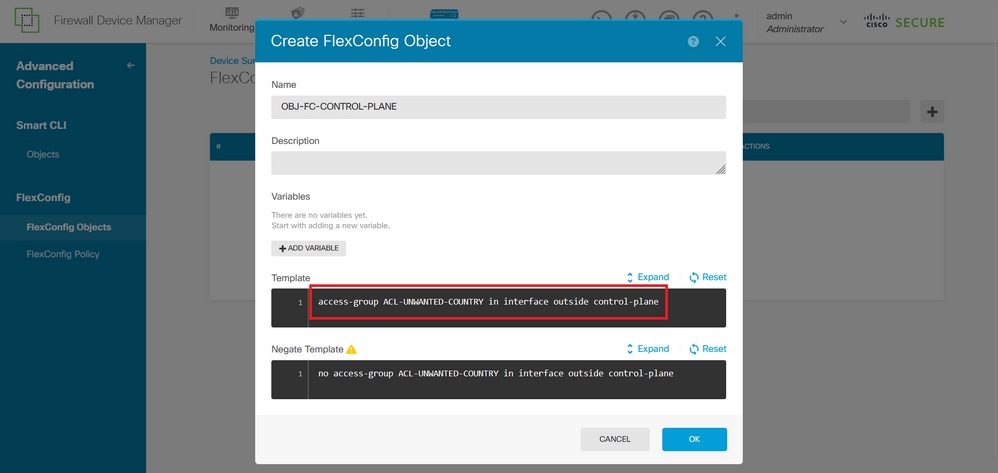 Image 33. FlexConfig Object creation
Step 5. Proceed to create a FlexConfig Policy. Navigate to Flexconfig > FlexConfig Policy, click the "+"button and select the FlexConfig object that was created in Step 4.1:
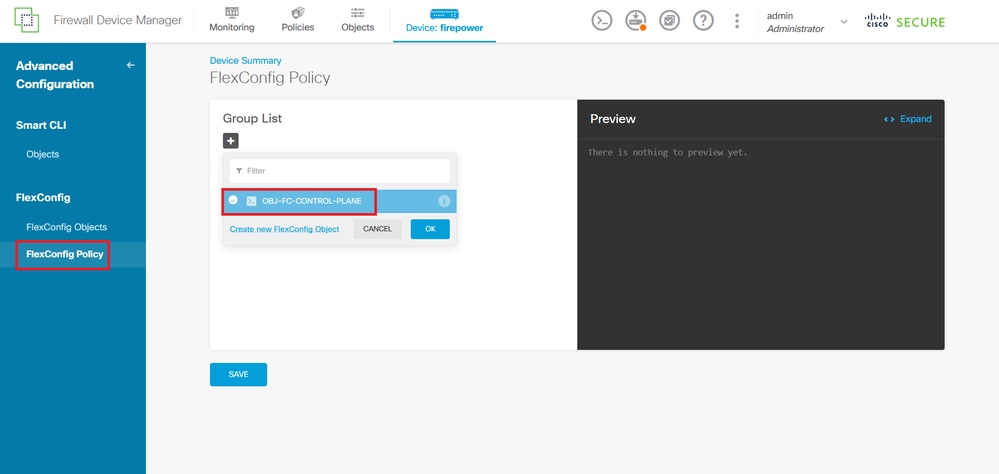 Image 34. FlexConfig Policy
Step 5.1. Validate the FlexConfig preview shows the correct configuration for the control plane ACL created and click the Save button:
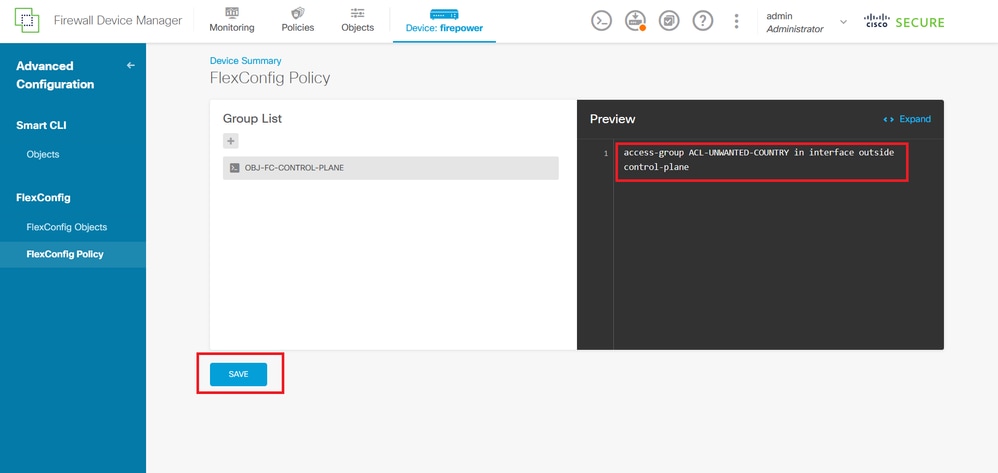 Image 35. FlexConfig Policy preview
Step 6. Deploy the configuration changes to the FTD you want to protect against the VPN brute force attacks. Then, click the Deployment button at the top menu and validate the configuration changes to deploy are correct, and click DEPLOY NOW:
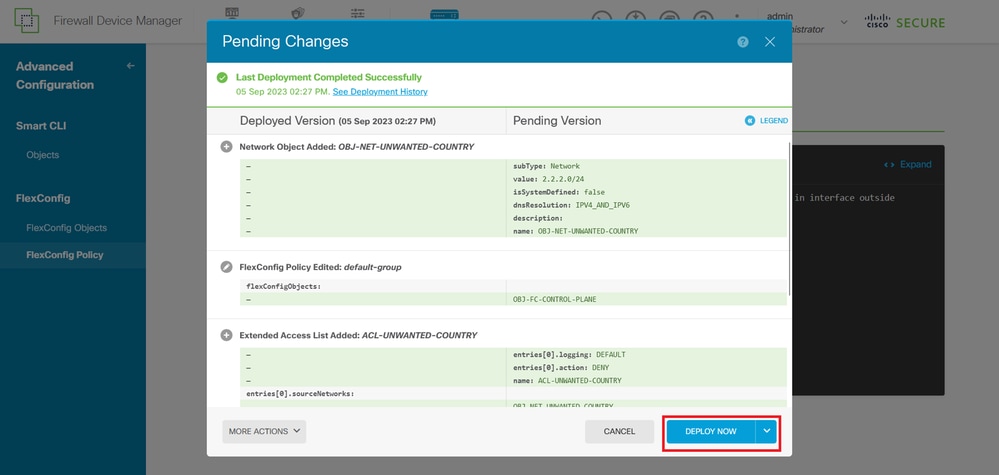 Image 36. Pending Deployment
Step 6.1. Validate the policy deployment is successful:
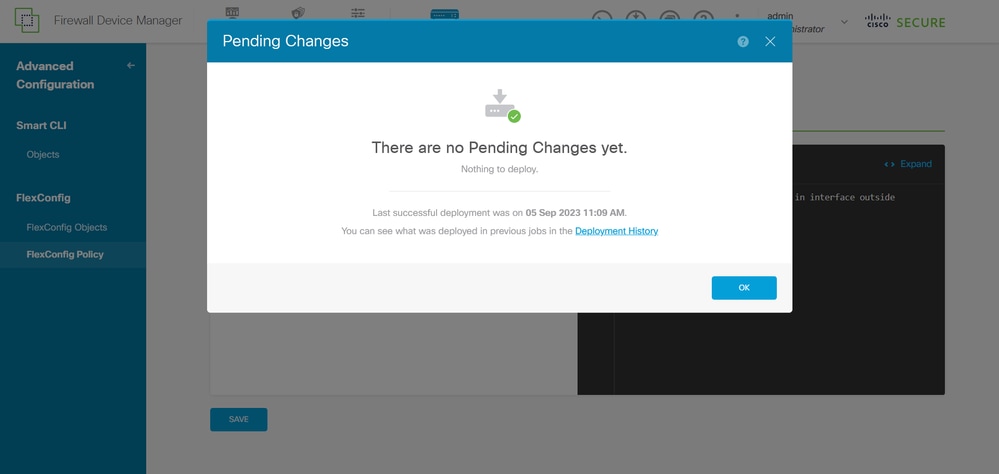 Image 37. Deployment successful
Step 7. If you create a new control plane ACL for your FTD or if you edited an existing one that is actively in use, it is important to highlight the configuration changes made. These do not apply to already established connections to the FTD. You must manually clear the active connection attempts to the FTD, connect to the CLI of the FTD, and clear the active connections.
To clear the active connection for a specific host IP address:
> clear conn address 192.168.1.10 all
To clear the active connections for a whole subnet network:
> clear conn address 192.168.1.0 netmask 255.255.255.0 all
To clear the active connections for a range of IP addresses:
> clear conn address 192.168.1.1-192.168.1.10 all
Configure a Control Plane ACL for ASA Using CLI
This is the procedure you must adhere to with an ASA CLI, this is to configure a control plane ACL to block incoming VPN brute force attacks to the outside interface:
Step 1. Log in to the secure firewall ASA via CLI and gain access to the configure terminal command.
asa# configure terminal
Step 2. Run the next command to configure an extended ACL, this blocks a host IP or network address for the traffic that must be blocked to the ASA.
In this example, you create a new ACL called ACL-UNWANTED-COUNTRY and the ACE entry configured blocks VPN brute force attacks coming from the 192.168.1.0/24 subnet:
asa(config)# access-list ACL-UNWANTED-COUNTRY extended deny ip 192.168.1.0 255.255.255.0 any
Step 3. Run the next access-group command to configure the ACL-UNWANTED-COUNTRY ACL as a control plane ACL for the outside ASA interface:
asa(config)# access-group ACL-UNWANTED-COUNTRY in interface outside control-plane
Step 4. If you create a new control plane ACL or if you edited an existing one that is actively in use, it is important to highlight the configuration changes made. These do not apply to already established connections to the ASA, you must manually clear the active connection attempts to the ASA and clear the active connections.
To clear the active connection for a specific host IP address:
asa# clear conn address 192.168.1.10 all
To clear the active connections for a whole subnet network:
asa# clear conn address 192.168.1.0 netmask 255.255.255.0 all
To clear the active connections for a range of IP addresses:
asa# clear conn address 192.168.1.1-192.168.1.10 all
Alternative Configuration to Block Attacks for Secure Firewall Running Shun
For immediate block attacks for the secure firewall, you can run the shun command. The shun command allows you to block connections from an attacking host, review further details about the shun command:
- Once you shun an IP address, all future connections from the source IP address are dropped and logged until you remove the blocking function manually.
- The blocking function of the shun command is applied whether a connection with the specified host address is currently active.
- If you specify the destination address, source and destination ports, and the protocol, you drop the matching connection and placing a shun on all future connections from the source IP address. All future connections are shunned, not just those that match these specific connection parameters.
- You can only have one shun command per source IP address.
- Because the shun command is used to block attacks dynamically, it is not displayed in the threat defense device configuration.
- Whenever an interface configuration is removed, all shuns that are attached to that interface are also removed.
Shun command syntax:
shun source_ip [ dest_ip source_port dest_port [ protocol]] [ vlan vlan_id]
To disable a shun, run the no form of this command:
no shun source_ip [ vlan vlan_id]
To shun a host IP address, proceed to this example for the secure firewall. In this example, the shun command is used to block VPN brute force attacks coming from the source IP address 192.168.1.10.
Configuration Example for FTD
Step 1. Log in to the FTD via CLI and run the shun command:
> shun 192.168.1.10
Shun 192.168.1.10 added in context: single_vf
Shun 192.168.1.10 successful
Step 2. You can run the show commands to confirm the shun IP addresses in the FTD and to monitor the shun hit counts per IP address:
> show shun
shun (outside) 192.168.1.10 0.0.0.0 0 0 0

> show shun statistics
diagnostic=OFF, cnt=0
outside=ON, cnt=0

Shun 192.168.1.10 cnt=0, time=(0:00:28)
Configuration Example for ASA
Step 1. Log in to the ASA via CLI and apply the shun command:
asa# shun 192.168.1.10
Shun 192.168.1.10 added in context: single_vf
Shun 192.168.1.10 successful
Step 2. You can run the show commands to confirm the shun IP addresses in the ASA and to monitor the shun hit counts per IP address:
asa# show shun
shun (outside) 192.168.1.10 0.0.0.0 0 0 0

asa# show shun statistics
outside=ON, cnt=0
inside=OFF, cnt=0
dmz=OFF, cnt=0
outside1=OFF, cnt=0
mgmt=OFF, cnt=0

Shun 192.168.1.10 cnt=0, time=(0:01:39)
Verify
To confirm the control plane ACL configuration is in place for the secure firewall, proceed with these steps:
Step 1. Log in to the secure firewall via CLI and run the next commands to confirm the control plane ACL configuration is applied.
Output example for the FMC-managed FTD:
> show running-config access-list ACL-UNWANTED-COUNTRY
access-list ACL-UNWANTED-COUNTRY extended deny ip 192.168.1.0 255.255.255.0 any

> show running-config access-group
***OUTPUT OMITTED FOR BREVITY***
access-group ACL-UNWANTED-COUNTRY in interface outside control-plane
Output example for the FDM-managed FTD:
> show running-config object id OBJ-NET-UNWANTED-COUNTRY
object network OBJ-NET-UNWANTED-COUNTRY
subnet 192.168.1.0 255.255.255.0

> show running-config access-list ACL-UNWANTED-COUNTRY
access-list ACL-UNWANTED-COUNTRY extended deny ip 192.168.1.0 255.255.255.0 any4 log default

> show running-config access-group
***OUTPUT OMITTED FOR BREVITY***
access-group ACL-UNWANTED-COUNTRY in interface outside control-plane
Output example for ASA:
asa# show running-config access-list ACL-UNWANTED-COUNTRY
access-list ACL-UNWANTED-COUNTRY extended deny ip 192.168.1.0 255.255.255.0 any

asa# show running-config access-group
***OUTPUT OMITTED FOR BREVITY***
access-group ACL-UNWANTED-COUNTRY in interface outside control-plane
Step 2. To confirm the control plane ACL is blocking the required traffic, run the packet-tracer command to simulate an incoming TCP 443 connection to the outside interface of the secure firewall. Then, run the show access-list <acl-name> command, the ACL hit count can increment every time a VPN brute force connection to the secure firewall is blocked by the control plane ACL.
In this example, the packet-tracer command simulates an incoming TCP 443 connection sourced from host 192.168.1.10 and destined to the outside IP address of the secure firewall. The packet-tracer output confirms the traffic is being dropped and the show access-list output displays the hit count increments for the control plane ACL in place:
Output example for FTD
> packet-tracer input outside tcp 192.168.1.10 1234 10.3.3.251 443
Phase: 1
Type: ACCESS-LIST
Subtype: log
Result: DROP
Elapsed time: 21700 ns
Config:
Additional Information:

Result:
input-interface: outside(vrfid:0)
input-status: up
input-line-status: up
Action: drop
Time Taken: 21700 ns
Drop-reason: (acl-drop) Flow is denied by configured rule, Drop-location: frame 0x00005623c7f324e7 flow (NA)/NA

> show access-list ACL-UNWANTED-COUNTRY
access-list ACL-UNWANTED-COUNTRY; 1 elements; name hash: 0x42732b1f
access-list ACL-UNWANTED-COUNTRY line 1 extended deny ip 192.168.1.0 255.255.255.0 any (hitcnt=1) 0x142f69bf
Output Example for ASA
asa# packet-tracer input outside tcp 192.168.1.10 1234 10.3.3.5 443
Phase: 1
Type: ACCESS-LIST
Subtype:
Result: ALLOW
Elapsed time: 19688 ns
Config:
Implicit Rule
Additional Information:
MAC Access list

Phase: 2
Type: ACCESS-LIST
Subtype: log
Result: DROP
Elapsed time: 17833 ns
Config:
Additional Information:

Result:
input-interface: outside
input-status: up
input-line-status: up
Action: drop
Time Taken: 37521 ns
Drop-reason: (acl-drop) Flow is denied by configured rule, Drop-location: frame 0x0000556e6808cac8 flow (NA)/NA

asa# show access-list ACL-UNWANTED-COUNTRY
access-list ACL-UNWANTED-COUNTRY; 1 elements; name hash: 0x42732b1f
access-list ACL-UNWANTED-COUNTRY line 1 extended deny ip 192.168.1.0 255.255.255.0 any (hitcnt=1) 0x9b4d26ac
Related Bugs
- ENH | Geo-location based AnyConnect Client connections: Cisco bug ID CSCvs65322
- DOC: ASA/FTD Object Group Search does not support Control Plane ACLs: Cisco bug ID CSCwi58818
Related Information
- Configure Geolocation-Based Policies for Remote Access VPN on Secure Firewall Threat Defense
- Mitigate Password Spray Attacks on Remote VPN Secure Firewall
- Cisco VPN Technologies Reference Guide
Revision History
| Revision | Publish Date | Comments |
|---|---|---|
3.0 |
01-Jul-2026
|
Updated alt text, spelling, grammar, sentence structure, spacing, and CCW alerts. |
2.0 |
10-Apr-2025
|
Formatting, alt text, fixed headers, DEI language |
1.0 |
21-Dec-2023
|
Initial Release |

 Feedback
Contact Cisco
- Open a Support Case

- (Requires a Cisco Service Contract)