Configure Geolocation Policies for Remote VPN on Secure FTD
Available Languages
Contents
Introduction
This document describes the process to permit/deny remote access VPN connections based on specific geolocations on Secure Firewall Threat Defense.
Prerequisites
Requirements and Limitations
Cisco recommends that you have knowledge of these topics:
- Secure Firewall Management Center (FMC)
- Remote Access VPN (RAVPN)
- Basic Geolocation Configuration
The current requirements and limitations for Geolocation-based policies are:
- Supported only on FTD version 7.7.0+, managed by FMC version 7.7.0+.
-
Not supported on FTD managed by Secure Firewall Device Manager (FDM).
- Not supported in cluster mode.
-
Geolocation-based unclassified IP addresses are not categorized by geographic origin. For these, the FMC enforces the default service access policy action.
-
Geolocation-based service access policies do not apply to WebLaunch pages, allowing you to download the Secure Client without restrictions.
Components Used
The information in this document are based on these software versions:
- Secure Firewall version 7.7.0
- Secure Firewall Management Center version 7.7.0
Full details about this feature can be found in the Manage VPN Access of Remote Users Based on Geolocation section within the Cisco Secure Firewall Management Center 7.7 Device Configuration Guide.
The information in this document was created from the devices in a specific lab environment. All of the devices used in this document started with a cleared (default) configuration. If your network is live, ensure that you understand the potential impact of any command.
Background Information
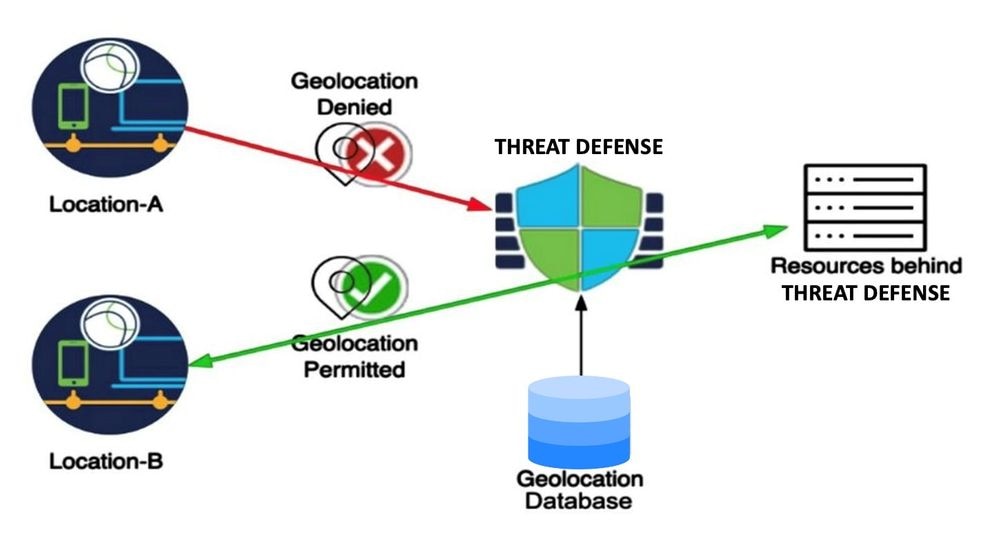
Geolocation-based access policies offer significant value in network security today, allowing traffic to be blocked based on its geographical origin. Traditionally, organizations can define traffic access policies for general network traffic that passes through the firewall. Now, with the introduction of this feature, it is possible to apply geolocation-based access control for Remote Access VPN session requests.
This feature provides the next benefits:
- Geolocation-Based Rules: Create rules to permit or deny RAVPN requests based on specific geolocations, such as countries or continents. This allows for precise control over which geographical locations can initiate VPN sessions.
- Pre-Authentication Blocking: Sessions identified by these rules for a deny action are blocked before authentication, and these attempts are properly logged for security purposes. This preemptive action helps in mitigating unauthorized access attempts.
- Compliance and Security: This feature aids in ensuring adherence to local organizational and governance policies, while also reducing the attack surface of the VPN server.
Given that VPN servers have public IP addresses accessible via the internet, the introduction of geolocation-based rules enables organizations to effectively restrict user requests from specific geolocations, thereby reducing vulnerability to brute force attacks.
Configure
Step 1. Create a Service Access Object
1. Log in to the Secure Firewall Management Center.
2. Navigate to Objects > Object Management > Access List > Service Access and click Add Service Access Object.
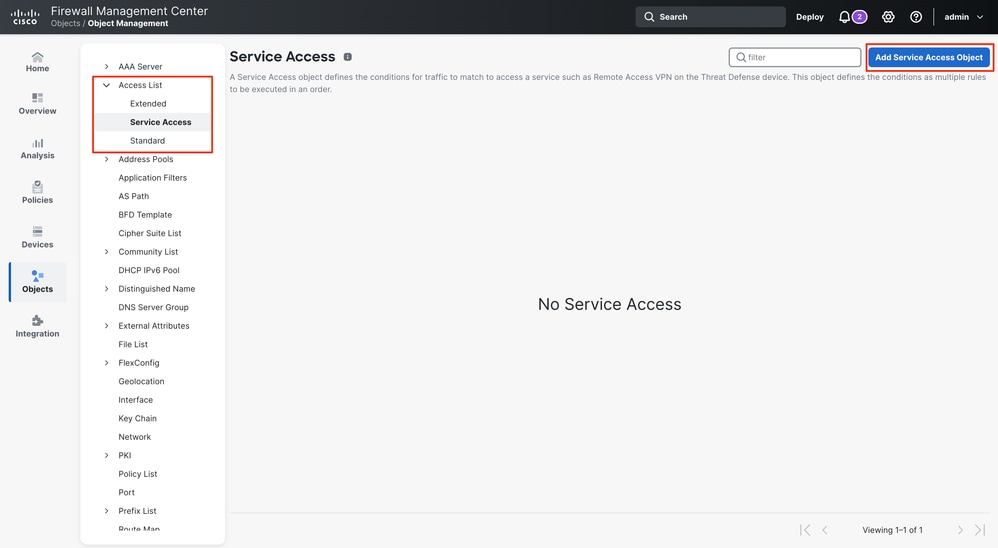
3. Define the rule name, then click Add Rule.
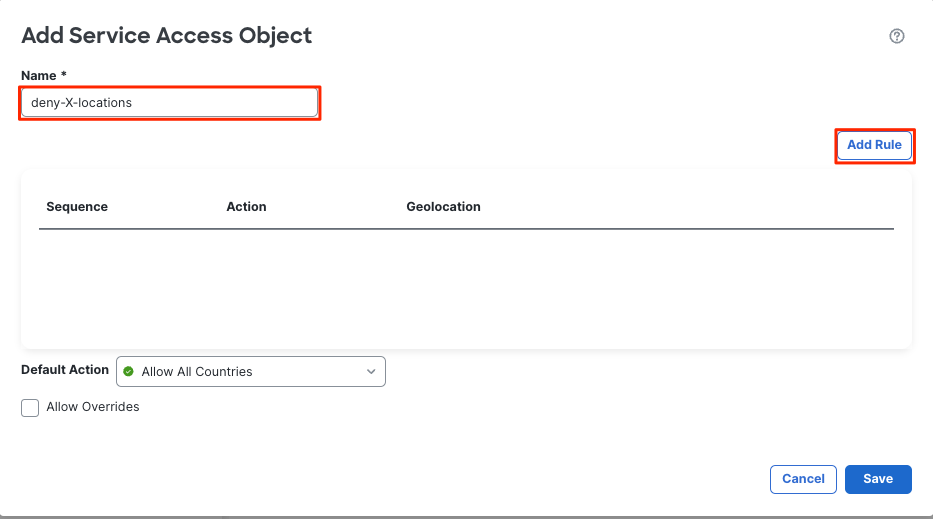
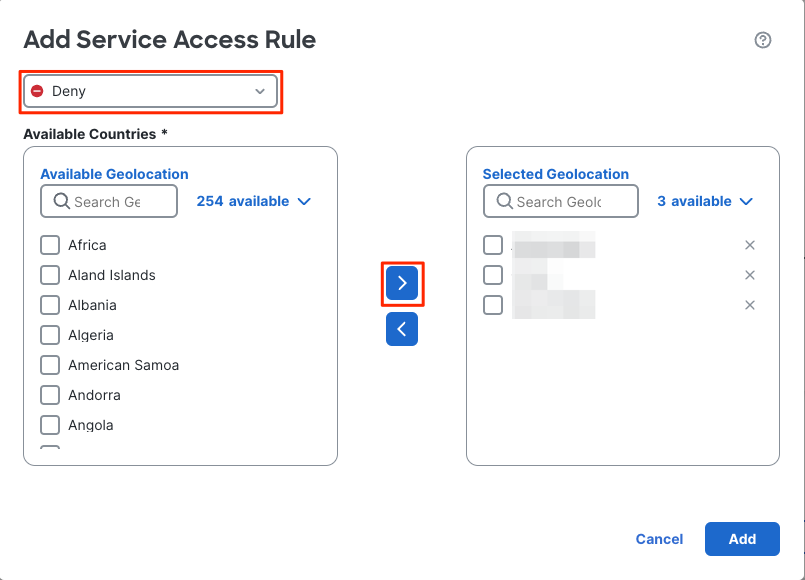
4. Configure the Service Access Rule:
- Select the action of the rule: Allow or Deny.
- From the Available Countries, select countries, continents, or user-defined geolocation objects and move them to the Selected Geolocation list.
- Click Add to create the rule.
5. Choose the Default Action: Either Allow All Countries or Deny All Countries. This action applies to connections that do not match any of the configured Service Access Rules.
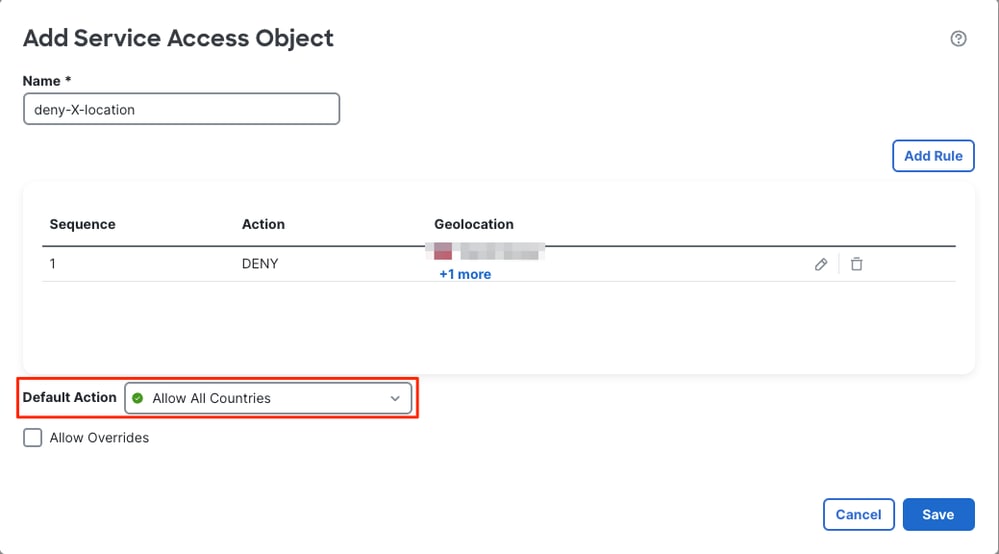
6. Click Save.
Step 2. Apply the Service Object configuration in RAVPN
1. Navigate to the RAVPN configuration in Devices > Remote Access > RAVPN Configuration Object > Access Interface
2. In the Service Access Control section, select the Service Access Object you created earlier.
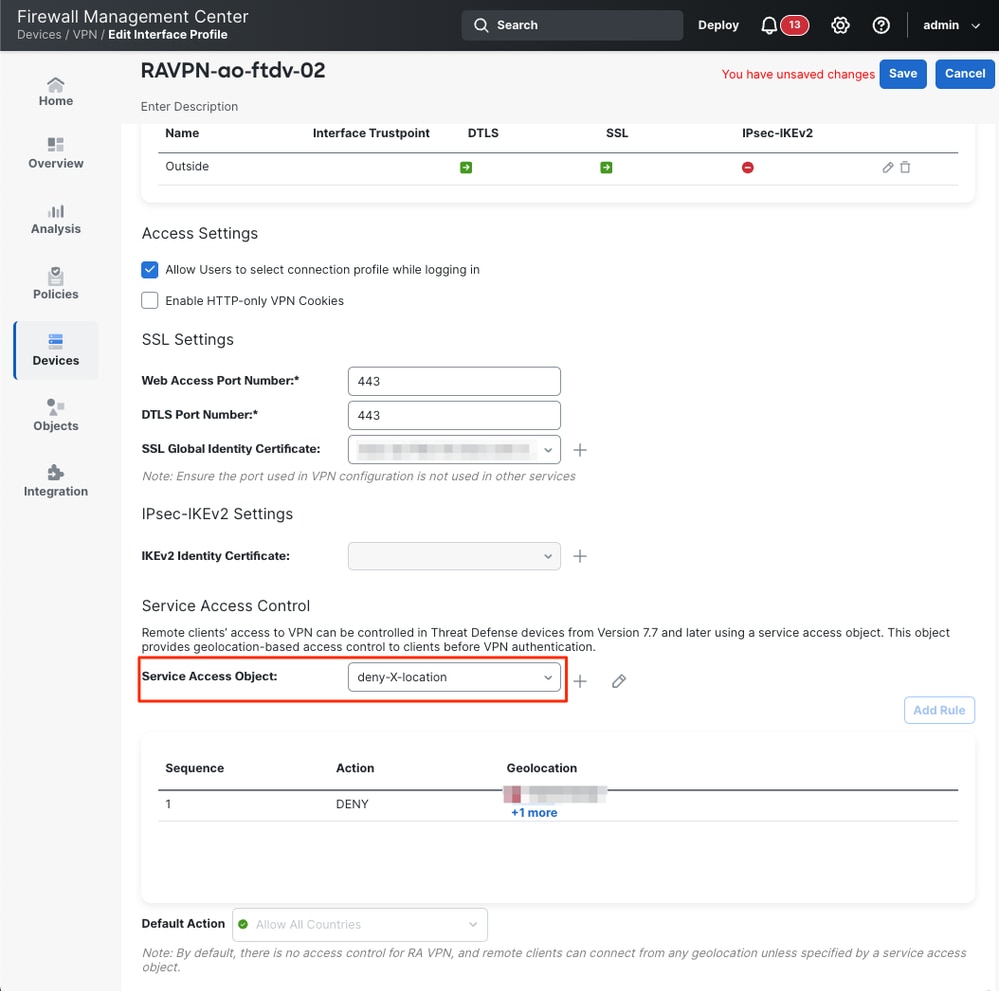
3. The Service Access object you selected now displays the rules summary and the default action. Ensure this is correct.
4. Finally, Save the changes and Deploy the configuration.
Verify
1. Once the configuration is saved, the rules appear in the Service Access Control section, allowing you to validate which groups and countries are blocked or allowed.
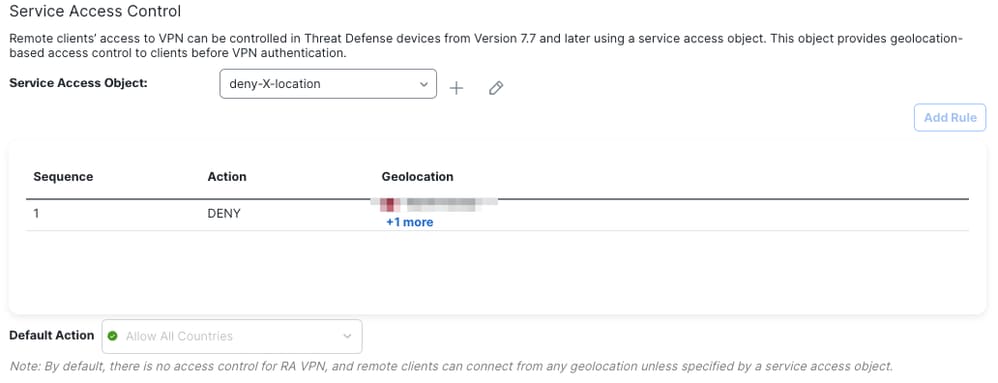
2. Run the show running-config service-access command to ensure the service access rules are available from the FTD CLI.
firepower# show running-config service-access
service-access deny ra-ssl-client geolocation FMC_GEOLOCATION_146028889448_536980902
service-access permit ra-ssl-client geolocation any

firepower# show running-config object-group idFMC_GEOLOCATION_146028889448_536980902
object-group geolocation FMC_GEOLOCATION_146028889448_536980902
location "Country X"
location "Country Y"
Syslogs and Monitoring
Secure Firewall introduces new syslog IDs to capture events related to RAVPN connections blocked by geolocation-based policies:
- 761031: Indicates when an IKEv2 connection is denied by a geolocation-based policy. This syslog is part of the existing VPN logging class.
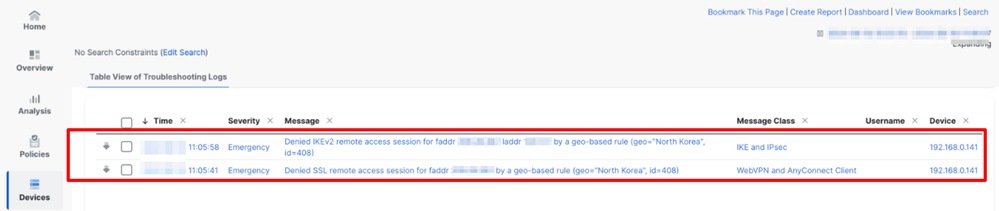
%FTD-6-751031: Denied IKEv2 remote access session for faddr <client_ip> laddr <device_ip> by a geo-based rule (geo=<country_name>, id=<country_code>)
- 751031: Indicates when an SSL connection is denied by a geolocation-based policy. This syslog is part of the existing WebVPN logging class.
%FTD-6-716166: Denied SSL remote access session for faddr <client_ip> by a geo-based rule (geo=<country_name>, id=<country_code>)
Monitor Blocked Connections
To validate blocked connections, navigate to Devices > Troubleshoot > Troubleshooting Logs. The logs related to blocked connections are displayed, including information about the rules affecting the connection and the type of session.
Monitor Allowed Connections
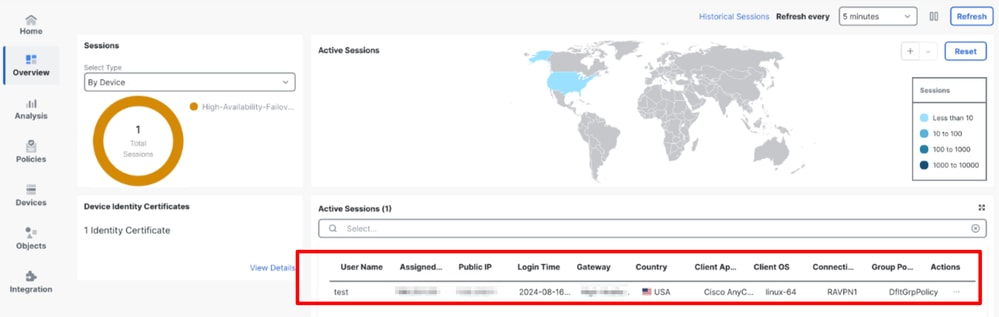
The allowed sessions are monitored in Overview > Remote Access VPN dashboard, where session information is displayed, including the country of origin.
Troubleshoot
For troubleshooting purposes, review these steps:
- Verify the rules are correctly configured in the Service Access object.
- Check if a deny syslog appears in the Troubleshooting Logs section when an allowed geolocation requests a session.
- Ensure the configuration shown in the FMC matches what is in the FTD CLI.
- Use the next commands to gather more details that are useful for troubleshooting purposes:
- debug geolocation <1-255>
- show service-access
- show service-access detail
- show service-access interface
- show service-access location
- show service-access service
- show geodb ipv4 location <Country> detail
- show geodb counters
- show geodb ipv4 [lookup <IP address>]
- show geodb ipv6
Related Information
- For additional assistance, please contact TAC. A valid support contract is required:Cisco Worldwide Support Contacts
- You can also visit theCisco VPN Community
Revision History
| Revision | Publish Date | Comments |
|---|---|---|
2.0 |
09-Jun-2026
|
Updated spelling, grammar, title of article, introduction, spacing, grammar, updated URL in HTML per CCW, and sentence structure. |
1.0 |
07-Mar-2025
|
Initial Release |

 Feedback
Contact Cisco
- Open a Support Case

- (Requires a Cisco Service Contract)