Splunk Connect for Zoom - Extended documentation to create and validate a webhook URL and add event types in the Zoom Marketplace for integration with Splunk Connect for Zoom.
Available Languages
Applicability
Splunk Enterprise Splunk Connect for Zoom Splunk Apps and Add-onsDescription
IMPORTANT NOTE:
- This product cannot be installed on Splunk Cloud. Splunk Cloud users should follow the "Install Splunk Connect for Zoom on a distributed Splunk Enterprise deployment" topic to configure this product on heavy forwarders in their Splunk platform deployment.
- Zoom released Webhook validation for all new webhooks that were created after Oct 23, 2022. All webhooks created before this date do not require validation unless it is modified. Webhook validation is required for all new and existing webhooks as of October 2023.
Investigation
To integrate Zoom with Splunk Connect for Zoom, validate the webhook URL and configure event types in the Zoom Marketplace. Here’s a step-by-step guide on how to do this:
1. Validate the Webhook URL
Step 1: Access Zoom Marketplace
- Log in to the Zoom Marketplace account.
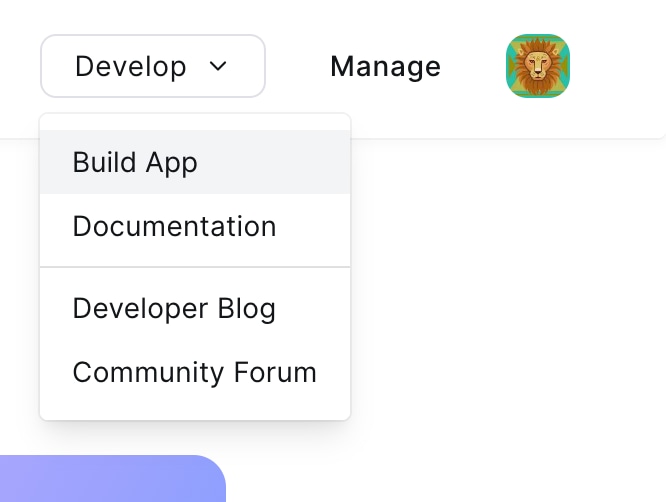
- Navigate to the "Develop" section and select "Build App."
Step 2: Create or Edit an App
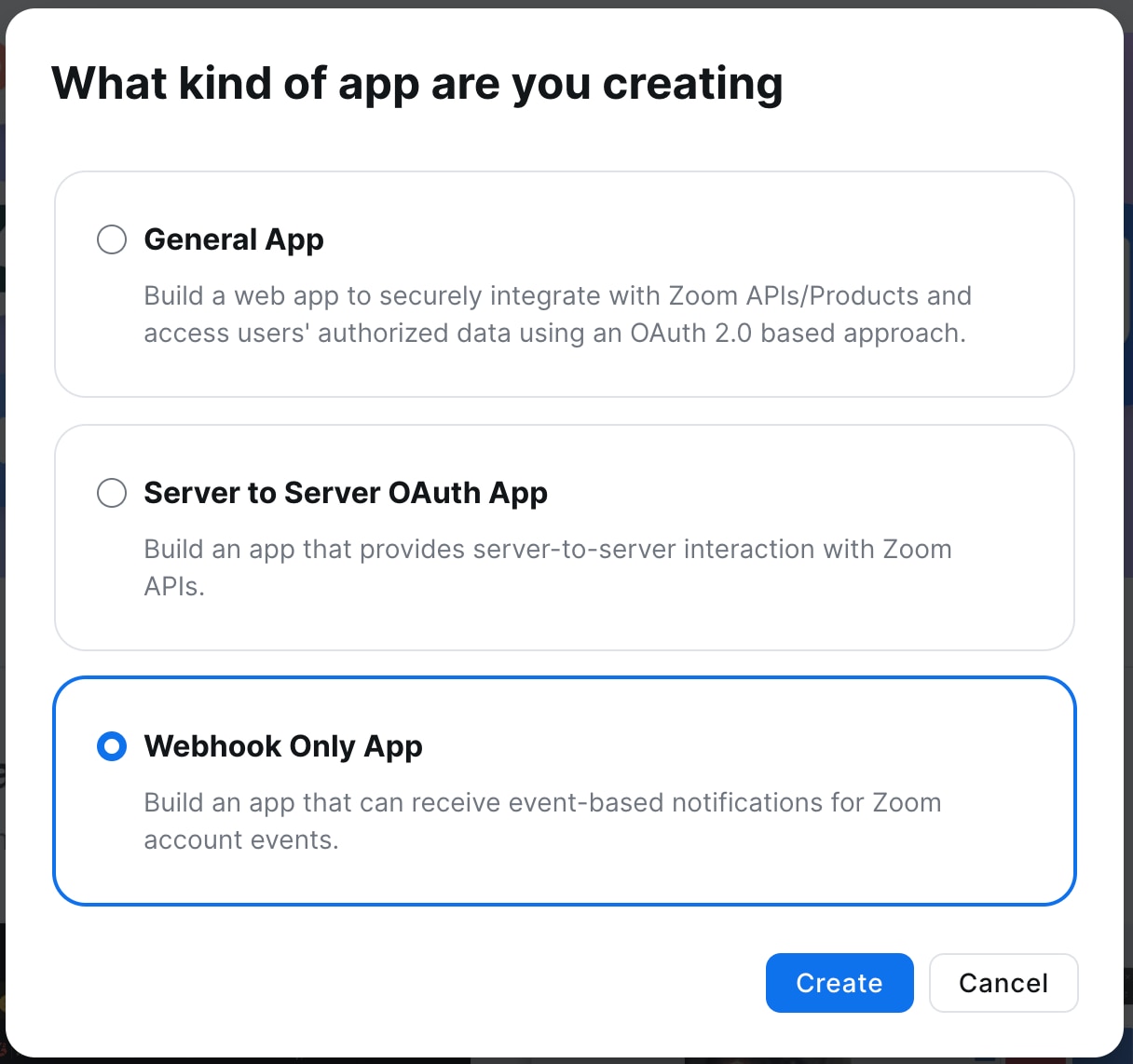
- Select the type of app to create or edit. For integrating with Splunk Connect, typically create a Webhook-only app.
- If creating a new app, choose "Webhook-only" and click "Create."
- Enter the required information, including the app name and company name.
Step 3: Configure Webhook Settings
- Locate the "Event Subscriptions" section within the app settings.
- Toggle the "Enable" switch to activate event subscriptions.
- Enter the webhook URL where Zoom will send event notifications. This URL should be the endpoint provided by Splunk Connect for Zoom.
- Use the Heavy Forwarder (HF) instance URL.
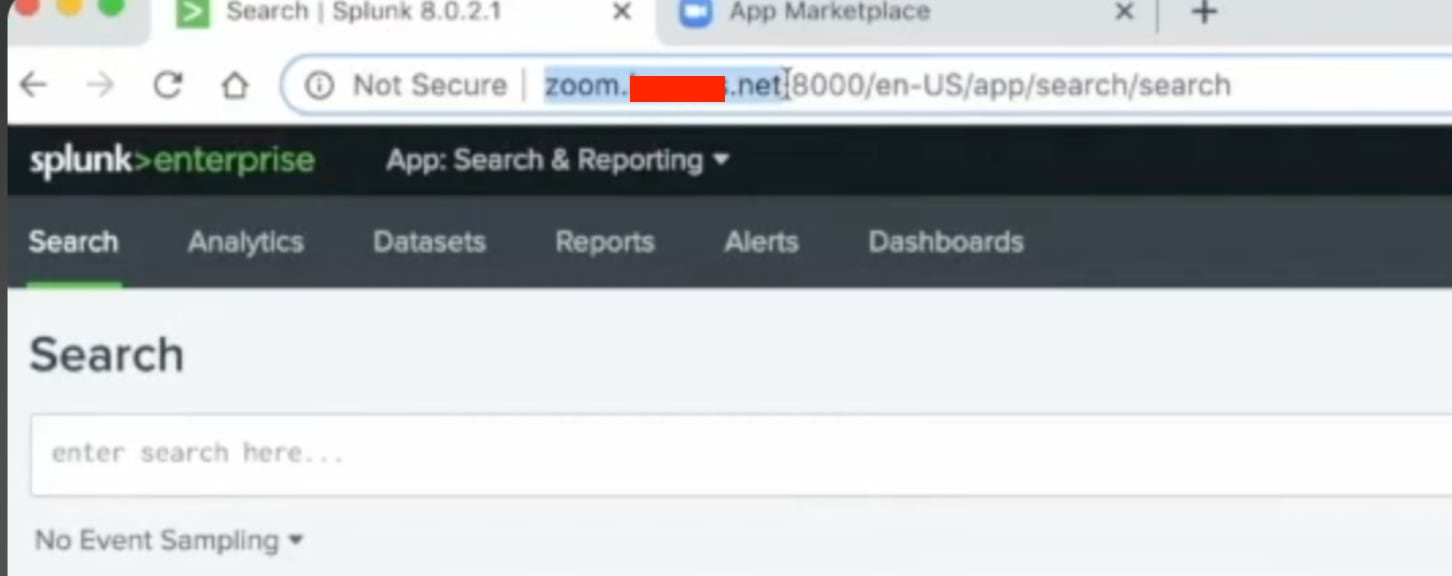
- Add the same Splunk heavy forwarder's endpoint URL and click on Validate.
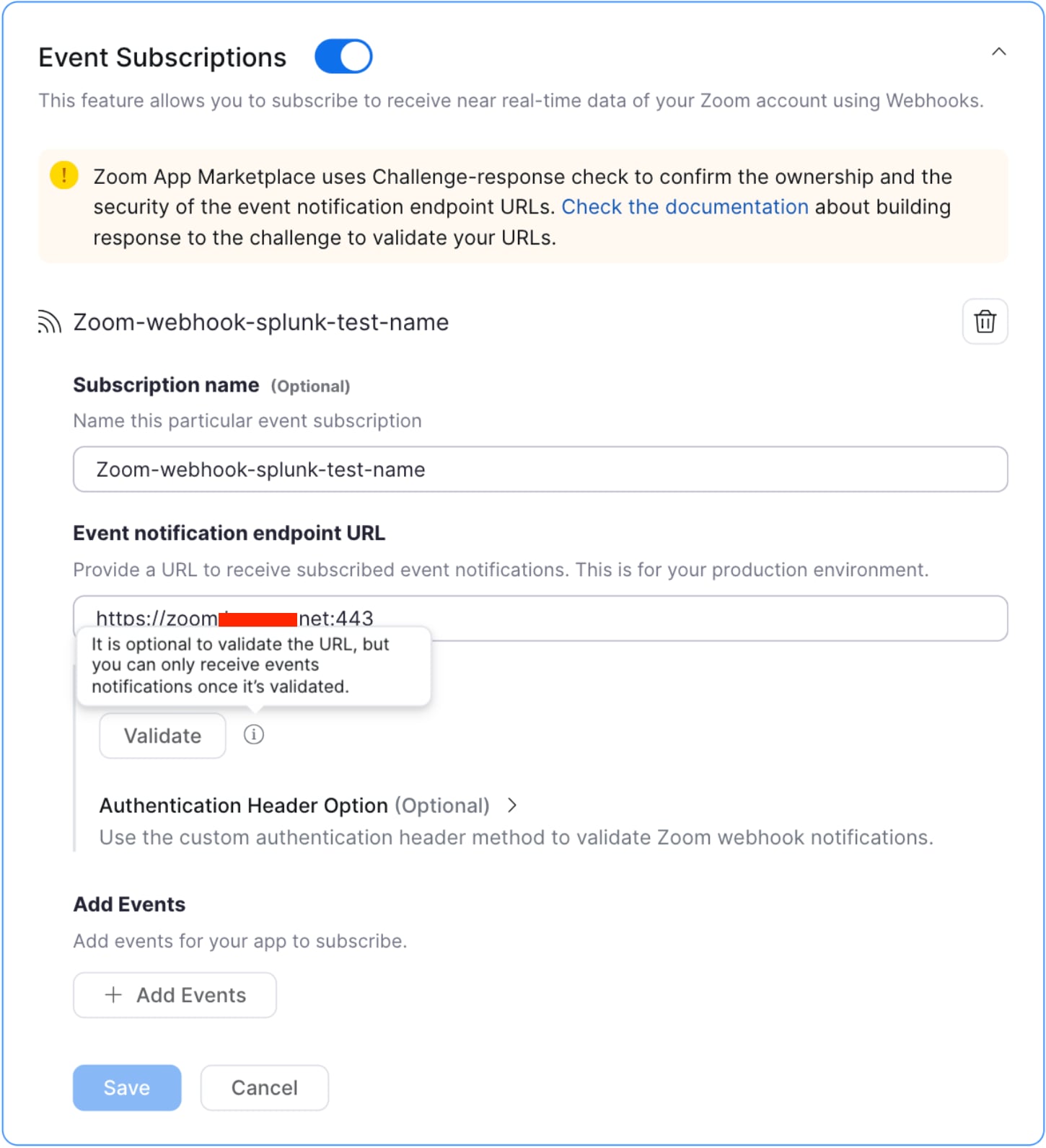
4. Verify the URL by clicking the "Verify" button. Zoom will send a verification request to this URL to ensure it is accessible and correctly configured.
2. Add Event Types
Step 1: Define Event Types
- In the same "Event Subscriptions" section, after enabling event subscriptions, there will be an option to "Add Events."
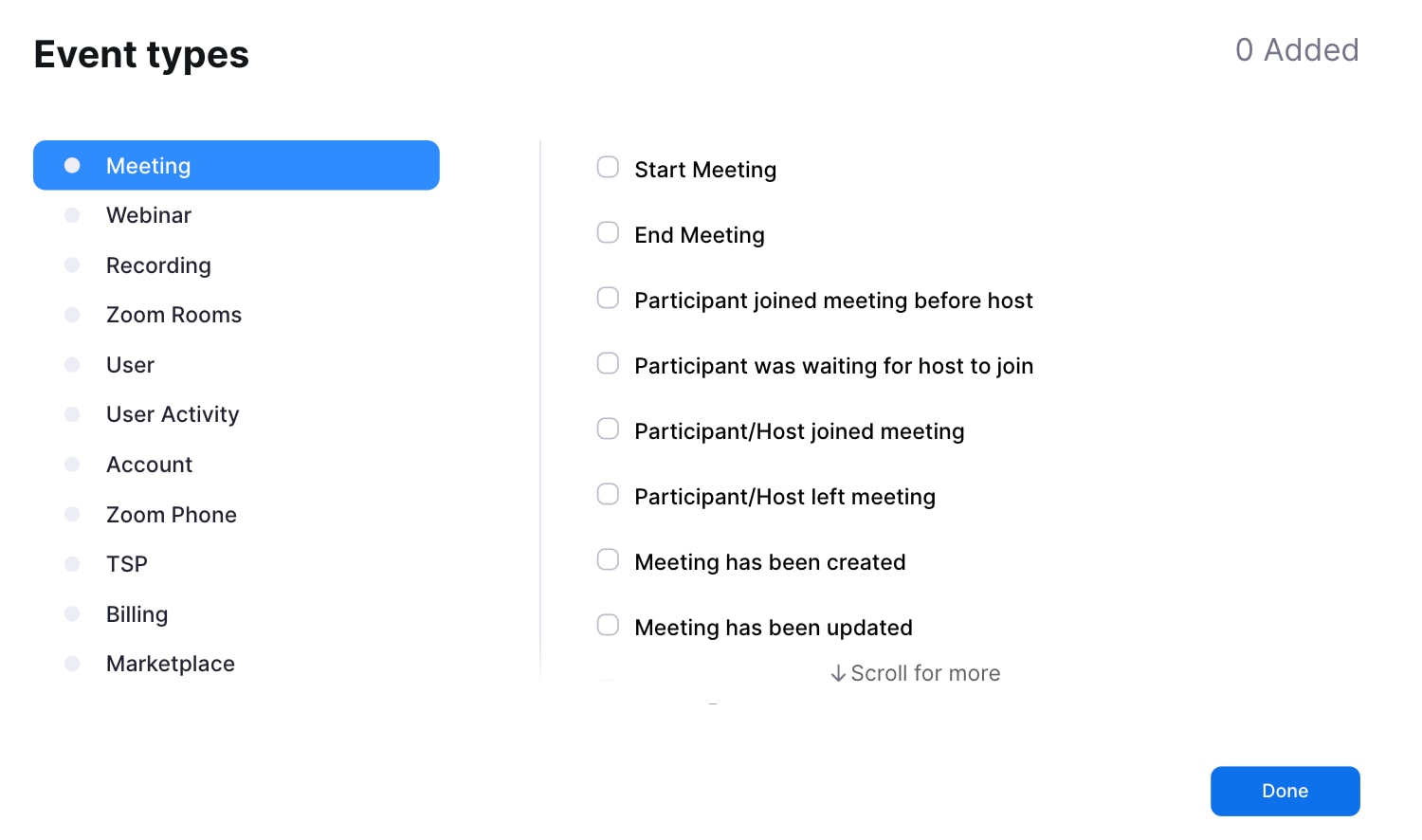
2. Select the events to receive. For Splunk Connect for Zoom, the interested events might include:
- Meeting Created
- Meeting Updated
- Meeting Ended
- User Created
- User Updated
Step 2: Save Changes
- After selecting the desired event types, click "Save" to apply the changes.
- Ensure that the selected events align with the data needed to send to Splunk.
3. Finalize and Test
Step 1: Install and Test
- Install the app in the Zoom account if it has not been done already.
- Test the integration by triggering the selected events in Zoom and verifying that they are received by Splunk Connect for Zoom.
Step 2: Monitor and Adjust
- Monitor the logs and data flow in Splunk to ensure that events are being processed correctly.
- Adjust event types or configurations as needed based on requirements and the data being collected.
Additional Tips
- Documentation: Refer to the Zoom API Documentation for detailed information on available events and API capabilities.
- Support: If issues are encountered, consult the Splunk documentation or contact Zoom and Splunk support for assistance.
Resolution
Webhook endpoint requirements:
To receive Webhooks in development and production environments, the Event notification endpoint URL (HF https enabled URL) that is specified for each event subscription must:
- Employ the
https://scheme. - Support TLSv1.2+ with a valid certificate chain. The certificate of the webhook endpoint must be issued by a Certificate Authority (CA). Zoom validates the certificate on the configured URL provided by the server. Zoom will not deliver the event request if the certificate isn't valid.
- Be a fully qualified domain name (FQDN).
- Be able to accept HTTP POST requests containing JSON payloads.
- Must be able to respond with an HTTP Status Code.
Related Links
Revision History
| Revision | Publish Date | Comments |
|---|---|---|
1.0 |
29-Sep-2026
|
Initial Release |
 Feedback
Contact Cisco
- Open a Support Case

- (Requires a Cisco Service Contract)
This Document Applies to These Products
Related Articles
- Splunk Connect for zoom v1.2.1 : Error in Input Script Due to Missing 'server' Attribute in WebServer Object
- Splunk Connect for Zoom : Unable to save input due to ERRORs of Argument "disable_redaction" is not supported by this handler.
- Why the TA(splunk_connect_for_zoom) is not available on UI after installing through Deployment Server
- How to check and test Splunk Connect for Syslog connectivity with Splunk