Cisco Secure Access and Microsoft Edge for Business Integration Joint Solution Guide
Available Languages
Bias-Free Language
The documentation set for this product strives to use bias-free language. For the purposes of this documentation set, bias-free is defined as language that does not imply discrimination based on age, disability, gender, racial identity, ethnic identity, sexual orientation, socioeconomic status, and intersectionality. Exceptions may be present in the documentation due to language that is hardcoded in the user interfaces of the product software, language used based on RFP documentation, or language that is used by a referenced third-party product. Learn more about how Cisco is using Inclusive Language.
The Cisco Secure Access advanced enterprise browser integration with Microsoft Edge for Business delivers robust workforce protection along with an intuitive and seamless user experience. This joint solution offers a way to securely access private web apps via the Edge for Business browser. Together, they safeguard against data breaches and phishing attempts, and also enforce zero trust access controls. Employees and the extended workforce can work confidently with transparent and easy-to-manage Data Loss Prevention (DLP) and authentication protocols. Furthermore, Cisco Secure Access and Edge for Business enable users to work from anywhere on managed or unmanaged devices while maintaining control over sensitive data exposed by the application.
Cisco Secure Access customers with an active Microsoft 365 license can use this solution guide to set up secure remote access to private web apps with enhanced threat and data protection. The logical mix of local and cloud-based capabilities results in a great end-user experience, high performance and reduced risk.
Cisco Secure Access is a cloud-based SSE solution, grounded in zero trust, that provides seamless, transparent, and secure access to applications and resources. It includes all of the core SSE components: Secure Web Gateway (SWG), Cloud Access Security Broker (CASB), Zero Trust Network Access (ZTNA), and Firewall as a Service (FWaaS). In addition, it features an extended set of capabilities—protections for Gen AI use, security for AI agents, multimode DLP, DNS Security, Remote Browser Isolation (RBI), sandboxing, Digital Experience Monitoring (DEM) insights, and AI-powered Talos® threat intelligence— all in one license and management platform.
By leveraging these capabilities, all under one cloud-delivered platform, organizations can solve a variety of security challenges. Users can now safely and seamlessly access the resources and apps they need, regardless of protocol, port, or level of customization. IT can deliver a broad set of cybersecurity functions to radically reduce risk and delight users while increasing productivity.
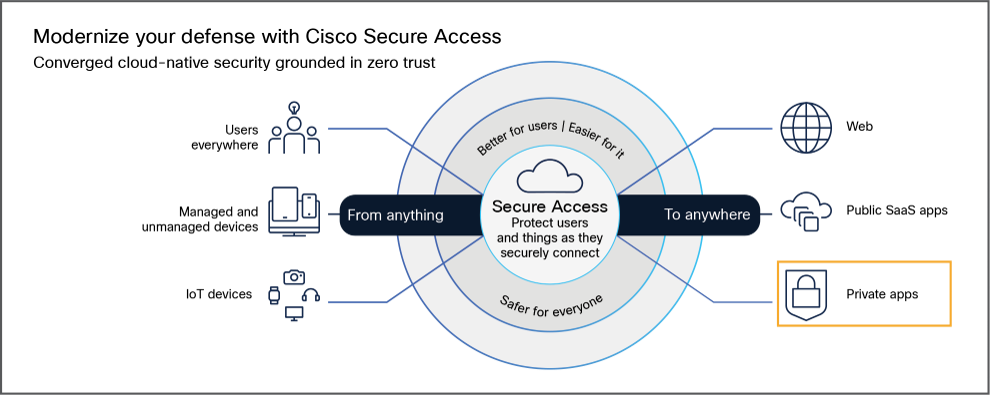
Cisco Secure Access is designed to fundamentally reduce risk, radically simplify IT operational complexity, and minimize the tasks required of end users. For more information, see Cisco Secure Access
Centralized DLP Policy in Secure Access Dashboard
● The Secure Access Dashboard provides a unified interface to define and manage Data Loss Prevention policies across a variety of user traffic.
● Enterprise DLP capabilities include:
◦ Real Time DLP: Inline inspection of data in motion using HTTP/S inspection via Secure Web Gateway. Policies can block or monitor sensitive data transfers based on defined rules.
◦ SaaS API DLP: Out-of-band inspection of data at rest in cloud services like Microsoft 365 (OneDrive, SharePoint, Outlook), enabling near real-time enforcement without impacting user experience.
◦ Email DLP: Inline inspection of outbound mail. Policies can block or monitor sensitive data shared via email communications.
◦ Endpoint DLP: On-device inspection of data in motion using an endpoint agent to block or monitor sensitive data transfers to USB storage, network shares, or device-to-device transfers via Bluetooth and Airdrop.
● DLP policies can be granularly targeted by user identity, groups, locations, cloud applications, and destinations.
● The dashboard allows creation of real-time rules specifying data classifications, severity, actions (monitor or block), and exceptions.
● Additional protections include controls against copying, pasting, printing, and screenshots to prevent data exfiltration.
● The platform also supports AI-driven data classification enhancing detection accuracy and reducing low-impact events.
Microsoft Edge for Business Overview
Edge for Business is an industry-leading secure enterprise browser that’s Chromium-based and designed for business. Not only is it fast, secure, and compatible, but it also natively integrates with Microsoft services and applications, making it an easy browser for both users and admins.
For admins, it’s supported across Windows, macOS devices, iOS and Android, so you can have a single managed work browser across all your devices. It’s the default browser on Microsoft Windows, without the need for deployment by admins. You can simply start managing it, using familiar Microsoft management tools. Security isn’t an add-on in Edge for Business – it’s built right into the browser, with protections against phishing attacks, malicious websites, tech scams and more. And it’s a browser optimized for AI. When you’re ready to bring agentic browsing to the organization, that option is available, with a system of AI controls.
For users, Edge for Business means performance and productivity. Enterprise protection simply turns on after the first sign-in with a work account. And from there, single sign-on and native integration with Microsoft productivity apps make for a frictionless workday. AI is intuitively paired with the browsing experience, so AI is a natural part of daily workflow. Simply put, security and productivity go together on Edge for Business.
Furthermore, Edge for Business can extend the power of your security solutions into the browser, at no additional cost. Edge for Business connectors support both data loss prevention and device trust integrations, which ensure that only known managed browsers can access protected services – and then keep any sensitive data inside those services safe..
Microsoft Edge for Business and Cisco Secure Access’ advanced enterprise browser integration
Microsoft Edge for Business partnered with Cisco Secure Access to create an advanced enterprise integration that brings the capabilities of Secure Access device trust and DLP into the browser. The device trust integration attests that the Edge for Business browser is enrolled in enterprise device management, upt-to-date with the latest and most secure version of Edge, and compliant with organizational policies before providing secure, browser-based access to private applications. Then, Secure Access DLP enables admins to block potential leak vectors for sensitive data, such as copy, paste, and print.
Benefits of the Advanced Enterprise Browser Integration
● Advanced Zero Trust Security: Granular, identity-based access controls combined with robust DLP enforcement protect sensitive data across multiple device types.
● Frictionless User Experience: Users gain fast, one-step access to private applications without complex VPN or agent installations.
● Simplified Management: Centralized policy definition reduces administrative overhead and improves visibility into data usage and risks.
● Comprehensive Data Protection: Unified DLP policies cover data in motion and at rest to assist with compliance and reduce the risk of a data breach.
● Support for Managed and Unmanaged Devices: Supports multiple access and data protection features regardless of device ownership or management status.
Combined Private Application Process
The collaboration delivers both improved security and a better user experience on both managed and unmanaged devices. This provides high-performance private application access with robust posture information and data security controls, including a deep set of combined data loss protection capabilities. It is especially helpful for third-party/contractor access and Virtual Desktop Infrastructure (VDI) migration.
Through Zero Trust Network Access (ZTNA), Cisco Secure Access uses least privilege principles and contextual insights to deny access by default and allow access to apps as configured for users authenticated to a Microsoft Edge for Business browser. Edge for Business provides an additional layer of user and data controls to harden private app security.
Cisco and Microsoft have combined to deliver a seamless end-user experience, without any agents to install or manage where everything runs natively on Edge for Business. Organizations get device trust verification and real-time DLP scanning all built into the browser experience.
Let’s imagine a real-world example of this integration, where we have an end user that doesn’t have any security agents installed. All that's needed is for the user to sign into the browser with their Entra ID for your organization, which they can do with their current unauthenticated pofile or in a new one. Edge walks the user through the management, and the value of Edge for Business is automatically enabled. No VPN client to configure, no separate agent to download. Just a few clicks in the browser they're already using.
To get started and access detailed configuration and administration information:
This section assumes that you have a fully configured and deployed Cisco Secure Access for your organization. For additional instructions on setting up private resources and private resource policies, please see below. Otherwise, proceed to the next section.
● Configure Private Resources: Private resources include private subnets and applications deployed and managed by your organization.
For detailed instructions on setting up private resources, see documentation here.
● Configure Private Access Policies: Private access policies allow you to define granular user-based access to private resources.
Detailed configuration instructions are available here.
Setting Up Microsoft Edge for Business Integration with Cisco Secure Access
Step 1. Add Edge for Business Integration in Secure Access
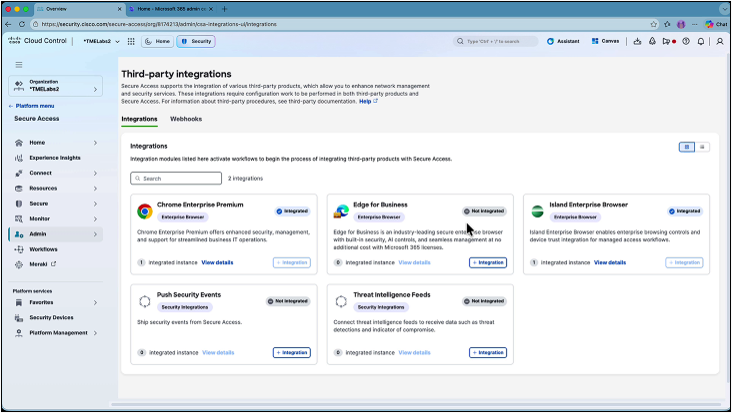
1. In the Cisco Secure Access dashboard, navigate to Admin > Third-party integrations. Add a new Microsoft Edge for Business integration.
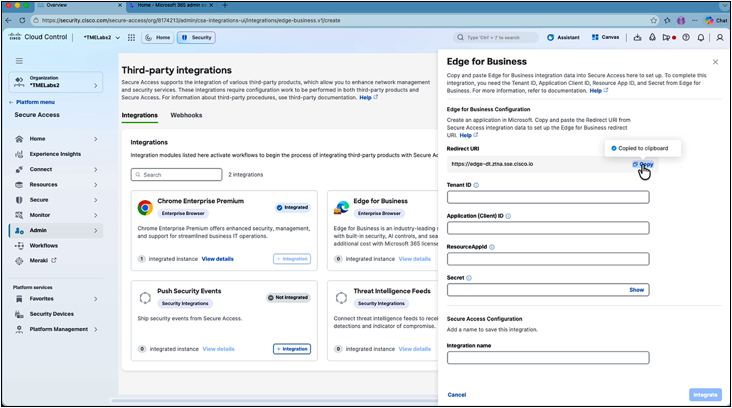
2. Note the redirect URI displayed, as it will be required during Microsoft registration. Click Copy.
Step 2. Retrieve Tenant ID from Microsoft Entra
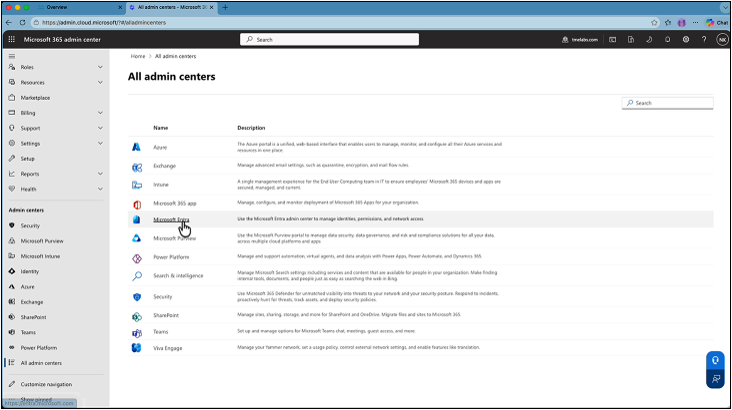
1. In the Microsoft 365 Admin Center, go to All Admin Centers and open Entra. On the Entra Admin Center overview card, copy the Tenant ID and keep it available for later use.
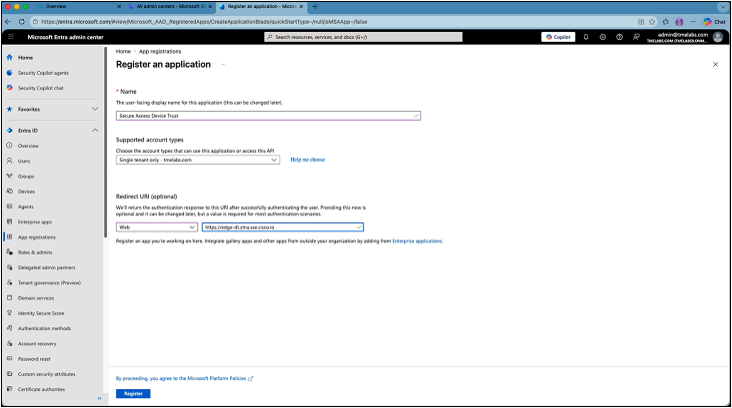
2. Navigate to Entra ID > App Registrations, and create a new registration. Set the supported account type to single tenant only. Set the redirect URI platform to Web, and paste the URI copied from the Secure Access dashboard, then click Register.
3. After the app is created, copy the Application (client) ID from the Overview page. This is the second required value for Cisco Secure Access.
4. Next, go to Certificates and Secrets > Client Secrets, and add a new client secret with a name and expiration matching your rotation policy. Copy the secret value immediately after creation, as it cannot be retrieved again. This is the third value required.
5. Next, open API permissions. Add a permission for Microsoft Edge Management Service.
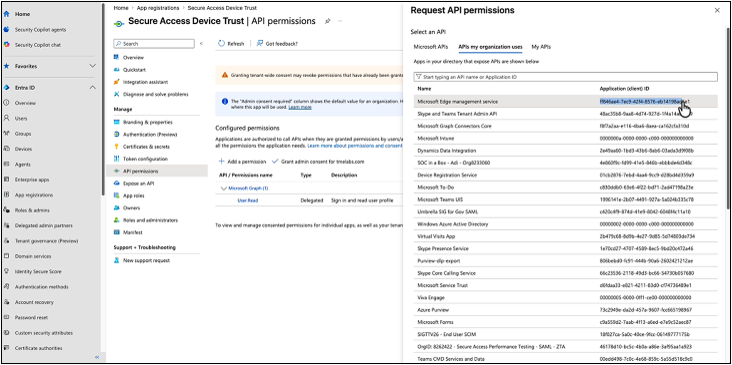
6. Before selecting it, copy its Application ID (the resource app ID for Secure Access).
7. Select Application permissions, choose Device Trust Read All, and grant admin consent for the organization. Click Add permissions.
Step 3. Configure Cisco Device Trust Connector in M365
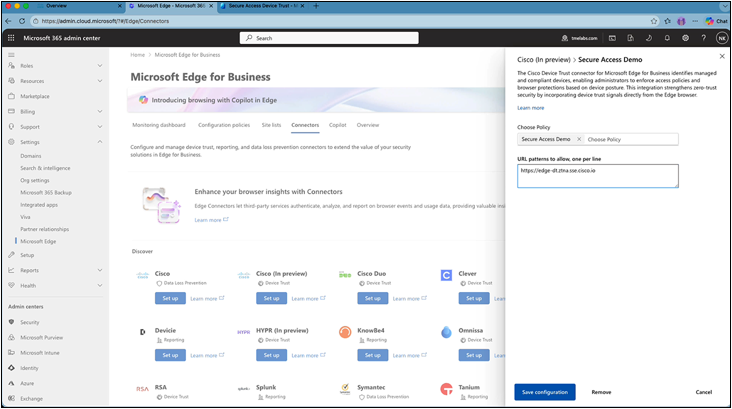
1. In the Edge management service, accessible from Microsoft 365 Admin Center > Settings > Microsoft Edge, and select the Connectors page. The Edge management service uses configuration policies to assign settings to the whole tenant or specific user groups. If no Edge configuration policy exists, create one first using these instructions. <URL for the text: "using these instructions": https://learn.microsoft.com/en-us/deployedge/microsoft-edge-management-service
2. Navigate to the Connectors page, find the Cisco Device Trust connector, and click Set up.
3. Select the desired configuration policy, and set the URL pattern to the redirect URI from the Secure Access dashboard
4. Click Save configuration.
Step 4. Enter Collected Values in Secure Access Dashboard
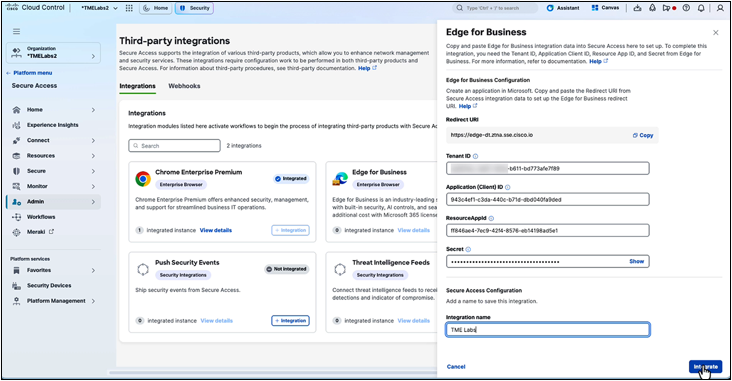
1. Return to the Cisco Secure Access dashboard and fill in the four collected values under Admin > Third-party integrations > Edge for Business: Tenant ID, App Client ID, Microsoft Edge Services Application ID, and the client secret from the app registration. Enter an Integration name, and click Integrate.
Step 5. Add Posture Profile
1. In Secure Access, navigate to Secure > Endpoint Posture Profiles. Add a new posture profile, and select browser-based.
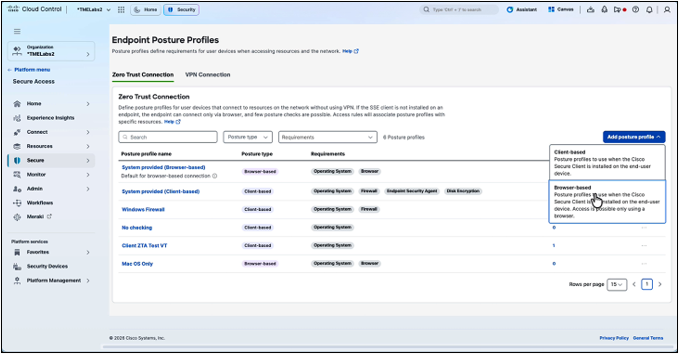
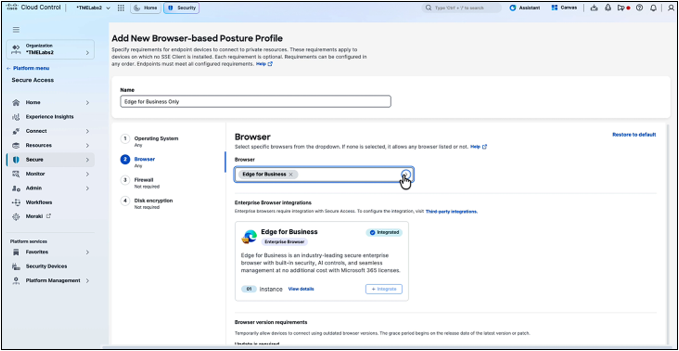
2. Name the profile, choose Edge for Business from the browser list, and optionally configure additional criteria such as OS version, firewall state, or disk encryption.
Step 6. Apply Posture Profile to Access Policy Rule
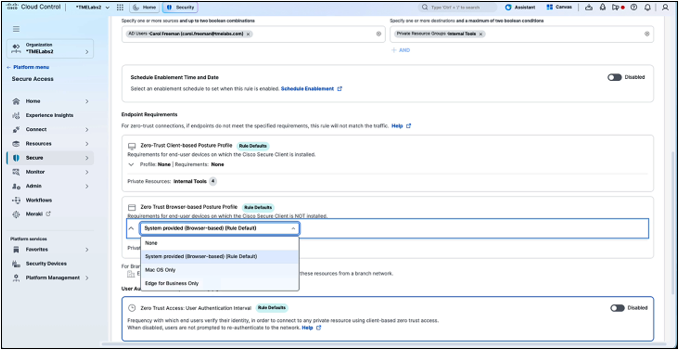
1. Edit an existing rule, or create a new access policy and select the newly created profile under Zero Trust Browser-based Posture Profile. Click Next, then Save.
Step 7. Configuring DLP in Secure Access
1. In the Secure Access dashboard, add a new API key by selecting Admin > API Keys. Click Add. For the scope choose DLP > DLP As A Service > Read-Only, then click Create Key.
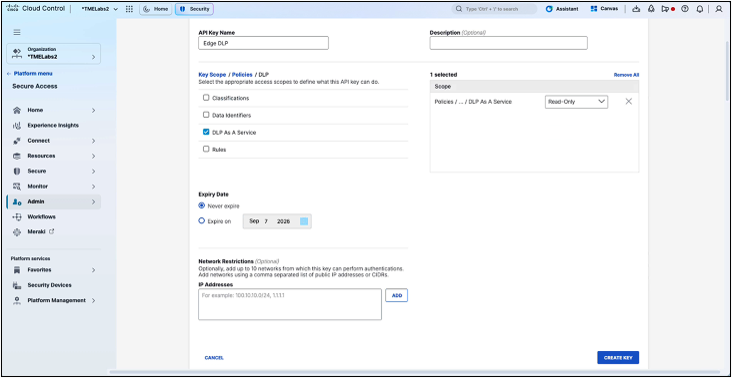
2. Generate the key and immediately copy both the key and the secret, as the secret cannot be retrieved after leaving the page.
Step 8. Configure Cisco DLP Connector in M365
1. Open the Edge management service, accessible from the Microsoft 365 Admin Center > Settings > Microsoft Edge.
2. Navigate to the Connectors page, find the Cisco Data Loss Prevention connector, and click Set up.
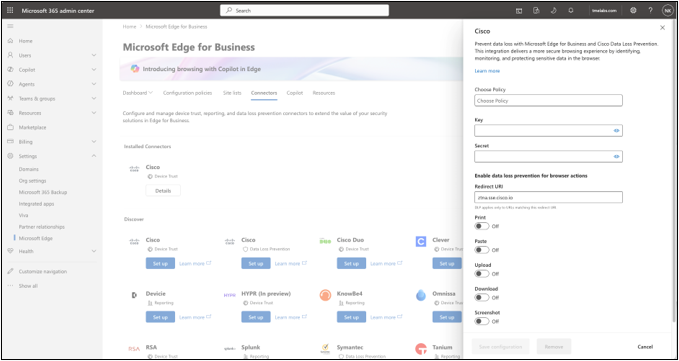
3. Select the desired configuration policy, paste in the API key and secret from Secure Access, enable DLP actions, and set fail behavior.
4. Click Save configuration to activate the connector.
Step 9. Validation - Create Real-Time DLP Policy Rule in Secure Access
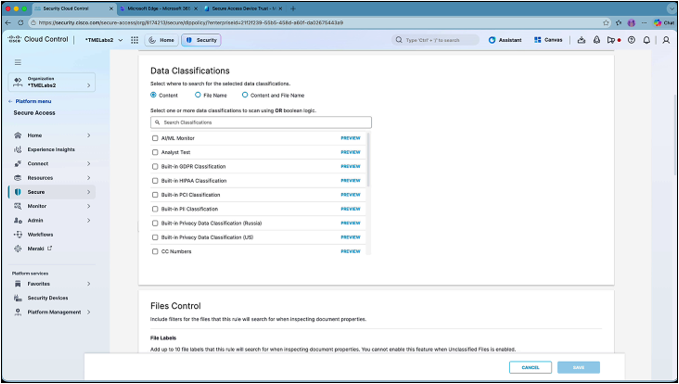
1. To validate, in the Cisco Secure Access dashboard, go to Secure > DLP Policy, and add a real-time rule and choose a template (for example, the PII template). Select any additional rule criteria such as Identity and Action, then Save the rule to complete DLP configuration.
Congratulations! The advanced enterprise browser integration is now complete. Cisco Secure Access device trust and DLP are successfully enabled in the Edge for Business browser.