Provision SR-MPLS Policies


Note


When using Crosswork Optimization Engine within the Crosswork Network Controller solution:
  • The navigation is Traffic Engineering & Services > Traffic Engineering > Traffic Engineering.

  • SRv6 policies can only be provisioned through the NSO menu.


For a list of known limitations, important notes, and what networking technologies are supported, see the Cisco Crosswork Optimization Engine Release Notes.

This section contains the following topics:

SR-TE Policy Configuration Sources

SR-TE policies discovered and reported by Crosswork Optimization Engine may have been configured from the following sources:

  • PCC initiated—Policies configured on a PCC (see PCC-Initiated SR-TE Policy Example). This policy type displays as Unknown in the UI.

  • PCE initiated—Policies configured on a PCE or created dynamically by Crosswork Optimization Engine. SR-MPLS explicit or dynamic policies that are configured using the UI are the only types of SR-TE policies that you can modify or delete in Crosswork Optimization Engine. PCE Initiated policy types can be one of the following:

    • Dynamic

    • Explicit

    • Bandwidth on Demand

    • Bandwidth Optimization

    • Local Congestion Mitigation

PCC-Initiated SR-TE Policy Example

The following example shows a configuration of an SR-TE policy at the headend router. The policy has a dynamic path with affinity constraints computed by the headend router. See SR configuration documentation for your specific device to view descriptions and supported configuration commands (for example: Segment Routing Configuration Guide for Cisco ASR 9000 Series Routers).

segment-routing
 traffic-eng
  policy foo
   color 100 end-point ipv4 1.1.1.2
   candidate-paths
    preference 100
     dynamic
      metric
       type te
      !
     !
     constraints
      affinity
       exclude-any
        name RED
       !
      !
     !
    !
   !

Create Explicit SR-MPLS Policies

This task creates SR-MPLS policies using an explicit (fixed) path consisting of a list of prefix or adjacency Segment IDs (SID list), each representing a node or link along on the path.

Procedure


Step 1

From the main menu, choose Traffic Engineering > Traffic Engineering > SR-MPLS tab.

Step 2

From the SR Policies table, click + Create.

Step 3

Enter or select the required SR-MPLS policy values. Hover the mouse pointer over Field Help icon to view a description of the field.

Tip


If you have set up device groups, you can select the device group from the Device Groups drop-down menu. Then navigate and zoom in on the topology map to click the device for headend or endpoint selection.

Step 4

Under Policy Path, click Explicit Path and enter a path name.

Step 5

Add segments that will be part of the SR-MPLS policy path.

Step 6

Click Preview and confirm that the policy you created matched your intent. You can continue editing, incase the preview does not appear or click Cancel.

Step 7

If you want to commit the policy path, click Provision to activate the policy on the network or exit to abort the configuration process.

Step 8

Validate the SR-MPLS policy creation:

  1. Confirm that the new SR-MPLS policy appears in the SR Policy table. You can also click the check box next to the policy to see it highlighted in the map.

    Note

     
    The newly provisioned SR-TE policy may take some time, depending on the network size and performance, to appear in the SR Policy table. The SR Policy table is refreshed every 30 seconds.
  2. View and confirm the new SR-MPLS policy details. From the SR Policy table, click Edit icon and select View.

Note


On a scaled setup with high node, policy, or interface counts, a timeout may occur during policy deployment. To configure timeout options, see the Cisco Crosswork Infrastructure and Applications Administration Guide.


Configure Link Affinities

Affinity names defined on devices are not collected by Crosswork Optimization Engine. The affinity mapping is only used for visualization in Crosswork Optimization Engine. For this reason, you should collect affinities on the device, then define affinity mapping in Crosswork Optimization Engine with the same name and bits that are used on the device. Crosswork Optimization Engine will only send bit information to SR-PCE during provisioning. If an affinity mapping is not defined in the UI, then the affinity name is displayed as "UNKNOWN".

Affinity of an SR-TE policy or RSVP-TE tunnel is used to specify the link attributes for which the SR-TE policy or RSVP-TE tunnel has affinity for. It determines which links are suitable to form a path for the SR-TE policy or RSVP-TE tunnel. It is a 32-bit value, with each bit position (0 - 31) representing a link attribute. Affinity mapping is used to map each bit position or attribute to a color. This makes it easier to refer to link attributes.

See SR configuration documentation for your specific device to view descriptions and supported configuration commands (for example: Segment Routing Configuration Guide for Cisco ASR 9000 Series Router)

The following example shows the affinity configuration (affinity-map) on a device:

RP/0/RP0/CPU0:c12#sh running-config segment-routing traffic-eng affinity-map
Wed Jul 27 12:14:50.027 PDT
segment-routing
 traffic-eng
  affinity-map
   name red bit-position 1
   name blue bit-position 5
   name green bit-position 4
  !
 !
! 

Procedure


Step 1

From the main menu choose Administration > Settings > System Settings > Traffic Engineering > Affinity > TE Link Affinities. You can also define affinities while creating an SR-TE policy or RSVP-TE tunnel by clicking Manage Mapping.

Step 2

To add a new affinity mapping, click + Create.

Step 3

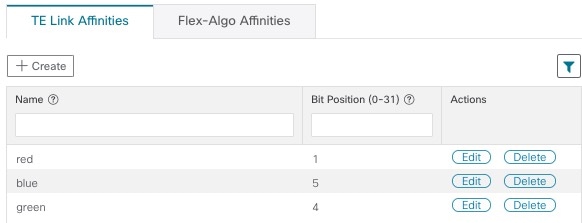
Enter the name and the bit it will be assigned. For example (using the above configuration):

Example:

TE Affinity Example

Step 4

Click Save to save the mapping.

Note


You should remove the TE tunnel before removing the affinity to avoid orphan TE tunnels. If you have removed an affinity associated to a TE tunnel, the affinity is shown as "UNKNOWN" in the SR Policy / RSVP-TE Tunnel Details window.


Create Dynamic SR-MPLS Policies Based on Optimization Intent

This task creates an SR-MPLS policy with a dynamic path. SR-PCE computes a path for the policy based on metrics and path constraints (affinities or disjointness) defined by the user. A user can select from three available metrics to minimize in path computation: IGP, TE, or latency. The SR-PCE will automatically re-optimize the path as necessary based on topology changes. In the event of a link or interface failing, the network will find an alternate path that meets all the criteria specified in the policy and raise an alarm. The alarm is also raised in case no path is found, the packets are then dropped.


Tip


If you plan to use affinities, collect affinity information from your devices and then map them in Cisco Crosswork before creating a dynamic SR-MPLS policy. For more information, see Configure Link Affinities or Configure Flexible Algorithm Affinities.

Procedure


Step 1

From the main menu, choose Traffic Engineering > Traffic Engineering > SR-MPLS tab.

Step 2

From the SR Policy table, click + Create.

Step 3

Under Policy Details, enter or select the required SR-MPLS policy values. Hover the mouse pointer over Field Help icon to view a description of each field.

Tip


If you have set up device groups, you can select the device group from the Device Groups drop-down menu. Then navigate and zoom in on the topology map to click the device for headend or endpoint selection.

Step 4

Under Policy Path, click Dynamic Path and enter a path name.

Step 5

Under Optimization Objective, select the metric you want to minimize.

Step 6

Define any applicable constraints and disjointness.

Note

 
  • Affinity constraints and disjointness cannot be configured on the same SR-MPLS policy. Also, there cannot be more than two SR-MPLS policies in the same disjoint group or subgroup. The configuration will not be allowed during Preview.

  • If there are existing SR-MPLS policies belonging to a disjoint group that you define here, all SR-MPLS policies that belong to that same disjoint group are shown during Preview.

Step 7

Under Segments, select whether or not public segments should be used when available.

Step 8

If applicable, enter a SID contraint in the SID Algorithm field. Cisco Crosswork will try to find a path with this SID. If a path with the SID constraint cannot be found, the provisioned policy will remain operationally down until the conditions are met.

Note

 
  • Flexible Algorithm: The values correspond to the Flexible Algorithm that are defined on the device and the 128-255 range is enforced by Cisco IOS XR.

  • Algorithm 0: This is a Shortest Path First (SPF) algorithm based on link metric. This shortest path algorithm is computed by the Interior gateway protocol (IGP).

  • Algorithm 1: This is a Strict Shortest Path First (SSPF) algorithm based on link metric. The algorithm 1 is identical to algorithm 0 but requires that all nodes along the path honor the SPF routing decision. Local policy does not alter the forwarding decision. For example, a packet is not forwarded through locally engineered path.

Step 9

Click Preview. The path is highlighted on the map.

Step 10

If you want to commit the policy path, click Provision.

Step 11

Validate the SR-MPLS policy creation:

  1. Confirm that the new SR-MPLS policy appears in the SR Policy table. You can also click the check box next to the policy to see it highlighted in the map.

    Note

     
    The newly provisioned SR-MPLS policy may take some time, depending on the network size and performance, to appear in the SR Policy table. The SR Policy table is refreshed every 30 seconds.
  2. View and confirm the new SR-MPLS policy details. From the SR Policy table, click Edit icon and select View.

Note


On a scaled setup with high node, policy, or interface counts, a timeout may occur during policy deployment. To configure timeout options, see the Cisco Crosswork Infrastructure and Applications Administration Guide.


Modify SR-MPLS Policies

To view, modify, or delete an SR-MPLS policy, do the following:

Procedure


Step 1

From the main menu, choose Traffic Engineering > Traffic Engineering > SR-MPLS tab.

Step 2

From the SR Policy table, locate the SR-MPLS policy you are interested in and click Edit icon.

Step 3

Choose View or Edit/Delete.

Note

 
  • You can only modify or delete SR-MPLS policies that have been created with the UI.

  • After updating the SR-MPLS policy details, you can preview the changes on the map before saving it.