Visualize Flexible Algorithms

Flexible Algorithm allows operators to customize and compute the IGP shortest path according to their own needs and constraints (specific metrics and link properties). Many possible constraints can be used to compute a path over a network. For example, Flexible Algorithm can confine the path to a particular plane for networks with multiple logical planes. Since the meaning of the algorithm is not defined by any standard, but is defined by the user, it is called a Flexible Algorithm.


Note


You cannot filter Flexible Algorithms on multiple domains.


Crosswork enables you to filter the IGP topology based on Flexible Algorithm and visualize the subset of the network that is capable of providing a specific set of transport characteristics. The ability to visualize Flexible Algorithm topologies provides an important tool to help you deploy, maintain, and verify that the configured Flexible Algorithm intent is realized in your network. For example, to improve service availability, you may use Flexible Algorithm to define disjoint logical topologies to increase resiliency to network failures. Crosswork allows you to visualize both Flexible Algorithm topologies simultaneously and verify they have no common nodes or links. Or if they do, help you determine the common network elements so that you can update Flexible Algorithm configurations.


Note


Throughout this section, the navigation is documented as Traffic Engineering > Traffic Engineering. However, when using the Crosswork Network Controller solution, the navigation is Traffic Engineering & Services > Traffic Engineering.


Configure Flexible Algorithm Affinities

Flexible Algorithm affinity names that are defined on devices are not collected by Crosswork. The affinity mapping name is used for visualization and should be configured prior to visualizing Flexible Algorithms. For this reason, you should manually configure and collect Flexible Algorithm affinities on the device, then define the affinity mapping in the UI with the same name and bits that are used on the device. Crosswork only sends bit information to SR-PCE during provisioning. If an affinity mapping is not defined in the UI, then the affinity name is displayed as "UNKNOWN".

See SR configuration documentation for your specific device to view descriptions and supported configuration commands (for example: Segment Routing Configuration Guide for Cisco ASR 9000 Series Routers

The following example shows the Flexible Algorithm affinity configuration (affinity-map) on a device:

router isis CORE
 is-type level-2-only
 net 49.0001.0000.0000.0002.00
 log adjacency changes
 affinity-map b33 bit-position 33
 affinity-map red bit-position 1
 affinity-map blue bit-position 5
 flex-algo 128
  priority 228
  advertise-definition
  affinity exclude-any blue indigo violet black
 ! 

For visualization purposes, you must map the affinity names to the bits using the following procedure:

Procedure


Step 1

From the main menu, select Administration > Traffic Engineering > Affinity > Flex-Algo Affinities tab.

Step 2

To add a new Flexible Algorithm affinity mapping, click + Create .

Step 3

Enter the name and the bit it will be assigned. For example (using the above configuration):

Example:

Flex-Algo Affinities Example

Step 4

Click Save to save the mapping. To view all Flexible Algorithm affinities for a link, see Find Flexible Algorithms for Links and Devices.


Visualize Flexible Algorithm

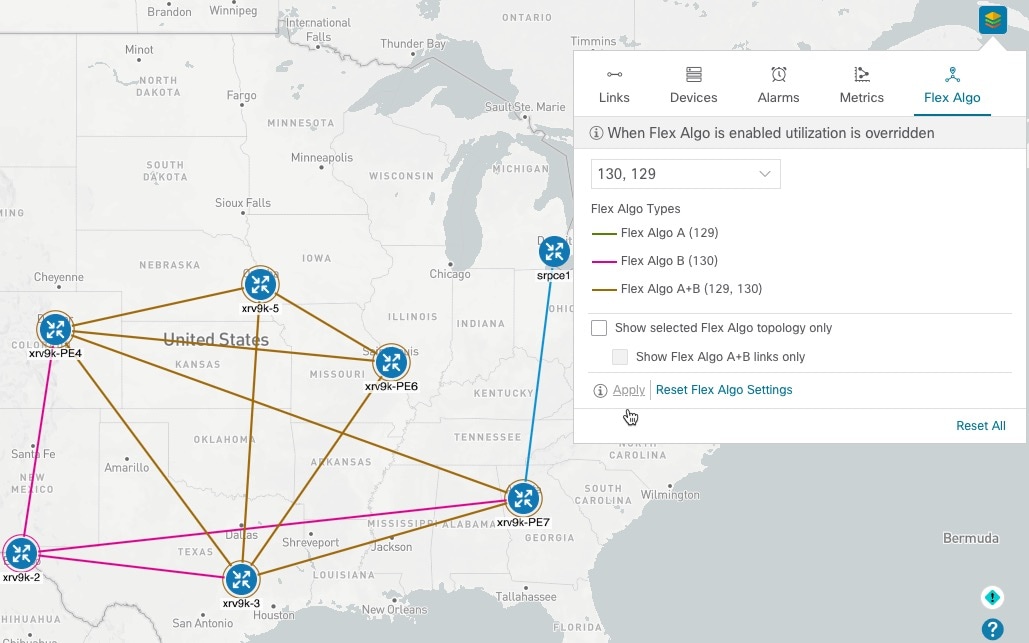
Crosswork allows you to visualize Flexible Algorithm nodes and links on the topology map that have been manually configured or dynamically provisioned using the UI in your network.


Note


To apply a Flexible Algorithm constraint when dynamically provisioning an SR-MPLS policy, see Create Dynamic SR-MPLS Policies Based on Optimization Intent.


Before you begin


Note


You cannot visualize Flexible Algorithms if a Flexible Algorithm ID is the same across different domains.


Procedure


Step 1

From the main menu, select Traffic Engineering > Traffic Engineering.

Step 2

From the topology map, click Display Preferences icon.

Step 3

Click the Flex Algo tab.

Step 4

From the drop-down list, select up to two Flexible Algorithm IDs.

Step 5

View the Flexible Algorithm Types and confirm that the selection is correct. Also, note the color assignments for each Flexible Algorithm.

Step 6

(Optional) Check the Show selected Flex Algo topology only check box to isolate the Flexible Algorithms on the topology map. When this option is enabled, SR policy selection is disabled.

  1. Check the Show Flex Algo A+B links only to show only those links and nodes that participate in both Flexible Algorithms.

Step 7

Click Apply. You must click Apply for any additional changes to Flexible Algorithm selections to see the update on the topology map.

Example:

Note

 
  • You cannot filter Flexible Algorithm IDs that are on multiple domains. Domain filtering is not supported based on Flexible Algorithms.

  • If a selected Flexible Algorithm is defined with criteria but there are no link and node combinations that match it (for example, a defined affinity to include all nodes or links with the color blue), then the topology map will be blank. If a selected Flexible Algorithm is not configured on a node or link, then the default blue link or node color appears.

Step 8

(Option) Click Save View to save the topology view and Flexible Algorithm selections.


Find Flexible Algorithms for Links and Devices

If you want to know if a device or link is a member of a Flexible Algorithm, do the following:

Procedure


Step 1

From the main menu, choose Traffic Engineering > Traffic Engineering.

Step 2

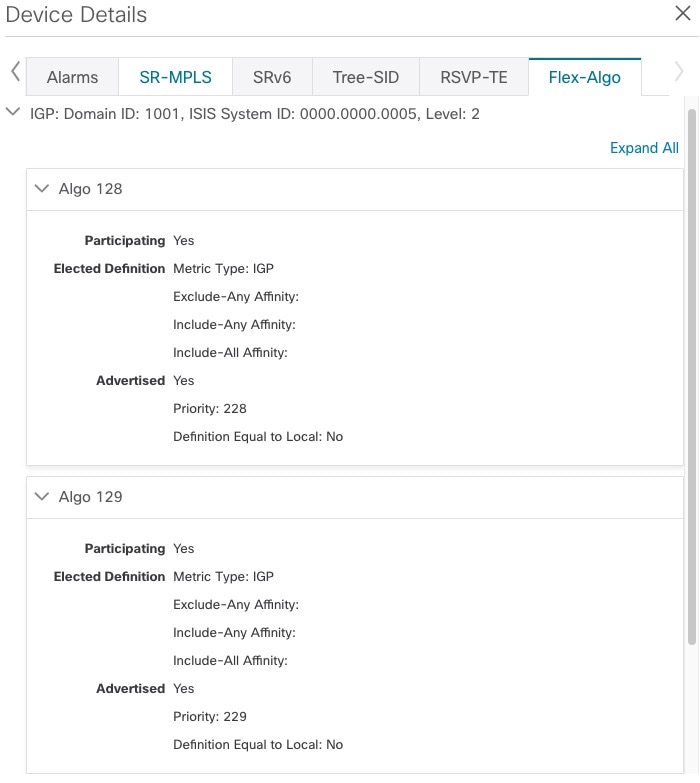
To view whether a device is part of a Flexible Algorithm:

  1. From the topology map, click on a device.

  2. In the Device Details window, click the Flex-Algo tab. If the device is part of a Flexible Algorithm then Algo ID and information appears. For example:

    Note


    If the device is not a member, then you will only see IGP domain and OSPF ID information.

Step 3

To view whether a link is part of a Flexible Algorithm:

  1. From the topology map, click a link.

  2. In the Links page, click one of the link types.

  3. By default, the Summary tab is displayed within the Link Details window. If the link is a member, then the FA Topologies row displays what Flexible Algorithm each source and destination device belong to. You can also view any affinities in the FA Affinities row.