Visualize Traffic Engineering Services

From the Traffic Engineering topology map, you can visualize the following TE services within your network:

The ability to visualize these services and use the Crosswork UI simplifies the process of monitoring and managing TE policies and tunnels.

This section applies to all TE services and describes how to:

Get a Quick View of Traffic Engineering Services

The TE Dashboard provides a high-level summary of RSVP-TE tunnel, SR-MPLS, SRv6, and Tree SID policy information.

To get to the TE Dashboard, choose Traffic Engineering > TE Dashboard.
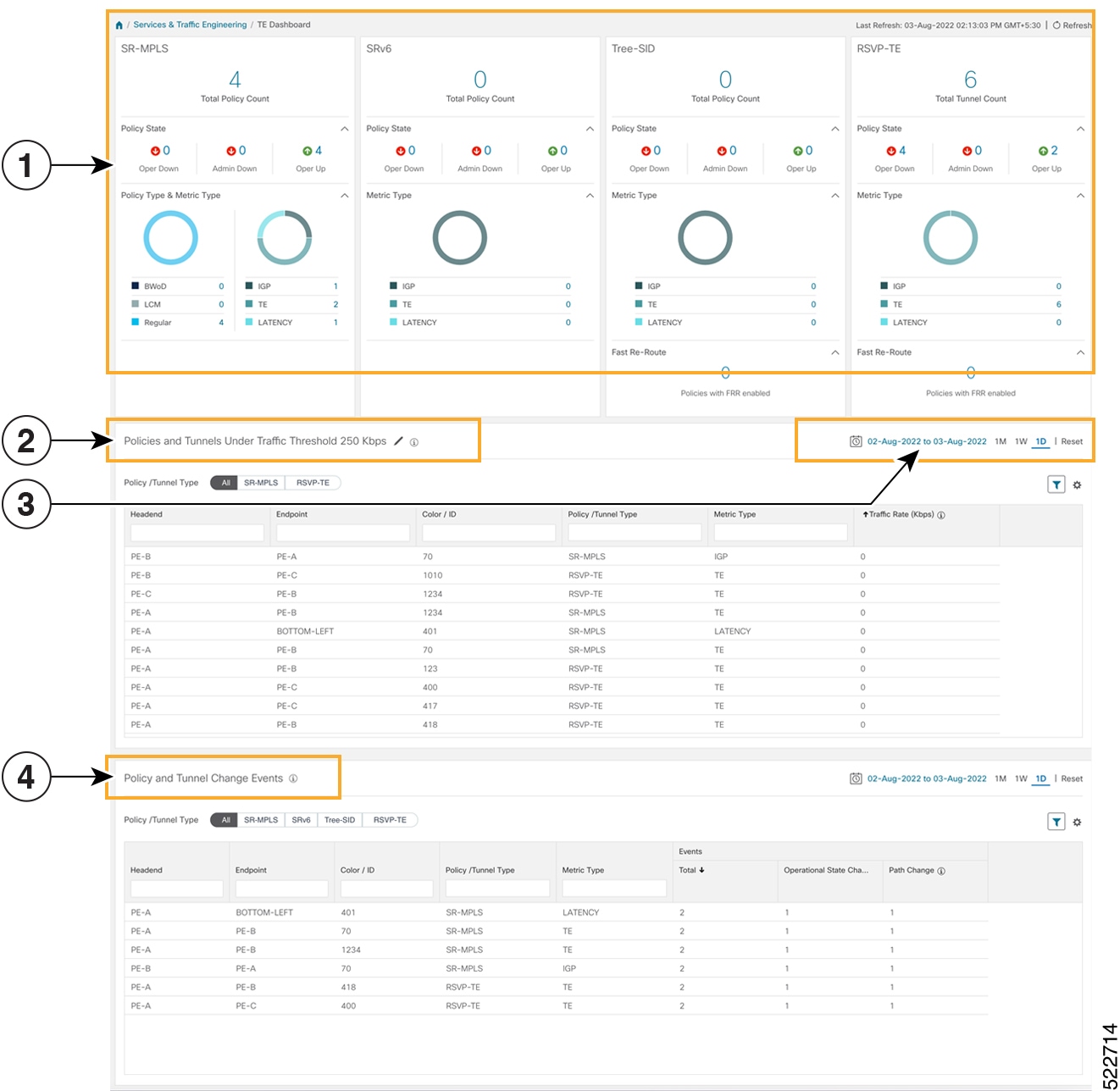
Callout No. Description

1

Traffic Engineering Dashlet: Displays the total policy count and count of policies according to the policy state.

It also displays the number of SR-MPLS, BWoD and LCM policies and the number of policies/tunnel according to the metric types for all TE services.

To drill down for more information, click on a value. The topology map and TE table appear displaying only the filtered data that you clicked on.

2

Policies and Tunnels Under Traffic Threshold for Historic Data:

Displays RSVP-TE tunnels and SR-MPLS policies that have traffic below the defined threshold in the selected time period. This information may be used to find and filter the unsed policies or tunnels. Click to update the underutilized LSP threshold value.

Note


Traffic utilization is not captured for SRv6 and Tree-SID policies.

3

Allows you to filter the data on the dashlet based on the time range you want to view (date, 1 month, 1 week, and 1 day).

4

Policy and Tunnel Change Events: Displays all the policies and tunnels that have had a path or state change event ordered by the event count, within the selected time range. This information helps identify the unstable policies and tunnels.

Note


The addition or deletion of leaf nodes for Tree-SID policies is captured as events.


Note


For a list of known limitations, see the Cisco Crosswork Optimization Engine Release Notes.


View TE Event and Utilization History

The historical data captures the traffic rate and change events for a policy or tunnel. To view the historical data:

Procedure


Step 1

From the main menu, choose Traffic Engineering > Traffic Engineering.

Step 2

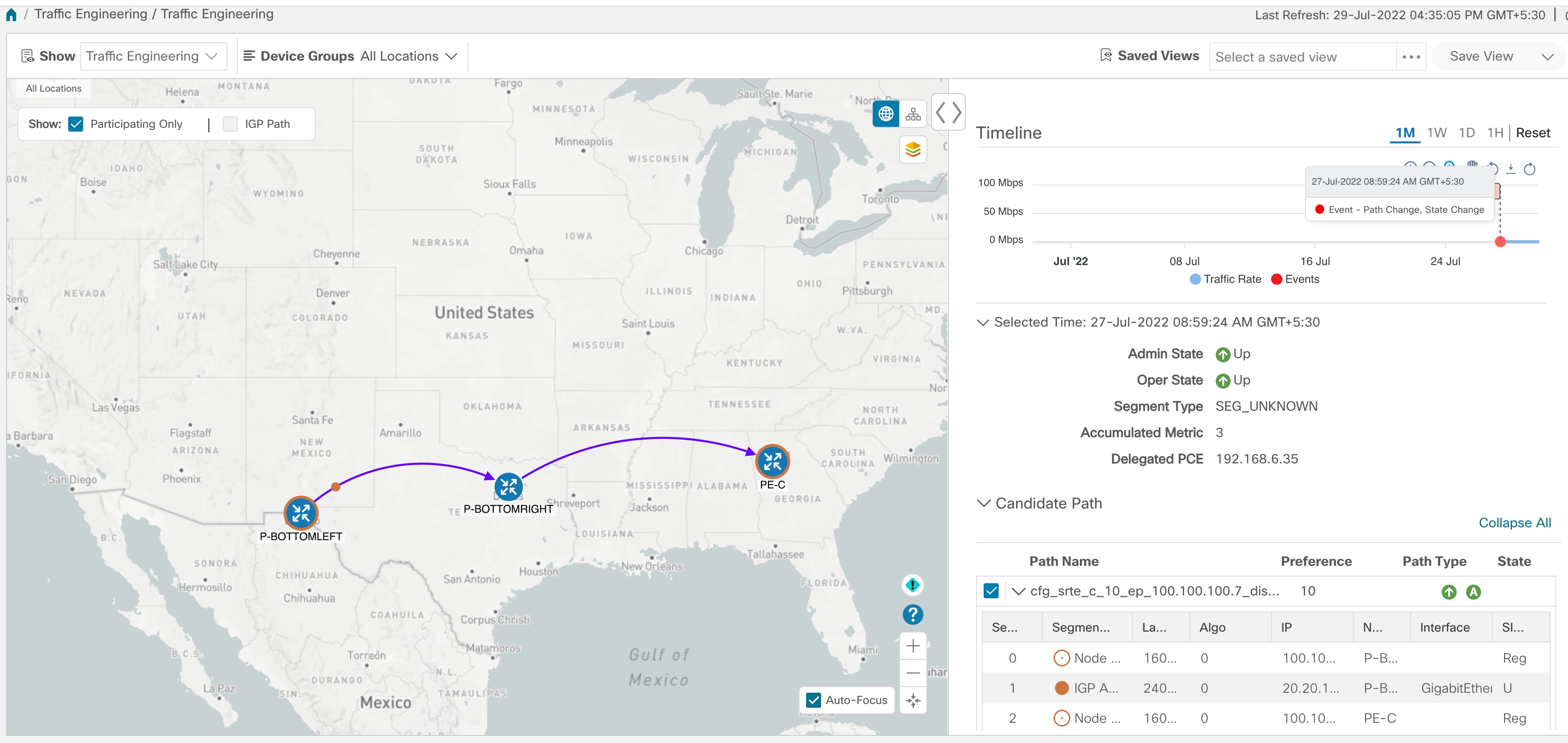
From the Actions column of the Traffic Engineering table, click Edit icon > View Details > Historical Data tab for a policy or tunnel. The tab displays associated historical data for that device. The following example shows the traffic rate and event history for an SR-MPLS policy.
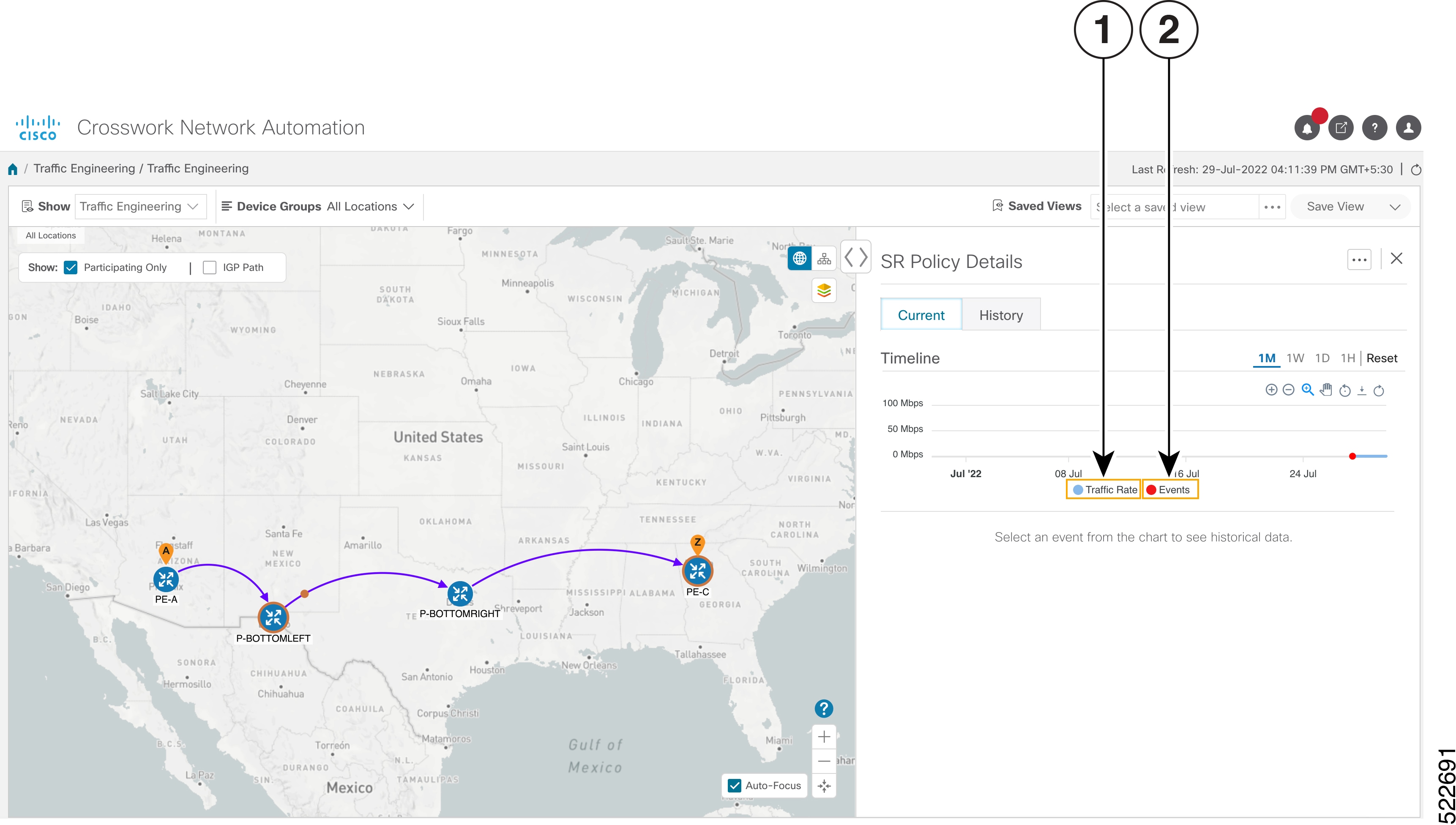
Callout No. Description

1

Traffic Rate: Displays the traffic rate for the policies.

Note


Traffic Rate is not captured for SRv6 and Tree-SID policies.

2

Events:

Displays the path or state change event.

Step 3

Click the event, to view the state of the policy or tunnel at that point in time as shown in the following image:

The path of the policy is displayed in the left pane.

Configure TE Data Dashboard Settings

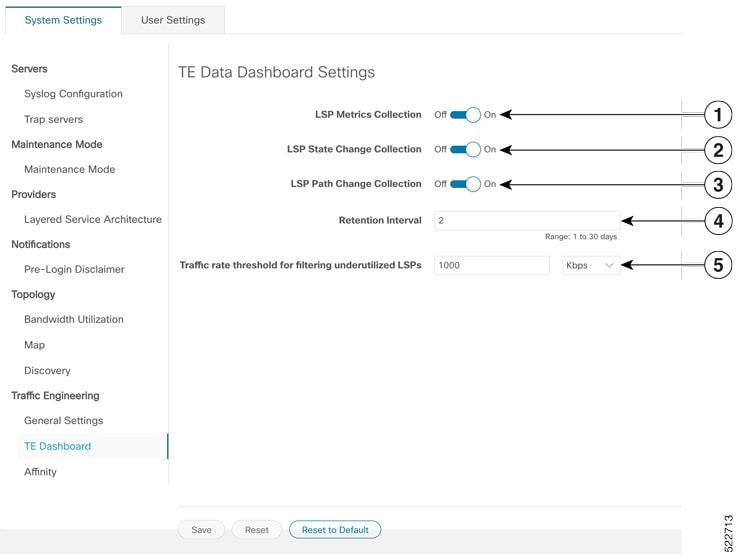
To configure the TE Dashboard (and Historical Data) settings for the collection of policy and tunnel metrics, state changes, path changes, data retention interval, and the utilization threshold for underutilized LSPs, select Administration > Settings > System Settings tab > Traffic Engineering> TE Dashboard .

Callout No. Description

1

LSP Metric Collection: Turn on this field to capture the metric data in the TE Dashboard.

2

LSP State Change Collection: Turn on this field to capture the state change details in the TE Dashboard.

3

LSP Path Change Collecttion: Turn on this field to capture the path change details in the TE Dashboard.

Retention Interval: The interval for which the historical data is collected and retained before being deleted.The default retention interval is set to two days.

Note


If the Retention Interval is reduced, all data older than the new retention interval is lost. For example, if the retention interval is set to 30 days and later it is reduced to 7 days, all the data older than 7 days will be deleted.

4

The LSPs for which the traffic has not exceeded the threshold value specified in this field are displayed under the Underutilized LSP dashlet in the TE Dashboard. The threshold value can also be configured on the dashlet.

View Traffic Engineering Device Details

To view Traffic Engineering Device details (SR-MPLS, SRv6, RSVP-TE, and Flexible Algorithm information), do the following:

Procedure


Step 1

From the main menu choose Traffic Engineering > Traffic Engineering.

Step 2

From the Traffic Engineering topology map, click on a device.

Step 3

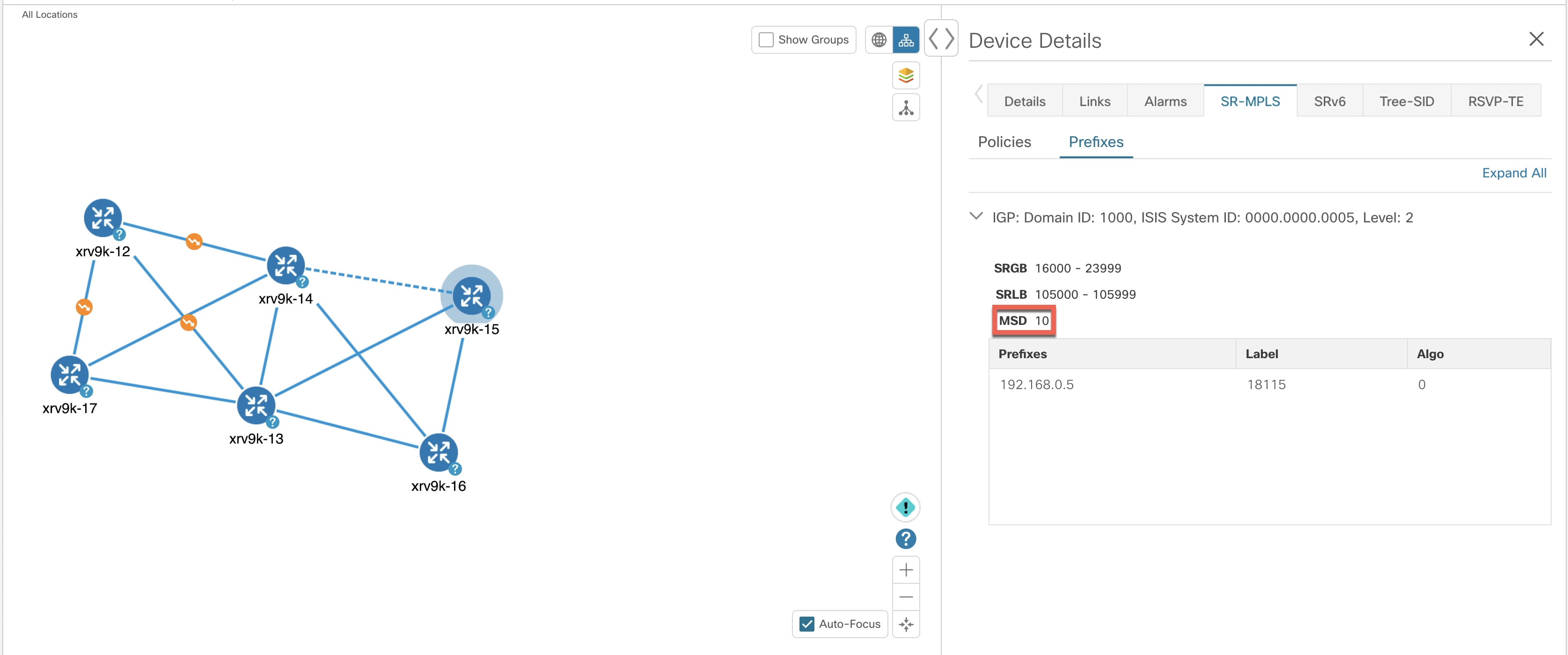
From the Device Details page, click on the traffic engineering tab you are interested in. Each tab displays associated data for that device.

The following example shows SR-MPLS Prefix information which includes the MSD value for the device.