Space Manager

Overview of Space Manager

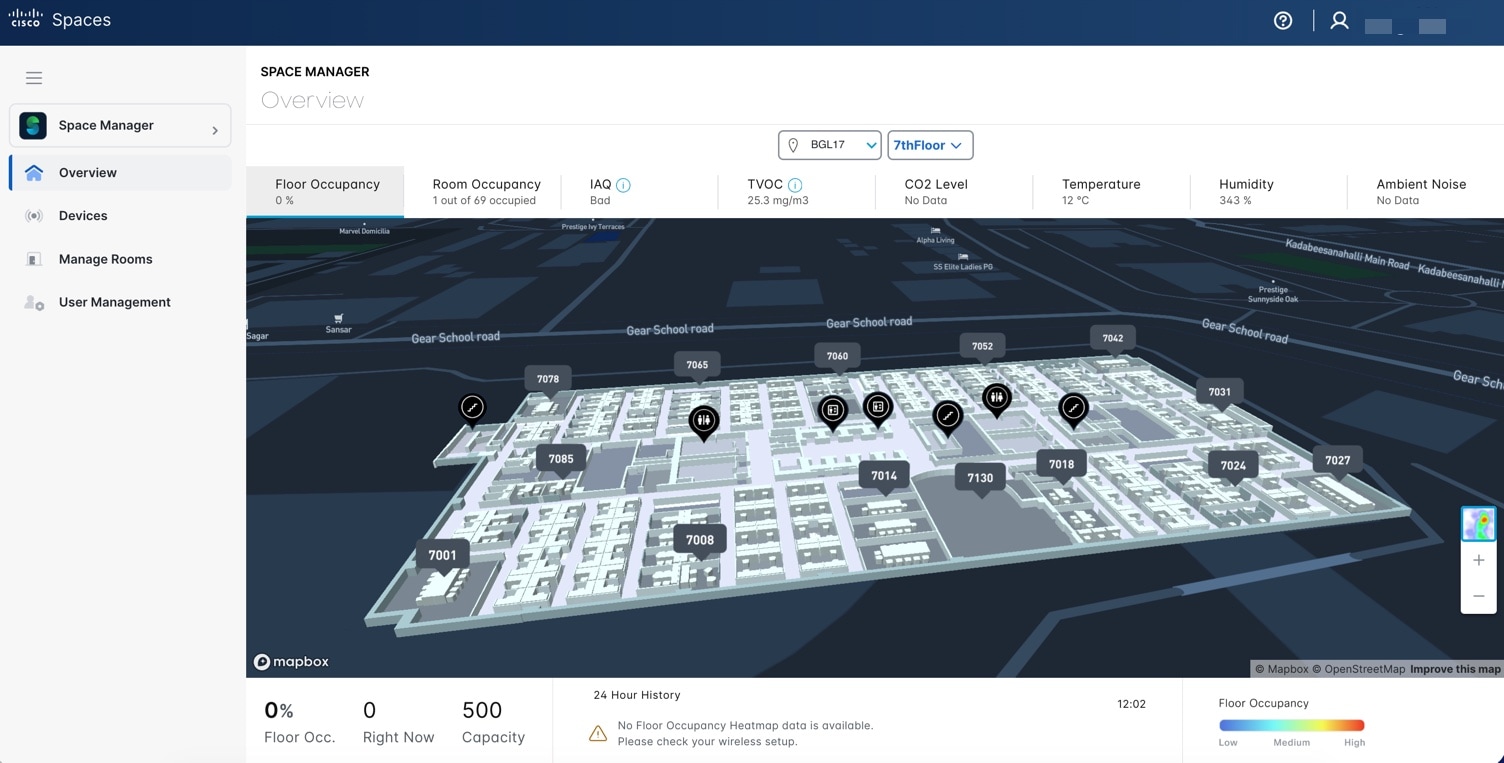
The Space Manager app enables facility managers to configure integrated devices such as Cisco Meraki and Cisco IoT devices and sensors in your workspace to provide access to real-time occupancy data like meeting room capacity and availability.
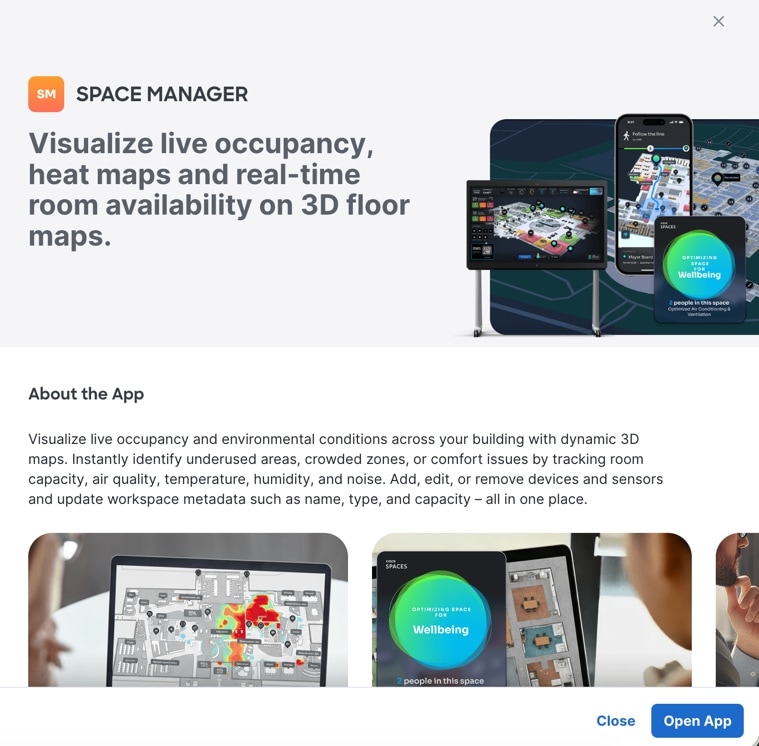
Figure 1. Space Manager

This app also displays environment-related telemetry such as ambient temperature, humidity, air quality, and noise on 3D digital maps for the meeting room, floor, or building.

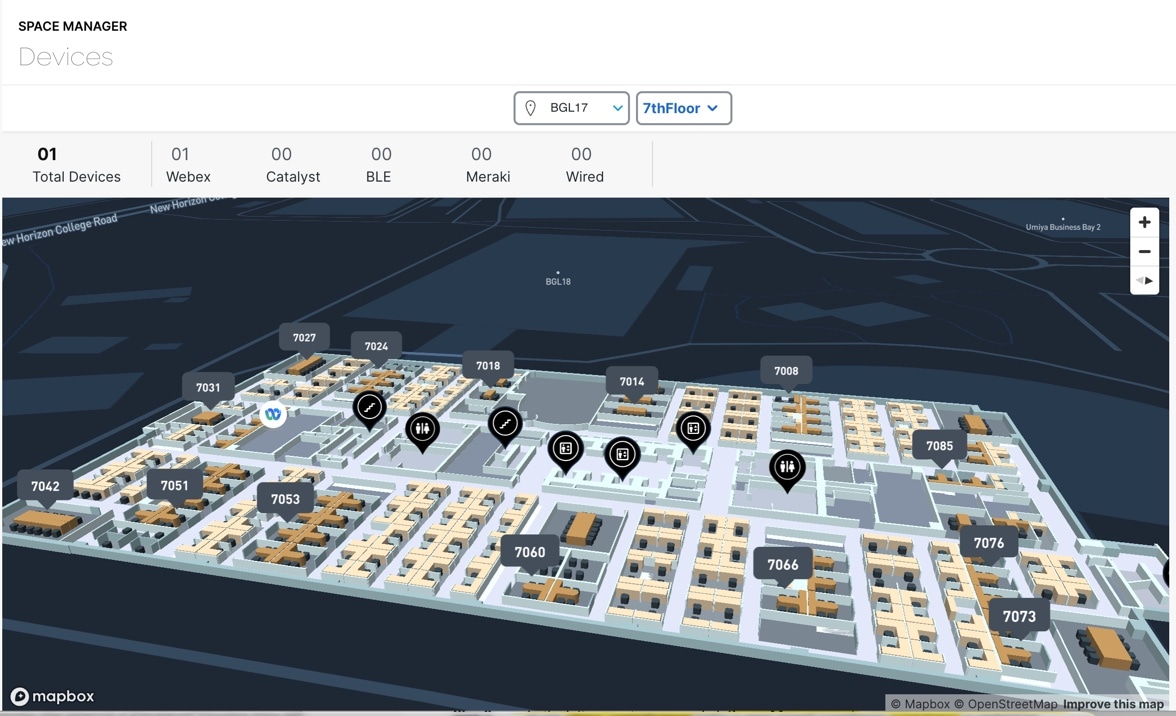
  • In the Devices section, you can view the configured devices and their telemetry details on digital maps

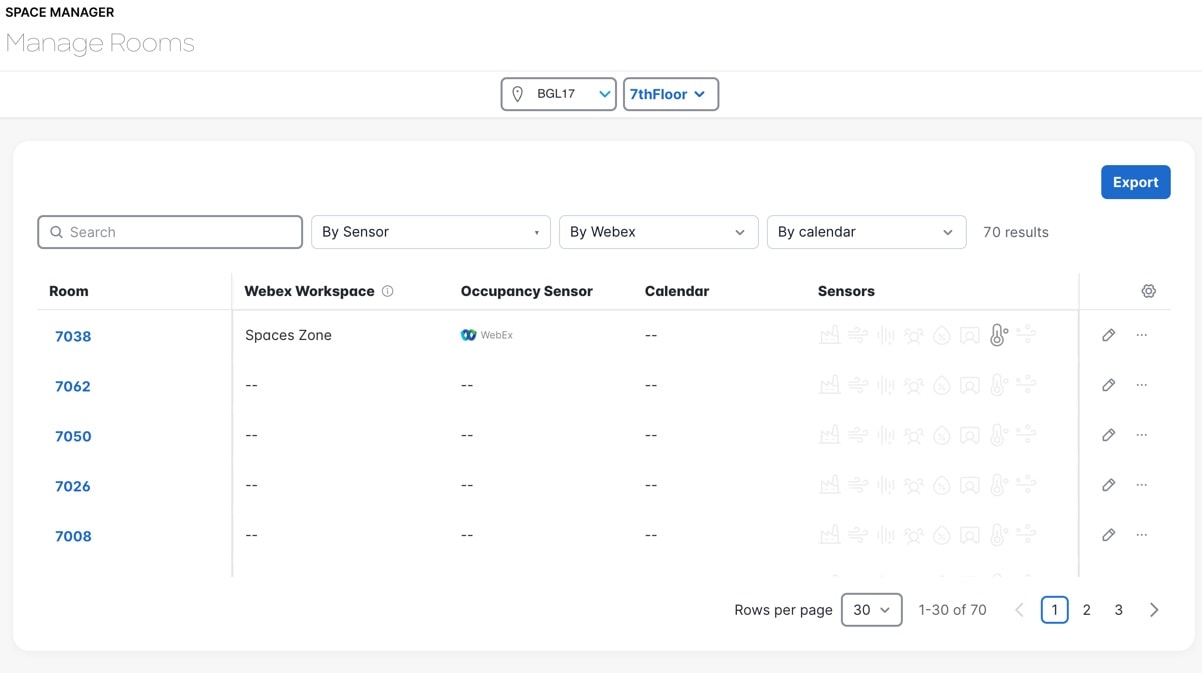
  • In the Manage Rooms section, you can view the count of configured meeting rooms and their details such as number of associated devices. You can also add or remove devices from the selected meeting rooms.

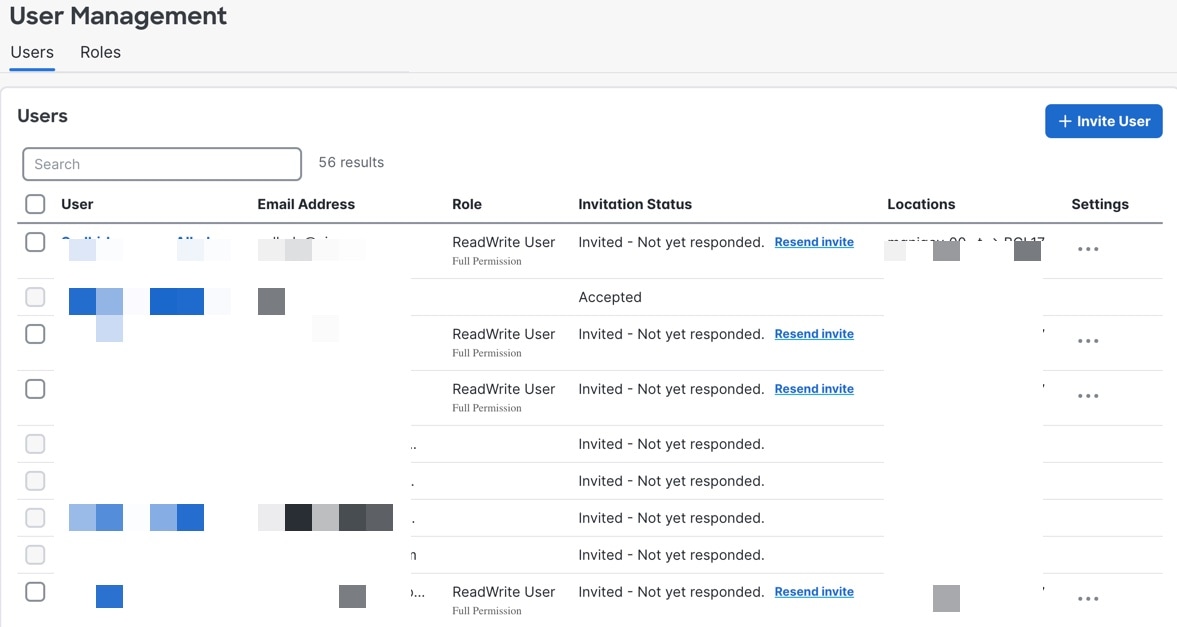
  • In the User Management section, you can view a listing of all Space Manager users and their assigned roles. You also have the option to invite users to a specific campus, Meraki Org, building or network.

The Space Manager app is tied to these license types:

  • ACT (displayed in UI as Advantage)

  • UNLIMITED

  • PREMIER_W

  • PREMIER_CW

Figure 2. Space Manager App

Manage Devices

Procedure


Step 1

In Cisco Spaces, choose Dashboard > Space Manager.

The Space Manager window is displayed.

Step 2

In the left pane, click Devices.

Step 3

From the filter options drop-down list, choose the building and floor.

Step 4

View these device details:

  • Total Devices

  • Catalyst

  • BLE

  • Meraki

Figure 3. Devices

Manage Rooms

In the Space Manager app, you can view information about various rooms in a building or floor in the Manage Rooms page.

If you select a room, you can add Capacity and Tags metadata to the room details to provide additional information. These changes are intended to help you manage rooms more efficiently

Procedure


Step 1

In Cisco Spaces, choose Dashboard > Space Manager.

The Space Manager window is displayed.

Step 2

In the left pane, click Manage Rooms.

Figure 4. Manage Rooms

Step 3

In the Manage Rooms page, a table listing of configured rooms is displayed.

You can view configuration information about these parameters:

  • Webex Workspace

  • Occupancy Sensor

  • Calendar

  • Sensors

Use the Search field to search for meeting rooms.

Step 4

From the filter options drop-down list, choose the building and floor.

Step 5

To filter the records, click from any one of these drop-down lists:

  • By Sensor: Choose the required sensor filter options.

  • By Webex: Choose the required filter options.

  • By Calendar: Choose the required filter options.

Step 6

Click Export if you want to export the room details in a CSV format.

Step 7

Perform these if required:

  • Click Edit icon to edit any of these parameters.

  • Click the three dots to view these options: Add IoT Sensors and Disconnect Webex Workspace.

    Click Add IoT Sensors to add sensor devices. For more information, refer to Add IoT Sensor(s).

  • Click the Settings icon to reset or filter the display options. For more information, refer to Table Settings.

Step 8

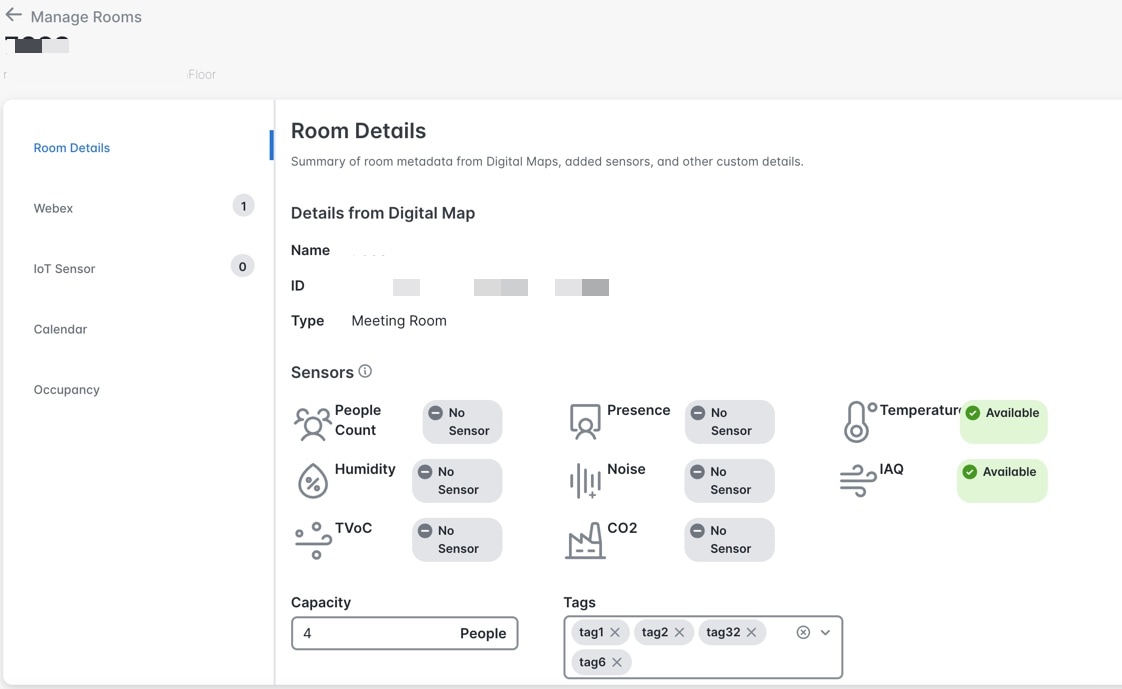
Click the room to view the summary of the room metadata from digital maps, added sensors and other relavant information.

The left pane displays these options:

  • Room Details

  • IoT Sensor

  • Calendar

  • Occupancy

Figure 5. Room details

Step 9

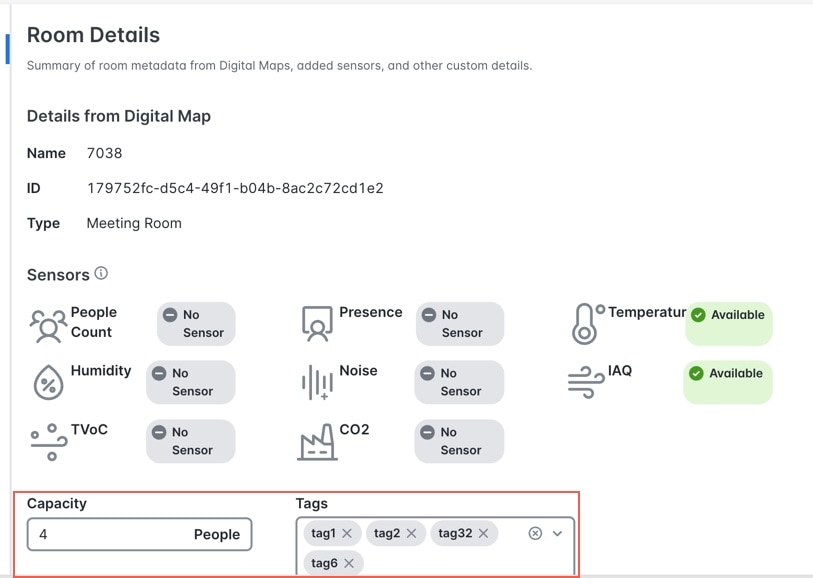
In the Room Details section, for the room you select, you can:

  1. In the Capacity field, enter the people capacity.

  2. Click Tags field to view the list of available tags.

  3. Check the required tag check box.

  4. Click Save.

Figure 6. Room details

Step 10

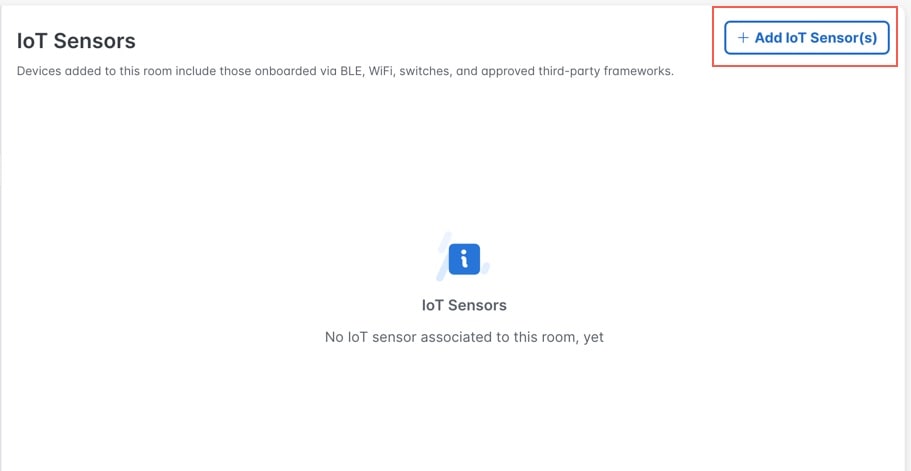
In the IoT Sensor section, click Add IoT Sensor(s) to associate IoT sensor devices to the selected room.

Figure 7. IoT Sensor

Step 11

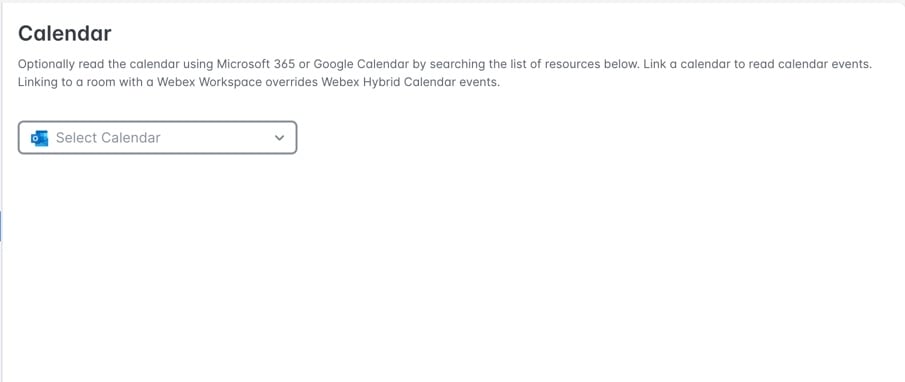
In the Calendar section, from the Select Calendar drop-down list, select and link a calendar to read calendar events.

Figure 8. Calendar

Step 12

In the Occupancy section, update the primary device for occupancy status.

Figure 9. Occupancy
  1. From the Occupancy Device drop-down list, select the device.

  2. Choose the Occupancy Type. The options are:

    • Presence + People Count

    • People Count

    • Presence

Step 13

Click Save to save the updates.


Add IoT Sensor(s)

The Add IoT Sensor(s) page enables administrators to associate available IoT sensor devices with a selected room. This page displays all the devices available in your workspace vicinity.

Procedure


Step 1

In the Add IoT Sensor(s) page, check the check box next to the required device tile.

Figure 10. Add IoT Sensor(s)

Step 2

For the selected device, click the down arrow to view these details.

  • Location

  • Sensor Type

  • MAC Address

Step 3

At the top of the left panel, you can use these filter options to refine the list of available devices.

  1. Use the Search field to find a device by name or identifier.

  2. From the Device Type drop-down list, select either Wired or BLE to filter devices by category.

  3. From the Sensors drop-down list, select any required sensor-related devices option to refine the display.

    The options are:

    • Humidity

    • AQI

    • Weather

    • Temperature

    • CO2

    • Presence

Step 4

Configure the floor map for the location.

Step 5

Click Save.


Table Settings

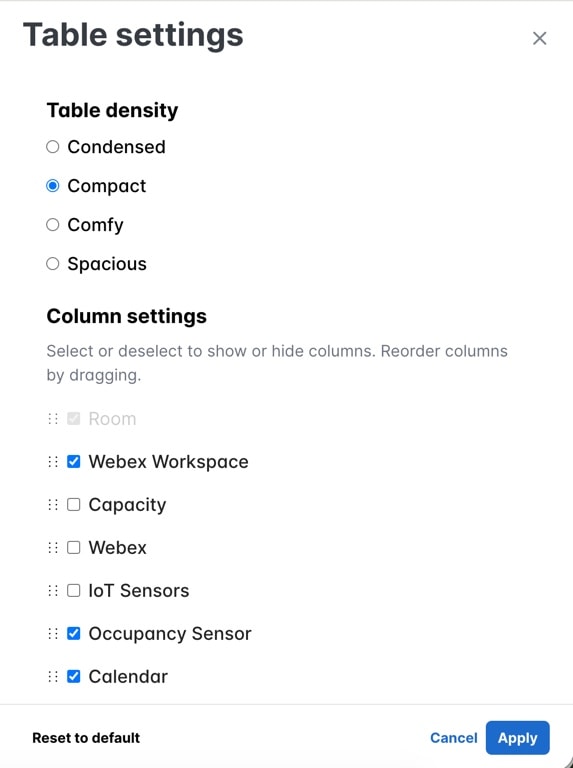
Table settings allow you to personalize the appearance and layout of the table by adjusting row density, selecting which columns to display, and arranging the order of columns.

To access Table settings, click the Settings icon in the Manage Rooms window.

Figure 11. Table settings

In the Table settings slide-in window, you can perform these actions.

Change Table Density

Under Table density area, select how compact or spacious the rows in your table appear. The options are:

  • Condensed: Displays more rows with tight spacing.

  • Compact: Offers balanced spacing.

  • Comfy: Adds more padding for easier reading.

  • Spacious: Provides the most spacing for maximum readability.

Show or Hide Columns

In Column settings, use checkboxes to control column visibility:

  • Check a check box to show a column.

  • Uncheck a check box to hide a column.

Available options include:

  • Capacity

  • IoT Sensors

  • Occupancy Sensor

  • Calendar


Note


The Room column is mandatory and cannot be hidden.


Reorder Columns

Within Column settings, drag columns using the drag handle (grip icon) to change their order. After applying changes, the table updates to reflect the new column arrangement.

Save or Discard Changes

At the bottom of the settings panel, you can click:

  • Apply: To save changes and update the table.

  • Cancel: To close the panel without saving.

  • Reset to default: To restore default settings for density, columns, and column order.

Manage Users

Procedure


Step 1

In Cisco Spaces, choose Dashboard > Space Manager.

The Space Manager window is displayed.

Step 2

In the left navigation pane, click User Management.

The User Management is displayed.

Figure 12. User Management

Step 3

In the User Management window, click the Users tab.

Step 4

To invite other Cisco Spaces users to use the Space Manager app, click Invite User.

Step 5

Specify these parameters.

  1. Enter the user's email address associated with their Cisco Spaces account.

  2. Choose the role depending on the user's access privilege. You can choose between Read Write User (full access) or Read Only User (read-only access).

    Note


    To view user roles available in Space Manager, in the User Management window, click the Roles tab.

    • Role depending on the user's access privilege. You can choose between Read Write User (full access) or Read Only User (read-only access).

    • Location from the Location Hierarchy available in Cisco Spaces. Click Choose Locations to view all locations.

Step 6

Click Send Invitation.

Step 7

To delete an existing user, in the Users table, select the desired user(s) and click Delete.

The Users table is displayed listing available users and their assigned roles.