Space Experience

Overview of Space Experience

The Space Experience app enables you to onboard, configure, and manage digital signages across meeting rooms, floors, and buildings in the workplace using Cisco Spaces.

This app also helps you configure the telemetry parameters on a non-Webex Device signages and publish them. These updates are auto-notified to the respective signages.
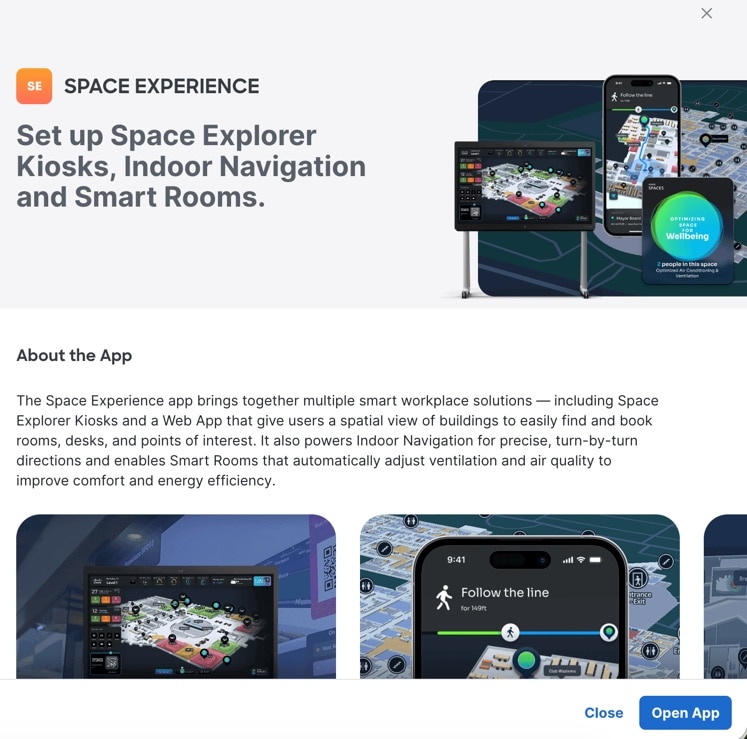
Figure 1. Space Experience

The Space Experience app is tied to these license types:

  • ACT (displayed in UI as Advantage)

  • UNLIMITED

  • PREMIER_W

  • PREMIER_CW

Manage Signage Devices

Procedure


Step 1

In Cisco Spaces, choose Dashboard > Space Experience.

The Space Experience window is displayed.

Step 2

In the left navigation pane, click My Signages.

Step 3

Click the Non-Webex Devices tab.

Step 4

For signage-specific instructions, follow the steps in the Set Up non-Webex Signage topic.


Set Up non-Webex Signage

This task shows you how to configure a non-Webex signage using the Space Experience app and activate Cisco Smart Workspaces on the signage.


Note


Limited testing is conducted on non-Webex devices, and Cisco has not certified them for compatibility. Ensure that the device's browser or signage application supports WebGL. You can verify compatibility by visiting the WebGL link. This is a do-it-yourself option, and you need to handle self-testing, maintenance, and monitoring. Some signage displays may need a host device, such as a Room Kit Mini, mini PC, or another computer with an integrated browser or signage application, to load the Cisco Spaces signage web application.


Procedure


Step 1

In Cisco Spaces, choose Dashboard > Space Experience.

The Space Experience window is displayed.

Step 2

In the left navigation pane, click My Signages.

Step 3

In the My Signages page, click the Non-Webex Devices tab.

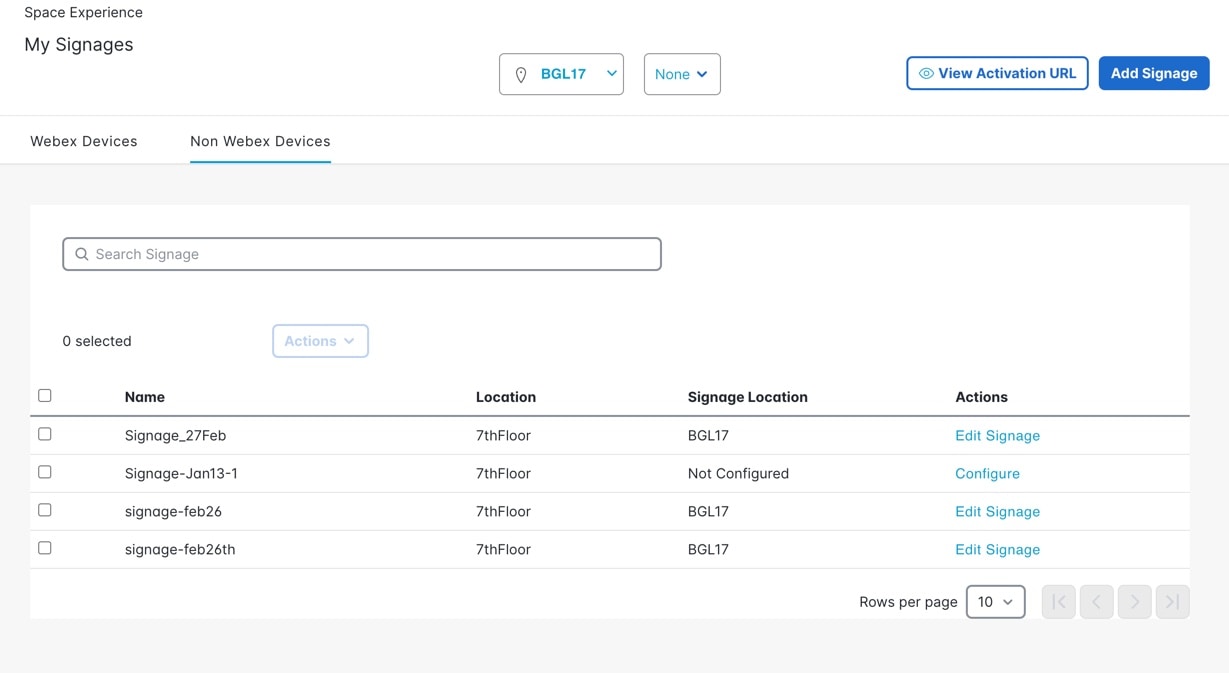
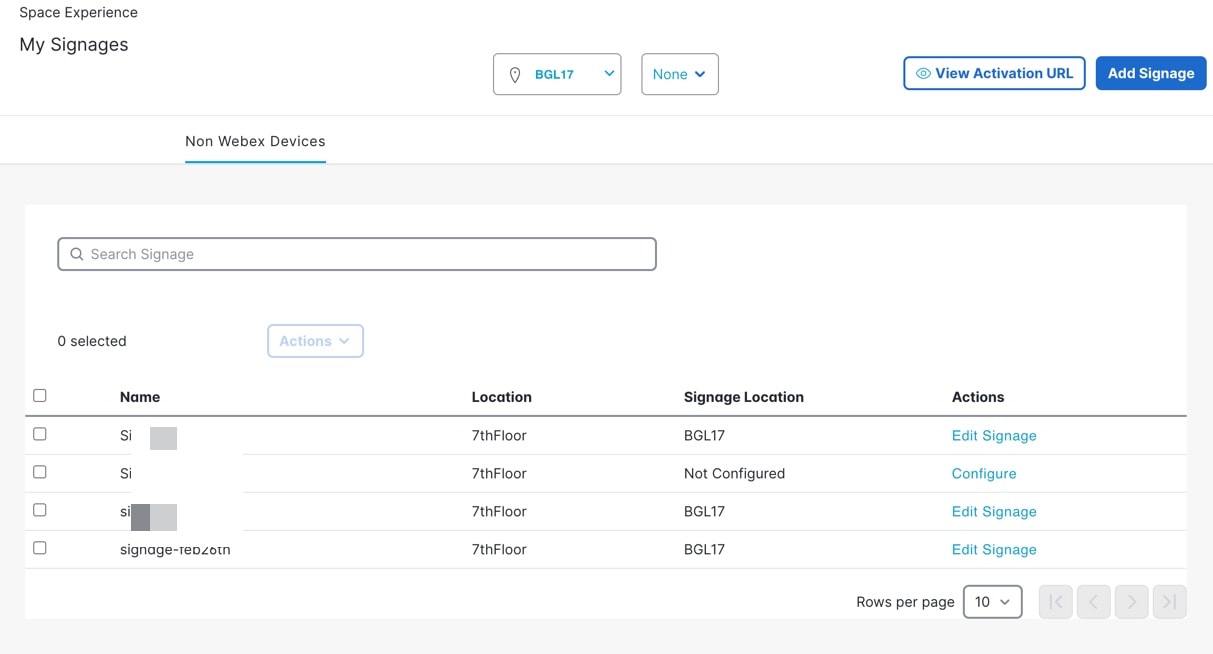
The Signages table is displayed listing existing non-Webex signages and their locations. Use the Search field to search for signages.

Step 4

From the filter options drop-down list, choose the building and floor.

Figure 2. Space Experience App

Step 5

To generate an activation code for a non-Webex signage, click View Activation URL.

Step 6

To activate the signage, copy and paste the URL in a browser on the signage.

Step 7

Click Add Signage to add a new signage.

The new signage is displayed in the My Signages page.

Step 8

To configure the new signage, click Configure and follow the on-screen instructions.

Step 9

(Optional) Perform these actions:

  1. Check the check box next to the signage and from the Actions drop-down list, choose Delete to remove the selected signage.

  2. Select the check box next to the signage, then, in the Actions column, click Edit Signage to update the signage details.


Add a Signage

This task shows you how to add non-Webex signages using Space Experience.

Procedure


Step 1

In the Space Experience app, click the My Signages tab.

Step 2

Click Non-WebEx Devices tab.

Step 3

Click Add Signage.

The Add Signage window is displayed.
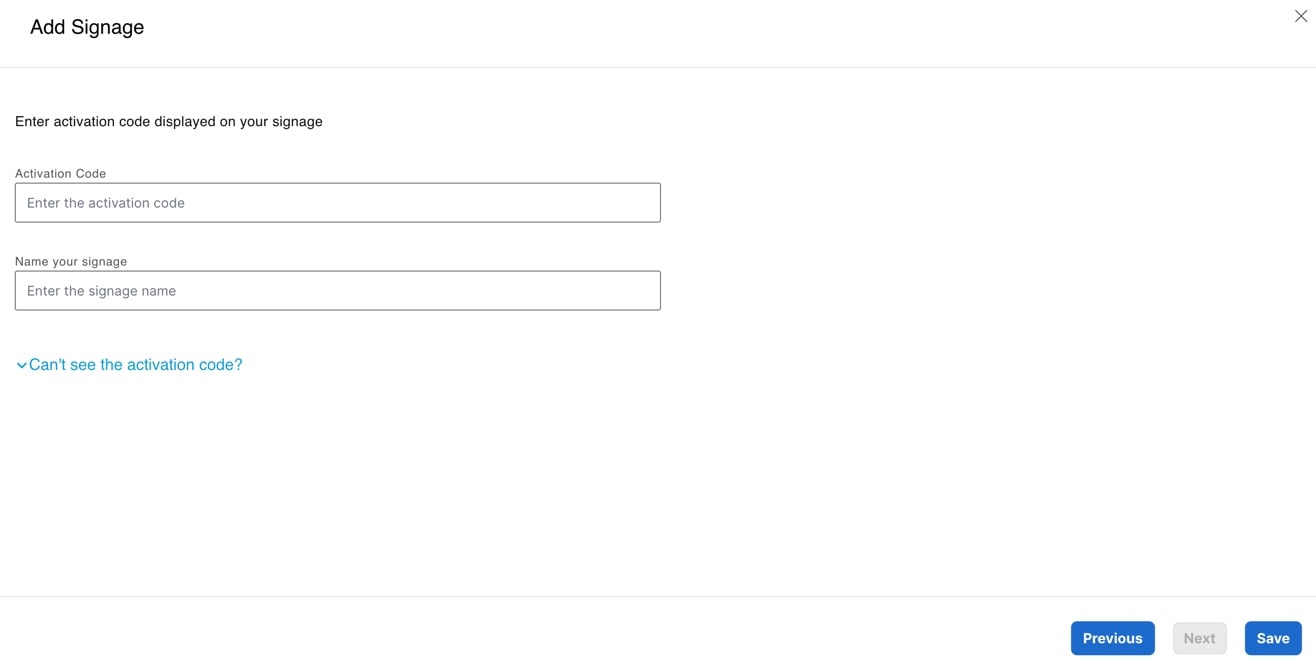
Figure 3. Add Signage

Step 4

Enter these details:

  1. In the Activation Code field, enter the activation code.

  2. If you cannot view the activation code, click Can't see the activation code? drop-down and copy the URL and launch the web browser on your signage and paste the URL.

    An activation code is generated in your signage web browser.
  3. In the Name your signage field, enter a new name for the signage.

Step 5

Click Save.


Configure Signage

Use the Configure Signage page to configure digital signage display and preview the result in real time in the Building/Floor View.

Procedure


Step 1

To configure the new signage, click Configure.

The Configure Signage page is displayed with two tabs Building View and Floor View.

Step 2

In the Signage type & view area, configure the signage type and view details.

  1. Choose the signage type. The options are: Interactive and Non Interactive.

  2. Choose the signage view. The options are: Building and Floor.

  3. From the Location drop-down list, select the location.

  4. Check the Override Lat Long check box to override the values. Provide the latitude and longitude values for the map location. These values are mandatory if you check the Override Lat Long option.

  5. Click Next to proceed to the next step.

Figure 4. Step 1: Signage type & view

Step 3

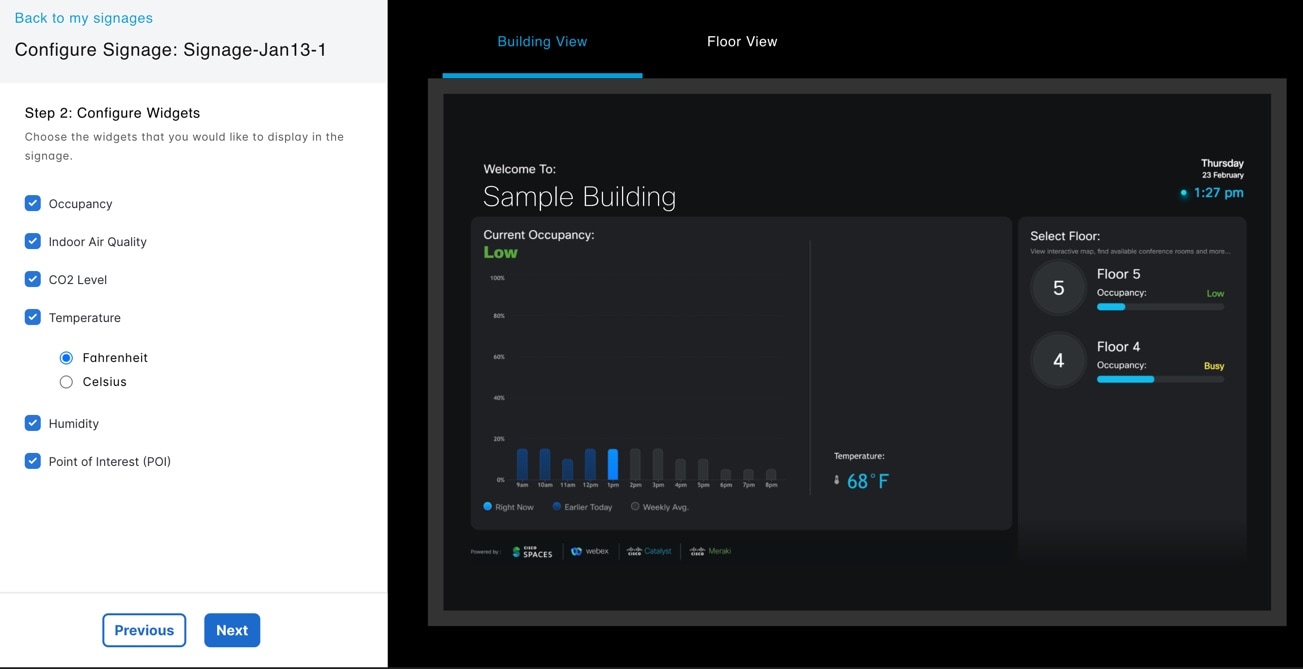
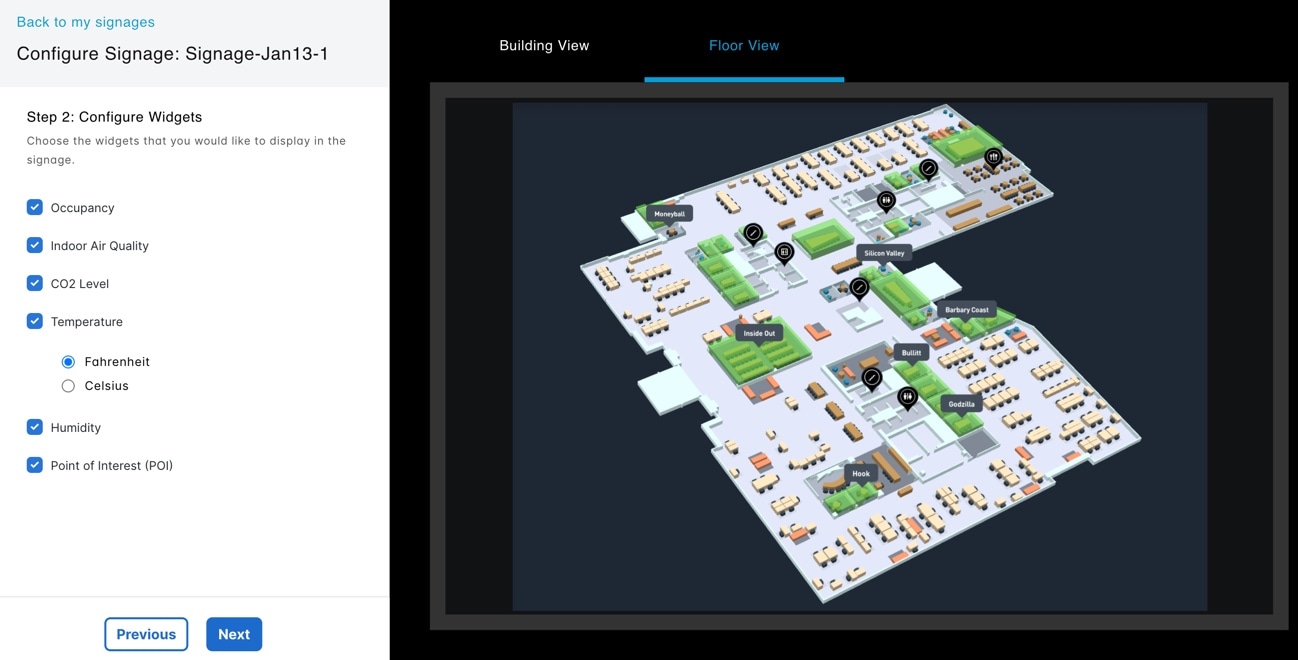
In the Configure Widgets area, select the check boxes for the widgets you want to display on the signage.

  1. Check the widget check box options:

    • Occupancy: Displays occupancy status and occupancy trends in the signage.

    • Indoor Air Quality: Displays Indoor Air Quality information in the signage.

    • CO2 Level: Displays the CO2 readings/indicator level on the signage.

    • Temperature: Displays temperature in Fahrenheit or Celsius on the signage.

    • Humidity: Displays humidity information on the signage.

    • Point of Interest (POI): Displays POI-related content on the signage.

    Figure 5. Step 2: Configure Widgets - Building View
    Figure 6. Step 2: Configure Widgets - Floor View
  2. Click Next to proceed to the next step.

Step 4

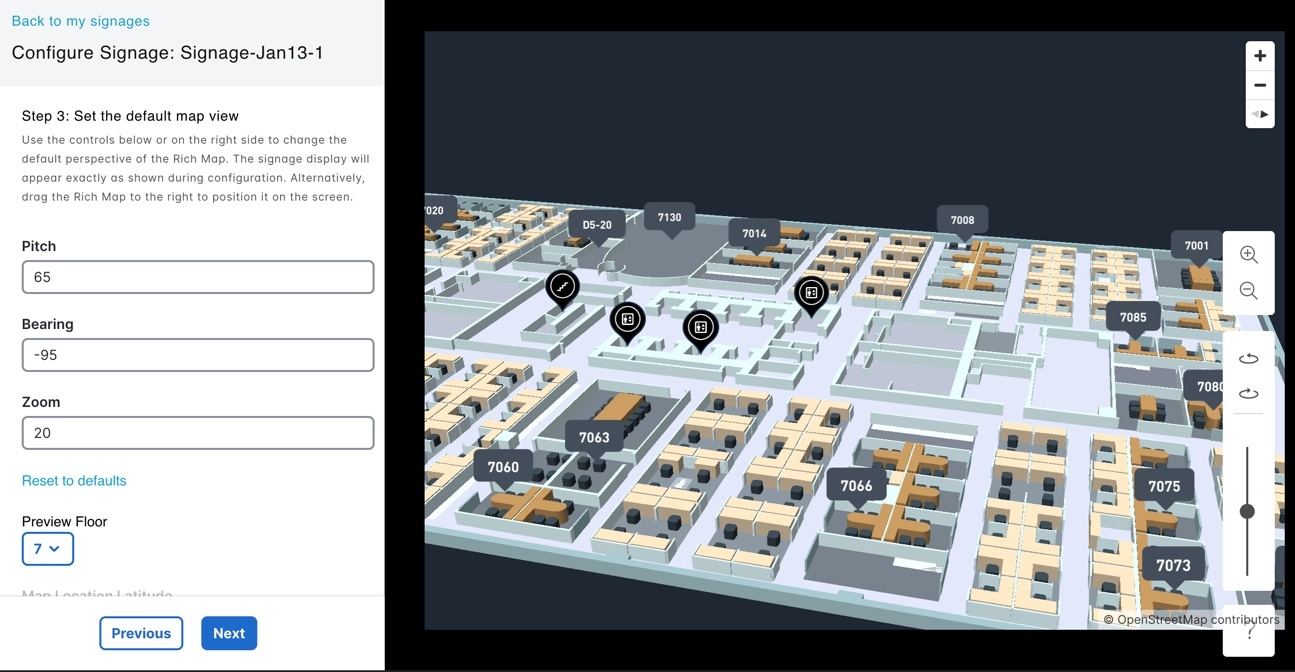
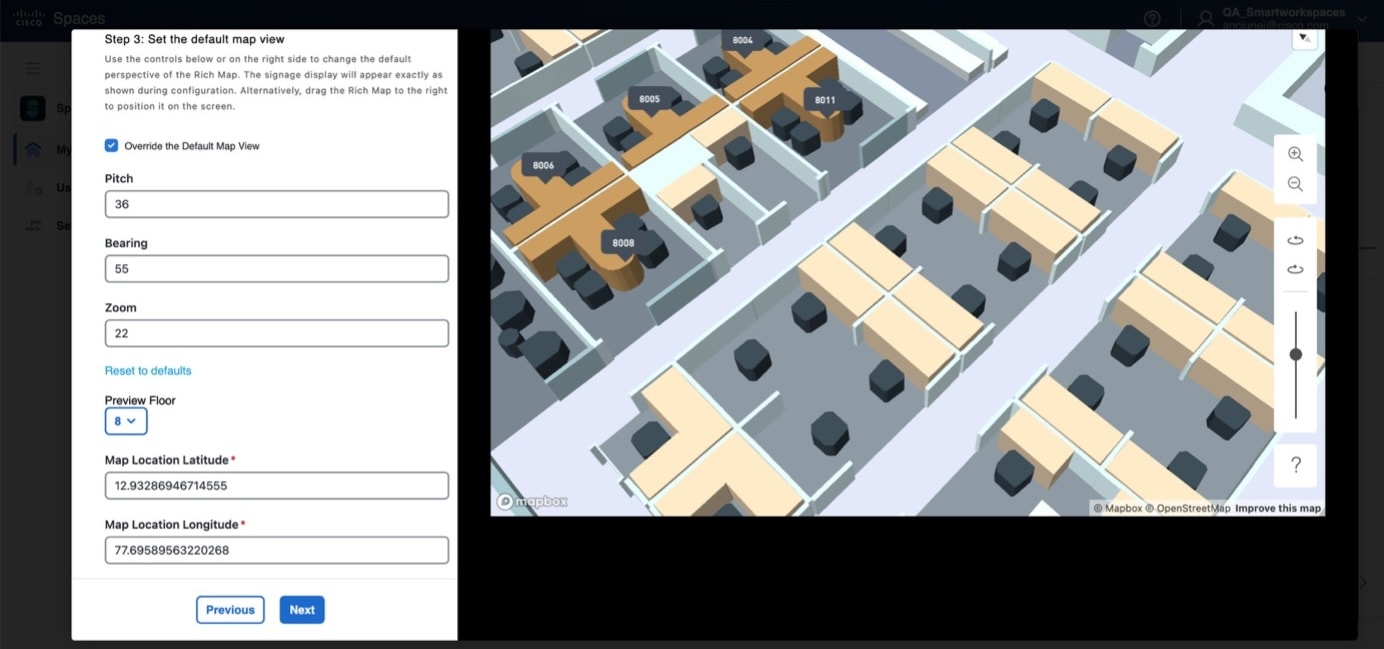
In the Set the default map view area, use the controls available or on the right pane to change the default perspective of the Rich Map.

  1. Configure these map view settings:

    • Pitch: Use the arrows to set the value.

    • Bearing: Use the arrows to set the value.

    • Zoom: Use the arrows to set the value.

  2. (Optional) Click Reset to defaults to restore the configured map view settings to the system default values.

  3. From the Preview Floor drop-down list, select the floor.

  4. View the Map Location Latitude and Map Location Longitude values.

  5. Click Next to proceed to the next step.

Figure 7. Step 3: Set the default map view

Step 5

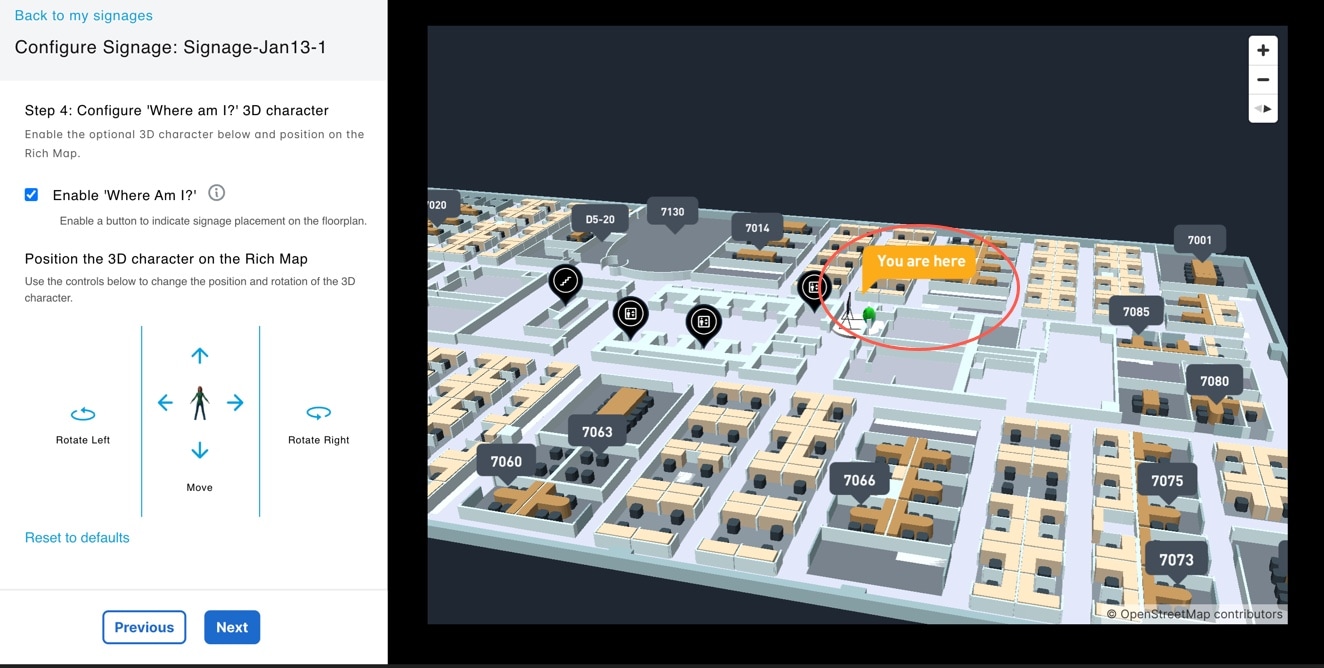
In the Configure 'Where am I?' 3D character area, enable the optional 3D character and position on the Rich Map.

  1. Check the Enable 'Where Am I?' check box to display the You are here indication in the signage on the displayed floor plan.

  2. Use the controls to change the position and rotate the 3D character.

    The options are:

    • Rotate Left

    • Rotate Right

    • Move (all four directions)

  3. (Optional) Click Reset to defaults to restore the configured map view settings to the system default values.

  4. Click Next to proceed to the next step.

Figure 8. Step 4: Configure 'Where am I?' 3D character

Step 6

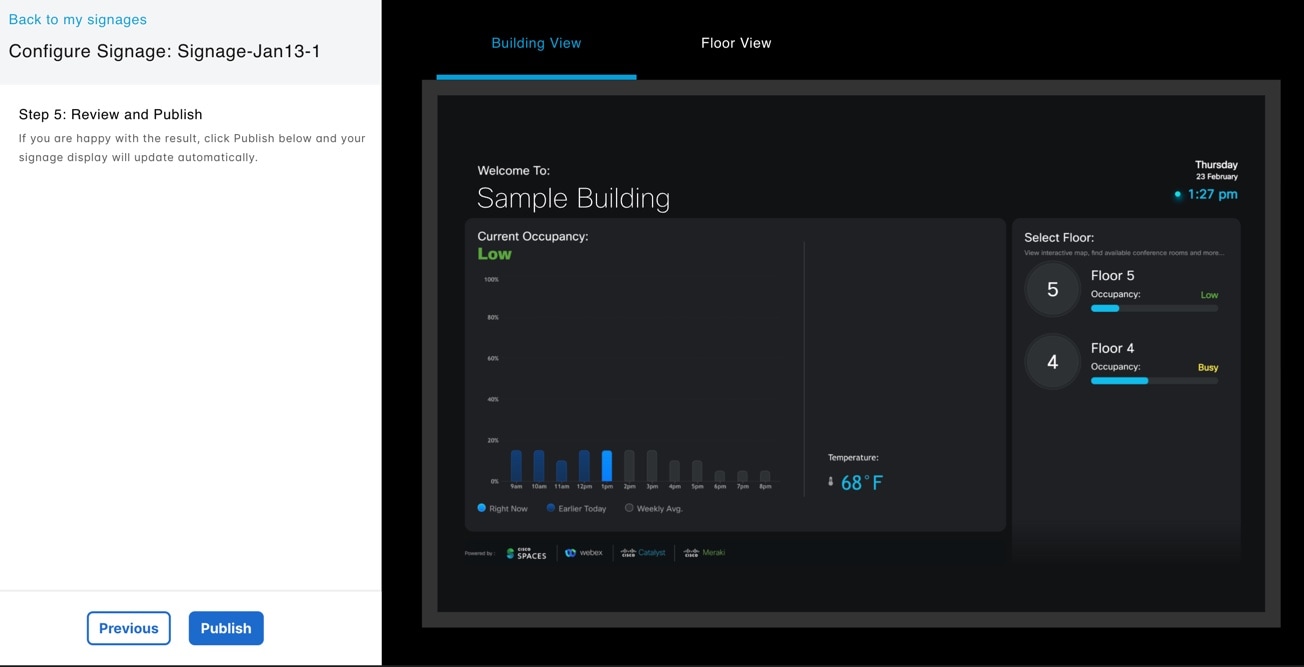
In the Review and Publish area, review the signage configuration and click Publish.

Figure 9. Step 5: Review and Publish

What to do next

The signage configuration is published. The My Signages page displays the signage. You can click Edit Signage to update and republish.

Manage Users

Procedure


Step 1

In Cisco Spaces, choose Dashboard > Space Experience.

The Space Experience window is displayed.

Step 2

In the left navigation pane, click User Management.

Step 3

In the User Management window, click the Users tab.

Step 4

To invite other Cisco Spaces users to use the Space Experience app, click Invite User.

Step 5

Specify these parameters.

  1. Enter the user's email address associated with their Cisco Spaces account.

  2. Choose the role depending on the user's access privilege. You can choose between Read Write User (full access) or Read Only User (read-only access).

    Note


    To view user roles available in Space Experience, in the User Management window, click the Roles tab.

  3. Click Choose Locations to view all locations. Location from the Location Hierarchy available in Cisco Spaces are displayed.

Step 6

Click Send Invitation.

Step 7

To delete an existing user, in the Users table, select the desired user(s) and click Delete.

The Users table is displayed listing available users and their assigned roles.