Create a new section
Procedure
|
Step 1 |
Click + ADD SECTION. 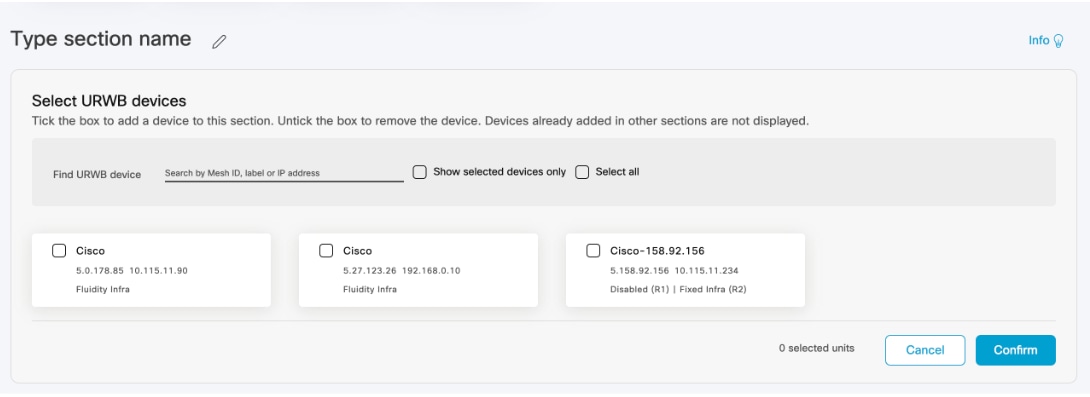
|
||
|
Step 2 |
Click |
||
|
Step 3 |
Use the search box to find the URWB devices by mesh ID, label (assigned device name), or the device IP address. |
||
|
Step 4 |
Select the Show selected devices only checkbox to view uncategorized devices. Uncategorized devices are not yet assigned to any section. They are displayed separately.

Select Select all checkbox to select every device in the list, or select devices individually. |
||
|
Step 5 |
Click Confirm to add the selected devices to the new section. |
 to enter a section name.
Set maximum number of devices
You can set the maximum number of devices that can be included in a section. The default value for each section is 200 devices.
Procedure
|
Step 1 |
Navigate to . |
|
Step 2 |
Set the Maximum number of devices for the section. 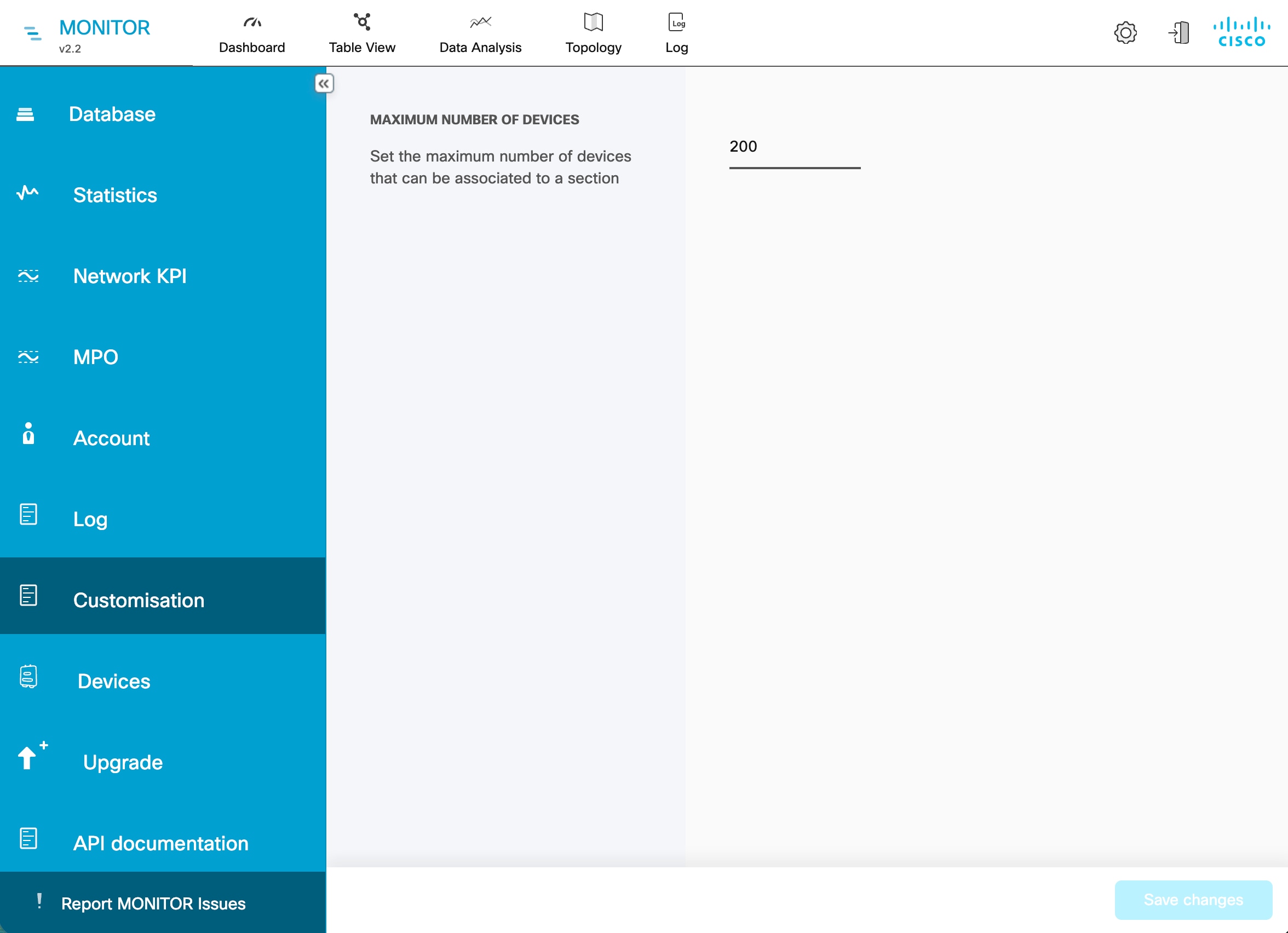 |
|
Step 3 |
Click Save changes. |
 of the section.
 Feedback