Upload Cisco CMX ISO Image to an M6 appliance


Note


Make sure the Serial over Lan (SoL) functionality is enabled on the Cisco Unified Communication System (UCS). To enable SoL on the Cisco UCS server, use the set enabled yes command.

For more information on enabling SoL, refer to the Cisco UCS documentation on Cisco.com.


Mount the Cisco ISO image on an M6 appliance

Mount the Cisco ISO image on a supported M6 appliance to prepare the system for Cisco CMX installation, ensuring the device is correctly configured and ready for the deployment process.

You perform this task when installing Cisco CMX software on an M6 appliance. Mounting the ISO image enables the appliance to boot from the installation media and proceed with the Cisco CMX setup. This step ensures the correct operating environment is ready before starting the deployment process.

Before you begin

Before you start the installation, we recommend that you manually configure the boot order. The Cisco CMX ISO image deployment is supported only on M6 devices.

Follow these steps to mount the Cisco ISO image.

Procedure


Step 1

Download the Cisco CMX 11 image from Download Software page.

Step 2

Power up the Cisco CMX M6 appliance and configure the CIMC IP Address and user credentials.

Step 3

Log in to CIMC IP using Internert Explorer and from the left pane, click Menu > Compute > BIOS tab.

Step 4

From the Configured Boot Mode drop-down list, choose:

  1. Check the UEFISecure Boot check box.

  2. From the UEFI drop-down list, choose UEFI as configured mode.

Step 5

Follow the on screen instructions to reboot the system.
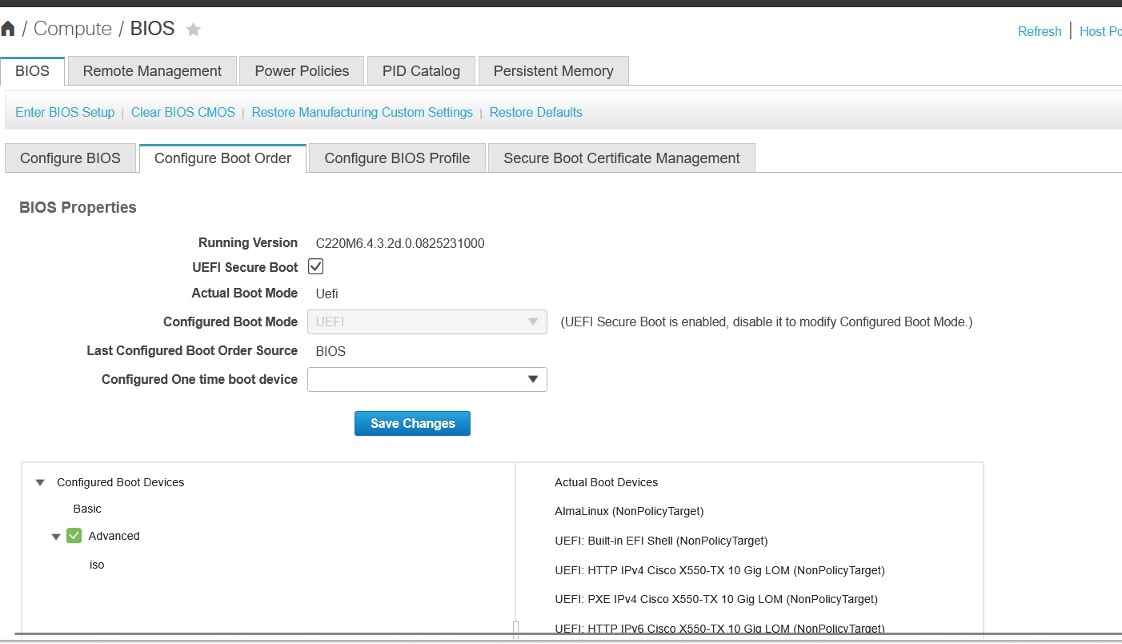
Figure 1. Configure Boot Order Options for Cisco CMX 11
The host reboot process is initiated.

Step 6

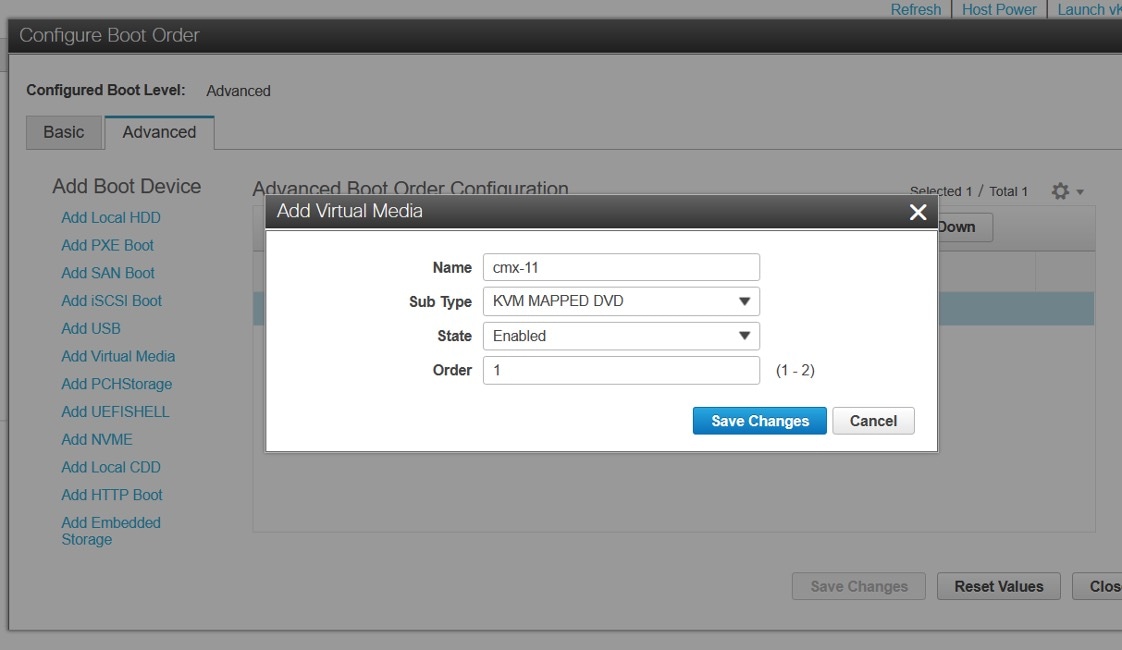
Click Configure Boot Order. The option is displayed at the right end of the window.

  1. In the Configure Boot Order window, click the Advanced tab.

  2. Click Add Virtual Media and enter a name for the new virtual media.

  3. From the Sub Type drop-down list, choose KVM MAPPED DVD.

  4. Click Save Changes.

    Figure 2. Cisco Integrated Management Controller

    The new virtual media is created and enabled.

Step 7

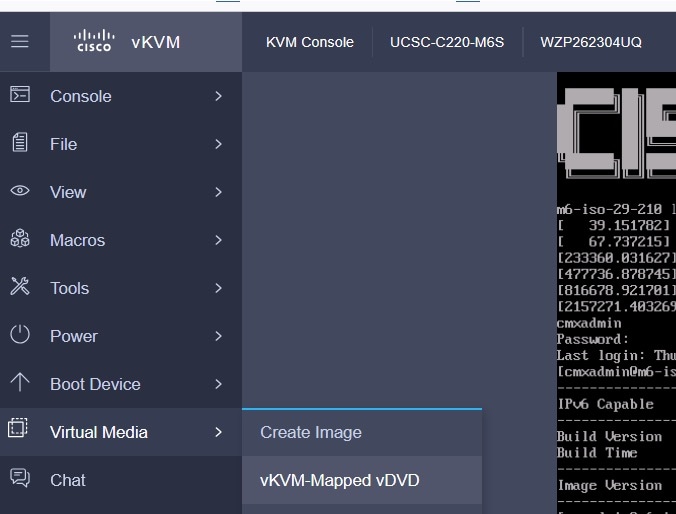
To map the locally downloaded CMX ISO, click Virtual Media > vKVM-Mapped vDVD.

Figure 3. vKVM-Mapped vDVD

Step 8

Use the Browse option to select the ISO file.
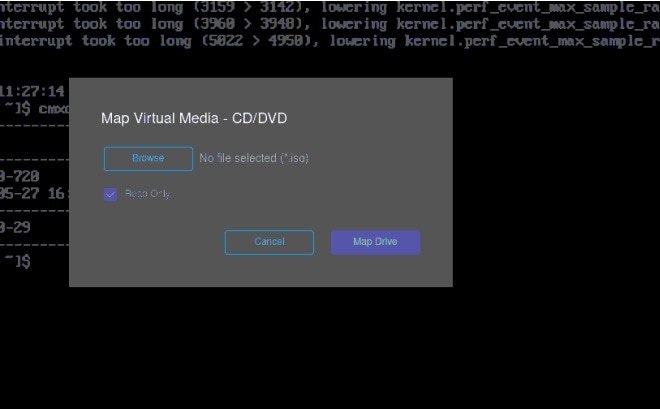
Figure 4. Browse ISO file

Step 9

To map the selected ISO file, click Map Drive.
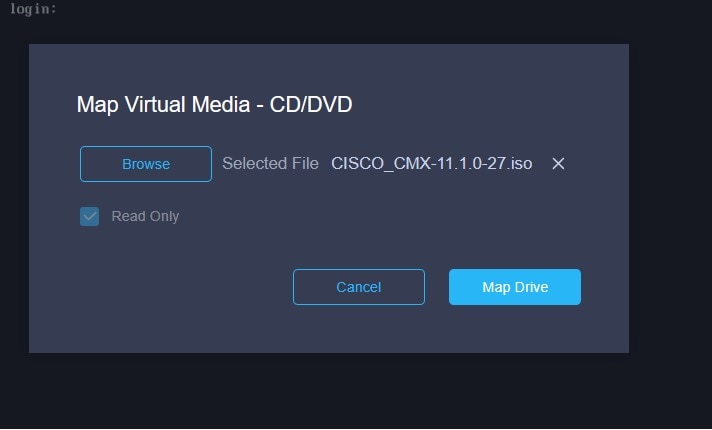
Figure 5. Map Drive

What to do next

To deploy the Cisco CMC ISO image, see Deploy a Cisco CMX 11 ISO image on an M6 appliance.

Deploy a Cisco CMX 11 ISO image on an M6 appliance

Install Cisco CMX 11 on an M6 device using the ISO image.

Use this procedure to deploy or upgrade Cisco CMX on an M6 device. This process differs from previous versions such as CMX 10.6.3 due to OS and hardware changes.

Deploying the Cisco CMX 11.1.1 ISO version differs from deploying the Cisco CMX 10.6.3.

Procedure


Step 1

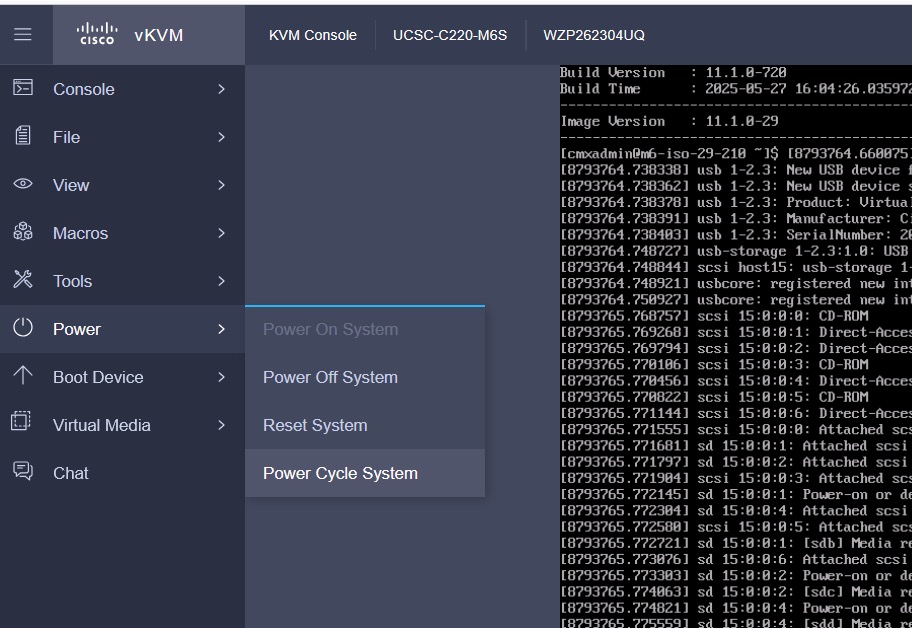
After mounting the Cisco CMX ISO image, in the Kernel-based Virtual Machine (vKVM) virtualization module, select Power > Power Cycle System.

Figure 6. Power Cycle System

Step 2

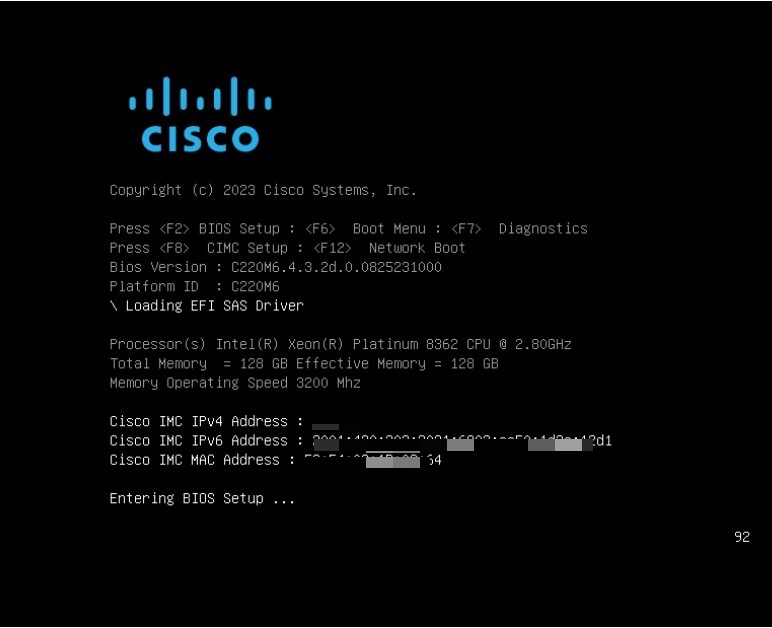
To enter into BIOS setup, press F2.

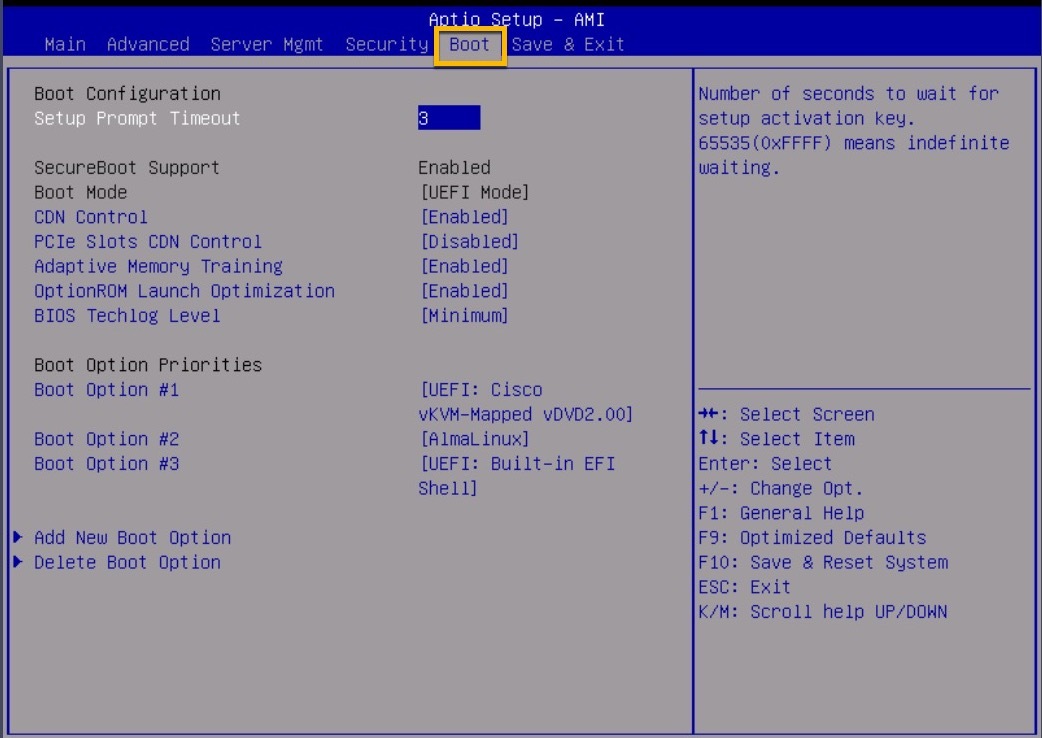
If Cisco CMX 11 ISO is installed before, it is possible that the AlmaLinux boot option is displayed.

If the AlmaLinux boot option is not displayed, skip the next steps and see step 5.

Figure 7. AlmaLinux Boot Option

Step 3

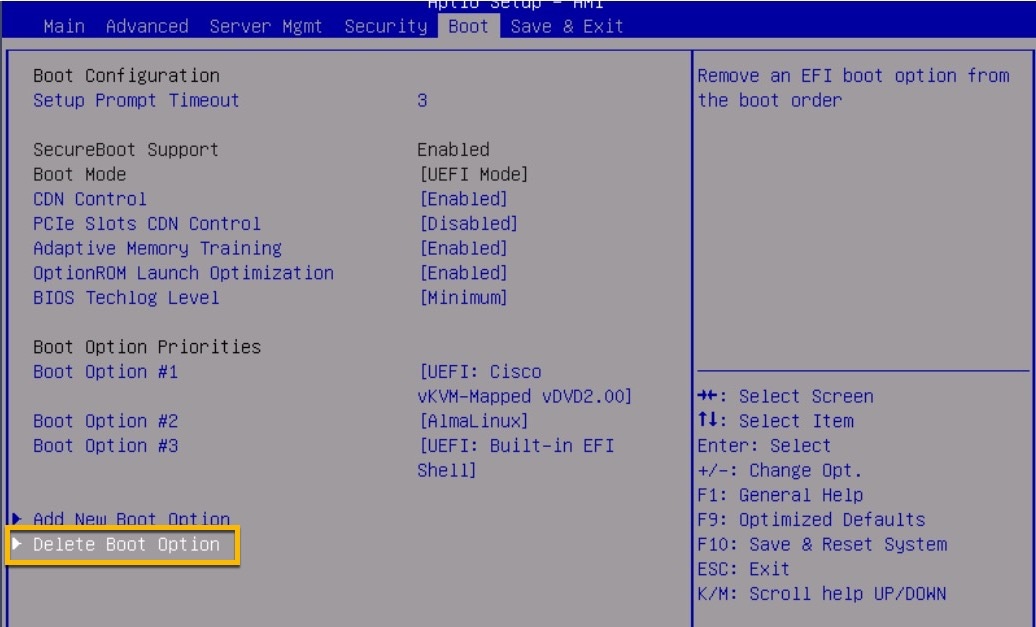
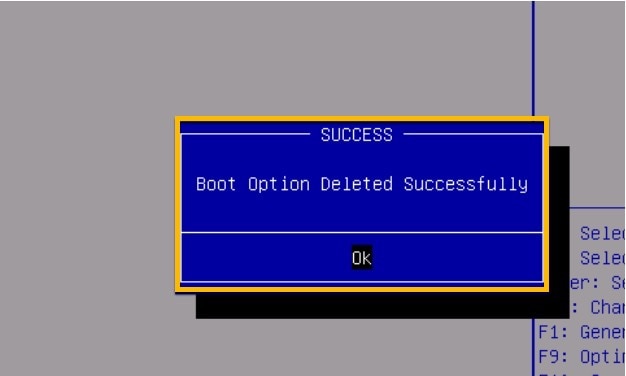
Select Delete Boot Option (at the end of the window) and press Enter.

Figure 8. Delete Boot Option
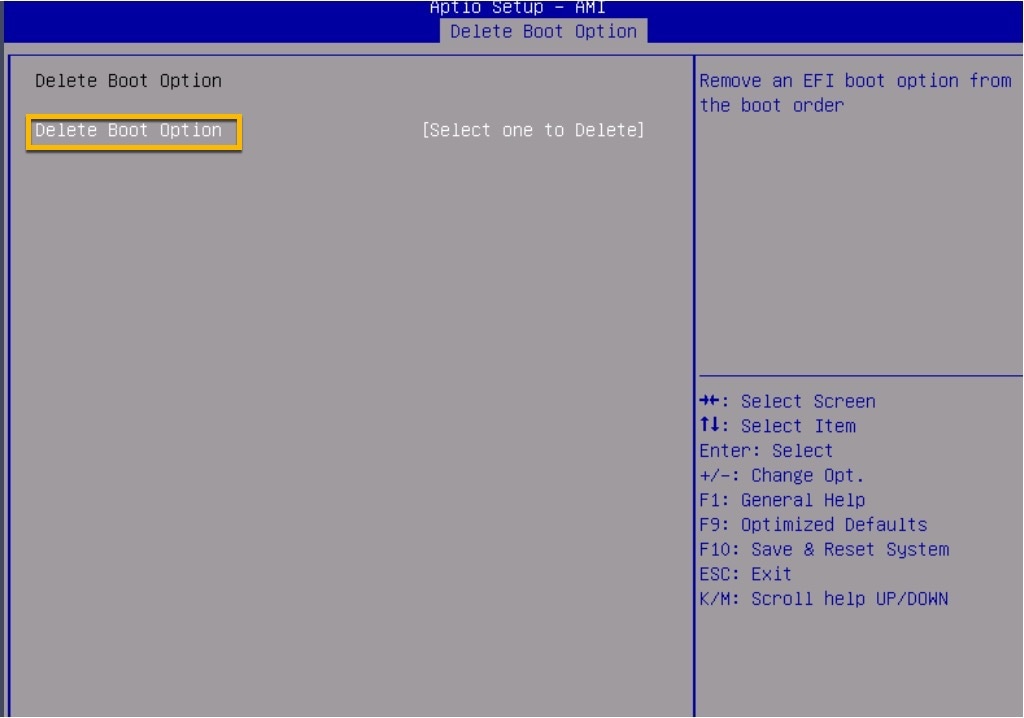
Figure 9. Delete Boot Option Sequence

Step 4

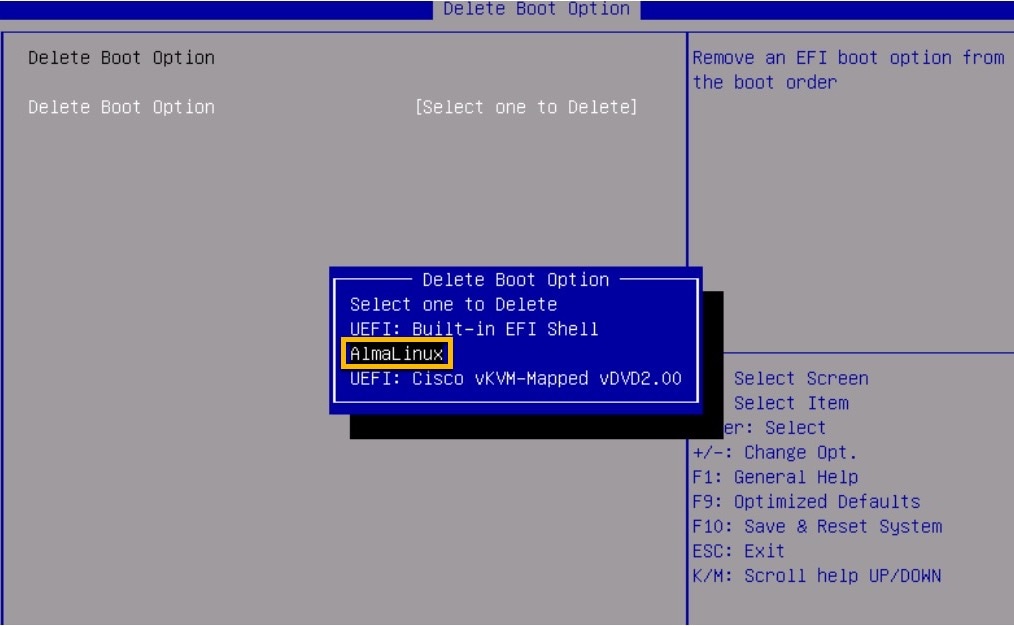
Select AlmaLinux option and remove the same.

Figure 10. Delete Boot Option - AlmaLinux

Step 5

To exit from the current window, press esc.

Step 6

Navigate to the Boot Options tab.

Step 7

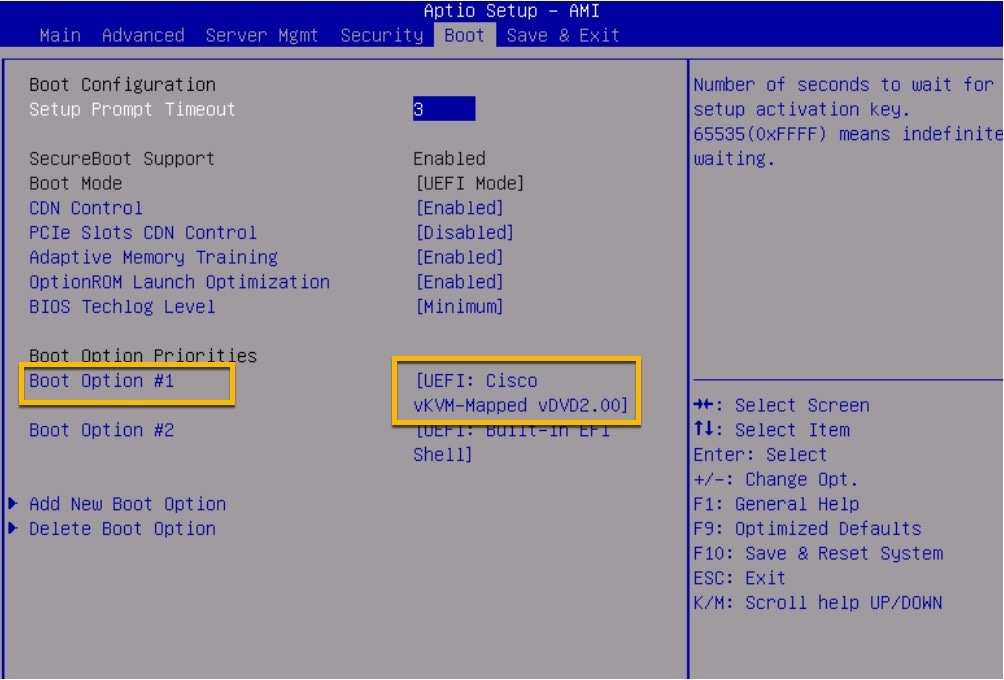
In the Boot Option Priorities section, to change the order of the boot options, select the particular entry and press the Shift and (+/-) keys at the same time to rearrange the entry up or down.

Verify that [UEFI: Cisco vKVM-Mapped] gets the first preference in the order. [UEFI: Cisco vKVM-Mapped] must display as boot option one.

Step 8

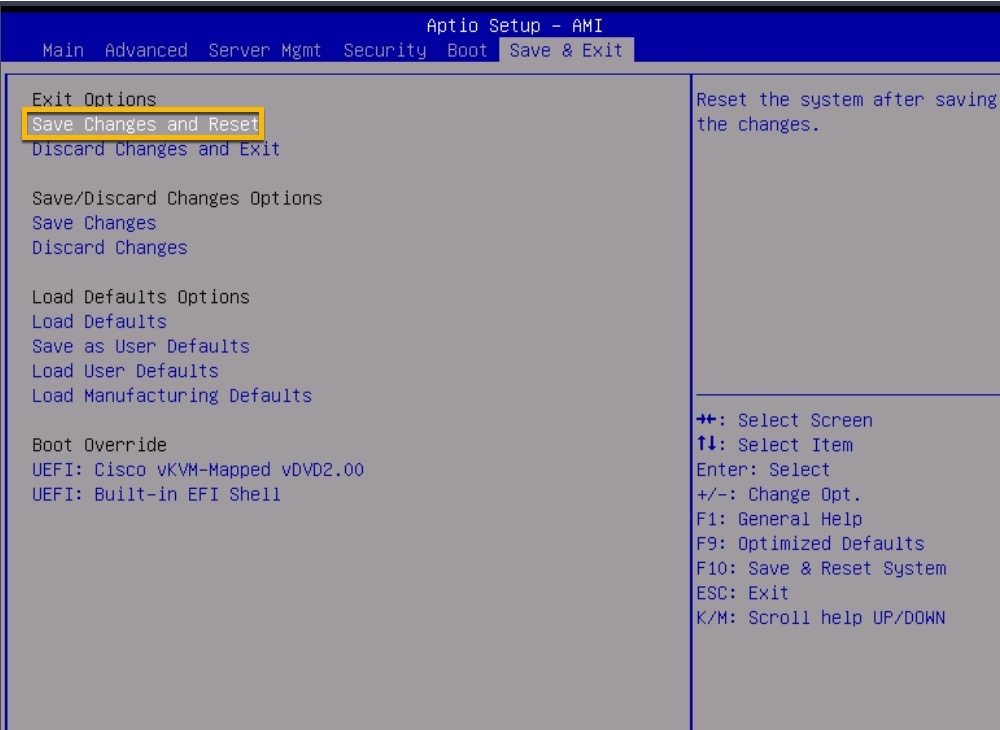
Navigate to the Save & Exit tab, select Save Changes & Reset and press Enter.

Step 9

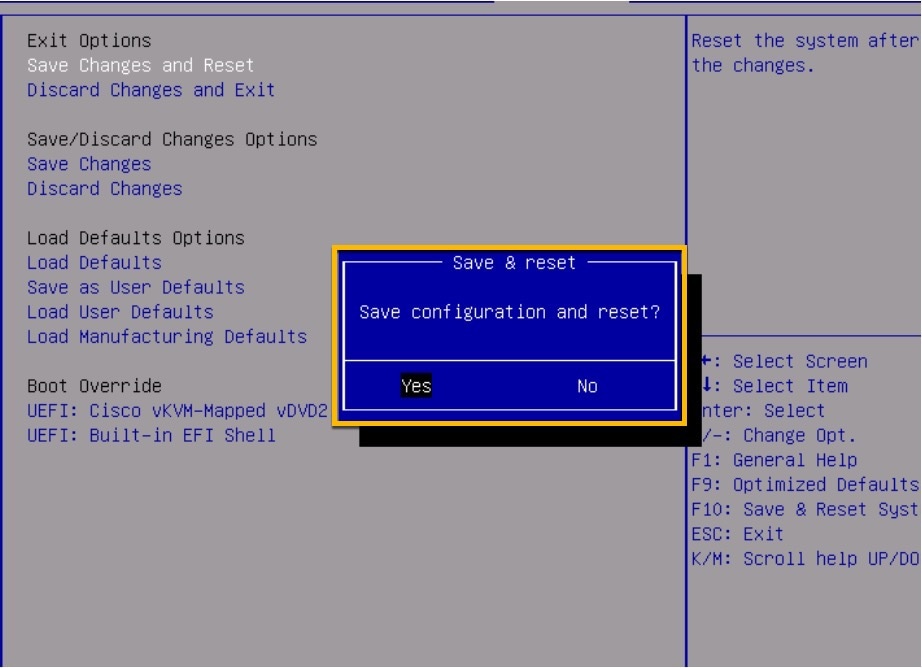
In the Save & reset pop-up window, select Yes to save configuration and reset and then press Enter.

The boot process is initiated.

Step 10

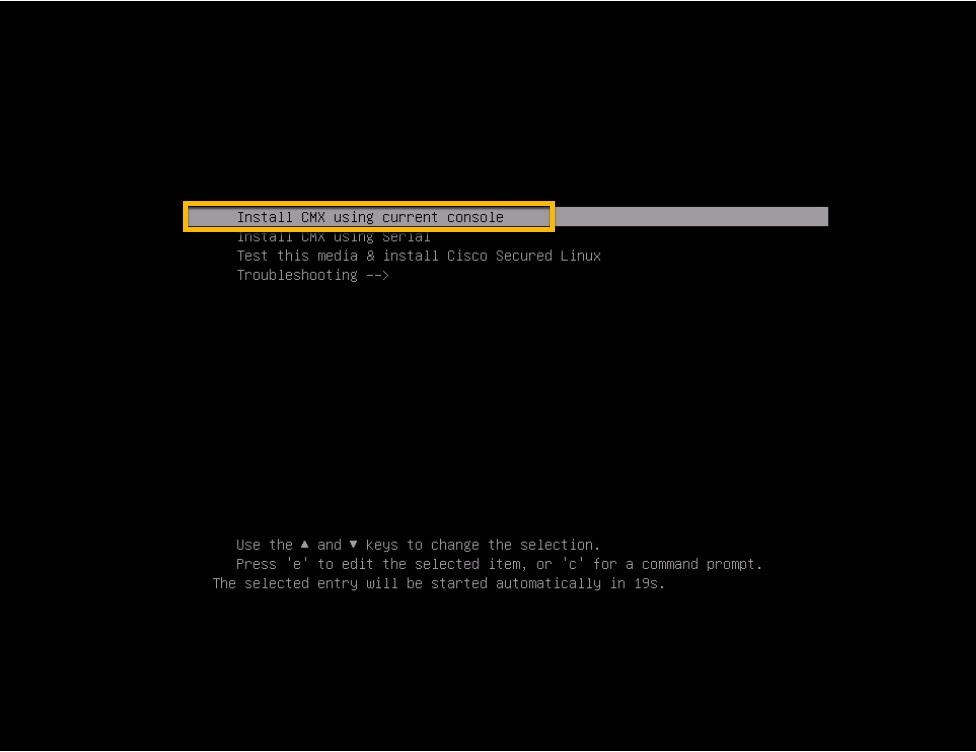
Select installation option either using the current console or serial. By default, current console is selected.

We recommend that you verify if ISO is mounted and then proceed.

Figure 11. Installation Options

Note


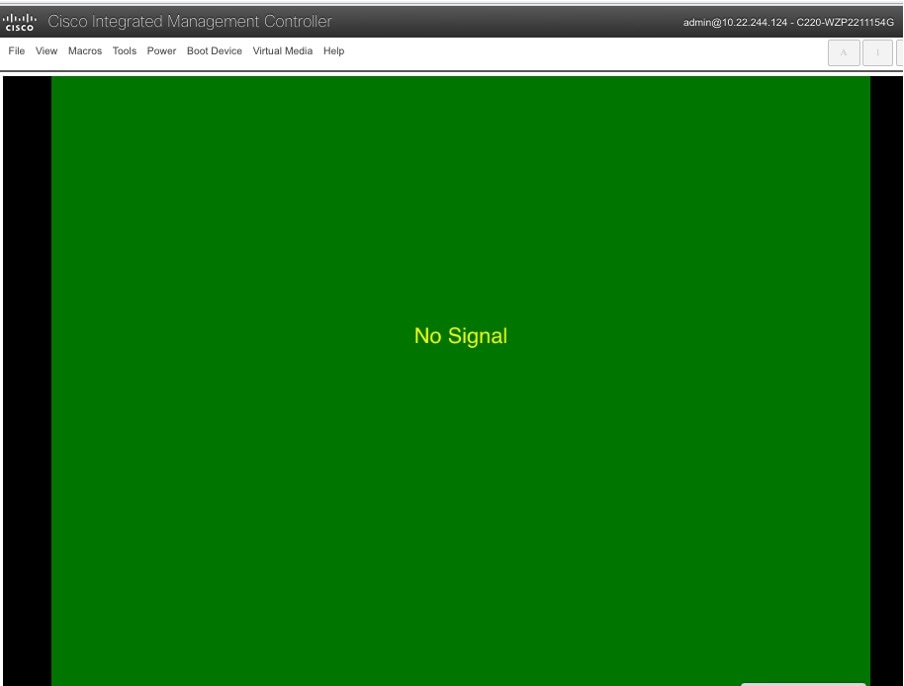
The installation process is about two to three hours. You must not reboot during this time. If a green screen is displayed with a message indicating that there is no signal, press Enter and wait.

Figure 12. No Signal Window

Note


Once you complete the Operating System (OS) installation, the system loads Alma Linux 9, and the Cisco CMX welcome window is displayed.


Cisco CMX 11 is installed on the M6 device. The device boots into Alma Linux 9 and displays the Cisco CMX Welcome window.

What to do next

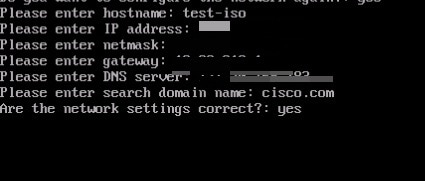
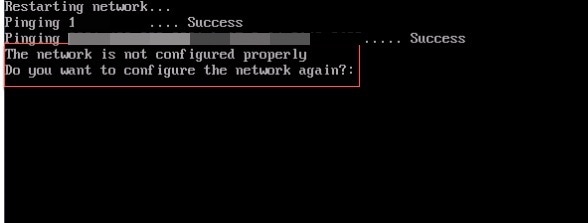
During the deployment process, you may encounter a prompt to enter the network settings, as shown below. If the network is not configured correctly, an error message is displayed. This is a known issue that may occur intermittently.

To resolve this issue, perform a warm boot of the Cisco CMX box using CIMC from the Power menu.

Figure 13. Network Settings
Figure 14. Network Configuration Error

Proceed with the Cisco CMX ISO deployment process. For more information about Cisco CMX Release 11.1.1, see Release Notes for Cisco Connected Mobile Experiences (CMX) Release 11.1.1.