Managing Wireless Settings

The Wireless Settings tab helps you to manage WLANS, Access Points, WLAN Users and Guest WLANs.

WLANs

The Cisco Mobility Express solution can control up to 16 WLANs for lightweight access points. Each WLAN has a WLAN ID (1 through 16), a Profile Name, a WLAN SSID, and can be assigned with unique security types.


Note

Management traffic is untagged and we recommend you to assign one VLAN for Management and another set of VLANs for client.


Creating WLANs using GUI

To create a WLAN using GUI, perform the following steps:

Procedure


Step 1

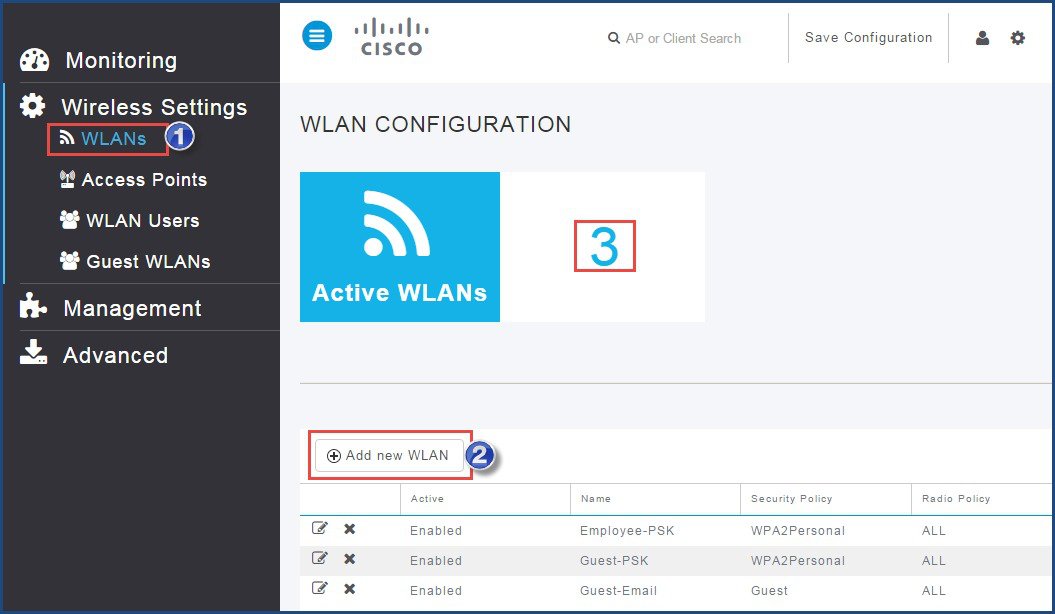
Choose Wireless Settings > WLANs.


The WLAN configuration page appears displaying the count of Active WLANs.
Step 2

Click Add New WLAN. The Add New WLAN window appears.

Step 3

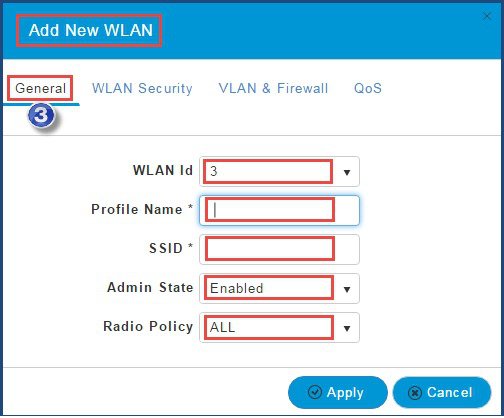
In the General tab, perform the following:

  1. The WLAN Id is automatically selected but you can change it.

  2. Enter the Profile Name for the WLAN.

  3. Enter the SSID.

  4. Choose Admin State for the WLAN from the drop-down list. The default Admin State is Enabled.

  5. Choose Radio Policy from the drop-down list. The default Radio Policy is ALL.

Step 4

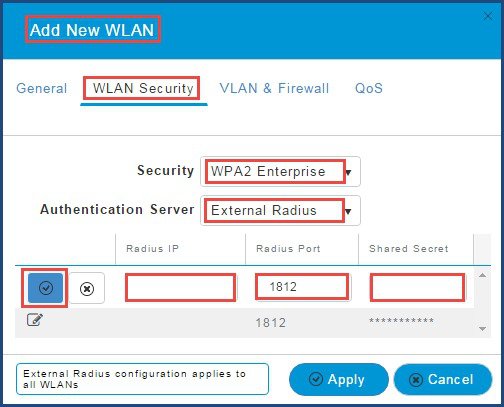
In the WLAN Security tab, perform the following:

Choose the Security type from the drop-down list. The supported security types for WLAN are:

The default Security is WPA2 Enterprise with Authentication Server as External Radius.

  • WPA2 Enterprise—Means Wi-Fi Protected Access 2 with a with a local authentication server or RADIUS server.

    1. Local Authentication (AP)—The default option is to have a local authentication method (choose AP in the Authentication Server drop-down list). This option is a Local EAP authentication method that allows users and wireless clients to authenticate locally. The Mobility Express controller serves as the authentication server using the local user database, thus removing dependence on an external authentication server.

    2. To have a RADIUS server-based authentication method, choose External Radius in the Authentication Server drop-down list. Remote Authentication Dial-In User Service (RADIUS) is a client/server protocol that enables communication with a central server to authenticate users and authorize their access to the WLAN. You can specify up to two RADIUS authentication servers. For each server you need to specify the following details:

      • Radius IP—IPv4 address of the RADIUS server

      • Radius Port—Enter the communication port of the RADIUS server. The default value is 1812.

      • Shared Secret—Enter the secret key used by the RADIUS server, in ASCII format.


  • Guest—The controller can provide guest user access on WLANs which are specifically designated for guest users. To set this WLAN exclusively for guest user access, choose the Security as Guest. You can set the authentication for guest users by choosing one of the following options in the Guest Authentication drop-down list:

    1. Require Username and Password—This is the default option. Choose this option to authenticate guests using the username and password which you can specify for guest users of this WLAN, under Wireless Settings > WLAN Users.

    2. Display Terms and Conditions—Choose this option to allow guest access to the WLAN upon acceptance of displayed terms and conditions. This option allows guest users to access the WLAN without entering a username and password.

    3. Require Email Address—Choose this option, if you want guest users to be prompted for their e-mail address when attempting to access the WLAN. Upon entering a valid email address, access it provided. This option allows guest users to access the WLAN without entering a username and password.

  • Open—Open authentication allows any device to authenticate and then attempt to communicate with the access point. Using open authentication, any wireless device can authenticate with the access point.

  • WPA2 Personal—This option stands for Wi-Fi Protected Access 2 with Pre-Shared Key (PSK). WPA2 Personal is a method of securing your network with the use of a PSK authentication. The PSK is configured separately both on the controller AP, under WLAN security policy, and on the client. WPA2 Personal does not rely on an authentication server on your network. This is used when you do not have an enterprise authentication server. If you choose this option, then specify the PSK in the Shared Key field.

Step 5

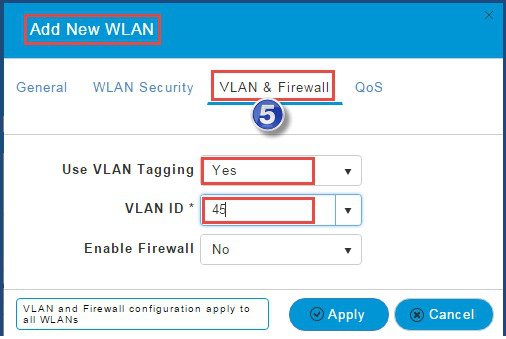
In the VLAN & Firewall tab, perform the following:
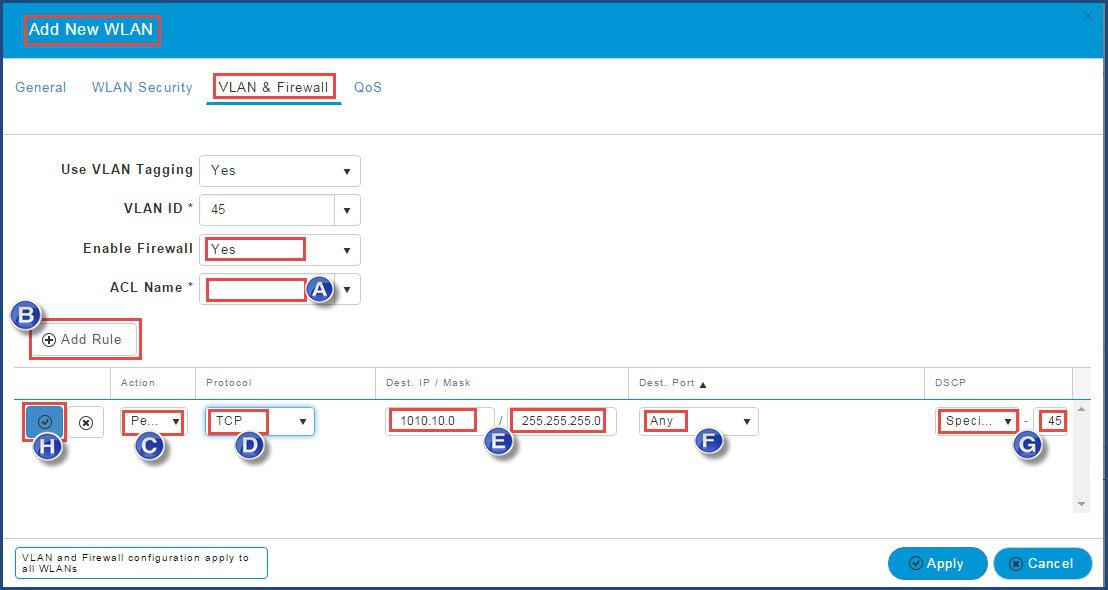
  1. Use VLAN Tagging—The default is No. If Yes is selected, enter the VLAN ID. By enabling VLAN Tagging, the chosen VLAN ID is inserted into a packet header in order to identify which VLAN the packet belongs to. This enables the controller to use the VLAN ID to determine which VLAN to send a broadcast packet to, thereby providing traffic separation between VLANs.

  2. Enable Firewall—The default is No. If Yes is selected, enter the following information:

Field Name

Description

A

ACL Name

Enter the name for the new ACL. You can enter up to 32 alphanumeric characters. The ACL name must be unique.

B

Add Rule

To set rules for the ACL, click Add Rule.
Note 

The ACL rules are applied to the VLAN. Multiple WLANs can use the same VLAN, hence inheriting ACL rules, if any.

C

Action

From the Action drop-down list, choose Deny to cause this ACL to block packets or Permit to cause this ACL to allow packets. The default is Permit. The controller can permit or deny only IP packets in an ACL. Other types of packets (such as ARP packets) cannot be specified.

D

Protocol

From the Protocol drop-down list, choose the protocol ID of the IP packets to be used for this ACL. These are the protocol options:

  • Any—Any protocol (this is the default value).

  • TCP—Transmission Control Protocol.

  • UDP—User Datagram Protocol.

  • ICMP—Internet Control Message Protocol.

  • ESP—IP Encapsulating Security Payload.

  • AH—Authentication Header.

  • GRE—Generic Routing Encapsulation

  • IP in IP—Internet Protocol (IP) in IP (permits or denies IP-in-IP packets).

  • Eth Over IP—Ethernet-over-Internet Protocol

  • OSPF—Open Shortest Path First.

  • Other—Any other Internet Assigned Numbers Authority (IANA) protocol. If you choose Other, enter the number of the desired protocol in the Protocol text box. You can find the list of available protocols in the IANA website.

E

Dest. IP / Mask

In the Dest. IP / Mask field, enter the IP address and netmask of the specific destination.

F

Dest. Port

If you have chosen TCP or UDP, you need to specify a Destination Port. This destination port can be used by applications that send and receive data to and from the networking stack. Some ports are designated for certain applications such as Telnet, SSH, HTTP, and so on.

G

DSCP

From the DSCP drop-down list, choose one of these options to specify the differentiated services code point (DSCP) value of this ACL. DSCP is an IP header text box that can be used to define the quality of service across the Internet.

  • Any—Any DSCP (this is the default value).

  • Specific—A specific DSCP, ranges from 0 to 63, which you can enter in the DSCP edit box.

Step 6

Click Apply to save ACL.

Step 7

In the QoS tab, perform the following:
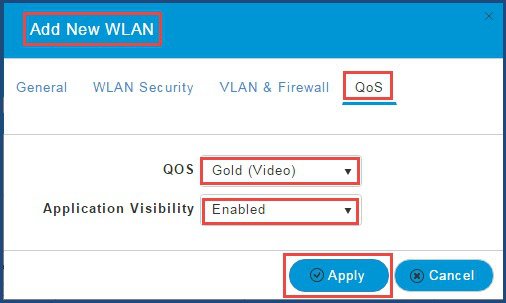
  1. QOS—Quality of service (QoS) refers to the capability of a network to provide better service to selected network traffic over various technologies. The primary goal of QoS is to provide priority including dedicated bandwidth, controlled jitter and latency (required by some real-time and interactive traffic), and improved loss characteristics. The Cisco Mobility Express controller supports the following four QoS levels. Under the QoS tab, from the QoS drop-down list, you can choose one of the following QoS levels:

    • Platinum/Voice—Ensures a high quality of service for voice over wireless.

    • Gold/Video—Supports high-quality video applications.

    • Silver/Best Effort—Supports normal bandwidth for clients and this is the default setting.

    • Bronze/Background—Provides the lowest bandwidth for guest services.

  2. Application Visibility—Application Visibility classifies applications using the Network-Based Application Recognition (NBAR2) engine, and provides application-level visibility in wireless networks. Application Visibility enables the controller to detect and recognize more than 1000 applications and perform real-time analysis. Application Visibility is enabled by default on WLANs. Protocol Pack version 13.0 and Engine version 16.0 is supported.

Step 8

Click Apply.


Access Points

Managing Access Point using GUI

To manage the access points that are associated with the Mobility Express controller using GUI, perform the following steps:

Procedure


Step 1

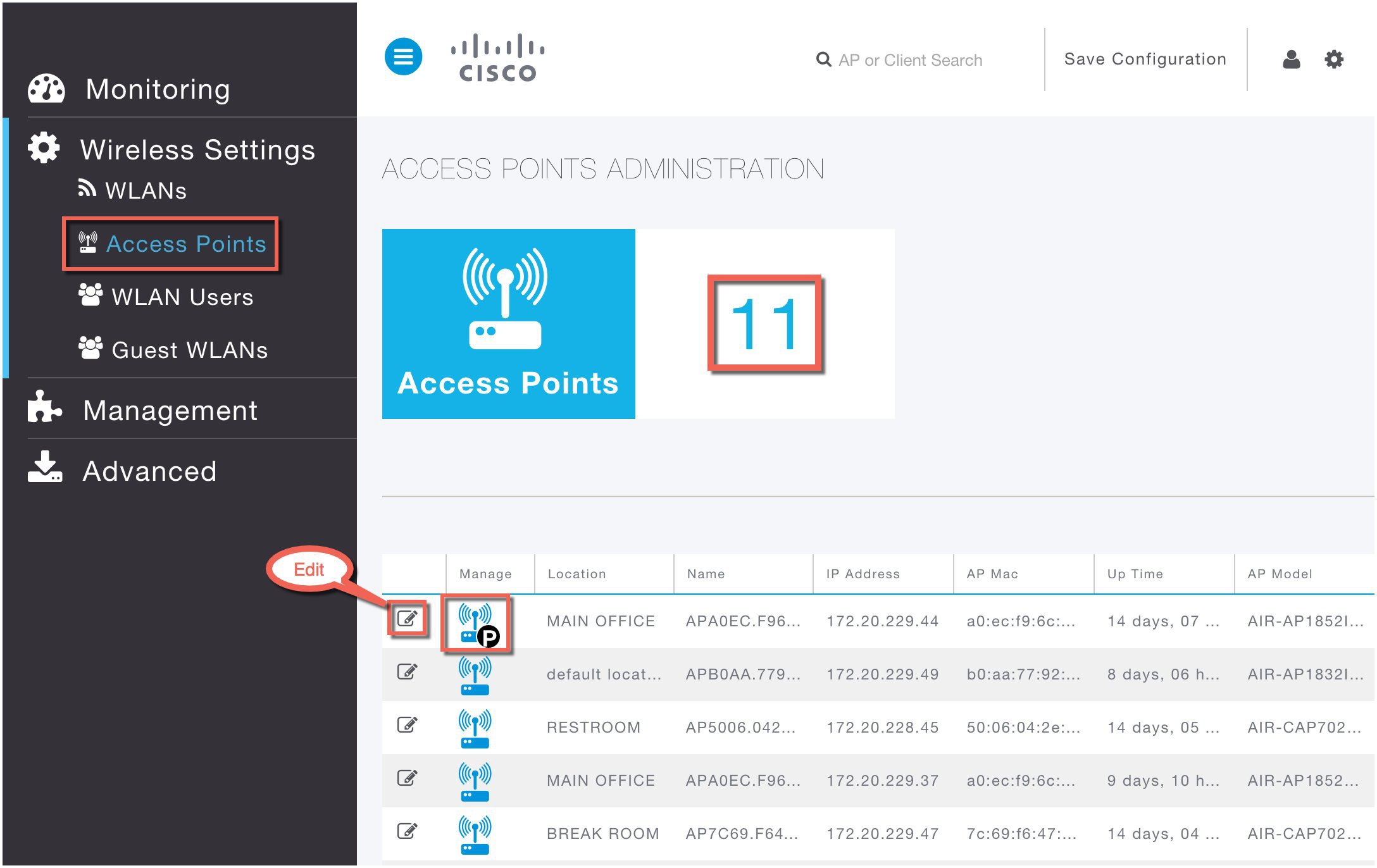
Click Wireless Settings > Access Points.

The Access Point Administration page displays the count of access points and Access Point table with the associated APs.
Note 

The AP table displays the first 10 APs on first page and the other APs on the next page.


The primary AP and Subordinate AP icons are as shown:

Figure 1. Primary AP Icon
Figure 2. Subordinate AP Icon
Step 2

Click Edit.

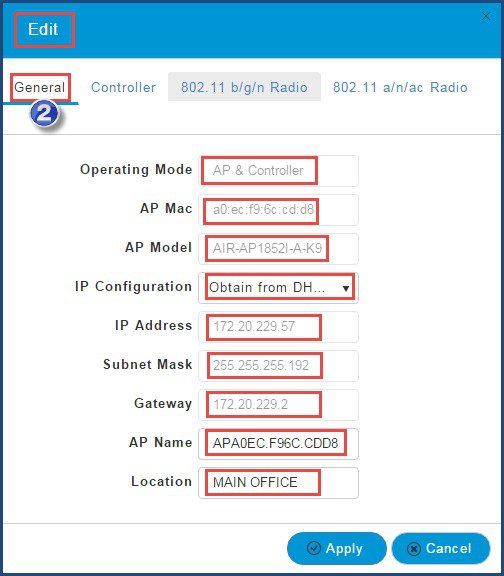
The Edit window displaying general parameters of access point appears.

The General tab displays the following AP parameters:

  • Operating Mode(Read only field)—For a primary AP, this field displays AP & Controller. For other associated APs, this field displays AP only.

  • AP Mac(Read only field)—Displays the MAC address of the Access Point.
  • AP Model(Read only field)—Displays the model details of the Access Point.
  • IP Configuration—Choose Obtain from DHCP to allow the IP address of the AP be assigned by a DHCP server on the network, or choose Static IP address. If you choose Static IP address, then you can edit the IP Address, Subnet Mask, and Gateway fields.
  • AP Name—Edit the name of access point. This is a free text field.

  • Location—Edit the location for the access point. This is a free text field.


Step 3

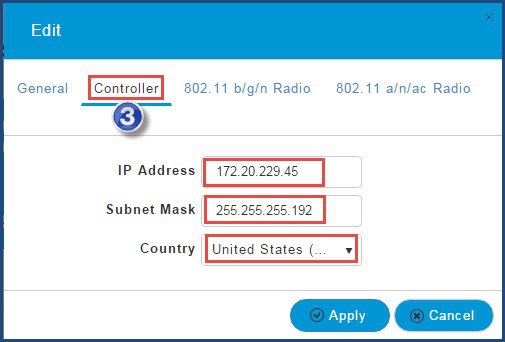
Click Controller to edit the following parameters for the Mobility Express controller:

Note 

The Controller option is available only for primary AP.

  • IP Address—IP address decides the login URL to the controller's web interface. The URL is in https://<ip address> format. If you change this IP address, the login URL also changes.

  • Subnet Mask

  • Country Code


Step 4

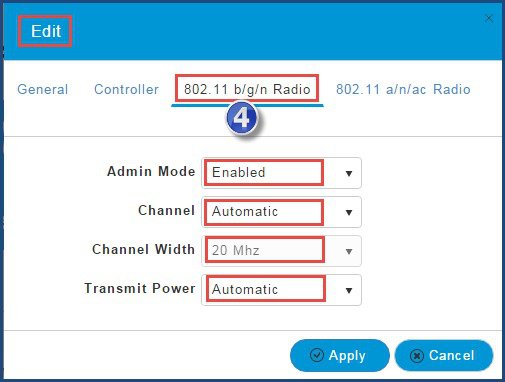
Click802.11 b/g/n Radio and 802.11 a/n/ac Radio to edit the following parameters:

  • Admin Mode—Choose Enabled from the Admin drop-down list to enable the corresponding radio on the AP (2.4 GHz for 802.11 b/g/n or 5 Ghz for 802.11 a/n/ac).

  • ChannelAutomatic is set as default channel. This enables dynamic channel assignment, such that the channels are dynamically assigned to each AP, under the control of the Mobility Express controller. This prevents neighboring APs from broadcasting over the same channel and hence prevents interference and other communication problems. For the 2.4 GHz radio, 11 channels are offered in the US, up to 14 in other parts of the world, but only 1-6-11 can be considered non-overlapping if they are used by neighboring APs. For the 5 GHz radio, up to 23 non-overlapping channels are offered. Assigning a specific value statically assigns a channel to that AP.
    • 802.11 b/g/n - 1 to 11

    • 802.11 a/n/ac - 40, 44, 48, 52, 56, 60, 64, 100, 104, 108, 112, 116, 132, 136, 140, 149, 153, 157, 161, 165

  • Channel Width—Set as 20 MHz for 2.4 GHz and 20, 40 and 80 MHz for 5 GHz.

  • Transmit Power—1 to 8. The default value is Automatic.

    This is a logarithmic scale of the transmit power, the transmission energy used by the AP, 1 being the highest, 2 being half of it, 3 being 1/4th and so on.

    Selecting Automatic adjusts the radio transmitter output power based on the varying signal level at the receiver. This allows the transmitter to operate at less than maximum power for most of the time; when fading conditions occur, transmit power increases as needed until the maximum power is reached.

Step 5

Click Apply to save the changes.


WLAN Users

A wireless client needs to connect to a WLAN in the network. To connect to a WLAN, the wireless client enters the user credentials. If the WLAN uses WPA2-Personal as a security policy, then the user must provide the appropriate WPA2-PSK details for that WLAN. If the Security Policy is set to WPA2-Enterprise, then the user must provide a valid user identity and its corresponding password in the RADIUS user database. For local authentication, provide the valid user identity and its corresponding password in the RADIUS user database.

The WLAN Users page lists all WLAN users in the network. The WLAN Users page also displays the following information for each user:

Table 1. WLAN Users–Field and Description

Field

Description

User name

Specifies the name of the WLAN user.

Guest user

Specifies the type of WLAN user. Check this checkbox if the WLAN user is guest. Guest user account is limited with validity of 86400 seconds (or, 24 hours) from the time of its creation.

WLAN Profile

Specifies the WLANs to which the user can connect.

Password

Specifies the password of the WLAN user.

Description

Specifies the additional details or comments about the user.

Creating a WLAN User using GUI

To add a local EAP user, perform the following steps:

Procedure


Step 1

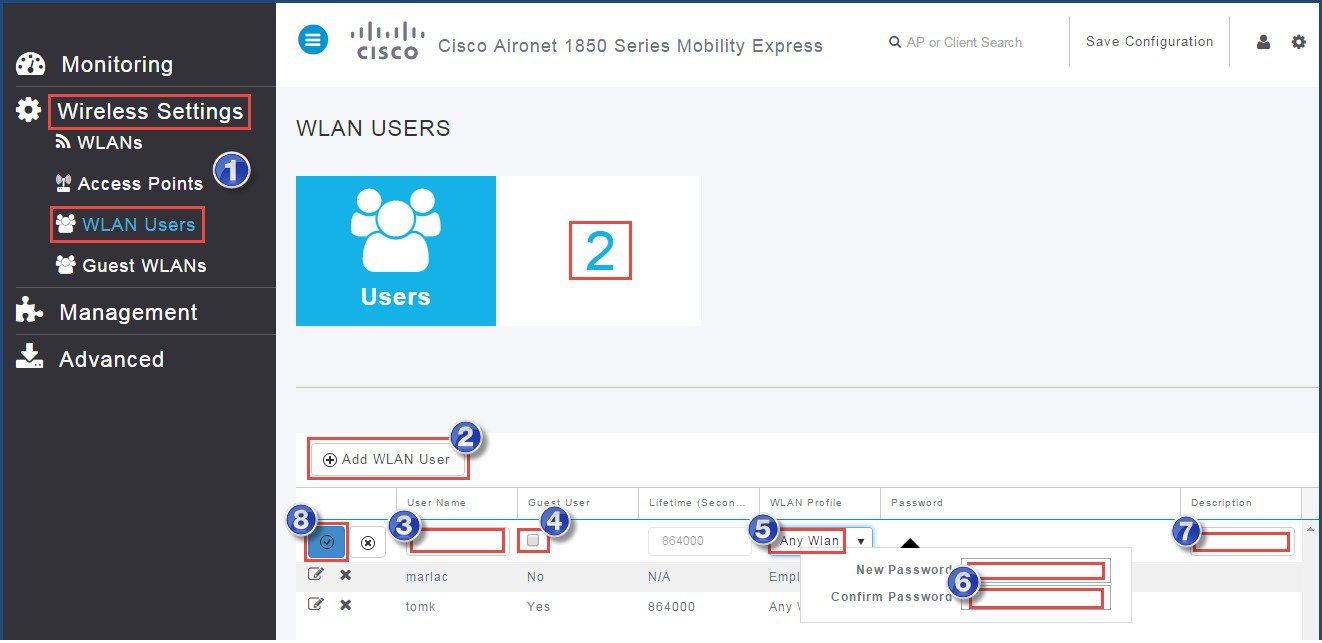
Choose Wireless Settings > WLAN Users.

The WLAN Users page appears displaying the count of the users that are configured on the Mobility Express controller.


Step 2

Click Add WLAN User to create a WLAN user.

Step 3

Enter the User Name for the WLAN user.

Note 

User names are case-sensitive and can contain up to 24 ASCII characters. User names must not contain space.

Step 4

If the user is a Guest WLAN user, check the Guest User checkbox.

Step 5

From the drop down list, choose the WLAN Profile of the user.

Step 6

Enter a password and re-enter confirm password for the new WLAN User.

Step 7

Enter a description for the WLAN User.

Step 8

Click Apply.


Guest WLANs

Creating WLAN using GUI

To create a customized login page for guest WLANs, perform the following steps:


Note

A Guest WLAN must be setup for Guest Users.


Procedure


Step 1

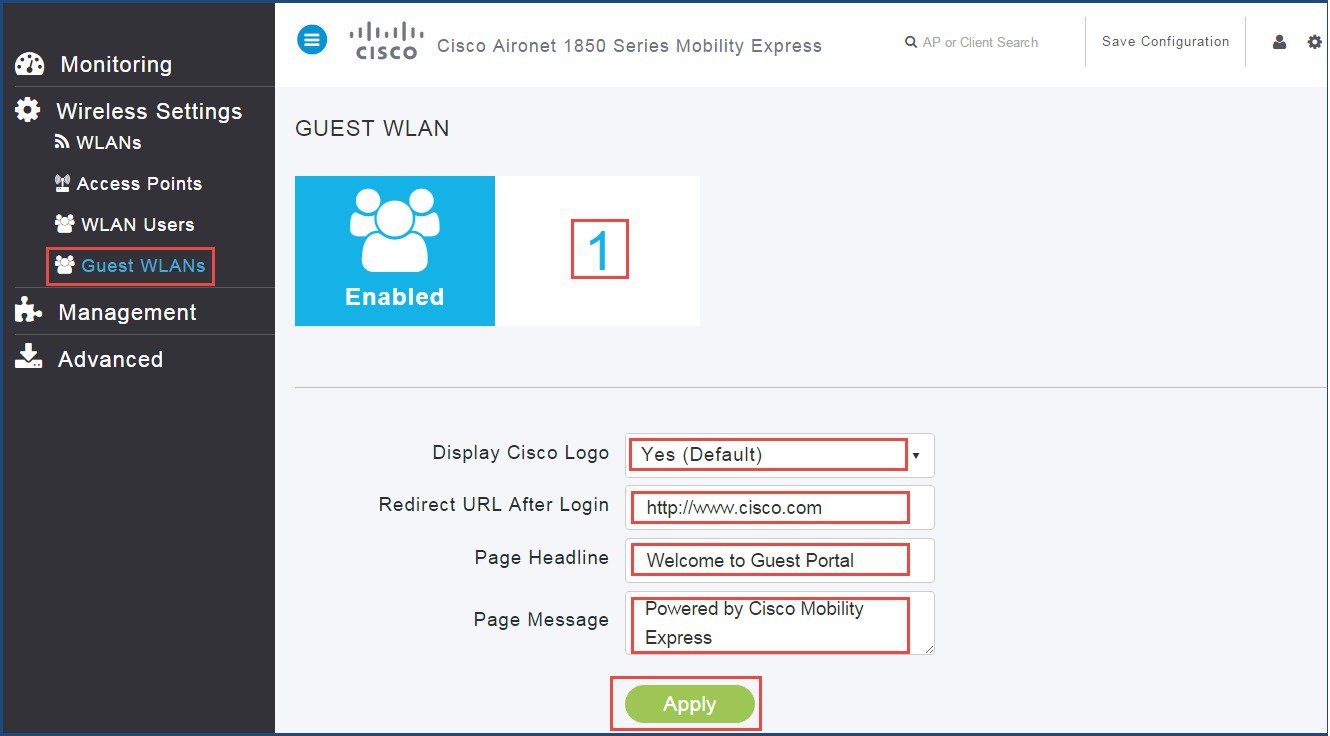
Choose Wireless Settings > Guest WLANs.

The Guest WLAN page appears displaying the count of Guest WLANs that are configured on the Mobility Express controller.

Step 2

From the Display Cisco Logodrop-down list, choose Yes (Default) to display Cisco logo.

You can choose No. However, you do not have an option to display any other logo of your choice. This field is set as Yes by default.

Step 3

Enter the desired URL in Redirect URL After Login field. The guest user is redirected to the specified URL (such as the URL of your company) after login.

You can enter can be up to 254 characters.

Step 4

Enter the headline that needs to be displayed when logged in Page Headline field.

You can enter up to 127 characters. The default headline is Welcome to the Cisco Wireless Network.

Step 5

Enter the message that needs to displayed when logged in Page Message field.

You can enter up to 2047 characters. The default message is Cisco is pleased to provide the Wireless LAN infrastructure for your network. Please login and put your air space to work.

Step 6

Click Apply.