Cisco Workgroup Bridges
A workgroup bridge (WGB) is an access point mode that
-
provides wireless connectivity to wired clients connected on its Ethernet port
-
connects a wired network to an existing wireless infrastructure through a single wireless segment, and
-
learns the MAC addresses of its wired clients and reports them to the wireless LAN controller (WLC) using IAPP messaging.
The WGB establishes a single wireless connection to the root access point (AP). The root AP treats the WGB as a wireless client, allowing the wired devices behind the WGB to access the wireless network seamlessly. Suppose you have a group of wired devices in a conference room with no Ethernet drop available. You can connect these devices to a WGB, which allows them to communicate over the enterprise wireless network as if they were wireless clients.
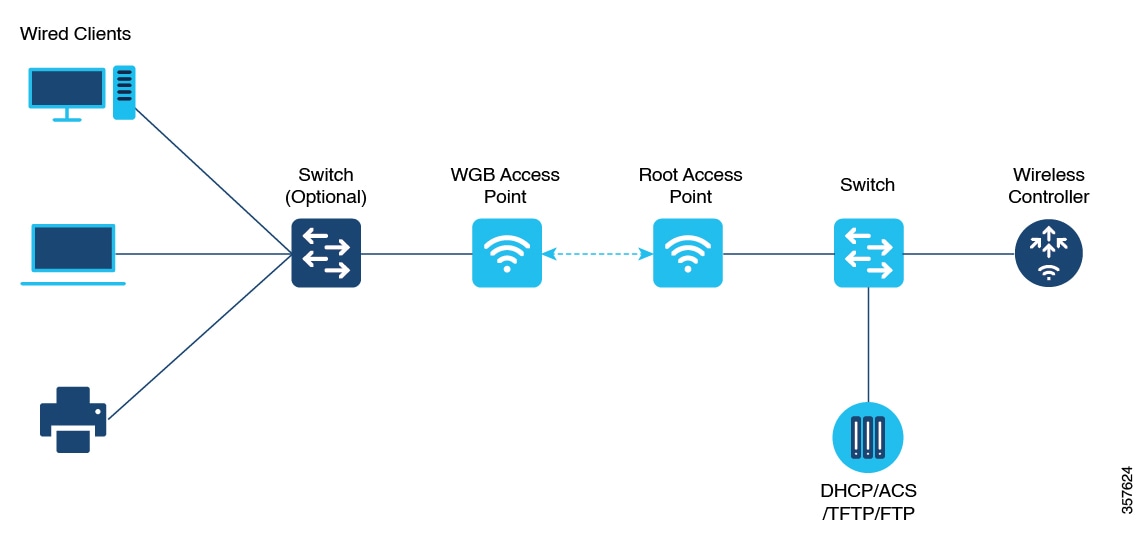
These features are supported for use with WGB:
|
Feature |
Cisco Wave 1 APs |
Cisco Wave 2 |
|---|---|---|
|
802.11r |
Supported |
Supported |
|
QOS |
Supported |
Supported |
|
UWGB mode |
Supported |
Supported on Wave 2 APs |
|
IGMP Snooping or Multicast |
Supported |
Supported |
|
802.11w |
Supported |
Supported |
|
PI support (without SNMP) |
Supported |
Not supported |
|
IPv6 |
Supported |
Supported |
|
VLAN |
Supported |
Supported |
|
802.11i (WPAv2) |
Supported |
Supported |
|
Broadcast tagging/replicate |
Supported |
Supported |
|
Unified VLAN client |
Implicitly supported (No CLI required) |
Supported |
|
WGB client |
Supported |
Supported |
|
802.1x – PEAP, EAP-FAST, EAP-TLS |
Supported |
Supported |
|
NTP |
Supported |
Supported |
|
Wired client support on all LAN ports |
Supported in Wired-0 and Wired-1 interfaces |
Supported in all Wired-0, 1 and LAN ports 1, 2, and 3 |
This table shows the supported and unsupported authentication and switching modes for Cisco APs when connecting to a WGB.
 Note |
Workgroup Bridge mode is supported on the WiFi6 Pluggable Module from Cisco IOS XE Bengaluru 17.6.1. |
|
Access Points |
Requirements |
|---|---|
|
Cisco Aironet 2700, 3700, and 1572 Series |
Requires autonomous image. |
|
Cisco Aironet 2800, 3800, 4800, 1562, and Cisco Catalyst 9105, 9115, IW6300 and ESW6300 Series |
CAPWAP image starting from Cisco AireOS 8.8 release. |
|
WGB WLAN Support |
Cisco Wave 2 APs |
Cisco Catalyst 9100 Series APs |
|---|---|---|
|
Central Authentication |
Supported |
Supported |
|
Central Switching |
Supported |
Supported |
|
Local Authentication |
Not Supported |
Not Supported |
|
Local Switching |
Supported |
Supported |
Restrictions for WGB
These are the restrictions for WGB:
-
MAC filtering is not supported for wired clients.
-
Idle timeout is not supported for both WGB and wired clients.
-
Session timeout is not applicable for wired clients.
-
Web authentication is not supported.
-
WGB supports only up to 20 clients.
-
If you want to use a chain of certificates, copy all the CA certificates to a file and install it under a trust point on the WGB, else server certificate validation may fail.
-
Wired clients connected to the WGB are not authenticated for security. Instead, the WGB is authenticated against the access point to which it associates. Therefore, we recommend that you physically secure the wired side of the WGB.
-
Wired clients connected to a WGB inherit the WGB's QoS and AAA override attributes.
-
To enable the WGB to communicate with the root AP, create a WLAN and make sure that Aironet IE is enabled under the Advanced settings.
Configure a WGB on a WLAN (CLI)
Before you begin
Ensure WLAN security (such as authentication and encryption) is already configured.Procedure
|
Step 1 |
Enter global configuration mode. Example: |
|
Step 2 |
Enter WLAN configuration submode. Example:The profile-name is the profile name of the configured WLAN. |
|
Step 3 |
Configure the Cisco Client Extensions option and sets the support of Aironet IE on the WLAN. Example: |
|
Step 4 |
Exit the WLAN configuration submode. Example: |
|
Step 5 |
Configure WLAN policy profile and enters the wireless policy configuration mode. Example: |
|
Step 6 |
Add a description for the policy profile. Example: |
|
Step 7 |
Assign the profile policy to the VLAN. Example: |
|
Step 8 |
Configure WGB VLAN client support. Example: |
|
Step 9 |
Configure WGB broadcast tagging on a WLAN. Example: |
|
Step 10 |
Restart the policy profile. Example: |
|
Step 11 |
Exit the wireless policy configuration mode. Example: |
|
Step 12 |
Configure policy tag and enters policy tag configuration mode. Example: |
|
Step 13 |
Map a policy profile to a WLAN profile. Example: |
|
Step 14 |
Exit policy tag configuration mode, and returns to privileged EXEC mode. Example: |
Verify WGB status on the controller
Use these commands to verify the status of a WGB.
To display the wireless-specific configuration of active clients, use this command:
Device# show wireless client summaryTo display the WGBs on your network, use this command:
Device# show wireless wgb summaryTo display the details of wired clients that are connected to a particular WGB, use this command:
Device# show wireless wgb mac-address 00:0d:ed:dd:25:82 detailConfigure AP as WGB
Convert Cisco Aironet 2700/3700/1572 series AP to autonomous mode
Before you begin
Download the appropriate autonomous image for your AP model fromsoftware.cisco.com and place it on a reachable TFTP server.
Procedure
|
Step 1 |
Enable console CLI access on the AP. Example:Allows use of all CLI commands during image conversion. |
|
Step 2 |
Download and install the autonomous image using the TFTP server. Example:Replaces the current image with the autonomous image. The AP reloads automatically after the upgrade. |
Configure Cisco Wave 2 APs in WGB or CAPWAP AP mode (CLI)
Procedure
|
Step 1 |
Enter the privileged mode of the AP. Example: |
|
Step 2 |
Move the AP in to the Workgroup Bridge mode. Example: |
|
Step 3 |
Configure DHCP or static IP address using the configure ap address ipv4 dhcp or configure ap address ipv4 static ip-address netmask gateway-ipaddress command. Example:DHCP IP Address Static IP Address |
|
Step 4 |
Configure an username for the AP management. Example: |
|
Step 5 |
Configure the AP hostname. Example: |
Configure an SSID profile for Cisco Wave 2 APs (CLI)
Before you begin
Ensure you have access to the AP console and any preshared keys or EAP profiles needed for authentication.Procedure
|
Step 1 |
Create an SSID profile and specify authentication (open, PSK, or EAP) and key management options. Example:SSID profile with open authentication: SSID profile with PSK authentication: SSID profile with EAP authentication: Choose the authentication protocol that matches your deployment requirements. |
|
Step 2 |
Attach the SSID profile to a radio interface. Example:Binds the SSID profile for wireless bridge operations. |
|
Step 3 |
(Optional) Delete an SSID profile. Example: |
|
Step 4 |
(Optional) Display summary of configured and connected SSIDs. Example: |
|
Step 5 |
(Optional) Display management, control, and data packet statistics for WGB SSIDs. Example: |
Configure dot1X credential (CLI)
Before you begin
Ensure the device is in global configuration mode before issuing these commands.Procedure
|
Step 1 |
Configure a dot1X credential profile with username and password. Example: |
|
Step 2 |
Delete a dot1X credential profile. Example: |
|
Step 3 |
Deauthenticate a WGB client by clearing a WGB client session based on MAC address or clear all WGB clients. Example: |
Configure an EAP profile (CLI)
Before you begin
Enable global configuration mode on the device and verify access to CLI.Procedure
|
Step 1 |
Configure an EAP profile and set the EAP method. Example:Configures an EAP profile with the chosen method. The method-name can be:
|
||
|
Step 2 |
Associate a Trustpoint with the EAP profile. Use either the default or a specific name. Example:EAP profile to Trustpoint with MIC Certificate: EAP profile to Trustpoint with CA Certificate: Configures an EAP profile with a Trustpoint for authentication. |
||
|
Step 3 |
Attach a CA Trustpoint to the EAP profile. Example:Attaches the CA Trustpoint.
|
||
|
Step 4 |
Configure the 802.1X credential profile for the EAP profile. Example:Configures the 802.1X credential profile associated with the EAP profile. |
||
|
Step 5 |
(Optional) Delete an EAP profile. Example: |
||
|
Step 6 |
(Optional) Display the WGB EAP dot1x credential profile summary. Example: |
||
|
Step 7 |
(Optional) Display the EAP profile summary. Example: |
||
|
Step 8 |
(Optional) Display all configured EAP and dot1x profiles. Example: |
Configure manual-enrollment of a Trustpoint for WGB (CLI)
Before you begin
Ensure that the WGB configuration is complete and the required CA certificate is accessible. You must have administrator access to the CLI and all necessary server and certificate information.Procedure
|
Step 1 |
Configure a Trustpoint on the WGB and set the enrollment method to terminal. Example:Defines a new Trustpoint and specifies that certificate content will be entered manually. |
|
Step 2 |
Authenticate the Trustpoint and input the base 64 encoded CA certificate. Example:Authenticates a Trustpoint by pasting the CA-signed certificate. End certificate input by typing quit on a new line. |
|
Step 3 |
Configure the private key size for the Trustpoint. Example:Sets the RSA key pair length for the Trustpoint’s private key. |
|
Step 4 |
Configure the subject name attributes for the Trustpoint’s certificate. Example:Example:Specifies certificate subject fields, matching your organization’s naming policy. |
|
Step 5 |
Generate a Certificate Signing Request (CSR) on the WGB and enroll the Trustpoint. Example:Generates the private key and a CSR; provide the CSR output to your CA server for certificate signing. |
|
Step 6 |
Import the signed certificate from the CA back into the WGB Trustpoint. Example:Installs the issued device certificate. End certificate input with the quit command on a new line. |
|
Step 7 |
(Optional) Delete the Trustpoint if reconfiguration is needed. Example:Removes a Trustpoint configuration from the device. |
|
Step 8 |
(Optional) Display the Trustpoint summary. Example:Shows all Trustpoints configured on the device. |
|
Step 9 |
(Optional) Display certificates associated with a Trustpoint. Example:Inspect the contents of certificates for a specific Trustpoint. |
Configure auto-enrollment of a Trustpoint for workgroup bridge (CLI)
Before you begin
Ensure the device is running the appropriate WGB image and has connectivity to the CA server.Procedure
|
Step 1 |
Configure the Trustpoint and specify the CA server enrollment URL. Example:Enrolls a Trustpoint in WGB using the CA server URL. |
|
Step 2 |
Authenticate the Trustpoint by fetching the CA certificate from the CA server. Example:Fetches the CA certificate for Trustpoint authentication. |
|
Step 3 |
Set the private key size for the Trustpoint. Example:Example: |
|
Step 4 |
Configure the subject name for the trustpoint. Example:Example:Customize the subject name parameters as needed for your deployment. |
|
Step 5 |
Enroll the Trustpoint to request a signed certificate from the CA server. Example:Initiates the certificate enrollment request to the CA server. |
|
Step 6 |
Enable auto-enrollment and specify the renewal percentage threshold. Example:Example:Use disable to turn off auto-enroll if needed. |
|
Step 7 |
(Optional) Delete the Trustpoint if it is no longer required. Example:Removes the Trustpoint from the configuration. |
|
Step 8 |
(Optional) Display the summary of Trustpoints. Example:Lists all configured Trustpoints and their status. |
|
Step 9 |
(Optional) Display the certificate for a specific Trustpoint. Example:Shows the certificate configured for the specified Trustpoint. |
|
Step 10 |
(Optional) Display the PKI timer information. Example:Displays timer settings related to PKI operations. |
Configure manual certificate enrollment using TFTP server (CLI)
Procedure
|
Step 1 |
Specify the enrollment method to retrieve the CA certificate and client certificate for a Trustpoint in WGB. Example: |
|
Step 2 |
Authenticate the CA certificate from the specified TFTP server. Example:Retrieves the CA certificate and authenticates it from the specified TFTP server. If the file specification is included, the WGB will append the extension “.ca” to the specified filename. |
|
Step 3 |
Configure the private key size for the Trustpoint. Example: |
|
Step 4 |
Set the subject name for the Trustpoint. Example: |
|
Step 5 |
Generate a private key and certificate signing request (CSR). Example:Generate a private key and Certificate Signing Request (CSR) and write the request out to the TFTP server. The filename to be written is appended with the extension “.req”. |
|
Step 6 |
Import the signed certificate into WGB using TFTP at the console terminal, which retrieves the granted certificate. Example:The WGB will attempt to retrieve the granted certificate using TFTP using the same filename and the file name appended with “.crt” extension. |
|
Step 7 |
(Optional) Display the Trustpoint summary. Example: |
|
Step 8 |
(Optional) Display the content of the certificates that are created for a Trustpoint. Example: |
Import the PKCS12 format certificates from the TFTP server (CLI)
Procedure
|
Step 1 |
Import the PKCS12 format certificate from the TFTP server. Example:Example: |
|
Step 2 |
(Optional) Display the Trustpoint summary. Example: |
|
Step 3 |
(Optional) Display the content of the certificates created for a Trustpoint. Example:Example: |
Configure radio interface for workgroup bridges (CLI)
Procedure
|
Step 1 |
Configure a radio interface as root AP. Example:Example:Maps a radio interface as root AP.
|
||
|
Step 2 |
Configure the periodic beacon interval in milliseconds. Example:The value range is from 2 to 2000 milliseconds. |
||
|
Step 3 |
Map a radio interface to a WGB SSID profile. Example: |
||
|
Step 4 |
Map a radio interface to a UWGB SSID profile. Example: |
||
|
Step 5 |
Configure a radio interface. Example:After configuring the uplink to the SSID profile, we recommend that you disable and enable the radio for the changes to be active. |
||
|
Step 6 |
Configure a radio antenna. Example: |
||
|
Step 7 |
Configure the radio interface encryption mode. Example: |
||
|
Step 8 |
Configure the device channel rate. Example: |
||
|
Step 9 |
Configure the threshold duration and signal strength to trigger scanning. Example: |
||
|
Step 10 |
Configure the static roaming channel. Example: |
||
|
Step 11 |
(Optional) Delete the mobile channel. Example: |
||
|
Step 12 |
(Optional) Disable the mobile channel. Example: |
||
|
Step 13 |
(Optional) Configure the beacon miss-count. Example:
|
||
|
Step 14 |
(Optional) Display the Wi-Fi station statistics. Example: |
||
|
Step 15 |
(Optional) Display the radio antenna statistics. Example: |
||
|
Step 16 |
(Optional) Display the mobile station channels scan configuration. Example: |
||
|
Step 17 |
(Optional) Display the configuration that is stored in the NV memory. Example: |
||
|
Step 18 |
(Optional) Display the running configuration in the device. Example: |
Configure workgroup bridge timeouts (CLI)
Use this task to configure various timeout values that control workgroup bridge (WGB) behavior, improving reliability and performance.
-
Set specific timeout limits for association, authentication, EAP, DHCP response, and channel scan processes.
Timeout values affect how long the WGB waits for events before triggering corrective actions or failure notices.
This task applies to Cisco devices in environments where precise timeout management is needed for workgroup bridge operations and troubleshooting.
Before you begin
Ensure you have privileged EXEC access on the device.
-
Verify device compatibility and active WGB configuration.
Procedure
|
Step 1 |
Configure the WGB association response timeout. Example:The valid range is 300 to 5000 milliseconds. The default value is 5000 milliseconds. |
|
Step 2 |
Configure the WGB authentication response timeout. Example:The valid range is 300 to 5000 milliseconds. The default value is 5000 milliseconds. |
|
Step 3 |
Configure the Universal WGB client response timeout. Example:The valid range is 1 to 65535 seconds. The default value is 60 seconds. |
|
Step 4 |
Configure the WGB EAP timeout. Example:The valid range is 2 to 60 seconds. The default value is 3 seconds. |
|
Step 5 |
Configure the WGB channel scan timeout. Example:Select scan speed according to site requirements. |
|
Step 6 |
Configure the WGB DHCP response timeout. Example:The valid range is 1000 to 60000 milliseconds. The default value is 60 seconds. |
|
Step 7 |
Display the WGB association summary. Example:Display associated WGB clients and related statistics. |
The configured timeout parameters apply immediately and affect how the WGB responds to events and failures.
For example, to set the WGB association response timeout to 4000 milliseconds:
Device# configure wgb association response timeout 4000What to do next
Verify timeout settings by using display commands and monitoring WGB behavior.
-
Adjust timeouts as needed for specific network or client stability.
Configure bridge forwarding for workgroup bridge (CLI)
Before you begin
The Cisco Wave 2 APs as Workgroup Bridge recognizes the Ethernet clients only when the traffic has the bridging tag.
We recommend setting the WGB bridge client timeout value to default value of 300 seconds, or less in environment where change is expected, such as:
-
Ethernet cable is unplugged and plugged back.
-
Endpoint is changed.
-
Endpoint IP is changed (static to DHCP and vice versa).
If you need to retain the client entry in the WGB table for a longer duration, we recommend you increase the client WGB bridge timeout duration.
Procedure
|
Step 1 |
Add a WGB client using the MAC address. Example:Example: |
|
Step 2 |
Configure the WGB bridge client timeout. Default timeout value is 300 seconds. The valid range is from 10 to 1000000 seconds. Example:Example: |
|
Step 3 |
Display the WGB wired clients over the bridge. Example: |
|
Step 4 |
Display the WGB Gigabit wired clients over the bridge. Example:Example: |
|
Step 5 |
Display the WGB bridge radio interface summary. Example:Example: |
 Feedback