Cisco Virtualization Experience Media Engine Overview
Purpose of This Guide
The Cisco Virtualization Experience Media Engine for Windows Deployment and Installation Guide includes the following task-based information required to deploy and install Cisco Virtualization Experience Media Engine for Windows (VXME for Windows).
About Cisco Virtualization Experience Media Engine
Cisco Virtualization Experience Media Engine (VXME) extends the Cisco collaboration experience to virtual deployments. With a supported version of Cisco Jabber for Windows, users can send and receive phone calls on their hosted virtual desktops (HVD). The VXME software detects the virtual environment and routes all audio and video streams directly from one endpoint to another, without going through the HVD.
The applications in the Cisco VXME family of products are:
Cisco Virtualization Experience Media Engine for SUSE Linux
Cisco Virtualization Experience Media Engine for Windows
For more information about Cisco VXME, visit http://www.cisco.com/c/en/us/products/collaboration-endpoints/virtualization-experience-media-engine/index.html.
Virtual Deployments
 Note | In this deployment guide, the term thin client refers to reused PCs, or other supported client devices set up to provide access to hosted virtual desktops (HVD). |
With Cisco Virtualization Experience Media Engine (Cisco VXME), thin client users can place and receive calls with their Cisco Unified Communications client (Cisco Jabber). Cisco VXME consists of the Cisco VXME Agent and the Cisco VXME Client. To reduce latency and to enhance media quality, VXME streams media between the endpoints without going through the hosted virtual desktops.
Cisco VXME also includes support for some accessories. For more information about supported accessories, see Release Notes for Cisco Virtualization Experience Media Engine for Windows for your release.
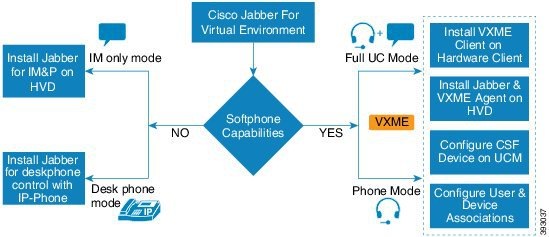
Supported Windows thin clients
For more information about the minimum requirements for supported thin clients, see the Release Notes for Cisco Virtualization Experience Media Engine for Windows for your release.
Cisco VXME Client installed on the thin client
Cisco VXME Agent installed on the HVD
-
Cisco Jabber installed on the HVD
Cisco Unified Communications Manager
Differences in the Virtual Environment
The user experience with Cisco Virtualization Experience Media Engine and a supported Cisco Unified Communications client is similar to the experience provided by a standard Cisco Unified Communications client installation. However, in a virtual environment there are some differences:
The Cisco Unified Communications client detects the virtual environment at run time and starts in virtualization mode.
Users can choose to control their Cisco IP Phones or to use their computers to make and receive calls. The default phone selection is Use my computer for calls. After device selection, the Cisco Virtualization Experience Media Engine application starts the transfer of the phone configuration data for that user. For more information, see Configuration Files.
Users can manage their camera and audio devices by using the Device Selector, which is located in the Windows notification area. Users can also use the following tabs to manage their camera and audio devices from within their Cisco Unified Communications client:
By default, all calls send and receive video if both parties have video capability. Users can select their preference from the following options:
Always start calls with video: Starts all calls as video calls, which send local video
Never start calls with video: Starts all calls as audio-only calls
This setting applies to all calls that the user places and receives. The default setting is Always start calls with video. Users can change this setting in .
NoteYou can disable video globally or on a per-device basis on the Cisco Unified Communications Manager. Navigate to and set Video Calling to Disabled.
Some menus and options for the supported Cisco Unified Communications clients are different. For example, users cannot start Video Desktop Share (Binary Floor Control Protocol) from the call window. Video Desktop Share is supported only from the IM-chat window (Remote Desktop Protocol).
If Cisco Jabber is also installed on the thin clients, ensure that users exit Jabber before they sign in to their HVDs. If Cisco Jabber is running on the local desktop, and the user tries to sign in to Jabber on their HVD, Cisco VXME Client cannot register. Problems with accessories can also occur.
Filenames
File Type |
Filename |
|---|---|
Cisco Virtualization Experience Media Edition Client for Windows Release 11.0 (downloadable .zip file) |
Cisco_VXME_Client-11.0.0.zip |
VXME Client installer file (extracted from the downloaded .zip file) |
CiscoVXMEClientSetup.msi |
Cisco Virtualization Experience Media Edition Agent for Windows Release 11.0 (downloadable zip file) |
Cisco_VXME_Agent-11.0.0.zip |
VXME Agent installer file (extracted from the downloaded .zip file) |
CiscoVXMEAgentSetup.msi |
 Feedback