Installing and Removing Components

This chapter contains the following topics:

Components

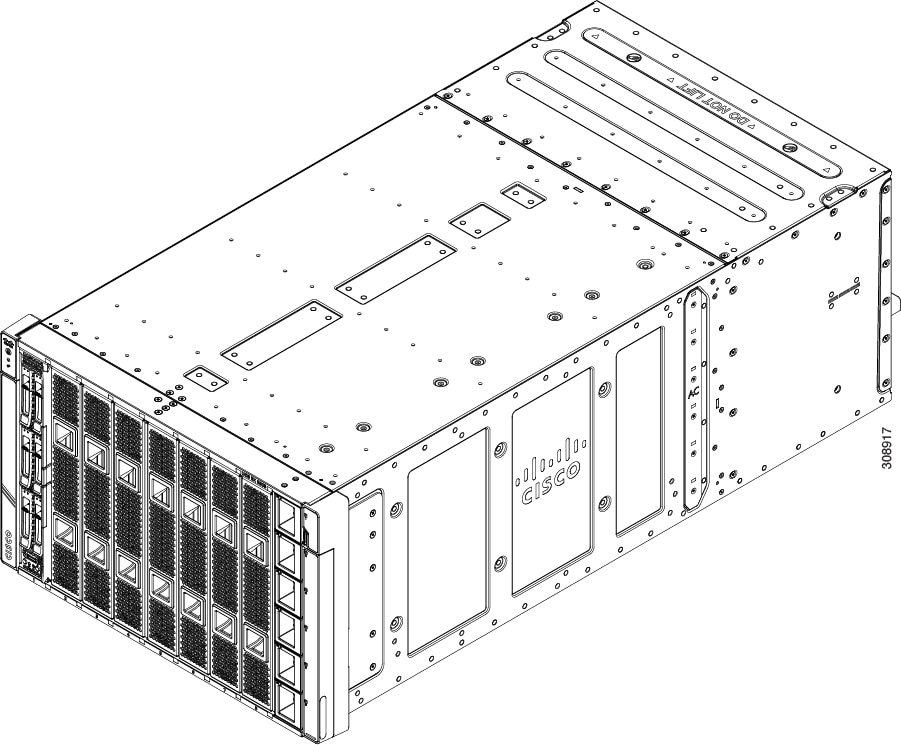
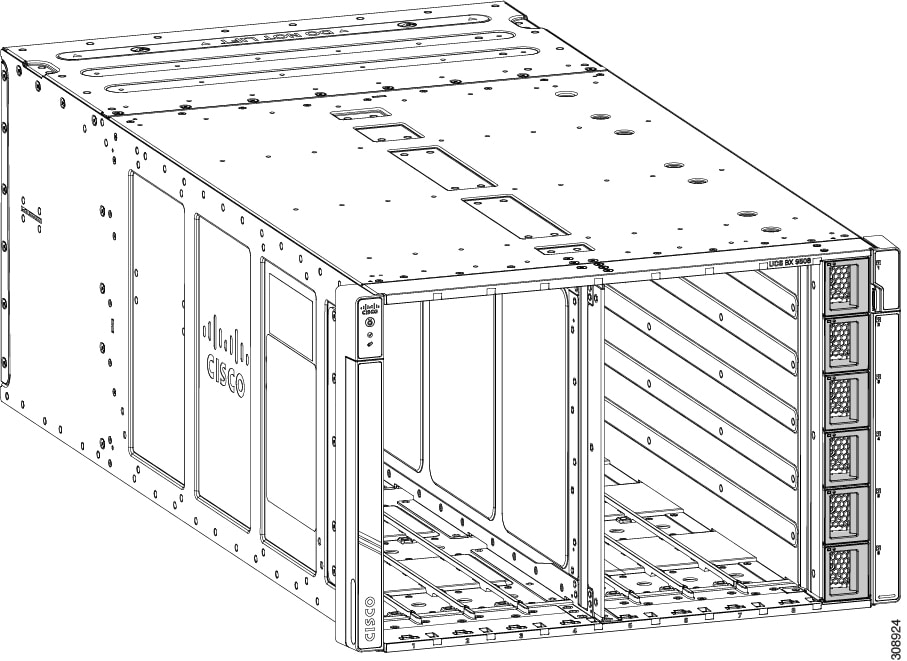
The following figure shows an empty Cisco UCS X9508 server chassis and identifies the front, back, and vertical node slots, and horizontal module slots.


Note


Before you remove or install components, please ensure that all software applications are shut down and management software is in a good state.


Note


Whenever you remove a module from the chassis for an extended period of time, always replace the module with the appropriate blank panel. Failing to do so can result in heating and EMI issues. Blank panels can be ordered from Cisco Systems.


Figure 1. View of Cisco UCS X9508 Server Chassis, Right Side

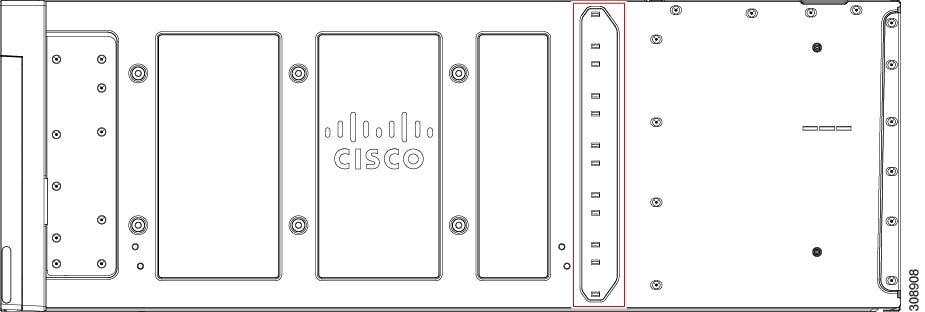
The side of the chassis has no handles because the chassis is heavy, and not intended to be lifted unless you are using a scissor lift or another type of mechanical lift device to bear the weight of the chassis. The right side of the chassis has the PSU Keying Bracket which enforces proper PSU orientation as well as proper PSU type.
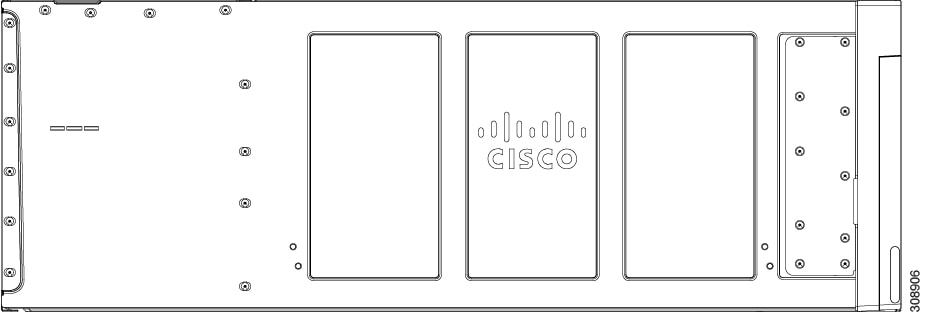
Figure 2. View of UCS X9508 Server Chassis, Left Side

The left side of the chassis has no handles.
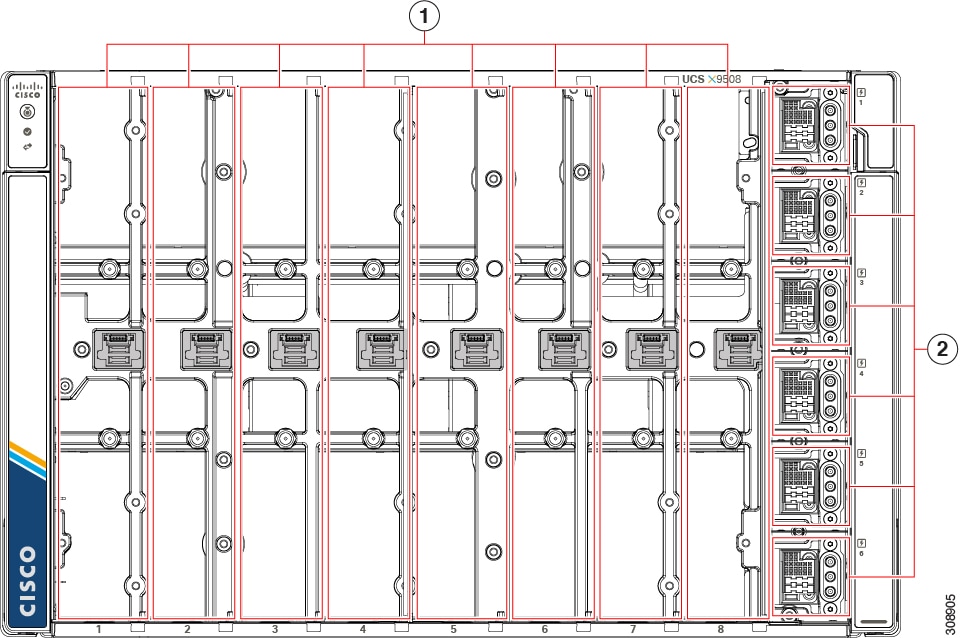
Figure 3. View of Empty Cisco UCS X9508 Chassis, Front

1

Node slots (8).

Each slot is numbered horizontally below each slot.

Compute nodes and PCIe nodes can be inserted vertically and connect to the power socket for each slot.

2

PSU bays (6).

Each PSU bay is numbered vertically to the right of the bay.

Each PSU bay is keyed so that the PSU inserts only one way.

The front of the chassis accepts up to 8 single-slot or 4 dual-slot compute nodes with connections for power and basic signaling through the per-slot socket connections to the midplane. The front of the server chassis also hosts up to 6 PSUs providing power to the chassis power plane through internal connectors. PSUs are numbered one through six with PSU bay one as the topmost slot and PSU bay 6 on the bottom.


Caution


Any node slot that is not occupied must have a compute node blank panel (UCSX-9508-FSBK) installed.


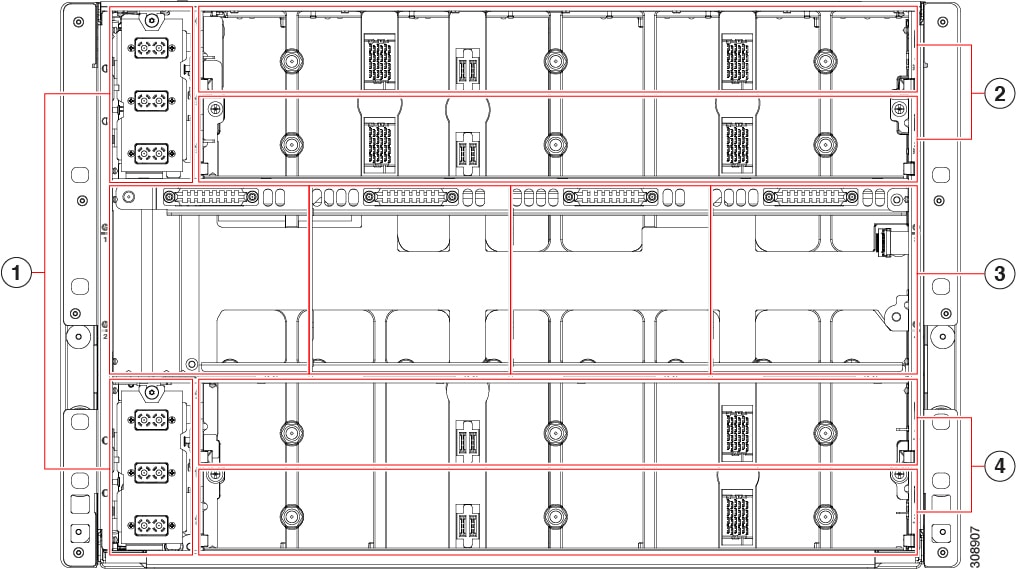
Figure 4. View of the UCS X9508 Server Chassis, Rear View

1

Power Entry Modules (2)

Each PEM houses three IEC 320 compatible C20 power inlets inlet facility power.

2

IFM slots (2)

3

Fan Bays (4)

Fans are numbered 1 through 4 with fan 1 as the leftmost.

4

Expansion Slots (2)

The top of the chassis rear contains up to two Intelligent Fabric Modules (IFMs). Power connections and minimal signaling are supported through the per-slot socket connections to the midplane. Three vertically stacked Power Entry Module (PEM) connectors are also supported, which correspond with PSUs one through three, with PSU one as the topmost connector.

The middle of the chassis rear houses up to four fan modules and power is supplied through one connector per fan module. Fans are numbered from one to four with Fan 1 being the leftmost fan, and Fan 4 being the right most.

The bottom of the chassis rear houses two active fan modules. Power connections and minimal signaling are supported through the per-slot socket connections to the midplane. Three vertically stacked PEM connectors are also supported, which correspond with PSUs four through six, with PSU four as the topmost connector.


Note


Before you install, operate, or service the system, see the Regulatory Compliance and Safety Information for Cisco UCS for important safety information.


Warning


IMPORTANT SAFETY INSTRUCTIONS


This warning symbol means danger. You are in a situation that could cause bodily injury. Before you work on any equipment, be aware of the hazards involved with electrical circuitry and be familiar with standard practices for preventing accidents. Use the statement number provided at the end of each warning to locate its translation in the translated safety warnings that accompanied this device. 
Statement 1071

SAVE THESE INSTRUCTIONS


Warning


This unit is intended for installation in restricted access areas. A restricted access area can be accessed only through the use of a special tool, lock and key, or other means of security. 
Statement 1017


Warning


Only trained and qualified personnel must be allowed to install, replace, or service this equipment. Statement 1030


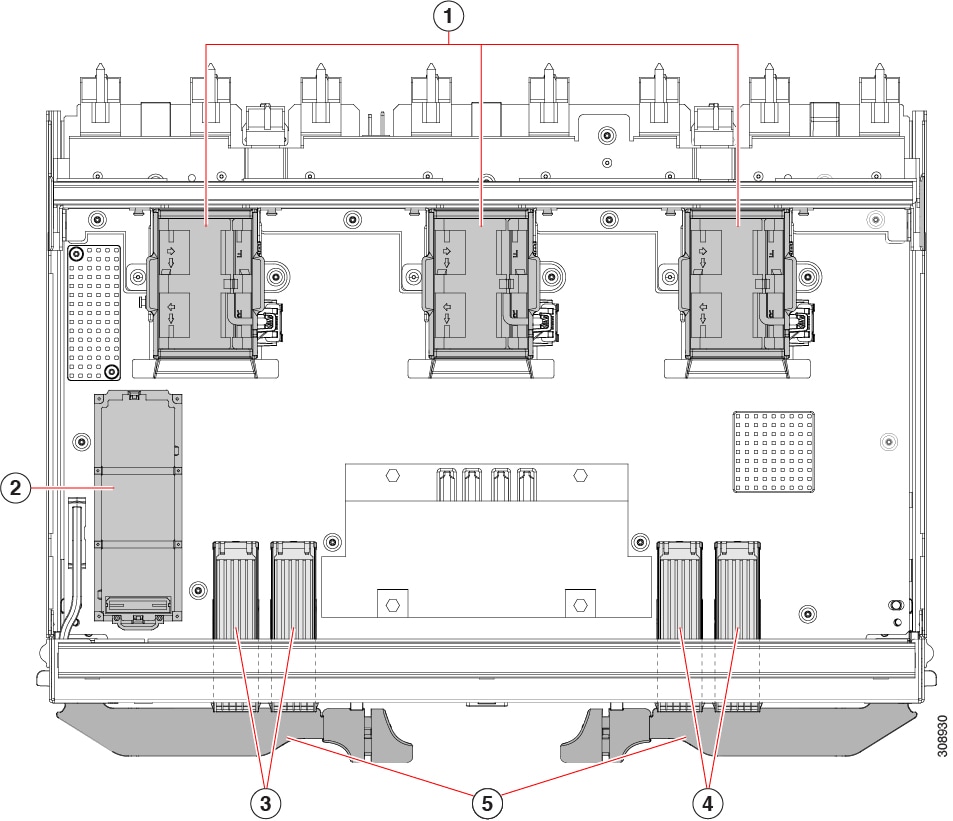
Cisco UCS 9108 25G IFM Components

The Cisco UCS 9108 25G Intelligent Fabric Module has the following board-level components.
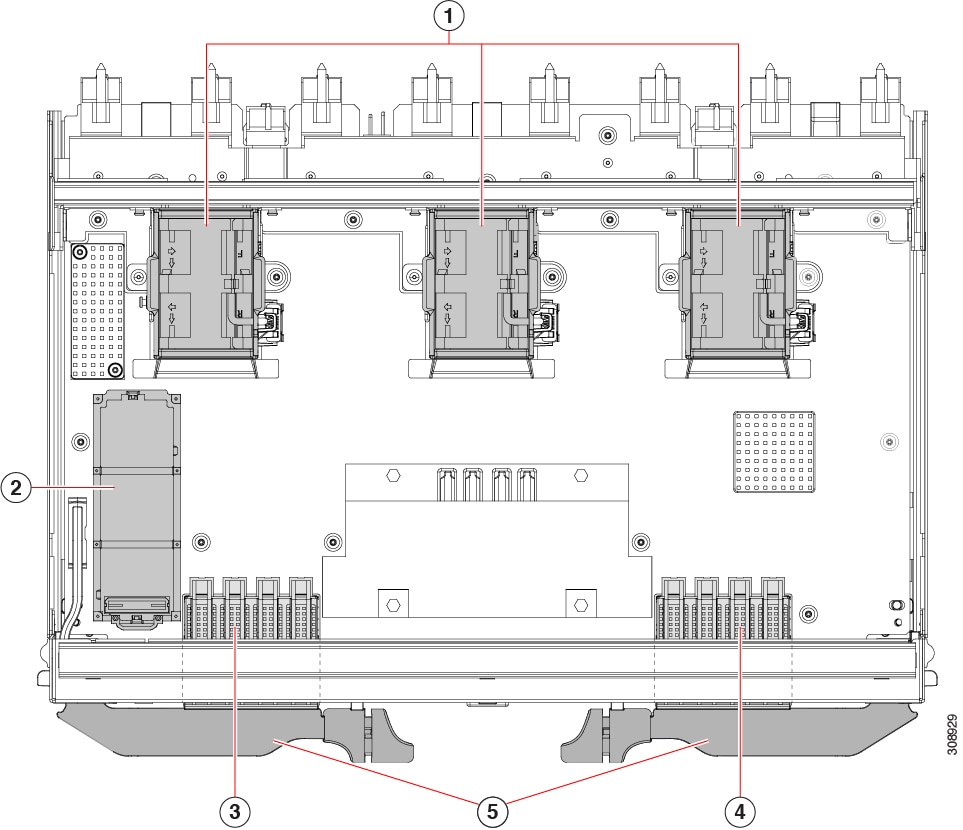
Figure 5. UCS 9108 25G Intelligent Fabric Module, Component View

1

Fans (UCSX-RSFAN=), three, which are numbered 1 through 3 starting with the left fan.

2

One M.2 mini storage module slot

3

SFP28 Optical Ports.

Ports are arranged in two groups of four physical ports.

Port number 1 is the left port in this group, and port number 4 is the right port in the group.

4

SFP28 Optical Ports.

Ports are arranged in two groups of four physical ports.

Port number 5 is the left port in this group, and port number 8 is the right port in the group.

5

IFM ejector handles, left and right

Cisco UCS 9108 100G IFM Components

The Cisco UCS 9108 Intelligent Fabric Module (UCS-I-9108-100G) has the following board-level components.
Figure 6. UCS 9108 100G Intelligent Fabric Module, Component View

1

Fans, (UCSX-RSFAN=), three, which are numbered 1 through 3 starting with the left fan

2

One M.2 mini storage module slot

3

QSFP28 Optical Ports.

Ports are arranged in two groups of four physical ports. Ports are stacked in vertical pairs, with two ports in each vertical port stack.

Port number 1 is the top port of the left port pair in this group, and port number 3 is the top port of the right port pair in the group.

4

QSFP28 Optical Ports.

Ports are arranged in two groups of four physical ports. Ports are stacked in vertical pairs, with two ports in each vertical port stack.

Port number 5 is the top port in the left port pair of this group, and port number 7 is the top port in the right port pair of the group.

5

IFM ejector handles, left and right

Cisco UCS X9416 Fabric Module Components

The Cisco X9416 module (UCSX-F-9416) has the following components.
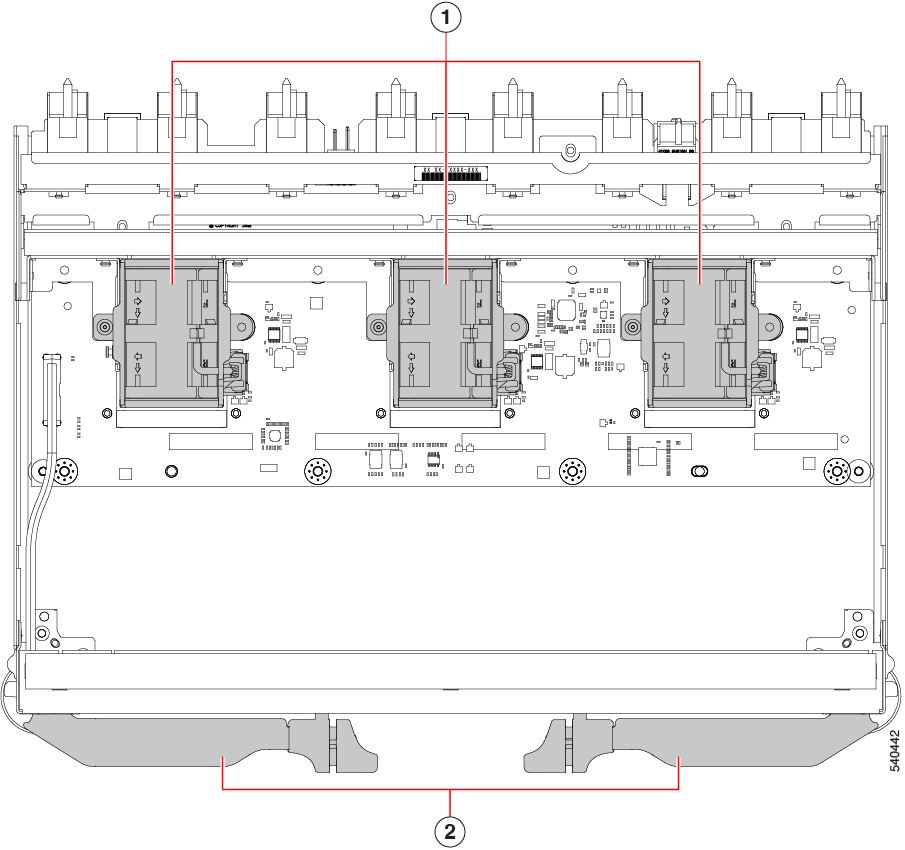
Figure 7. UCS X9416 Fabric Module, Component View

1

Fans (UCSX-RSFAN=), three, which are numbered 1 through 3 starting with the left fan

2

Module Ejector Handles, Left and Right

Cisco UCS X9516 Fabric Module Components

The Cisco UCS X9516 module (UCSX-FS-9516) X-Fabric Module has the following components.
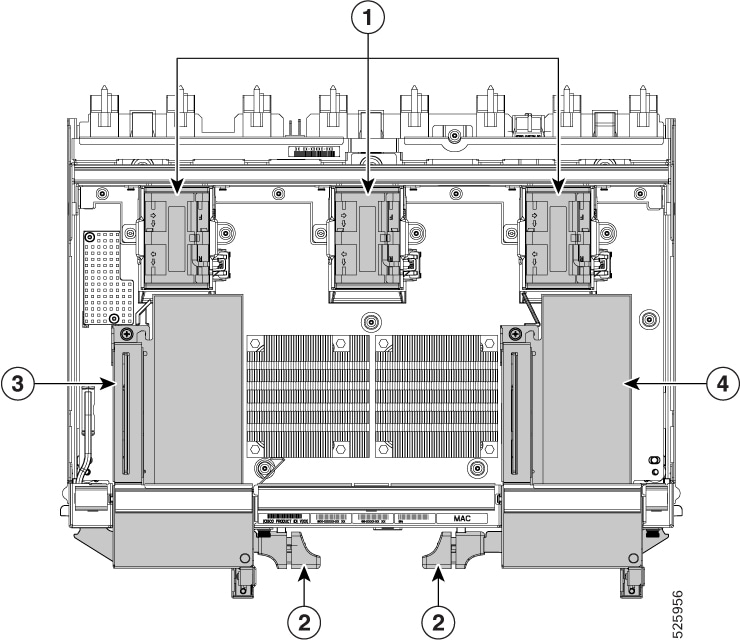
Figure 8. UCS X9516 Fabric Module, Component View

Note


The module has multiple heatsinks, but they are not field-serviceable.


1

Fans (UCSX-RSFAN=), three, which are numbered 1 through 3 starting with the left fan

2

Module Ejector Handles, Left and Right

3

PCIe Cage 2

Supports up to one PCIe Gen5 x16 card, or a filler blank if no card is present.

For information about valid PCIe cards, see Cisco UCS X9516 Supported PCIe Cards.

Note


The PCIe cages are not field-replaceable. If a cage becomes damaged or needs to be replaced, you must RMA the X Fabric Module

4

PCIe Cage 1

Supports up to one PCIe Gen5 x16 card, or a filler blank if no card is present.

For information about valid PCIe cards, see Cisco UCS X9516 Supported PCIe Cards.

Note


The PCIe cages are not field-replaceable. If a cage becomes damaged or needs to be replaced, you must RMA the X Fabric Module

Cisco UCS X-Fabric Module Blank Components

The Cisco X-Fabric Module Blank (UCSX-9508-RBLK) has the following components.
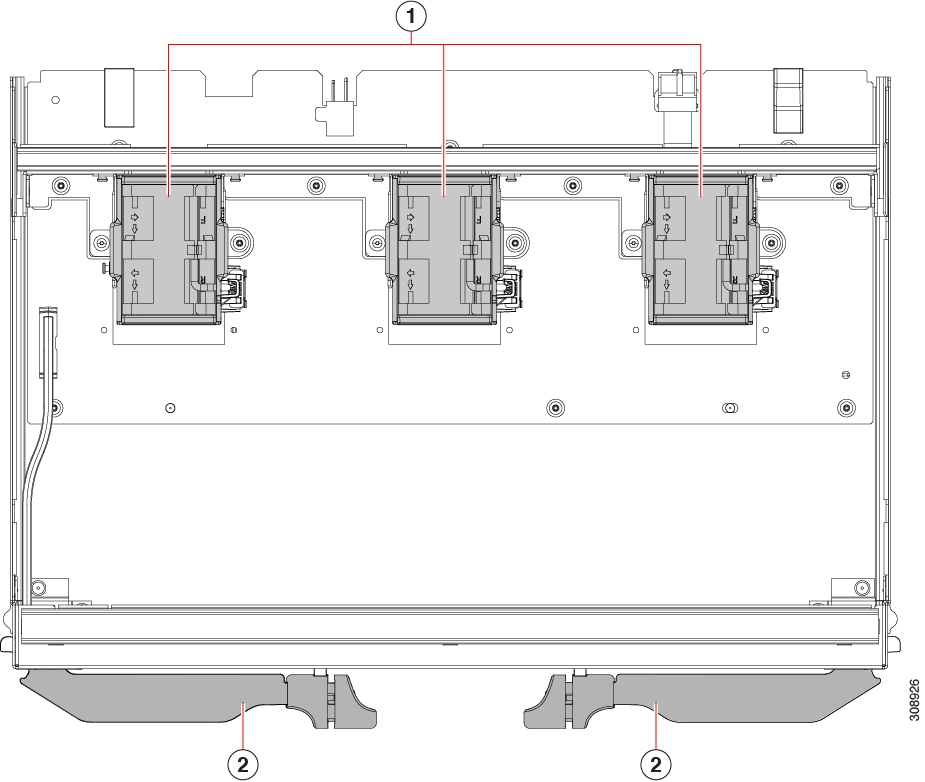
Figure 9. UCS X-Fabric Module Blank, Component View

1

Fans (UCSX-RSFAN=), three, which are numbered 1 through 3 starting with the left fan

2

Module Ejector Handles, Left and Right

Installing and Removing a Compute Node Blank

The UCS X9508 supports up to 8 compute nodes, with a minimum configuration of one compute node. If compute node slots do not contain a compute node, you must install a compute node blank.

Use these procedures to replace a compute node blank:

Removing a Compute Node Blank

Do not operate the server chassis with an empty compute node slot. Fill any empty compute node slots with either a blank (UCSX-9508-FSBK) or a compute node.

Use this task to remove a compute node blank.

Procedure


Step 1

Grasp the compute node by the finger holds.

Figure 10. Compute Node Blanks, Installed

Step 2

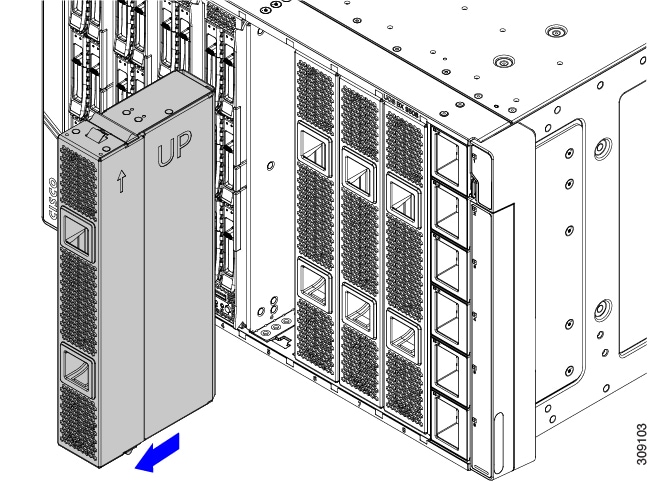
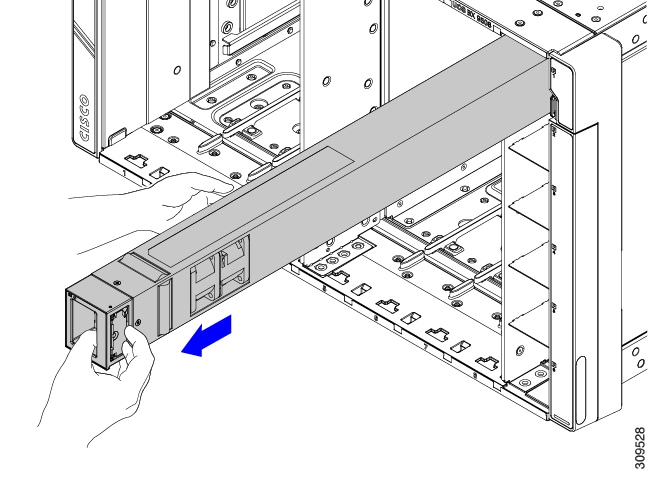
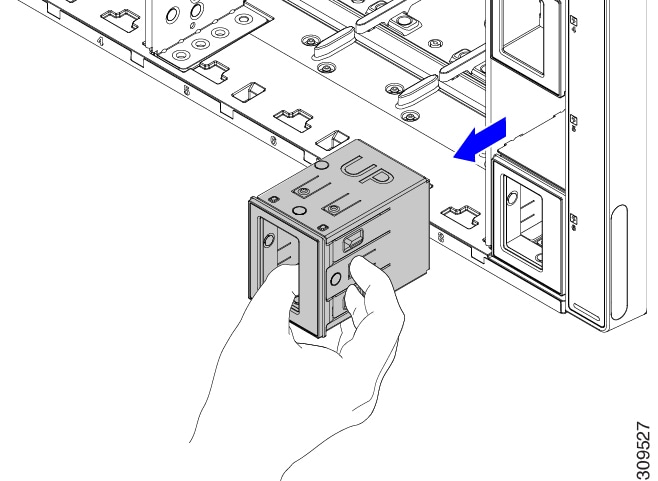
Pull the compute node blank towards you until it is completely removed from the chassis.

Notice that the module blank has indicators that show how to orient the blank. You will use this information when you install a blank.
Figure 11. Removing a Compute Node Blank

What to do next

Choose the appropriate option:

Installing a Compute Node Blank

If you remove a compute node, and you will not be installing another compute node, you must install a compute node blank. Do not operate the server with an empty compute node slot. The minimum configuration is 1 installed compute node, so in this configuration you need 7 module blanks installed.

Compute node blanks are interchangeable within the same chassis or other chassis.

Use this task to install a compute node blank

Procedure


Step 1

Grasp the blank by the finger holds.

Step 2

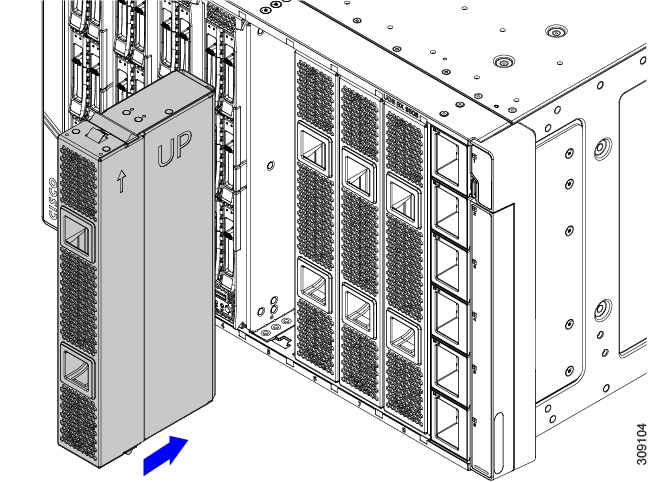
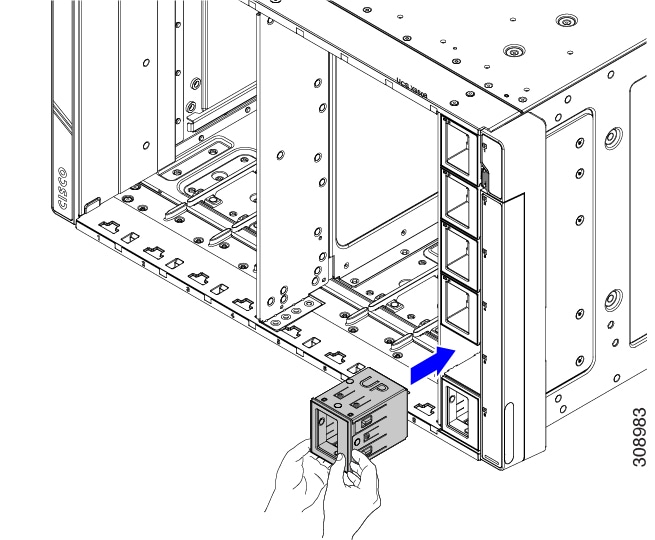
Hold the module blank vertically and align the module blank with the slot.

Note


The module blank has an arrow and the word UP that show how to orient the blank. Also, if you attempt to install the blank with the wrong orientation, the module does not sit flush with the front of the chassis.

.

Step 3

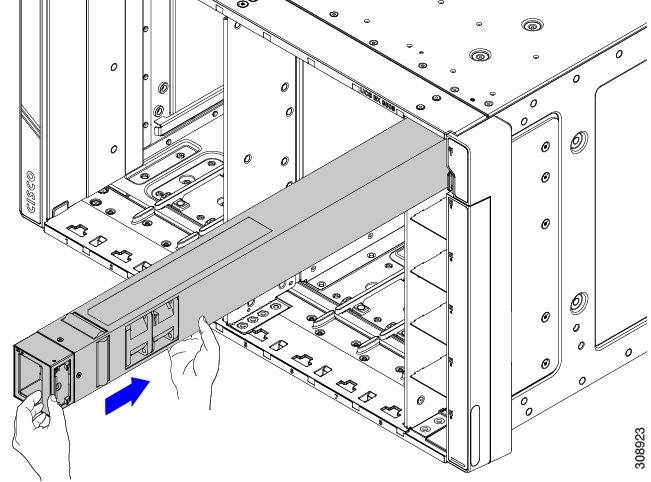
Keeping the compute node blank vertical, slide it into the slot until the blank is flush with the face of the chassis.

Figure 12. Installing a Compute Node Blank

Installing and Removing a Compute Node

The Cisco UCS X9508 server chassis supports full-height compute nodes. For details, see the Installation and Service Note for your compute nodes. See http://www.cisco.com/en/US/products/ps10280/prod_installation_guides_list.html


Caution


When working with the compute nodes, handle them carefully to avoid damage to the modules, connectors, and pins.


Installing a Compute Node

Use this task to install a compute node in an empty slot.


Caution


When working with the compute nodes, handle them carefully to avoid damage to the modules, connectors, and pins! Make sure that the modules are level during insertion and slide them into the chassis slowly.


Before you begin

If there is a module blank in the slot where you want to install a compute node, remove the blank now. See Removing a Compute Node Blank.

Compute nodes are shipped with the ejector handles closed and locked. Each compute node has a release button in the center of the node that releases the ejectors from the locked position.

Procedure


Step 1

Press the release button at the center of the compute node faceplate to release the ejectors.

Caution


The ejectors have a hook at the pivoting end that attaches to the compute node. While you are inserting the compute node, keep the ejectors open as shown in the following illustration. If the ejectors are not open, the hook can be an obstruction while sliding the node into the chassis.

Step 2

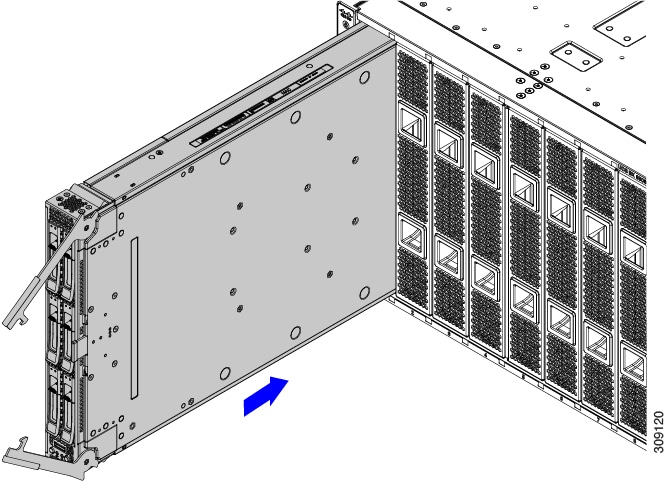
Holding the compute node vertical, align it with the empty module bay in the chassis.

The compute node is correctly aligned when the server top cover is pointing to the left.
Figure 13. Aligning and Installing a Compute Node

Step 3

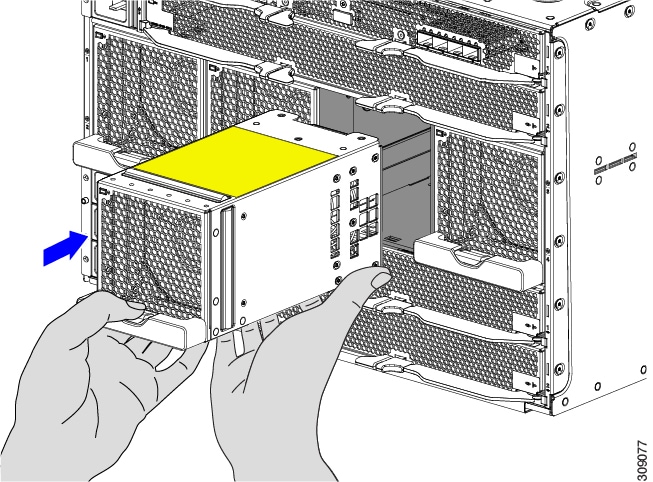
Keeping the compute node vertical, slowly slide it into the chassis.

As the compute node is almost completely installed, you might feel some resistance. This resistance is normal. It occurs because the connectors at the rear of the compute node contacts the connector on the inside of the chassis.

Caution


Make sure to apply even pressure when sliding the module into the chassis. Do not push down or pull up on the module handles, and do not apply more force to one ejector handle than the other.

Step 4

When the compute node is almost completely installed, grasp the ejector handles and arc them toward each other.

This step seats the compute node into the connector. The compute node should power up.

Caution


Make sure to apply even pressure when closing the module ejector handles! Do not push down or pull up on the module handles, and do not apply more force to one ejector handle than the other.

Step 5

Push the ejectors until they are parallel with the face of the compute node.

When the compute node is completely installed, the retention latches at the end of each handle click into place.


Removing a Compute Node

Use this task to remove a compute node.


Caution


When working with the compute nodes, handle them carefully to avoid damage to the modules, connectors, and pins! Make sure that the modules are level during removal and slide them out of the chassis slowly.


Before you begin

Do not operate the server with an empty compute node slot. If you will not be installing a compute node in an empty slot, install a compute node blank to cover the empty slot.

Procedure


Step 1

Press the release button at the center of the compute node faceplate to disengage the ejector handles.

Step 2

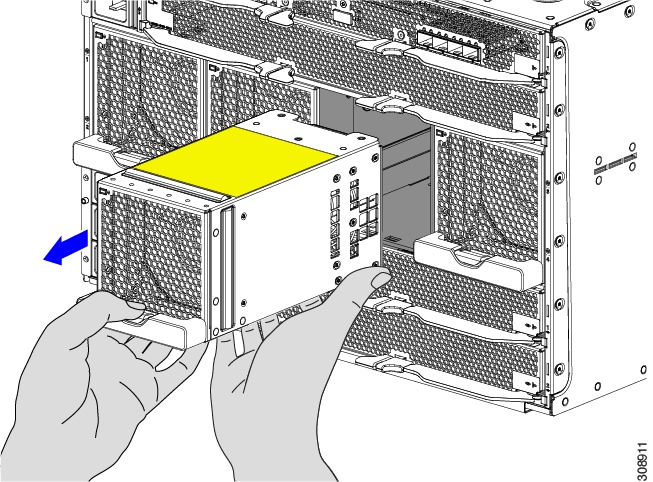
Grasp the ejector handles and pull them outward so that they arc vertically away from each other.

While moving the compute node handles, you might feel some resistance. This resistance is normal. It occurs because the connectors at the rear of the compute node are unseating from the corresponding sockets in the chassis.

Also, when the compute node disconnects from the midplane, the server powers off.

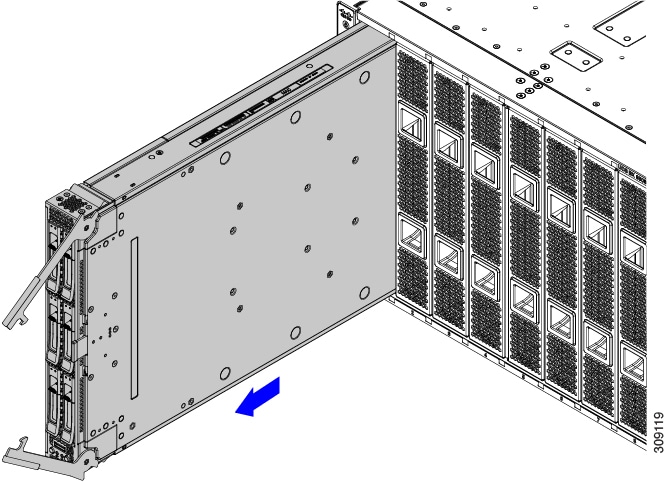
Figure 14. Removing a Compute Node

Step 3

Grasp the compute node handles and slide the compute node partially out of the chassis.

Make sure to keep the compute node vertical while removing it.

Caution


Make sure to apply even pressure when sliding the module out of the chassis. Do not push down or pull up on the module handles, and do not apply more force to one ejector handle than the other.

Step 4

Place your other hand underneath the compute node to support it and slide the compute node completely out of the chassis.


What to do next

Fill the empty compute node slot. Go to the appropriate option:

Installing and Removing Power Supplies


Note


The power supplies are keyed to work only with their respective power expansion module (PEM), depending on the chassis version.


When in installing and removing power supplies, make sure that the minimum number of power supplies are active before replacing the other PSUs. For example, in a 3+3 grid power configuration, at least 3 PSUs must be active before replacing the other 3 units one at a time per grid.

The PSUs are installed vertically along the side of the chassis.

PSU Population Rules

When you install PSUs, they must be equally divided into top and bottom PSU slots to ensure redundancy. See the following PSU population rules.

  • For 2 PSUs: Install a PSU in slots 1 and 4. This is the minimum supported config.

  • For 3 PSUs: Install a PSU in slots 1, 2, and 4.

  • For 4 PSUs: Install a PSU in slots 1, 2, 4, and 5.

  • For 5 PSUs: Install a PSU in slots 1, 2, 3, 4, and 5.

  • For 6 PSUs: Install a PSU in all slots.

Any slots that do not contain a PSU must be covered by a PSU blank.

Installing a Power Supply

The Cisco UCS X9508 AC PSU does not have a discrete power switch. It powers on immediately when it is successfully connected to the power midplane. When installing a PSU, you must comply with the PSU population rules. See PSU Population Rules.

PSUs are hot swappable with a minimum population of two in the chassis to provide redundancy. PSUs are interchangeable and none are reserved through the management software.


Caution


When connecting the chassis to facility power, make sure not to overload the capacity of a PDU or power strip. For example, do not connect all PSUs to one PDU or power strip that is not capable of carrying the total power draw of the chassis.


Use the following procedure to install the PSUs.

Procedure


Step 1

Grasp the PSU with one hand.

Step 2

Use your other hand to support the PSU, and holding it level, orient it with the PSU bay.

The PSU is correctly oriented when the latch is facing you and parallel with the right side of the PSU bay.

Step 3

Holding the PSU level, slide it into the PSU bay.

Note


When the PSU is almost all the way in, you will feel some resistance, which is normal. The resistance is the connector at the rear of the PSU meeting the power socket inside the chassis.

The PSU will power on when you have successfully seated it in its socket.

Figure 15. Installing a PSU

Step 4

For each PSU that must be installed, repeat these steps.

Step 5

Verify the power supplies are operating by checking the power supply LEDs. See LED Locations and Interpreting LEDs.

Note


Both grids in a power redundant system should have the same number of power supplies. If your system is configured for grid power (N+N redundancy), slots 1, 2 and 3 are assigned to grid 1, and slots 4, 5, and 6 are assigned to grid 2. If fewer than six power supplies (PS) are configured in grid redundant mode, they should be equally distributed between the grid 1 and grid 2 slots.


Removing a Power Supply


Caution


If you are using the Cisco UCS X9508 server chassis with one power supply, which is a non-redundant power configuration. Removing the power supply will cause the compute nodes and chassis to shut down. If you are using more than two power supplies, and you remove one of them (the minimum supported power configuration is 3 PSUs), the servers continue to operate as long as the other power supplies are sufficient to meet the power requirements of the number of compute nodes in the chassis.


The PSU has a locking latch that secures the PSU in the chassis. You must unlock the latch to remove the PSU. You can expect some resistance as the PSU slides out due to its weight.

Procedure


Step 1

Place your thumb on the PSU locking latch at the vertical fingerhold on the right side of the blank's faceplate and allow your other fingers to rest along the side of the chassis.

Step 2

Press the latch to unlock the PSU, then pull until it disengages from the power socket inside the chassis.

You will feel some resistance initially as the connector at the rear of the PSU unseats from the power socket inside the chassis.

Step 3

As you slide the PSU out of the chassis, use your other hand to support the PSU.

Step 4

Install a blank power supply filler panel if the power supply bay is to remain empty.


What to do next

Choose the appropriate option:

Replacing a PSU Blank

PSU blanks (UCSX-9508-PSUBK) are interchangeable, but if you will be operating the server chassis without a PSU, the empty bay must be covered with a PSU blank. Replace a PSU blank when you remove a PSU but will not install another PSU in that PSU bay, or when you remove a PSU blank and need to cover the empty PSU bay.

Removing a PSU Blank

Use this procedure to remove a PSU blank.


Note


The PSU blank is a small plastic piece. It does not have a locking latch, so it slides out easily.


Procedure


Step 1

Place your thumb behind the vertical fingerhold on the right side of the blank's faceplate and allow your other fingers to rest along the side of the chassis.

Step 2

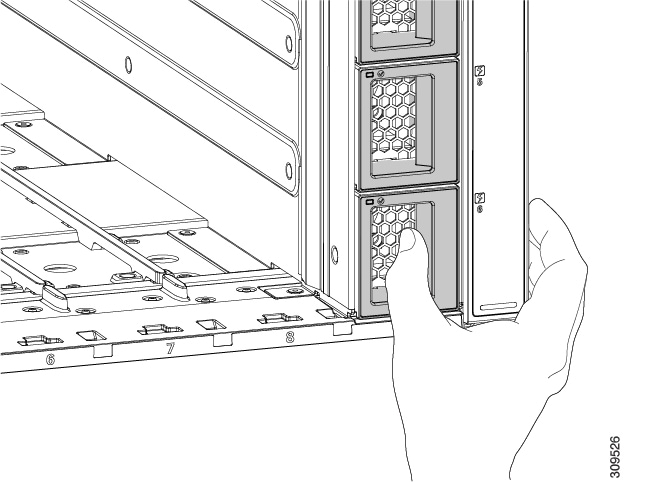
Using your thumb, grasp the PSU blank by the vertical fingerhold and pull the PSU blank straight towards you.

The PSU should easily slide out of the chassis.

Figure 16. Removing a PSU Blank

What to do next

Choose the appropriate option:

Installing a PSU Blank

The minimum supported power configuration for the UCS X9508 server chassis is three PSUs. If you will be operating the server chassis with an empty PSU bay, it must be covered with a PSU blank (UCSX-9508-PSUBK).

Use this procedure to install a PSU blank.

Procedure


Step 1

Grasp the PSU blank by the vertical finger hold on the right side of the blank's face.

Step 2

Align the PSU blank so that the word UP is facing up, and the handle is parallel to the right side of the PSU bay.

Step 3

Insert the PSU blank until its faceplate is flush with the front of the server chassis.

Figure 17. Inserting a PSU Blank

Replacing the PSU Keying Bracket

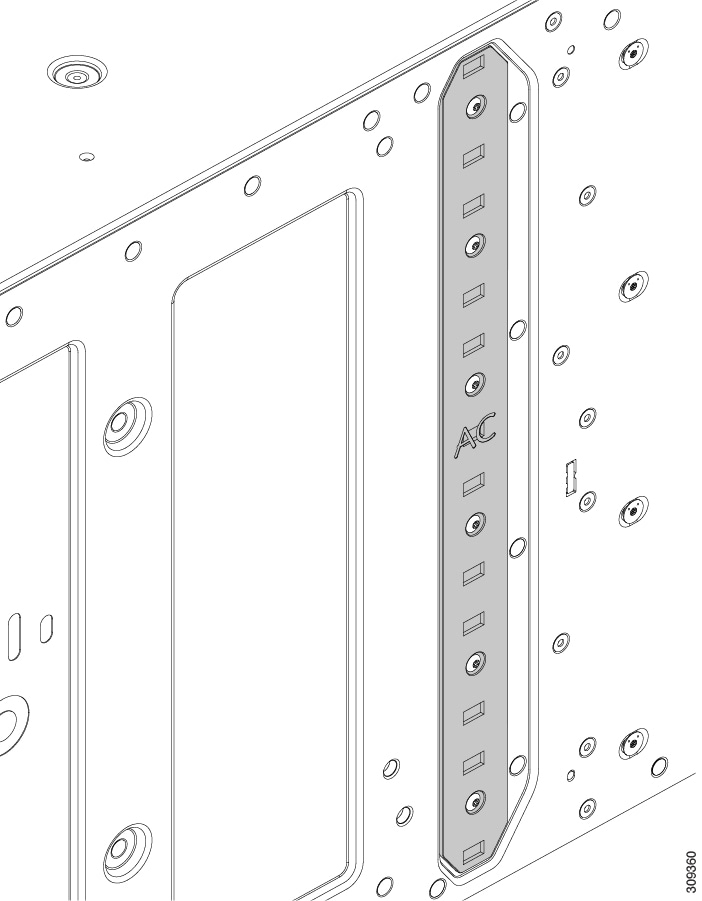
The PSU Keying bracket is attached to the right exterior side of the chassis. The bracket ensures that only the correct type of PSU can be installed, and that the PSU is inserted in correct orientation in the chassis.

Use the following procedures to replace the PSU Keying bracket:

Removing the PSU Keying Bracket

Use this procedure to remove the PSU Keying bracket.

Before you begin

The chassis must be completely removed from the rack to provide access to the exterior of the chassis where the PSU Keying bracket will be installed.

When the chassis is removed from the rack, make sure that you place the chassis on an ESD-safe workspace, for example, a rubberized mat.

Procedure


Step 1

If you have not already removed the chassis from the rack, do so now.

Go to Removing the Chassis from a Rack.

Caution


Make sure to follow all safety requirements while uninstalling the chassis, including using a device, such as a mechanical lift, to bear the weight of the chassis.

Step 2

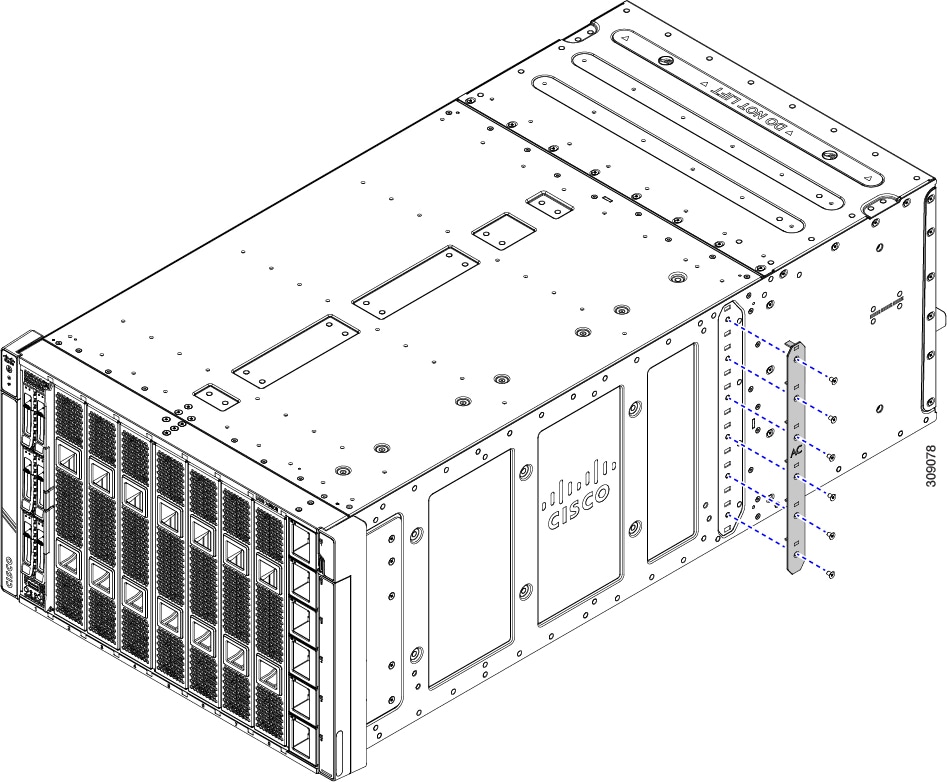
With the chassis in an ESD-safe work area, locate the PSU Keying bracket on the right exterior side of the chassis.

Step 3

Using a T10 screwdriver, remove the six screws that attach the bracket to the chassis.

Step 4

Grasp the PSU keying bracket and detach it from the chassis.

Step 5

Keep the screws and bracket.


What to do next

Installing the PSU Keying Bracket.

Installing the PSU Keying Bracket

Use this task to install a PSU Keying bracket (UCSX-9508-KEY-AC=).

Procedure


Step 1

With the chassis on an ESD-safe work area, grasp the new PSU Keying Bracket, and align it with right exterior side of the chassis.

Step 2

Place the bracket against the side of the chassis, aligning the screwholes in the bracket with the screwholes in the chassis.

Step 3

Insert the 6 screws into the screwholes.

Step 4

Using a T10 screwdriver, secure the bracket to the chassis by tightening each screw to snug.

If you have access to a torque wrench, tighten the screws to 6 in-lb.

Step 5

Reinstall the chassis:

  1. Insert the chassis into the rack.

  2. Reinstall the chassis components and reconnect any cables that were disconnected.

    For additional info, see Installing the Chassis.


Replacing the Power Entry Modules (PEMs)

The Cisco UCS X9508 chassis contains two power entry modules (PEMs). Each PEM (UCSX-9508-ACPEM=) is a grouping of 3 IEC 320 compatible C20 power inlets. The top PEM supports PSUs 1 through 3, and the bottom PEM supports PSUs 4 through 6. Each PEM is field replaceable.

Use the following procedures to replace the PEMs:

Installing the Power Entry Modules

Use this procedure to install a PEM (UCSX-9508-ACPEM=).


Note


The following task shows installing both PEMs. If you are installing only one PEM, you will need to tighten only the PEM screw for the replaced PEM, not both screws as shown in the illustrations.


Before you begin


DANGER


Follow all electrical safety precautions when working with facility power. Failure to do so can result in damage to the equipment or pose a risk of injury or death to personnel.


Procedure


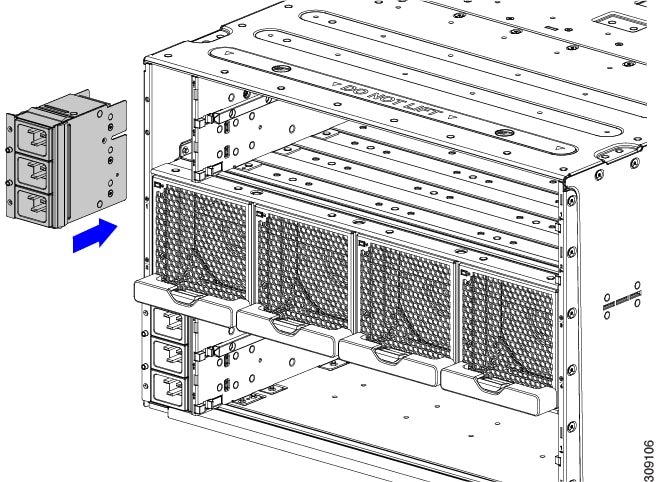
Step 1

Grasp the PEM and orient it correctly.

The PEM is keyed so that you can insert it only one way.

Step 2

Holding the PEM level, slide it into the PEM slot.

You might feel some resistance as the connector on the rear of the PEM meets the connector on the interior of the chassis.

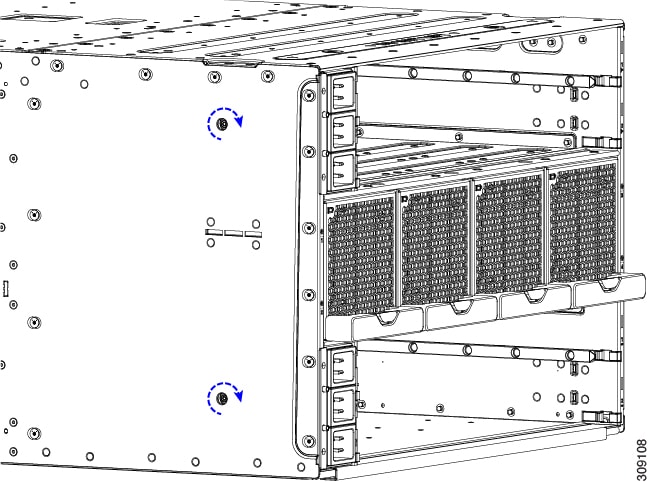
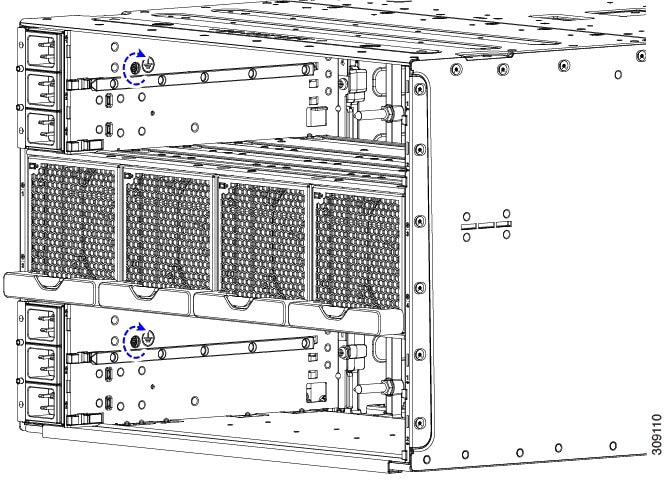
Step 3

Using a T10 screwdriver, tighten the captive screws which are easily identifiable because they are next to the electrical ground icons on the chassis walls.

  1. Tighten the exterior captive screws.

  2. Tighten the interior captive screws.

Step 4

Reinstall the IFMs and expansion modules.

  1. Go to Installing an Intelligent Fabric Module.

  2. Go to Installing a UCS X-Fabric Module Blank.

Step 5

Reconnect all power cables.

The chassis automatically powers on when it receives inlet power.

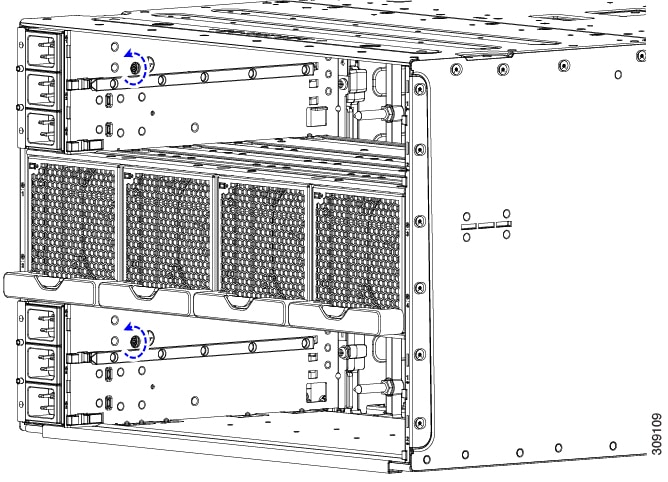
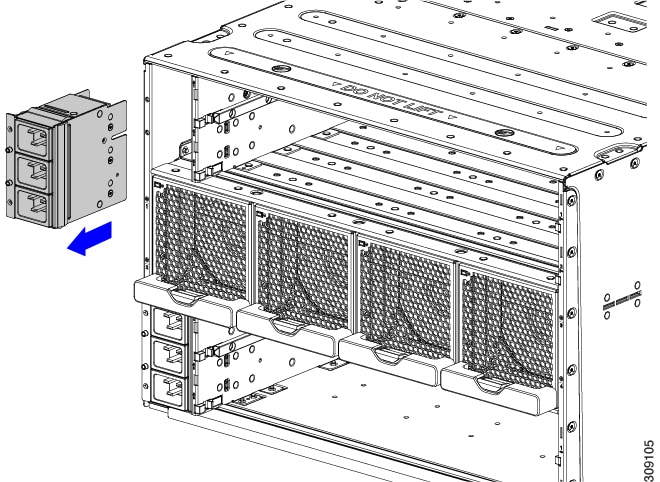
Removing the Power Entry Modules

PEMs support inlet power to the chassis from the facility. It is a best practice to remove all power from the system when replacing a PEM.


DANGER


Follow all electrical safety precautions when working with facility power. Failure to do so can result in damage to equipment or pose a risk of injury or death to personnel.


Note


The following task shows removing both PEMs. If you are removing only one PEM, you will need to loosen only the PEM screw for the replaced PEM, not both screws as shown in the illustrations.


Before you begin

The power entry modules (PEMs, UCSX-9508-ACPEM=) are connected to facility power, so you must disconnect facility power from the PEM that you will be removing.

Procedure


Step 1

Power down all compute nodes.

Step 2

Remove any power cables that are attached to the PEM.

Step 3

Remove the IFMs and expansion modules.

  1. Go to Removing an Intelligent Fabric Module.

  2. Go to Removing a UCS X-Fabric Module Blank.

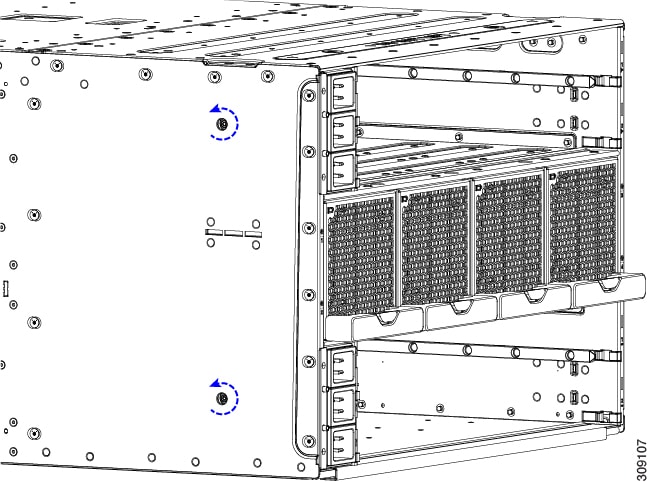
Step 4

Using a T10 screwdriver, loosen the captive screws that attach the PEM to the chassis.

The captive screws are easily identifiable because they are next to the electrical ground icons on the chassis walls.

  1. Loosen the exterior captive screws.

  2. Loosen the interior captive screws.

Step 5

Grasp the PEM and slide it out of the chassis.

When you remove a PEM, you must replace it with another one. Do not operate the system with an empty PEM slot.


What to do next

Install a PEM. Go to Installing the Power Entry Modules.

Installing and Removing a Fan Module

You can hot swap a fan module (UCSX-9508-FAN) without causing an electrical hazard or damage to the system. However, you can only remove one fan module at a time while the system is operating. Removing more than one fan module could cause overheating.

Fan Module Replacement Consideration

While a fan module is absent from the chassis, the pair of compute nodes physically associated with that fan may be throttled to prevent thermal overload. After the fan module is replaced in the chassis, throttling is removed and the associated blades resume normal operation.

To minimize the impact to system performance, do not remove a fan module until a replacement fan module is available. When replacing a fan module, you must insert a new fan in less than one minute after removing the old fan. Leaving the fan module out of the chassis for longer durations of time will result in power throttling of the associated compute nodes. In extreme cases, the compute nodes might shutdown.

The following table shows the mapping of fan modules to their associated compute nodes.

Fan Module

Compute Node Slots

1

7, 8

2

5, 6

3

3, 4

4

1, 2

Installing a Fan Module

Procedure


Step 1

Hold the fan module with the handle at the bottom and place your other hand underneath the fan module to support it.

Step 2

Align the fan with the fan bay in the rear of the chassis.

Figure 18. Aligning the Fan Module

Step 3

Slide the fan into the chassis until it is flush with the face of the chassis.

Note


Make sure that the latch on the handle is engaged with the chassis.

When the fan module is almost completely installed, you might feel some resistance. The resistance is normal, and it occurs when the connector at the rear of the fan contacts the corresponding socket inside the chassis.

Figure 19. Seating the Fan into the Chassis

Step 4

Listen for the fan to power up and verify that the LED behavior is as expected.

See LED Locations and Interpreting LEDs.


Removing a Fan Module

Before you begin

Removing the fan can cause throttling of the compute nodes associated with that fan. When replacing a fan, you must insert a new fan in less than one minute after removing the old fan. You will find it helpful to have the replacement fan ready before attempting fan replacement. For more information, see Fan Module Replacement Consideration.

Procedure


Step 1

Grasp the fan module handle and push down on the release button.

Figure 20. Disengaging the Fan Module

Step 2

Slide the fan module partially out of the chassis and place your hand underneath it to support it.

When the fan disconnects from the midplane, it will power down.

Step 3

Slide the fan completely out of the chassis, making sure to support its weight with your other hand.

Caution


The fan module is relatively heavy! Do not attempt to handle or carry it by only its handle. Instead, make sure support the fan's weight with your other hand.

Figure 21. Removing the Fan Module

What to do next

Insert a fan module. Go to Installing a Fan Module.

Installing and Removing a Rear Module's Fan

The Cisco UCS X9508 Intelligent Fabric Module (IFM) and X-Fabric Module (XFM) blanks use the same fan (UCSX-RSFAN=), which makes the fans interchangeable between these modules and module blanks. In a typical configuration, there are three fans numbered from one to three.


Note


The fans for IFM and XFMs (UCSX-RSFAN=) are different from the fan modules (UCSX-9508-FAN) that provide cooling and ventilation for the entire server chassis. These two types of fans are not interchangeable.


Use the following procedures to replace a fan on a Cisco UCS X9508 module or module blank.

Installing a Fan for a UCS Intelligent Fabric Module (IFM) or X-Fabric Module (XFM) Blank

Use this task to install the fan (UCSX-RSFAN=) for a UCS Intelligent Fabric Module (IFM) or X-Fabric Module (XFM) Blank.

Procedure


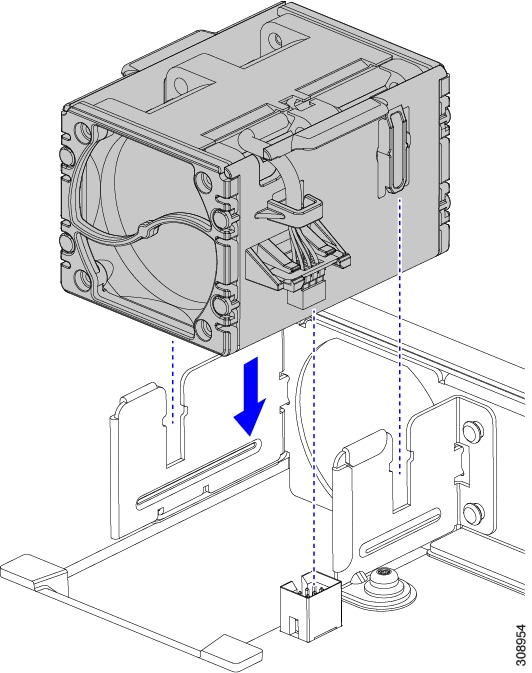
Step 1

Align the fan correctly.

  1. Align the power connector on the replacement fan with power connector on the board.

  2. Align the guides on long fan side walls with the corresponding cutouts on the module.

    Figure 22. Aligning the Fan

Step 2

Press down evenly on the fan until it is fully seated.

Make sure the fan is level while you're installing it. You will feel the fan click into place when it is correctly seated on the module or module blank.


Removing a Fan for a UCS Intelligent Fabric Module (IFM) or X-Fabric Module (XFM) Blank

Use the following procedure for removing a fan (USCX-RSFAN=) from a UCS Intelligent Fabric Module (IFM) or X-Fabric Module (XFM) Blank.

Procedure


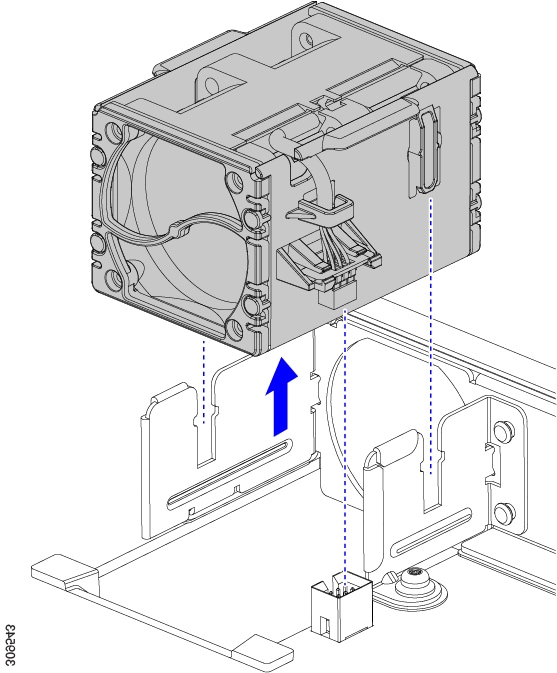
Step 1

Grasp the fan by the tabs on each long side wall.

Step 2

Pull the fan straight up.

This step disconnects the fan from the power connector and lifts the fan off of the board.

Figure 23. Removing the Fan from a UCS X9508 Module or Module Blank

What to do next

Insert a fan module. Go to Installing a Fan for a UCS Intelligent Fabric Module (IFM) or X-Fabric Module (XFM) Blank.

Installing and Removing an Intelligent Fabric Module

Intelligent Fabric Modules (IFMs) install in the rear of the chassis. They are always deployed in pairs, and the minimum IFM configuration for each UCS X9508 is two. For more information, see Intelligent Fabric Modules.


Caution


When working with the IFMs, handle them carefully to avoid damage to the modules, connectors, and pins.


Use the following procedures to replace an IFM:

Installing an Intelligent Fabric Module

Intelligent Fabric Modules (IFM) must be deployed in pairs, so there are no IFM module blanks that can be installed.


Caution


When working with the IFMs, handle them carefully to avoid damage to the modules, connectors, and pins! Make sure that the modules are level during insertion and slide them into the chassis slowly.


Procedure


Step 1

If the IFM has a cable management tray, remove it.

See Removing the Cable Management Tray.

Step 2

Swing the ejector handles to the open position.

Step 3

Placing one hand underneath the IFM, align the module with the empty IFM slot on the rear of the chassis.

Figure 24. Aligning the Intelligent Fabric Module

Step 4

Holding the IFM level, slide it almost all the way into the chassis until you feel some resistance.

This resistance is normal. It occurs when the connectors at the rear of the IFM contact the socket inside the chassis.

Caution


Make sure to apply even pressure when sliding the module into the chassis. Do not push down or pull up on the module handles, and do not apply more force to one ejector handle than the other.

Step 5

Grasp each of the ejector handles, and keeping them level, slowly arc them inward toward the chassis.

This step seats the IFM connectors into the sockets on the midplane.

Caution


Make sure to apply even pressure when closing the module ejector handles! Do not push down or pull up on the module handles, and do not apply more force to one ejector handle than the other.

Step 6

Push the ejector handles until both are parallel with the face of the IFM.

Make sure the ejector latch is fully inserted in the front panel

Step 7

If the IFM has a cable management tray, attach it.

See Installing the Cable Management Tray.


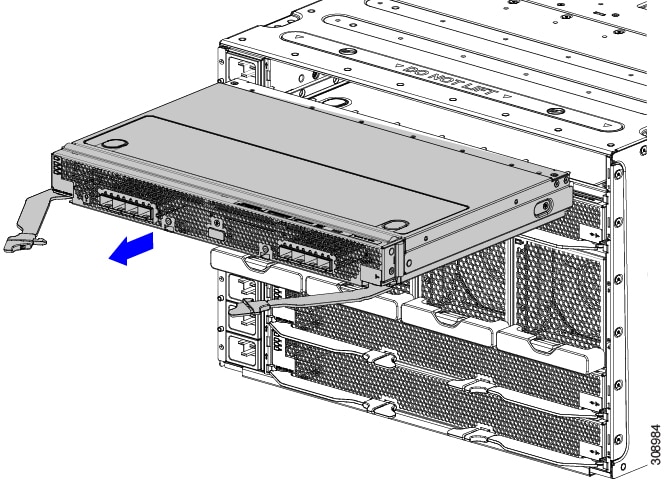
Removing an Intelligent Fabric Module

Intelligent Fabric Modules (IFM) must be deployed in pairs, so when you remove one, you must insert another IFM in its place.


Caution


When working with the IFMs, handle them carefully to avoid damage to the modules, connectors, and pins! Make sure that the modules are level during removal and slide them out of the chassis slowly.


Procedure


Step 1

If the IFM has a cable management tray, remove it.

See Removing the Cable Management Tray.

Step 2

Using your fingers, pinch the interior end of both handles to disengage the ejector latch.

This step unlocks the module handles so that they can move.

Figure 25. Opening the Module Handles

Step 3

Keeping the modules handles level, pull them towards you so that they arc away from the chassis.

You might feel some resistance as the IFM disconnects from the socket inside the chassis.

Step 4

Slide the module about halfway out of the chassis, then place your other hand underneath the IFM to support it.

Caution


Make sure to apply even pressure when sliding the module out of the chassis. Do not push down or pull up on the module handles, and do not apply more force to one ejector handle than the other.

Step 5

Continue sliding the IFM out of the chassis until it is completely removed.

Figure 26. Removing an Intelligent Fabric Module

What to do next

Insert an IFM. Go to Installing an Intelligent Fabric Module

Installing and Removing an X-Fabric Module

X-Fabric Modules are required when the UCS X9508 chassis contains one or more pairs of X-Series compute nodes and X-Series PCIe Nodes. For more information, see X-Fabric Modules.


Caution


Because both XFMs connect to all slots on the front of the server chassis, all pairs of compute nodes and PCIe nodes must be powered off before removing or inserting XFMs.


Caution


Although the Cisco UCS X-Fabric Modules can be removed, it is a best practice to leave them installed even during chassis installation.


Note


To ensure graceful/non-disruptive replacement of X-Fabric Modules, use your Cisco management tool, such as Cisco Intersight, to properly deactivate any profiles before removing the XFMs.


Use the following procedures to install or remove a UCS X9416 or X9516 X-Fabric Module.

For a UCS X9516 X-Fabric Module, also use the following procedures to install or remove the module's network adapters.

Removing an X-Fabric Module

Use the following procedure to remove a Cisco UCS X-Fabric Module.


Caution


When working with the XFMs, handle them carefully to avoid damage to the modules, connectors, and pins! Make sure that the modules are level during removal and slide them out of the chassis slowly.


Before you begin


Caution


Make sure that all pairs of compute nodes and PCIe nodes are completely powered off before removing an X-Fabric Module (XFM).


Note


To ensure graceful/non-disruptive replacement of X-Fabric Modules, use your Cisco management tool, such as Cisco Intersight, to properly deactivate any profiles before removing the XFMs.


Procedure


Step 1

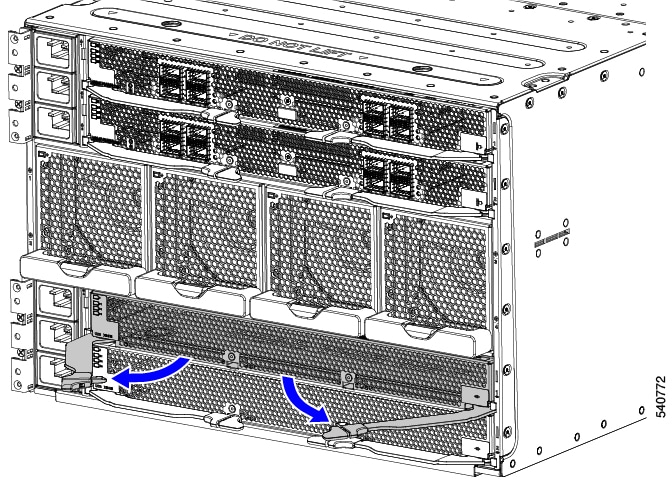
Using your fingers, pinch the interior end of both handles to disengage the ejector latch.

This step unlocks the module handles so that they can move.

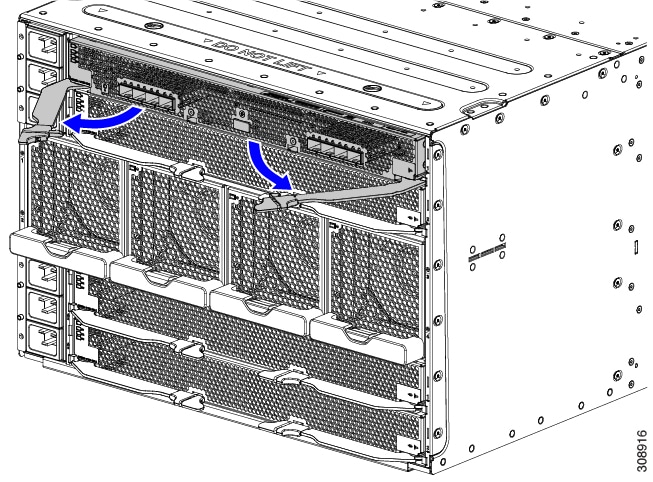
Step 2

Keeping the modules handles level, pull them towards you so that they arc away from the chassis.

Caution


Make sure to apply even pressure when sliding the module out of the chassis. Do not push down or pull up on the module handles, and do not apply more force to one ejector handle than the other.

You might feel some resistance as the module disconnects from the socket inside the chassis.

Figure 27. Opening the Module Ejector Handles

Step 3

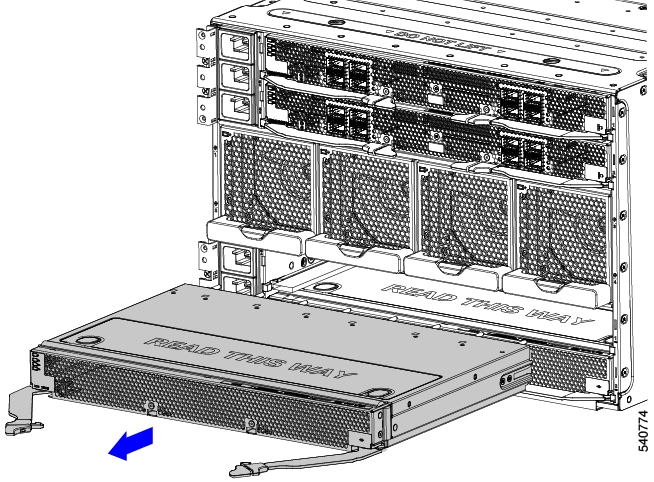
Keeping the module level, slowly slide the module about halfway out of the chassis, then place your other hand underneath the module to support it.

Step 4

Continue sliding the module out of the chassis until it is completely removed.

Figure 28. Removing an X-Fabric Module

What to do next

Insert an X-Fabric Module. Go to Installing an X-Fabric Module

Installing an X-Fabric Module

Use the following procedure to install a Cisco UCS X-Fabric Module.


Caution


When working with the XFMs, handle them carefully to avoid damage to the modules, connectors, and pins! Make sure that the modules are level during installation and slide them into of the chassis slowly.


Before you begin


Caution


Make sure that all pairs of compute nodes and PCIe nodes are completely powered off before inserting XFMs.


Note


After installing X-Fabric Modules, use your Cisco management tool, such as Cisco Intersight, to properly activate any profiles that include the XFMs.


Procedure


Step 1

Swing the ejector handles to the open position.

Step 2

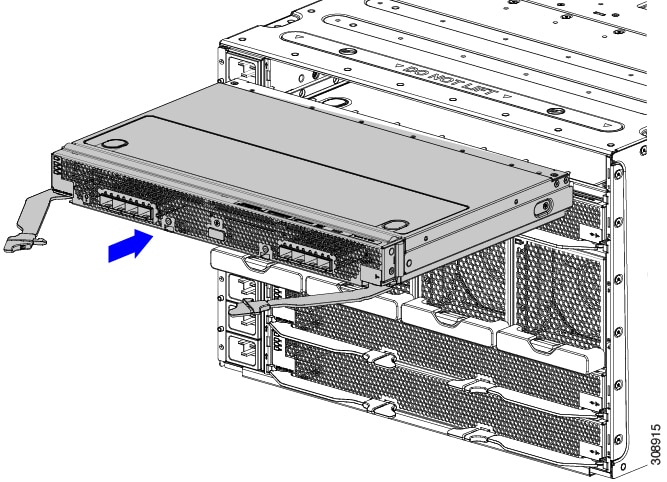
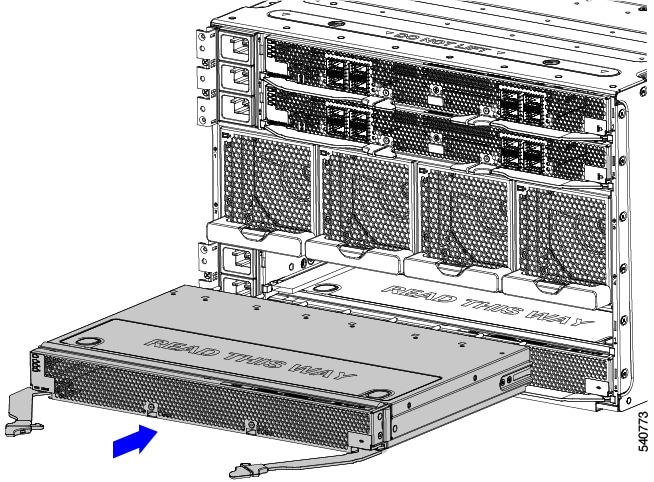
Placing one hand underneath the module, align the module with the empty module slot on the rear of the chassis.

Figure 29. Installing an X-Fabric Module

Step 3

Holding the module level, slowly slide it almost all the way into the chassis until you feel some resistance.

This resistance is normal. It occurs when the connectors at the rear of the module contact the socket inside the chassis.

Caution


Make sure to apply even pressure when sliding the module into the chassis. Do not push down or pull up on the module handles, and do not apply more force to one ejector handle than the other.

Step 4

Grasp each of the ejector handles, and keeping them level, arc them inward toward the chassis.

This step seats the module connectors into the sockets on the midplane.

Caution


Make sure to apply even pressure when closing the module ejector handles! Do not push down or pull up on the module handles, and do not apply more force to one ejector handle than the other.

Step 5

Push the ejector handles until both are parallel with the face of the module.

Make sure the ejector latch is fully inserted in the front panel

Replacement Guidelines and Considerations for Cisco UCS X9516 X-Fabric Modules

When replacing PCIe cages or cards, be aware of the following.

PCIe Cage Considerations and Guidelines

  • PCIe cages for the Cisco UCS X9516 X-Fabric Module are interchangeable. You can install either cage in slot 1 or slot 2 of the XFM.

  • Individual PCIe cages are not field-serviceable. The only supported workflows for removing or installing a PCIe cage is to remove or install the network adapter (such as the ConnectX-7 NIC) or for product recycling. Be careful when handling PCIe cages! Because they are not field-replaceable, the entire XFM must be replaced if a PCIe cage becomes damaged.

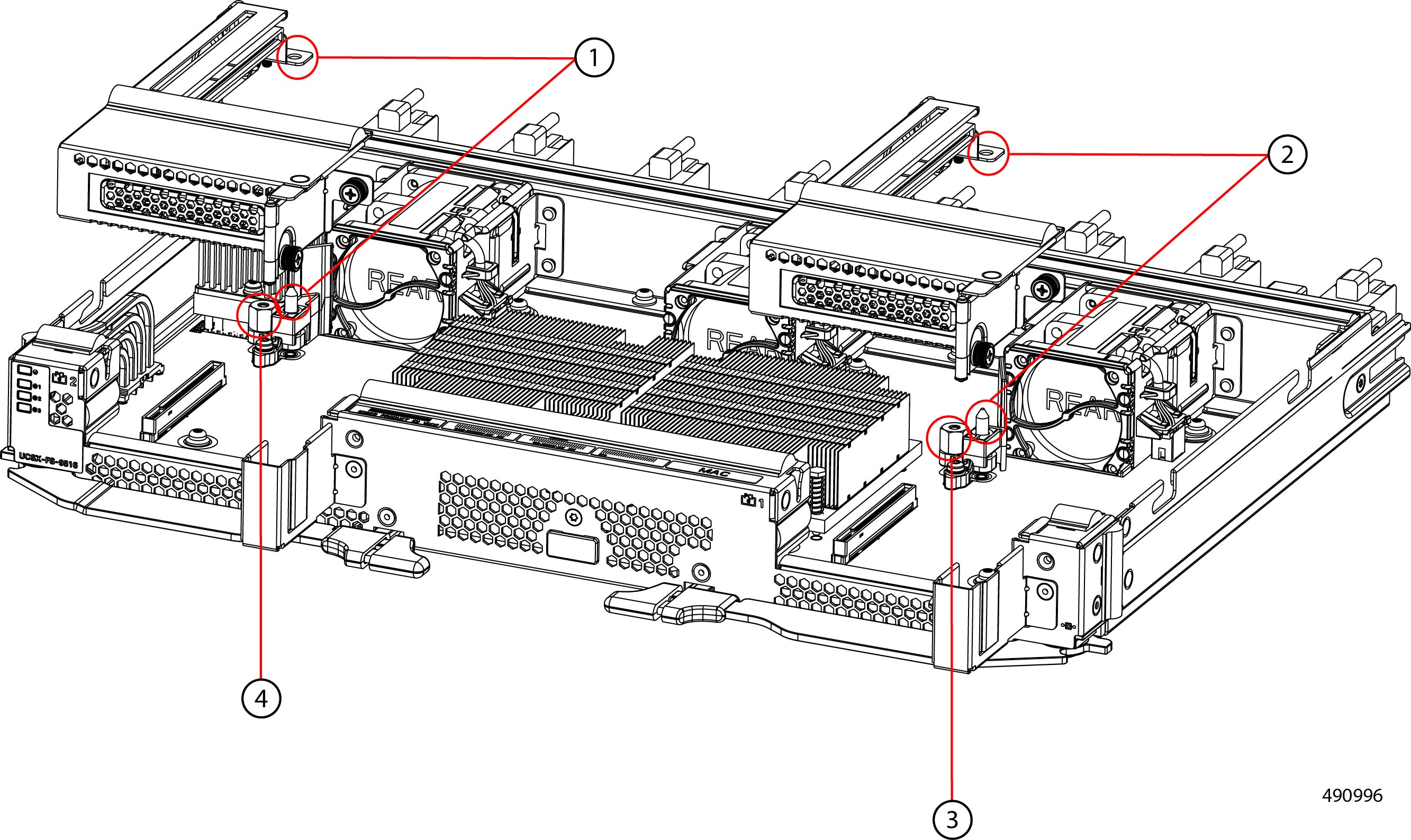
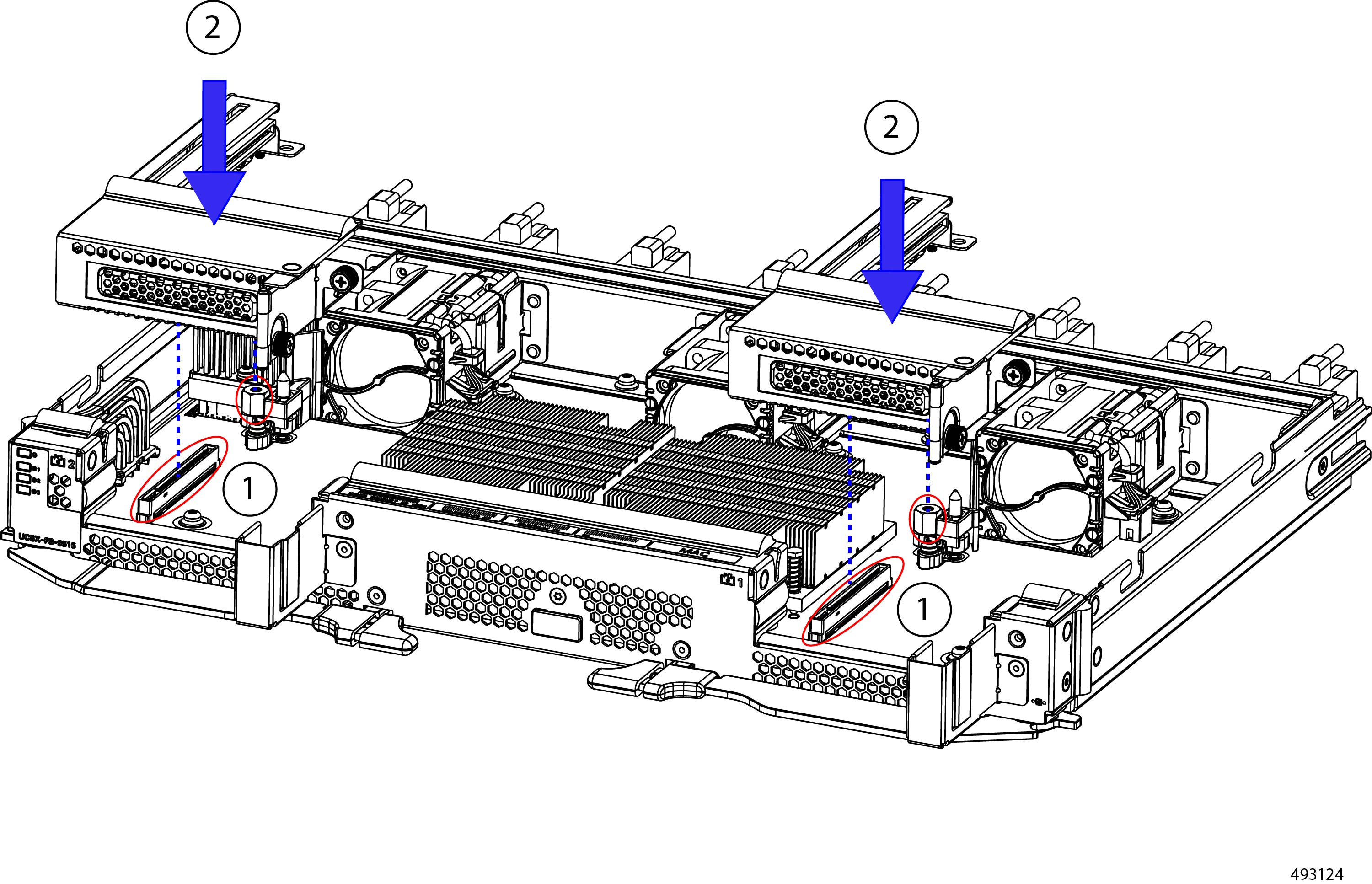
  • PCIe cages have alignment features consisting of guide pins that meet guide holes on each cage and a metal tab on the side of the cage near the front panel (not shown in the following illustration). These alignment features key the cages so that they ensure proper alignment with securing screws and prevent incorrect installation. You will find it helpful to know the locations of these features on the cage and the XFM itself.

    1

    Guide pin on motherboard and guide hole (PCIe Cage 2).

    2

    Guide pin on motherboard and guide hole (PCIe Cage 1).

    3

    Threaded standoff for thumbscrew (PCIe Cage 1)

    4

    Threaded standoff for thumbscrew (PCIe Cage 2)

  • Both PCIe cages must be installed during normal operation. To ensure proper airflow and to minimize the amount of airborne particulates, do not operate the XFM with an empty PCIe Cage slot.

  • Take care to keep a PCIe Cage horizontal while removing or installing it. Tipping, twisting, or rotating the cage during removal or installation increases the chance of damaging the cage's PCIe connector (golden fingers) or the XFM motherboard's PCIe socket.

PCIe Card Considerations and Guidelines

  • When handling a PCIe card, always use safe ESD handling practices.

  • Third-party PCIe cards can be installed in one, or both of the XFM's PCI cages. Although not a requirement, it is a best practice to install a PCIe card in PCIe Cage 1 if only one PCIe card is required for your deployment.

  • Third-party PCIe cards have typical alignment features consisting of beveled tab that inserts into a slot inside the PCIe cage and a right angle tab on the card's faceplate. The XFM PCIe cage is designed to accept card's with these features. You will find it helpful to familiarize yourself with these PCIe card features and how they mate with the appropriate locations on each PCIe cage.

  • If your deployment requires only one PCIe card, you must install a PCIe card blank (bracket). To ensure proper airflow and to minimize the amount of airborne particulates, do not operate the XFM with an uncovered PCIe card slot.

  • Take care to keep a PCIe card horizontal while removing or installing it. Tipping, twisting, or rotating the card during removal or installation increases the chance of damaging the PCIe connector (golden fingers) on the card or the PCIe socket inside the PCIe cage.

  • The Cisco UCS X9516 X Fabric Module has the following operational temperatures which differ depending on the network adapter installed:

    • With ConnectX7 1x400G cards installed, the module's maximum supported ambient temperature is 80° F (27° C)

    • With ConnectX7 2x200G cards installed, the module's maximum supported ambient temperature is 86° F (30° C)

Removing a PCIe Card from a UCS X9516 X-Fabric Module PCIe Cage

The UCS X9516 X-Fabric Module offers two PCIe Cages that support PCIe Cards, such as NVIDIA ConnectX-7 NICs. Each PCIe Cage (numbered 1 and 2, as indicated on the faceplate of the XFM) contains up to one network adapter.


Caution


As part of this procedure, you will remove the PCIe cage from the XFM. Individual PCIe cages are not field-replaceable, so handle them carefully, especially when removing or installing them. If the cage or its connectors are damaged, you must RMA the entire XFM.


Use this task to remove a PCIe card from the UCS X9516 XFM.

Before you begin

Before attempting this task, gather a #2 Phillips screwdriver.

You will find it helpful to read Replacement Guidelines and Considerations for Cisco UCS X9516 X-Fabric Modules before attempting this task.

Procedure


Step 1

If you have not already removed the XFM from the chassis, do so now.

See Removing an X-Fabric Module.

Step 2

If you have not already removed the X-Fabric Module's top cover, do so now.

  1. Press and hold the release button down.

  2. While holding the release button down, slide the top cover toward the rear of the module.

    This step frees the catch pins on the top cover from the retaining grooves on the top of the XFM's side walls.

  3. Lift the top cover up to remove it from the XFM.

Step 3

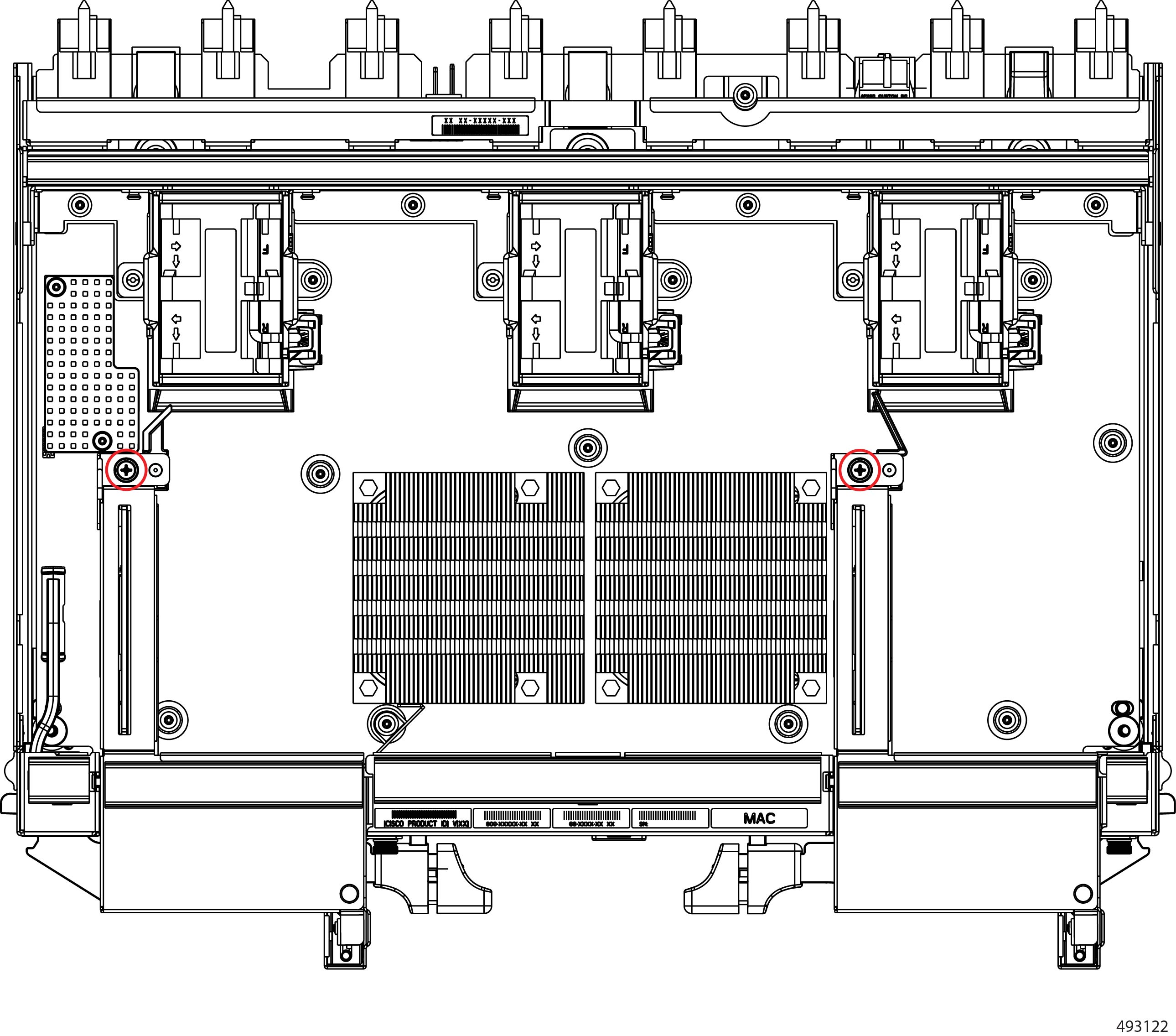
Loosen the screws.

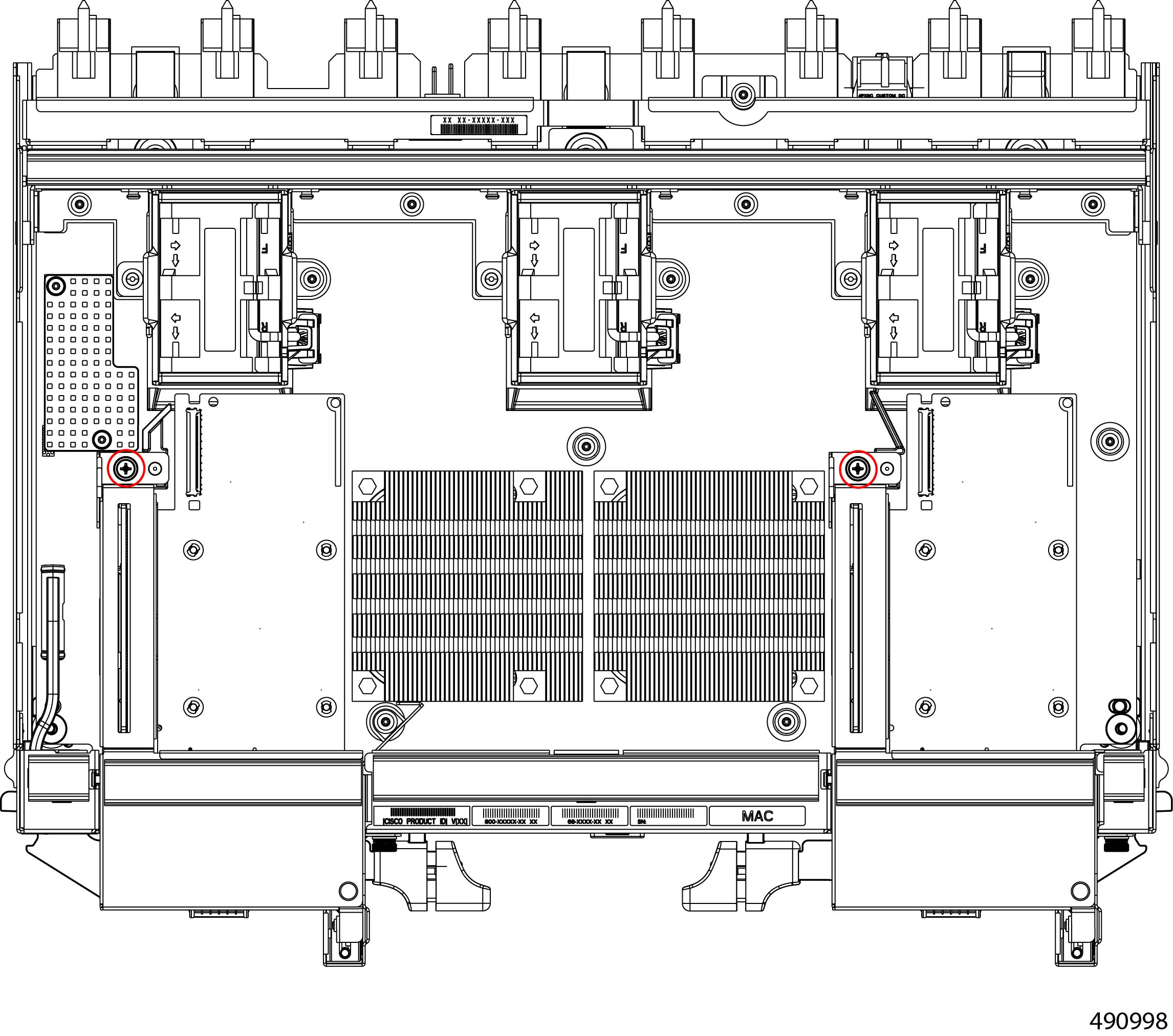
  1. Using the #2 Phillips screwdriver, loosen two thumbscrews on the XFM faceplate.

  2. Using the screwdriver, loosen the thumbscrews on the PCIe cage.

Step 4

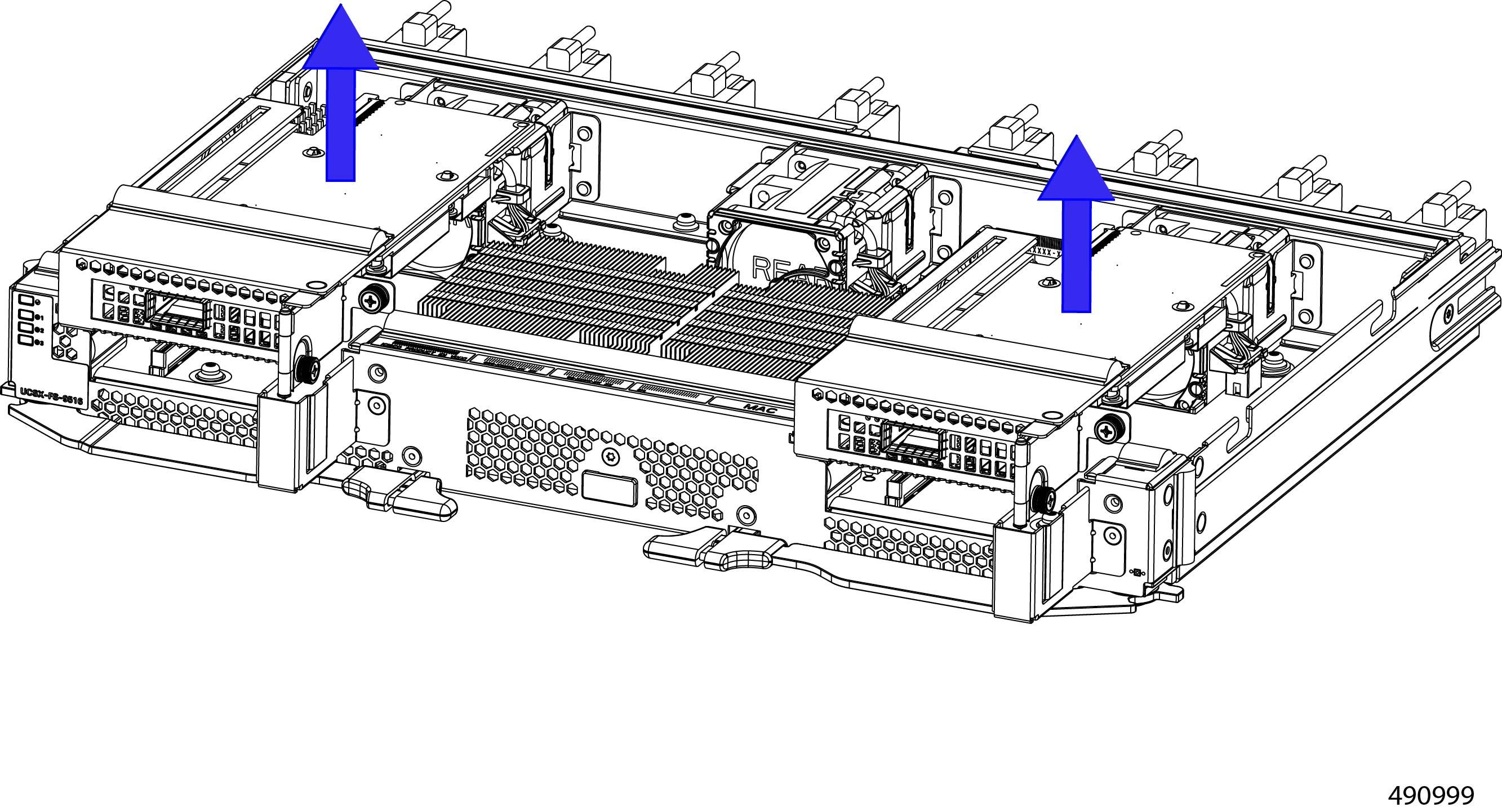
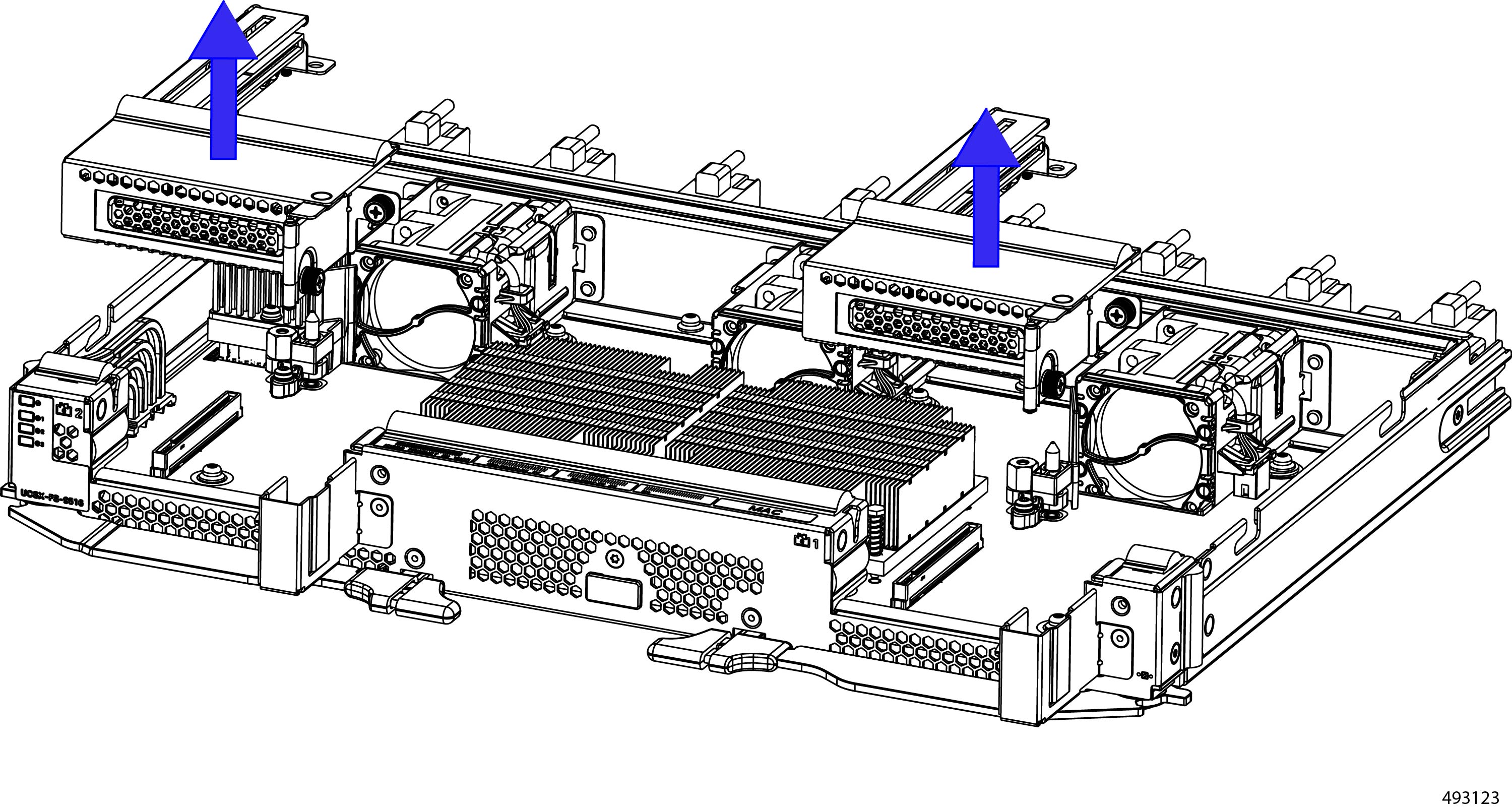
Grasping both the front and rear edges of the PCIe cage, keep the PCIe cage level while lifting it off of the XFM.

Caution


Do not tip, twist, or rotate the PCIe cage while removing it! Failure to keep the PCIe cage while removing it can cause damage to the connector.

Step 5

Place the PCIe Cage on an ESD-safe surface while you work on it.

Step 6

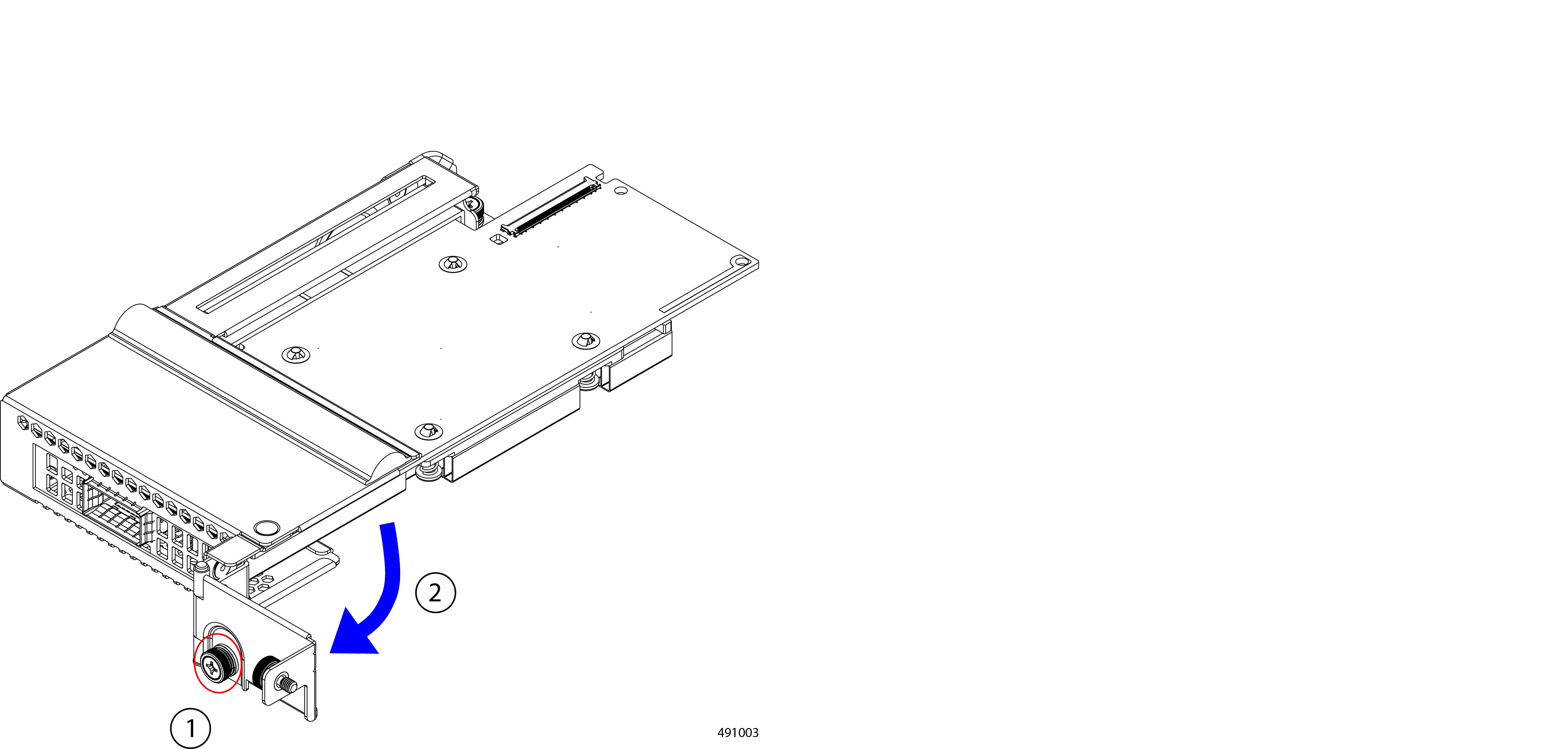
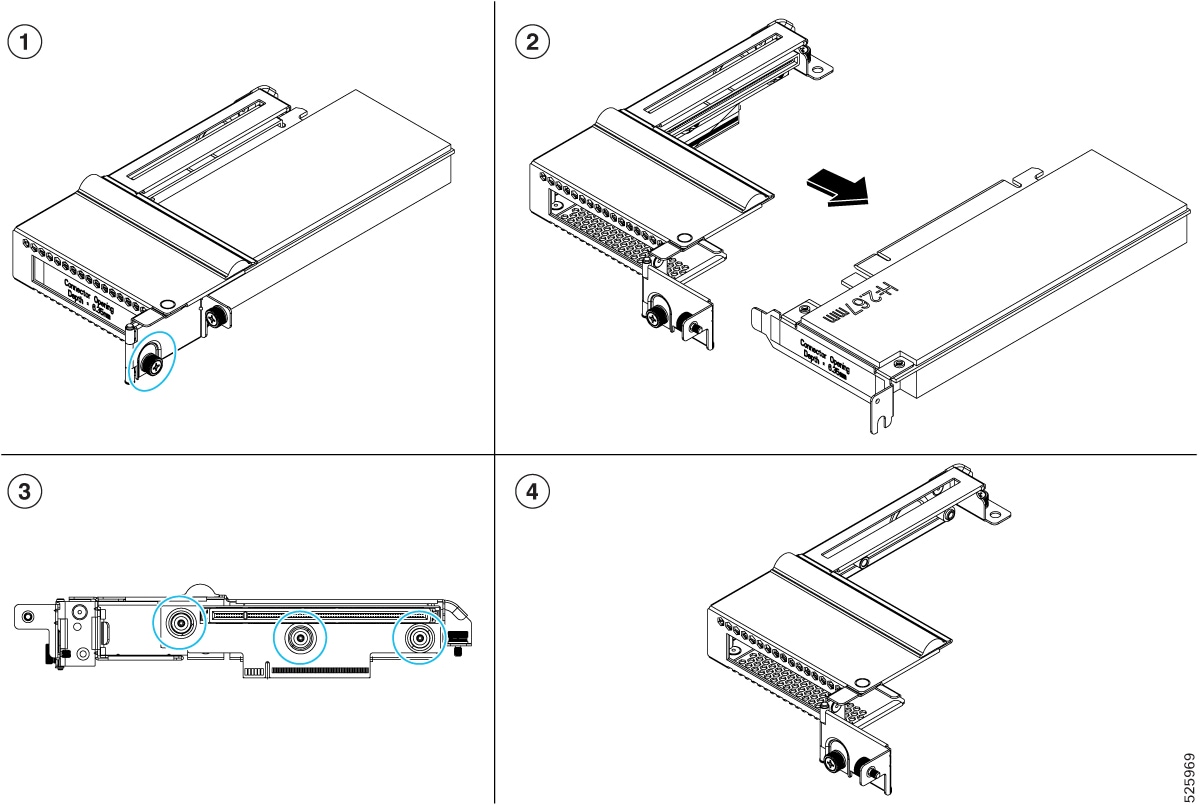
Open the PCIe Cage.

  1. Using the screwdriver, loosen the captive screw.

  2. Swing the PCIe Cage door open.

Step 7

Grasp the front and rear edges of the PCIe card, and holding it level, pull it straight out of the PCIe cage.

Caution


Do not tip, twist, or rotate the PCIe card while removing it! Failure to keep the PCIe card level while removing it can cause damage to the card's connector or cage's socket.


What to do next

Insert a NIC card and reinstall the PCIe cage onto the UCS X9516 X-Fabric Module.

See Installing a PCIe Card into a UCS X9516 X-Fabric Module PCIe Cage.

Removing a PCIe Filler Panel from a UCS X9516 X Fabric Module

Use this procedure to remove a filler blank from the PCIe card slot, when needed.

Before you begin

Before attempting this task, gather a #2 Phillips screwdriver.

You will find it helpful to read Replacement Guidelines and Considerations for Cisco UCS X9516 X-Fabric Modules before attempting this task.

Procedure


Step 1

If you have not already removed the XFM from the chassis, do so now.

See Removing an X-Fabric Module.

Step 2

If you have not already removed the X-Fabric Module's top cover, do so now.

  1. Press and hold the release button down.

  2. While holding the release button down, slide the top cover toward the rear of the module.

    This step frees the catch pins on the top cover from the retaining grooves on the top of the XFM's side walls.

  3. Lift the top cover up to remove it from the XFM.

Step 3

Loosen the screws.

  1. Using the #2 Phillips screwdriver, loosen two thumbscrews on the XFM faceplate.

  2. Using the screwdriver, loosen the thumbscrews on the PCIe cages.

Step 4

Grasping both the front and rear edges of the PCIe cage, keep the PCIe cage level while lifting it off of the XFM.

Caution


Do not tip, twist, or rotate the PCIe cage while removing it! Failure to keep the PCIe cage while removing it can cause damage to the connector.

Step 5

Place the PCIe Cage on an ESD-safe surface while you work on it.

Step 6

Open the PCIe cage.

  1. Using the screwdriver, loosen the captive screw.

  2. Swing the PCIe Cage door open.

Step 7

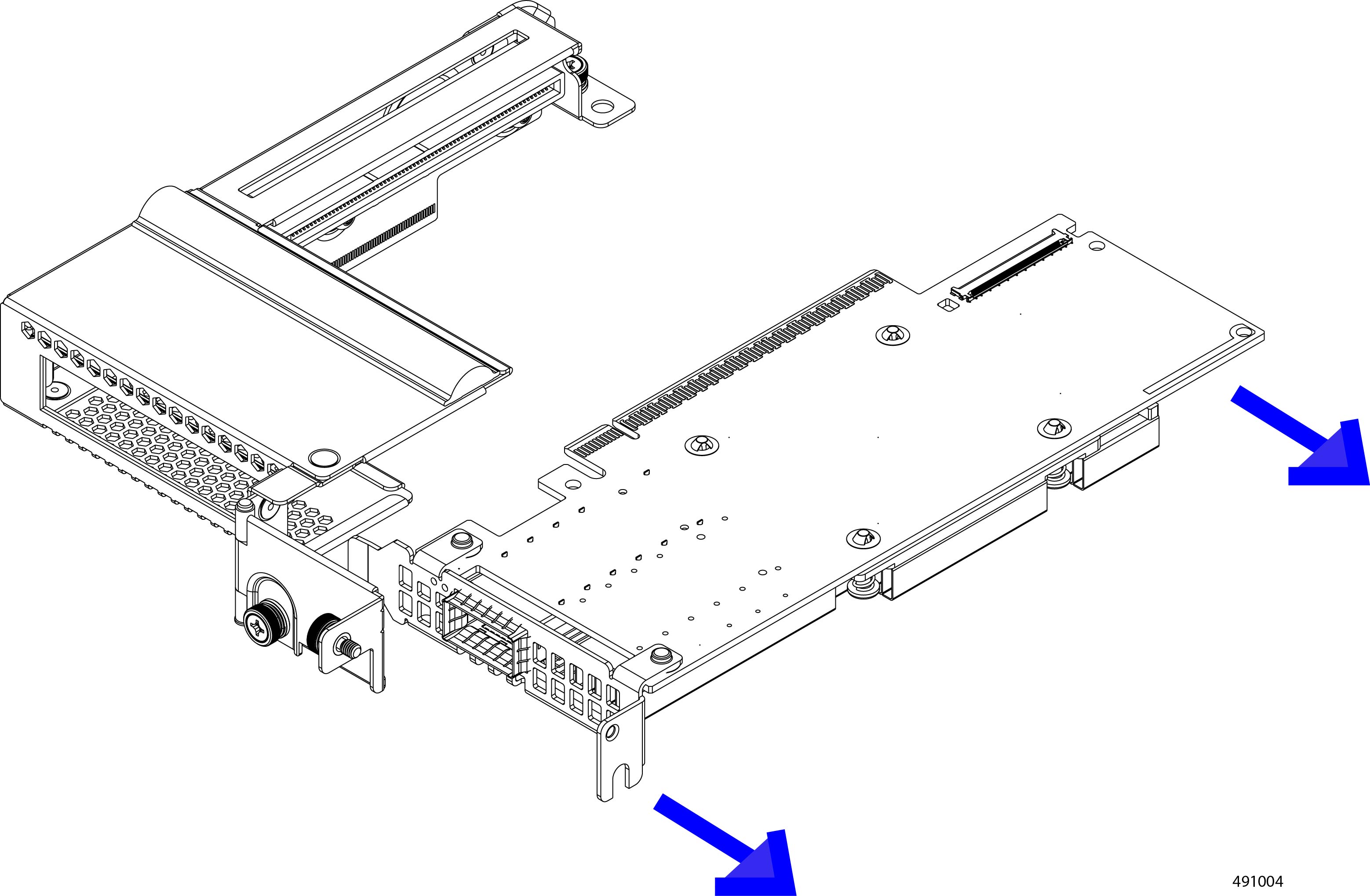
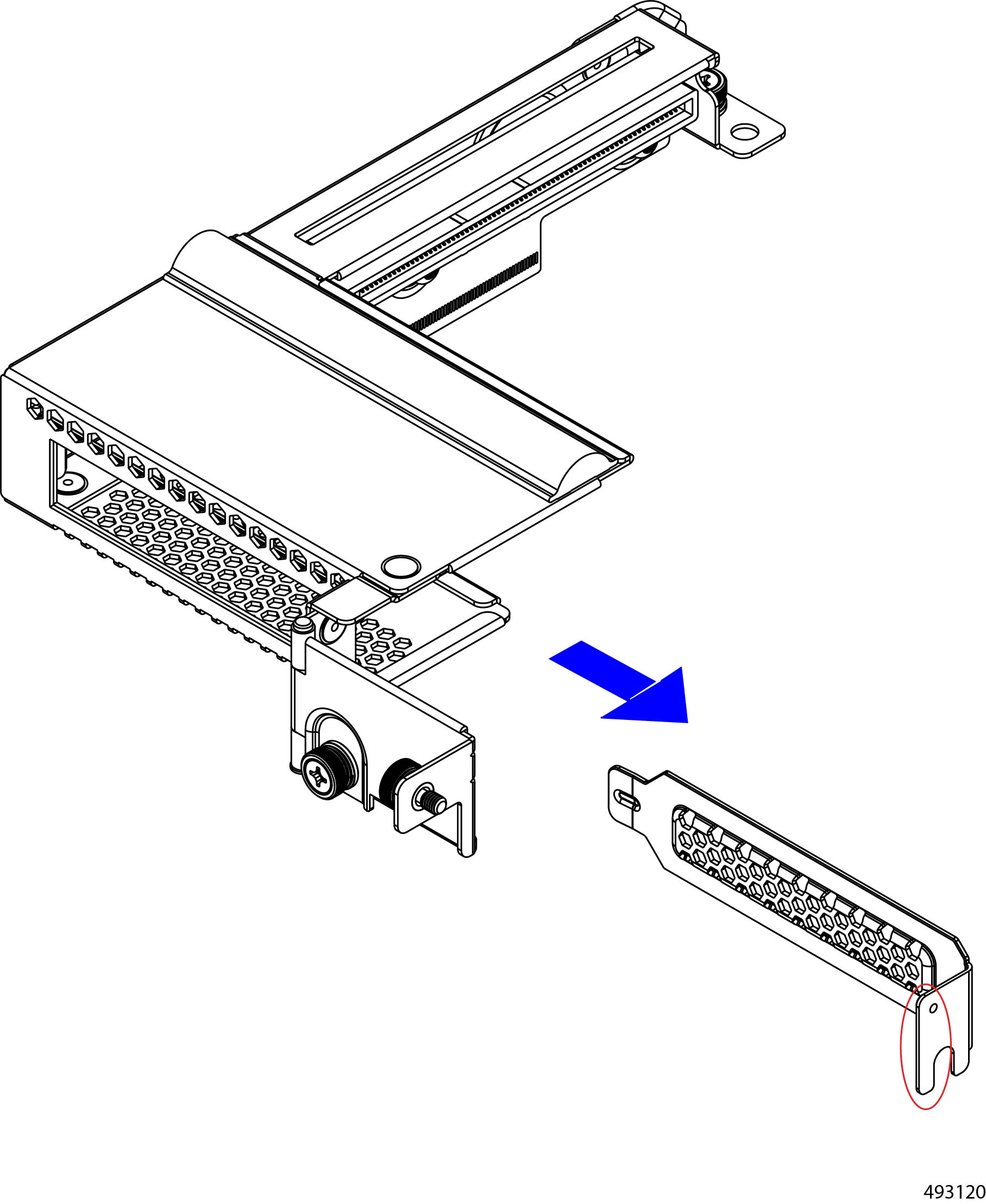
Grasp the front edge of the filler panel, and holding it level, pull it straight out of the PCIe cage.


Installing a PCIe Card into a UCS X9516 X-Fabric Module PCIe Cage

Use the following task to install a PCIe cage onto a Cisco UCS X9516 X-Fabric Module.


Caution


As part of this procedure, you will install the PCIe cage onto the XFM. Be careful when doing so. PCIe cages are not field-replaceable. If the PCIe cage or connectors are damaged, you must RMA the entire XFM.


Before you begin

Before attempting this procedure, gather a #2 Phillips torque driver.

You will find it helpful to read Replacement Guidelines and Considerations for Cisco UCS X9516 X-Fabric Modules before attempting this task.

Procedure


Step 1

Orient the PCIe card so that the connector and the PCIe socket inside the PCIe cage are in plane with each other.

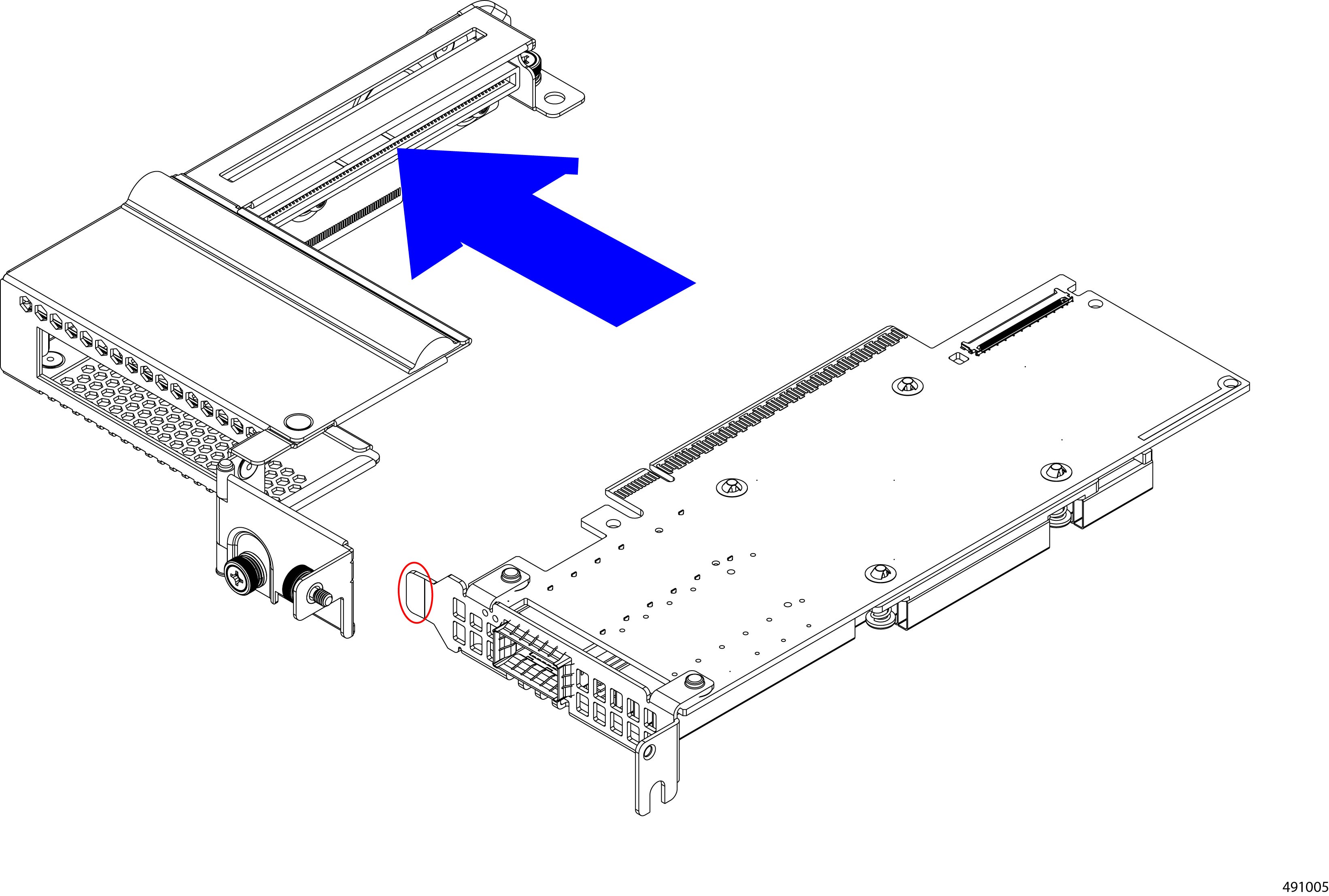
Step 2

Holding the PCIe card level, slide it into the PCIe cage making sure that the beveled tag inserts into the slot inside the cage.

Step 3

Press firmly to fully seat the card's connector into the PCIe socket inside the PCIe cage.

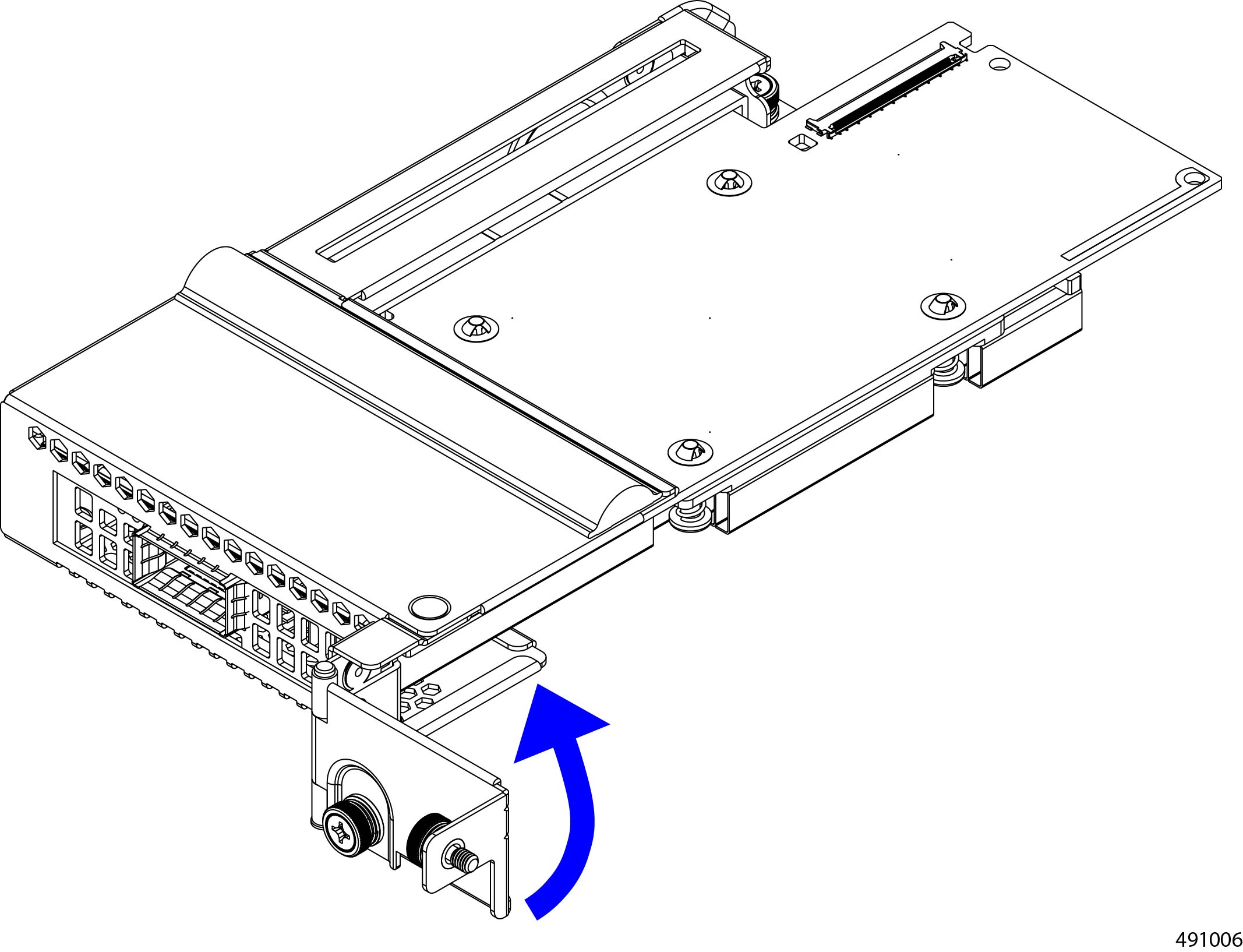
Step 4

Swing the PCIe cage door closed, making sure that the door closes completely and sits flush against the cage.

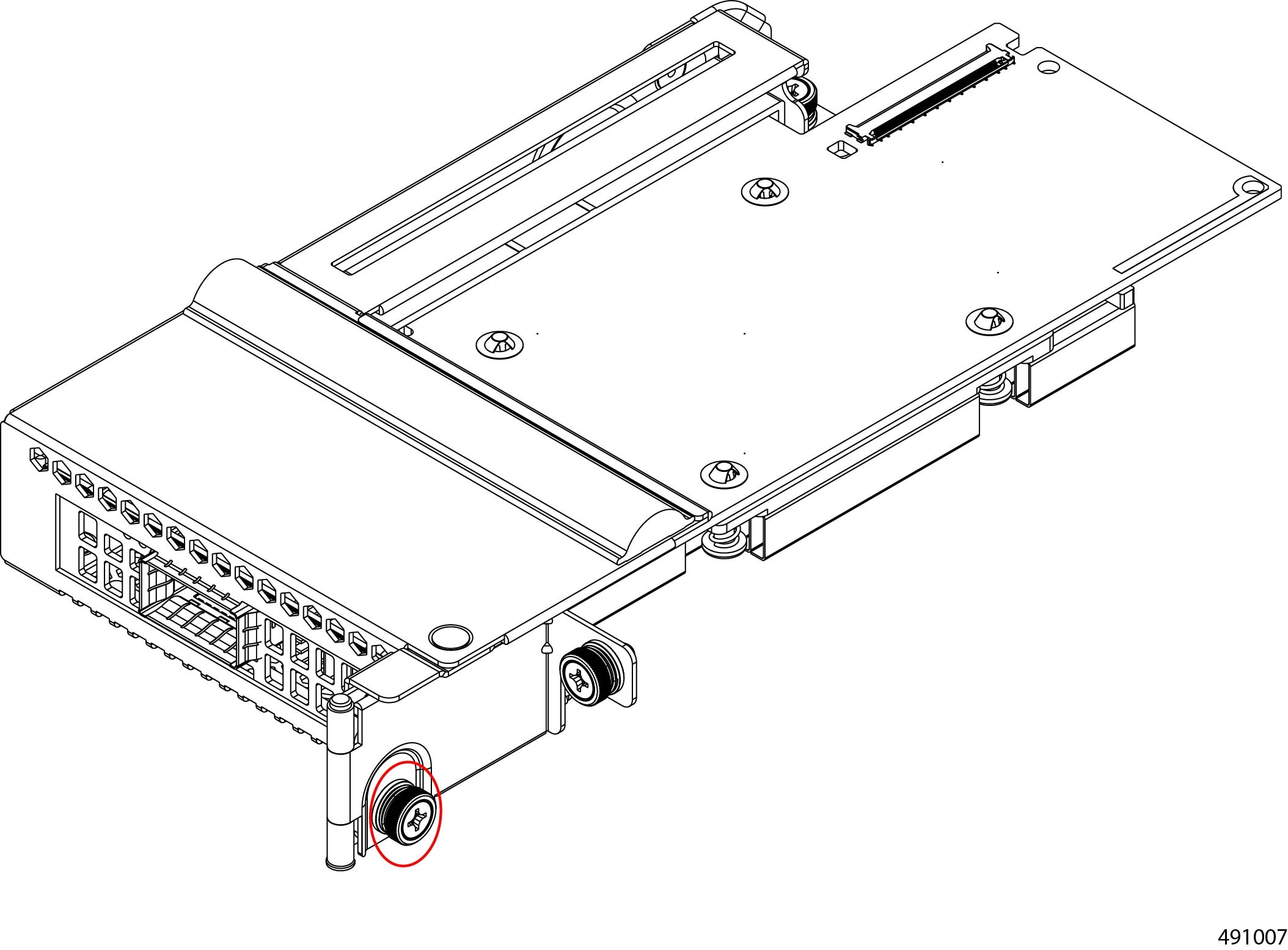
Step 5

Using the screwdriver, tighten the captive screw to secure the door to the PCIe cage.

Caution


Do not overtighten the thumbscrews! Make sure to tighten them to finger-tight only or you risk stripping them.

Step 6

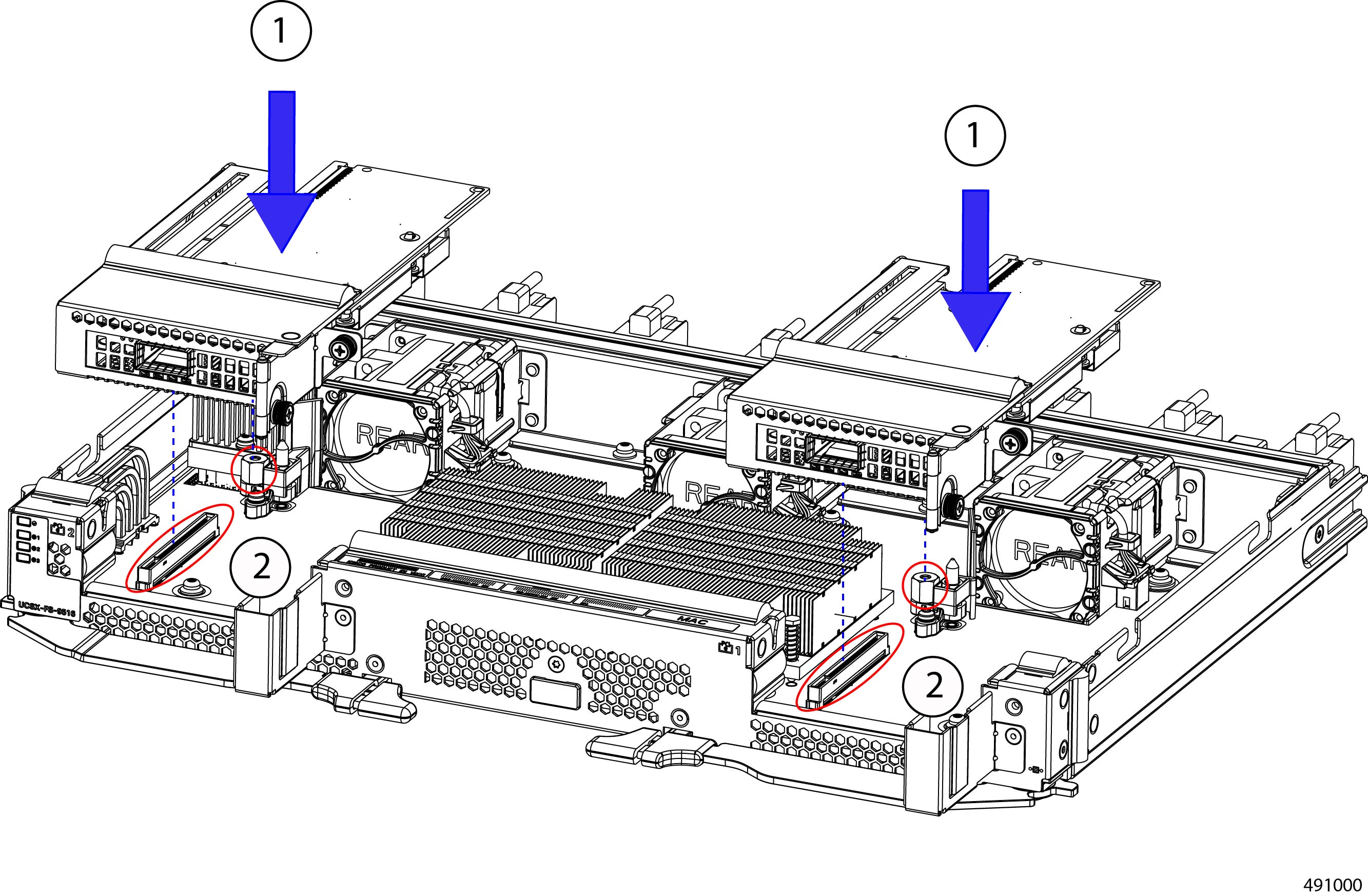
Attach the PCIe Cage to the XFM.

  1. Locate the guide pins, threaded standoff for the thumbscrews, and the PCIe socket on the XFM.

  2. Holding the PCIe Cage level, lower it onto the XFM so that the PCIe connector on the cage seats into the socket on the XFM.

    Caution


    Do not tip, twist, or rotate the PCIe cage while installing it! Failure to keep the PCIe cage while removing it can cause damage to the PCIe connector.

Step 7

Using the screwdriver, tighten the thumbscrews on the XFM.

Step 8

Using the screwdriver, tighten the thumbscrews on the XFM's faceplate.

Step 9

Attach the top cover of the X Fabric Module.

  1. Lay the top cover on the XFM.

  2. Slide it forward, making sure that the pins on the underside of the top cover meet the grooves on the top of the XFM's sidewalls.

  3. Making sure that the leading edge of the top cover slides under the front of the XFM, seat the top cover until it clicks into place.

Step 10

Insert the XFM into the chassis.

See Installing an X-Fabric Module.


Installing a PCIe Filler Panel in a UCS X9516 X- Fabric Module

Use this task to install a filler panel in the PCIe card slot, when needed.


Note


Do not operate the system without a filler panel or PCIe card installed.


Before you begin

Before attempting this procedure, gather a #2 Phillips screwdriver.

You will find it helpful to read Replacement Guidelines and Considerations for Cisco UCS X9516 X-Fabric Modules before attempting this task.

Procedure


Step 1

If you have not already loosened the screw and opened the PCIe cage door, do so now.

Step 2

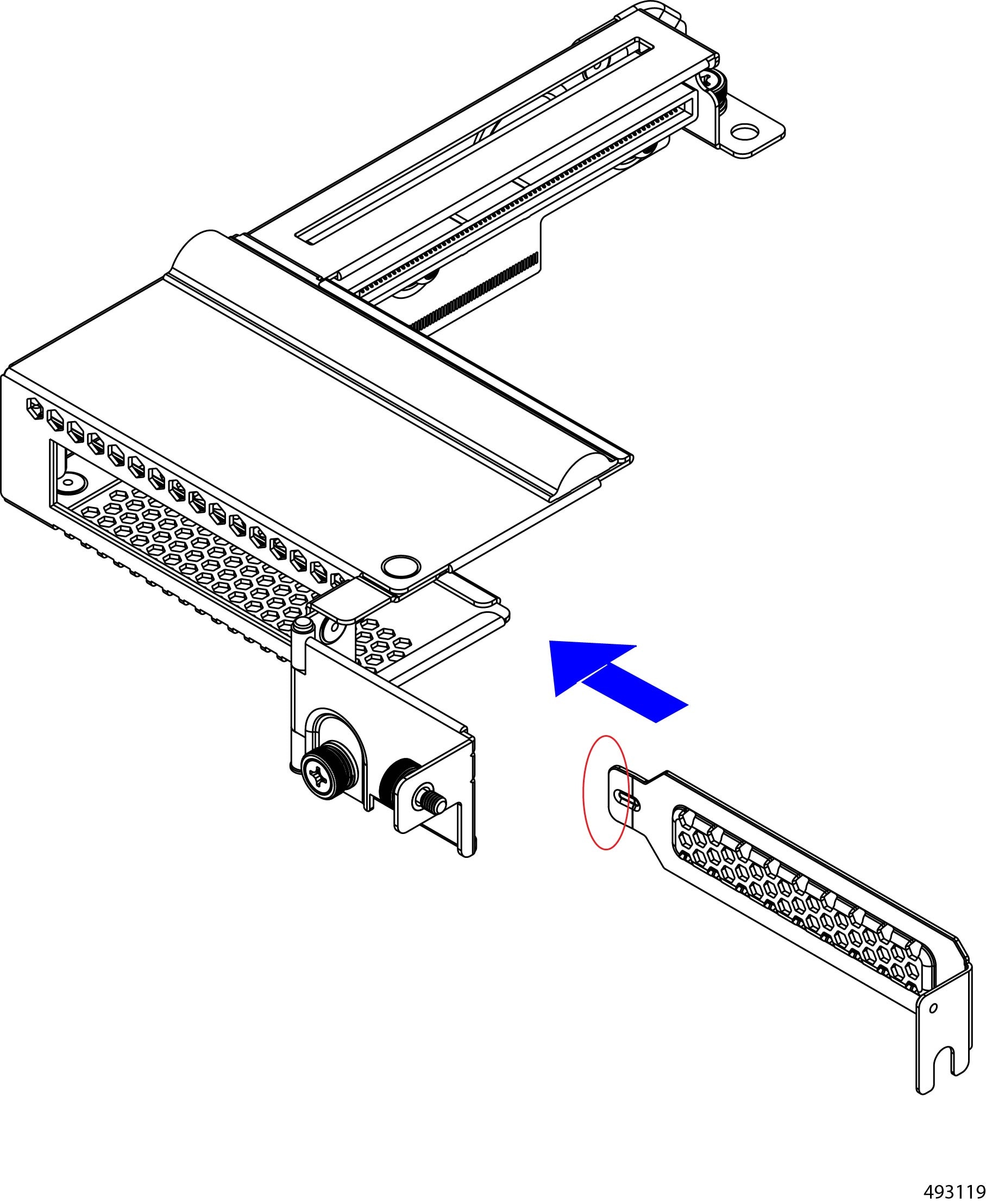
Orient the filler panel so that the tabbed end of the filler panel lines up with the slot inside the PCIe cage.

Step 3

Holding the filler panel level, slide it into the PCIe cage making sure that the beveled tab inserts into the slot inside the cage.

Step 4

Swing the PCIe cage door closed, making sure that the door closes completely and sits flush against the cage.

Step 5

Using the screwdriver, tighten the captive screw to secure the door to the PCIe cage.

Caution


Do not overtighten the thumbscrews! Make sure to tighten them to finger-tight only or you risk stripping them.

Step 6

Attach the PCIe Cage to the XFM.

  1. Locate the guide pins, threaded standoff for the thumbscrews, and the PCIe socket on the XFM (1).

  2. Holding the PCIe Cage level, lower it onto the XFM so that the PCIe connector on the cage seats into the socket on the XFM (2).

    Caution


    Do not tip, twist, or rotate the PCIe cage while installing it! Failure to keep the PCIe cage while removing it can cause damage to the PCIe connector.

Step 7

Using the screwdriver, tighten the thumbscrews on the XFM.

Step 8

Using the screwdriver, tighten the thumbscrews on the XFM's faceplate.

Step 9

Attach the top cover of the X Fabric Module.

  1. Lay the top cover on the XFM.

  2. Slide it forward, making sure that the pins on the underside of the top cover meet the grooves on the top of the XFM's sidewalls.

  3. Making sure that the leading edge of the top cover slides under the front of the XFM, seat the top cover until it clicks into place.


Installing and Removing the UCS X-Fabric Module Blank

The UCS X-Fabric Module Blank (UCSX-9508-RBLK) is a filler module for the expansion slots on the bottom of the chassis rear. For more information, see Cisco UCS X-Fabric Module Blanks.

Use the following procedures to replace the UCSX-9508-RBLK.

Installing a UCS X-Fabric Module Blank

Use this procedure to install an UCS X-Fabric Module Blank in the bottom two slots in the chassis rear. These module blanks must be deployed in pairs and must be installed. You cannot operate the server chassis with empty IOM bays.

Procedure


Step 1

Placing one hand underneath the blank, align it with the empty slot at the bottom of the rear of the chassis.

Step 2

Holding the blank level, slowly slide it all the way into the chassis until the blank stops.

Caution


Make sure to apply even pressure when sliding the module into the chassis. Do not push down or pull up on the module handles, and do not apply more force to one ejector handle than the other.

Step 3

Grasp each of the module handles, and keeping them level, arc them inward toward the chassis.

This step seats the blank connectors into the sockets on the midplane.

Caution


Make sure to apply even pressure when closing the module ejector handles! Do not push down or pull up on the module handles, and do not apply more force to one ejector handle than the other.

Step 4

Push the module handles until both are parallel with the face of the blank.

The fan modules on the blank will power up when the module is completely seated.


Removing a UCS X-Fabric Module Blank

Use this task to remove a UCS X-Fabric Module Blank (UCSX-9508-BLK).

Procedure


Step 1

Using your fingers, pinch the interior end of both handles to disengage the retention clip.

This step unlocks the module handles so that they can move.

Step 2

Keeping the modules handles level, pull them towards you so that they arc away from the chassis.

Caution


Make sure to apply even pressure when sliding the blank out of the chassis. Do not push down or pull up on the module handles, and do not apply more force to one ejector handle than the other.

Step 3

Slowly slide the blank about halfway out of the chassis, then place your other hand underneath the blank to support it.

Step 4

Continue sliding the blank out of the chassis until it is completely removed.

Step 5

Reinsert a UCS X-Fabric Module blank (UCSX-9508-RBLK).


What to do next

Installing a UCS X-Fabric Module Blank

Recycling Printed Circuit Boards

The Cisco UCS X9508 and some of its modules have printed circuit boards (PCBs) that must be disposed of in compliance with your appropriate recycling and e-waste regulations, including, but not limited to Commission Regulation (EU) 2019/424.

The following procedures are not standard field-service options. They should be used only by certified or approved recyclers.

Recycling the Chassis PCB Assembly (PCBA)

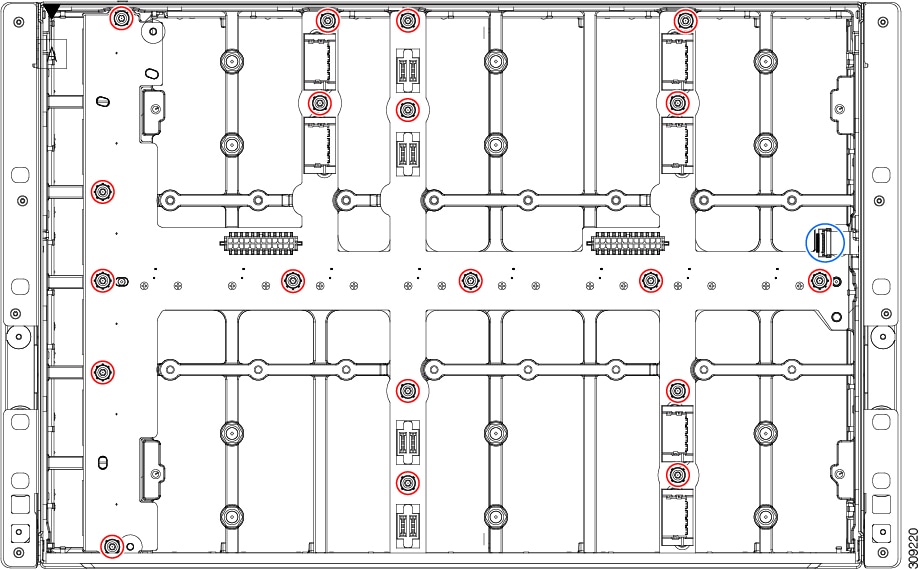
Each Cisco UCS X9508 chassis has a PCBA (motherboard) that is connected to the chassis midplane sheet metal. You must disconnect the PCBA from the chassis sheet metal to recycle the PCBA. Each PCBA is attached to the midplane sheet metal by 19 M4 screws. You will need to disassemble and remove additional parts to gain access to the PCBA.

You will need to recycle the PCBA for each UCS X9508 chassis.

Use the following procedure to recycle the Cisco UCS X9508 motherboard.

Before you begin


Note


For Recyclers Only! This procedure is not a standard field-service option. This procedure is for recyclers who will be reclaiming the electronics and sheet metal for proper disposal to comply with local eco design and e-waste regulations.

To remove the chassis printed circuit board assembly (PCBA), the following requirements must be met:

You will find it helpful to gather a T10, T15, and T20 screwdriver before beginning this procedure.

Procedure


Step 1

At the rear of the chassis, remove the fan modules.

See Removing a Fan Module.

Step 2

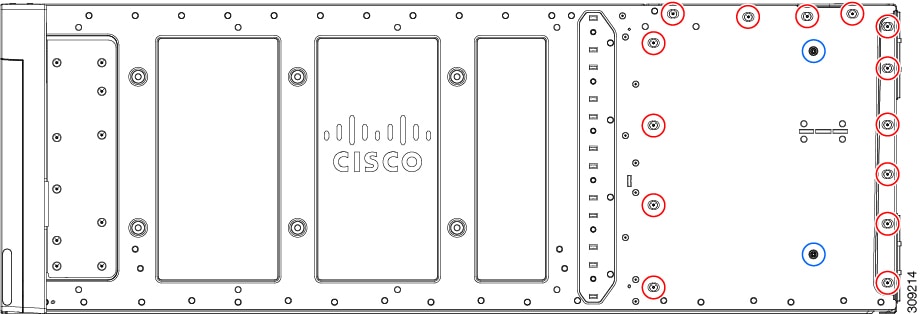
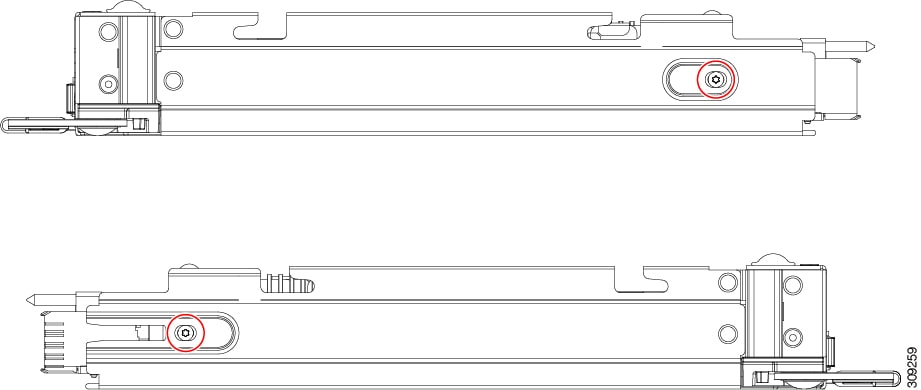
On the left side of the chassis, use a T10 screwdriver to remove 14 M4 screws.

Figure 30. Cisco UCS X9508 Chassis, Left Side

Step 3

On the right side of the chassis, use a T10 screwdriver to remove 14 M4 screws plus the two captive M3 screws for the PEMs.

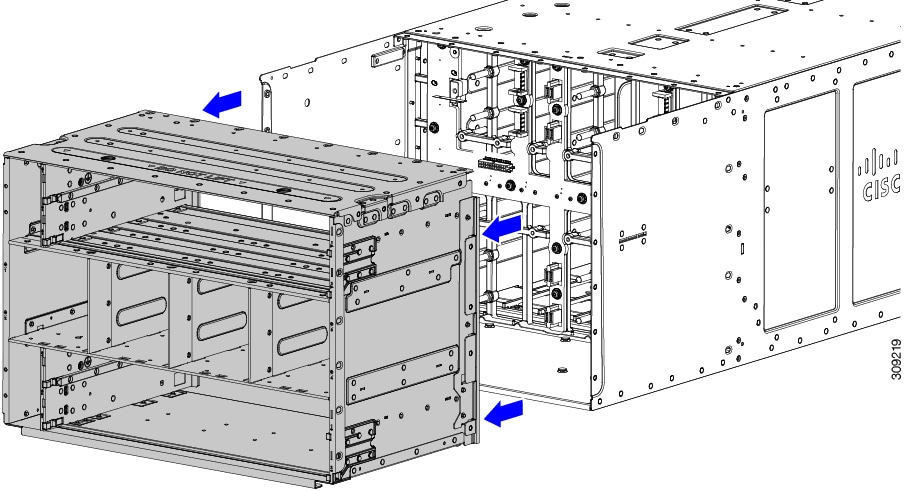
Figure 31. Cisco UCS X9508 Chassis, Right Side

Step 4

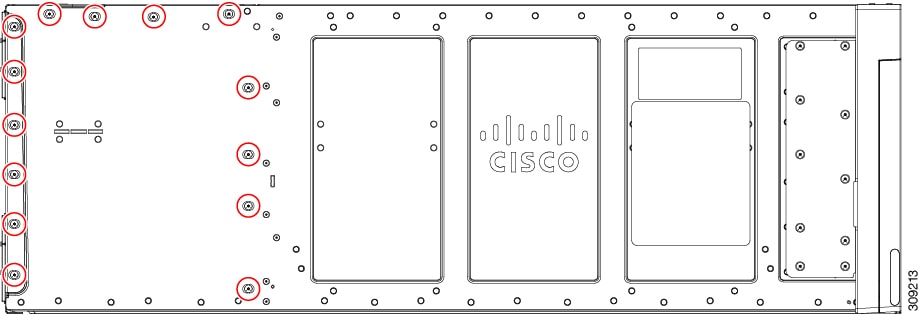
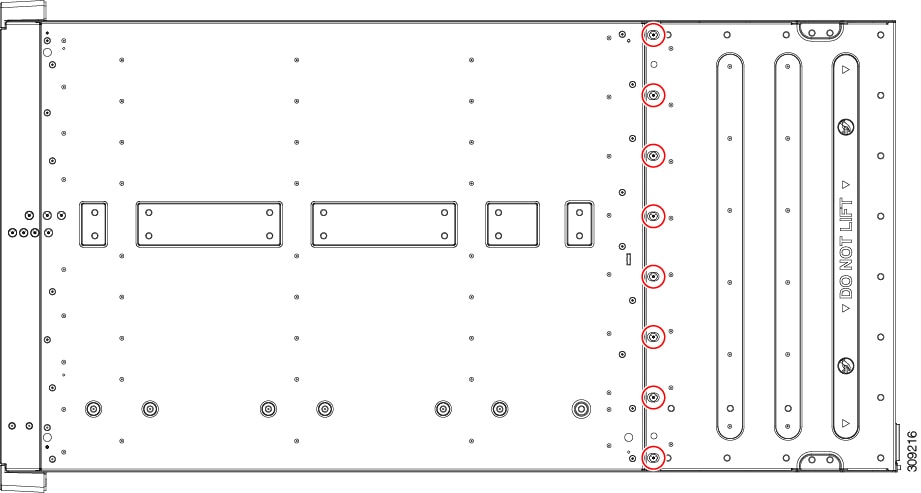
On the top of the chassis, use a T10 screwdriver to remove the eight M4 screws.

Figure 32. Cisco UCS X9508 Chassis, Top

Step 5

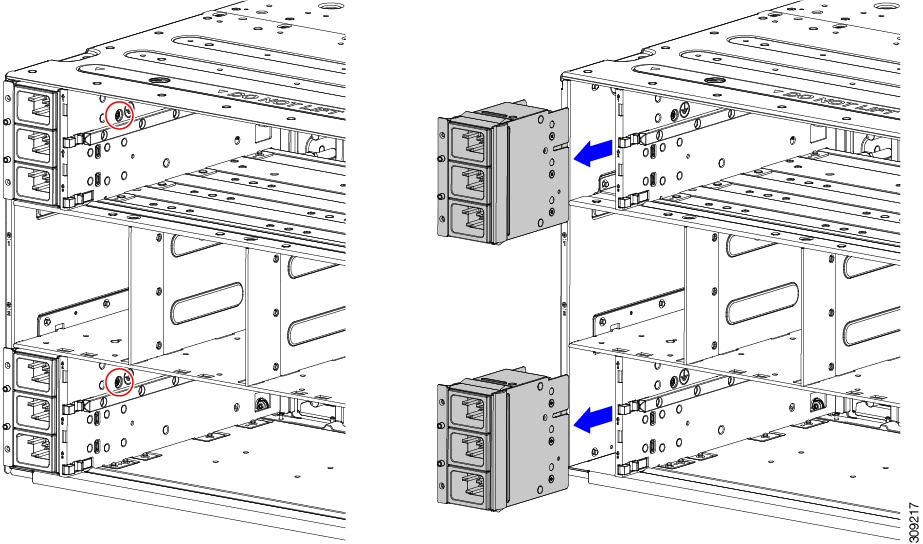
Remove the PEMs.

  1. On the interior of the chassis, use the T10 screwdriver to remove the two M3 captive screws for the PEMs, which are indicated by the ground symbol ().

  2. When the screws are removed, grasp each PEM and remove it from the chassis.

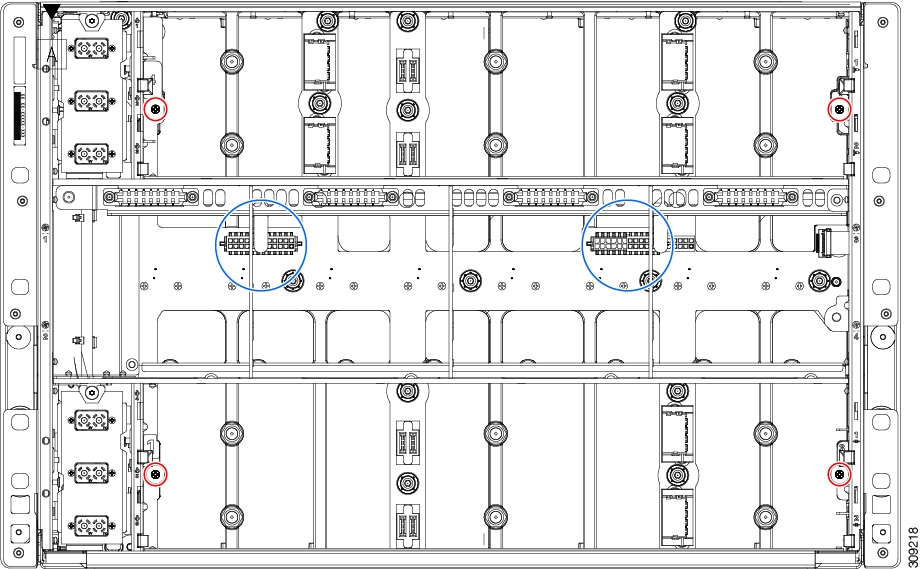
Step 6

Disconnect the rear bracket assembly:

  1. Grasp the two cables and unplug them.

  2. Using a T20 screwdriver, remove the four M4 screws.

Step 7

Grasp the rear bracket assembly and disconnect it from the rest of the chassis.

Step 8

With the rear bracket assembly removed, disconnect the PCB:

  1. Grasp the cable and unplug it.

  2. Using the T15 screwdriver, remove the 19 M4 screws, and remove the PCB from the chassis midplane sheet metal.

Step 9

Recycle the sheet metal and motherboard in compliance with your local recycling and e-waste regulations.


Recycling the UCS 9108 25G IFM PCBs

Each Cisco UCS Intelligent Fabric Module (IFM) has a printed circuit board (PCB) that is connected to the IFM's sheet metal tray. You must:

  • Disassemble and remove additional parts to gain access to the PCB.

  • Disconnect the PCB from the sheet metal to recycle the PCB.

  • Recycle each IFM in the Cisco UCS X9508 chassis.

Use the following procedure to recycle the UCS IFMs.

Before you begin


Note


For Recyclers Only! This procedure is not a standard field-service option. This procedure is for recyclers who will be reclaiming the electronics and sheet metal for proper disposal to comply with local eco design and e-waste regulations.

You will find it helpful to gather the following tools before beginning this procedure:

  • Screwdrivers: One each of T8 and T10 screwdriver, and #1 Phillips.

  • Nut drivers: One 8mm hexagonal.

Procedure


Step 1

Remove the following components by hand:

  1. Grasp each fan module cable and remove it.

  2. Grasp each fan module and remove it.

  3. Grasp the M.2 storage module and remove it.

  4. Grasp the light pipe and remove it.

Step 2

Remove the stiffener bracket.

  1. Using a T10 screwdriver, remove the M3 screws.

  2. Grasp the bracket and remove it.

Step 3

Remove the horizontal rear bracket.

  1. Using a T8 screwdriver, remove the M3 screws on the exterior of the IFM.

  2. Using a T10 screwdriver, remove the M3 screws on the interior of the IFM.

  3. Grasp the bracket and remove it.

Step 4

Disconnect additional components and fasteners.

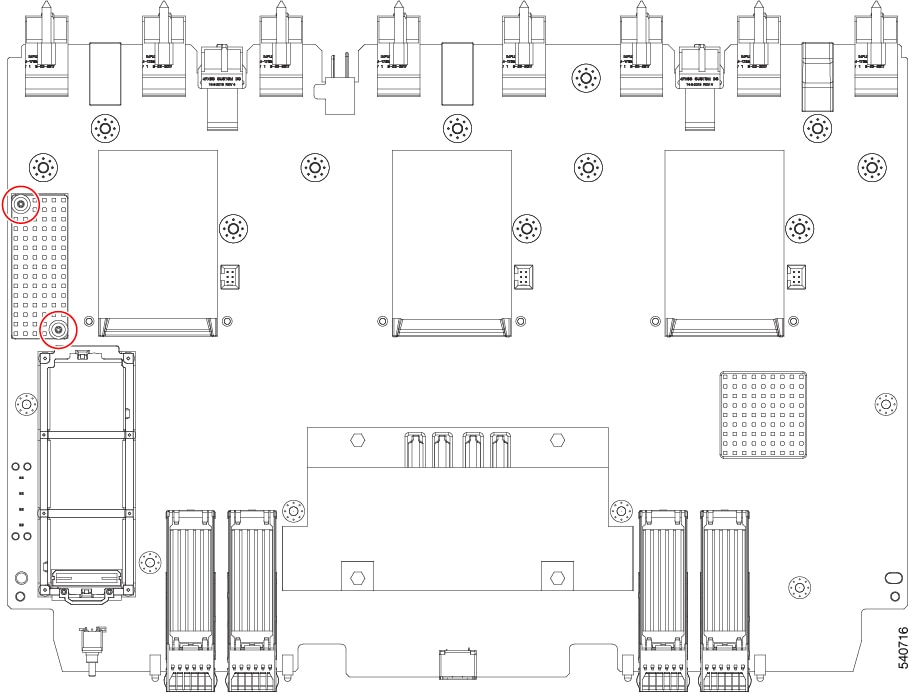
  1. Using a T8 screwdriver, remove the M3 screw on the IFM faceplate.

  2. Grasp the plastic HDMI plug and remove it.

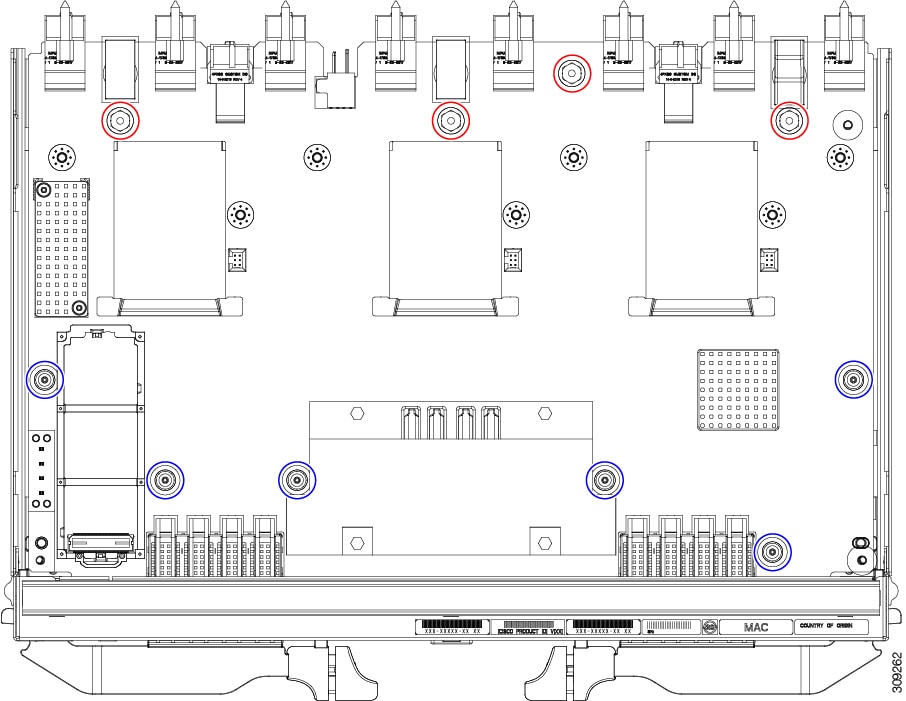
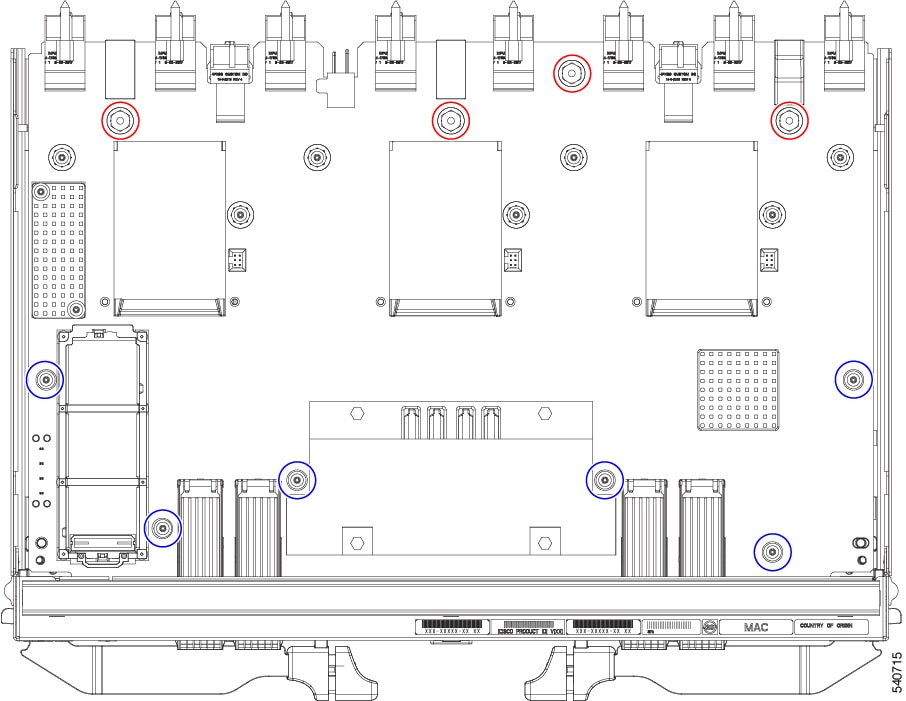
  3. Using an 8mm hexagonal nut driver, remove the standoffs.

  4. Using a T10 screwdriver, remove the M3 screws.

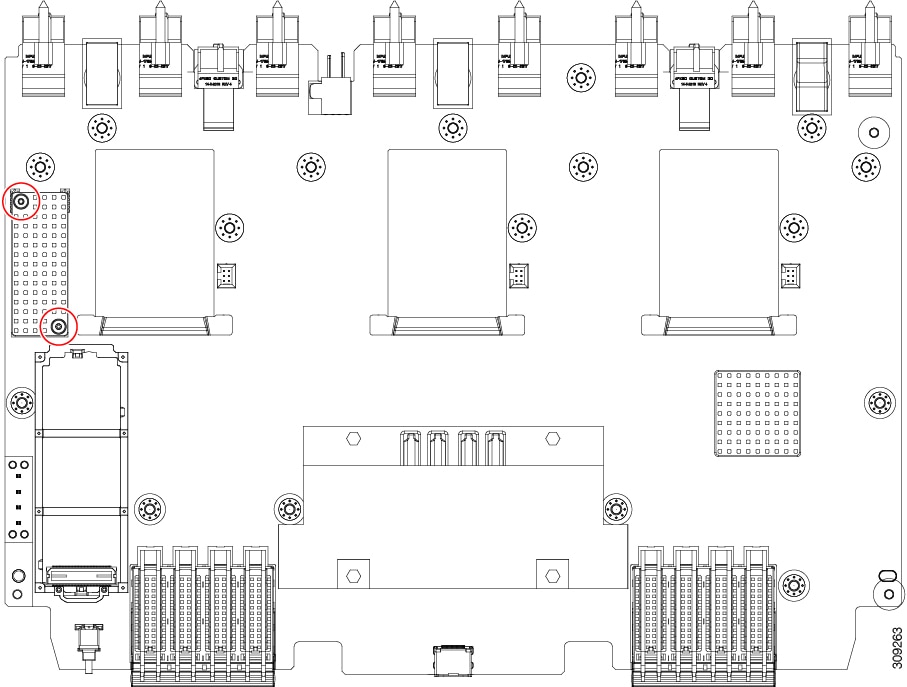
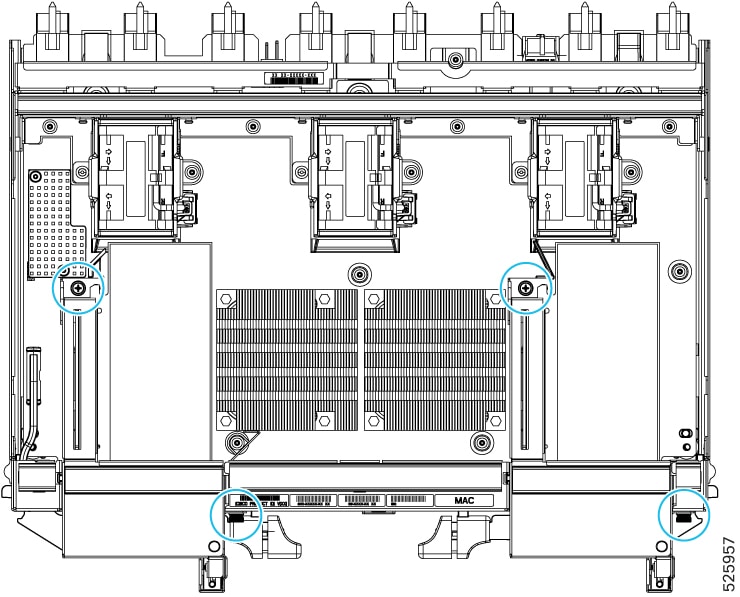
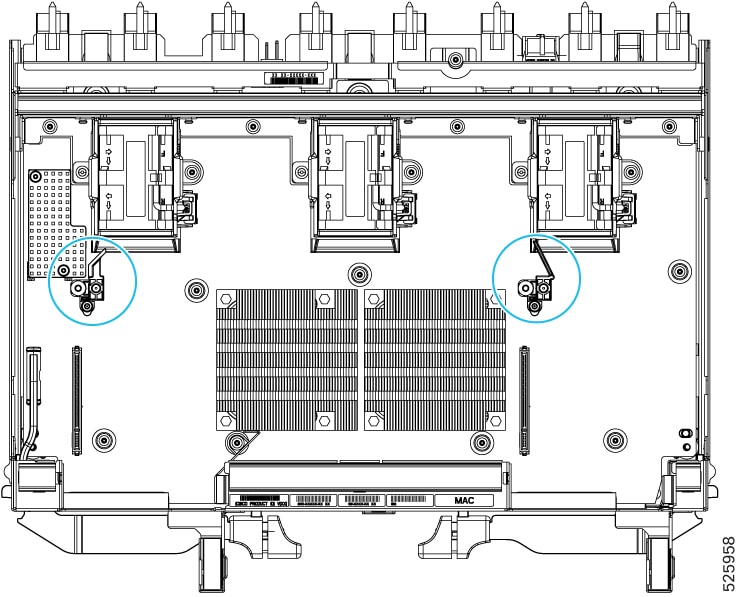
    Red circles ( )

    M3 hexagonal standoffs, 4

    Blue circles ( )

    M3 screws, 6

  5. Grasp the PCBA and disconnect it from the sheet metal.

Step 5

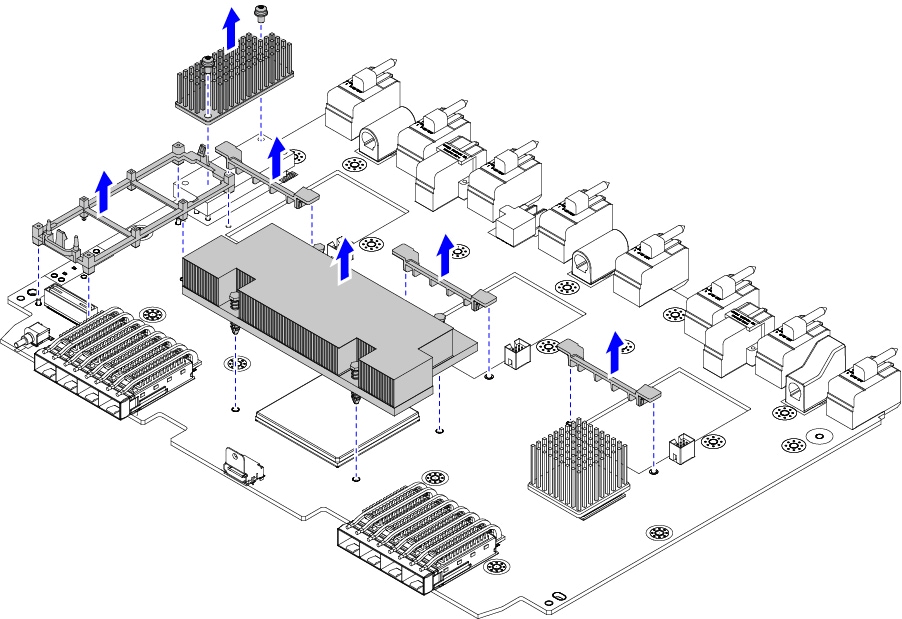
Disconnect the remaining components from the PCBA.

  1. Using the T10 screwdriver, remove the M3 screws for the top heatsink.

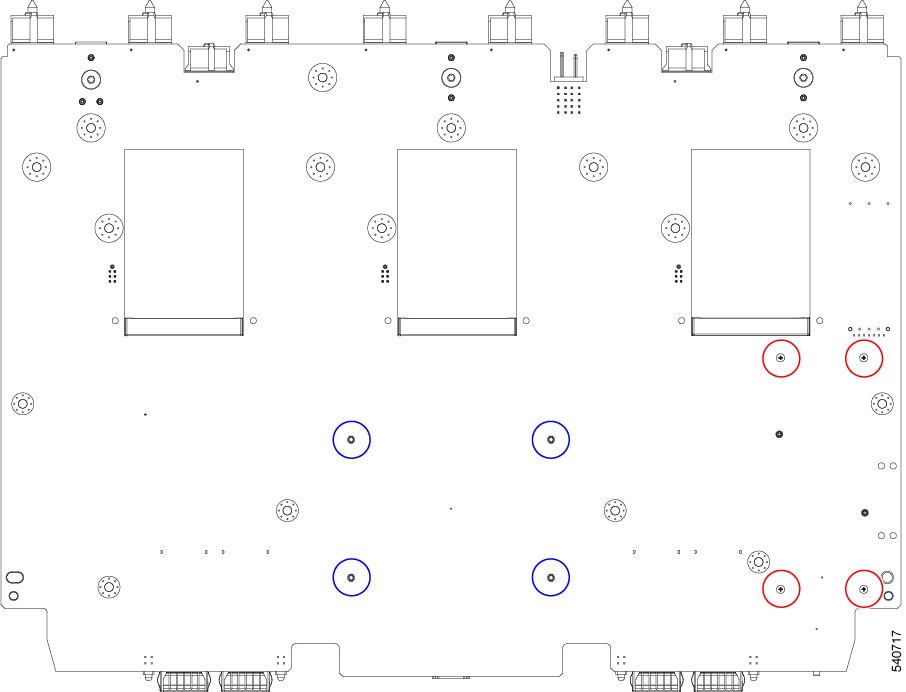
  2. Turn the PCBA over so that the bottom is facing up.

  3. Using the #1 Phillips screwdriver and remove the M2 screws.

  4. Using a pliers, release the four heatsink pushpins.

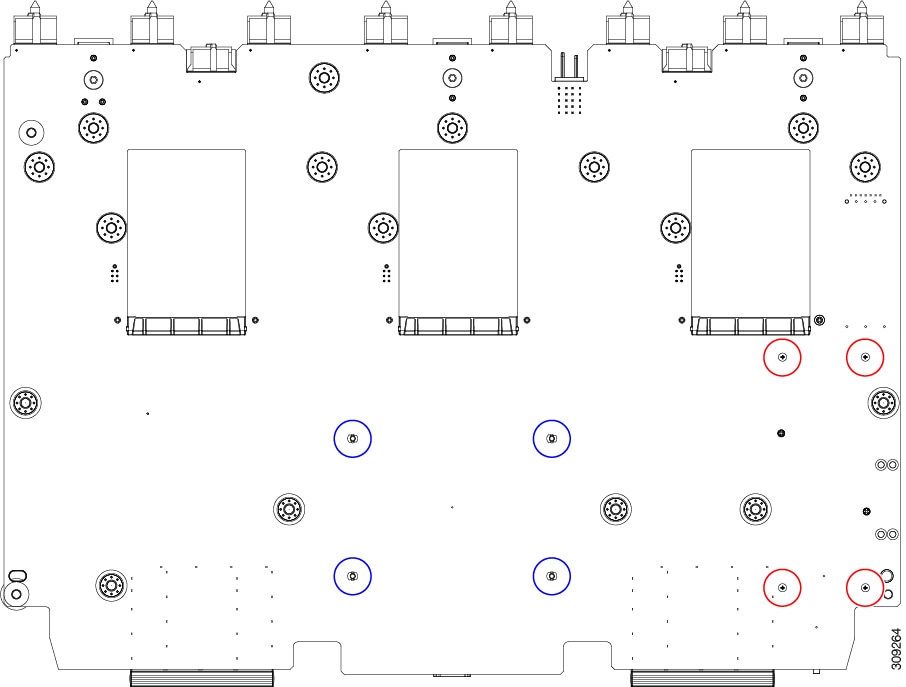
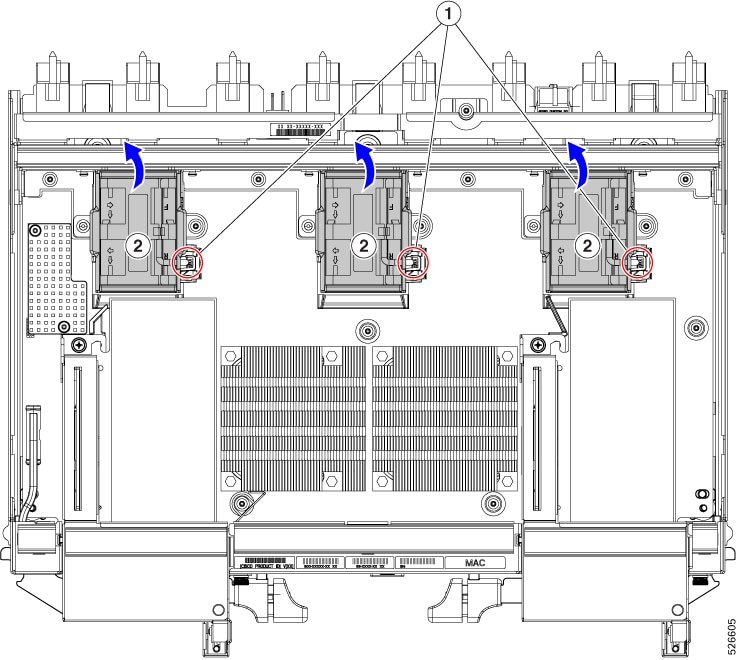
    Red circles ( )

    M2 screws for plastic bracket, 4

    Blue circles ( )

    Heatsink pushpins, 4

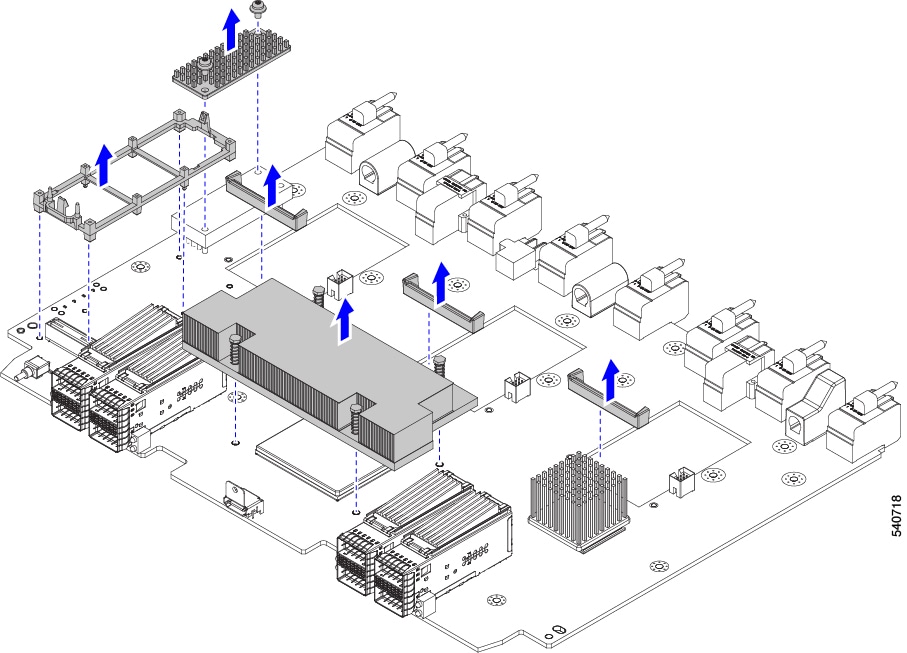
  5. Turn the PCBA over again so that the top is facing up.

  6. Grasp the plastic bracket for the M.2 module and remove it.

  7. If the top heat sink is still attached, grasp and remove it.

  8. Grasp the three fan baffles and remove them.

  9. Grasp the center heatsink and remove it.

Step 6

Recycle the sheet metal and motherboard in compliance with your local recycling and e-waste regulations.


What to do next

To remove the chassis motherboard, go to Recycling the Chassis PCB Assembly (PCBA).

Recycling the UCS 9108 100G IFM PCBs

Each Cisco UCS Intelligent Fabric Module (IFM) has a printed circuit board (PCB) that is connected to the IFM's sheet metal tray. You must:

  • Disassemble and remove additional parts to gain access to the PCB.

  • Disconnect the PCB from the sheet metal to recycle the PCB.

  • Recycle each IFM in the Cisco UCS X9508 chassis.

Use the following procedure to recycle the UCS IFMs.

Before you begin


Note


For Recyclers Only! This procedure is not a standard field-service option. This procedure is for recyclers who will be reclaiming the electronics and sheet metal for proper disposal to comply with local eco design and e-waste regulations.

You will find it helpful to gather the following tools before beginning this procedure:

  • Screwdrivers: One each of T8 and T10 screwdriver, and #1 Phillips.

  • Nut drivers: One 8mm hexagonal.

Procedure


Step 1

Remove the following components by hand:

  1. Grasp each fan module cable and remove it.

  2. Grasp each fan module and remove it.

  3. Grasp the M.2 storage module and remove it.

  4. Grasp the light pipe and remove it.

Step 2

Remove the stiffener bracket.

  1. Using a T10 screwdriver, remove the M3 screws.

  2. Grasp the bracket and remove it.

Step 3

Remove the horizontal rear bracket.

  1. Using a T8 screwdriver, remove the M3 screws on the exterior of the IFM.

  2. Using a T10 screwdriver, remove the M3 screws on the interior of the IFM.

  3. Grasp the bracket and remove it.

Step 4

Disconnect additional components and fasteners.

  1. Using a T8 screwdriver, remove the M3 screw on the IFM faceplate.

  2. Grasp the plastic HDMI plug and remove it.

  3. Using an 8mm hexagonal nut driver, remove the standoffs.

  4. Using a T10 screwdriver, remove the M3 screws.

    Red circles ( )

    M3 hexagonal standoffs, 4

    Blue circles ( )

    M3 screws, 6

  5. Grasp the PCBA and disconnect it from the sheet metal.

Step 5

Disconnect the remaining components from the PCBA.

  1. Using the T10 screwdriver, remove the M3 screws for the top heatsink.

  2. Turn the PCBA over so that the bottom is facing up.

  3. Using the #1 Phillips screwdriver and remove the M2 screws.

  4. Using a pliers, release the four heatsink pushpins.

    Red circles ( )

    M2 screws for plastic bracket, 4

    Blue circles ( )

    Heatsink pushpins, 4

  5. Turn the PCBA over again so that the top is facing up.

  6. Grasp the plastic bracket for the M.2 module and remove it.

  7. If the top heat sink is still attached, grasp and remove it.

  8. Grasp the three fan baffles and remove them.

  9. Grasp the center heatsink and remove it.

Step 6

Recycle the sheet metal and motherboard in compliance with your local recycling and e-waste regulations.


What to do next

To remove the chassis motherboard, go to Recycling the Chassis PCB Assembly (PCBA).

Recycling a UCS X9416 X-Fabric Module PCB

Each UCS X9416 Fabric Module has a printed circuit board (PCB) that is connected to module's sheet metal tray. To recycle each module's PCB, you must:

  • Disassemble and remove additional parts to gain access to the PCB.

  • Disconnect the PCB from the sheet metal to recycle the PCB.

  • Recycle each module in the Cisco UCS X9508 chassis.

Use the following task to recycle the X9416 fabric modules.

Before you begin


Note


For Recyclers Only! This procedure is not a standard field-service option. This procedure is for recyclers who will be reclaiming the electronics and sheet metal for proper disposal to comply with local eco design and e-waste regulations.

You will find it helpful to gather the following tools before attempting this procedure:

  • Screwdrivers: One each of T8 and T10 screwdriver

  • Nut drivers: One 8mm hexagonal head nut driver.

Procedure


Step 1

Remove the following components by hand:

  1. Grasp each fan cable and remove it.

  2. Grasp each fan module and remove it.

    For information, see Removing a Fan for a UCS Intelligent Fabric Module (IFM) or X-Fabric Module (XFM) Blank.

  3. Grasp the light pipe and remove it.

Step 2

Remove the rear fan bracket.

  1. Using a T10 screwdriver, remove the M3 screws.

  2. Grasp the bracket and remove it.

Step 3

Remove the rear back-panel connector bracket.

  1. Using a T8 screwdriver, remove the M3 screws (two per side) on the exterior of the module.

  2. Using a T10 screwdriver, remove the M3 screws on the interior of the module.

  3. Grasp the bracket and remove it.

Step 4

Remove additional components and fasteners.

  1. Using an 8mm hexagonal nut driver, remove the standoffs.

  2. Using a T10 screwdriver, remove the M3 screws.

    Red circles ( )

    M3 hexagonal standoffs, 4

    Blue circles ( )

    M3 screws, 4

  3. Grasp the PCBA and disconnect it from the sheet metal.

Step 5

Disconnect the PCB from the sheetmetal.

Step 6

Recycle the sheet metal and motherboard in compliance with your local recycling and e-waste regulations.


What to do next

Choose the appropriate option:

Recycling a UCS X9516 X-Fabric Module PCB

Each Cisco USC X9516 X-Fabric Module has a printed circuit board (PCB) that is connected to the module's sheet metal tray. You must:

  • Disassemble and remove additional parts to gain access to the PCB.

  • Disconnect the PCB from the sheet metal to recycle the PCB.

  • Recycle each module in the Cisco UCS X9508 chassis.

Use the following procedure to recycle the UCS X9516 module.

Before you begin


Note


For Recyclers Only! This procedure is not a standard field-service option. This procedure is for recyclers who will be reclaiming the electronics and sheet metal for proper disposal to comply with local eco design and e-waste regulations.

You will find it helpful to gather the following tools before beginning this procedure:

  • Screwdrivers: One each of T8 and T10 screwdriver, and #1 Phillips.

  • Nut drivers: One 8mm hexagonal.

Procedure


Step 1

Remove the fans:

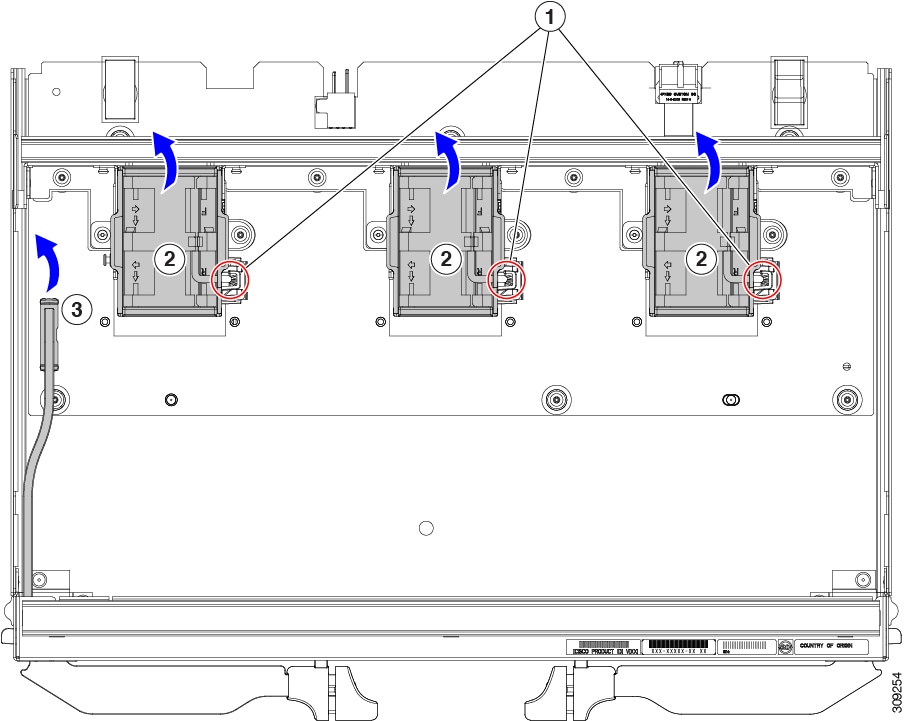
  1. Grasp each fan module cable and disconnect it from the motherboard connector.

  2. Grasp each fan module and remove it by pinching the release tabs and lifting each fan off of the module.

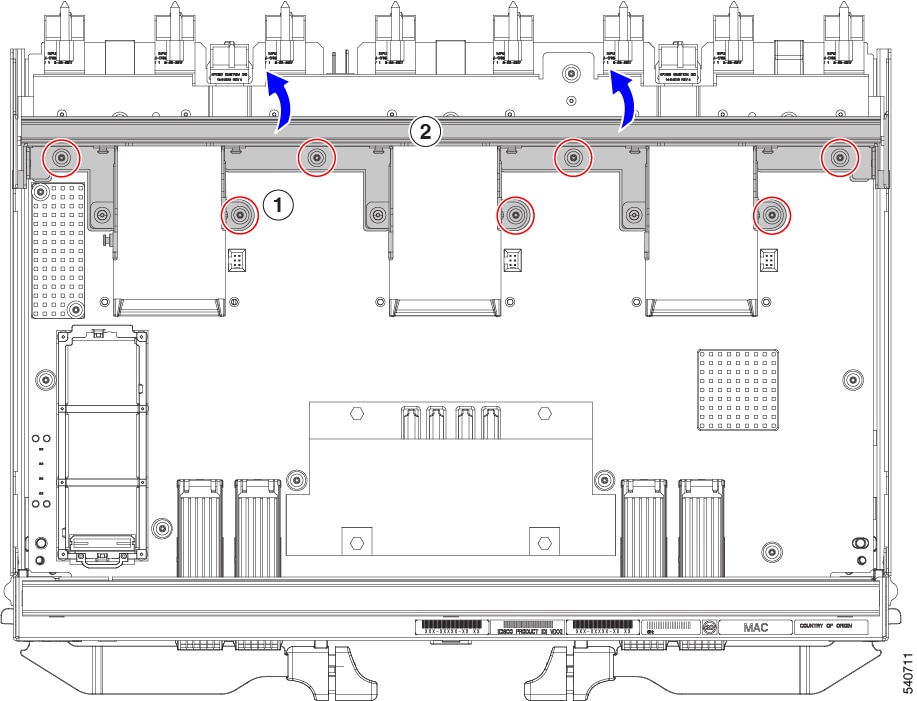
Step 2

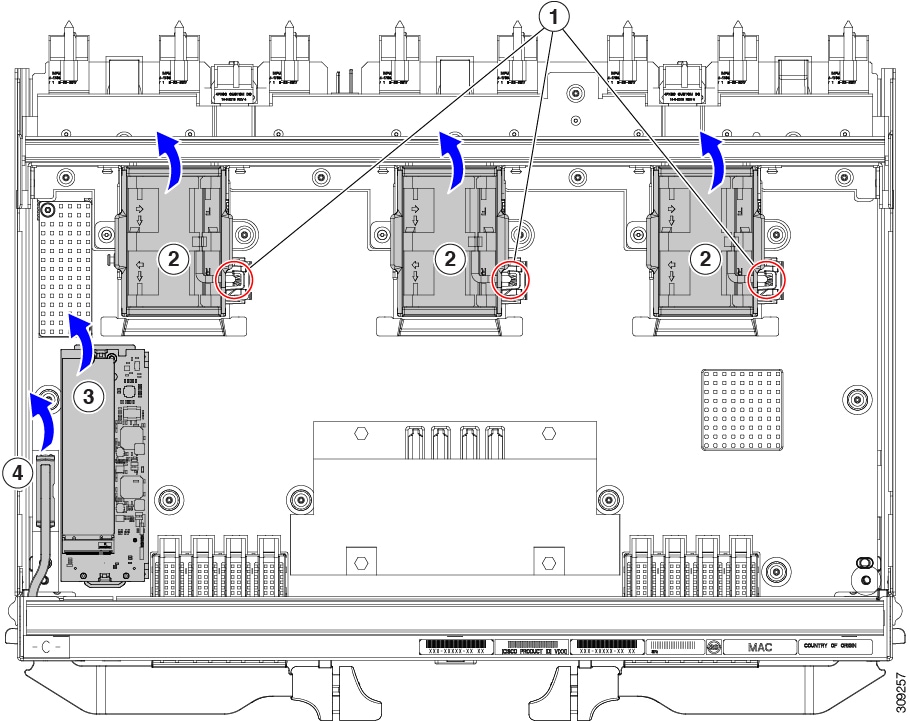
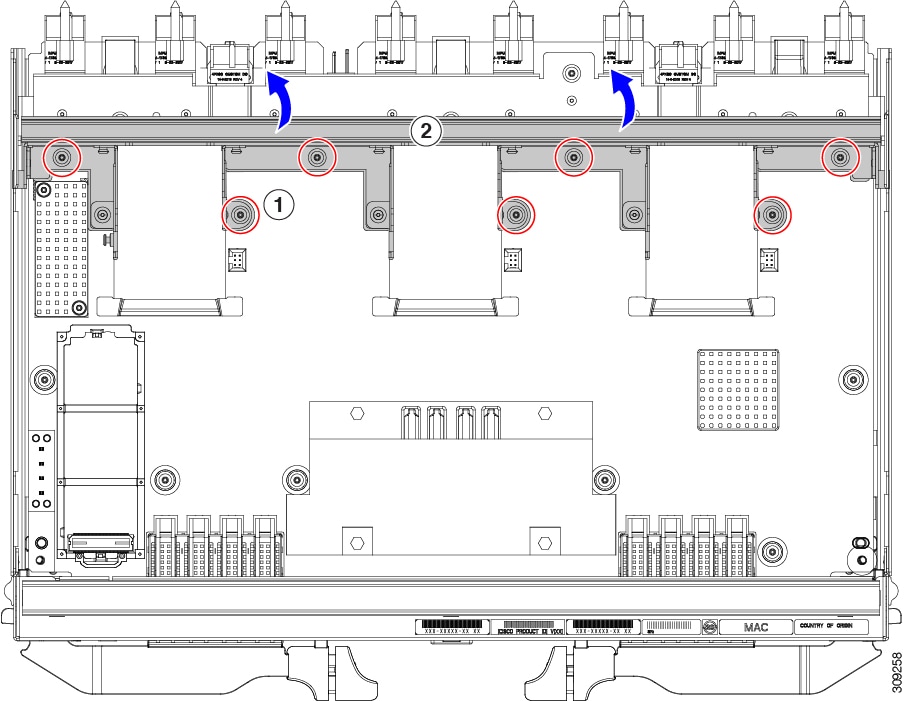
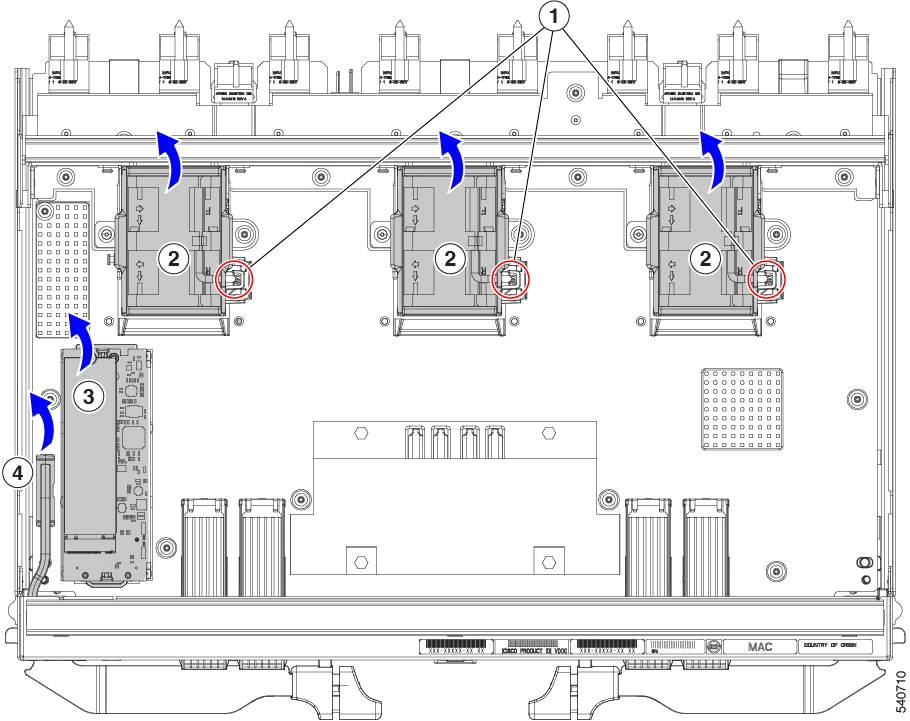
Using a #2 Phillips screwdriver, loosen the captive screws for each cage, then lift each cage up to detach it from the PCB.

Step 3

Grasp each PCIe cage air baffle and lift it up to disconnect it from the module.

Step 4

Remove the stiffener bracket.

  1. Using a T10 screwdriver, remove the M3 screws.

  2. Grasp the bracket and remove it.

Step 5

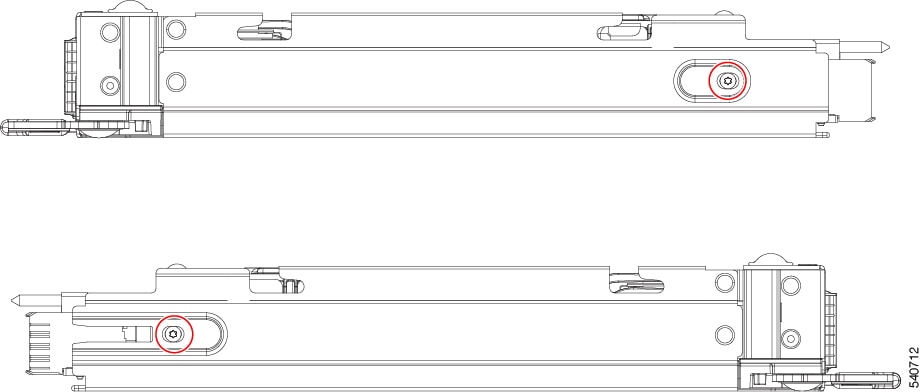
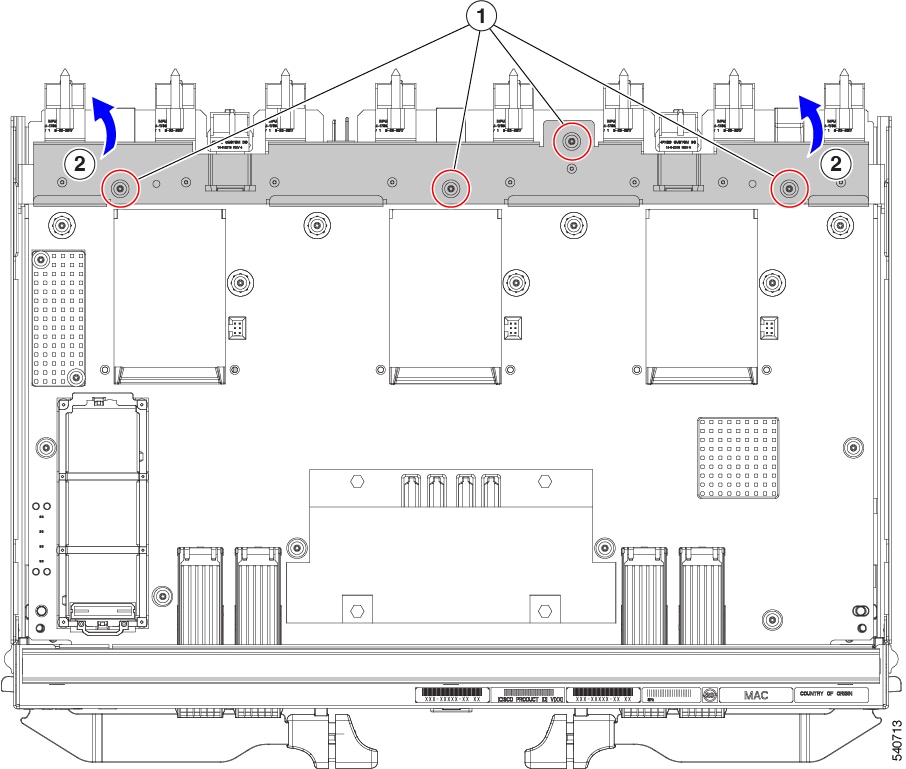
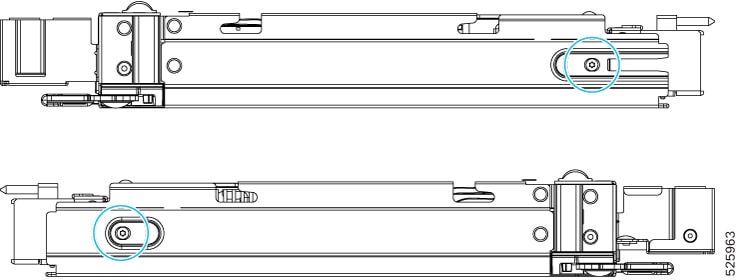
Remove the horizontal rear bracket.

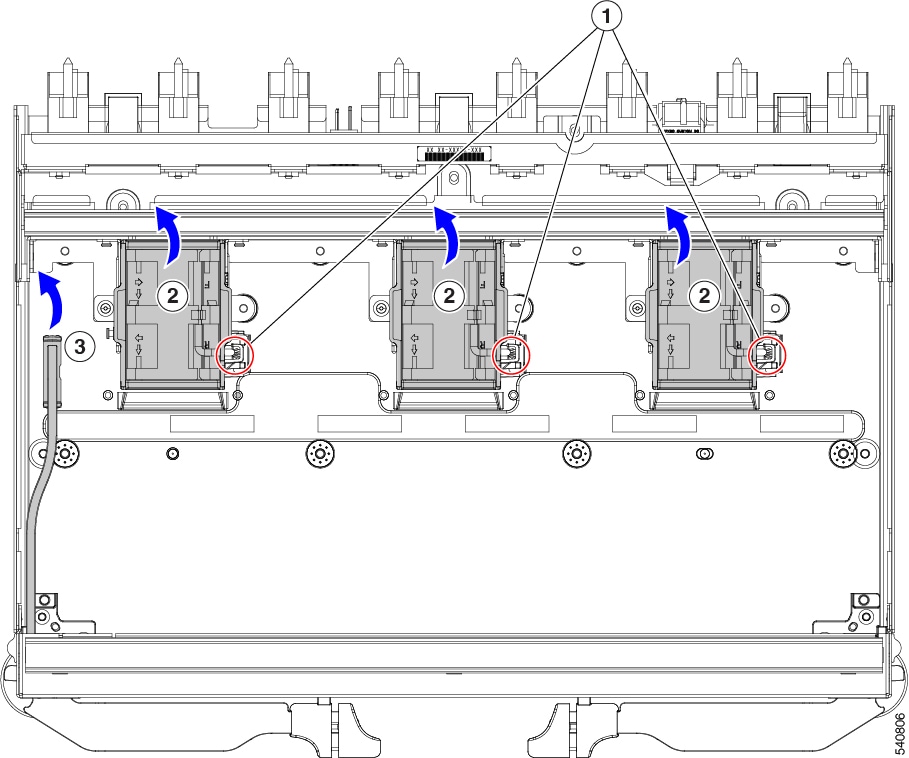
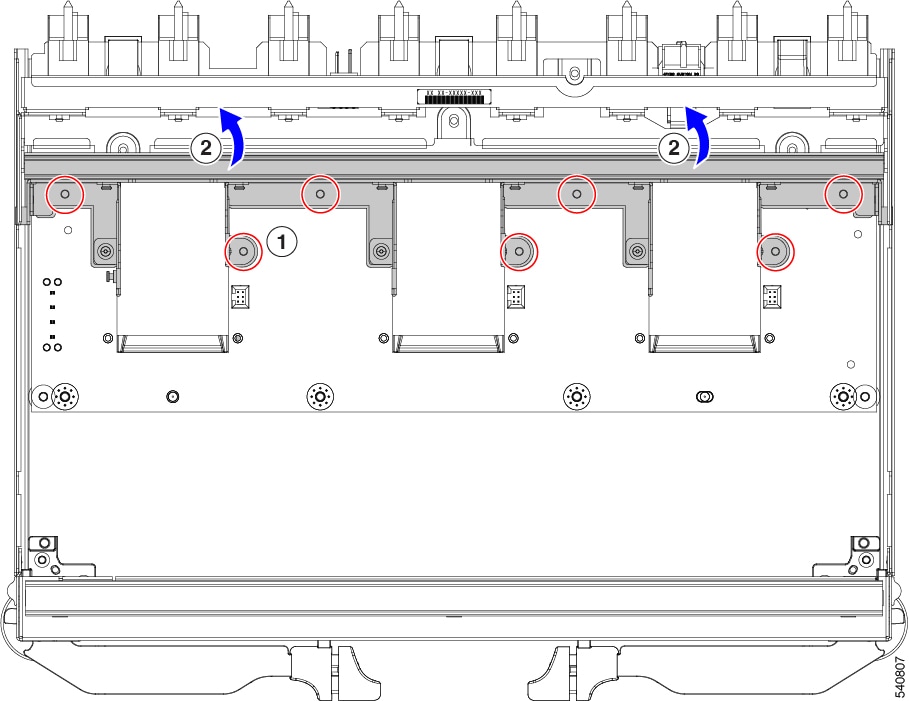
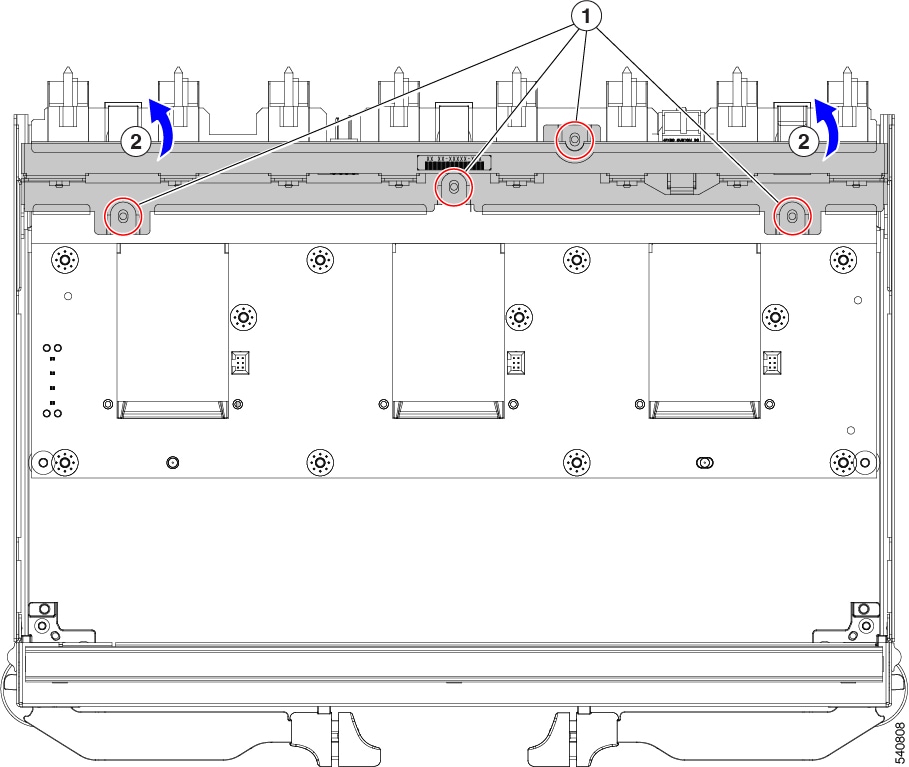
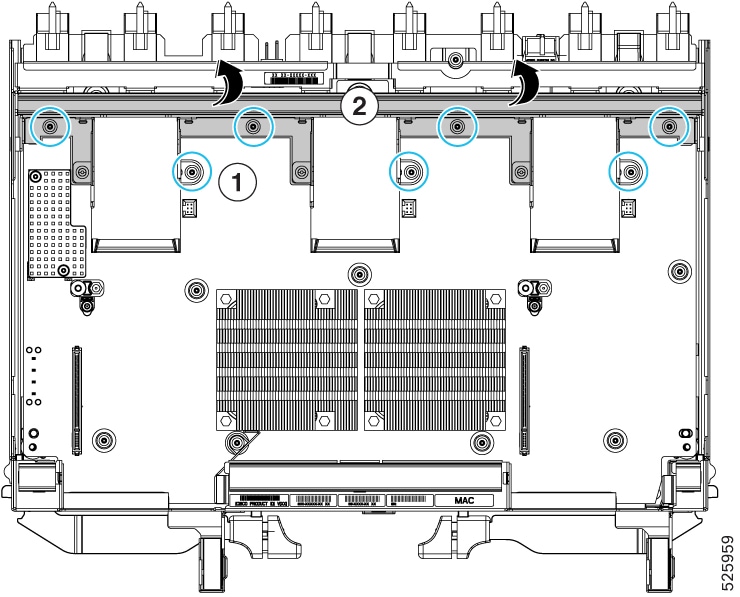
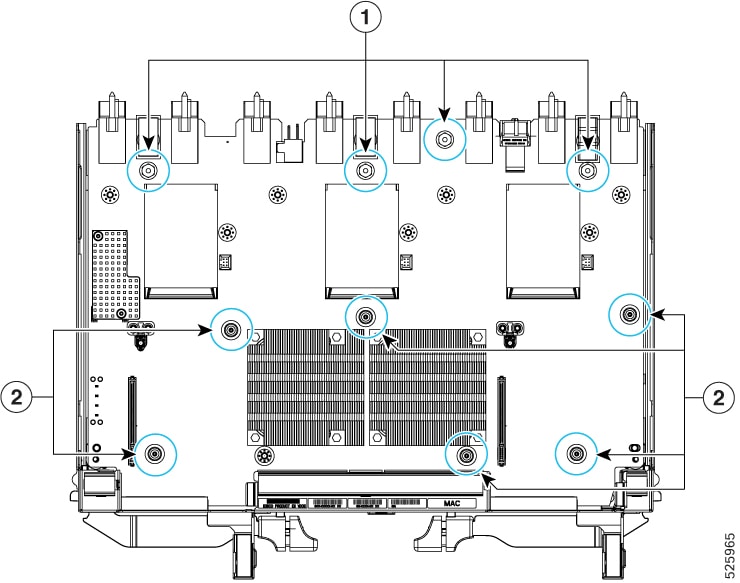
  1. Using a T8 screwdriver, remove the M3 screws on the exterior of the module

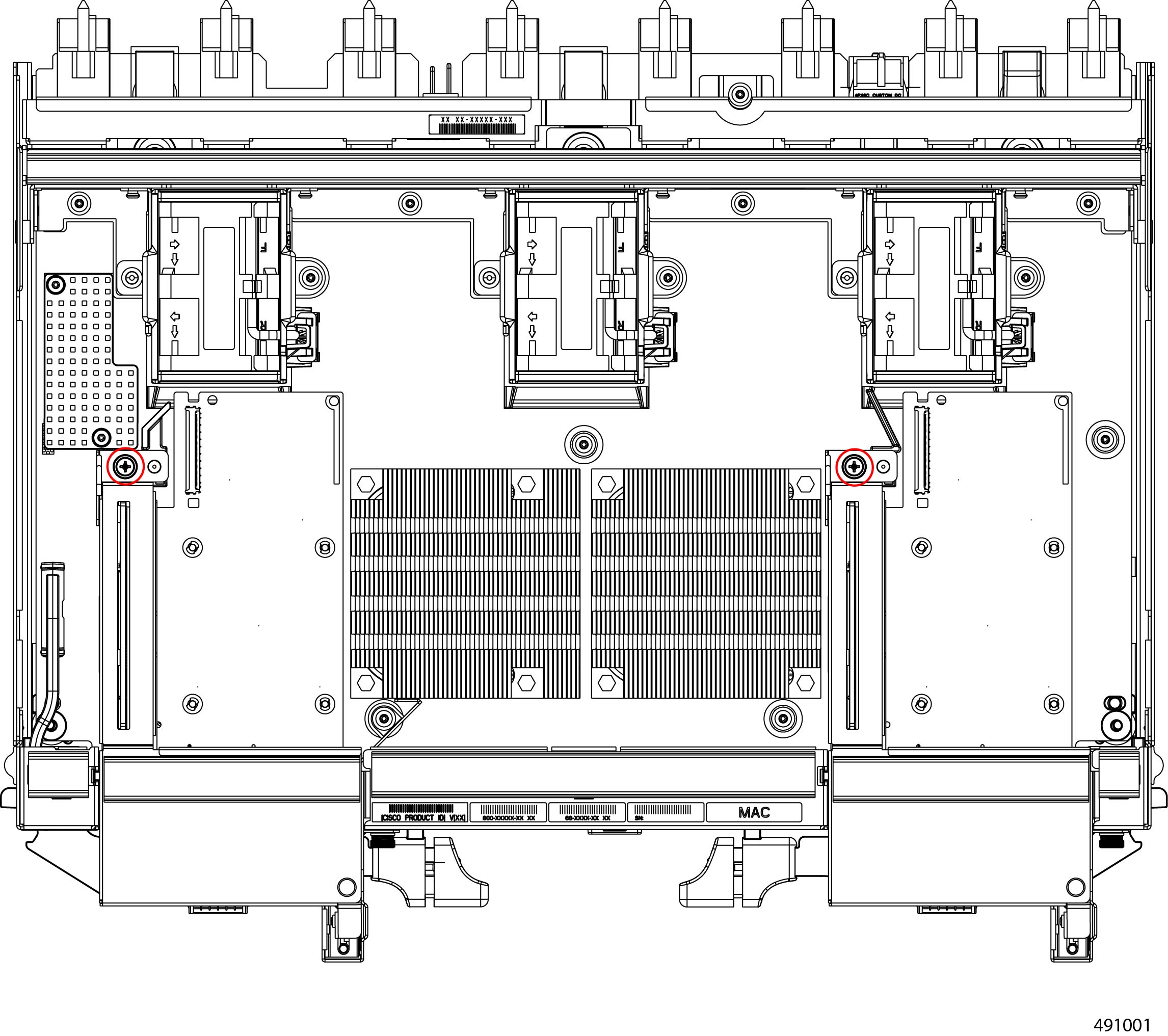
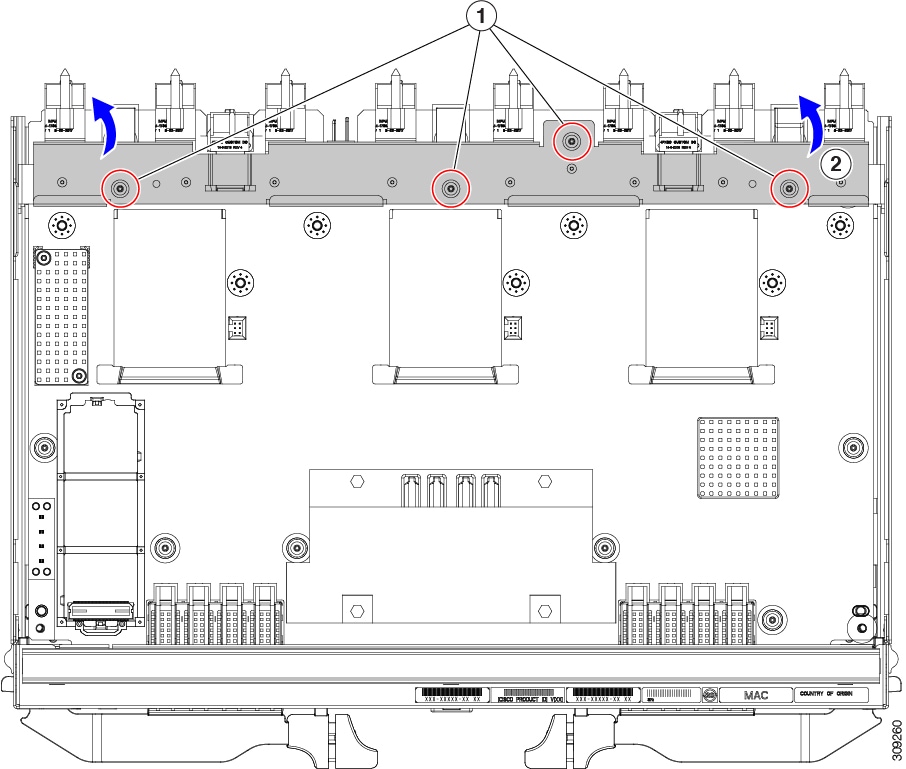
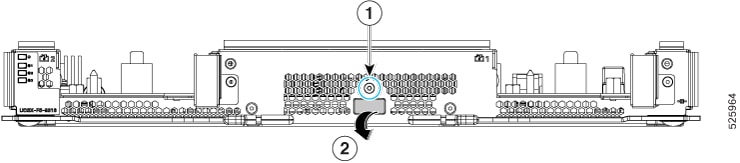
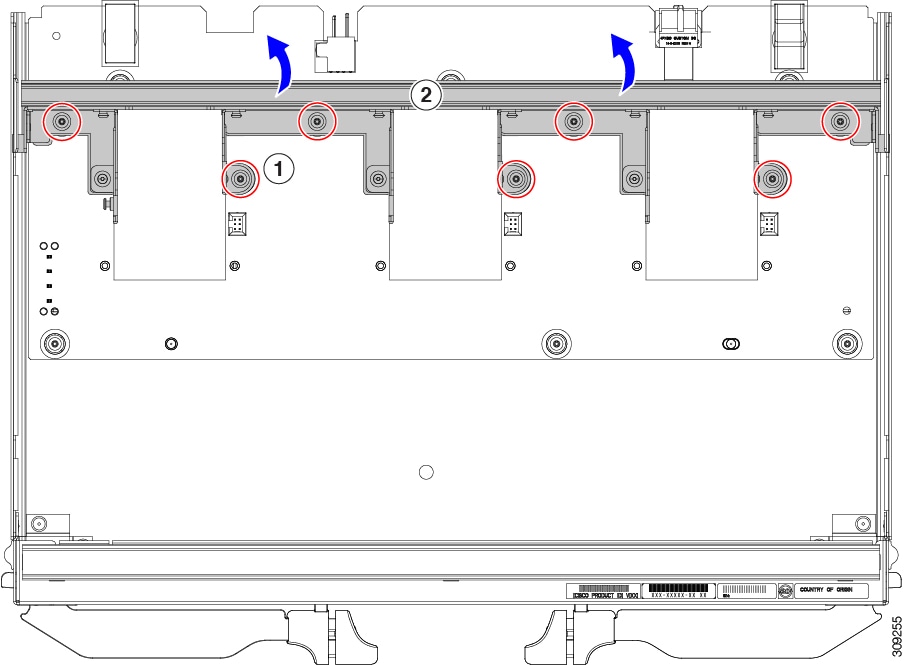
  2. Using a T10 screwdriver, remove the M3 screws on the rear bracket (1), the guide pins for the PCIe cages (2), and the air baffle screw at the front of the module (3).

  3. Grasp the rear bracket and remove it.

    1

    Rear bracket screws

    2

    Securing screws, one for each PCIe cage guide-pin.

    3

    Front air baffle screw

Step 6

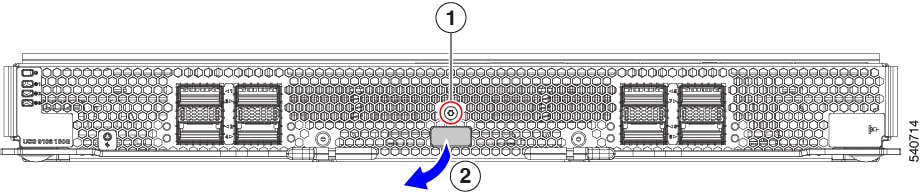
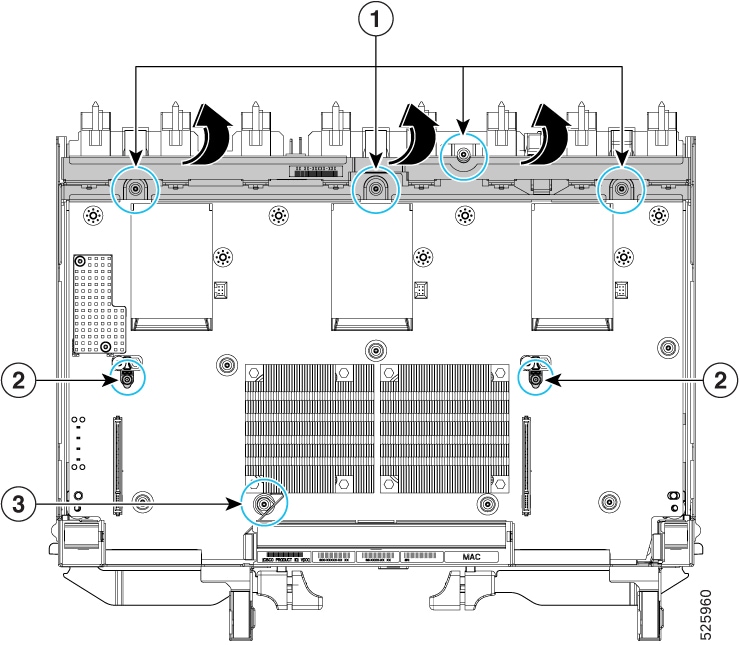
Disconnect additional components and fasteners.

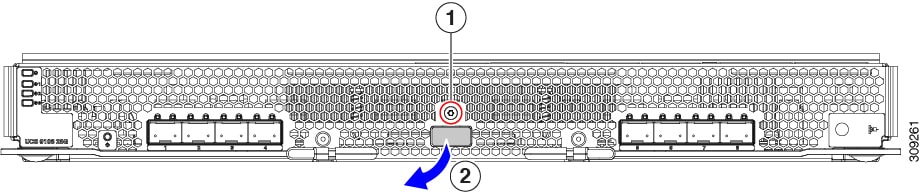
  1. Using a T8 screwdriver, remove the M3 screw on the IFM faceplate.

  2. Grasp the plastic HDMI plug and remove it.

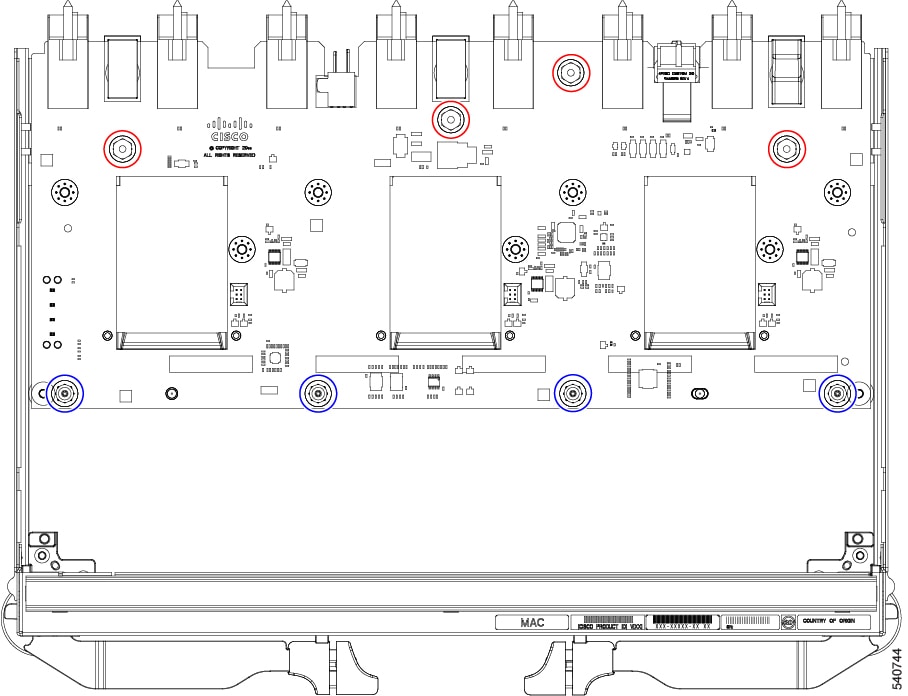
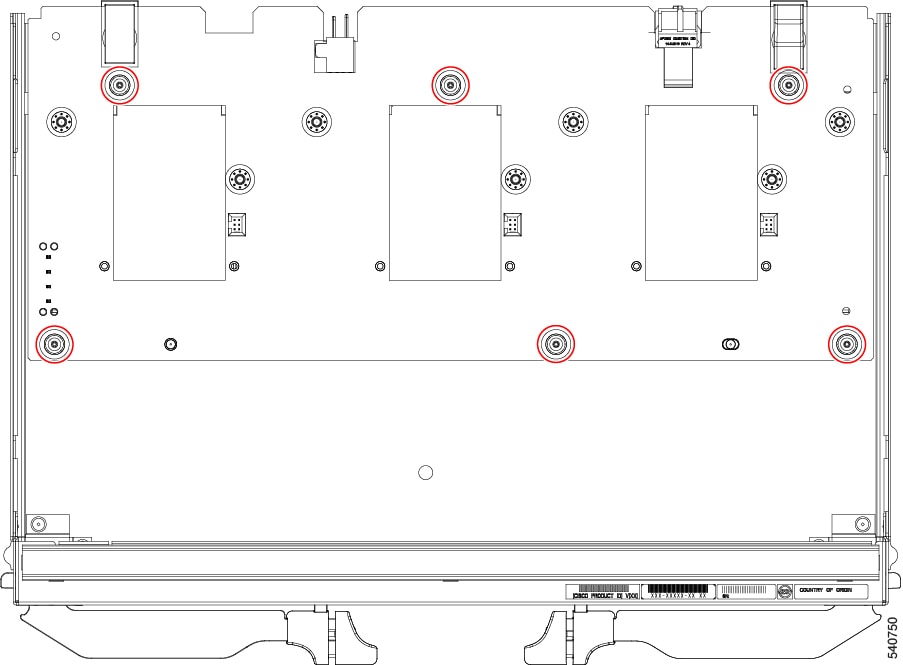
  3. Using an 8mm hexagonal nut driver, remove the four M3 hexagonal standoffs (1).

  4. Using a T10 screwdriver, remove the six M3 screws (1).

  5. Grasp the PCBA and disconnect it from the sheet metal.

Step 7

Disconnect the remaining components from the PCBA.

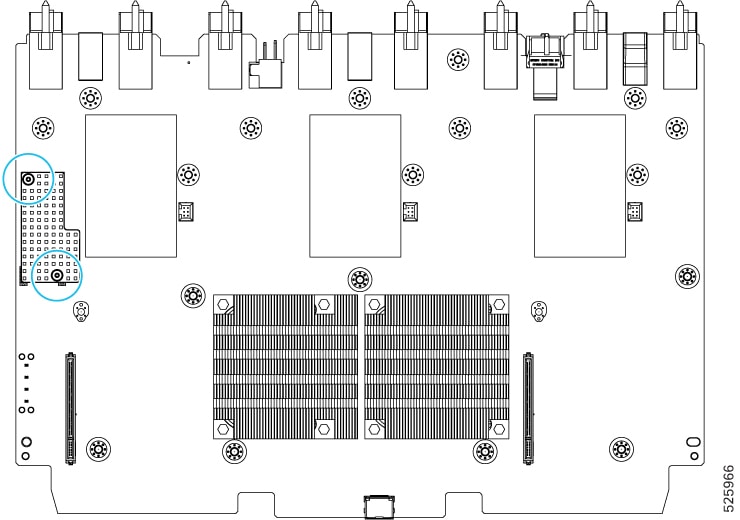
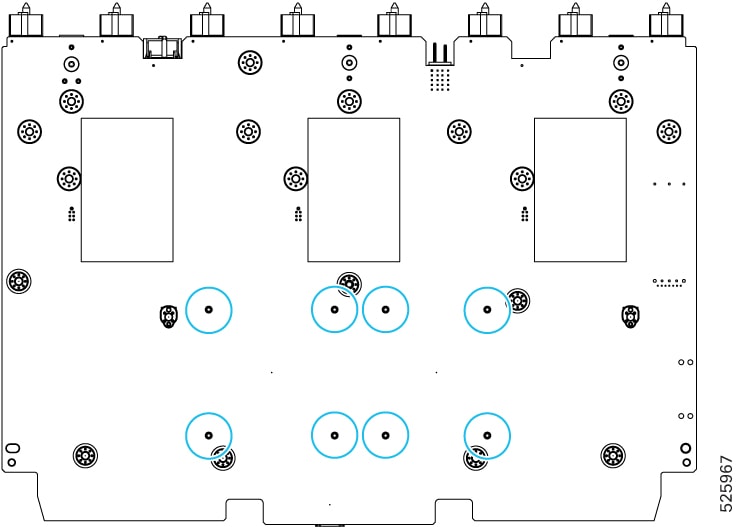
  1. Using the T10 screwdriver, remove the M3 screws for the small heatsink.

  2. Turn the PCBA over so that the bottom is facing up.

  3. Using a pliers, release the eight heatsink pushpins.

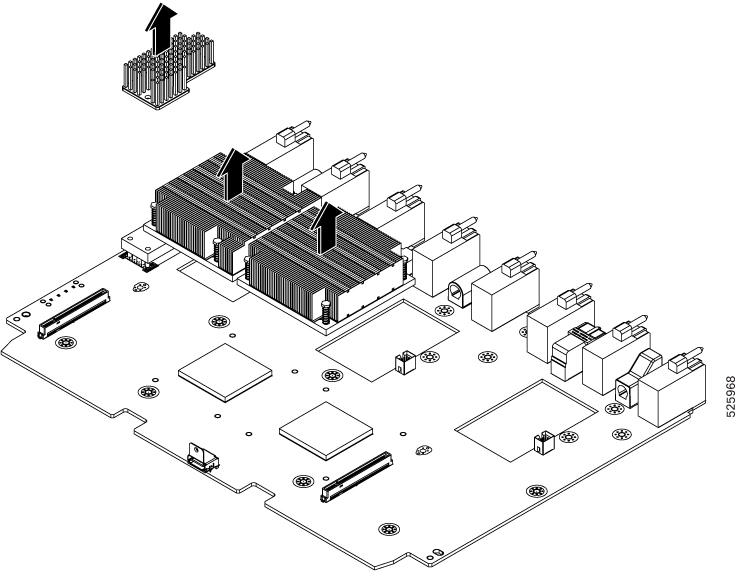
  4. Turn the PCBA over again so that the top is facing up.

  5. Grasp all three heatsinks and remove them from the module's PCB.

Step 8

Disconnect the PCIe cage's PCB from the cage.

  1. Using a #2 Phillips screwdriver, loosen the captive thumbscrew on the PCIe cage (1).

  2. Open the cage door and remove the card (2).

  3. Using a #2 Phillips screwdriver, remove the three M3 screws that secure the card PCB to the cage (3).

  4. Disconnect the PCB from the sheetmetal PCIe cage (4).

Step 9

Recycle the sheet metal and motherboard in compliance with your local recycling and e-waste regulations.


What to do next

To remove the chassis motherboard, go to Recycling the Chassis PCB Assembly (PCBA).

Recycling X-Fabric Module Blank PCBs

Each UCS X-Fabric Module Blank (module blank) has a printed circuit board (PCB) that is connected to module blank's sheet metal tray. To recycle each module blank's PCB, you must:

  • Disassemble and remove additional parts to gain access to the PCB.

  • Disconnect the PCB from the sheet metal to recycle the PCB.

  • Recycle each module blank in the Cisco UCS X9508 chassis.

Use the following task to recycle the module blank.

Before you begin


Note


For Recyclers Only! This procedure is not a standard field-service option. This procedure is for recyclers who will be reclaiming the electronics and sheet metal for proper disposal to comply with local eco design and e-waste regulations.

You will find it helpful to gather a T10 screwdriver before attempting this procedure:

Procedure


Step 1

Remove the following components by hand:

  1. Grasp each fan cable and remove it.

  2. Grasp each fan module and remove it.

    For information, see Removing a Fan for a UCS Intelligent Fabric Module (IFM) or X-Fabric Module (XFM) Blank.

  3. Grasp the light pipe and remove it.

Step 2

Grasp the fan module support bracket and remove it.

Step 3

Remove the vertical rear bracket.

  1. Using a T10 screwdriver, remove the M3 screws.

  2. Grasp the bracket and remove it.

Step 4

Remove additional components and fasteners.

  1. Using a T10 screwdriver, remove the M3 screws.

  2. Grasp the PCB and disconnect it from the sheet metal.

Step 5

Recycle the sheet metal and motherboard in compliance with your local recycling and e-waste regulations.


What to do next

Choose the appropriate option: