UCS XE-Series M8 Ordering Guide
Available Languages
Bias-Free Language
The documentation set for this product strives to use bias-free language. For the purposes of this documentation set, bias-free is defined as language that does not imply discrimination based on age, disability, gender, racial identity, ethnic identity, sexual orientation, socioeconomic status, and intersectionality. Exceptions may be present in the documentation due to language that is hardcoded in the user interfaces of the product software, language used based on RFP documentation, or language that is used by a referenced third-party product. Learn more about how Cisco is using Inclusive Language.
- US/Canada 800-553-2447
- Worldwide Support Phone Numbers
- All Tools
 Feedback
 Feedback
Cisco Unified Edge brings together computing, storage, routing, switching, and security into a single configurable solution to help IT organizations simplify the deployment, operations, and lifecycle management of edge infrastructure at global scale. Cisco Unified Edge is a fully integrated, edge-optimized, AI-ready, and SaaS managed platform, engineered to deliver a superior user experience with unprecedented visibility, consistency, and control for a host of edge use cases.
Purpose
This publication provides information about the ordering UCS XE-Series M8 Product from CCW estimate creation.
Scope
This ordering guide describes the information for:
● Ordering Structure of UCS XE-Series M8 Product
● Catalog of Product IDs of UCS XE-Series M8 Product
Audience
Buy Method Through Cisco (e.g. Direct Customer & Tier 1 Partners):
● Scenario 1: Customer Without Enterprise Agreement for Cisco Intersight Software License
Distributor (e.g. Tier 1 & Tier 2 Partners):
● Scenario 1: Customer Without Enterprise Agreement for Cisco Intersight Software License
● Scenario 2: Customer With Enterprise Agreement for Cisco Intersight Software License
Ordering Structure of UCS XE-Series M8 Product
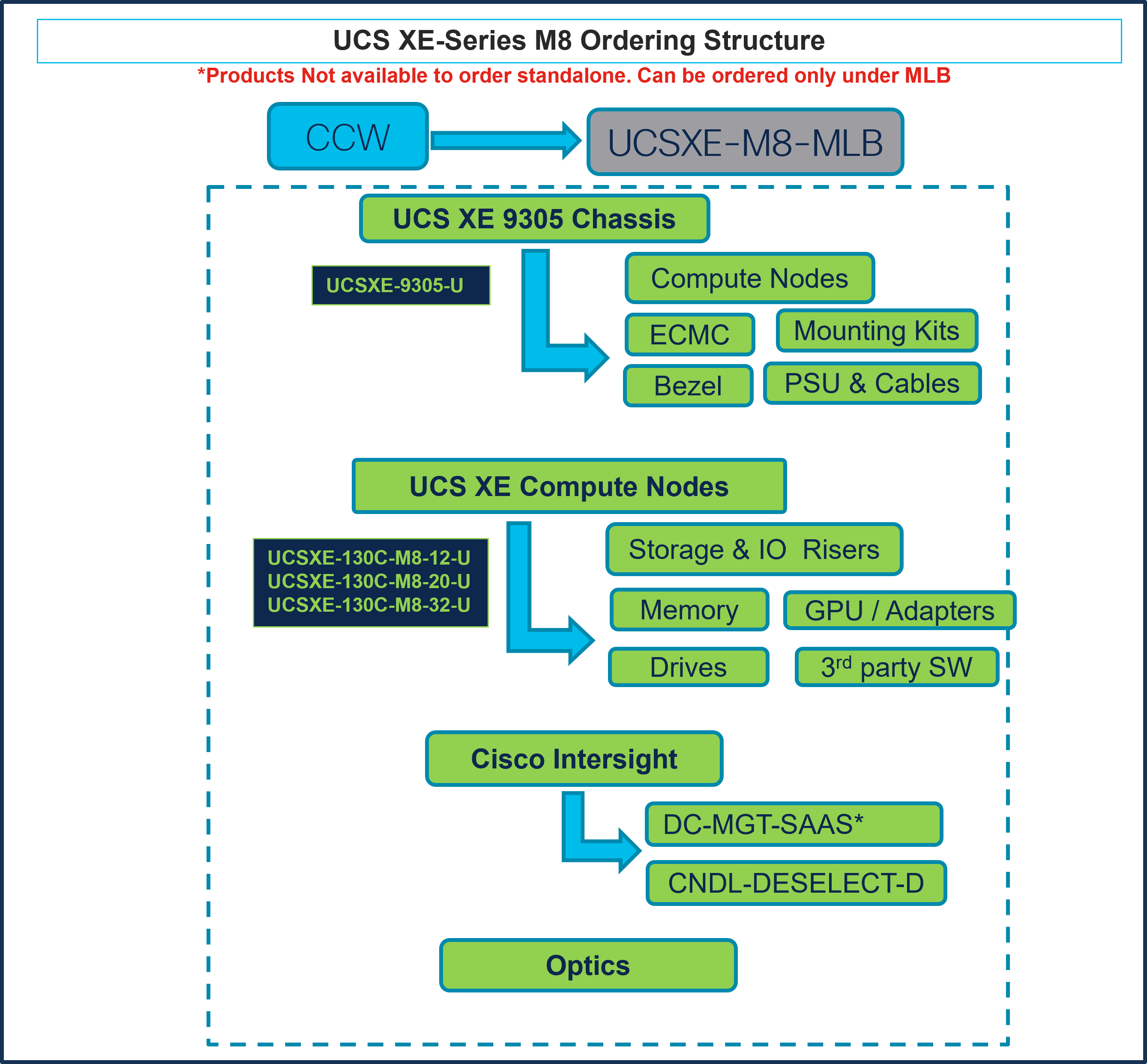
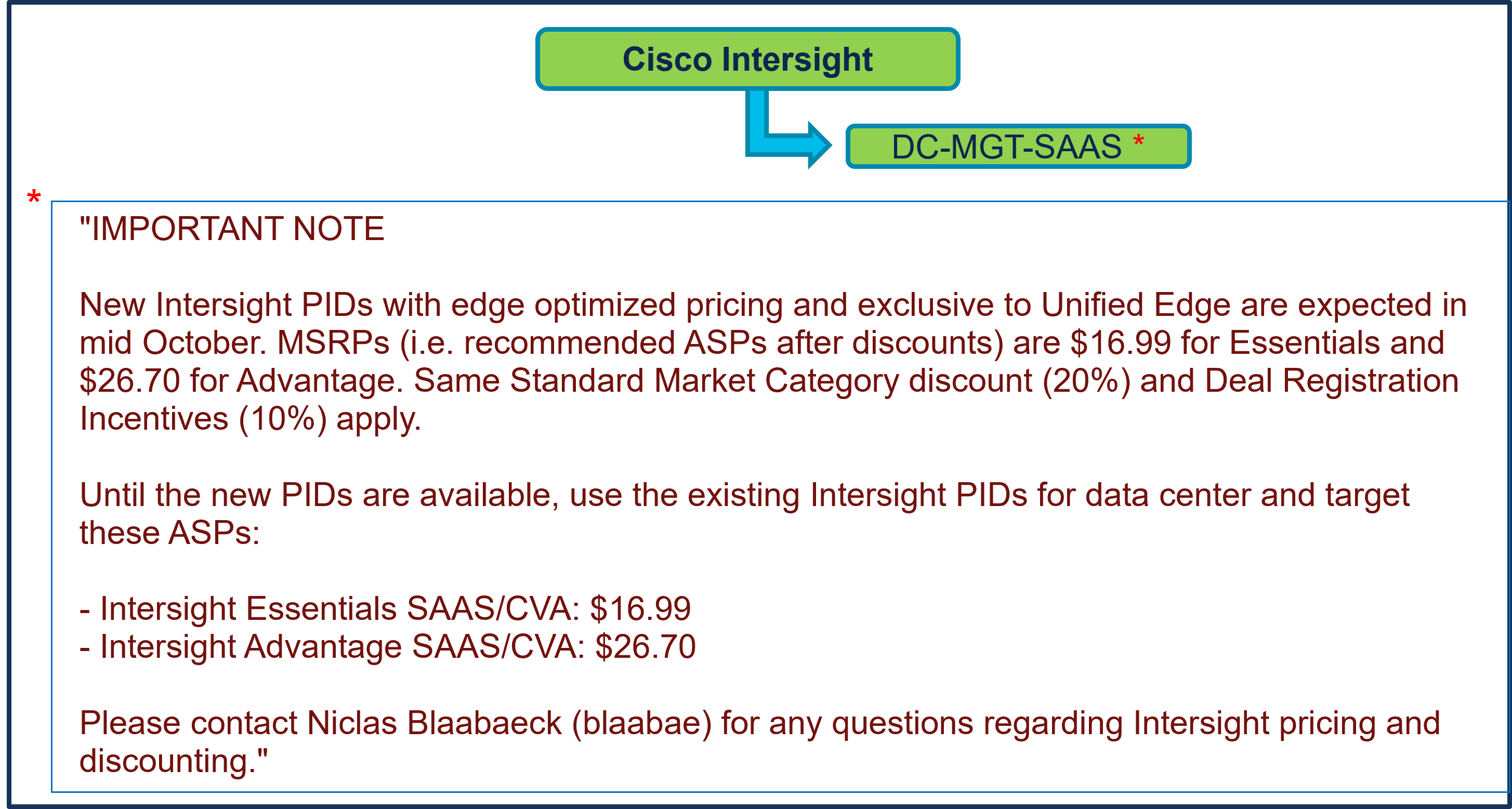
Note: *Intersight pid will change
Catalog of Product IDs (PIDs)
Table 1. PID of Major Line Bundle (MLB)
| Product ID (PID) |
Description |
| UCSXE-M8-MLB |
Unified Edge Chassis and Node MLB |
Table 2. Chassis Major Line PIDs
| Product ID (PID) |
Description |
| UCSXE-9305-U |
UCS-XE 3 RU Chassis |
Table 3. Cisco XE-Series Compute Node Major Line PIDs
| Product ID (PID) |
Description |
| UCSXE-130C-M8-12-U |
Cisco UCS XE130c M8 12-Core 1U Compute Node |
| UCSXE-130C-M8-20-U |
Cisco UCS XE130c M8 20-Core 1U Compute Node |
| UCSXE-130C-M8-32-U |
Cisco UCS XE130c M8 32-Core 1U Compute Node |
Table 4. Cisco Intersight Major Line PIDs
| Product ID (PID) |
Description |
| DC-MGT-SAAS |
Cisco Intersight SaaS |
| CNDL-DESELECT-D |
Conditional Deselect |
Step By Step Ordering Process
Buy Method Through Cisco (e.g. Direct Customer & Tier 1 Partners)
Scenario 1: Customer Without Enterprise Agreement for Cisco Intersight Software License
Step 1.
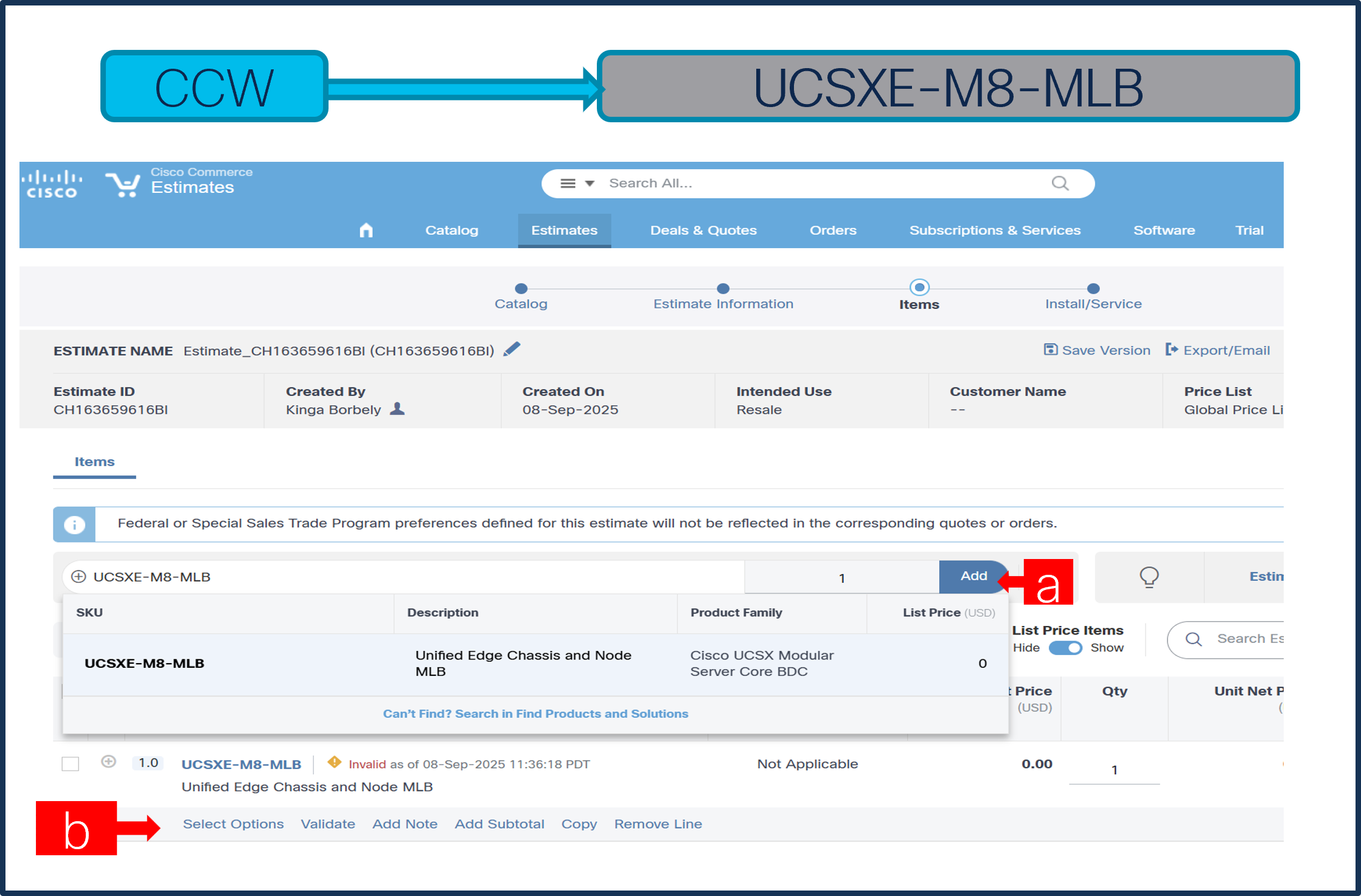
a. In CCW, search for MLB PID and click on “Add”
b. Click on “Select Options” to enter the configurator.
Step 2.
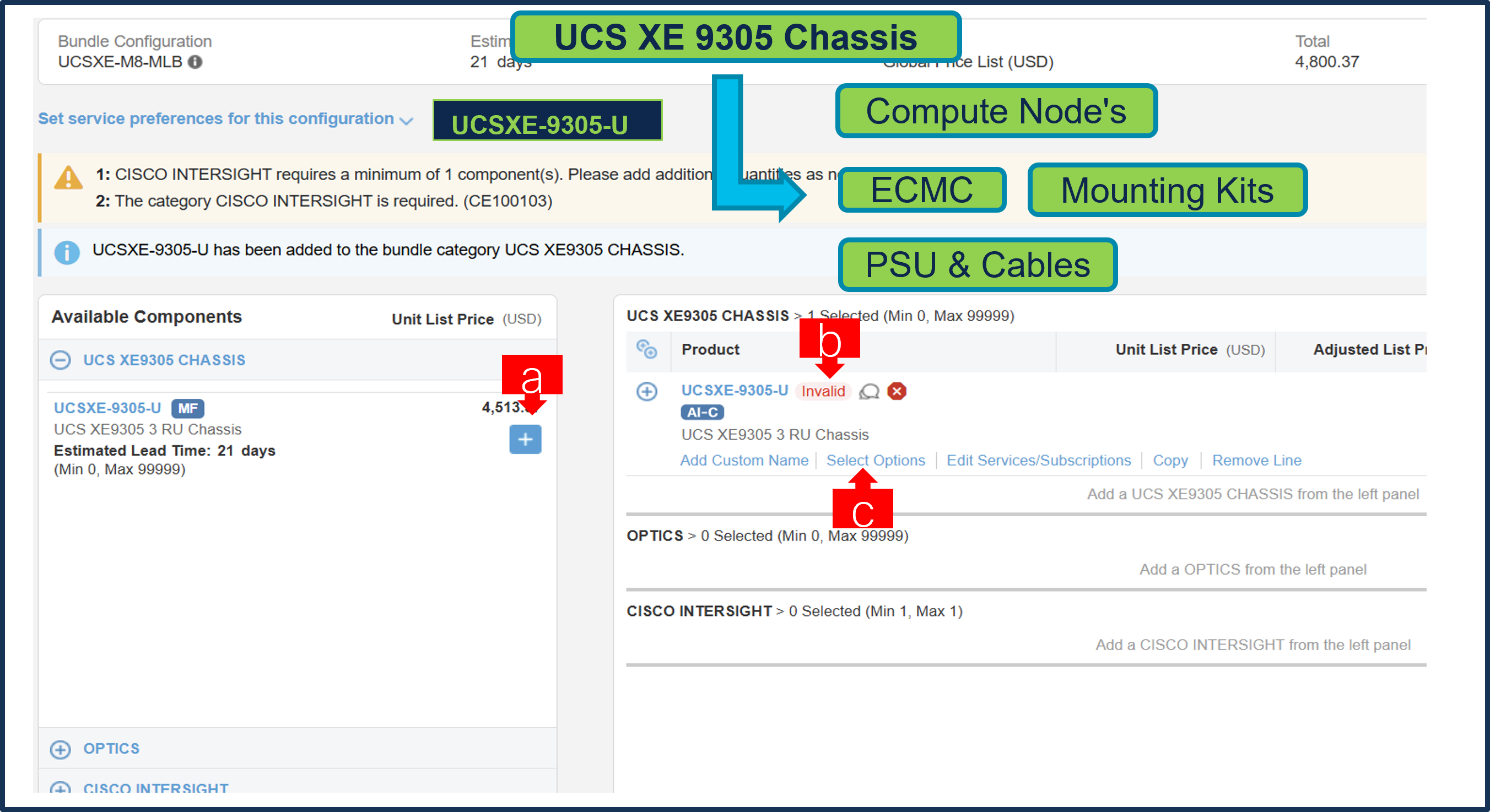
a. Select UCSXE-9305-U ATO from under MLB by clicking the “PLUS”
b. Notice the chassis Status is invalid as further configuration needed.
c. Click on “Edit Options” to enter the configurator.
Step 3.
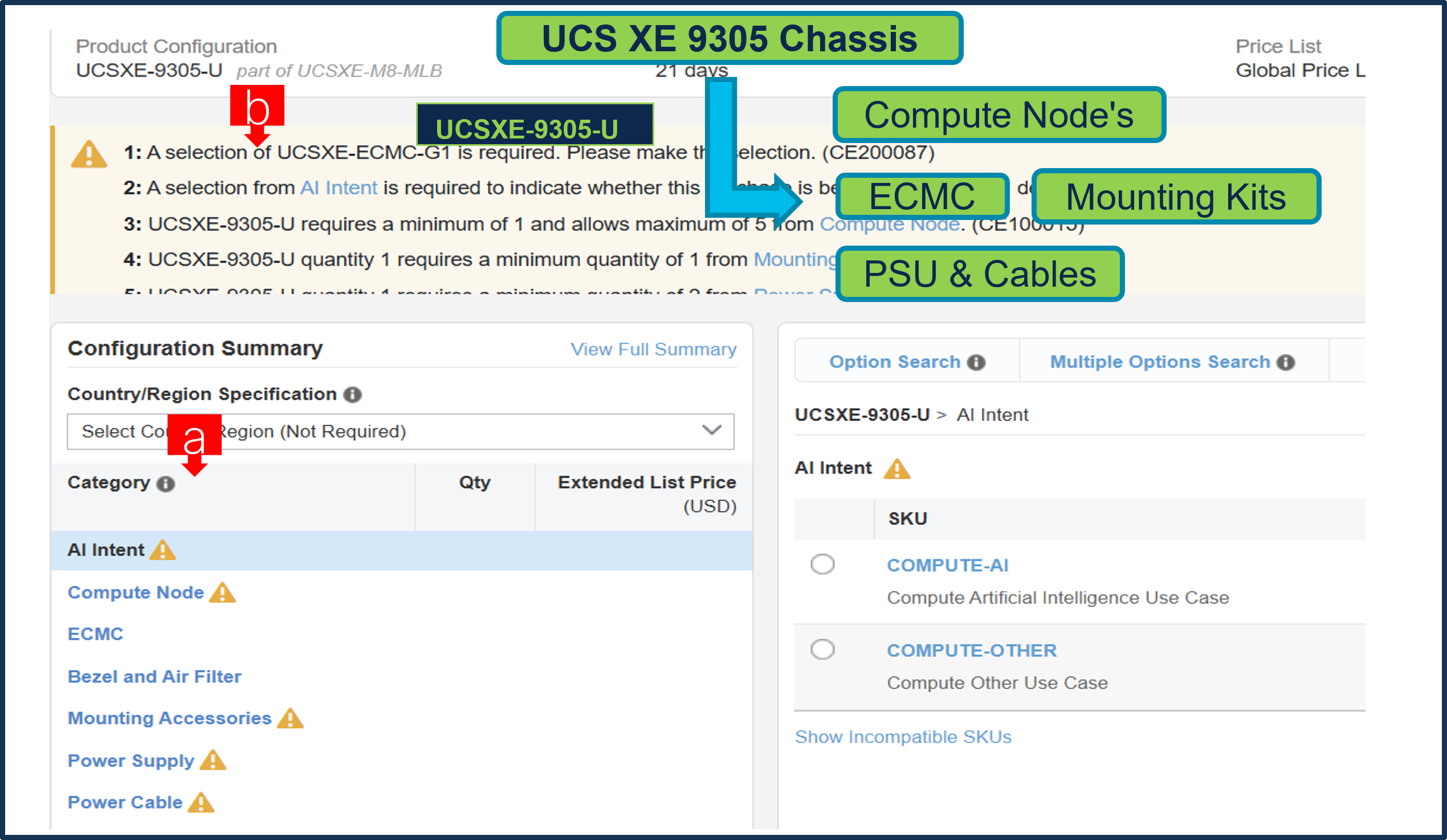
a. Configure UCSXE-9305-U by selecting Compute Node, ECMC, Mounting Accessories, Power Supply & Power Cables from category window on the left.
b. Follow warning messages to configure the minimum required selections under Chassis.
Step 4.
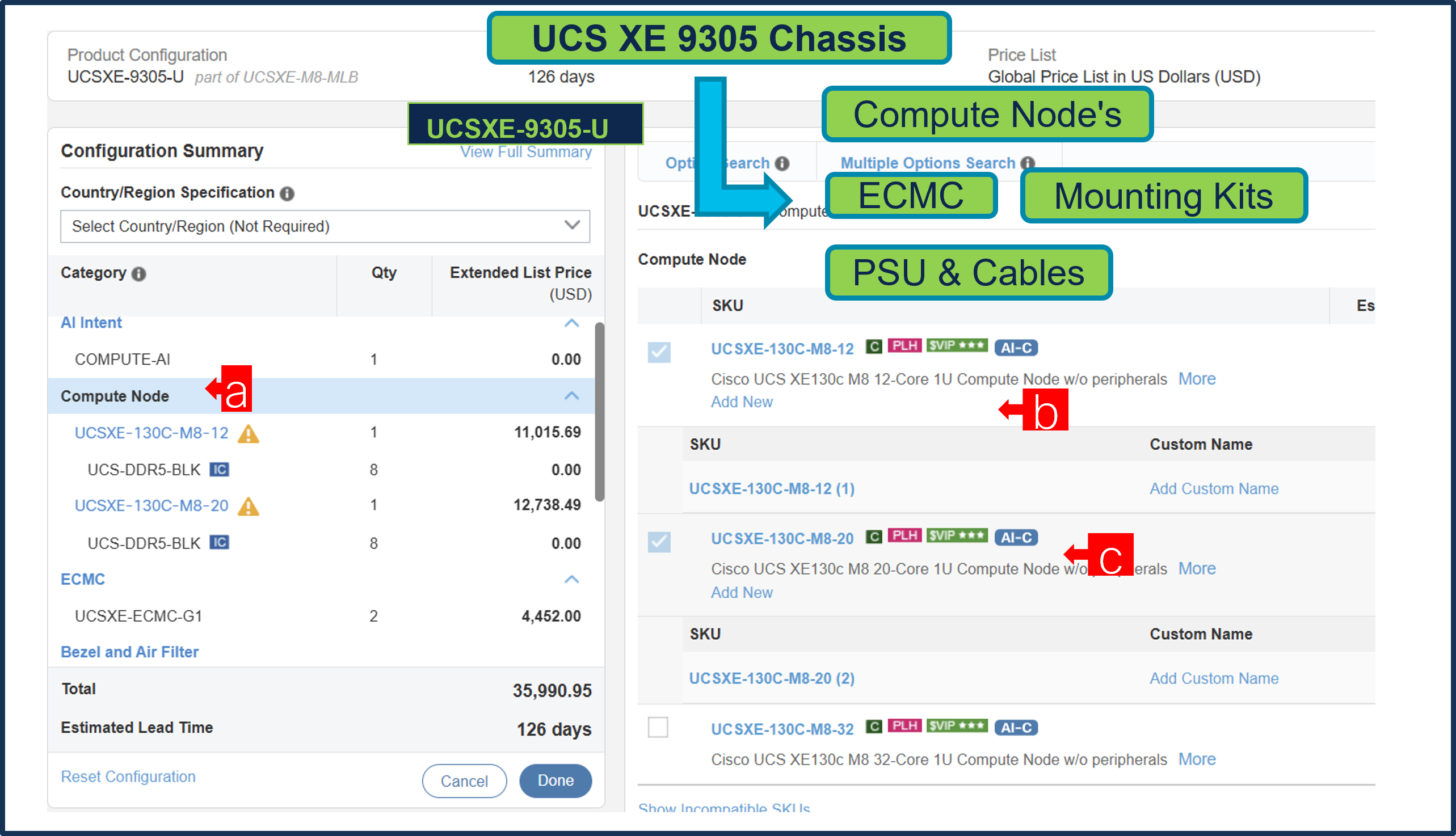
a. Compute Node is required selection and is further configurable.
b. User can select any Server/s: UCSXE-130C-M8-12, UCSXE-130C-M8-20, UCSXE-130C-M8-32.
Step 5.
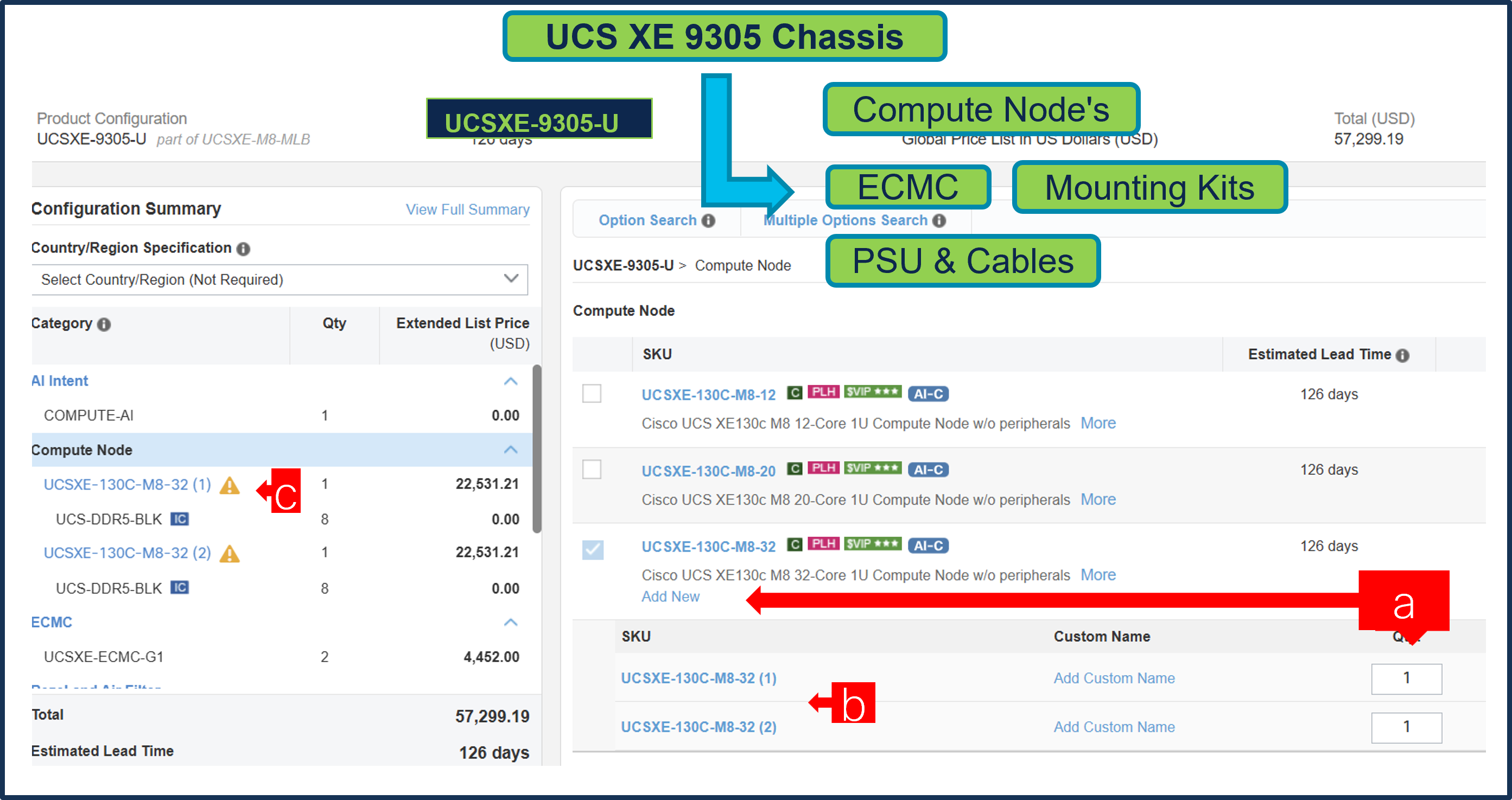
a. Any server can be selected in multiple QTY by changing the QTY in the box
b. Or you can select same server and configure it differently within same chassis by clicking in ADD NEW button. Here in this example, we have 2 instances of server selected with 1 QTY each.
c. Click on Server PID in the left to configure the particular instance (ea can be configured differently).
Step 6.
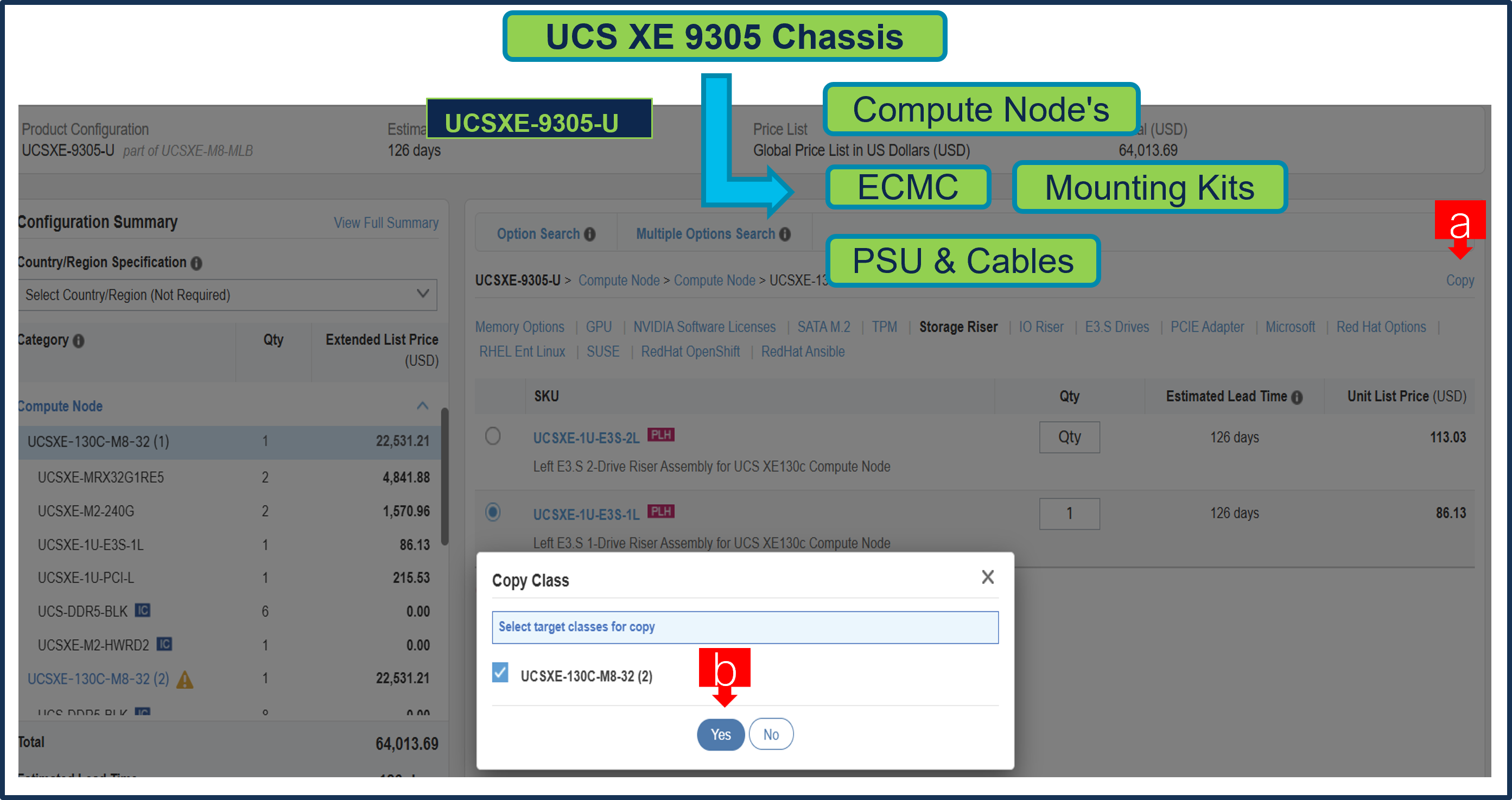
a. Configuration of one server Instance can be copied to another instance. Click on the Copy Button on the extreme right as shown here.
b. Select the particular instance and click Yes.
Step 7.
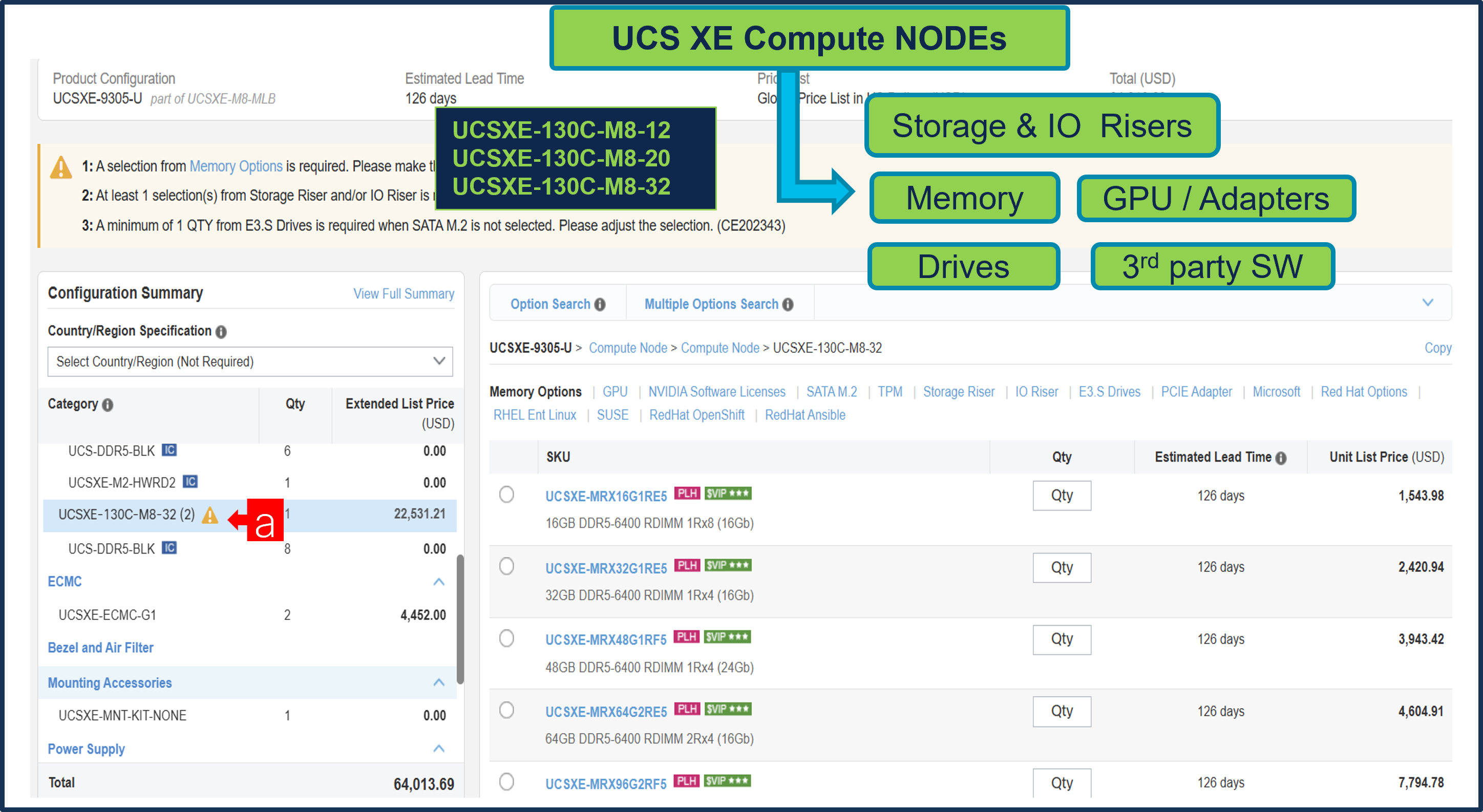
a. Click on Server PID in the left to configure it.
Step 8.
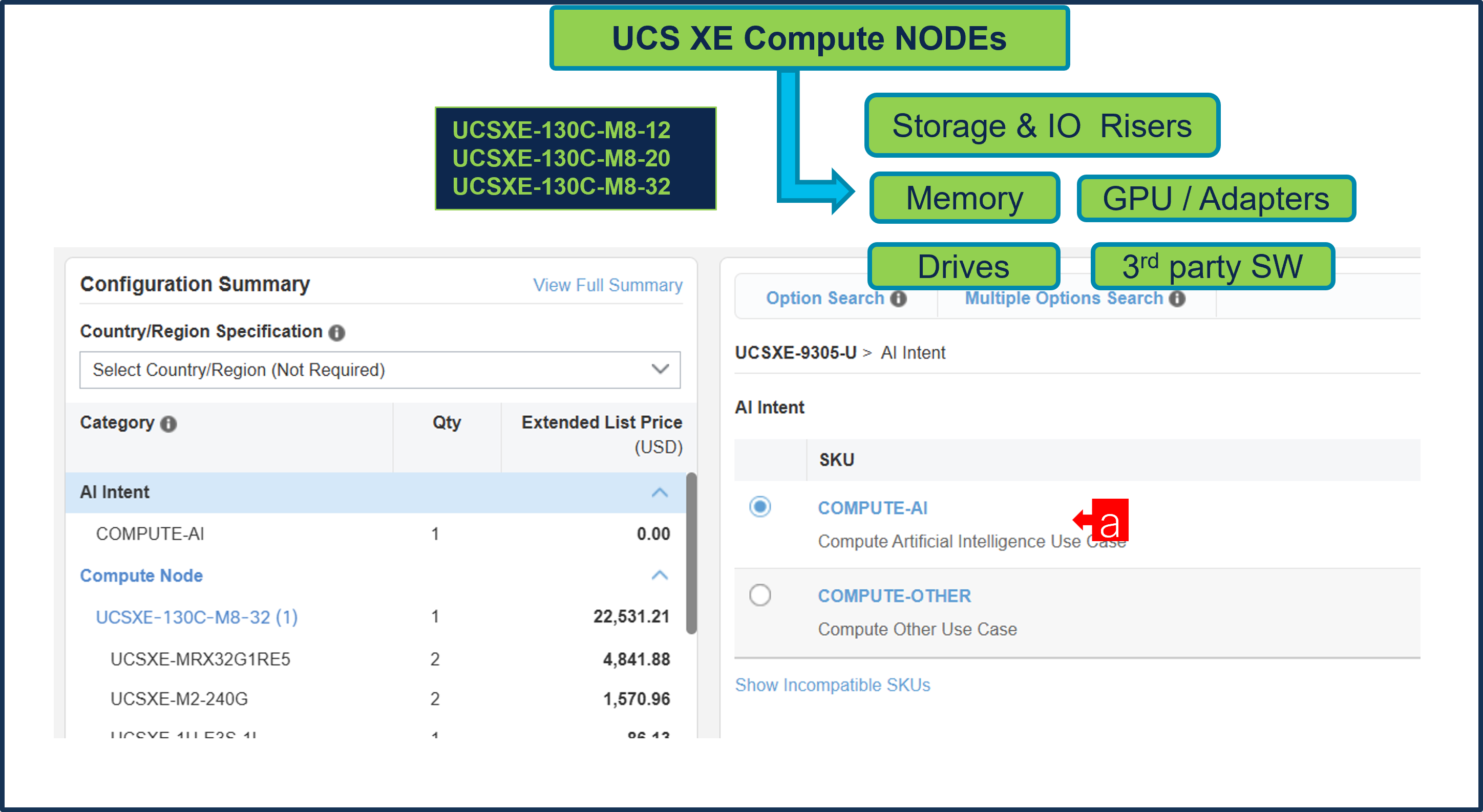
a. PIDs are set up as AI Capable, so User need to make selection from AI Intent option class. By making the right selection it provides information to Cisco that if Server is being intended to use AI features or not. If a GPU is selected, the configuration automatically counts as an AI product, and the AI Intent selection goes away.
Step 9.
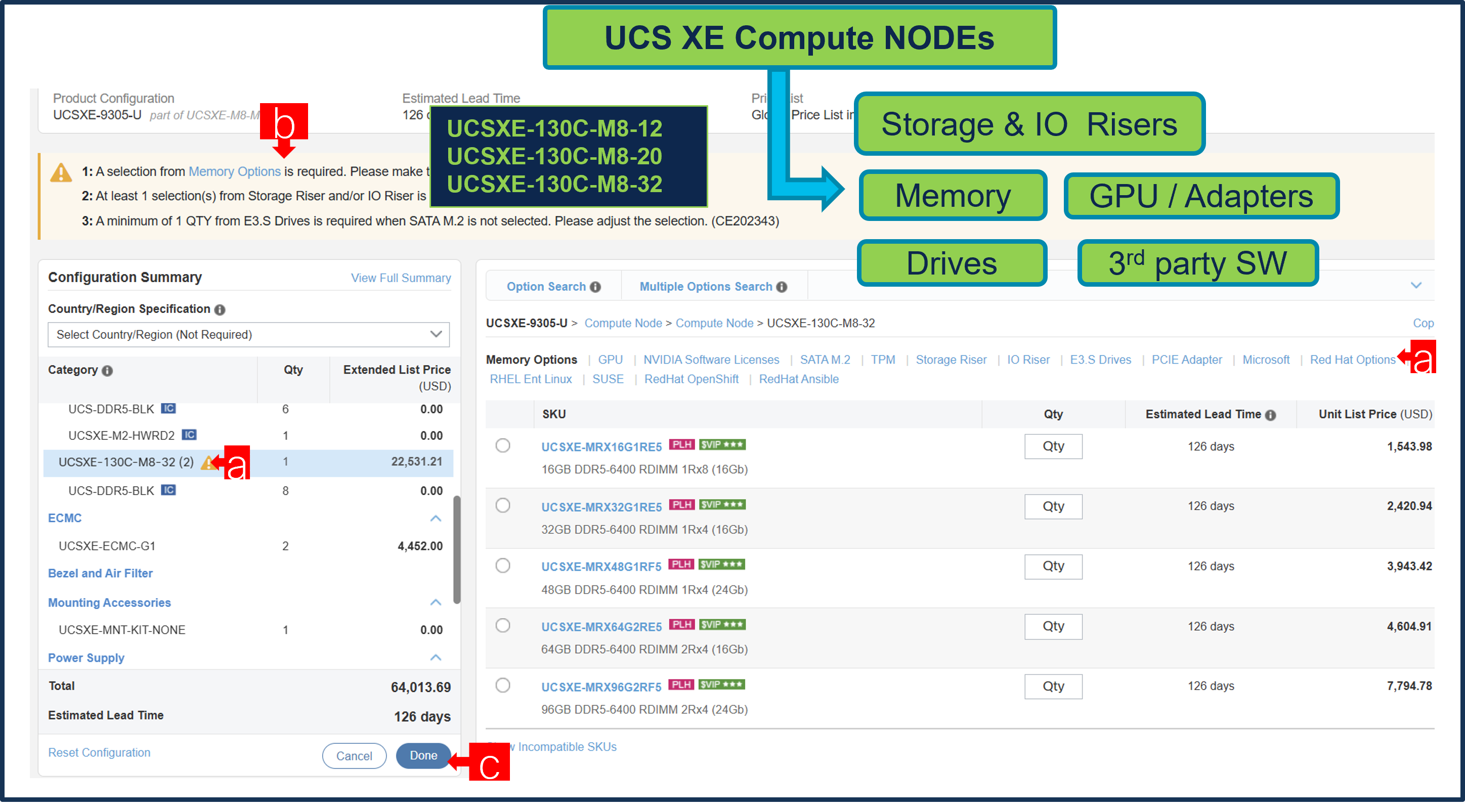
a. Configure node by selecting Memory, Storage Riser or IO Riser and other peripheral devices and PIDs are listed in the window on the right.
b. Follow warning messages to configure the minimum required selections under Server.
c. Click on “Done” when completed.
Step 10.
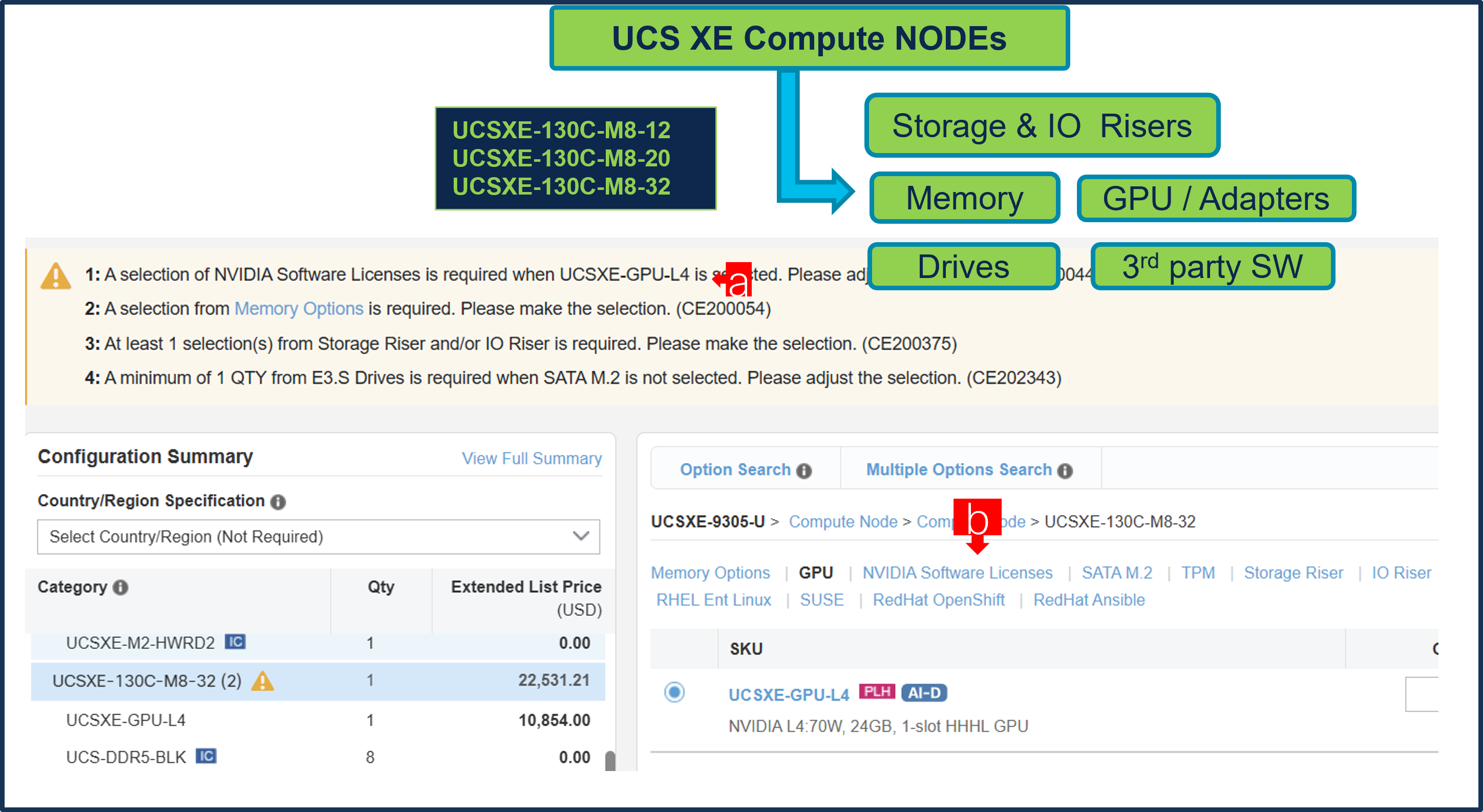
a. If you add GPU, then that requires selection of NVIDIA Software License.
Step 11.
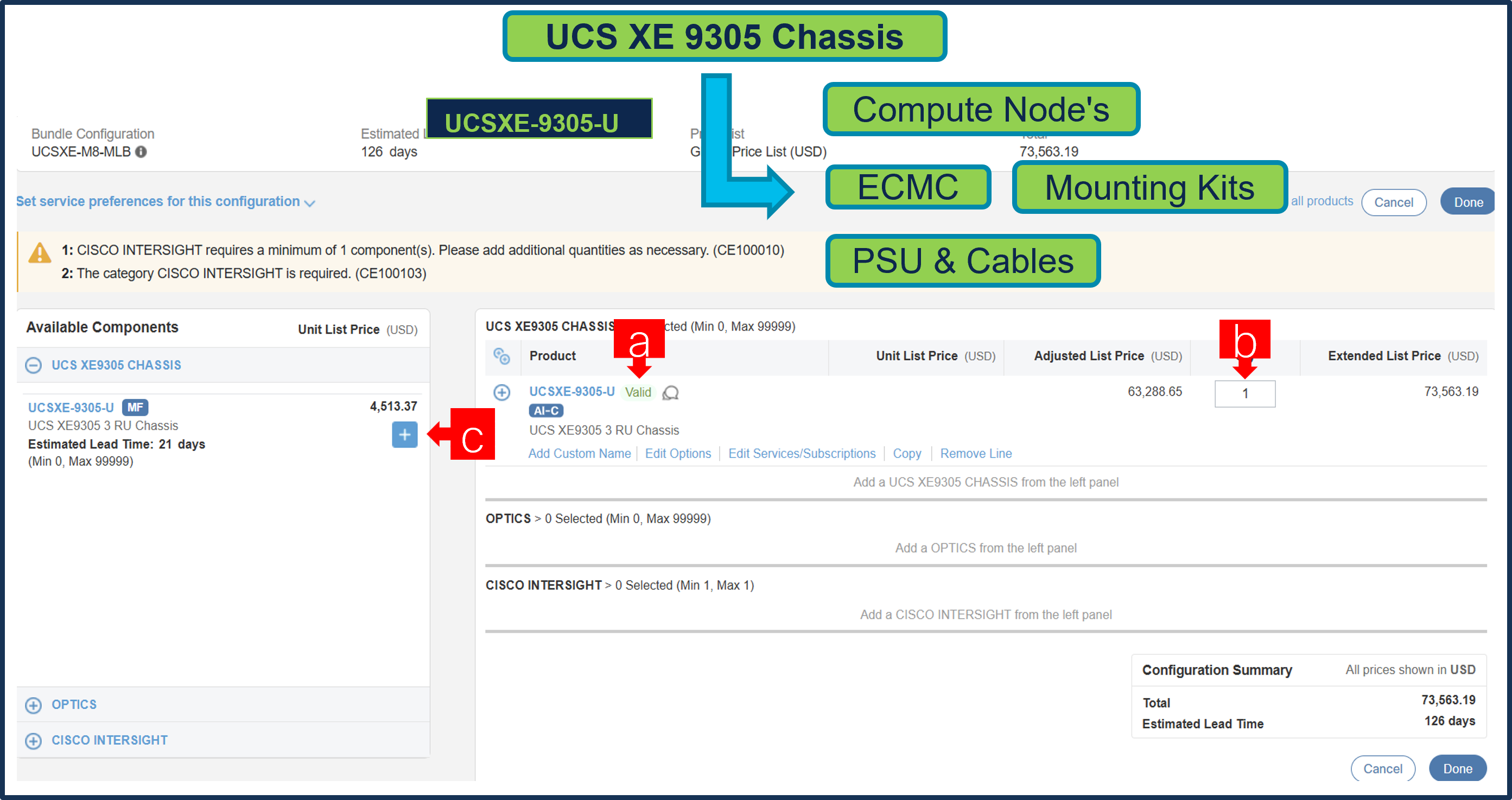
a. Note Status is now showing as Valid.
b. Increase the quantity for multiples of same configuration.
c. Click the “PLUS” to add and configure the same product with different option/quantities.
Step 12.
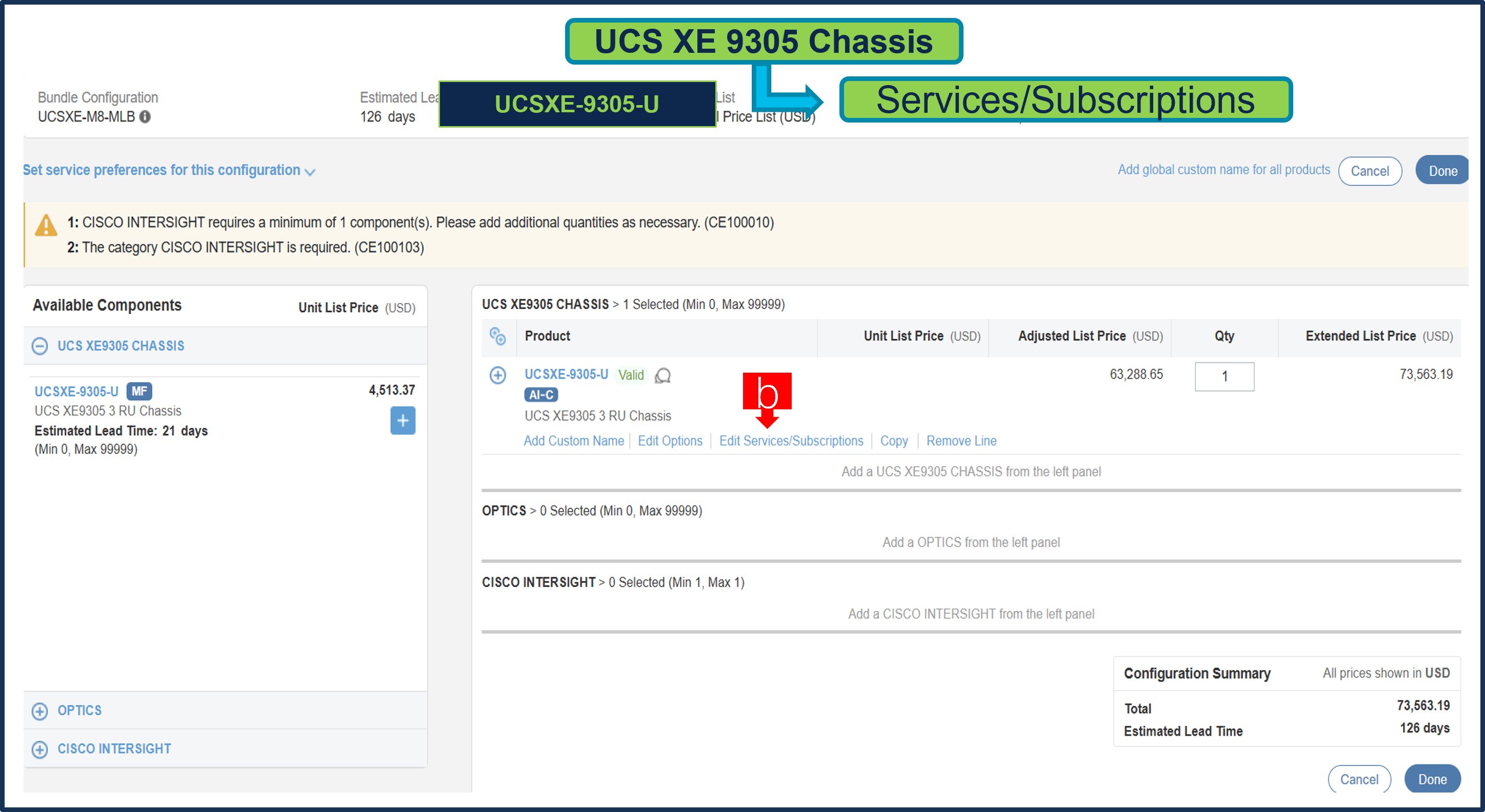
a. Click on “Edit Services/Subscriptions” to edit Term Duration for HW Support.
Note: It is recommended that Term Duration for HW Support must align with Software Subscription Duration.
Step 13.
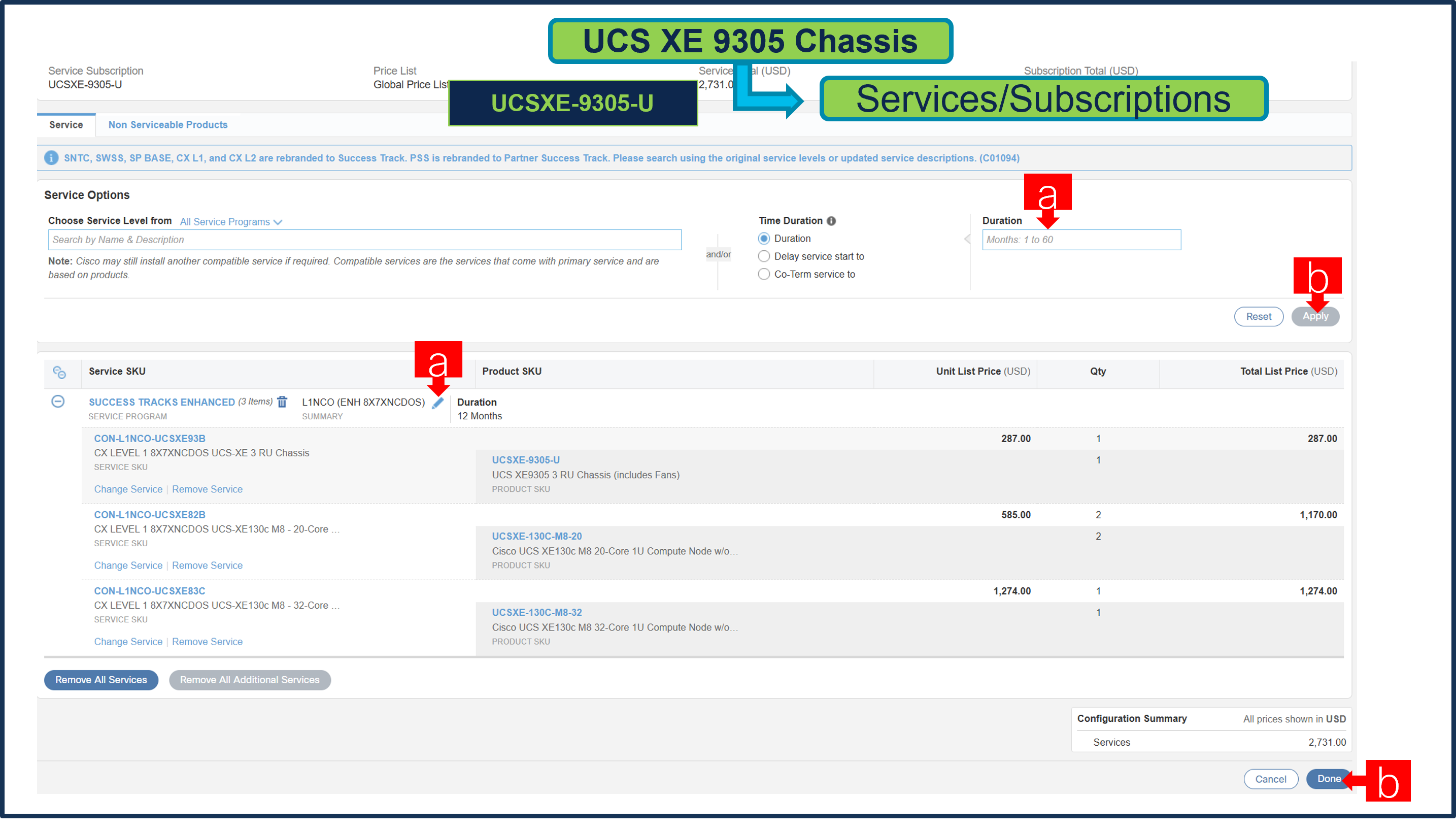
a. You can Edit if needed by clicking the pencil
b. Enter the Term Duration & Click on Apply
c. then hit Done
Step 14.
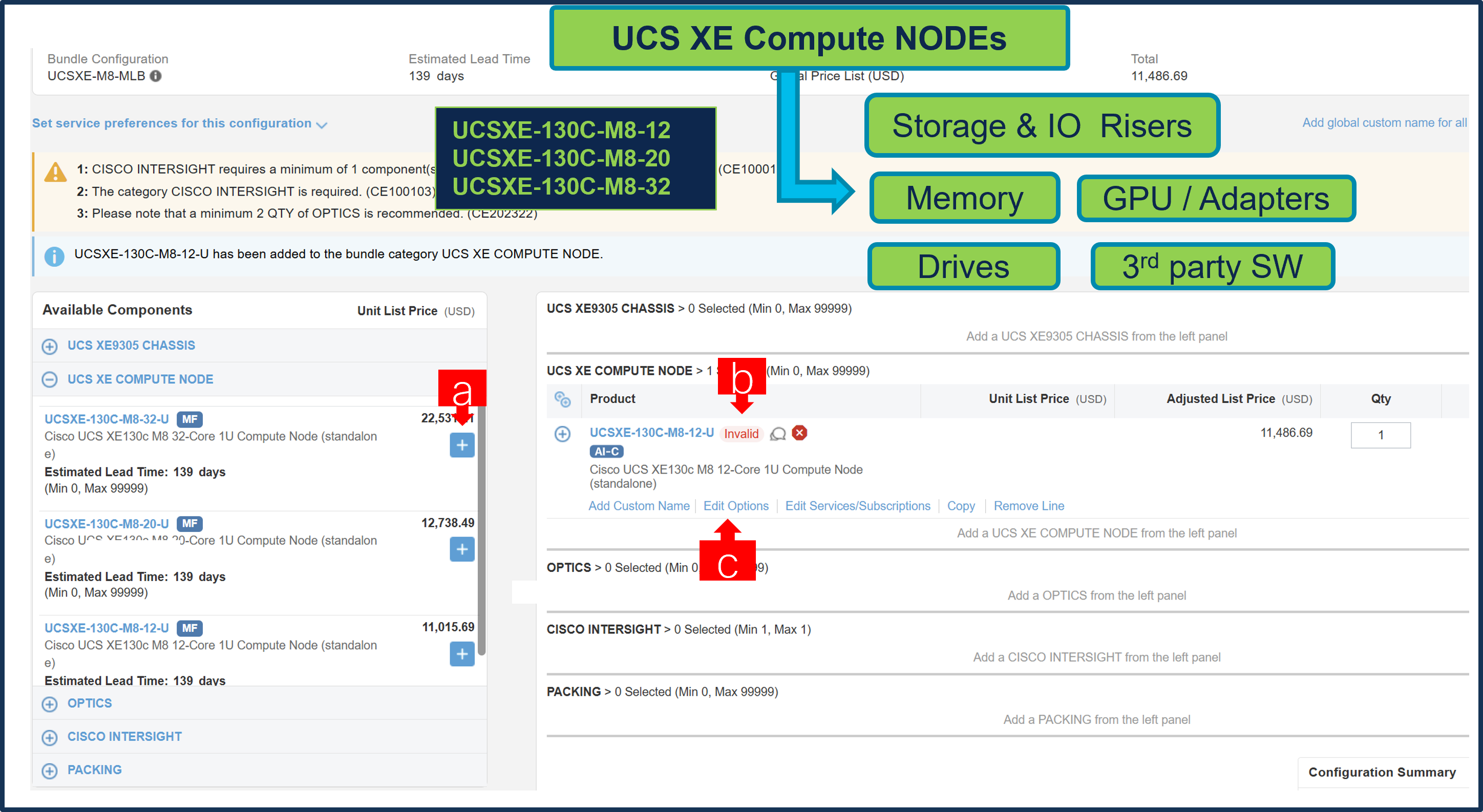
a. You can also Select the standalone Nodes ATO from under MLB by clicking the “PLUS”.
b. Notice the ATO Status is invalid as further configuration needed.
c. Select 'Edit Option' to enter the configurator and follow the same workflow as configuring a node under a chassis ATO.
Step 15.
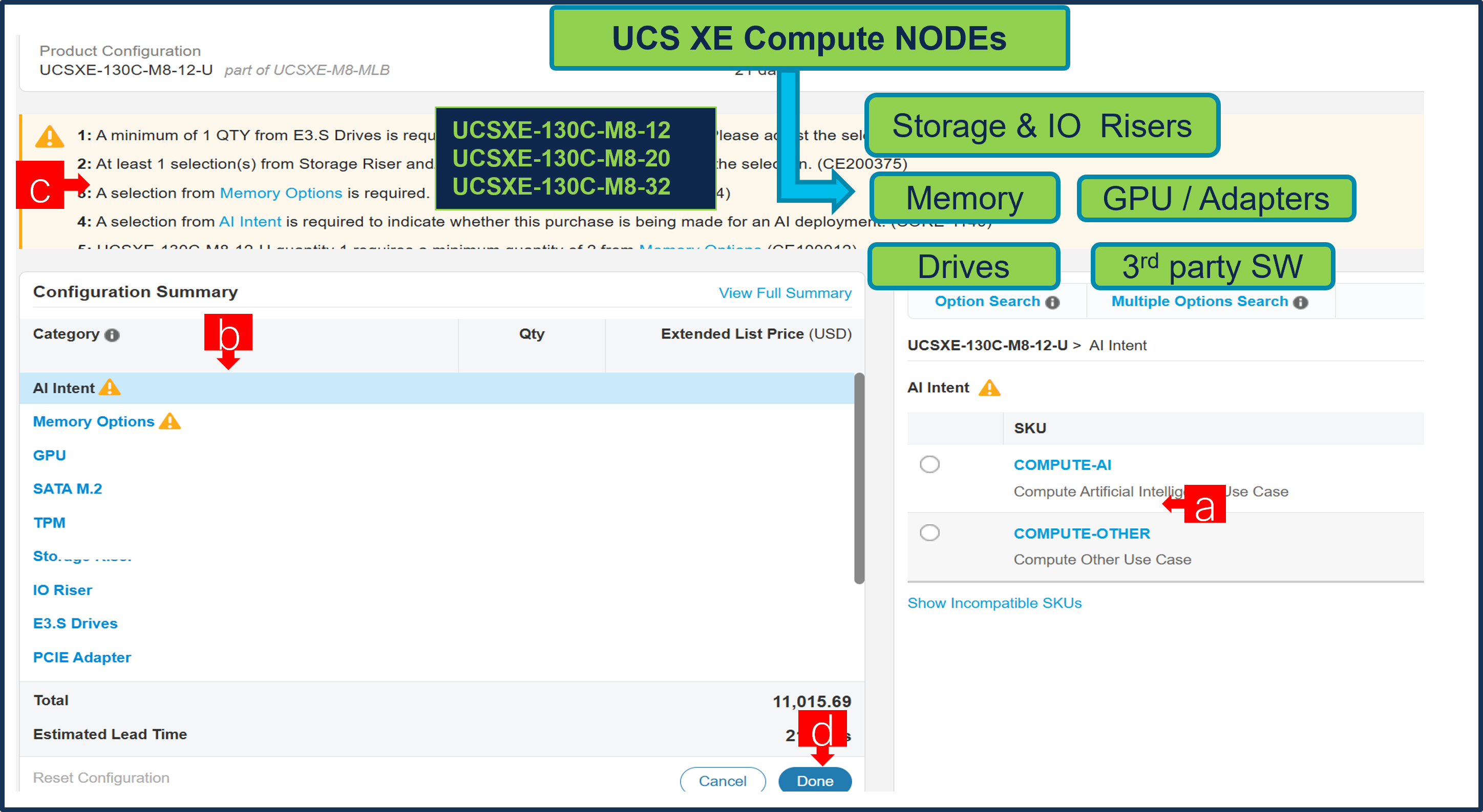
a. PIDs are set up as AI Capable, so User need to make selection from AI Intent option class. By making the right selection it provides information to Cisco that if Server is being intended to use AI features or not.
If a GPU is selected, the configuration automatically counts as an AI product, and the AI Intent selection goes away.
b. Configure node by selecting Memory, Storage Riser /or IO Riser and other peripheral devices and PIDs.
c. Follow warning messages to configure the minimum required selections under Server.
d. Select Done when completed.
Step 16.
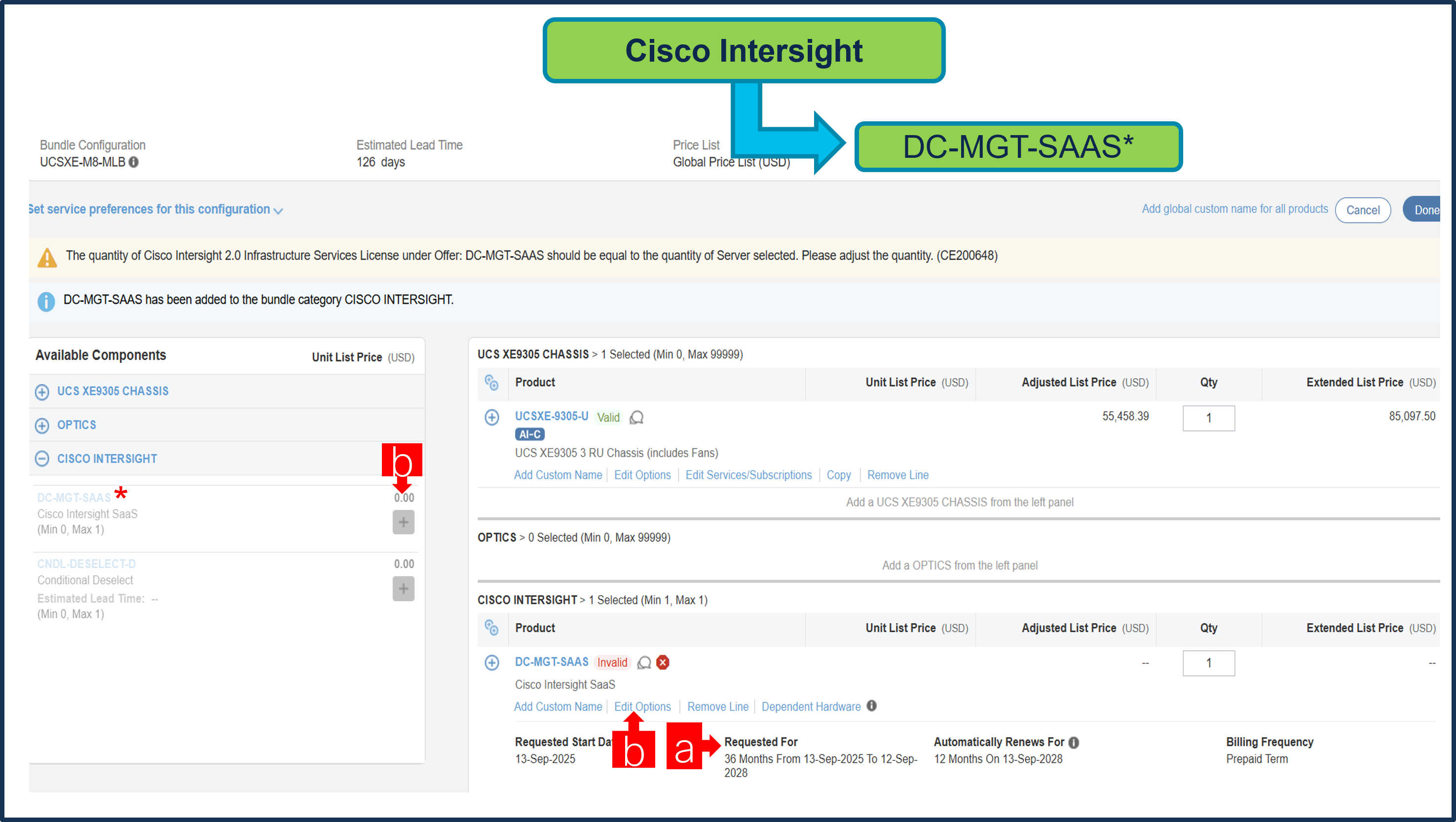
a. It is recommended that Term Duration for HW Support align with Software Subscription Duration.
b. Intersight is a required selection if you have not previously purchased Cisco Intersight Software. Please make selection by clicking “PLUS”. Click on “Edit Options” to configure.
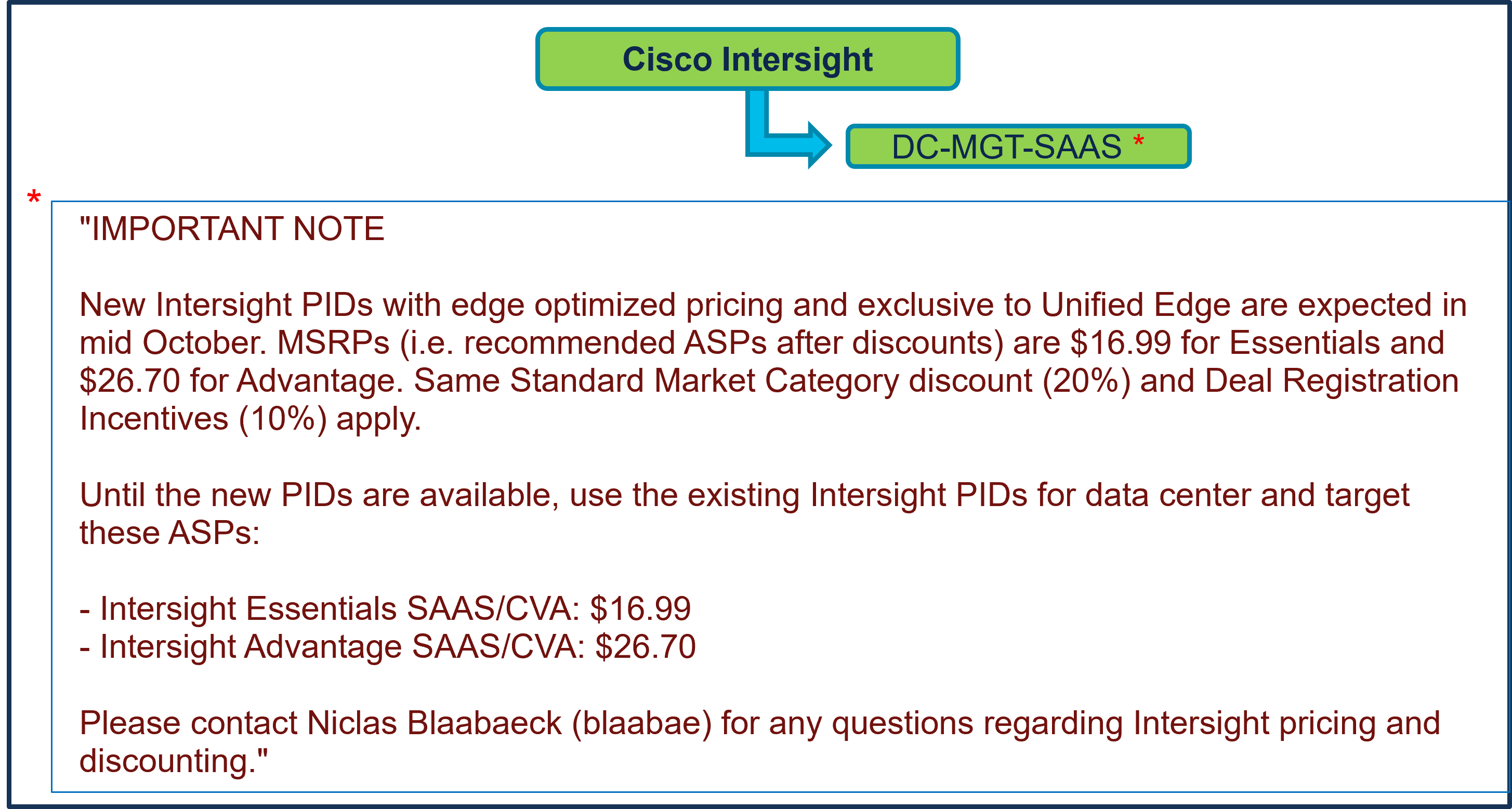
Step 17.
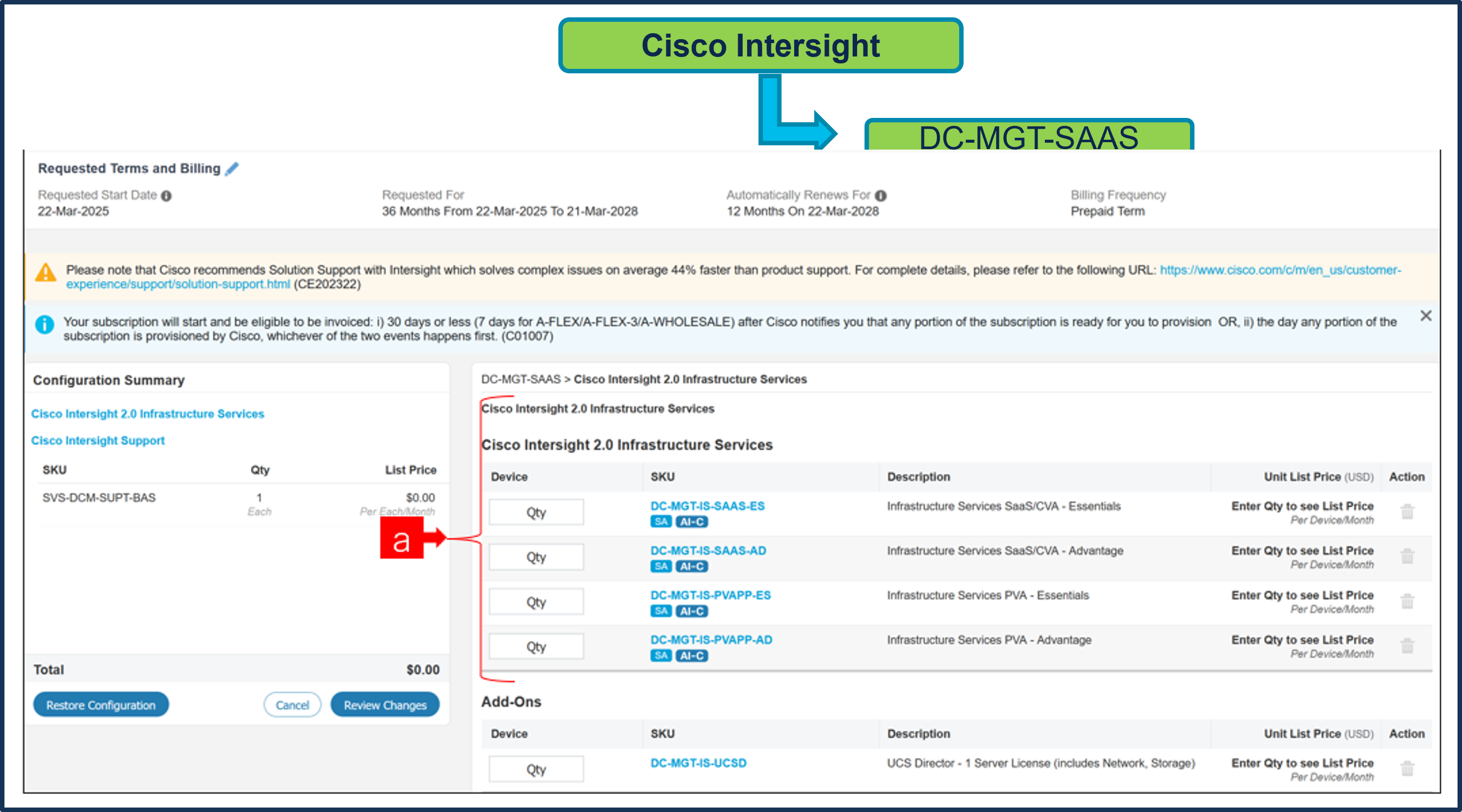
a. The quantity of Cisco Intersight 2.0 Infrastructure Services License under Offer: DC-MGT-SAAS* should be equal to the quantity of Server selected. Enter the quantity.
b. Hit the pencil button up top to see & modify terms.
Step 18.
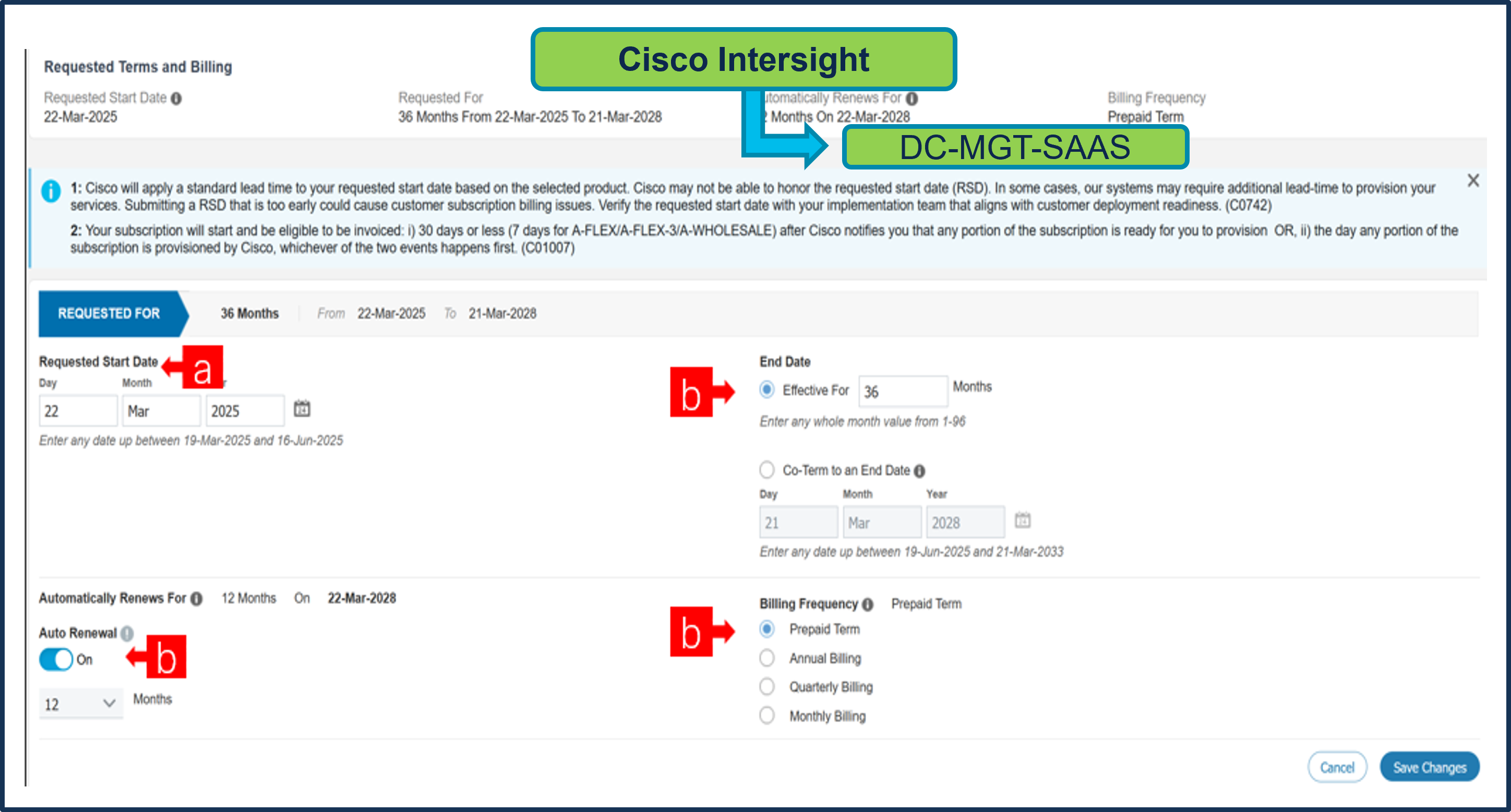
a. Requested Start Date (RSD) is now dependent on HW Ship Date and will automatically starts when the HW ships. If you change the RSD, the Software will start either on the RSD you picked or the HW Ship Date whichever is later.
b. End Date (duration in months) is defaulted to 36 Months, Auto Renewal (on/off) is defaulted to On and Billing Frequency is defaulted to Prepaid Term. You can still change the setting accordingly.
Step 19.
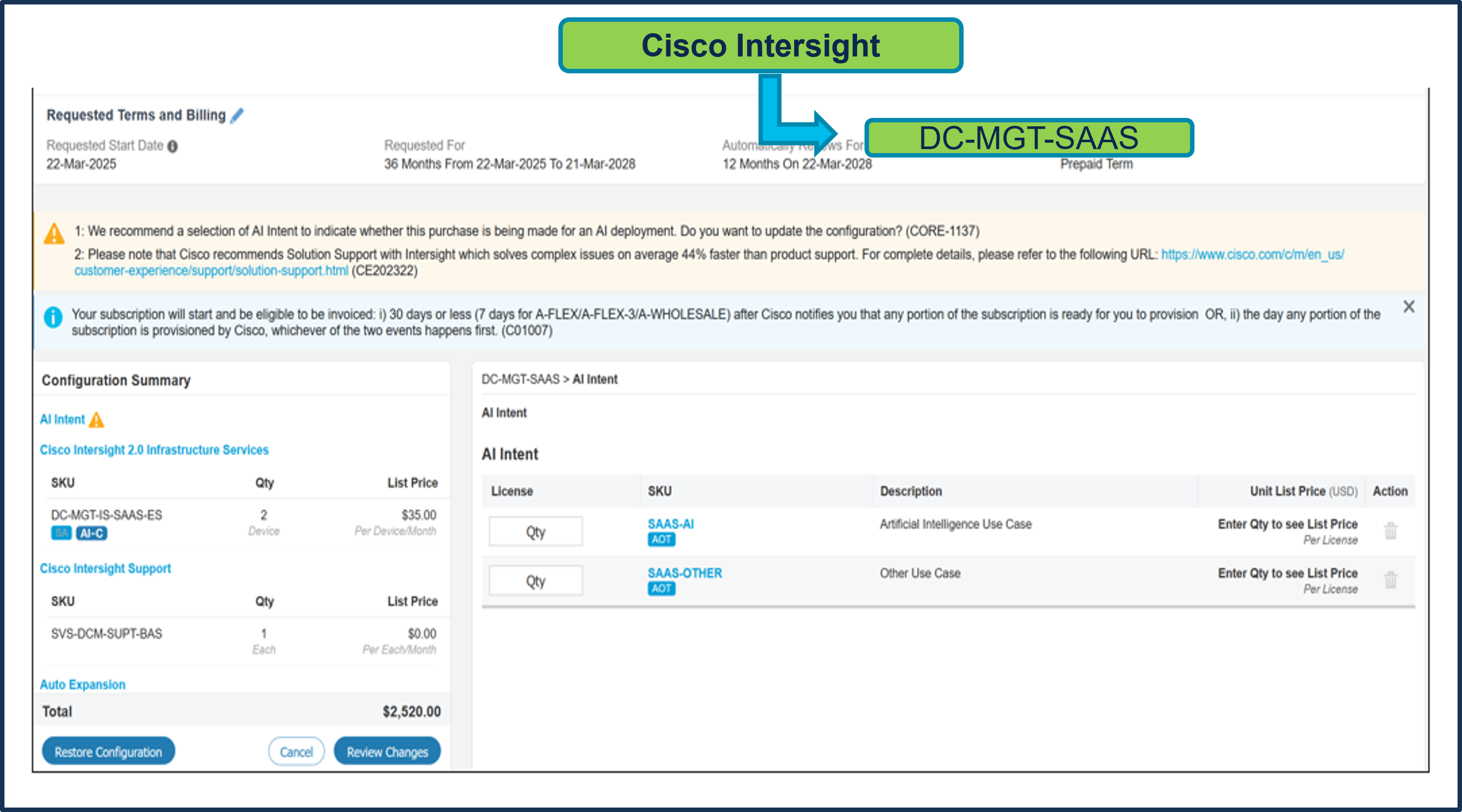
a. Users need to make selection from AI Intent Option Class.
Step 20.
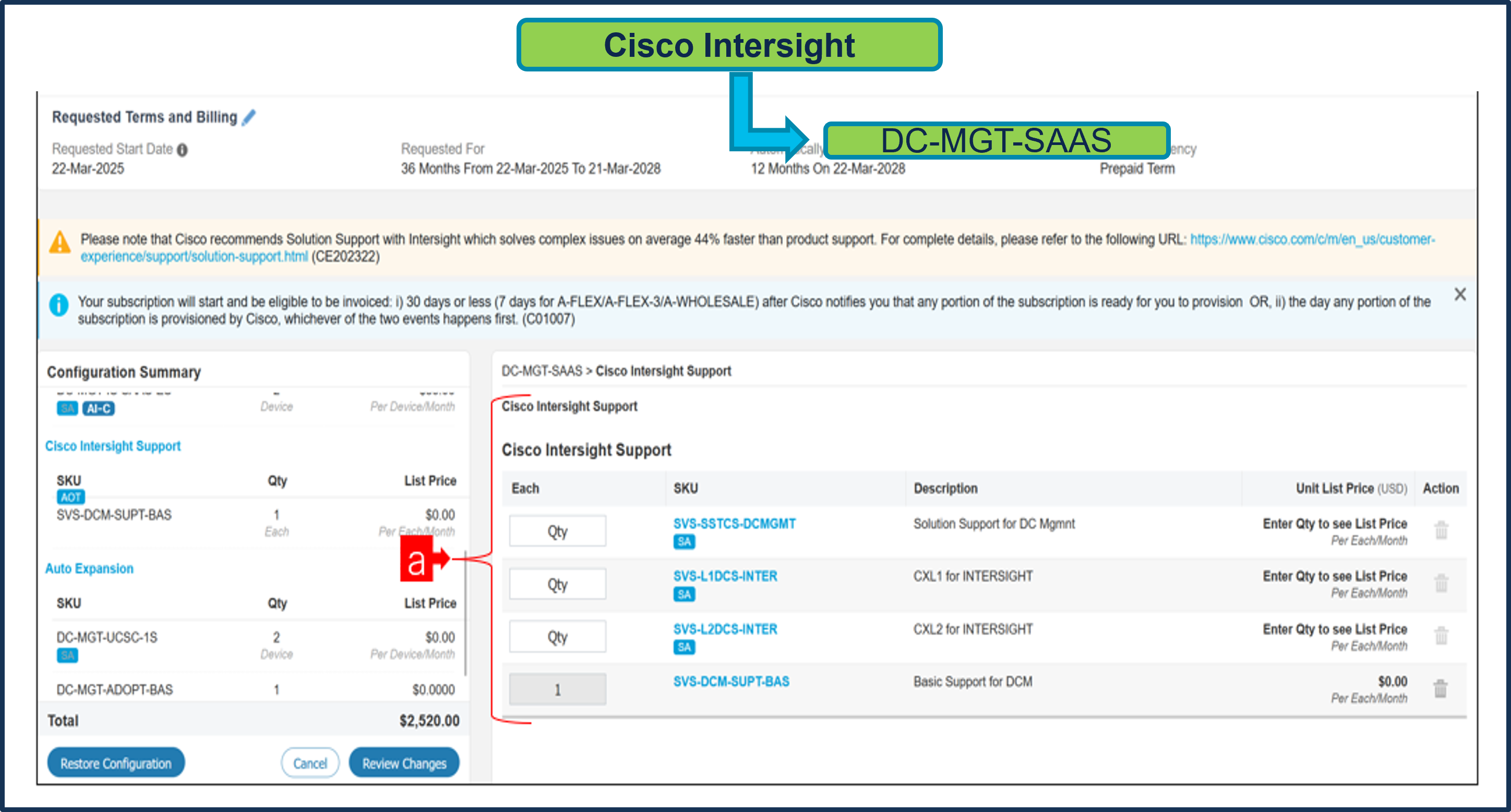
a. The Cisco Intersight License comes with separate Support. Basic Embedded Support is the default selection. Customer may upgrade to Solution Support, CX Success Track L1 and L2 (supported only with SAAS) if needed.
Step 21.
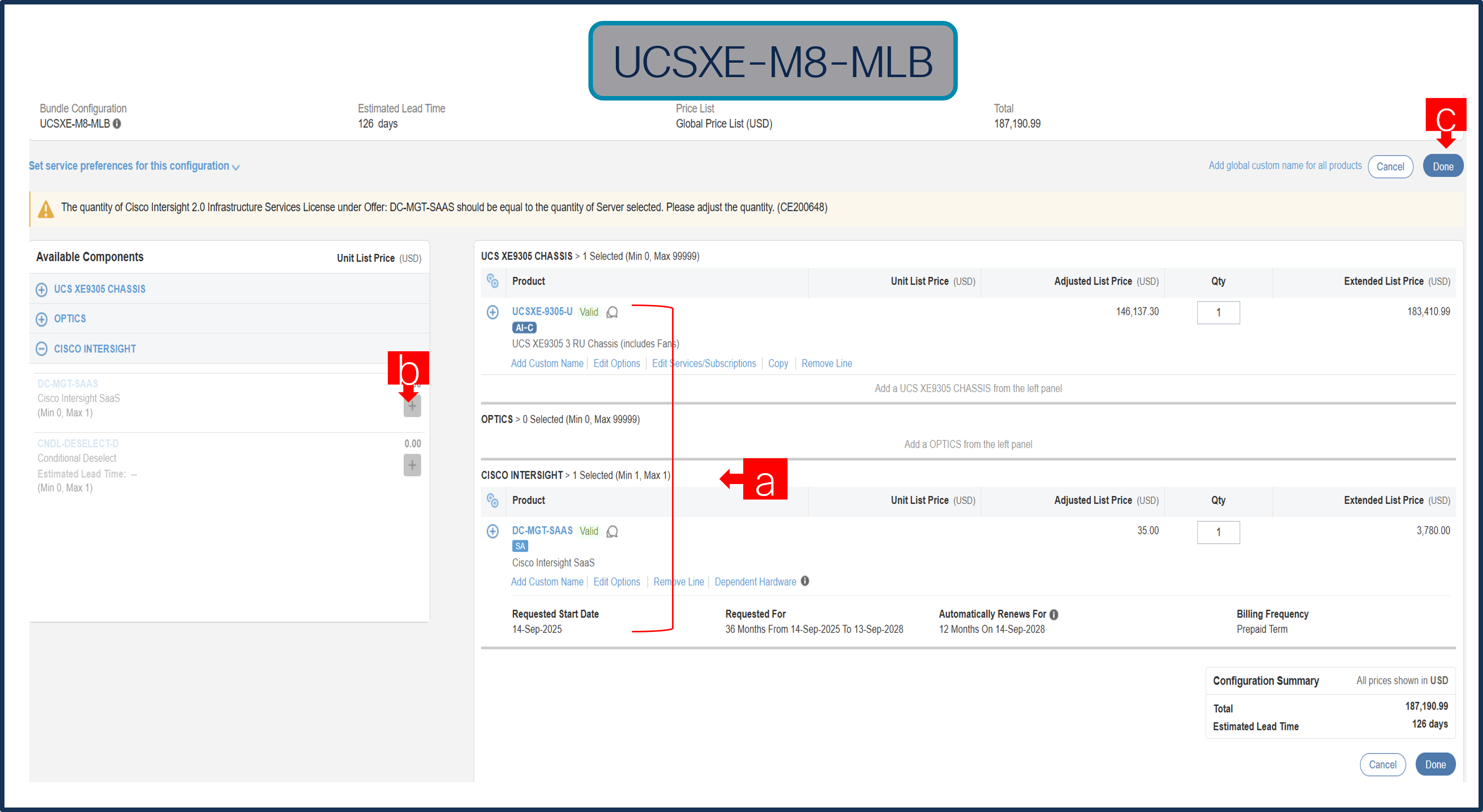
a. Configuration for MLB is completed when status of each Product is Valid and warning messages are cleared.
b. Click on the “PLUS” to expand and view the selections made for each Product.
c. Click on the “DONE” to complete the MLB Configuration.
Buy Method Through Distributor (e.g. Direct Customer & Tier 1 Partners)
Scenario 1: Customer Without Enterprise Agreement for Cisco Intersight Software License
Step 1.
a. In CCW, search for MLB PID and click on “Add”
b. Click on “Select Options” to enter the configurator.
Step 2.
a. Select UCSXE-9305-U ATO from under MLB by clicking the “PLUS”
b. Notice the chassis Status is invalid as further configuration needed.
c. Click on “Edit Options” to enter the configurator.
Step 3.
a. Configure UCSXE-9305-U by selecting Compute Node, ECMC, Mounting Accessories, Power Supply & Power Cables from category window on the left.
b. Follow warning messages to configure the minimum required selections under Chassis.
Step 4.
a. Compute Node is required selection and is further configurable.
b. User can select any Server/s: UCSXE-130C-M8-12, UCSXE-130C-M8-20, UCSXE-130C-M8-32.
Step 5.
a. Any server can be selected in multiple QTY by changing the QTY in the box
b. Or you can select same server and configure it differently within same chassis by clicking in ADD NEW button. Here in this example, we have 2 instances of server selected with 1 QTY each.
c. Click on Server PID in the left to configure the particular instance (ea can be configured differently).
Step 6.
a. Configuration of one server Instance can be copied to another instance. Click on the Copy Button on the extreme right as shown here.
b. Select the particular instance and click Yes.
Step 7.
a. Click on Server PID in the left to configure it.
Step 8.
a. PIDs are set up as AI Capable, so User need to make selection from AI Intent option class. By making the right selection it provides information to Cisco that if Server is being intended to use AI features or not. If a GPU is selected, the configuration automatically counts as an AI product, and the AI Intent selection goes away.
Step 9.
a. Configure node by selecting Memory, Storage Riser or IO Riser and other peripheral devices and PIDs are listed in the window on the right.
b. Follow warning messages to configure the minimum required selections under Server.
c. Click on “Done” when completed.
Step 10.
a. If you add GPU, then that requires selection of NVIDIA Software License.
Step 11.
a. Note Status is now showing as Valid.
b. Increase the quantity for multiples of same configuration.
c. Click the “PLUS” to add and configure the same product with different option/quantities.
Step 12.
a. Click on “Edit Services/Subscriptions” to edit Term Duration for HW Support.
Note: It is recommended that Term Duration for HW Support must align with Software Subscription Duration.
Step 13.
a. You can Edit if needed by clicking the pencil
b. Enter the Term Duration & Click on Apply
c. then hit Done
Step 14.
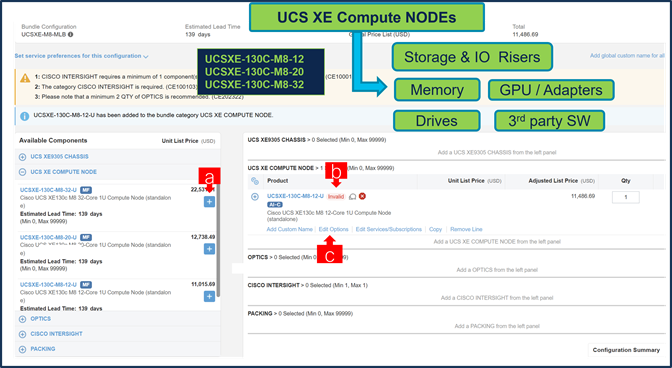
a. You can also Select the standalone Nodes ATO from under MLB by clicking the “PLUS”.
b. Notice the ATO Status is invalid as further configuration needed.
c. Select 'Edit Option' to enter the configurator and follow the same workflow as configuring a node under a chassis ATO.
Step 15.
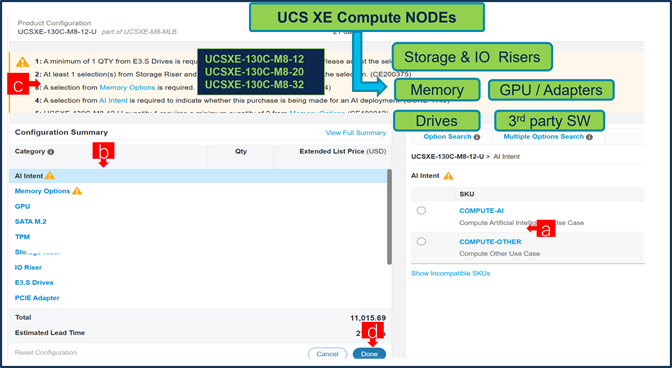
a. PIDs are set up as AI Capable, so User need to make selection from AI Intent option class. By making the right selection it provides information to Cisco that if Server is being intended to use AI features or not.
If a GPU is selected, the configuration automatically counts as an AI product, and the AI Intent selection goes away.
b. Configure node by selecting Memory, Storage Riser /or IO Riser and other peripheral devices and PIDs.
c. Follow warning messages to configure the minimum required selections under Server.
d. Select Done when completed.
Step 16.
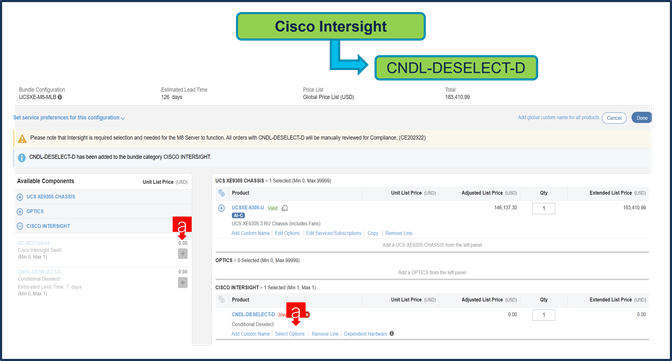
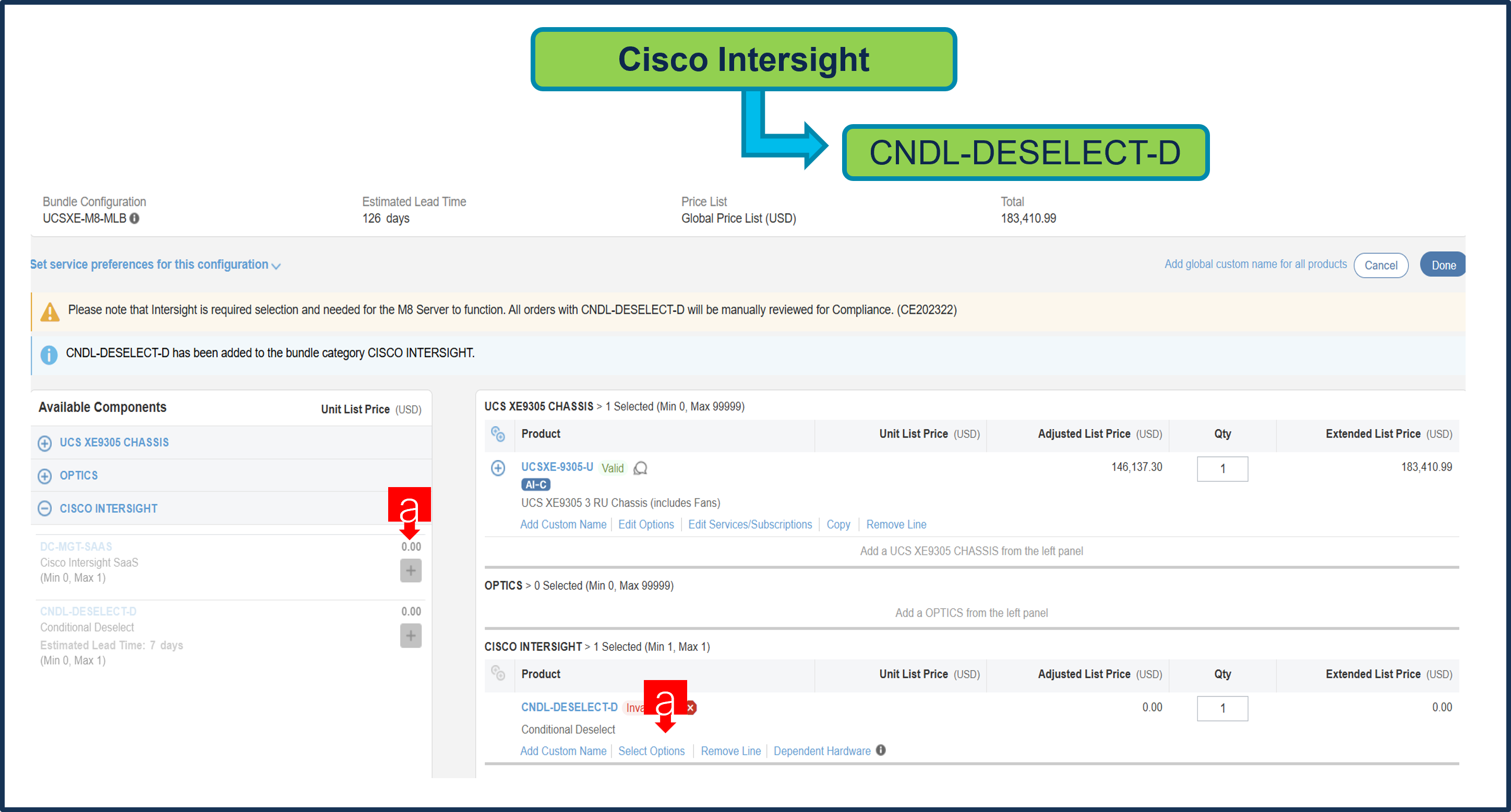
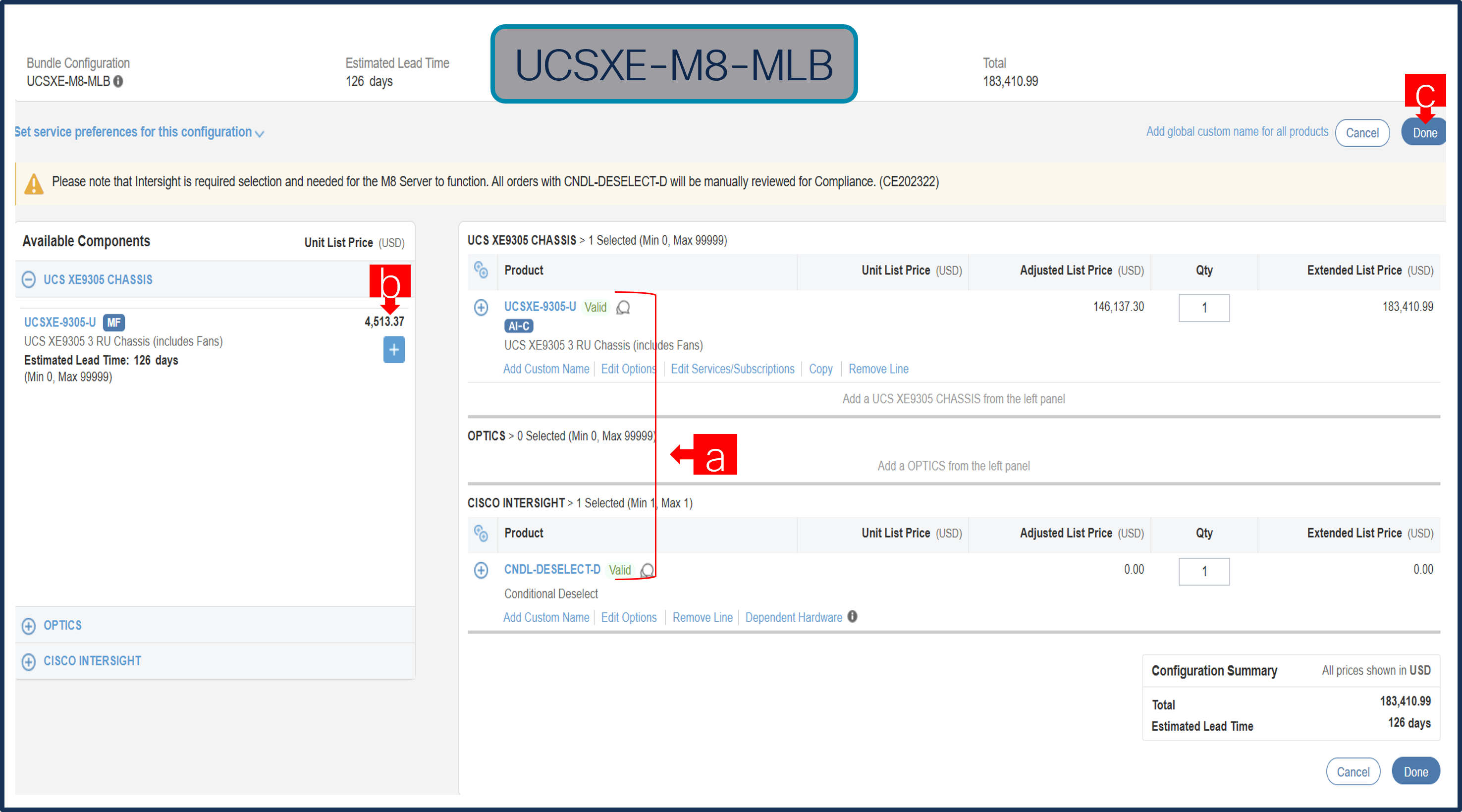
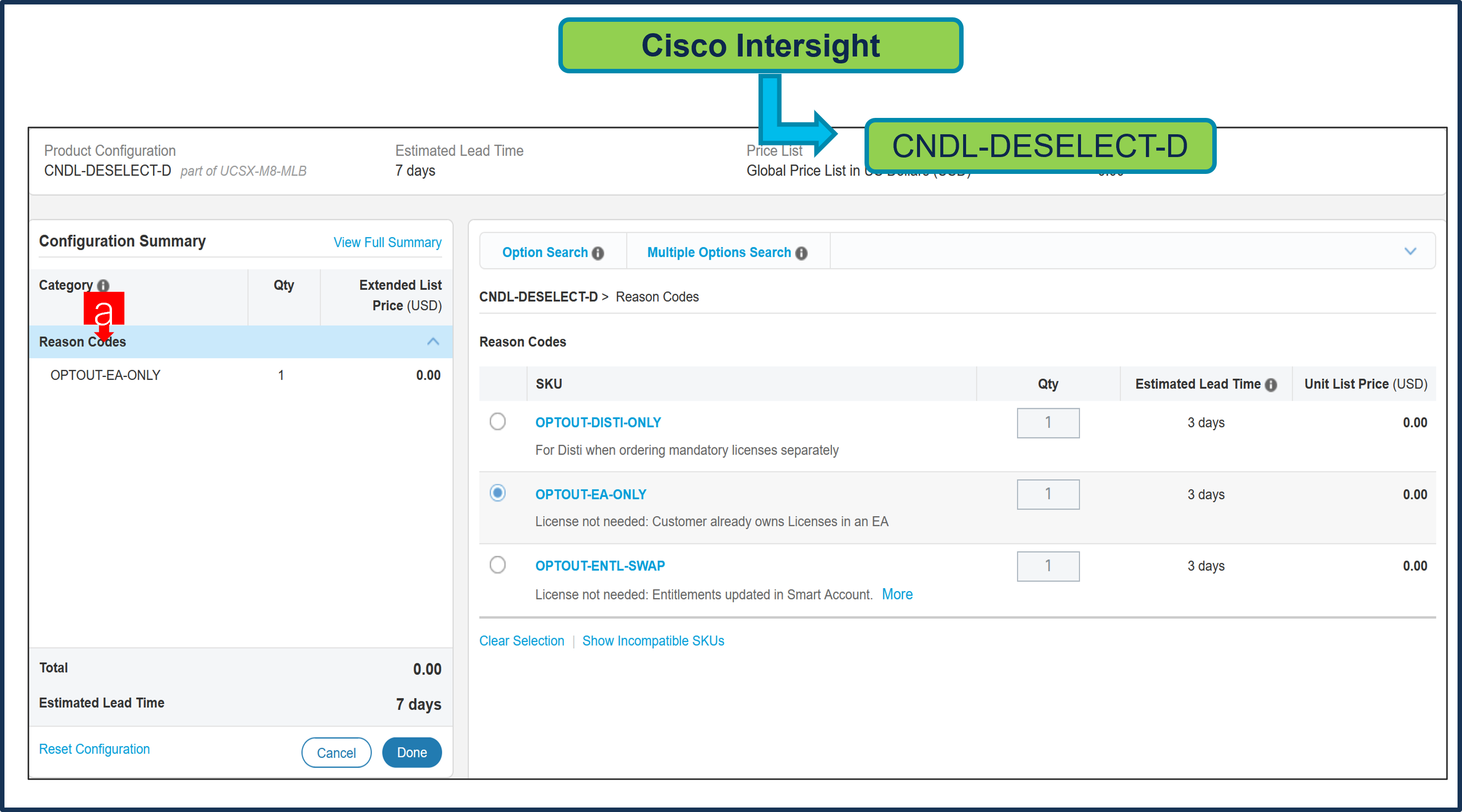
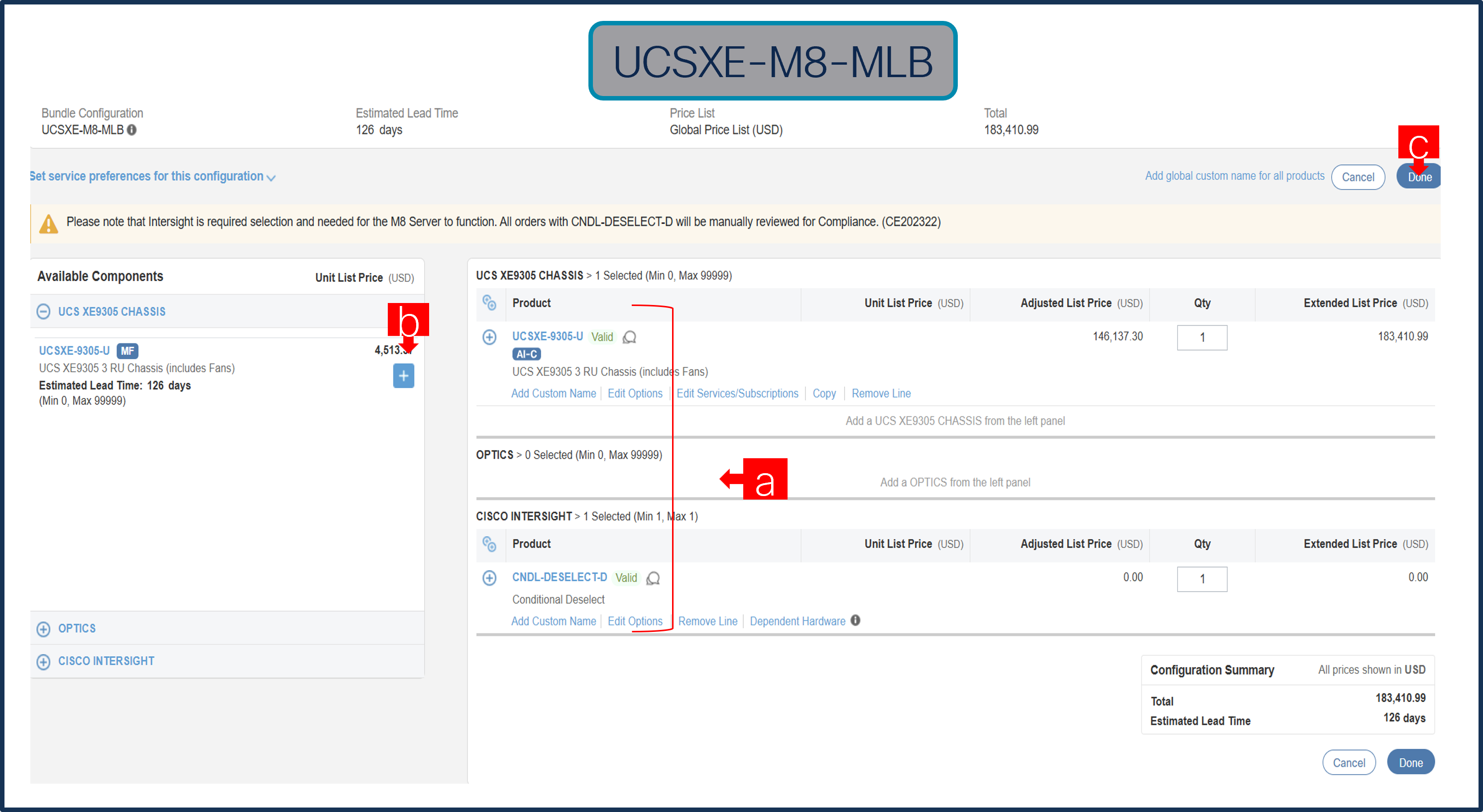
a. Intersight is required, however CNDL-DESELECT-D can be chosen if one of these criteria apply –it’s meant to select only if:
-order is for Disti Fulfillment.
-customer has already purchased Cisco Intersight License previously.
-or via EA Contract.
Step 17.
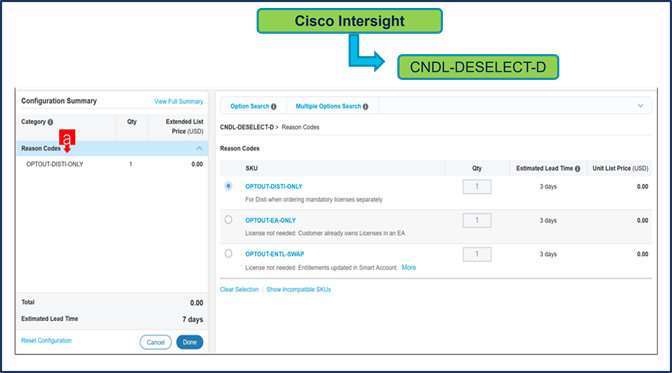
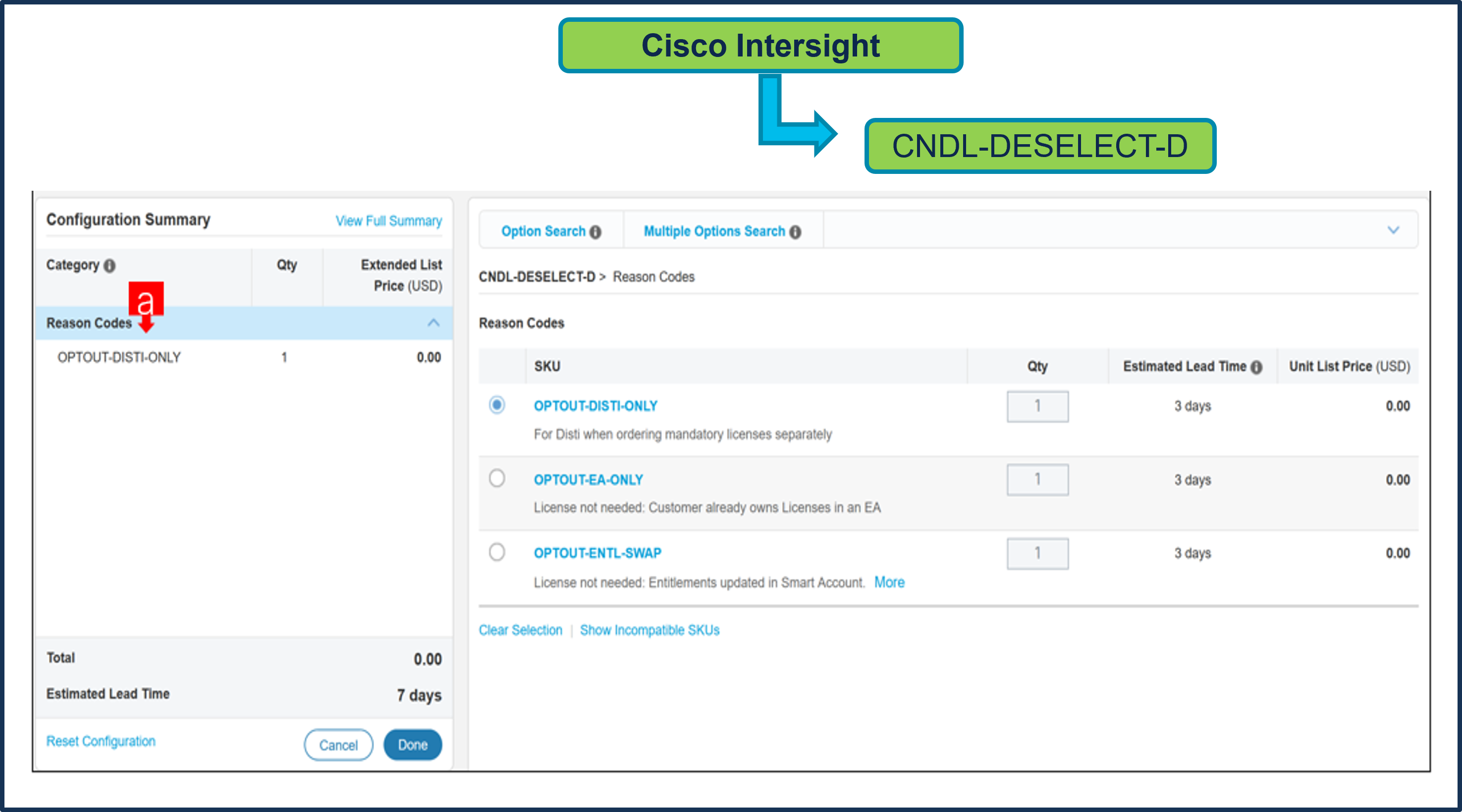
a. Please select appropriate Reason Code.
Step 18.
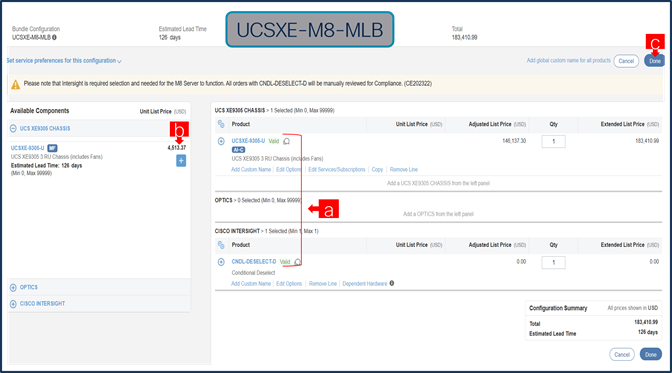
a. Configuration for MLB is completed when status of each Product is Valid and warning messages are cleared.
b. Click on the “PLUS” to expand and view the selections made for each Product.
c. Click on the “DONE” to complete the MLB Configuration.
Step 19.
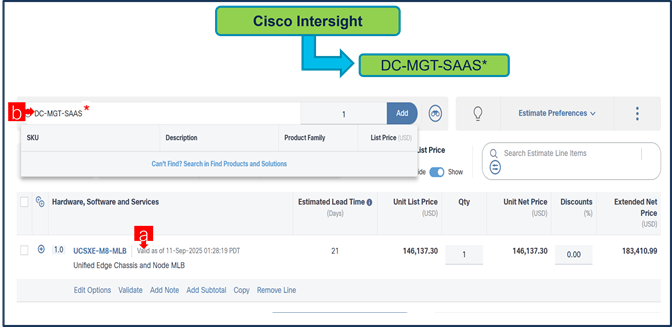
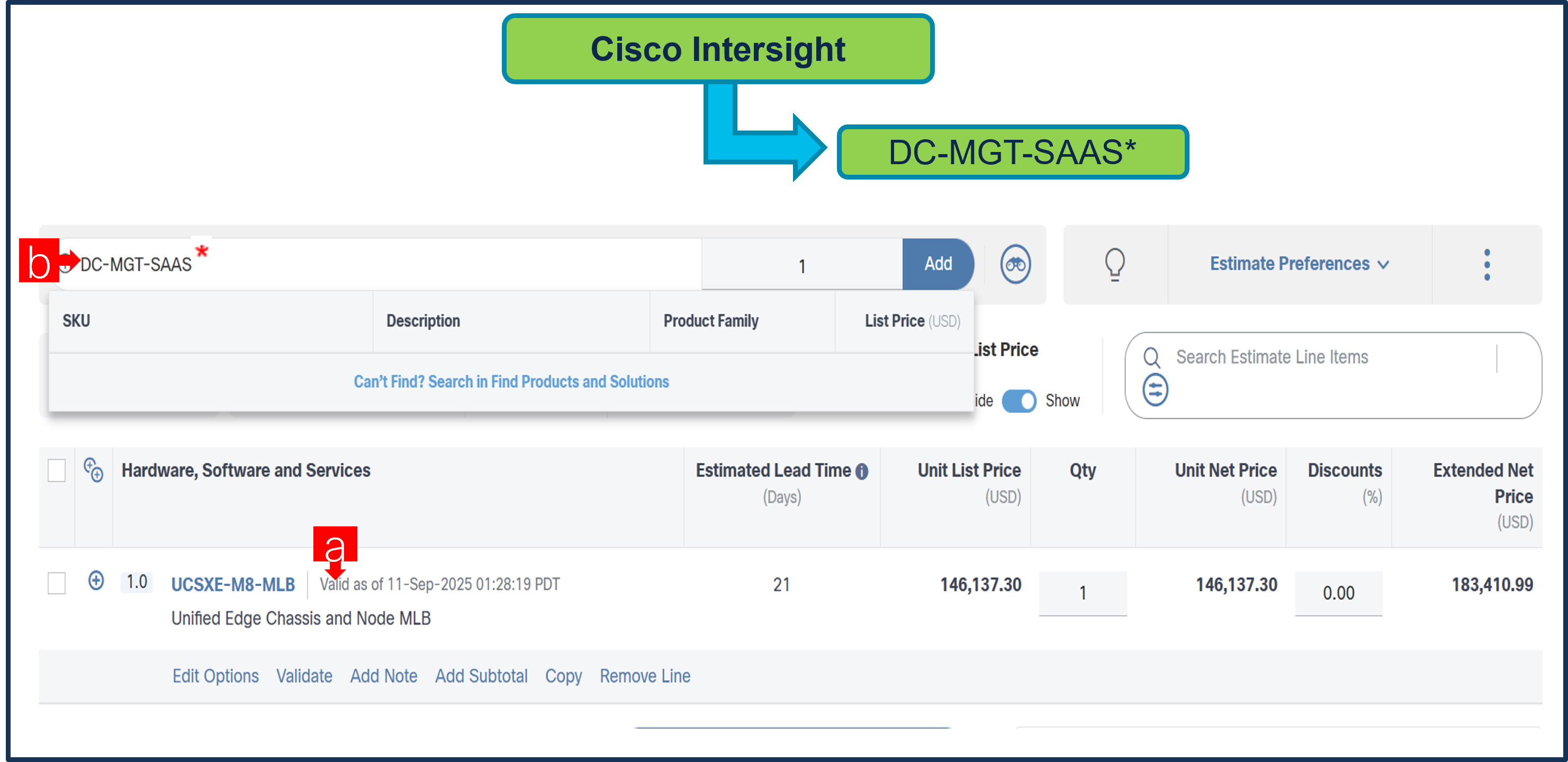
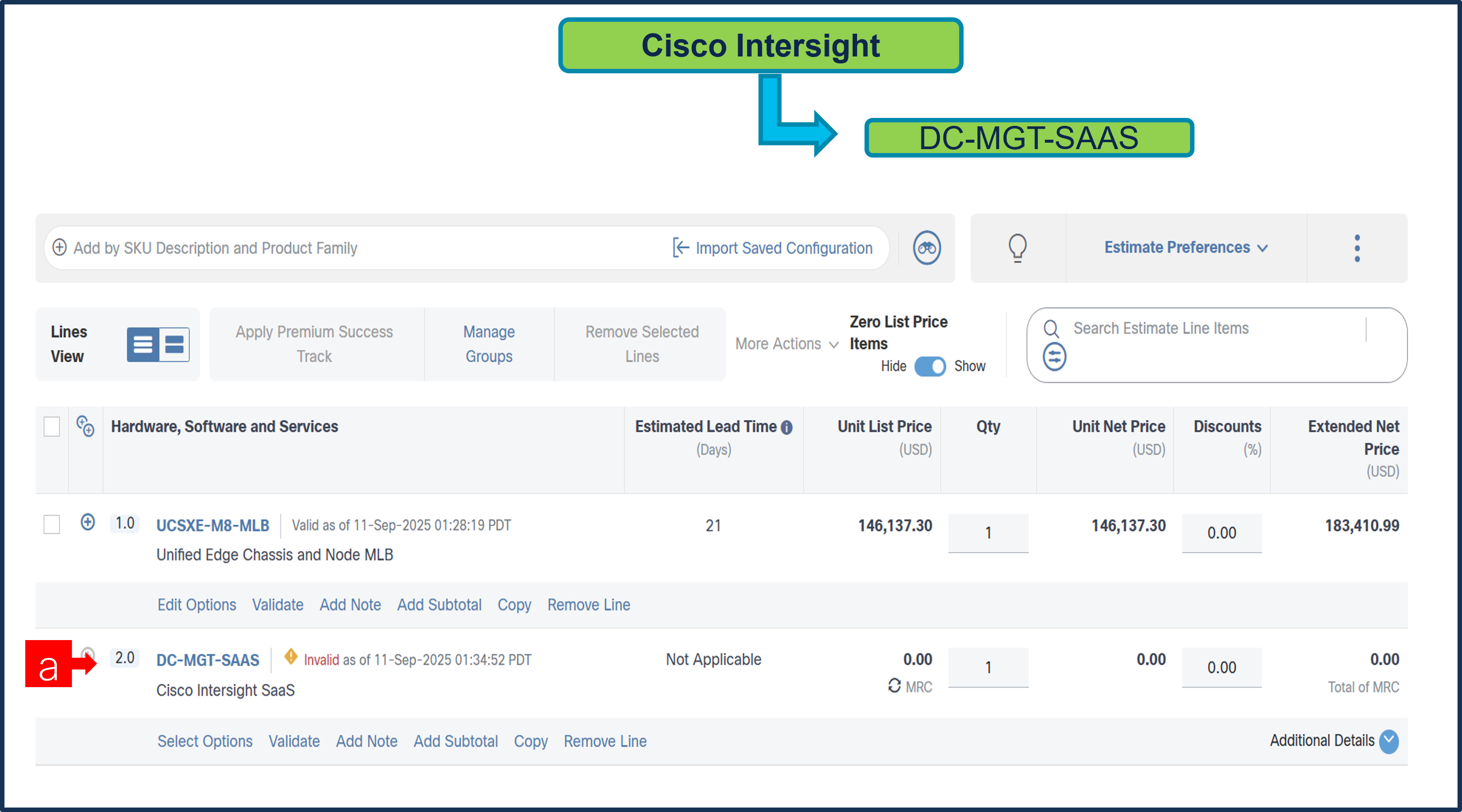
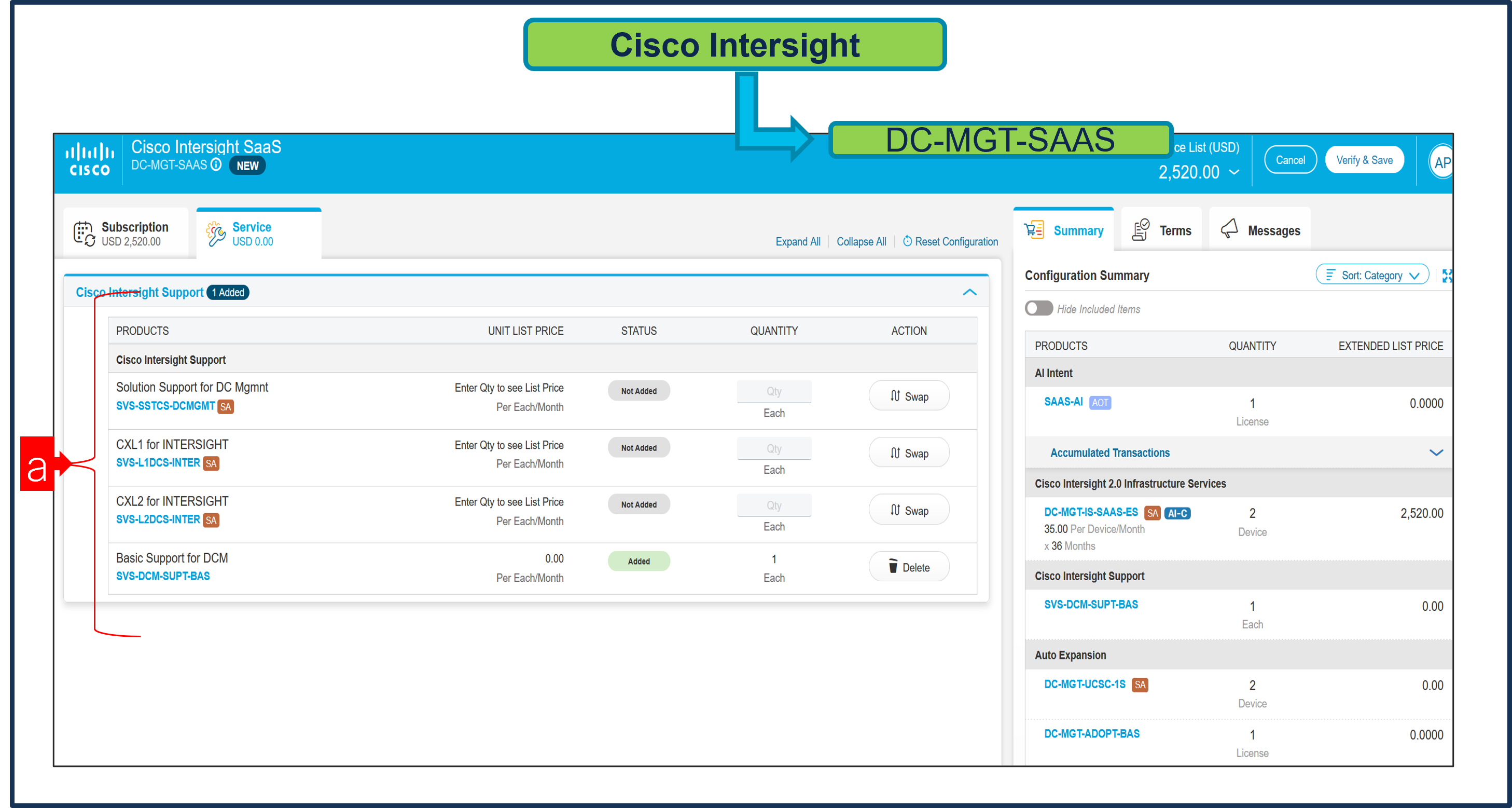
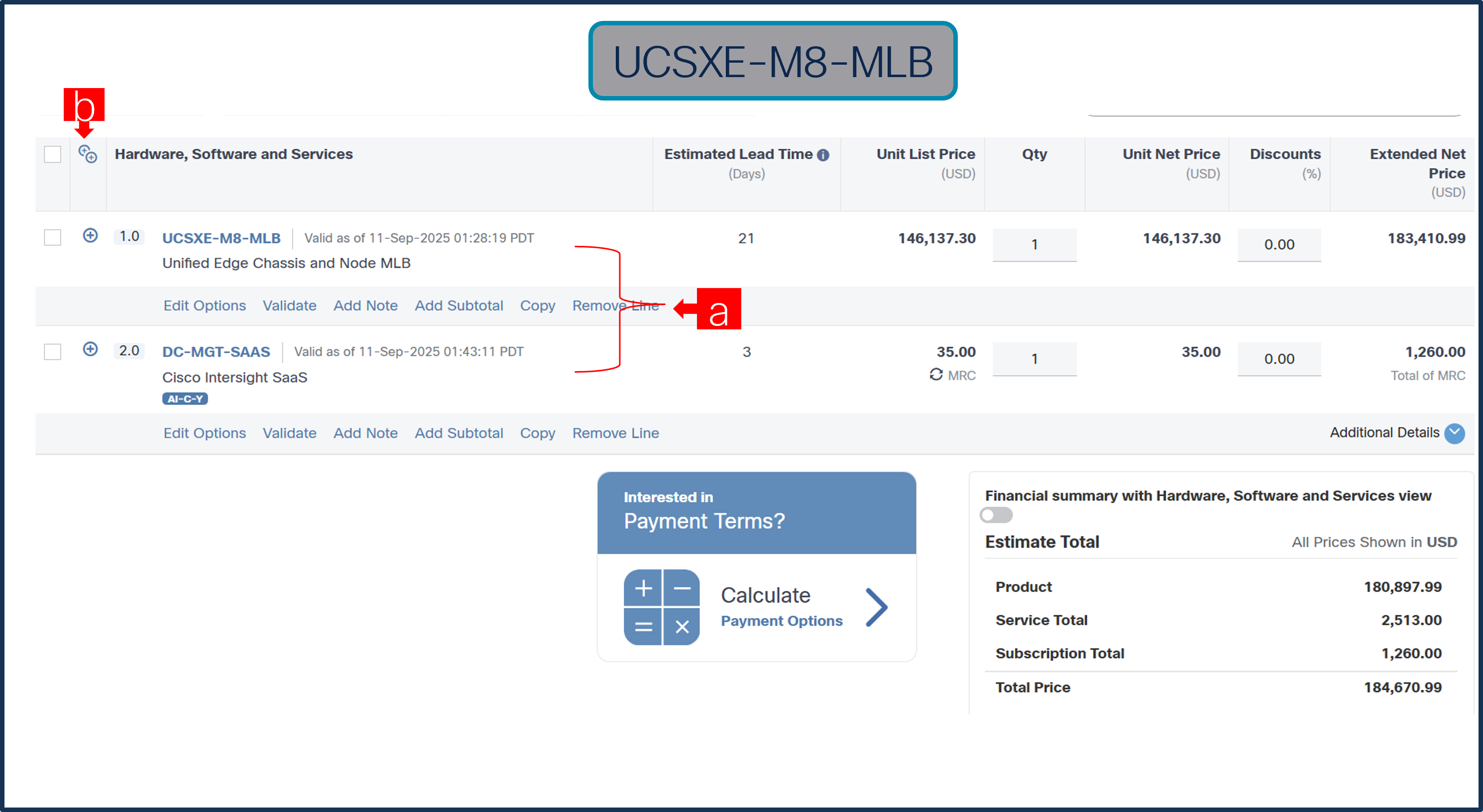
a. Configuration of UCSXE-M8-MLB is now Valid and Line No. 1.0 represents HW only Configuration.
Intersight is a required selection, if you have not previously purchased Cisco Intersight Software have to be added in Line 2.0 which will represent SW only Configuration (Disti use).
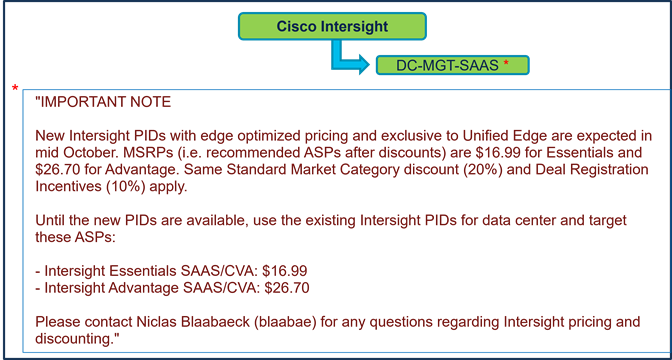
b. In CCW, search for DC-MGT-SAAS* and click on “ADD” button.
Step 20.
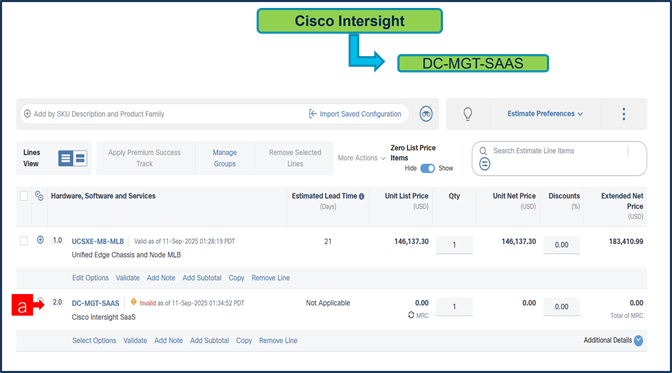
a. Then it will show up as Line # 2.0. Click on ‘Select Options’ to enter the configurator.
Step 21.
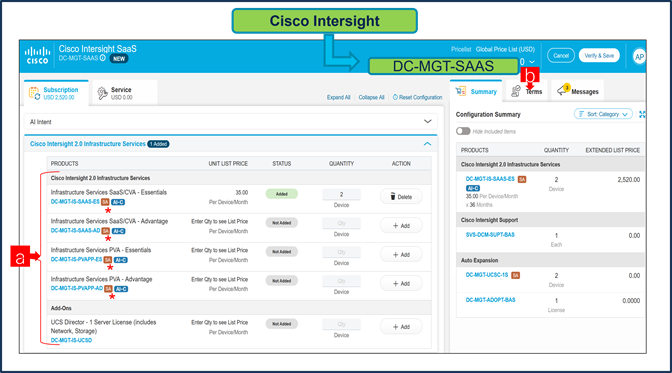
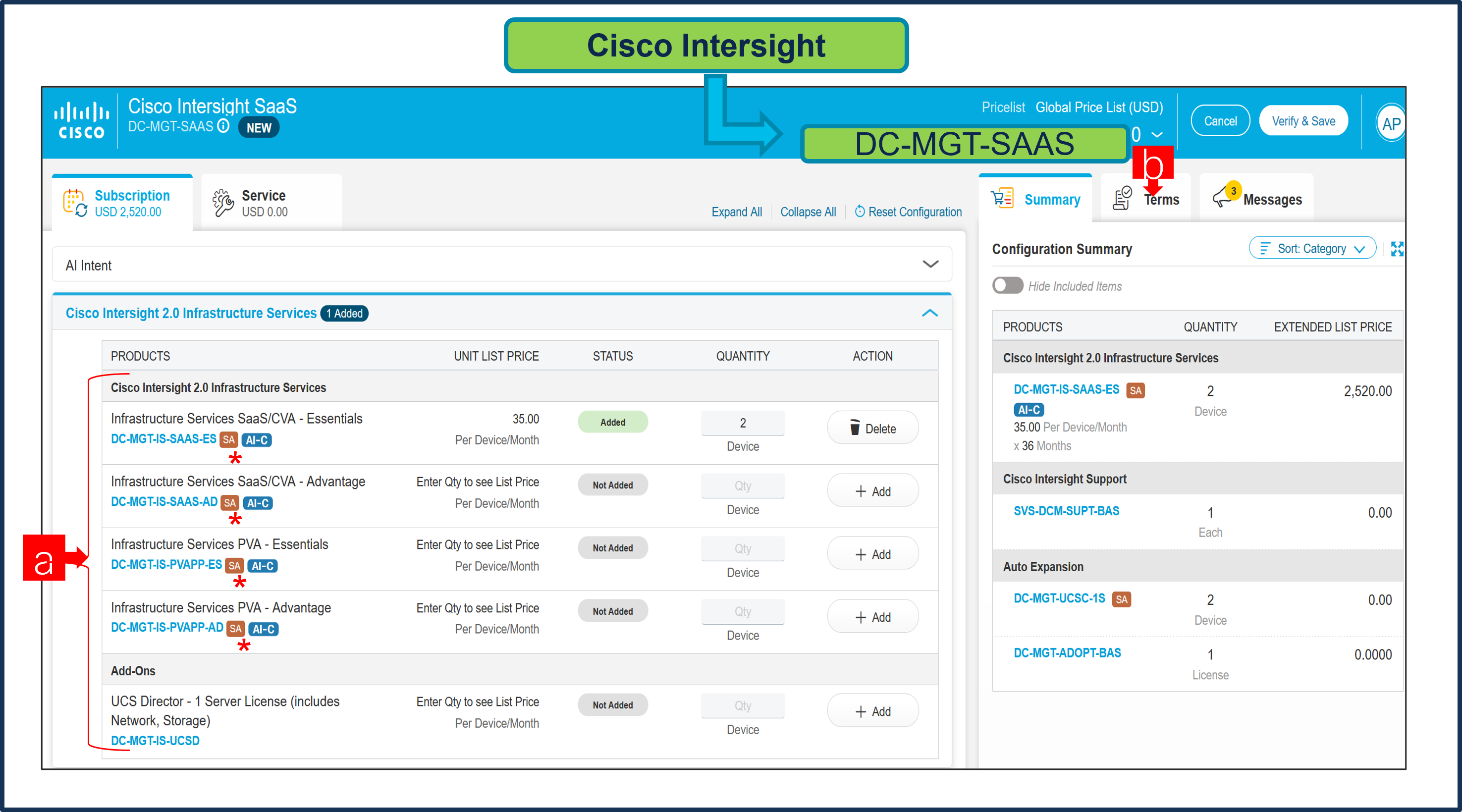
a. Selecting the type of license required, the quantity of Cisco Intersight 2.0 Infrastructure Services License under Offer: DC-MGT-SAAS* should be equal to the quantity of Server selected. Enter the quantity then hit Enter.
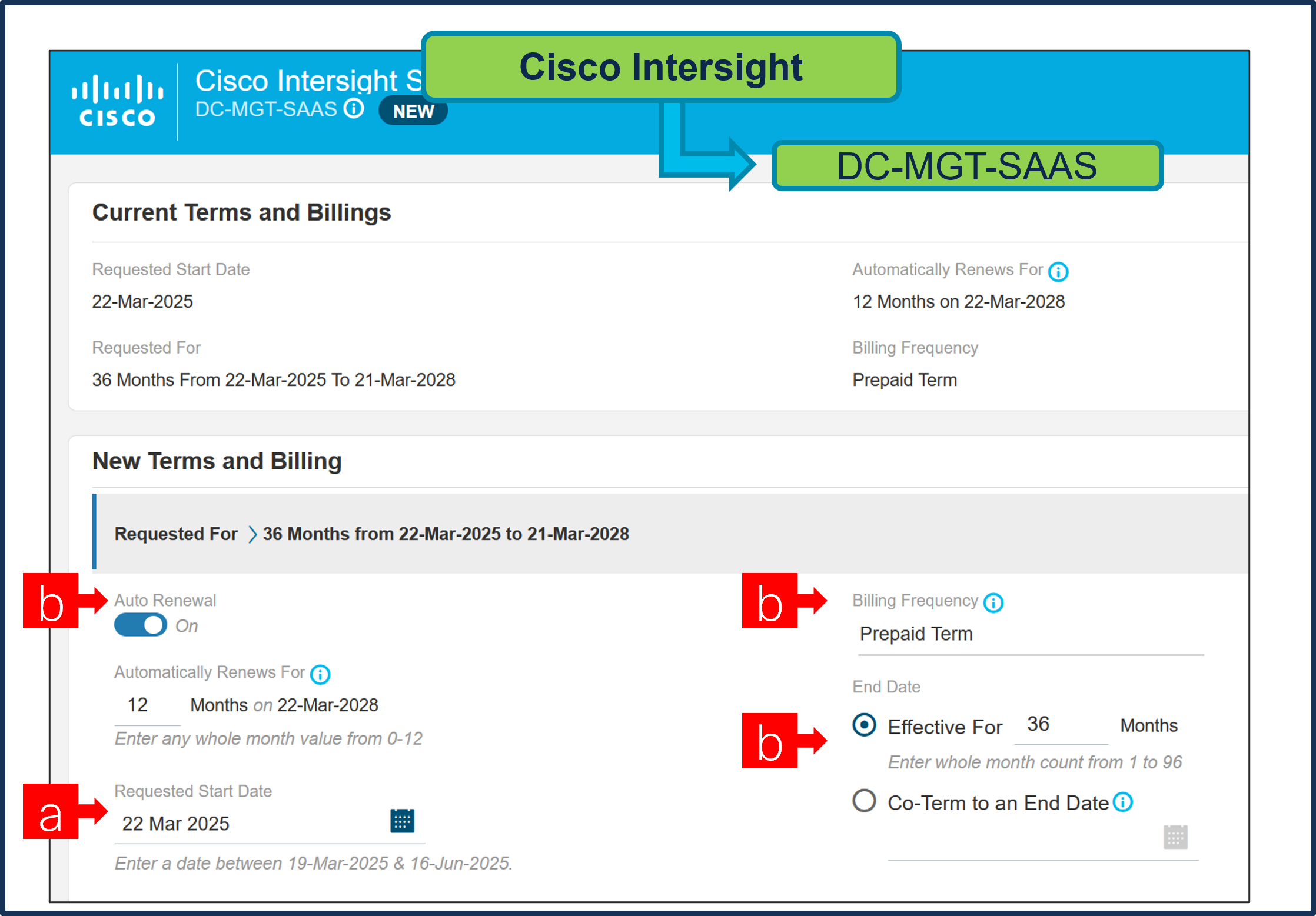
b. Then click ‘Terms’ Tab at right, then ‘Edit’ to see billing terms, and modify if needed.
Step 22.
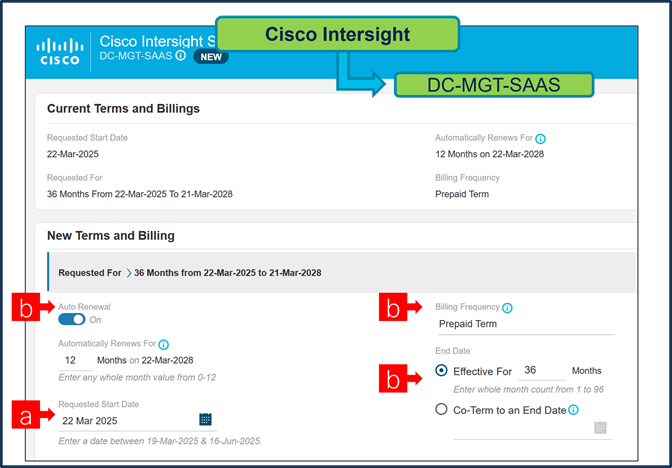
a. Requested Start Date (RSD) is now dependent on HW Ship Date and will automatically starts when the HW ships. If you change the RSD, the Software will start either on the RSD you picked or the HW Ship Date whichever is later.
b. End Date (duration in months) is defaulted to 36 Months, Auto Renewal (on/off) is defaulted to On and Billing Frequency is defaulted to Prepaid Term. You can still change the setting accordingly.
Step 23.
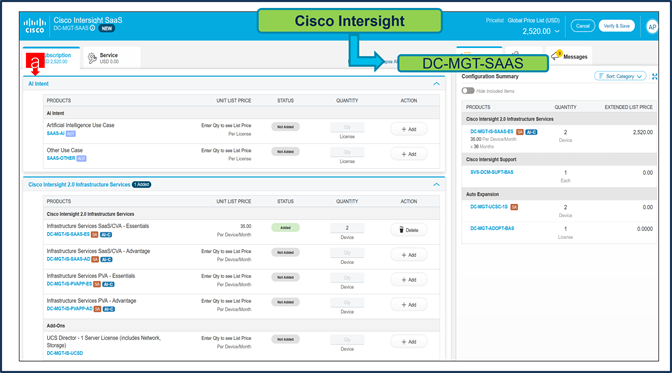
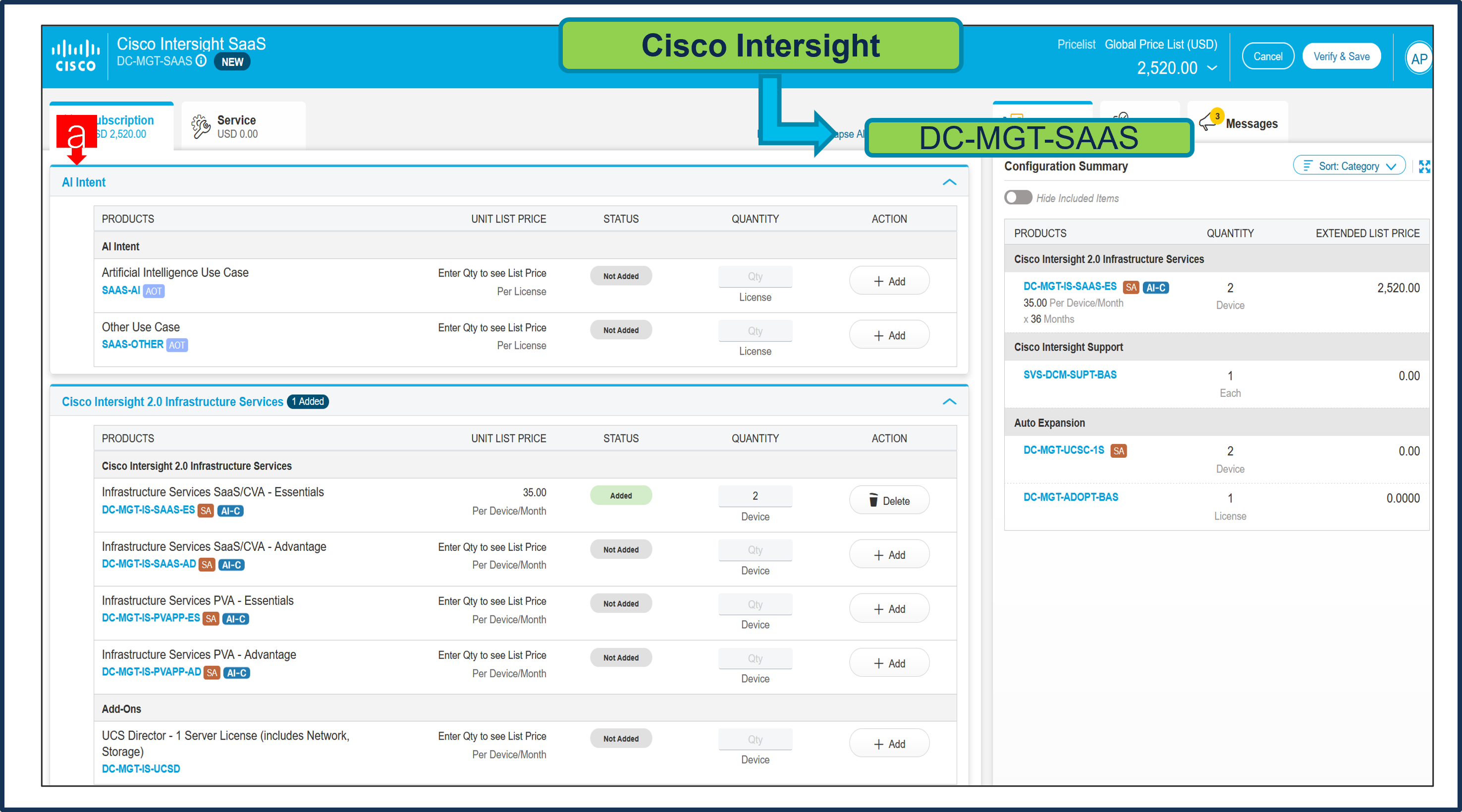
a. Users need to make selection from AI Intent Option Class.
Step 24.
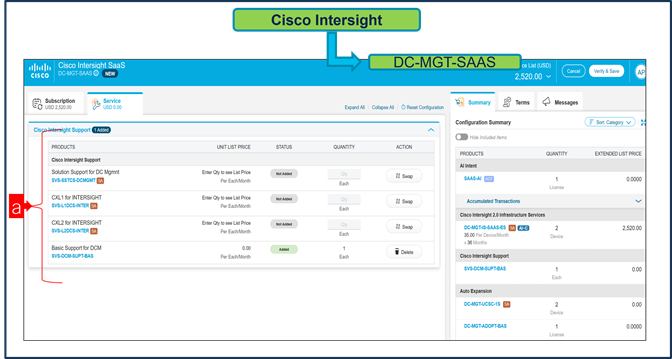
a. Under the ‘Service’ Tab you can modify support. The Cisco Intersight License comes with separate Support. Basic Embedded Support is the default selection. It is recommended that Customer should upgrade to Solution Support or CX Success Track L1 or L2 for the HW. QTY always 1 for support, will get apply to all licenses.
Step 25.
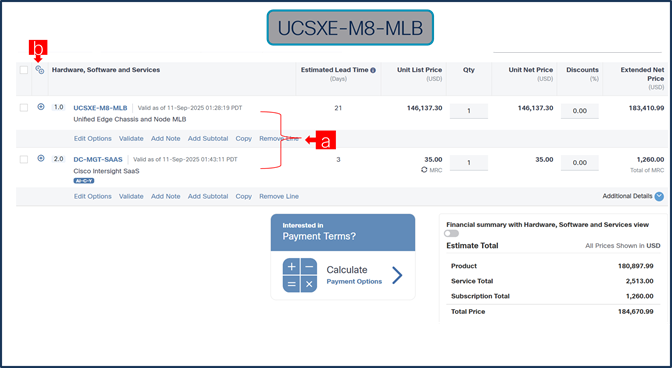
a. Configuration for UCSXE-M8-MLB and DC-MGT-SAAS* is now completed, and status of each Product is Valid.
b. Click on the “PLUS” to expand and view the selections made for each Product.
Scenario 2: Customer With Enterprise Agreement for Cisco Intersight Software License
Step 1.
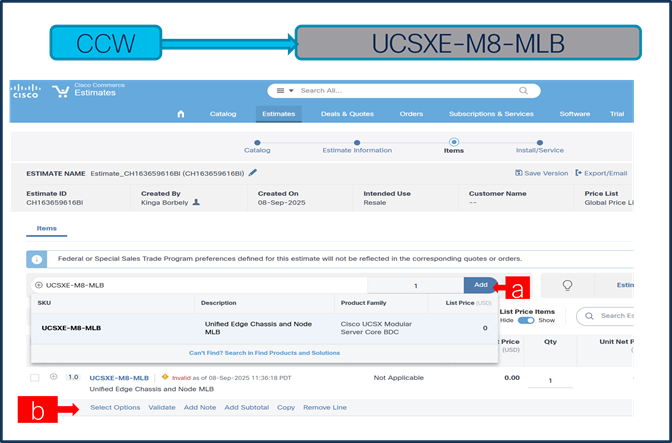
a. In CCW, search for MLB PID and click on “Add”
b. Click on “Select Options” to enter the configurator.
Step 2.
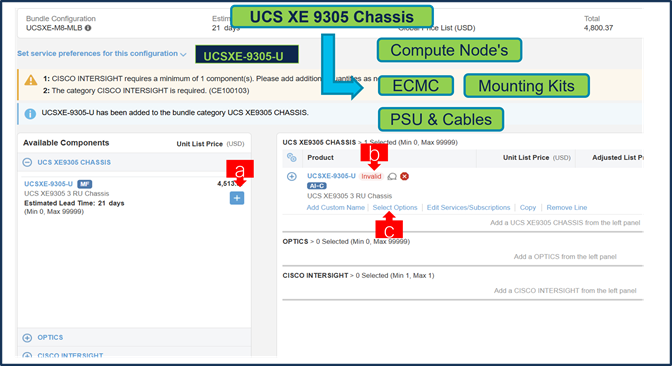
c. Select UCSXE-9305-U ATO from under MLB by clicking the “PLUS”
d. Notice the chassis Status is invalid as further configuration needed.
e. Click on “Edit Options” to enter the configurator.
Step 3.
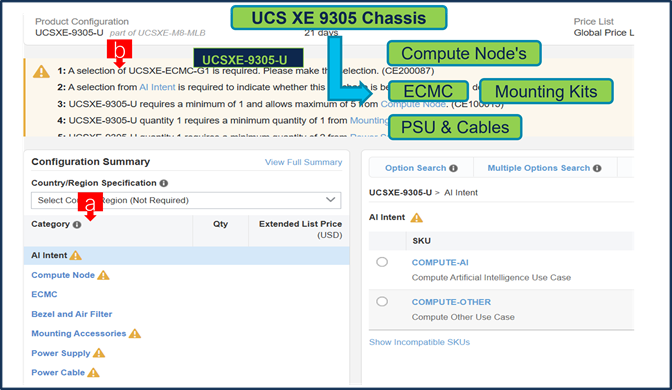
a. Configure UCSXE-9305-U by selecting Compute Node, ECMC, Mounting Accessories, Power Supply & Power Cables from category window on the left.
b. Follow warning messages to configure the minimum required selections under Chassis.
Step 4.
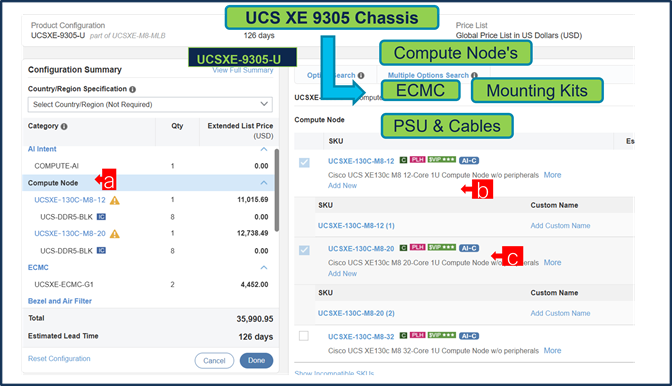
a. Compute Node is required selection and is further configurable.
b. User can select any Server/s: UCSXE-130C-M8-12, UCSXE-130C-M8-20, UCSXE-130C-M8-32.
Step 5.
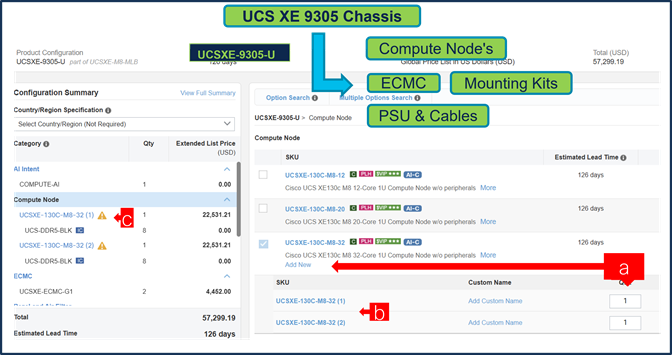
a. Any server can be selected in multiple QTY by changing the QTY in the box
b. Or you can select same server and configure it differently within same chassis by clicking in ADD NEW button. Here in this example, we have 2 instances of server selected with 1 QTY each.
c. Click on Server PID in the left to configure the particular instance (ea can be configured differently).
Step 6.
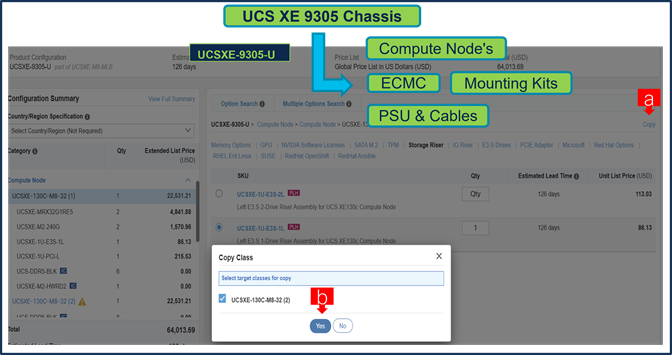
a. Configuration of one server Instance can be copied to another instance. Click on the Copy Button on the extreme right as shown here.
a. Select the particular instance and click Yes.
Step 7.
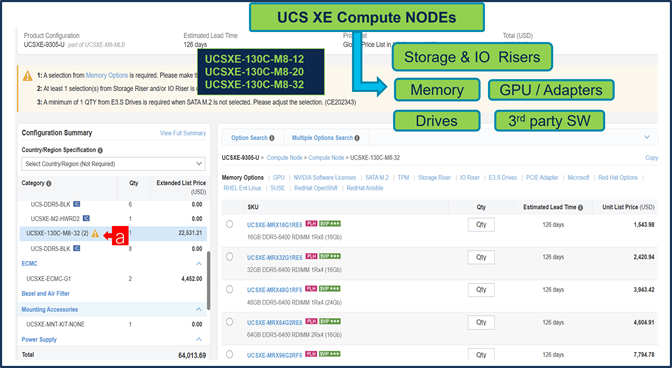
a. Click on Server PID in the left to configure it.
Step 8.
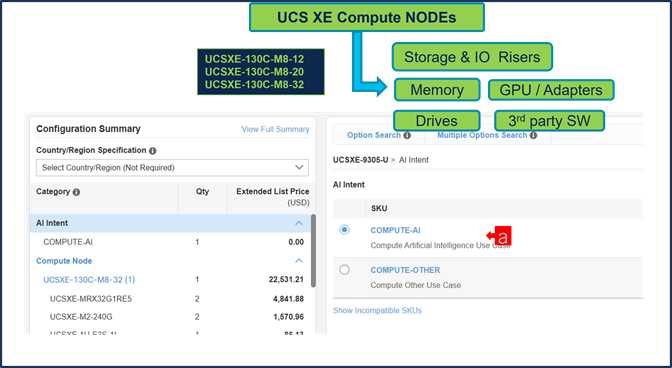
a. PIDs are set up as AI Capable, so User need to make selection from AI Intent option class. By making the right selection it provides information to Cisco that if Server is being intended to use AI features or not. If a GPU is selected, the configuration automatically counts as an AI product, and the AI Intent selection goes away.
Step 9.
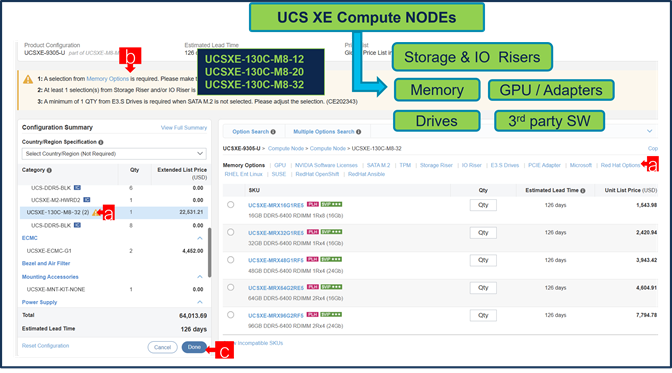
a. Configure node by selecting Memory, Storage Riser or IO Riser and other peripheral devices and PIDs are listed in the window on the right.
b. Follow warning messages to configure the minimum required selections under Server.
c. Click on “Done” when completed.
Step 10.
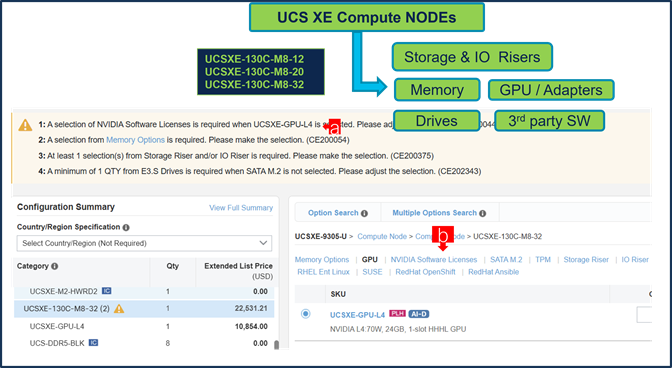
a. If you add GPU, then that requires selection of NVIDIA Software License.
Step 11.
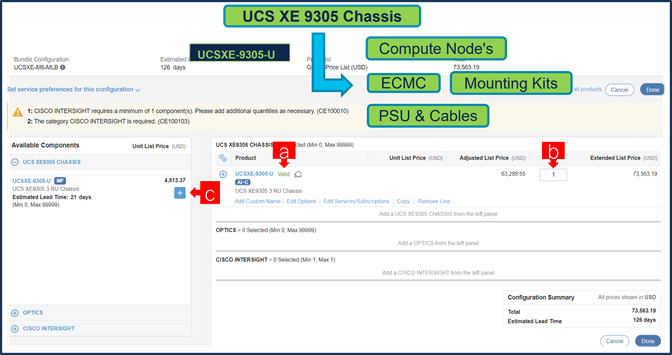
a. Note Status is now showing as Valid.
b. Increase the quantity for multiples of same configuration.
c. Click the “PLUS” to add and configure the same product with different option/quantities.
Step 12.
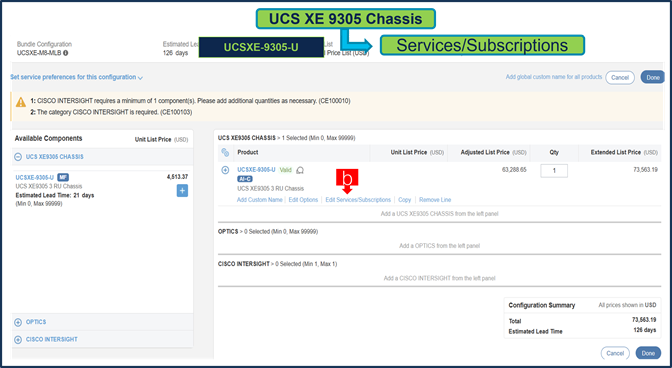
a. Click on “Edit Services/Subscriptions” to edit Term Duration for HW Support.
Note: It is recommended that Term Duration for HW Support must align with Software Subscription Duration.
Step 13.
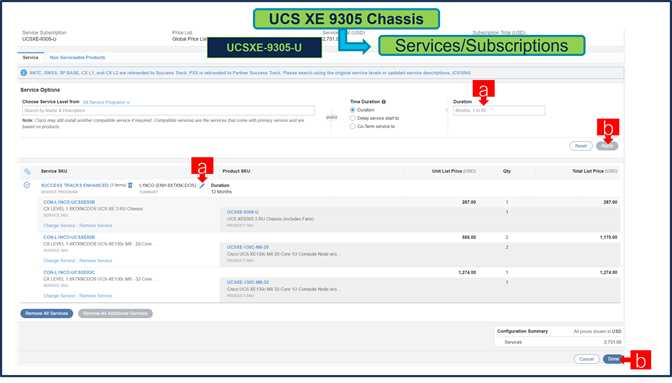
a. You can edit if needed by clicking the pencil
b. Enter the Term Duration & Click on Apply
c. then hit Done
Step 14.
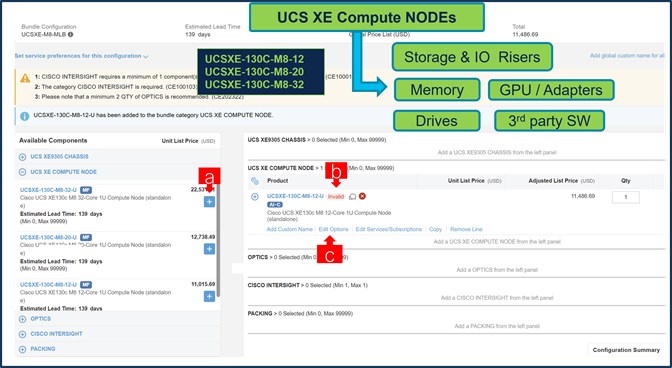
a. You can also Select the standalone Nodes ATO from under MLB by clicking the “PLUS”.
b. Notice the ATO Status is invalid as further configuration needed.
c. Select 'Edit Option' to enter the configurator and follow the same workflow as configuring a node under a chassis ATO.
Step 15.
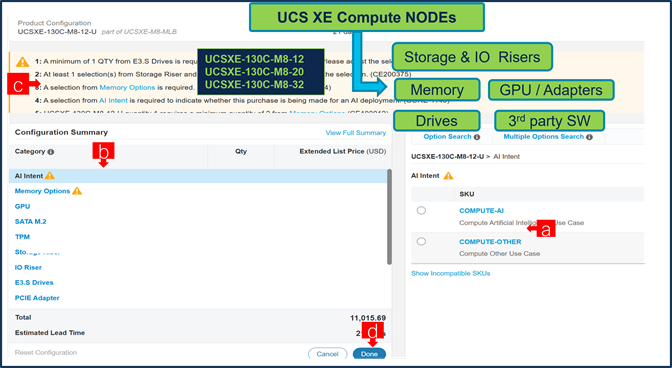
a. PIDs are set up as AI Capable, so User need to make selection from AI Intent option class. By making the right selection it provides information to Cisco that if Server is being intended to use AI features or not.
If a GPU is selected, the configuration automatically counts as an AI product, and the AI Intent selection goes away.
b. Configure node by selecting Memory, Storage Riser /or IO Riser and other peripheral devices and PIDs.
c. Follow warning messages to configure the minimum required selections under Server.
d. Select Done when completed.
Step 16.
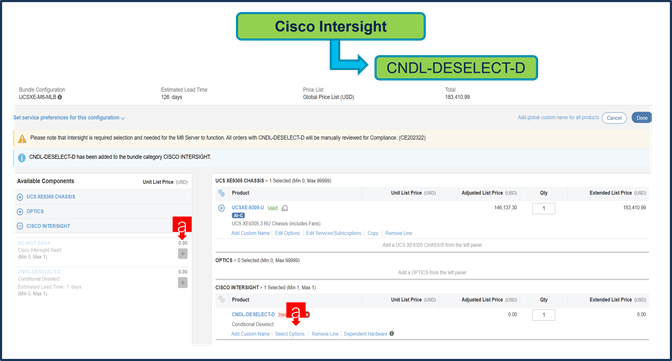
a. Intersight is required, however CNDL-DESELECT-D can be chosen if one of these criteria apply –it’s meant to select only if:
-order is for Disti Fulfillment.
-customer has already purchased Cisco Intersight License previously.
-or via EA Contract.
Step 17.
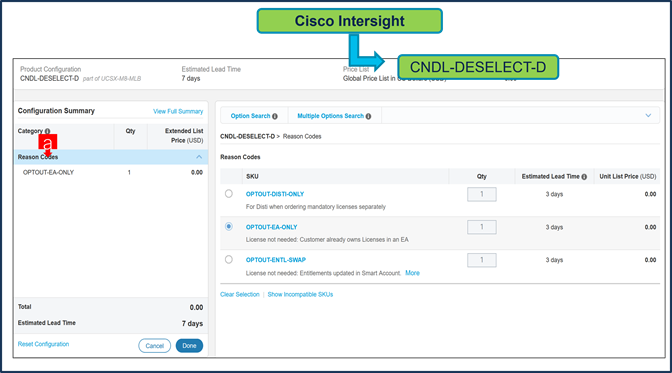
b. Please select appropriate Reason Code.
Step 18.
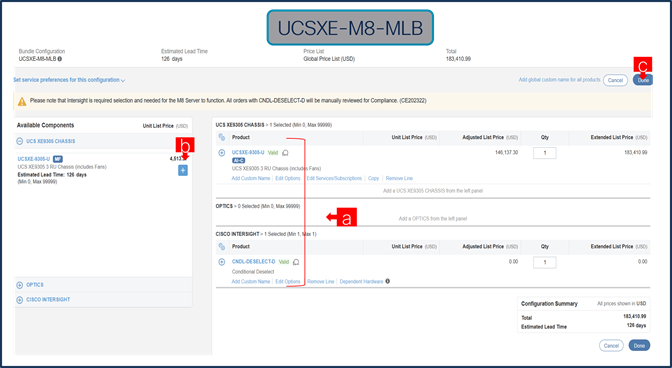
a. Configuration for MLB is completed when status of each Product is Valid and warning messages are cleared.
b. Click on the “PLUS” to expand and view the selections made for each Product.
c. Click on the “DONE” to complete the MLB Configuration.