Maintaining the Server

Status LEDs and Buttons

This section contains information for interpreting LED states.

Front-Panel LEDs
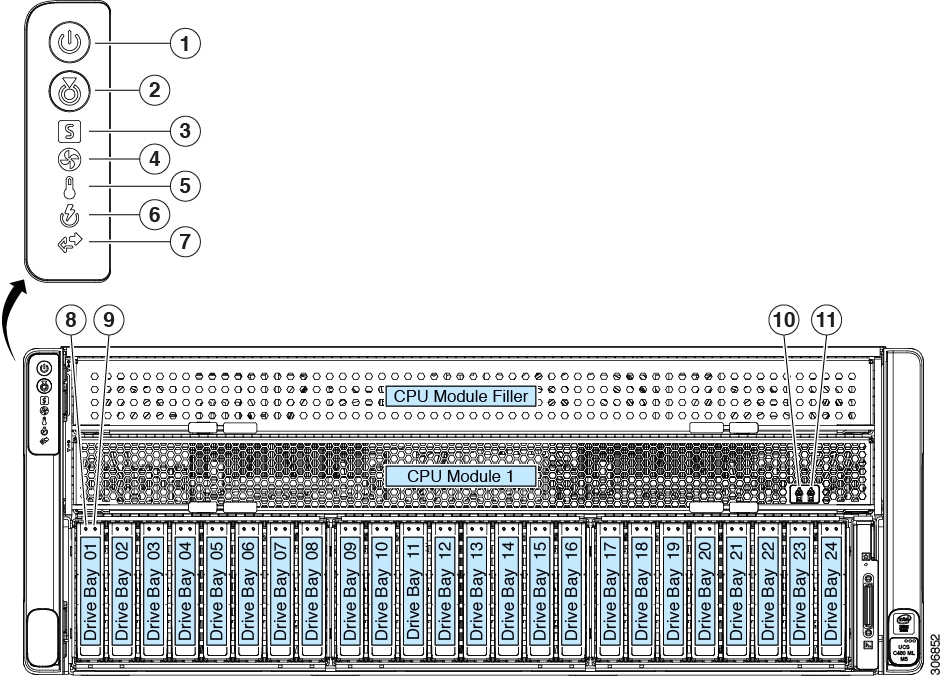
Figure 1. Front Panel LEDs
Table 1. Front Panel LEDs, Definition of States

LED Name

States

1

Power button/LED

  • Off—There is no AC power to the server.

  • Amber—The server is in standby power mode. Power is supplied only to the Cisco IMC and some motherboard functions.

  • Green—The server is in main power mode. Power is supplied to all server components.

2

Unit identification

  • Off—The unit identification function is not in use.

  • Blue, blinking—The unit identification function is activated.

3

System health

  • Green—The server is running in normal operating condition.

  • Amber, steady—The server is in a degraded operational state (minor fault). For example:

    • Power supply redundancy is lost.

    • CPUs are mismatched.

    • At least one CPU is faulty.

    • At least one DIMM is faulty.

    • At least one drive in a RAID configuration failed.

  • Amber, blinking—The server is in a critical fault state. For example:

    • Boot failure

    • Fatal processor and/or bus error detected

    • Over-temperature condition

4

Power supply status

  • Green—All power supplies are operating normally.

  • Amber, steady—One or more power supplies are in a degraded operational state.

  • Amber, blinking—One or more power supplies are in a critical fault state.

5

Fan status

  • Green—All fan modules are operating properly.

  • Amber, steady—Fan modules are in a degraded state. One fan module has a fault.

  • Amber, blinking—Two or more fan modules have faults.

6

Network link activity

  • Off—The Ethernet LOM port link is idle.

  • Green—One or more Ethernet LOM ports are link-active, but there is no activity.

  • Green, blinking—One or more Ethernet LOM ports are link-active, with activity.

7

Temperature status

  • Green—The server is operating at normal temperature. No error conditions detected.

  • Amber, steady—One or more temperature sensors exceeded a warning threshold.

  • Amber, blinking—One or more temperature sensors exceeded a critical non-recoverable threshold.

8

SAS

SAS/SATA drive fault

Note 
NVMe solid state drive (SSD) drive tray LEDs have different behavior than SAS/SATA drive trays.
  • Off—The hard drive is operating properly.

  • Amber—Drive fault detected.

  • Amber, blinking—The device is rebuilding.

  • Amber, blinking with one-second interval—Drive locate function activated in the software.

9

SAS

SAS/SATA drive activity LED

  • Off—There is no hard drive in the hard drive tray (no access, no fault).

  • Green—The hard drive is ready.

  • Green, blinking—The hard drive is reading or writing data.

8

NVMe

NVMe SSD drive fault

Note 
NVMe solid state drive (SSD) drive-tray LEDs have different behavior than SAS/SATA drive trays.
  • Off—The drive is not in use and can be safely removed.

  • Green—The drive is in use and functioning properly.

  • Green, blinking—the driver is initializing following insertion or the driver is unloading following an eject command.

  • Amber—The drive has failed or the NVMe drive is in a drive bay that does not support NVMe.

  • Amber, blinking—A drive Locate command has been issued in the software.

9

NVMe

NVMe SSD activity

  • Off—No drive activity.

  • Green, blinking—There is drive activity.

10

CPU module power status

  • Green—The CPU module is correctly seated and receiving power.

  • Off—There is no power to the CPU module or it is incorrectly seated.

11

CPU module fault

  • Off—There is no fault with the CPUs or DIMMs on the CPU module board.

  • Amber—There is a fault with a CPU or DIMM on the CPU module board, such as an over-temperature condition.

-

DVD drive activity

(optional DVD module not shown)

  • Off—The drive is idle.

  • Green, steady—The drive is spinning up a disk.

  • Green, blinking—The drive is accessing data.

Rear-Panel LEDs

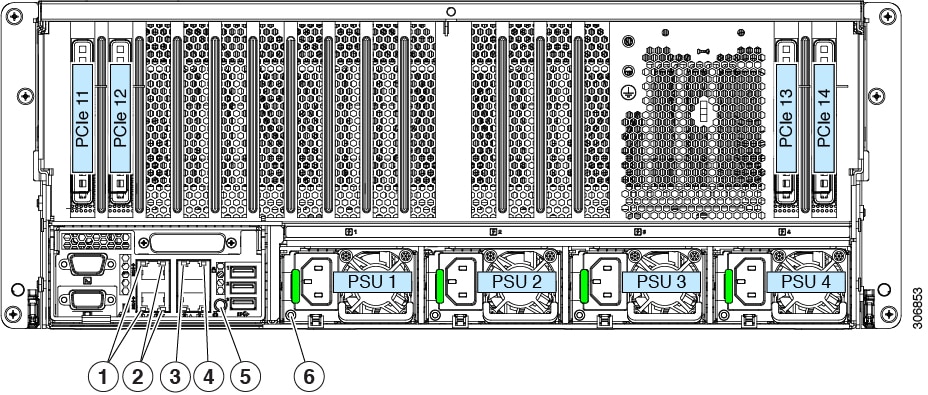
Figure 2. Rear Panel LEDs
Table 2. Rear Panel LEDs, Definition of States

LED Name

States

1

1-Gb/10-Gb Ethernet link speed (on both LAN1 and LAN2)

These ports auto-negotiate link speed based on the link-partner capability.

  • Off—Link speed is 100 Mbps.

  • Amber—Link speed is 1 Gbps.

  • Green—Link speed is 10 Gbps.

2

1-Gb/10-Gb Ethernet link status (on both LAN1 and LAN2)

  • Off—No link is present.

  • Green—Link is active.

  • Green, blinking—Traffic is present on the active link.

3

1-Gb Ethernet dedicated management link speed

  • Off—Link speed is 10 Mbps.

  • Amber—Link speed is 100 Mbps.

  • Green—Link speed is 1 Gbps.

4

1-Gb Ethernet dedicated management link status

  • Off—No link is present.

  • Green—Link is active.

  • Green, blinking—Traffic is present on the active link.

5

Rear unit identification

  • Off—The unit identification function is not in use.

  • Blue, blinking—The unit identification function is activated.

6

Power supply status (one LED each power supply unit)

AC power supplies:

  • Off—No AC input (12 V main power off, 12 V standby power off).

  • Green, blinking—12 V main power off; 12 V standby power on.

  • Green, solid—12 V main power on; 12 V standby power on.

  • Amber, blinking—Warning threshold detected but 12 V main power on.

  • Amber, solid—Critical error detected; 12 V main power off (for example, over-current, over-voltage, or over-temperature failure).

Internal Diagnostic LEDs

The system has the following internal fault LEDs to help with identifying a failing component:

  • Each chassis fan module has a fault LED on top of the module. These fan LEDs operate only when the system is in standby power mode.

  • The CPU module has internal fault LEDs for CPUs and DIMMs on the CPU module board. POST and runtime error detection routines are stored in on-board registers. The contents of the registers are preserved for a limited time by a supercap voltage source.

    To operate the LEDs, press switch SW1 on the board after the CPU module is removed from the chassis.
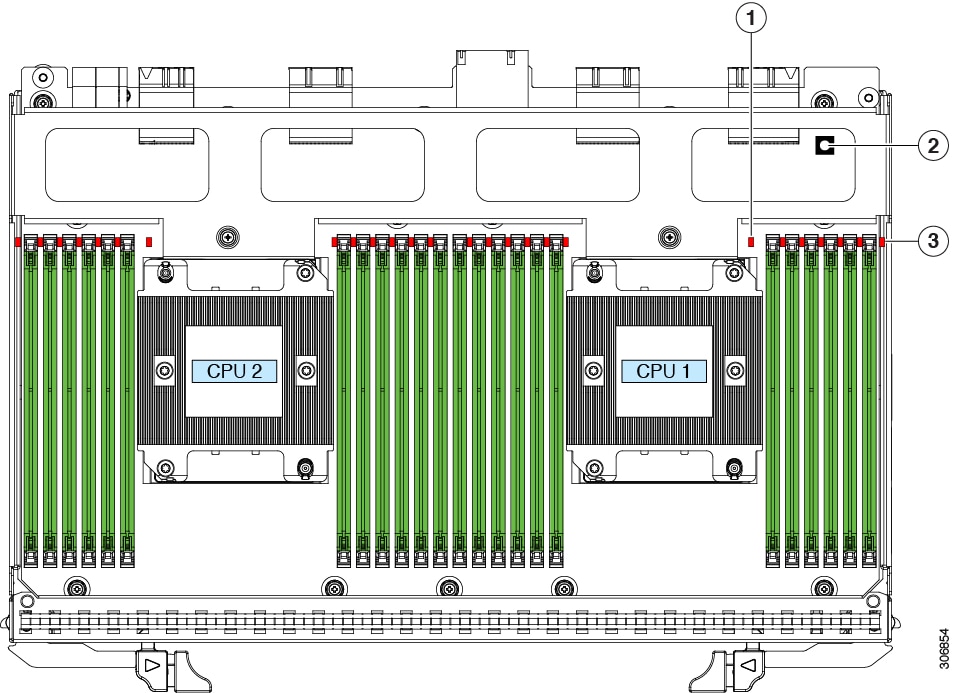
Figure 3. Internal Diagnostic LED Locations

1

CPU fault LEDs (one behind each CPU socket on the board).

  • Amber—CPU has a fault.

  • Off—CPU is OK.

3

DIMM fault LEDs (one next to each DIMM socket on the board)

  • Amber—DIMM has a fault.

  • Off—DIMM is OK.

2

Switch SW1

SW1 is labeled, " PRESS HERE TO SEE FAULTS".

-

Preparing For Component Installation

This section includes information and tasks that help prepare the server for component installation.

Required Equipment For Service Procedures

The following tools and equipment are used to perform the procedures in this chapter:

  • T-30 Torx driver (supplied with replacement CPUs for heatsink removal)

  • #1 flat-head screwdriver (supplied with replacement CPUs for heatsink removal)

  • #1 Phillips-head screwdriver (for M.2 SSD replacement)

  • Electrostatic discharge (ESD) strap or other grounding equipment such as a grounded mat

Shutting Down and Removing Power From the Server

The server can run in either of two power modes:

  • Main power mode—Power is supplied to all server components and any operating system on your drives can run.

  • Standby power mode—Power is supplied only to the service processor and certain components. It is safe for the operating system and data to remove power cords from the server in this mode.


Caution

After a server is shut down to standby power, electric current is still present in the server. To completely remove power, you must disconnect all power cords from the power supplies in the server, as directed in the service procedures.

You can shut down the server by using the front-panel power button or the software management interfaces.


Shutting Down Using the Power Button

Procedure

Step 1

Check the color of the Power button/LED:

  • Amber—The server is already in standby mode and you can safely remove power.

  • Green—The server is in main power mode and must be shut down before you can safely remove power.

Step 2

Invoke either a graceful shutdown or a hard shutdown:

Caution 
To avoid data loss or damage to your operating system, you should always invoke a graceful shutdown of the operating system.
  • Graceful shutdown—Press and release the Power button. The operating system performs a graceful shutdown and the server goes to standby mode, which is indicated by an amber Power button/LED.

  • Emergency shutdown—Press and hold the Power button for 4 seconds to force the main power off and immediately enter standby mode.

Step 3

If a service procedure instructs you to completely remove power from the server, disconnect all power cords from the power supplies in the server.


Shutting Down Using The Cisco IMC GUI

You must log in with user or admin privileges to perform this task.

Procedure

Step 1

In the Navigation pane, click the Server tab.

Step 2

On the Server tab, click Summary.

Step 3

In the Actions area, click Power Off Server.

Step 4

Click OK.

The operating system performs a graceful shutdown and the server goes to standby mode, which is indicated by an amber Power button/LED.

Step 5

If a service procedure instructs you to completely remove power from the server, disconnect all power cords from the power supplies in the server.


Shutting Down Using The Cisco IMC CLI

You must log in with user or admin privileges to perform this task.

Procedure

Step 1

At the server prompt, enter:

Example:
server# scope chassis
Step 2

At the chassis prompt, enter:

Example:
server/chassis# power shutdown

The operating system performs a graceful shutdown and the server goes to standby mode, which is indicated by an amber Power button/LED.

Step 3

If a service procedure instructs you to completely remove power from the server, disconnect all power cords from the power supplies in the server.


Shutting Down Using The Cisco UCS Manager Equipment Tab

You must log in with user or admin privileges to perform this task.

Procedure

Step 1

In the Navigation pane, click Equipment.

Step 2

Expand Equipment > Rack Mounts > Servers.

Step 3

Choose the server that you want to shut down.

Step 4

In the Work pane, click the General tab.

Step 5

In the Actions area, click Shutdown Server.

Step 6

If a confirmation dialog displays, click Yes.

The operating system performs a graceful shutdown and the server goes to standby mode, which is indicated by an amber Power button/LED.

Step 7

If a service procedure instructs you to completely remove power from the server, disconnect all power cords from the power supplies in the server.


Shutting Down Using The Cisco UCS Manager Service Profile

You must log in with user or admin privileges to perform this task.

Procedure

Step 1

In the Navigation pane, click Servers.

Step 2

Expand Servers > Service Profiles.

Step 3

Expand the node for the organization that contains the service profile of the server that you are shutting down.

Step 4

Choose the service profile of the server that you are shutting down.

Step 5

In the Work pane, click the General tab.

Step 6

In the Actions area, click Shutdown Server.

Step 7

If a confirmation dialog displays, click Yes.

The operating system performs a graceful shutdown and the server goes to standby mode, which is indicated by an amber Power button/LED.

Step 8

If a service procedure instructs you to completely remove power from the server, disconnect all power cords from the power supplies in the server.


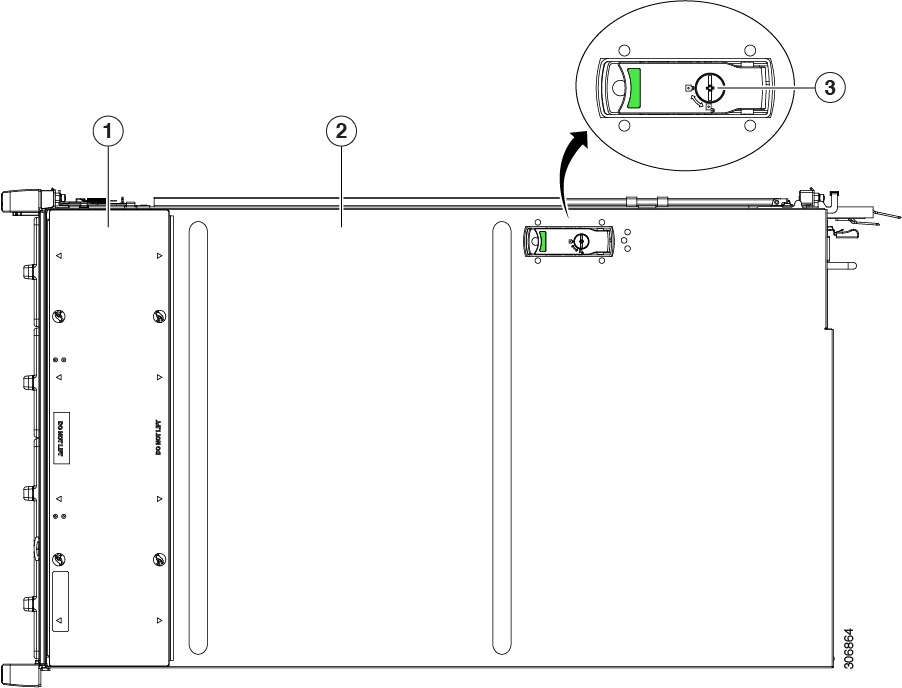
Removing the Server Top Cover

Procedure


Step 1

Remove the top cover:

  1. If the cover latch is locked, use a screwdriver to turn the lock 90-degrees counterclockwise to unlock it.

  2. Lift on the end of the latch that has the green finger grip. The cover is pushed back to the open position as you lift the latch.

  3. Lift the top cover straight up from the server and set it aside.

Step 2

Replace the top cover:

  1. With the latch in the fully open position, place the cover on top of the server about one-half inch (1.27 cm) behind the lip of the front cover panel. The opening in the latch should fit over the peg that sticks up from the fan tray.

  2. Press the cover latch down to the closed position. The cover is pushed forward to the closed position as you push down the latch.

  3. If desired, lock the latch by using a screwdriver to turn the lock 90-degrees clockwise.

Figure 4. Removing the Top Cover

1

Solid panel

Note 

Never lift on this panel when lifting the system.

3

Cover lock

2

Sliding top cover


Serviceable Component Locations

This topic shows the locations of the field-replaceable components and service-related items.

The Technical Specifications Sheet for this server, which includes supported component part numbers, are at Cisco UCS Servers Technical Specifications Sheets (scroll down to Technical Specifications).

Serviceable Components Inside the Main Chassis

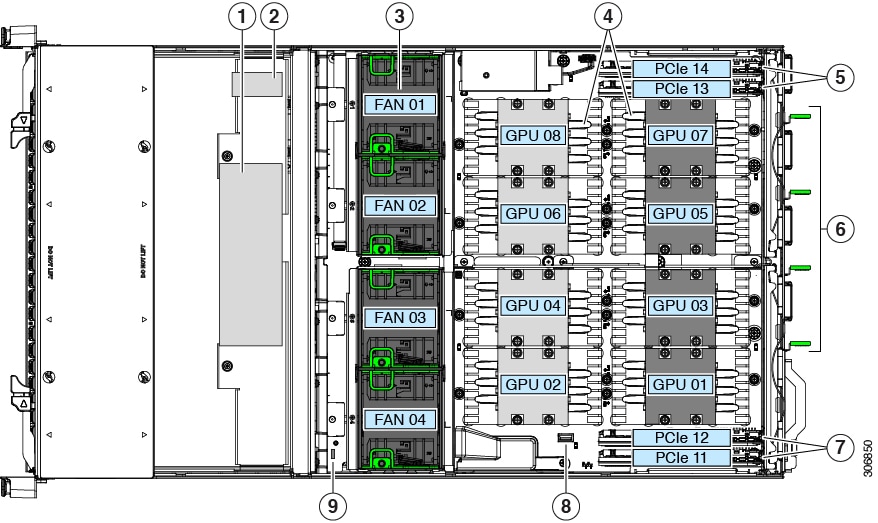
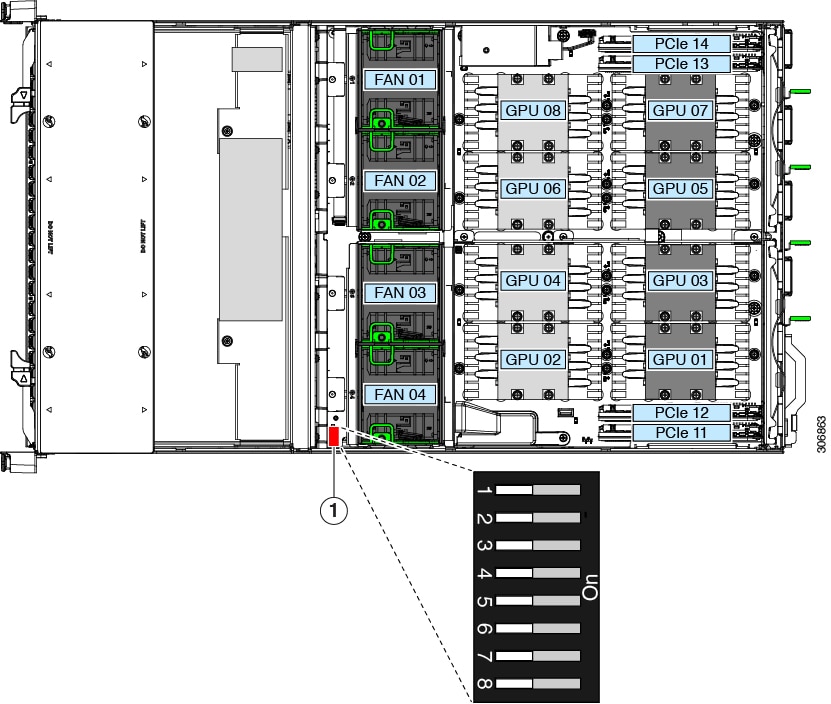
Figure 5. Serviceable Component Locations Inside the Main Chassis (Top View)

1

RAID controller card for front-loading SAS/SATA drives.

(not visible in this view; position is near chassis floor under the CPU module)

6

Power supplies 1 – 4 (hot-swappable, redundant as 3+1)

2

Supercap (RAID backup) for front RAID controller

(not visible in this view; mounting bracket position is on chassis wall under the CPU module)

7

PCIe slots 11 and 12 (Gen-3 x16)

Slots 11 and 12 support standby power.

Slot 11 is the primary slot for a Cisco UCS VIC card, slot 12 is the secondary slot.

3

Fan modules (four modules with two fans each; hot-swappable)

8

Internal, vertical USB 2.0 socket on motherboard

4

NVIDIA V100 SXM2 GPUs and heatsinks (eight)

Note 

The GPUs are not customer-serviceable. Contact Cisco Support if you need service for the GPUs or their heatsinks.

9

Trusted platform module socket (TPM) on motherboard

5

PCIe slots 13 and 14 (Gen-3 x16)

See PCIe Slot Specifications and Restrictions for slot specifications.

-

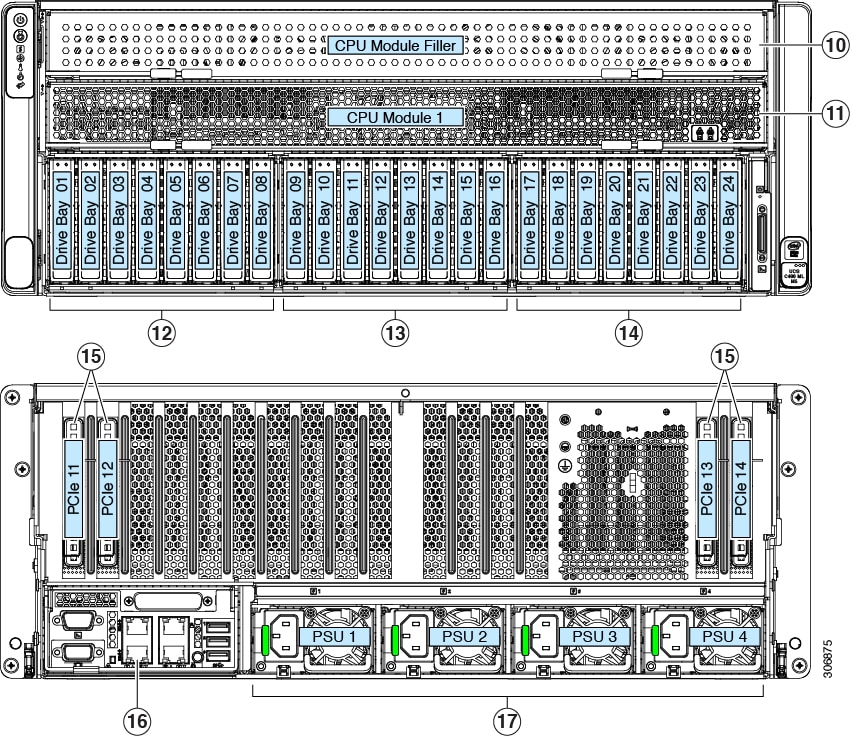
Figure 6. Serviceable Component Locations Inside the Main Chassis (Front and Rear Views)

10

CPU module bay 2 (blank with filler module)

There must be a blank filler module in upper bay 2 or the system will not boot.

14

Right bay module, supports either:

  • Optional DVD drive module

  • Drive bays 17 - 24 (shown)

    • All 8 bays supports SAS/SATA drives.

    • Bay 17 also supports NVMe drives.

11

CPU module bay 1

The system must have one CPU module in lower bay 1 to boot.

15

PCIe slots 11 through 14, rear panel openings

12

Left bay module (drive bays 1 - 8)

  • All 8 bays supports SAS/SATA drives.

  • Bays 1, 2, 7, 8 also support NVMe drives.

16

I/O module

Note 

The I/O module is not field replaceable, nor can you move an I/O module from one chassis to another. This module contains a security chip that requires it to stay with the PCIe module in the same chassis, as shipped from the factory.

13

Center bay module (drive bays 9 - 16)

  • All 8 bays supports SAS/SATA drives.

  • Bay 9 also supports NVMe drives.

17

Power supplies 1 – 4 (hot-swappable, redundant as 3+1)

All power supplies in the system must be identical (no mixing).

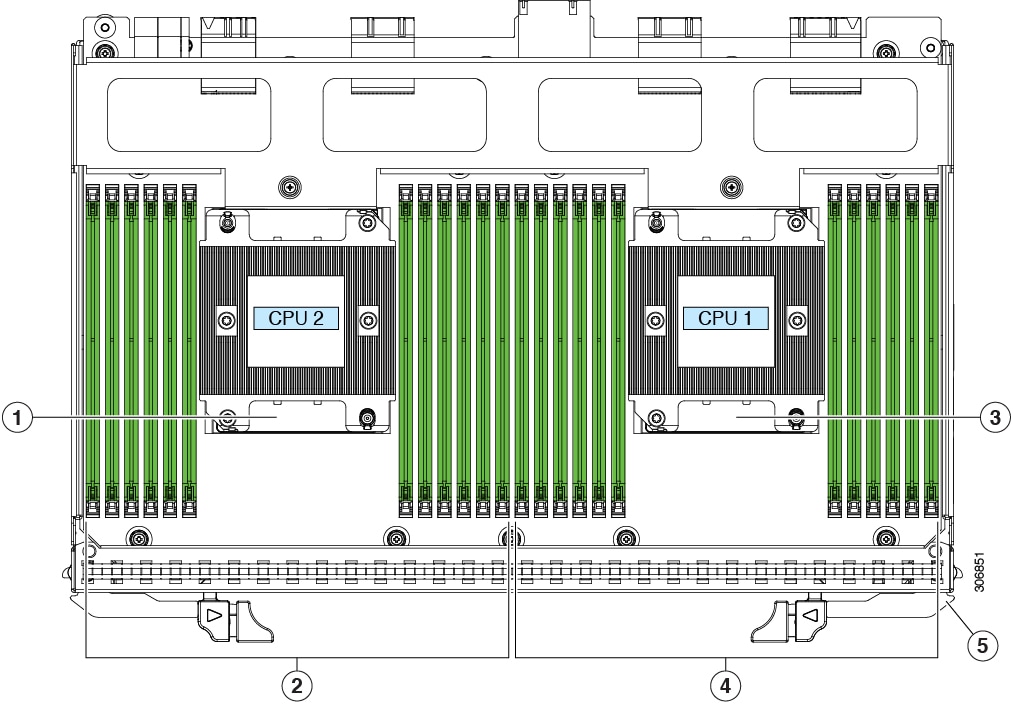
Serviceable Components Inside a CPU Module

Figure 7. Serviceable Component Locations Inside a CPU Module

1

CPU 2

4

DIMM sockets controlled by CPU 1 (channels A, B, C, D, E, F.)

2

DIMM sockets controlled by CPU 2 (channels G, H, J, K, L, M.)

See DIMM Population Rules and Memory Performance Guidelines for DIMM slot numbering.

5

Release levers for module (two each module)

3

CPU 1

-

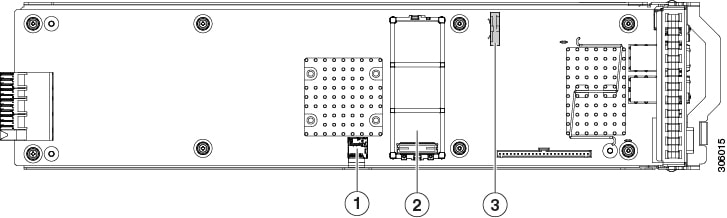
Serviceable Components Inside an I/O Module

Figure 8. Serviceable Component Locations Inside an I/O Module

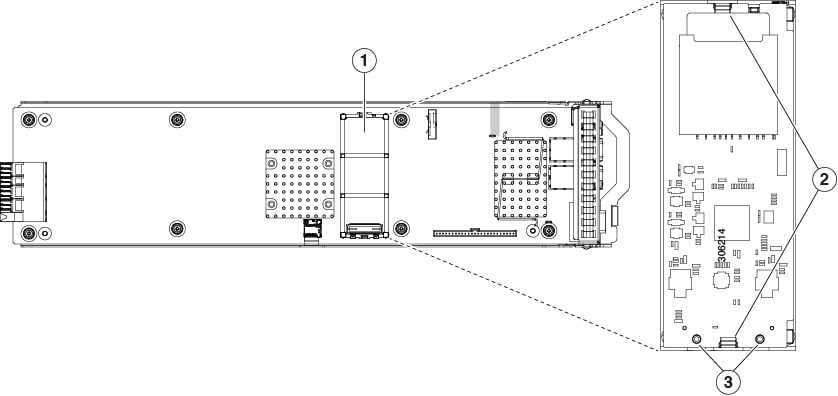
1

Micro SD card socket

3

RTC battery vertical socket

2

Mini storage module connector

Supports either an SD card carrier with two SD card slots or an M.2 SSD carrier with two SATA M.2 SSD slots.

-

Replacing Components Inside the Main Chassis


Warning

Blank faceplates and cover panels serve three important functions: they prevent exposure to hazardous voltages and currents inside the chassis; they contain electromagnetic interference (EMI) that might disrupt other equipment; and they direct the flow of cooling air through the chassis. Do not operate the system unless all cards, faceplates, front covers, and rear covers are in place.

Statement 1029


Caution

When handling server components, handle them only by carrier edges and use an electrostatic discharge (ESD) wrist-strap or other grounding device to avoid damage.

Tip

You can press the unit identification button on the front panel or rear panel to turn on a flashing, blue unit identification LED on both the front and rear panels of the server. This button allows you to locate the specific server that you are servicing when you go to the opposite side of the rack. You can also activate these LEDs remotely by using the Cisco IMC interface.

Replacing a CPU Module

CPU Module Population Rules:
  • This server operates with one CPU module, in lower bay 1.

  • You must have a blank filler module in upper bay 2 or the server will not boot.


Note

The CPU module has a fault LED on its front that turns amber to help to identify when there is a fault.


Caution

Never remove a CPU module without shutting down and removing power from the server.


Procedure


Step 1

Shut down and remove power from the server as described in Shutting Down and Removing Power From the Server.

You do not have to pull the server out from the rack or remove the cover because the CPU module is accessed from the front of the chassis.

Step 2

Remove an existing CPU module:

Note 

Verify that the power LED on the front of the CPU module is off before removing the module.

  1. Grasp the two ejector levers on the module and pinch their latches to release the levers.

  2. Rotate both levers to the outside at the same time to evenly disengage the module from the midplane connectors.

  3. Pull the module straight out from the chassis and then set it on an antistatic surface.

Figure 9. CPU Module Front

1

Ejector levers (two)

3

CPU module fault LED

2

CPU module power status LED

-

Step 3

If you are moving CPUs from the old CPU module to the new CPU module, see Moving an M5 Generation CPU.

Step 4

If you are moving DIMMs from the old CPU module to the new CPU module, perform the following steps:

  1. Open the ejector lever at each end of the DIMM slot and pick the DIMM straight up from the old CPU module board.

  2. On the new CPU module board, align the new DIMM with an empty slot. Use the alignment feature in the DIMM slot to correctly orient the DIMM.

  3. Push down evenly on the top corners of the DIMM until it is fully seated and the ejector levers on both ends lock into place.

Step 5

Install a new CPU module to the chassis:

  1. With the two ejector levers open, align the new CPU module with lower bay 1.

  2. Push the module into the bay until it engages with the midplane connectors and is flush with the chassis front.

  3. Rotate both ejector levers toward the center until they lay flat and their latches lock into the front of the module.

Step 6

Reconnect power cords to all power supplies and then allow the server to boot to standby power mode (indicated when the front panel Power button LED lights amber).

Step 7

Fully power on the server by pressing the Power button.

Note 

Verify that the power LED on the front of the CPU module returns to solid green.


Replacing Front-Loading SAS/SATA Drives


Note

You do not have to shut down the server or drive to replace SAS/SATA hard drives or SSDs because they are hot-swappable.

Front-Loading SAS/SATA Drive Population Guidelines

The front drives in the server are installed into three removable drive bay modules (UCSC-C480-8HDD). All 24 front drive bays support SAS/SATA drives.

Figure 10. Drive Bay Numbering

Observe these drive population guidelines for optimum performance:

  • When populating drives, add drives to the lowest-numbered bays first.

  • Keep an empty drive blanking tray in any unused bays to ensure proper airflow.

  • You can mix SAS/SATA hard drives and SAS/SATA SSDs in the same server. However, you cannot configure a logical volume (virtual drive) that contains a mix of hard drives and SSDs. That is, when you create a logical volume, it must contain all SAS/SATA hard drives or all SAS/SATA SSDs.

4K Sector Format SAS/SATA Drives Considerations

  • You must boot 4K sector format drives in UEFI mode, not legacy mode. See the procedures in this section.

  • Do not configure 4K sector format and 512-byte sector format drives as part of the same RAID volume.

  • For operating system support on 4K sector drives, see the interoperability matrix tool for your server: Hardware and Software Interoperability Matrix Tools

Procedure


Setting Up UEFI Mode Booting in the BIOS Setup Utility
Procedure

Step 1

Enter the BIOS setup utility by pressing the F2 key when prompted during bootup.

Step 2

Go to the Boot Options tab.

Step 3

Set UEFI Boot Options to Enabled.

Step 4

Under Boot Option Priorities, set your OS installation media (such as a virtual DVD) as your Boot Option #1.

Step 5

Go to the Advanced tab.

Step 6

Select LOM and PCIe Slot Configuration.

Step 7

Set the PCIe Slot ID: HBA Option ROM to UEFI Only.

Step 8

Press F10 to save changes and exit the BIOS setup utility. Allow the server to reboot.

Step 9

After the OS installs, verify the installation:

  1. Enter the BIOS setup utility by pressing the F2 key when prompted during bootup.

  2. Go to the Boot Options tab.

  3. Under Boot Option Priorities, verify that the OS you installed is listed as your Boot Option #1.


Setting Up UEFI Mode Booting in the Cisco IMC GUI
Procedure

Step 1

Use a web browser and the IP address of the server to log into the Cisco IMC GUI management interface.

Step 2

Navigate to Server > BIOS.

Step 3

Under Actions, click Configure BIOS.

Step 4

In the Configure BIOS Parameters dialog, select the Advanced tab.

Step 5

Go to the LOM and PCIe Slot Configuration section.

Step 6

Set the PCIe Slot: HBA Option ROM to UEFI Only.

Step 7

Click Save Changes. The dialog closes.

Step 8

Under BIOS Properties, set Configured Boot Order to UEFI.

Step 9

Under Actions, click Configure Boot Order.

Step 10

In the Configure Boot Order dialog, click Add Local HDD.

Step 11

In the Add Local HDD dialog, enter the information for the 4K sector format drive and make it first in the boot order.

Step 12

Save changes and reboot the server. The changes you made will be visible after the system reboots.


Replacing a Front-Loading SAS/SATA Drive


Note

You do not have to shut down the server or drive to replace SAS/SATA hard drives or SSDs because they are hot-swappable.
Procedure

Step 1

Remove the drive that you are replacing or remove a blank drive tray from the bay:

  1. Press the release button on the face of the drive tray.

  2. Grasp and open the ejector lever and then pull the drive tray out of the slot.

  3. If you are replacing an existing drive, remove the four drive-tray screws that secure the drive to the tray and then lift the drive out of the tray.

Step 2

Install a new drive:

  1. Place a new drive in the empty drive tray and install the four drive-tray screws.

    Note 

    When you insert the drive tray in the slot, the LEDs on the drive tray must be on the upper side. The ejector lever closes upward.

  2. With the ejector lever on the drive tray open, insert the drive tray into the empty drive bay.

  3. Push the tray into the slot until it touches the backplane, and then close the ejector lever to lock the drive in place.

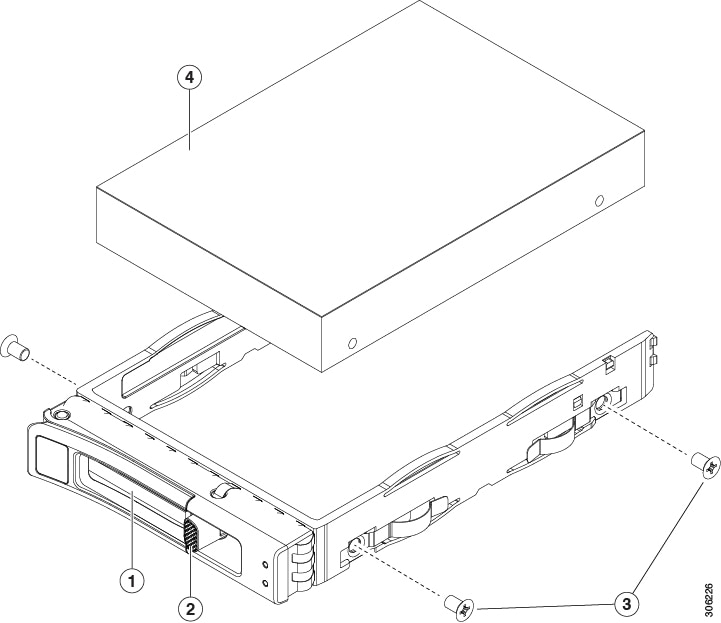
Figure 11. Replacing a Drive in a Drive Tray

1

Ejector lever

3

Drive tray screws (two on each side)

2

Release button

4

Drive removed from drive tray


Replacing Front-Loading NVMe SSDs


Note

OS-informed hot-insertion and hot-removal must be enabled in the system BIOS. See Enabling Hot-Plug Support in the System BIOS.


Note

OS-surprise removal is not supported. OS-informed hot-insertion and hot-removal are supported on all supported operating systems except VMware ESXi.


This section is for replacing 2.5-inch form-factor NVMe solid-state drives (SSDs) in front-panel drive bays.

Front-Loading NVMe SSD Population Guidelines

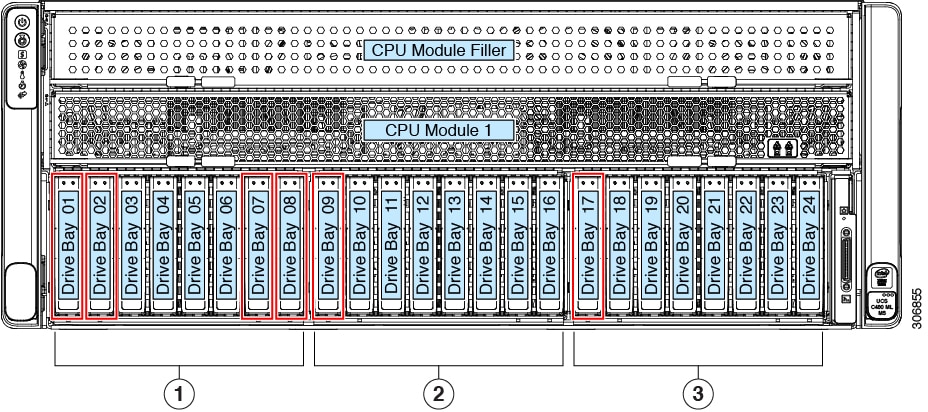
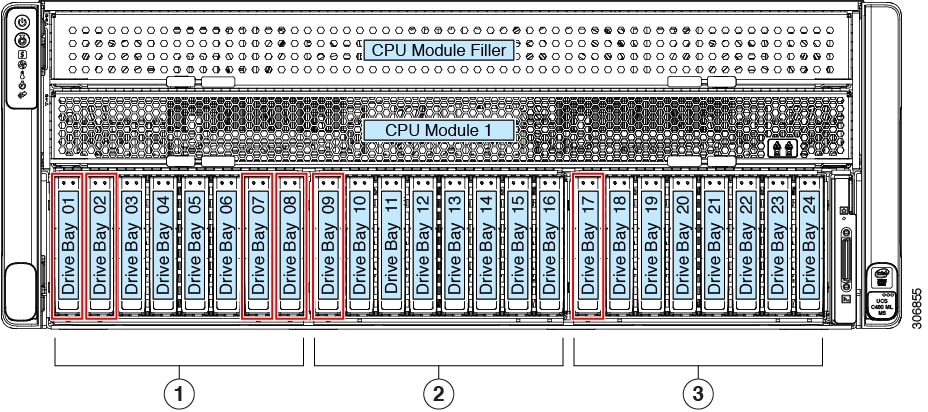
The following figure shows how the 24 drive bays are arranged in the 3 removable drive bay modules. Only the drive bays marked in red support NVMe drives: 1, 2, 7, 8, 9, and 17.

Figure 12. Drive Bay Numbering
  • The support for NVMe drives differs, depending on the position of the drive bay module in the chassis. See the following table:

    UCSC-C480-8HDD Position in Chassis

    Bays That Support NVMe Drives

    Left drive bay module

    1, 2, 7, 8

    Center drive bay module

    9

    Right drive bay module

    17

  • When populating drives, add drives to the lowest-numbered bays first.

  • Keep an empty blanking tray in any unused bays to ensure proper airflow.

Front-Loading NVME SSD Requirements and Restrictions

Observe these requirements:

Observe these restrictions:

  • NVMe 2.5-inch SSDs support booting only in UEFI mode. Legacy boot is not supported. For instructions on setting up UEFI boot, see Setting Up UEFI Mode Booting in the BIOS Setup Utility or Setting Up UEFI Mode Booting in the Cisco IMC GUI.

  • You cannot control NVMe PCIe SSDs with a SAS RAID controller because NVMe SSDs interface with the server via the PCIe bus.

  • You can combine NVMe 2.5-inch SSDs and HHHL form-factor SSDs in the same system, but the same partner brand must be used. For example, two Intel NVMe SFF 2.5-inch SSDs and two HGST HHHL form-factor SSDs is an invalid configuration. A valid configuration is two HGST NVMe SFF 2.5-inch SSDs and two HGST HHHL form-factor SSDs.

  • UEFI boot is supported in all supported operating systems. Hot-insertion and hot-removal are supported in all supported operating systems except VMWare ESXi.

Enabling Hot-Plug Support in the System BIOS

Hot-plug (OS-informed hot-insertion and hot-removal) is disabled in the system BIOS by default.

  • If the system was ordered with NVMe PCIe SSDs, the setting was enabled at the factory. No action is required.

  • If you are adding NVMe PCIe SSDs after-factory, you must enable hot-plug support in the BIOS. See the following procedures.

Procedure


Enabling Hot-Plug Support Using the BIOS Setup Utility
Procedure

Step 1

Enter the BIOS setup utility by pressing the F2 key when prompted during bootup.

Step 2

Navigate to Advanced > PCI Subsystem Settings > NVMe SSD Hot-Plug Support.

Step 3

Set the value to Enabled.

Step 4

Save your changes and exit the utility.


Enabling Hot-Plug Support Using the Cisco IMC GUI
Procedure

Step 1

Use a browser to log in to the Cisco IMC GUI for the server.

Step 2

Navigate to Compute > BIOS > Advanced > PCI Configuration.

Step 3

Set NVME SSD Hot-Plug Support to Enabled.

Step 4

Save your changes.


Replacing a Front-Loading NVMe SSD

This topic describes how to replace 2.5-inch form-factor NVMe SSDs in the front-panel drive bays.


Note

OS-surprise removal is not supported. OS-informed hot-insertion and hot-removal are supported on all supported operating systems except VMware ESXi.


Note

OS-informed hot-insertion and hot-removal must be enabled in the system BIOS. See Enabling Hot-Plug Support in the System BIOS.


Procedure

Step 1

Remove an existing front-loading NVMe SSD:

  1. Shut down the NVMe SSD to initiate an OS-informed removal. Use your operating system interface to shut down the drive, and then observe the drive-tray LED:

    • Green—The drive is in use and functioning properly. Do not remove.

    • Green, blinking—the driver is unloading following a shutdown command. Do not remove.

    • Off—The drive is not in use and can be safely removed.

  2. Press the release button on the face of the drive tray.

  3. Grasp and open the ejector lever and then pull the drive tray out of the slot.

  4. Remove the four drive tray screws that secure the SSD to the tray and then lift the SSD out of the tray.

Step 2

Install a new front-loading NVMe SSD:

Note 

Be sure to install only to drive bays that support NVMe drives, as described in Front-Loading NVMe SSD Population Guidelines. If you install an NVMe drive to a bay that does not support NVMe, the fault LED on the drive lights amber.

  1. Place a new SSD in the empty drive tray and install the four drive-tray screws.

    Note 

    When you insert the drive tray in the slot, the LEDs on the drive tray must be on the upper side. The ejector lever closes upward.

  2. With the ejector lever on the drive tray open, insert the drive tray into the empty drive bay.

  3. Push the tray into the slot until it touches the backplane, and then close the ejector lever to lock the drive in place.

Step 3

Observe the drive-tray LED and wait until it returns to solid green before accessing the drive:

  • Off—The drive is not in use.

  • Green, blinking—the driver is initializing following hot-plug insertion.

  • Green—The drive is in use and functioning properly.

Figure 13. Replacing a Drive in a Drive Tray

1

Ejector lever

3

Drive tray screws (two on each side)

2

Release button

4

Drive removed from drive tray


Replacing a Front Drive Bay Module

The front drive bays are divided across three removable drive bay modules (UCSC-C480-8HDD) that have eight bays each.

Procedure


Step 1

Shut down and remove power from the server as described in Shutting Down and Removing Power From the Server.

Step 2

Slide the server out the front of the rack far enough so that you can remove the top cover. You might have to detach cables from the rear panel to provide clearance.

Caution 
If you cannot safely view and access the component, remove the server from the rack.
Step 3

Remove the top cover from the server as described in Removing the Server Top Cover.

Step 4

Remove the CPU module from the chassis to provide clearance:

  1. Grasp the two ejector levers on the module and pinch their latches to release the levers.

  2. Rotate both levers to the outside at the same time to evenly disengage the module from the midplane connectors.

  3. Pull the module straight out from the chassis and then set it on an antistatic surface.

Step 5

Remove an existing drive bay module:

  1. Remove any drives from the existing module and set them aside.

  2. From the top of the chassis, loosen the single captive screw that secures the module to the chassis brace.

  3. Disconnect any SAS cables from the rear of the module.

  4. Push the module out the front of the chassis.

  5. Pull the module and its attached interposer board out the front of the chassis and then set it aside.

Step 6

Install a new drive module:

  1. Insert the new module with attached interposer into the opening in the chassis front.

  2. Gently slide the module into the opening, ensuring that the connector on the end of the interposer board engages with the socket on the chassis midplane. Press until the front edges of the module align evenly with the chassis.

  3. Tighten the single captive screw that secures the module to the chassis brace.

Step 7

Connect any SAS cables that you disconnected earlier to the new drive module.

Step 8

Install your drives to the bays in the module.

Step 9

Reinstall the CPU module to the chassis:

  1. With the two ejector levers open, align the new CPU module with an empty bay.

  2. Push the module into the bay until it engages with the midplane connectors and is flush with the chassis front.

  3. Rotate both ejector levers toward the center until they lay flat and their latches lock into the front of the module.

Step 10

Replace the top cover to the server.

Step 11

Reconnect power cords to all power supplies and then allow the server to boot to standby power mode (indicated when the front panel Power button LED lights amber).

Step 12

Fully power on the server by pressing the Power button.

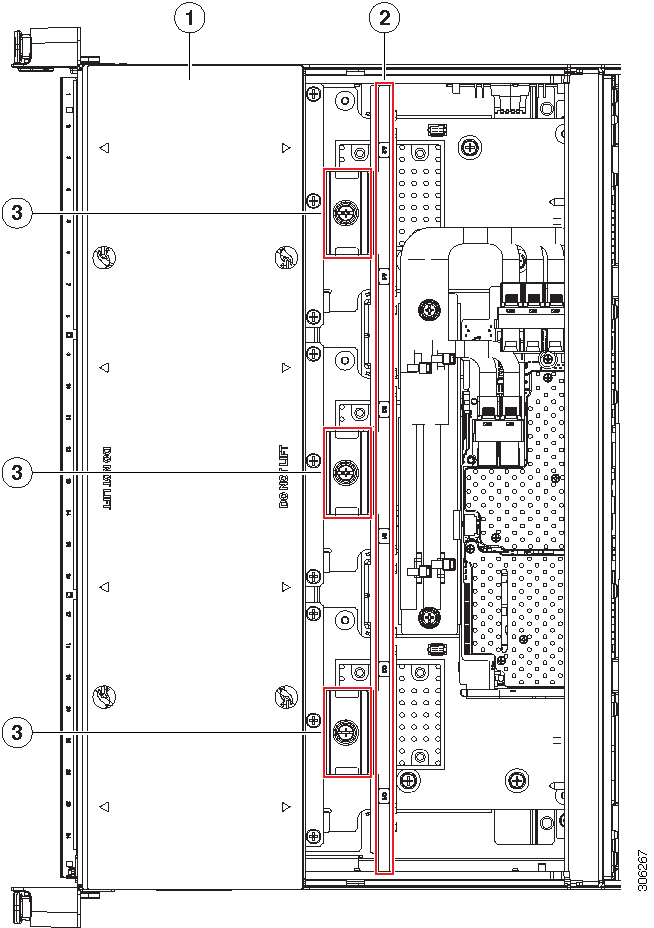
Figure 14. Front Drive-Bay Module Securing Screws (CPU Module Removed)

1

Front of server (view of front compartment shown with CPU module removed)

3

Thumbscrews that secure drive bay modules (one each module)

2

Chassis brace


Replacing a Front RAID Controller Card

For detailed information about storage controllers in this server, see Supported Storage Controllers and Cables.

The server supports one front RAID controller card for control of up to 24 front-loading SAS/SATA drives. The card installs to a dedicated, horizontal socket on the chassis midplane. The socket is below the CPU module and can be accessed from the top of the server after the CPU module is removed.

Firmware on the storage controller must be verified for compatibility with the current Cisco IMC and BIOS versions that are installed on the server. If not compatible, upgrade or downgrade the storage controller firmware using the Host Upgrade Utility (HUU) for your firmware release to bring it to a compatible level.

See the HUU guide for your Cisco IMC release for instructions on downloading and using the utility to bring server components to compatible levels: HUU Guides.


Note

For servers running in standalone mode only: After you replace front controller hardware (UCSC-RAID-M5HD), you must run the Cisco UCS Host Upgrade Utility (HUU) to update the controller firmware, even if the firmware Current Version is the same as the Update Version. This is necessary to program the controller's suboem-id to the correct value for the server SKU. If you do not do this, drive enumeration might not display correctly in the software. This issue does not affect servers controlled in UCSM mode.


Procedure


Step 1

Prepare the server for component installation:

  1. Shut down and remove power from the server as described in Shutting Down and Removing Power From the Server.

  2. Slide the server out the front of the rack far enough so that you can remove the top cover. You might have to detach cables from the rear panel to provide clearance.

    Caution 
    If you cannot safely view and access the component, remove the server from the rack.
  3. Remove the top cover from the server as described in Removing the Server Top Cover.

Step 2

Remove the CPU module from the chassis to provide clearance:

  1. Grasp the two ejector levers on the module and pinch their latches to release the levers.

  2. Rotate both levers to the outside at the same time to evenly disengage the module from the midplane connectors.

  3. Pull the module straight out from the chassis and then set it on an antistatic surface.

Step 3

Remove any existing front RAID controller card from the server:

  1. Disconnect any SAS and supercap cables from the existing card.

  2. Remove the metal retainer plate that secures the front edge of the RAID card. Loosen its two captive screws and then lift the plate out of the chassis and set it aside.

  3. Open the card's ejector lever to unseat it from the horizontal socket on the midplane.

  4. Pull both ends of the card horizontally to disengage the card from the socket, and then set it aside.

Step 4

Install a new front RAID controller card:

  1. Carefully align the card edge with the dedicated horizontal socket on the midplane.

  2. Push on both corners of the card to seat its connector in the socket.

  3. Fully close the ejector lever on the card to lock the card into the socket.

  4. Reinstall the metal retainer plate. Align it over the two threaded standoffs, and then tighten both captive screws.

  5. Reconnect any SAS and supercap cables to the new card.

    Card connectors A1-A2 connect to SAS drive bay 1; card connectors B1-B2 connect to SAS drive bay 2; card connectors C1-C2 connect to SAS drive bay 3.

Step 5

Reinstall the CPU module to the chassis:

  1. With the two ejector levers open, align the new CPU module with an empty bay.

  2. Push the module into the bay until it engages with the midplane connectors and is flush with the chassis front.

  3. Rotate both ejector levers toward the center until they lay flat and their latches lock into the front of the module.

Step 6

Replace the top cover to the server.

Step 7

Reconnect power cords to all power supplies and then allow the server to boot to standby power mode (indicated when the front panel Power button LED lights amber).

Step 8

Fully power on the server by pressing the Power button.

Step 9

If your server is running in standalone mode, use the Cisco UCS Host Upgrade Utility to update the controller firmware and program the correct suboem-id for the controller.

Note 

For servers running in standalone mode only: After you replace front controller hardware (UCSC-RAID-M5HD), you must run the Cisco UCS Host Upgrade Utility (HUU) to update the controller firmware, even if the firmware Current Version is the same as the Update Version. This is necessary to program the controller's suboem-id to the correct value for the server SKU. If you do not do this, drive enumeration might not display correctly in the software. This issue does not affect servers controlled in UCSM mode.

See the HUU guide for your Cisco IMC release for instructions on downloading and using the utility to bring server components to compatible levels: HUU Guides.

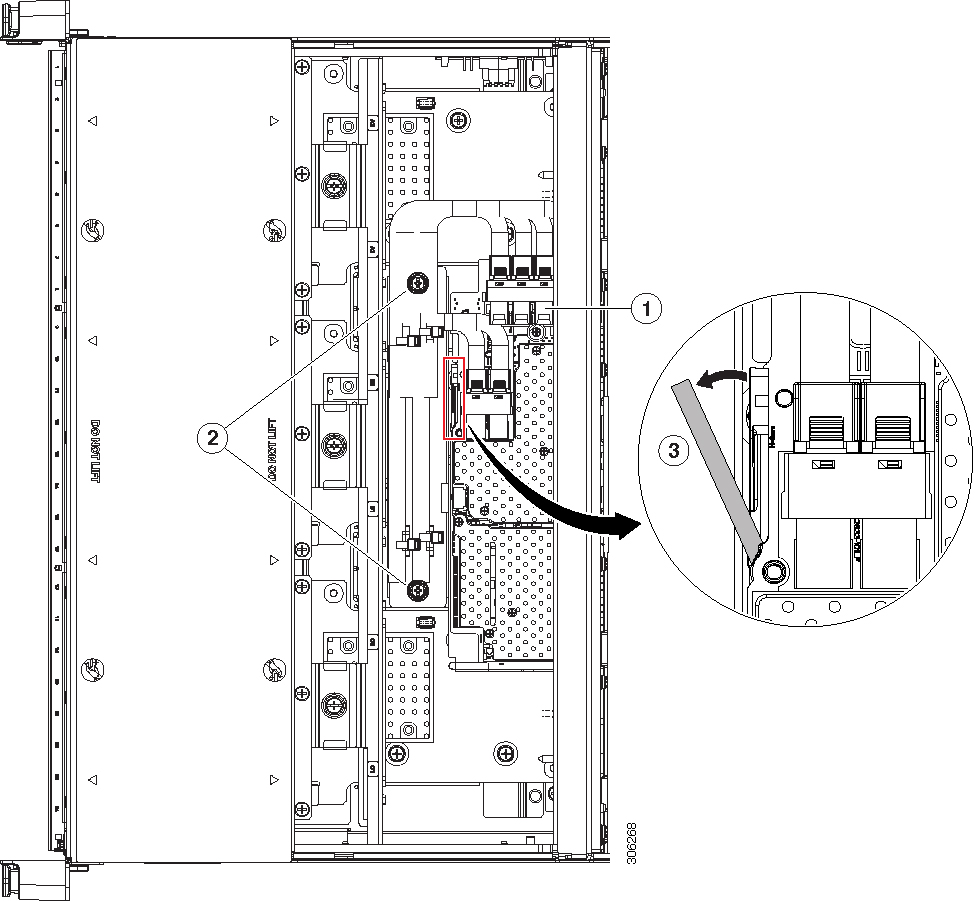
Figure 15. Front RAID Controller Card Location (CPU Module removed)

1

Location of front RAID card in dedicated horizontal socket (view of the front compartment shown with the CPU module removed)

3

Card ejector lever (magnified view)

2

Metal retainer plate securing screws


Replacing the Front RAID Supercap Unit

The front supercap unit mounts to a bracket on the inner chassis wall, below the CPU modules.

The supercap provides approximately three years of backup for the disk write-back cache DRAM in the case of a sudden power loss by offloading the cache to the NAND flash.

Procedure


Step 1

Prepare the server for component installation:

  1. Shut down and remove power from the server as described in Shutting Down and Removing Power From the Server.

  2. Slide the server out the front of the rack far enough so that you can remove the top cover. You might have to detach cables from the rear panel to provide clearance.

    Caution 
    If you cannot safely view and access the component, remove the server from the rack.
  3. Remove the top cover from the server as described in Removing the Server Top Cover.

Step 2

Remove the CPU module from the chassis to provide clearance:

  1. Grasp the two ejector levers on the module and pinch their latches to release the levers.

  2. Rotate both levers to the outside at the same time to evenly disengage the module from the midplane connectors.

  3. Pull the module straight out from the chassis and then set it on an antistatic surface.

Step 3

Remove an existing supercap unit:

  1. Disconnect the supercap cable from the existing supercap.

  2. Lift gently on the top securing tab that holds the supercap unit to its bracket.

  3. Lift the supercap unit free of the bracket and set it aside.

Step 4

Install a new supercap unit:

  1. Lift gently on the top securing tab on the bracket while you set the supercap unit into the bracket. Relax the tab so that it closes over the top of the supercap.

  2. Connect the supercap cable from the RAID controller card to the connector on the new supercap cable.

Step 5

Reinstall the CPU module to the chassis:

  1. With the two ejector levers open, align the new CPU module with an empty bay.

  2. Push the module into the bay until it engages with the midplane connectors and is flush with the chassis front.

  3. Rotate both ejector levers toward the center until they lay flat and their latches lock into the front of the module.

Step 6

Replace the top cover to the server.

Step 7

Reconnect power cords to all power supplies and then allow the server to boot to standby power mode (indicated when the front panel Power button LED lights amber).

Step 8

Fully power on the server by pressing the Power button.

Figure 16. Front Supercap Bracket Location (Below CPU Module)

1

Supercap bracket location on inner chassis wall (view of the front compartment shown is with the CPU module removed)

-


Replacing Fan Modules

The four hot-swappable fan modules in the server are numbered as shown in Serviceable Component Locations. Each fan module contains two fans.


Tip

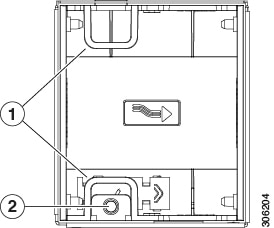
There is a fault LED on the top of each fan module. This LED lights green when the module is correctly seated and is operating OK. The LED lights amber when the module has a fault or is not correctly seated.

Caution

You do not have to shut down or remove power from the server to replace fan modules because they are hot- swappable. However, to maintain proper cooling, do not operate the server for more than one minute with any fan module removed.

Procedure


Step 1

Remove an existing fan module:

  1. Slide the server out the front of the rack far enough so that you can remove the top cover. You might have to detach cables from the rear panel to provide clearance.

    Caution 
    If you cannot safely view and access the component, remove the server from the rack.
  2. Remove the top cover from the server as described in Removing the Server Top Cover.

  3. Grasp and squeeze the fan module release latches on its top. Lift straight up to disengage its connector from the motherboard.

Step 2

Install a new fan module:

  1. Set the new fan module in place. The arrow printed on the top of the fan module should point toward the rear of the server.

  2. Press down gently on the fan module to fully engage it with the connector on the motherboard.

  3. Replace the top cover to the server.

  4. Replace the server in the rack.

Figure 17. Top View of Fan Module

1

Fan module release latches

2

Fan module fault LED


Replacing an Internal USB Drive

This section includes procedures for installing a USB drive and for enabling or disabling the internal USB port.

Replacing a USB Drive

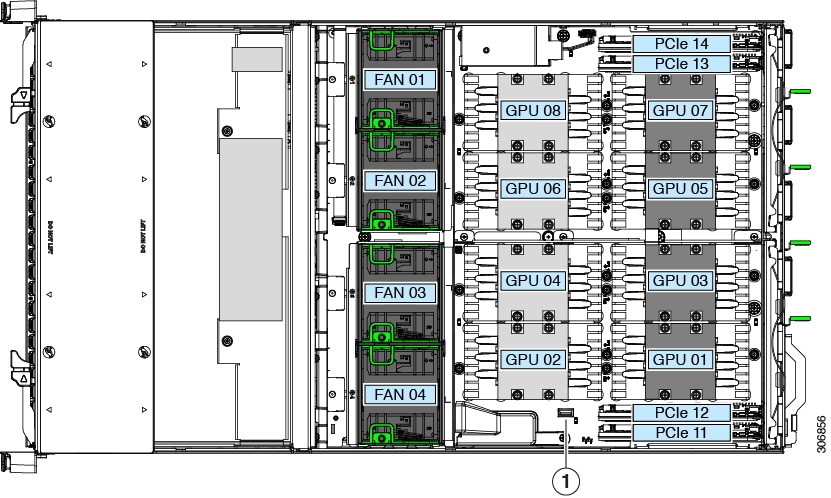
The server has one vertical USB 2.0 socket on the motherboard.


Caution

We do not recommend that you hot-swap the internal USB drive while the server is powered on because of the potential for data loss.
Procedure

Step 1

Remove an existing internal USB drive:

  1. Shut down and remove power from the server as described in Shutting Down and Removing Power From the Server.

  2. Slide the server out the front of the rack far enough so that you can remove the top cover. You might have to detach cables from the rear panel to provide clearance.

    Caution 
    If you cannot safely view and access the component, remove the server from the rack.
  3. Remove the top cover from the server as described in Removing the Server Top Cover.

  4. Locate the USB socket on the motherboard as shown in the following figure.

  5. Grasp the USB drive and pull it vertically to free it from the socket.

Step 2

Install a new internal USB drive:

  1. Align the USB drive with the socket.

  2. Push the USB drive vertically to fully engage it with the socket.

  3. Replace the top cover to the server.

Step 3

Reconnect power cords to all power supplies and then allow the server to boot to standby power mode (indicated when the front panel Power button LED lights amber).

Step 4

Fully power on the server by pressing the Power button.

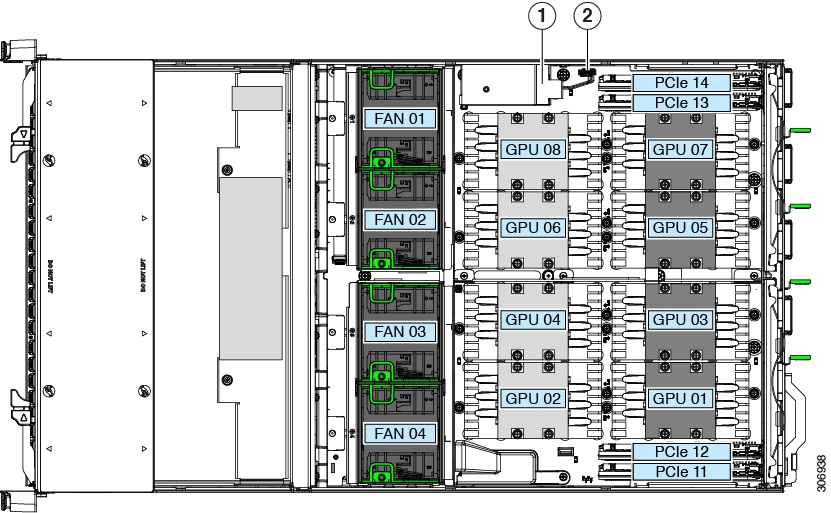
Figure 18. Internal USB 2.0 Socket Location

1

Location of vertical USB socket on motherboard

-


Enabling or Disabling the Internal USB Port

The factory default is that all USB ports on the server are enabled. However, the internal USB port can be enabled or disabled in the server BIOS.

Procedure

Step 1

Enter the BIOS Setup Utility by pressing the F2 key when prompted during bootup.

Step 2

Navigate to the Advanced tab.

Step 3

On the Advanced tab, select USB Configuration.

Step 4

On the USB Configuration page, select USB Ports Configuration.

Step 5

Scroll to USB Port: Internal, press Enter, and then choose either Enabled or Disabled from the dialog box.

Step 6

Press F10 to save and exit the utility.


Installing a Trusted Platform Module (TPM)

The trusted platform module (TPM) is a small circuit board that plugs into a motherboard socket and is then permanently secured with a one-way screw.

TPM Considerations

  • This server supports TPM version 2.0. The TPM 2.0, UCSX-TPM2-002B(=), is compliant with Federal Information Processing (FIPS) Standard 140-2. FIPS support has existed, but FIPS 140-2 is now supported.

  • Field replacement of a TPM is not supported; you can install a TPM after-factory only if the server does not already have a TPM installed.

  • If the TPM 2.0 becomes unresponsive, reboot the server.

Installing and Enabling a TPM


Note

Field replacement of a TPM is not supported; you can install a TPM after-factory only if the server does not already have a TPM installed.

This topic contains the following procedures, which must be followed in this order when installing and enabling a TPM:

  1. Installing the TPM Hardware

  2. Enabling the TPM in the BIOS

  3. Enabling the Intel TXT Feature in the BIOS

Installing TPM Hardware

Note

For security purposes, the TPM is installed with a one-way screw. It cannot be removed with a standard screwdriver.
Procedure

Step 1

Prepare the server for component installation:

  1. Shut down and remove power from the server as described in Shutting Down and Removing Power From the Server.

  2. Slide the server out the front of the rack far enough so that you can remove the top cover. You might have to detach cables from the rear panel to provide clearance.

    Caution 
    If you cannot safely view and access the component, remove the server from the rack.
  3. Remove the top cover from the server as described in Removing the Server Top Cover.

Step 2

Install a TPM:

  1. Locate the TPM socket on the motherboard, as shown below.

    You might have to temporarily remove fan 04 to provide clearance.

    Caution 

    Avoid damaging the PLX switch heatsink that is adjacent to the TPM socket.

  2. Align the connector that is on the bottom of the TPM circuit board with the motherboard TPM socket. Align the screw hole on the TPM board with the screw hole that is adjacent to the TPM socket.

  3. Push down evenly on the TPM to seat it in the motherboard socket.

  4. Install the single one-way screw that secures the TPM to the motherboard.

Step 3

Replace the cover to the server.

Step 4

Reconnect power cords to all power supplies and then allow the server to boot to standby power mode (indicated when the front panel Power button LED lights amber).

Step 5

Fully power on the server by pressing the Power button.

Step 6

Continue with Enabling the TPM in the BIOS.

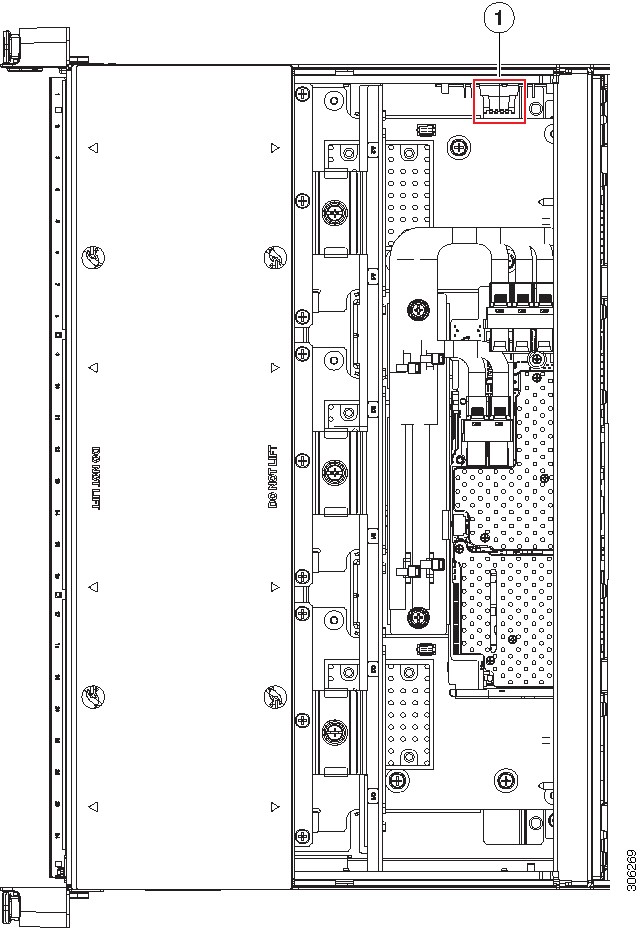
Figure 19. TPM Socket Location

1

TPM socket location on motherboard

-


Enabling the TPM in the BIOS

After hardware installation, you must enable TPM support in the BIOS.


Note

You must set a BIOS Administrator password before performing this procedure. To set this password, press the F2 key when prompted during system boot to enter the BIOS Setup utility. Then navigate to Security > Set Administrator Password and enter the new password twice as prompted.


Procedure

Step 1

Enable TPM Support:

  1. Watch during bootup for the F2 prompt, and then press F2 to enter BIOS setup.

  2. Log in to the BIOS Setup Utility with your BIOS Administrator password.

  3. On the BIOS Setup Utility window, choose the Advanced tab.

  4. Choose Trusted Computing to open the TPM Security Device Configuration window.

  5. Change TPM SUPPORT to Enabled.

  6. Press F10 to save your settings and reboot the server.

Step 2

Verify that TPM support is now enabled:

  1. Watch during bootup for the F2 prompt, and then press F2 to enter BIOS setup.

  2. Log into the BIOS Setup utility with your BIOS Administrator password.

  3. Choose the Advanced tab.

  4. Choose Trusted Computing to open the TPM Security Device Configuration window.

  5. Verify that TPM SUPPORT and TPM State are Enabled.

Step 3

Continue with Enabling the Intel TXT Feature in the BIOS.


Enabling the Intel TXT Feature in the BIOS

Intel Trusted Execution Technology (TXT) provides greater protection for information that is used and stored on the business server. A key aspect of that protection is the provision of an isolated execution environment and associated sections of memory where operations can be conducted on sensitive data, invisibly to the rest of the system. Intel TXT provides for a sealed portion of storage where sensitive data such as encryption keys can be kept, helping to shield them from being compromised during an attack by malicious code.

Procedure

Step 1

Reboot the server and watch for the prompt to press F2.

Step 2

When prompted, press F2 to enter the BIOS Setup utility.

Step 3

Verify that the prerequisite BIOS values are enabled:

  1. Choose the Advanced tab.

  2. Choose Intel TXT(LT-SX) Configuration to open the Intel TXT(LT-SX) Hardware Support window.

  3. Verify that the following items are listed as Enabled:

    • VT-d Support (default is Enabled)

    • VT Support (default is Enabled)

    • TPM Support

    • TPM State

  4. Do one of the following:

    • If VT-d Support and VT Support are already enabled, skip to step 4.

    • If VT-d Support and VT Support are not enabled, continue with the next steps to enable them.

  5. Press Escape to return to the BIOS Setup utility Advanced tab.

  6. On the Advanced tab, choose Processor Configuration to open the Processor Configuration window.

  7. Set Intel (R) VT and Intel (R) VT-d to Enabled.

Step 4

Enable the Intel Trusted Execution Technology (TXT) feature:

  1. Return to the Intel TXT(LT-SX) Hardware Support window if you are not already there.

  2. Set TXT Support to Enabled.

Step 5

Press F10 to save your changes and exit the BIOS Setup utility.


Replacing Power Supplies

The server requires four power supplies, which are redundant as 3+1.


Note

The power supplies are hot-swappable and are accessible from the external rear of the server, so you do not have to pull the server out from the rack or remove the server cover.


Replacing AC Power Supplies


Note

Do not mix power supply types or wattages in the server. All power supplies must be identical.
Procedure

Step 1

Remove the power supply that you are replacing or a blank panel from an empty bay:

  1. Remove the power cord from the power supply that you are replacing.

  2. Grasp the power supply handle while pinching the release latch toward the handle.

  3. Pull the power supply out of the bay.

Step 2

Install a new power supply:

  1. Grasp the power supply handle and insert the new power supply into the empty bay.

  2. Push the power supply into the bay until the release lever locks.

  3. Connect the power cord to the new power supply.

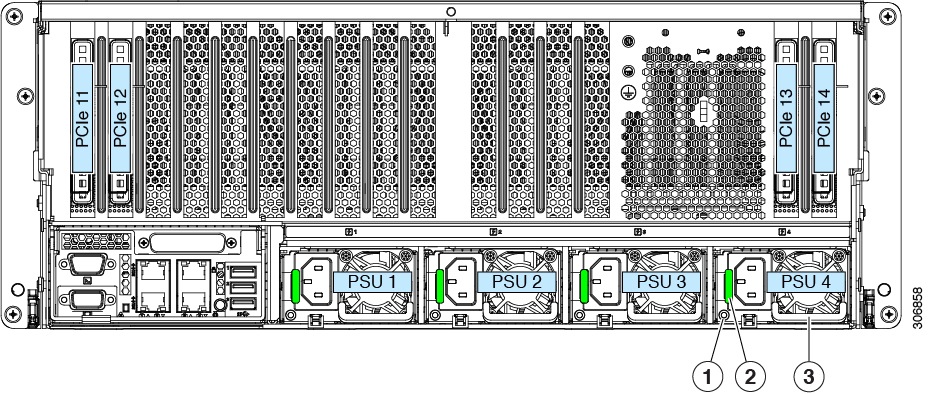
Figure 20. AC Power Supplies

1

Power supply status LED

3

Power supply handle

2

Power supply release latch

-


Replacing a PCIe Card


Note

Cisco supports all PCIe cards qualified and sold by Cisco. PCIe cards not qualified or sold by Cisco are the responsibility of the customer. Although Cisco will always stand behind and support the C-Series rack-mount servers, customers using standard, off-the-shelf, third-party cards must go to the third-party card vendor for support if any issue with that particular card occurs.

PCIe Slot Specifications and Restrictions

The server provides four PCIe slots for vertical installation of up to four PCIe expansion cards.

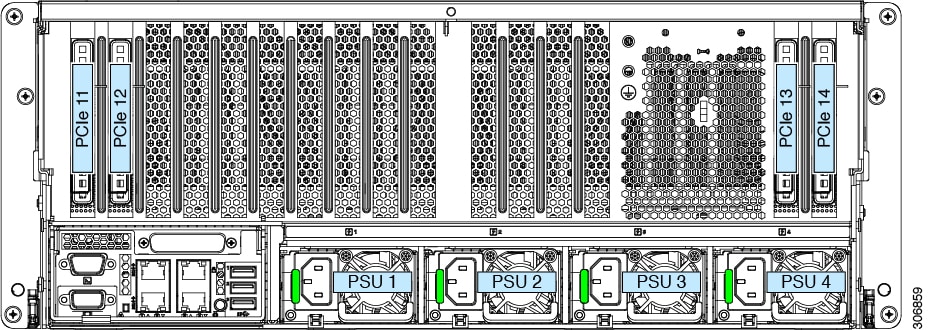
The following figure shows the placement of PCIe slots 11 through 14.

Figure 21. PCIe Slot Numbering
PCIe Slot Specifications
Table 3. PCIe Slot Specifications

Slot Number

Electrical Lane Width

Connector Length

Maximum Card Length

Card Height (Rear Panel Opening)

NCSI Support

Standby Power Support

Cisco VIC Card Support

11

Gen-3 x16

x24 connector

Half length

Full height

Yes

Yes

Yes

(primary slot)

12

Gen-3 x16

x24 connector

Half length

Full height

Yes

Yes

Yes

13

Gen-3 x16

x24 connector

Half length

Full height

Yes

No

Yes

14

Gen-3 x16

x24 connector

Half length

Full height

Yes

No

Yes

PCIe Population Guidelines and Restrictions

Note the following guidelines and restrictions:

  • The C480 M5 ML server can use only half-length cards because of internal clearance.

Replacing a PCIe Card

Before installing PCIe cards, see PCIe Slot Specifications and Restrictions.

Procedure

Step 1

Prepare the server for component installation:

  1. Shut down and remove power from the server as described in Shutting Down and Removing Power From the Server.

  2. Slide the server out the front of the rack far enough so that you can remove the top cover. You might have to detach cables from the rear panel to provide clearance.

    Caution 
    If you cannot safely view and access the component, remove the server from the rack.
  3. Remove the top cover from the server as described in Removing the Server Top Cover.

Step 2

Remove any existing card or a blanking panel:

  1. Open the hinged retainer bar that covers the top of the PCIe slot.

    Use your fingertips to pull back on the wire locking-latches at each end of the retainer bar, and then hinge the bar open to expose the tops of the PCIe slots.

  2. Pull both ends of the card vertically to disengage the card from the socket, and then set it aside.

Step 3

Install a new PCIe card:

  1. Carefully align the card edge with the socket while you align the card's rear tab with the rear panel opening.

  2. Push down on both corners of the card to seat its edge connector in the socket.

  3. Close the hinged retainer bar over the top of the PCIe slots.

    Use your fingertips to pull back on the wire locking-latches at each end of the retainer bar, and then hinge it closed to secure the tops of the PCIe slots. Push the wire locking-latches back to the forward, locked position.

Step 4

Replace the top cover to the server.

Step 5

Reconnect power cords to all power supplies and then allow the server to boot to standby power mode (indicated when the front panel Power button LED lights amber).

Step 6

Fully power on the server by pressing the Power button.

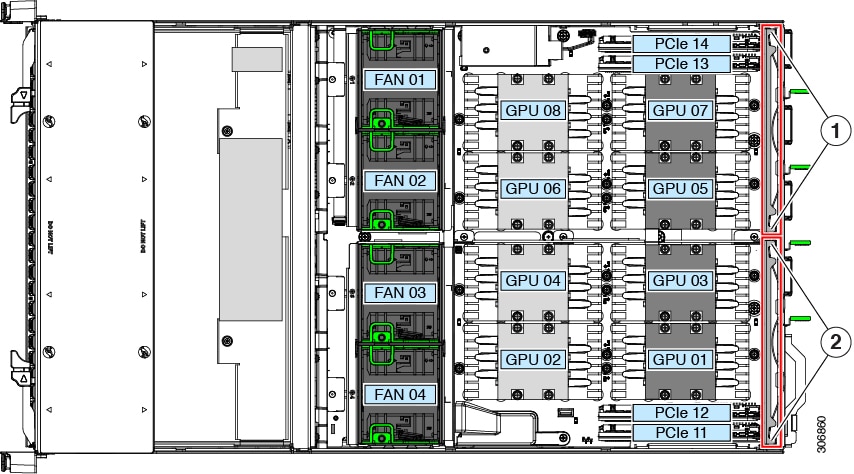
Figure 22. PCIe Slot Hinged Retainer Bars

1

Wire locking latches for left PCIe retainer bar (slots 10 - 12)

2

Wire locking latches for right PCIe retainer bar (slots 1 - 9)


Cisco Virtual Interface Card (VIC) Considerations

This section describes VIC card support and special considerations for this server.

If you want to use the Cisco UCS VIC card for Cisco UCS Manager integration, see also the Installation For Cisco UCS Manager Integration for details about supported configurations, cabling, and other requirements.

Table 4. VIC Support and Considerations in This Server

VIC

How Many Supported in Server

Slots That Support the VIC

Primary Slot For Cisco UCS Manager Integration

Primary Slot For Cisco Card NIC Mode

Minimum Cisco IMC Firmware

Cisco UCS VIC 1455

UCSC-PCIE-C25Q-04

2

All

PCIe 11

PCIe 11

4.0(1)

Cisco UCS VIC 1495

UCSC-PCIE-C100-04

2

All

PCIe 11

PCIe 11

4.0(2)

  • The primary slot for a VIC card is slot 1; the secondary slot for a VIC card is slot 2.

  • The system can support up to two VIC cards total in UCSM mode. Only the VIC card installed in slot 1 can be used for both UCS Manager management and data traffic. A second VIC installed in slot 2 is used for data traffic only.

Replacing NVIDIA SXM2 V100 GPUs


Note

The NVIDIA SXM2 V100 GPUs in this server are not customer-replaceable. Contact Cisco Support if you need service or replacement for these GPUs.


Replacing a Chassis Intrusion Switch

The chassis intrusion switch in an optional security feature that logs an event in the system event log (SEL) whenever the cover is removed from the chassis.

Procedure


Step 1

Prepare the server for component installation:

  1. Shut down and remove power from the server as described in Shutting Down and Removing Power From the Server.

  2. Slide the server out the front of the rack far enough so that you can remove the top cover. You might have to detach cables from the rear panel to provide clearance.

    Caution 
    If you cannot safely view and access the component, remove the server from the rack.
  3. Remove the top cover from the server as described in Removing the Server Top Cover.

Step 2

Remove an existing intrusion switch:

  1. Disconnect the intrusion switch cable from the socket on the motherboard.

  2. Slide the switch mechanism out from the pre-mounted bracket on the chassis wall.

    The switch mounts inside the bracket that serves as the chassis-cover latch point.

Step 3

Install a new intrusion switch:

Note 

The kit for the intrusion switch (UCS-C480-INT-SW) includes a bracket and screw that are not used with this version of the server. You can discard the bracket and screw.

  1. Slide the switch mechanism into the bracket that is pre-mounted on the chassis wall.

  2. Connect the switch cable to the socket on the motherboard.

Step 4

Replace the cover to the server.

Step 5

Reconnect power cords to all power supplies and then allow the server to boot to standby power mode (indicated when the front panel Power button LED lights amber).

Step 6

Fully power on the server by pressing the Power button.

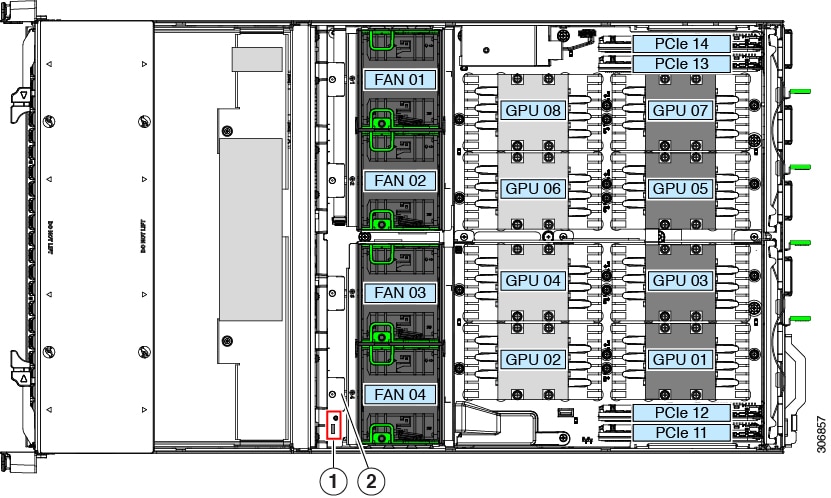
Figure 23. Chassis Intrusion Switch

1

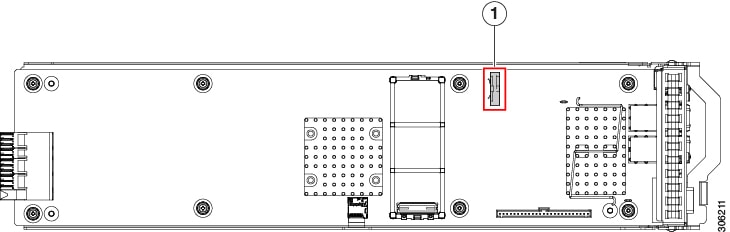
Intrusion switch location (inside cover-latch bracket on inner chassis wall)

2

Cable connector on motherboard


Replacing Components Inside a CPU Module


Caution

When handling server components, handle them only by carrier edges and use an electrostatic discharge (ESD) wrist-strap or other grounding device to avoid damage.

This section describes how to install and replace CPUs and DIMMs inside a CPU module.


Caution

Never remove a CPU module without shutting down and removing power from the server.


Replacing CPUs and Heatsinks

This section contains information for replacing CPUs and heatsinks inside a CPU module.

Special Information For Upgrades to Second Generation Intel Xeon Scalable Processors


Caution

You must upgrade your server firmware to the required minimum level before you upgrade to the Second Generation Intel Xeon Scalable processors that are supported in this server. Older firmware versions cannot recognize the new CPUs and this would result in a non-bootable server.


The minimum software and firmware versions required for this server to support Second Generation Intel Xeon Scalable processors are as follows:

Table 5. Minimum Requirements For Second Generation Intel Xeon Scalable processors

Software or Firmware

Minimum Version

Server Cisco IMC

4.0(4)

Server BIOS

4.0(4)

Cisco UCS Manager (UCS-integrated servers only)

4.0(4)

Do one of the following actions:

  • If your server's firmware and Cisco UCS Manager software are already at the required minimums shown above (or later), you can replace the CPU hardware by using the procedure in this section.

  • If your server's firmware and Cisco UCS Manager software are earlier than the required levels, use the instructions in the Cisco UCS C- and S-Series M5 Servers Upgrade Guide for Next Gen Intel Xeon Processors to upgrade your software. After you upgrade the software, return to this section as directed to replace the CPU hardware.

CPU Configuration Rules

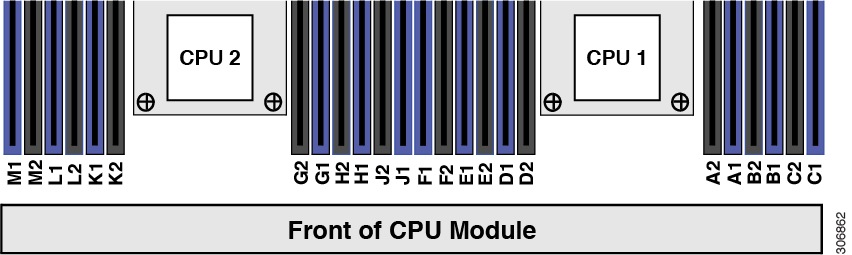
The CPUs in this server install to sockets inside the removable CPU module. The CPU module has two CPU sockets.

The system numbers the CPUs in CPU module 1 (the lower bay) as CPU 1 and CPU 2.

Figure 24. CPU Numbering
  • The server must have CPU module 1 installed in the lower CPU module bay 1.

  • You must have a blank filler module UCSC-C480-CM-FLR in the upper bay 2 or the server will not boot.

  • The maximum combined memory allowed in the 12 DIMM slots controlled by any one CPU is 768 GB. To populate the 12 DIMM slots with more than 768 GB of combined memory, you must use a high-memory CPU that has a PID that ends with an "M", for example, UCS-CPU-6142M.

Tools Required For CPU Replacement

You need the following tools and equipment for this procedure:

  • T-30 Torx driver—Supplied with replacement CPU.

  • #1 flat-head screwdriver—Supplied with replacement CPU.

  • CPU assembly tool—Supplied with replacement CPU. Orderable separately as Cisco PID UCS-CPUAT=.

  • Heatsink cleaning kit—Supplied with replacement CPU. Orderable separately as Cisco PID UCSX-HSCK=.

    One cleaning kit can clean up to four CPUs.

  • Thermal interface material (TIM)—Syringe supplied with replacement CPU. Use only if you are reusing your existing heatsink (new heatsinks have a pre-applied pad of TIM). Orderable separately as Cisco PID UCS-CPU-TIM=.

    New heatsinks have a pre-applied pad of TIM.

See also Additional CPU-Related Parts to Order with RMA Replacement CPUs and Additional CPU-Related Parts to Order with RMA Replacement CPU Modules.

Replacing a CPU and Heatsink


Caution

CPUs and their sockets are fragile and must be handled with extreme care to avoid damaging pins. The CPUs must be installed with heatsinks and thermal interface material to ensure cooling. Failure to install a CPU correctly might result in damage to the server.


Procedure

Step 1

Prepare the server for component removal:

Caution 

Never remove a CPU module without shutting down and removing power from the server.

  1. Shut down and remove power from the server as described in Shutting Down and Removing Power From the Server.

    Note 

    You do not have to pull the server out of the rack or remove the server cover because the CPU module is accessible from the front of the server.

Step 2

Remove the CPU module from the chassis:

Note 

Verify that the power LED on the front of the CPU module is off before removing the module.

  1. Grasp the two ejector levers on the front of the CPU module and pinch their latches to release the levers.

  2. Rotate both levers to the outside at the same time to evenly disengage the module from the midplane connectors.

  3. Pull the module straight out from the chassis and then set it on an antistatic surface.

Step 3

Remove the existing CPU/heatsink assembly from the CPU module:

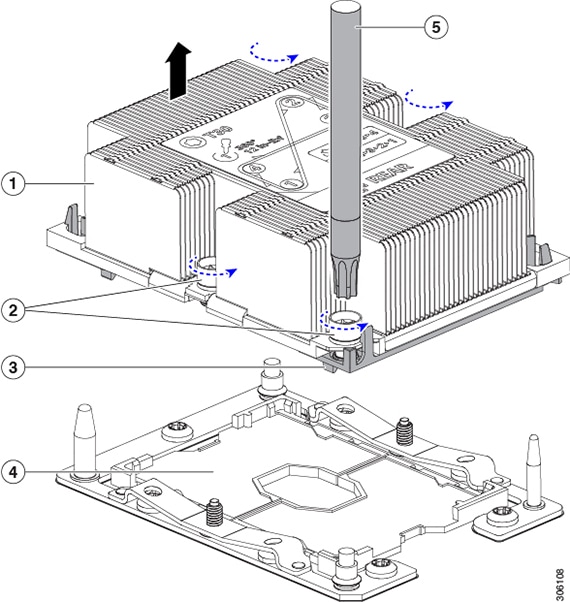
  1. Use the T-30 Torx driver that is supplied with the replacement CPU to loosen the four captive nuts that secure the assembly to the board standoffs.

    Note 
    Alternate loosening the heatsink nuts evenly so that the heatsink remains level as it is raised. Loosen the heatsink nuts in the order shown on the heatsink label: 4, 3, 2, 1.
  2. Lift straight up on the CPU/heatsink assembly and set it heatsink-down on an antistatic surface.

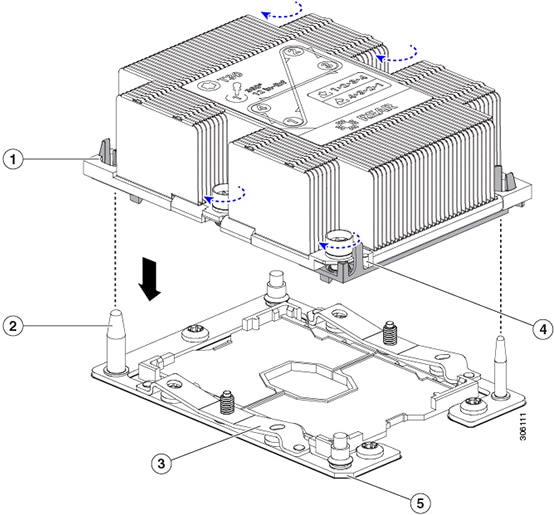
    Figure 25. Removing the CPU/Heatsink Assembly

    1

    Heatsink

    4

    CPU socket on motherboard

    2

    Heatsink captive nuts (two on each side)

    5

    T-30 Torx driver

    3

    CPU carrier (below heatsink in this view)

    -

Step 4

Separate the heatsink from the CPU assembly (the CPU assembly includes the CPU and the plastic CPU carrier):

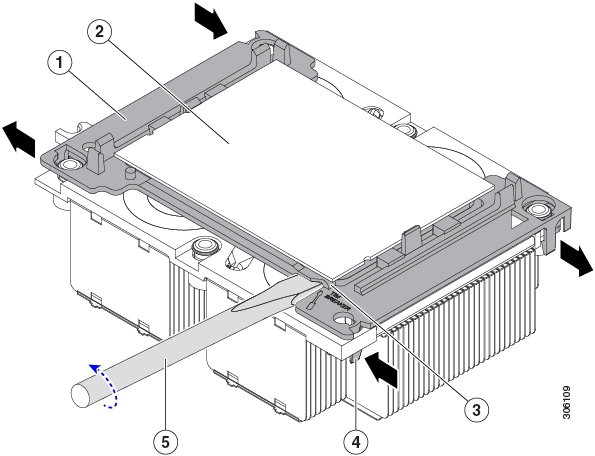
  1. Place the heatsink with CPU assembly so that it is oriented upside-down as shown in the following figure.

    Note the thermal-interface material (TIM) breaker location. TIM BREAKER is stamped on the CPU carrier next to a small slot.

    Figure 26. Separating the CPU Assembly From the Heatsink

    1

    CPU carrier

    4

    CPU-carrier inner-latch nearest to the TIM breaker slot

    2

    CPU

    5

    #1 flat-head screwdriver inserted into TIM breaker slot

    3

    TIM BREAKER slot in CPU carrier

    -

  2. Pinch inward on the CPU-carrier clip that is nearest the TIM breaker slot and then push up to disengage the clip from its slot in the heatsink corner.

  3. Insert the blade of a #1 flat-head screwdriver into the slot marked TIM BREAKER.

    Note 

    In the following step, do not pry on the CPU surface. Use gentle rotation to lift on the plastic surface of the CPU carrier at the TIM breaker slot. Use caution to avoid damaging the heatsink surface.

  4. Gently rotate the screwdriver to lift up on the CPU until the TIM on the heatsink separates from the CPU.

    Note 

    Do not allow the screwdriver tip to touch or damage the green CPU substrate.

  5. Pinch the CPU-carrier clip at the corner opposite the TIM breaker and push up to disengage the clip from its slot in the heatsink corner.

  6. On the remaining two corners of the CPU carrier, gently pry outward on the outer-latches and then lift the CPU-assembly from the heatsink.

    Note 

    Handle the CPU-assembly by the plastic carrier only. Do not touch the CPU surface. Do not separate the CPU from the plastic carrier.

Step 5

The new CPU assembly is shipped on a CPU assembly tool. Take the new CPU assembly and CPU assembly tool out of the carton.

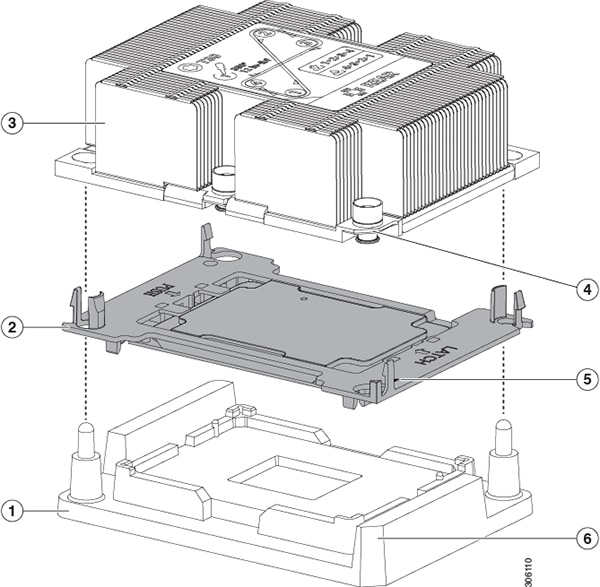
If the CPU assembly and CPU assembly tool become separated, note the alignment features shown in the following figure for correct orientation. The pin 1 triangle on the CPU carrier must be aligned with the angled corner on the CPU assembly tool.

Caution 

CPUs and their sockets are fragile and must be handled with extreme care to avoid damaging pins.

Figure 27. CPU Assembly Tool, CPU Assembly, and Heatsink Alignment Features

1

CPU assembly tool

4

Angled corner on heatsink (pin 1 alignment feature)

2

CPU assembly (CPU in plastic carrier frame)

5

Triangle cut into plastic carrier (pin 1 alignment feature)

3

Heatsink

6

Angled corner on CPU assembly tool (pin 1 alignment feature)

Step 6

Apply new TIM to the heatsink:

Note 

The heatsink must have new TIM on the heatsink-to-CPU surface to ensure proper cooling and performance.

  • If you are installing a new heatsink, it is shipped with a pre-applied pad of TIM. Go to step 7.

  • If you are reusing a heatsink, you must remove the old TIM from the heatsink and then apply new TIM to the CPU surface from the supplied syringe. Continue with step a below.

  1. Apply the cleaning solution that is included with the heatsink cleaning kit (UCSX-HSCK=) to the old TIM on the heatsink and let it soak for a least 15 seconds.

  2. Wipe all of the TIM off the heatsink using the soft cloth that is included with the heatsink cleaning kit. Be careful to avoid scratching the heatsink surface.

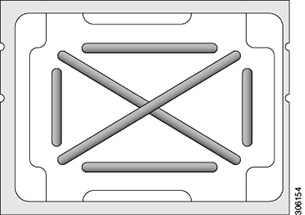
  3. Using the syringe of TIM provided with the new CPU (UCS-CPU-TIM=), apply 1.5 cubic centimeters (1.5 ml) of thermal interface material to the top of the CPU. Use the pattern shown below to ensure even coverage.

    Figure 28. Thermal Interface Material Application Pattern
Step 7

With the CPU assembly on the CPU assembly tool, set the heatsink onto the CPU assembly. Note the Pin 1 alignment features for correct orientation. Push down gently until you hear the corner clips of the CPU carrier click onto the heatsink corners.

Caution 
In the following step, use extreme care to avoid touching or damaging the CPU contacts or the CPU socket pins.
Step 8

Install the CPU/heatsink assembly to the server:

  1. Lift the heatsink with attached CPU assembly from the CPU assembly tool.

  2. Align the assembly over the CPU socket on the board, as shown in the following figure.

    Note the alignment features. The pin 1 angled corner on the heatsink must align with the pin 1 angled corner on the CPU socket. The CPU-socket posts must align with the guide-holes in the assembly.

    Figure 29. Installing the Heatsink/CPU Assembly to the CPU Socket

    1

    Guide hole in assembly (two)

    4

    Angled corner on heatsink (pin 1 alignment feature)

    2

    CPU socket alignment post (two)

    5

    Angled corner on socket (pin 1 alignment feature)

    3

    CPU socket leaf spring

    -

  3. Set the heatsink with CPU assembly down onto the CPU socket.

  4. Use the T-30 Torx driver that is supplied with the replacement CPU to tighten the four captive nuts that secure the heatsink to the motherboard standoffs.

    Note 

    Alternate tightening the heatsink nuts evenly so that the heatsink remains level while it is lowered. Tighten the heatsink nuts in the order shown on the heatsink label: 1, 2, 3, 4. The captive nuts must be fully tightened so that the leaf springs on the CPU socket lie flat.

Step 9

Return the CPU module to the chassis:

  1. With the two ejector levers open, align the CPU module with the empty bay.

  2. Push the module into the bay until it engages with the midplane connectors and is flush with the chassis front.

  3. Rotate both ejector levers toward the center until they lay flat and their latches lock into the front of the module.

Step 10

Reconnect power cords to all power supplies and then allow the server to boot to standby power mode (indicated when the front panel Power button LED lights amber).

Step 11

Fully power on the server by pressing the Power button.

Note 

Verify that the power LED on the front of the CPU module returns to solid green.


Additional CPU-Related Parts to Order with RMA Replacement CPUs

When a return material authorization (RMA) of the CPU is done on a Cisco UCS C-Series server, additional parts might not be included with the CPU spare. The TAC engineer might need to add the additional parts to the RMA to help ensure a successful replacement.


Note

If you are moving existing CPUs to a new CPU module, it is not necessary to separate the CPU and heatsink. They can be moved as one assembly. See Additional CPU-Related Parts to Order with RMA Replacement CPU Modules.


  • Scenario 1—You are reusing the existing heatsinks:

    • Heat sink cleaning kit (UCSX-HSCK=)

      One cleaning kit can clean up to four CPUs.

    • Thermal interface material (TIM) kit for M5 servers (UCS-CPU-TIM=)

      One TIM kit covers one CPU.

  • Scenario 2—You are replacing the existing heatsinks:

    • Heat sink (UCSC-HS-02-EX=)

      New heatsinks have a pre-applied pad of TIM.

    • Heat sink cleaning kit (UCSX-HSCK=)

      One cleaning kit can clean up to four CPUs.

  • Scenario 3—You have a damaged CPU carrier (the plastic frame around the CPU):

    • CPU Carrier: UCS-M5-CPU-CAR=

    • #1 flat-head screwdriver (for separating the CPU from the heatsink)

    • Heatsink cleaning kit (UCSX-HSCK=)

      One cleaning kit can clean up to four CPUs.

    • Thermal interface material (TIM) kit for M5 servers (UCS-CPU-TIM=)

      One TIM kit covers one CPU.

A CPU heatsink cleaning kit is good for up to four CPU and heatsink cleanings. The cleaning kit contains two bottles of solution, one to clean the CPU and heatsink of old TIM and the other to prepare the surface of the heatsink.

New heatsink spares come with a pre-applied pad of TIM. It is important to clean any old TIM off of the CPU surface prior to installing the heatsinks. Therefore, even when you are ordering new heatsinks, you must order the heatsink cleaning kit.

Additional CPU-Related Parts to Order with RMA Replacement CPU Modules

When a return material authorization (RMA) of the CPU module is done on a C480 M5 CPU module, you move existing CPUs to the new CPU module.


Note

Unlike previous generation CPUs, the M5 server CPUs do not require you to separate the heatsink from the CPU when you move the CPU-heatsink assembly. Therefore, no additional heatsink cleaning kit or thermal-interface material items are required.


  • The only tool required for moving a CPU/heatsink assembly is a T-30 Torx driver.

To move a CPU to a new CPU module, use the procedure in Moving an M5 Generation CPU.

Moving an M5 Generation CPU

Tool required for this procedure: T-30 Torx driver


Caution

When you receive a replacement server for an RMA, it includes dust covers on all CPU sockets. These covers protect the socket pins from damage during shipping. You must transfer these covers to the system that you are returning, as described in this procedure.


Procedure

Step 1

When moving an M5 CPU to a new server, you do not have to separate the heatsink from the CPU. Perform the following steps:

  1. Use a T-30 Torx driver to loosen the four captive nuts that secure the assembly to the board standoffs.

    Note 
    Alternate loosening the heatsink nuts evenly so that the heatsink remains level as it is raised. Loosen the heatsink nuts in the order shown on the heatsink label: 4, 3, 2, 1.
  2. Lift straight up on the CPU/heatsink assembly to remove it from the board.

  3. Set the CPUs with heatsinks aside on an anti-static surface.

    Figure 30. Removing the CPU/Heatsink Assembly

    1

    Heatsink

    4

    CPU socket on motherboard

    2

    Heatsink captive nuts (two on each side)

    5

    T-30 Torx driver

    3

    CPU carrier (below heatsink in this view)

    -

Step 2

Transfer the CPU socket covers from the new system to the system that you are returning:

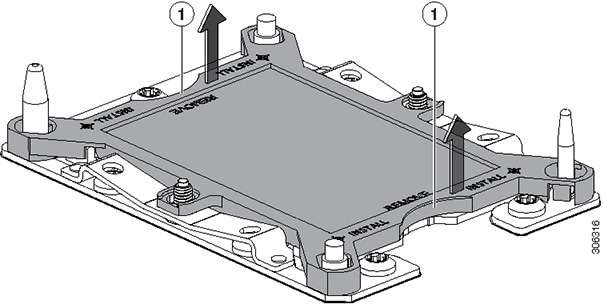
  1. Remove the socket covers from the replacement system. Grasp the two recessed finger-grip areas marked "REMOVE" and lift straight up.

    Note 

    Keep a firm grasp on the finger-grip areas at both ends of the cover. Do not make contact with the CPU socket pins.

    Figure 31. Removing a CPU Socket Dust Cover

    1

    Finger-grip areas marked "REMOVE"

    -

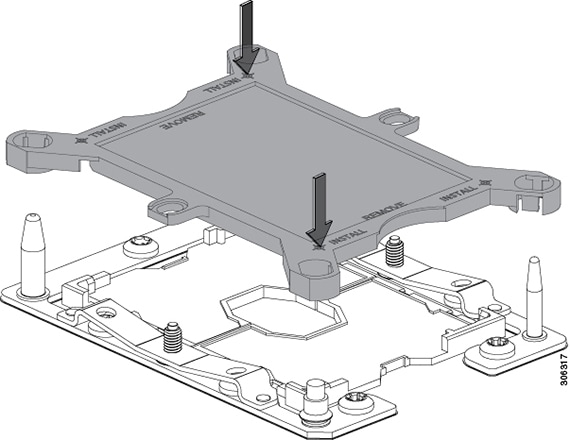
  2. With the wording on the dust cover facing up, set it in place over the CPU socket. Make sure that all alignment posts on the socket plate align with the cutouts on the cover.

    Caution 

    In the next step, do not press down anywhere on the cover except the two points described. Pressing elsewhere might damage the socket pins.

  3. Press down on the two circular markings next to the word "INSTALL" that are closest to the two threaded posts (see the following figure). Press until you feel and hear a click.

    Note 

    You must press until you feel and hear a click to ensure that the dust covers do not come loose during shipping.

    Figure 32. Installing a CPU Socket Dust Cover

    -

    Press down on the two circular marks next to the word INSTALL.

    -

Step 3

Install the CPUs to the new system:

  1. On the new board, align the assembly over the CPU socket, as shown below.

    Note the alignment features. The pin 1 angled corner on the heatsink must align with the pin 1 angled corner on the CPU socket. The CPU-socket posts must align with the guide-holes in the assembly.

    Figure 33. Installing the Heatsink/CPU Assembly to the CPU Socket

    1

    Guide hole in assembly (two)

    4

    Angled corner on heatsink (pin 1 alignment feature)

    2

    CPU socket alignment post (two)

    5

    Angled corner on socket (pin 1 alignment feature)

    3

    CPU socket leaf spring

    -

  2. On the new board, set the heatsink with CPU assembly down onto the CPU socket.

  3. Use a T-30 Torx driver to tighten the four captive nuts that secure the heatsink to the board standoffs.

    Note 

    Alternate tightening the heatsink nuts evenly so that the heatsink remains level while it is lowered. Tighten the heatsink nuts in the order shown on the heatsink label: 1, 2, 3, 4. The captive nuts must be fully tightened so that the leaf springs on the CPU socket lie flat.


Replacing Memory DIMMs


Caution

DIMMs and their sockets are fragile and must be handled with care to avoid damage during installation.


Caution

Cisco does not support third-party DIMMs. Using non-Cisco DIMMs in the server might result in system problems or damage to the motherboard.


Note

To ensure the best server performance, it is important that you are familiar with memory performance guidelines and population rules before you install or replace DIMMs.


DIMM Population Rules and Memory Performance Guidelines

This topic describes the rules and guidelines for maximum memory performance.


Note

You must use DIMM blanking panels in any DIMM slots that do not have DIMMs installed to ensure adequate air flow.


DIMM Slot Numbering

The following figure shows the numbering of the DIMM slots on the CPU module board.

Figure 34. DIMM Slot Numbering
DIMM Population Rules

Observe the following guidelines when installing or replacing DIMMs for maximum performance:

  • Each CPU supports six memory channels.

    • CPU 1 supports channels A, B, C, D, E, F.

    • CPU 2 supports channels G, H, J, K, L, M.

  • Each channel has two DIMM sockets (for example, channel A = slots A1, A2).

  • For optimal performance, populate DIMMs in the order shown in the following table, depending on the number of DIMMs per CPU. Balance DIMMs evenly across the two CPUs as shown in the table.


    Note

    The table below lists recommended configurations. Using 5, 6, 7, 9, 10, or 11 DIMMs per CPU is not recommended.


    Note

    The CPU numbering in the lower CPU module 1 is CPU 1 and CPU 2; in the upper CPU module 2, the system numbers the CPUs as CPU 3 and CPU 4. The channel lettering is the same in both CPU modules. Balance the DIMMs evenly across all four CPUs, if present.


    Table 6. DIMM Population Order

    Number of DIMMs per CPU (Recommended Configurations)

    Populate CPU 1 Slots

    Populate CPU 2 Slots

    Blue #1 Slots

    Black #2 Slots

    Blue #1 Slots

    Black #2 Slots

    1

    (A1)

    -

    (G1)

    -

    2

    (A1, B1)

    -

    (G1, H1)

    -

    3

    (A1, B1, C1)

    -

    (G1, H1, J1)

    -

    4

    (A1, B1); (D1, E1)

    -

    (G1, H1); (K1, L1)

    -

    8

    (A1, B1); (D1, E1)

    (A2, B2); (D2, E2)

    (G1, H1); (K1, L1)

    (G2, H2); (K2, L2)

    12

    (A1, B1); (C1, D1); (E1, F1)

    (A2, B2); (C2, D2); (E2, F2)

    (G1, H1); (J1, K1); (L1, M1)

    (G2, H2); (J2, K2); (L2, M2)

  • The maximum combined memory allowed in the 12 DIMM slots controlled by any one CPU is 768 GB. To populate the 12 DIMM slots with more than 768 GB of combined memory, you must use a high-memory CPU that has a PID that ends with an "M", for example, UCS-CPU-6134M.

  • All DIMMs must be DDR4 DIMMs that support ECC. Non-buffered UDIMMs and non-ECC DIMMs are not supported.

  • Memory mirroring reduces the amount of memory available by 50 percent because only one of the two populated channels provides data. When memory mirroring is enabled, you must install DIMMs in even numbers of channels.

  • NVIDIA M-Series GPUs can support only less-than 1 TB memory in the server.

  • NVIDIA P-Series and V-Series GPUs can support 1 TB or more memory in the server.

  • AMD FirePro S7150 X2 GPUs can support only less-than 1 TB memory in the server.

  • Observe the DIMM mixing rules shown in the following table.

    Table 7. DIMM Mixing Rules

    DIMM Parameter

    DIMMs in the Same Channel

    DIMMs in the Same Bank

    DIMM Capacity

    For example, 16GB, 32GB, 64GB, 128GB

    You can mix different capacity DIMMs in the same channel (for example, A1, A2).

    You cannot mix DIMMs with different capacities and Revisions in the same bank (for example A1, B1). The Revision value depends on the manufactures. Two DIMMs with the same PID can have different Revisions.

    DIMM speed

    For example, 2666 GHz

    You can mix speeds, but DIMMs will run at the speed of the slowest DIMMs/CPUs installed in the channel.

    You cannot mix DIMMs with different speeds and Revisions in the same bank (for example A1, B1). The Revision value depends on the manufactures. Two DIMMs with the same PID can have different Revisions.

    DIMM type

    RDIMMs or LRDIMMs

    You cannot mix DIMM types in a channel.

    You cannot mix DIMM types in a bank.

Memory Mirroring

The Intel CPUs within the server support memory mirroring only when an even number of channels are populated with DIMMs. If one or three channels are populated with DIMMs, memory mirroring is automatically disabled.

Memory mirroring reduces the amount of memory available by 50 percent because only one of the two populated channels provides data. The second, duplicate channel provides redundancy.

Replacing DIMMs

Identifying a Faulty DIMM

Each DIMM socket has a corresponding DIMM fault LED, directly in front of the DIMM socket. See Internal Diagnostic LEDs for the locations of these LEDs.

Procedure

Step 1

Prepare the server for component removal:

Caution 

Never remove a CPU module without shutting down and removing power from the server.

  1. Shut down and remove power from the server as described in Shutting Down and Removing Power From the Server.

    Note 

    You do not have to pull the server out of the rack or remove the server cover because the CPU modules are accessible from the front of the server.

Step 2

Remove the CPU module from the chassis:

Note 

Verify that the power LED on the front of the CPU module is off before removing the module.

  1. Grasp the two ejector levers on the front of the CPU module and pinch their latches to release the levers.

  2. Rotate both levers to the outside at the same time to evenly disengage the module from the midplane connectors.

  3. Pull the module straight out from the chassis and then set it on an antistatic surface.

Step 3

Remove an existing DIMM (or DIMM blank) from the CPU module:

  1. Locate the DIMM that you are removing, and then open the ejector levers at each end of its DIMM slot.

Step 4

Install a new DIMM:

Note 

Before installing DIMMs, see the memory population rules for this server: DIMM Population Rules and Memory Performance Guidelines.

Note 

You must use DIMM blanking panels in any DIMM slots that do not have DIMMs installed to ensure adequate air flow.

  1. Align the new DIMM with the empty slot on the CPU module board. Use the alignment feature in the DIMM slot to correctly orient the DIMM.

  2. Push down evenly on the top corners of the DIMM until it is fully seated and the ejector levers on both ends lock into place.

Step 5

Return the CPU module to the chassis:

  1. With the two ejector levers open, align the CPU module with an empty bay.

  2. Push the module into the bay until it engages with the midplane connectors and is flush with the chassis front.

  3. Rotate both ejector levers toward the center until they lay flat and their latches lock into the front of the module.

Step 6

Reconnect power cords to all power supplies and then allow the server to boot to standby power mode (indicated when the front panel Power button LED lights amber).

Step 7

Fully power on the server by pressing the Power button.

Note 

Verify that the power LED on the front of the CPU module returns to solid green.


Replacing Intel Optane DC Persistent Memory Modules

This topic contains information for replacing Intel Optane DC Persistent memory modules (DCPMMs), including population rules and methods for verifying functionality.


Caution

DCPMMs and their sockets are fragile and must be handled with care to avoid damage during installation.


Note

To ensure the best server performance, it is important that you are familiar with memory performance guidelines and population rules before you install or replace DCPMMs.


Note

Intel Optane DC persistent memory modules require Intel Next Gen Xeon processors. You must upgrade the server firmware and BIOS to version 4.0(4) or later and install the supported Intel Next Gen Xeon processors before installing DCPMMs.


DCPMMs install to DIMM slots. DCPMMs can be configured to operate in three modes:

  • Memory Mode: The module operates as 100% memory module. Data is volatile and DRAM acts as a cache for DCPMMs.

  • App Direct Mode: The module operates as a solid-state disk storage device. Data is saved and is non-volatile.

  • Mixed Mode (25% Memory Mode + 75% App Direct): The module operates with 25% capacity used as volatile memory and 75% capacity used as non-volatile storage.

Intel Optane DC Persistent Memory Module Population Rules and Performance Guidelines

This topic describes the rules and guidelines for maximum memory performance when using Intel Optane DC persistent memory modules (DCPMMs) with DDR4 DIMMs.

DIMM Slot Numbering

The following figure shows the numbering of the DIMM slots on the CPU module board.

Figure 35. DIMM Slot Numbering
Configuration Rules

Observe the following rules and guidelines:

  • Intel Optane DC persistent memory modules require Intel Next Gen Xeon processors. You must upgrade the server firmware and BIOS to version 4.0(4) or later and then install the supported Intel Next Gen Xeon processors before installing DCPMMs.

  • Each DCPMM in the server must be identical and must have the same SKU. If the DCPMM firmware detects that the system is populated with incompatible SKUs, it operates in read-only mode. In this case, it does not allow changes to the DCPMMs or their capacities.

  • The following table shows supported DCPMM configurations for this server. Fill the DIMM slots for CPU 1 and CPU 2 in CPU module 1 as shown, depending on which DCPMM:DRAM ratio you want to populate.

Figure 36. Supported DCPMM Configurations for Dual CPU Configurations

Installing Intel Optane DC Persistent Memory Modules


Note

DCPMM configuration is always applied to all DCPMMs in a region, including a replacement DCPMM. You cannot provision a specific replacement DCPMM on a preconfigured server.

Understand which mode your DCPMM is operating in. App Direct mode has some additional considerations in this procedure.


Caution

Replacing a DCPMM in App-Direct mode requires all data to be wiped from the DCPMM. Make sure to backup or offload data before attemping this procedure.


Procedure

Step 1

Prepare the server for component removal:

Caution 

Never remove a CPU module without shutting down and removing power from the server.

  1. Shut down and remove power from the server as described in Shutting Down and Removing Power From the Server.

    Note 

    You do not have to pull the server out of the rack or remove the server cover because the CPU modules are accessible from the front of the server.

Step 2

Remove an existing CPU module from the chassis:

Note 

Verify that the power LED on the front of the CPU module is off before removing the module.

  1. Grasp the two ejector levers on the front of the CPU module and pinch their latches to release the levers.

  2. Rotate both levers to the outside at the same time to evenly disengage the module from the midplane connectors.

  3. Pull the module straight out from the chassis and then set it on an antistatic surface.

Step 3

For App Direct mode, backup the existing data stored in all Optane DIMMs to some other storage.

Step 4

For App Direct mode, remove the Persistent Memory policy which will remove goals and namespaces automatically from all Optane DIMMs.

Step 5

Remove an existing DCPMM:

Caution 

If you are moving DCPMMs with active data (persistent memory) from one server to another as in an RMA situation, each DCPMM must be installed to the identical position in the new server. Note the positions of each DCPMM or temporarily label them when removing them from the old server.

  1. Locate the DCPMM that you are removing, and then open the ejector levers at each end of its DIMM slot.

  2. Lift straight up on the DCPMM and set it aside.

Step 6

Install a new DCPMM:

Note 

Before installing DCPMMs, see the population rules for this server: Intel Optane DC Persistent Memory Module Population Rules and Performance Guidelines.

  1. Align the new DCPMM with the empty slot on the motherboard. Use the alignment feature in the DIMM slot to correctly orient the DCPMM.

  2. Push down evenly on the top corners of the DCPMM until it is fully seated and the ejector levers on both ends lock into place.

Step 7

Return the CPU module to the chassis:

  1. With the two ejector levers open, align the CPU module with an empty bay.

  2. Push the module into the bay until it engages with the midplane connectors and is flush with the chassis front.

  3. Rotate both ejector levers toward the center until they lay flat and their latches lock into the front of the module.

Step 8

Reconnect power cords to all power supplies and then allow the server to boot to standby power mode (indicated when the front panel Power button LED lights amber).

Step 9

Fully power on the server by pressing the Power button.

Note 

Verify that the power LED on the front of the CPU module returns to solid green.

Step 10

Perform post-installation actions:

Note 

If your Persistent Memory policy is Host Controlled, you must perform the following actions from the OS side.

  • If the existing configuration is in 100% Memory mode, and the new DCPMM is also in 100% Memory mode (the factory default), the only action is to ensure that all DCPMMs are at the latest, matching firmware level.

  • If the existing configuration is fully or partly in App-Direct mode and new DCPMM is also in App-Direct mode, then ensure that all DCPMMs are are at the latest matching firmware level and also re-provision the DCPMMs by creating a new goal. Goals are automatically deleted when the persistent memory policy is deleted, so you cannot edit or explicitly delete the existing goal before creating the new one.

    • For App Direct mode, reapply the Persistent Memory policy.

    • For App Direct mode, restore all the offloaded data to the DCPMMs.

    You can configure a DCPMM goal through the server's BIOS Setup Utility, Cisco IMC, Cisco UCS Manager, or OS-related utilities.

  • If the existing configuration and the new DCPMM are in different modes, then ensure that all DCPMMs are at the latest matching firmware level and also re-provision the DCPMMs by creating a new goal. Goals are automatically deleted when the persistent memory policy is deleted, so you cannot edit or explicitly delete the existing goal before creating the new one.

Step 11

If you added DCPMMs to the system, you must configure regions and namespaces. To use the server BIOS Setup Utility, see Server BIOS Setup Utility Menu for DCPMM.


Server BIOS Setup Utility Menu for DCPMM


Caution

Potential data loss: If you change the mode of a currently installed DCPMM from App Direct or Mixed Mode to Memory Mode, any data in persistent memory is deleted.


DCPMMs can be configured by using the server's BIOS Setup Utility, Cisco IMC, Cisco UCS Manager, or OS-related utilities.

The server BIOS Setup Utility includes menus for DCPMMs. They can be used to view or configure DCPMM regions, goals, and namespaces, and to update DCPMM firmware.

To open the BIOS Setup Utility, press F2 when prompted during a system boot.

The DCPMM menu is on the Advanced tab of the utility:

Advanced > Intel Optane DC Persistent Memory Configuration

From this tab, you can access other menu items:

  • DIMMs: Displays the installed DCPMMs. From this page, you can update DCPMM firmware and configure other DCPMM parameters.

    • Monitor health

    • Update firmware

    • Configure security

      You can enable security mode and set a password so that the DCPMM configuration is locked. When you set a password, it applies to all installed DCPMMs. Security mode is disabled by default.

    • Configure data policy

  • Regions: Displays regions and their persistent memory types. When using App Direct mode with interleaving, the number of regions is equal to the number of CPU sockets in the server. When using App Direct mode without interleaving, the number of regions is equal to the number of DCPMMs in the server.

    From the Regions page, you can configure memory goals that tell the DCPMM how to allocate resources.

    • Create goal config

  • Namespaces: Displays namespaces and allows you to create or delete them when persistent memory is used. Namespaces can also be created when creating goals. A namespace provisioning of persistent memory applies only to the selected region.

    Existing namespace attributes such as the size cannot be modified. You can only add or delete namespaces.

  • Total capacity: Displays the total resource allocation across the server.

Updating the DCPMM Firmware Using the BIOS Setup Utility

You can update the DCPMM firmware from the BIOS Setup Utility if you know the path to the .bin files. The firmware update is applied to all installed DCPMMs.

  1. Navigate to Advanced > Intel Optane DC Persistent Memory Configuration > DIMMs > Update firmware

  2. Under File:, provide the file path to the .bin file.

  3. Select Update.

Replacing Components Inside an I/O Module


Caution

When handling server components, handle them only by carrier edges and use an electrostatic discharge (ESD) wrist-strap or other grounding device to avoid damage.

Caution

Never remove an I/O module without shutting down and removing power from the server.


This section describes how to install and replace I/O module components.


Note

The I/O module is not field-replaceable, nor can you move an I/O module from one chassis to another. This module contains a security chip that requires it to stay with the PCIe module in the same chassis, as shipped from the factory.


Replacing the RTC Battery


Warning

There is danger of explosion if the battery is replaced incorrectly. Replace the battery only with the same or equivalent type recommended by the manufacturer. Dispose of used batteries according to the manufacturer’s instructions.

[Statement 1015]


The real-time clock (RTC) battery retains system settings when the server is disconnected from power. The battery type is CR2032. Cisco supports the industry-standard CR2032 battery, which can be ordered from Cisco (PID N20-MBLIBATT) or purchased from most electronic stores.


Caution

Removing the RTC battery impacts the following:
  • Real clock time gets reset to default value.

  • CMOS setting of the server is lost. You should reset the system setting after replacing the RTC battery.


Caution

Never remove an I/O module without shutting down and removing power from the server.


Procedure


Step 1

Prepare the server for component removal:

  1. Shut down and remove power from the server as described in Shutting Down and Removing Power From the Server.

    Note 

    You do not have to pull the server out of the rack or remove the server cover because the I/O module is accessible from the rear of the server.

Step 2

Remove an I/O module from the chassis:

  1. Disconnect any cables from the ports on the I/O module.

  2. Push down on the locking clip on the I/O module's ejector-handle, and then hinge the handle upward to disengage the module's connector from the chassis midplane.

  3. Pull the module straight out from the chassis and then set it on an antistatic surface.

Step 3

Remove the RTC battery:

  1. Locate the vertical RTC battery socket on the I/O module board.

  2. Remove the battery from the socket. Gently pry the securing clip to the side to provide clearance, then lift up on the battery.

Step 4

Install a new RTC battery:

  1. Insert the battery into its socket and press down until it clicks in place under the clip.

    Note 

    The flat, positive side of the battery marked “3V+” should face the clip on the socket (toward the module rear).

Figure 37. RTC Battery Socket Location Inside an I/O Module

1

RTC battery in vertical socket

-

Step 5

Return the I/O module to the chassis:

  1. With the ejector-handle open, align the I/O module with the empty bay.

  2. Push the module into the bay until it engages with the midplane connector.

  3. Hinge the ejector-handle down until it sits flat and its locking clip clicks. The module face mst be flush with the rear panel of the chassis.

  4. Reconnect cables to the ports on the I/O module.

Step 6

Reconnect power cords to all power supplies and then allow the server to boot to standby power mode (indicated when the front panel Power button LED lights amber).

Step 7

Fully power on the server by pressing the Power button.


Replacing a Micro SD Card

There is one socket for a Micro SD card on the I/O module board.


Caution

Never remove a CPU module without shutting down and removing power from the server.


Procedure


Step 1

Prepare the server for component removal:

  1. Shut down and remove power from the server as described in Shutting Down and Removing Power From the Server.

    Note 

    You do not have to pull the server out of the rack or remove the server cover because the I/O module is accessible from the rear of the server.

Step 2

Remove an I/O module from the chassis:

  1. Disconnect any cables from the ports on the I/O module.

  2. Push down on the locking clip on the I/O module's ejector-handle, and then hinge the handle upward to disengage the module's connector from the chassis midplane.

  3. Pull the module straight out from the chassis and then set it on an antistatic surface.

Step 3

Remove an existing Micro SD card:

  1. Locate the Micro SD card.

  2. Push horizontally on the Micro SD card and release it to make it spring out from the socket.

  3. Grasp the Micro SD card and lift it from the socket.

Step 4

Install a new Micro SD card:

  1. Align the new Micro SD card with the socket.

  2. Gently push down on the card until it clicks and locks in place in the socket.

Figure 38. Micro SD Card Location Inside an I/O Module

1

Location of Micro SD card socket on the I/O module board

-

Step 5

Return the I/O module to the chassis:

  1. With the ejector-handle open, align the I/O module with the empty bay.

  2. Push the module into the bay until it engages with the midplane connector.

  3. Hinge the ejector-handle down until it sits flat and its locking clip clicks. The module face mst be flush with the rear panel of the chassis.

  4. Reconnect cables to the ports on the I/O module.

Step 6

Reconnect power cords to all power supplies and then allow the server to boot to standby power mode (indicated when the front panel Power button LED lights amber).

Step 7

Fully power on the server by pressing the Power button.


Replacing a Mini-Storage Module

The mini-storage module plugs into an I/O module board socket to provide additional internal storage. The mini-storage module is available in two different versions:

  • SD card carrier—provides two SD card sockets.

  • M.2 SSD Carrier—provides two M.2 form-factor SSD sockets for two SATA SSDs.


Note

The Cisco IMC firmware does not include an out-of-band management interface for the M.2 drives installed in the M.2 version of this mini-storage module (UCS-MSTOR-M2). The M.2 drives are not listed in Cisco IMC inventory, nor can they be managed by Cisco IMC. This is expected behavior.


Replacing a Mini-Storage Module Carrier

This topic describes how to remove and replace a mini-storage module carrier. The carrier has one media socket on its top and one socket on its underside. Use the following procedure for any type of mini-storage module carrier (SD card or M.2 SSD).


Caution

Never remove an I/O module without shutting down and removing power from the server.


Procedure

Step 1

Prepare the server for component removal:

  1. Shut down and remove power from the server as described in Shutting Down and Removing Power From the Server.

    Note 

    You do not have to pull the server out of the rack or remove the server cover because the I/O module is accessible from the rear of the server.

Step 2

Remove an I/O module from the chassis:

  1. Disconnect any cables from the ports on the I/O module.

  2. Push down on the locking clip on the I/O module's ejector-handle, and then hinge the handle upward to disengage the module's connector from the chassis midplane.

  3. Pull the module straight out from the chassis and then set it on an antistatic surface.

Step 3

Remove a carrier from its socket:

  1. Locate the mini-storage module carrier.

  2. Push outward on the securing clips that holds each end of the carrier.

  3. Lift both ends of the carrier to disengage it from the socket on the motherboard.

  4. Set the carrier on an anti-static surface.

Step 4

Install a new carrier to its socket:

  1. Position the carrier over the socket, with the carrier's connector facing down and at the same end as the motherboard socket. Two alignment pegs must match with two holes on the carrier.

  2. Set the end of the carrier opposite the socket under the clip on that end.

  3. Gently push down the socket end of the carrier so that the two pegs go through the two holes on the carrier.

  4. Push down on the carrier so that the securing clips click over it at both ends.

    Figure 39. Mini-Storage Module Location on I/O Module Board

    1

    Location of socket on board

    3

    Alignment pegs

    2

    Securing clips

    -

Step 5

Return the I/O module to the chassis:

  1. With the ejector-handle open, align the I/O module with the empty bay.

  2. Push the module into the bay until it engages with the midplane connector.

  3. Hinge the ejector-handle down until it sits flat and its locking clip clicks. The module face mst be flush with the rear panel of the chassis.

  4. Reconnect cables to the ports on the I/O module.

Step 6

Reconnect power cords to all power supplies and then allow the server to boot to standby power mode (indicated when the front panel Power button LED lights amber).

Step 7

Fully power on the server by pressing the Power button.


Replacing an SD Card in a Mini-Storage Carrier For SD

This topic describes how to remove and replace an SD card in a mini-storage carrier for SD (UCS-MSTOR-SD). The carrier has one SD card socket on its top and one socket on its underside.

Population Rules For Mini-Storage SD Cards

  • You can use one or two SD cards in the carrier.

  • Dual SD cards can be configured in a RAID 1 array through the Cisco IMC interface.

  • SD socket 1 is on the top side of the carrier; SD socket 2 is on the underside of the carrier (the same side as the carrier's motherboard connector).


Caution

Never remove an I/O module without shutting down and removing power from the server.


Procedure

Step 1

Power off the server and then remove the mini-storage module carrier from the I/O module as described in Replacing a Mini-Storage Module Carrier.

Step 2

Remove an SD card:

  1. Push on the top of the SD card, and then release it to allow it to spring out from the socket.

  2. Grasp and remove the SD card from the socket.

Step 3

Install a new SD card:

  1. Insert the new SD card into the socket with its label side facing up (away from the carrier).

  2. Press on the top of the SD card until it clicks in the socket and stays in place.

Step 4

Install the mini-storage module carrier back into the I/O module as described in Replacing a Mini-Storage Module Carrier.


Replacing an M.2 SSD in a Mini-Storage Carrier For M.2

This topic describes how to remove and replace an M.2 SATA SSD in a mini-storage carrier for M.2 (UCS-MSTOR-M2). The carrier has one M.2 SSD socket on its top and one socket on its underside.

Population Rules For Mini-Storage M.2 SSDs

  • You can use one or two M.2 SSDs in the carrier.

  • M.2 slot 1 is on the top side of the carrier; M.2 slot 2 is on the underside of the carrier (the same side as the carrier's motherboard connector).


    Note

    If you use the server's embedded software RAID controller with M.2 SATA SSDs, note that the numbering of the slots in the software interfaces is different than the physical slot numbering. Physical slot 1 is seen as slot 0 in the software; physical slot 2 is seens as slot 2 in the software.


  • Dual SATA M.2 SSDs can be configured in a RAID 1 array through the BIOS Setup Utility's embedded SATA RAID interface. See Embedded SATA RAID Controller.


    Note

    You cannot control the M.2 SATA SSDs in the server with a HW RAID controller.


    Note

    The embedded SATA RAID controller requires that the server is set to boot in UEFI mode rather than Legacy mode.


Caution

Never remove an I/O module without shutting down and removing power from the server.


Procedure

Step 1

Power off the server and then remove the mini-storage module carrier from the server as described in Replacing a Mini-Storage Module.

Step 2

Remove an M.2 SSD:

  1. Use a #1 Phillips-head screwdriver to remove the single screw that secures the M.2 SSD to the carrier.

  2. Grasp the M.2 SSD and lift up on the end that is opposite its socket on the carrier.

  3. Remove the M.2 SSD from its socket on the carrier.

Step 3

Install a new M.2 SSD:

  1. Angle downward and insert the new M.2 SSD connector-end into the socket on the carrier with its label side facing up.

  2. Press the M.2 SSD flat against the carrier.

  3. Install the single screw that secures the end of the M.2 SSD to the carrier.

Step 4

Install the mini-storage module carrier back into the server and then power it on as described in Replacing a Mini-Storage Module.


Service DIP Switches

This server includes a block of DIP switches (SW1) that you can use for certain service and Cisco IMC debug functions. The block is located on the chassis motherboard, as shown in the following figure.

The switches in the following figure are shown in the default, open position (off).

Figure 40. Location of DIP Switches on Chassis Motherboard

1

Location of DIP switch block SW1

-

DIP Switch Function

Pin Numbers (Open - Closed)

Boot from alternate Cisco IMC image

8 - 9

Reset Cisco IMC to factory defaults

7 - 10

Reset Cisco IMC password to default

6 - 11

Clear CMOS

3 - 14

Recover BIOS

2 - 15

Password clear

1 - 16

Using the Clear Password Switch (Positions 1 - 16)

You can use this switch to clear the administrator password.

Procedure


Step 1

Shut down and remove power from the server as described in Shutting Down and Removing Power From the Server. Disconnect power cords from all power supplies.

Step 2

Slide the server out the front of the rack far enough so that you can remove the top cover. You might have to detach cables from the rear panel to provide clearance.

Caution 
If you cannot safely view and access the component, remove the server from the rack.
Step 3

Remove the top cover from the server as described in Removing the Server Top Cover.

Step 4

Locate DIP switch block SW1 and the switch for pins 1 - 16 (see Service DIP Switches).

You might have to temporarily remove fan 04 to provide clearance.

Step 5

Move the DIP switch from position 1 to the closed, on position.

Step 6

Reinstall the top cover and reconnect AC power cords to the server. The server powers up to standby power mode, indicated when the Power LED on the front panel is amber.

Step 7

Return the server to main power mode by pressing the Power button on the front panel. The server is in main power mode when the Power LED is green.

Note 
You must allow the entire server to reboot to main power mode to complete the reset. The state of the jumper cannot be determined without the host CPU running.
Step 8

Press the Power button to shut down the server to standby power mode.

Step 9

Remove AC power cords from the server to remove all power.

Step 10

Remove the top cover from the server.

Step 11

Move the DIP switch back to its default, off position.

Note 
If you do return the switch back to the default, open position, the password is cleared every time you power-cycle the server.
Step 12

Replace the top cover to the server.

Step 13

Reconnect power cords to all power supplies and then allow the server to boot to standby power mode (indicated when the front panel Power button LED lights amber).

Step 14

Fully power on the server by pressing the Power button.


Using the BIOS Recovery Switch (Positions 2 - 15)

Depending on which stage the BIOS becomes corrupted, you might see different behavior.

  • If the BIOS BootBlock is corrupted, you might see the system get stuck on the following message:

    Initializing and configuring memory/hardware
  • If it is a non-BootBlock corruption, a message similar to the following is displayed:

    ****BIOS FLASH IMAGE CORRUPTED****
    Flash a valid BIOS capsule file using Cisco IMC WebGUI or CLI interface.
    IF Cisco IMC INTERFACE IS NOT AVAILABLE, FOLLOW THE STEPS MENTIONED BELOW.
    1. Connect the USB stick with bios.cap file in root folder.
    2. Reset the host.
    IF THESE STEPS DO NOT RECOVER THE BIOS
    1. Power off the system.
    2. Mount recovery jumper.
    3. Connect the USB stick with bios.cap file in root folder.
    4. Power on the system.
    Wait for a few seconds if already plugged in the USB stick.
    REFER TO SYSTEM MANUAL FOR ANY ISSUES.

Note

As indicated by the message shown above, there are two procedures for recovering the BIOS. Try procedure 1 first. If that procedure does not recover the BIOS, use procedure 2.

Procedure 1: Reboot With recovery.cap File

Procedure

Step 1

Download the BIOS update package and extract it to a temporary location.

Step 2

Copy the contents of the extracted recovery folder to the root directory of a USB drive. The recovery folder contains the bios.cap file that is required in this procedure.

Note 
The bios.cap file must be in the root directory of the USB drive. Do not rename this file. The USB drive must be formatted with either the FAT16 or FAT32 file system.
Step 3

Insert the USB drive into a USB port on the server.

Step 4

Reboot the server to standby power.

The server boots with the updated BIOS boot block. When the BIOS detects a valid bios.cap file on the USB drive, it displays this message:

Found a valid recovery file...Transferring to Cisco IMC
System would flash the BIOS image now...
System would restart with recovered image after a few seconds...
Step 5

Wait for server to complete the BIOS update, and then remove the USB drive from the server.

Note 
During the BIOS update, Cisco IMC shuts down the server and the screen goes blank for about 10 minutes. Do not unplug the power cords during this update. Cisco IMC powers on the server after the update is complete.

Procedure 2: Use BIOS Recovery Switch and bios.cap File

Procedure

Step 1

Download the BIOS update package and extract it to a temporary location.

Step 2

Copy the contents of the extracted recovery folder to the root directory of a USB drive. The recovery folder contains the bios.cap file that is required in this procedure.

Note 
The bios.cap file must be in the root directory of the USB drive. Do not rename this file. The USB drive must be formatted with either the FAT16 or FAT32 file system.
Step 3

Shut down and remove power from the server as described in Shutting Down and Removing Power From the Server. Disconnect power cords from all power supplies.

Step 4

Slide the server out the front of the rack far enough so that you can remove the top cover. You might have to detach cables from the rear panel to provide clearance.

Caution 
If you cannot safely view and access the component, remove the server from the rack.
Step 5

Remove the top cover from the server as described in Removing the Server Top Cover.

Step 6

Locate DIP switch block SW1 and the switch for pins 2 - 15 (see Service DIP Switches).

You might have to temporarily remove fan 04 to provide clearance.

Step 7

Move the DIP switch from position 2 to the closed, on position.

Step 8

Insert the USB thumb drive that you prepared in Step 2 into a USB port on the server.

Step 9

Reconnect power cords to all power supplies and allow the server to boot to standby power.

You do not have to return the server to main power for the change to take effect. Only Cisco IMC (the BMC) must reboot. The change takes effect after Cisco IMC finishes booting.

Cisco IMC boots with the updated BIOS boot block. When the BIOS detects a valid bios.cap file on the USB drive, it displays this message:

Found a valid recovery file...Transferring to Cisco IMC
System would flash the BIOS image now...
System would restart with recovered image after a few seconds...
Step 10

Wait for the BIOS update to complete, and then remove the USB drive from the server.

Note 
During the BIOS update, Cisco IMC shuts down the server and the screen goes blank for about 10 minutes. Do not unplug the power cords during this update. Cisco IMC powers on the server to standby power after the update is complete.
Step 11

Remove all power cords again to fully remove power from the server.

Step 12

Move the DIP switch back to its default, off position.

Note 
If you do not return the switch to the default open position, after recovery completion you see the prompt, “Please remove the recovery jumper.”
Step 13

Replace the top cover to the server.

Step 14

Reconnect power cords to all power supplies and then allow the server to boot to standby power mode.

Step 15

Fully power on the server to main power by pressing the Power button.


Using the Clear CMOS Switch (Positions 3 - 14)

You can use this switch to clear the server’s CMOS settings in the case of a system hang. For example, if the server hangs because of incorrect settings and does not boot, use this jumper to invalidate the settings and reboot with defaults.


Caution

Clearing the CMOS removes any customized settings and might result in data loss. Make a note of any necessary customized settings in the BIOS before you use this clear CMOS procedure.

Procedure


Step 1

Shut down and remove power from the server as described in Shutting Down and Removing Power From the Server. Disconnect power cords from all power supplies.

Step 2

Slide the server out the front of the rack far enough so that you can remove the top cover. You might have to detach cables from the rear panel to provide clearance.

Caution 
If you cannot safely view and access the component, remove the server from the rack.
Step 3

Remove the top cover from the server as described in Removing the Server Top Cover.

Step 4

Locate DIP switch block SW1 and the switch for pins 3 - 14 (see Service DIP Switches).

You might have to temporarily remove fan 04 to provide clearance.

Step 5

Move the DIP switch from position 3 to the closed, on position.

Step 6

Reinstall the top cover and reconnect AC power cords to the server. The server powers up to standby power mode, indicated when the Power LED on the front panel is amber.

Step 7

Return the server to main power mode by pressing the Power button on the front panel. The server is in main power mode when the Power LED is green.

Note 
You must allow the entire server to reboot to main power mode to complete the reset. The state of the jumper cannot be determined without the host CPU running.
Step 8

Press the Power button to shut down the server to standby power mode.

Step 9

Remove AC power cords from the server to remove all power.

Step 10

Remove the top cover from the server.

Step 11

Move the DIP switch back to its default, off position.

Note 
If you do not return the switch to the default, open position, the CMOS settings are reset to the defaults every time you power-cycle the server.
Step 12

Replace the top cover to the server.

Step 13

Reconnect power cords to all power supplies and then allow the server to boot to standby power mode.

Step 14

Fully power on the server to main power by pressing the Power button.


Using the Reset Cisco IMC Password to Default Switch (Positions 6 - 11)

You can use this Cisco IMC debug switch to force the Cisco IMC password back to the default.

Procedure


Step 1

Shut down and remove power from the server as described in Shutting Down and Removing Power From the Server. Disconnect power cords from all power supplies.

Step 2

Slide the server out the front of the rack far enough so that you can remove the top cover. You might have to detach cables from the rear panel to provide clearance.

Caution 
If you cannot safely view and access the component, remove the server from the rack.
Step 3

Remove the top cover from the server as described in Removing the Server Top Cover.

Step 4

Locate DIP switch block SW1 and the switch for pins 6 - 11 (see Service DIP Switches).

You might have to temporarily remove fan 04 to provide clearance.

Step 5

Move the DIP switch from position 6 to the closed, on position.

Step 6

Reinstall the top cover and reconnect AC power cords to the server. The server powers up to standby power mode, indicated when the Power LED on the front panel is amber.

You do not have to return the server to main power for the change to take effect. Only Cisco IMC (the BMC) must reboot. The change takes effect after Cisco IMC finishes booting.

Note 

When you next log in to Cisco IMC, you see a message similar to the following:

'Reset to default CIMC password' debug functionality is enabled.  
On input power cycle, CIMC password will be reset to defaults.
Note 
If you do not move the switch back to the default, open position, the server will reset the Cisco IMC password to the default every time that you power-cycle the server. The switch has no effect if you reboot Cisco IMC.
Step 7

Remove AC power cords from the server to remove all power.

Step 8

Remove the top cover from the server.

Step 9

Move the DIP switch back to its default, off position.

Step 10

Replace the top cover to the server.

Step 11

Reconnect power cords to all power supplies and then allow the server to boot to standby power mode.

Step 12

Fully power on the server by pressing the Power button.


Using the Reset Cisco IMC to Defaults Switch (Positions 7 - 10)

You can use this Cisco IMC debug header to force the Cisco IMC settings back to the defaults.

Procedure


Step 1

Shut down and remove power from the server as described in Shutting Down and Removing Power From the Server. Disconnect power cords from all power supplies.

Step 2

Slide the server out the front of the rack far enough so that you can remove the top cover. You might have to detach cables from the rear panel to provide clearance.

Caution 
If you cannot safely view and access the component, remove the server from the rack.
Step 3

Remove the top cover from the server as described in Removing the Server Top Cover.

Step 4

Locate DIP switch block SW1 and the switch for pins 7 - 10 (see Service DIP Switches).

You might have to temporarily remove fan 04 to provide clearance.

Step 5

Move the DIP switch from position 7 to the closed, on position.

Step 6

Reinstall the top cover and reconnect AC power cords to the server. The server powers up to standby power mode, indicated when the Power LED on the front panel is amber.

You do not have to return the server to main power for the change to take effect. Only Cisco IMC (the BMC) must reboot. The change takes effect after Cisco IMC finishes booting.

Note 

When you next log in to Cisco IMC, you see a message similar to the following:

'CIMC reset to factory defaults' debug functionality is enabled.  
On input power cycle, CIMC will be reset to factory defaults.
Note 
If you do not move the switch back to the default, open position, the server will reset the Cisco IMC to the default settings every time that you powe- cycle the server. The switch has no effect if you reboot Cisco IMC.
Step 7

Remove AC power cords from the server to remove all power.

Step 8

Remove the top cover from the server.

Step 9

Move the DIP switch back to its default, off position.

Step 10

Replace the top cover to the server.

Step 11

Reconnect power cords to all power supplies and then allow the server to boot to standby power mode.

Step 12

Fully power on the server by pressing the Power button.


Using the Boot Alternate Cisco IMC Image Switch (Positions 8 - 9)

You can use this Cisco IMC debug header to force the system to boot from an alternate Cisco IMC image.

Procedure


Step 1

Shut down and remove power from the server as described in Shutting Down and Removing Power From the Server. Disconnect power cords from all power supplies.

Step 2

Slide the server out the front of the rack far enough so that you can remove the top cover. You might have to detach cables from the rear panel to provide clearance.

Caution 
If you cannot safely view and access the component, remove the server from the rack.
Step 3

Remove the top cover from the server as described in Removing the Server Top Cover.

Step 4

Locate DIP switch block SW1 and the switch for pins 8 - 9 (see Service DIP Switches).

You might have to temporarily remove fan 04 to provide clearance.

Step 5

Move the DIP switch from position 8 to the closed, on position.

Step 6

Reinstall the top cover and reconnect AC power cords to the server. The server powers up to standby power mode, indicated when the Power LED on the front panel is amber.

You do not have to return the server to main power for the change to take effect. Only Cisco IMC (the BMC) must reboot. The change takes effect after Cisco IMC finishes booting.

Note 

When you next log in to Cisco IMC, you see a message similar to the following:

'Boot from alternate image' debug functionality is enabled.  
CIMC will boot from alternate image on next reboot or input power cycle.
Note 
If you do not move the switch back to the default, open position, the server will boot from an alternate Cisco IMC image every time that you power cycle the server or reboot Cisco IMC.
Step 7

Remove AC power cords from the server to remove all power.

Step 8

Remove the top cover from the server.

Step 9

Move the DIP switch back to its default, off position.

Step 10

Replace the top cover to the server.

Step 11

Reconnect power cords to all power supplies and then allow the server to boot to standby power mode (indicated when the front panel Power button LED lights amber).

Step 12

Fully power on the server by pressing the Power button.