Splunk POD: A Turn-Key Solution for Cisco UCS Infrastructure and Splunk Deployment Guide
Available Languages
Bias-Free Language
The documentation set for this product strives to use bias-free language. For the purposes of this documentation set, bias-free is defined as language that does not imply discrimination based on age, disability, gender, racial identity, ethnic identity, sexual orientation, socioeconomic status, and intersectionality. Exceptions may be present in the documentation due to language that is hardcoded in the user interfaces of the product software, language used based on RFP documentation, or language that is used by a referenced third-party product. Learn more about how Cisco is using Inclusive Language.
- US/Canada 800-553-2447
- Worldwide Support Phone Numbers
- All Tools
 Feedback
 Feedback
Published: August 2026
About the Cisco Validated Design Program
The Cisco Validated Design (CVD) program consists of systems and solutions designed, tested, and documented to facilitate faster, more reliable, and more predictable customer deployments. For more information, go to: https://www.cisco.com/go/designzone
Executive Summary
Splunk POD is an integrated hardware and software solution that combines Cisco UCS servers, Cisco Nexus switches, Cisco Intersight, and Splunk Enterprise platform to deliver an "appliance-like" on-premises deployment experience. This document provides technical guidance for physically connecting the hardware, further configuring servers in Cisco Intersight, and installing the operating system to prepare them to operate as a cluster for Splunk POD.
Key Features
● Predictable Performance: Cisco-validated S/M/L bundles ensure consistent performance
● Simplified Deployment: Kubernetes-based automation reduces deployment time from weeks to hours
● Unified Support: Single vendor support for entire hardware and software stack
● Enhanced Security: Optional Enterprise Security (ES) integration for advanced threat detection
Solution Overview
This chapter contains the following:
● Audience
Splunk POD is a turnkey solution that includes:
● Splunk Kubernetes Installer
● Splunk Enterprise platform running in Kubernetes (SOK) created with the Kubernetes Installer for Splunk POD
● Cisco UCS servers (Cisco UCS C225 and Cisco UCS C240 models)
● Cisco Nexus 9000 switches
● Cisco Intersight management
● Optional: Splunk Enterprise Security (ES)
The intended audience for this document includes, but is not limited to, sales engineers, field consultants, professional services, IT managers, IT engineers and IT architects, partners, and customers who are interested in deploying Splunk POD.
This document provides a step-by-step guide to configure and prepare the hardware for Splunk POD. This guide explains the host, network, and rack configuration requirements.
Splunk POD offers several pre-defined sizing options to meet the needs of different size organizations (Table 1). These pre-defined options feature different amounts of hot storage (indexer-local storage), and cold storage (SmartStore).
Additionally, cold storage is configured to keep three replicas of data for the Small and Medium options to provide data redundancy. For the Large and Extra-Large options, cold storage uses 4+2 erasure coding. Erasure coding is a technique that splits data into data chunks and parity chunks. In this case, 4+2 means there are 4 data chunks and 2 parity chunks for data protection.
| Size |
Max Daily Ingest |
Use Case |
Hardware Profile |
| Small |
500 GB/day |
Department/Small Enterprise |
5-8 nodes |
| Medium |
1 TB/day |
Mid-size Enterprise |
8-9 nodes |
| Large |
2.5 TB/day |
Large Enterprise |
11-15 nodes |
| Extra-Large |
10 TB/day |
Very-large Enterprise |
21-29 nodes |
Table 2. Data Retention and Redundancy
| Size |
Hot Storage (days) |
Cold Storage (Days) |
Cold Storage Redundancy |
| Small |
90 |
365 |
Replication 3 |
| Medium |
90 |
365 |
Replication 3 |
| Large |
90 |
365 |
4+2 Erasure Coding, Replication 3 for HDD* |
| Extra-Large |
60 |
180 |
4+2 Erasure Coding, Replication 3 for HDD* |
Note: Large and Extra-Large HDD SKUs use Replication 3 for better performance on slower storage media.
Some of the key benefits of Splunk POD include:
● Simplified Management and Deployment: Splunk POD combines the ease of server management provided by Cisco Intersight with the UCS platform for automated hardware configuration and deployment with the power of Kubernetes and the Splunk Operator for Kubernetes to provide rapid and simplified deployment. Using POD’s Kubernetes Installer, Splunk can be automatically configured and deployed in about 20 minutes from host/OS configuration using pre-configured specifications that match the POD hardware.
● High Availability and Reliability: Splunk POD focuses on providing resiliency to customer deployments with hardware and software redundancies. The power of Kubernetes allows self-healing and protection against outages.
● Real Time Insights and Proactive Monitoring: Using a combination of technologies, Intersight, Splunk, and other open-source tools, Splunk POD provides visibility into the health of the cluster.
● Accelerated Deployment and Reduced Risk: Validated reference architectures and Cisco Validated Designs (CVDs) provide prescriptive, step-by-step guidance for deploying Splunk Enterprise on Cisco UCS, accelerating time-to-value, and minimizing deployment risks
This architecture for running Splunk Enterprise on Cisco UCS uses the following infrastructure components for compute, network, and storage:
● Cisco UCS Nexus 9000 Switches
● Cisco UCS C-Series M8 Series C225 and Cisco UCS C240 Rack Servers
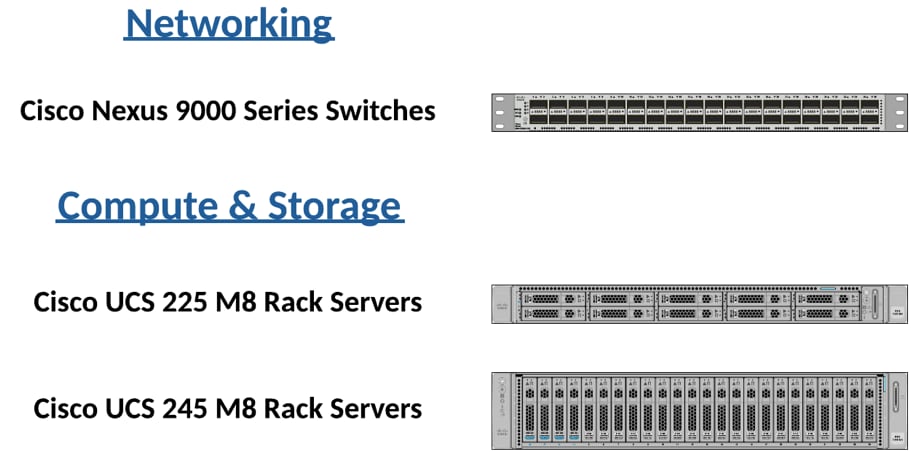
Splunk POD servers can be divided into two categories, with additional server types in each category, depending on server role.
Control Plane services consist of three Cisco UCS C225 servers that host the Kubernetes Control Plane services and the local OCI image registries used by the cluster. Two of those Cisco UCS C225s are both control nodes and workers. The third is a dedicated control node.
Workers host the Kubernetes workloads. Workloads are carried out on either only Cisco UCS C225s or Cisco UCS 240s and Cisco UCS C225s depending on which configuration was purchased.
Technology Overview
This chapter contains the following:
● Cisco Unified Computing System
Cisco Unified Computing System
Cisco Unified Computing System (Cisco UCS) is a next-generation data center platform that integrates computing, networking, storage access, and virtualization resources into a cohesive system designed to reduce total cost of ownership and increase business agility.
Cisco UCS C225 M8 Rack Server
The Cisco UCS C225 M8 Rack Server is a versatile general-purpose infrastructure and application server. This high-density, 1RU, single-socket rack server delivers industry-leading performance and efficiency for a wide range of workloads, including virtualization, collaboration, and bare-metal applications. The Cisco UCS C225 M8 Rack Server extends the capabilities of the Cisco UCS Rack Server portfolio. It powers 5th Gen and 4th Gen AMD EPYC Processors with 150 percent more cores per socket designed using AMD’s chiplet architecture. With advanced features such as AMD Infinity Guard, compute-intensive applications will see significant performance improvements and reap other benefits such as power and cost efficiencies.
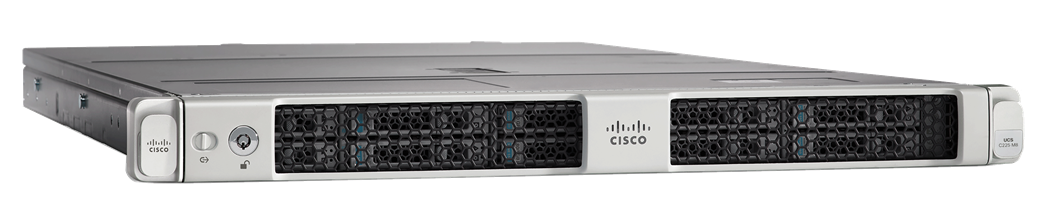
You can deploy the Cisco UCS C-Series Rack Servers as standalone servers or as part of the Cisco Unified Computing System managed by Cisco Intersight or Cisco UCS Manager to take advantage of Cisco standards-based unified computing innovations that can help reduce your Total Cost of Ownership (TCO) and increase your business agility.
The Cisco UCS C225 M8 Rack Server brings many new innovations to the Cisco UCS AMD Rack Server portfolio. With the introduction of PCIe Gen 5.0 for high-speed I/O, a DDR5 memory bus, and expanded storage capabilities, the server delivers significant performance and efficiency gains that will improve your application performance. For more details, go to: https://www.cisco.com/c/en/us/products/collateral/servers-unified-computing/ucs-c-series-rack-servers/ucs-c225-m8-rack-server-ds.html
Cisco UCS C240 M8 Rack Server
The 2RU, 2-socket Cisco UCS C240 M8 RTX PRO Server offers I/O flexibility and larger storage capacity. It combines the fastest Intel processors and is a versatile general-purpose application and infrastructure server delivering leading performance and efficiency for a wide range of workloads, including AI, big-data analytics, databases, collaboration, virtualization, and high-performance computing.
The Cisco UCS C240 M8 Rack Server extends the capabilities of the Cisco UCS rack server portfolio by incorporating Intel Xeon 6 CPUs and NVIDIA RTX PRO Blackwell Server Edition GPUs. It improves security, performance, and efficiency while helping you achieve your sustainability goals with built-in accelerators such as Intel Trust Domain Extensions (TDX), Intel Data Streaming Accelerator (DSA), Intel QuickAssist Technology (QAT), Intel Advanced Matrix Extensions (AMX), and Intel In-Memory Analytics Accelerator (IAA).
For more information, go please see: https://www.cisco.com/c/en/us/products/collateral/servers-unified-computing/ucs-c-series-rack-servers/ucs-c240-m8-rack-server-ds.html
Splunk Enterprise is a software product that enables you to search, analyze, and visualize the data gathered from the components of your IT infrastructure or business. Splunk Enterprise collects data from any source, including metrics, logs, clickstreams, sensors, stream network traffic, web servers, custom applications, hypervisors, containers, social media, and cloud services. It enables you to search, monitor and analyze that data to discover powerful insights across multiple use cases like security, IT operations, application delivery and many more. With Splunk Enterprise, everyone from data and security analyst to business users can gain insights to drive operational performance and business results. Splunk makes it easy to input data from virtually any source — without the limitations of database structures.
Splunk POD runs Splunk Enterprise in Kubernetes via the Splunk Operator for Kubernetes (SOK). SOK provides a scalable, Kubernetes-native solution for deploying and managing Splunk Enterprise. It leverages custom resource objects to streamline operations and ensure high availability.
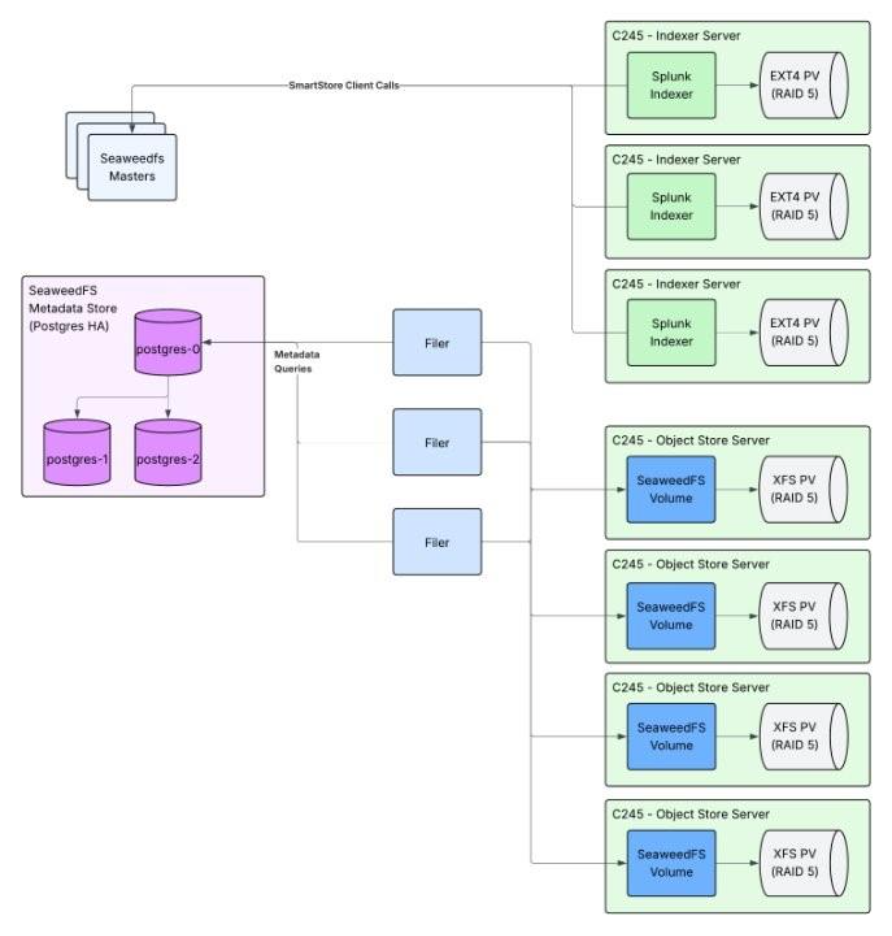
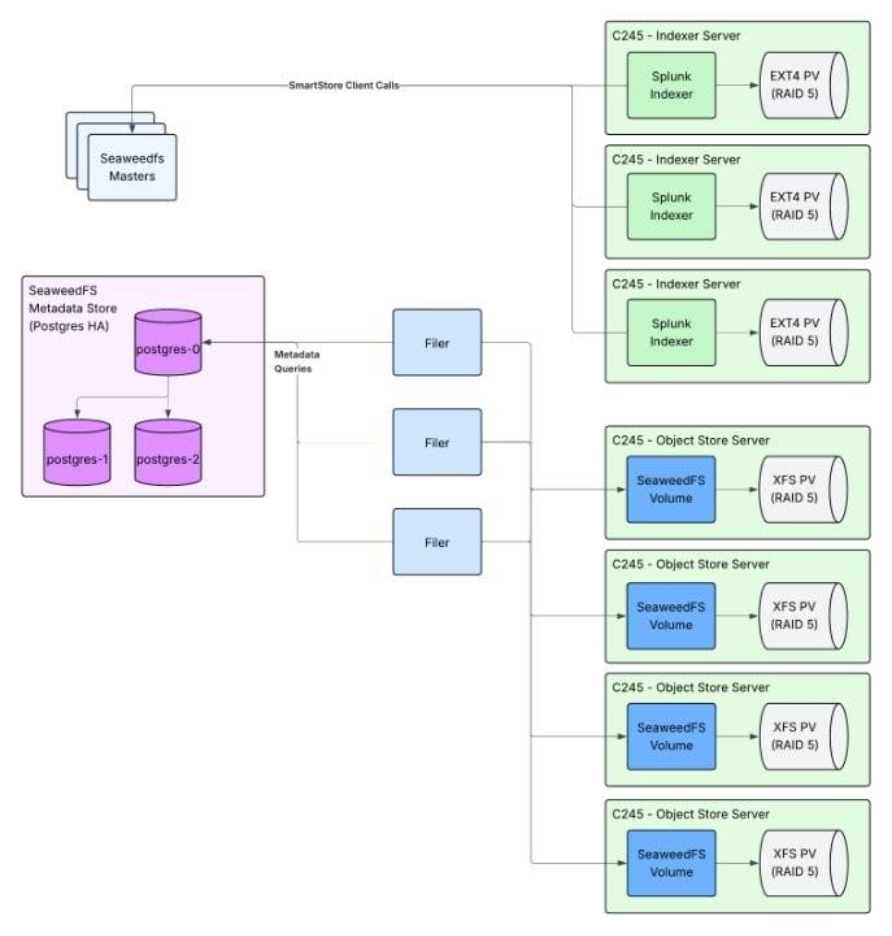
Ceph is software-defined, distributed storage system that supports block storage and object storage for Splunk. Splunk POD utilizes Ceph for storage for Splunk components such as the Search Heads, License Manager and Cluster Manager, for miscellaneous pod storage, Splunk Operator for Kubernetes app framework and for Splunk SmartStore. Splunk indexer storage remains node-local.
Rook is the Kubernetes operator for Ceph. It automates the management, scaling, and healing of Ceph storage, allowing the easy deployment and management of a Ceph cluster.
Ceph is composed of Monitors, Managers, OSDs, and RGWs:
● Monitor daemons maintain maps of the cluster state, including the monitor map, manager map, the OSD map, the MDS map, and the CRUSH map. These maps are critical cluster state required for Ceph daemons to coordinate with each other
● Manager daemons keep track of runtime metrics and the current state of the Ceph cluster
● Ceph OSDs: stores data, handles data replication, recovery, rebalancing, and provides some monitoring information to Ceph Monitors and Managers
● RGWs: daemon provides a RESTful gateway between applications and Ceph storage clusters that is S3-compatible
The Kubernetes Installer configuration file allows users to select either replication or the erasure coding level. Documentation and the CVD for XL and Large will recommend this to allow the 1-year retention for large and 180 days for XL. The ordering SKU is sized appropriately to support a general estimate of that much data.
Figure 2 illustrates the difference between Replica 3 and 4:2 erasure coding.

Solution Design
This chapter contains the following:
● Hardware Inventory and Bill of Materials
The following tables list the hardware specifications for this solution. Splunk POD utilizes NVMe drives for all indexer storage and miscellaneous Kubernetes pod storage. Cold storage via Splunk SmartStore utilizes NVMe or HDD for reduced cost. Splunk POD uses 2x of the Cisco UCS C225 as dual-purpose controller and worker nodes such that they are utilizes for both the Kubernetes control plane and as general workers. There is also a single Reserved Controller which is a Cisco UCS C225 Reserved Controller with reduced memory.
Note: Solutions utilizing NVMe for SmartStore will contain exclusively Cisco UCS C225 machines and solutions utilizing HDD for SmartStore will contain a mix of Cisco UCS C225s and Cisco UCS C240s.
| Name |
Description |
PID |
Quantity |
| Cisco UCS Nexus Switch |
Cisco Nexus 9336C-FX2 Switch for uplink network connectivity |
N9K-9336C-FX2 |
2 |
| Cisco UCS C225 M8 |
Cisco UCS C-Series 1RU C225 M8 Compute Server Node |
UCSC-C225-M8N |
6 |
| Name |
Description |
PID |
Quantity |
| Cisco UCS Nexus Switch |
Cisco Nexus 9336C-FX2 Switch for uplink network connectivity |
N9K-9336C-FX2 |
2 |
| Cisco UCS C225 M8 |
Cisco UCS C-Series 1RU C225 M8 Compute Server Node |
UCSC-C225-M8N |
4 |
| Cisco UCS C240 M8 |
Cisco UCS C-Series 2RU C240 M8 Compute Server Node |
UCSC-C240-M8L |
4 |
| Name |
Description |
PID |
Quantity |
| Cisco UCS Nexus Switch |
Cisco Nexus 9336C-FX2 Switch for uplink network connectivity |
N9K-9336C-FX2 |
2 |
| Cisco UCS C225 M8 |
Cisco UCS C-Series 1RU C225 M8 Compute Server Node |
UCSC-C225-M8N |
8 |
| Name |
Description |
PID |
Quantity |
| Cisco UCS Nexus Switch |
Cisco Nexus 9336C-FX2 Switch for uplink network connectivity |
N9K-9336C-FX2 |
2 |
| Cisco UCS C225 M8 |
Cisco UCS C-Series 1RU C225 M8 Compute Server Node |
UCSC-C225-M8N |
5 |
| Cisco UCS C240 M8 |
Cisco UCS C-Series 2RU C240 M8 Compute Server Node |
UCSC-C240-M8L |
4 |
| Name |
Description |
PID |
Quantity |
| Cisco UCS Nexus Switch |
Cisco Nexus 9336C-FX2 Switch for uplink network connectivity |
N9K-9336C-FX2 |
2 |
| Cisco UCS C225 M8 |
Cisco UCS C-Series 1RU C225 M8 Compute Server Node |
UCSC-C225-M8N |
11 |
| Name |
Description |
PID |
Quantity |
| Cisco UCS Nexus Switch |
Cisco Nexus 9336C-FX2 Switch for uplink network connectivity |
N9K-9336C-FX2 |
2 |
| Cisco UCS C225 M8 |
Cisco UCS C-Series 1RU C225 M8 Compute Server Node |
UCSC-C225-M8N |
6 |
| Cisco UCS C240 M8 |
Cisco UCS C-Series 2RU C240 M8 Compute Server Node |
UCSC-C240-M8L |
9 |
Table 9. Extra-Large POD (NVMe)
| Name |
Description |
PID |
Quantity |
| Cisco UCS Nexus Switch |
Cisco Nexus 9336C-FX2 Switch for uplink network connectivity |
N9K-9336C-FX2 |
2 |
| Cisco UCS C225 M8 |
Cisco UCS C-Series 1RU C225 M8 Compute Server Node |
UCSC-C225-M8N |
21 |
Table 10. Extra-Large POD (HDD)
| Name |
Description |
PID |
Quantity |
| Cisco UCS Nexus Switch |
Cisco Nexus 9336C-FX2 Switch for uplink network connectivity |
N9K-9336C-FX2 |
4 |
| Cisco UCS C225 M8 |
Cisco UCS C-Series 1RU C225 M8 Compute Server Node |
UCSC-C225-M8N |
13 |
| Cisco UCS C240 M8 |
Cisco UCS C-Series 2RU C240 M8 Compute Server Node |
UCSC-C240-M8L |
16 |
Hardware Inventory and Bill of Materials
This is the current hardware specifications for Splunk POD. The servers in each Splunk POD tier are configured the same. The difference is the quantity of drives in each machine changes within each tier.
Table 11. Cisco UCS C225 – Controller Plane (Reserved)
| Name |
Model |
Description |
PID |
| CPU |
48 Core Processor (1x AMD EPYC 9455) |
AMD 9455 3.15GHz 300W 48C/256MB Cache DDR5 6000MT/s |
UCS-CPU-A9455 |
| Memory |
64GB (2x 32GB) |
32GB DDR5-6400 RDIMM 1Rx4 (16Gb) |
UCS-MRX32G1RE5 |
| Network Adapter |
1 x Cisco VIC 15237 |
Cisco UCS VIC 15237 2x 40/100/200G mLOM C-Series w/Secure Boot |
UCSC-M-V5D200GV2D |
| RAID Controller |
HWRAID |
Cisco Boot optimized M.2 RAID controller |
UCS-M2-HWRAID-D |
| Boot |
2x 960GB M.2 SATA SSD configured for RAID1 for OS |
960GB M.2 SATA SSD |
UCS-M2-960G-D |
| Name |
Model |
Description |
PID |
| CPU |
48 Core Processor (1x AMD EPYC 9455) |
AMD 9455 3.15GHz 300W 48C/256MB Cache DDR5 6000MT/s |
UCS-CPU-A9455 |
| Memory |
256GB (8x 32GB) |
32GB DDR5-6400 RDIMM 1Rx4 (16Gb) |
UCS-MRX32G1RE5 |
| Network Adapter |
1 x Cisco VIC 15237 |
Cisco UCS VIC 15237 2x 40/100/200G mLOM C-Series w/Secure Boot |
UCSC-M-V5D200GV2D |
| Boot Drive |
2x 960GB M.2 SATA SSD configured for RAID1 for OS |
960GB M.2 SATA Micron G2 SSD |
UCS-M2-960G-D |
| Boot Drive RAID Controller |
1x M.2 RAID Controller |
Cisco Boot optimized M.2 Raid controller |
UCS-M2-HWRAID-D |
| Name |
Model |
Description |
PID |
| CPU |
2x 24 Core Processor (2x Intel Xeon 6520P) |
Intel I6520P 2.4GHz/210W 24C/144MB DDR5 6400MT/s |
UCS-CPU-I6520P |
| Memory |
256GB (8x 32GB) |
32GB DDR5-6400 RDIMM 2Rx8 (16Gb) |
UCS-MRX32G2RE5 |
| Network Adapter |
1 x Cisco VIC 15237 |
Cisco UCS VIC 15237 2x 40/100/200G mLOM C-Series w/Secure Boot |
UCSC-M-V5D200GV2D |
| RAID Controller |
M1 RAID controller |
Cisco Boot optimized M.2 RAID controller |
UCS-M2-HWRAID2 |
| Boot |
2x 960GB M.2 SATA SSD configured for RAID1 for OS |
960GB M.2 SATA Micron G2 SSD |
UCS-M2-960G-D |
As previously mentioned, Splunk POD utilizes NVMe drives for all indexer storage and miscellaneous Kubernetes pod storage. Cold storage via Splunk SmartStore utilizes NVMe or HDD for reduced cost. Table 14 lists the type of storage devices utilized by the solution.
| Name |
Model |
Description |
PID |
| NVMe Drive |
15TB NVMe Drive for Storage |
15.3TB 2.5in U.3 15mm Micron 7500 HgPerf MedEnd 1X NVMe FIPS |
UCS-NVB15T3M2V9 |
| HDD Drive |
16TB SAS Drive for Cold Storage |
16TB 3.5in 12G SAS 7.2K RPM 4K WD HDD |
UCS-HDL16TW1S74K |
| RAID Controller |
Tri-Mode RAID Controller operating in JBOD mode |
24G Tri-Mode M1 RAID controller w/8GB FBWC LFF 32Drv |
UCSC-RAIDMP1LL32 |
Table 15 and 16 list the type and quantity of each drive as well as the total number of servers depending on which solution was purchased. As previously mentioned, all SKU’s utilize the same machine types as outlined above, and difference is the number of drives in each SKU. They also list the quantity of NVMe drives to be used for Indexer storage.
Table 15. NVMe SKUs
| Name |
Total NVMe Drive Count |
NVMe Drives per Indexer |
UCS C225 M8N |
Control Plane (Reserved) |
| Small |
32 |
4 |
5 |
1 |
| Medium |
60 |
5 |
7 |
1 |
| Large |
94 |
6 |
10 |
1 |
| Extra-Large |
192 |
6 |
20 |
1 |
| Name |
Total NVMe Drive Count |
NVMe Drives per Indexer |
HDD Drive Count |
UCS C225 M8N |
UCS C240 M8L |
Control Plane (Reserved) |
| Small |
16 |
4 |
18 |
3 |
4 |
1 |
| Medium |
24 |
5 |
37 |
4 |
4 |
1 |
| Large |
34 |
6 |
91 |
5 |
9 |
1 |
| Extra-Large |
76 |
6 |
180 |
12 |
16 |
1 |
Figure 3 illustrates the Splunk POD rack configuration in a 42U server rack for the Medium NVMe sizing option. Other deployment types are not shown. Each server connects to Cisco 9000 Series Nexus switches at the top of the rack, as detailed in the Physical Topology section.
Figure 4 illustrates the Medium HDD sizing option. Other deployment types are not shown. The HDD option comes with Cisco UCS C240 which contain the HDD.
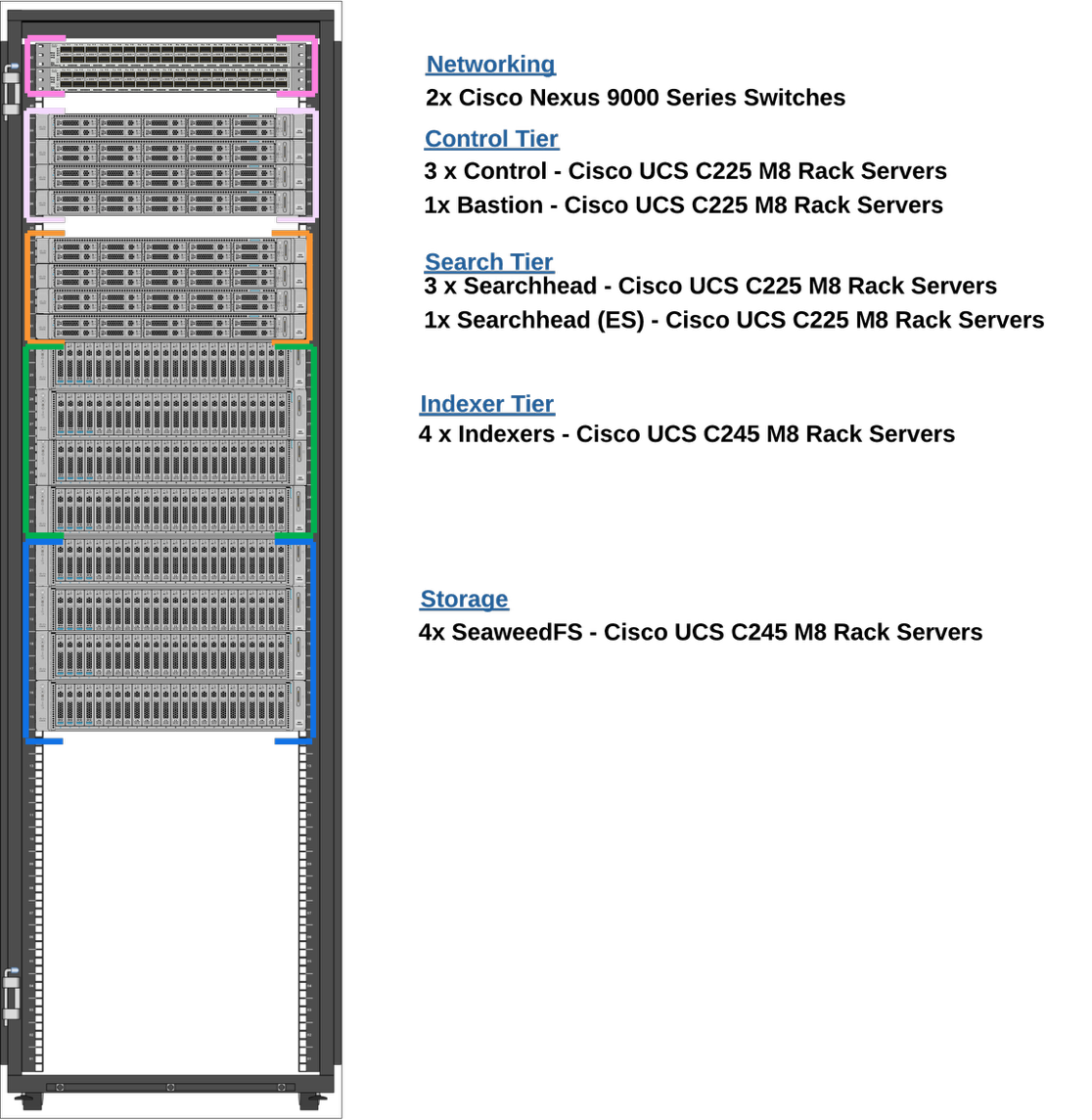
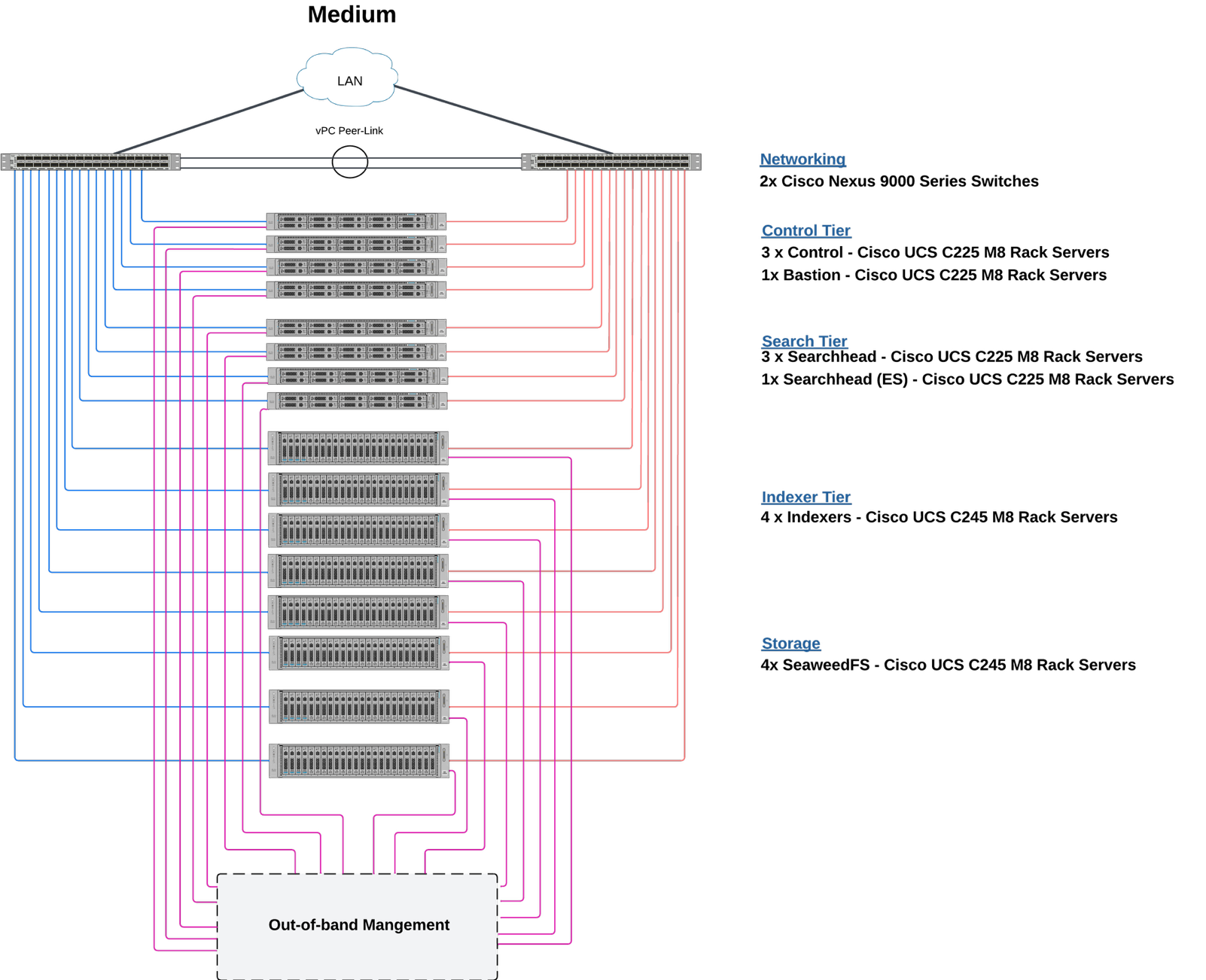
Figure 5 illustrates the Splunk POD rack configuration for the Extra-Large (NVMe) tier.
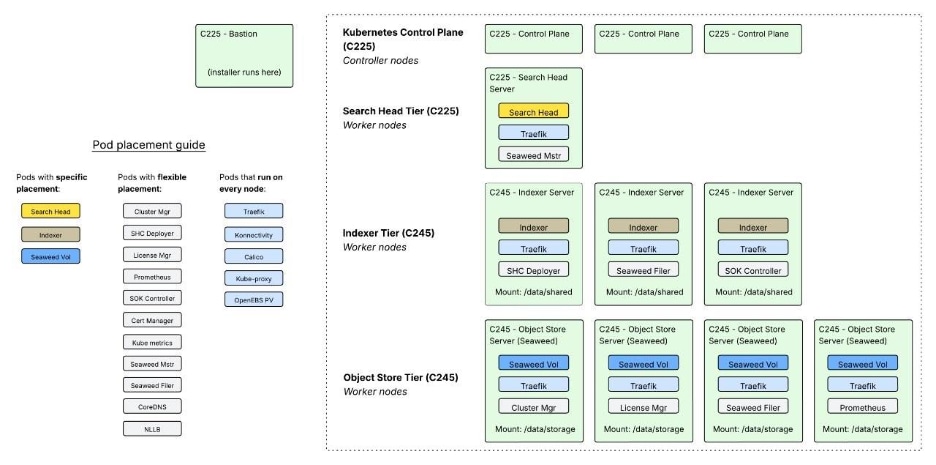
Figure 6 illustrates the Splunk POD Extra-Large (HDD) rack configuration which requires two 42U racks. It is recommended to split the nodes as evenly as possible between the two racks. For example, place half the C240’s on one rack and the other half on the other.
This reference design shows a typical network configuration for the Medium NVMe sizing option. All servers connect to Nexus switches using 100G cables.
Note: This guide does not illustrate the other sizing options.
Host Network
Connect all 100Gbps network cards on each host to the Nexus 9000 switches as shown in Figure 7. Configure the Cisco VIC adapter in Physical NIC mode with an OS HA bond to provide network redundancy for the cluster. The following sections include step-by-step instructions for configuring the VICs.
Console Network
All servers in Splunk POD have a 1Gbps console interface port. This allows you to access the virtual console and must be connected to an out-of-band switch that supports 1Gbps connections.
POD Deployment
Figure 7 illustrates where the software is deployed in relation to the hardware. Splunk POD does not utilize strict placement rules. Scheduling is generally decided by Kubernetes with one notable exception; indexers are deployed to Cisco UCS C225 machines and utilize the /mnt/splunk mount.
Ceph is also configured to use any available disk and does not require specific formatting. Ceph will detect these automatically and configure them appropriately.
Cisco UCS Install and Configure
This chapter contains the following:
● Configure Policies for Cisco Server Profile Templates for Each Server Role
This chapter details the Cisco Intersight deployed Cisco UCS C225 and Cisco UCS C240 M8 Rack Servers.
Before deploying Splunk, you must configure the UCS servers appropriately. This section contains the required procedures:
● Procedure 1. Configure Cisco UCS Rack Servers
● Procedure 2. Claim Rack Servers in Cisco Intersight Platform
● Procedure 3. Configure Cisco Intersight Account and System Settings
The compute nodes in Cisco UCS are configured using server profiles defined in Cisco Intersight. These server profiles derive all the server characteristics from various policies and templates.
Procedure 1. Configure Cisco UCS Rack Servers
Step 1. Configure CIMC To Standalone Mode; monitor the server boot process until you reach the Cisco menu and press F8 to enter Cisco IMC Configuration Utility again.
Step 2. Apply the following configuration:
- NIC mode selected to Dedicated
- IP to IPV4
- CIMC IP with an IP in the same subnet as your computer
- NIC redundancy to none
- No VLAN
- IP Address for the CIMC
- Subnet for the CIMC
- Gateway for the CIMC
- Password for the Admin user. This password will be used to log into the CIMC Console later.
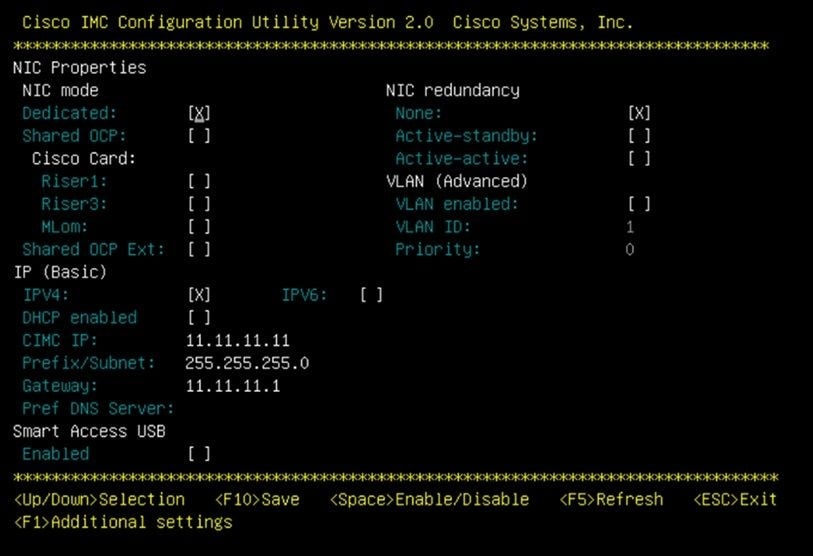
Step 3. Press F10 to save changes and reboot the server.
Step 4. Connect your computer to the physical Management Port on the server and open a web browser.
Step 5. Use the IP you configured https://x.x.x.x
Step 6. Log into the CIMC of your server by accessing https://<CIMC IP Address> and using the username and password. The user is "admin" and the password is the password set in Step 1 during CIMC configuration.
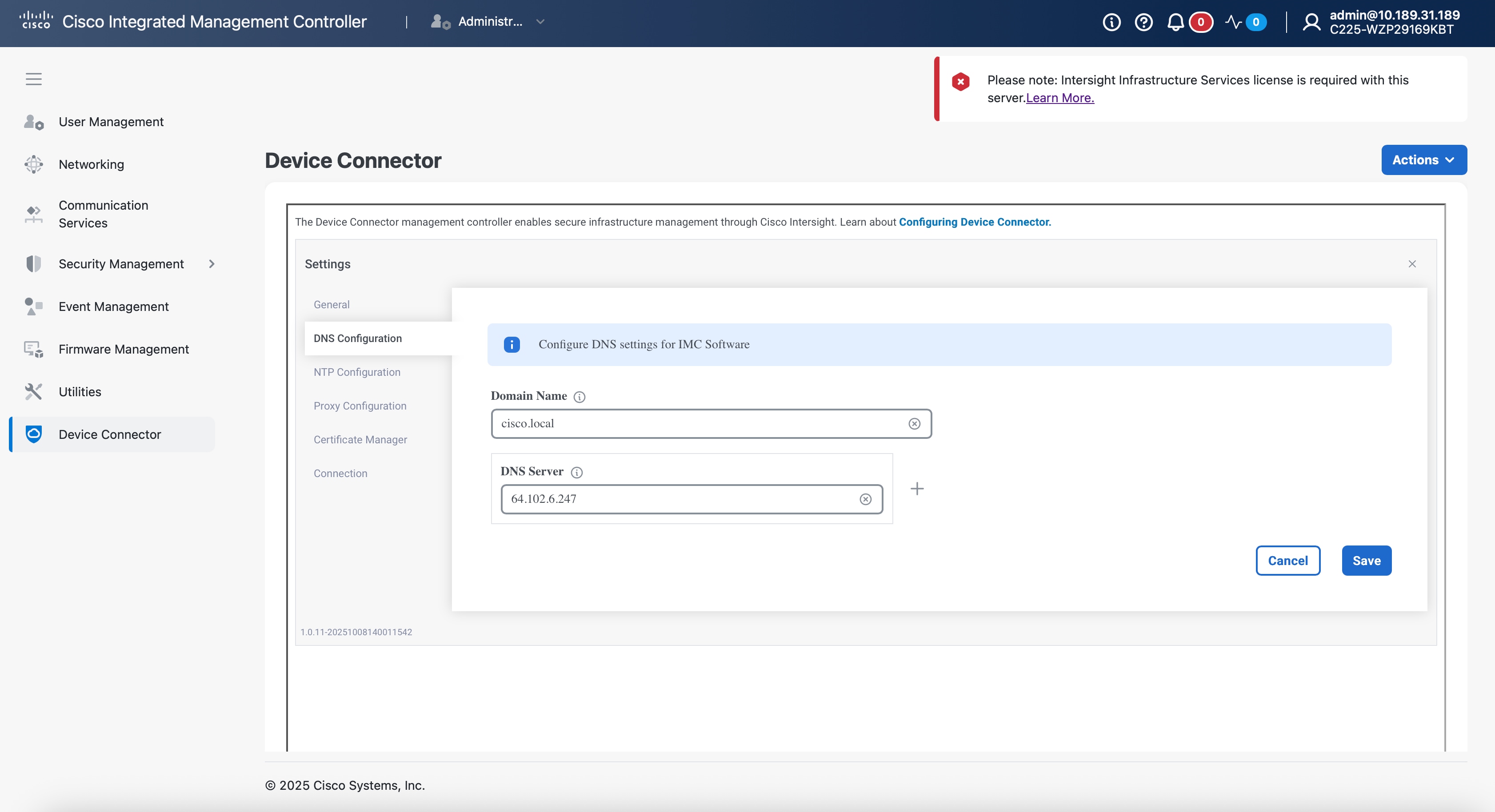
Step 7. Configure the DNS settings by entering your Domain Name and DNS Server.
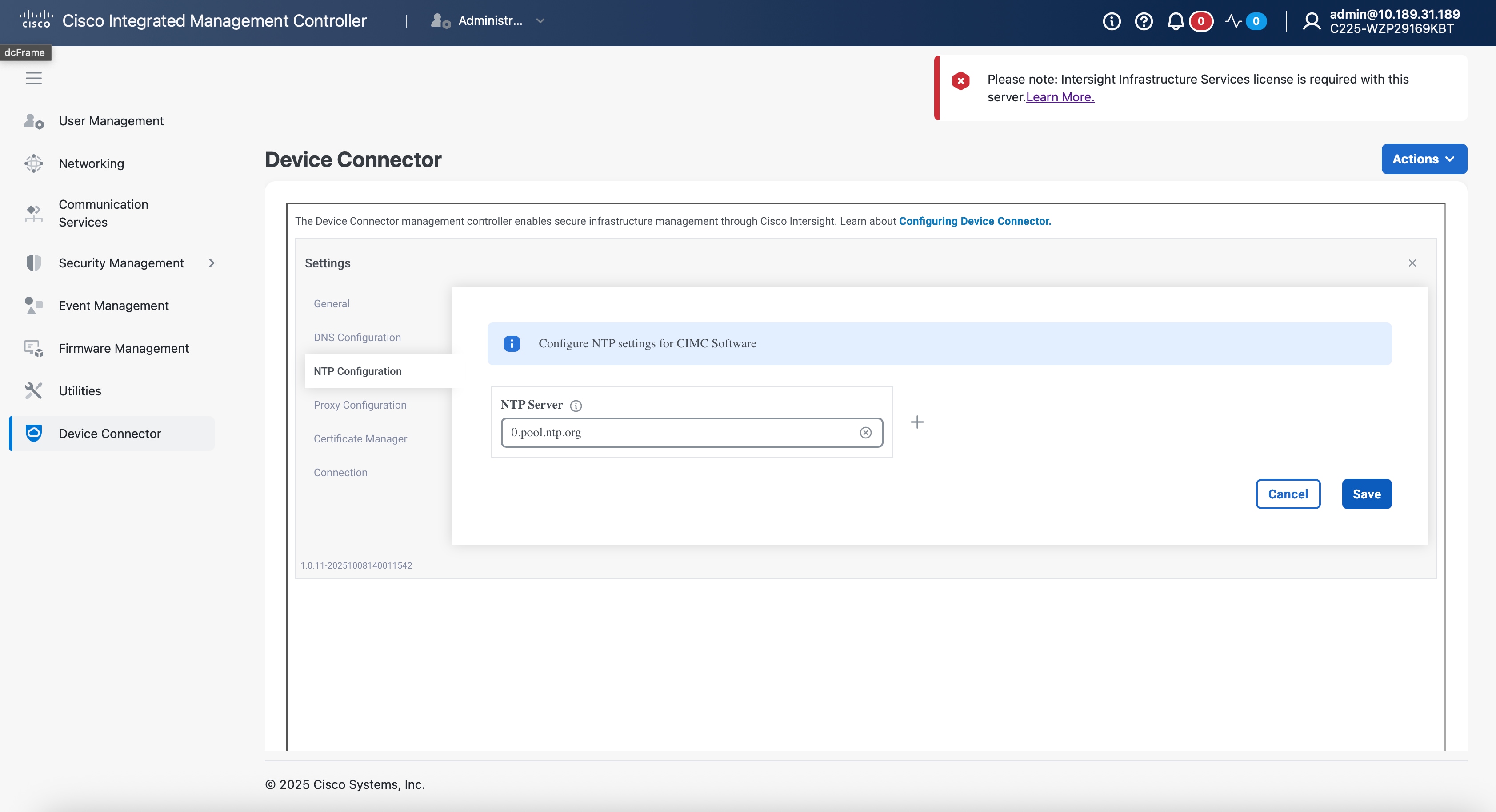
Step 8. Configure the NTP server.
Step 9. Configure any proxy you desire to use by entering its host or IP and the appropriate port.
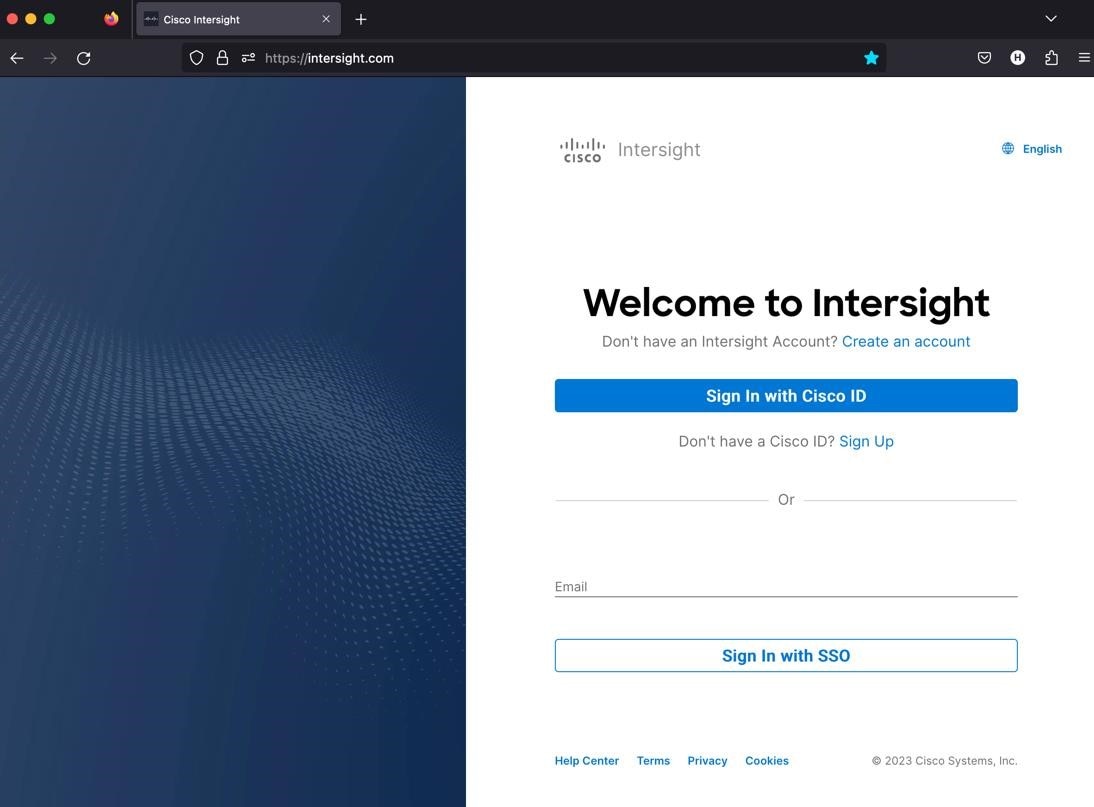
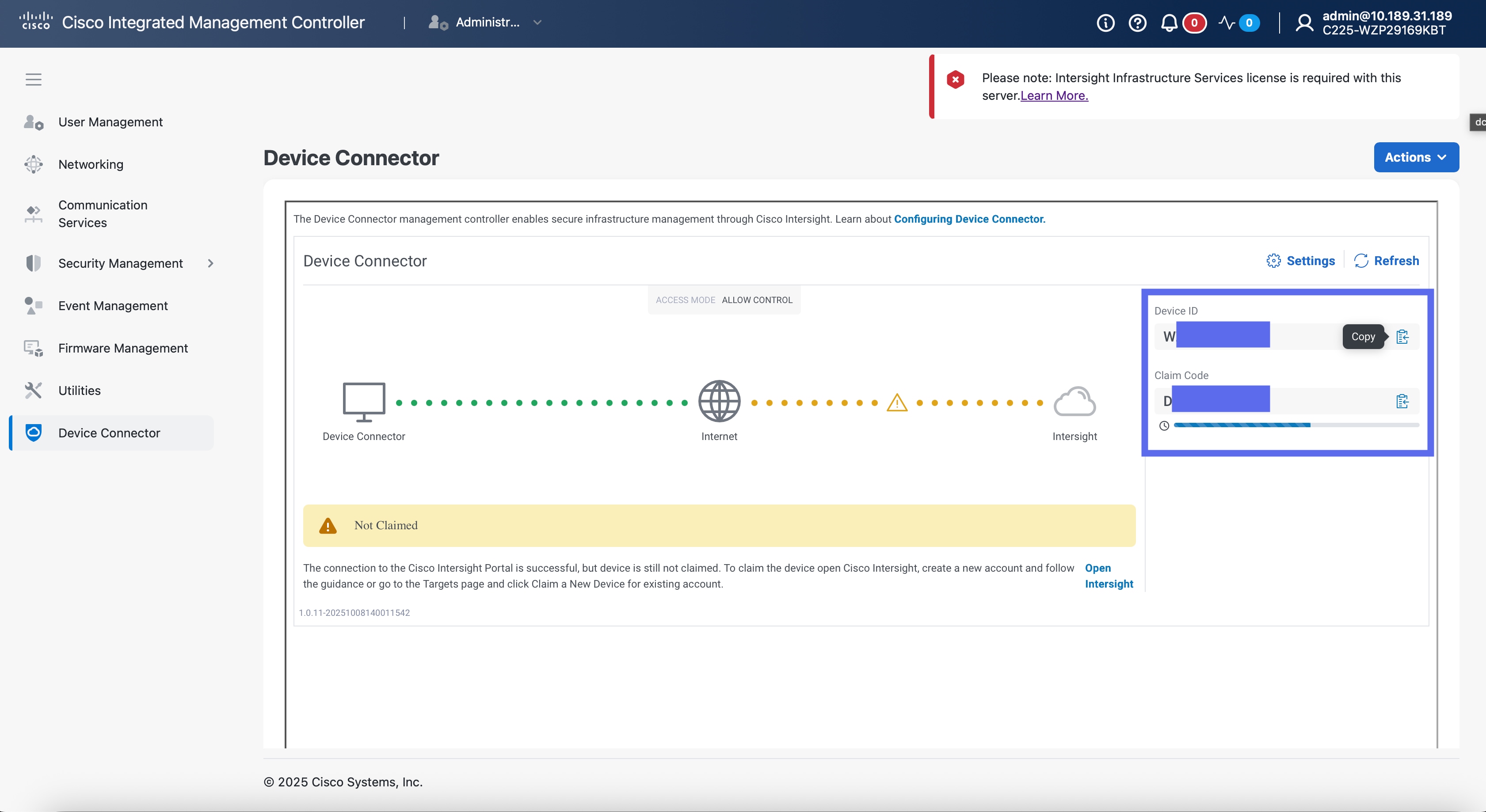
Step 10. Pause on the screen containing the device and claim codes. You will use these in the following section.
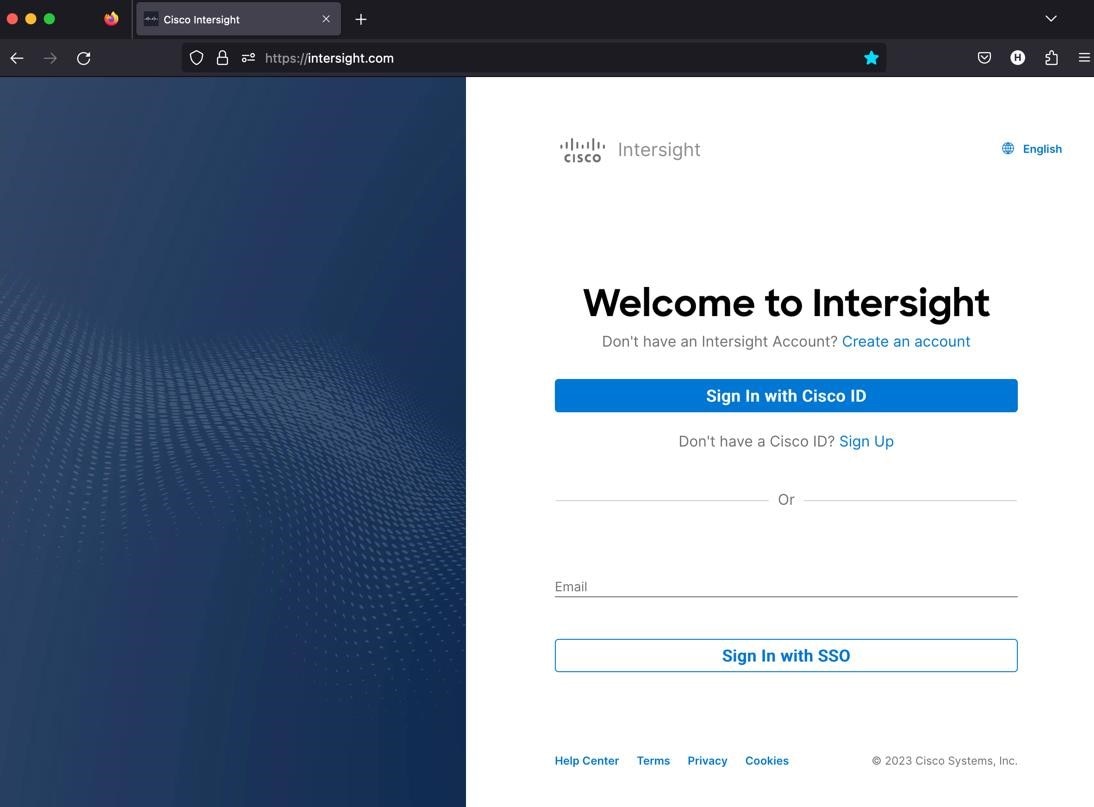
Procedure 2. Claim Rack Servers in Cisco Intersight Platform
Step 1. Go to https://intersight.com/.
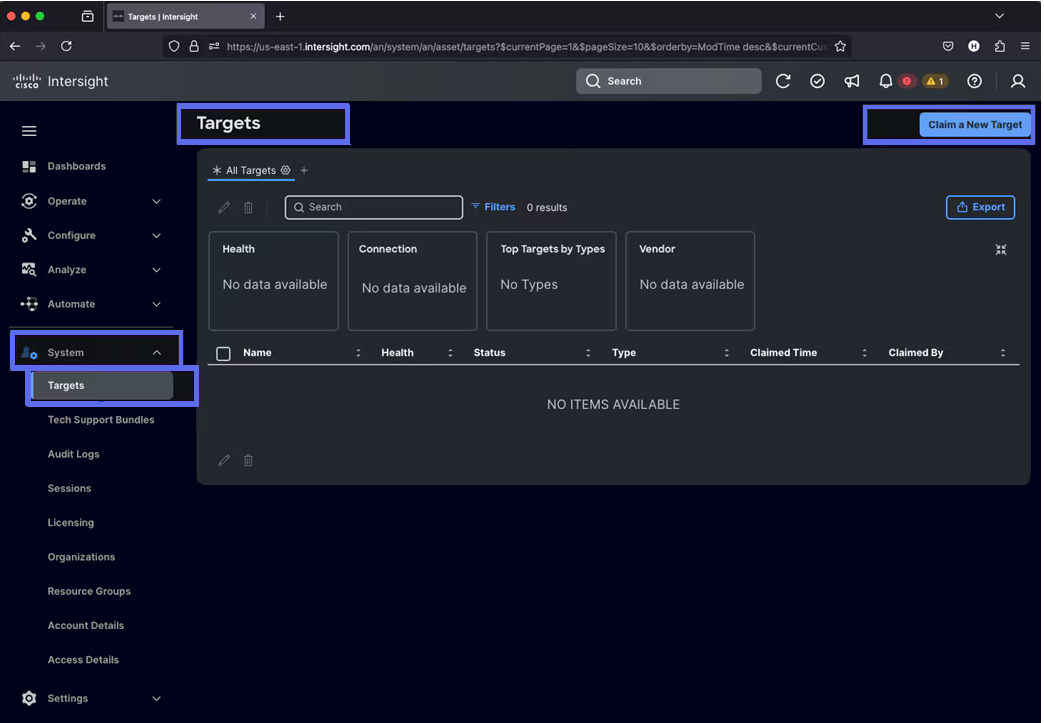
Step 2. Sign in with your Cisco ID or if you don’t have one, click Sign Up and set up your account.
Step 3. After logging into your Cisco Intersight account, go to System > Targets > Claim a New Target.
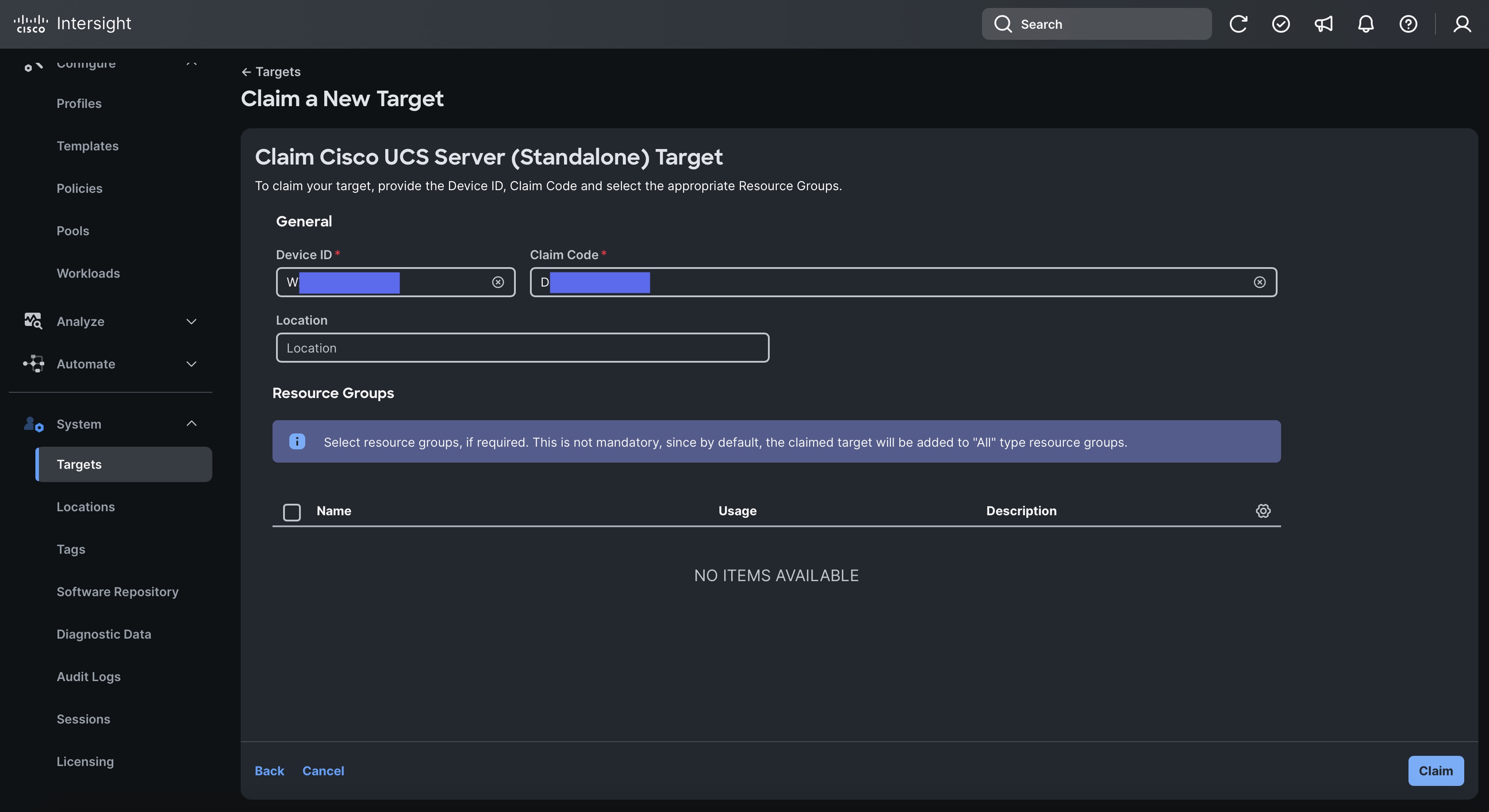
Step 4. For the Select Target Type, select Cisco UCS Server (Standalone) and click Start.
Step 5. Enter the Device ID and Claim Code which was previously captured on the CIMC page. Click Claim to claim this device in Cisco Intersight.
Step 6. Repeat this procedure for the rest of your servers.
Procedure 3. Configure Cisco Intersight Account and System Settings
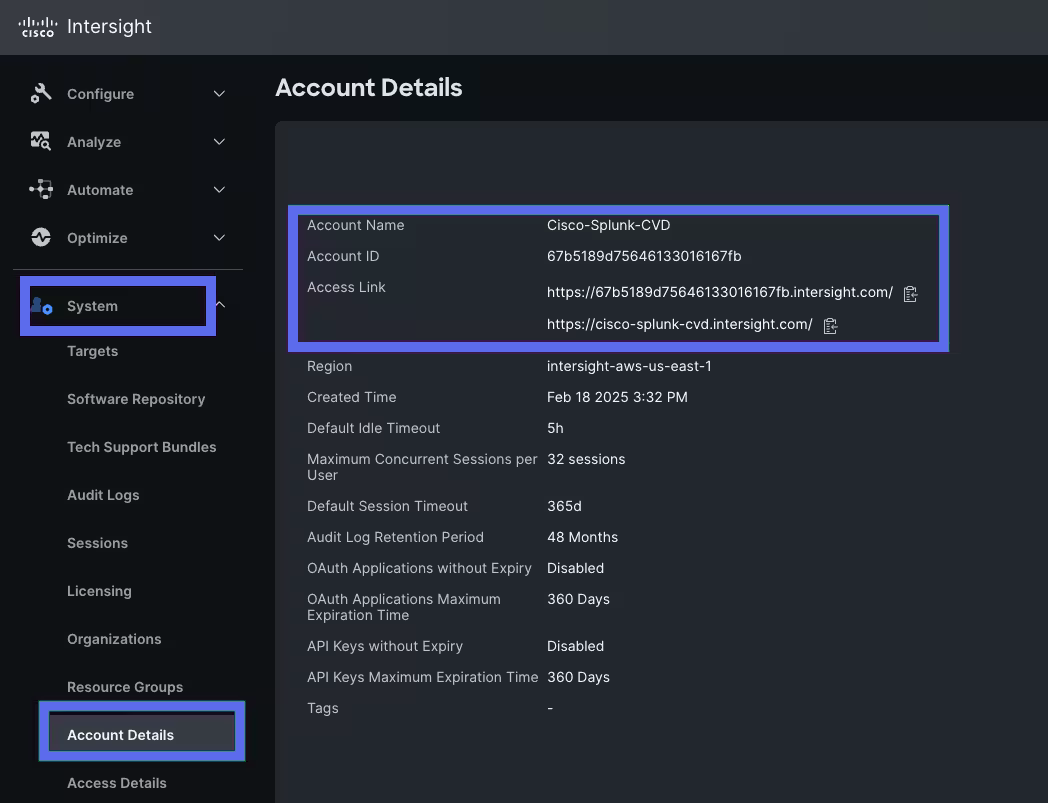
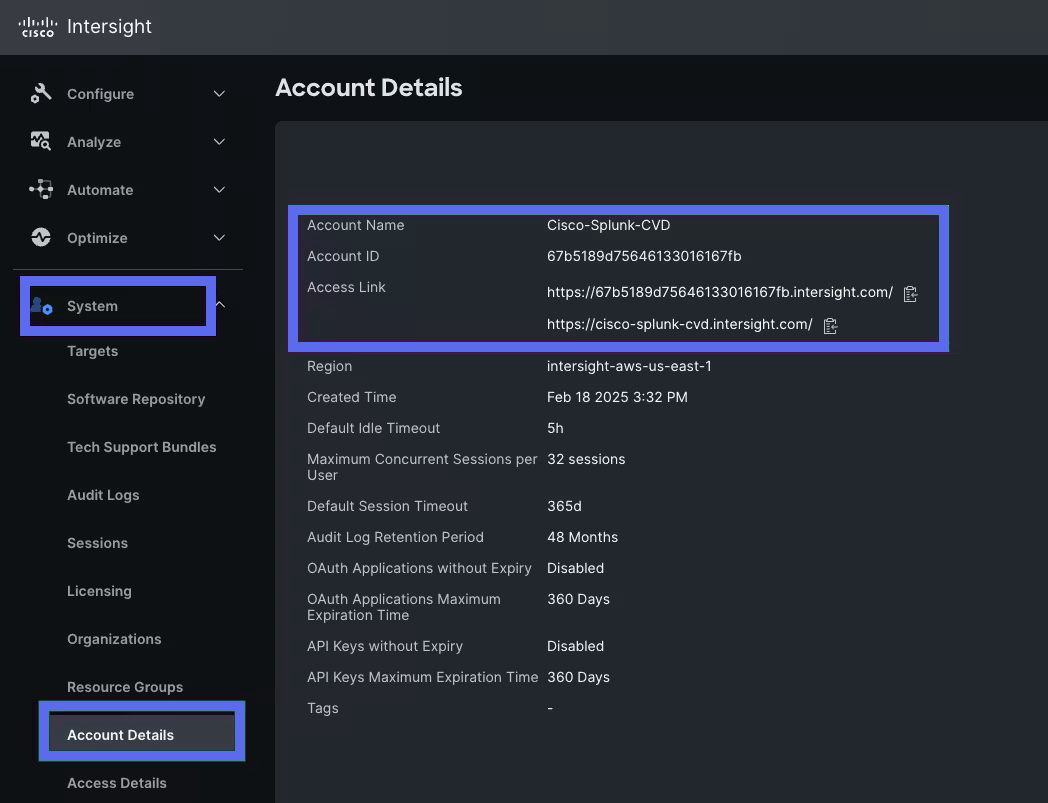
Step 1. Go to System > Account Details. For more information, see: https://intersight.com/help/saas/system/settings https://intersight.com/help/saas/system/settings
Step 2. In the System tab > Select Resource Group. Create New resource group.
Step 3. Select the Targets to be part of this resource group and click Create.
Note: For this solution, we created new resource group as “Spk-Resource” and selected all the sub-targets as shown below.
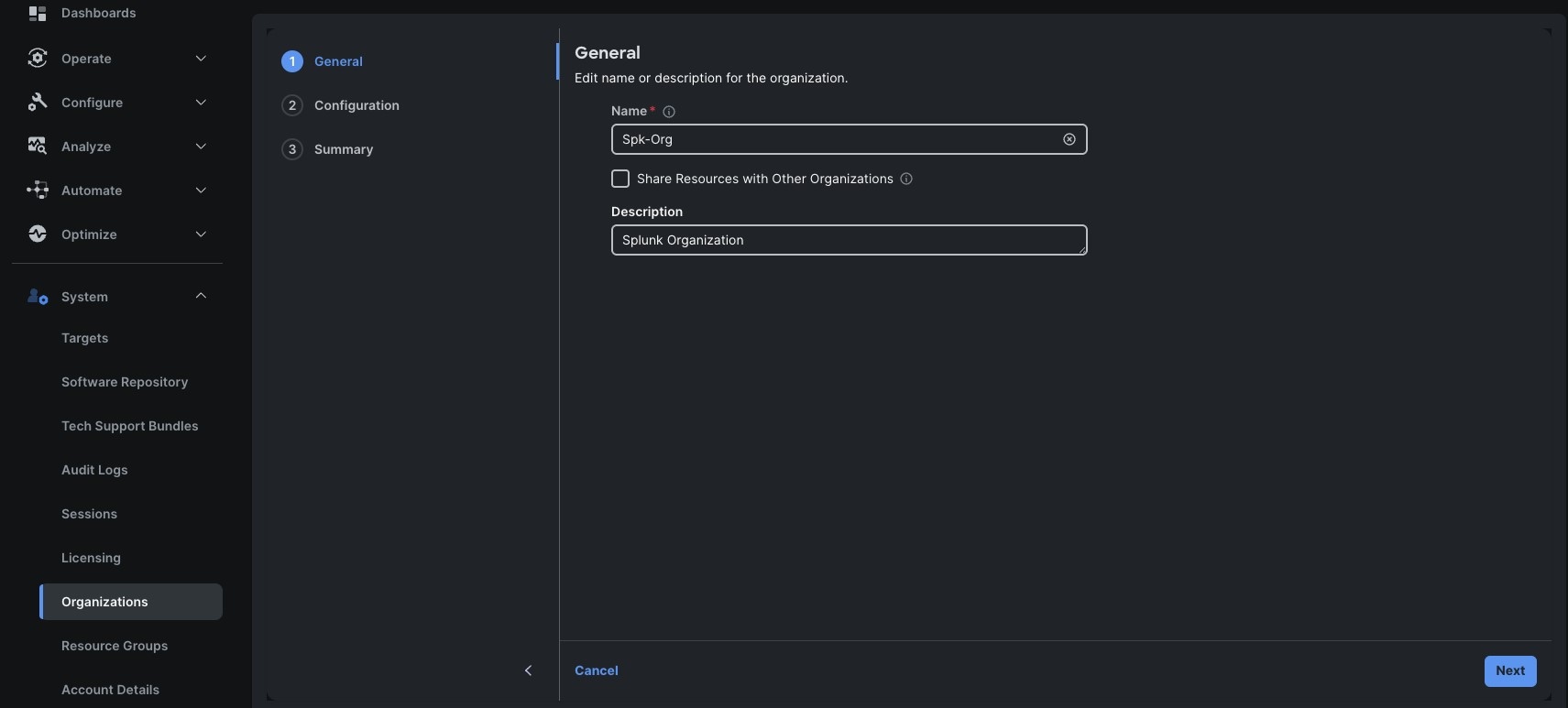
Step 4. Use the Spk-Resource group for this solution. Go to System menu, select Organizations then click Create Organization.
Step 5. Enter the name for the new Organization creation.
Step 6. (Optional) Check the box to share resources with other organizations. Click Next.
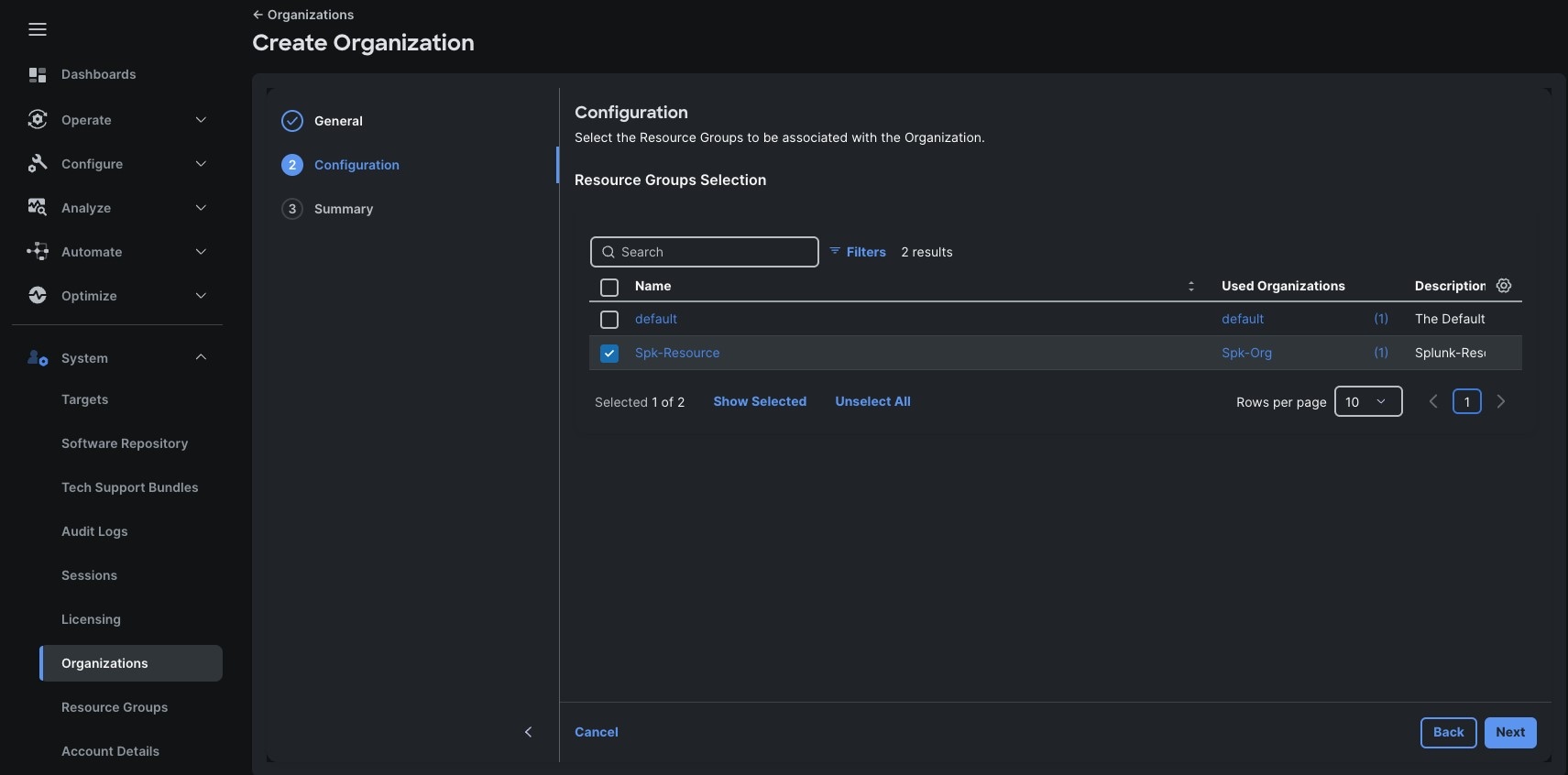
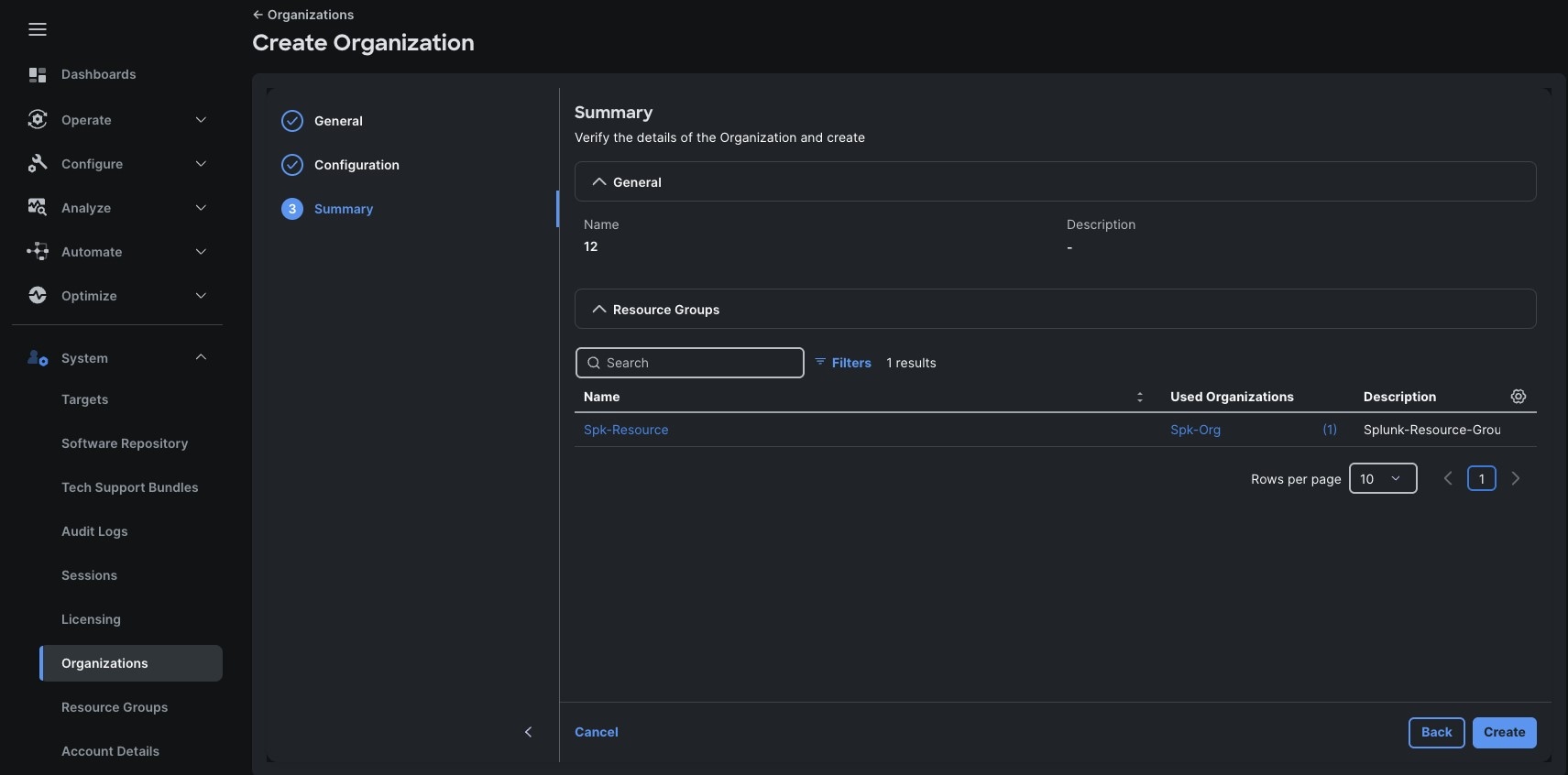
Step 7. In the configuration option, select the “Spk-Resource” configured earlier and click Next.
Step 8. Verify the summary page and then click Create to create organization with resource group for this deployment as shown below:
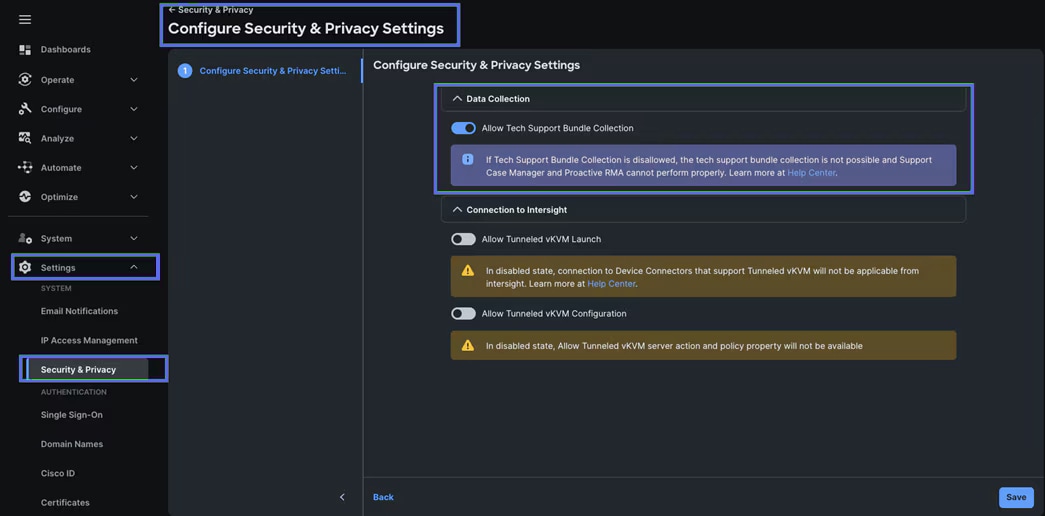
Step 9. To configure Allow Tech Support Bundle Collection, go to Settings > Security & Privacy > and enable the option and then click Save.

Configure Policies for Cisco Server Profile Templates for Each Server Role
A server profile enables resource management by simplifying policy alignment and server configuration. The server profile wizard groups the server policies into the following categories to provide a quick summary view of the policies that are attached to a profile:
● Compute Configuration: BIOS, Boot Order, and Virtual Media policies.
● Management Configuration: Certificate Management, IMC Access, IPMI (Intelligent Platform Management Interface) Over LAN, Local User, Serial Over LAN, SNMP (Simple Network Management Protocol), Syslog and Virtual KVM (Keyboard, Video, and Mouse).
● Storage Configuration: SD Card, Storage.
● Network Configuration: LAN connectivity and SAN connectivity policies.
Some of the characteristics of the server profile template for this solution are as follows:
● BIOS policy is created to specify various server parameters in accordance with CPU manufacturer’s best practices.
● Boot order policy defines virtual media (KVM mapper DVD) and local boot through M.2 SSD.
● IMC access policy defines the management IP address pool for KVM access.
● LAN connectivity policy is used to create a bonded network for increased network performance.
This section contains the following procedures to configure the various Cisco UCS Server Templates. It details:
● Procedure 1. Create UUID Pool
● Procedure 2. Configure BIOS Policy
● Procedure 3. Create Boot Order Policy
● Procedure 4. Create an Adapter Policy
● Procedure 5. Create Storage Policy
● Procedure 6. Configure Ethernet Network Policy
● Procedure 7. Configure MAC Pool
● Procedure 8. Configure Ethernet Adapter Policy
● Procedure 9. Configure Ethernet QoS Policy
● Procedure 10. Configure LAN Connectivity Policy
● Procedure 11. Create Server Profile Template
● Procedure 12. Assign and Deploy Server Profiles
Procedure 1. Configure UUID Pool
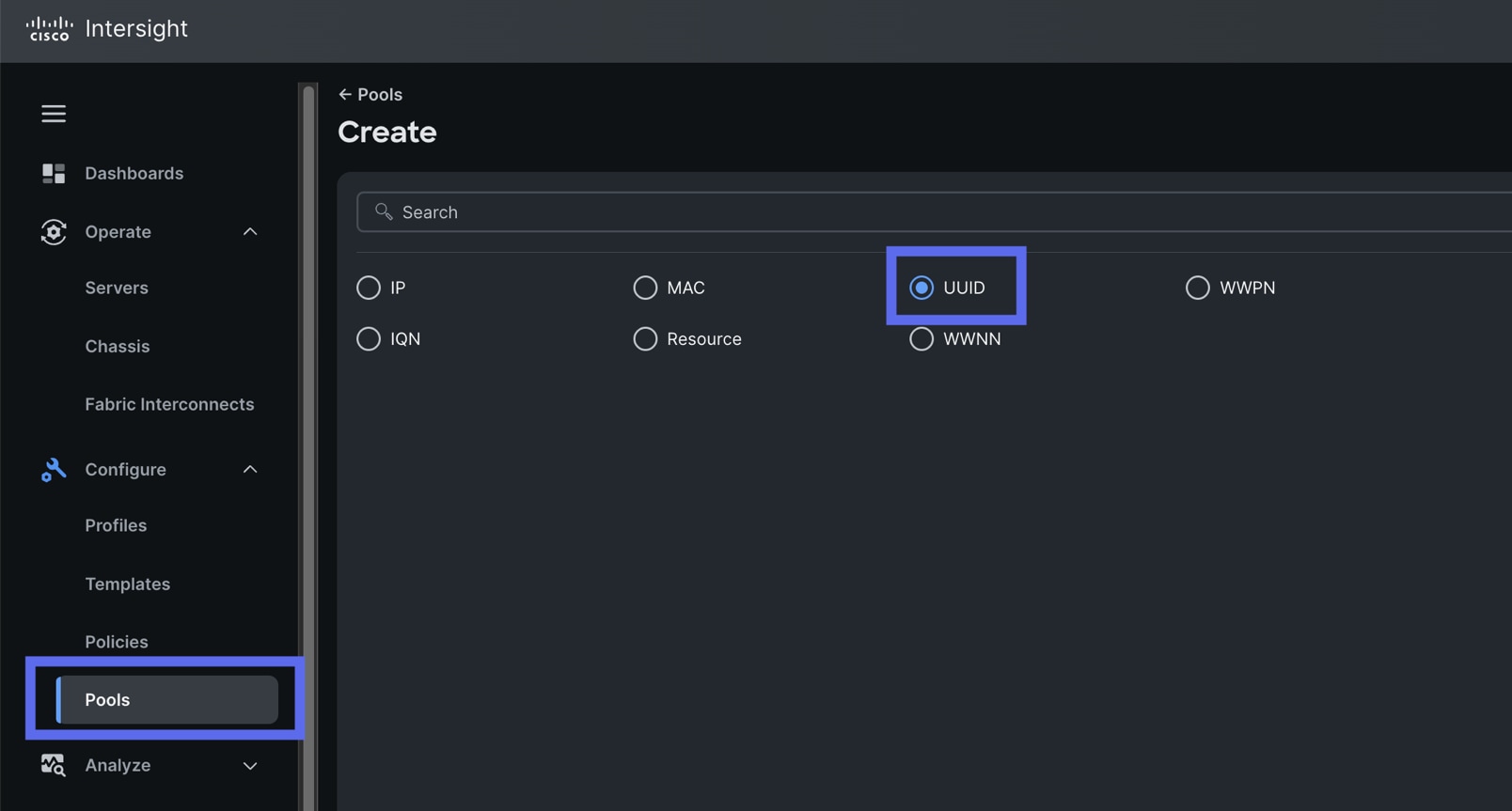
Step 1. To create UUID Pool for a Cisco UCS, go to Configure > Pools > and click Create Pool. Then Select UUID.
Step 2. In the UUID Pool Create section, for the Organization, select “Spk-Org” and for the Policy name “Spk-UUID.” Click Next.
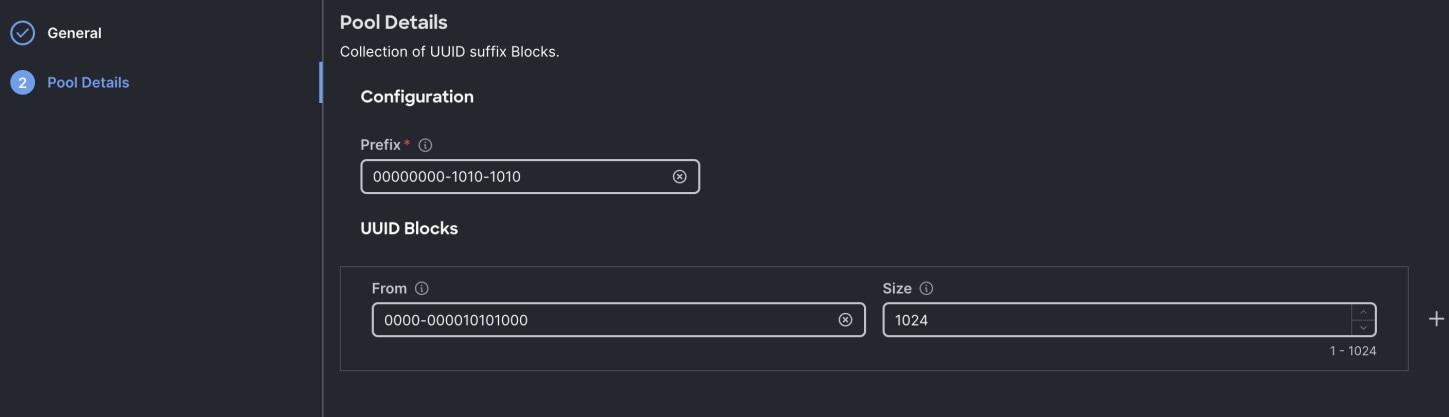
Step 3. Select Prefix, UUID block and size according to your environment and click Create as shown below:
Procedure 2. Configure BIOS Policy
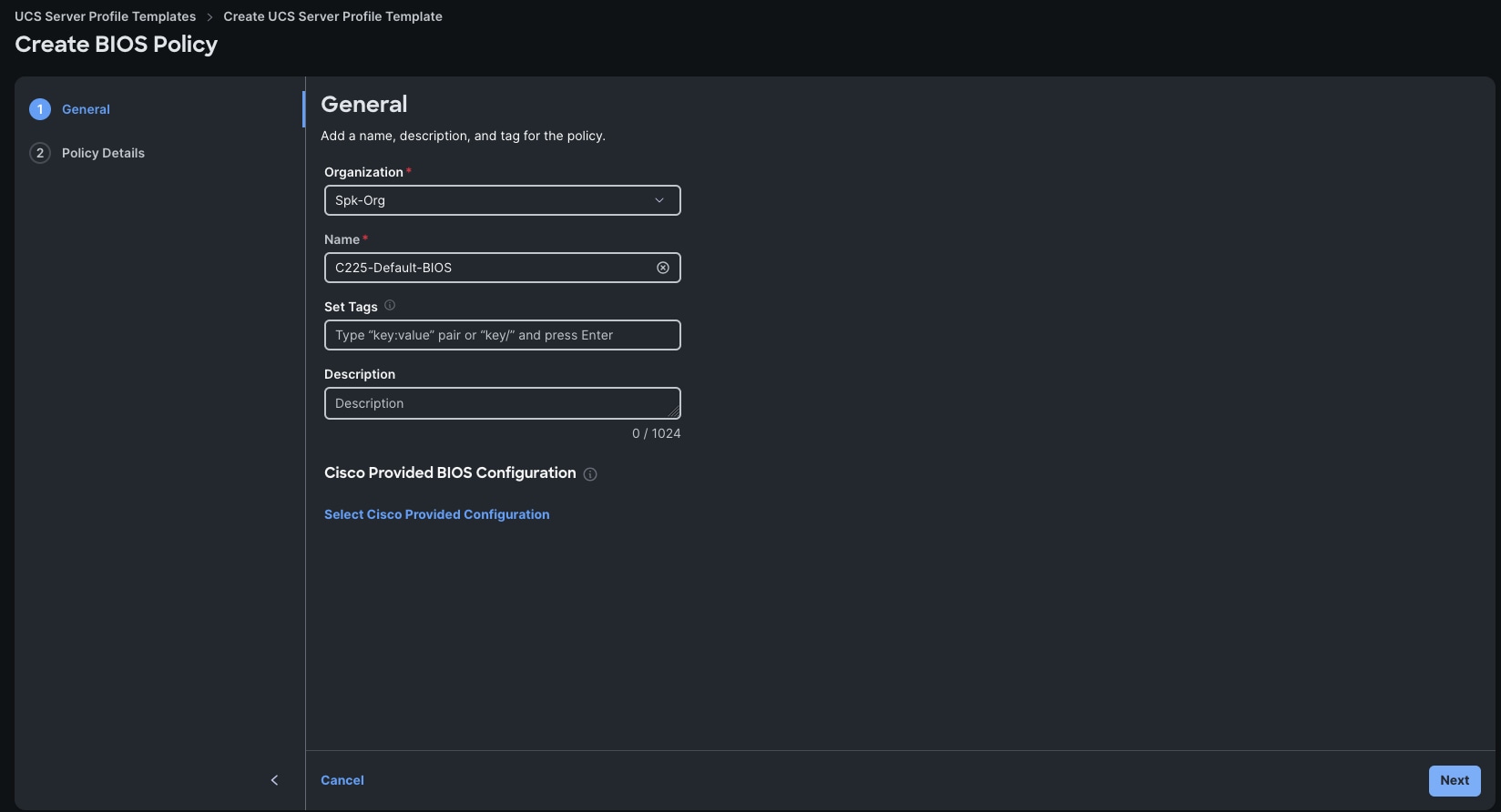
Note: Not all BIOS tokens are applicable to every server. If unsupported tokens are pushed to a server, those tokens are ignored. The BIOS Policy we configure is a superset of Intel and AMD policies.
Table 17. BIOS recommendations for Splunk Analytical Enterprise Workloads
| DF C-States |
Auto (Enabled) |
Disabled |
| Intel HyperThreading Tech |
Auto |
Enabled |
| Memory |
||
| NUMA nodes per socket |
Auto (NPS1) |
Auto |
| IOMMU |
Auto (Enabled) |
Auto |
| Memory interleaving |
Auto (Enabled) |
Auto |
| Power/Performance |
||
| Core performance boost |
Auto (Enabled) |
Auto |
| Global C-State control |
Auto (Enabled) |
Disabled |
| L1 Stream HW Prefetcher |
Auto (Enabled) |
Auto |
| L2 Stream HW Prefetcher |
Auto (Enabled) |
Auto |
| Determinism Slider |
Auto (Power) |
Power |
| Enhanced CPU performance* |
Disabled |
Disabled |
| CPPC |
Auto (Disabled) |
Disabled |
| Power profile selection F19h |
Auto |
High-performance mode |
| BIOS Option |
Default |
Required |
| Processor |
||
| CPU SMT mode |
Enabled |
Enabled |
| SVM mode |
Auto (Enabled) |
Enabled |
| ACPI SRAT L3 Cache as NUMA Domain |
Auto (Disabled) |
Auto |
| APBDIS |
Auto (0) |
1 |
| Fixed SOC P-State SP5F 19h |
Auto (P0) |
0 |
| 4-link xGMI max speed* |
Auto (32Gbps) |
Auto |
Step 1. Go to Configure > Policies > and select Platform type as UCS Server and select on BIOS and click Start.
Step 2. In the BIOS create general menu, for the Organization, select Spk-Org and for the Policy name enter Default-BIOS. Click Next.
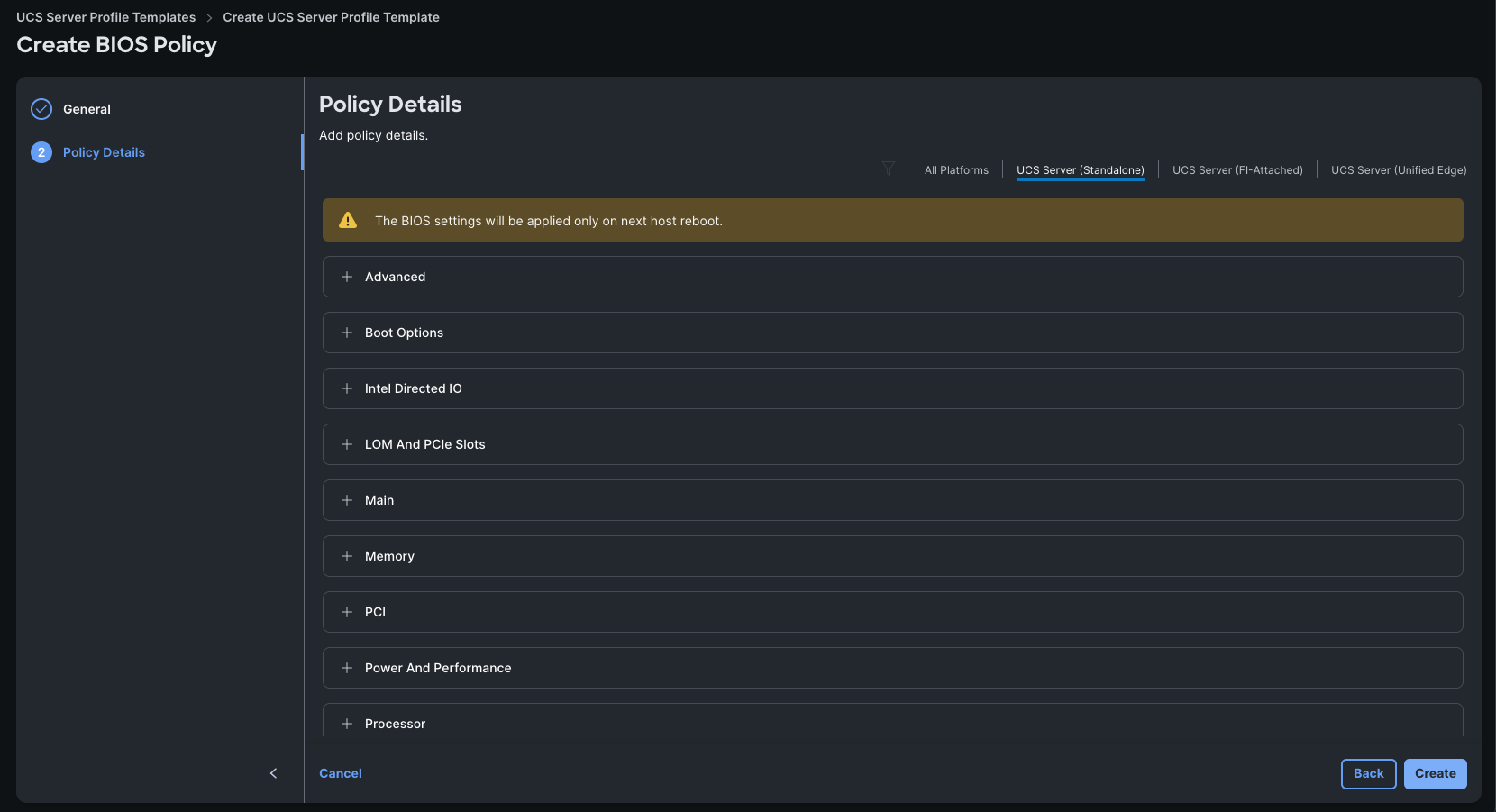
Step 3. Apply the parameters from the above table to configure the BIOS.
Step 4. Click Create to create the BIOS policy.
Procedure 3. Create Boot Order Policy
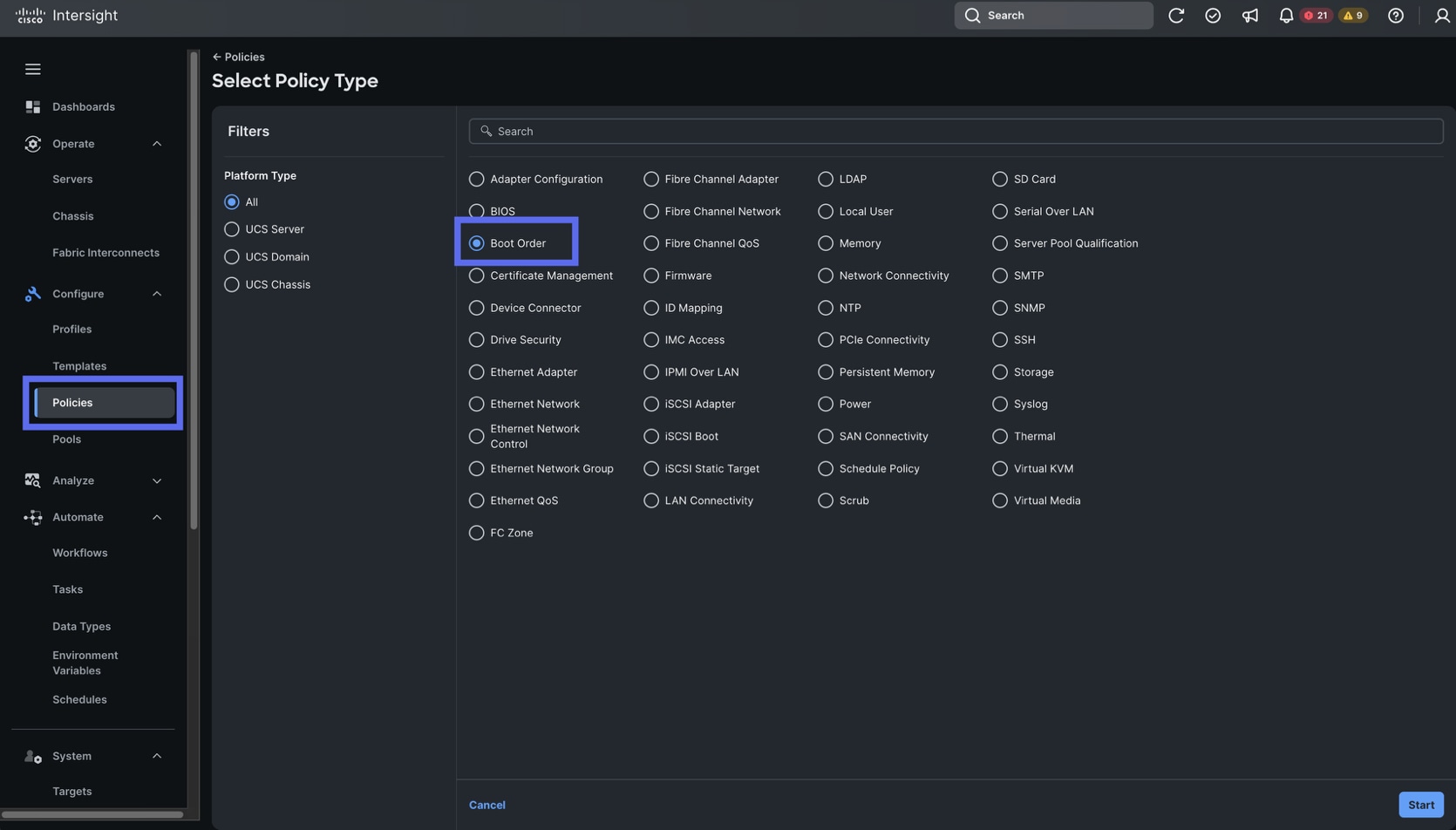
Step 1. To configure Boot Order Policy for a Cisco UCS Server Profile template profile, go to Configure > Policies > and click Create Policy. Select UCS Server and then Boot Order. Click Start.
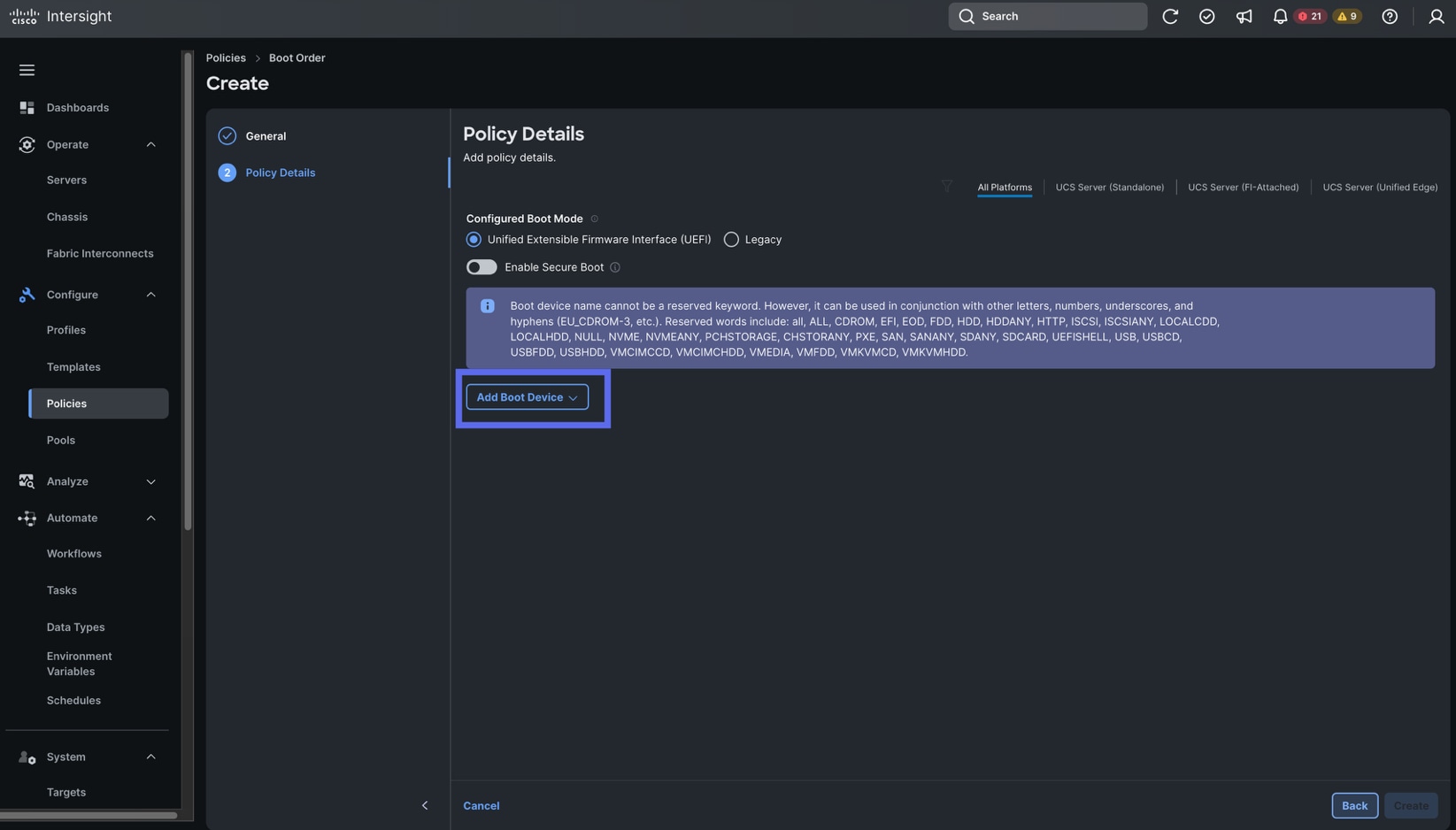
Step 2. Select Unified Extensible Firmware Interface (UEFI) and select UCS Server (Standalone).
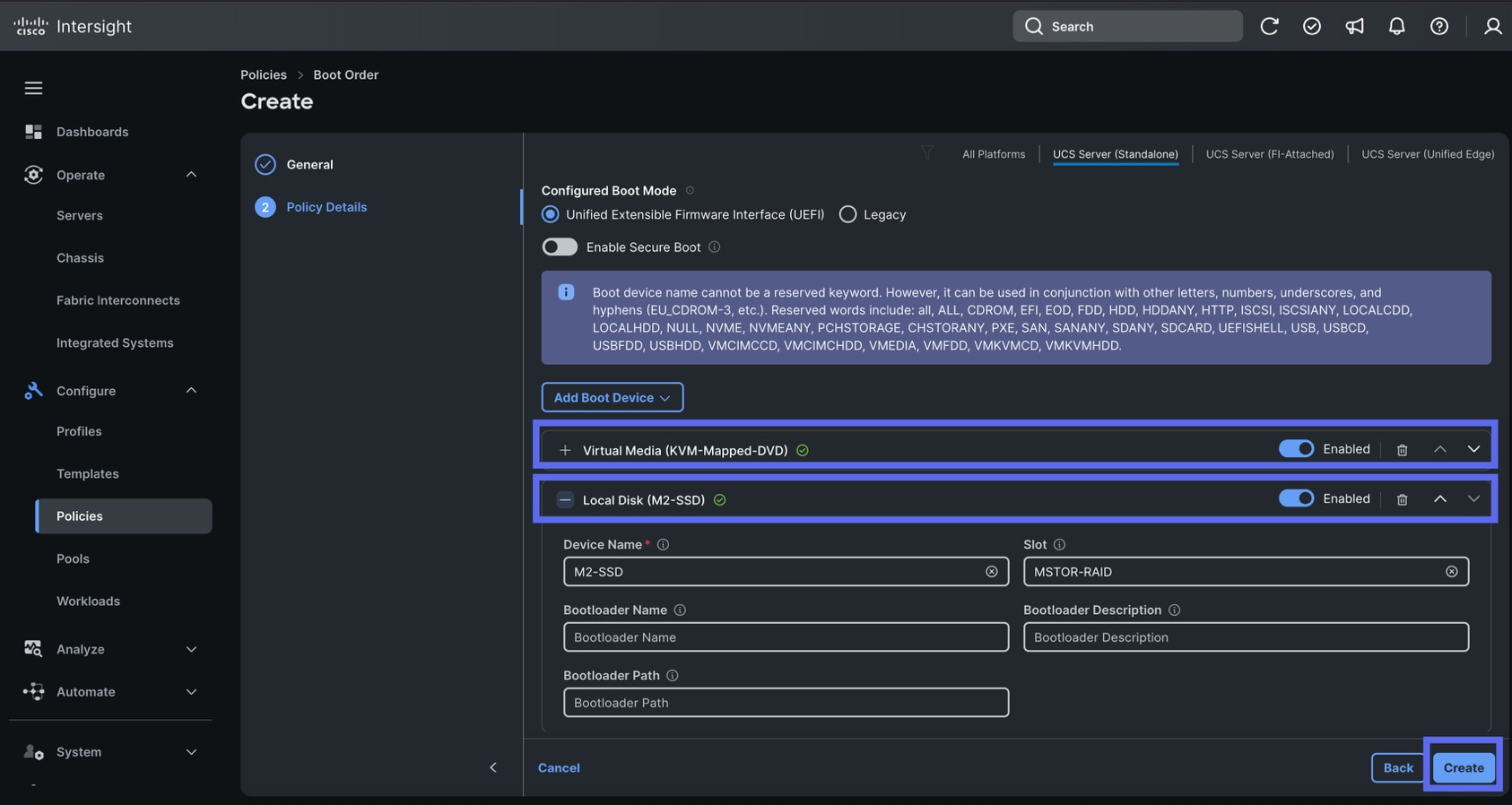
Step 3. Create the first Boot Device by clicking Add Boot Device. For Device Name, enter “KVM-Mapped-DVD” and for Sub-Type, select KVM MAPPED DVD.
Step 4. Create the second Boot Device by clicking Add Boot Device again. For Device Name, enter “M2-SSD” and for Slot, enter “MSTOR-RAID.”
Step 5. Ensure both slots are set to Enabled then click Create.
Procedure 4. Create An Adapter Policy
In this procedure, you will configure the network adapter policy for the servers
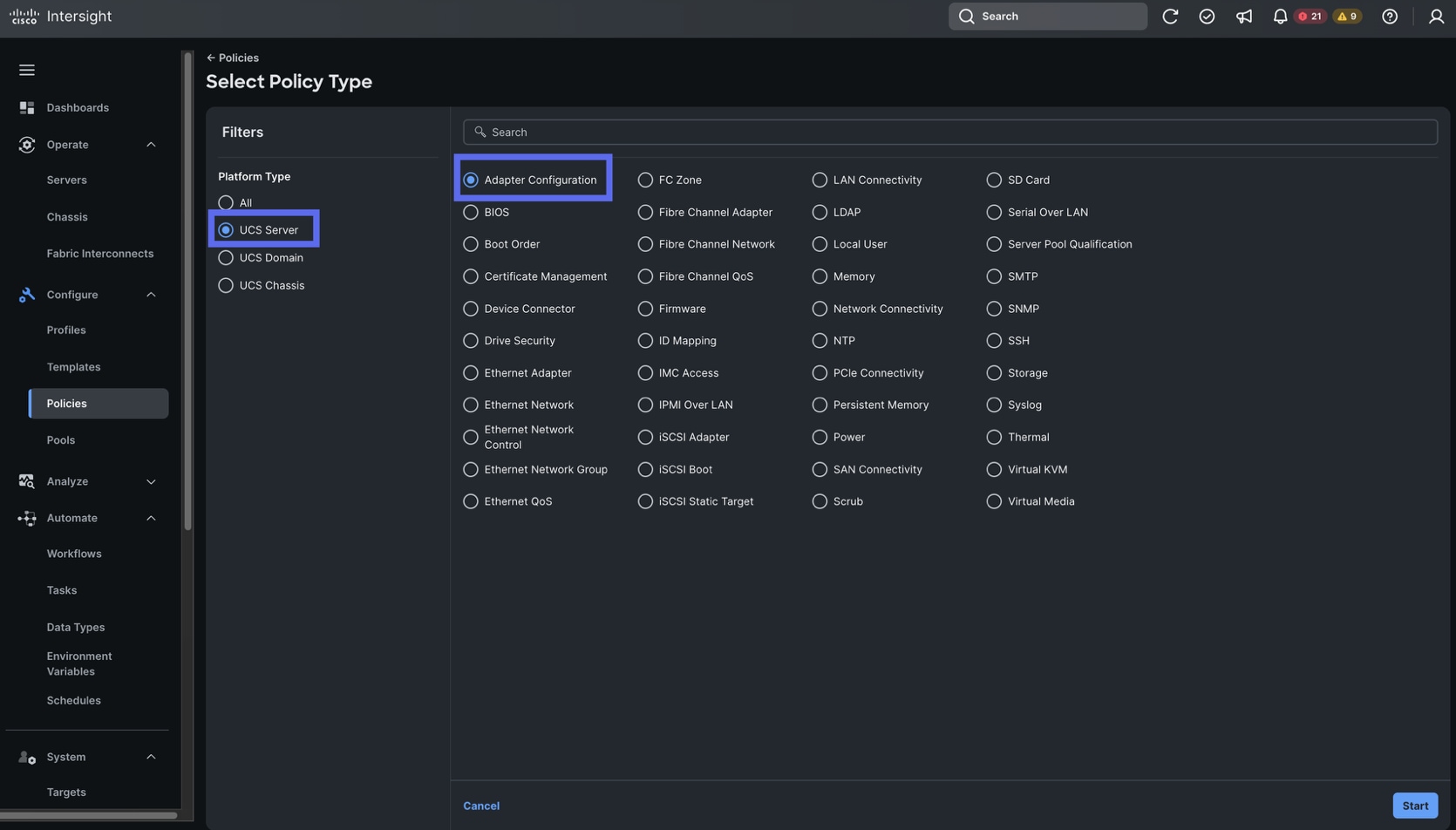
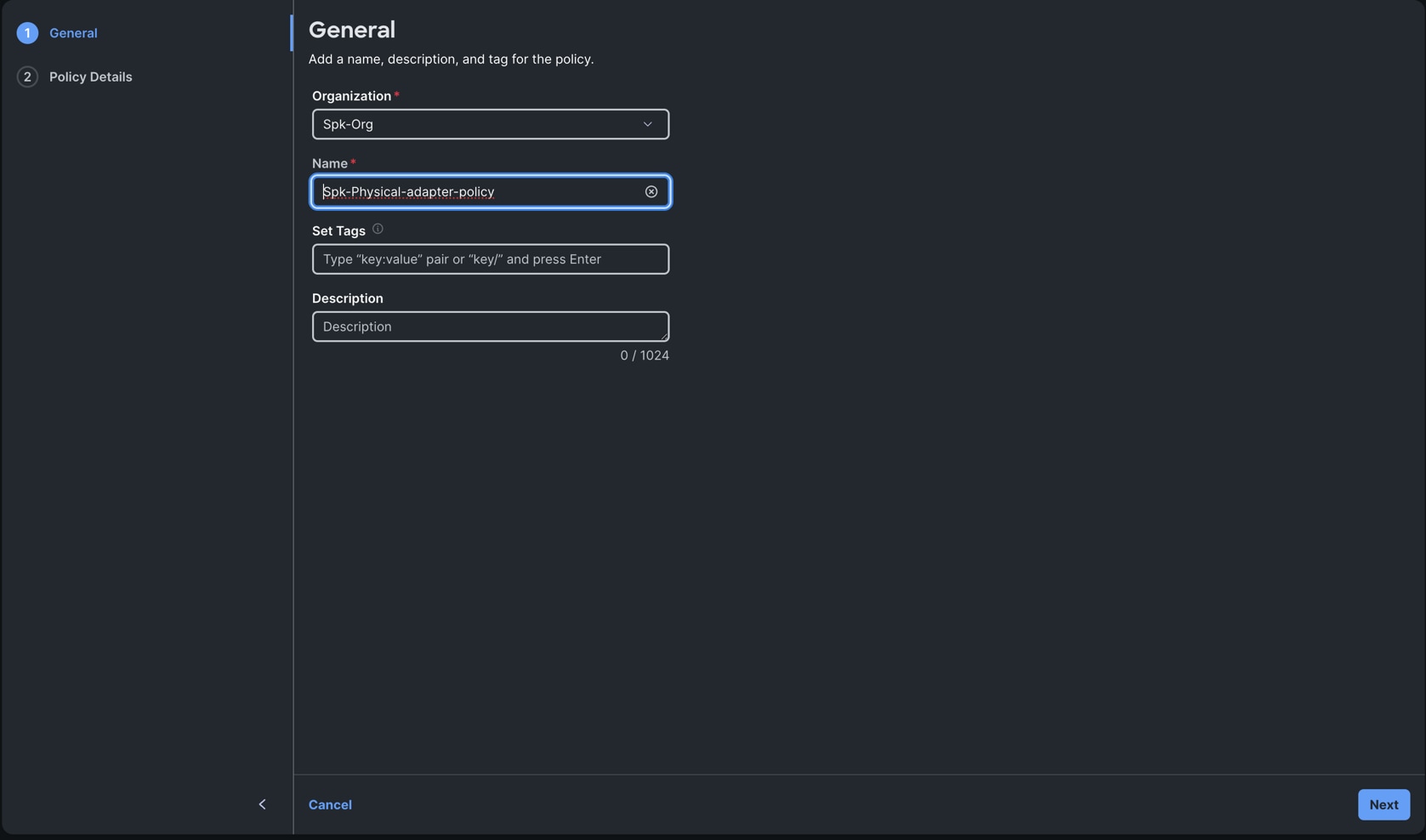
Step 1. Go to Configure > Policies > and click Create Policy. For the Platform Type, select UCS Server, for the Policy select Adapter Configuration. Click Start.
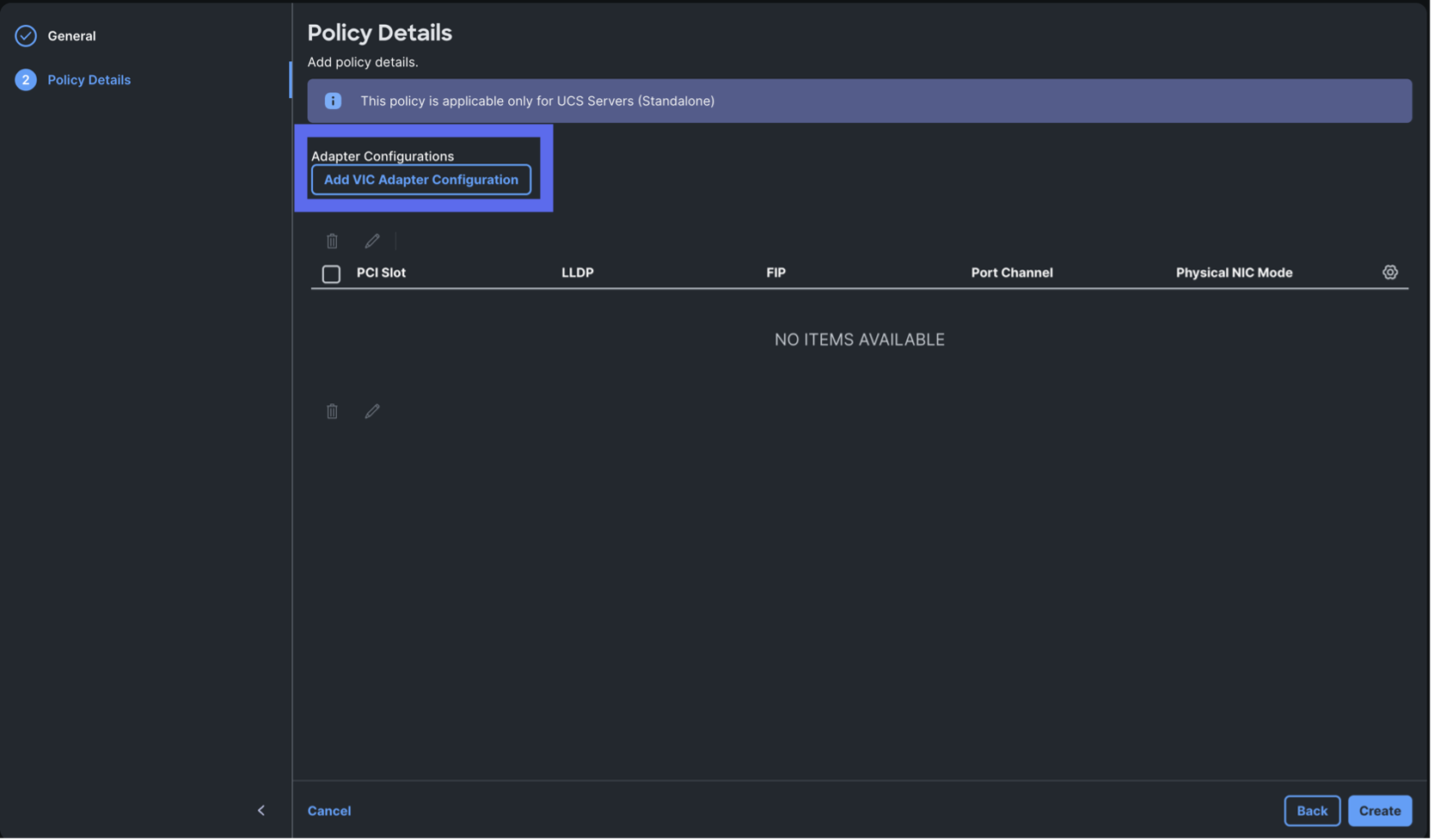
Step 2. Select Spk-Org for Organization and name the policy “Spk-Physical-adapter-policy.” Click Next.
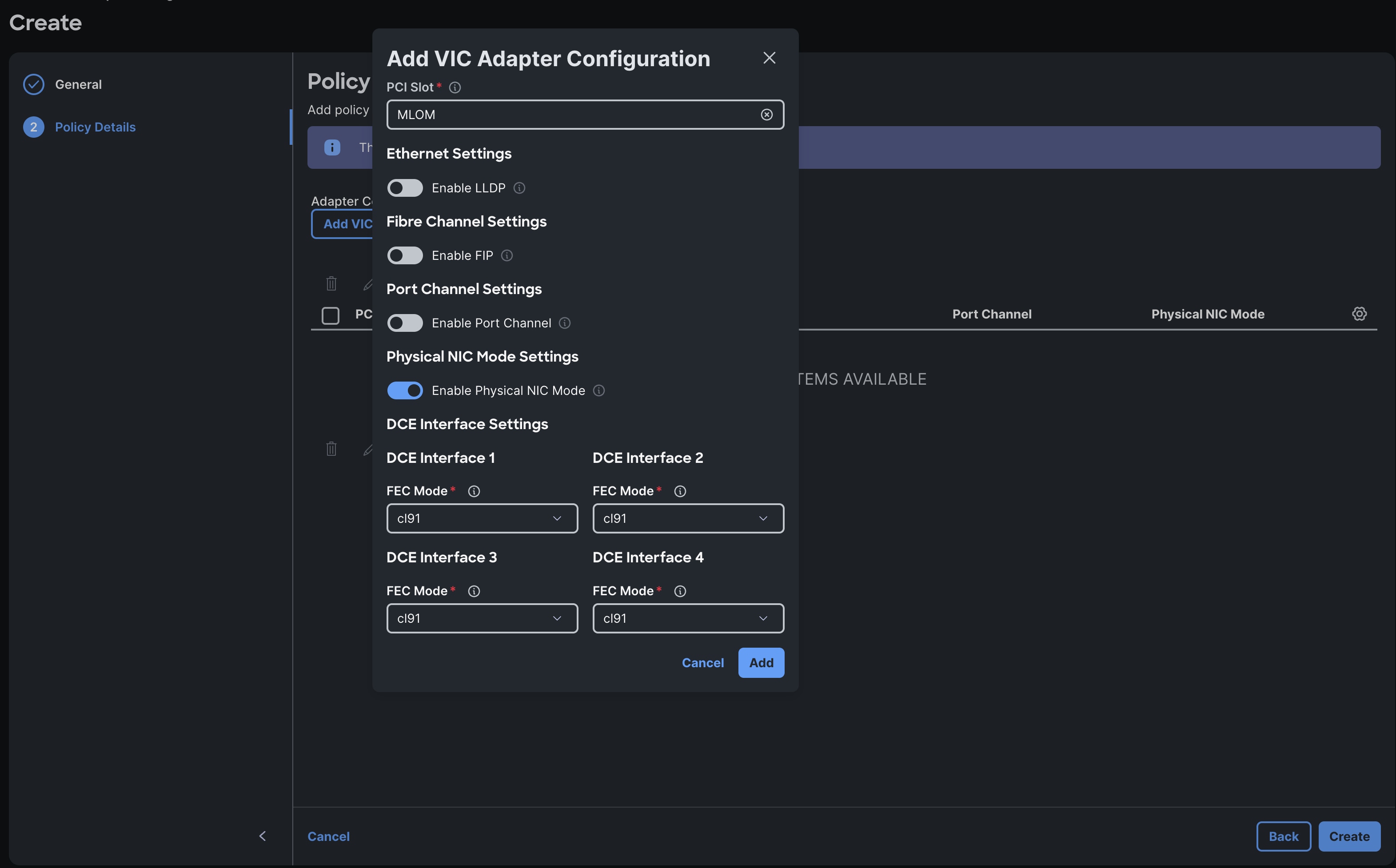
Step 3. Click Add VIC Adapter Configuration.
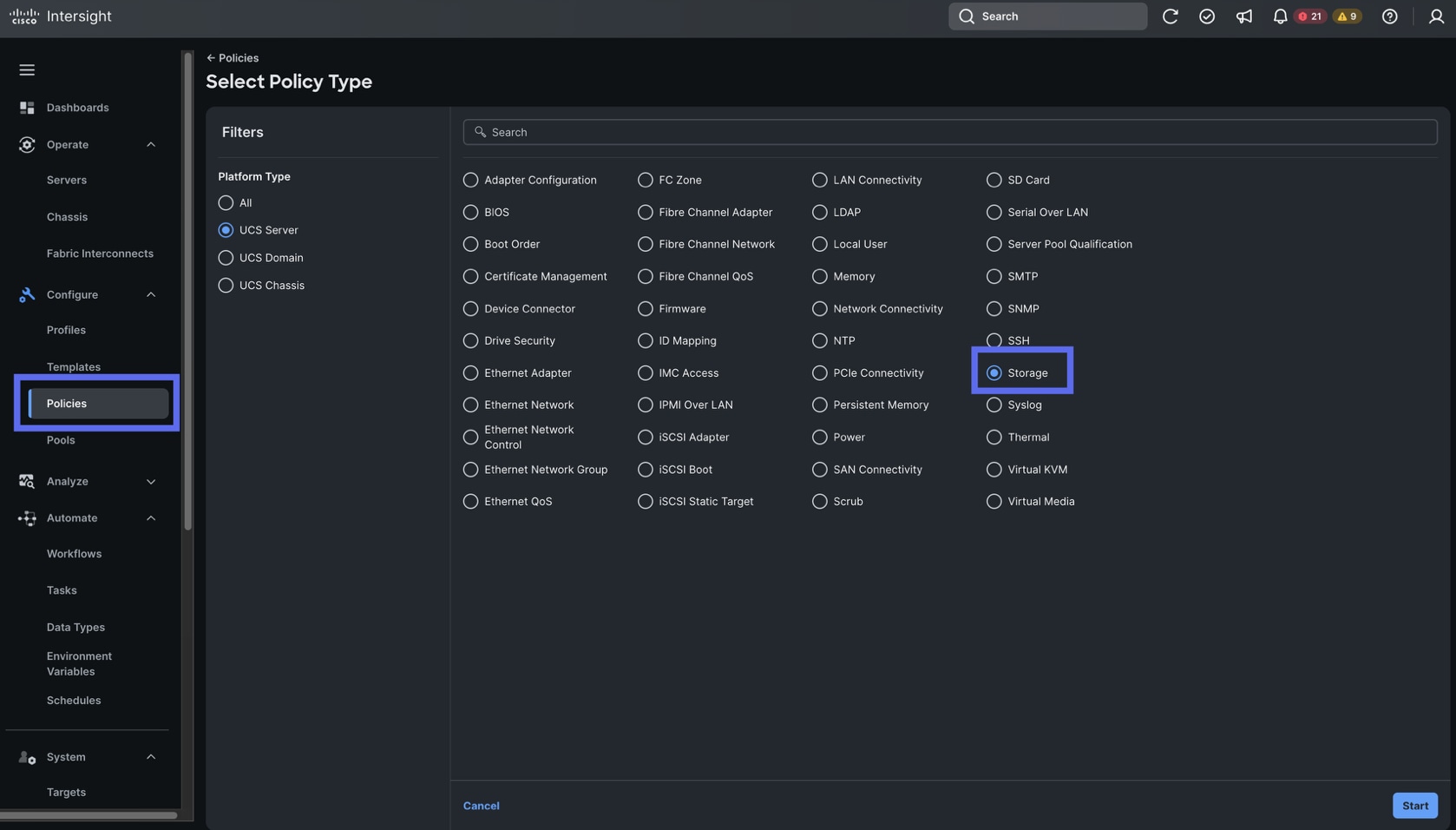
Step 4. Update the Configuration with the following parameters:
- Set the PCI slot to MLOM
- Disable LLDP
- Disable FIP
- Disable Port Channel
- Enable Physical NIC Mode
- FEC Mode for all interfaces is cl91
Step 5. Click Add.
Step 6. Click Create.
Procedure 5. Create Storage Policy
In this procedure, you will configure the storage policies for the Cisco UCS C225 and C240’s. Both servers can utilize the same storage policies.
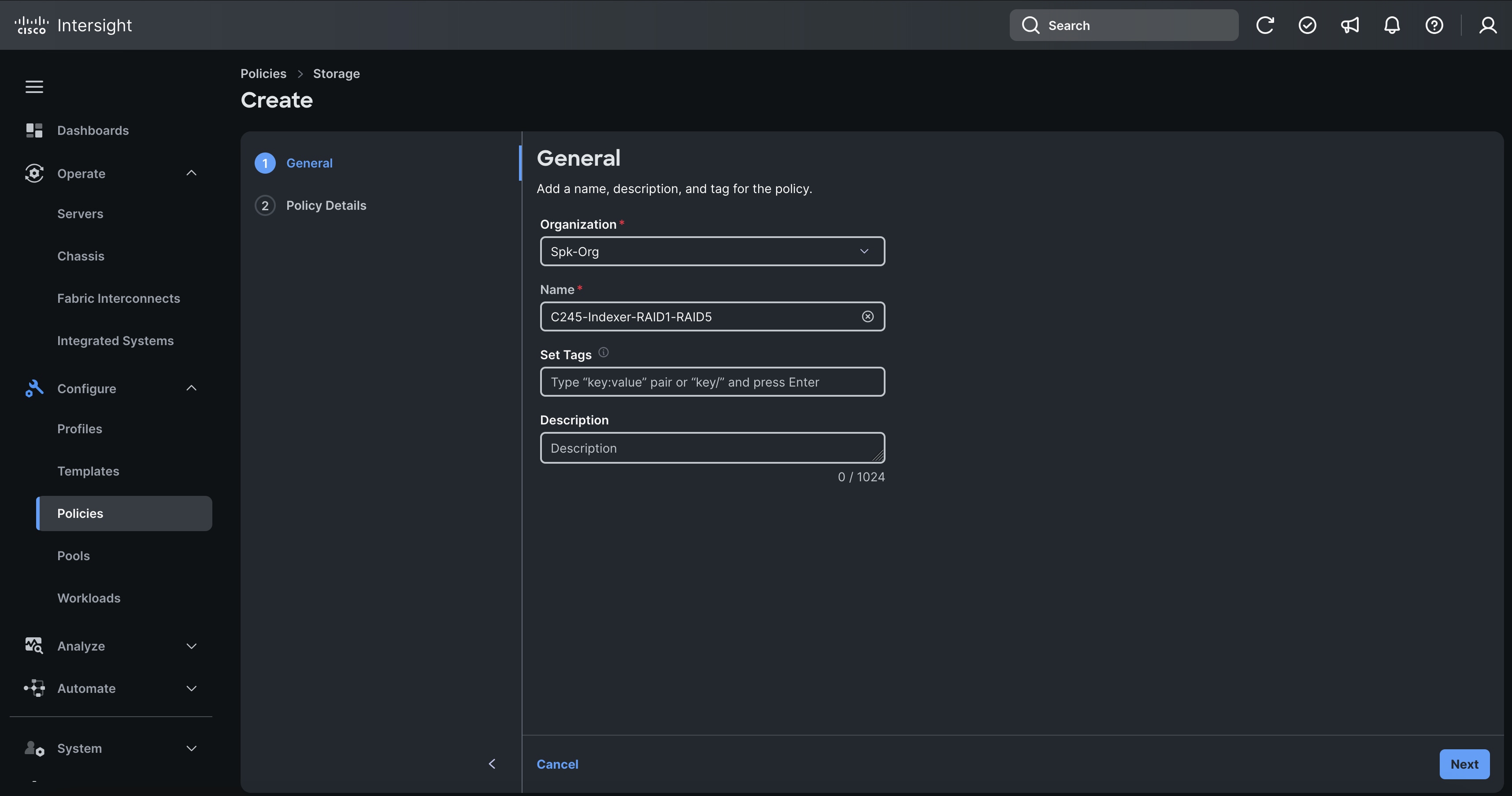
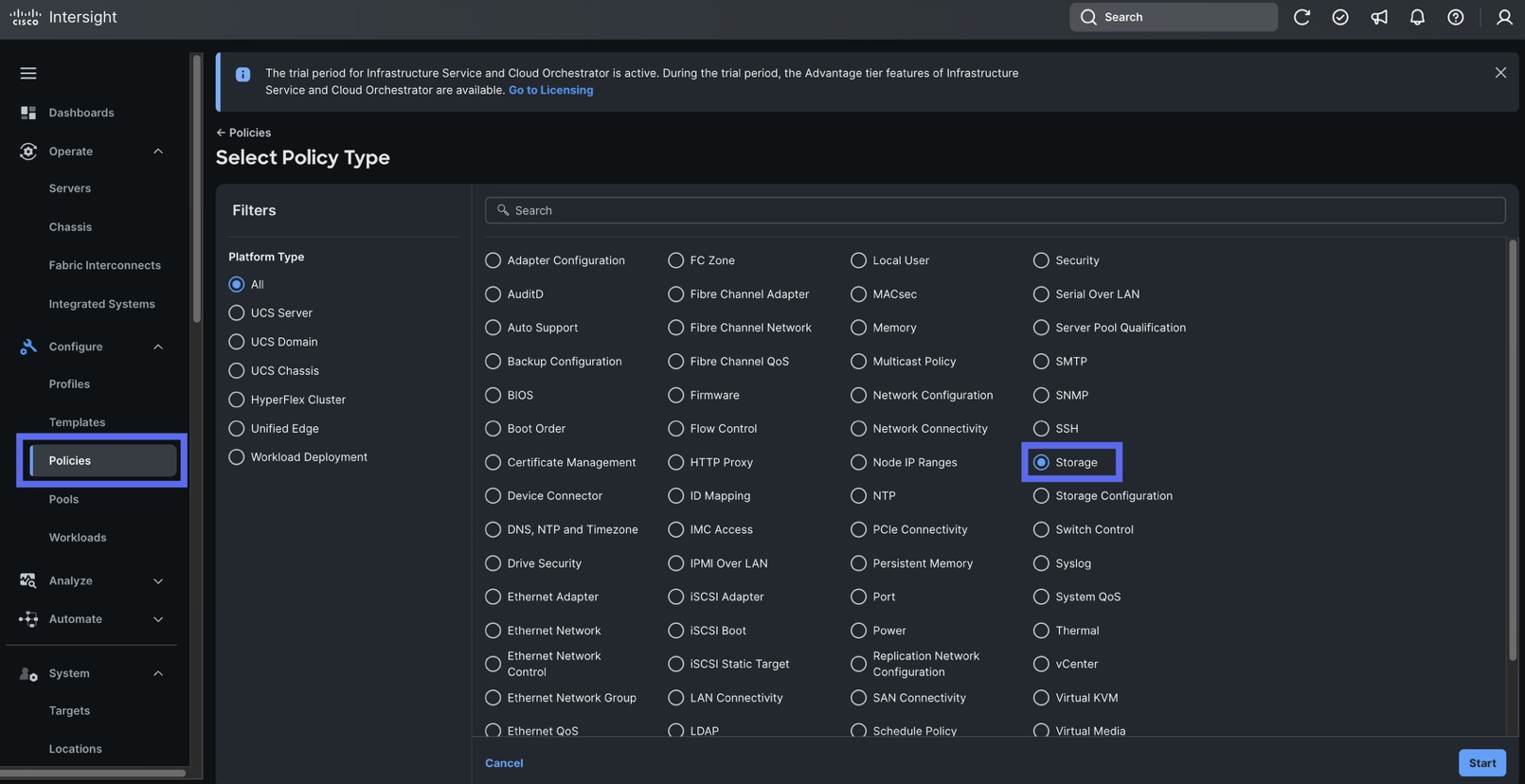
Step 1. Go to Configure > Policies > and click Create Policy. For the platform type select UCS Server and for the Policy select Storage.
Step 2. For the Organization, select Spk-Org, and for the name, enter “JBOD-Storage-Policy” Click Next.
Step 3. In the Policy Details section select UCS Server (Standalone) as the policy.
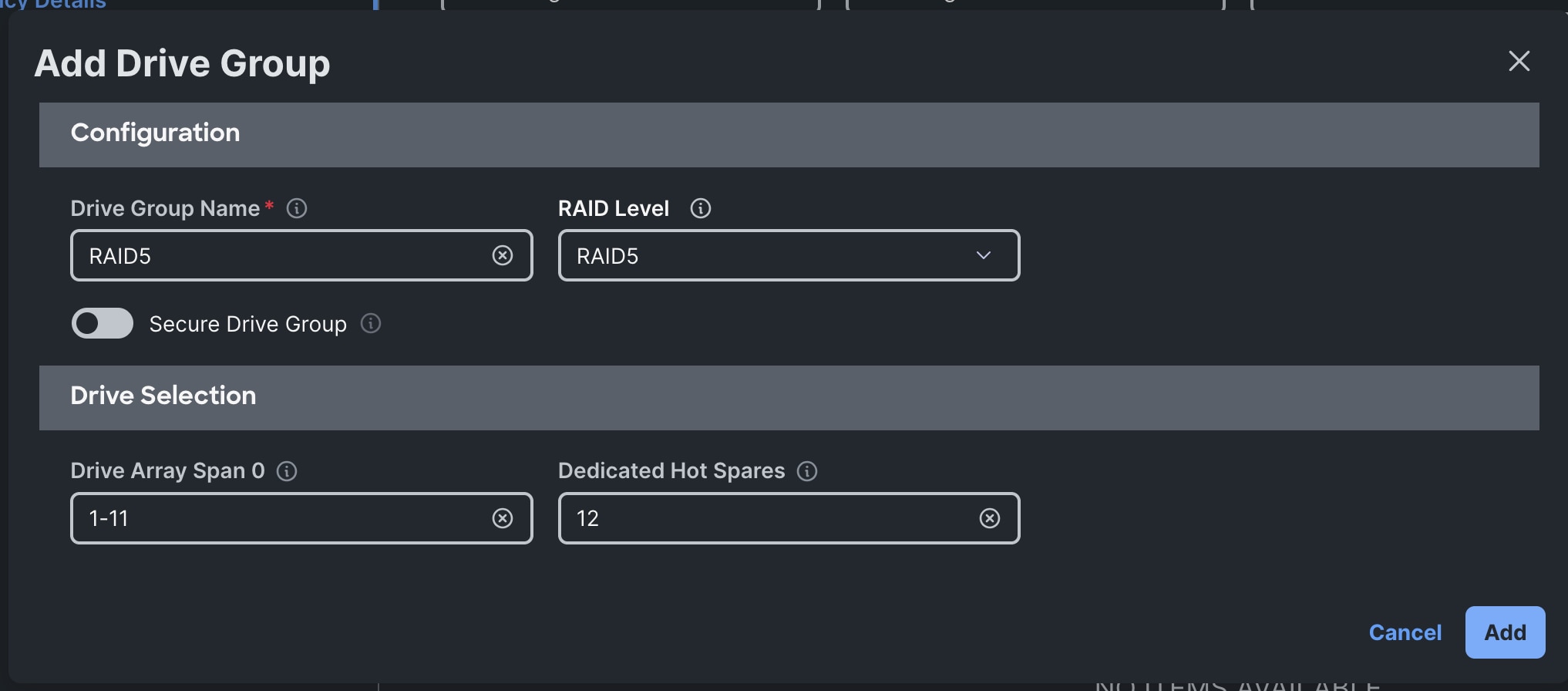
Step 4. Enter in the following options:
- Use JBOD drives for Virtual Drive creation: Disabled
- Unused Disks State: No Change
- Default Drive State: JBOD
- M.2 RAID Configuration: MStorBootVD
- Slot of the M.2 RAID Controller: MSTOR-RAID-1
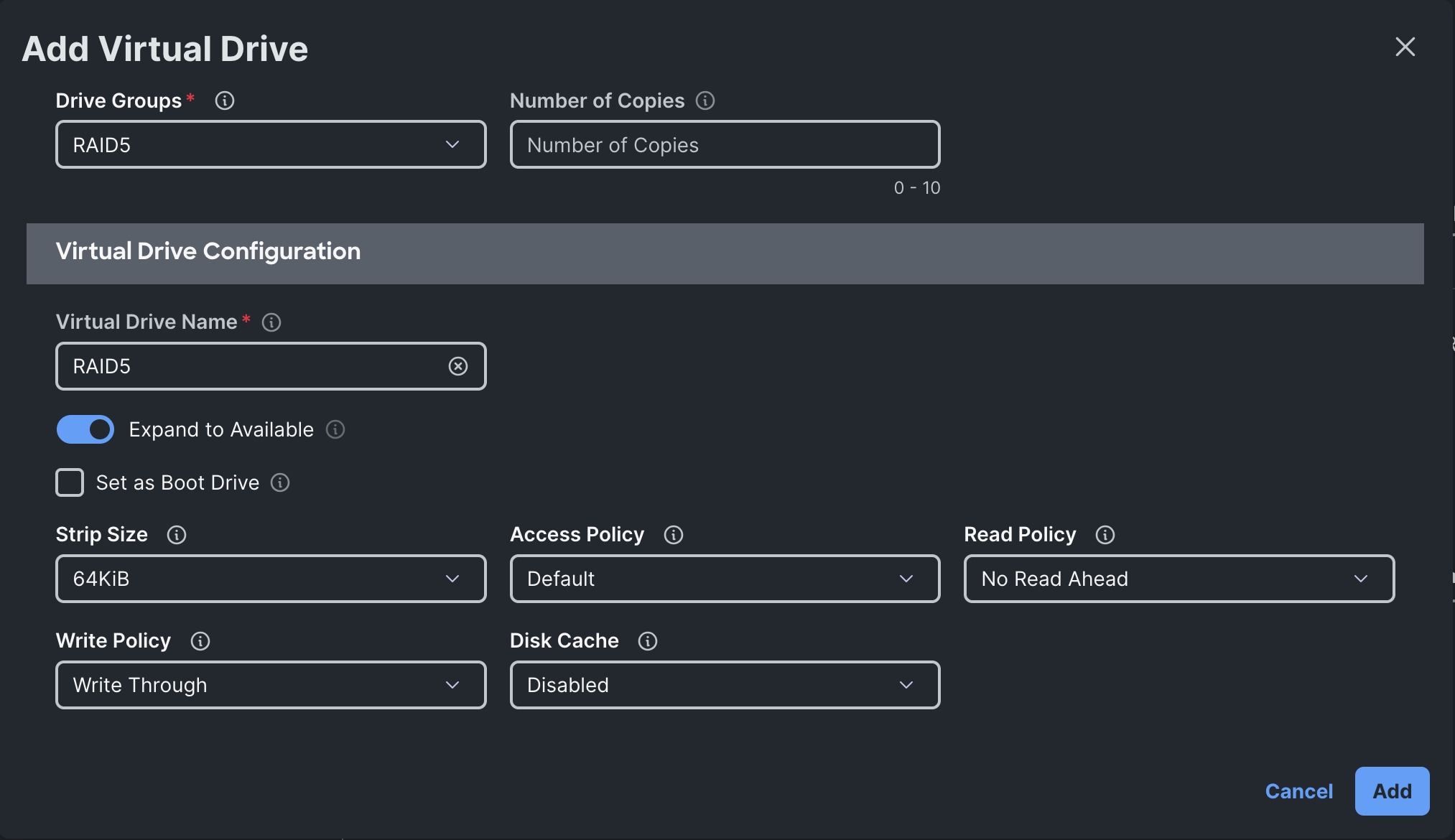
Step 5. Click Create.
Procedure 6. Configure Ethernet Network Policy
Step 1. To configure the Ethernet Network Group Policy for the UCS server profile, go to > Configure > Policies > and click Create Policy.
Step 2. For the platform type select UCS Server (Standalone) and for the policy select Ethernet Network.
Step 3. For the Organization select Spk-Org and for the name input “Eth-Network.”
Step 4. Select Access. For the VLAN Mode, Disable the toggle “Enable QinQ Tunneling” and leave the Default VLAN empty.
Step 5. Click Create.
Procedure 7. Configure MAC Pool
Step 1. To configure a MAC Pool for a Cisco UCS Domain profile, go to > Configure > Pools > and click Create Pool. Select option MAC to create MAC Pool.

Step 2. In the MAC Pool Create section, for the Organization, select Spk-Org and for the Policy name Spk-MAC-Pool. Click Next.
Step 3. Enter the MAC Blocks From and Size of the pool according to your environment and click Create.

Procedure 8. Configure Ethernet Adapter Policy
Step 1. To configure the Ethernet Adapter Policy for the UCS Server profile, go to > Configure > Policies > and click Create Policy.
Step 2. For the platform type select UCS Server and for the policy select Ethernet Adapter.
Step 3. In the Ethernet Adapter Configuration section, for the Organization select Spk-Org and for the policy name enter Eth-Adapter.

Step 4. Select Cisco Provided Ethernet Adapter Configuration and click the option “Select Cisco Provided Configuration” and then click Linux as shown below:

Step 5. In the Policy Details section, for the recommended performance on the ethernet adapter, keep the “Interrupt Settings” parameter.


Step 6. Click Create to create this policy.
Procedure 9. Configure Ethernet QoS Policy
Step 2. Enter QoS Settings as shown below to configure 9000 MTU for replication vNIC traffic.

Step 3. Click Create.
Procedure 10. Configure LAN Connectivity Policy
Step 1. Go to > Configure > Policies and click Create Policy. For the platform type, select “UCS Server” and for the policy select “LAN Connectivity.”

Step 2. In the LAN Connectivity Policy Create section, for the Organization select “Spk-Org” for the policy name enter “Spk-LAN-Connectivity” and for the Target Platform select UCS Server (Standalone). Click Next.
Step 3. In the Policy Details click Add vNIC.
Step 4. In the Add vNIC section, for the first vNIC enter eno5. In the Edit vNIC section, for the vNIC name enter "eno5" and for the MAC Pool select Spk-MAC-Pool. In the Placement option, select Slot ID as MLOM, PCI Link as 0, and PCI Order as 0. Also disable the Failover option.
Step 5. For the Ethernet Network Policy, select Eth-Network. For the Ethernet Network Control Policy select Eth-Network-Control. For Ethernet QoS, select Eth-QoS-9000, and for the Ethernet Adapter, select Eth-Adapter. Click Add to add eno5 to this policy.
Step 6. Add a second vNIC. For the name enter "eno6" and for the MAC Pool select Spk-MAC-Pool. In the Placement option, select Slot ID as MLOM. Again, disable the Failover option.
Step 7. For the Ethernet Network Policy, select Eth-Network. For the Ethernet Network Control Policy select Eth-Network-Control. For Ethernet QoS, select Eth-QoS-9000, and for the Ethernet Adapter, select Eth-Adapter. Click Add to add eno6 to this policy.
Step 8. Click Create to create the policy.
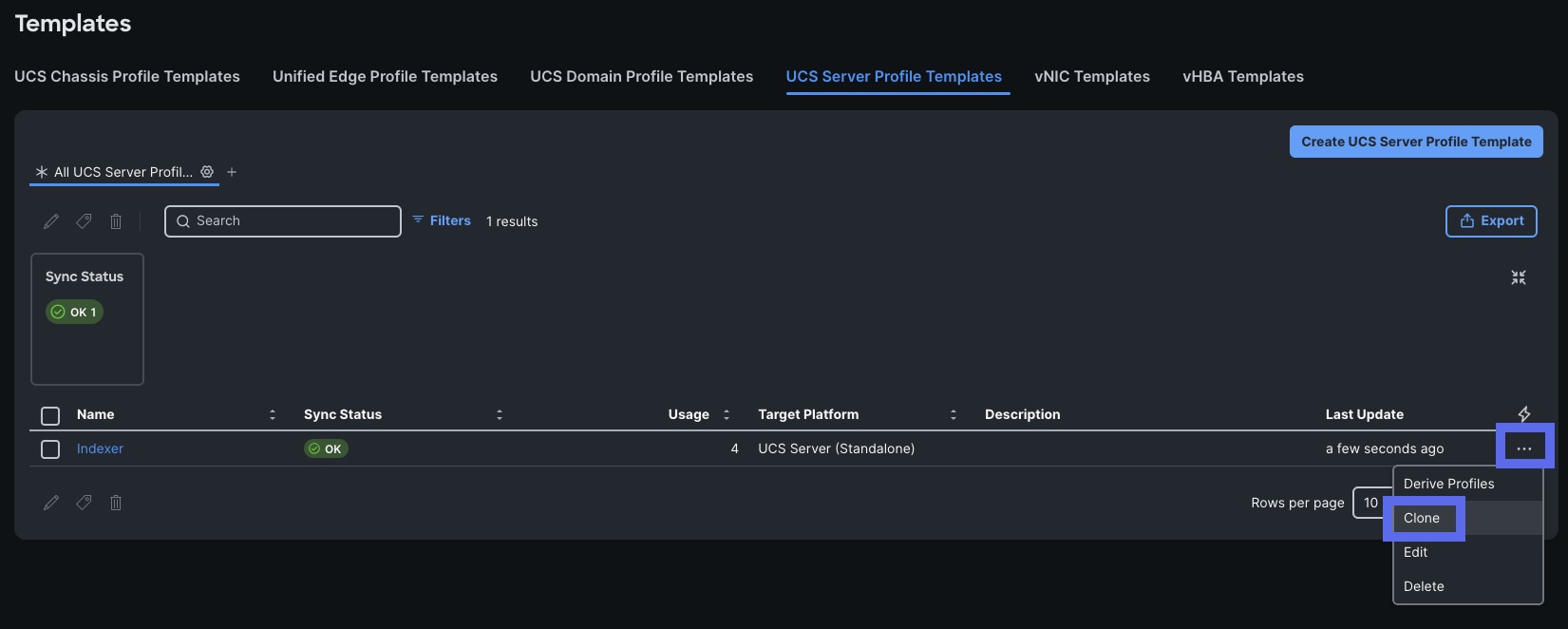
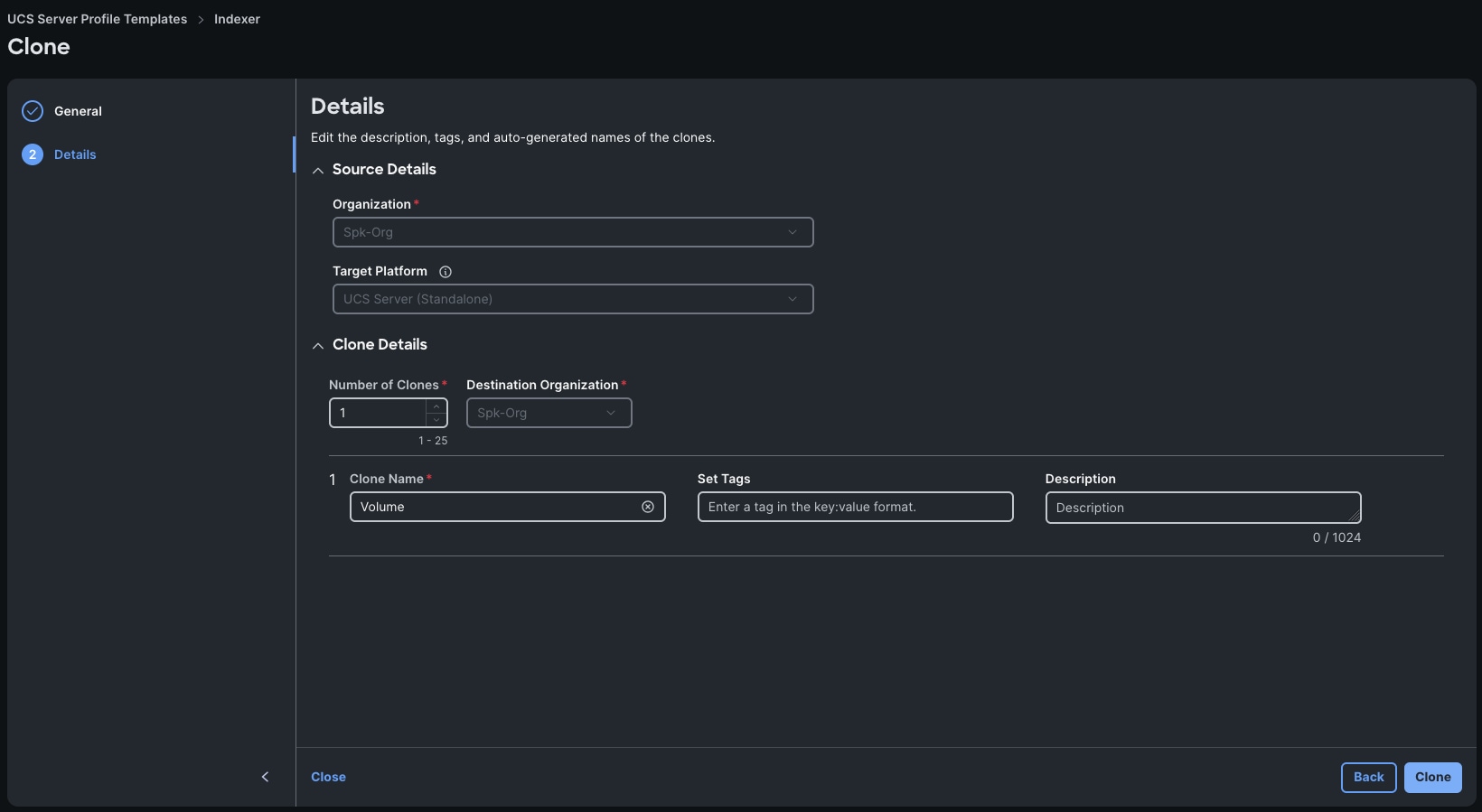
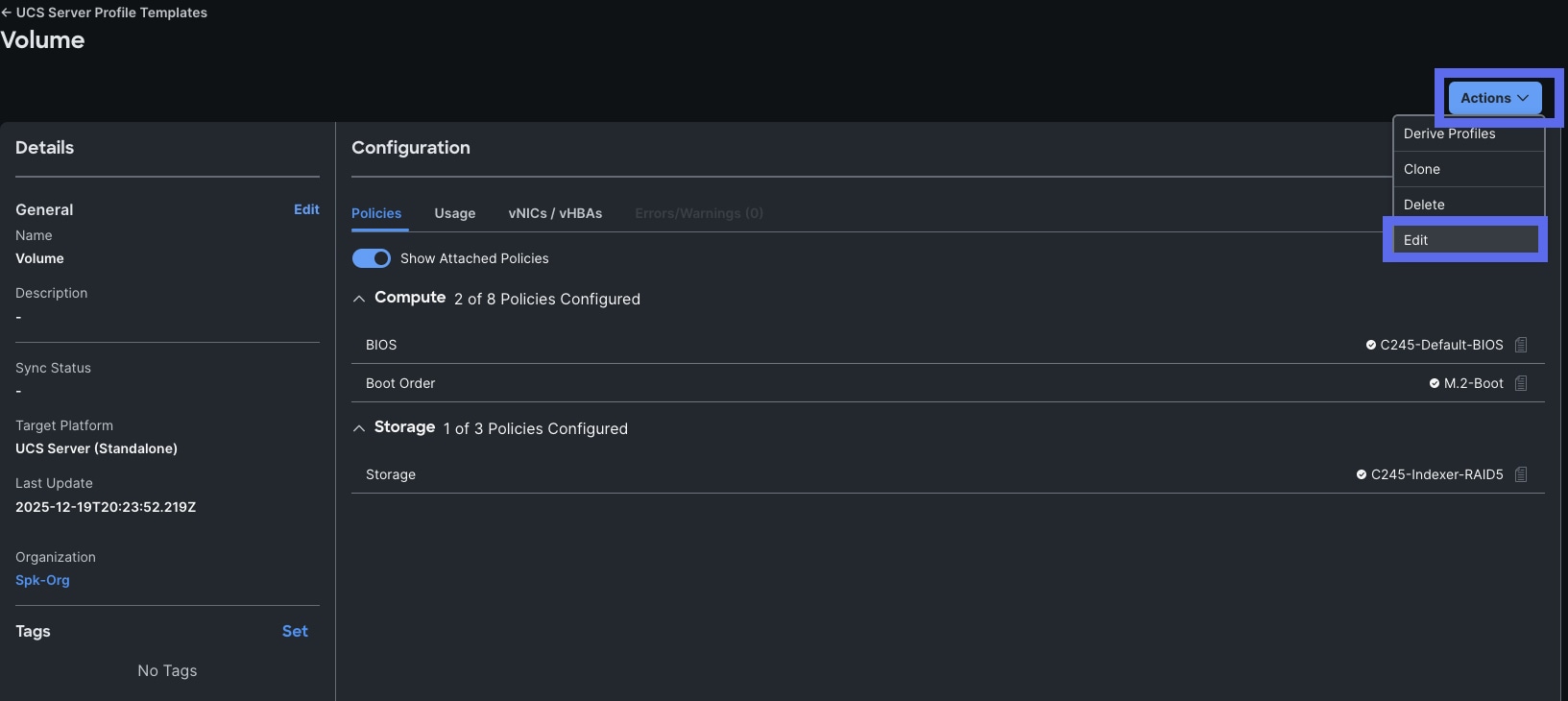
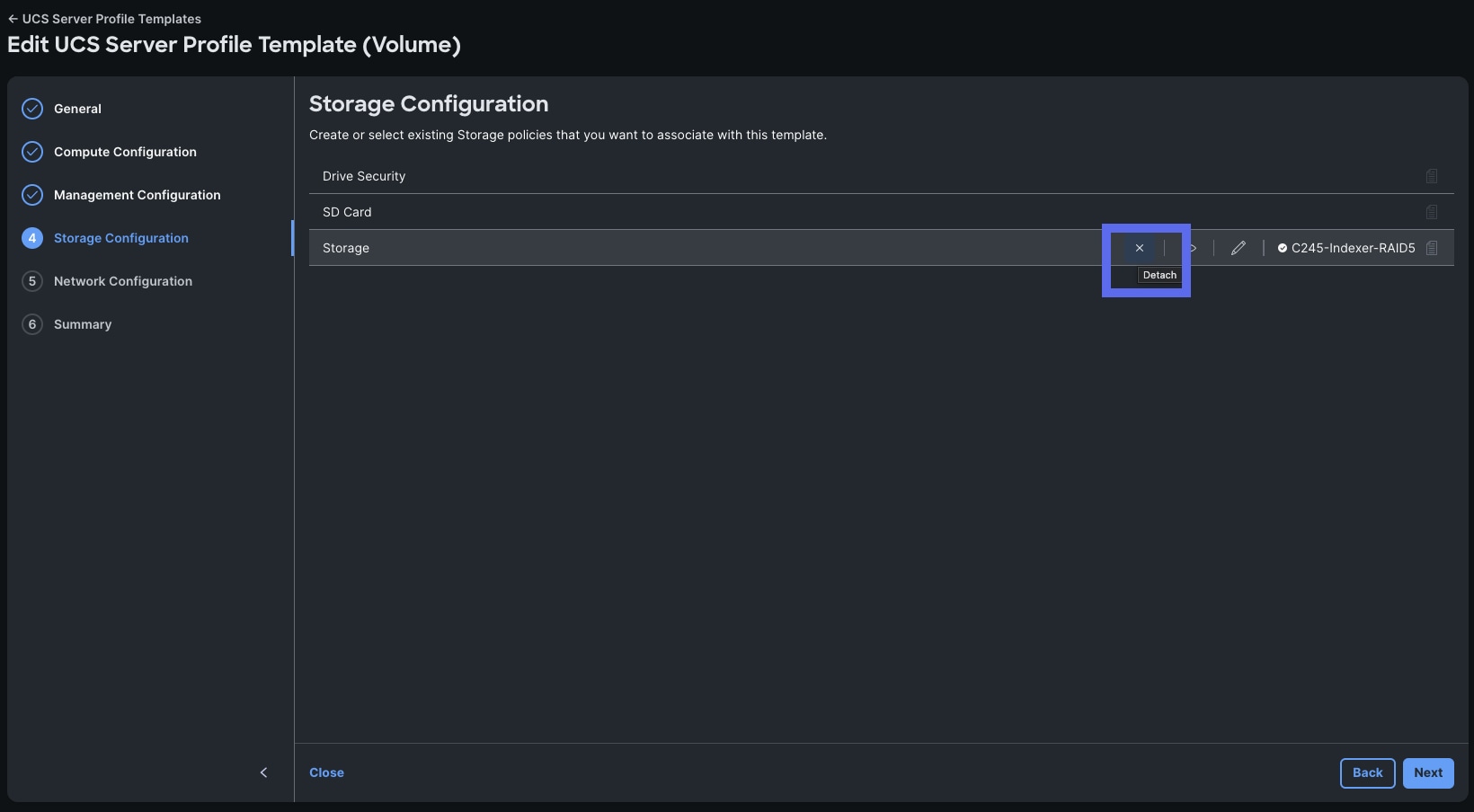
Procedure 11. Create Server Profile Templates
Create server profile templates for the servers. All servers will use the same template
Step 1. Go to Configure > Templates > UCS Server Profile Templates and click Create Server Profile Template.
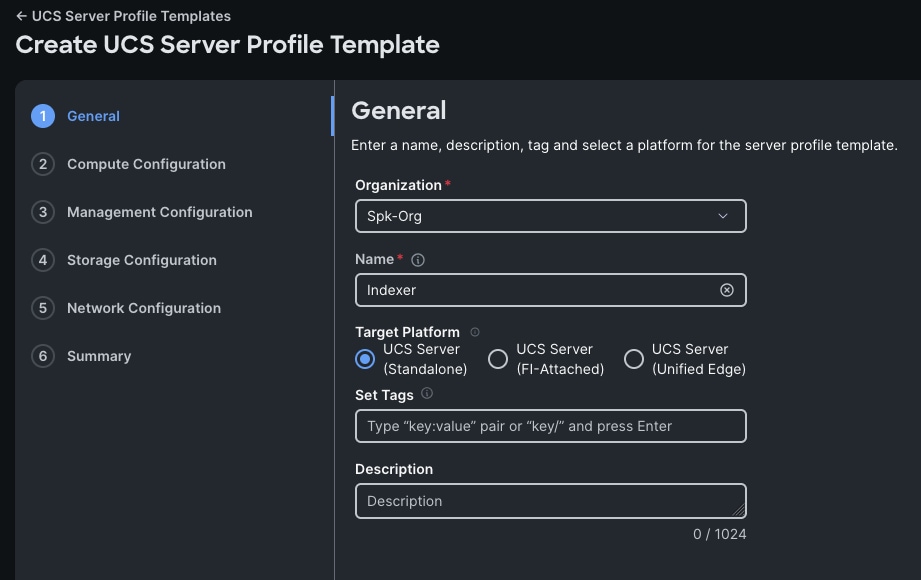
Step 2. For the Organization, select Spk-Org, enter in “Server-Template” for the name, and select UCS Server (Standalone) for the Target Platform. Click Next.
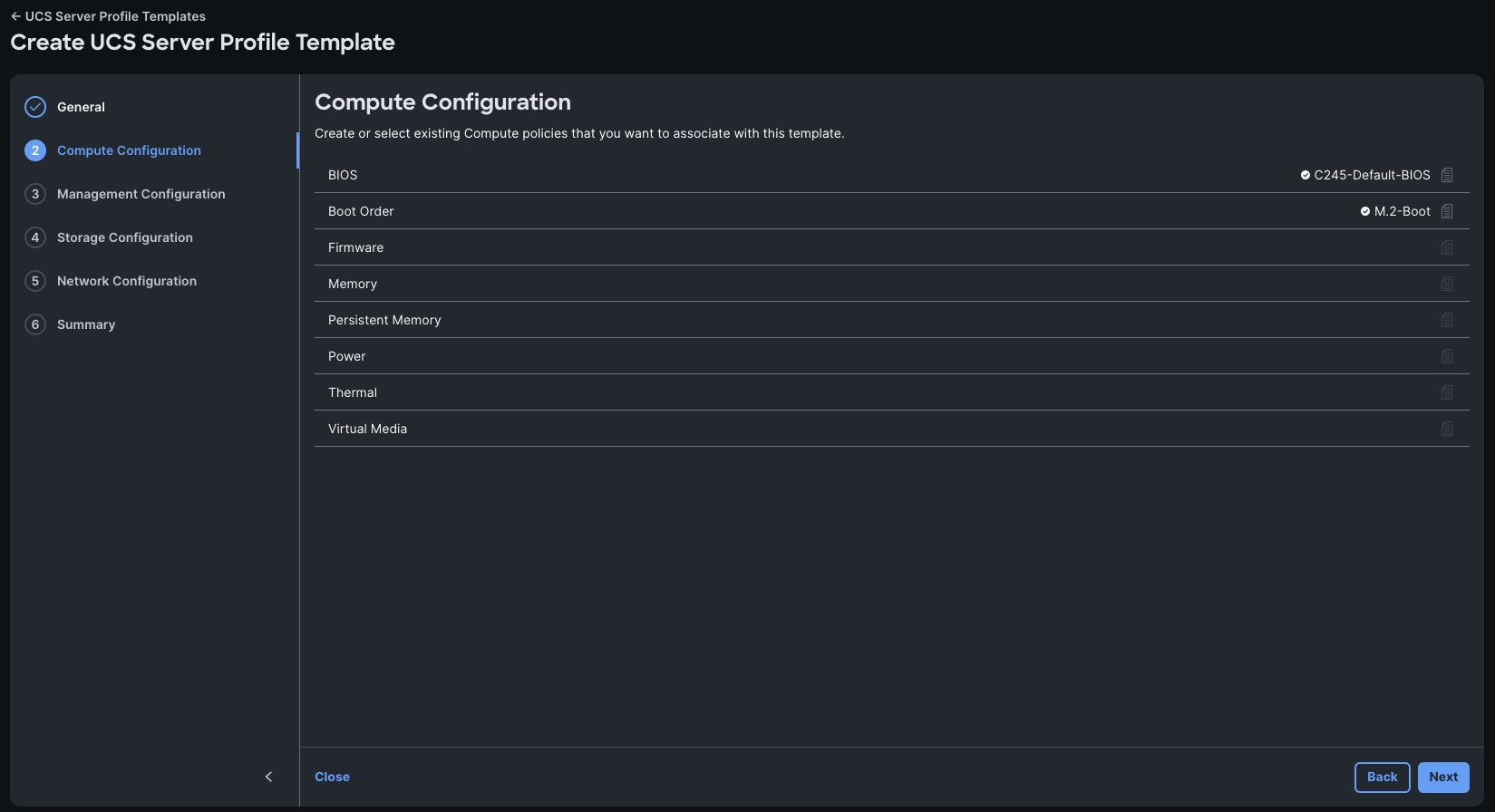
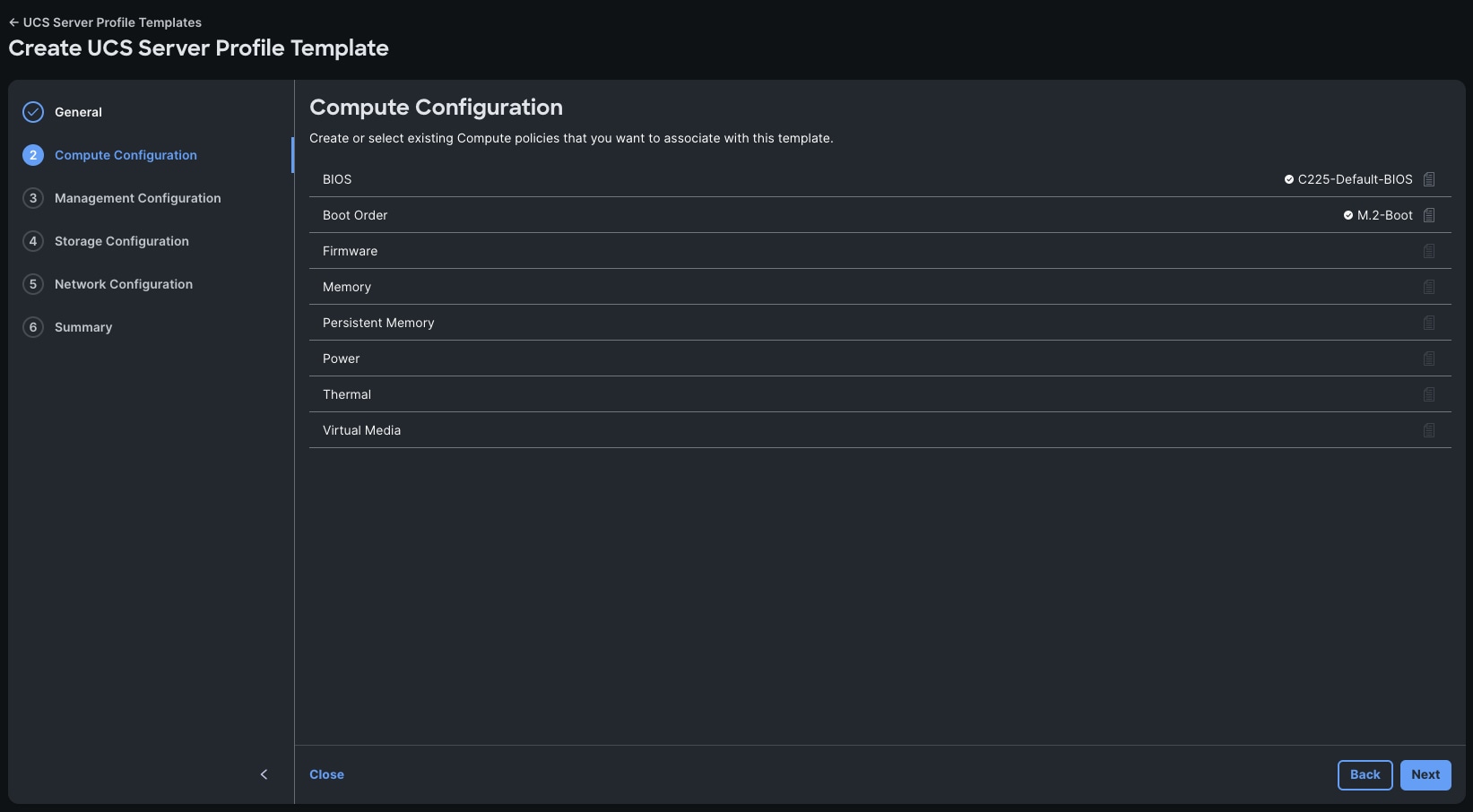
Step 3. In the Compute Configuration step, select the Default-BIOS policy, and select M.2-Boot for the Boot Order which was created in prior steps. Click Next.
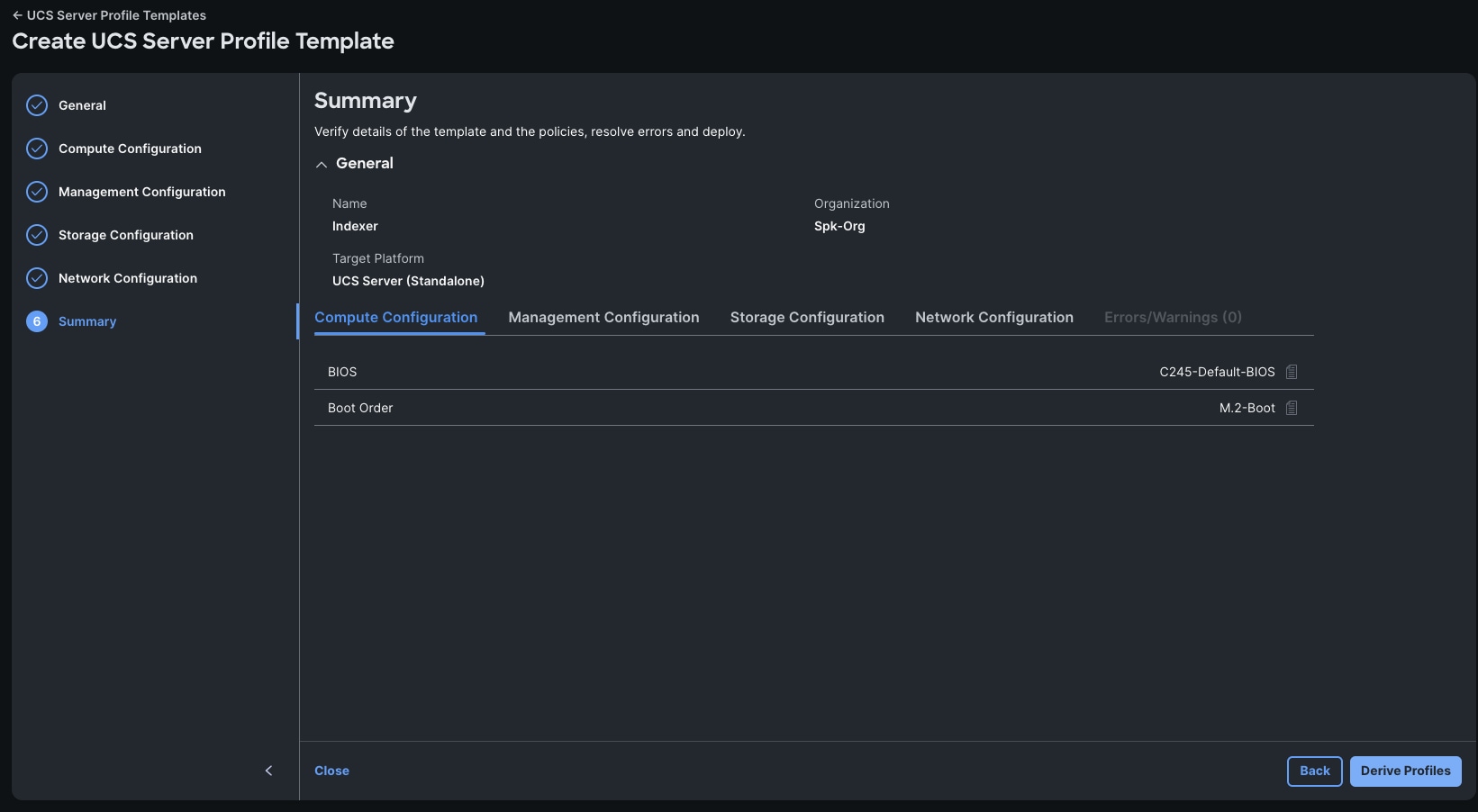
Step 4. Click Next in the Management Configuration screen.
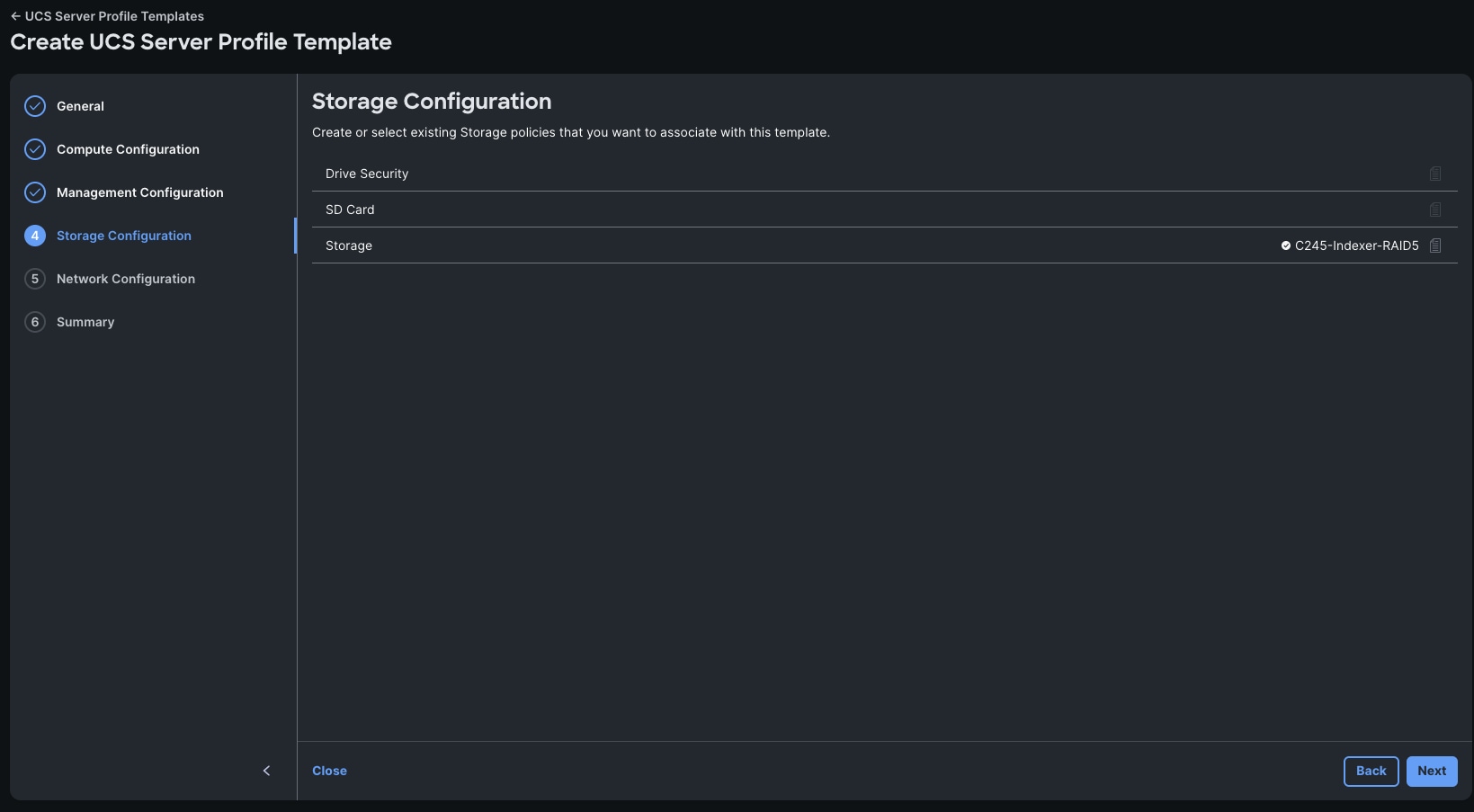
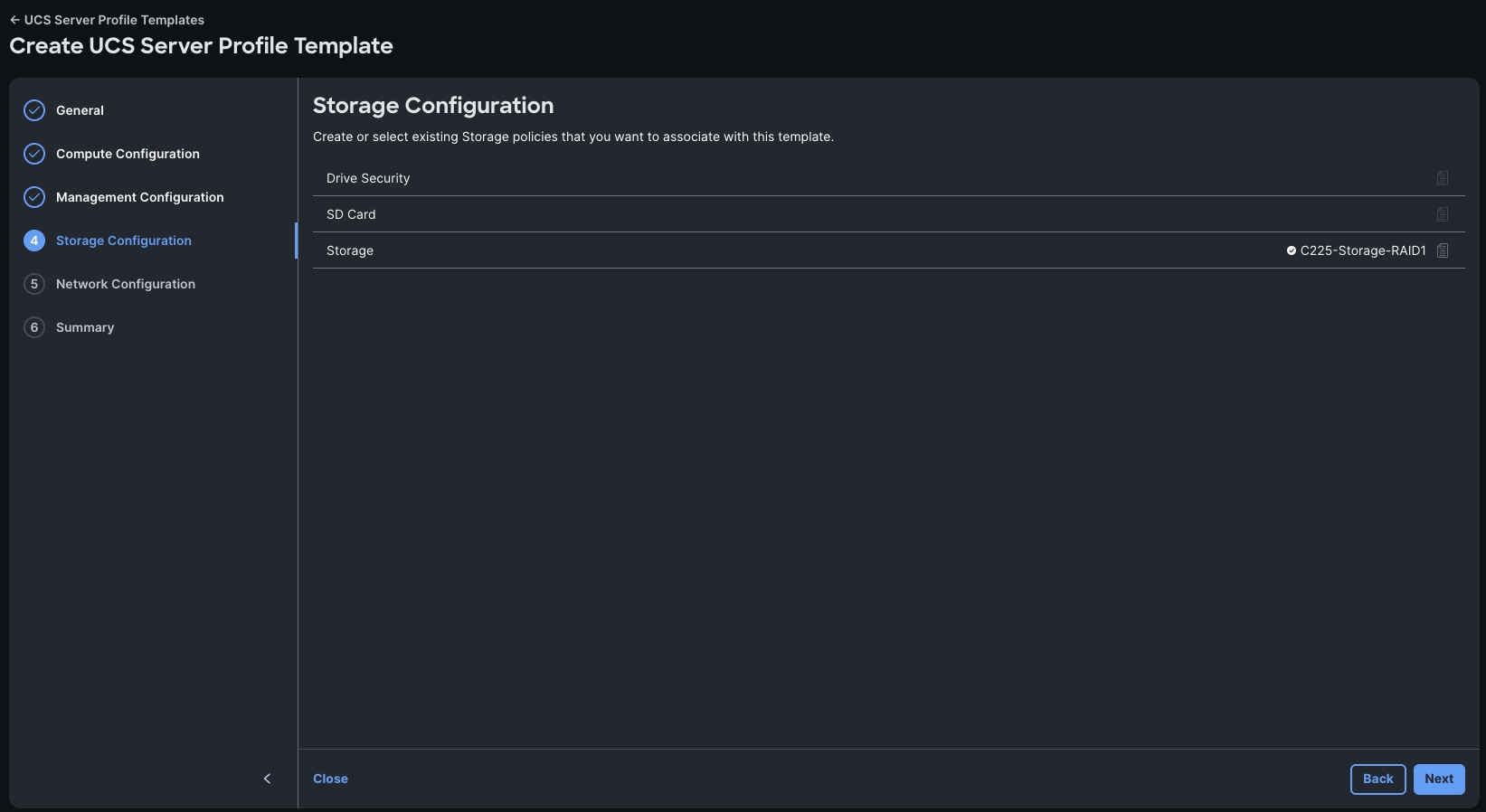
Step 5. From Storage Configuration, select the JBOD-Storage-Policy storage policy.
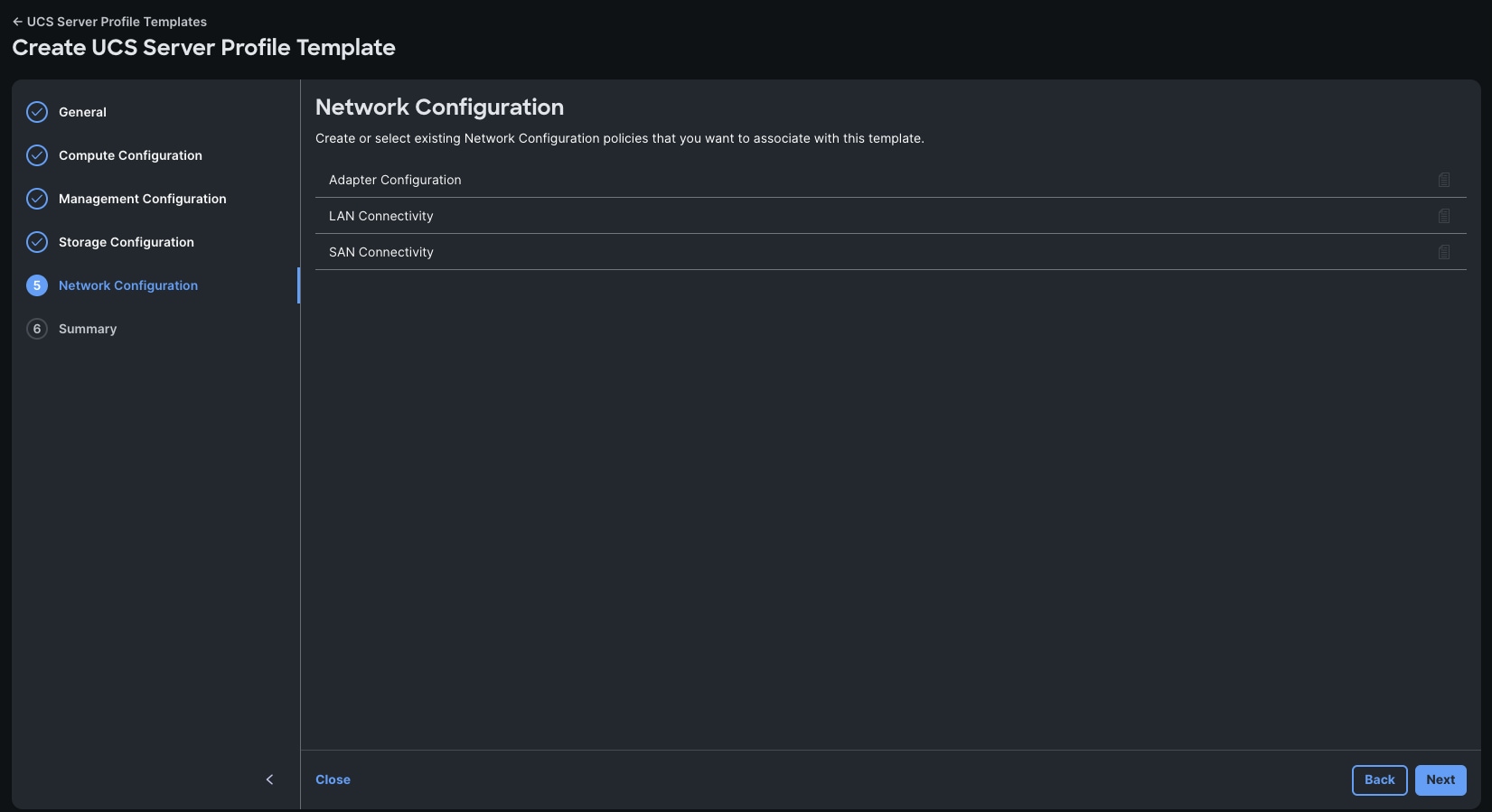
Step 6. On the Network Configuration screen, select the Spk-LAN-Connectivity policy
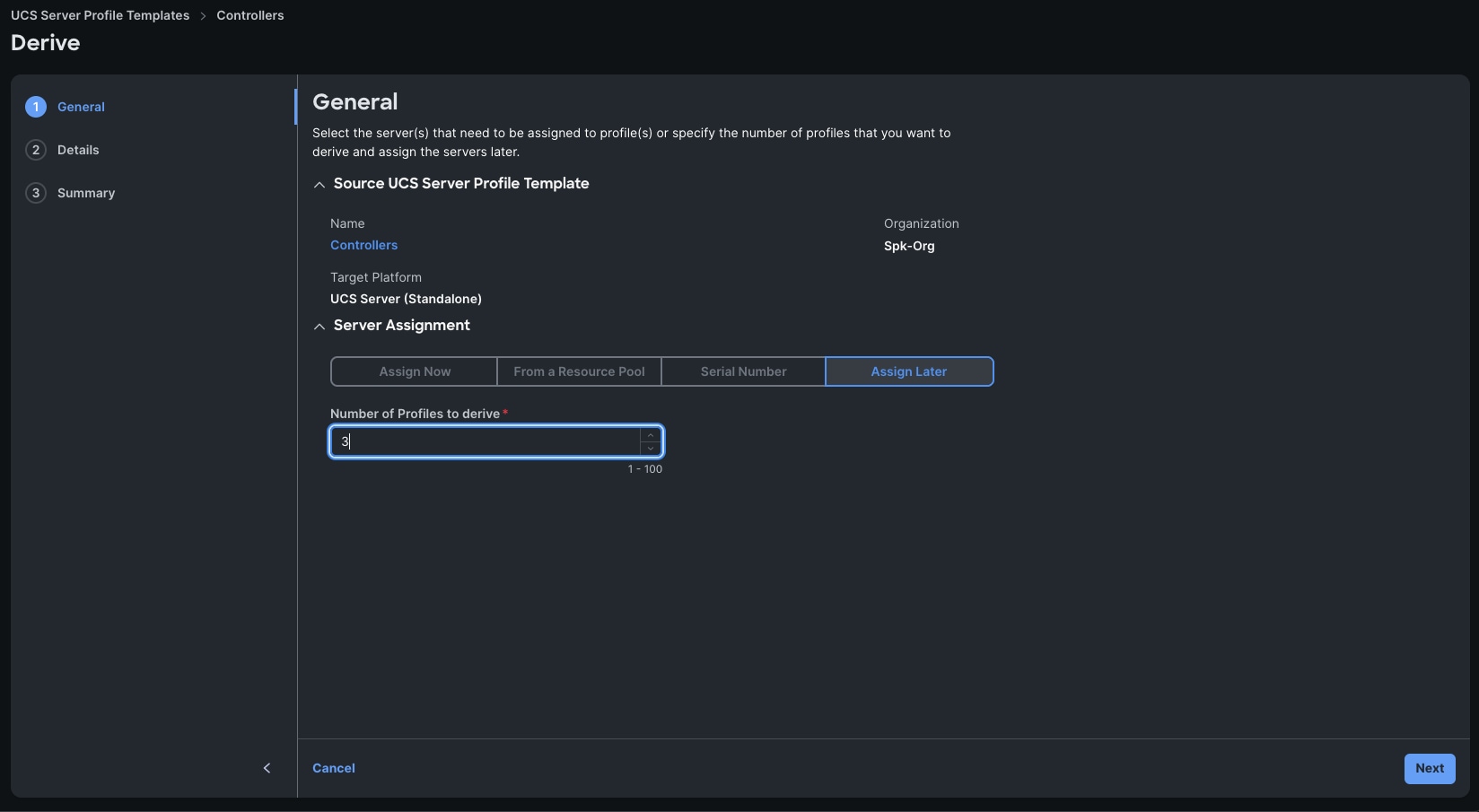
Step 7. Click Derive Profiles in the Summary screen.
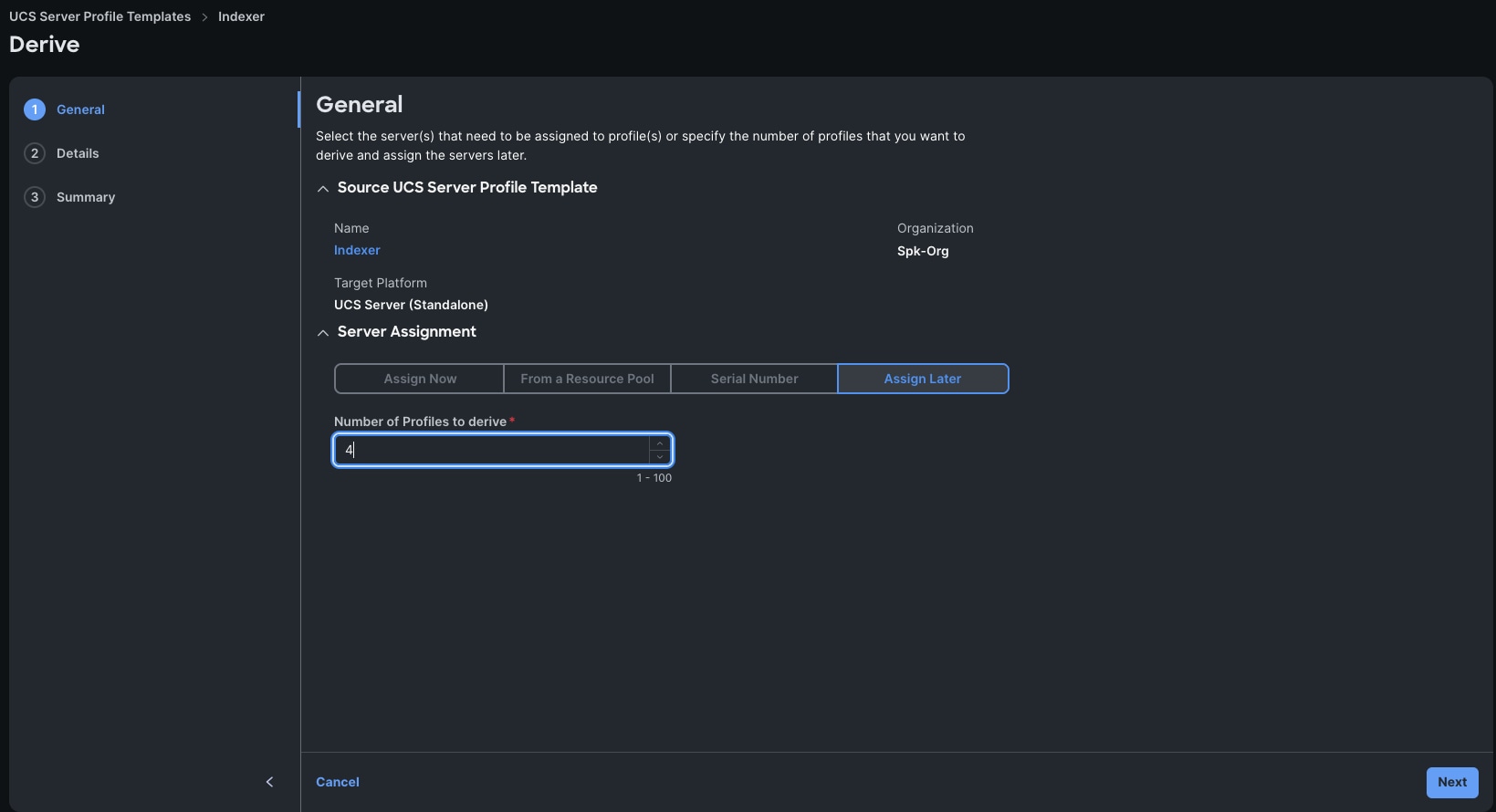
Step 8. In the following screen, enter the number of profiles to derive. This corresponds to total number of servers in your profile.
Step 9. Click Next.
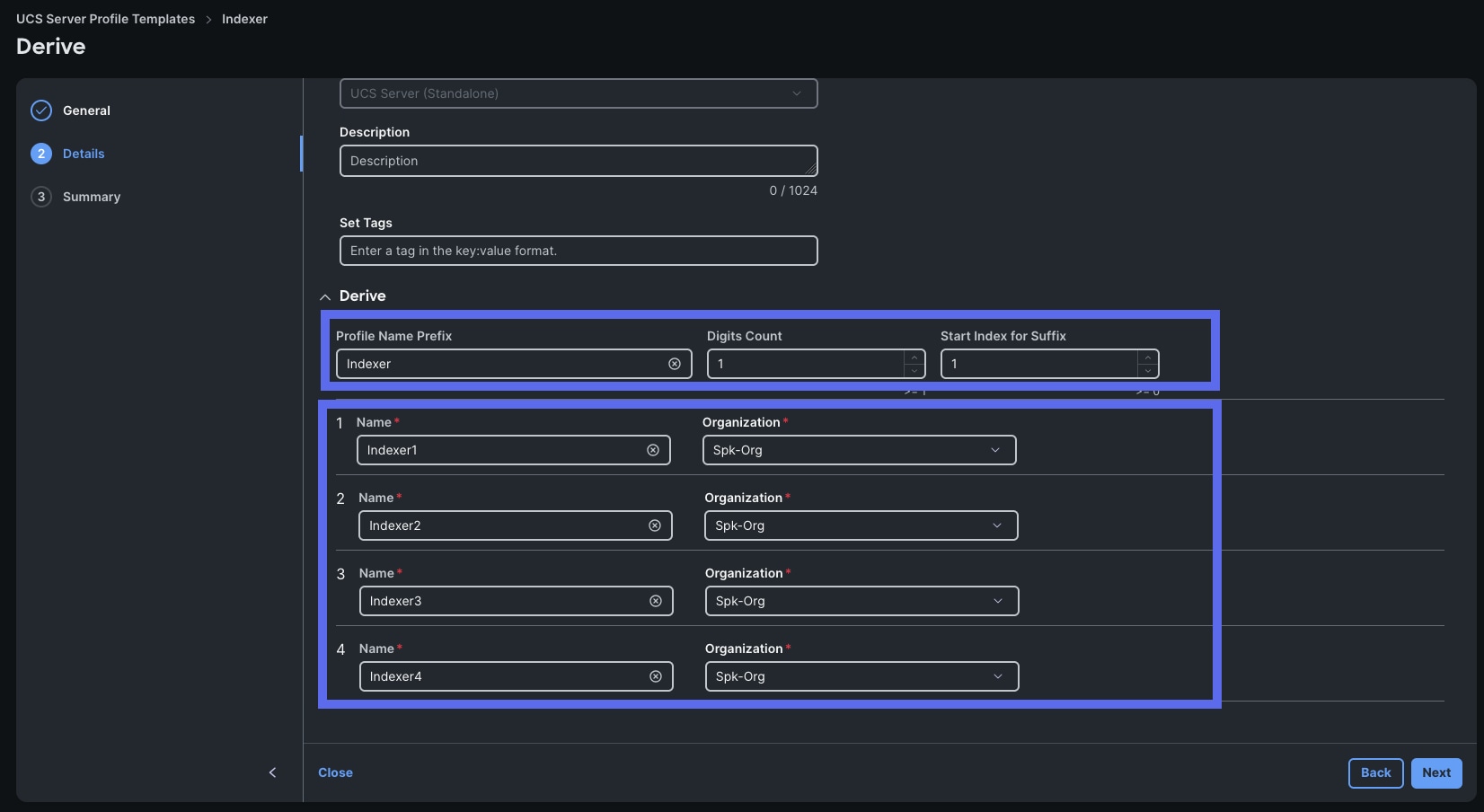
Step 10. In the Details screen, expand the Derive option at the bottom, enter in “Server-Profile-” as the Profile Name Prefix, enter “1” for Digits Count, and “1” for Start Index for Suffix.
Step 11. Click Next.
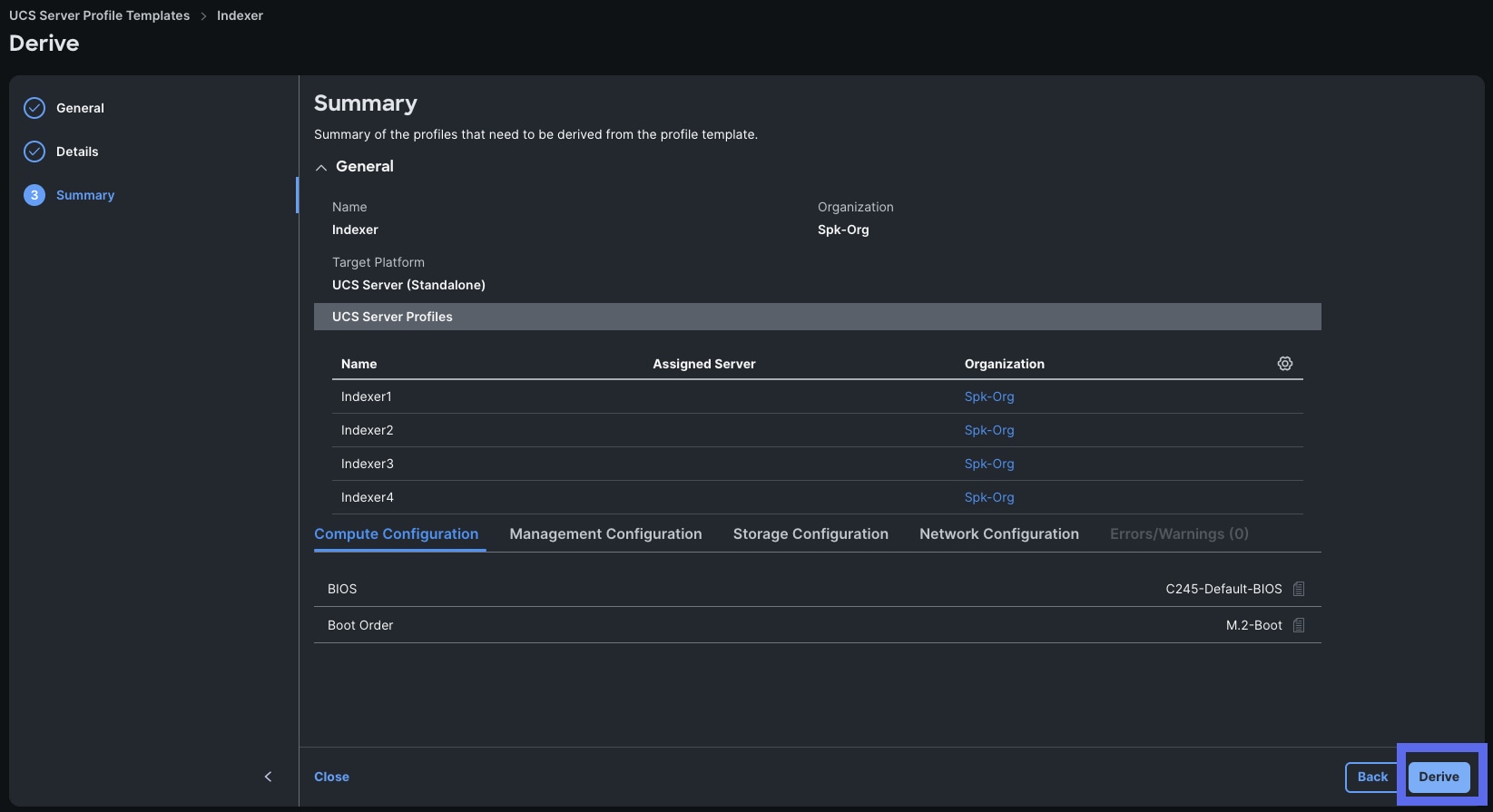
Step 12. Click Derive in the Summary screen.
Procedure 12. Assign and Deploy Server Profiles
Step 1. Go to > Configure > UCS Server Profiles > then select the server profile “Server-Profile-1” and choose Assign Server from the drop-down list.
Step 2. From the Assign Server to UCS server Profile, select the specific Server where you want to apply this server profile and click Assign.
Step 3. After you assign the server profile to the appropriate server, go to Configure > Profiles > UCS Server Profile > select the same server and click Deploy to configure server as shown below:
Step 4. Check the boxes and click Deploy to activate the server profile.
Step 5. Repeat steps 1 – 4 for each server profile.
Install and Configure Red Hat Enterprise Linux 9.6
This chapter contains the following:
● Install Red Hat Enterprise Linux (RHEL) 9.6
Note: Cisco Intersight enables you to install vMedia-based operating systems on managed servers in a data center. With this capability, you can perform an unattended OS installation on one or more Cisco UCS C-Series Standalone servers and Cisco Intersight Managed Mode (IMM) servers (Cisco UCS C-Series, Cisco UCS B-Series, and Cisco UCS X-Series) from your centralized data center through a simple process. For detailed instructions about adding images to the software repository and installing the operating system, see: https://intersight.com/help/saas/resources/OSinstallguide#os_install_steps
This chapter provides detailed procedures for installing Red Hat Enterprise Linux Server on Cisco UCS C225 and Cisco UCS C240 M8 servers. There are multiple ways to install the RHEL operating system. The installation procedure described in this deployment guide uses ISM automated workflow to install the operating system on all the servers through Intersight. For more information, see: https://intersight.com/help/saas/resources/installing_an_operating_system#performing_os_installation_in _cisco_mode
Note: In this solution, Red Hat Enterprise Linux version 9.6 (DVD/ISO) was utilized for OS the installation through Intersight Software Repository as explained in the following sections.
Install Red Hat Enterprise Linux (RHEL) 9.6
This section contains the following procedures:
● Procedure 1. Add OS Image Link
● Procedure 2. Add Server Configuration Utility Image
● Procedure 3. Install the Operating System
● Procedure 4. (Optional) Manual Operating System Install
Procedure 1. Add OS Image Link
Step 1. Log into Intersight account.
Step 2. Go to Systems > Software Repository > OS Image Links tab and click the Add OS Image Link icon as shown below:
Step 3. Add the image source of the operating system along with details of the file share location and the protocol (CIFS/NFS/HTTPS) to the software repository.
Note: For this solution, we used HTTPS server and provided access to OS ISO as configured below:
Step 4. Provide the details for Operating System image, modify as required, and save the Operating System image as shown below. Click Add.
Note: The software repository can be CIFS, NFS, or HTTPS and need not be publicly available. It should be accessible by Cisco IMC. Cisco IMC establishes vMedia connection with the software repository hosted ISO images. It is then mounted as Cisco IMC-managed vMedia files and booted to the server. For more information, see: https://intersight.com/help/saas/resources/adding_OSimage#about_this_task
Procedure 2. Add Server Configuration Utility Image
Step 1. Log into Intersight Account.
Step 2. Go to Systems > Software Repository > SCU Links tab and click Add SCU Link as shown below:

Note: For this solution, we used HTTPS server and provided access to SCU ISO as configured below:
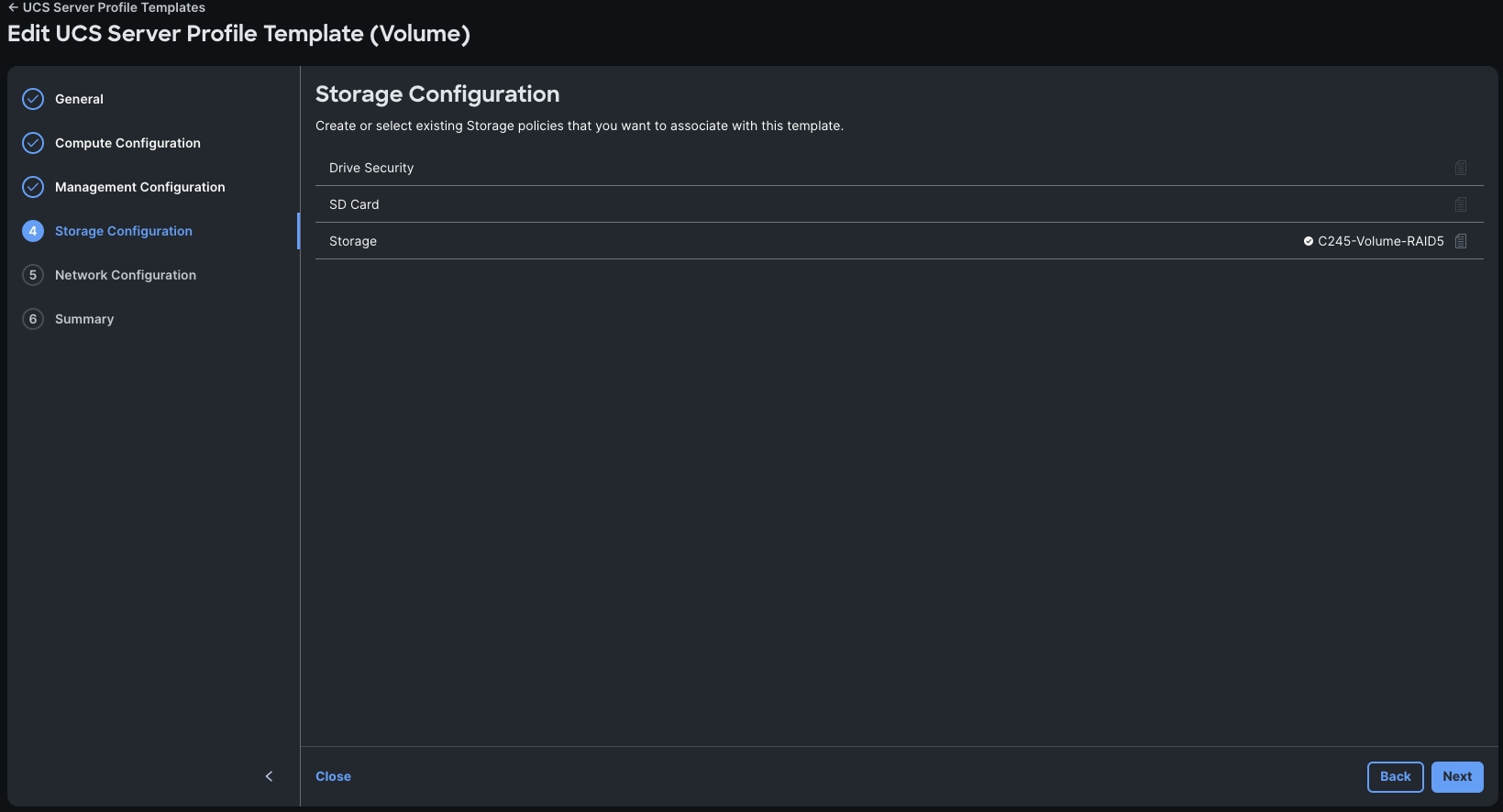
Step 3. Review the Server Configuration Utility image details, modify as required, and save the Server Configuration Utility image.
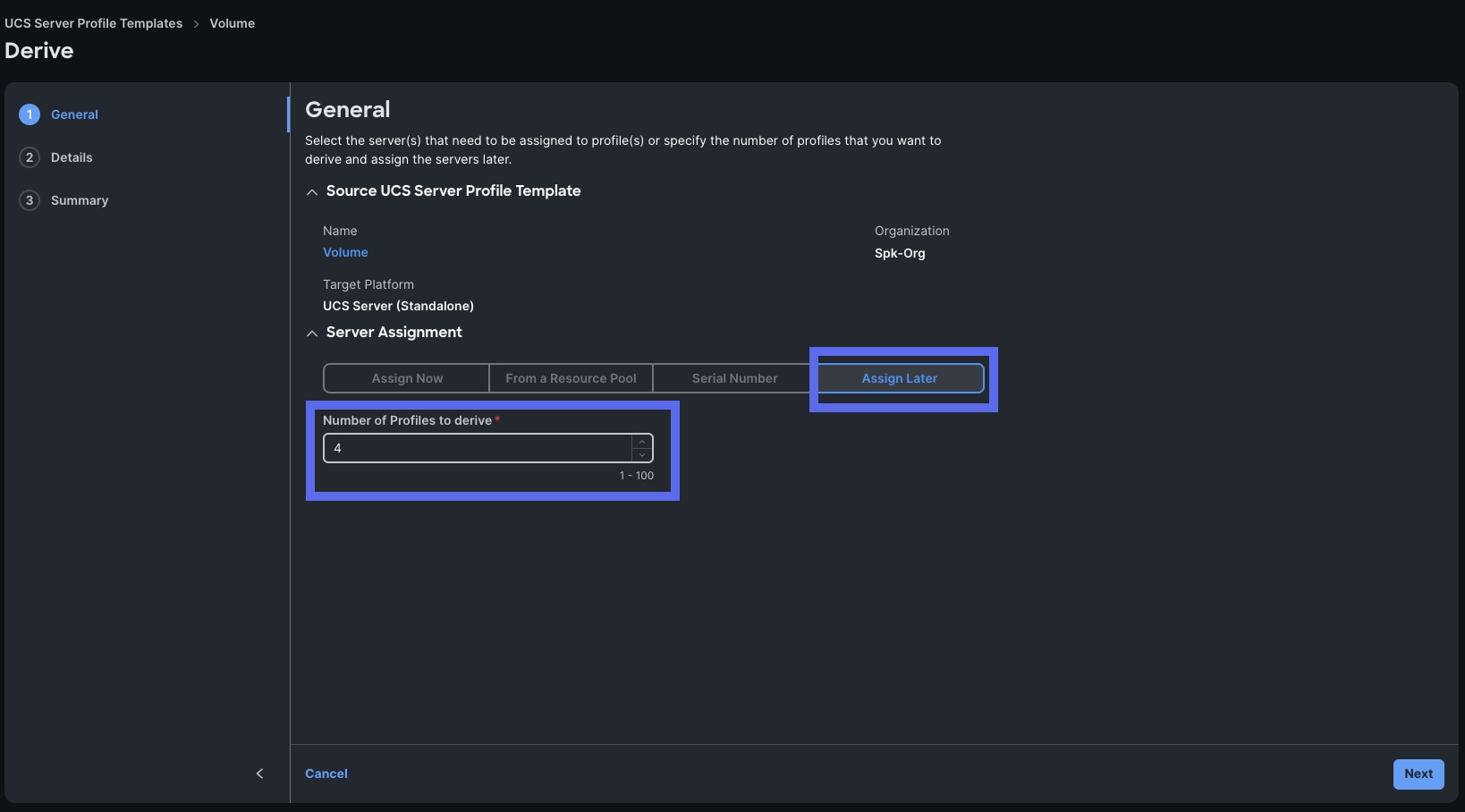
Procedure 3. Install the Operating System
Step 1. Log into Intersight Account.
Step 2. Go to Operate > Servers > and then select a server.
Note: Using the ellipses in the upper left of the Servers screen allows you to select multiple servers to install the operating system in parallel. For this example, the installation will be on a single server.
Step 3. Click the ellipses and select Install Operating System as shown below:
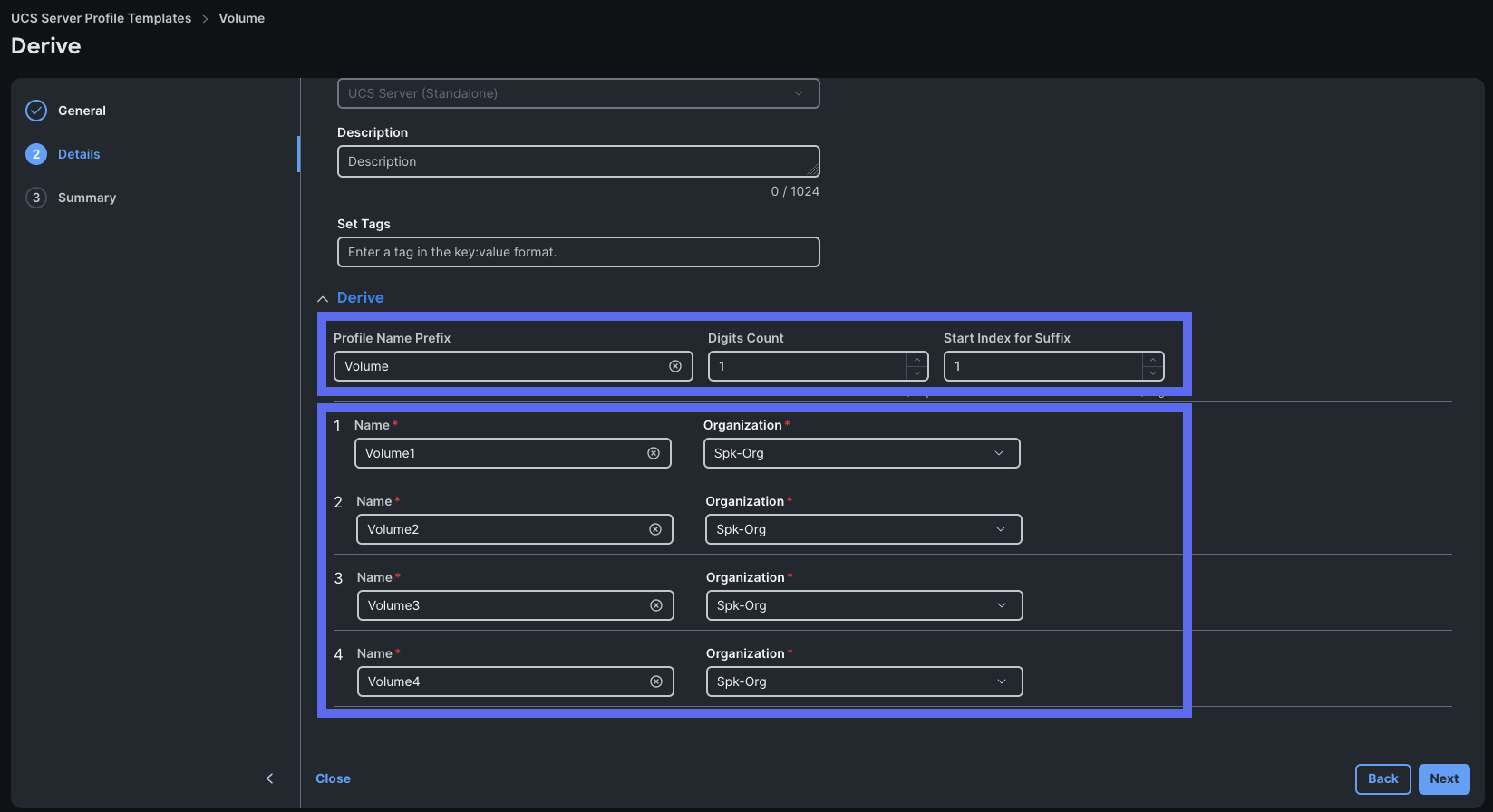
Step 4. From the Install Operating System menu, make sure all the relevant servers are selected and click Next.
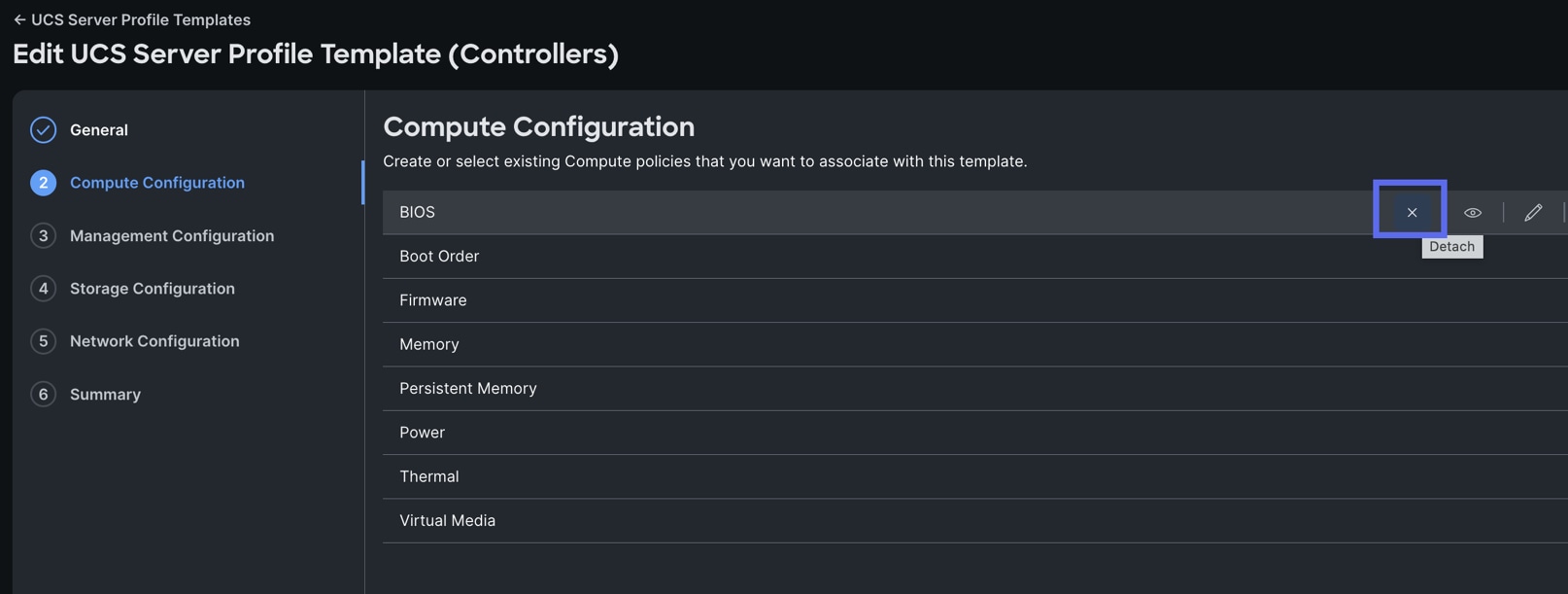
Step 5. Select the OS Image Link previously configured.
Step 6. From the Configuration menu, select the configuration sources.
Note: We used the default Cisco option and default RHEL9ConfigFile as shown below.
Note: You can either use custom or Cisco validated templates for selected Operating System version. For more information about Cisco validated templates, go to: https://us-east-1.intersight.com/help/saas/resources/installing_an_operating_system#performing_os_installation_in_ci sco_mode
Step 7. From the Configuration menu, provide the details for the RHEL host with the appropriate IP Address, Netmask, Gateway, Preferred Name Server, Hostname, and password then click Next.
Step 8. From the Server Configuration Utility menu, select the SCU Link previously configured as shown below:
Step 9. From the Installation Target menu, select M.2 for the Installation target. When you select the M.2 option, all the servers will automatically detect the Boot Drive previously configured into the UCS Boot drive setup.
Step 10. Click Next and from the Summary menu, verify the details of your selections, make changes where required, and click Install to install the Operating System.
Step 11. To check the status of the task, click Request then click the individual task to see the execution flow as shown below:

Step 12. After the OS installation finishes, reboot the server, and complete the appropriate registration steps.
Procedure 4. (Optional) Manual Operating System Install Example
Note: This optional Manual installation of the OS can be performed through the virtual KVM console.
Step 1. Download the Red Hat Enterprise Linux 9.6 OS image and save the ISO file to local disk.
Step 2. Launch the vKVM console on your server by going to Cisco Intersight > Operate > Servers > click one of the server nodes and then from the Actions drop-down list select Launch vKVM.
Step 3. Click Accept security and open KVM. Click Virtual Media > vKVM-Mapped vDVD. Click Browse and map the RHEL ISO image, click Open and then click Map Drive. After mapping the ISO file, click Power > Power Cycle System to reboot the server.
Step 4. During the server boot order, it detects the virtual media connected as RHEL ISO DVD media and it will launch the RHEL OS installer.
Step 5. Select language and for the Installation destination assign the local virtual drive. Apply the hostname and click Configure Network to configure any or all the network interfaces. Alternatively, you can configure only the “Public Network” in this step. You can configure additional interfaces as part of post OS install steps.
Tech tip: For an additional RPM package, we recommend selecting the “Customize Now” option and the relevant packages according to your environment.
Step 6. After the OS installation finishes, reboot the server, and complete the appropriate registration steps.
Step 7. Repeat steps 1-6 on all server nodes and install RHEL 9.6 on all the server nodes.
This section contains the following procedures:
● Procedure 1. Set up Remote Login from the Bastion
● Procedure 2. Disable the Linux Firewall
● Procedure 3. Upgrade Cisco UCS VIC Driver for Cisco UCS VIC
● Procedure 4. Configure Chrony
● Procedure 5. Disable Transparent Huge Pages
● Procedure 6. Configure Indexers
● Procedure 7. Optional Disable C-States in Linux for C240 Servers
● Procedure 8. Create Bonded Network Interface
● Procedure 9. Run the Kubernetes Installer for Splunk POD
Procedure 1. Set up Remote Login from the Bastion
To manage all the nodes in a cluster from the Bastion node, SSH keys for remote access needs to be set up. This is required for the Kubernetes Installer for Splunk POD to function correctly.
This example deploys an open SSH key. It is strongly recommended to use a passphrase protected SSH key and the toolchain.
Step 1. Log into the Bastion:
# example
# ssh 10.10.10.10
Step 2. Run the ssh-keygen command to create both public and private keys on the admin node:
# ssh-keygen -N '' -f ~/.ssh/id_rsa
Step 3. Create an Ansible inventory file containing all hosts in the cluster. Example below:
# Generic C225 workers/controllers
[c225]
10.10.10.11
10.10.10.12
# C225s specifically for indexers
[indexers]
10.10.10.13
10.10.10.14
10.10.10.15
# Optional group for HDD SKUs
[c240]
10.10.10.16
10.10.10.17
10.10.10.18
Tech tip: A Splunk service account should be created on all hosts in the POD.
Step 4. Ensure that the service account user has passwordless sudo. This is required to install and manage Kubernetes.
# Example Ansible command
# ansible -i hosts all -m shell -a "sudo -l"
The result should look like this for all servers:
User splunk may run the following commands on host1:
(ALL) NOPASSWD: ALL
Step 5. When that is created, run the following command from the admin node to copy the public key id_rsa.pub to all the nodes of the cluster. ssh-copy-id appends the keys to the remote-hosts .ssh/authorized_keys
Tech tip: The user is not required to be splunk, but a service account is strongly recommended.
# Example Ansible command
# ansible -i hosts all -m authorized_key -a "user=splunk key=\"{{ lookup('file', lookup('env','HOME') + '/.ssh/id_rsa.pub') }}\" state=present" -k
Step 6. Enter the password of the remote host(s). Ensure the key has been deployed to all servers.
# Example Ansible command
# ansible -i hosts all -m ping
Step 7. Enable RHEL subscription for all machines:
# sudo subscription-manager register --username <username> --password <password> --autoattach
# sudo subscription-manager repos --enable codeready-builder-for-rhel-9-$(arch)-rpms
Procedure 2. Disable the Linux Firewall
Tech tip: Firewalld will interfere with the operation of Kubernetes and must be disabled.
Step 1. Run the following commands to disable the Linux firewall:
# Example Ansible command
# ansible all -m service -a "name=firewalld state=stopped enabled=false" -b
# Example shell command
# sudo systemctl stop firewalld && sudo systemctl disable firewalld
Procedure 3. Upgrade Cisco UCS VIC Driver for Cisco UCS VIC
The latest Cisco Network driver is required for performance and updates. The latest drivers can be downloaded from here: https://software.cisco.com/download/home/283862063/type/283853158/release/4.3(5e)
Step 1. In the ISO image, the required driver can be located here:
“\Network\Cisco\VIC\RHEL\RHEL9.4\kmodenic-4.8.0.0 1128.4.rhel9u4_5.14.0_427.13.1.x86_64.rpm”
Step 2. From a node connected to the Internet, download, extract, and transfer “kmod-enic-*.rpm to Bastion server.
Step 3. Copy the rpm on all nodes of the cluster using the following Ansible commands. For this example, the rpm is assumed to be in present working directory of the Bastion host:
# Example Ansible command
# ansible all -m copy -a "src=/root/kmod-enic-4.8.0.0-1128.4.rhel9u4_5.14.0_427.13.1.x86_64.rpm dest=/root/." -b
Step 4. Use the yum module to install the “enic” driver rpm file on all the nodes through Ansible:
# Example Ansible command
# ansible all -m shell -a "rpm -ivh /root/kmod-enic-4.8.0.0-1128.4.rhel9u4_5.14.0_427.13.1.x86_64.rpm" -b
Step 5. Make sure that the above installed version of “kmod-enic” driver is being used on all nodes by running the command "modinfo enic" on all nodes:

Procedure 4. Configure Chrony
Step 1. Edit “/etc/chrony.conf” file:
# vi /etc/chrony.conf
pool <ntpserver> iburst
driftfile /var/lib/chrony/drift
makestep 1.0 3
rtcsync
#(optional) edit on ntpserver allow 10.29.134.0/24
local stratum 10 # local stratum 8 on ntpserver
keyfile /etc/chrony.keys
leapsectz right/UTC
logdir /var/log/chrony
Step 2. Copy “chrony.conf” file from the admin node to the “/etc/” of all nodes by running command below:
Example Ansible commands
# ansible all -m copy -a "src=/etc/chrony.conf dest=/etc/chrony.conf" -b
Step 3. Start Chrony service. Adjust timezone accordingly for the POD:
Example Ansible commands
# ansible all -m shell -a "timedatectl set-timezone America/Los_Angeles" -b
# ansible all -m service -a "name=chronyd state=running enabled=true" -b
# ansible all -m shell -a "hwclock --systohc" -b
Procedure 5. Disable Transparent Huge Pages
Step 1. Run the following command:
# ansible all -m shell -a "echo never > /sys/kernel/mm/transparent_hugepage/enabled"
# ansible all -m shell -a "echo never > /sys/kernel/mm/transparent_hugepage/defrag"
Step 2. Update the kernels to disable transparent huge pages permanently. This command should be run on all servers:
# /sbin/grubby --update-kernel=ALL --args=transparent_hugepage=never
Procedure 6. Configure Indexers
Cisco UCS C225 hosts ship with identical drive configurations, regardless of role. Each host has a RAID1 m2 boot volume, as configured above, and a varying amount of unconfigured drives depending on the SKU. We will configure these drives into a volume for consumption by Splunk indexers using mdadm.
Note: As mentioned, depending on the SKU, there are a varying number of drives reserved for each Indexer. The steps list example commands to create the software RAID volumes depending on each SKU.
Step 1. Use lsblk to determine the drive names which are not the root volume:
Example Shell command
# lsblk -e 7 -o NAME,SIZE,TYPE,FSTYPE,MOUNTPOINTS
Determine disk UUIDs
# ls /dev/disk/by-id -l
Step 2. Use mdadm to create a RAID5 device across the drives:
# Temporarily increase limits to reduce time it takes to build the RAID arrays
sudo echo 1000000 > /proc/sys/dev/raid/speed_limit_min
sudo echo 1000000 > /proc/sys/dev/raid/speed_limit_max
# Example command for POD Small using 4 drives for the indexers
sudo mdadm --create /dev/md127 --level=raid5 --raid-devices=4 /dev/disk/by-id/scsi-SNVMe_A /dev/disk/by-id/scsi-SNVMe_B /dev/disk/by-id/scsi-SNVMe_C /dev/disk/by-id/scsi-SNVMe_D
# Example command for POD Medium which requires 5 drives for the indexers
sudo mdadm --create /dev/md127 --level=raid5 --raid-devices=5 /dev/disk/by-id/scsi-SNVMe_A /dev/disk/by-id/scsi-SNVMe_B /dev/disk/by-id/scsi-SNVMe_C /dev/disk/by-id/scsi-SNVMe_D /dev/disk/by-id/scsi-SNVMe_E
# Example command for POD Large which requires 6 drives for the indexers
sudo mdadm --create /dev/md127 --level=raid5 --raid-devices=6 /dev/disk/by-id/scsi-SNVMe_A /dev/disk/by-id/scsi-SNVMe_B /dev/disk/by-id/scsi-SNVMe_C /dev/disk/by-id/scsi-SNVMe_D /dev/disk/by-id/scsi-SNVMe_E /dev/disk/by-id/scsi-SNVMe_F
# Example command for POD Extra-Large which requires 6 drives for the indexers
sudo mdadm --create /dev/md127 --level=raid5 --raid-devices=6 /dev/disk/by-id/scsi-SNVMe_A /dev/disk/by-id/scsi-SNVMe_B /dev/disk/by-id/scsi-SNVMe_C /dev/disk/by-id/scsi-SNVMe_D /dev/disk/by-id/scsi-SNVMe_E /dev/disk/by-id/scsi-SNVMe_F
Step 3. Format the resulting RAID5 device as ext4. This command is non-destructive by default. If a drive is already formatted, it will error without wiping the partition.
Example Shell command
# sudo mkfs.ext4 /dev/md127
Example Ansible command
# ansible -i hosts indexers -m filesystem -a "fstype=ext4 dev=/dev/md127" -b
Step 4. Update /etc/fstab and mount volumes:
Example Shell command
# sudo mkdir /mnt/splunk
Obtain device UUID
# blkid -s UUID -o value /dev/md127
Modify /etc/fstab to mount the device
# UUID=</dev/md127 device UUID> /mnt/splunk ext4 defaults,rw,relatime 0 0
Mount the modified /etc/fstab contents
# sudo mount -a
Verify the drive mounted correctly with df
Example Shell command
# findmnt /mnt/splunk
Example Ansible command
# ansible -i hosts indexers -m shell -a "df -h | grep splunk"
Procedure 7. Optional Disable C-States in Linux for C240 Servers
We configured a BIOS policy that disabled C-States at the BIOS level. In this section, we will configure Linux to disable C-States to guarantee expected behavior on UCS C240 machines in the event of BIOS drift.
Note: This only needs to be done on UCS-C240 machines which come with HDD SKU’s.
Step 1. Disable C-States via Grubby for Linux C240 servers:
Example Ansible command
# ansible -i hosts c240 --become -m ansible.builtin.command -a 'grubby --update-kernel=ALL --args="intel_idle.max_cstate=1 processor.max_cstate=1"'
Verify the command
# ansible -i hosts my_group --become -m ansible.builtin.shell -a 'grubby --info=DEFAULT | grep "^args="'
Procedure 8. Create Bonded Network Interface
This procedure details how to configure a bonded interface called bond0.
Step 1. Create bond from the two virtual NICs:
Create bond called bond0
# nmcli connection add type bond con-name bond0 ifname bond0 bond.options "mode=802.3ad,lacp_rate=fast,xmit_hash_policy=layer3+4"
Add eno5 to bond
# nmcli connection modify eno5 controller bond0
Add profile for eno6
# nmcli connection add type ethernet port-type bond con-name eno6 ifname eno6 controller bond0
Set ip address for host
# nmcli connection modify bond0 ipv4.addresses '<IP Address of node>/23' ipv4.gateway '<your Gateway IP>' ipv4.dns '<your DNS Server IP>' ipv4.dns-search '<your-domain.com>' 802-3-ethernet.mtu 9000 ipv4.method manual
Step 2. Step MTU (Maximum Transmission Unit) on eno5 and eno6 to 9000 (jumbo frames):
set mtu on eno5 and 6 to 9000
# nmcli connection modify eno5 802-3-ethernet.mtu 9000
# nmcli connection modify eno6 802-3-ethernet.mtu 9000
# nmcli connection modify bond0 802-3-ethernet.mtu 9000
Step 3. Start the interfaces:
Start Interfaces
# nmcli connection up eno6
# nmcli connection up bond0
Step 4. Repeat for all nodes in the cluster.
Procedure 9. Run the Kubernetes Installer for Splunk POD
Step 1. Run the Splunk Kubernetes Installer once you have successfully prepared the hardware. The installer contains all necessary dependencies to install and run Splunk on Kubernetes on your recently configured hardware.
Step 2. Access the Splunk POD documentation here: https://help.splunk.com/?resourceId=Splunk_POD_overview and proceed with the steps detailed in the Deploy Splunk POD section to continue configuring the software required for Splunk POD.
Conclusion
Cisco UCS provides a tightly integrated platform combining compute, storage, and networking, which is purpose-built to support high-performance, scalable workloads like Splunk. This integration ensures predictable performance and high availability for Splunk Enterprise deployments. Deploying Splunk Enterprise on Cisco UCS servers managed by Cisco Intersight offers a unified, high-performance, and scalable infrastructure for operational analytics.
About the authors
Eugene Minchenko, Global Solutions Engineer Cisco Systems, Inc.
Eugene Minchenko is a Global Solution Architect at Cisco Systems with over 15 years of experience in architecting and implementing enterprise data center, AI and security solutions for global customers. He holds a master’s in computer science and specializes in sales engineering, developing reference architectures, and authoring technical documentation for data centers and cloud workloads.
Michael Guenther, Principal Software Engineer, Splunk LLC.
Michael Guenther is a Principal Engineer at Splunk responsible for the architecture of the Splunk POD solution. He has worked with numerous distributed systems. He joined Splunk in 2017 and has worked extensively on a wide range of Splunk products.
Michael Lusher, Software Engineer, Splunk LLC.
Michael Lusher is a Software Engineer at Splunk working on the Splunk POD solution. He joined Splunk in 2021 and has worked on a variety of Splunk products.
Acknowledgements
For their support and contribution to the design, validation, and creation of this Cisco Validated Design, the authors would like to thank
● Hardikkumar Vyas, Technical Marketing Engineer, Cisco Systems, Inc.
CVD Program
ALL DESIGNS, SPECIFICATIONS, STATEMENTS, INFORMATION, AND RECOMMENDATIONS (COLLECTIVELY, "DESIGNS") IN THIS MANUAL ARE PRESENTED "AS IS," WITH ALL FAULTS. CISCO AND ITS SUPPLIERS DISCLAIM ALL WARRANTIES, INCLUDING, WITHOUT LIMITATION, THE WARRANTY OF MERCHANTABILITY, FITNESS FOR A PARTICULAR PURPOSE AND NONINFRINGEMENT OR ARISING FROM A COURSE OF DEALING, USAGE, OR TRADE PRACTICE. IN NO EVENT SHALL CISCO OR ITS SUPPLIERS BE LIABLE FOR ANY INDIRECT, SPECIAL, CONSEQUENTIAL, OR INCIDENTAL DAMAGES, INCLUDING, WITHOUT LIMITATION, LOST PROFITS OR LOSS OR DAMAGE TO DATA ARISING OUT OF THE USE OR INABILITY TO USE THE DESIGNS, EVEN IF CISCO OR ITS SUPPLIERS HAVE BEEN ADVISED OF THE POSSIBILITY OF SUCH DAMAGES.
THE DESIGNS ARE SUBJECT TO CHANGE WITHOUT NOTICE. USERS ARE SOLELY RESPONSIBLE FOR THEIR APPLICATION OF THE DESIGNS. THE DESIGNS DO NOT CONSTITUTE THE TECHNICAL OR OTHER PROFESSIONAL ADVICE OF CISCO, ITS SUPPLIERS OR PARTNERS. USERS SHOULD CONSULT THEIR OWN TECHNICAL ADVISORS BEFORE IMPLEMENTING THE DESIGNS. RESULTS MAY VARY DEPENDING ON FACTORS NOT TESTED BY CISCO.
CCDE, CCENT, Cisco Eos, Cisco Lumin, Cisco Nexus, Cisco StadiumVision, Cisco TelePresence, Cisco WebEx, the Cisco logo, DCE, and Welcome to the Human Network are trademarks; Changing the Way We Work, Live, Play, and Learn and Cisco Store are service marks; and Access Registrar, Aironet, AsyncOS, Bringing the Meeting To You, Catalyst, CCDA, CCDP, CCIE, CCIP, CCNA, CCNP, CCSP, CCVP, Cisco, the Cisco Certified Internetwork Expert logo, Cisco IOS, Cisco Press, Cisco Systems, Cisco Systems Capital, the Cisco Systems logo, Cisco Unified Computing System (Cisco UCS), Cisco UCS B-Series Blade Servers, Cisco UCS C-Series Rack Servers, Cisco UCS S-Series Storage Servers, Cisco UCS X-Series, Cisco UCS Manager, Cisco UCS Management Software, Cisco Unified Fabric, Cisco Application Centric Infrastructure, Cisco Nexus 9000 Series, Cisco Nexus 7000 Series. Cisco Prime Data Center Network Manager, Cisco NX-OS Software, Cisco MDS Series, Cisco Unity, Collaboration Without Limitation, EtherFast, EtherSwitch, Event Center, Fast Step, Follow Me Browsing, FormShare, GigaDrive, HomeLink, Internet Quotient, IOS, iPhone, iQuick Study, LightStream, Linksys, MediaTone, MeetingPlace, MeetingPlace Chime Sound, MGX, Networkers, Networking Academy, Network Registrar, PCNow, PIX, PowerPanels, ProConnect, ScriptShare, SenderBase, SMARTnet, Spectrum Expert, StackWise, The Fastest Way to Increase Your Internet Quotient, TransPath, WebEx, and the WebEx logo are registered trade-marks of Cisco Systems, Inc. and/or its affiliates in the United States and certain other countries. (LDW_U2_P4)
All other trademarks mentioned in this document or website are the property of their respective owners. The use of the word partner does not imply a partnership relationship between Cisco and any other company. (0809R)
| Americas Headquarters Cisco Systems, Inc San Jose, CA |
Asia Pacific Headquarters Cisco System (USA) Ptd. Ltd. Singapore |
Europe Headquarters Cisco Systems International BV Amsterdam, The Netherlands |
| Cisco has more than 200 offices worldwide. Addresses, phone numbers, and fax numbers are listed on the Cisco Website at https://www.cisco.com/go/offices. |
||
| Cisco and the Cisco log are trademarks or registered trademarks of Cisco and/or its affiliates in the U.S. and other countries. To view a list of Cisco trademarks, go to this URL: https://www.cisco.com/go/trademarks. Third-party trademarks mentioned are the property of their respective owners. The use of the word partner does not imply a partnership between Cisco and any other company. (1110R) |
||